2 Ways to Transfer Contacts From IPhone to Android 2019 | Transfer Contacts to New Phone
by TechZaada in Circuits > Mobile
39 Views, 0 Favorites, 0 Comments
2 Ways to Transfer Contacts From IPhone to Android 2019 | Transfer Contacts to New Phone
Today
I want to tell you two ways how to transfer contacts from iPhone to Android or Android to iPhone. With these two methods, you can also transfer your messages, photos, videos, music notes, wise memos and everything from one phone to another so make sure you read this article to the very end as I am going to explain each method step and step. So, let’s get started.
METHOD 1: Using USB Flash to Transfer Contacts From IPhone to Android
Do you know how to transfer contacts from iPhone to android without a computer? if not, The first method is using a USB flash to move contacts, photos, videos from one phone to another.
SANDISK WIRELESS STICK AND ITS FEATURES:
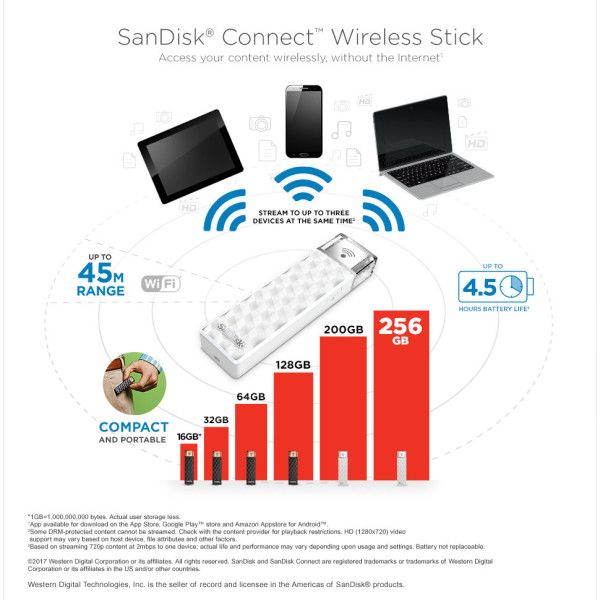
today iam going to introduce you to a cool gadget that is known as SanDisk Wireless Stick. This stick is a wireless USB flash drive, and it is made for Android and iOS devices. It is all about how to import contacts from iPhone to Android. With this flash drive, you can transfer data between three devices at a time wirelessly. This flash drive is available in different sizes from 16 gigabytes all the way up to 256 gigabytes.
You can get yours from Amazon or AliExpress.
CONNECTION THROUGH WI-FI
Do you know you can use this flash drive to transfer data from one phone to another? This flash drive has Wi-Fi functionality in it. To turn it on, press the switch, a white LED will pop up which means it is turned on. To use this USB flash stuff, you have to charge it for at least two hours. Once it is fully charged, you can use it for four hours continuously. You can charge it from your computer or any charger that has a USB port on it.
Before you connect to USB flash drive, you need to download the apps on your both devices. So, go to App Store or Play Store and search for SanDisk connect, download and install this contact transfer app on both of your devices. San Disk connect is known as an app to transfer contacts from iPhone to Android and vice versa.
After that, you need to connect both your phones to a Wi-Fi which is coming from the USB flash drive. So first of all, connect your iPhone to Wi-Fi. Once you connect it, it will point up the app that you just downloaded. If you have a lot of files in the flash drive, you can access it from both devices. If you want to save data from the USB drive to your iPhone, select the ones that you want. After that, you will have an option, tap on it and save it to your camera roll. If it is a picture or video, you can keep it to your camera roll.
The Actual Process
The
main aim is to transfer contacts from iPhone to Android. Now, go to the phone that you want to move contacts from. Here I’m telling you about transferring contacts from iPhone.
· Go to the settings.
· Scroll all the way down.
· Under the contacts, there is an option by the name “Backup.” Just tap on it.
· Tap on “yes,” and it is going to show all your contacts that are already stored on your iPhone.
· Now all you need to do is select all. After that, tap on “Backup,” and it is going to start transferring your contacts to the USB flash drive.
· After complete transfer, you will have a Backup of your contacts.
Now, go to the Android and open the same app that you just downloaded. After that:
· Go to settings and scroll all the way down.
· This time, select restore, don’t choose backup because you have already backed up your contacts on the iPhone.
· Hence, restore contacts, tap on “Allow.”
· Here you will see your backup files, choose the latest one and tap on “Restore.” And it is going to restore or download all the contacts that are backed up from the iPhone.
· Here you will see a dialogue box that says restoration is completed.
· Go to the contacts, and you will see all the contacts that were restored on the iPhone.
IPHONE CONTACTS TO ANDROID USING 3rd Part Software
The second method is using a third party software to transfer data from one phone to another.
DR FONE – SWITCH AND ITS FEATURES:
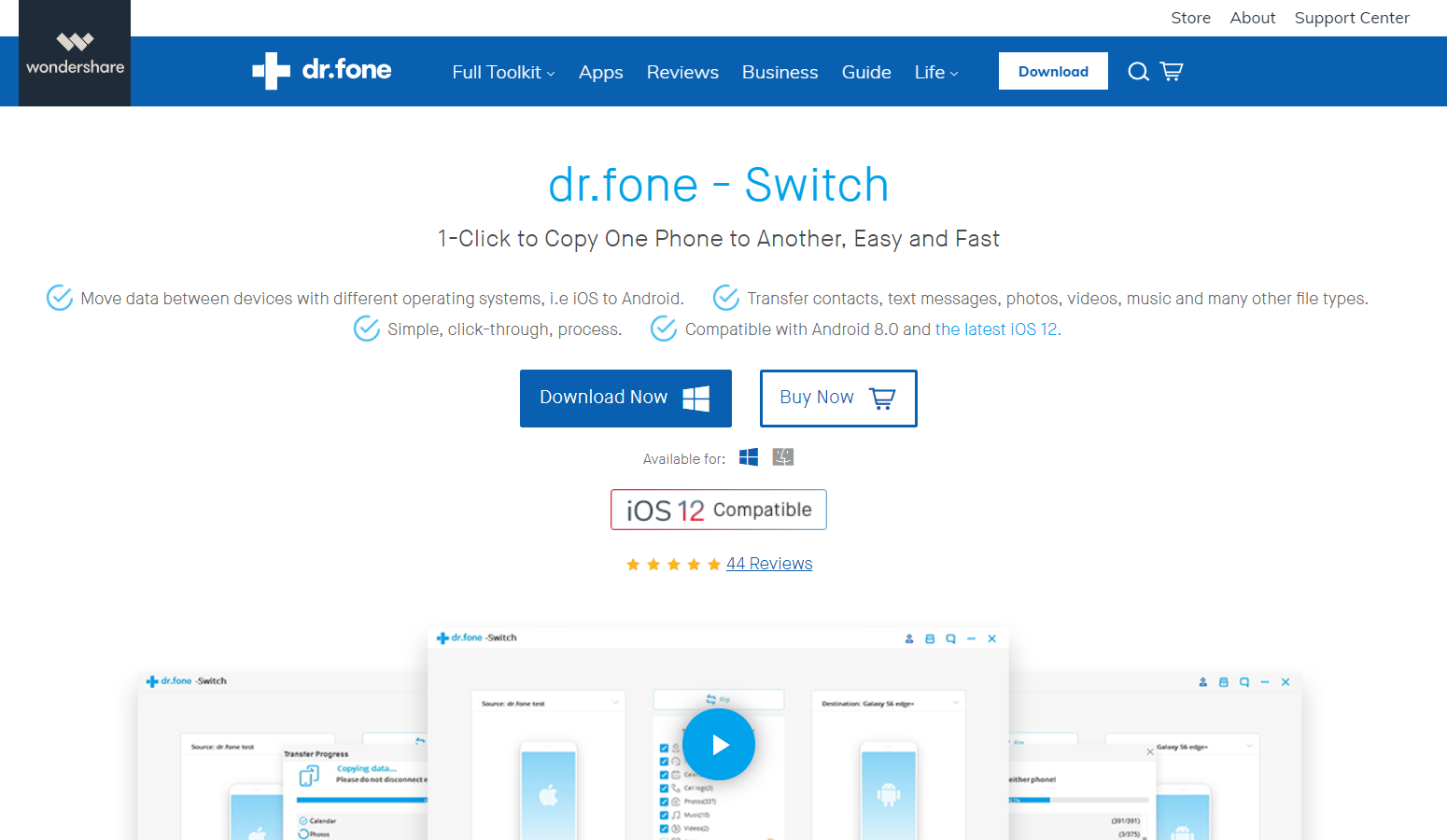
The software that is used for this purpose is Dr. Fone – Switch.
This software is also available for Mac users and also compatible with the latest iOS versions. So, you need to download and install it.
· Once you install the software, open it up.
· This software is the world’s number one smartphone management software specially designed for Android and iOS devices.
· With this software, you can recover any deleted files from your Android and iOS devices.
· You can transfer data between your phone and your computers. You can also backup and restore your smartphones.
· One of the fantastic features of this software is to Restore Social App.
· With this feature, you can manage all your social media apps like WhatsApp, Line, Kik, Viber, and WeChat.
· With this option, you can also backup and restore your WhatsApp messages to your computer.
HOW TO TRANSFER FILES FROM IPHONE TO ANDROID USING DR.FONE SWITCH
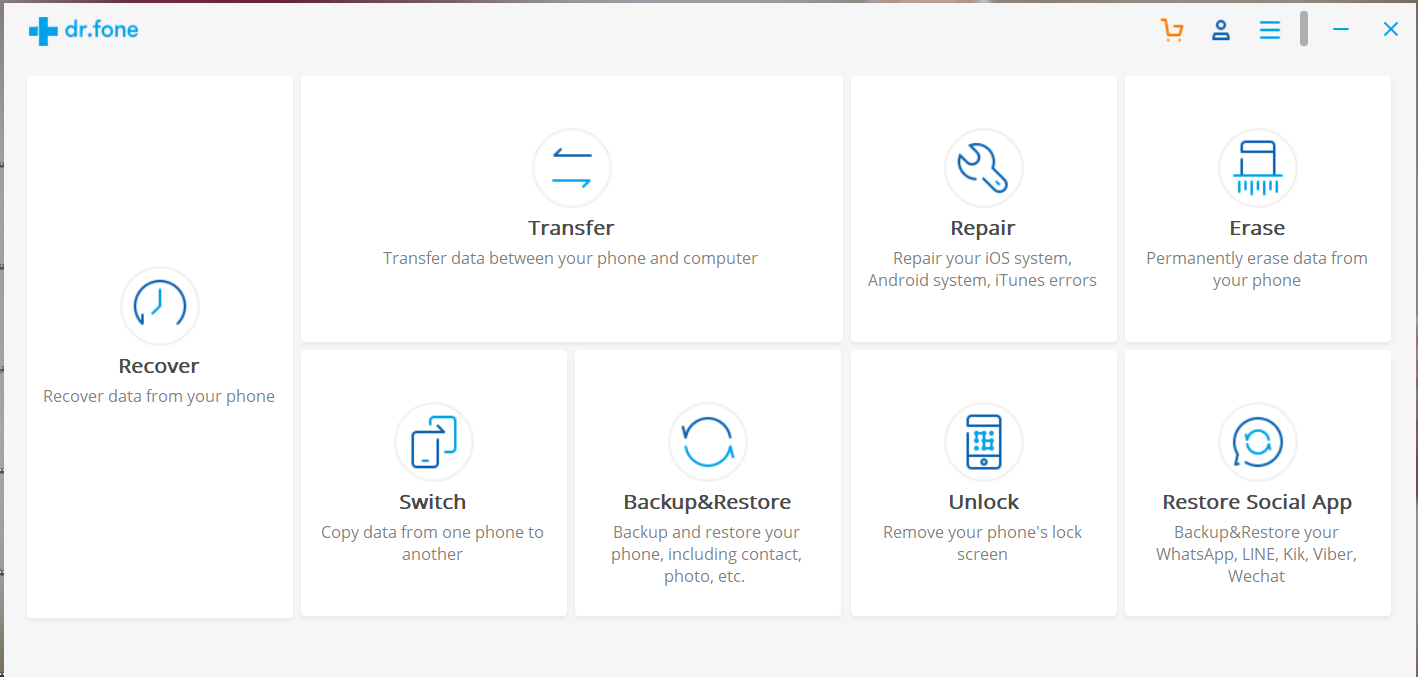
You can also transfer WhatsApp messages from one phone to another. For example, if you are transferring WhatsApp messages from iPhone to Android or Android to iPhone, you can do so by choosing this option. This software is not free though; you have to purchase it. If you buy the software, it works every single penny of your money. It is all in one solution for every smartphone user. To transfer data from one phone to another:
· You are going to select the Switch option and click on it. It will ask you to connect your phones to your computer.
· Connect both the phones via USB cable. Give it a minute to load data from your both phones.
· Now, you will see the source phone on the left side that will transfer the data.
· On the right side, there is a destination phone that will receive the data.
· If you want to transfer the data from right to left, click on the flip and it is going to change the order.
· If you want to transfer data from iPhone to Android, keep your source phone as iPhone and destination phone as Android phone.
· In the center, there will appear all the data on the source phone. From the list, select the type of files that you want to transfer.
As above mentioned, you can transfer your contacts, text messages, call logs, calendar, reminder and everything except the apps and app data because you know iOS and Android are two different platforms in terms of Apps.
· Choose the files and click on “Start Transfer.”
· After that, the transferring process will begin.
· During this process, don’t disconnect either of your phones. If you see any pop up on your smartphones, all you need is to give permission.
· After that, all your selected files will be moved from ios to android.
That’s how you can transfer contacts from iPhone to Samsung, and other files from iPhone to Android or Android to iPhone