Turn Your Hot Wheels Into Art: Smart 1:64 F1 Display Stand
6552 Views, 58 Favorites, 0 Comments
Turn Your Hot Wheels Into Art: Smart 1:64 F1 Display Stand

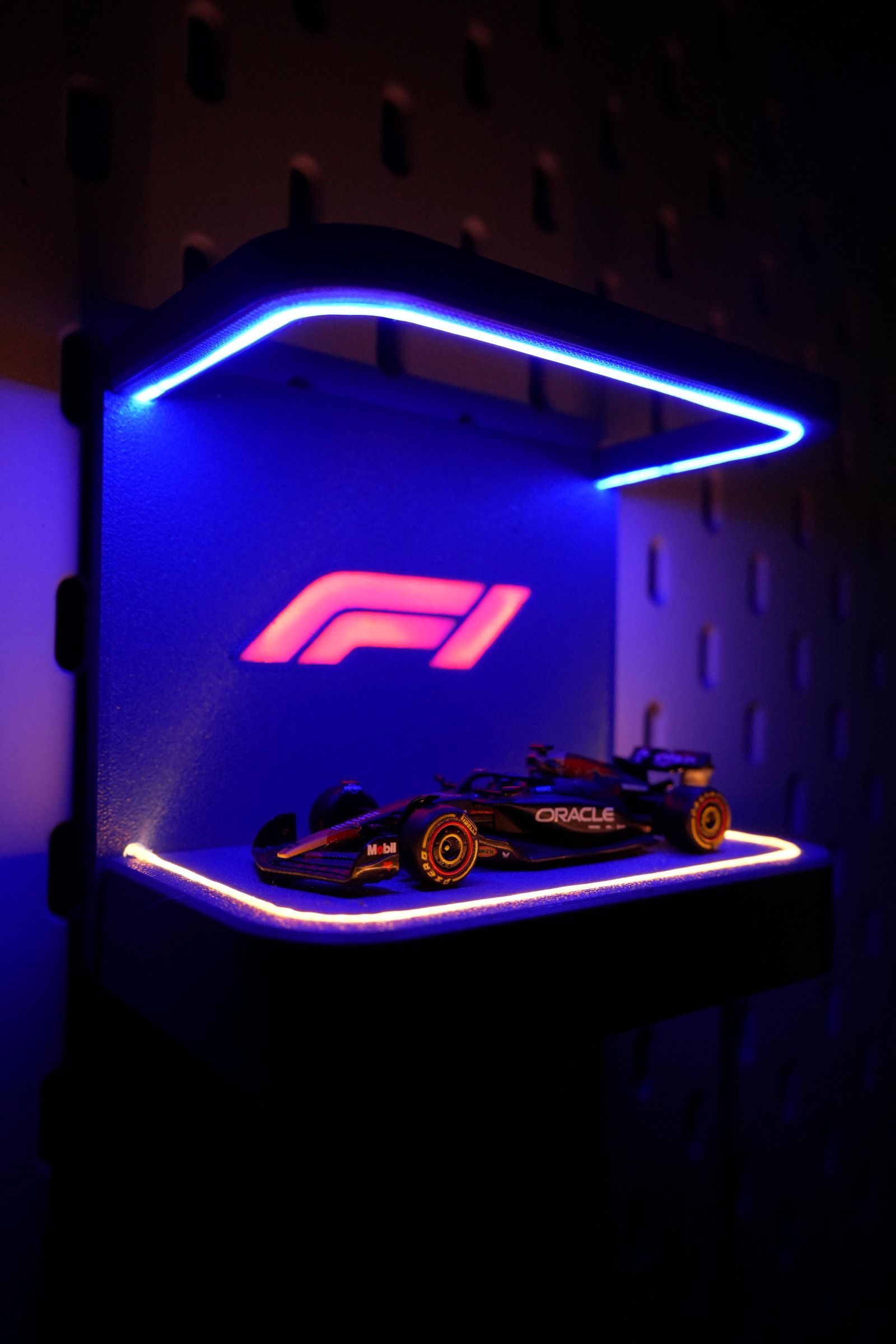

I recently acquired a 1:64 scale F1 car that looks fantastic. This inspired me to think of a creative way to display it. I decided to design a custom 3D-printed display stand with integrated LED lights, which can be controlled wirelessly using WLED. This setup allows me to manage each LED section individually. The stand can either sit on a desk or be mounted directly onto a pegboard. Let's dive into the details!
Supplies

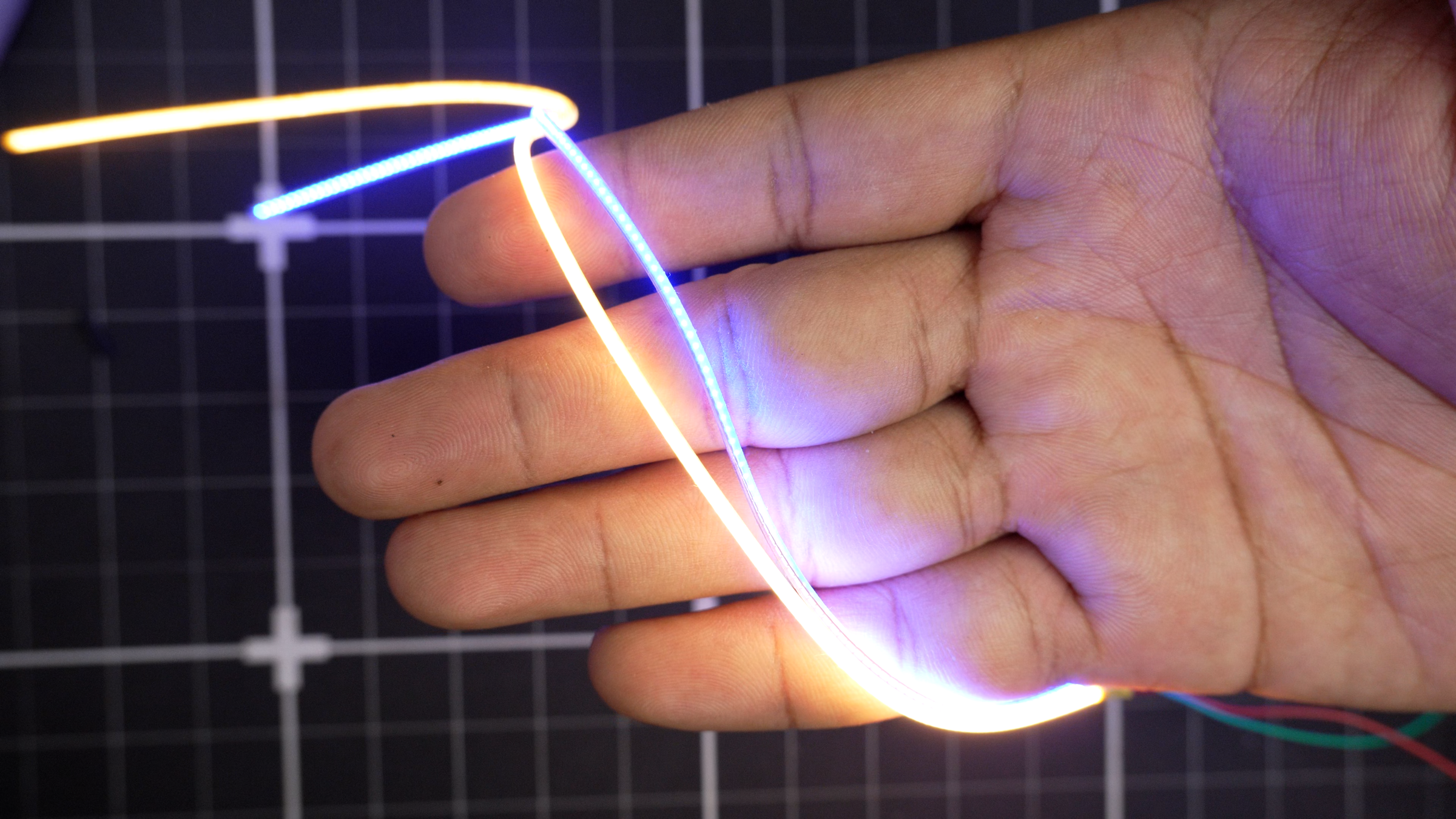

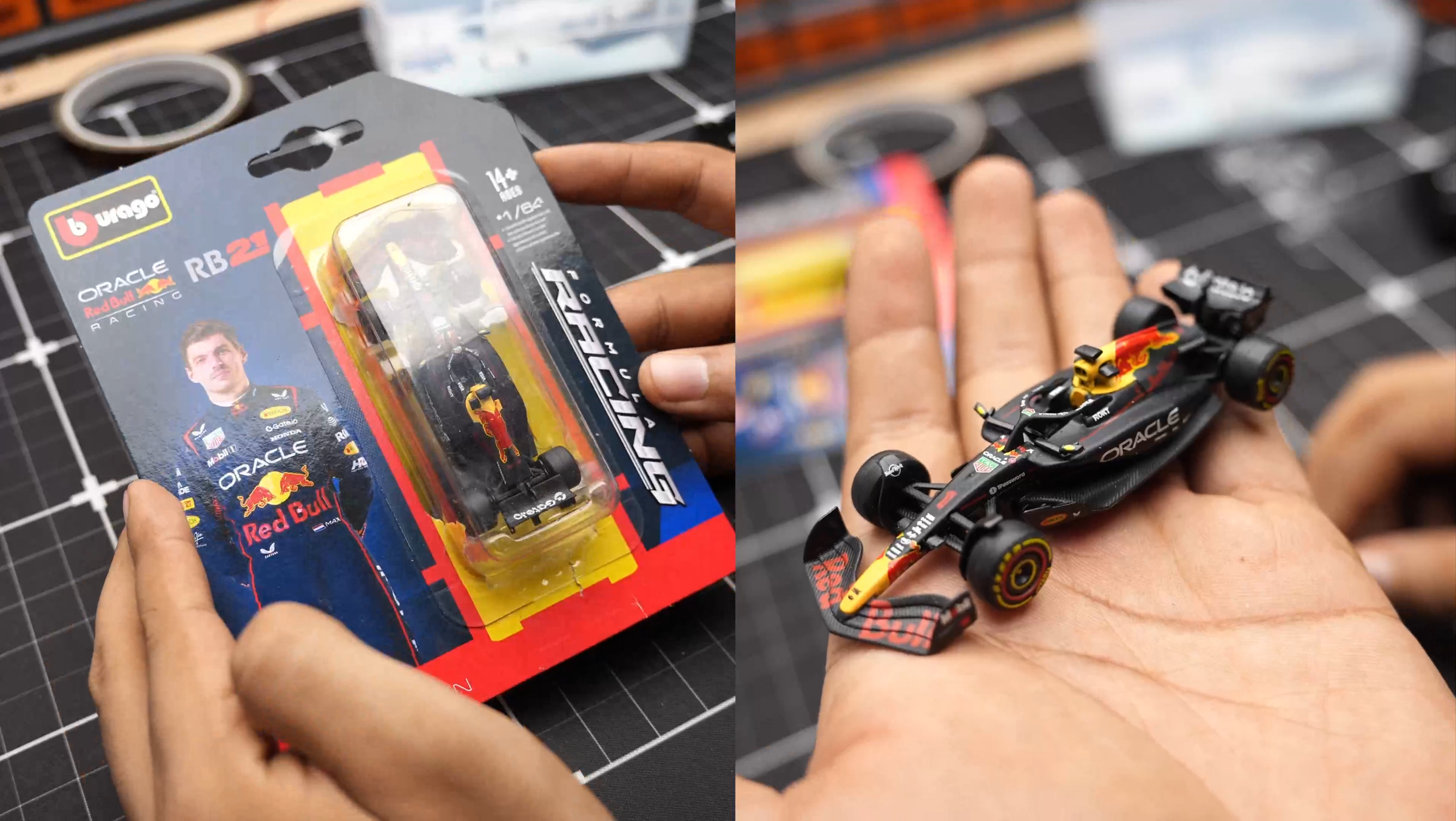
THE LEDs


Studio, and for this project I'm using three colours: blue, warm white, and red.
These COB LEDs are seriously impressive — they're bright, ultra-thin, and ultra-flexible, which makes bending them into shape a breeze. They come in two terminal configurations: double-ended and single-ended. Double-ended strips have positive and negative terminals on both ends, while single-ended strips have both terminals on the same end. The big advantage of single-ended strips is that you can cut them to any length and they'll still work perfectly.
For this build, I'm going with single-ended COB strips. That said, the terminals are quite delicate, so to protect them, I'll be using heat-shrink tubing.
PREPARING THE LED STRIPS


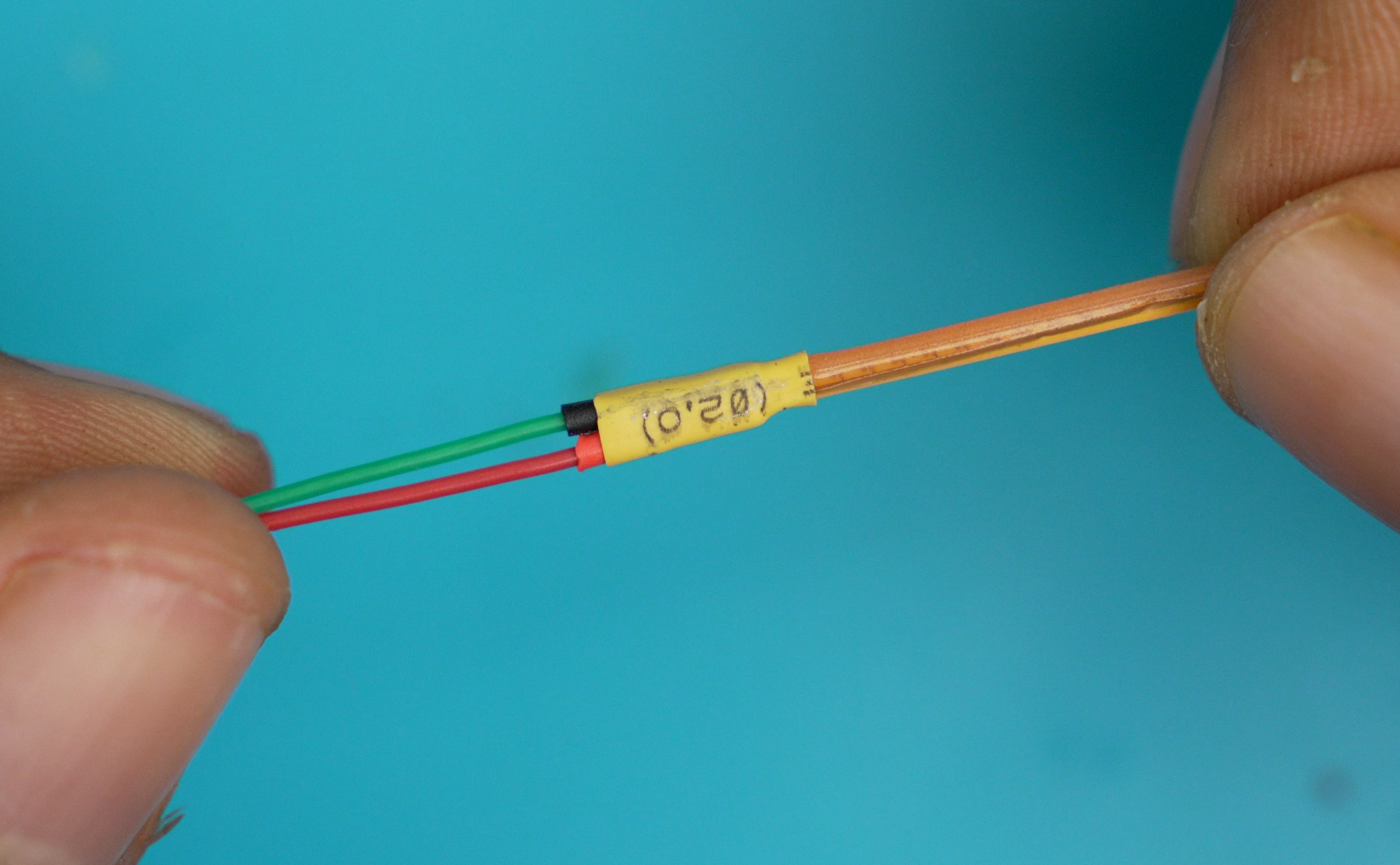
Start by tinning both sides of each terminal, then solder your wires on. I'm using two sizes of heat-shrink tubing: 1 mm for the individual terminals, and 2 mm to cover and secure both terminals together. Apply heat with a soldering iron to shrink the tubing down. Repeat this process for all of your LED strips, and you're done with the prep.
THE CONTROLLER

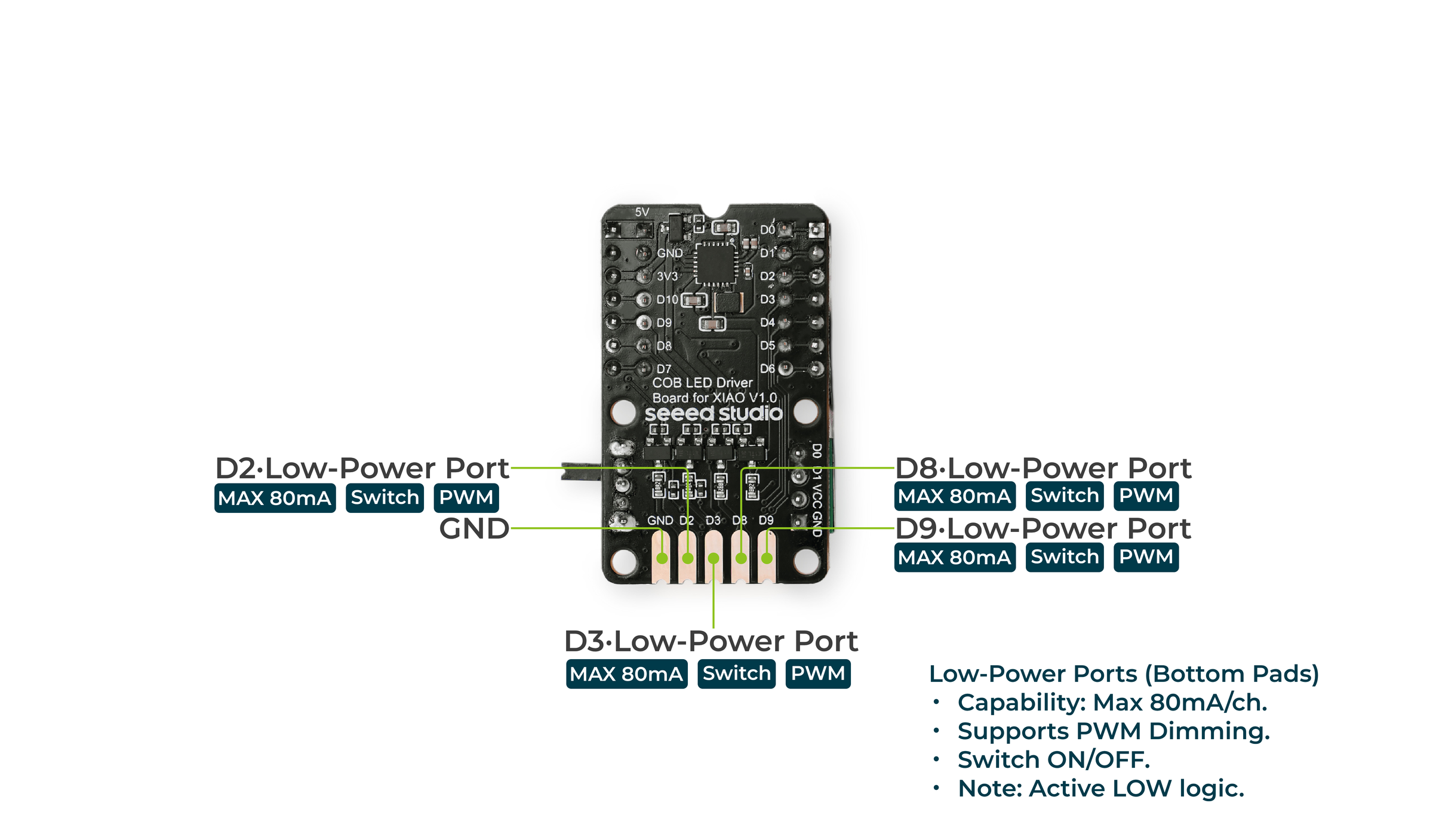
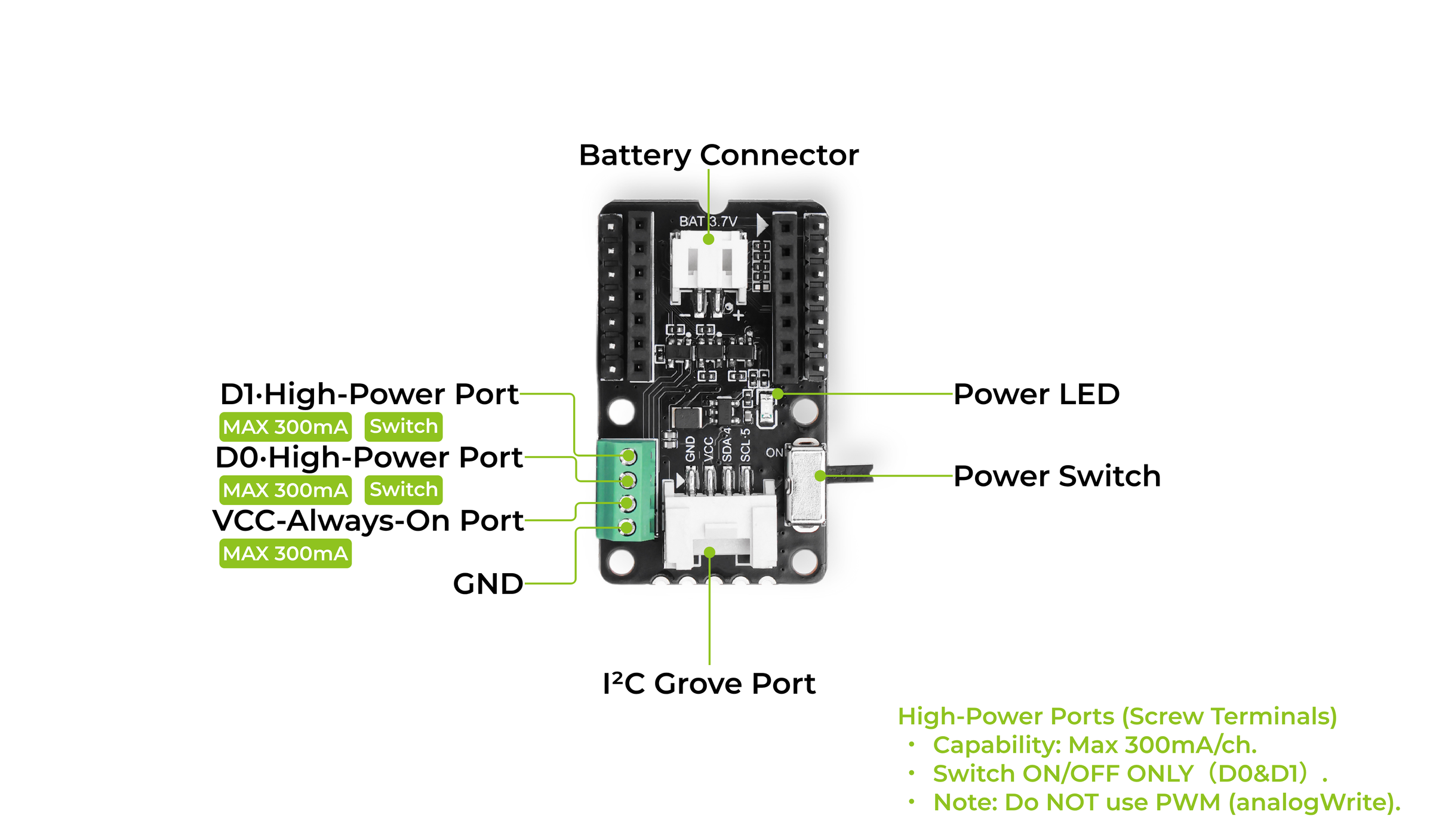
Now, how do we control all these LEDs? The answer is the COB LED Driver Board for Seeed Studio XIAO — a 7-channel driver board purpose-built for this type of LED. It features integrated PMIC battery management, making it the perfect plug-and-play solution for a compact, high-brightness wireless lighting setup. For this project, I'm only using three of the 80 mA channels — one for each LED colour. I'm mounting a Seeed Studio XIAO ESP32-C3 onto the board.
THE ENCLOSURE


I designed the enclosure in Fusion 360. I added 1 mm deep channels throughout the body to neatly route the COB LED strips, and the main driver board sits flush on the bottom. Once the design was finalised, I printed all the parts — dark blue PLA for the main body, and translucent white PLA for the F1 logo, which gives it a really clean illuminated look.
Schematic
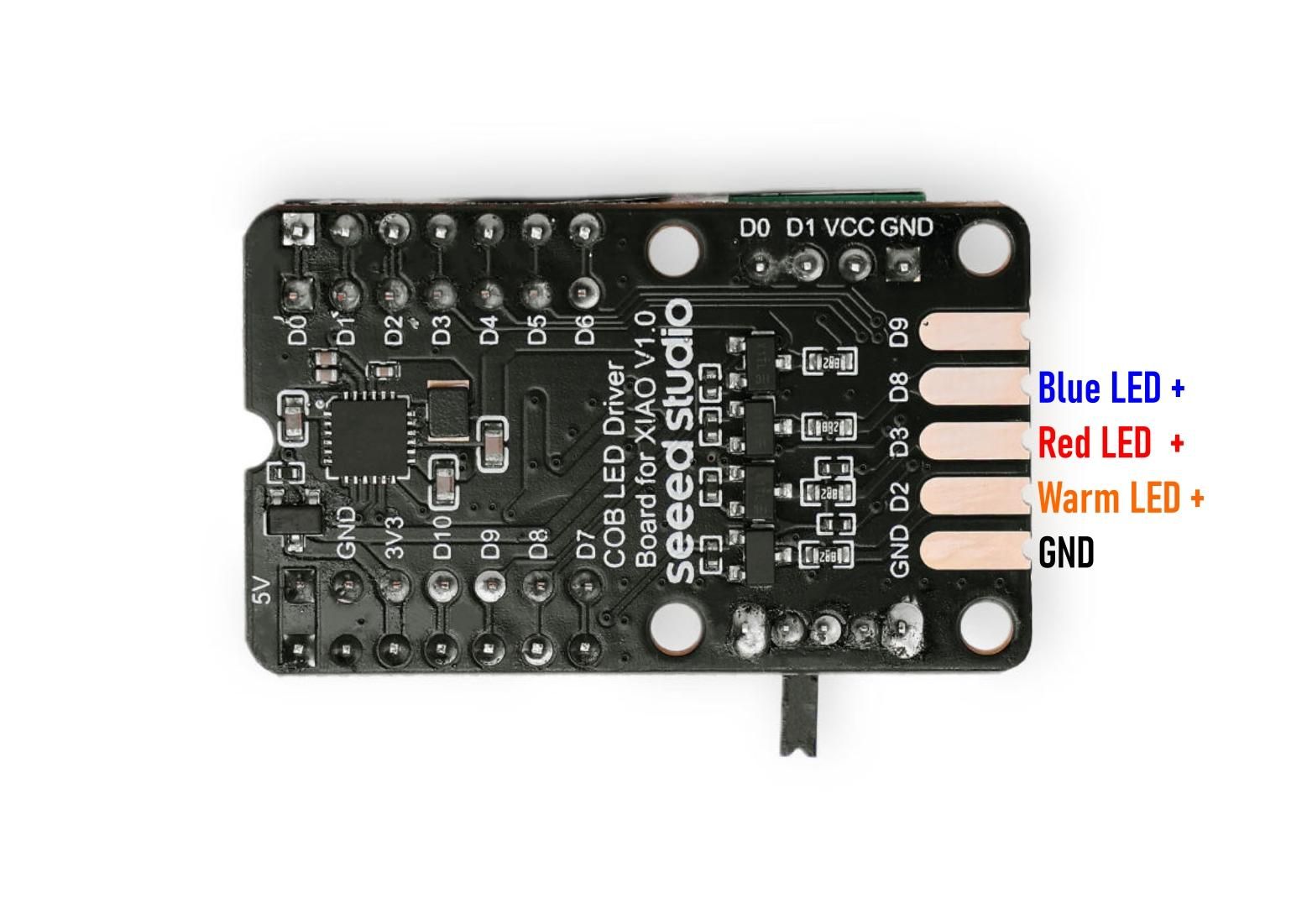
Here is the schematic to connect the COB LEDs to the COB LED Driver Board for the Seeed Studio XIAO. The ground is the common connection for all the LEDs.
Bottom Light


Insert the warm LED into the channel and cut the rest of the LED off.
Top Light


Insert the BLUE LED into the channel, then cut off the rest of the LED.
F1 Logo

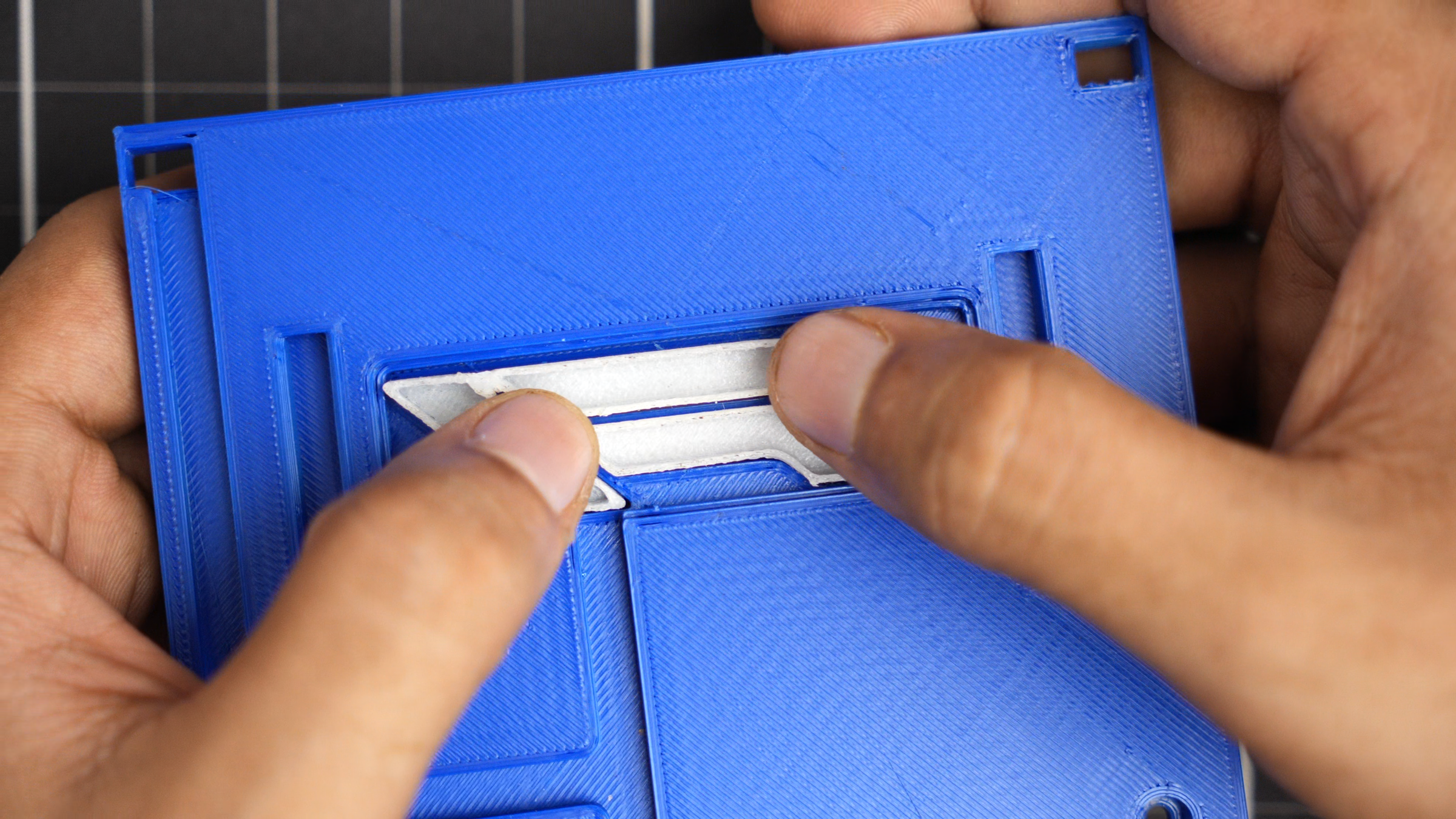
Insert the F1 logo into the slot and apply some pressure; it will snap into place.
F1 Logo Lights
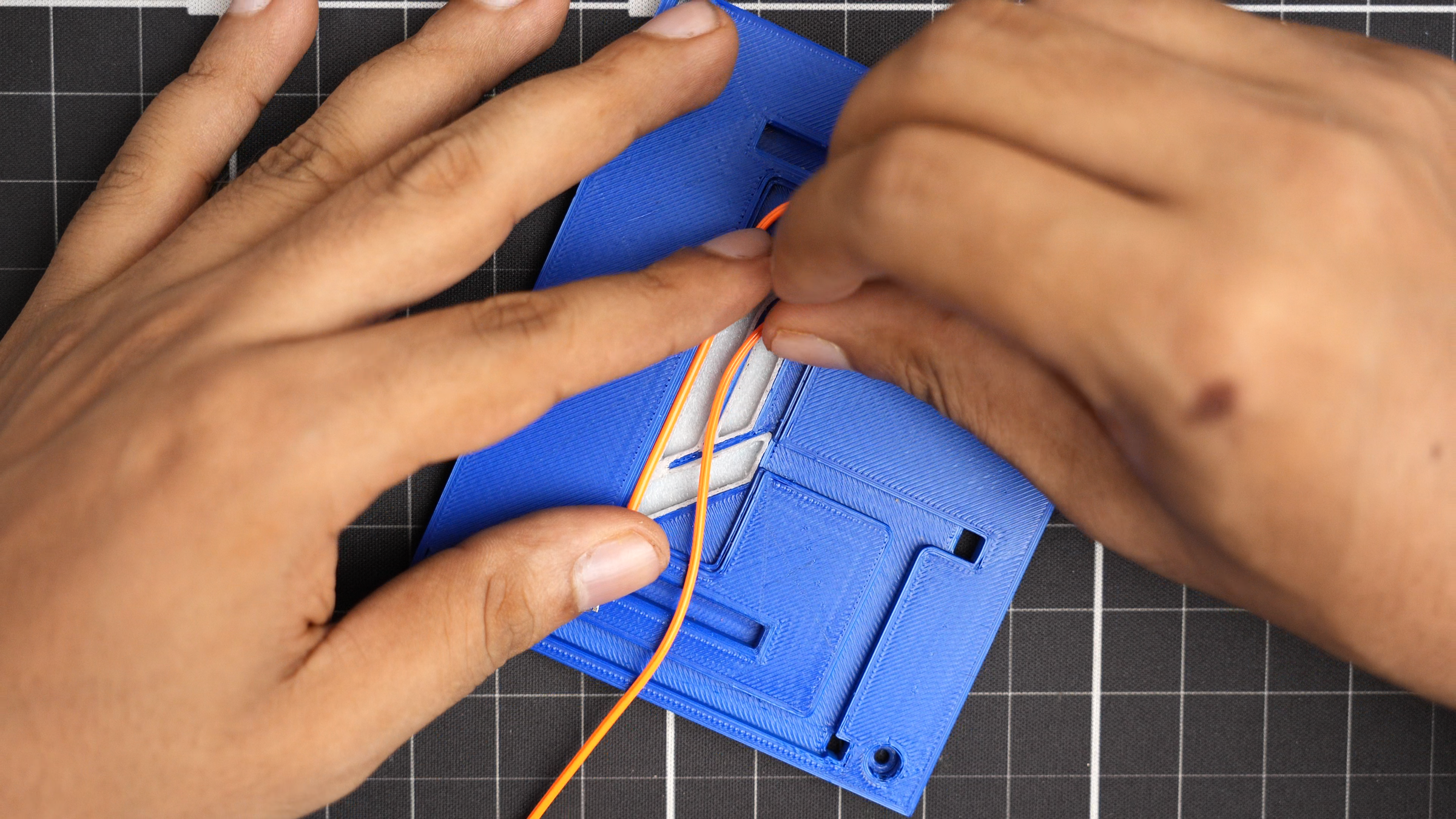

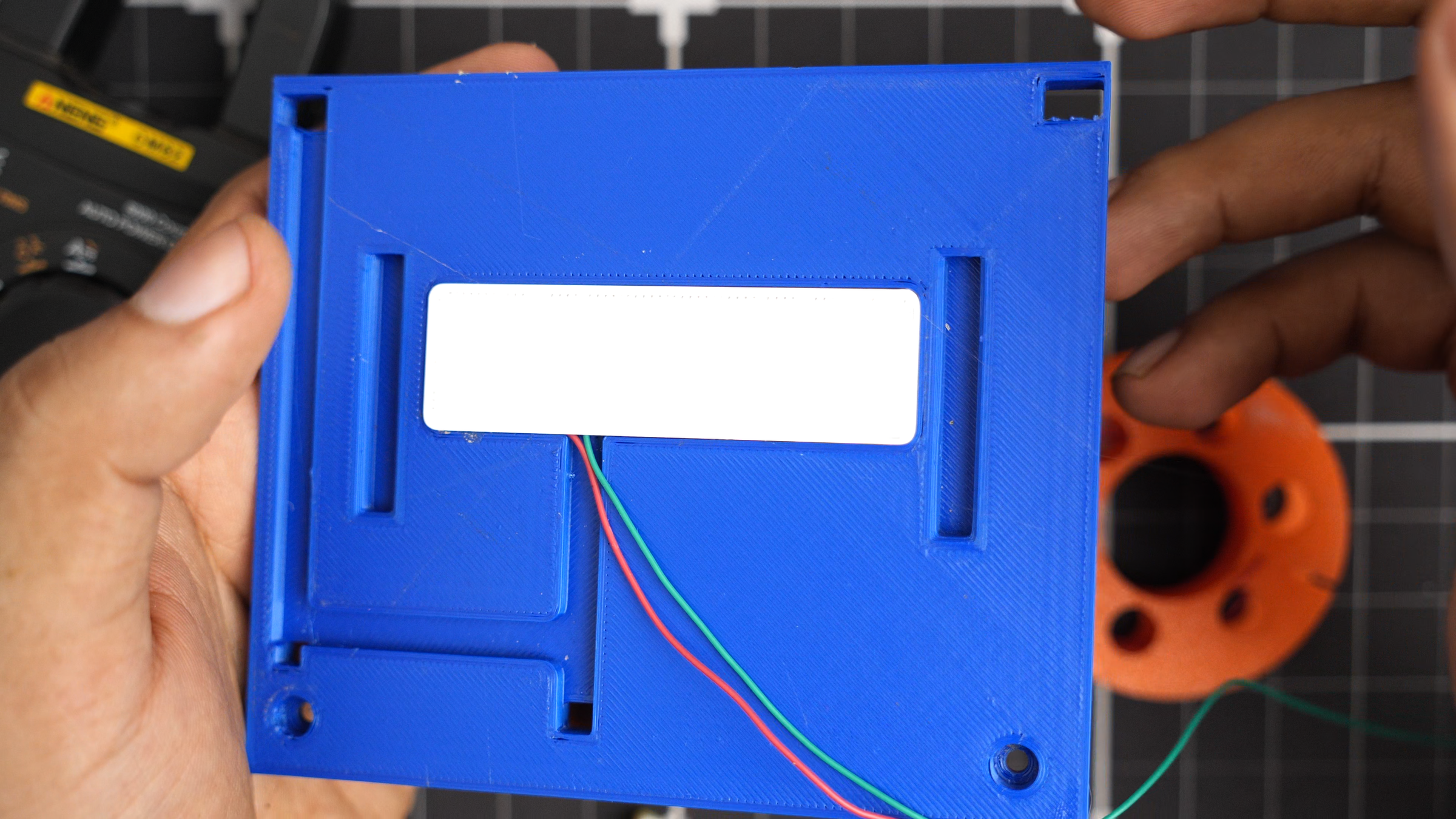
Attach the red LED to the back of the F1 logo and secure it with the back cap.
Top Light Holder


Run the wire through the gap and place the top light holder into the slot. Use some glue if you like.
Bottom Light Holder


Run the wire through the gap and place the bottom light holder into the slot. Use M3 screws to secure it
Wire Management

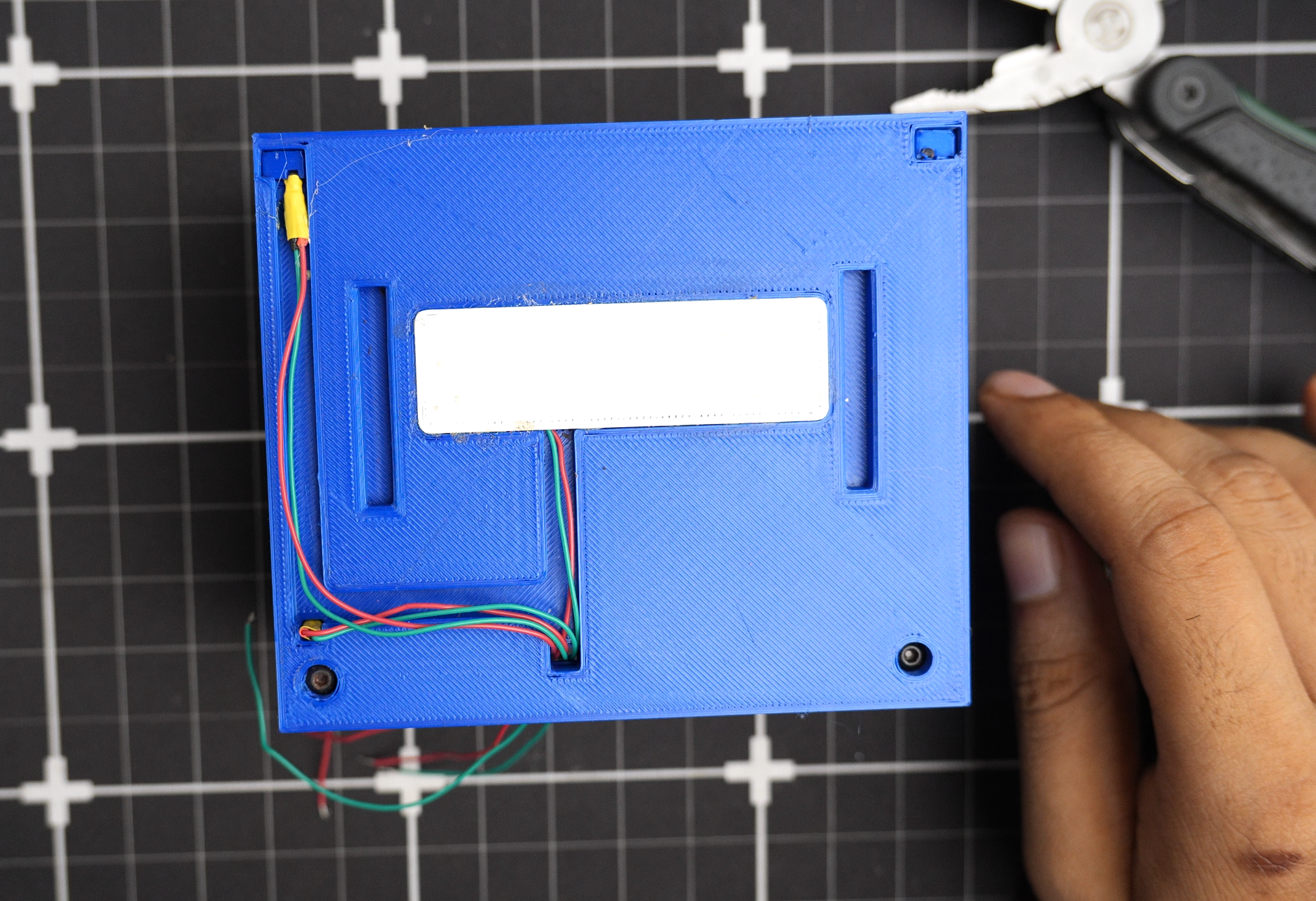
Run all of the wires through the back channels and bring them out the bottom.
Driver Board Installation

- Connect the Seeed Studio driver board with the XIAO.
- Place it on the bottom and secure it using M2 screws.
- Solder all of the wires according to the schematics.
WiFi Antenna

Connect the Wi-Fi antenna to the Xiao and attach it to the wall.
Bottom Cap


Install the bottom cap and secure it using some M3 screws.
Mounting to the Pegboard
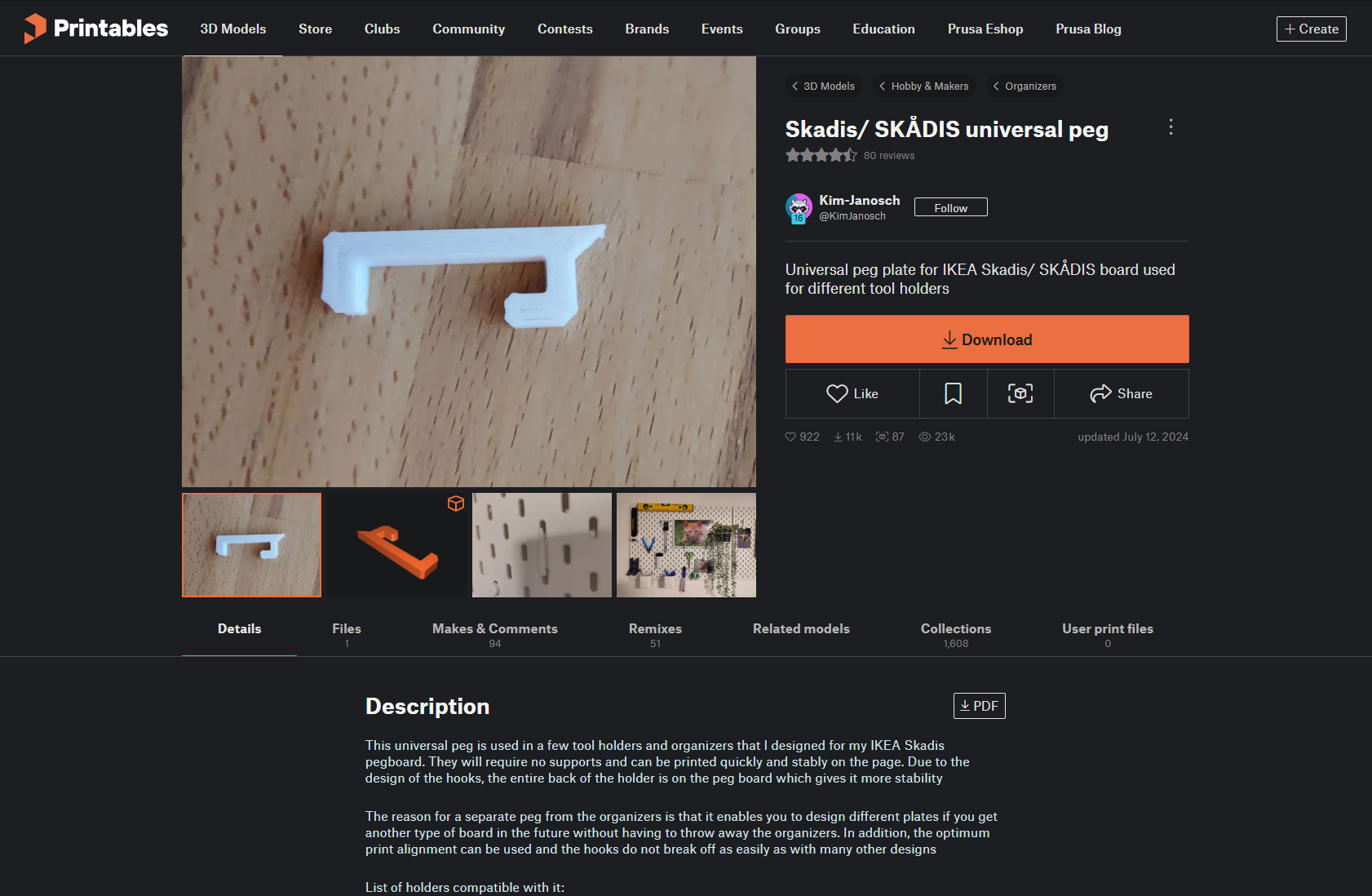

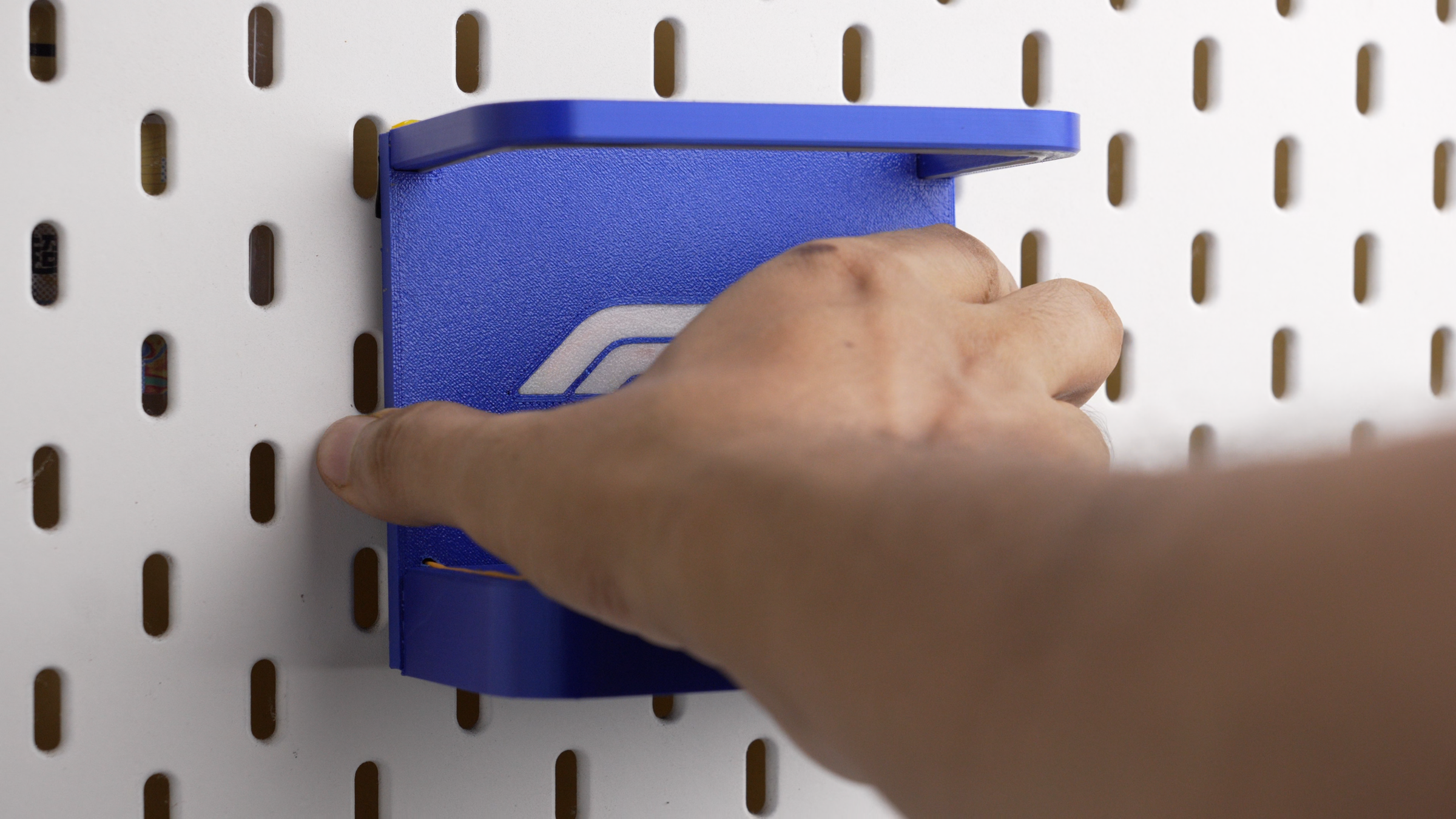
To mount this to the pegboard, I used a SKÅDIS universal peg from printables by Kim-Janosch. Printed two of these and placed them in a spacing so we can slide the top to the bottom to get a latch on it.
USB Cable
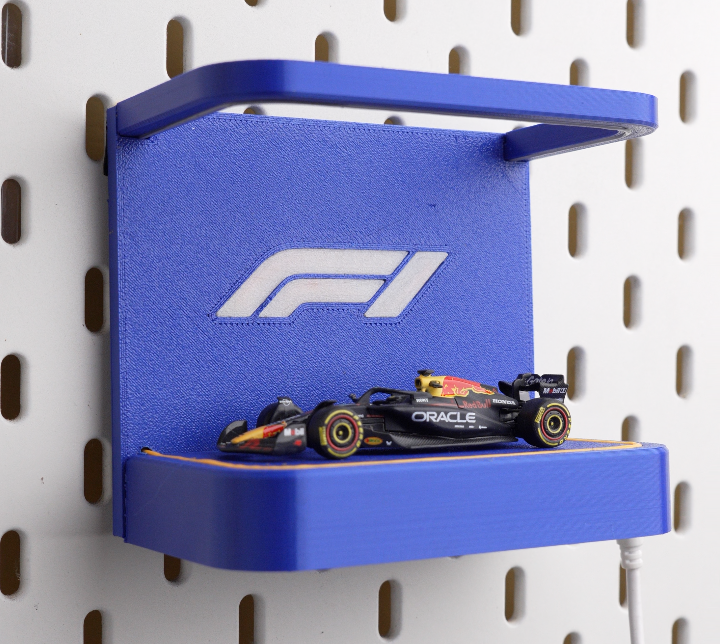
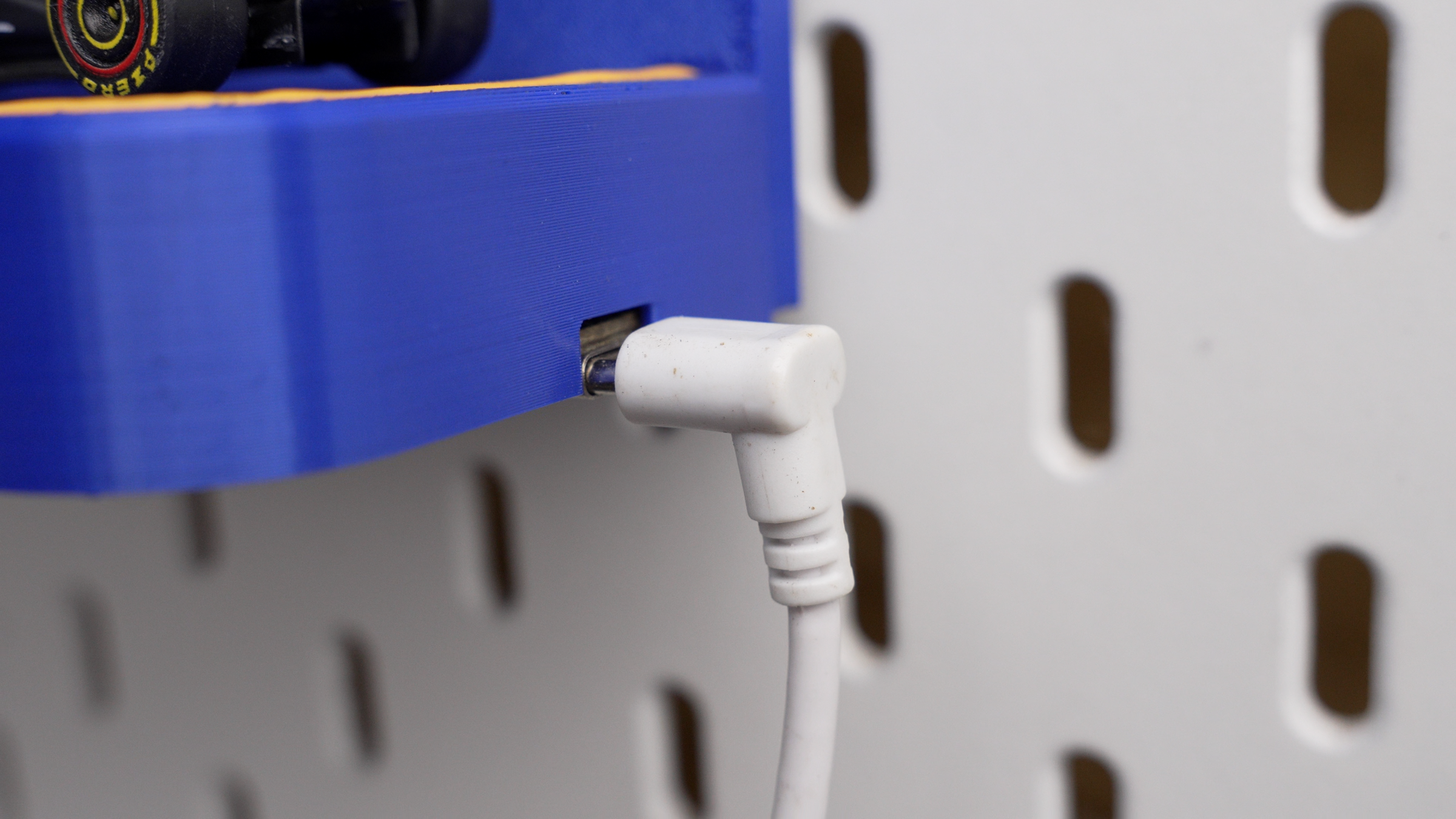
I used a 90-degree white USB cable to connect and power my device.
Flashing WLED

To do this, go to the WLED installation page on GitHub; you can find the link in my description. Connect your XIAO ESP32-C3 to your computer, select "ESP32-C3" as the board type, click "Install," and choose your XIAO from the port options. After installing, enter your Wi-Fi password and SSID, and click "OK."
My previous Instructables will help you install WLED https://www.instructables.com/WLED-ON-XIAO-ESP32/
WLED GPIO Set Up


With the build complete, it's time to bring it to life. Connect the device to your PC and flash WLED onto the XIAO ESP32-C3 using the WLED web installer.
Once flashed, open the WLED app and go to Config → LED Preferences.
Change the LED output type to PWM White and set the GPIO to 8. Then add two more PWM LED outputs, assigning them to GPIO 4and GPIO 5. For all three outputs, enable the Invert Output setting. Finally, check the option to make a segment for each output.
Hit Save, and if everything is set up correctly, your LEDs should start glowing right away.
Next, head to the Segments section and rename each segment to match its corresponding LED section on the stand. That's the setup fully complete.
You can find the complete guide in the YouTube video provided.
Enjoy the Build

To mount the stand on the pegboard, I used a universal peg mount, and I'm powering everything with a white 90-degree USB cable to keep things tidy. From here, use the WLED app to connect and customise your lighting however you like.
If you'd like to swap out the F1 logo for a different design, I've included the STEP file in the description — so you can make this stand work with any Hot Wheels car in your collection.
That's it for this build! If you enjoyed it, drop a like and subscribe for more projects like this. See you in the next one.