4-Drive 5.25 Inch Bay to 3.5 Inch Bay PCIe Powered Enclosure
by CHWTT in Circuits > Computers
534 Views, 2 Favorites, 0 Comments
4-Drive 5.25 Inch Bay to 3.5 Inch Bay PCIe Powered Enclosure

Hello there and welcome to my Instructable. In this Instructable, I'll show you how to build what I think is an awesome little drive bay converter, designed for DIY NAS builds. This converter takes 3 5.25 inch bays, think the bays for optical drives and such, and converts them into 4 3.5 inch bays for hard drives. Additionally, this build includes a fan so that your hard drives don't get too hot, and it also has a custom power distribution board included that allows you to power the whole unit, four hard drives and all, from a single 6 or 8-pin PCIe cable. If this sounds interesting to you, keep reading to learn more about building it!
DISCLAIMER: While I've designed this device to be as safe and reliable as possible, it's important to understand that I'm not an officially trained/educated electrical engineer, and at the end of the day, this is a DIY electrical device. Therefore, if you choose to build one, you must accept the risks associated with a project like this, which include things like it failing and damaging your hardware, or possibly it overheating and starting a fire, which can damage your property and injure you. Additionally, for this project, I am not responsible for any data loss resulting from using this device. If you build this, you accept all liability related to the project. And with that, let's have some fun building it!
Supplies
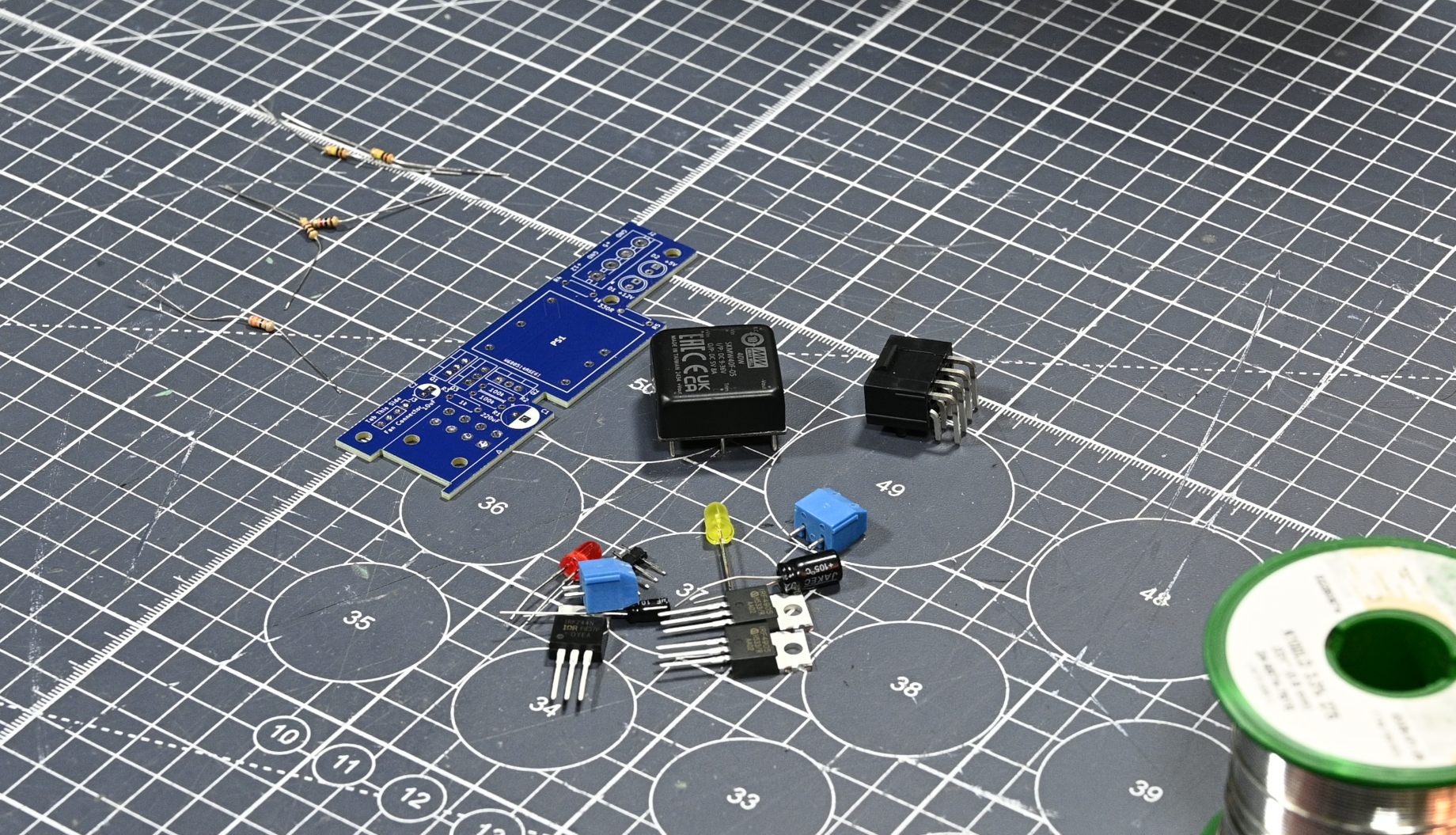
All links in this section, except the PCBWay Shared Project link, are non-affiliate links.
Electronic Components:
1x Molex 45586-0005 PCIe 8-pin Power Connector (Purchase this at your favorite electronics components dealer, I used Mouser.com)
1x Mean Well SKMW40F-05 40W DC-DC Converter (Purchase through an electronics components dealer)
2x 1k Resistor
1x Red LED
1x Yellow LED
1x SATA Power Distribution Cable
1x 120mm Case Fan (Preferrably a quiet model, as this board runs it full tilt 24/7)
Mechanical Parts:
3x M3x6 Screws
Hard Drive Mounting Screws (Up to 12 to mount HDDs, up to 12 to mount adapter)
1x 3D Printed Main Body (Choose either one with an SSD hole or not) - Print this part (STL file provided below) in a more temperature resistant filament, such as PETG. If you don't have a 3D printer, PCBWay's 3D Printing Service can help you out
1x 3D Printed Fan Mount - Same as above goes for this part!
1x Custom PCB - Here's the link to a PCBWay shared project where you can order the PCB for this design (Note PCBWay is my YouTube sponsor). Do note, the PCB/its components are not technically necessary for this build, and you can build just the mounting converter and fan without it. However, if you want the single PCIe cable power functionality, this PCB is needed. Also, if you buy the PCB via the button on the webpage here, I get a small kickback that helps me fund future projects. Otherwise, you can download the gerber files.
Watch the YouTube Video!
As always, I made a YouTube video on this project! A lot of you are probably coming here from the YouTube video, so you can skip this step. However, if you've come across this Instructable another way, definitely watch the video before continuing! It gives a good outline of what the project is, what it does, and what building it will entail.
Assemble the PCB


The first part of this project is to solder all of the components onto the PCB, and thankfully this board is super simple to put together, as it only uses through-hole components and not too many of them either. Pay attention to the schematic (provided on this step) to ensure you place the correct resistor values in the correct spots, as well as to ensure you place the right MOSFETs in the right spots, as two are P-Channel FETs and one is an N-Channel FET. Then, for the 4-pole screw terminal block, take the two 2-pin blocks and use the little locking mechanism built into them to slide them together and create a single 4-pin block.
Downloads
Mount Your Hard Drives Into the Main Enclosure

Next up, use the hard drive screws to mount your hard drives of choice into the enclosure. All 6 standard 3.5-inch drive mounting hole positions have been modeled on the enclosure, though you really only need 4 screws for each drive to be securely mounted. Ensure that the SATA ports are facing the back of the enclosure (the end that has mounting points for the PCB).
Note, if you're building the version that has an SSD hole, mount the HDDs in with their screws, then just slide the SSD into the SSD hole. It should be a decent friction fit, but this needs to come second because it covers the holes for the HDD screws once it's slid into place.
Mount the Fan to the Fan Bracket


Now, you can use four standard PC fan screws to mount the 120mm fan to the fan bracket. Ensure that the cable is oriented in a way that it can reach this small rectangular cutout, so that it can be routed back through the matching channel in the main chassis piece before securing the fan in place.
Mount the Fan Bracket to the Main Chassis
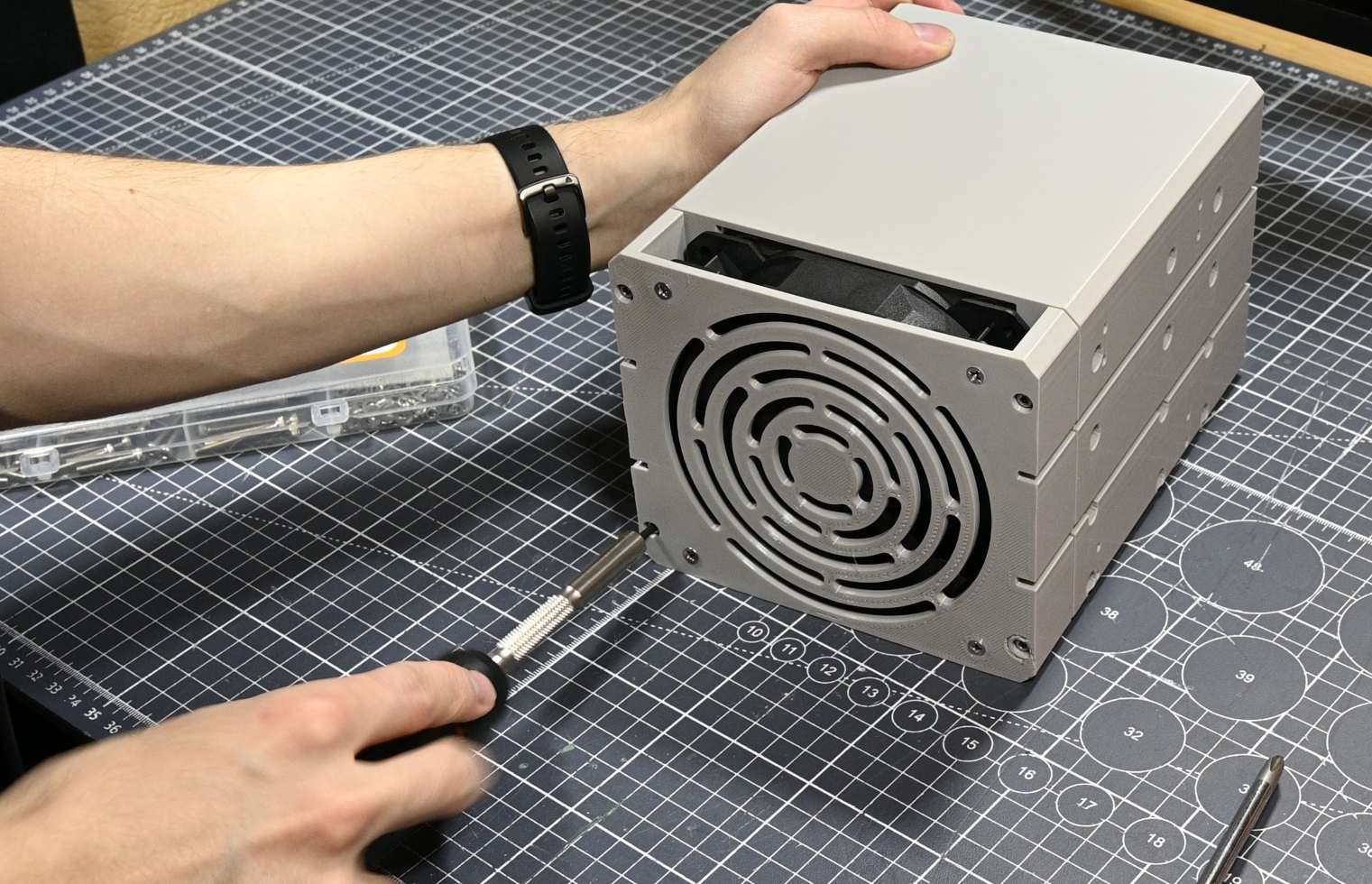
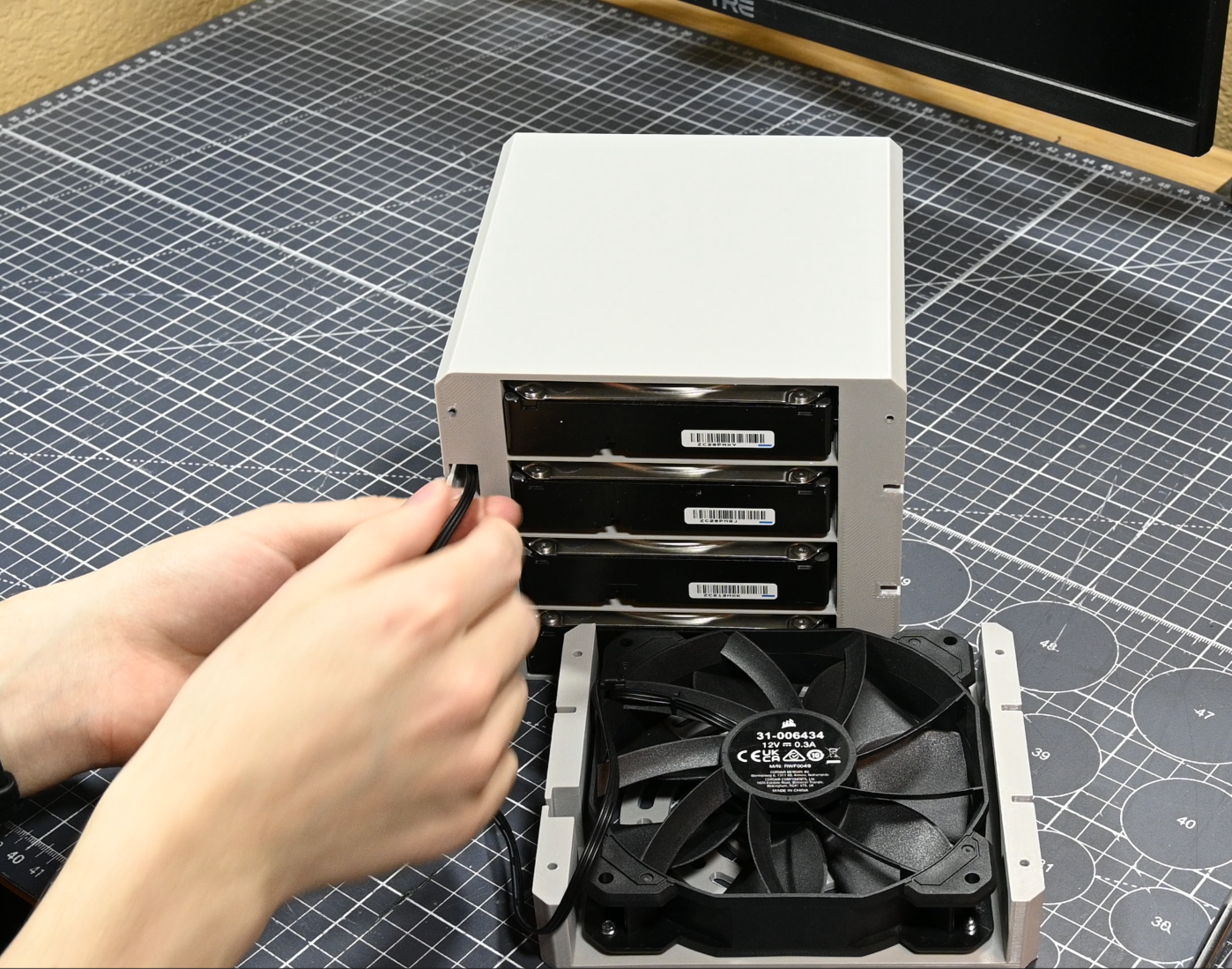
With the four M3x30 screws from the materials list, you can now mount the fan bracket with fan to the front of the main chassis. Make sure you route the fan cable through the rectangular channel cut out for it in the main chassis and don't let it get pinched when tightening down the fan bracket.
Mount the PCB to the Main Chassis

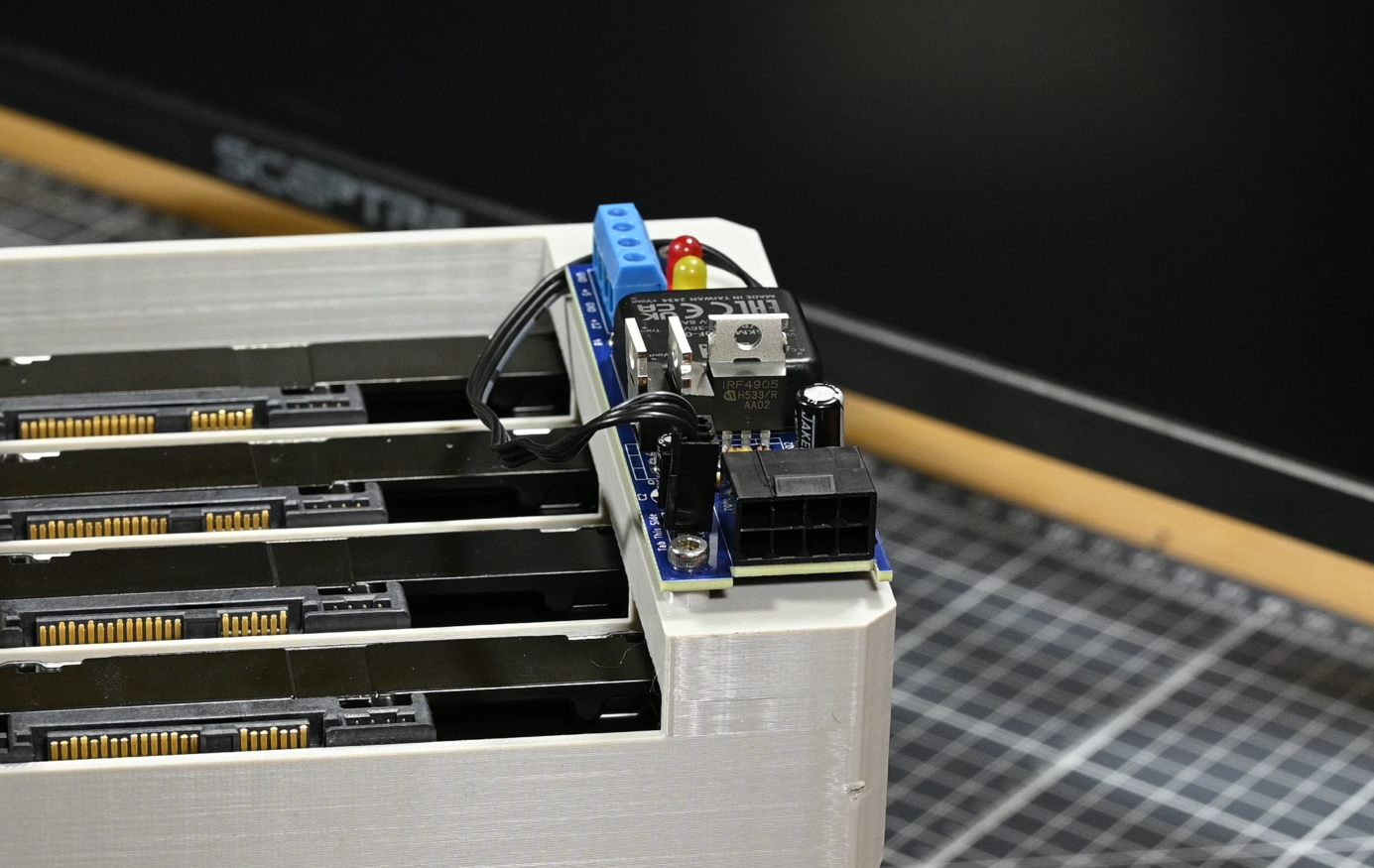
Now you can flip the whole assembly onto the fan grill - carefully, of course, your hard drives are in here! - and then the PCB can be secured to its three mounting points with three M3x6 screws.
At this same time, you can plug the fan cable into the PCB if you so choose to. The header built into this PCB runs the fan at full speed, which I think is fine especially if you are using a nice, quiet fan. However, if you want fan control, you can choose to plug the fan into your motherboard instead. If you do plug the fan into the PCB, follow the silkscreen to help with your connection orientation (nubs for fan header locking go on the side of the text "Tab This Side", and if you're using a 3-pin fan, plug it in so that the pin closest to the mounting screw is unconnected).
Wire Up the SATA Power Distribution Cable


We're nearly there! All that's left is to wire up the SATA power distribution cable, and this is one of the harder parts that requires a lot of attention to detail. The cable I spec'd out has four SATA power connectors to plug into drives, and then one male SATA power connector that allows you to hook it up to a PSU and use it as a 4-way splitter. We are going to cut off this male SATA end, but first I'd recommend plugging it into a PSU (ideally a ketchup and mustard cable one) to trace out which wire is 3.3V (orange), 5V (red), and 12V (yellow). These wires should stay in line from the power supply cable to the SATA splitter cable and can basically be traced right through the connection point.
Once you know which wire on the SATA distribution cable is which, cut off the 3.3V wire as 3.3V is deprecated from the SATA standard, and this board doesn't support it. Then, cut off the male SATA end and wire up the 12V, 5V, and two ground wires to the screw terminal on the PCB. With that, you should be done! However, I HIGHLY recommend plugging in an old junk drive with no important data on it to one of the connections on this cable, and powering it up using the board, to ensure you didn't make a mistake that will kill your drives when you plug the cable into them. If that test goes well, go ahead and plug the four power cables into your four drives, and like that, you're done with the assembly!
You're Done! Install It Into the Case

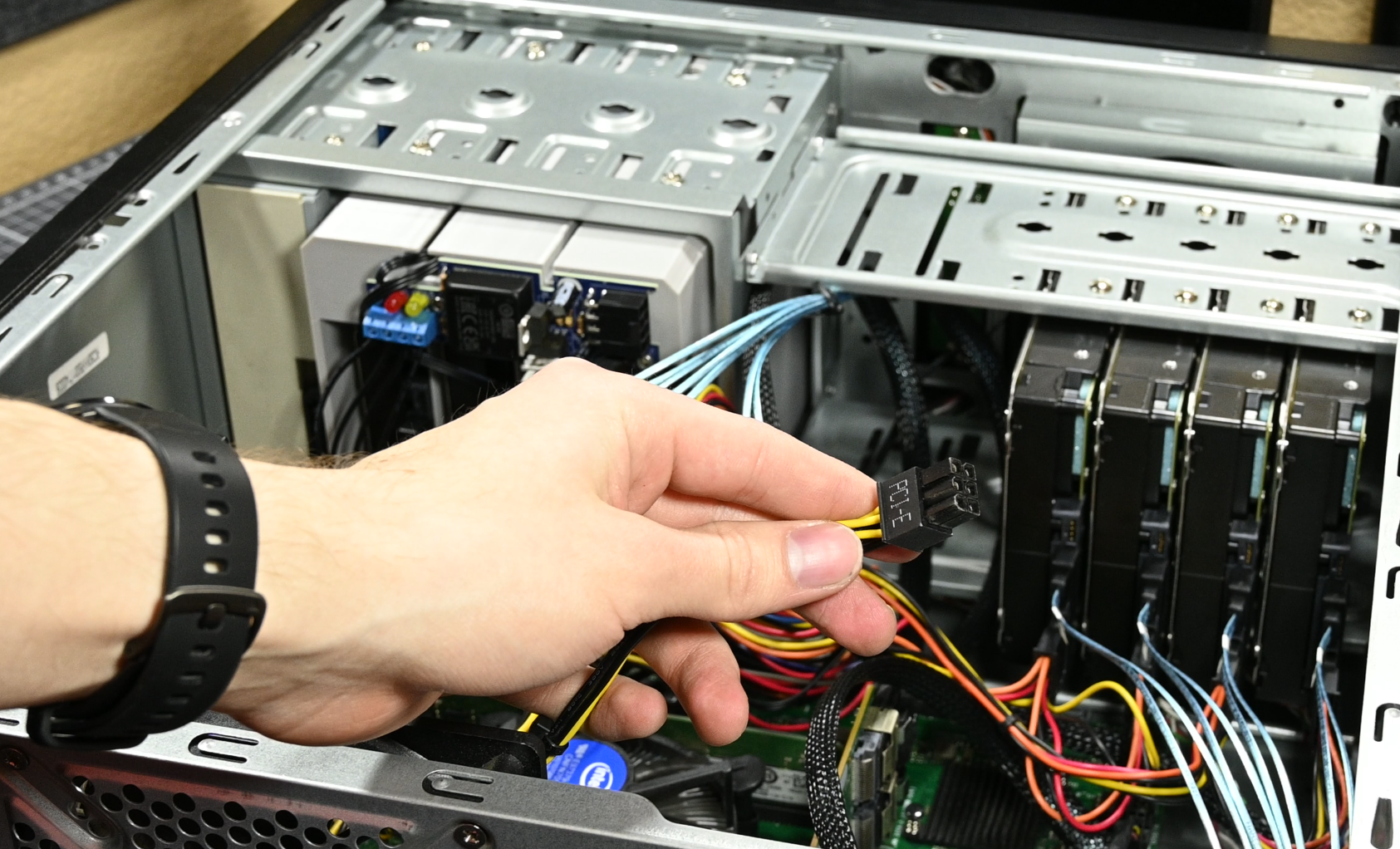

Finally, this assembly can be slid right into the front of your case, into three 5.25" drive bays. Then, it can be secured with several screws. I think 4 on each side is sufficient to keep it secure, though if you'd rather use more like 6 or 8 per side go for it.
Once it's mounted, plug in your single 6 or 8-pin PCIe power cable to the PCIe connector, and then plug in all of your DATA connections for your hard drives, and you're ready to go! I hope that you found this project fun and useful, and if you end up making one for yourself, please share it in the "I Made It!" section below, because I'd love to see it!