A DIY AI Voice Assistant for Home Assistant
by relfwolf in Circuits > Microcontrollers
2204 Views, 20 Favorites, 0 Comments
A DIY AI Voice Assistant for Home Assistant

Build your own voice assistant — intelligent, custom personality, real voice, that controls your smart home.
A voice assistant you actually own. It runs through Home Assistant, uses an AI model of your choice for the brain (ChatGPT, Gemini, or a fully local model via Ollama), takes a custom wake word, and it can speak and act on its own, with no wake word at all. Mine closes the blinds at sunset and announces it, usually with an insult, because I gave it the personality of someone who finds me exhausting.
This guide covers building your own from an ESP32, a microphone, and a small amplifier and speaker. Everything you need is here: firmware, wiring, the Home Assistant side, the personality, and a proper walkthrough of the automation trick that makes it feel alive.
Supplies
Hardware build (~$19)
Most parts come with headers and wires pre-soldered; some suppliers leave the headers for you. Once headers are on the ESP32, the whole build is just female-to-female jumper wires between the pins. No breadboard needed.
Waveshare ESP32-S3 Zero ($11) — Amazon
8Ω 2W speaker, 28mm round ($1) — Amazon
MAX98357 I2S audio amplifier ($2) — Amazon
I2S MEMS microphone ($5) — Amazon
Jumper wires, female-to-female — Amazon
Before You Build: You Might Not Need To
The first part of this guide covers building a small, cheap device so you can speak to the assistant and hear its responses. The self-build is the fun, cheap, customisable route. But if you'd rather skip the soldering entirely, two ready-made devices work in a very similar way — just skip to Step 4.
Home Assistant Voice PE (~$69) — home-assistant.io/voice-pe
M5Stack ATOM Echo (~$35) — Amazon
Hardware


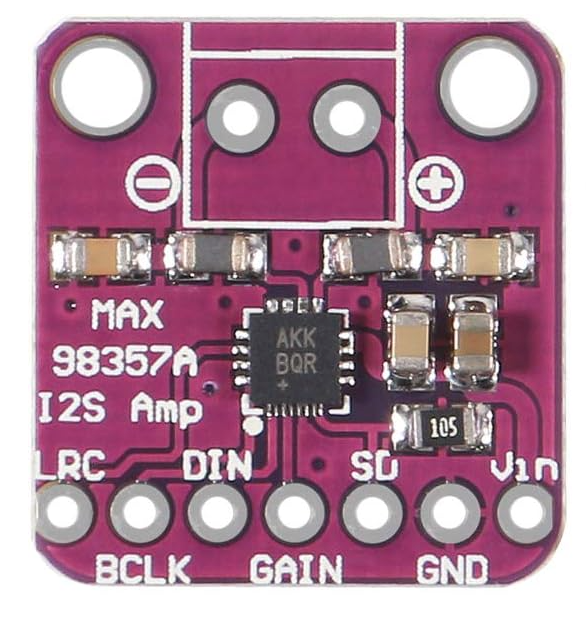
Wire the speaker to the amplifier, then the amplifier and the microphone to the ESP32. That's the whole job.
Microphone → ESP32-S3
- Power: VDD / 3V → 3.3V
- Ground: GND → GND
- Channel select: SEL → GND
- Word select: WS / LRC → GP1
- Clock: SCK / BCLK → GP2
- Data out: SD / DOUT → GP3
MAX98357A amplifier → ESP32-S3
- Vin → 5V
- GND → GND
- LRC → GP4
- BCLK → GP5
- DIN → GP6
- GAIN → leave unconnected
- SD → leave unconnected
Flash the Firmware
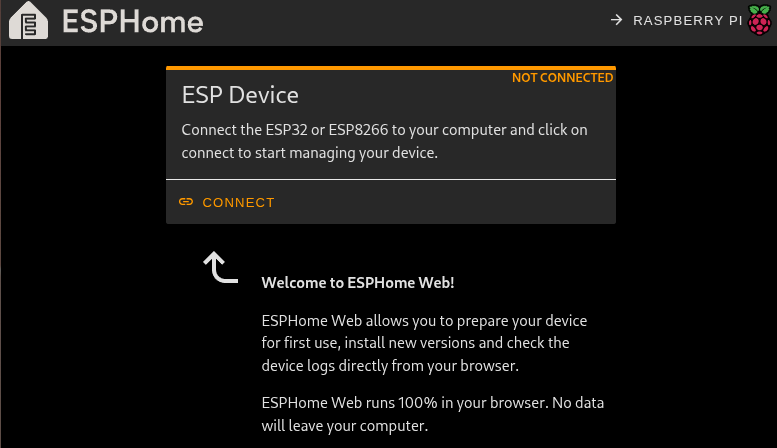


Use ESPHome to put the firmware on the board. Plug the ESP32 into your computer and go to web.esphome.io, or use the ESPHome Device Builder add-on inside Home Assistant.
Inside Home Assistant, make sure the ESPHome integration is installed.
- In Home Assistant, install the ESPHome Device Builder add-on and open it.
- + New Device → name it voice-assistant → choose ESP32-S3 → Skip.
- Click Edit and paste in voice-assistant.yaml, replacing everything.
- Click Secrets (top right) and fill in your WiFi name and passwords.
- Install → Plug into this computer for the first flash. Hold the BOOT button while connecting USB if it isn't detected. Future updates go over the air.
Install the Integrations (ChatGPT)
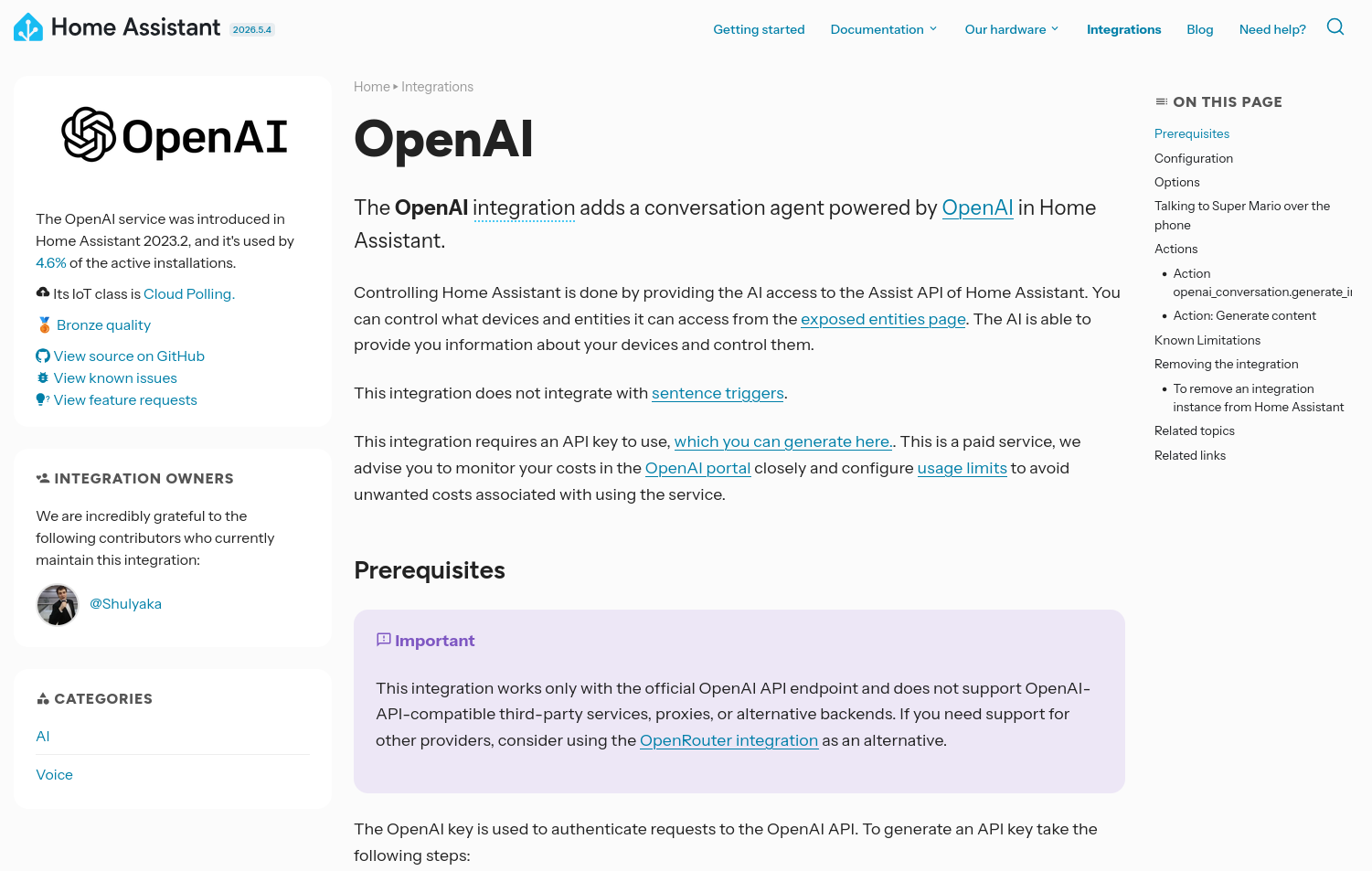
From here on, everything is the same whether you built the device or bought a pre-made one. You'll add three things: an AI brain, a voice, and the speech plumbing.
The AI brain (ChatGPT)
This gives genuinely intelligent conversation and responses. Many agents work — Gemini, Claude, etc. I use ChatGPT as it's easiest to set up.
OpenAI Conversation integration
Go to openai.com/api, create an account, and open the API platform. In the API keys tab, click Create new secret key.
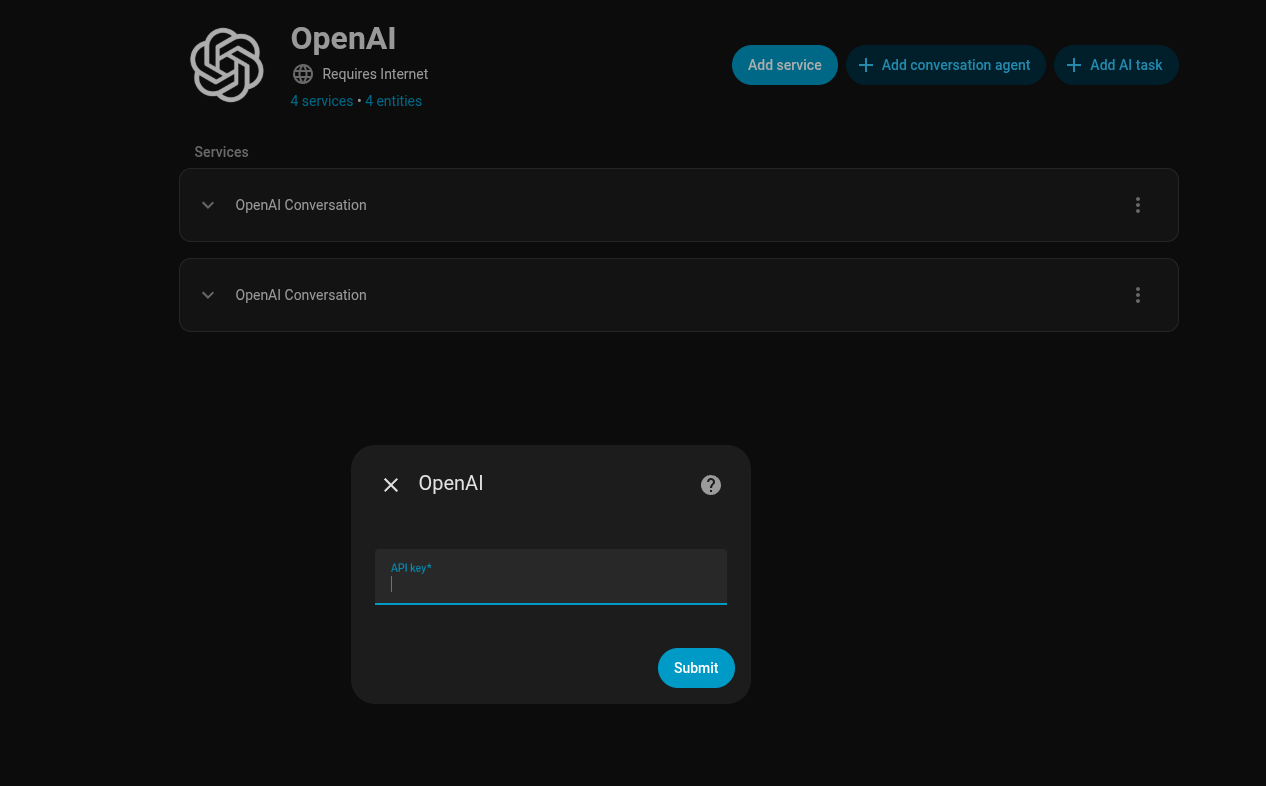
In Home Assistant under Settings → Devices & Services, open the OpenAI integration, add the service, and paste the API key when prompted.
Install the Integrations (ElevenLabs)
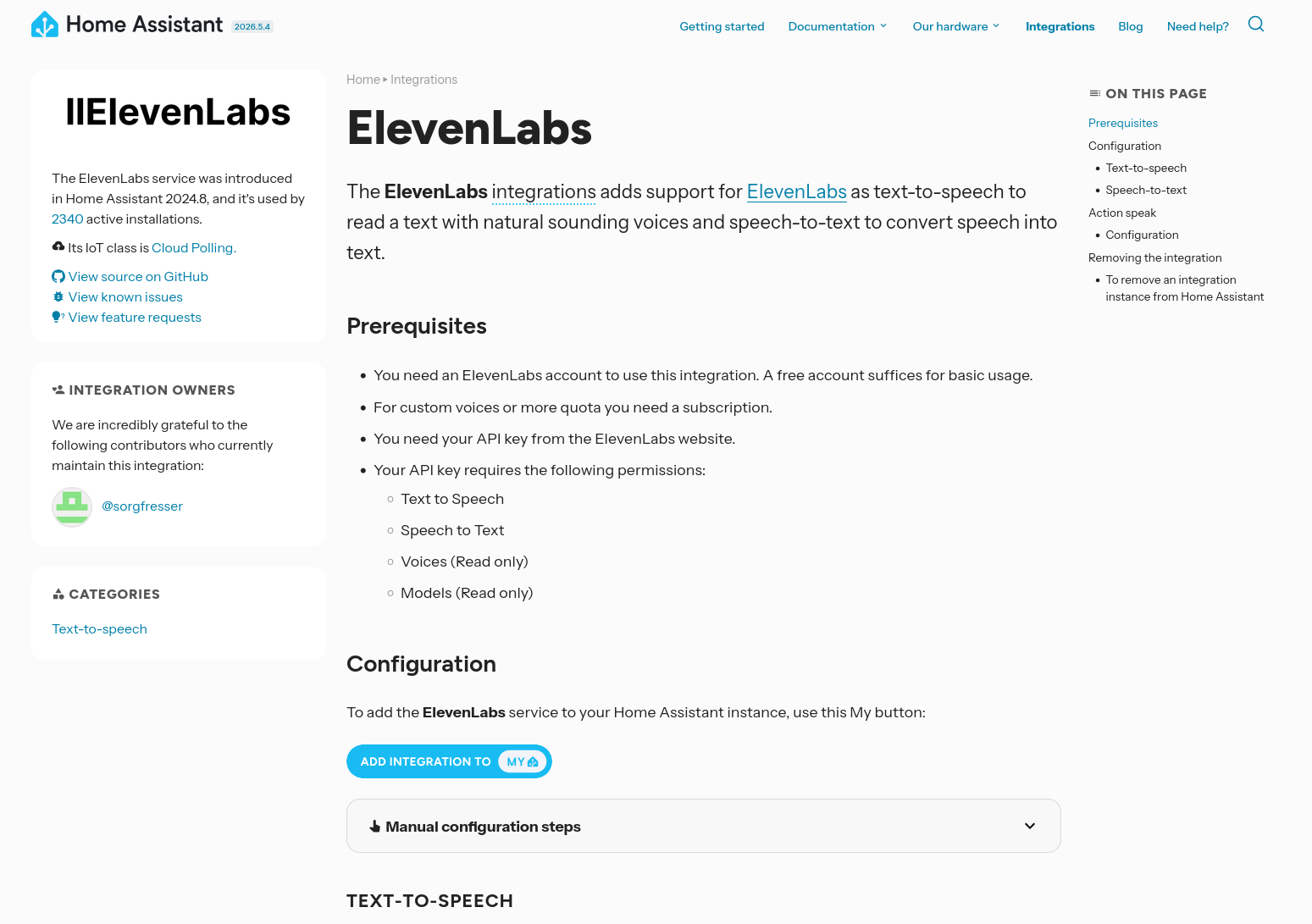

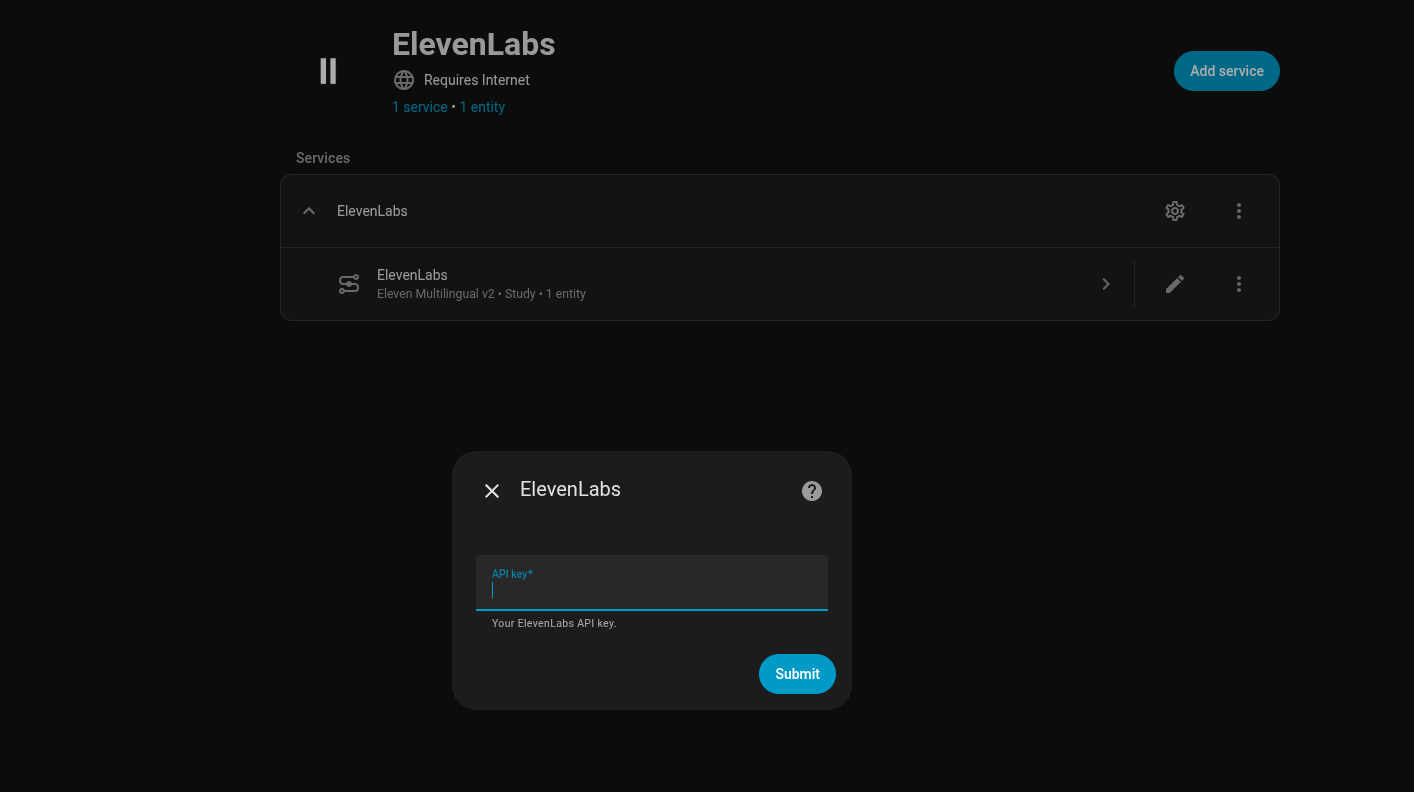
The voice (ElevenLabs text-to-speech)
Text-to-speech turns the AI's text reply into a realistic voice. There are many options; I use ElevenLabs for its thousands of high-quality voices.
ElevenLabs integration — install it.
Go to ElevenLabs and create an account.
Open the API keys tab and click Create key.
Enter this key in Home Assistant when you open the ElevenLabs integration and click Add service.
Install the Integrations (Wyoming Protocol)
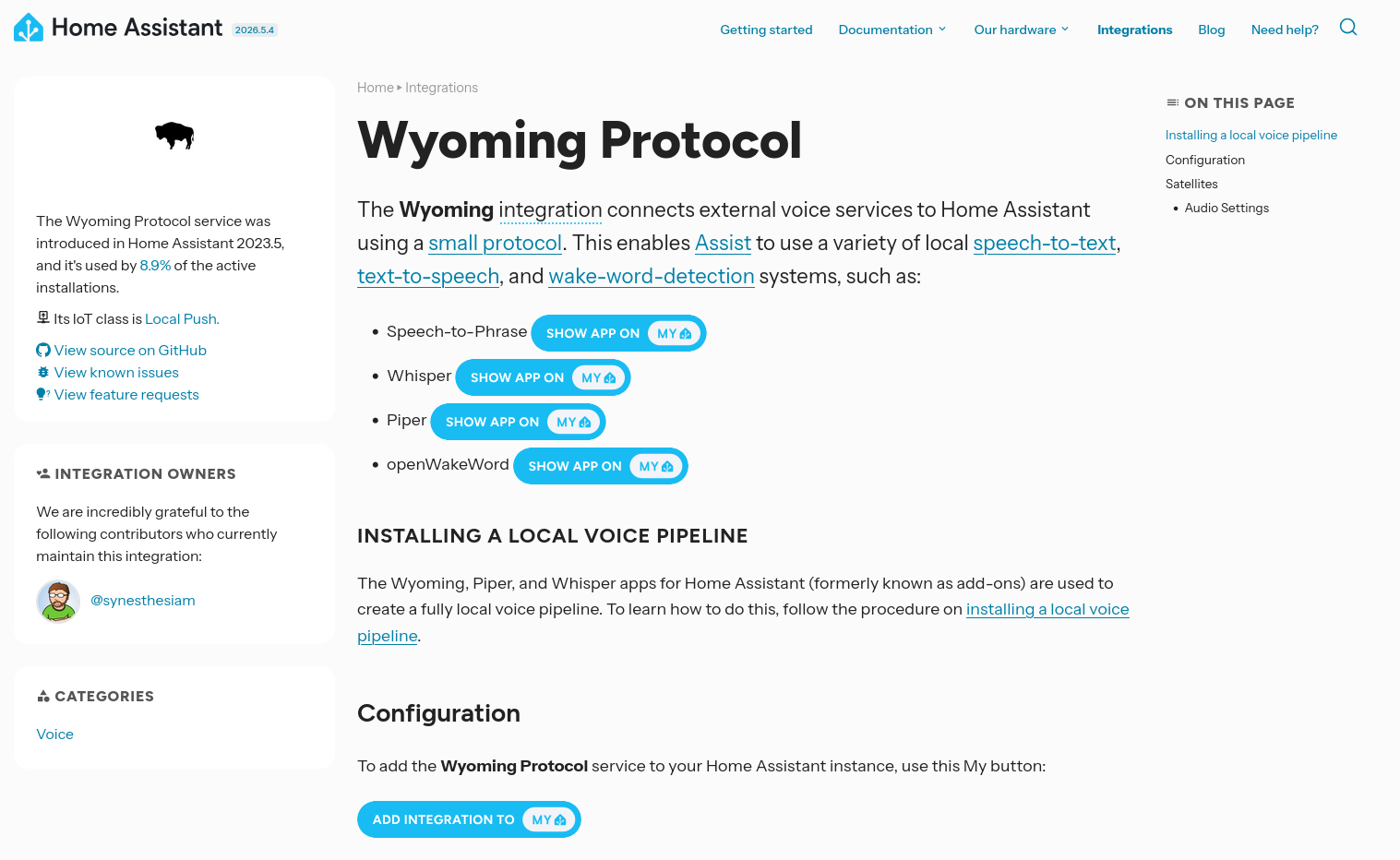
Speech-to-text and Open Wake Word (Wyoming Protocol)
The Wyoming Protocol integration handles speech-to-text — converting what you say into text to send to the AI. It also provides the OpenWakeWord functionality if you want a custom wake word.
Build Your Assistant

In Home Assistant go to Settings → Voice assistants.
Click Add assistant, give it a name, and select your language.
Conversation agent
Under Conversation agent, select the OpenAI you set up earlier.
Personality
Click the cog beside the agent to open the Instructions box. This directs how the AI responds — anything from “be grumpy” to “respond in the style of Jules Winnfield”. Keep replies short; long ones feel sluggish through a speaker.
Speech-to-text and voice
For speech-to-text, select Whisper (faster-whisper).
For text-to-speech, choose ElevenLabs, then pick a voice.
There's a long list of voices — male, female, American, British, and more — so the assistant sounds exactly how you want.
Custom Wake Word

The wake word is what you say to make the assistant start listening. You get the usual options (Alexa, Hey Jarvis, Okay Nabu), but for your own custom word, use the OpenWakeWord training tool:
OpenWakeWord training (Google Colab)
Enter your chosen word in the target word box (use a word with two or more syllables). At the top, hit Run all — the tool generates thousands of synthetic voices saying the word and trains an AI to recognise it. It takes 20 minutes to an hour, then produces a file you upload to Home Assistant and select as your wake word.
Expose Your Smart Devices
The Expose tab lets you choose which smart devices the assistant can see — so it can control them or read information from them.
Not Just Wake Words: Automations


Here's what makes this genuinely interesting. You don't only need a wake word to talk to the assistant — you can trigger it from automations too. That's great, because it means the assistant can speak without you prompting it, reacting to your smart sensors, so it feels far more alive.
The key idea: the wake word is just one way to start the assistant. An automation is another. Fire a spoken line from an automation and it talks without anyone saying a thing.
Go to Settings → Automations & scenes.
Click Create automation. Set the trigger to whatever you like — a sensor changing, a door opening, or a time of day (for example, 07:30 for a unique spoken response every morning, like an alarm). Then set the action to Assist Satellite to start the conversation with the AI.
Ideas to steal
- Morning briefing — trigger on kitchen motion, condition to 6–9am, speak the weather.
- Washing's done — trigger on the machine going idle; have it nag you.
- Someone at the door — trigger on the doorbell; announce it, with commentary.
- Sunset — close the blinds and announce it.
Say your wake word, ask it something, and enjoy!