AI Conveyor Safety Guard
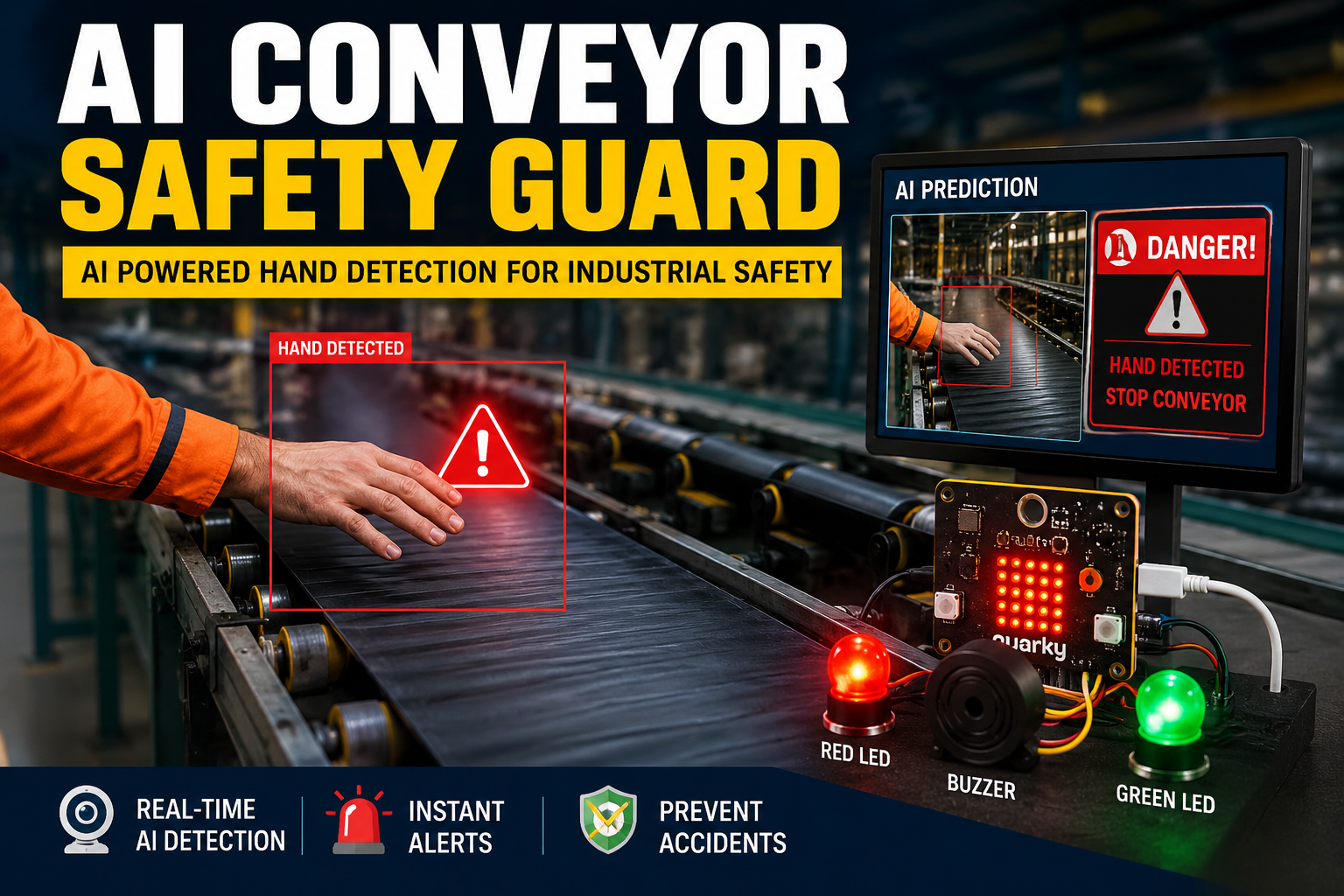
Industrial conveyor belts are widely used in manufacturing, packaging, warehouses, and assembly lines to transport materials efficiently. However, they can also pose serious safety risks if a worker's hand accidentally enters a hazardous area during operation. Traditional safety methods often rely on emergency stop buttons or manual supervision, which may not prevent accidents in time.
The AI Conveyor Safety Guard is an innovative safety system developed using PictoBlox, Computer Vision, and Quarky. The system uses a webcam to continuously monitor the conveyor belt and detect the presence of a worker's hand in a predefined danger zone. When a hand is detected inside the unsafe area, the AI immediately triggers a buzzer, turns on a red LED, and displays a warning message to alert the operator. When the area becomes safe again, the system switches back to normal operation with a green LED indication.
This project demonstrates how artificial intelligence and computer vision can be applied to improve workplace safety by providing real-time monitoring and instant alerts. It also introduces students to practical applications of AI in industrial automation and smart factory systems.
Supplies
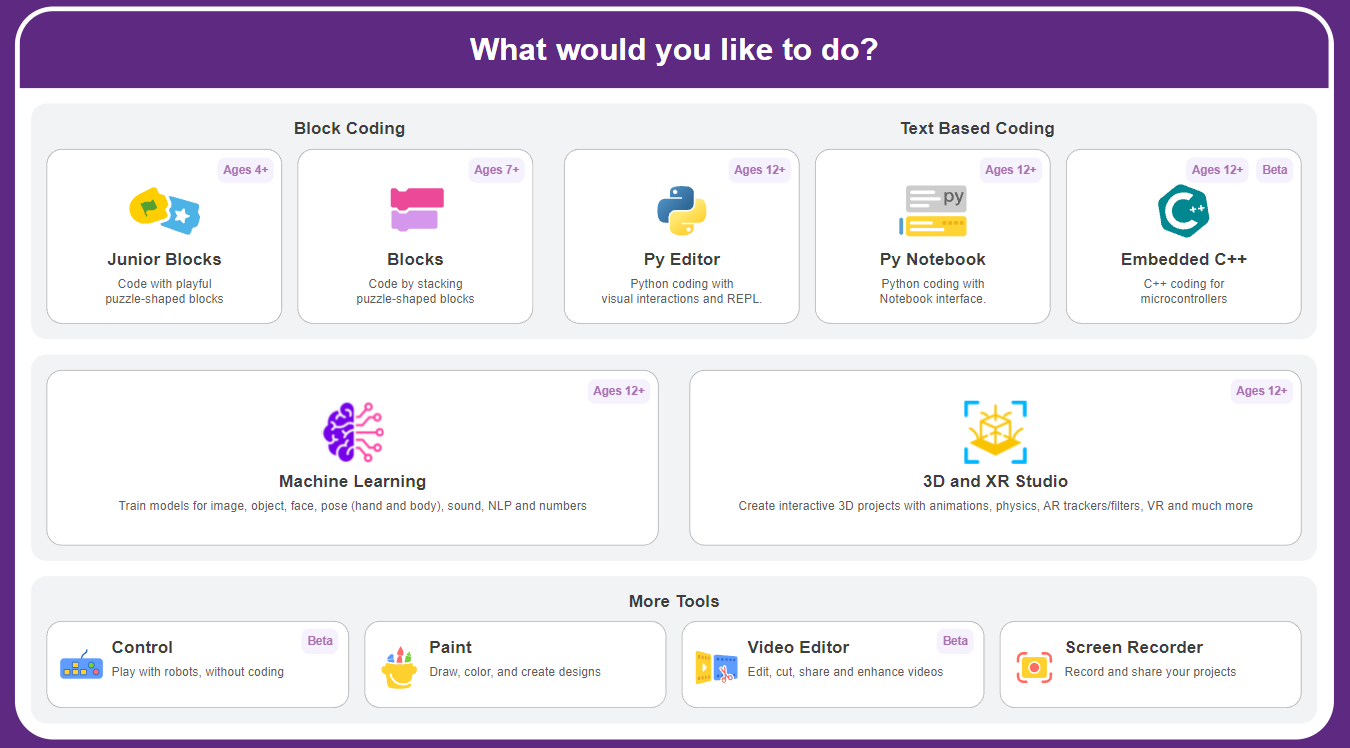

- Pictoblox Software: Download PictoBlox | Windows, MacOS, Linux, Chromebook, Android & iOS
- Laptop/PC
- Inbuilt or External Camera Setup
- Speaker or Headphones
- Quarky
Set Up ML Image Classifier
Step 1: Open Image Classifier
- Open PictoBlox.
- Click Add Extension → Machine Learning Environment → Image Classifier.
- Create a New Image Classifier Project.
Step 2: Create Classes
Create two classes:
- No Hand
- Hand Detected
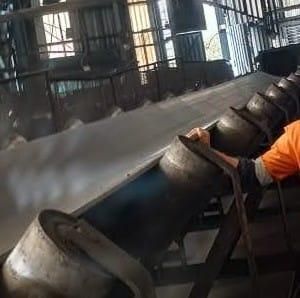
Step 3: Add Images to "No Hand"
Upload images where:
- No worker's hand is visible.
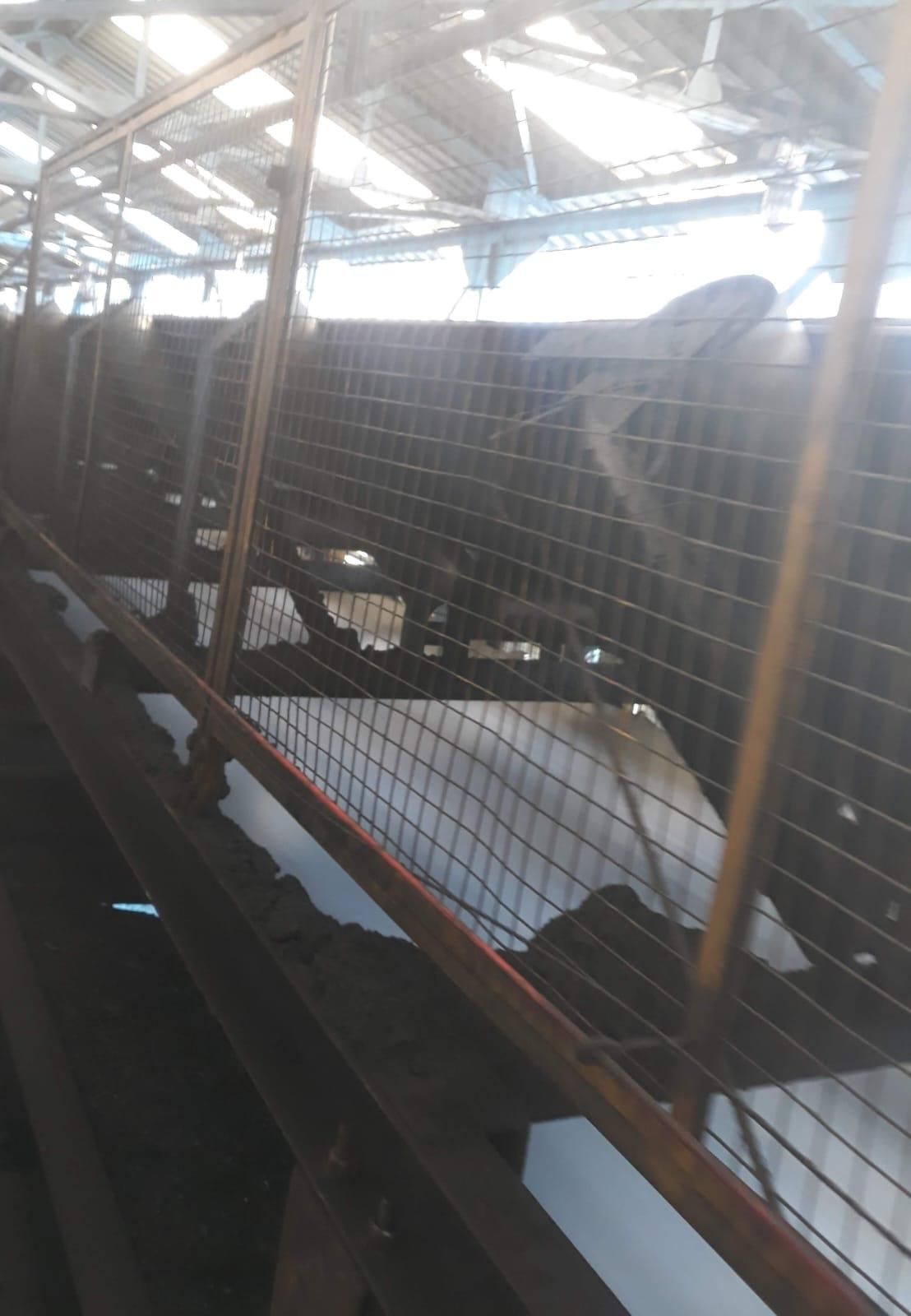
- Only the conveyor belt is visible.
- The conveyor is in a normal operating condition.
Example:
- No Hand.jpeg
Upload 30–50 images from different angles and lighting conditions for better accuracy.
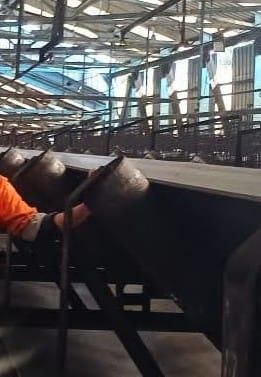
Step 4: Add Images to "Hand Detected"
Upload images where:
- A worker's hand is touching or near the conveyor.
- Different hand positions are included.
- Different distances and angles are used.
Examples:
- Hand 1.jpeg
- Hand 2.jpeg
Again, upload 30–50 images.
Step 5: Train the Model
- Click Train.
- Wait until training completes successfully.
Step 6: Test the Model
- Click Test.
- Turn on the webcam.
- Show the conveyor without a hand:
- Prediction: No Hand
- Place a hand near the conveyor:
- Prediction: Hand Detected
Step 7: Use the Model in PictoBlox
After training:
- Click Use Model.
- Add the Image Classifier blocks to your project.
- Use the prediction to control Quarky.
Logic:
- If prediction = Hand DetectedRed LED ON
- Buzzer ON
- Display "STOP CONVEYOR!"
- Else (prediction = No Hand)
- Green LED ON
- Buzzer OFF
- Display "SAFE"
Step-by-Step Block Coding Guide
Step 1: Start the Program
- Add the when green flag clicked block.
- This starts the program when the Green Flag is clicked.
Step 2: Turn on the Camera
- Add turn on video on stage with 0 transparency.
- This enables the webcam so the AI can analyze the conveyor area.
Step 3: Continuously Analyze the Camera
- Add a forever block.
- Inside it, add analyse image from webcam camera.
- The AI continuously checks the webcam feed.
Step 4: Detect "Hand Detected 1"
- Add the if is identified class Hand detected 1 block.
- If the prediction is Hand detected 1, the system:
- Says "Hand 1 Detected" for 2 seconds.
- Displays a Red LED matrix on Quarky.
- Speaks "Stop Conveyor".
- Plays an F7 note as an alert.
Purpose: Detects a hand in one danger position and immediately warns the operator.
Step 5: Detect "Hand Detected 2"
- Inside the else section, add another if is identified class Hand detected 2 block.
- If the prediction is Hand detected 2, the system:
- Says "Hand 2 Detected" for 2 seconds.
- Displays a Red LED matrix.
- Speaks "Stop Conveyor".
- Plays an F7 note.
Purpose: Detects a hand in another dangerous position and triggers the same safety alert.
Step 6: Detect "No Hand"
- Inside the next else, add if is identified class No Hand.
- If no hand is detected, the system:
- Says "No Hand" for 2 seconds.
- Displays a Green LED matrix.
Purpose: Indicates that the conveyor area is safe.
Step 7: Safe Running Message
- In the final else block, add:
- speak "No Hand Detected Safely Running Conveyor"
Purpose: Announces that the conveyor is operating safely when no danger is detected.
Working of the Project
- The webcam starts capturing live video.
- The AI Image Classifier analyzes every frame.
- If Hand Detected 1 or Hand Detected 2 is recognized:
- The system displays a red warning on Quarky.
- A voice alert says "Stop Conveyor."
- An alarm tone is played.
- If No Hand is recognized:
- A green indicator is displayed.
- The system confirms that the conveyor is running safely.
Testing the AI Conveyor Safety Guard
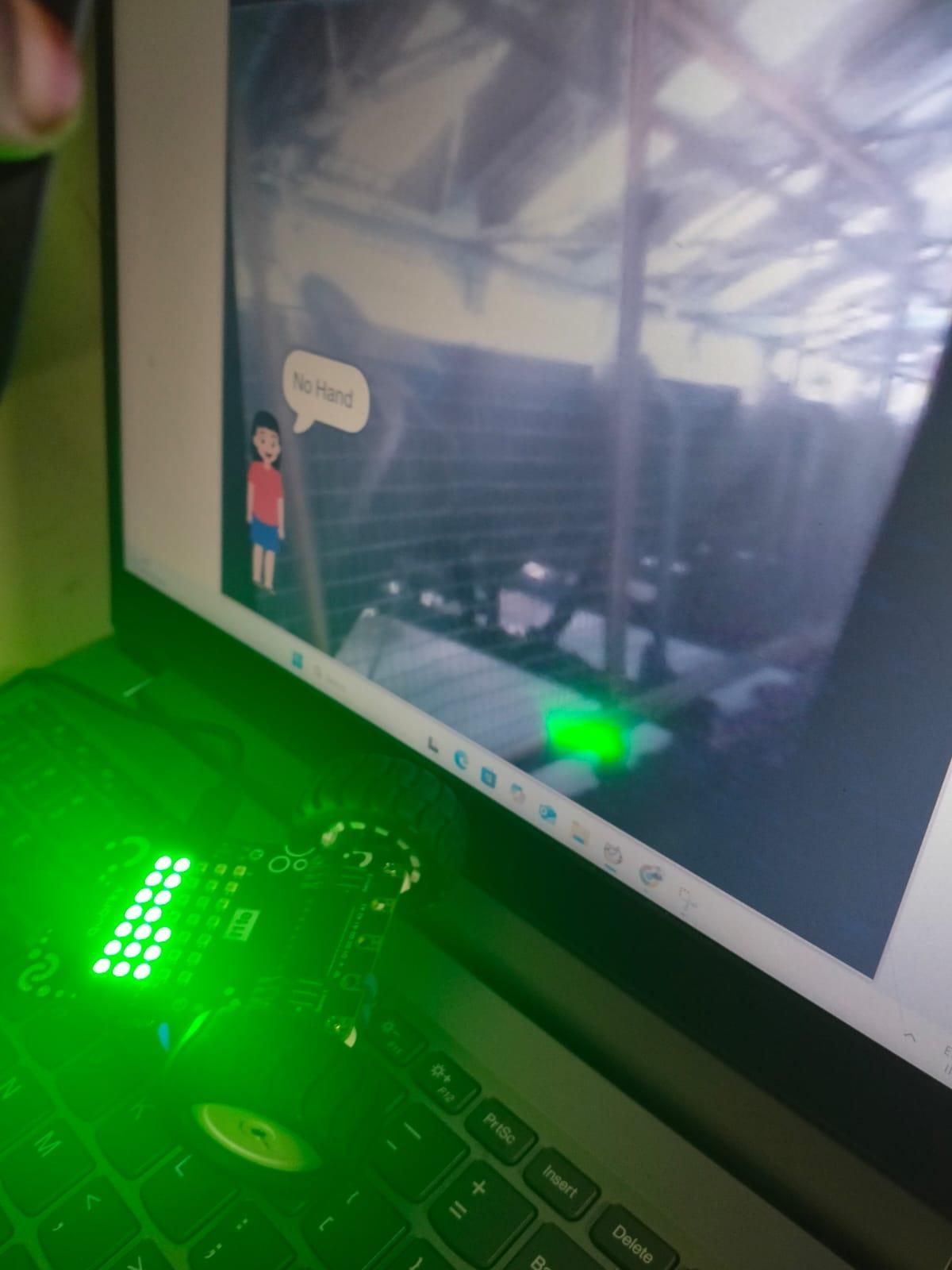
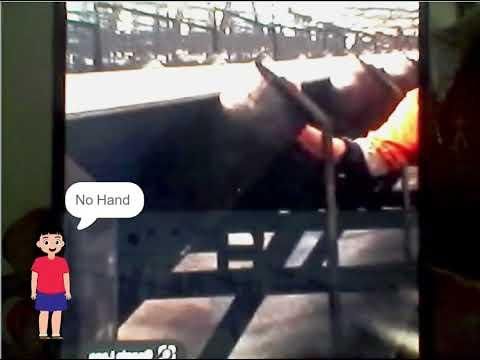
.jpeg)
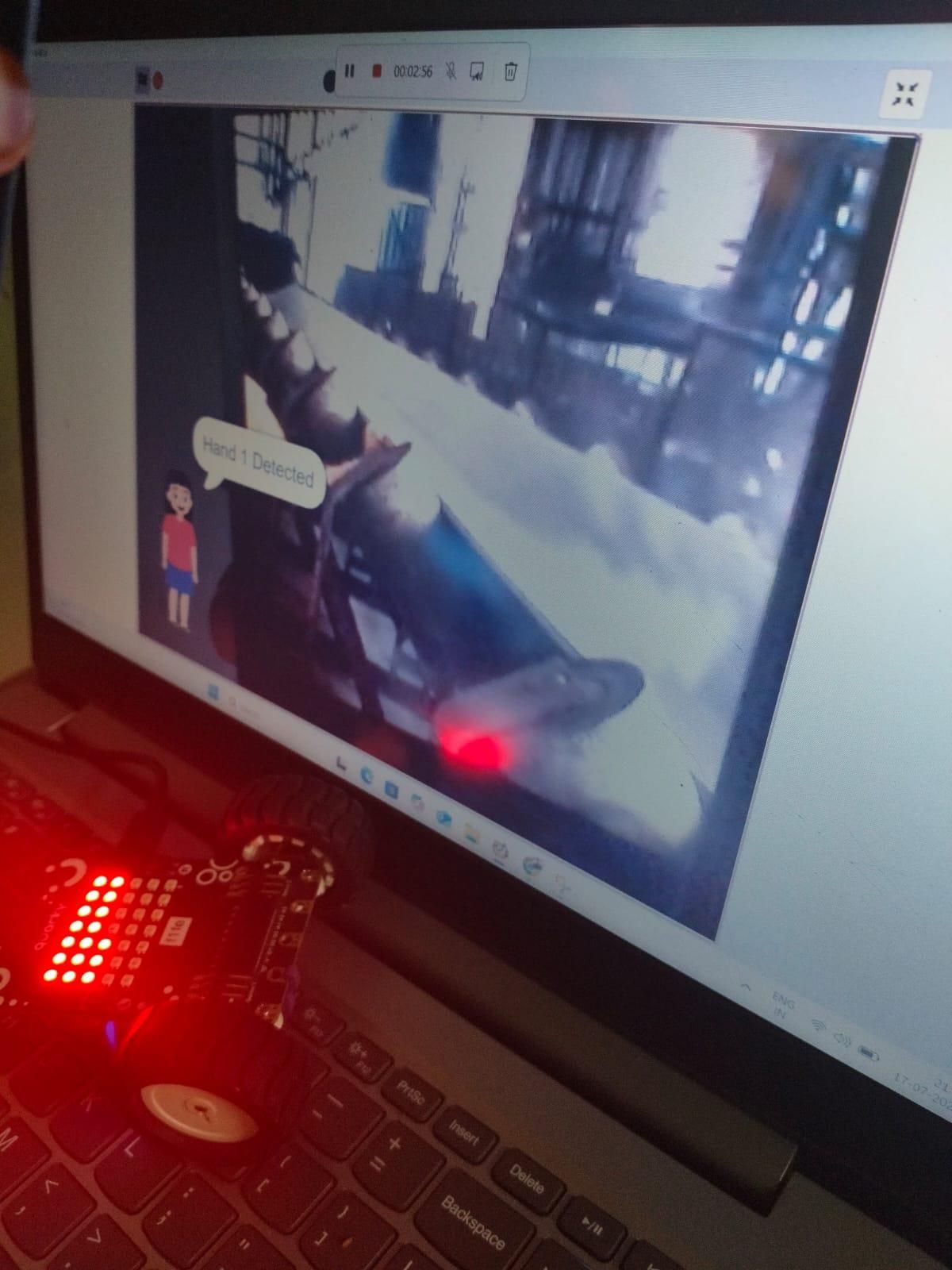
- Click the Green Flag to start the program.
- Ensure the webcam is turned on and the conveyor belt is visible.
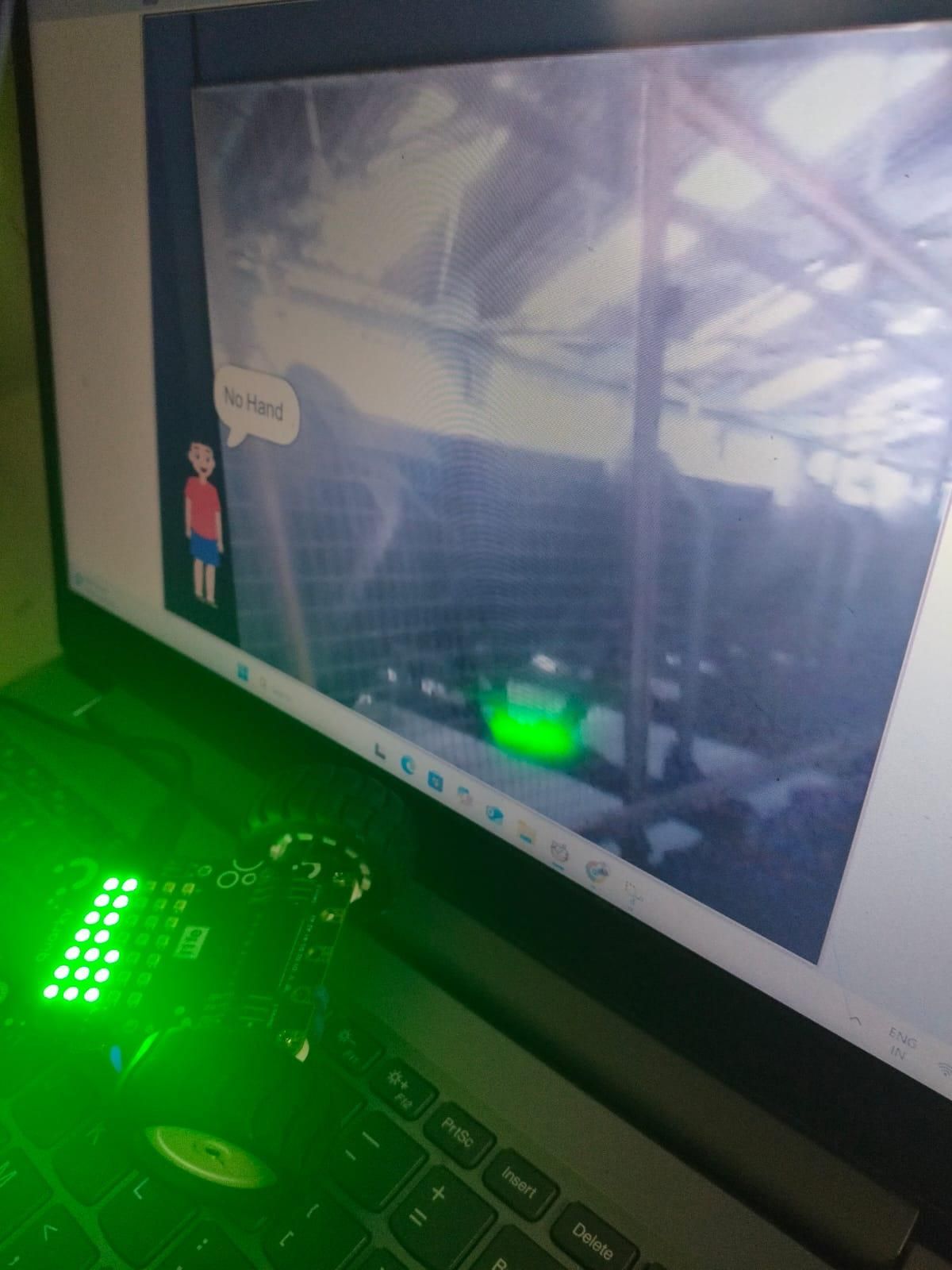
- Show an image or live scene that belongs to the No Hand class.
- The AI should identify No Hand.
- The Quarky LED matrix should display a green pattern.
- The conveyor is considered safe to operate.
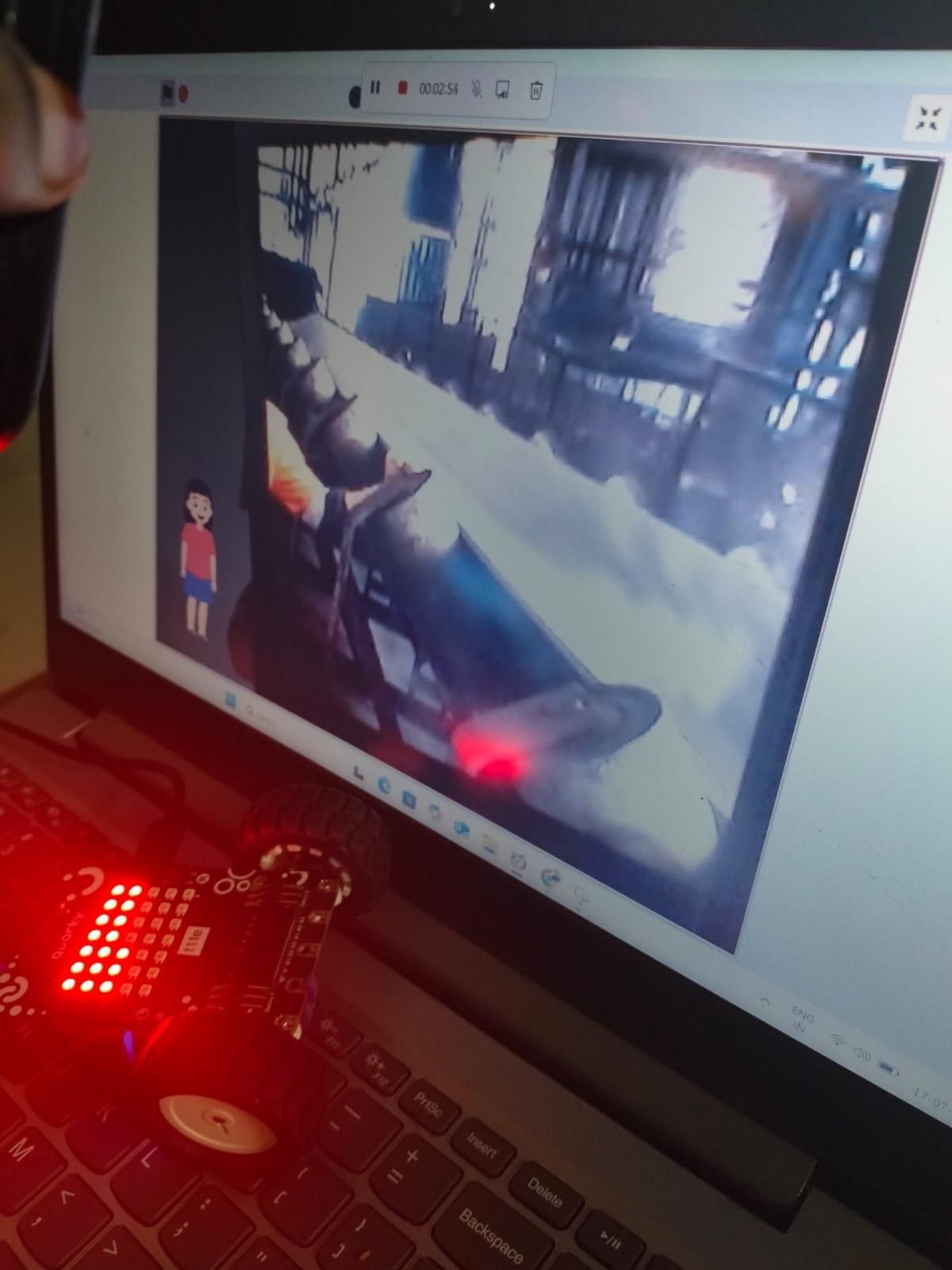
- Now place your hand near the conveyor as shown in the Hand Detected 1 training images.
- The AI should predict Hand Detected 1.
- The system displays a red warning on the LED matrix.
- It says "Hand 1 Detected".
- The speaker announces "Stop Conveyor".
- An alert tone is played.
- Repeat the test using a hand position similar to the Hand Detected 2 class.
- The AI should predict Hand Detected 2.
- The same warning actions (red LED, voice alert, and tone) should be triggered.
- Test the project multiple times under different lighting conditions and hand positions to verify that the classifier consistently detects the correct class.
Expected Output
- No Hand → Green LED matrix, conveyor is safe.
- Hand Detected 1 → Red LED matrix, voice alert, warning tone.
- Hand Detected 2 → Red LED matrix, voice alert, warning tone.
Applications
Manufacturing Industries: Detects unsafe hand movements near conveyor belts during production.
Packaging Units: Prevents accidents while packing and sorting products.
Food Processing Plants: Monitors conveyor belts to improve worker safety during food handling.
Mining Industries: Protects workers operating material-handling conveyor systems.
Warehouses and Logistics: Enhances safety while transporting goods on conveyor belts.
Assembly Lines: Alerts workers when a hand enters a hazardous conveyor zone.
Industrial Training: Demonstrates the use of AI and computer vision for workplace safety in educational settings.
Conclusion
The AI Conveyor Safety Guard is an innovative project that uses PictoBlox, Artificial Intelligence, and Computer Vision to improve industrial safety. It continuously monitors the conveyor belt area and detects when a worker's hand enters a hazardous zone. By providing instant visual and audio alerts, the system helps reduce the risk of accidents and promotes a safer working environment. This project demonstrates how AI can be applied to solve real-world industrial safety challenges.