AI-Generated Coral Pendant: From AI Concept Art to Fusion 360 Generative Design
by Pavelmakesstuff in Design > 3D Design
88 Views, 0 Favorites, 0 Comments
AI-Generated Coral Pendant: From AI Concept Art to Fusion 360 Generative Design

So I've always thought jewelry design was cool but I never had the tools or skills to actually make anything physical. Then I found out Fusion 360 has this generative design feature that basically uses AI to design stuff for you based on constraints you set up, and I thought - why not try making a pendant with it?
The idea was pretty simple. I wanted to use AI for the whole process. I used Bing Image Creator to make concept art of what I wanted the pendant to look like, then I used Fusion 360's generative design to actually create the 3D model. The generative design AI doesn't work like ChatGPT where you type a prompt. You actually have to build geometry and set up physics and materials, and then the AI figures out the best organic shape. It took me a bit to wrap my head around that but once I got it the results were honestly really cool.
The whole thing is digital. I didn't make anything physical. But you could totally 3D print this in metal if you wanted to. I'm a community college student so I got Fusion 360 for free through my school email which was nice.
Supplies


Software:
Bing Image Creator (bing.com/images/create) - this is free and you don't even need an account. I used it to generate concept art
Autodesk Fusion 360 - free if you're a student. Go to autodesk.com/education/free-software/fusion-360 and sign up with your .edu email. One thing that tripped me up: the generative design feature is NOT on the free personal license. You need the student license, a paid license, or the 30-day trial
Hardware:
Just a computer with internet. I used my regular laptop, nothing fancy. The heavy computation runs on Autodesk's cloud servers so your computer doesn't need to be powerful
Cloud credits for generative design - these come included with the student license. If you're on a trial you get 300
If you want to make it real later:
You can export an STL file and get it 3D printed in sterling silver or bronze through Shapeways or i.materialise. Costs around $30-150 depending on size and material. I haven't done this yet but I want to
Time:
- About 2 hours of actual work
- 2-4 hours of waiting for the AI to generate on the cloud
- So basically half a day but most of it is just waiting
Generate AI Concept Art
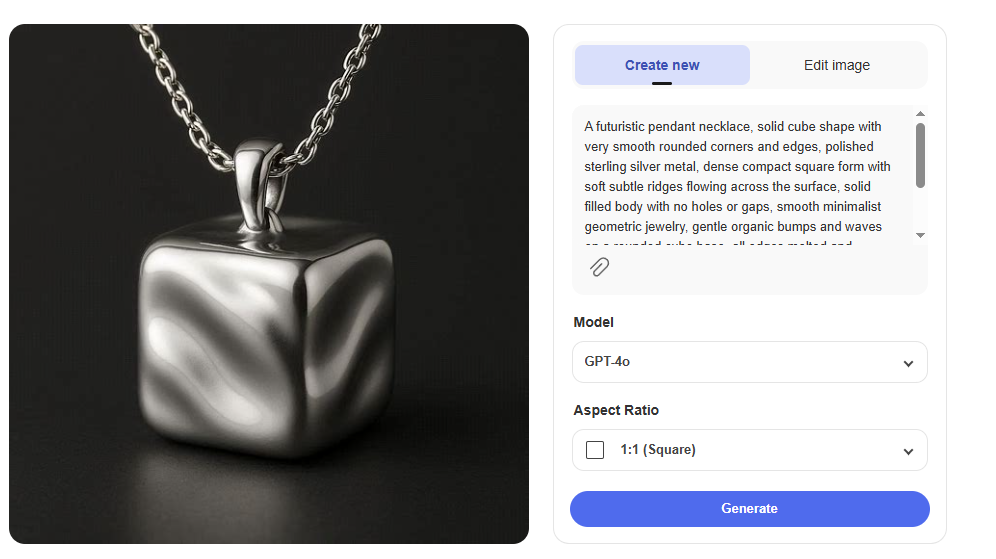
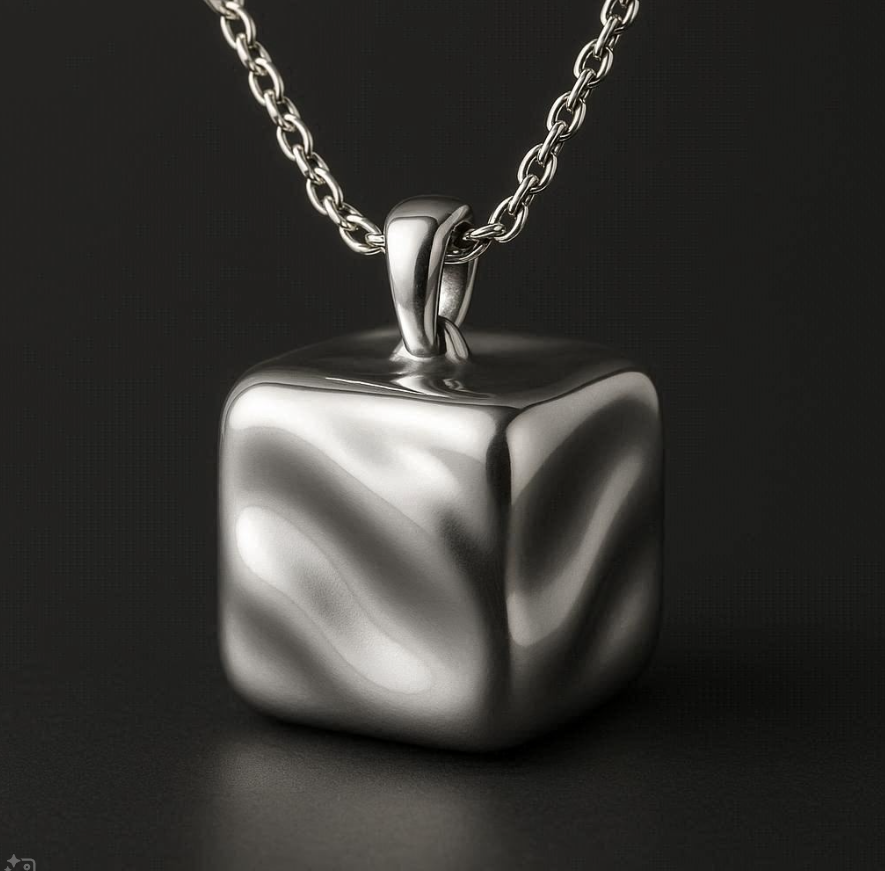
I started by making concept art so I had a visual target for what I wanted. I went to Bing Image Creator and typed in this prompt:
"A nature-inspired pendant necklace, organic coral reef structure, intricate branching lattice pattern with smooth flowing curves, polished sterling silver material, photorealistic product photography on dark background, jewelry catalog style, high detail, elegant and modern, inspired by biomimicry and ocean formations, pendant approximately 2 inches tall, with a simple silver bail loop at top for chain attachment"
It gave me four images. Some looked better than others. I picked the one that had the coolest branching pattern because that's the kind of organic look I was going for.
The concept art doesn't have to be perfect or anything. It's just there to give you a general direction. You're not going to replicate it exactly in Fusion 360 - it's more like a mood board.
If you want to try different looks, swap out "coral reef structure" with stuff like "honeycomb bone structure" or "tree root network" or "Voronoi leaf vein pattern." I tried a couple different ones before I settled on the coral look.
Model the Pendant Bodies in Fusion 360

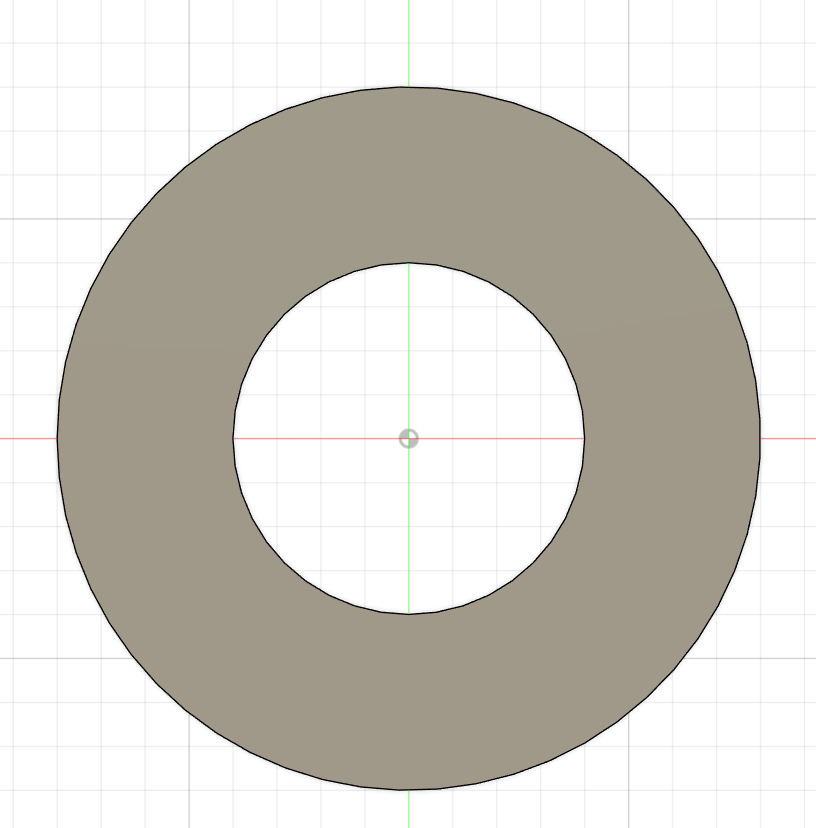


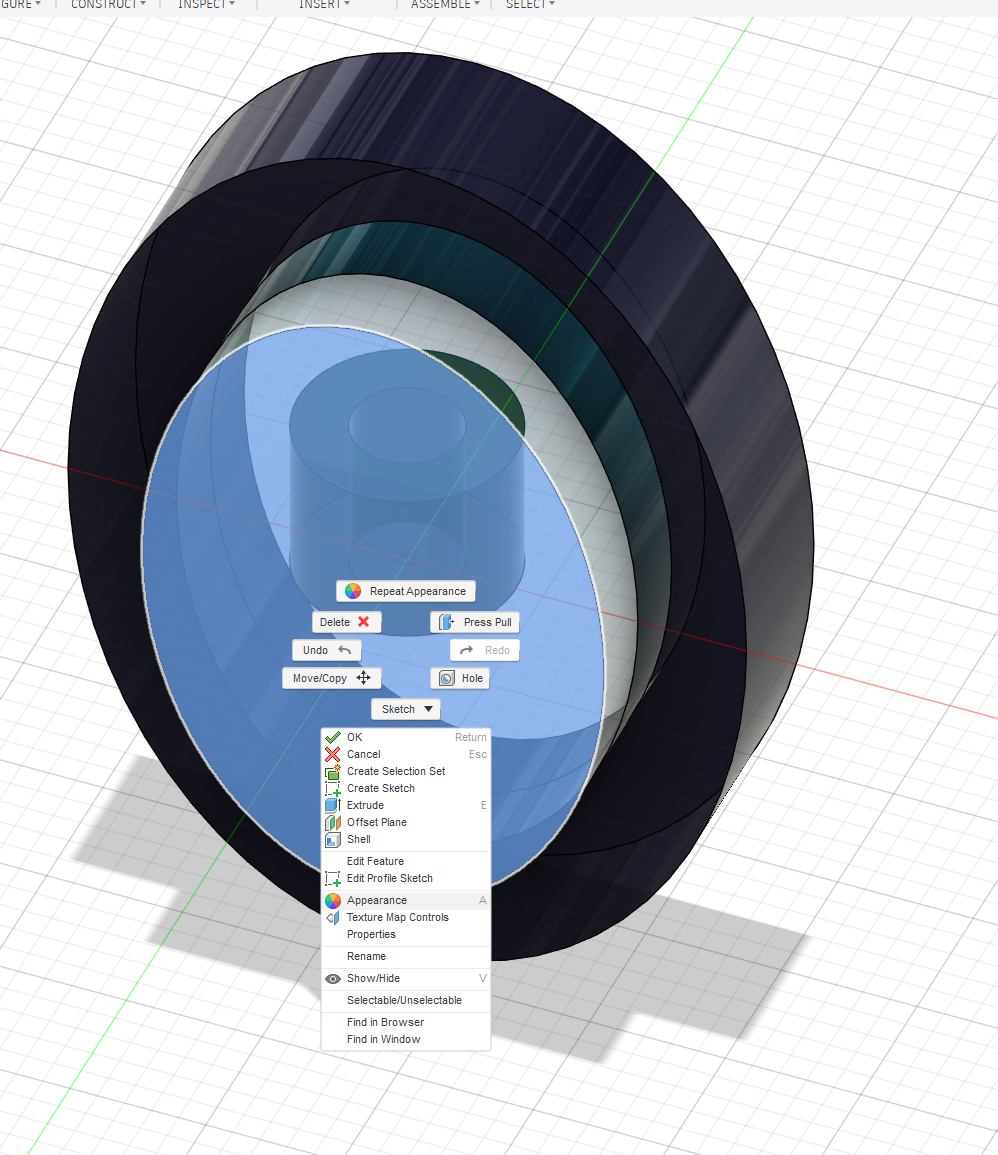

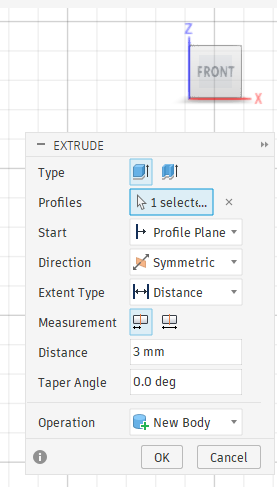


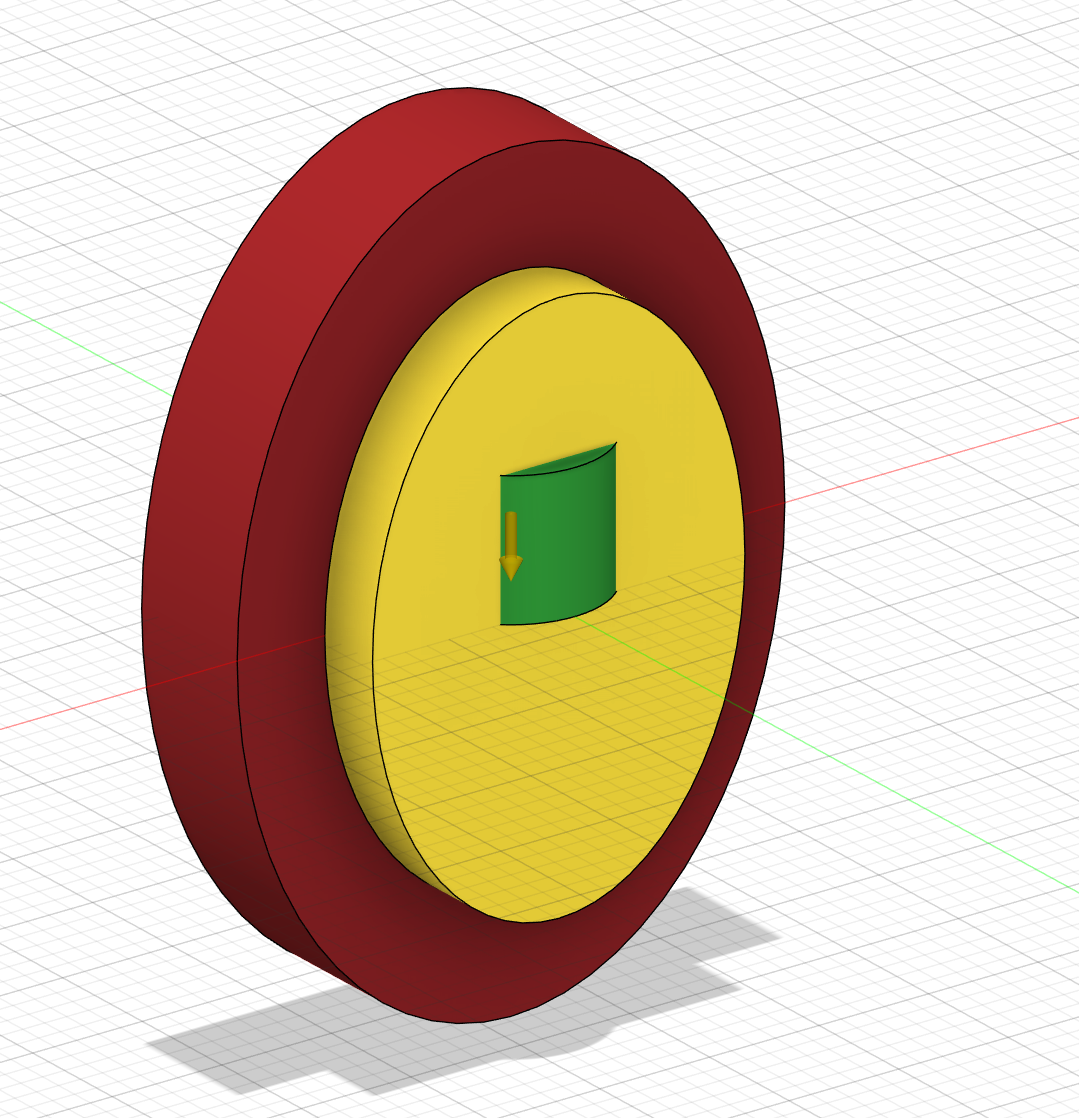
This is the part that took me the longest to understand. In generative design, you don't just tell the AI what to make. You have to build three different bodies that each have a specific job. A Preserve body is something the AI has to keep exactly how it is. A Starting Shape is the block of material the AI carves into. And Obstacle geometry is where the AI isn't allowed to put any material. I color-coded mine green, yellow, and red which is apparently the standard way people do it in Fusion 360.
The bail loop was first - that's the little ring at the top where a chain goes through. I clicked Create -> Sketch, picked the front (XZ) plane, and drew two circles on top of each other at position (0, 30). The outer one was 8mm diameter and the inner one was 4mm. Then I finished the sketch, selected the donut shape between them, and hit Create -> Extrude. I set it to 3mm, Symmetric, and made sure it was set to New Body. Then I renamed it "Bail_Loop_PRESERVE" in the Browser panel on the left.
For the pendant base I made another sketch on the front plane and drew an ellipse at (0, 0) with 25mm vertical and 17mm horizontal. That gives you a 50mm by 34mm oval which is a good pendant size. Extruded it the same way - 3mm Symmetric, New Body. Renamed it "Pendant_Base_STARTING_SHAPE."
The obstacle boundary was basically a bigger ellipse ring around the pendant. I sketched a larger ellipse (35mm by 25mm) with the same pendant ellipse inside it, then extruded just the ring area between them. Renamed it "Boundary_OBSTACLE."
Last thing - I right-clicked each body, went to Appearance, and made the bail loop green, the pendant base yellow, and the obstacle ring red. Makes it way easier to keep track of everything in the next steps.
Set Up the Generative Design Study



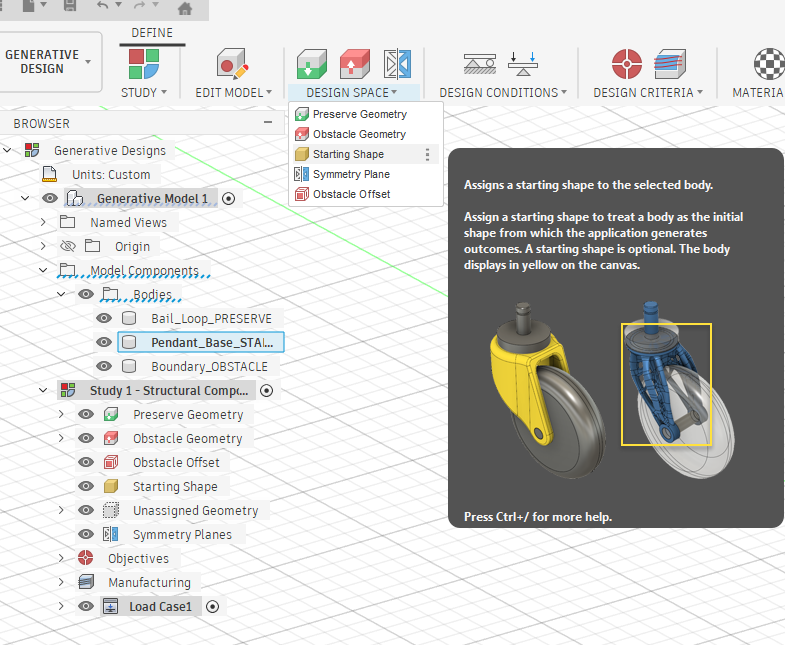


This is where it starts getting cool. I switched to the Generative Design workspace by clicking the dropdown in the top-left corner where it says "Design" and selecting "Generative Design." The whole toolbar changes and a Study 1 pops up in the Browser.
First thing I did was assign the design space. I clicked Design Space -> Preserve Geometry and selected the bail loop. Then Design Space -> Obstacle Geometry and selected the boundary ring. Then Design Space -> Starting Shape and selected the pendant base. Basically I'm telling the AI - this loop stays exactly how it is, don't touch the outer border, and use this oval as your raw material to carve from.
Then I set up the physics. I know it's jewelry and not a bridge but the AI still needs to understand the forces. I went to Design Conditions -> Structural Constraints, picked Fixed, and clicked the top face of the bail loop. That tells the AI the pendant hangs from here. Then Design Conditions -> Structural Loads, picked Force, clicked the bottom of the pendant, and put -0.5 N in the Y direction. That's just simulating gravity pulling the pendant down. It's a super light force but the AI needs at least one constraint and one load to run.
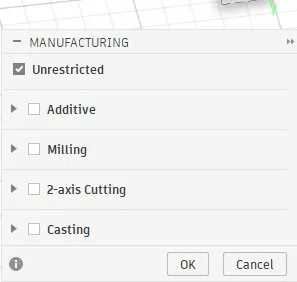
The design criteria part is where you actually control how the final result looks. Under Design Criteria -> Objectives I picked Minimize Mass. That's what makes the AI remove material and create the organic branchy look. I left Safety Factor at 2.0. Under Manufacturing I unchecked everything except Unrestricted. I tried it first with Additive and Milling turned on but the results looked too chunky and blobby. Unrestricted removes all manufacturing constraints and lets the AI go completely wild with the geometry which is what you want for organic jewelry shapes. One thing - make sure you remove any milling or subtractive methods if they're in there. Those make boxy shapes and I kept getting a warning about head diameter being too large until I removed them. Under Materials I added Stainless Steel and Titanium.
Generate and Review AI Outcomes


Before hitting generate I ran a pre-check under Generate -> Pre-check. Got two warnings. The first one said "Only one preserve body is specified" which is fine because I only have one preserve body on purpose. The second one said "The Milling Head Diameter is large comparing to the model size" which meant I still had a milling method hanging around. I went back to Manufacturing, deleted the milling method, and ran pre-check again. All good.
I did Generate -> Preview first which runs a quick local test. Took a few minutes and showed me a rough version of what the organic shapes would look like. Looked promising so I went ahead and clicked Generate -> Generate. It showed me how many outcomes it would produce and how many cloud credits it would cost. I confirmed and let it go.
This is the part where you just wait. The AI runs on Autodesk's cloud servers and it takes like 2-4 hours. You can literally close Fusion 360 and go do something else. I worked on organizing my screenshots and writing up this Instructable while I waited. You can check on it anytime under File -> Job Status.
When it finally finished I clicked Explore and honestly this was the coolest part of the whole project. There was a whole gallery of different outcomes - each one a totally unique organic design that the AI came up with. Some looked like bone structures, some like tree roots, some like coral branches. I used the scatter plot to sort through them and clicked on the ones that looked the most interesting. I ended up picking the one with the most dramatic branching pattern. It looked almost exactly like the coral structure from my original concept art which was really satisfying. I checked the stress visualization too just to make sure it was structurally solid.
Export, Render, and Final Thoughts

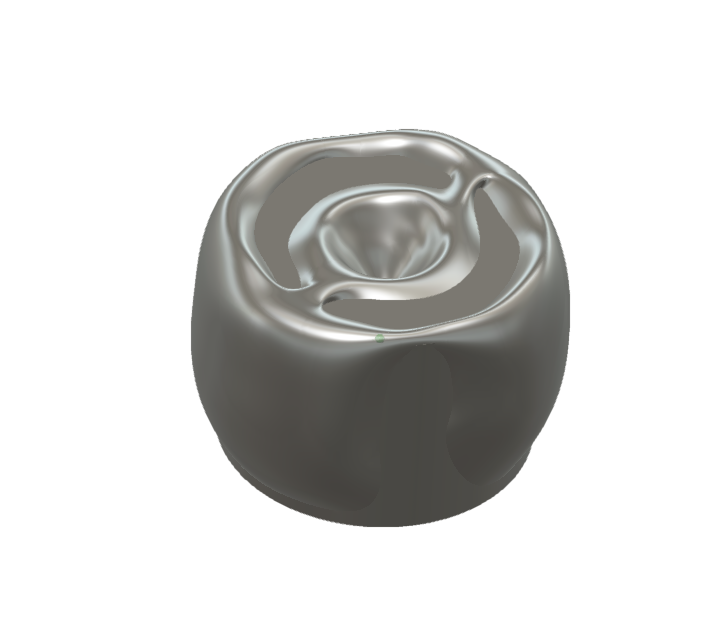

Almost done. I selected my favorite outcome and clicked Create Design in the Explore toolbar. That brought the AI-generated mesh back into the regular Design workspace where I could edit it. I used Mesh -> Modify -> Smooth to clean up some of the rougher surfaces and Mesh -> Modify -> Reduce to simplify areas where the mesh was too dense. I didn't go crazy with the cleanup though because the organic roughness actually makes it look more natural.
For rendering I switched to the Render workspace. I opened the Appearance panel (shortcut key A), searched for "Silver," and dragged it onto the pendant and bail loop. Seeing it go from a gray mesh to shiny silver was pretty awesome. I set up the scene under Scene Settings - picked "Photo Booth" for the lighting environment, set the background to dark gray, and turned on a subtle ground reflection. Then I positioned the pendant and hit Render -> Capture Image at 1920x1080 with Final quality. Did three renders - front view, 3/4 angle, and a detail close-up. Each one takes a few minutes.
Looking back at this project I think the most interesting thing I learned was how different generative design AI is from the AI tools I'm used to. With ChatGPT or image generators you type what you want. With Fusion 360's generative design you build geometry and set physics and the AI figures out the rest. Your "prompt" is the physical setup. The mass reduction setting is basically how you control how organic it looks - more reduction means more material removed which means more dramatic branching. I also learned that you have to use additive manufacturing mode to get the cool organic shapes. Milling and subtractive methods make everything boxy.
The whole thing was done digitally but I'm thinking about actually getting it 3D printed in silver through Shapeways at some point. You just export the STL and upload it to their site. If you try this project I'd say don't be afraid to run multiple studies with different settings. Each one gives you different results and it's cool to see how changing one parameter changes the whole design.