AI People Counter for Home Assistant
by KimY21 in Circuits > Cameras
195 Views, 0 Favorites, 0 Comments
AI People Counter for Home Assistant

Expose a live AI people count to Home Assistant as a real sensor entity — no MQTT broker, no YAML, no code. The AI runs locally on your Grablo device, watches your camera feed, and pushes the count to Home Assistant the moment it changes, ready to use in dashboards and automations like any other native sensor.
Supplies
Hardware:
- Windows PC, Mac, Raspberry Pi, or any other Grablo-supported device
- Network camera (ONVIF or RTSP) — a laptop webcam also works if you just want to try it
- A running Home Assistant server reachable from your Grablo device
Software:
- Grablo — No-Code IoT Platform (grablo.co)
Quick Start
Want to skip the build and just run it? Copy the project from the Grablo Gallery:
- Download and install Grablo software on your device from grablo.co/download
- Get this project from the Grablo Gallery
- Open the Grablo app at app.grablo.co in your browser
- Fill in your camera's connection in Settings → Camera → Edit → enter the address and credentials; ONVIF, RTSP, or CSI/USB
- Fill in your Home Assistant connection in Settings → Home Assistant → Edit → enter the server address and paste a Long-Lived Access Token from HA → Profile → Security → Long-lived access tokens
- Connect to your device and hit RUN
If you'd rather build it from scratch, follow the steps below.
Create Dashboard
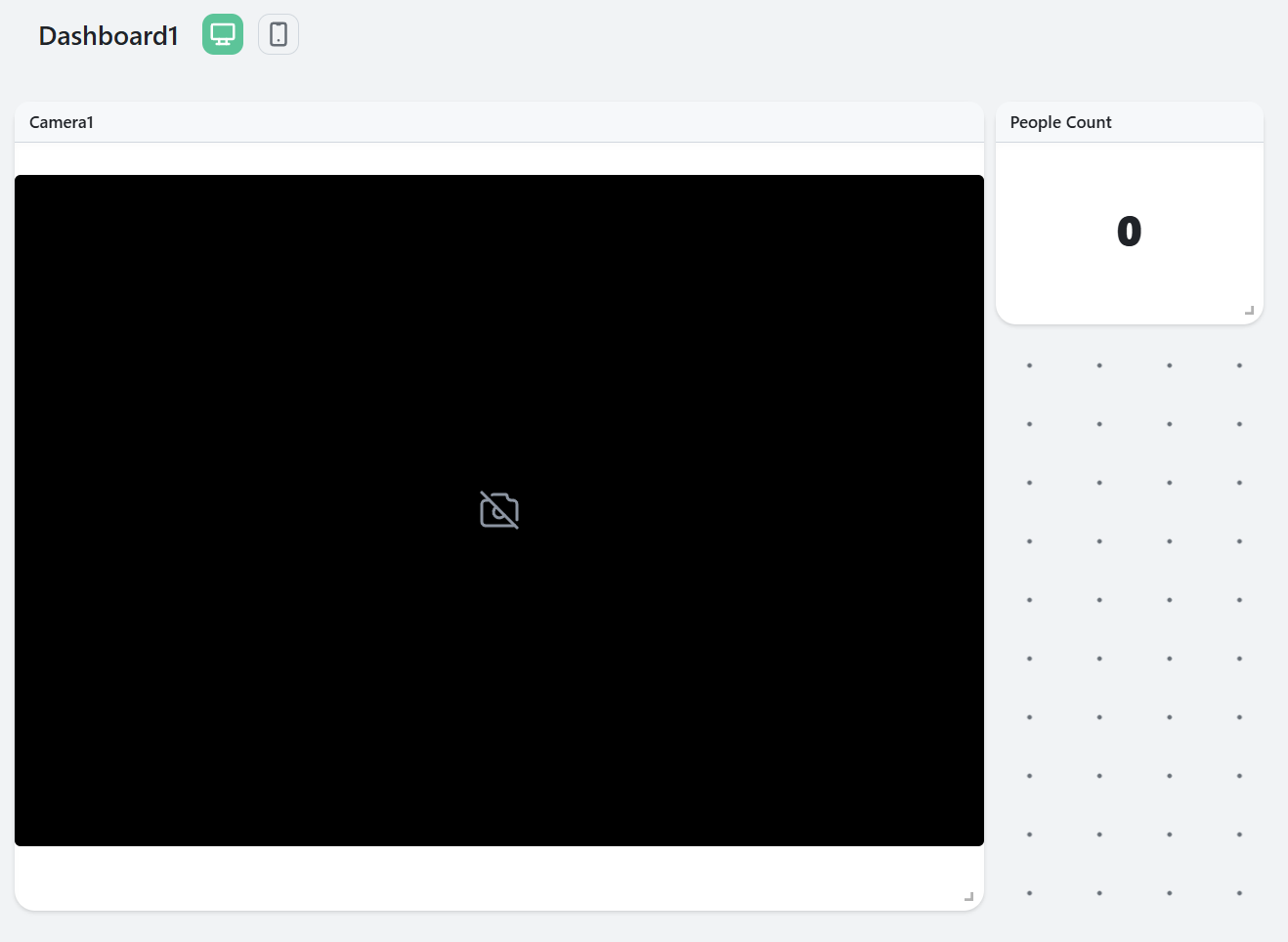
Create a new project at app.grablo.co, name it "AI People Counter for Home Assistant," and select your device. Then create a dashboard and add two widgets — a Camera widget for the live video feed, and a Label widget bound to a People Count variable for an at-a-glance number.
Set Up Logic
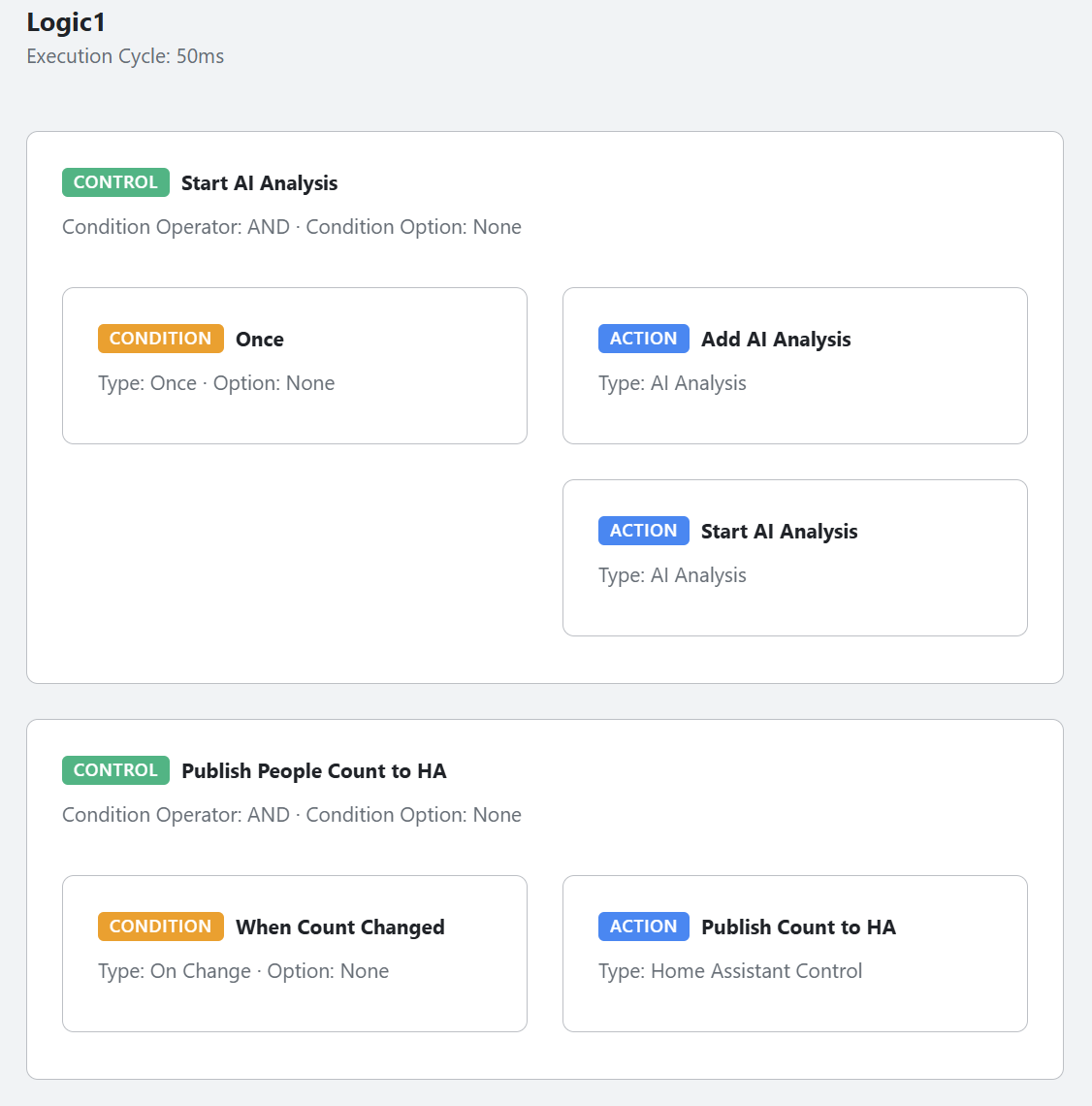
This project runs on a single logic with two controls. The first control uses a Once condition so it fires just one time when the project starts. Inside it, two AI Analysis actions run back to back — Add Analysis creates a Count Specific Objects task on the person class at 40% confidence and assigns the live count to a People Count variable, and Start Analysis kicks off the model on the camera feed.
The second control watches the People Count variable with an On Change condition (100ms sampling) so it fires the moment the AI updates the count. Its only action is a Home Assistant Integration with the Expose Variables command — Grablo registers the entity in Home Assistant through the HA REST API and pushes the new value automatically.
Configure Camera and Home Assistant
The Camera and Home Assistant blocks are already in the project — you just need to fill in their connection details after copying.
Go to Settings → Camera → Edit and pick the type for your camera:
- USB or laptop webcam: CSI/USB type, index 0
- Network IP camera: ONVIF or RTSP type with the camera's address and credentials
Then go to Settings → Home Assistant → Edit and enter your HA server address (default port 8123). In Home Assistant, go to your user profile → Security → Long-lived access tokens, generate a new token, copy it, and paste it into the Token field.
Pick the AI mode based on your device — Fast for low-power devices like a Raspberry Pi, Accurate on more capable machines. If your device has a powerful GPU, turn on GPU acceleration for a major speed boost.
Launch Your Project
Launch Your Project
- Open the Grablo app and select your project
- Connect to your device
- Hit RUN
- In Home Assistant, click the search icon in the top right and search for your count variable name
Expected Results:
- The Grablo dashboard shows the live camera feed and current people count
- In Home Assistant, the new entity appears automatically when you search for your variable name
- The HA entity value updates in real time as people enter and leave the frame
- You can drop the entity into any HA dashboard or use it in automations, just like a native sensor
Video Tutorial

Expand Your Project
Expand Your Project
- Add an HA automation that turns lights on when the count goes above zero
- Send a phone notification when occupancy exceeds a threshold
- Graph the people count in HA's History panel for trend analysis over time
- Expose more AI variables — face detection, gesture, sound level — to build a multi-sensor AI hub
Troubleshooting:
- Camera feed not showing: double-check Settings → Camera → Edit — the project ships without camera credentials, so you need to enter your camera's address and login manually
- Entity not appearing in Home Assistant: confirm the HA address is reachable from your Grablo device and verify the Long-Lived Access Token has not expired
- AI is slow: switch the AI mode to Fast, or enable GPU acceleration on a capable device
- Counts updating too often: increase the Sampling Period on the On Change condition to throttle the rate