AI Smart Exam Invigilator
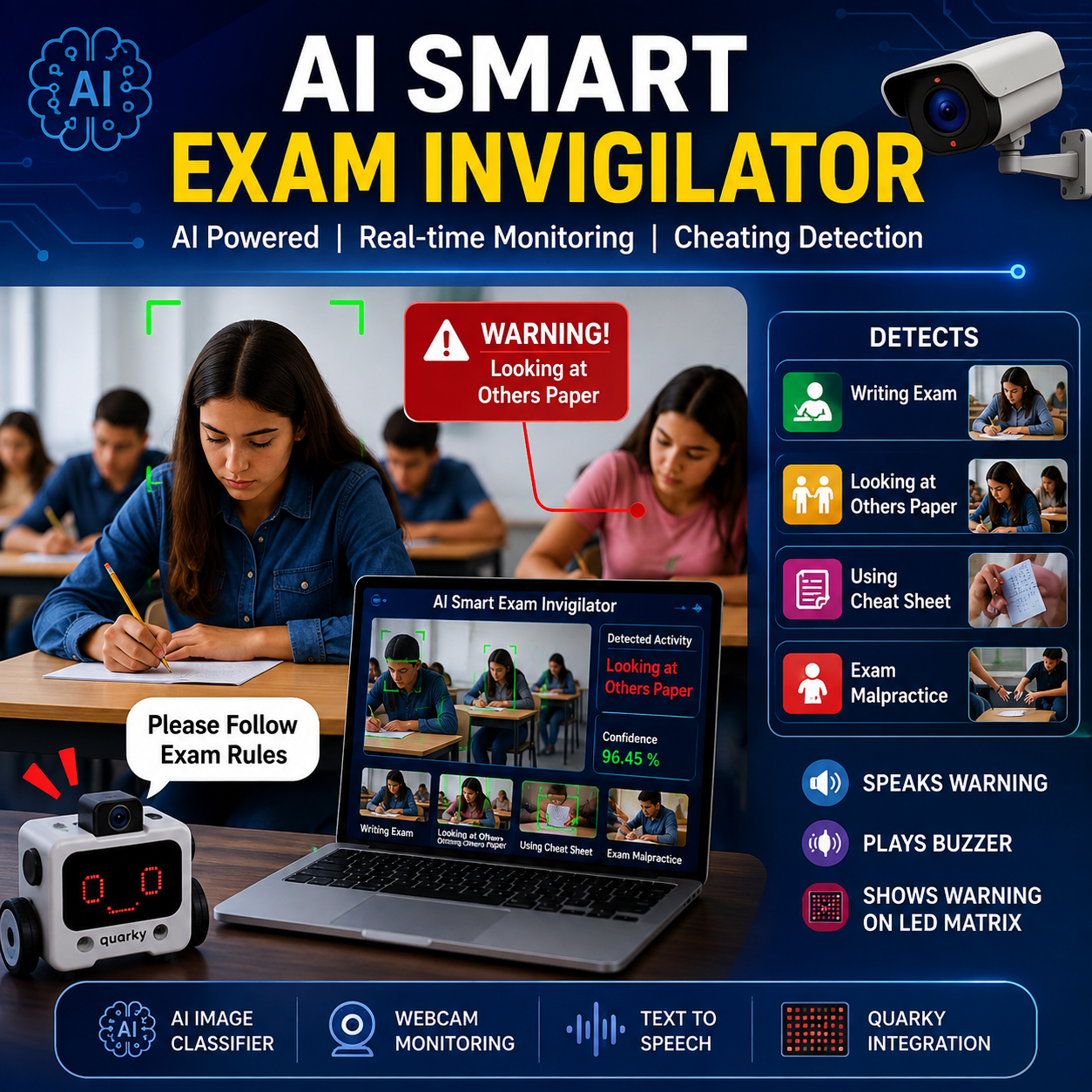
Ensuring fairness during examinations is an important challenge in schools and colleges. Manual invigilation may not always detect every instance of cheating. This project, AI Smart Exam Invigilator, uses PictoBlox Image Classifier, a webcam, and Quarky to monitor students in real time.
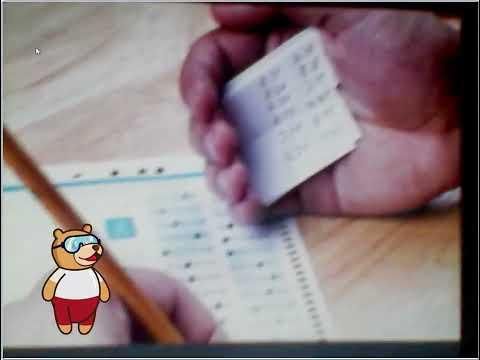
The AI model is trained to recognize four exam scenarios: Writing Exam, Looking at Others' Paper, Using Cheat Sheet, and Exam Malpractice. When suspicious activity is detected, the system instantly announces the detected activity using Text-to-Speech, plays a warning buzzer, and displays a warning icon on Quarky's LED matrix. If the student is writing the exam normally, the system confirms normal exam behavior.
This project demonstrates how Artificial Intelligence, Machine Learning, and Computer Vision can be used to build a smart, automated exam monitoring system that promotes fairness, reduces malpractice, and enhances the security of examinations.
Supplies

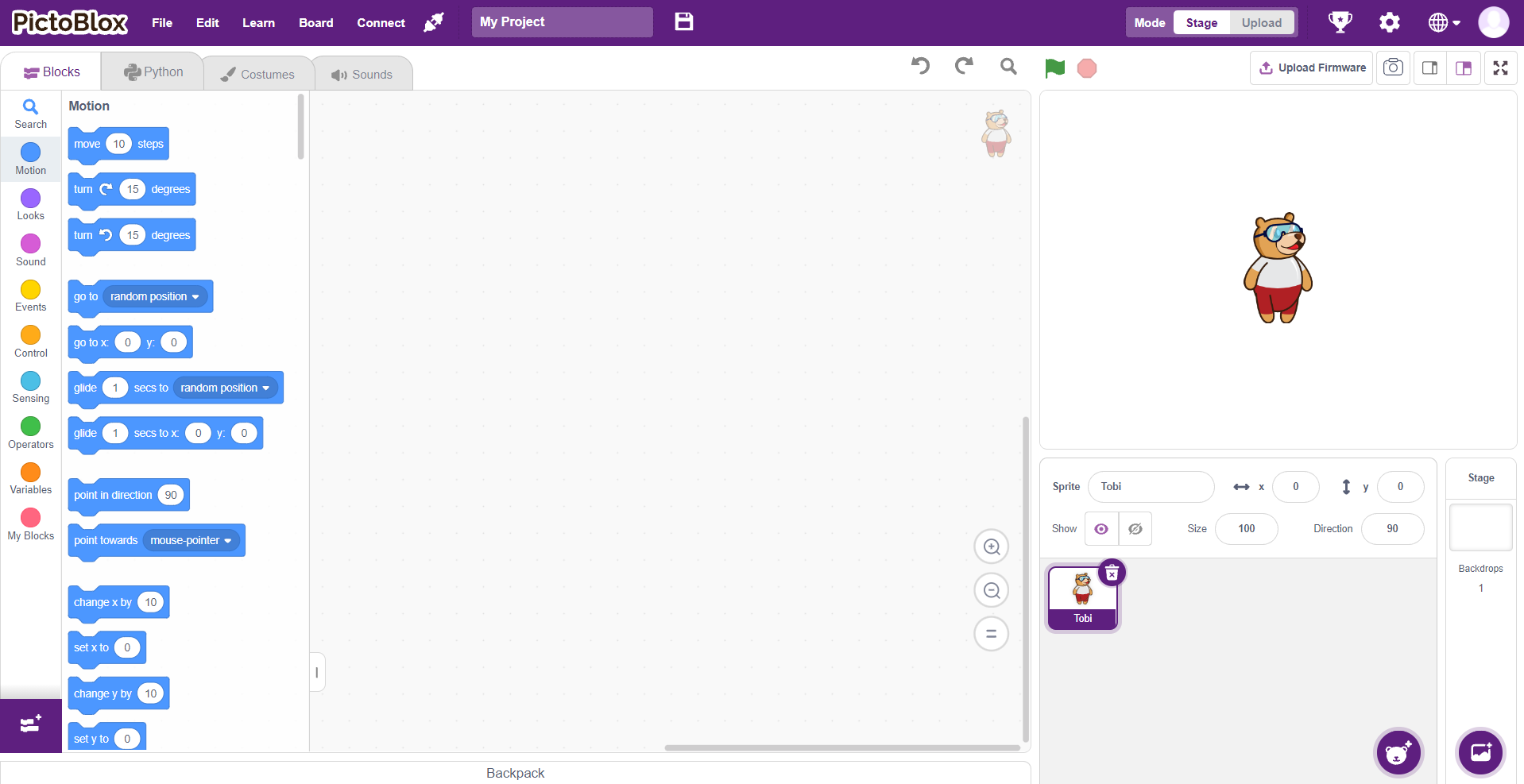
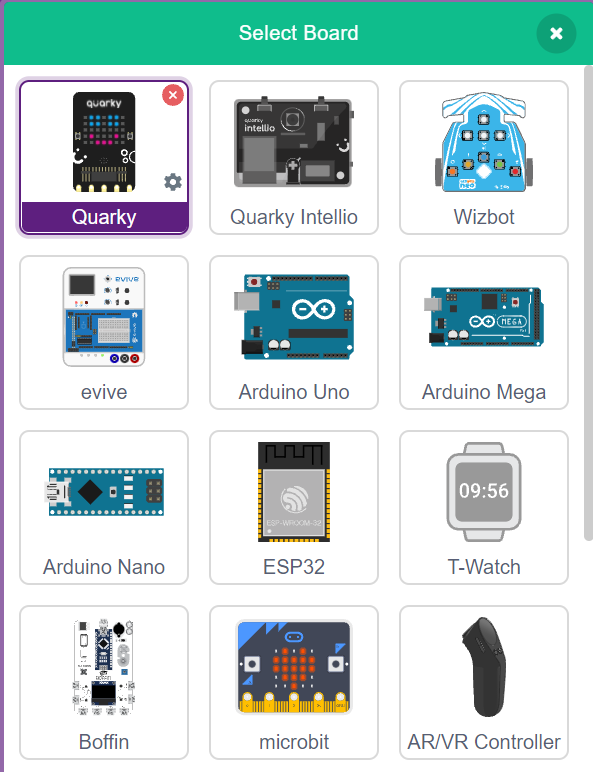
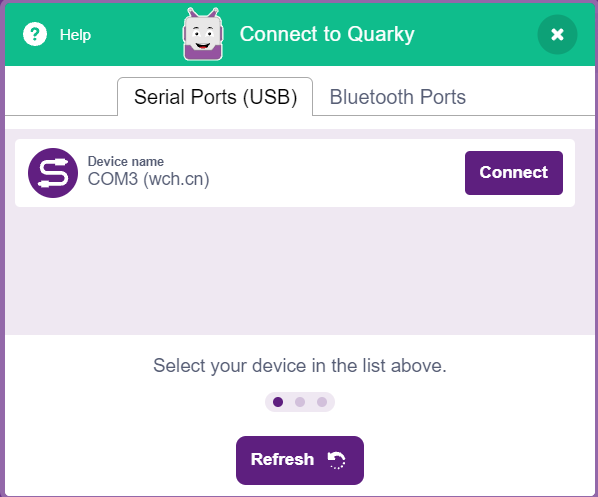
- Pictoblox Software: Download PictoBlox | Windows, MacOS, Linux, Chromebook, Android & iOS
- Laptop/PC
- Inbuilt or External Camera Setup
- Speaker or Headphones
- Quarky
Create a New Image Classifier Project
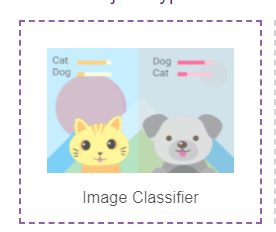

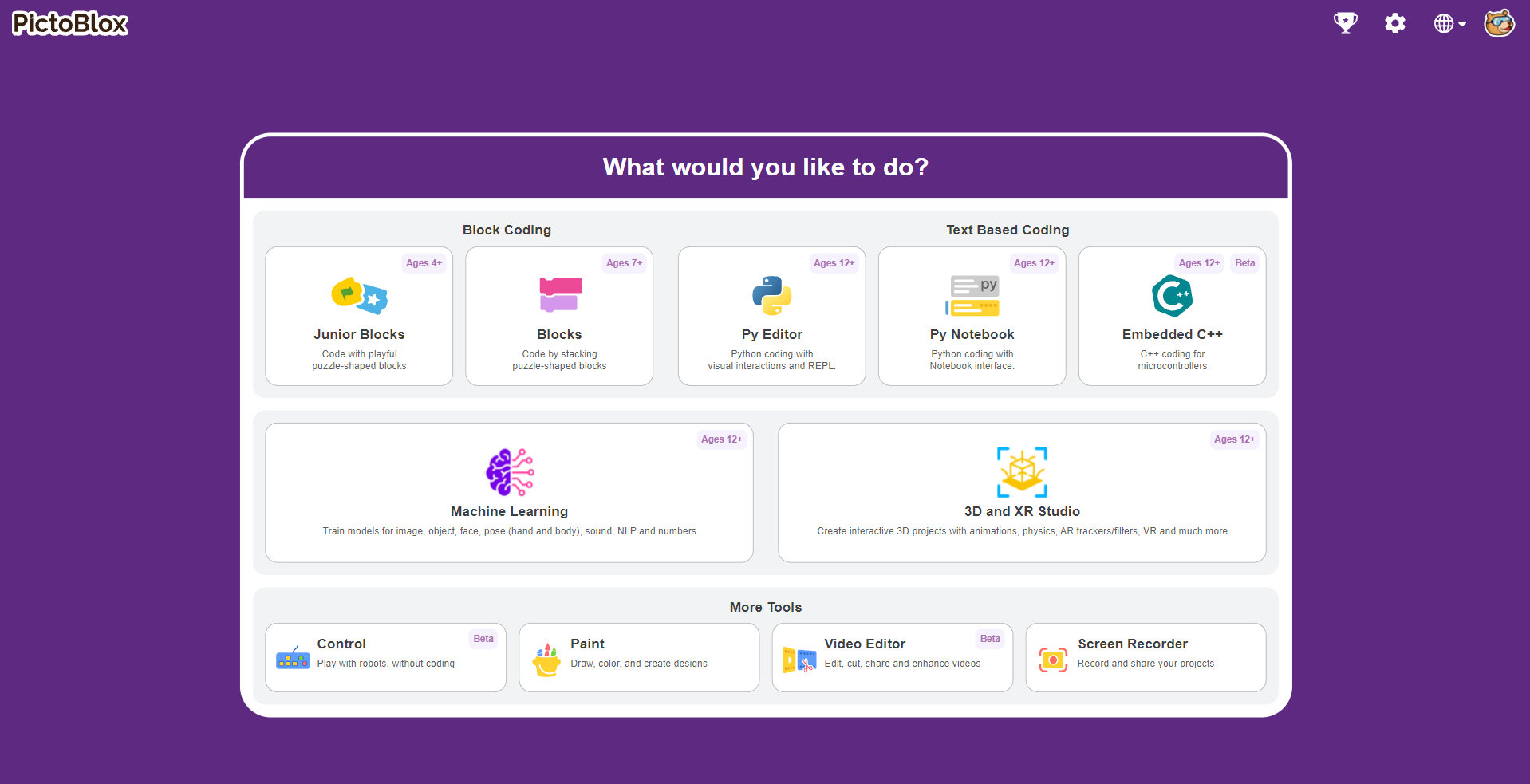
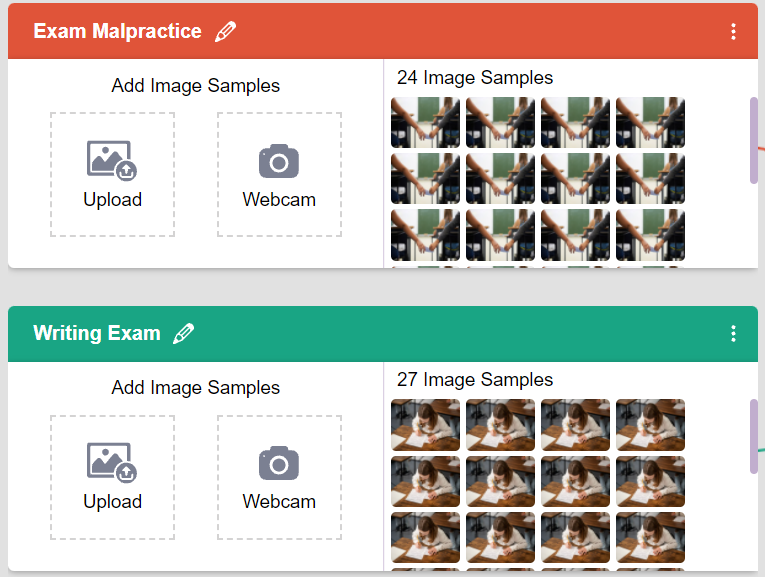
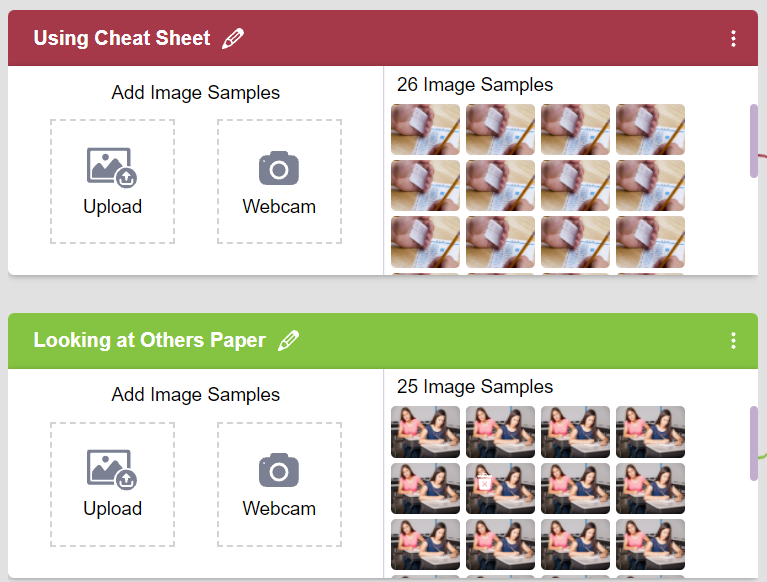
Open PictoBlox and go to the Machine Learning Environment. Select Image Classifier and click Create New Project. Name the project AI Smart Exam Invigilator. Create four classes: Writing Exam, Looking at Others' Paper, Using Cheat Sheet, and Exam Malpractice. Upload or capture multiple images for each class using the webcam to train the AI model accurately. Once all the images are added, click Train Model to generate the image classification model.
Export the Trained AI Model
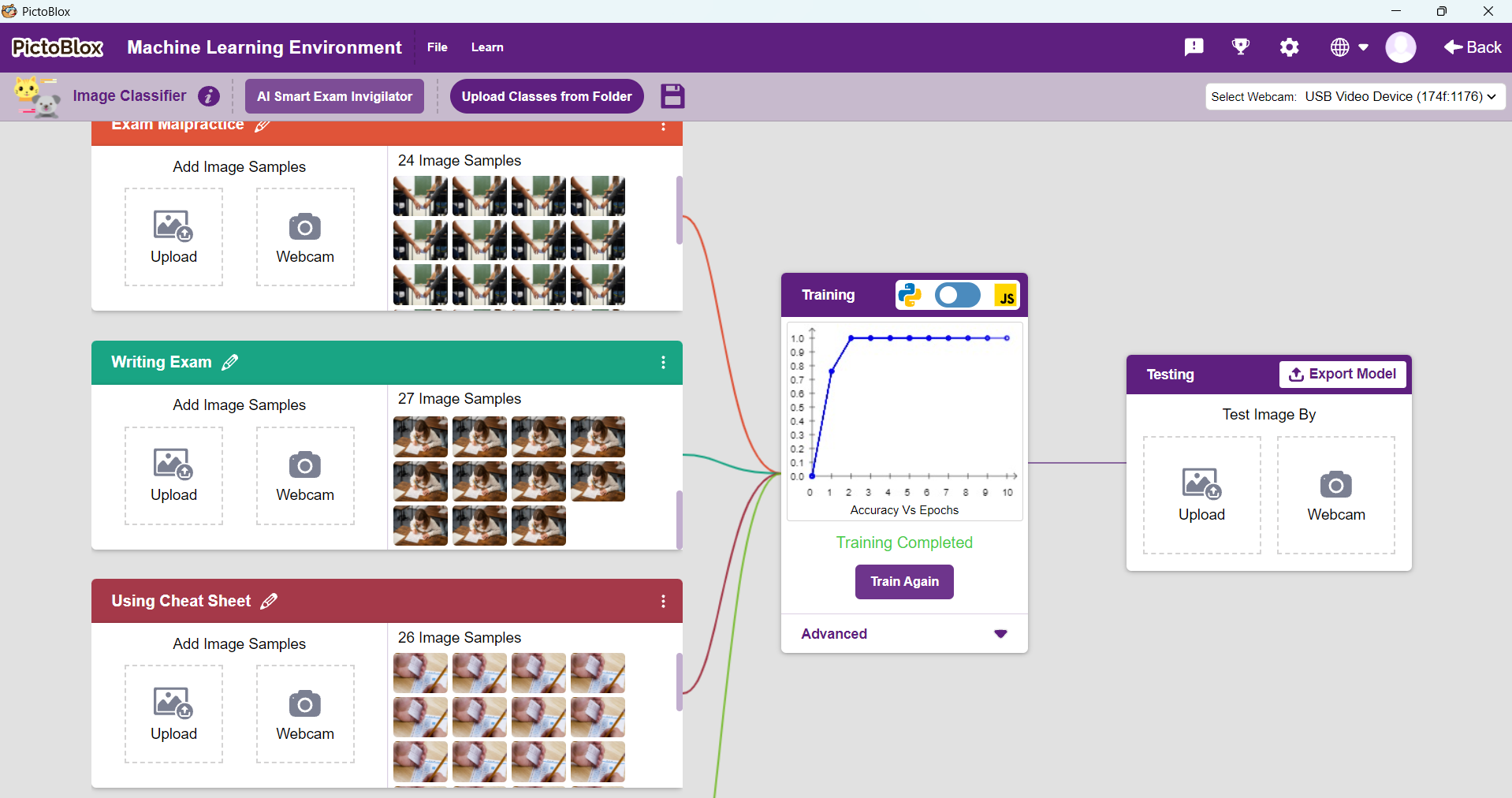
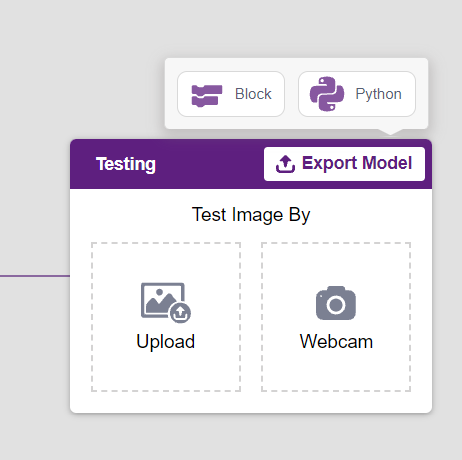
After the training is completed successfully, test the model using a few sample images or the webcam to verify that it correctly identifies each class. Once the model gives accurate predictions, click the Export Model button and choose Block mode. This exports the trained AI model so it can be used in your PictoBlox project for real-time exam monitoring.
In this step, you will:
- Verify the trained model using test images.
- Check whether all four classes are detected correctly.
- Click Export Model.
- Select Block export.
- Save the model for use in the main PictoBlox project.
Set Up the PictoBlox Project
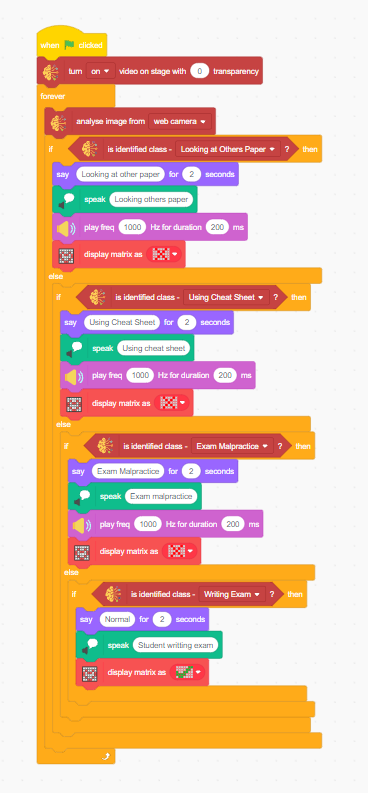
Open a new PictoBlox project and add the required extensions:
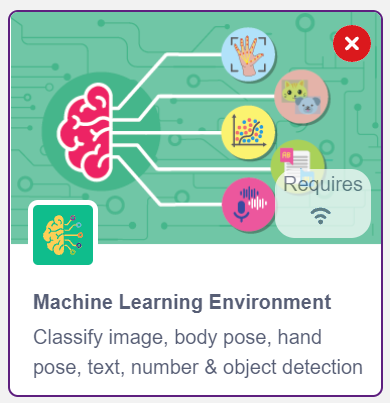
- Machine Learning Environment
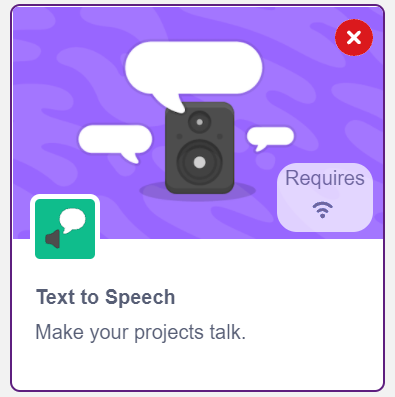
- Text to Speech
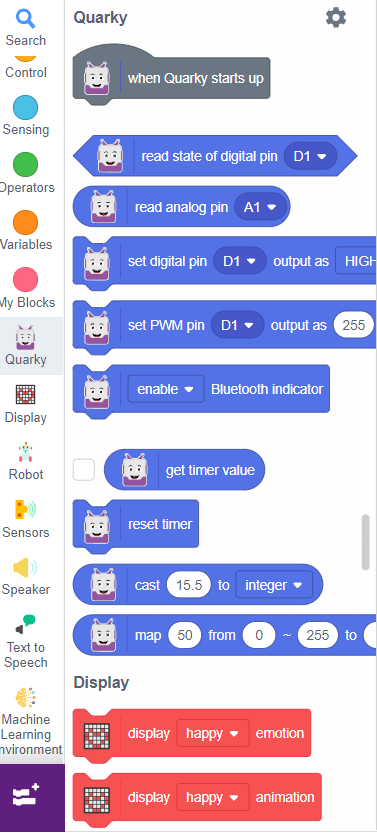
- Quarky
Import the exported AI model into the project. Connect Quarky to your computer and ensure the webcam is selected. These extensions enable the project to analyze live webcam images, announce detected activities using voice, play alerts, and display warning symbols on the Quarky LED matrix.
In this step, you will:
- Open a new PictoBlox project.
- Add the Machine Learning Environment extension.
- Add the Text to Speech extension.
- Connect the Quarky board.
- Import the exported AI model.
- Verify that the webcam and Quarky are working correctly.
Create the Detection Logic
Build the program using PictoBlox blocks to continuously monitor the webcam. Start the camera and use the recognize image from camera block to classify the student's activity. Store the predicted class in a variable and use if-else conditions to perform different actions based on the detected activity.
- If Writing Exam is detected, display "Exam Running Normally".
- If Looking at Others' Paper, Using Cheat Sheet, or Exam Malpractice is detected:
- Display a warning message.
- Speak the detected activity using Text-to-Speech.
- Play the buzzer.
- Show a warning icon on the Quarky LED matrix.
This step creates the core AI logic that monitors the examination and responds instantly to suspicious activities.
Test and Run the AI Smart Exam Invigilator
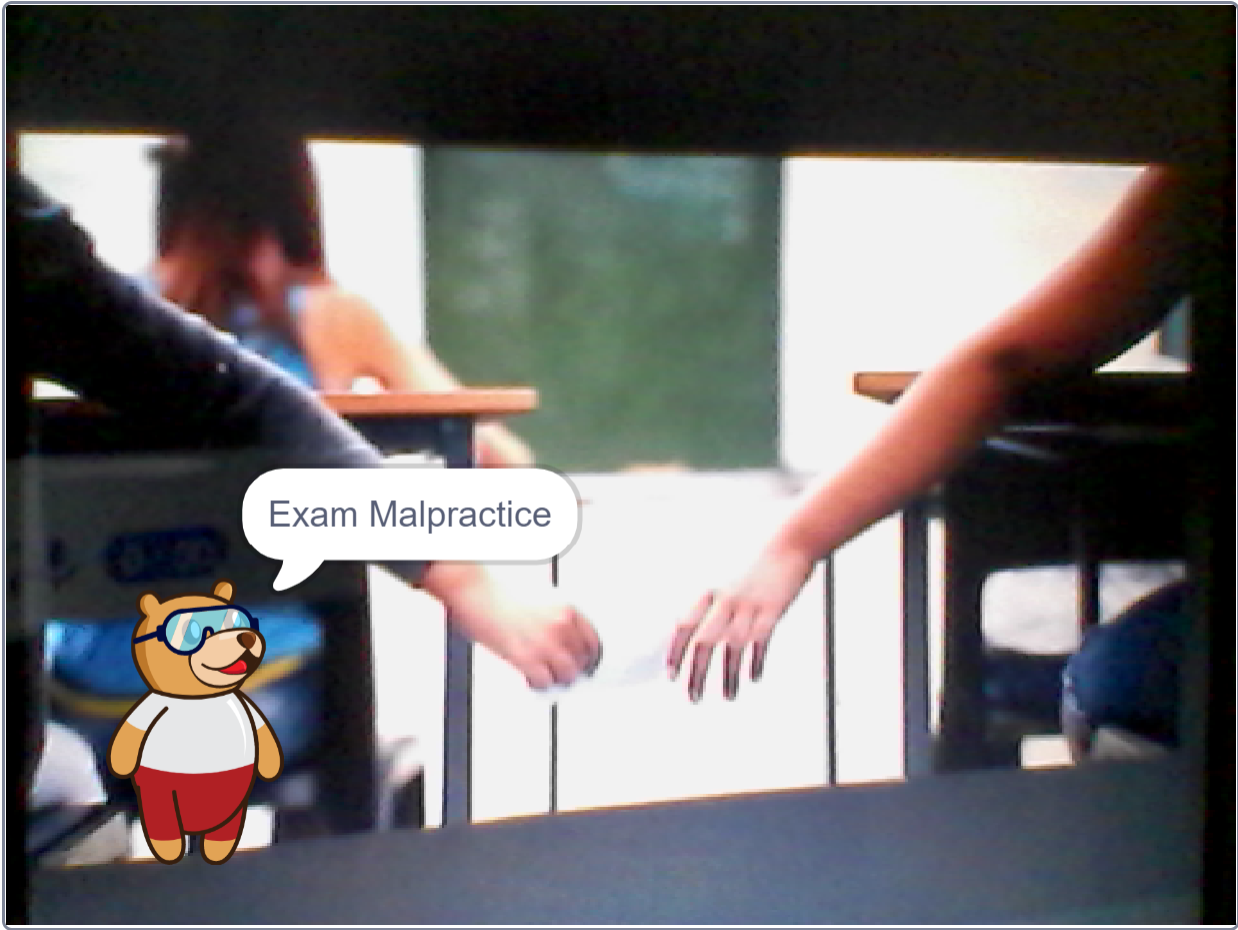
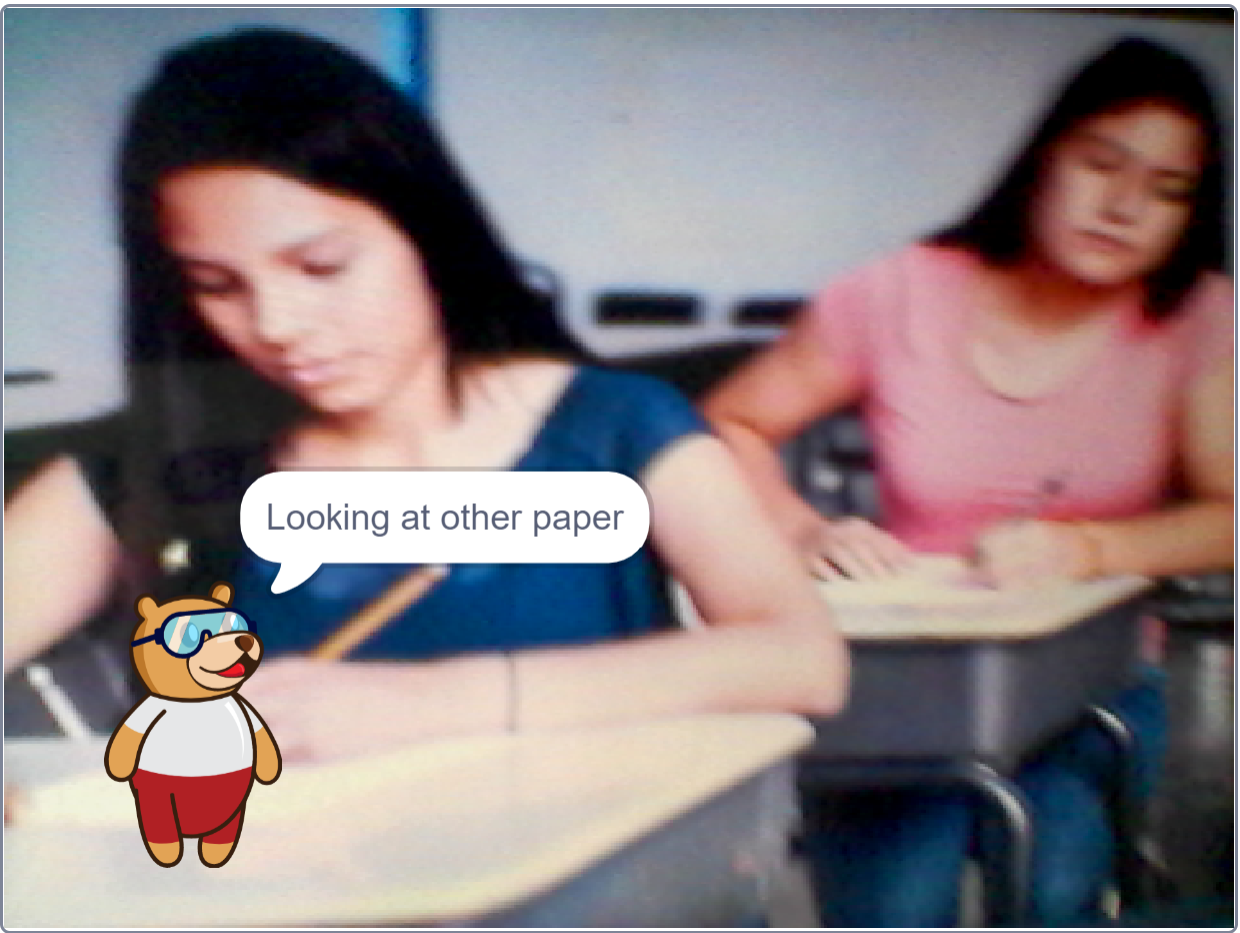
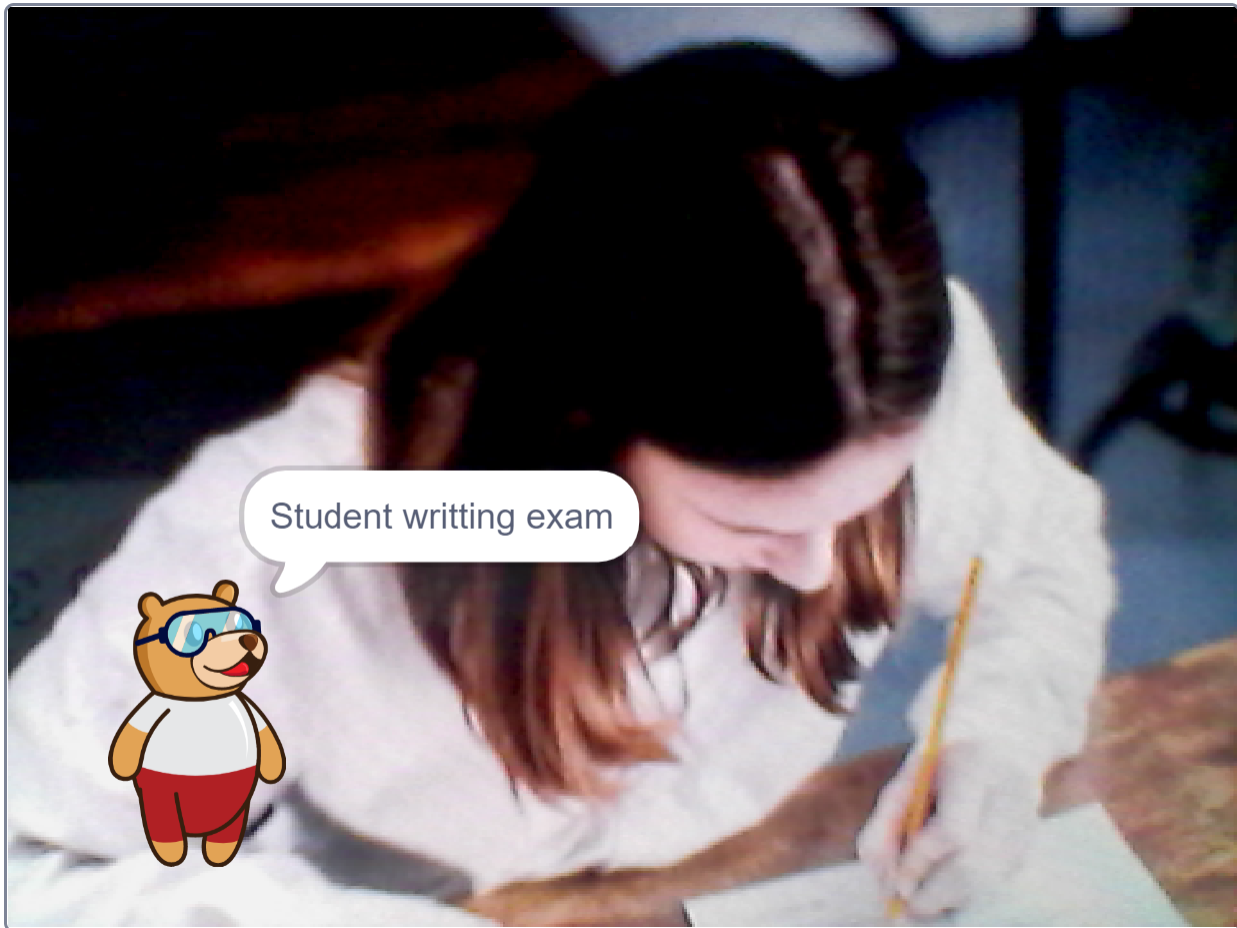
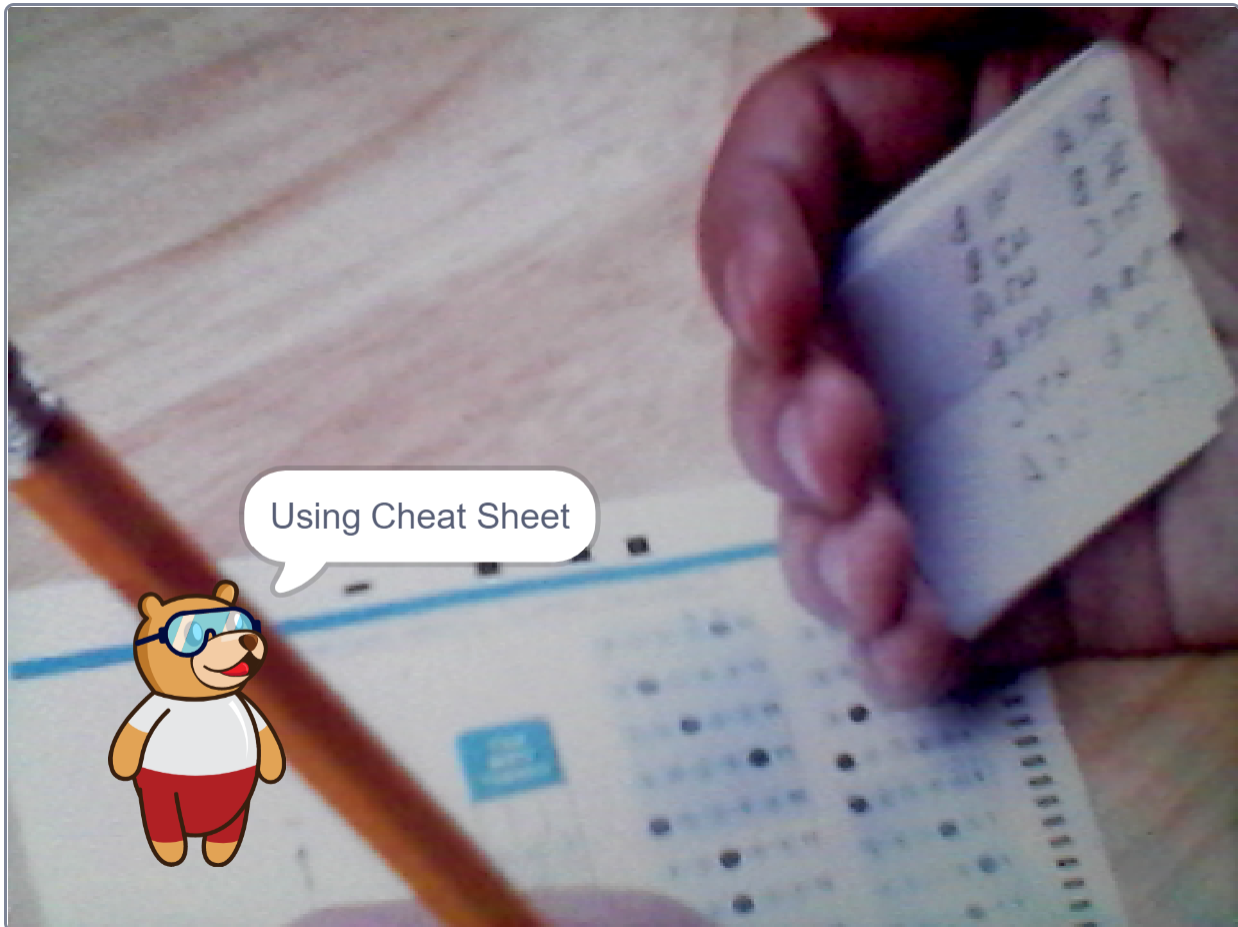
Click the Green Flag to start the project and allow access to the webcam. Stand in front of the camera and test each trained class by performing different exam activities. Observe whether the AI correctly identifies the activity and triggers the appropriate response.
- Writing Exam → Displays "Exam Running Normally".
- Looking at Others' Paper → Displays a warning, speaks the activity, activates the buzzer, and shows a warning icon on the Quarky LED matrix.
- Using Cheat Sheet → Generates an alert and voice warning.
- Exam Malpractice → Triggers the highest-level warning with buzzer and LED indication.
Verify that the AI accurately recognizes each activity and responds in real time. If necessary, retrain the model with additional images to improve its accuracy.
Conclusion
The AI Smart Exam Invigilator successfully monitors students during examinations using Artificial Intelligence and Computer Vision. It detects normal and suspicious exam activities in real time, provides instant voice and buzzer alerts, and displays warning messages through Quarky. This project demonstrates how AI can help create a fair and secure examination environment.