Adapted PS5 Controller D4E1
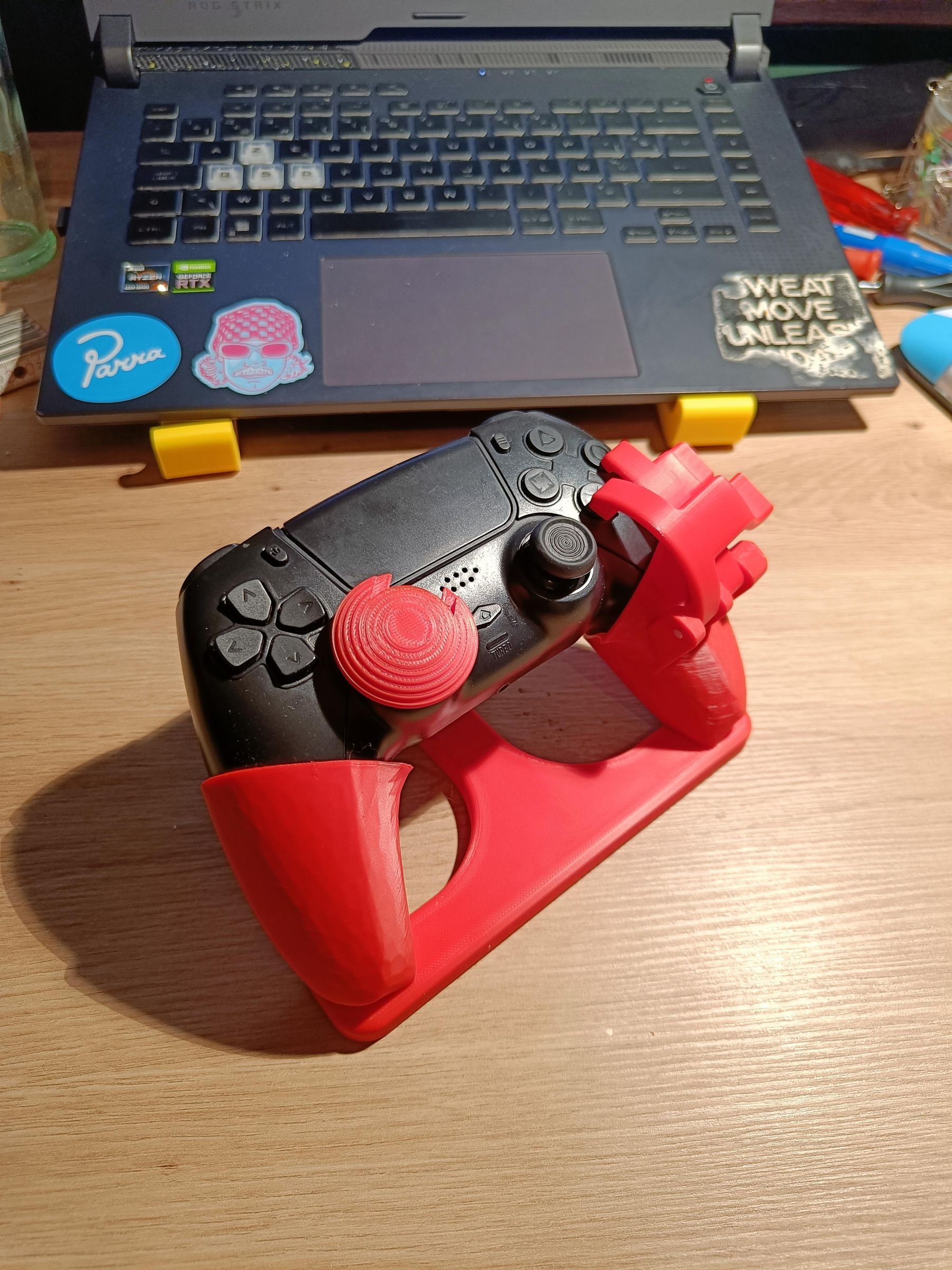
Hi, we're Senne, Dylan, Julianne and Thomas we study Industrial Product Design and for our course Product Engineering we designed a adaptive PS5 controller. The stand is designed for people who have less mobility in their hands and can't reach the buttons that easily.
We worked together with Lance, who likes playing racing games. He could not play anymore because he did not have enough mobility in his hands to reach the back buttons nor the X, O buttons. With this project we made it possible for him to reach the X, O buttons so he could remap his L2 and R2 to be able to play racing games again. We also adapted the left analog stick so he could steer more easily.
Supplies
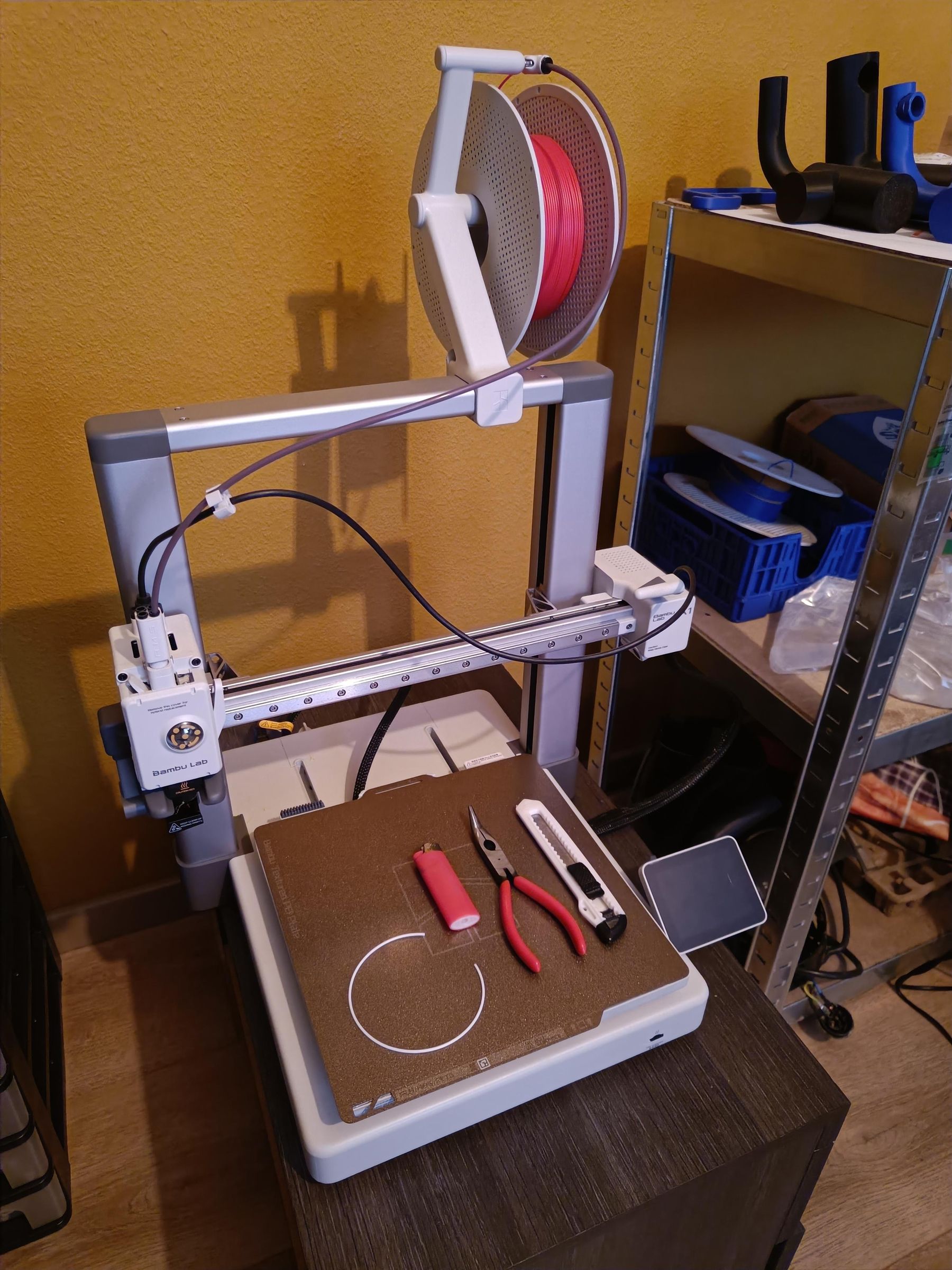
For this project you'll need a 3D printer, a piece of leftover filament, a lighter, some pliers and a box cutter.
Video Tutorial

To assamble the adaptive controller stand you can use this video tutorial or the tutorials slide down below.
3D Printing
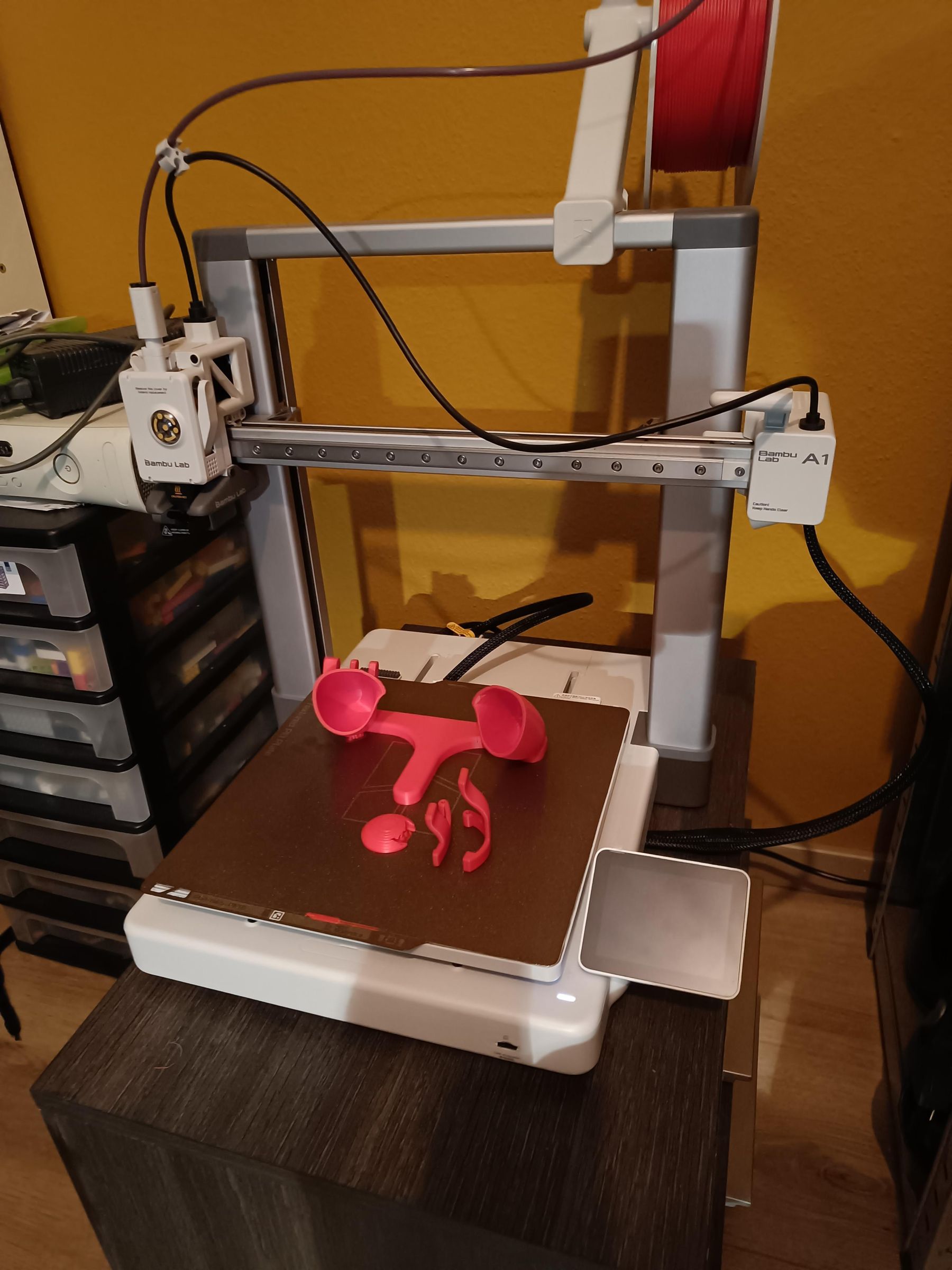
Print the needed pieces, you can use the 3MF files. Put the files in your slicer and put support on.
Tip: use tree support to be able to remove it easier once your printing is done.
Removing Supports
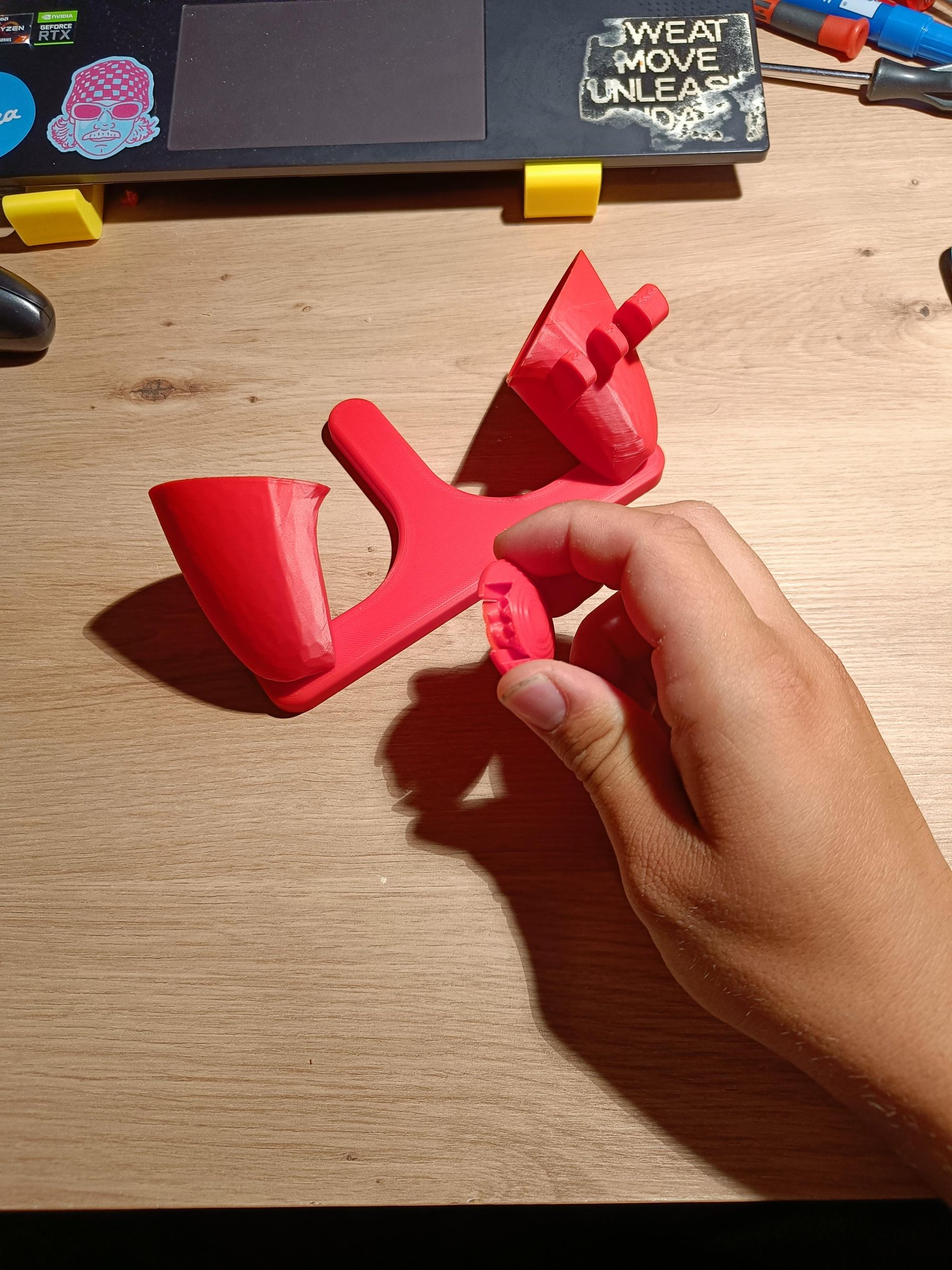
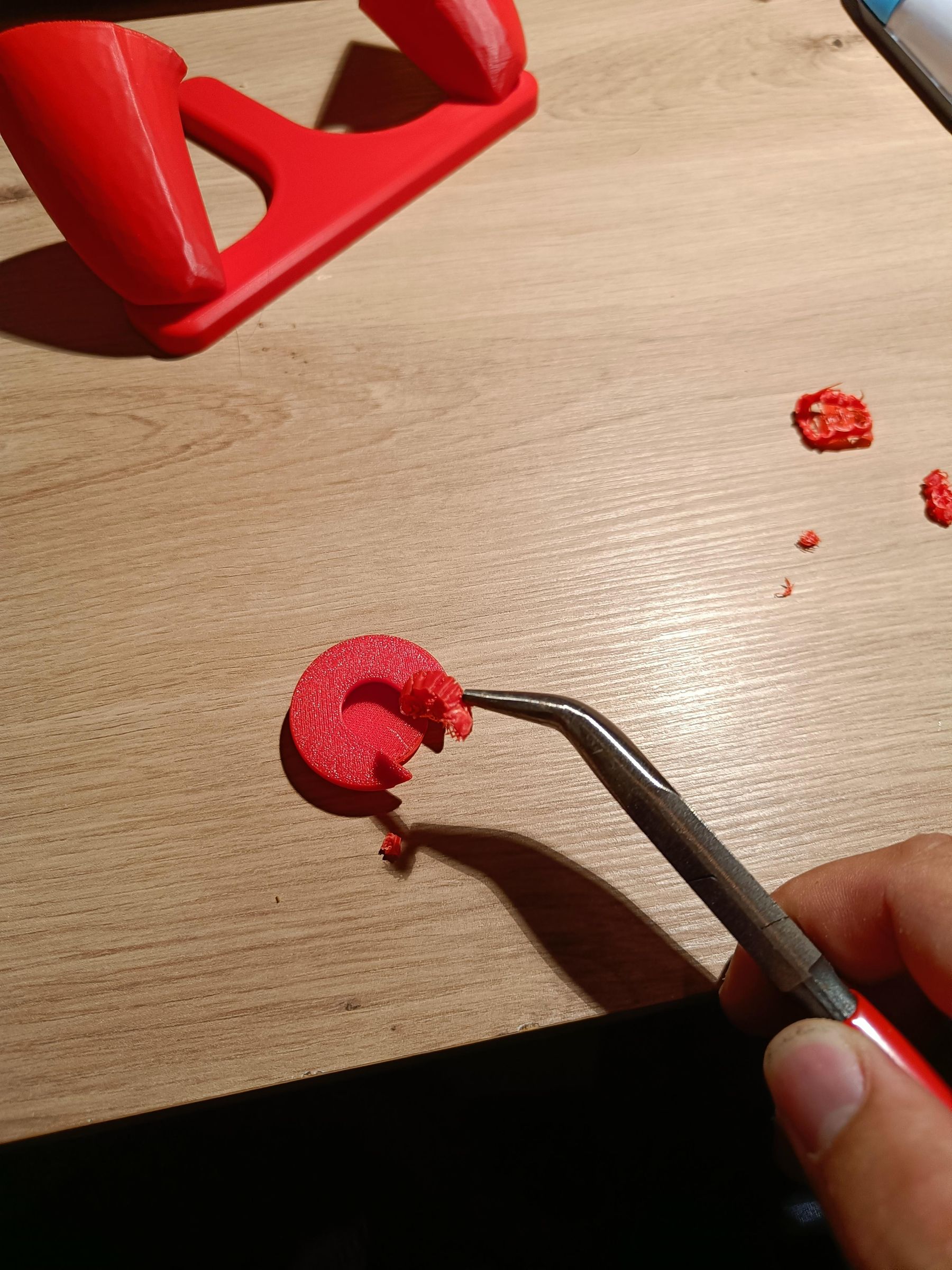
Remove the supports with the pliers.
Enlarge the Hole
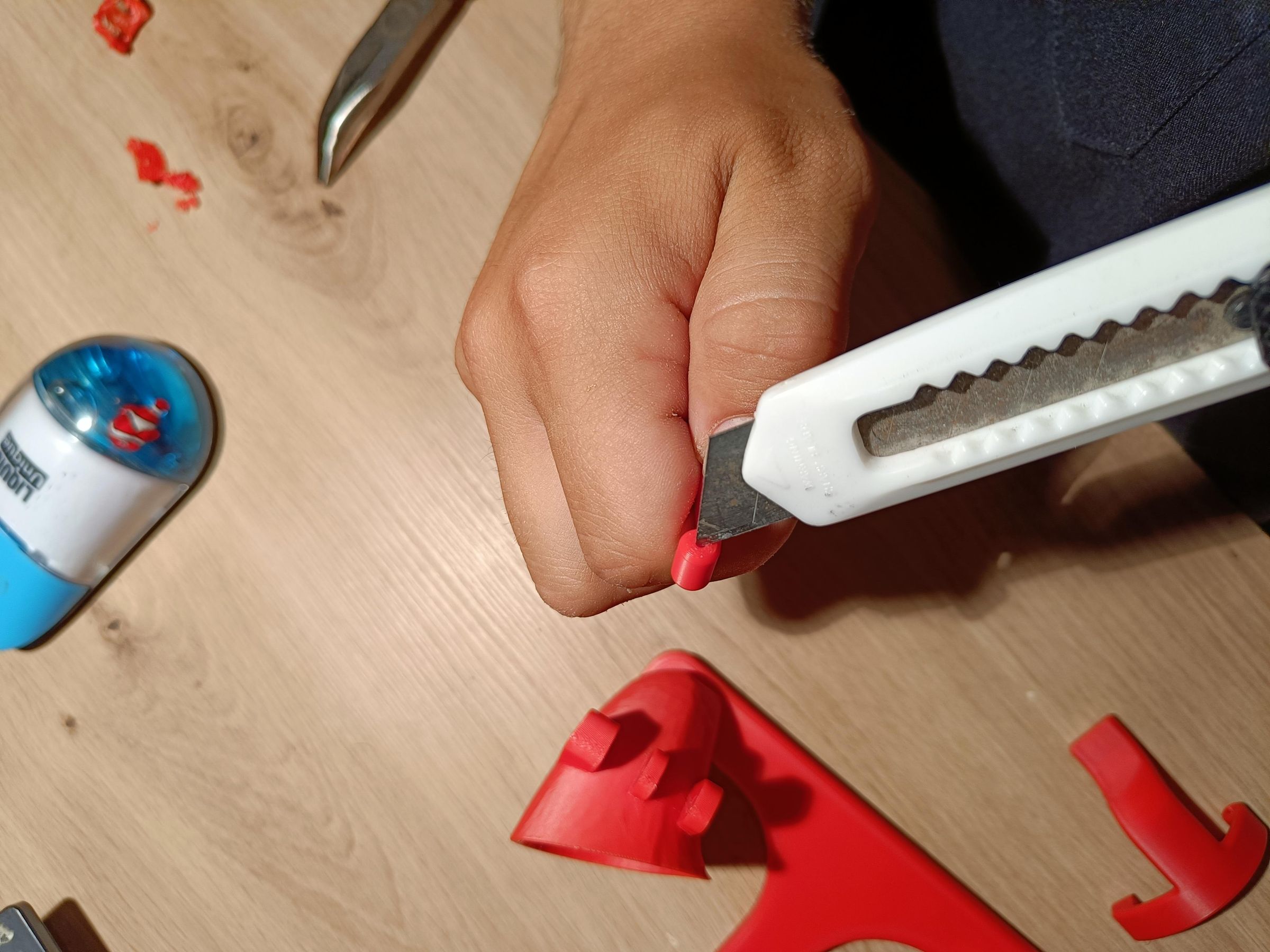
If needed, enlarge the hole on the button extenders with a box cutter to be able to feed the filament through more easily.
Placing the First Extender
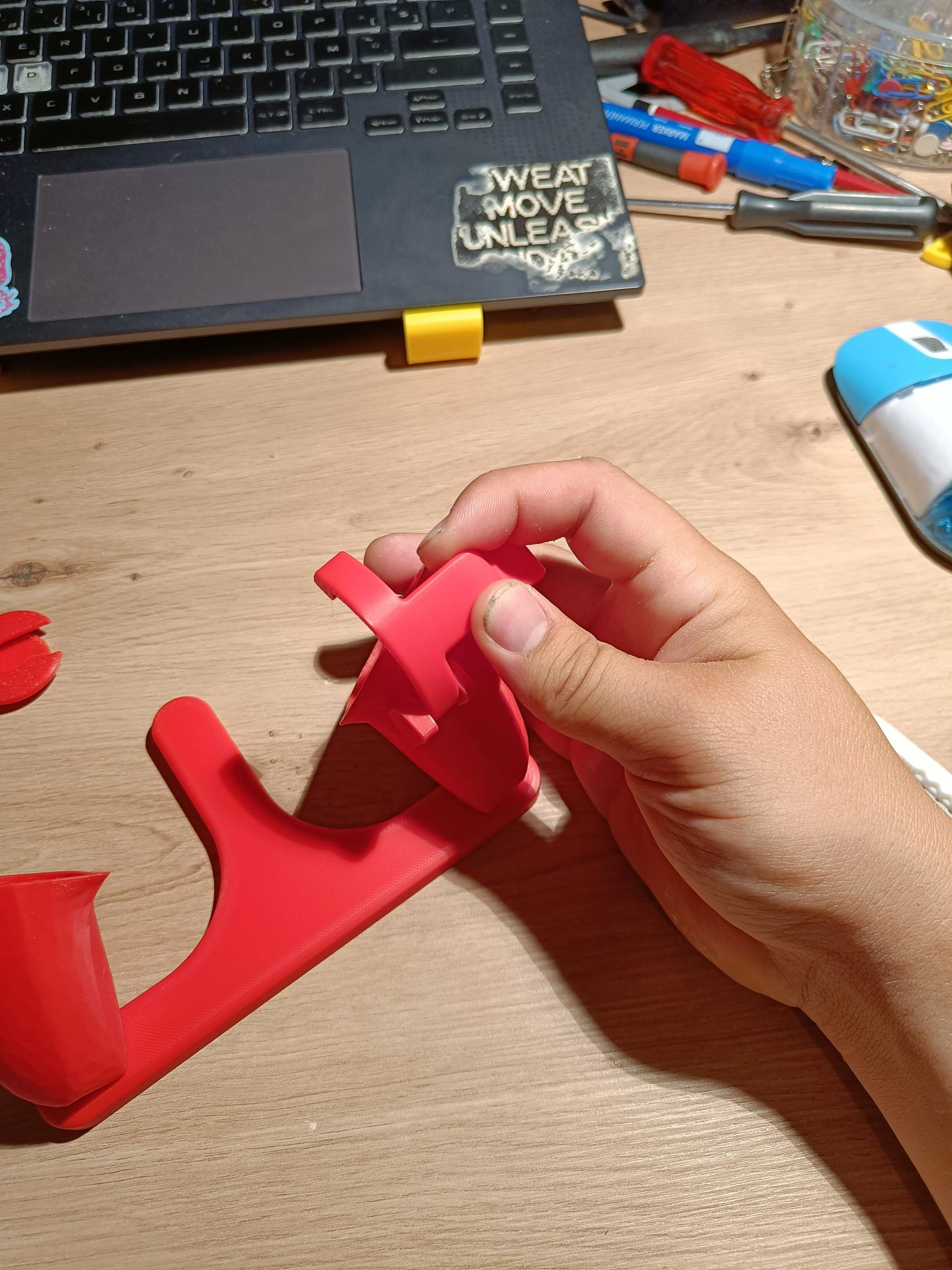
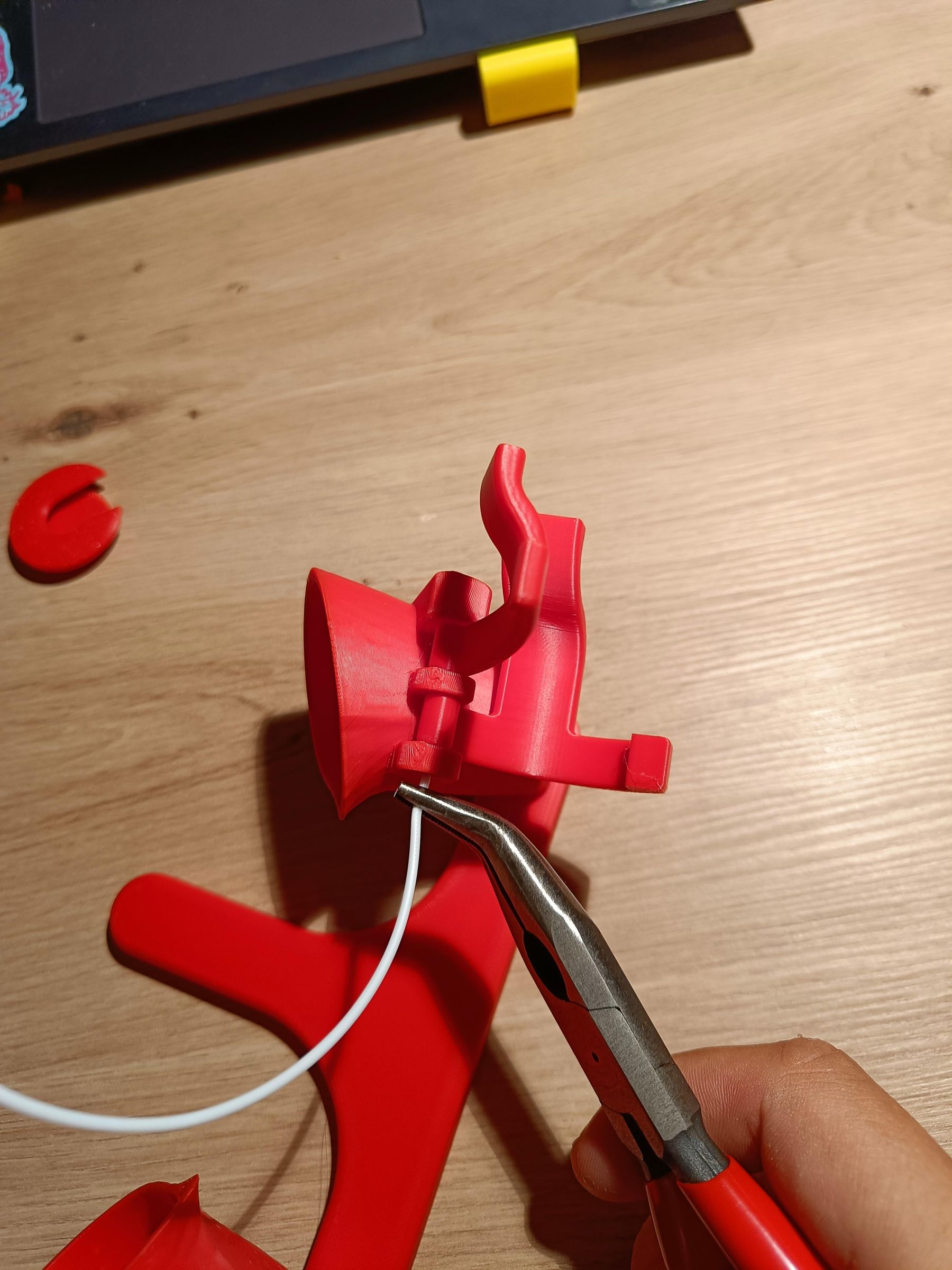
Put the X button extender between the two most left legs and align the hole. Once this is done you can feed the fillament through the hole.
Placing the Second Extender
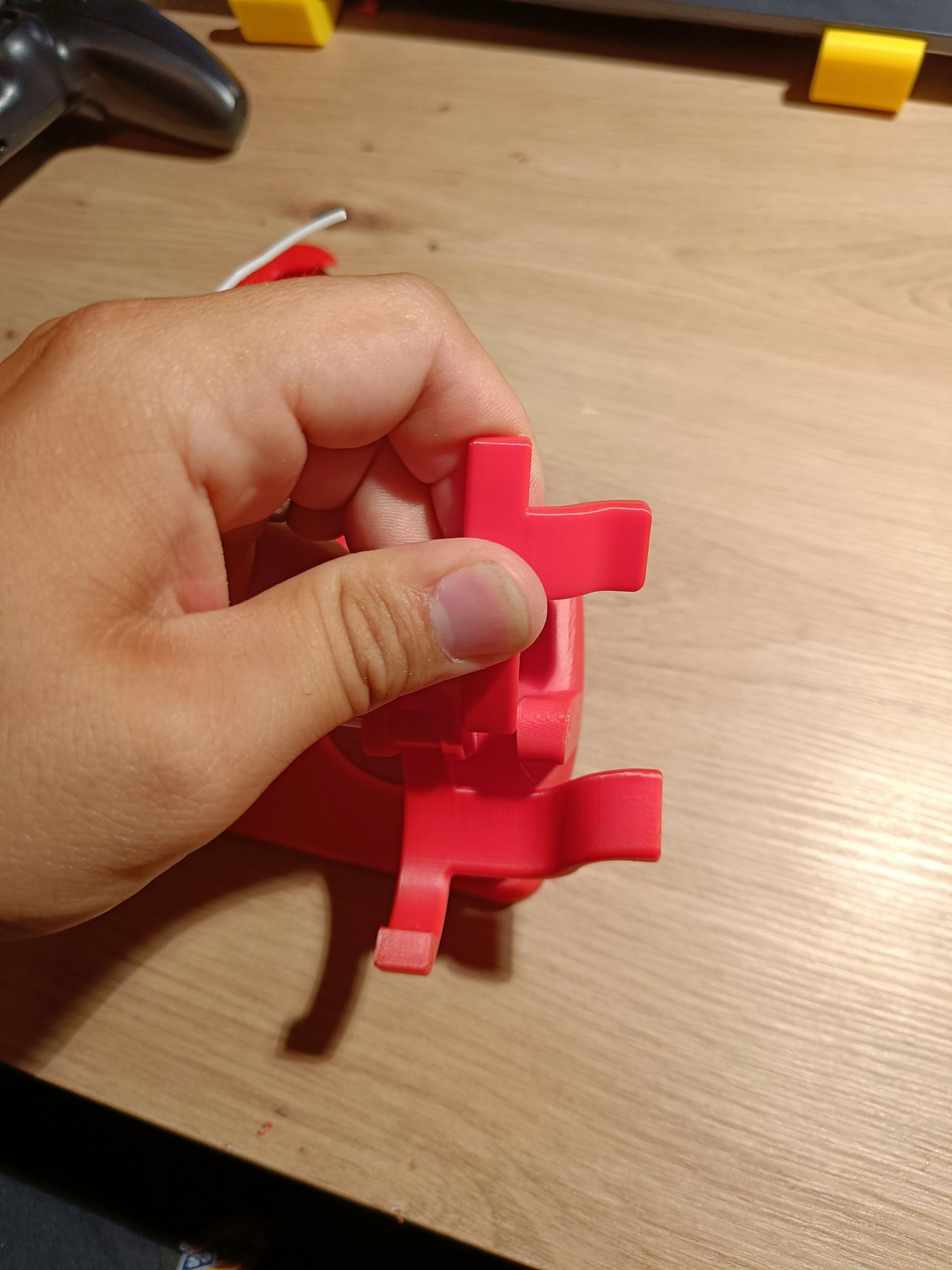
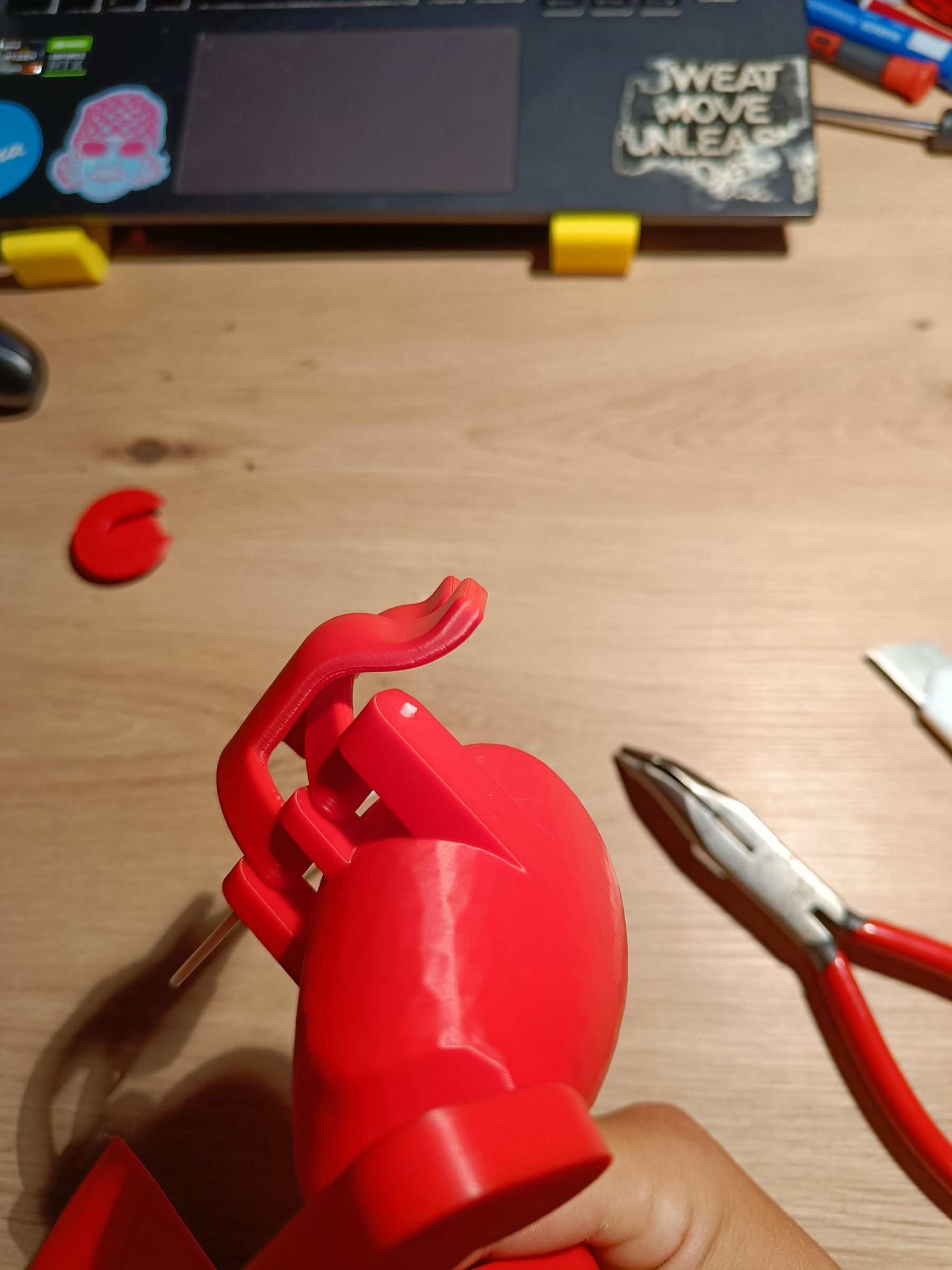
Put the O button extender in place and feec the filament through untill you have about 2-3 millimeters coming through.
Securing the Extenders
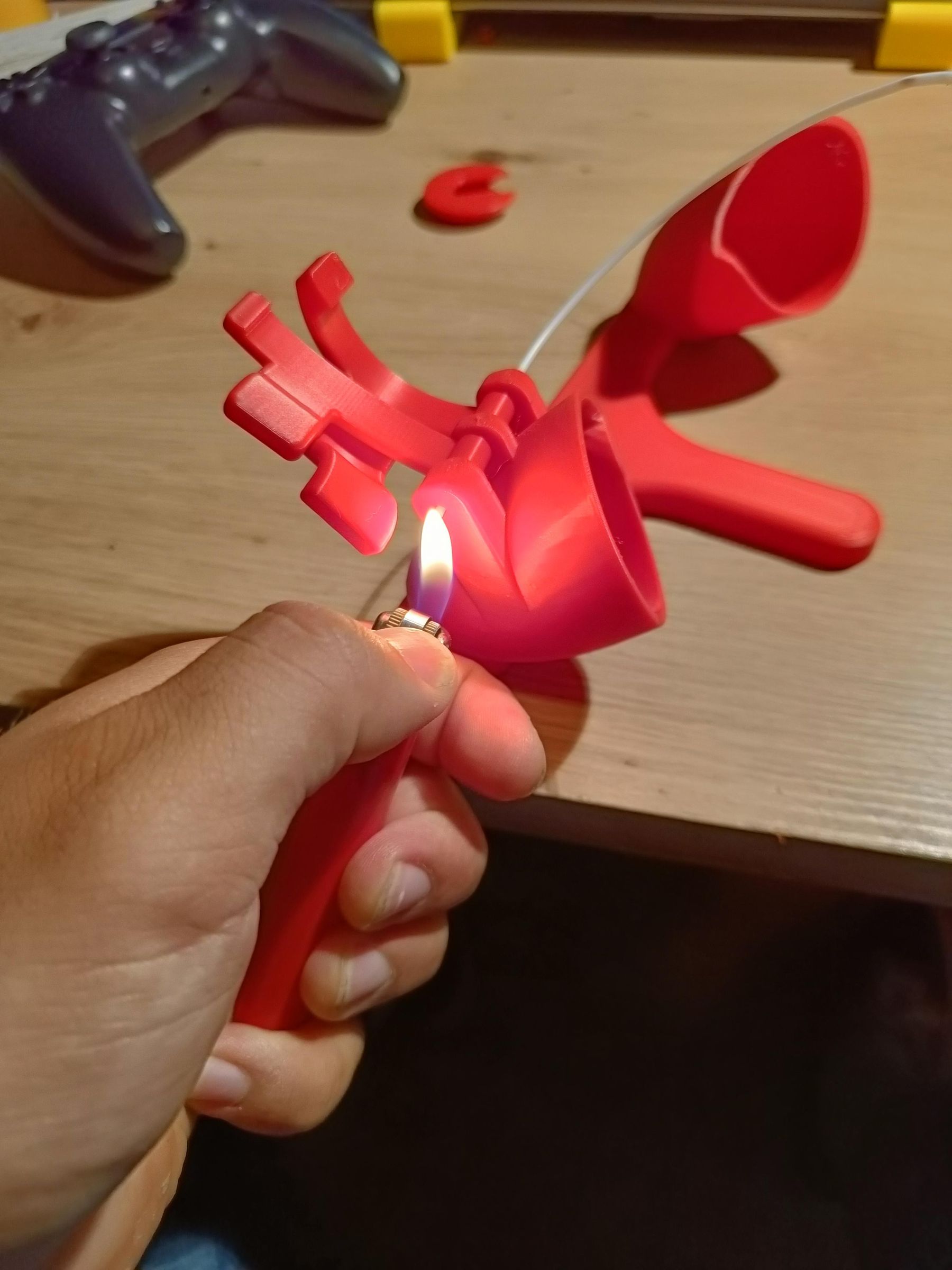
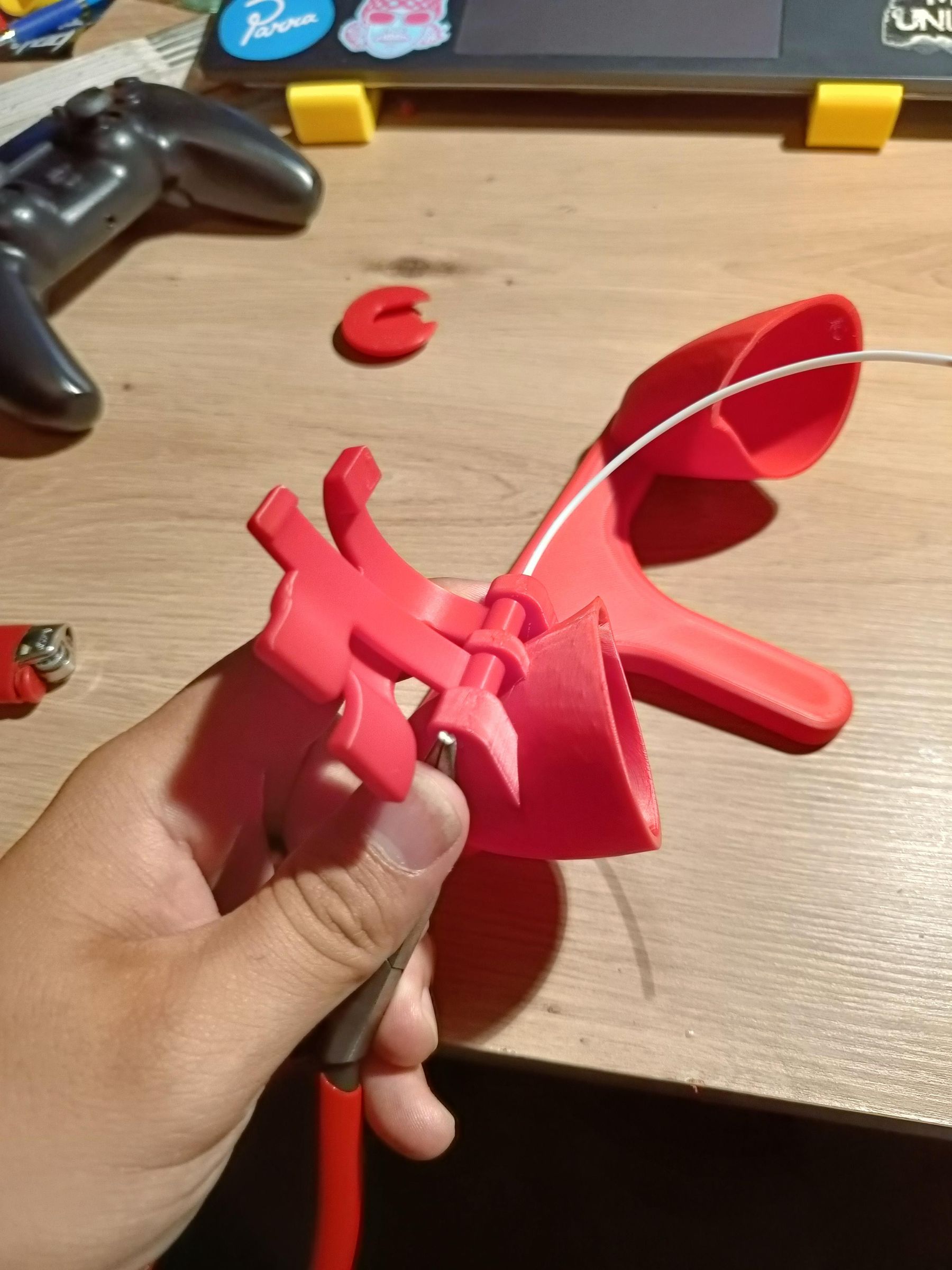
Use a lighter to melt the filament coming out and use the pliers to flatten the filament.
Securing the Extenders
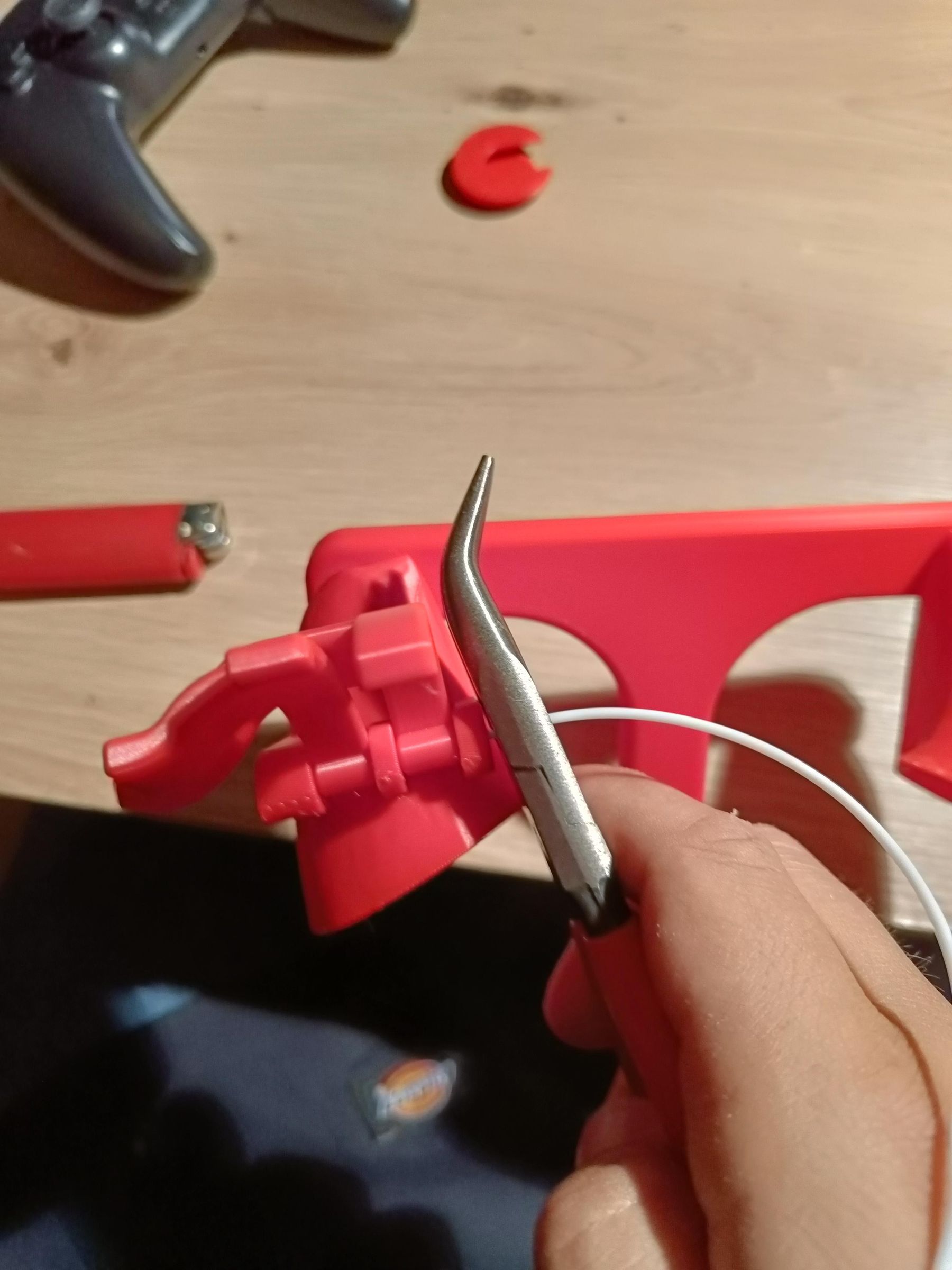
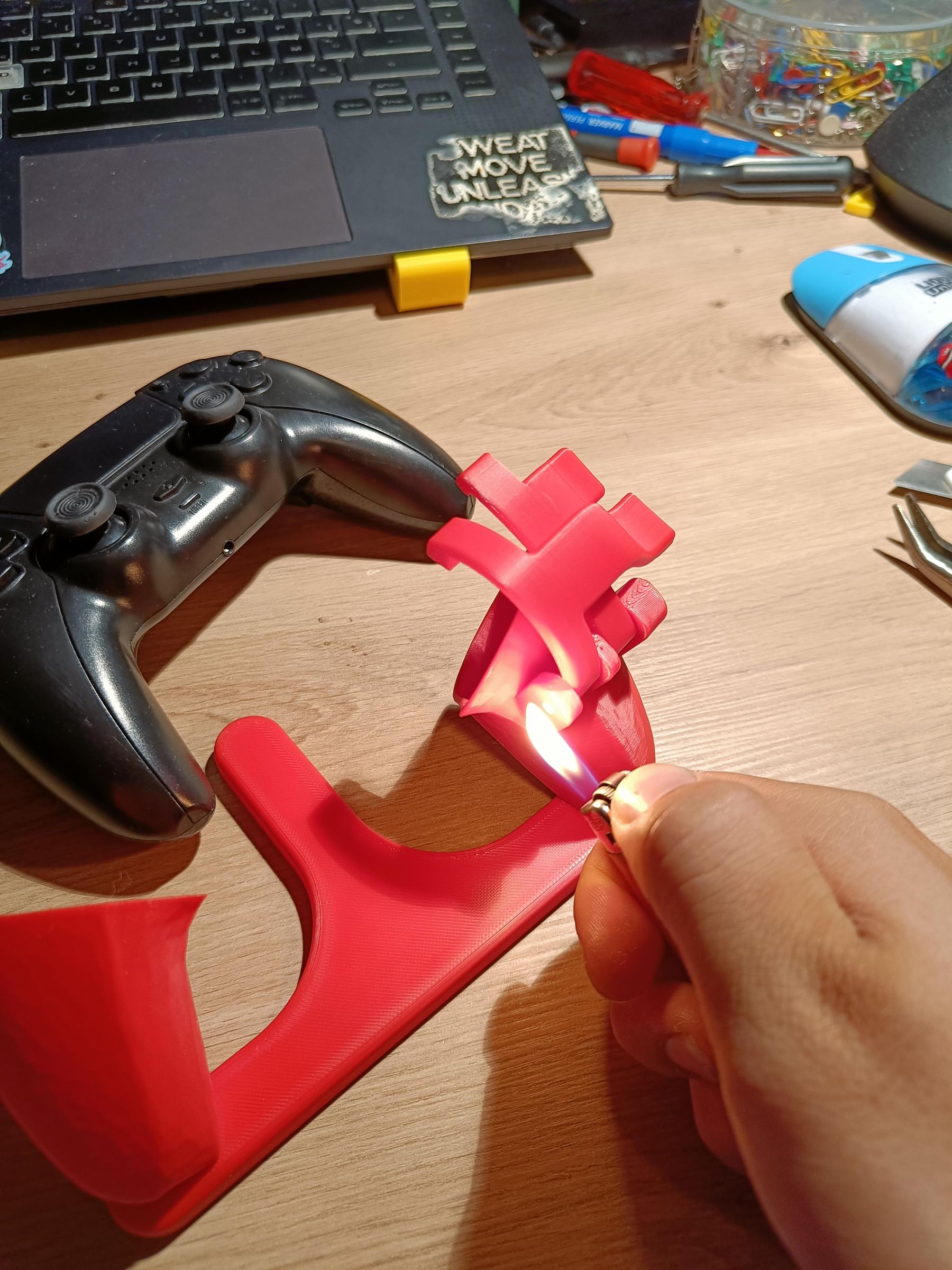
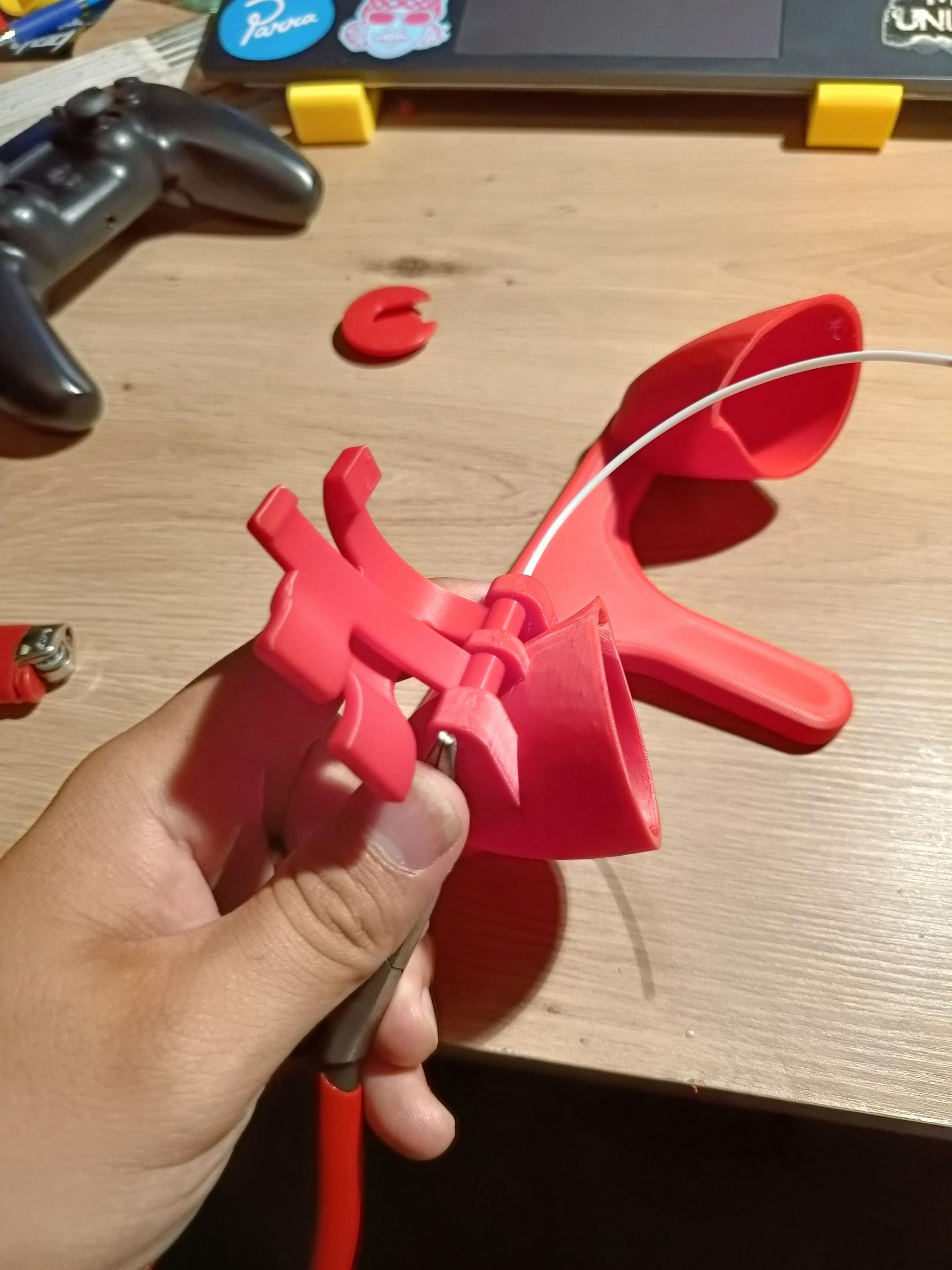
Cut the filament on the other side and repeat the previous step here.
Analog Stick Extender
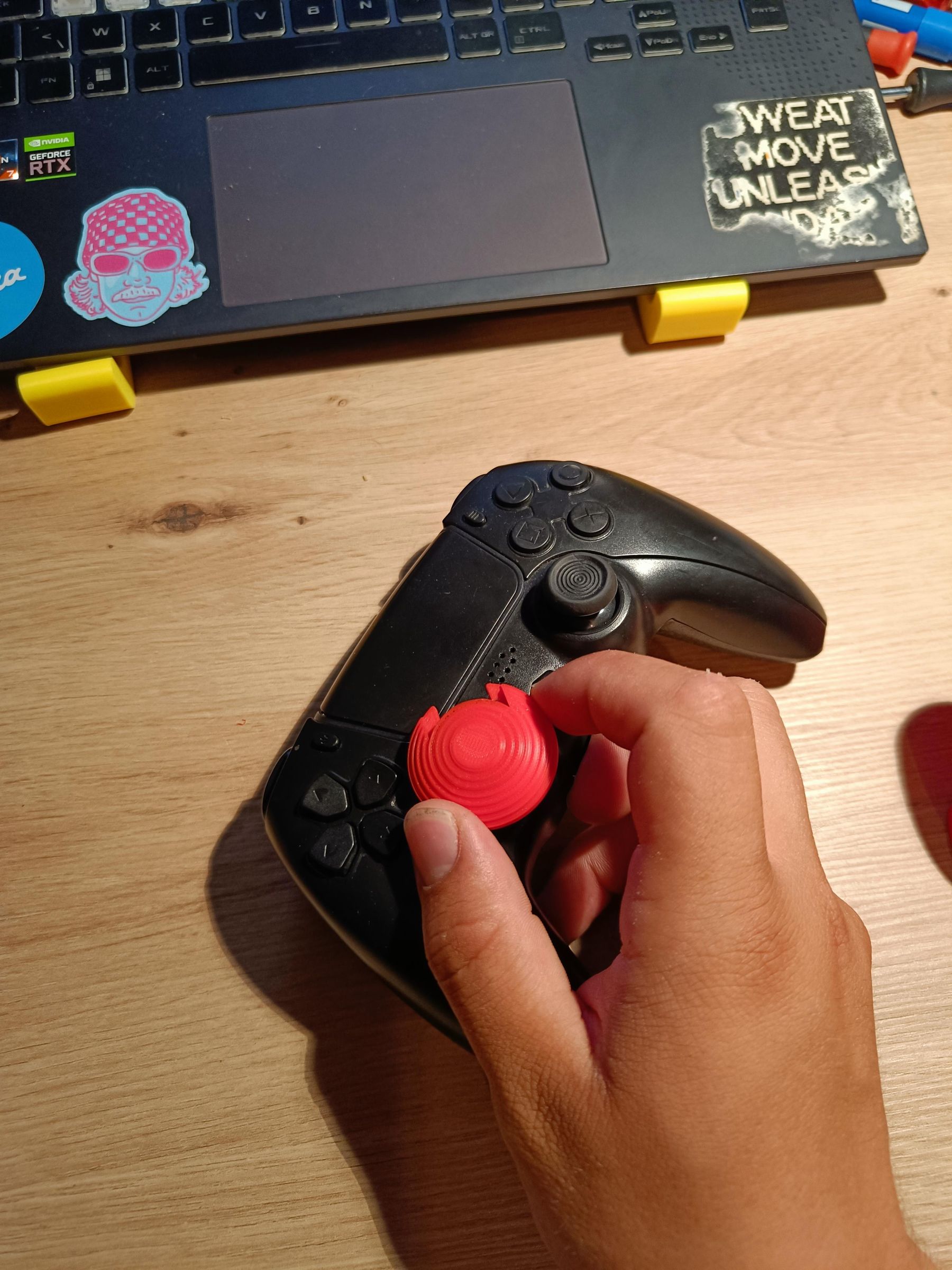
Slide the analog stick extender on the left analog stick. This will be a little tight, but in that way it doesn't move when playing.
Let's Start Gaming
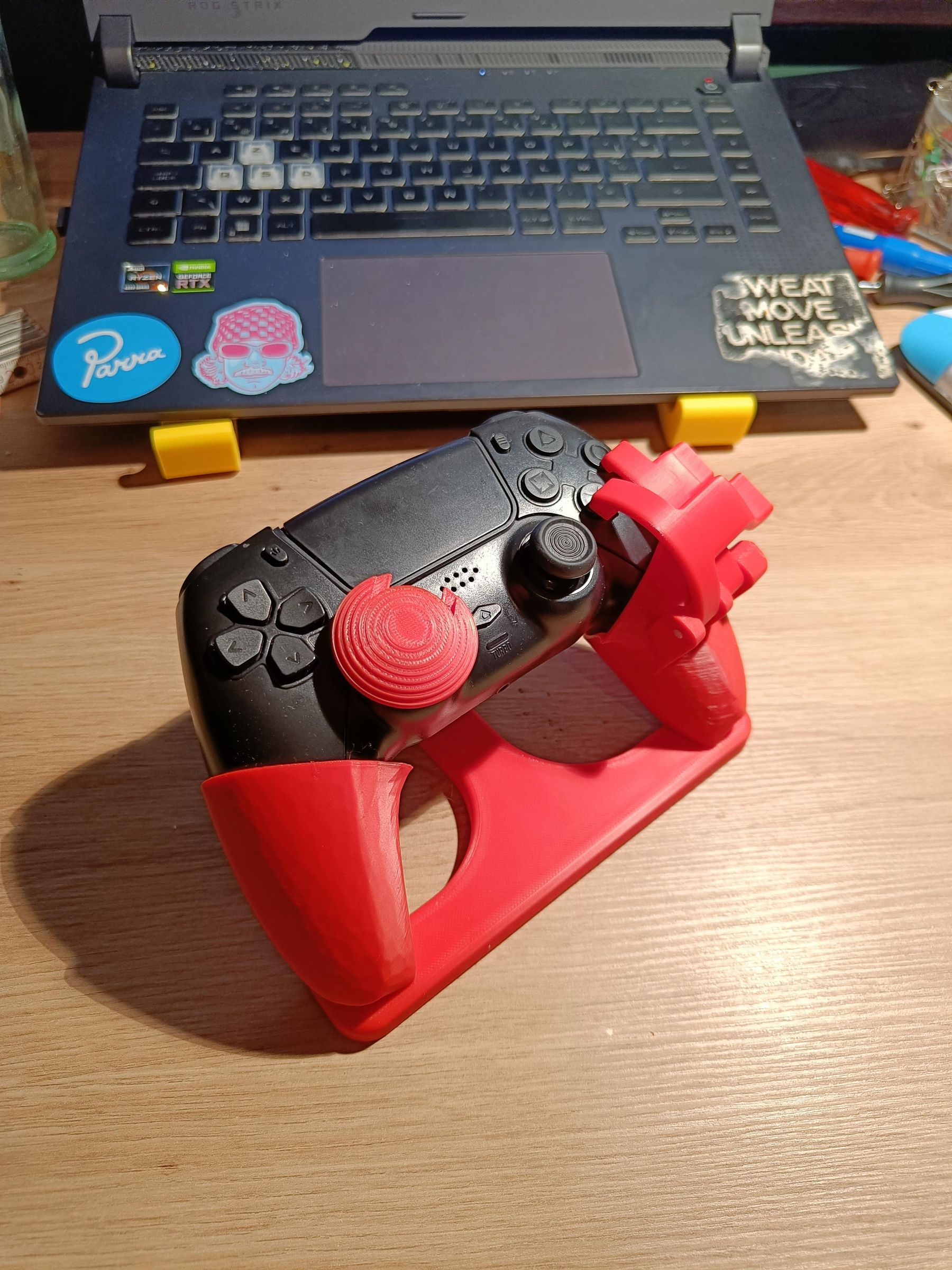
Put the controller in the stand and enjoy your game.