Adding a Keyboard to the Switch and Running a Simple Script in Minecraft
by Benji45631 in Circuits > USB
46 Views, 0 Favorites, 0 Comments
Adding a Keyboard to the Switch and Running a Simple Script in Minecraft
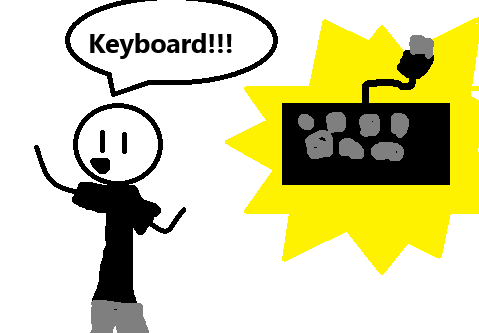
Are you tired of typing slowly on your Nintendo? Well I have a solution! The keyboard will help you type faster!
Supplies
Nintendo Switch (of course)
Switch Dock (make sure it's for switch not switch 2)
A USB Keyboard
Minecraft
Minecraft World That has creative or cheats on
A display for the dock (TV or something)
Setting Up
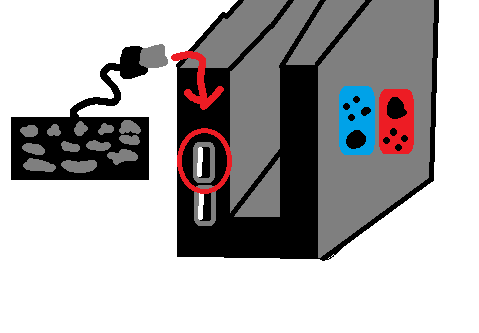
Open Minecraft on your Switch and put your Switch in the dock. Make sure your dock is plugged in (power and HDMI) Get your keyboard and look at the left side of the dock. You will see 2 USB ports. Plug in your USB keyboard and make a new world with creative and cheats on.
Getting the Command Block
Go to the chat in your new creative world and try typing this using your keyboard.
This will give you a command block.
Typing in the Code
Open your command block menu. Make sure the command block is impulse, and it needs redstone.
Type this using the keyboard in the command block:
You can set the text after /say to anything you want!
Redstone
Crouch and put a button on the command block. Press the button and it should work!