Animated Clock and PC Monitoring Based on Mini OLED and ESP32-C3 SuperMini
by Keralots in Circuits > Gadgets
7141 Views, 83 Favorites, 0 Comments
Animated Clock and PC Monitoring Based on Mini OLED and ESP32-C3 SuperMini


Hello everyone,
I would like to share a small project that I built recently.
At first, I just wanted to create a simple device to show specific PC metrics (sent by a Python script), but the project grew a bit over time :)
It now features a few retro-style clock animations inspired by Mario, Pong, Pacman, and Space Invaders. When your PC is on, the screen displays your selected metrics. You can also use it as a standalone clock without a PC.
Software is avalable on my Github: https://github.com/Keralots/SmallOLED-PCMonitor
Video assembly guide:
Version with LED based on 2n2222: https://www.youtube.com/watch?v=umV7xA0mp5I
Version with LED based on LDO6AJSA https://www.youtube.com/watch?v=M2Oa4PDUUgE
Supplies
ESP32-C3 Super Mini
OLED Display: 1.3" (SH1106) or 0.96" (SSD1306)
Some wires
Optional:
- TTP223 touch sensor
- LDO6AJSA or 2n2222 (+resistor 1k and 16k)
- 29 or 39mm 3v filament led
Optional: 3D printed case as show on picture. Available on my makerworld (same username)
Wiring
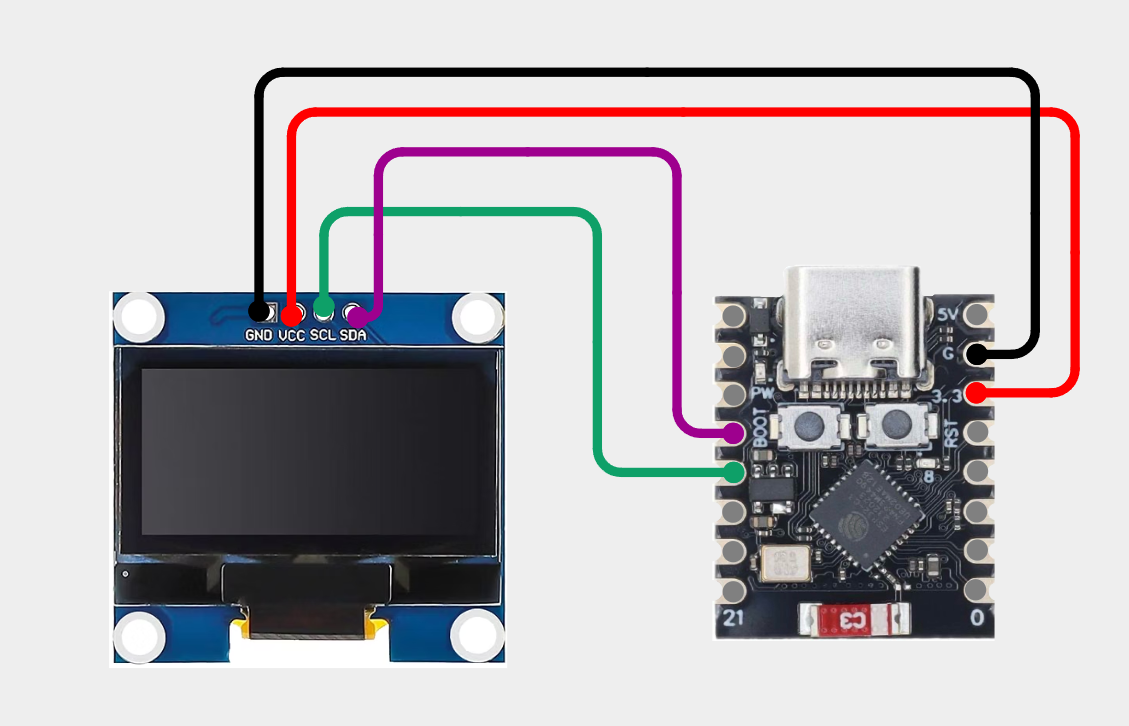
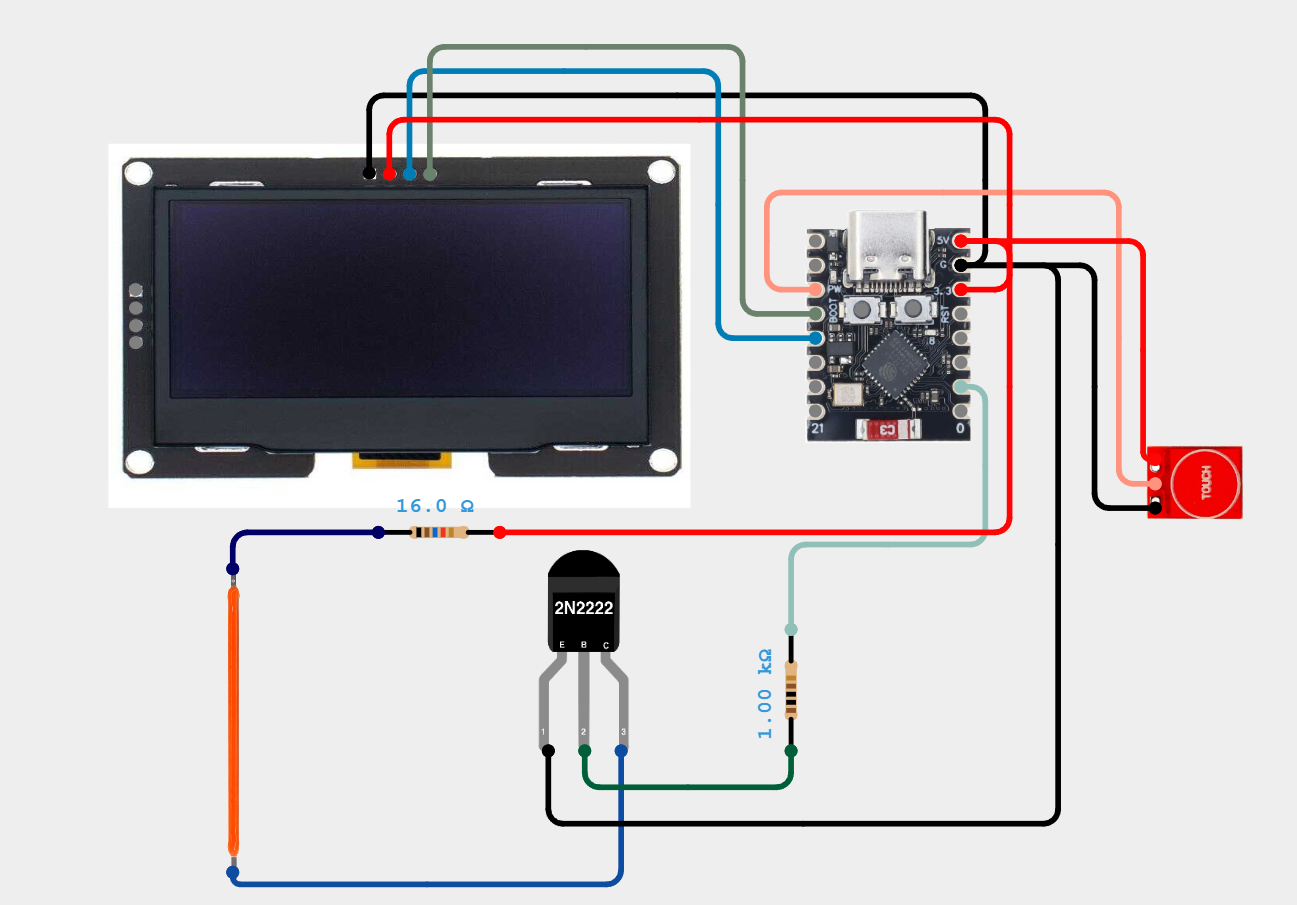
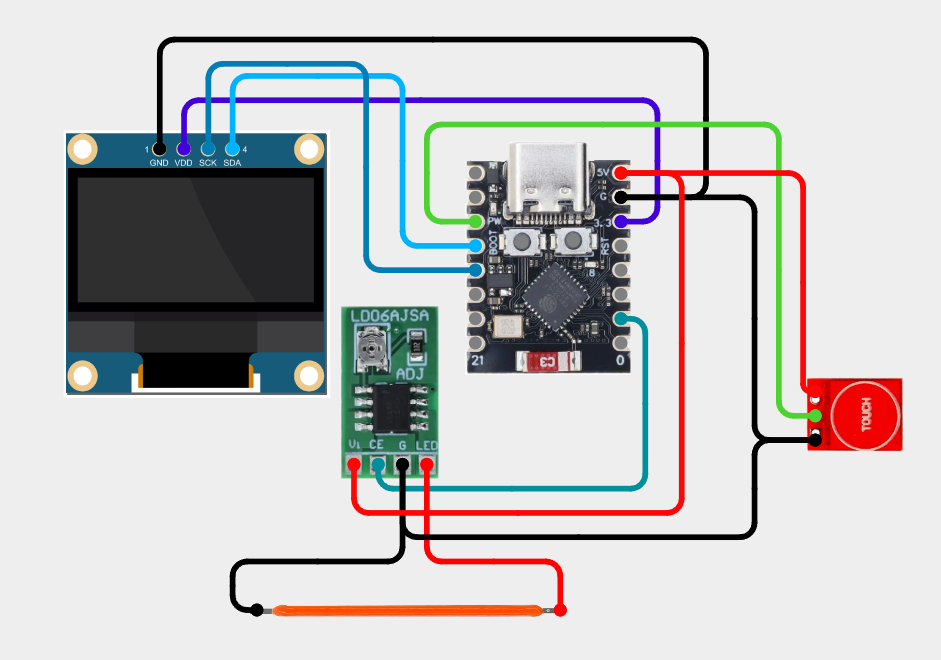
Wire everything as on picture. TTP223 touch sensor is optional. Normally you can control OLED via Buildin ESP web interface. To use TTP223, you need to compile from source. The touch button is disabled by default. Set TOUCH_BUTTON_ENABLED to 1 if you have a touch sensor connected.
Uploading Firmware


Easiest way to program ESP32-C3 is to use WEB flasher.
Download latest firmware from: https://github.com/Keralots/SmallOLED-PCMonitor/blob/main/release/
- Connect your ESP32-C3 via USB. If it constantly connects/disconnects, hold the BOOT button, connect to USB while still holding it, then release after connecting. Alternatively, hold BOOT, press RESET while holding BOOT, then release both buttons.
- Click "Connect" and select your port
- Click "Choose File" and select firmware-vx.x.x.bin
- Make sure you pick firmware for correct OLED size version! It may initially work but you will get black screen after you reconnect device.
- Set Flash Address to 0x0
- Click "Program" and wait ~30 seconds
You will need to manually restart device and it will be detected.
Connecting to WiFi

Follow instructions on the OLED screen to connect.
I have noticed that some of the cheap ESP32-C3 boards have WiFi related issues on hardware level.
What has helped a bit in my case: Resoldering antenna to improve connectivity with board, a small capacitor like 220uF or even 10uF between 3.3v and GND pins. Some of those faluty boards have anthenna too close to other components. Like in this example (left side with 3.5mm gap is better)
After wifi is connected you will see the IP address on OLED during startup.
Type it on your phone or PC browser.
Using PC Python Script and LHM

To send PC metrics there are few things we need to install on PC. In this example I will show you how it's done on Windows, but simillar way applies to Linuks and MacOS.
Install Python. For example from here: https://www.python.org/ftp/python/3.14.2/python-3.14.2-amd64.exe
At the end of installation, if asked to remove characters limit for path, agree on it.
Python script is using Libre Hardware Monitor to get metrics and send them to our device.
Recently they have released a new version: 0.9.5 which is a bit buggy and is NOT using WMI from where we could take our metrics. Reason for that is recent MS changes to Defender which is detecting older version as a virus. This is because older version: 0.9.4 is using different driver to detect sensor WinRing0.sys. This driver have some kind od vulnerability.
My pythin script will work with both versions of LHM so you can use either version. My experience with that is: 0.9.5 works better with my Nvidia GPU. Never version was crashing when PC wakes up from sleep. So just test and use whatever version works best for you.
If you decide on 0.9.5 remember to enable "Options > Remote Web Server > Run" and restart program.
For 0.9.4 you have to add driver to exclusions in defender
Install Python dependencies:
Windows:
Linux:
Run script:
Windows:
Linux:
Configuring Script to Send Metrics


You will be presented with GUI configuration at 1st launch.
Select few metrics that you are interested in, optionally give them a short labels, change IP address of ESP32 to the one presented on device during boot.
Initially I recommend to not enable autostart. Do it after you test everything.
After saving configuration monitoring will automatically start and at next run it will use a json file with configuration. to edit it simply use a parameter:
If metrics are sent properly you will see a message on OLED screen that it's time to configure metrics on display.
Go to OLED IP address in browser and start with "Display Layout (PC monitoring only)"
Set the clock position and it's offset, then pick between 5 or 6 row spacing
Next, go to "Visible Metrics (PC monitoring only)" and scroll down. You should see all available metrics.
Here you can Set the position and configure companion metrics like: CPU temperature to be displayed next to CPU usage etc. You can optionally configure BAR next to the metric. This is optional. (Check the screenshot above to understand what I mean)
And that's basically it :)
For more information check the Github link.
For now, I think that all works as it should, but keep an eye on any updates and new releases. I have some new 2.42" OLEDs which I'm planning to use in near future. Already tested them and it looks nice :)
Any ideas are welcomed!