Arduino Nano Tamagotchi
by heychaostheory in Circuits > Arduino
10545 Views, 72 Favorites, 0 Comments
Arduino Nano Tamagotchi

This is a Tamagotchi emulator running on an Arduino Nano inside a 3D printed chassis and shell.
Tamagotchis are digital pets from the late 20th century, and people still love them today! Did you know that they were pioneers in several technological spheres?
- Affective computing (ie making us care about little pixels)
- Autonomous behaviour (AI who??)
- Infrared communication (in later models)
- Micro-hardware in toys
So let's go back to the 90s and make our own Gen 1 Tamagotchi!
-
This is a Nano-adapted version of ArduinoGotchi, based on GPL-licensed firmware by Gary Kwok, modified for a compact handheld build.
Please note: I am a total 3D-modelling noob and expect that many improvements could be made to these files. I would only recommend attempting this project if you have a passing knowledge of Arduino coding, circuitry, and 3D modelling.
-
Don't believe me about the noob thing? Watch the video...
Supplies
)
Note: You can use any brand for your components, but if you don't use the same ones I did, you may need to make some minor adjustments to the 3D file or your assembly to fit them in. There isn't a lot of wiggle room in this build!
Tools
- Soldering iron (+ solder, flux)
- 3D printer
- 5/64" hex allen key and/or screwdriver (both recommended)
- Hot glue
- Multimeter
- Micro-screwdriver (size of your boost converter's potentiometer)
- Super glue (cyanoacrylate)
- Git - Getting started installing Git
- Arduino IDE - Download and Install
- Java 8 Runtime - Download and install
- Optional: breadboard and Dupont prototyping cables
- Optional: airbrush, paint brushes
Supplies
- 1x Arduino Nano (or clone)
- 1x Boost converter/charging module
- 1x 3.7V Lithium polymer battery
- 1x Micro-USB charging cable
- 3x 9x6x6 mm push button switches
- 1x 168x64 OLED display
- 1x M3 25 mm screw - hex head
- 1x M3 5 mm screw - hex head
- 1x Slide switch
- Wires (~22 AWG)
- Filament (PETG recommended)
- Optional: acrylic paint, charms, or other decorative elements
- Optional: filler primer, fine-grit sandpaper, enamel clear coat
Some of the links may be affiliate links. If you click on one of them and make a purchase, I may receive a small commission at no additional cost to you. This is a completely optional way to help support my future projects!
The Code
Follow the code only instructions on the ArduinoGotchi page (do not follow the circuit diagram).
-
You can clone the repo from the page. If you're not familiar with how to do that, I've responded to a comment below with a step-by-step of the easiest way to download the code. I'm going to be evaluating how much of those instructions and in what form to put here.
-
Replace the code on the main program (ArduinoGotchi.ino) with the following:
Breadboarding
.png)

Upload the code to your Nano. If it compiles successfully, test your circuit using this wiring diagram. Press the middle button to bring your screen to life.
Power
.png)

Disconnect your Nano from your computer.
Once you've got your screen working, temporarily hook your circuit up to the battery, switch, and boost module.
Adjust the output of your boost converter to 5V.
Download Files

Download the STLS and Fusion file here (they're free!): heychaostheory.gumroad.com/l/tamagotchi
Print and Fit-test Panels, Frame, and Switch Cover
.png)
Print the frame, switch cover, and panels 1, 2, 3, and 4.
Make sure your electronics fit in as per the diagram. The frame snaps on top of the OLED once it's on panel 1.
They should more or less friction fit, although it doesn't have to be perfect. If the components you have don't fit, you may need to adjust the 3D file or go crazy with the hot glue.
Glue Panels Together
.png)
Superglue the flat backs of panels 1+2 together, and then do panels 3+4. Make sure the holes are aligned!
Solder and Thread Panel 1
.png)

- Solder wires onto the 4 prongs of the OLED display.
- Solder wires onto the buttons. Make sure they're in the correct orientation!
Thread them through the holes in panels 1/2.
Solder and Thread Panels 2+3
.png)
- Solder the LiPo battery positive lead (red) to the first prong on the slide switch. Insulate immediately.
- Solder the middle prong of the slide switch to BAT+ on the boost converter. Insulate immediately.
- Solder the LiPo battery negative lead (black) to BAT- on the boost converter. Insulate immediately.
- Solder the ground wires of the buttons together, forming a common ground.
- Solder a positive (red) lead to OUT+ on the boost converter.
- Solder a negative (black) lead to OUT- on the boost converter.
Thread the wires through panel 3, as depicted.
You may want to use hot glue to keep your wires in place and organized.
-
Safety tip: cut and insulate your LiPo battery leads one at a time!
When soldering the battery leads onto the boost converter, insulate the exposed solder/wire (BAT+, on switch, BAT-) with some hot glue. This will help the system to be safer in the case a wire rips at any point.
Solder Panel 4
.png)
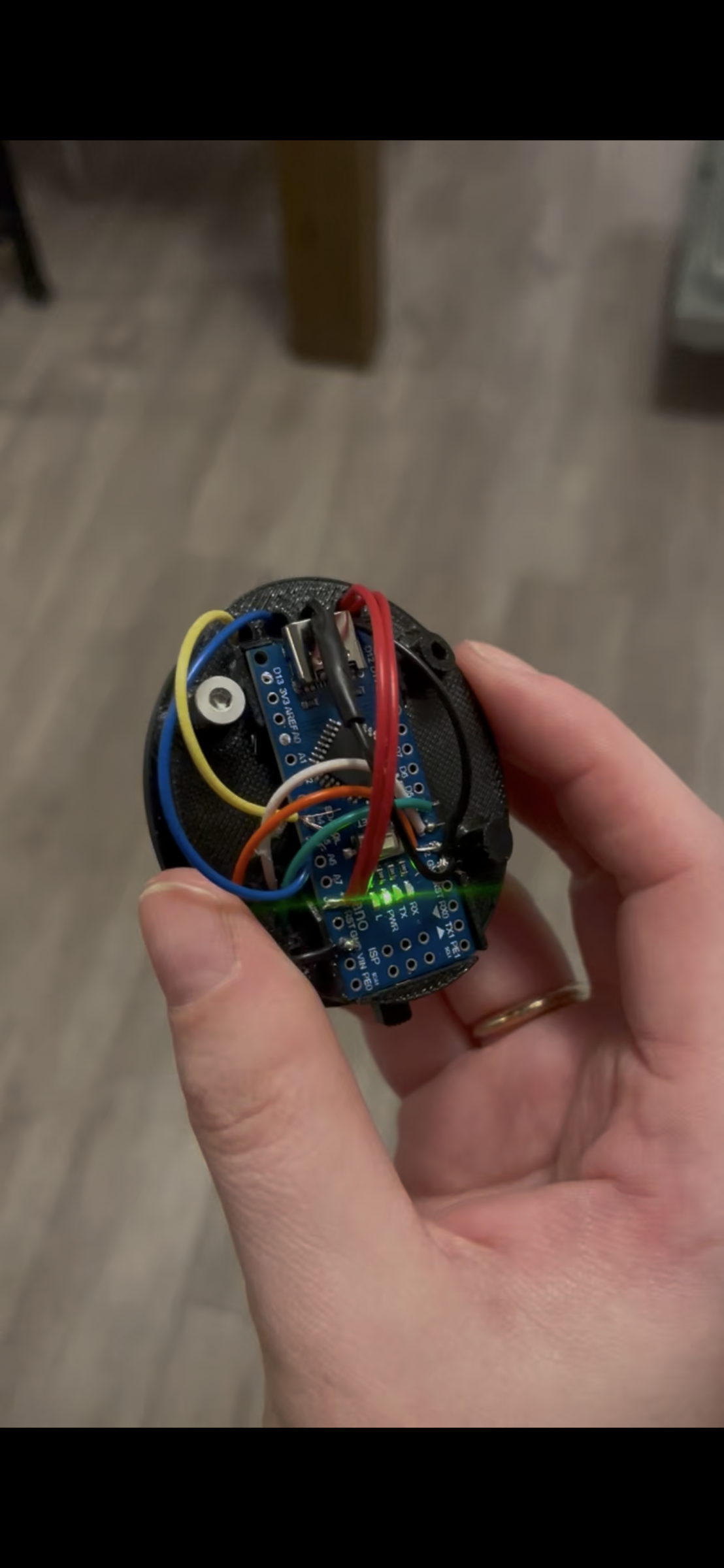
- Solder the positive leads (red) to Nano 5V.
- Solder the negative black (black) to Nano GND.
- Solder the left button lead (purple) to Nano D2.
- Solder the middle button lead (pink) to Nano D3.
- Solder the right button lead (green) to Nano D4.
- Solder the OLED SDA (yellow) to Nano A4.
- Solder the OLED SCL (blue) to Nano A5.
Shell
.png)
.png)
Print the front and back shell files.
Snap the frame over the OLED. No glue needed!
Snap the switch cover onto the switch. No glue needed!
Then, snap together the front and back shells over your inner chassis.
Screw the shell on. The long screw goes on the left (through the panels), and the short screw goes on the right.
Decorate / Paint (Optional)

Here's how I did mine, but you can decorate however you wish.
Getting an injection-moulded look from a 3D print is a labour of love.
With the electronics removed, I applied a base coat of filler spray primer. I wet-sanded the primer with 400-grit sandpaper, and repeated until the surface felt smooth.
I wanted a vibrant, 90s-retro aesthetic, so I chose a bold gradient with highlights:
- Vallejo Fluorescent Magenta
- Vallejo Light Yellow
- Vallejo Light Orange
- Vallejo Cold White
- Vallejo Royal Blue
I used an airbrush to create a smooth transition between the orange, magenta, and blue.
I then went in with a small paintbrush to add the yellow details and white stars. I also cleaned up some areas where my masking didn't hold up.
Pro tip: If you're painting a yellow logo like me, paint it white first and then layer the yellow on top.
I also added some charms: My friend got me this charm specifically for the Tamagotchi for my birthday!
Once it was all dry I sprayed it with some enamel clear coat.
Next Steps
Here are some changes you could explore:
- Right now, the charging port looks kind of janky. I'd love to know if anyone has an easy solution for that. I think using separate boost and charge modules or using a loose USB port that can go to the edge of the shell would work well.
- The front and back shells snap fit together. This is kind of iffy with printer tolerances, so I'd love to make a version where the front shell is also held on with a mechanical fastener.
- D5 is coded to be a manual save button. Adding that would allow you to extend the auto-save time length, saving EEPROM. I was going to do that, but ran out of space lol.
I'd love to know what changes you would make!
Firmware Credit
This build is based on ArduinoGotchi by Gary Kwok, licensed under the GNU GPL v2 or later.
Here's the base emulator library (TamaLib)
Modifications include:
- Nano adaptation
- INPUT_PULLUP button wiring
- Sound/buzzer removal
- EEPROM autosave adjustments
Original project:
https://github.com/GaryZ88/ArduinoGotchi
License:
GNU GPL v2 or later
Bonus: He Was in the News!!


Look at these articles that have been written about the project!
"Party with your pocket pet like it's 1996 all over again — by building your own Tamagotchi clone."