Autonomous Delivery Robot : Scan-to-Map SLAM on Raspberry Pi 5
by HaziqZia in Circuits > Raspberry Pi
1089 Views, 6 Favorites, 0 Comments
Autonomous Delivery Robot : Scan-to-Map SLAM on Raspberry Pi 5


In typical autonomous mobile robot architectures, low-level hardware control (such as reading wheel encoder interrupts and generating motor PWM signals) is offloaded to a dedicated microcontroller (like an Arduino or STM32), while a microprocessing unit (like a Raspberry Pi) handles heavy computational tasks via large, resource-heavy frameworks like ROS (Robot Operating System).
This project takes a fundamentally different, lightweight approach. It demonstrates how to build a fully Autonomous Indoor Delivery Unmanned Ground Vehicle (UGV) that eliminates the intermediate microcontroller entirely, letting a single Raspberry Pi 5 handle bare-metal hardware execution concurrently with a real-time localization and mapping pipeline.
The robot maps its environment and localizes itself using an optimized Scan-to-Map TinySLAM algorithm implemented entirely in Python 3. High-frequency odometry data from two JGA25-370 wheel encoders and an MPU6050 6-DoF IMU are fused to handle low-latency relative tracking, while an Iterative Closest Point (ICP) algorithm processes 2D data from an RPLidar A1 to actively correct sensor drift.
For navigation, the system uses an A* pathfinding algorithm combined with a real-time map inflation safety layer (binary dilation). This expands obstacles to maintain a strict 10 cm clearance zone, ensuring the vehicle never collides with walls or tight corners. Users can view the live generated map on an interactive Pygame GUI window, click any target destination, and watch the UGV autonomously calculate its trajectory, handle dynamic path occlusions, and execute smooth motor adjustments via a custom software PID controller.
This guide details the vertical mechanical deck configurations, the dual-rail isolated power electronics necessary to prevent inductive motor brownouts on the Pi 5, the point-to-point GPIO wiring layout, and the environment setup required to deploy this standalone robotics platform from scratch.
Supplies
Hardware Components
- 1x Raspberry Pi 5 (8GB RAM variant)
- 1x RPLidar A1 2D Laser Scanner (Includes the USB-to-UART adapter board and cable)
- 1x MPU6050 6-DoF IMU Sensor Module
- 2x JGA25-370 Encoded DC Gear Motors (12V, 1360 RPM with integrated Hall-effect encoders)
- 2x Metallic/hard plastic frame, Rubber surface tyres (0.032m radius)
- 1x ZK-5AD Dual H-Bridge Motor Driver Module
- 1x 5V / 5A High-Efficiency Step-Down Buck Converter (With USB-C output terminal)
- 1x N-Channel Power MOSFET (e.g., IRF540N or equivalent logic-level gate)
- 1x Multi-Wheel Toy Car Chassis Platform
- 8x 18650 Lithium-Ion Battery Cells (Configured into independent 5S and 3S packs)
Discrete Electronics & Indicators
- 2x High-Current Push Button Switches (For independent rail power isolation)
- 2x 100uF electrolytic capacitors (to eliminate switching noise)
- 1x Red LED & 1x Green LED (Status indicators)
- 2x 330Ω Resistors (Current-limiting resistors for the LEDs)
- Solid-core and stranded hookup wires
- Assorted long structural machine screws, matching nuts, washers, and nylon PCB standoffs
Software & Tools
- MicroSD Card (32GB+) loaded with Raspberry Pi OS (64-bit Bookworm)
- Soldering Iron and Solder
- Multimeter (For verifying buck converter output voltage, & connectivity tests)
- Tiger VNC Viewer & SSH Client (Installed on your laptop for headless configuration)
Mechanical Architecture & Spatial Layering

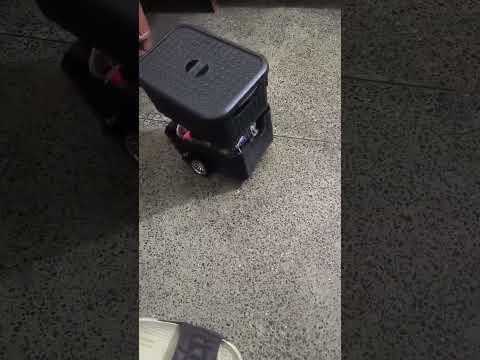
To maintain a compact footprint capable of traversing narrow indoor corridors while handling autonomous mapping and cargo transportation, this Unmanned Ground Vehicle (UGV) utilizes a three-tier vertical chassis deck configuration, topped with a structurally isolated payload enclosure. Stacking components vertically lowers the horizontal profile and keeps weight centered.
Here is the exact layout of how components are distributed across the structural layers, from the ground up:
1. Chassis Layer 1: Base Control & Propulsion
This is the physical foundation of the robot, handling low-level traction and hosting the core computing brain.
- Underside: Two high-torque JGA25-370 encoded gear motors are securely clamped to the bottom of this base plate, driving rubber-surface tires with a precise radius of 0.032 m.
- Attach castor wheel to the center of the front side of chassis
- Topside: The Raspberry Pi 5 computing unit, the 5V/5A high-efficiency buck converter module, and the ZK-5AD dual H-bridge motor driver are all mounted directly to this surface. Additionally, the MPU6050 IMU module is firmly secured to this plate with mounting screws, keeping it locked in place near the physical axle center line to prevent centrifugal drift during sharp turns.
2. Chassis Layer 2: The Energy Deck
Using long, 2-inch structural machine screws as vertical standoffs, the second chassis layer is stacked directly above Layer 1.
- Clearance Rule: When securing this deck, verify that the bottom surface of Layer 2 is held completely clear by the screws and does not compress or press against any of the computing components or wiring on Layer 1 below it.
- Topside Layout: This layer is dedicated entirely to the raw energy cells. It houses two separate battery holders containing a total of eight 18650 Lithium-Ion cells: one independent 5S pack for clean logic power, and one independent 3S pack dedicated to high-current motor drive.
- The External Charging Design Choice: Because this specific build skips a heavy onboard Battery Management System (BMS), the cells must be charged externally. Leaving a deliberate clearance gap directly above these battery holders allows you to easily slip the cells out of their spring clips, drop them into an external charger, and pop them back in without having to dismantle the entire robot framework.
3. Chassis Layer 3: The Perception Deck
Using the same continuous vertical machine screws, the third chassis layer is stacked above the energy deck, ensuring it rests comfortably clear of the 18650 batteries.
- Topside Layout: The RPLidar A1 2D laser scanner is centered on this deck. The base of the LiDAR includes dedicated integrated screw holes, which are used to bolt the sensor directly and rigidly to this third chassis sheet.
4. The Final Layer: Suspended Cargo Enclosure
To transform this platform into a functional delivery vehicle, a payload box is mounted at the absolute top of the stack.
- The Spinning LiDAR Clearance Rule: Because the RPLidar A1 relies on a physically spinning laser head assembly to map a 360 deg. plane, you cannot place any weight directly onto the sensor housing. Doing so will stall the belt drive motor and burn it out.
- The Structural Solution: To bypass this, the delivery box is suspended completely clear of the spinning sensor using four exceptionally tall structural machine screws anchored on each outer corner of Chassis Layer 3. The box bolts directly to these corner pillars. This isolates the cargo payload's weight entirely, transferring all downforce straight through the chassis frame elements to the wheels while letting the LiDAR spin unimpeded underneath!
💡 Behind the Design: The Pillar Blind-Spot Myth
A common concern with running four heavy corner screws vertically past a spinning 2D LiDAR scanner is whether these pillars will create phantom obstacles or huge blind spots in your point cloud.
During live operational testing with the optimized Python SLAM pipeline, it was proven that no software filtering or code modifications are required to ignore these pillars! Because the structural machine screws are exceptionally thin, their cross-sectional profile falls entirely below the geometric and angular resolution threshold of the RPLidar A1's laser pulse intervals. The code reads right past them as negligible noise, allowing the robot to map its environment through a clean, continuous 360 deg. field of view.
Dual-Rail Power Isolation & MOSFET Interlock
One of the most common failure points in mobile robotics is system instability caused by voltage sags and inductive noise. When DC gear motors suddenly change direction or start from a dead stop, they draw a massive spike of inrush current. If your computing unit shares a power rail with the motors, these current spikes cause temporary voltage drops (brownouts) that will instantly force a Raspberry Pi 5 to crash or hard-reboot.
To eliminate this issue entirely, this UGV implements a completely isolated Dual-Rail Power Architecture, alongside capacitive filtering and an N-channel MOSFET safety interlock.
Here is how the electrical system is split and stabilized:
1. The Logic Rail (Clean Power)
This rail provides a highly stable, noise-free voltage source dedicated strictly to your computing brain and sensitive sensors.
- Source: An independent 5S 18650 Lithium-Ion pack yielding a nominal voltage of roughly 18.5 V min. & 21 V max when fully charged).
- Regulation: This high-voltage line feeds directly into a 5V / 5A high-efficiency step-down buck converter module. The buck converter drops the voltage down to a precise, continuous 5 V line, outputting via a USB-C terminal plugged directly into the Raspberry Pi 5 power input.
- Control: A dedicated, high-current mechanical push-button switch is wired in series with the battery output to completely cut power to the logic rail when shutting down the vehicle. Attach a 100uF electrolytic capacitor in parallel to this switch, to avoid switching noise.
2. The Power/Propulsion Rail (Dirty Power)
This rail handles the raw, high-current electrical demands of driving heavy physical loads, keeping inductive motor feedback completely isolated from the logic system.
- Source: An independent 3S 18650 Lithium-Ion pack yielding a nominal voltage of 11.1 V min. & 12.6 V max., which is compatible with voltage requirements of our 12V JGA25-370 gear motors.
- Delivery: This line connects directly to the high-current input terminals of the ZK-5AD dual H-bridge motor driver module.
- Control: A second independent mechanical push-button switch controls the main power flow to this rail, allowing you to safely cut off motor power during testing without turning off the Pi. Attach 100uF electrolytic capacitor in parallel to this switch in order to avoid switching noise.
4. The Safety Interlock
To add an extra layer of protection, an N-channel power MOSFET (such as an IRF540N) is integrated into the low-side ground path of the propulsion line.
- The Function: The MOSFET acts as an electronic gate. It ensures that even if the physical motor battery switch is pressed "ON," the motor driver cannot draw power unless a specific condition is met, preventing rogue or unintended movements during the initial Raspberry Pi boot sequence. Once the Pi's operating system loads safely and initializes the GPIO pins, the script actively drives the MOSFET gate high, completing the circuit and arming the propulsion system for safe autonomous navigation.
🔍 Physical MOSFET Wiring & Pinout Breakdown
To implement this low-side switch safely, wire the N-channel MOSFET using the following precise configuration:
- Drain (D): Connect this pin directly to the Ground (GND) terminal/wire of the ZK-5AD motor driver. This ensures the motor driver's return path to the battery is physically cut off unless the MOSFET is activated.
- Source (S): Connect this pin directly to the Negative (-) terminal / Ground of the 3S motor battery pack.
- Gate (G): Connect this pin to the controlling Raspberry Pi 5V pin via a small inline current-limiting resistor (such as a 220Ω or 330Ω resistor) to protect the Pi's port from sudden gate charging currents.
- The Pull-Down Resistor: Solder a medium-sized pull-down resistor (typically 10kΩ) directly between the Gate (G) pin and the Source (S) ground line of the battery pack.
⚠️ Critical Engineering Safety Note: The 10kΩ pull-down resistor is vital. When the Raspberry Pi 5 is booting up, its GPIO pins float in a high-impedance, unpredictable state. Without this resistor, the gate could capture stray static charge, accidentally turn the MOSFET "ON," and cause the robot to bolt unexpectedly. The pull-down resistor safely ties the gate to ground, keeping the powertrain completely disabled until your Python initialization script explicitly commands it to wake up.
Complete Point-to-Point Hardware Pinout
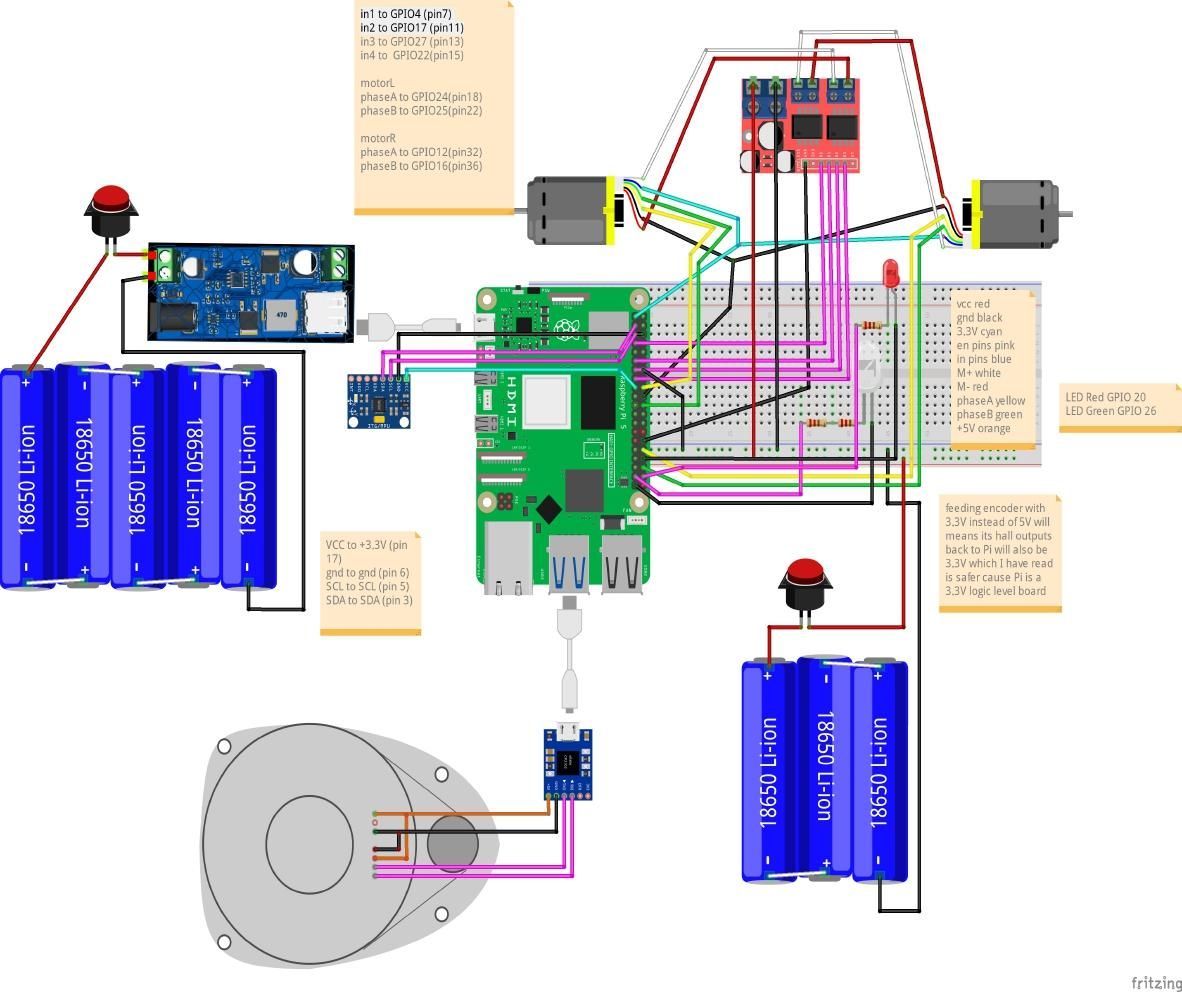
With the dual-rail power infrastructure in place, we can map the control lines between the Raspberry Pi 5, the sensors, and the actuation hardware. Because our Python control system executes everything on a single bare-metal processor without a microcontroller intermediary, proper wiring to the exact designated Broadcom (BCM) GPIO pins is critical.
Use the master reference tables below to establish your connections.
1. Actuation & Motor Driver Connections
These pins carry the Pulse Width Modulation (PWM) and digital direction signals from the Pi 5 to the ZK-5AD H-Bridge inputs to control wheel velocity and direction.
Component
Function
Raspberry Pi 5 Pin (BCM / GPIO)
Physical Pin Number
Left Motor
Forward Drive (IN1)
GPIO 4
Physical Pin 7
Left Motor
Backward Drive (IN2)
GPIO 17
Physical Pin 11
Right Motor
Forward Drive (IN3)
GPIO 22
Physical Pin 15
Right Motor
Backward Drive (IN4)
GPIO 27
Physical Pin 13
2. High-Frequency Quadrature Encoders
The JGA25-370 motors feature integrated Hall-effect encoders that send high-frequency pulses back to the Pi to track physical wheel rotation.
Component
Function
Raspberry Pi 5 Pin (BCM / GPIO)
Physical Pin Number
Left Encoder
Channel A
GPIO 12
Physical Pin 32
Left Encoder
Channel B
GPIO 16
Physical Pin 36
Right Encoder
Channel A
GPIO 25
Physical Pin 22
Right Encoder
Channel B
GPIO 24
Physical Pin 18
Both Encoders
Encoder Power (VCC)
3.3V Power Rail
Physical Pin 1 or 17
Both Encoders
Encoder Ground (GND)
Ground Rail
Physical Pin 6, 9, or 14
3. I2C & USB Spatial Sensors
The MPU6050 IMU handles angular rate changes over the hardware I2C bus, while the RPLidar A1 transfers raw range point clouds via its dedicated USB-to-UART bridge controller.
Sensor Module
Connection Type / Pin
Raspberry Pi 5 Target
Physical Pin Number
MPU6050 IMU
SDA (Serial Data)
GPIO 2 (I2C1 SDA)
Physical Pin 3
MPU6050 IMU
SCL (Serial Clock)
GPIO 3 (I2C1 SCL)
Physical Pin 5
MPU6050 IMU
VCC
3.3V Power Rail
Physical Pin 1
MPU6050 IMU
GND
Ground Rail
Physical Pin 9
RPLidar A1
USB Communication Cable
Any USB 2.0 or 3.0 Port
Mapped to /dev/ttyUSB0
4. Hardware Interlock Layout
The N-channel MOSFET gate is tied directly to the Raspberry Pi's main power rail. This forms an elegant, purely hardware-driven interlock circuit.
- The Connection: The Gate (G) of the MOSFET is connected directly to a 5V Power Pin (Physical Pin 2 or 4) on the Raspberry Pi 5 board, separated by a small inline protective resistor (220Ω). A 10kΩ pull-down resistor bridges the Gate (G) and the Source (S) line back to the negative terminal of the 3S motor battery pack.
- The Interlock Logic: When the entire system is unpowered, the 5V rail is completely dead ($0\text{V}$). The 10kΩ pull-down resistor securely clamps the MOSFET gate to ground, preventing any current from flowing through the motor driver's low side. The moment the main logic switch is pressed and the Raspberry Pi begins its boot cycle, the 5V hardware rail snaps high. This applies continuous voltage to the gate, automatically closing the low-side ground loop and arming the propulsion system precisely as the computing environment goes live!
💡 Assembly Checklist Before Moving Forward:
- Double-check that your logic ground (Raspberry Pi GND) and your motor power ground (3S Battery Negative) are properly tied together across the MOSFET low-side return configuration.
- Ensure no stray strands of wire are shorting across the tiny pins of the H-bridge driver inputs.
OS Environment, Virtualization & Code Framework
Because this architecture bypasses low-level microcontrollers to execute multi-threaded sensor fusion, SLAM mapping, and A* pathfinding directly on the Raspberry Pi 5, optimizing the operating system configuration is essential.
Raspberry Pi OS (64-bit Bookworm) enforces PEP 668, meaning you can no longer install Python packages globally using regular pip install commands. Doing so will throw a externally-managed-environment error. To circumvent this safely and cleanly, we will configure a dedicated virtual environment (venv) that inherits system hardware links.
Follow these step-by-step terminal commands to prepare your headless software environment.
1. Update the System & Enable I2C
First, open your terminal (via SSH or an active desktop terminal) and bring your package repositories up to date:
Bash
Next, we must enable the Raspberry Pi's hardware I2C bus so it can communicate with the MPU6050 IMU sensor. Open the system configuration tool:
Bash
- Use your arrow keys to navigate to 3 Interface Options.
- Select I4 I2C.
- Choose Yes to enable the ARM I2C interface.
- Select Finish and hit enter.
2. Grant Serial Permissions for the LiDAR
By default, standard Linux user accounts do not have immediate permissions to read raw data streams from third-party USB-to-UART bridges (like the CP2102 chip on the RPLidar A1 controller). If you try running your script without modifying permissions, the code will fail with an access denied error when initializing /dev/ttyUSB0.
To grant your user permanent access to serial hardware ports, add yourself to the dialout group:
Bash
⚠️ Important: For this group change to take effect, you must log out and log back in, or simply reboot your Raspberry Pi by running sudo reboot.
3. Create the Spatial Robotics Virtual Environment
To safely install our Python robotics stack under OS Bookworm, we will create a virtual environment. We will add the --system-site-packages flag. This is highly important on a Raspberry Pi 5 because it allows our virtual environment to leverage the pre-compiled, underlying system libraries used for hardware GPIO manipulation (such as the lgpio backends).
Run the following commands to generate and enter your virtual environment:
Bash
Once activated, your terminal prompt will change to show (robot_env), confirming that any subsequent Python installations will stay isolated inside this workspace.
4. Install Project Dependencies via Pip
With your virtual environment active, run the following unified installation command to grab the exact third-party libraries required by our control script:
Bash
Why these specific libraries?
- pygame: Drives our lightweight graphical rendering engine, processing mouse clicks on the map grid and tracking manual keyboard interrupts.
- numpy & scipy: Handle complex vector math. scipy.spatial.KDTree is utilized by our ICP scan-matcher for high-speed nearest-neighbor calculations, while scipy.ndimage.binary_dilation expands walls to build our 10 cm dynamic obstacle safety layer.
- mpu6050-raspberrypi: Handles low-level I2C registry tracking to extract rotational velocities from our gyro.
- rplidar-roboticia: An optimized, robust fork of the classic RPLidar library that handles asynchronous background data streaming from the laser diode without clogging execution threads.
5. Verify the Sensor Layouts
Before writing or running the core control pipeline, verify that the MPU6050 IMU is communicating correctly on the I2C bus by running:
Bash
You should see a grid output with the number 68 appearing in the column columns. This confirms that the IMU is wired correctly, receiving power, and responding to commands at its default hardware address (0x68)
Python Autonomous Navigation & SLAM Script
With the hardware wired and the OS virtual environment fully configured, we can now implement the core intelligence of the vehicle. This single, unified Python script handles everything concurrently at a 20Hz execution loop:
- Sensor Fusion: Blends raw wheel encoder counts with MPU6050 Z-axis gyroscope data using a complementary filter to track odometry.
- Scan-to-Map SLAM: Runs an Iterative Closest Point (ICP) matching routine to align real-time RPLidar A1 laser sweeps with historical data, continuously updating a 5 cm resolution occupancy grid map.
- A* Pathfinding: Generates an optimized, collision-free waypoint coordinate path through dilated obstacle maps when you click anywhere on the live map interface.
- Autonomous Steering: Executes a Pure Pursuit path-following routine stabilized by a dedicated steering PID controller to smooth out movement and eliminate "snaking" trajectories.
1. Create the Script on Your Raspberry Pi
While inside your active SSH session or terminal, ensure your virtual environment is active (source ~/robot_env/bin/activate) and open a new Python file using the nano text editor:
Bash
2. Copy and Paste the Complete Code Stack
Copy the entire script block below and paste it directly into your terminal editor window:
Python
3. Save the Script File
Once pasted, press Ctrl + O on your keyboard, then press Enter to save the changes. To close the editor, press Ctrl + X.
Live Operations Control & Map Deployment
With your hardware fully assembled and the master navigation script saved, you are ready to launch your vehicle. Because this system runs headlessly on the Raspberry Pi 5 but renders its interactive map interface via Pygame, we will use an SSH connection paired with a VNC viewer to view the real-time SLAM point cloud and issue coordinate targets from a laptop.
Follow this operational workflow to safely deploy and drive your UGV.
1. Booting and Initializing the Robot
- Disconnect any physical charging cords from your 18650 cells.
- Press your Logic Rail physical power button. Watch for the Raspberry Pi 5 onboard status LEDs to illuminate as the OS boots up.
- Once the Pi's green activity light settles into a stable pattern, press your Propulsion Rail power button to supply energy to the ZK-5AD motor driver. Thanks to our hardware interlock circuit, the motors will remain perfectly stationary and safe during this boot phase.
2. Launching the Control Loop
On your laptop, open your terminal or command prompt and establish an SSH connection to the Pi. Move into your virtual environment and execute the script:
Bash
A Pygame GUI window titled "UGV Live Mapping & Autonomous A"* will initialize on your desktop screen. You will see a green circle in the absolute center of the window representing your robot, with a cyan line indicating its forward heading.
3. Manual Mapping Control Layout
Before letting the robot navigate completely on its own, it is best to manually drive it around a room to build an initial rough map of the walls. Click on the Pygame map window to focus it, and use the following keyboard inputs:
- UP ARROW: Drive forward in a straight line. The internal steering PID controller will continuously look at your MPU6050 gyroscope to lock your heading and keep the robot tracking straight without drifting.
- DOWN ARROW: Drive straight backward.
- LEFT ARROW: Execute a zero-radius spin to the left.
- RIGHT ARROW: Execute a zero-radius spin to the right.
- SPACEBAR: Instant emergency brake / Stop.
As you move, you will see bright red pixels paint a persistent map on your screen—these are structural walls permanently saved into the occupancy grid map. Orange dots will indicate real-time laser reflections hitting obstacles in your current vicinity.
4. Deploying Autonomous A* Mode
Once you have mapped out an enclosed area or room:
- Stop the vehicle completely using the spacebar.
- Take your mouse cursor and Left-Click anywhere within an open, mapped black space on the Pygame display grid.
- The script will instantly calculate an optimized route using the A* pathfinding algorithm, automatically expanding all known red walls by a 10 cm safety buffer zone to protect the chassis frame from scraping against corners.
- A blue trajectory line will appear on your map, and the robot will automatically arm its motors, align its heading, and drive along the track using Pure Pursuit steering adjustments until it reaches your exact click coordinates!
5. Shutting Down and Data Preservation
When you are finished testing, press the ESCAPE key on your keyboard while focused on the Pygame window. This triggers a clean software interrupt sequence:
- The script completely cuts power to the gear motors.
- The spinning RPLidar laser diode safely spins down and enters low-power sleep mode.
- The completed room layout is permanently saved to your home directory as a NumPy matrix file named occupancy_map.npy, which you can pull into MATLAB or Python scripts later for advanced path analysis!
Finally, physically toggle your mechanical power switches to "OFF" to preserve battery life.