Baby Bug Learning Toy

NOTICE: This product is still under development and is subject to change.
Photograph were taken from multiple different Baby Bug iterations and there may be minor inconsistencies.
A project made possible with collaboration with Shriners Children’s, Salt Lake City
The Baby Bug is a powered mobility device for children 8 months until 18 months of age or when outgrown. It is designed for children with mobility impairments. It is a tool that allows the child to experience self-initiated mobility with the goals of allowing them to experience the cognitive, social and the developmental benefits mobility provides to a developing child. This should be used under the direction of a licensed Physical Therapist or a licensed Occupational Therapist.
“We learn to move and we move to learn throughout each day.” (Sabet et al, 2022)
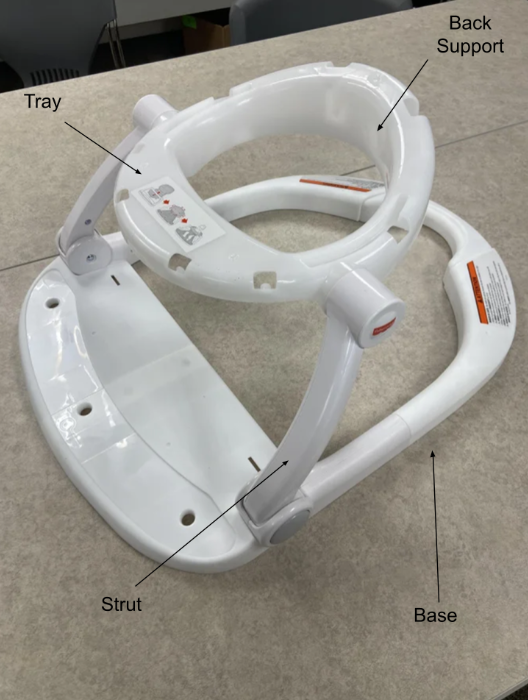
Assemble Seat and Remove Feet
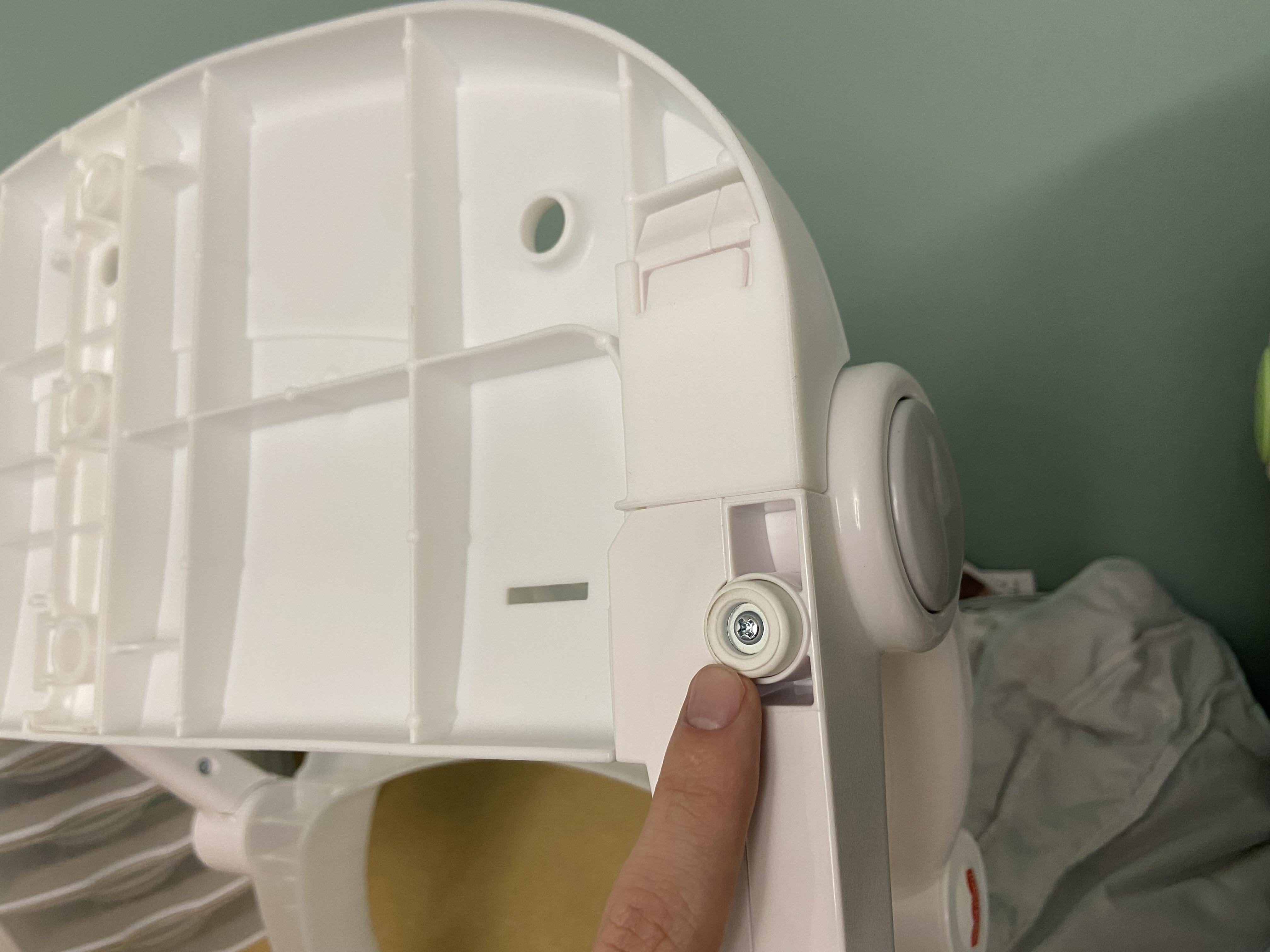
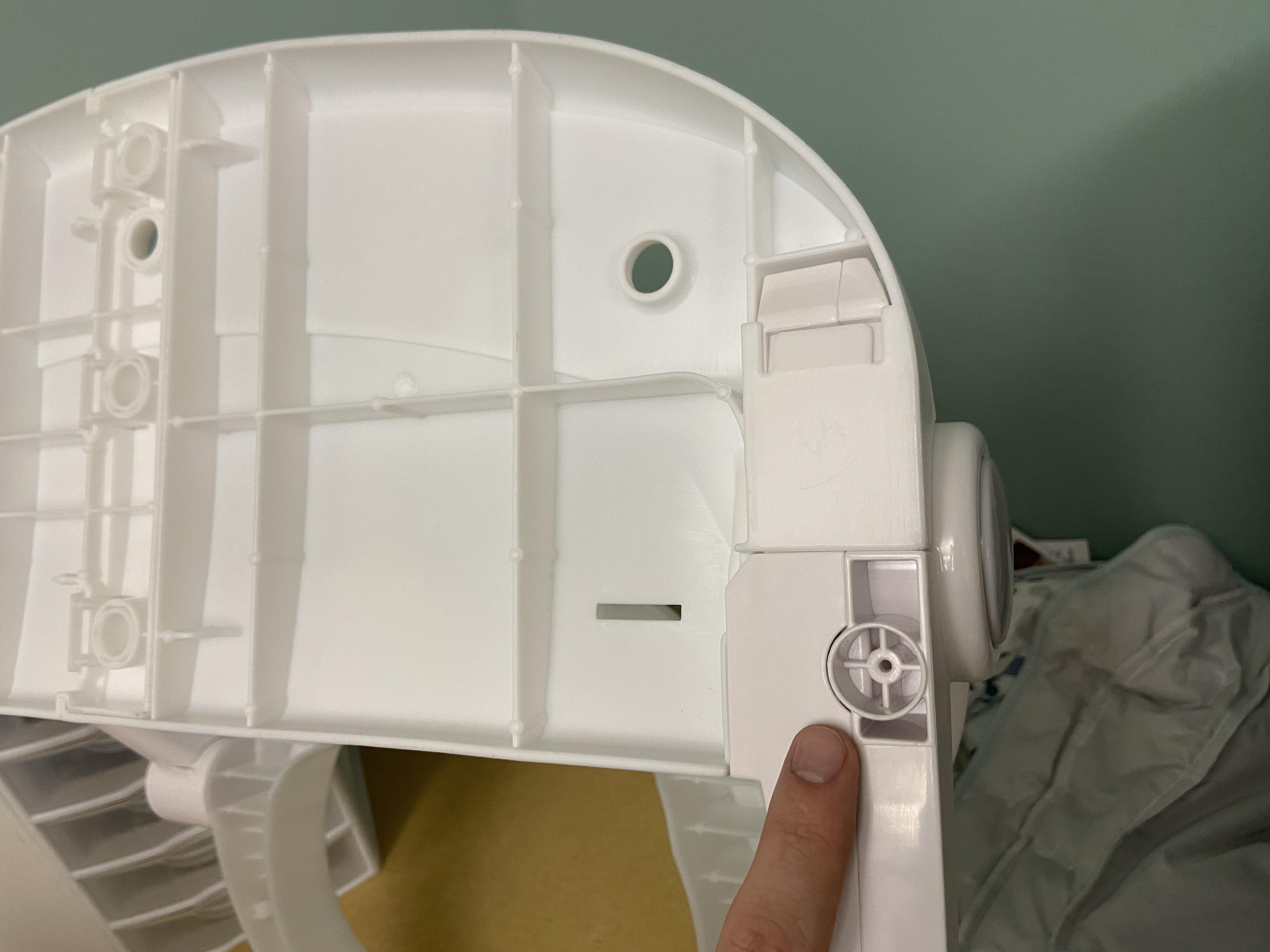
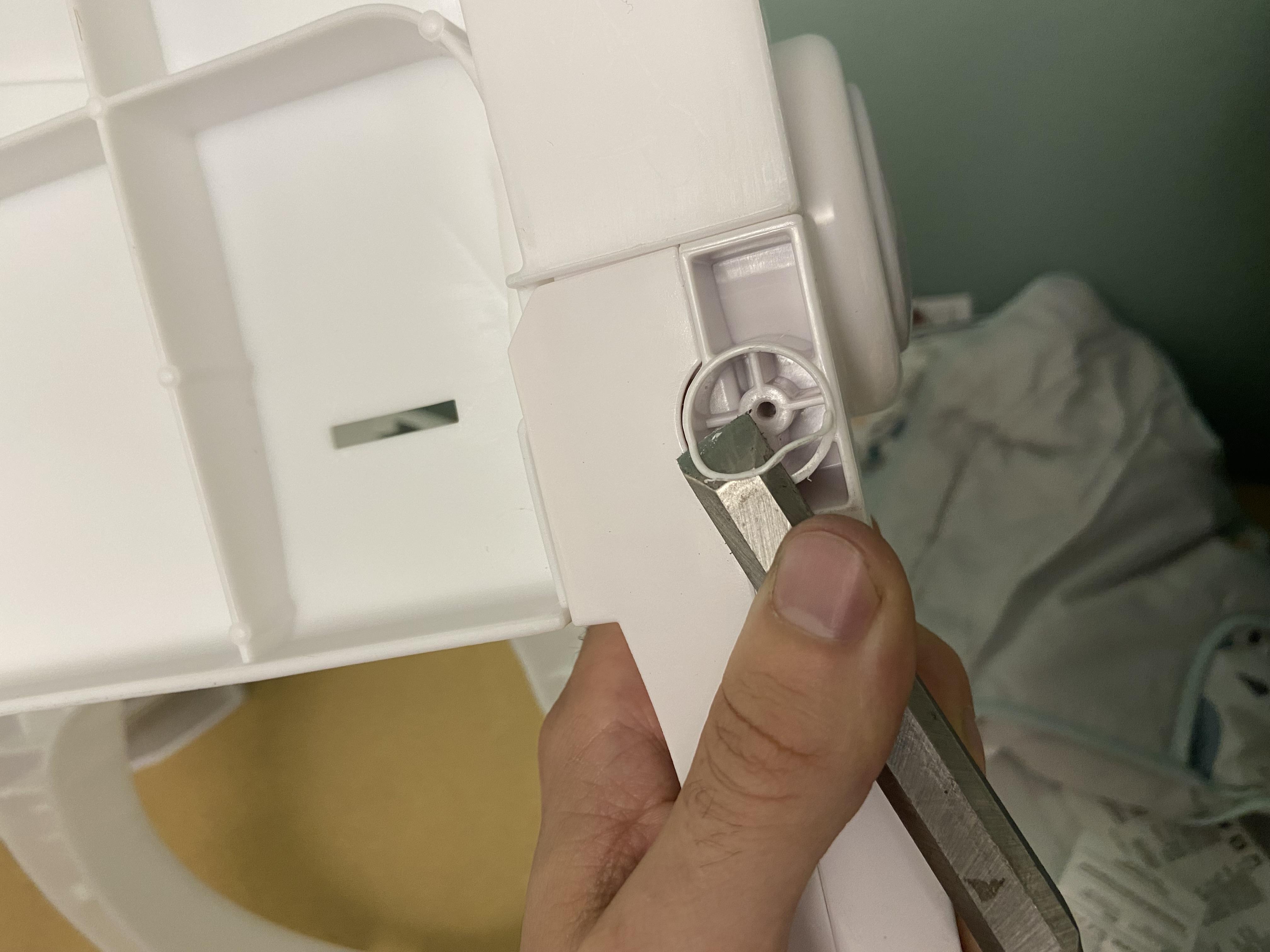
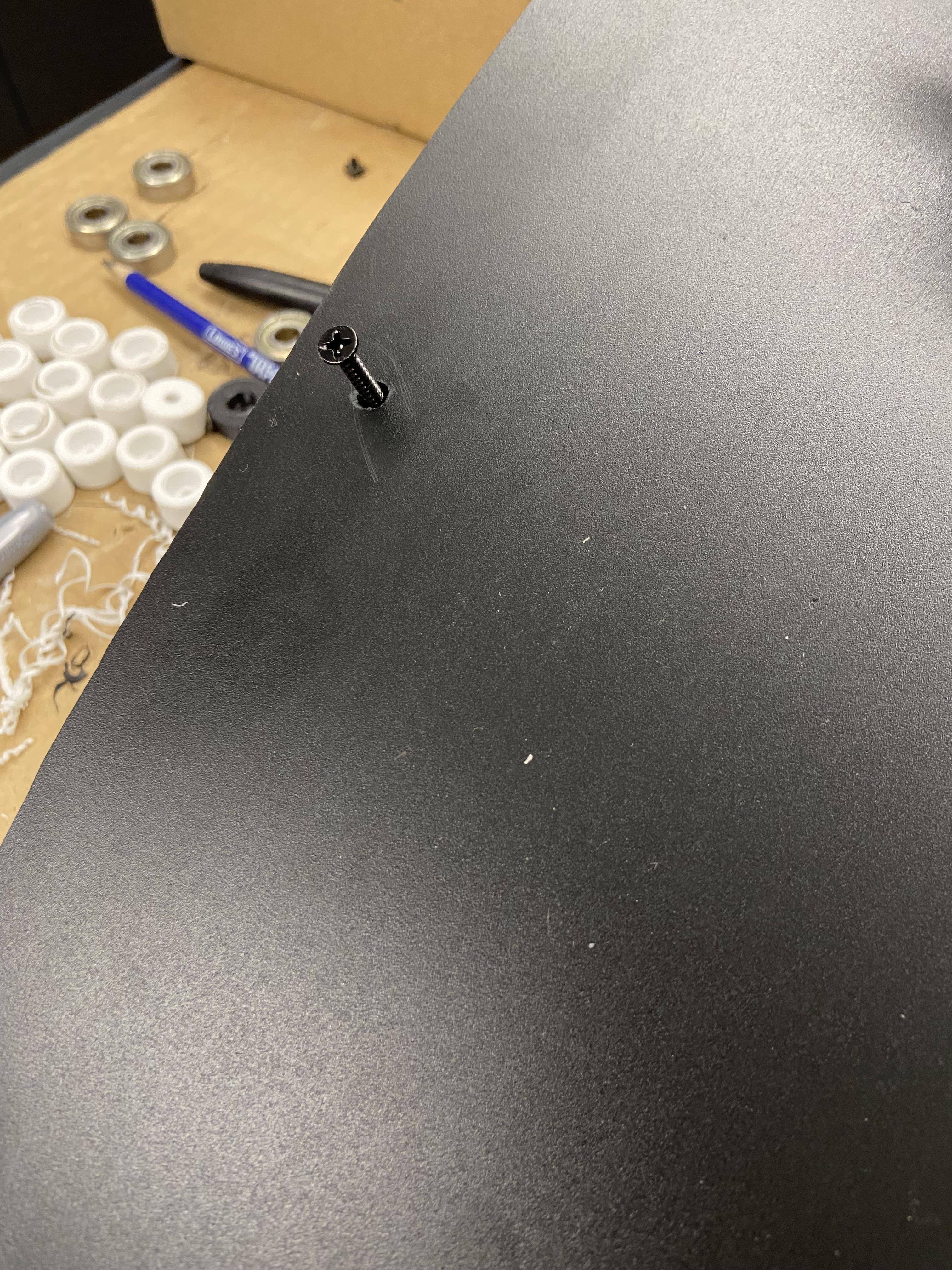
Once the seat is assembled remove the rubber feet on the bottom. Be sure to save the 5 screws as they will be used later in Step 8 to install the joystick mount. A sharp chisel can be used to cut off the raised plastic lip around where the rubber foot was. This will allow the base plate to be flush with the seat.
Cut Out Base Plate
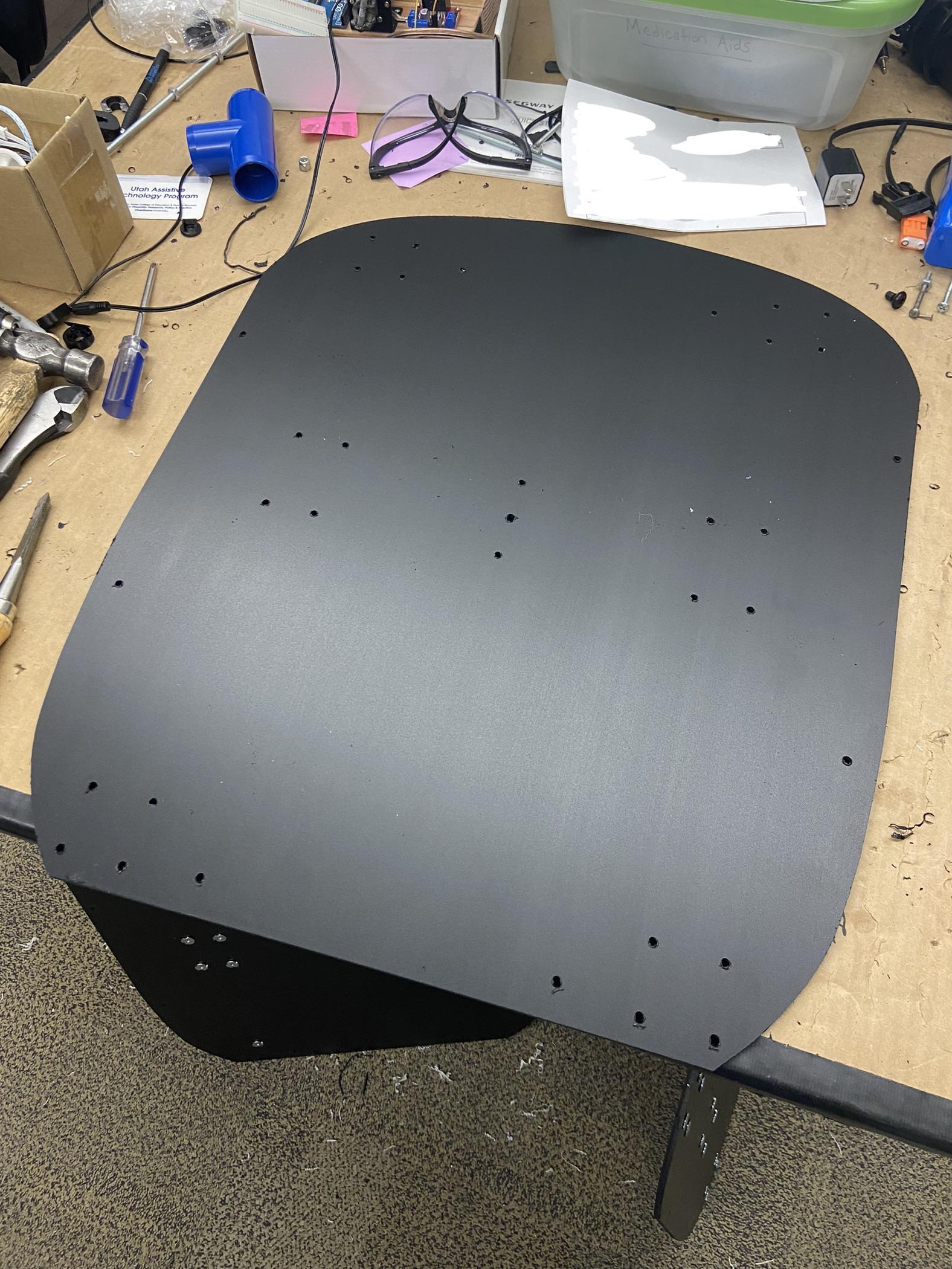
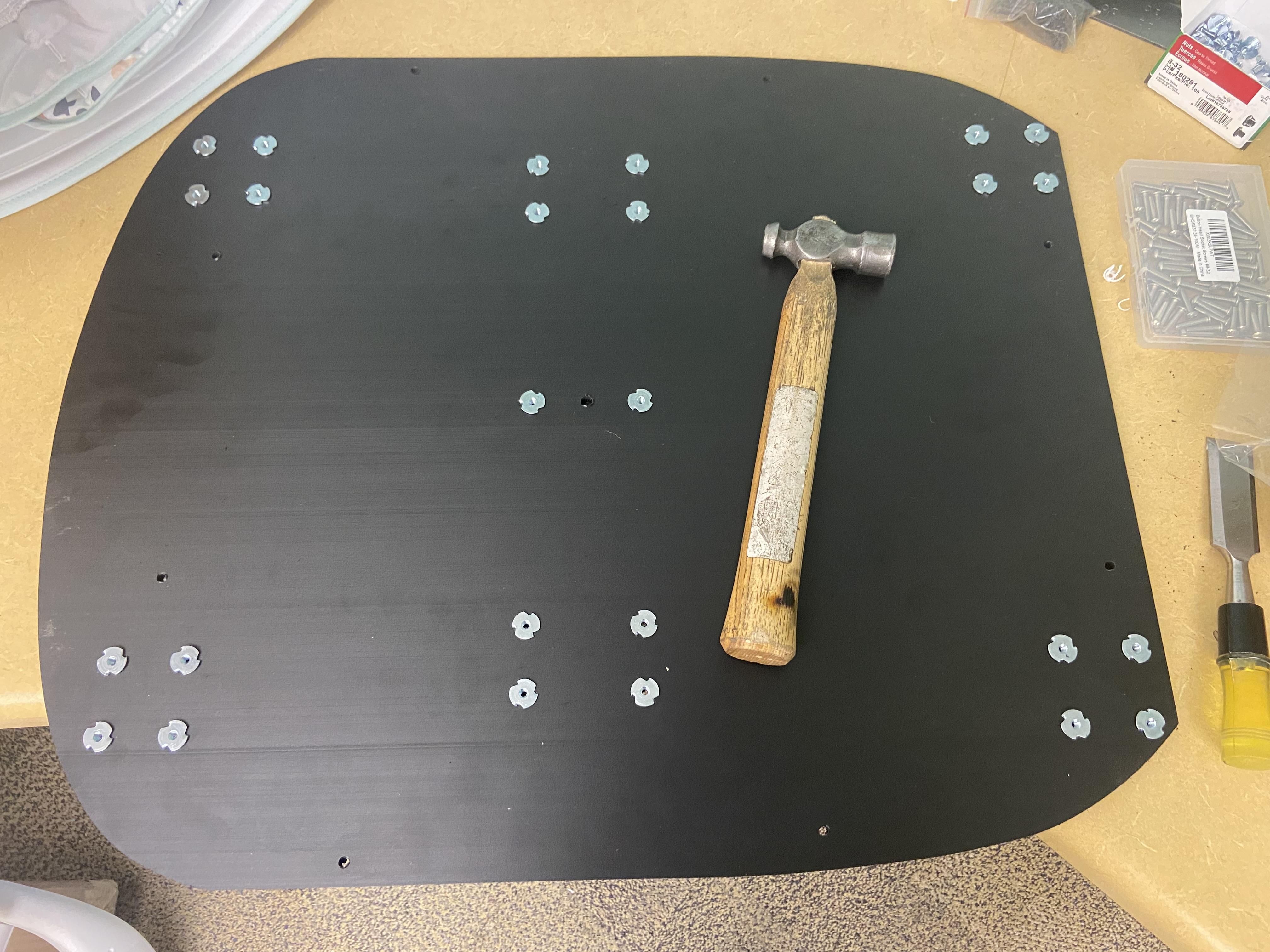
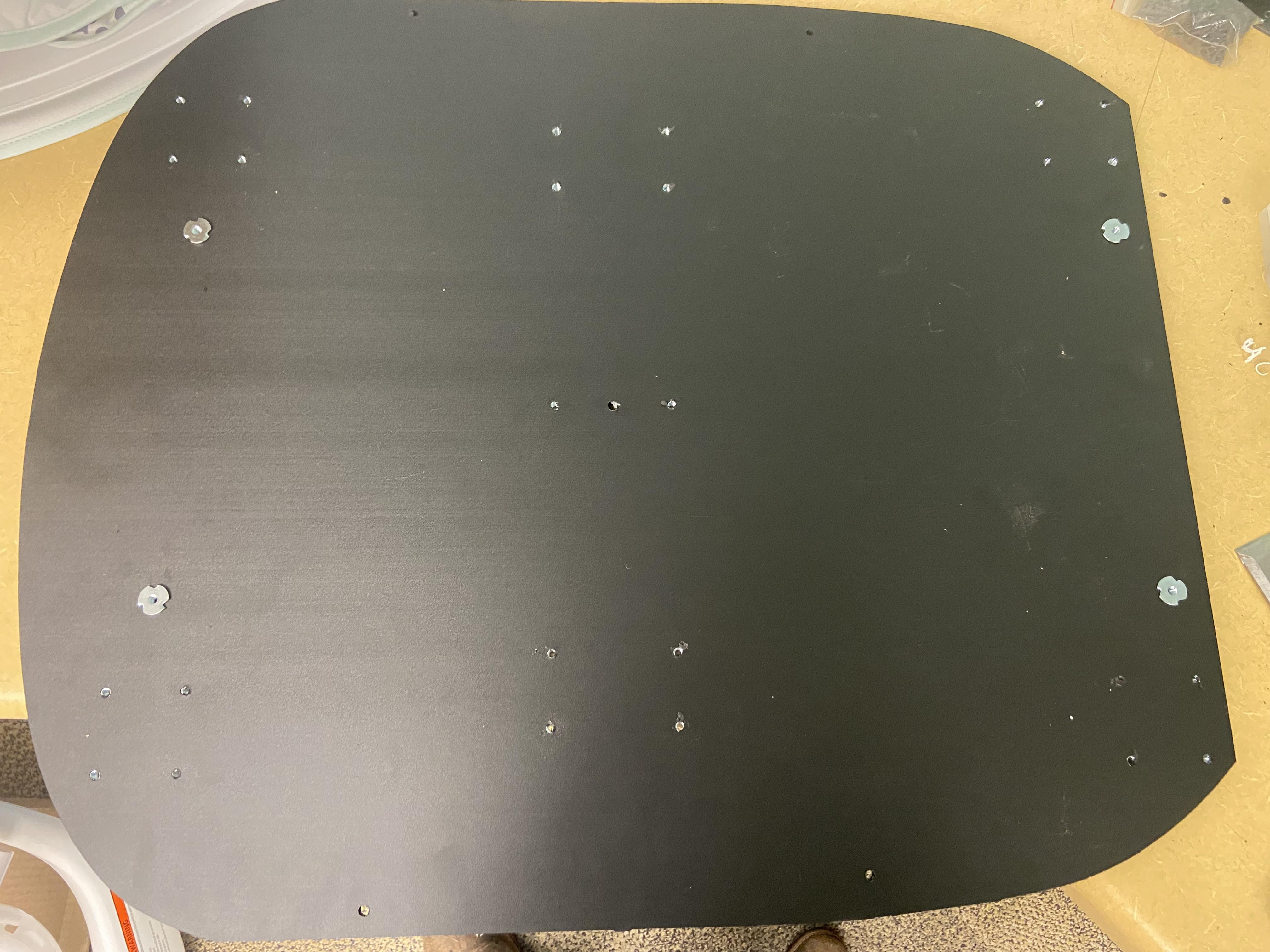
Using a CNC router cut the base plate from the 1/4" thick plastic sheet. If a CNC router is not available print out the template and use it as a guide to cut the base plate by hand. Pound in the pronged tee nuts on the top and bottom as shown in the picture.
Install Motors and Caster Wheels
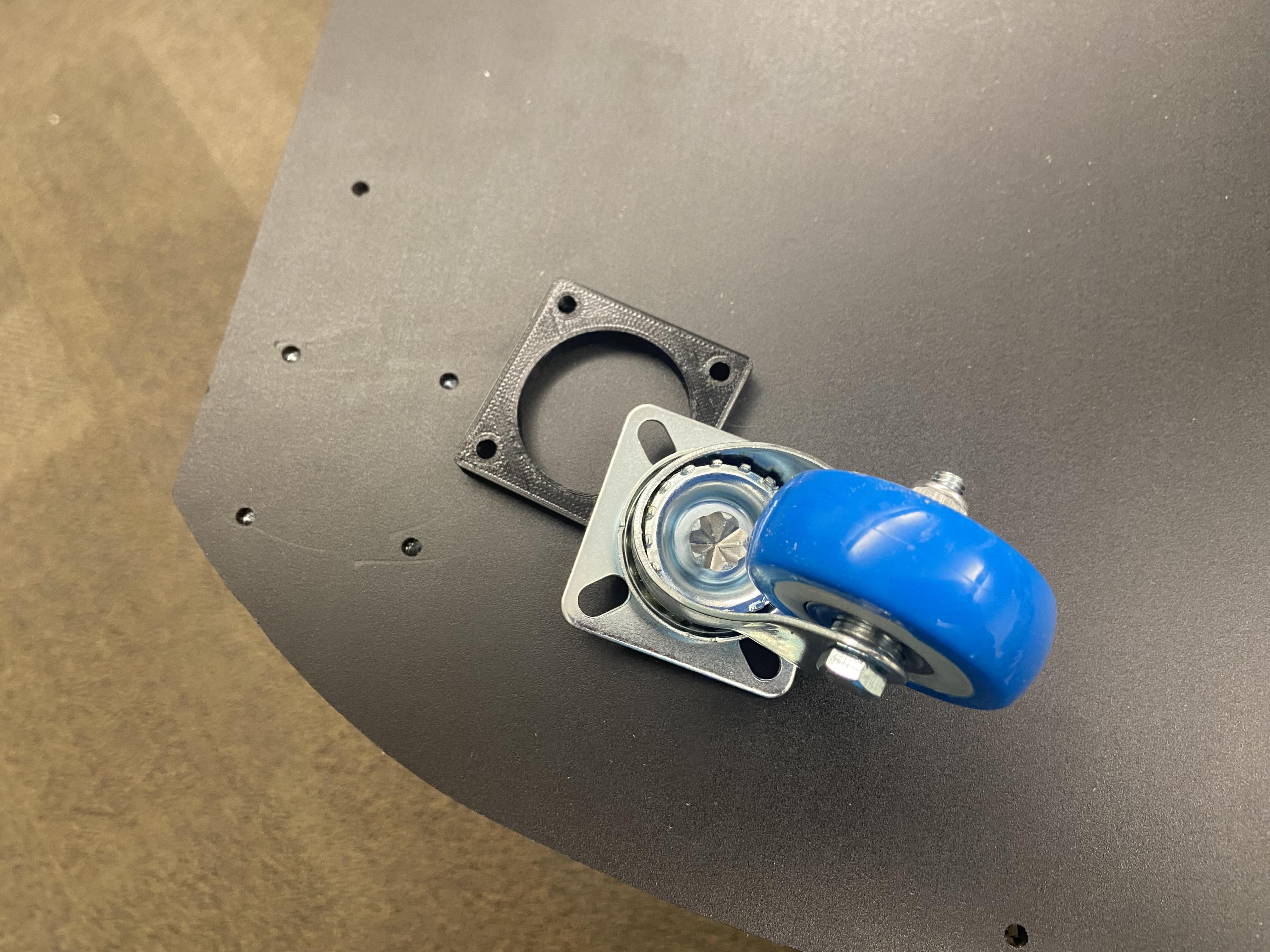


Bolt the casters to the baseplate with the 3D printed spacer in between using the 3/4" long bolts. The motors can be installed in their 3D printed housing using the M3 x 8 mm bolts and then bolted to the base plate using the 3/4" bolts.
Attach Base Plate to the Seat
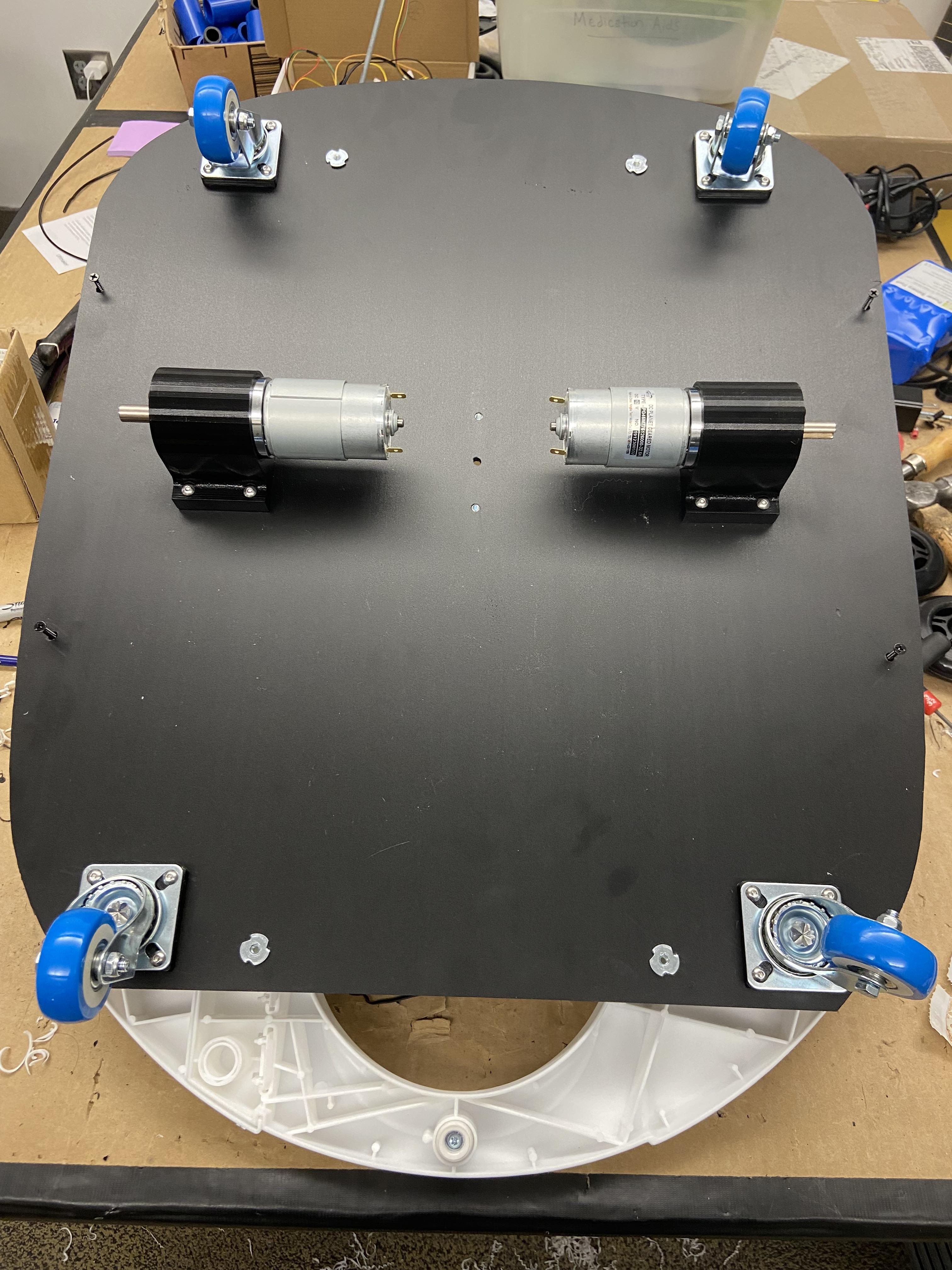
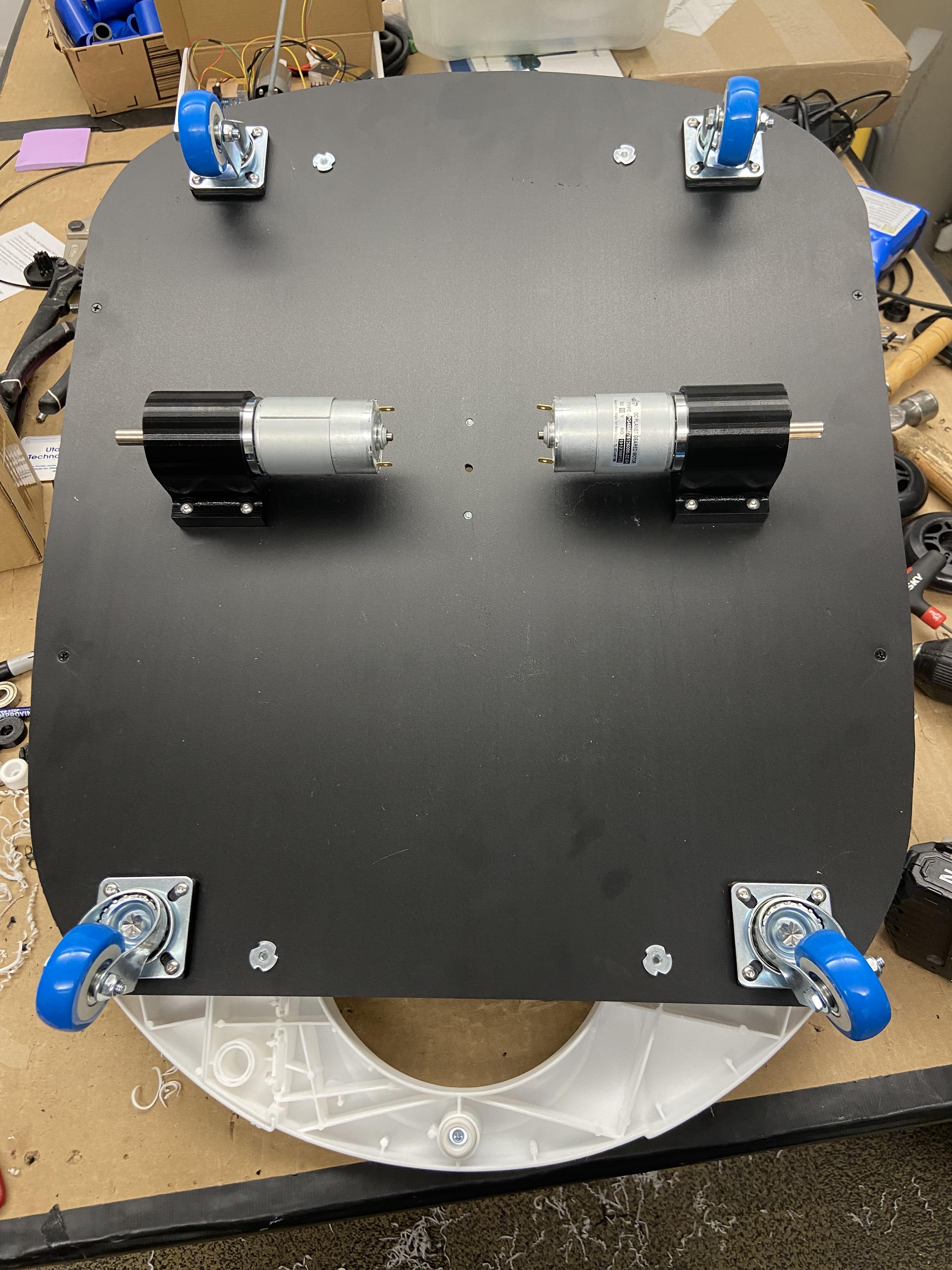
Using the 1.5" long screws line up the baseplate with the seat. The 1.5" long screws will be going into the holes left by the rubber feet in Step 1. Be careful not to over tighten the screws as it could cause the screw to pull through the plastic. NOTE: The specific motors showing in the last two photos are an older version. The motors shown in step 3 are the correct ones.
Secure the Base Plate
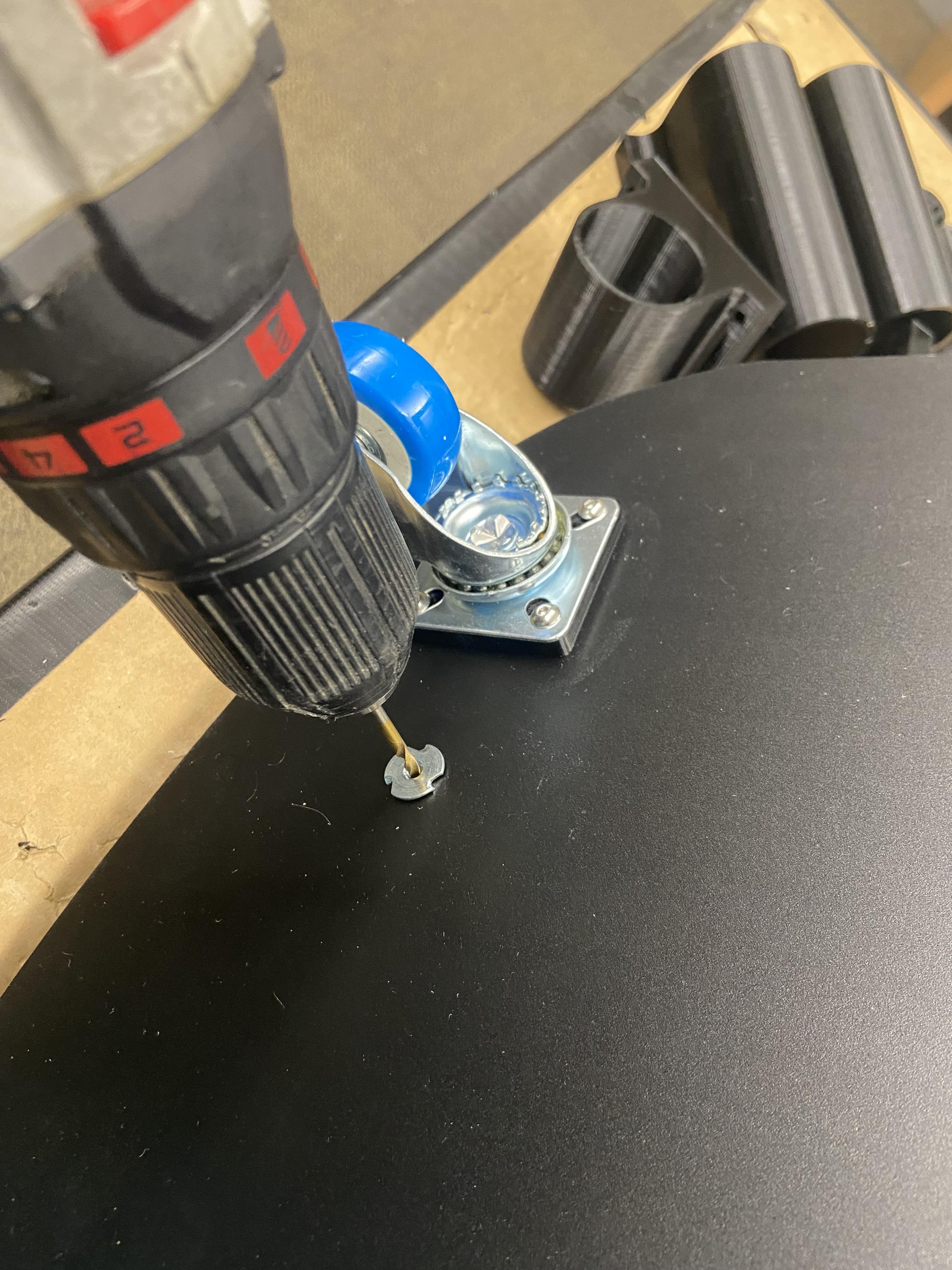
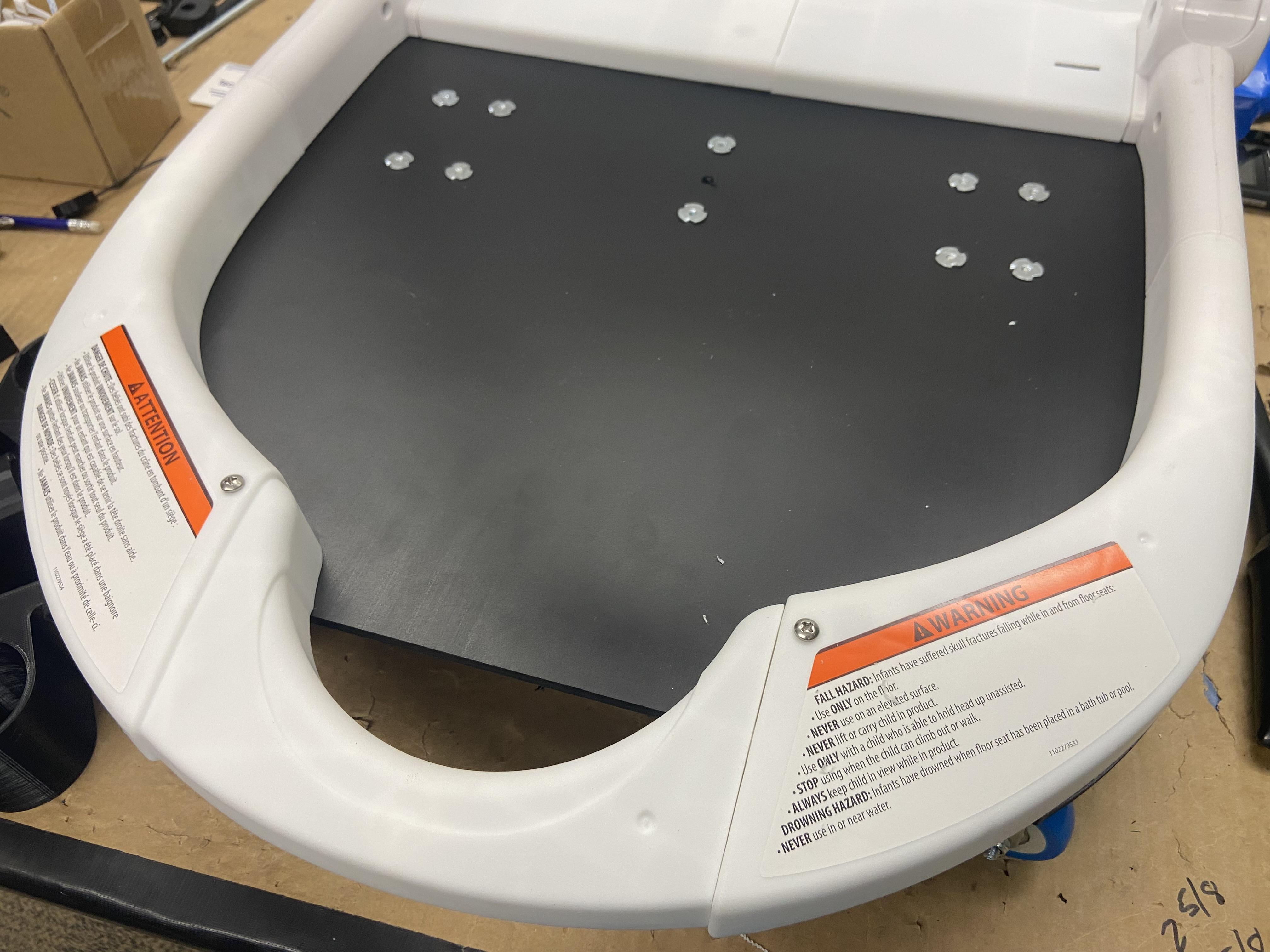
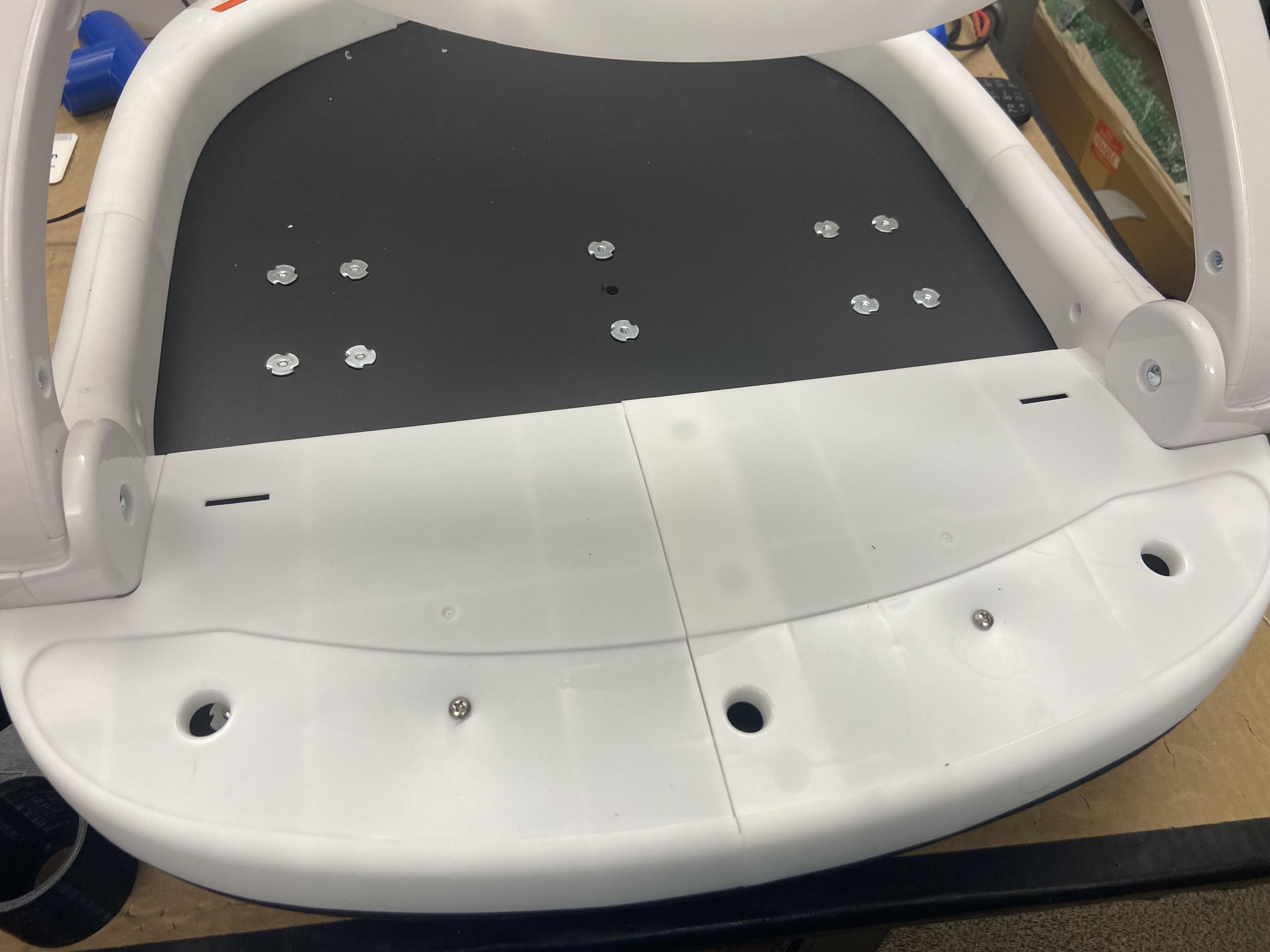
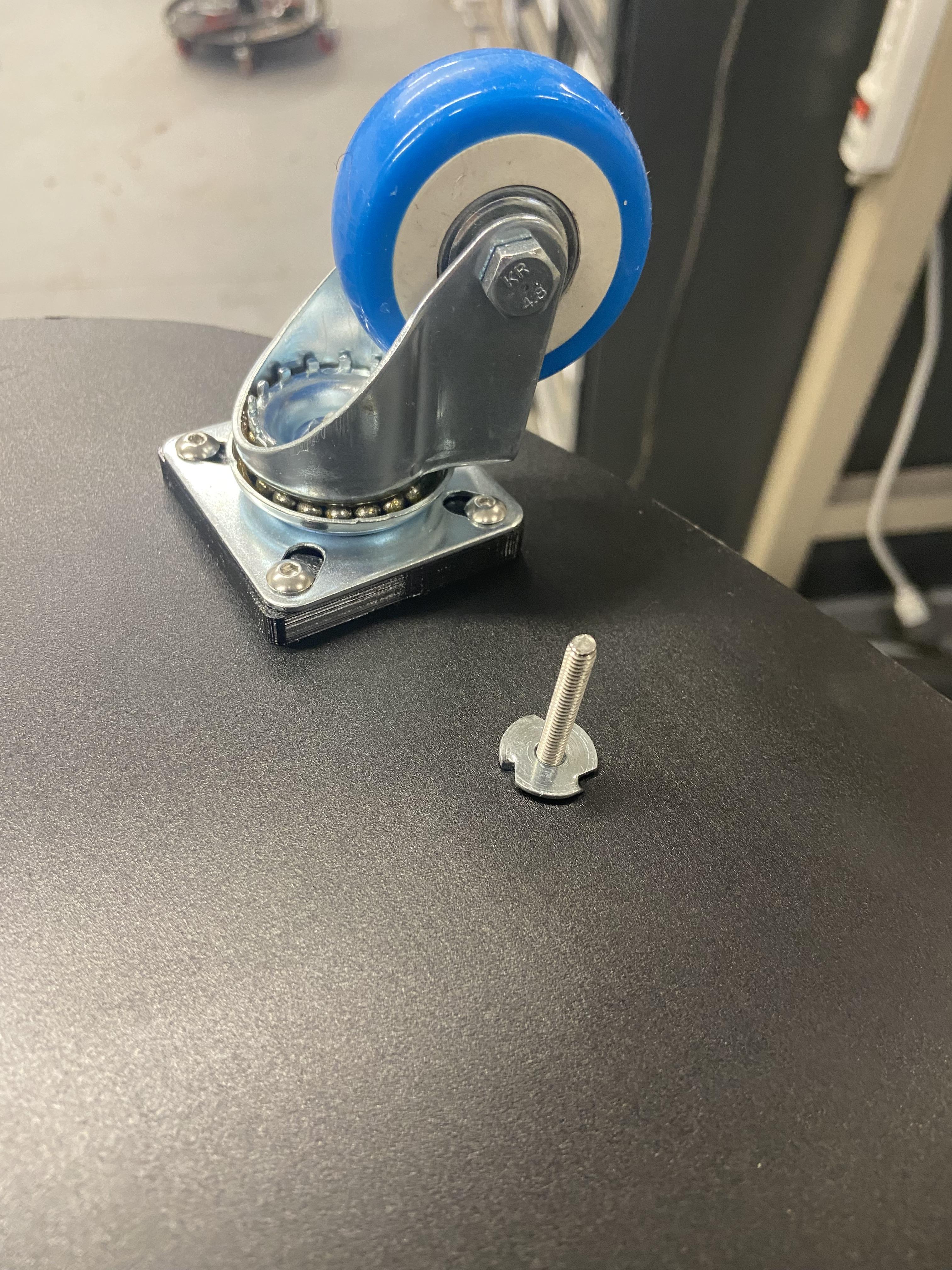
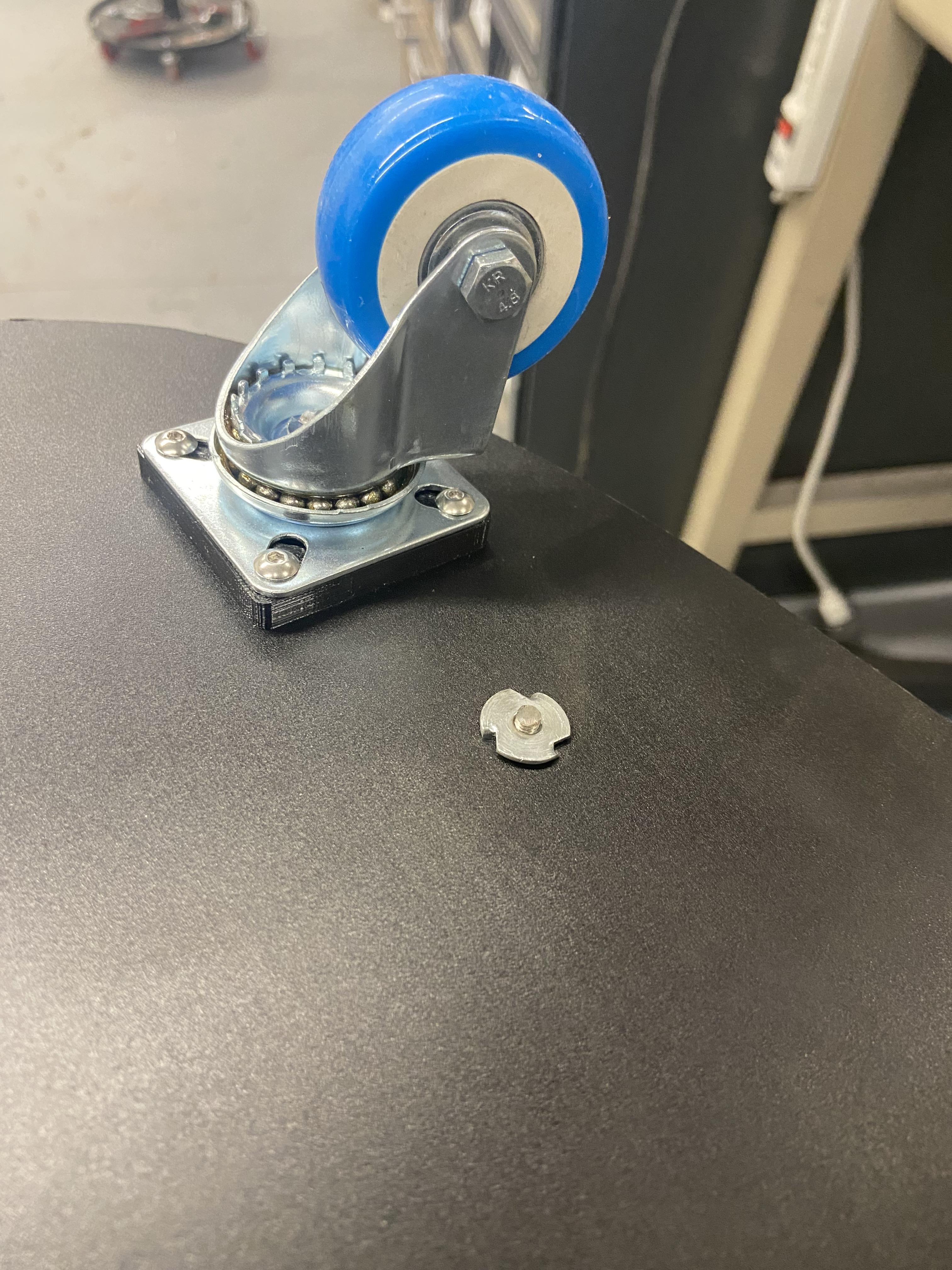
Use a small drill bit to drill a hole through the remaining four pronged tee nuts and out the top of the sit-me-up seat.
Note: It is critical to use a small drill bit that will not damage the threads of the tee nut.
It can be very difficult to drill a straight hole so use two people to help line up the drill from multiple angles. You will need to enlarge the hole ONLY in the Sit Me Up seat system from the top down to allow the 2” bolt to fit through the seat base. Push the 2" long bolts through the top of the seat and secure them the into the pronged tee nuts.
The two bolts on the front of the chair will extend past the bottom of the base and will need to be cut off with either a Dremel or hacksaw.
For best results, mark the screw when in place at the desired length. Remove screw and place in vice. Cut screw at desired length. Smooth surface with a file to prevent a scratch point and to provide a nice finished surface.
Cut Hole for Joystick
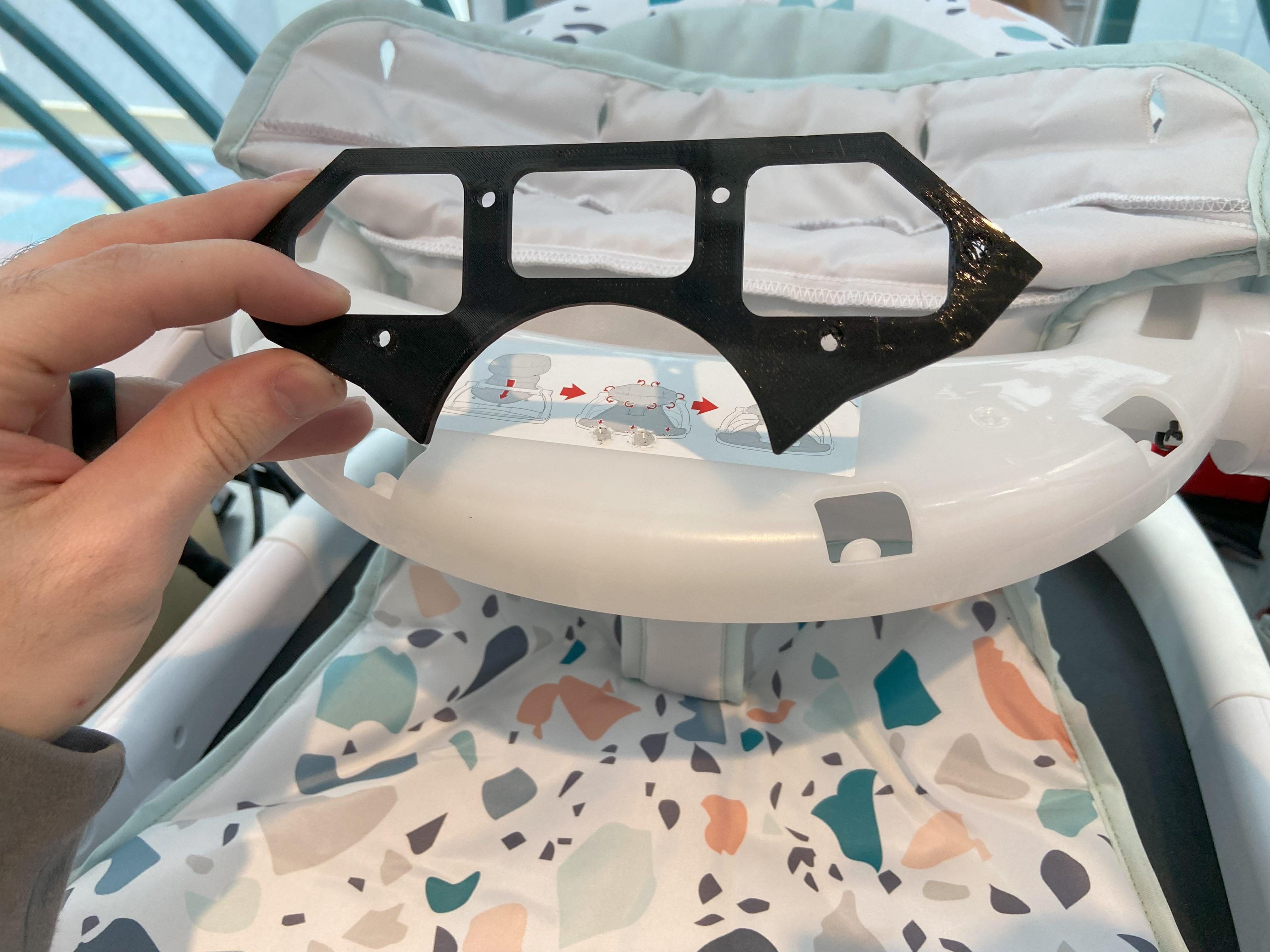
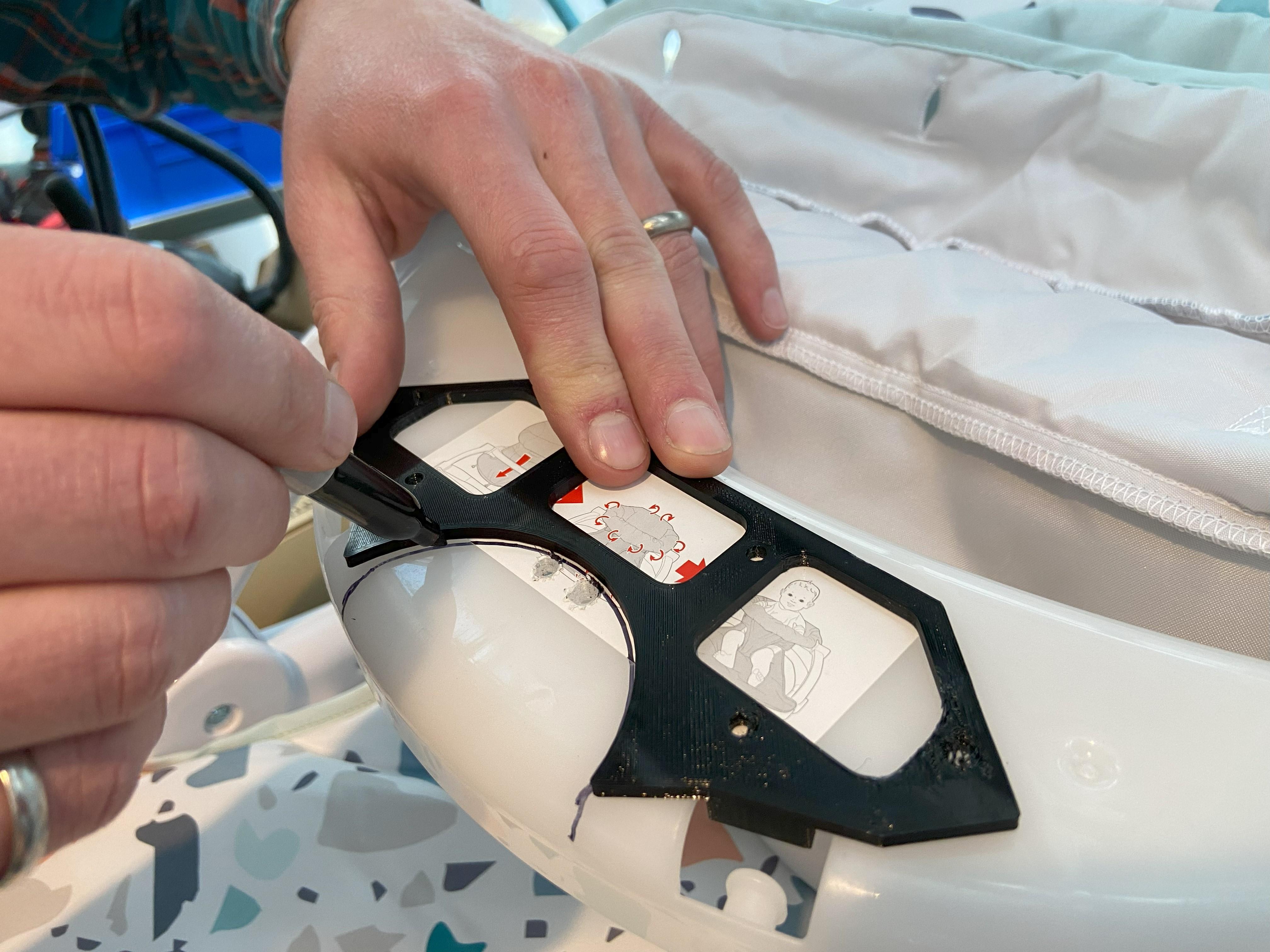
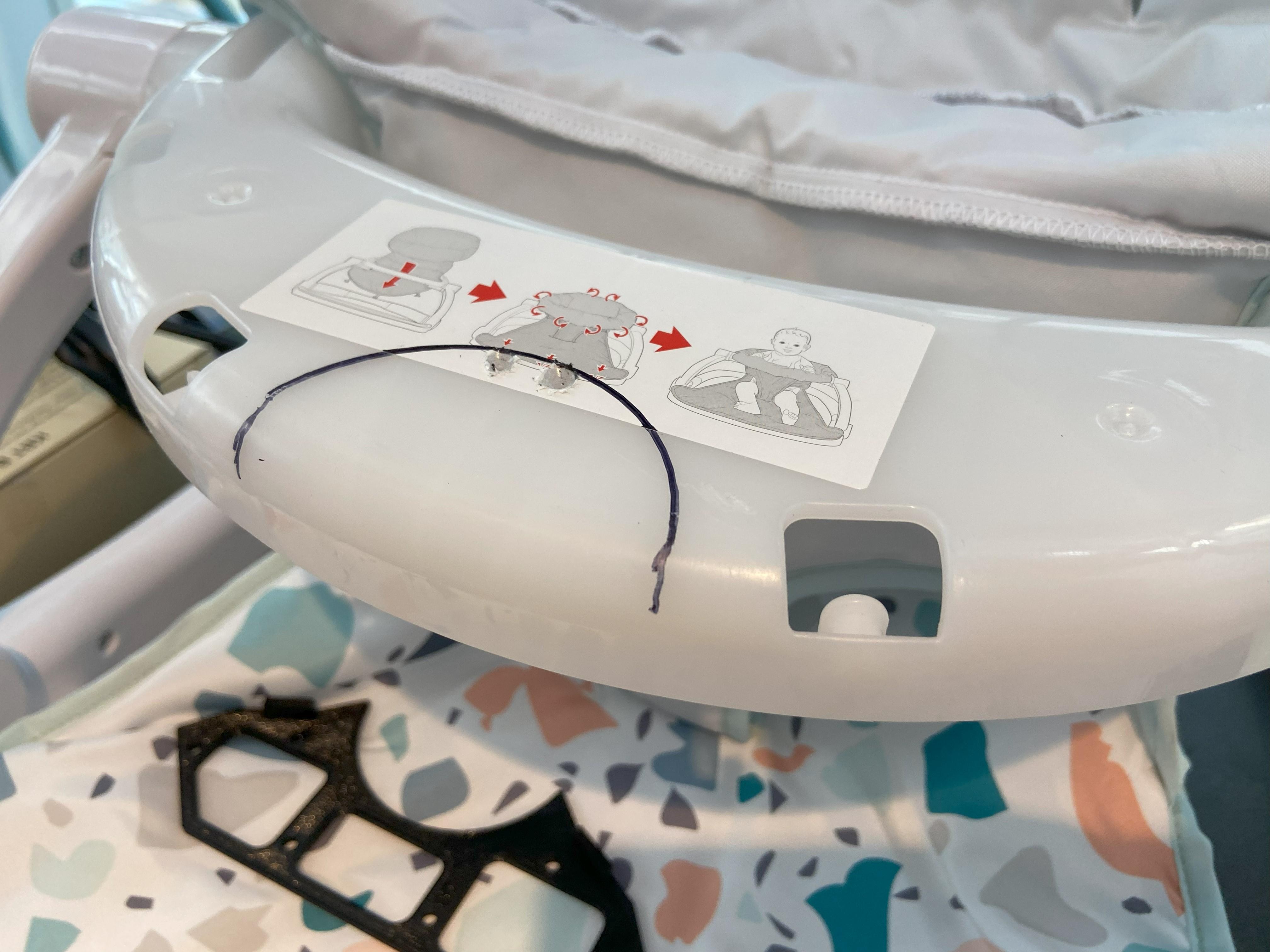
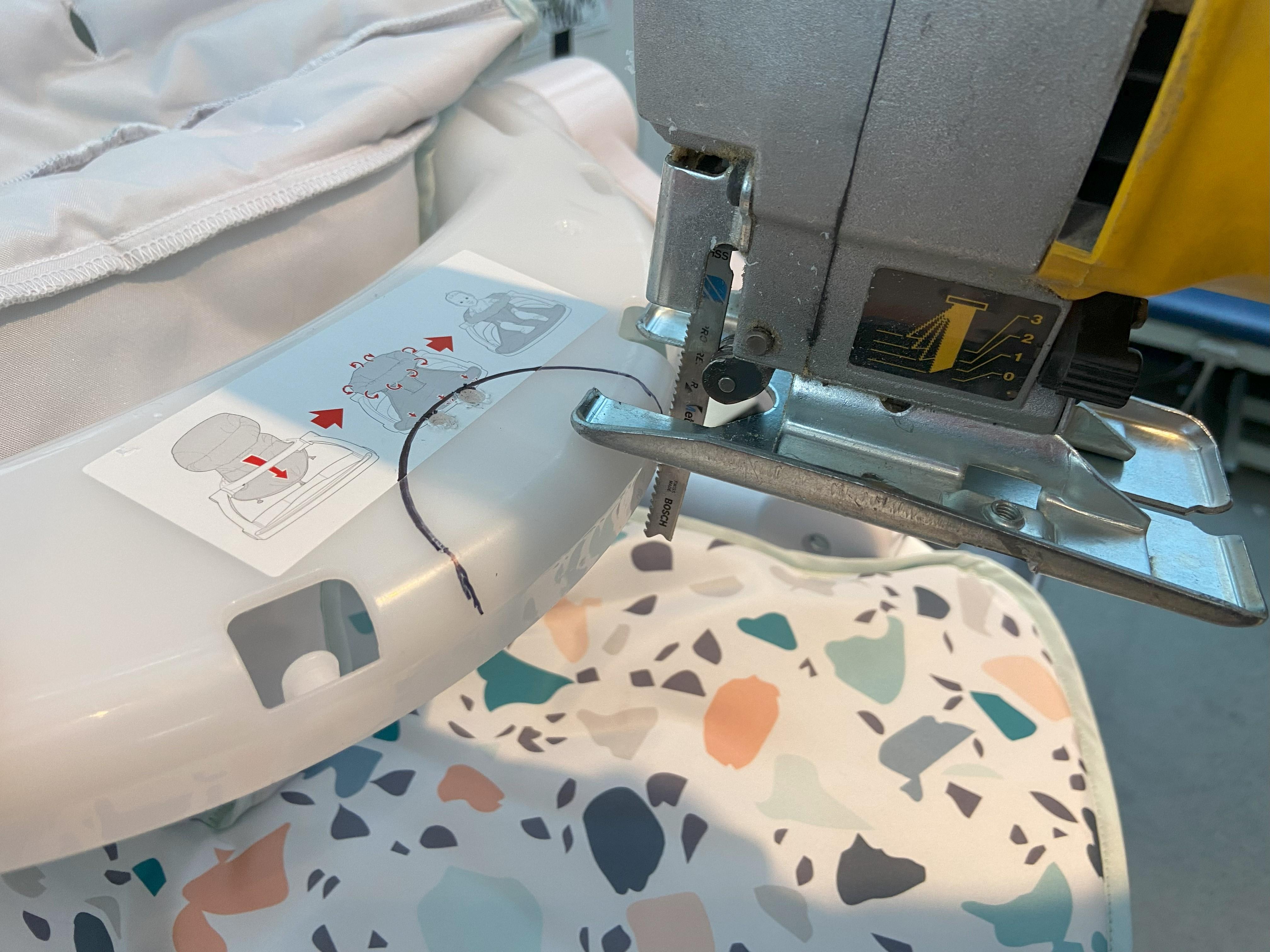
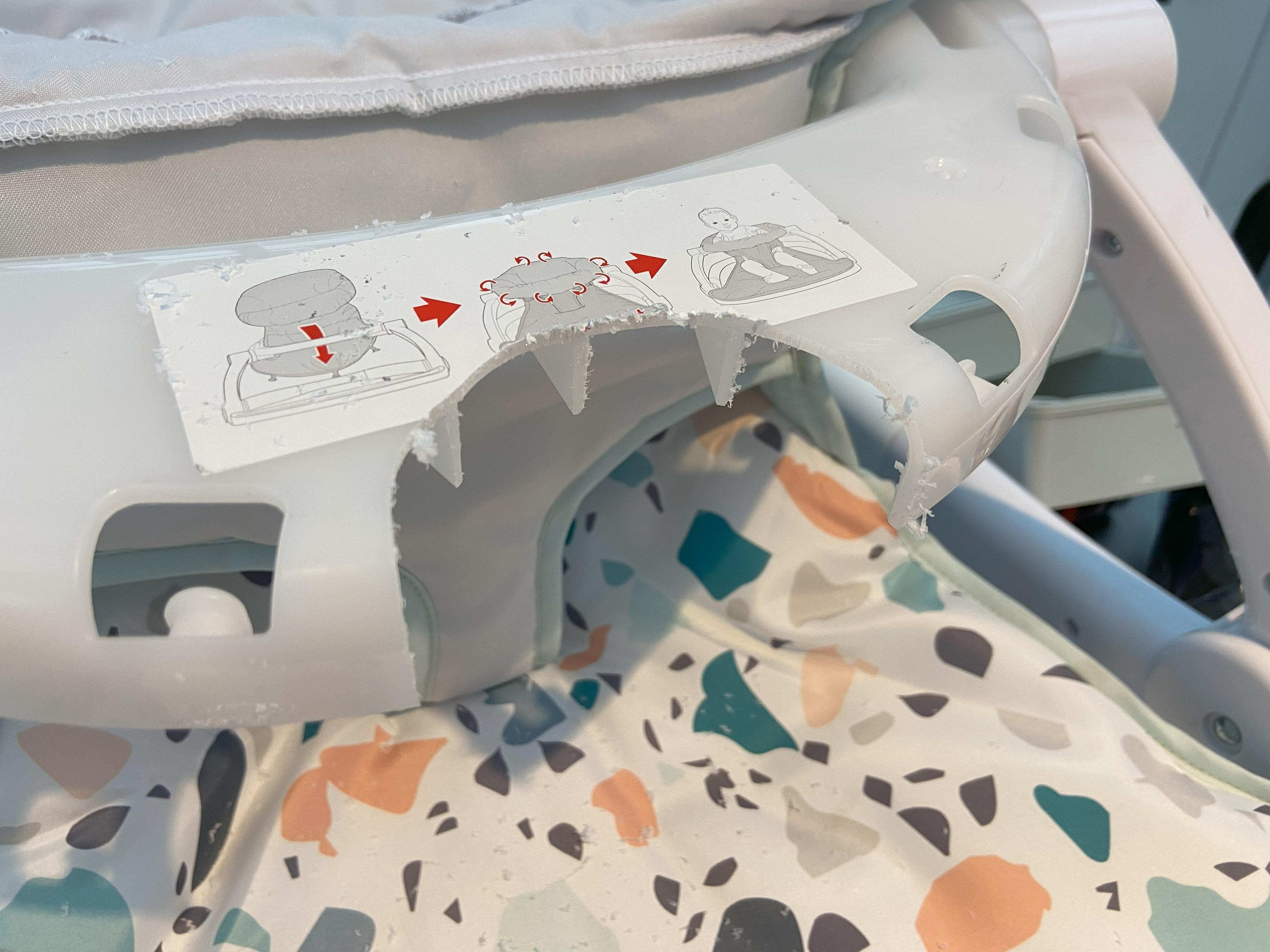
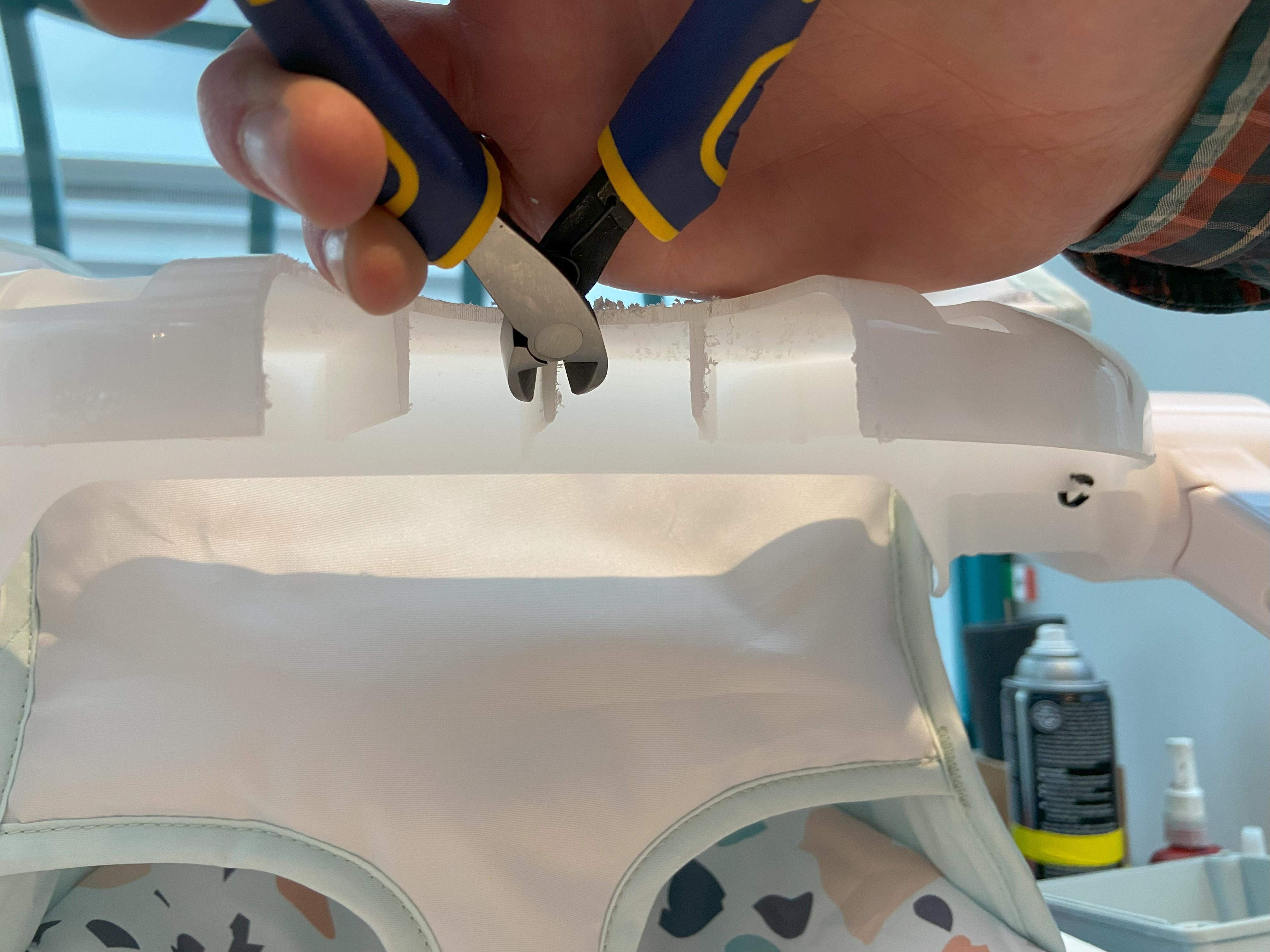
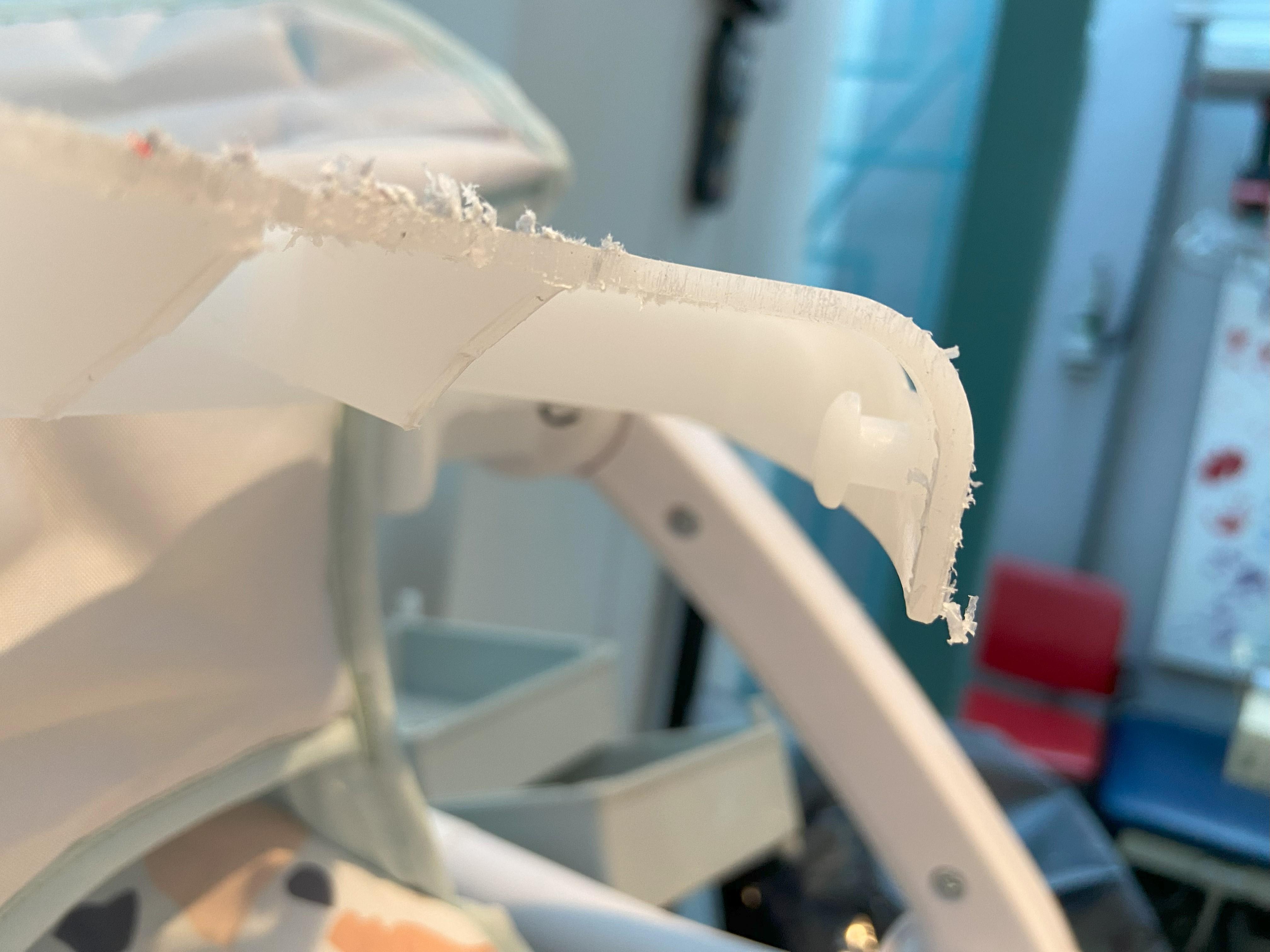
Using the 3D printed template (The updated template has four holes instead of 6, but the process is the same) trace the large arch and mark the small holes with a sharpie. The large arch will be cut out with a jigsaw to provide room for the joystick. Next cut the exposed ribs at a 45 degree angle with some side cut pliers. This provides more room for the joystick and reduces sharp corners on the bottom.
Cutting the Fabric
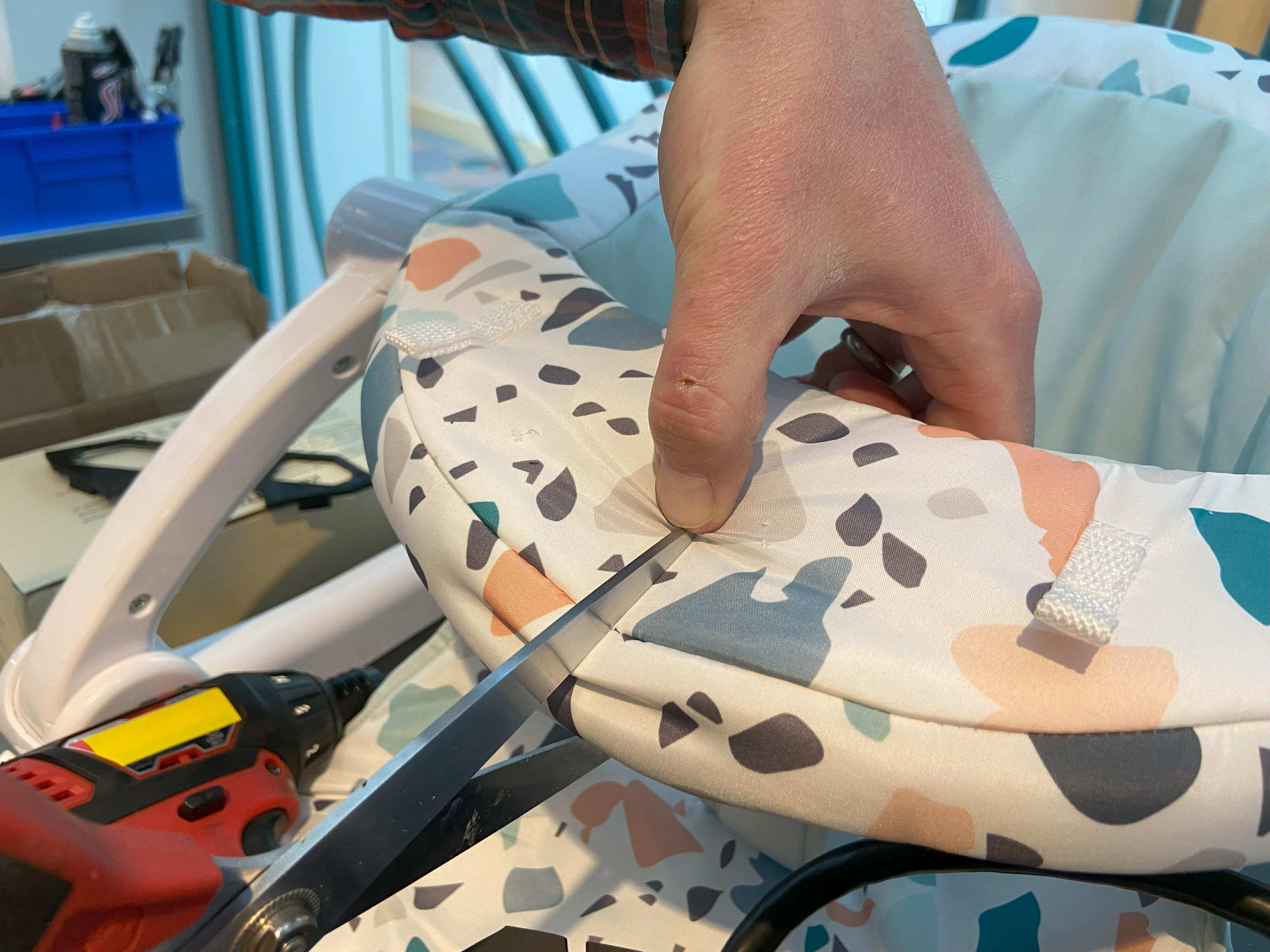
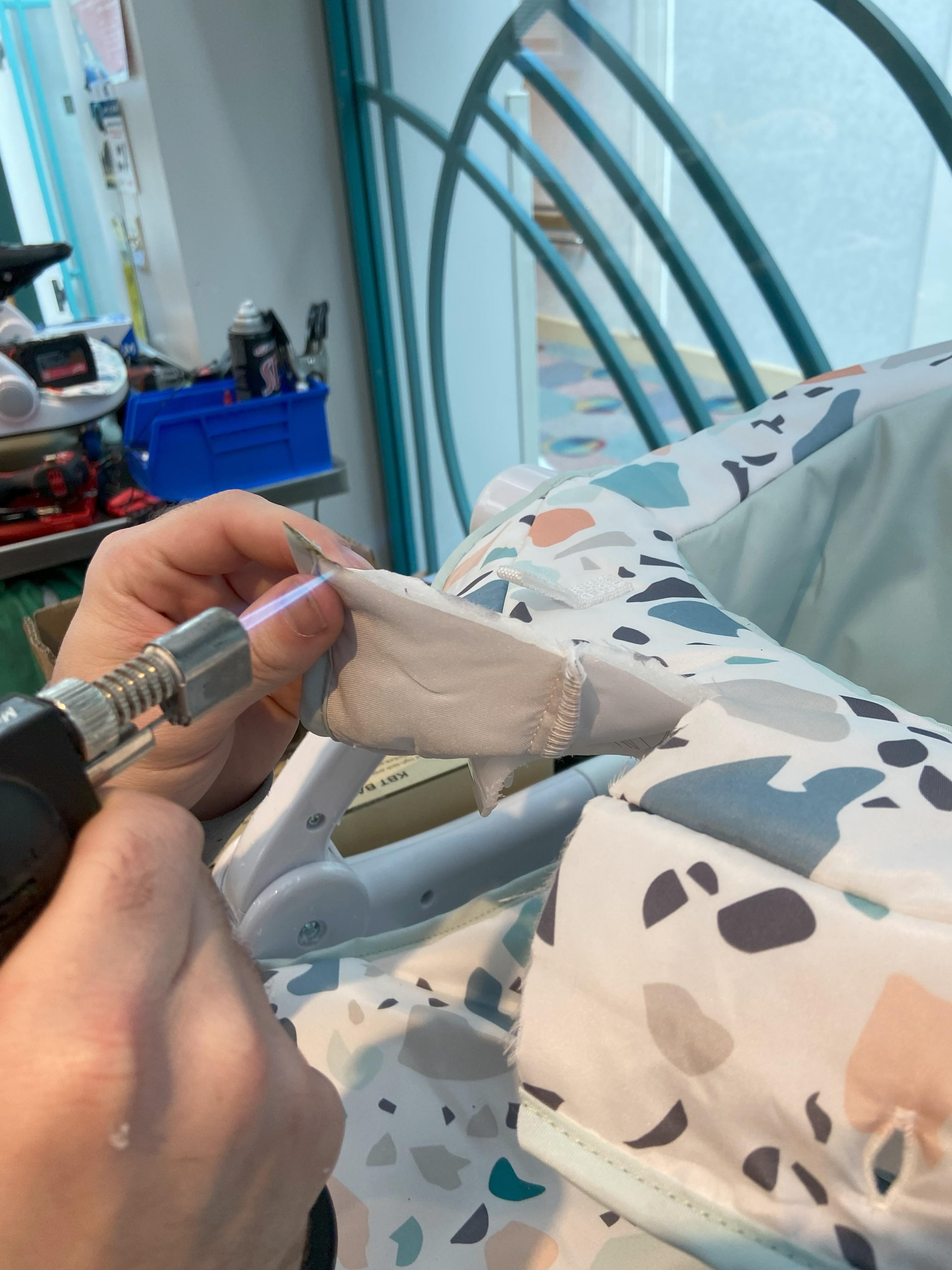
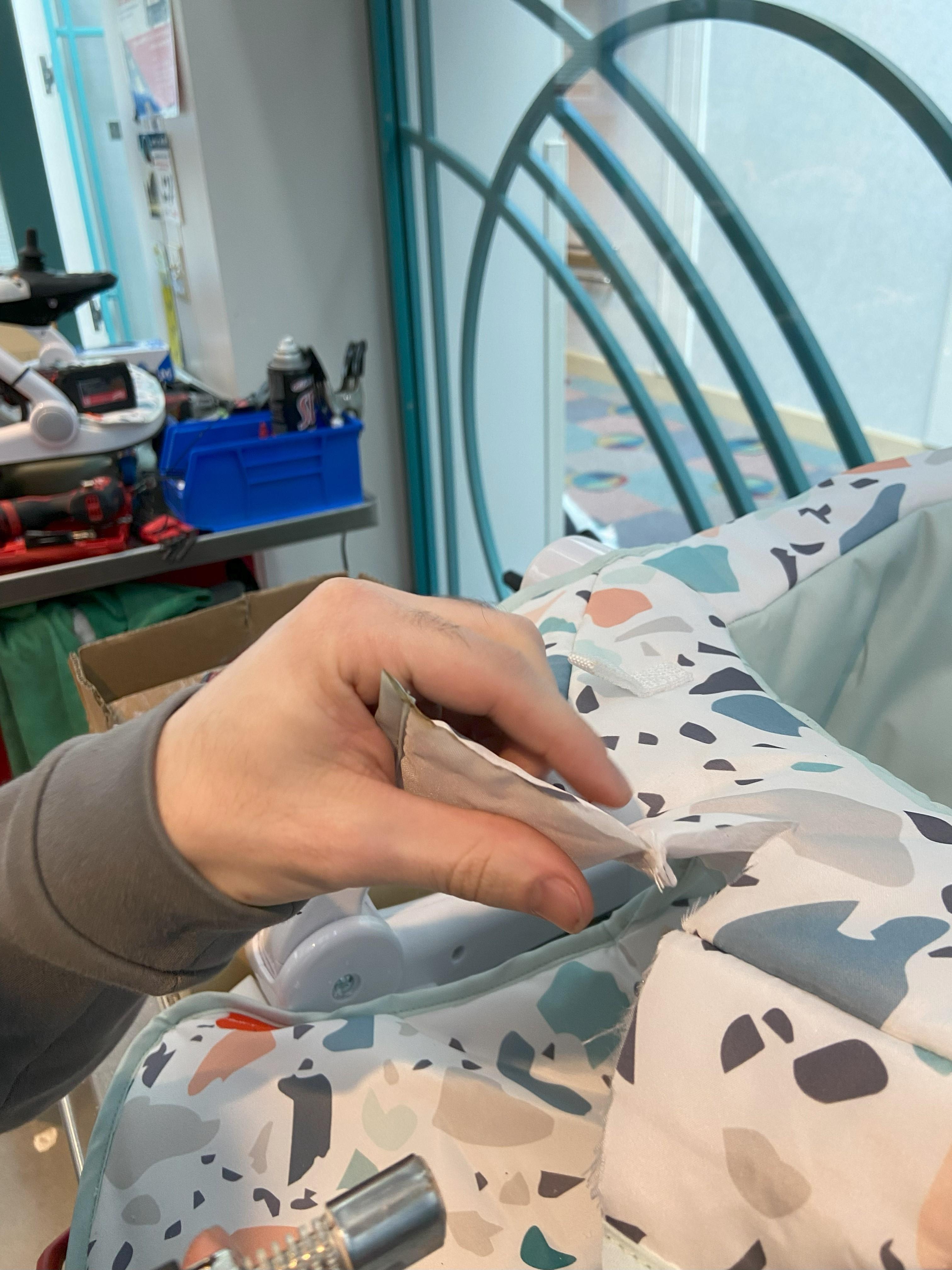
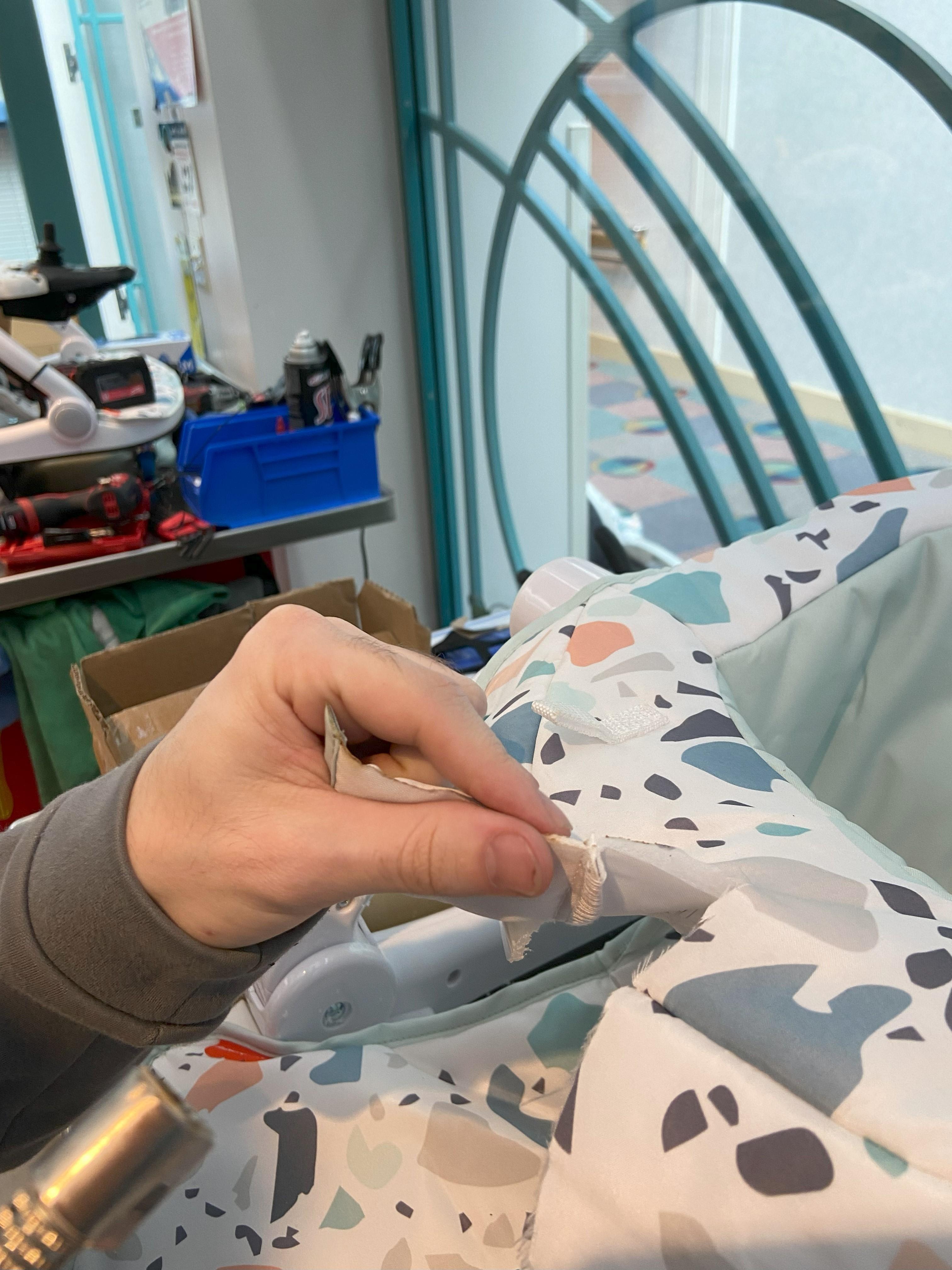
Using scissors cut the fabric up to the edge of the hole that was cut into the tray. This allows the fabric to still be wrapped around and buttoned under the tray. To finish off the cloth seat a lighter or torch can be used to seal the edges of the cut.
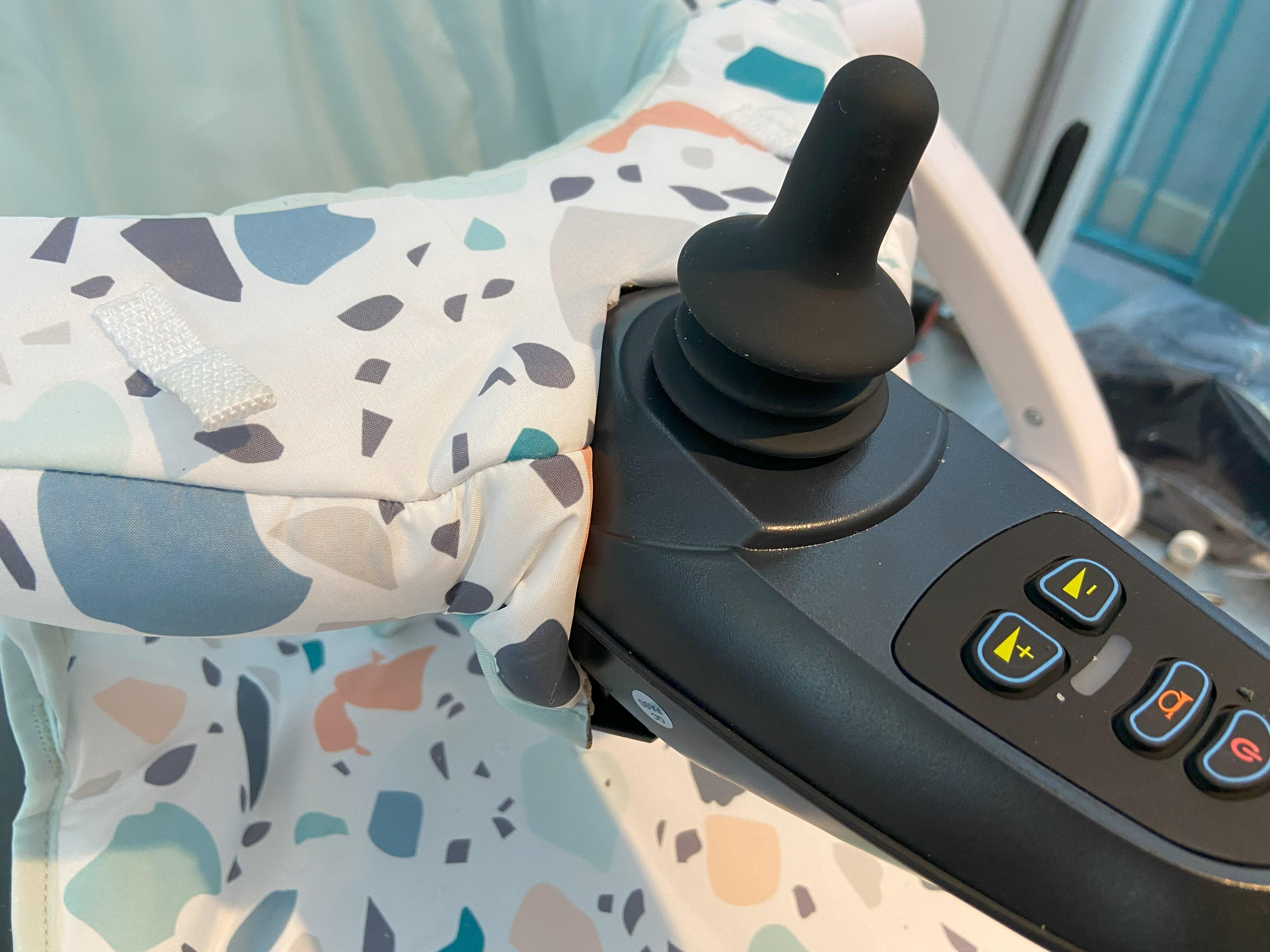
Pull the tray fabric back in preparation for Steps 8 & 9. Once the joystick is mounted, tuck the slitted fabric in around the joystick.
Note: Be extra careful while melting the cloth as it can stick to your fingers and cause burns. To reduce this risk wet your fingers before pinching the hot fabric.
Installing the Joystick
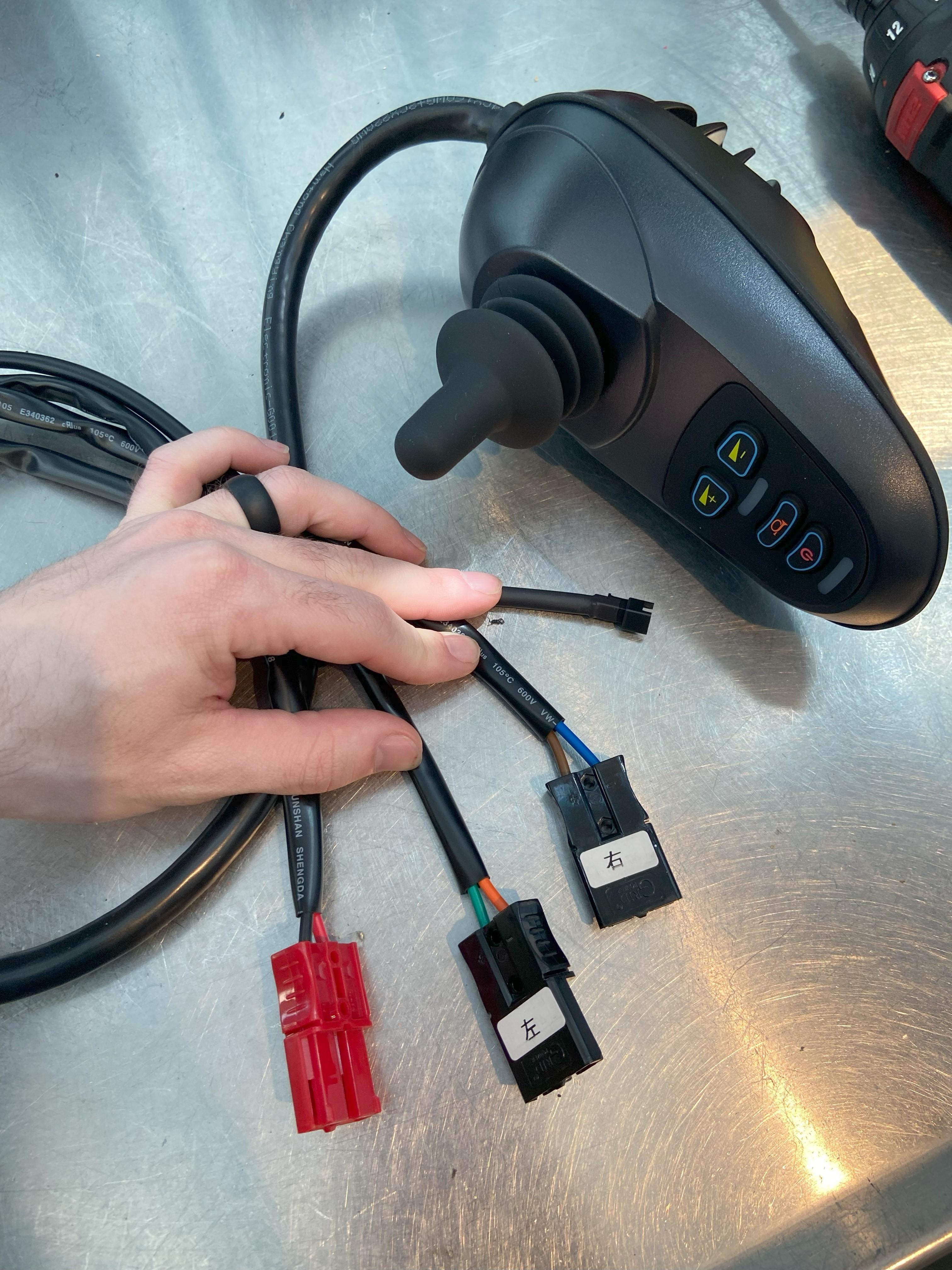
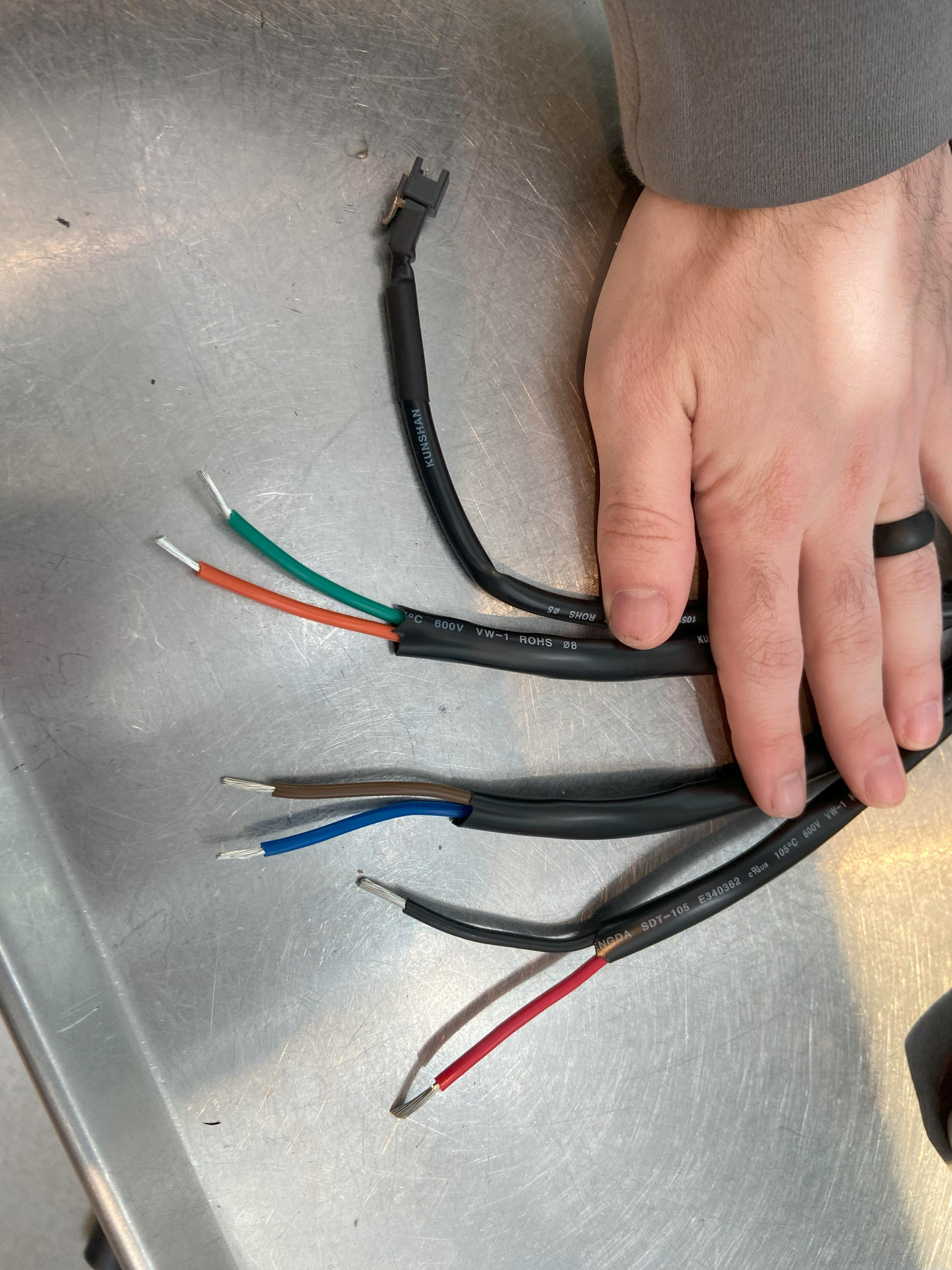
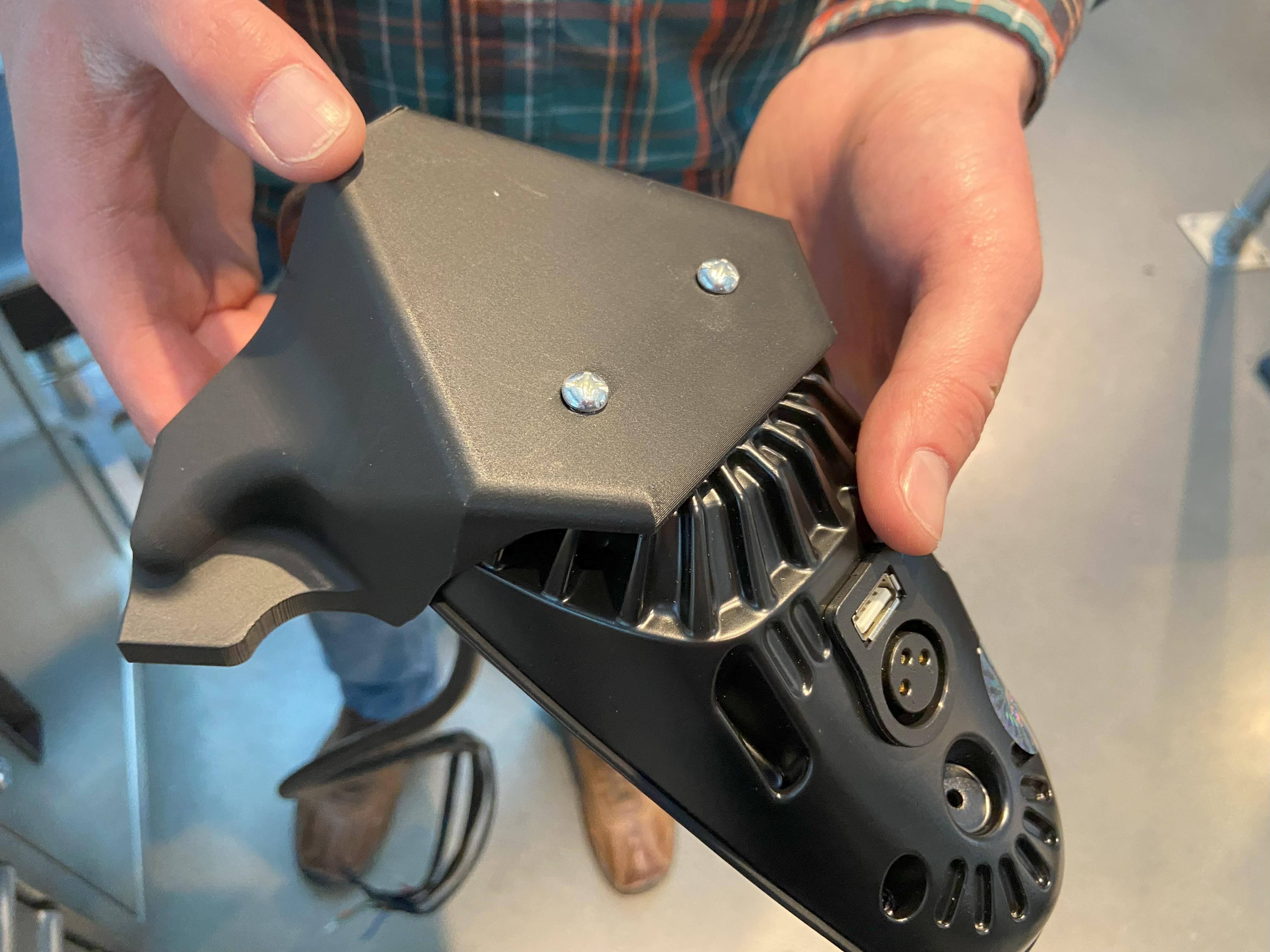
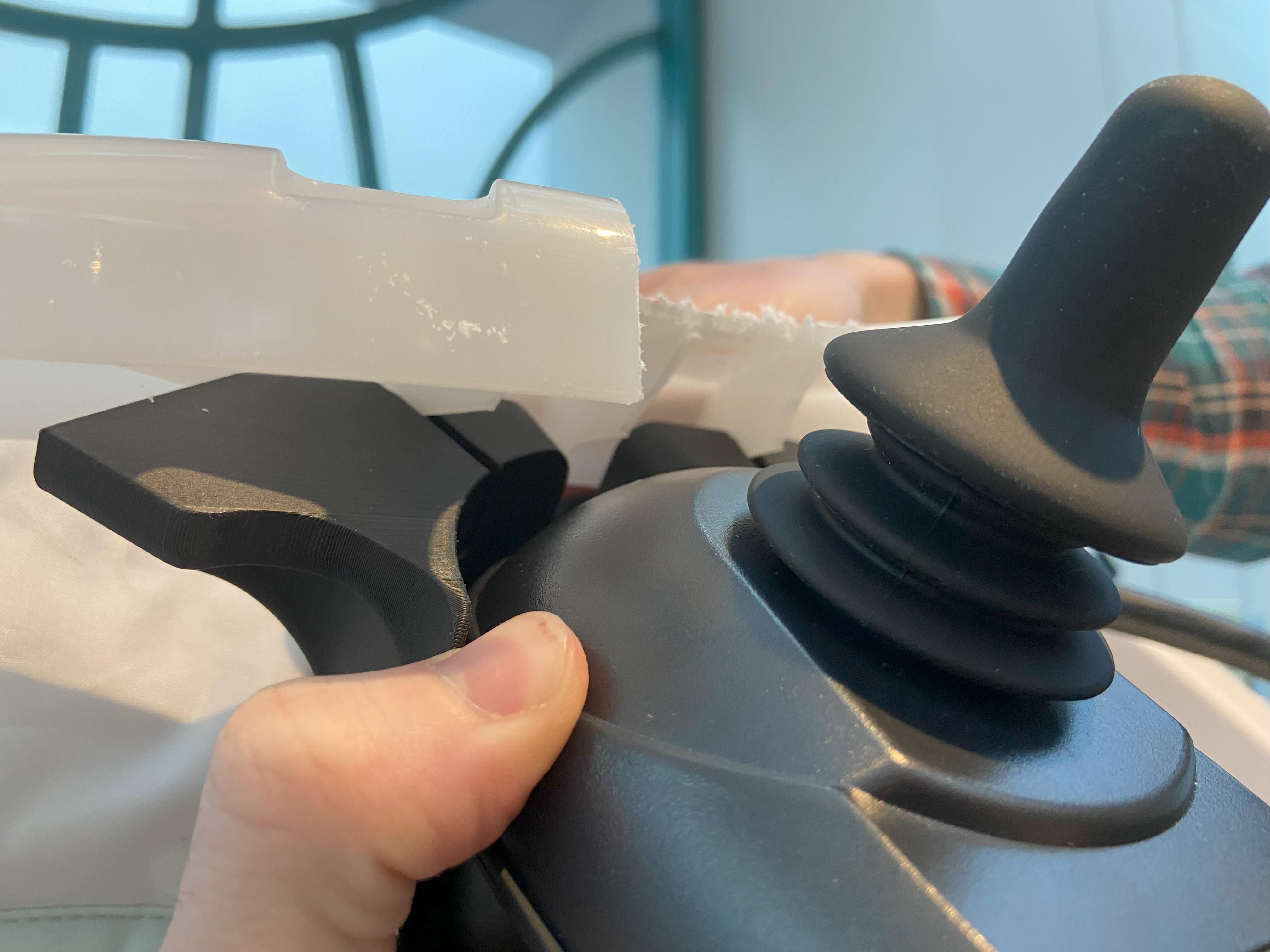
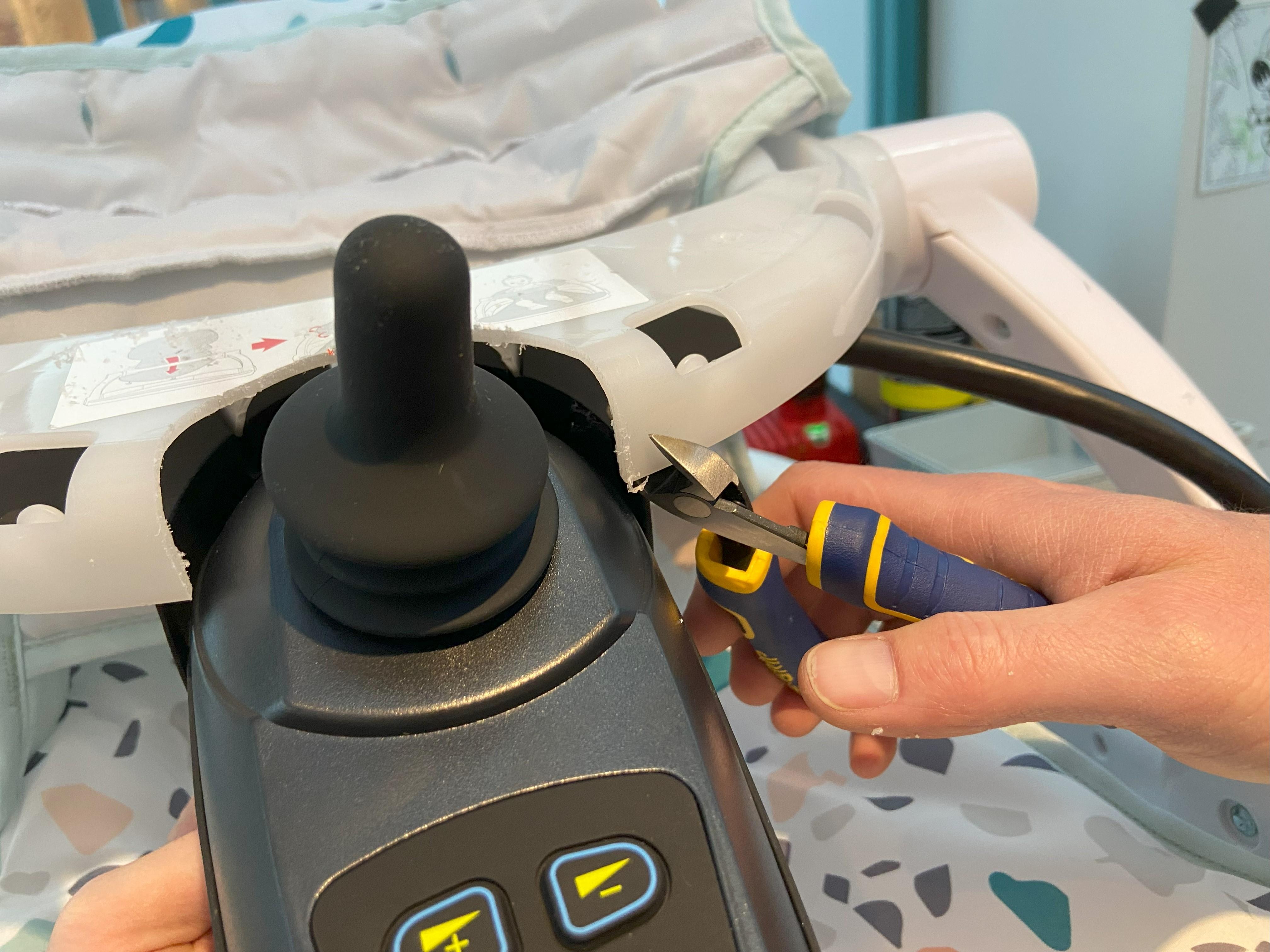
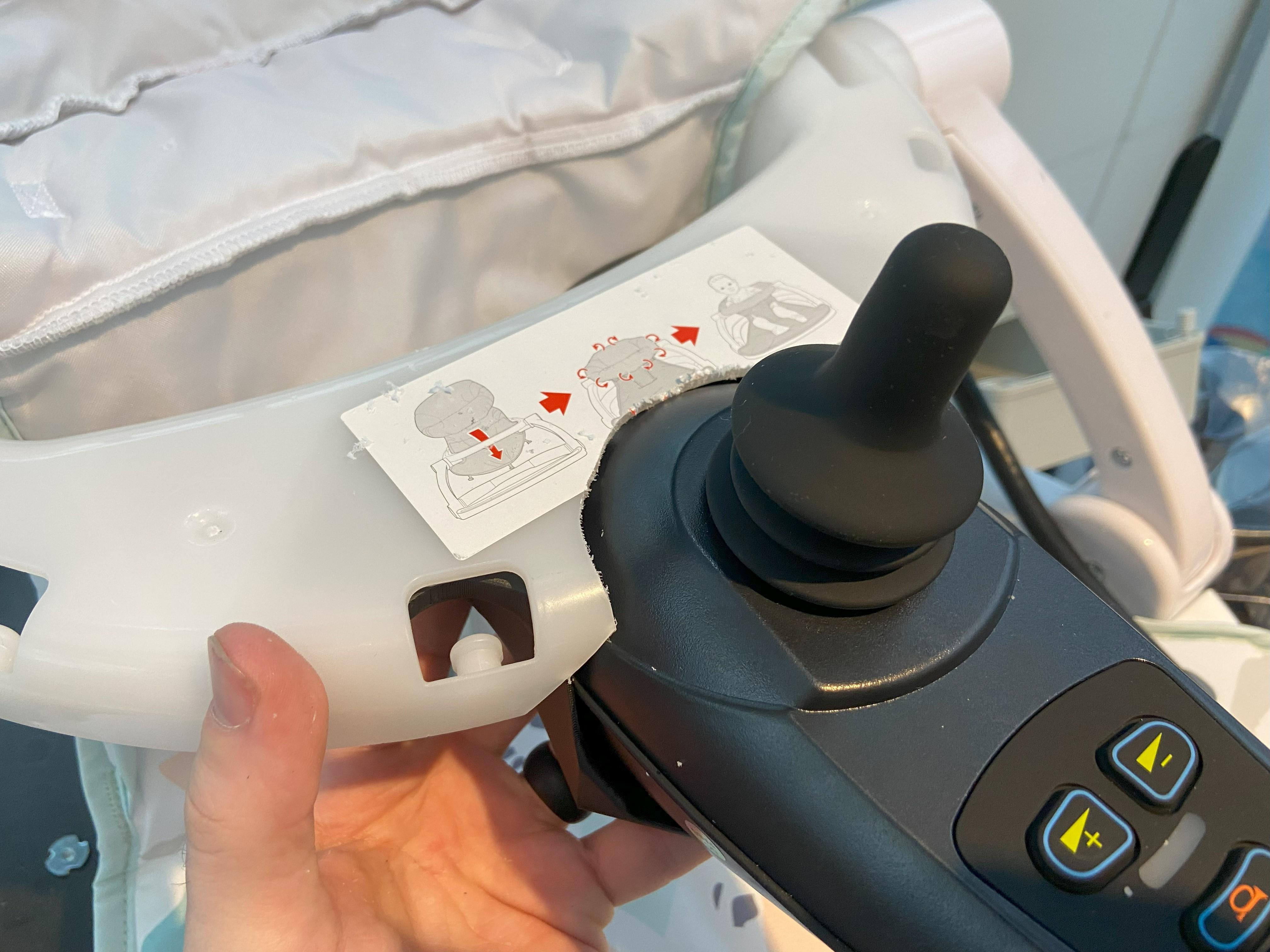
Cut the plugs from the joystick and strip the wires back. Next, screw the joystick to the 3D printed joystick mount with the bolts that were provided with the joystick. If the joystick did not come with bolts, they are M5 x 10mm. Line up the groves in the top of the joystick mount with the ribs on the underside of the tray. Clipping the sharp corners on the front of the tray will help the joystick fit better.
Securing the Joystick
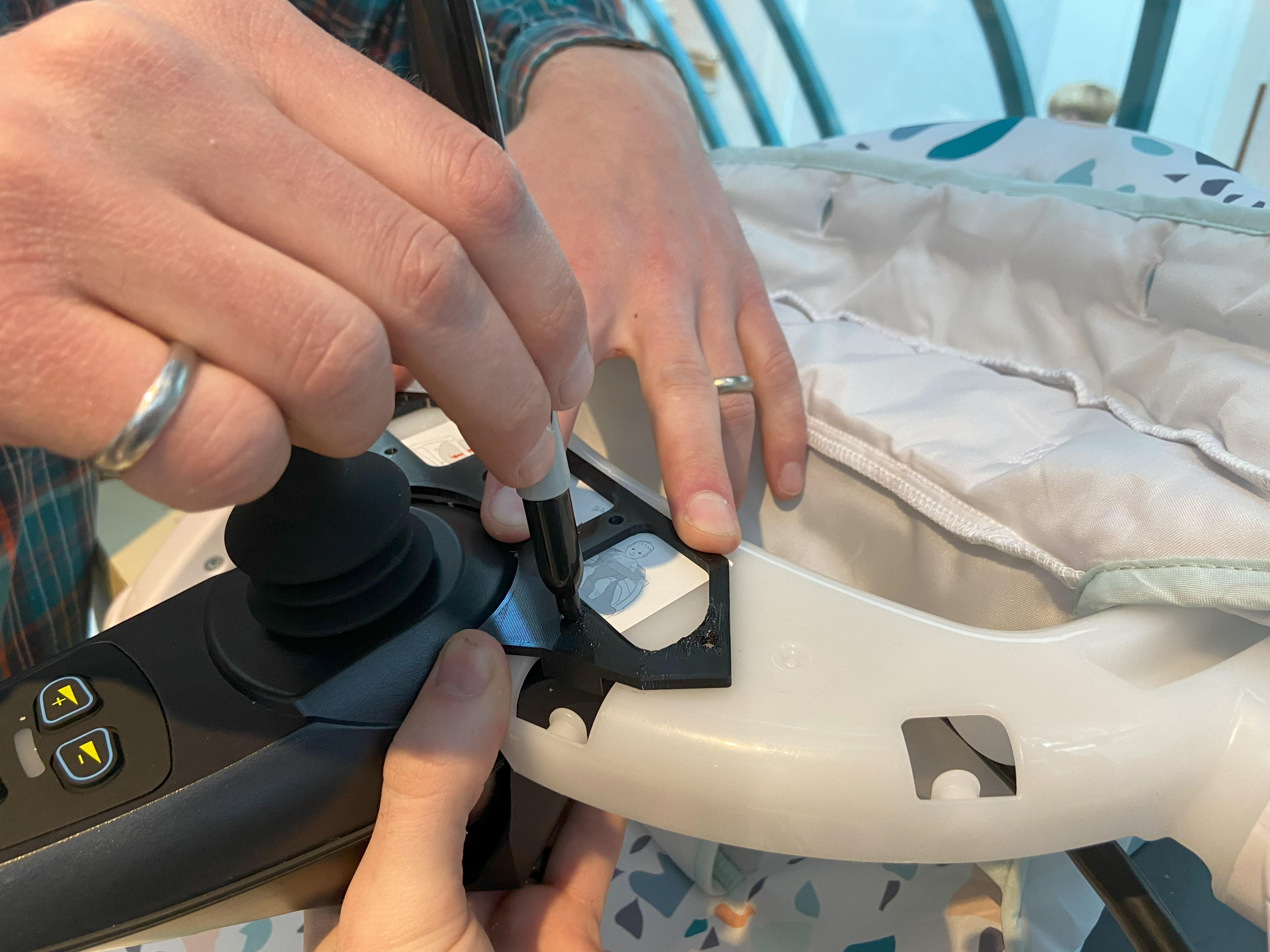
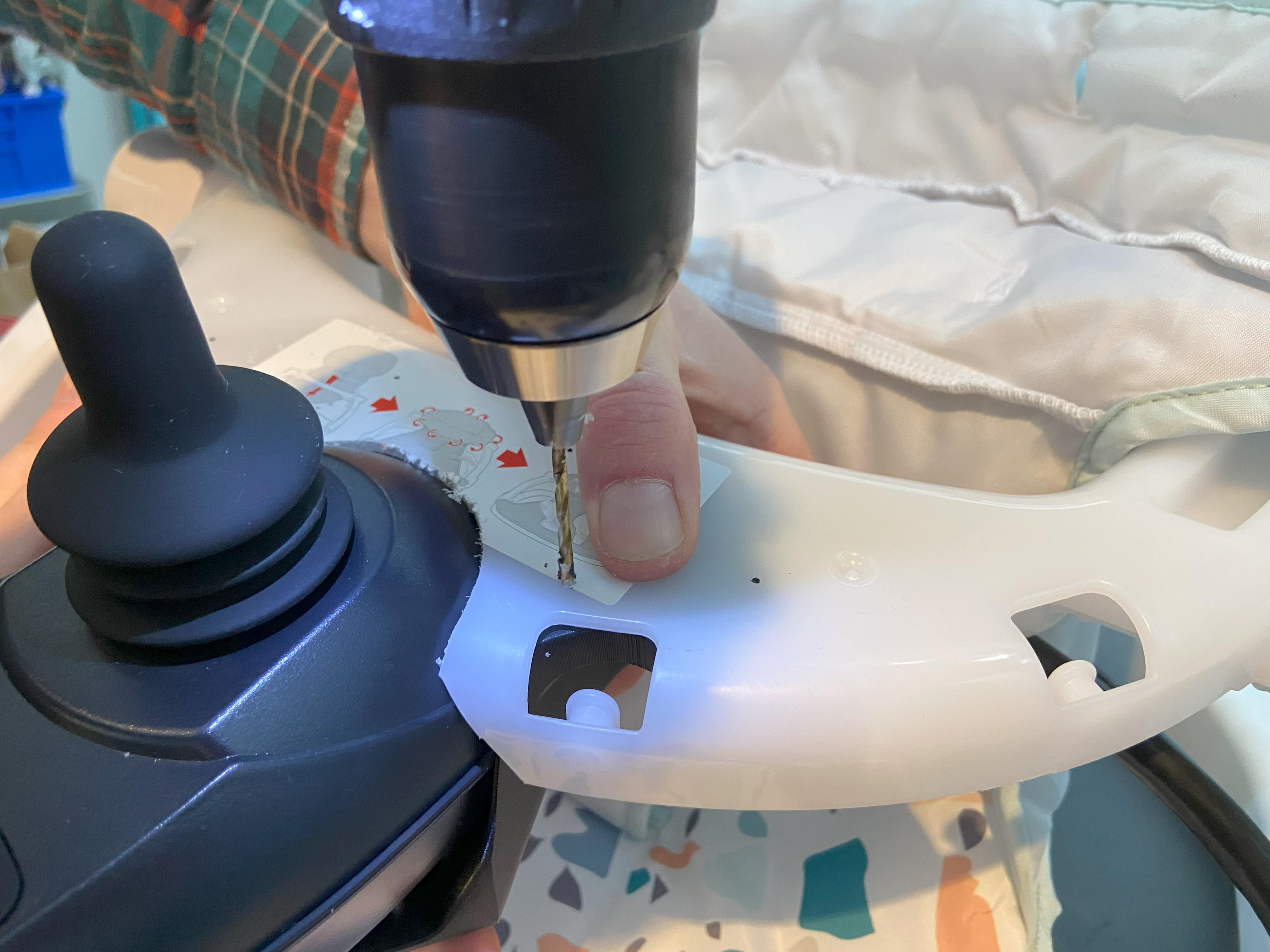
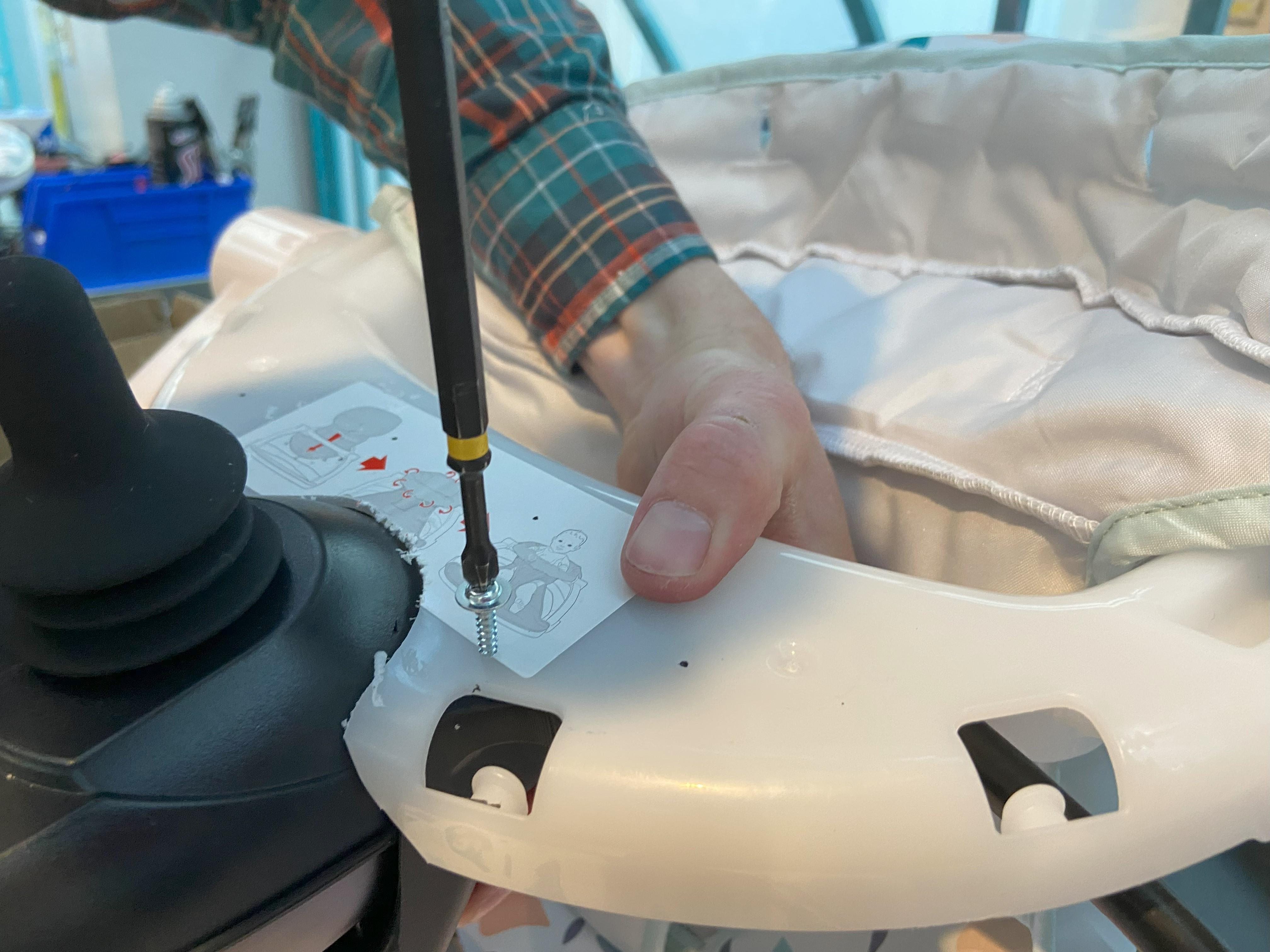
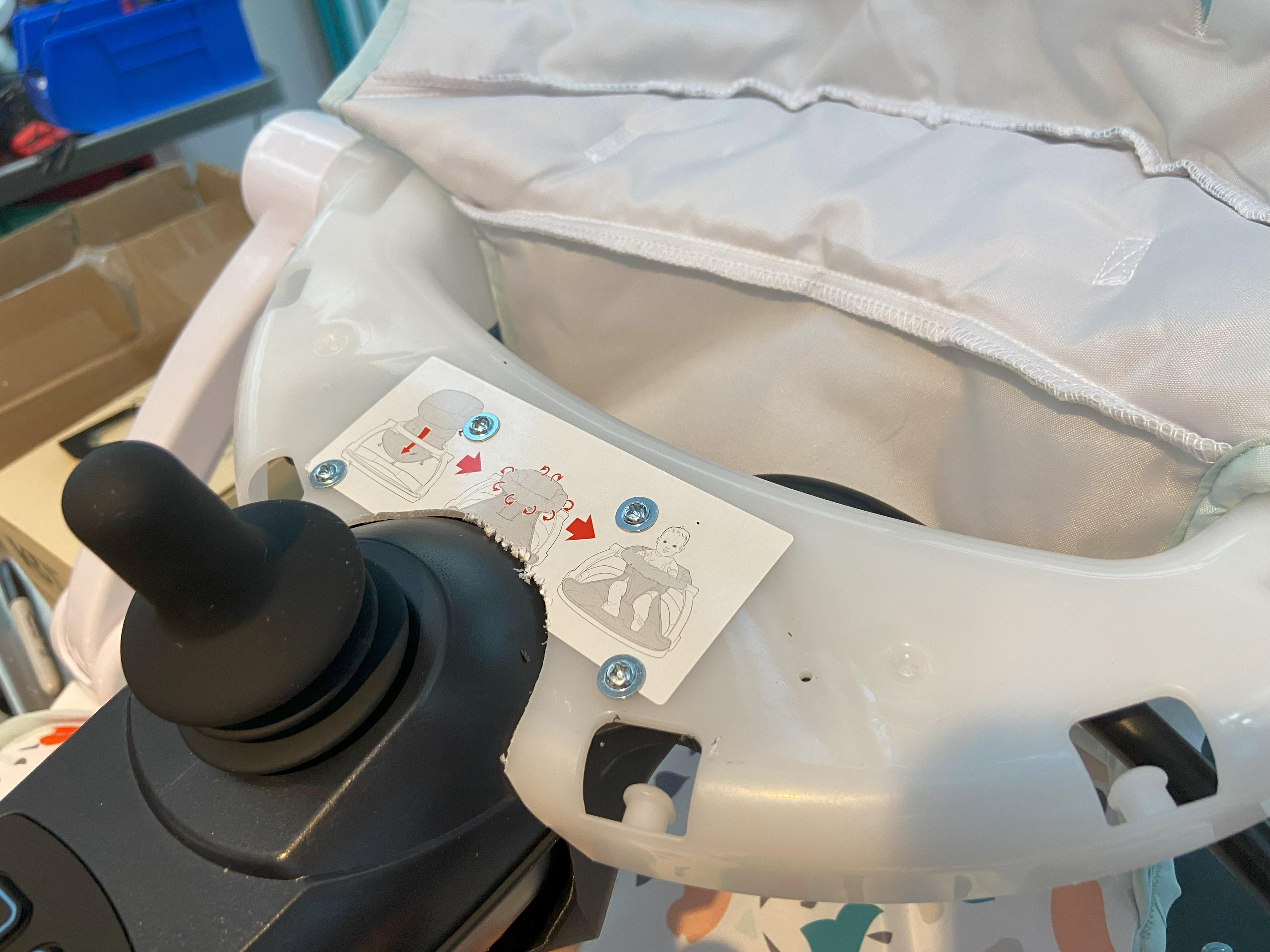
Use the jig to mark the mounting holes for the joystick, and pre-drill pilot holes. Next the #8 x 1/2" screws saved from step 1 can be installed from the top. The 3D printed joystick mount has internal geometry which makes the top face extra thick, this keeps the screws nice and secure. The tray fabric can be rehooked and tucked in once the joystick is secured.
Install the Battery Box
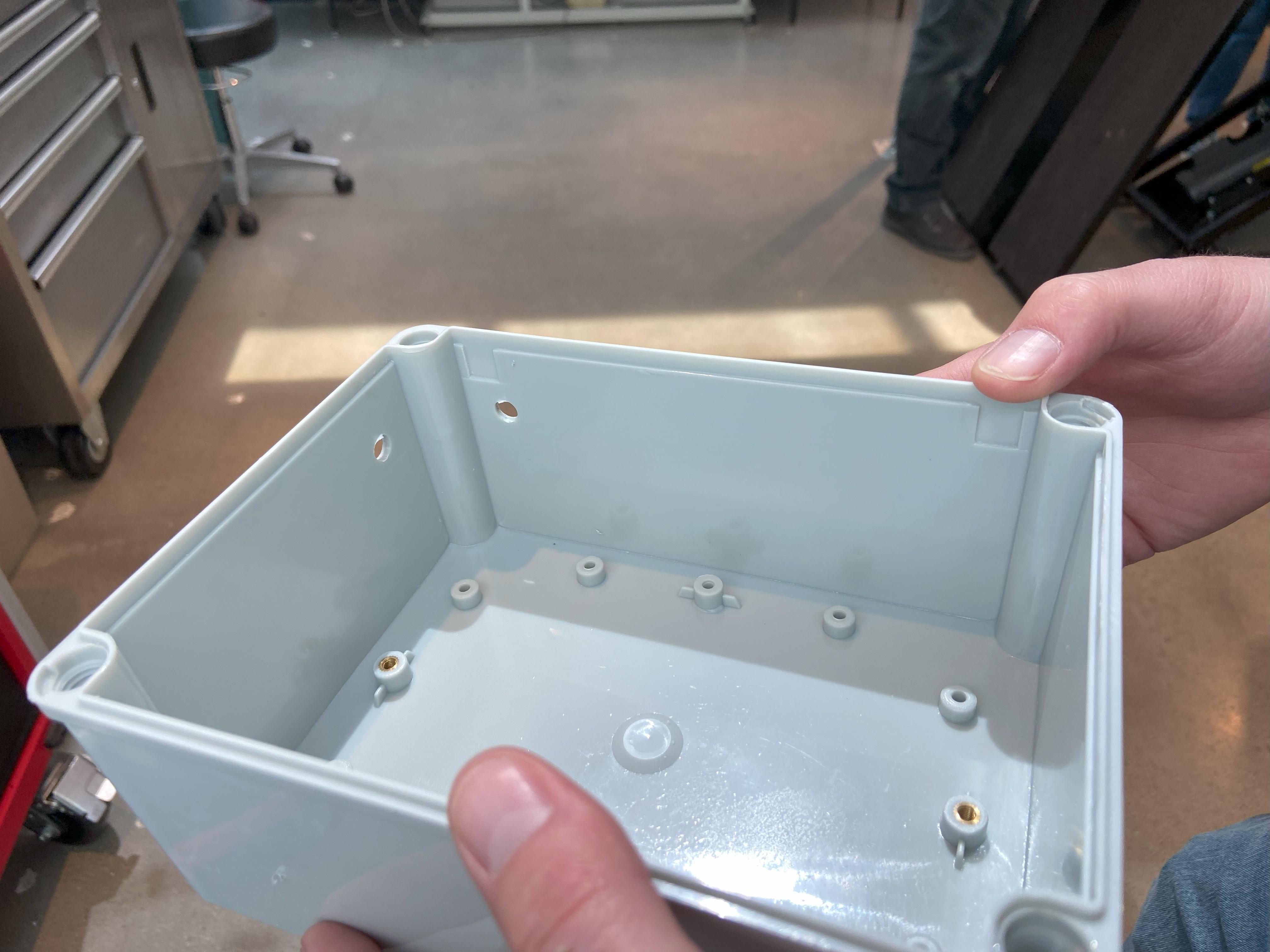
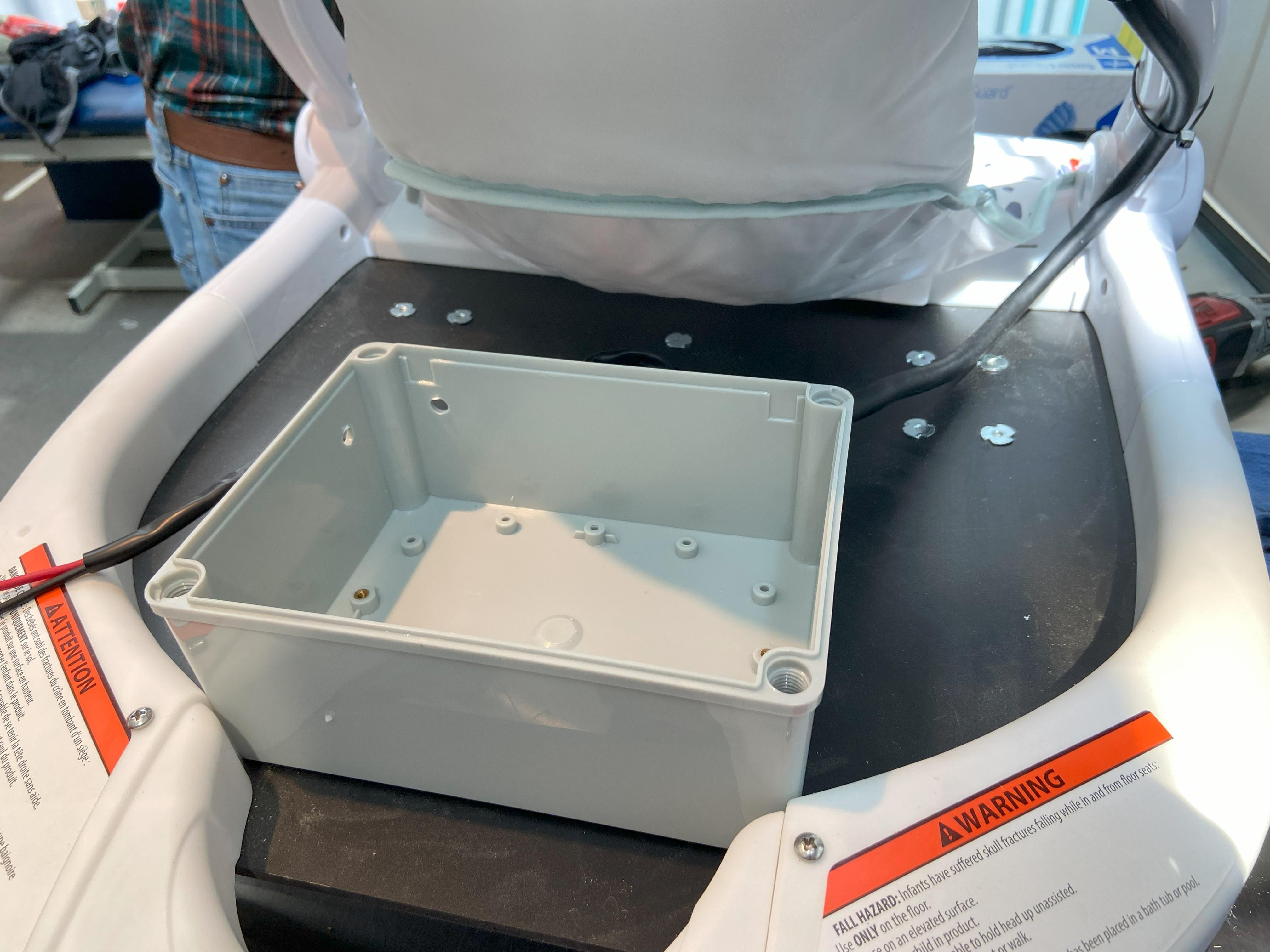
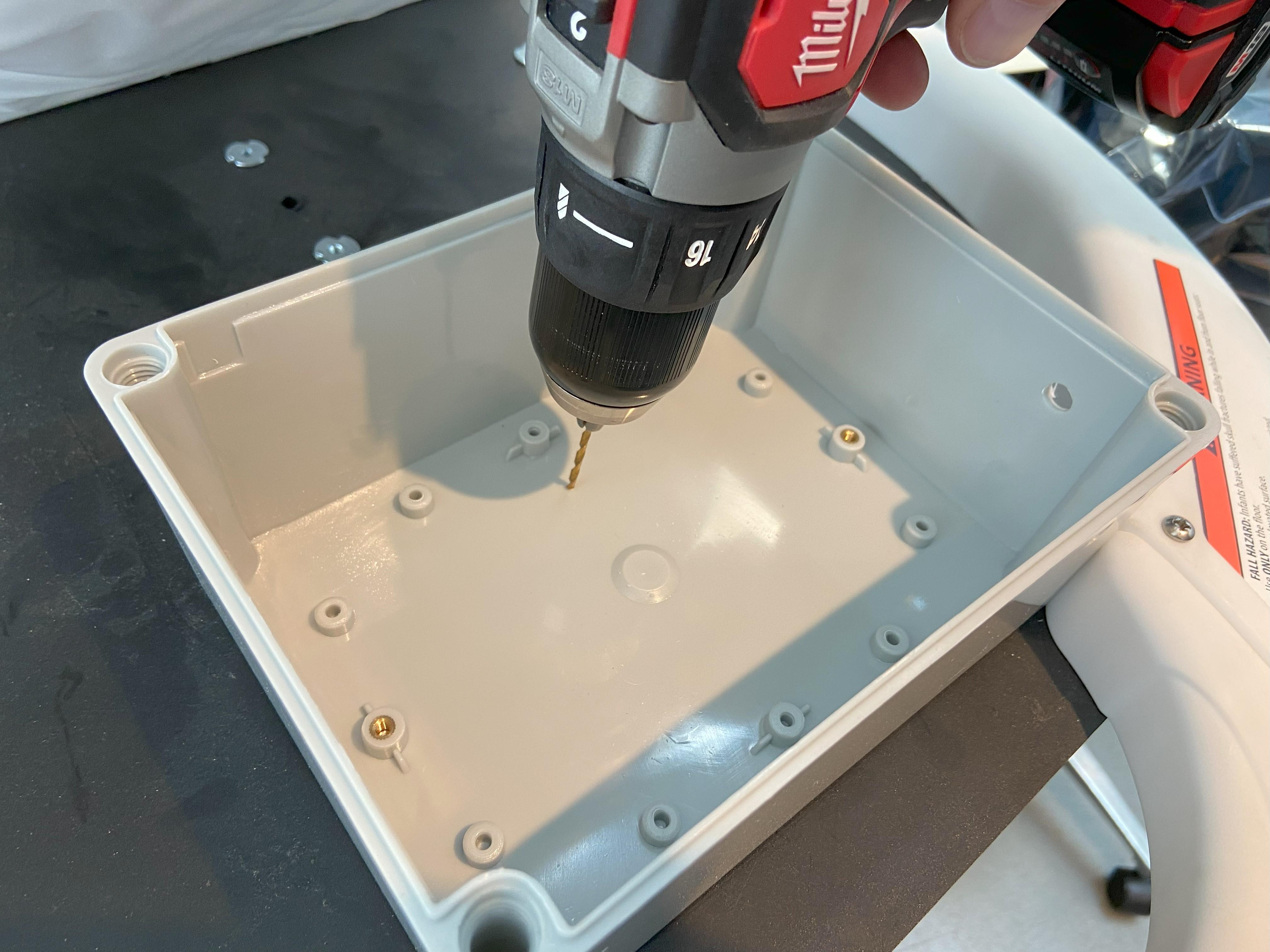
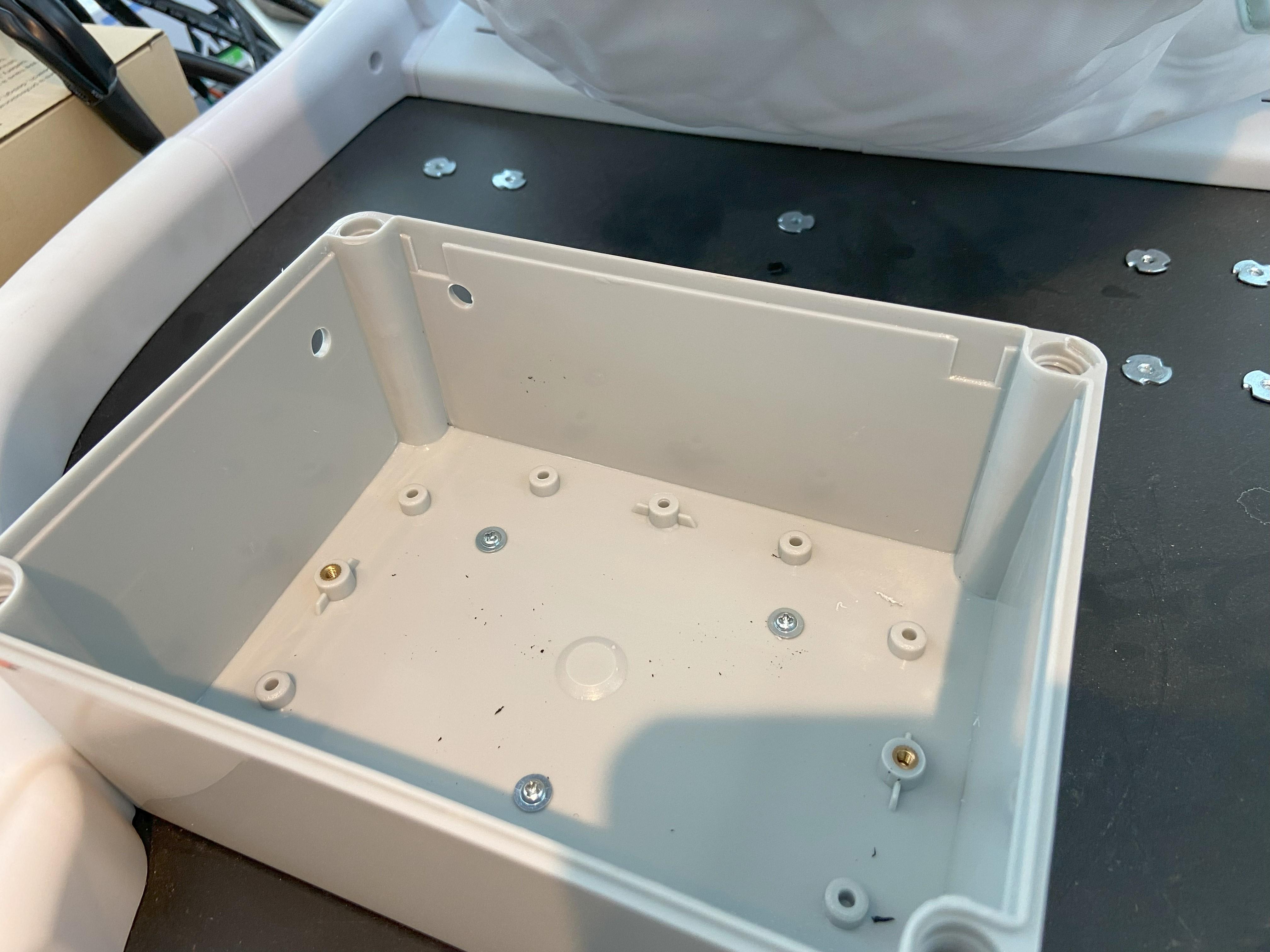
Drill two 5/16" holes the the corner of the battery box. One hole will be for the charger and the other will be for the power from the battery to the joystick.
Place the battery box behind the seat and flush with the white plastic frame and drill four 7/64” holes through the battery box and the black plastic sheet. Use the 1/2" screws to secure the battery box to to the base plate. It can be helpful to drill one hole and secure that screw before drilling the other holes to make sure al the holes line up and the battery box doesn't shift between drilling holes.
Note: There is nothing specific or fancy about the type of screw or the placement. You can do 3 or 4 screws. You can even use the remaining screw saved from Step 1 and whatever other screws you have lying around. We've found 1/2" is about the right length and having a larger head helps the screw not pull through the plastic.
Wire Electronics
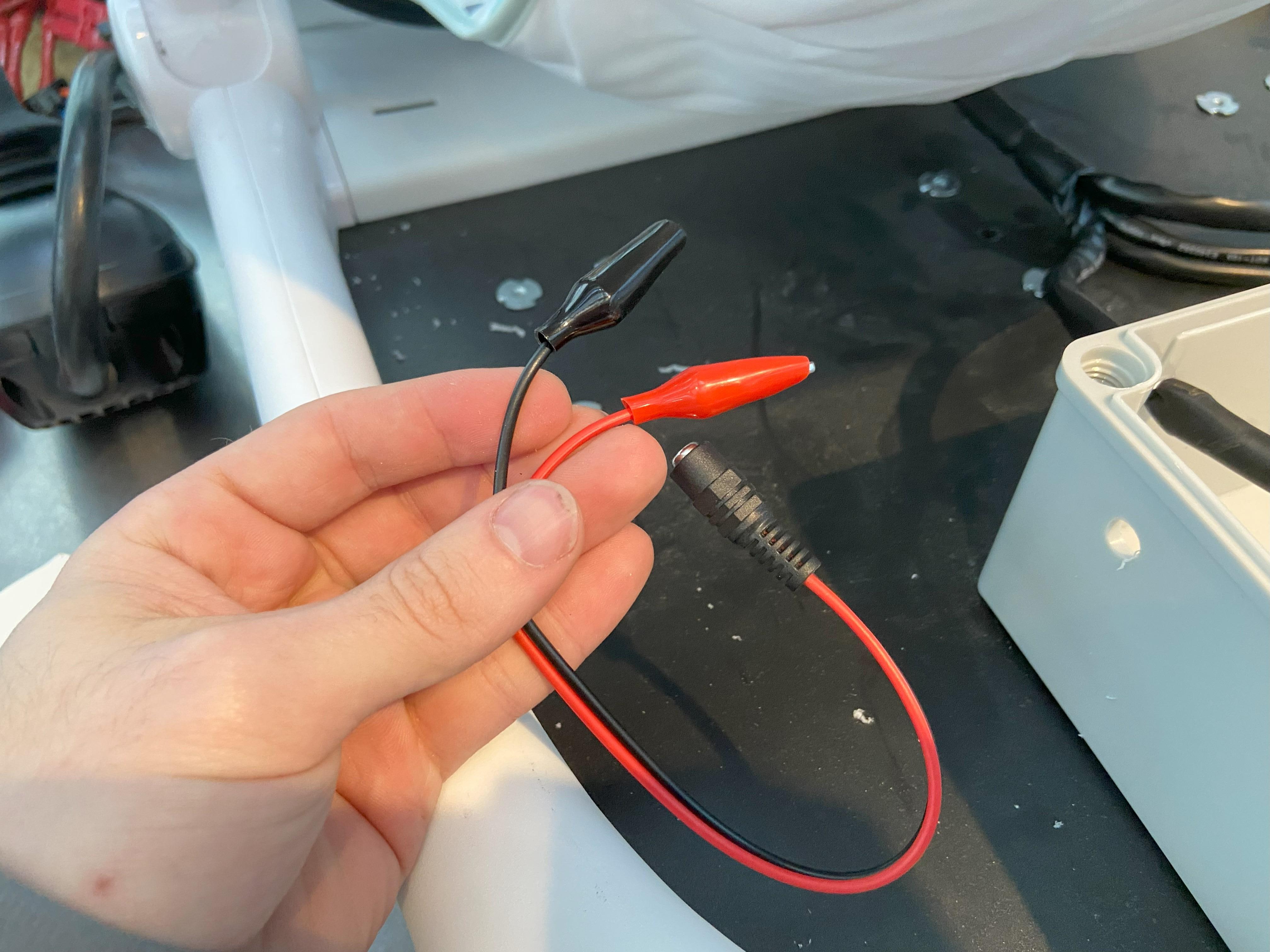
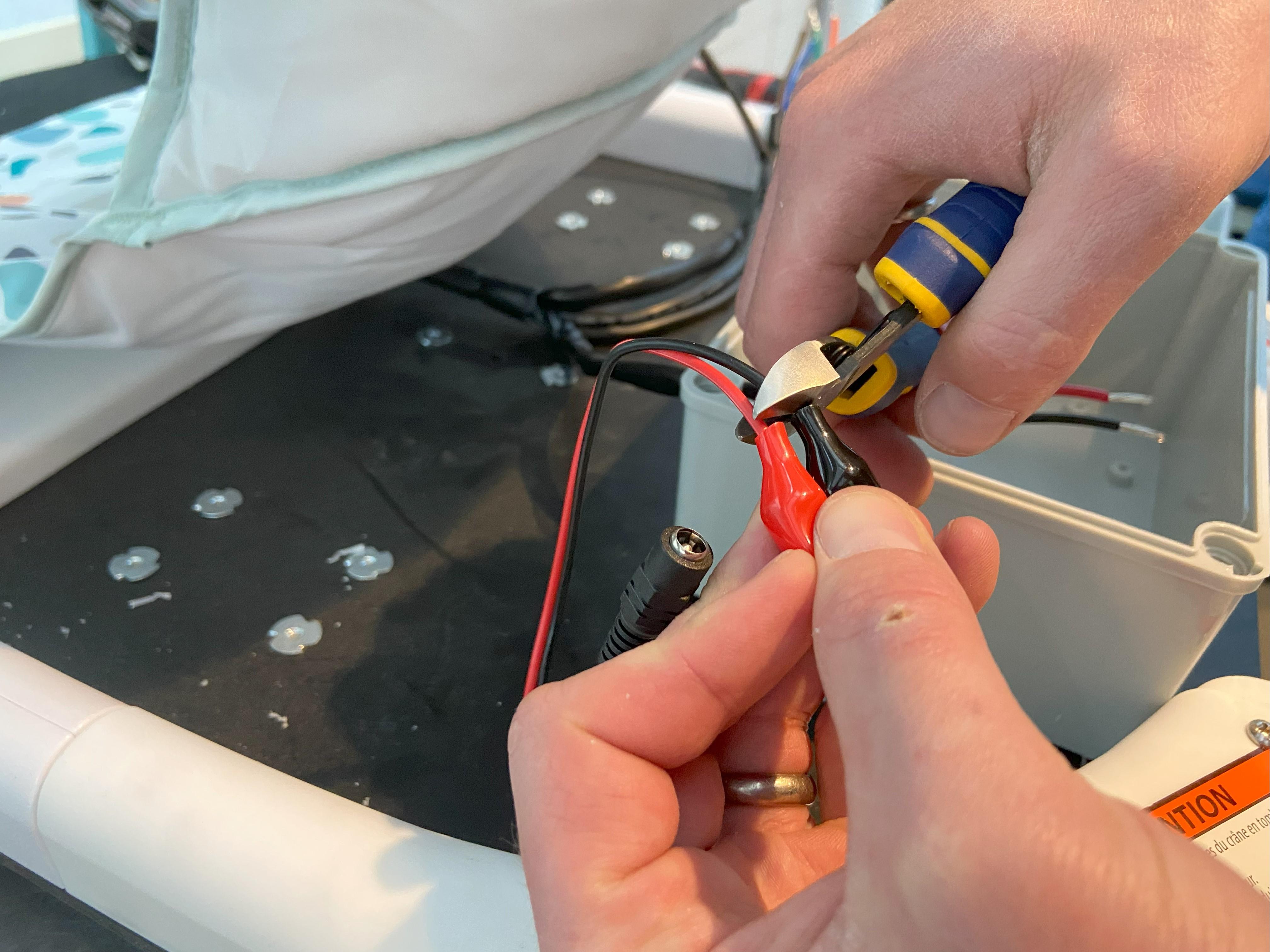
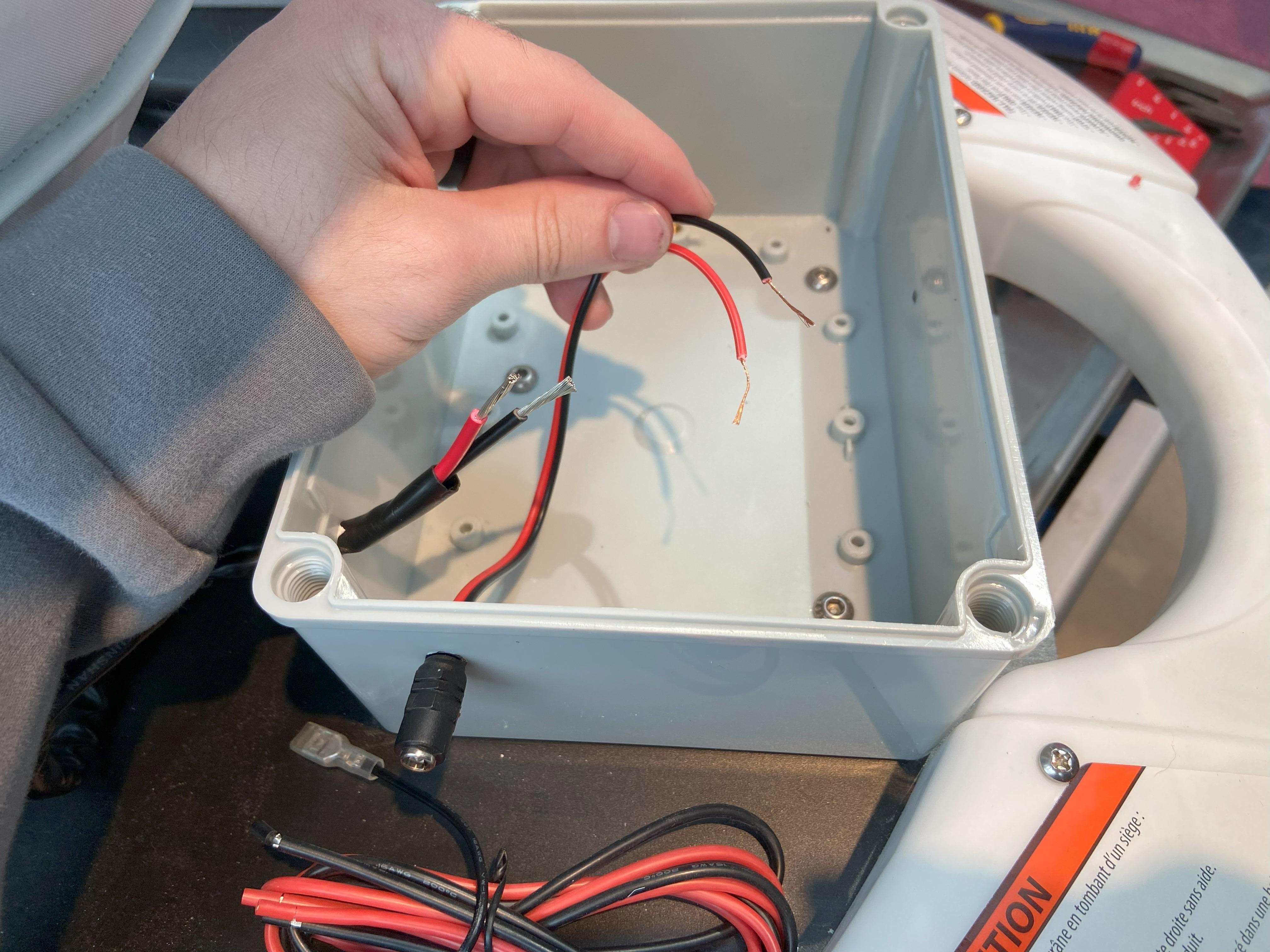

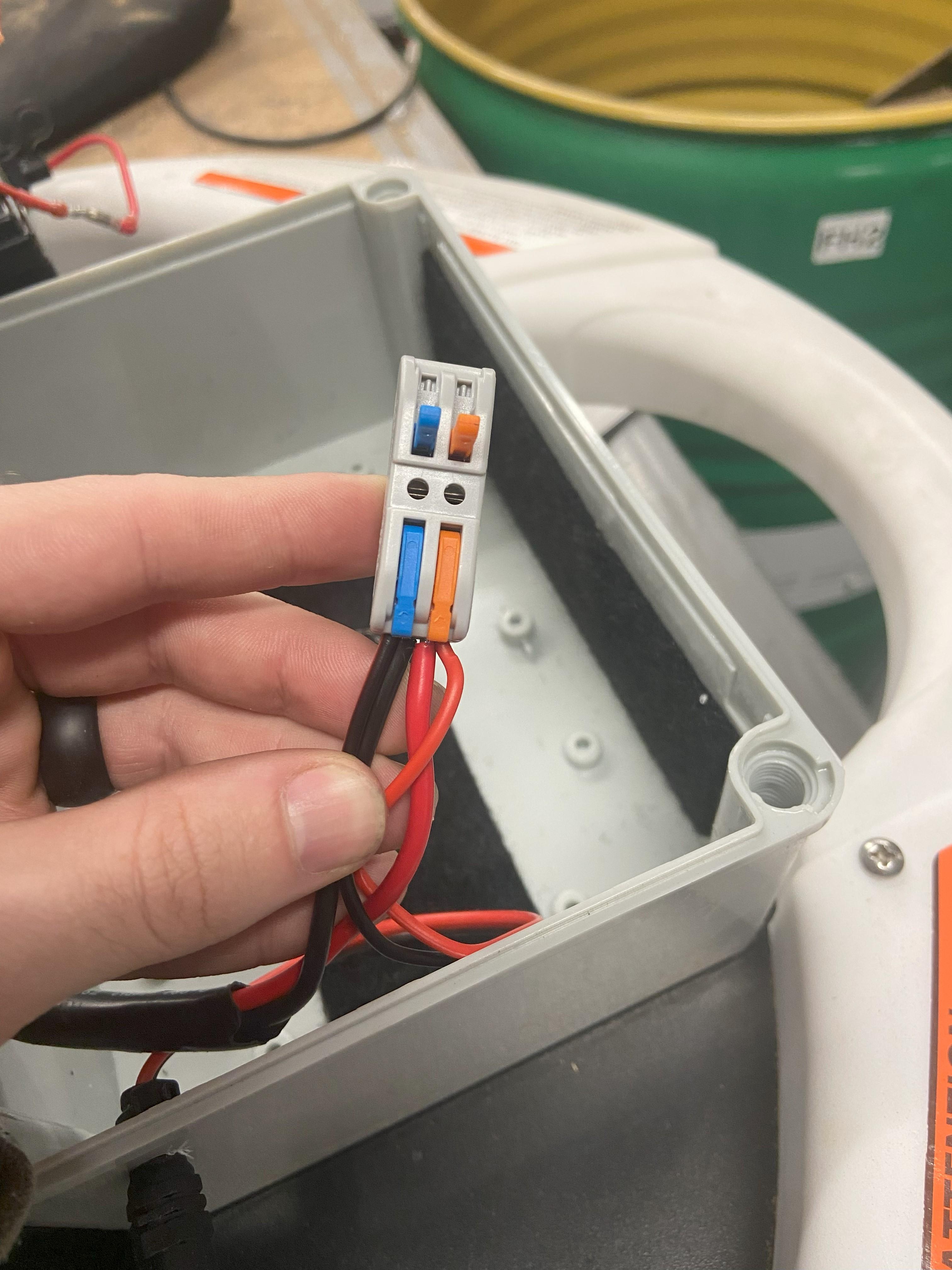
Cut the clamps form the charging port and strip the ends. Push the red and black wires for both the charging port and the joystick into the battery box and secure them with zip ties. The wires for the joy stick will need zip ties inside and outside the box where as the charging port only needs a zip tie inside the box. Twist the red wires from the joystick and charging port together then do the same with the black wires. Once the wires have been connected insert them into the connector provided with the joystick. It is important that the wires have a solid connection inside the connector so lightly pull on the wires to test and see if they stay in in the connector. When twisting a smaller wire into a larger one it can be difficult, to make it easier split the larger wire in half and twist in the smaller wire to one side, then twist the larger wire back together.
Note: It is important that the copper sections of the red and black wires don't touch each other. Once the battery is installed in the next step as this could potentially cause an electrical short.
Install Battery
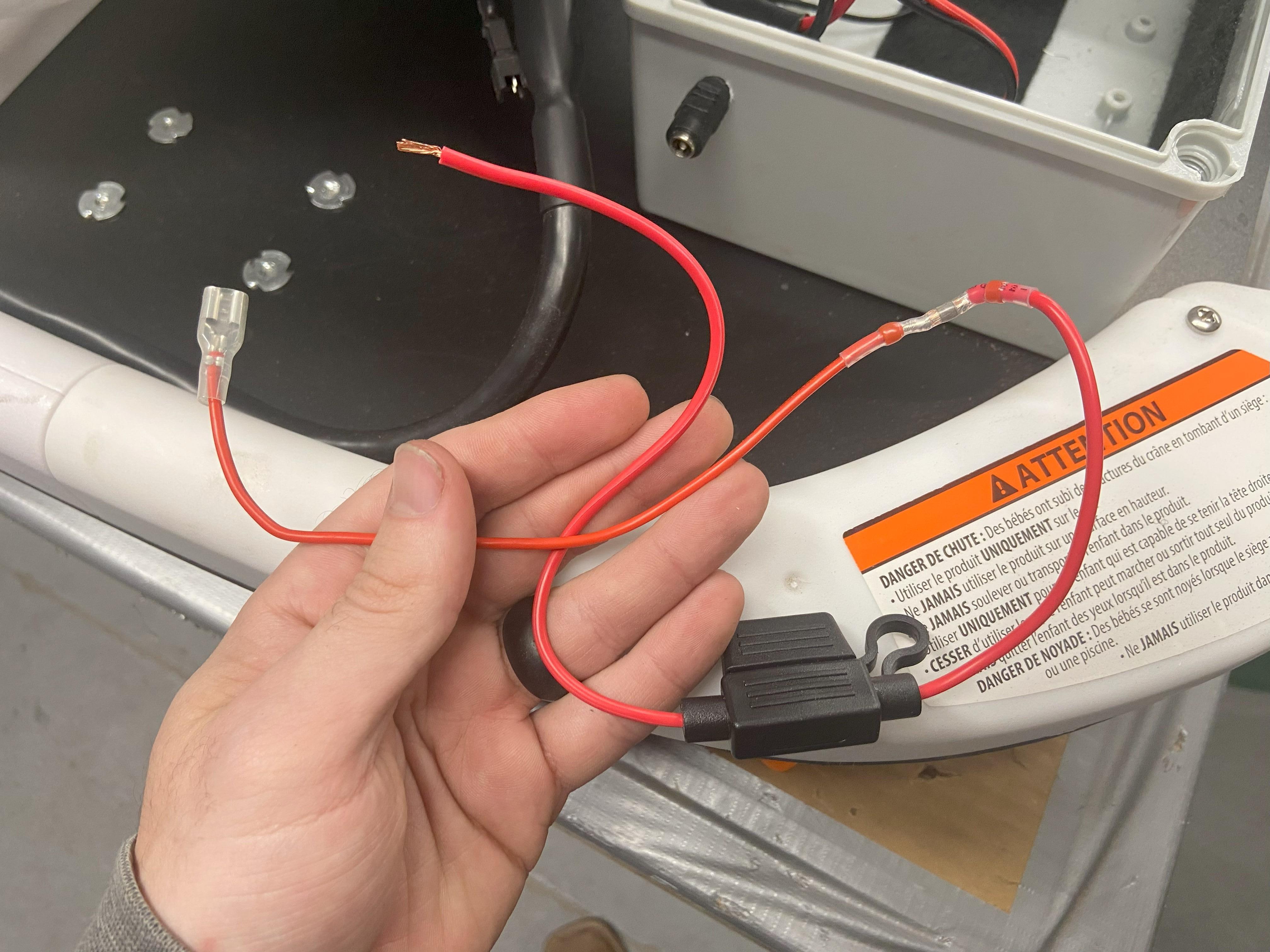
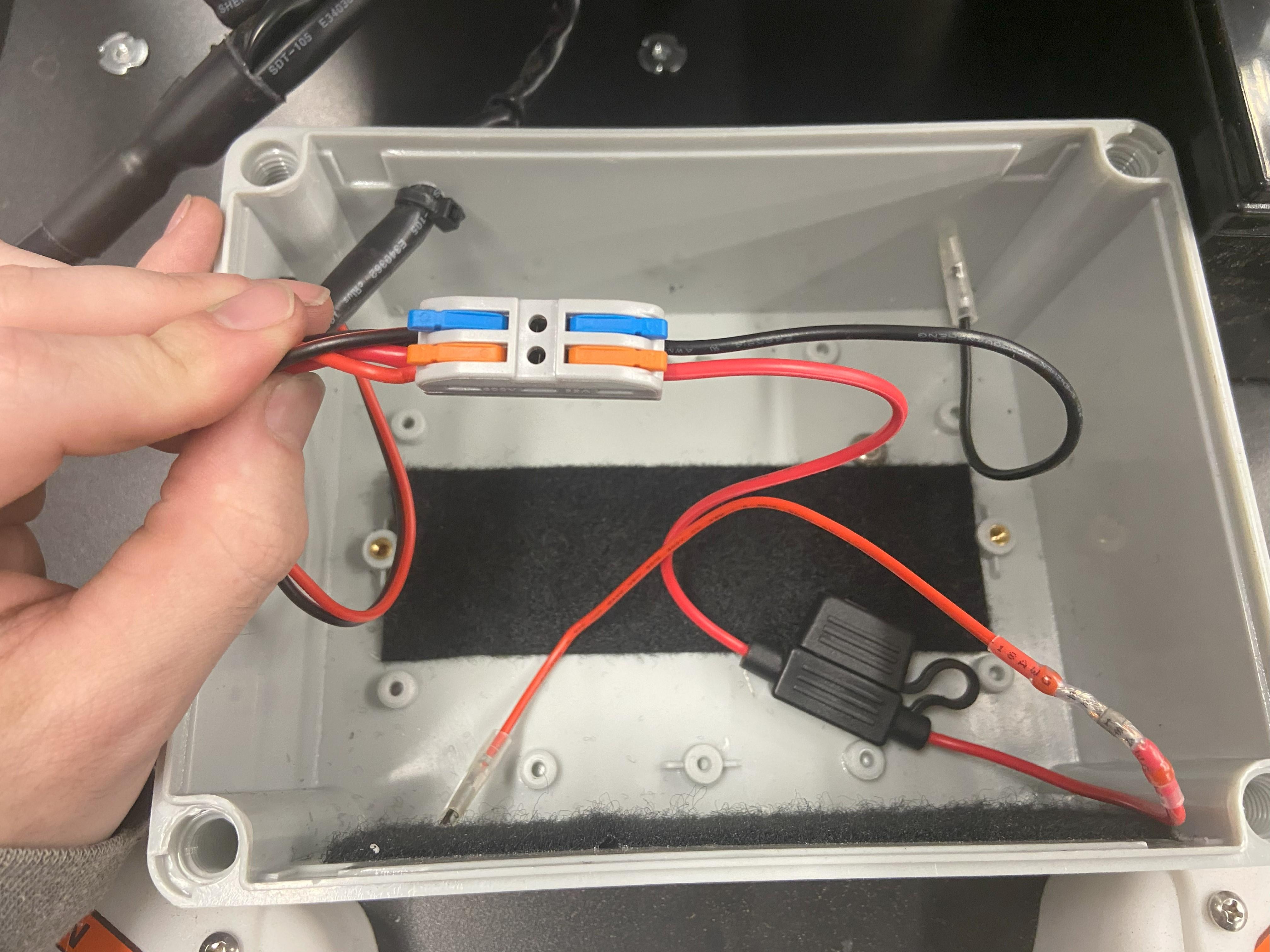
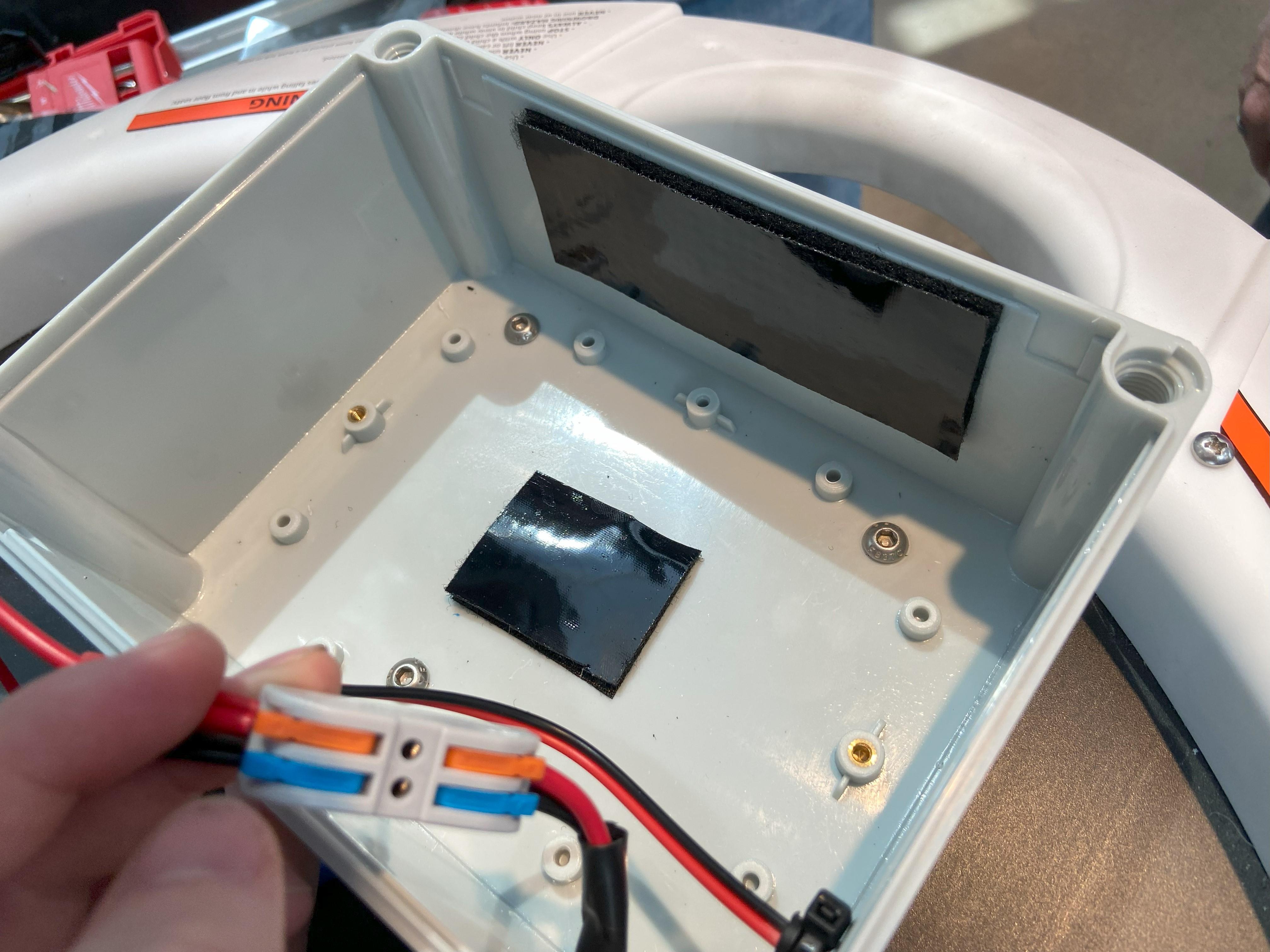
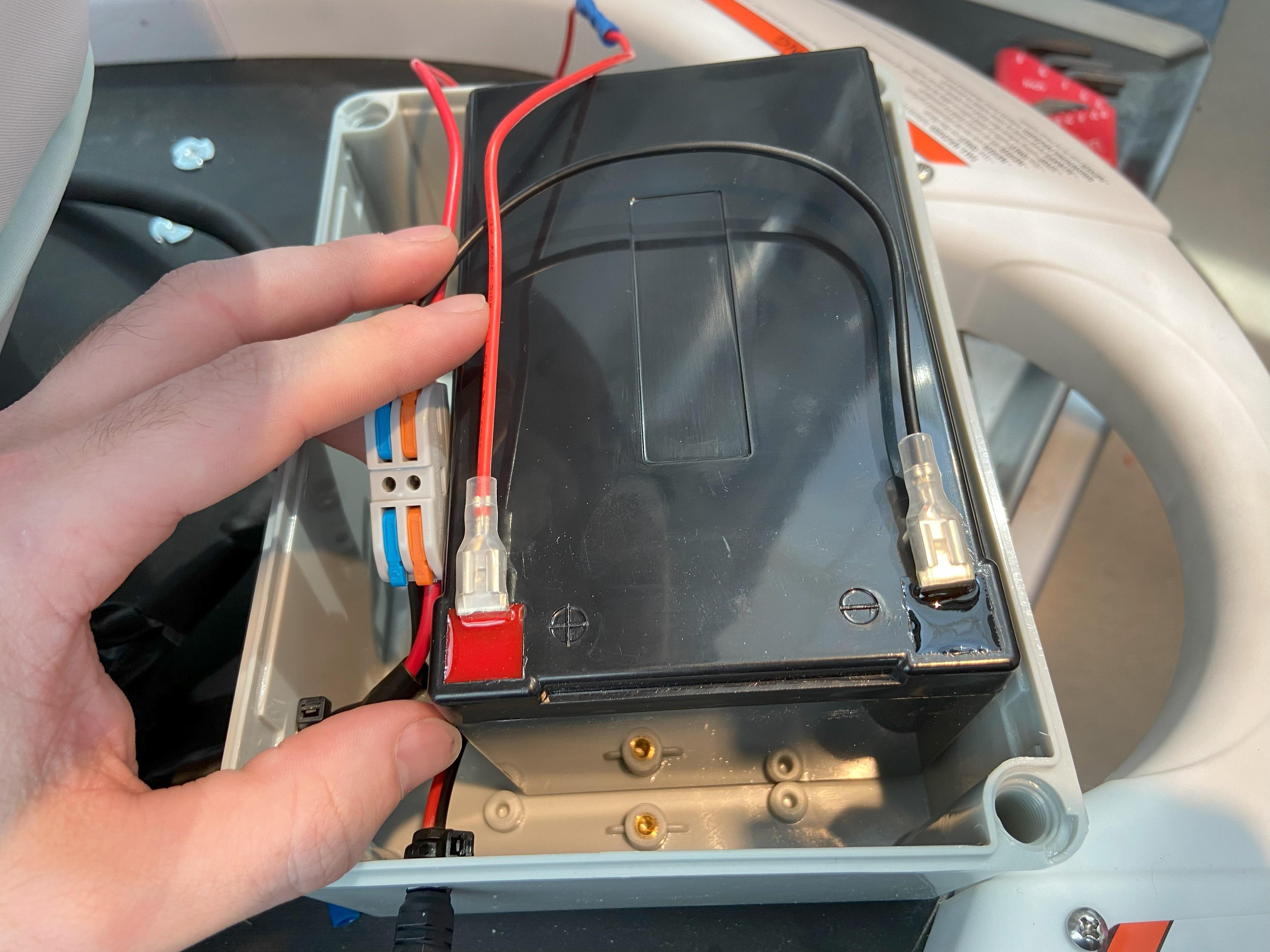
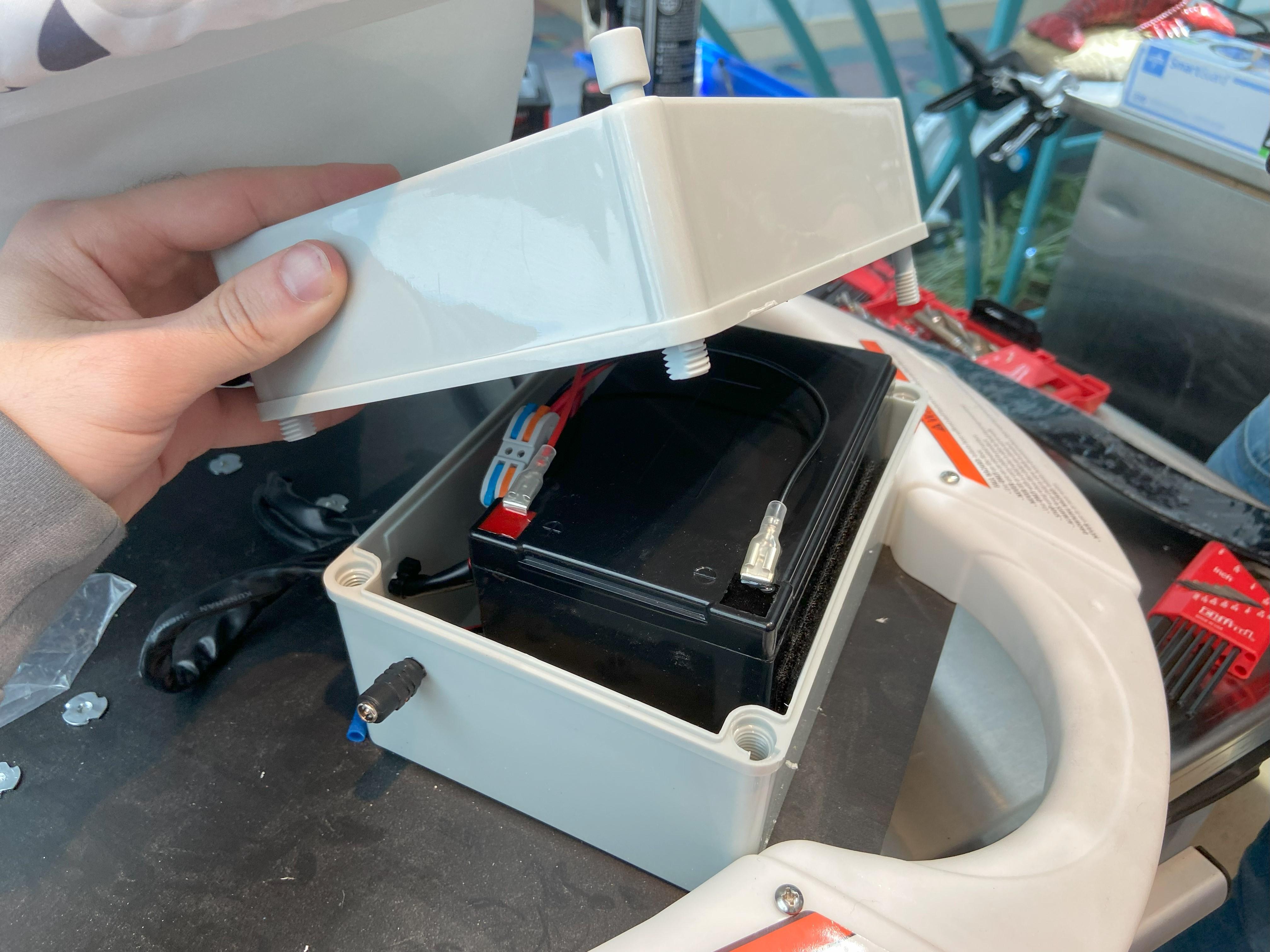
The battery comes with two cables, red and black. Using wire a connector add the fuse to the end of the red wire. You can then insert the red and black wires into the connector from the previous step. Be sure that the red wires are connected to the red wires, and the black wires are connected to the black wires. Next place two strips of adhesive velcro (the size of velcro or orientation is not that important) on the bottom and side of the box, these strips will be used to secure the battery and prevent it from moving around inside the box. Push the battery into the velcro inside the box. Then connect the red and black spades to the battery. Finally close the box.
Wiring the Motors
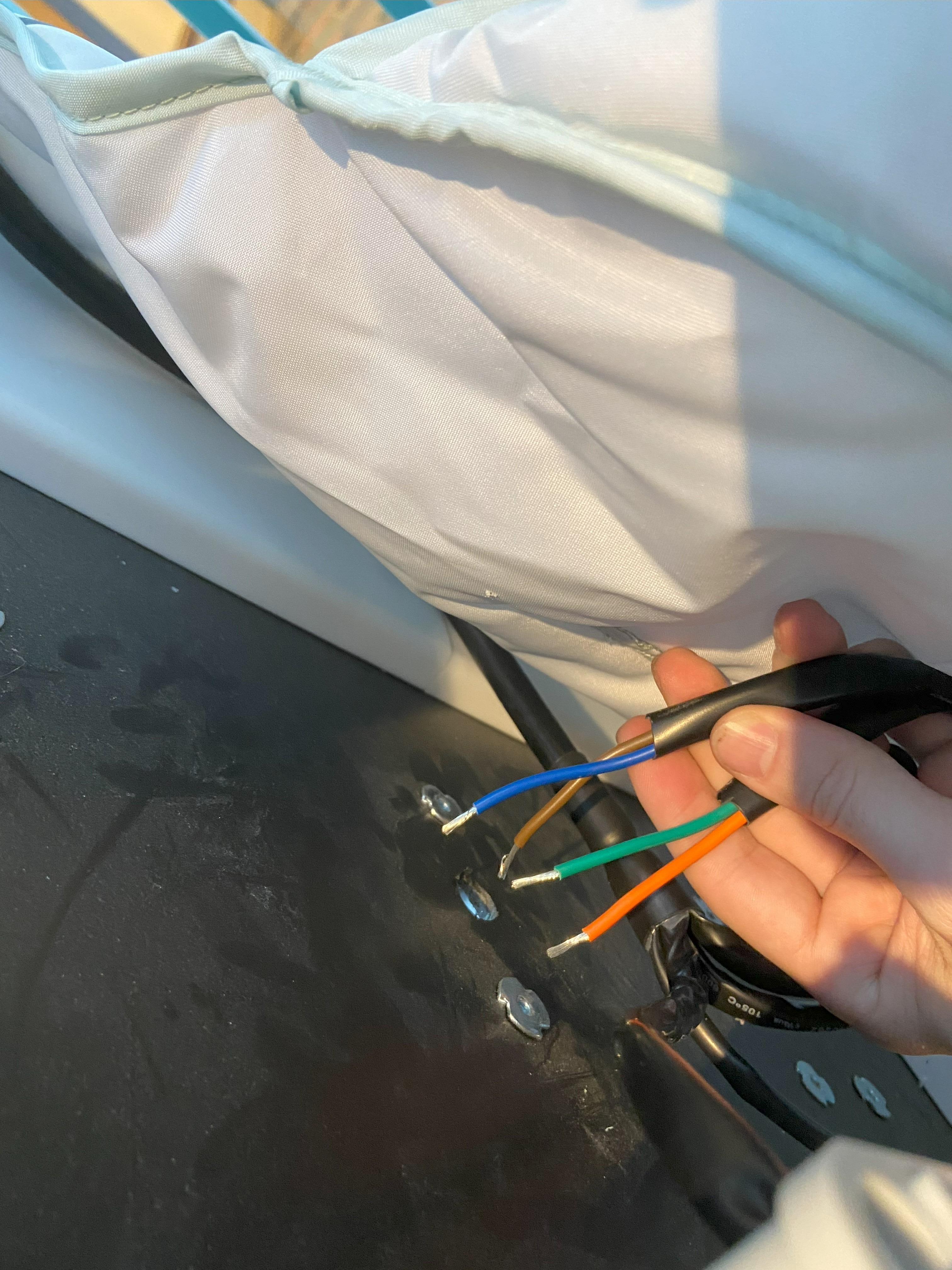
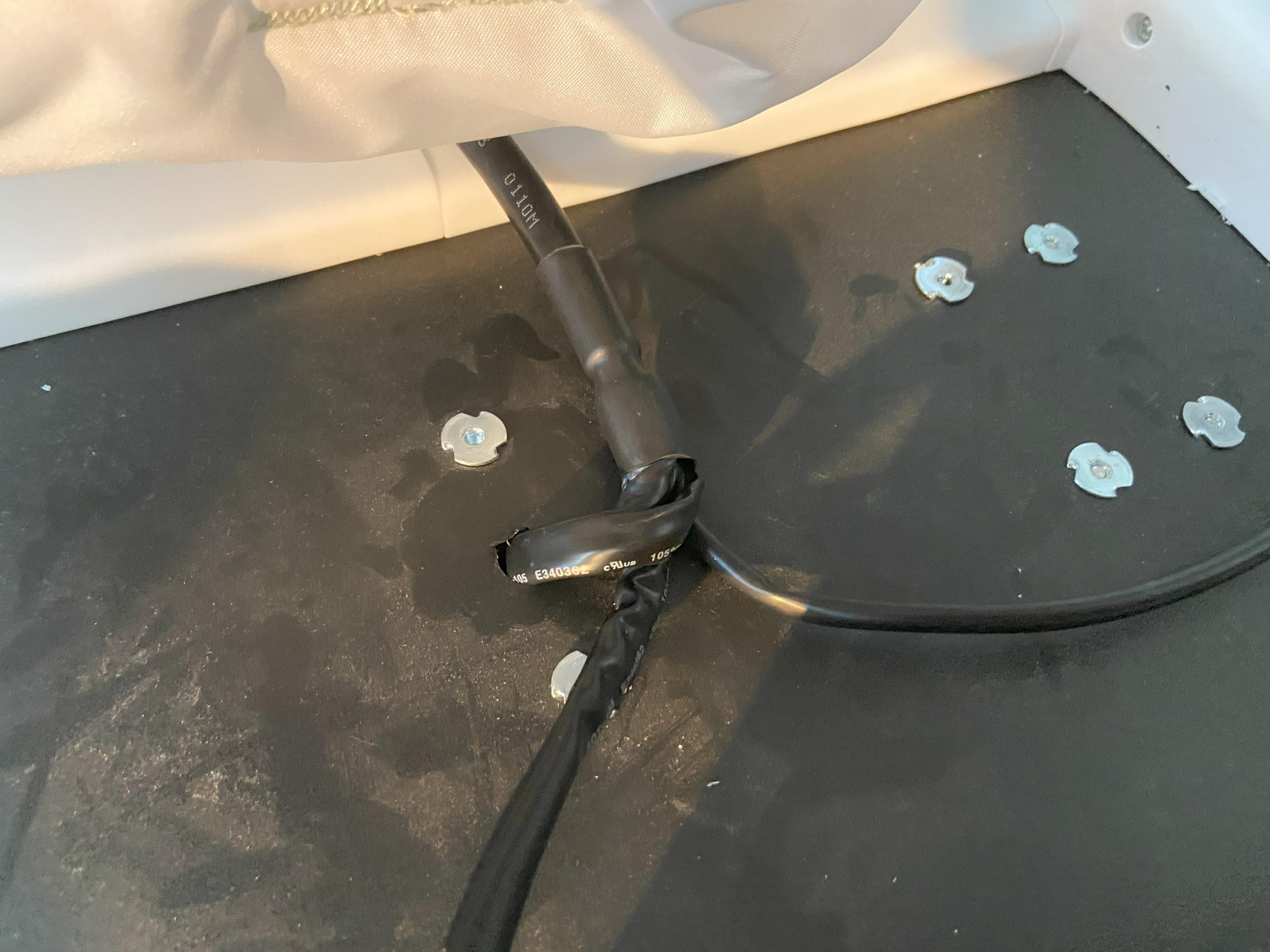
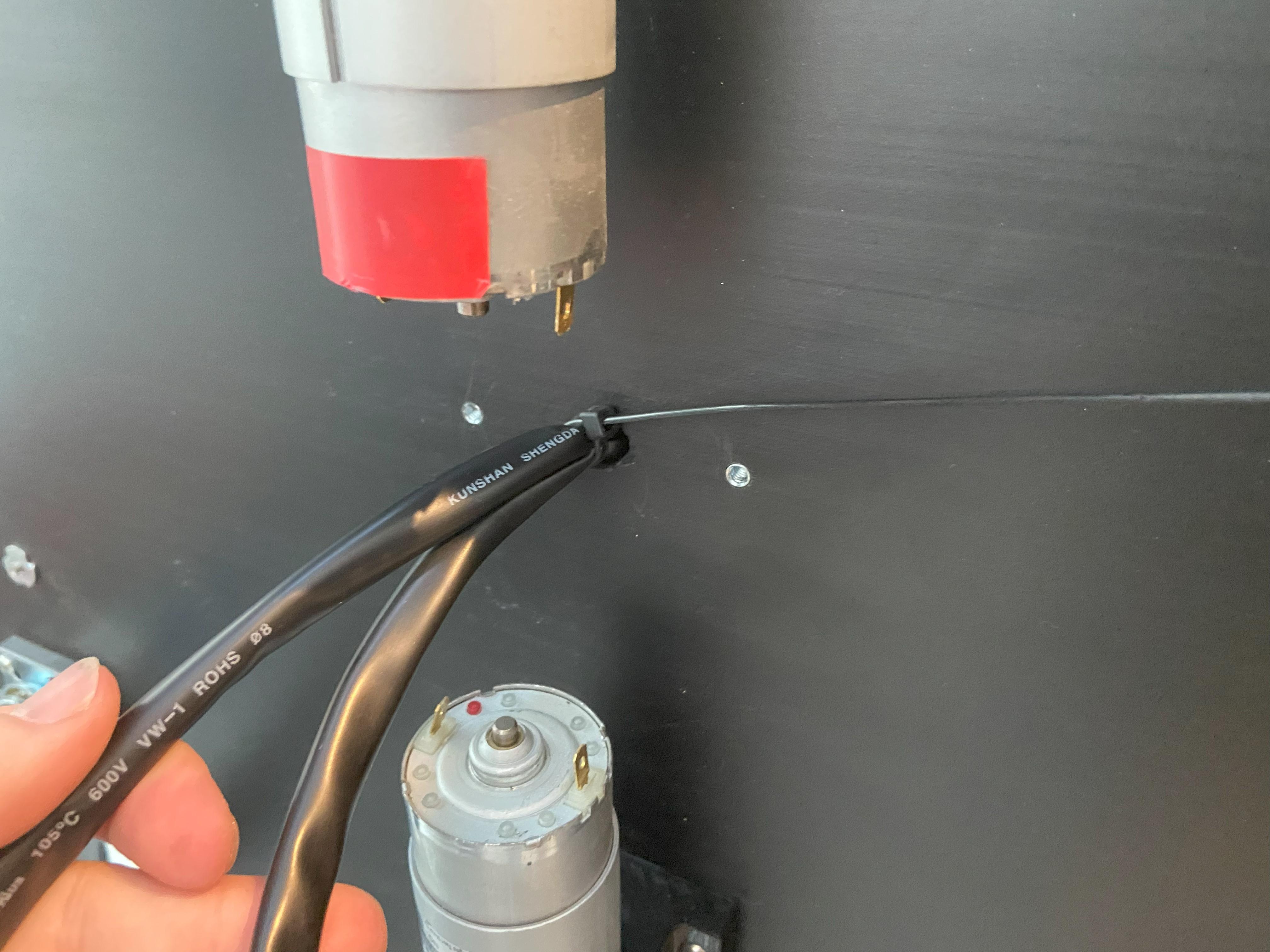

Push the striped cables through the center of the board and out the bottom, a zip tie should be used to prevent the wires from being pulled back out the top. Connect the wires to the motors in the following configuration.
- Blue: Right Positive (red wire)
- Brown: Right Negative (black wire)
- Orange: Left Positive (red wire)
- Green: Left Negative (black wire)
Strip back the coating and twist the wires together to test the motors drive correctly before soldiering them. That way you can easily change wires if needed. Once you are satisfied, trim excess wire and strip again prior to soldiering so there isn't a bundle of wires hanging down under the baby bug.
If the wiring colors for your joystick does not match or if the device drives the wrong direction, switch which motor lead a pair of wires from the joystick are connected to. Switching the positive and negative leads on the motors will switch the direction the motor spins. While testing you may also need to switch the leads from the left motor to the right motor to get everything perfect.
Be sure to test drive the device before soldiering the wires together! We use these heat shrink with solder connectors, but any good soldiering job with a protective coating will work fine.
Drive Wheels


Add the brass adaptor onto the motor, being sure to tighten the set screw down onto the flat side of the motor shaft. Then add the RC car tire onto the motor using the provided screws. For added security of the tires, it is recommended that loctite be added to the threads before adding the adaptor to the motor and the tire to the adaptor.
Finishing Touches
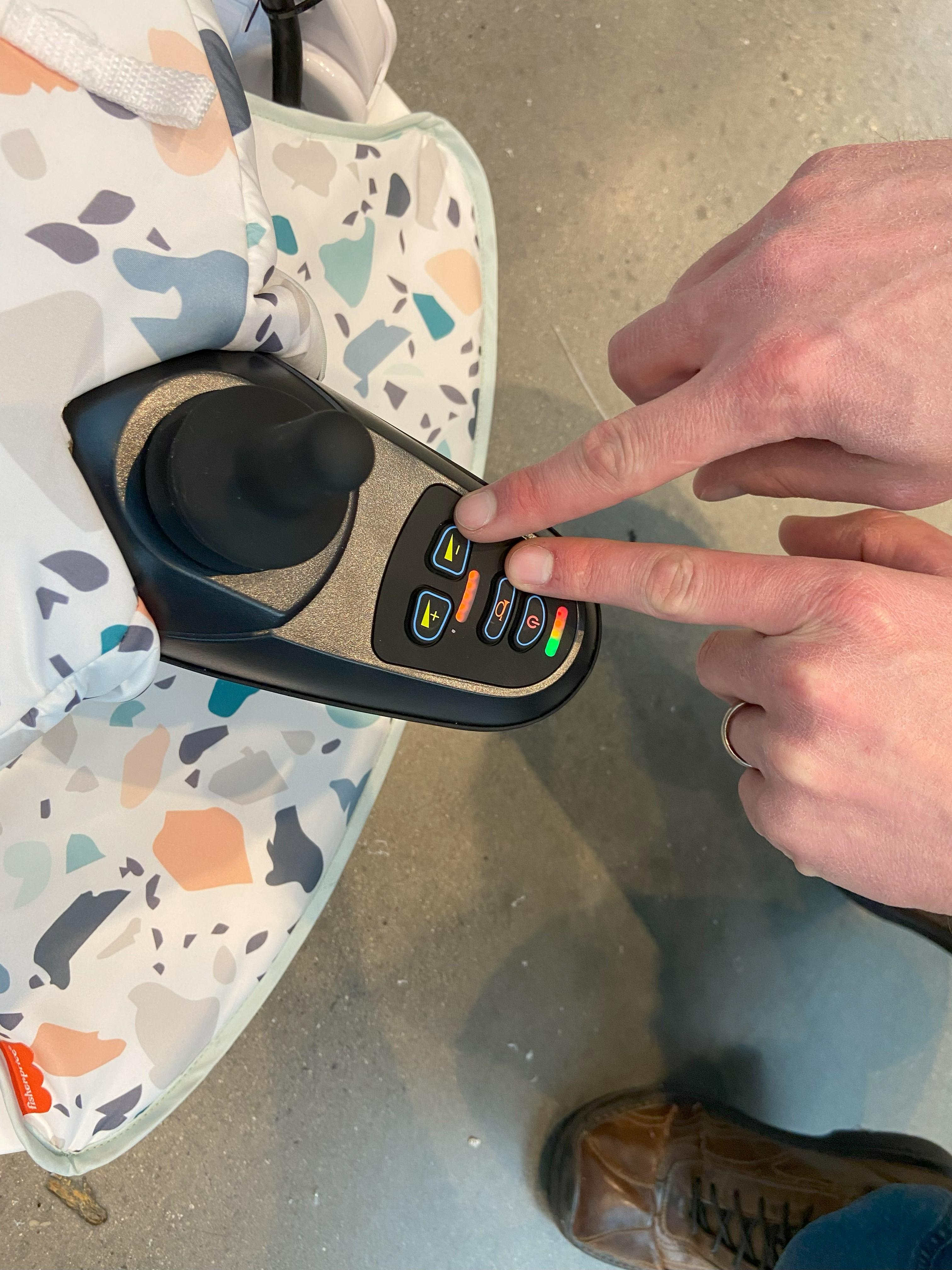
To stop the device from making beeping noises while backing up, press the horn and reduce speed buttons at the same time.
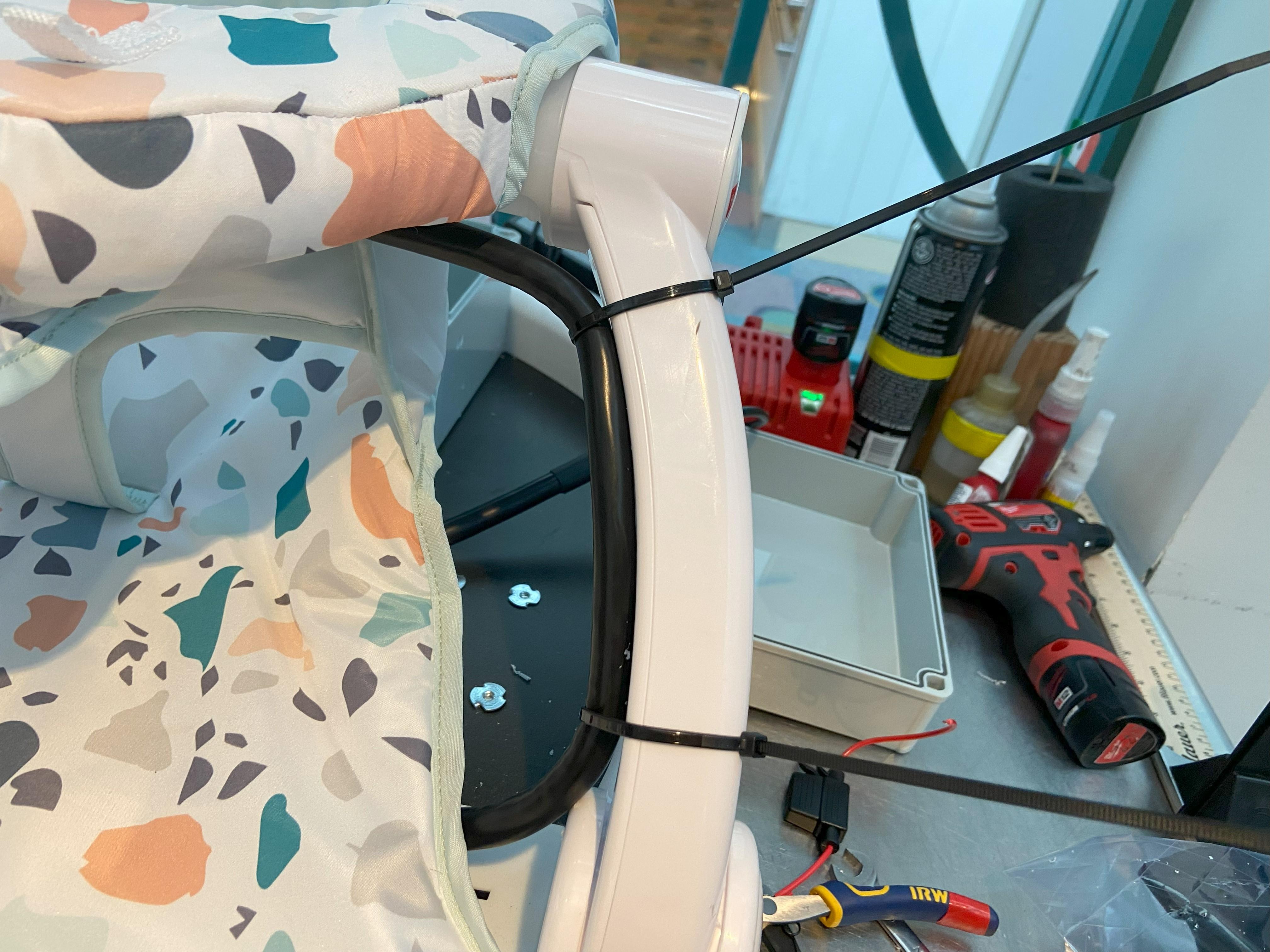
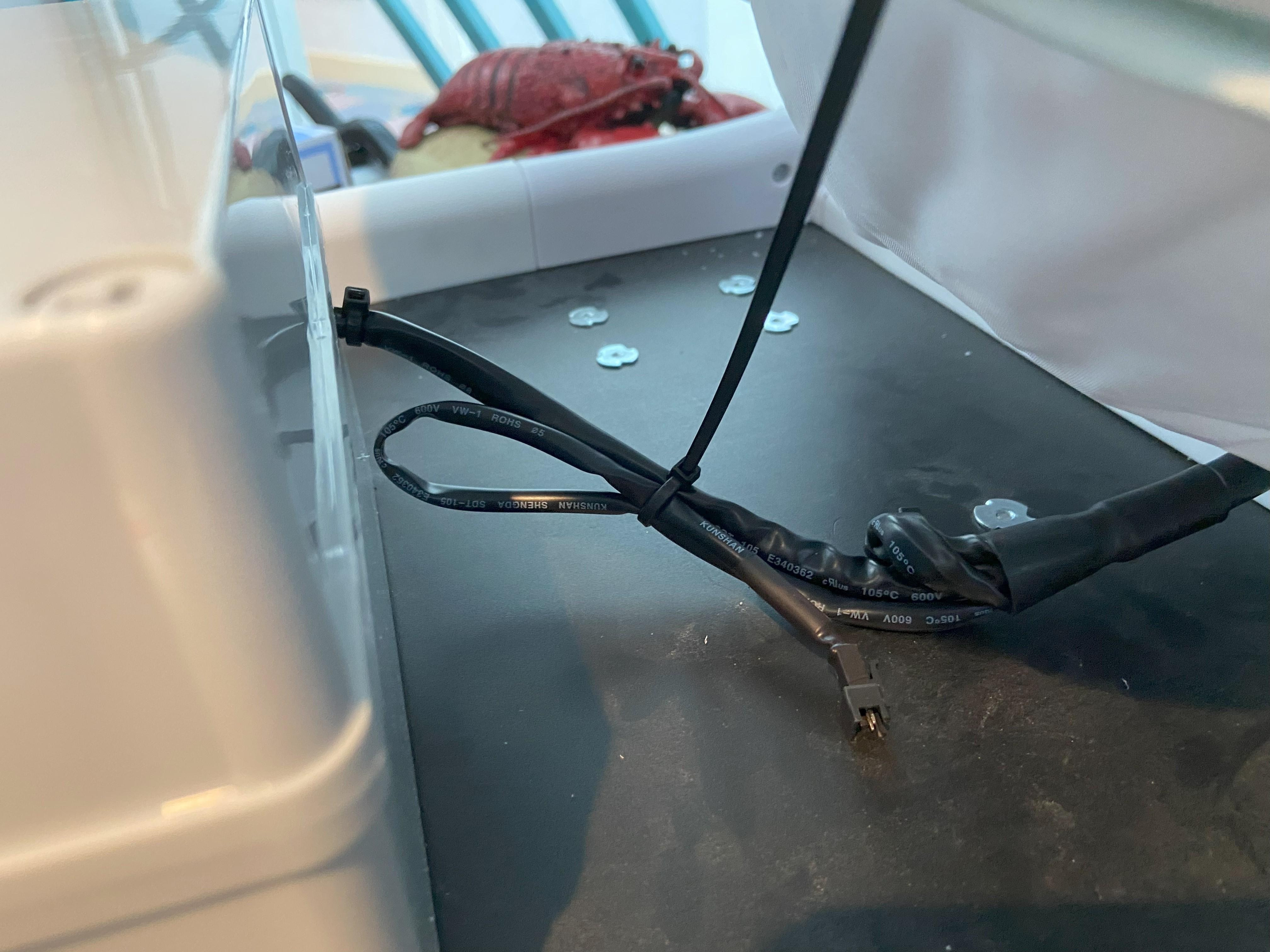
Add zip ties to keep the cables out of the way of the child, and tie up the extra cable on the back. That cable is not used for the Baby Bug and can be ignored.
Troubleshooting
The device will not turn on / charge: If this is the first time turning the device on since building it double check all the wires are secure. If the device has worked in the past, make sure the battery is fully charged. The battery level is indicated by the red and green lights on the top of the joystick. As the device loses charge the green lights will turn off, followed by the yellow lights. If the device won't charge check the safety fuse inside the battery box, if the fuse has blown the device will no longer charge or run.
The device is too fast or too slow: The speed of the device can be set using using the buttons on the joystick. The plus icon is used to increase the speed of the device and the minus icon is used to reduce the speed. The orange lights below the horn button indicate the max speed of the device, when all the lights are on it is set to reach max speed.
The drive wheel came off: Inspect the interface between the adaptor and the wheel or the adaptor and the motor for damages or wear. If there is no damage or wear the wheel can be reattached. Be sure to use Loctite on the threads.