Balangay: a Dead Reckoning Simulation Interactive Web App
by shawneeebitz in Design > Websites
63 Views, 0 Favorites, 0 Comments
Balangay: a Dead Reckoning Simulation Interactive Web App
Introduction: From a Freshman History Class to a Web App
In my first year at the University of the Philippines Los Baños taking Computer Science, I had to take a History course as part of the general curriculum. One of the topics that stuck with me was the Austronesian Migration Theory — the idea that the ancestors of modern Filipinos, along with Polynesians, Indonesians, and Pacific Islanders, originated from Taiwan around 3,000 BCE and spread across the largest ocean on Earth without a single instrument of navigation.
I remember sitting in the lecture hall thinking: how do you trace that on a map? I literally took out a pen and started drawing the path on my notes — Taiwan down through the Batanes, into Luzon, fanning out through the archipelago. It was messy and approximate, but something about physically tracing the migration path made it real in a way the lecture alone couldn't.
That moment sat in the back of my head for a while.
Then in my Discrete Mathematics course, we covered Graph Theory — the mathematical study of nodes, edges, and paths. And it clicked. A navigation route is a graph. Each stop is a node. Each leg of the journey — a bearing and a distance — is a directed edge. The Austronesian migration, the Bataan Death March, a walk around the UPLB campus: they're all the same structure. A chain of steps, each one building on the last.
When I saw the Instructables Maps Contest, the idea came together immediately. I wanted to build an interactive dead reckoning simulator that lets anyone trace these paths — not just the historical ones I studied, but their own. Set a start point anywhere on a real map, add steps with a bearing and a distance, and watch the route plot itself. Then show the most important number: drift — the gap between how far you walked and how far you actually moved.
That gap is the whole story of Austronesian navigation. The ones who crossed the Pacific kept their drift near zero across thousands of kilometers of open ocean, with no GPS, no compass, and no landmarks. It's one of the greatest feats of human navigation ever achieved, and most people in the Philippines have never heard of it.
So why call this project "Balangay"?
A balangay is the outrigger vessel used by Austronesian seafarers to make these crossings. The oldest pre-colonial wooden boats ever found in Southeast Asia — the Butuan Boats, dated to 320 CE — are balangays. The word also became the root of barangay, the smallest administrative unit in the Philippines: a community, a settlement, the place where the boats landed.
Naming the app Balangay grounds it in that history. Every route you plot is a small echo of those voyages.
What I Learned
Dead reckoning sounds trivially simple until you try to keep drift low. A few degrees of bearing error over 200 meters is barely visible on the map — but chain eight of those together and you end up somewhere completely different from where you intended.
That's why the UPLB campus walk produces 100% drift on a loop you could walk blindfolded. You know exactly where you're going and still accumulate enough tiny errors that you end up right back at zero.
And that's why the Austronesian navigators are extraordinary. They kept drift near zero across thousands of kilometers of open ocean, in canoes, without instruments, using memorized star paths, wave patterns against the hull, and the behavior of birds. The 2.1% drift on the Austronesian Crossing preset is a computational tribute to that — a reminder that the people who settled every island in the Pacific were doing something that GPS has only made routine.
Building this app was my way of taking a pen to that map again, except this time the map is real, the math is right, and anyone can trace the same path.
Links
- Live App: balangay.shawnscapes.dev
- GitHub: github.com/shawneetz/dead-reckoning-app
- Turf.js: turfjs.org
- React-Leaflet: react-leaflet.js.org
- FastAPI: fastapi.tiangolo.com
- Supabase: supabase.com
- Railway: railway.app
Supplies
What You'll Need
Knowledge Prerequisites
- Basic React (components, hooks, state)
- Basic Python / FastAPI (for the backend)
- Understanding of REST APIs
- Familiarity with SQL
Tech Stack
- React 18 + Vite --> as Frontend framework
- Leaflet + React-Leaflet --> for the Interactive map
- Turf.js --> calculating Geospatial math (bearing, distance, destination)
- Tailwind CSS v4 --> for Utility-first styling
- FastAPI (Python) --> to create REST API backend
- Supabase --> for its PostgreSQL database + auth + storage
- Vercel --> for the Frontend deployment
- Railway --> for the Backend deployment
Code Editor
- VS Code --> widely used environment
Planning : Features, Pages, and Why This Stack
The Plan on Paper
Before writing a single line of code, I sat down and thought hard about what this app actually needed to do, and equally important, what it didn't need to do yet. I've fallen into the trap before of over-engineering a first version, so I forced myself to separate the non-negotiable core from the nice-to-haves.
The non-negotiable core was clear: click a map to set a starting point, add steps defined by a bearing and a distance, watch the route plot in real time, and see the drift percentage. Everything else — accounts, saving, sharing, historical annotations — was an extension that could be layered on top once the math worked.
Once the core was clear, the pages practically wrote themselves. I needed a landing page to explain the concept, an auth page for sign-in, the main map editor, a gallery for public routes, individual route view pages, and user profiles. Here's what the full feature set looked like by the end of planning:
Core (non-negotiable):
- Click a map to set a start point
- Add steps (bearing + distance) to build a route
- Calculate and display drift percentage in real time
- Animate the route step by step during playback
Extended features:
- Save and load routes (requires auth + database)
- Public gallery of community routes
- Historical seeded routes (the Austronesian Crossing, Bataan Death March, UPLB campus loop)
- Per-step annotations — label, description, image, custom pin icon
- Fork routes (copy someone else's route to edit)
Pages:
- / — Landing page
- /auth — Sign in / Register
- /auth/callback — OAuth redirect handler
- /app — The map and route editor
- /gallery — Public route browser
- /r/:id — Single route view (read-only)
- /u/:username — User profile
Why React + Vite?
React's component model maps perfectly onto this kind of UI. The map, the sidebar, the step list, the stats panel, the modals — they're all independent pieces that need to share state cleanly. Vite over Create React App because it's faster, handles modern ESM packages without fighting you, and hot reload actually works reliably.
Why Leaflet over Mapbox or Google Maps?
OpenStreetMap tiles via Leaflet are completely free with no API key required. For a project anyone should be able to fork and run themselves, that matters. Turf.js handles all the geodesic math underneath — destination points, distances, bearings — so I didn't have to implement spherical geometry from scratch.
Why FastAPI + Supabase instead of just Supabase's JS client directly?
Supabase's JS client is excellent for simple CRUD, but I needed a few things that made a thin backend worth having: file validation (SVG sanitization, image compression before storage), a fork endpoint that copies a route and its steps atomically, and reliable auth token verification server-side. FastAPI starts instantly, Pydantic catches shape errors at the boundary, and Railway deploys it with one push.
Creating Mockups: Designing the UI Before Building It

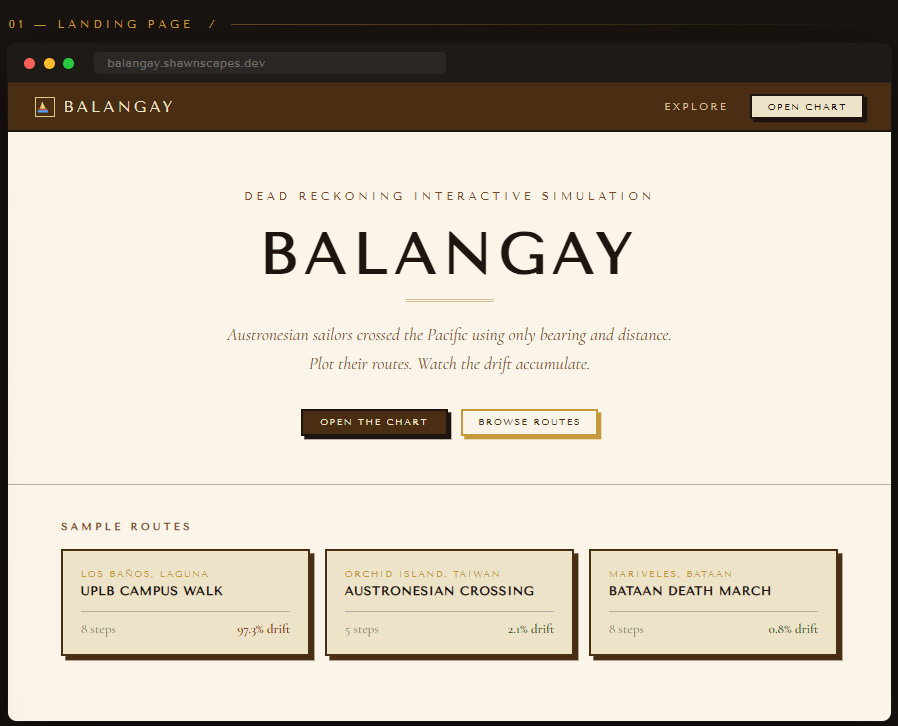

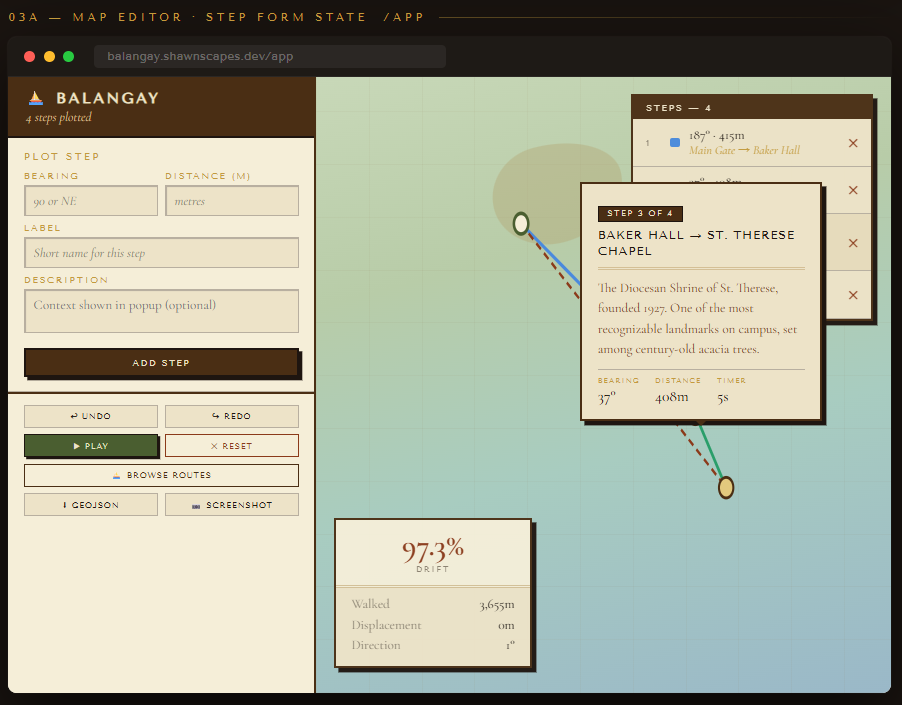
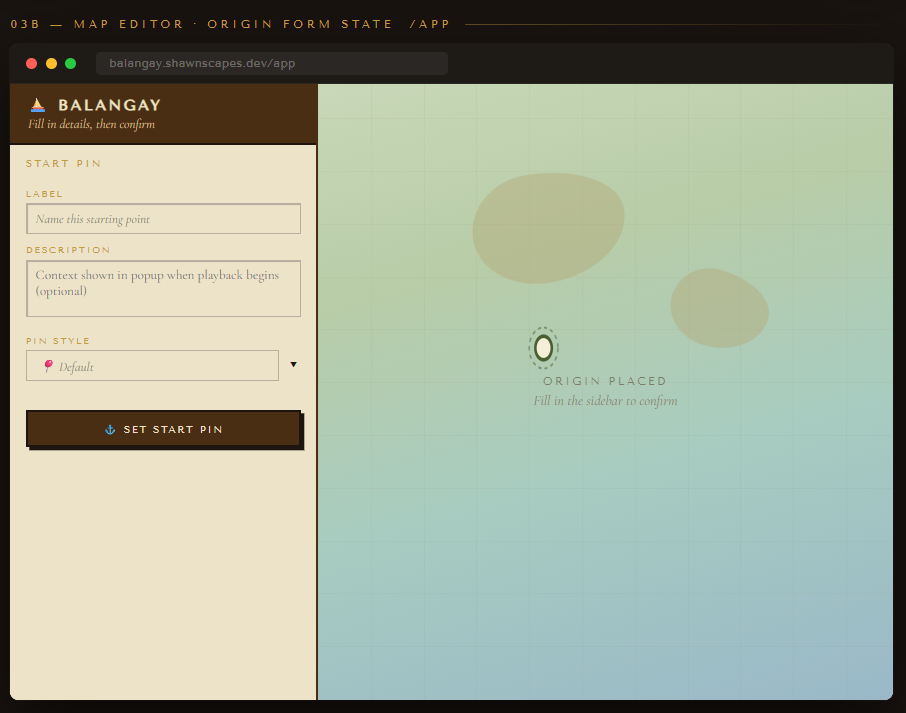
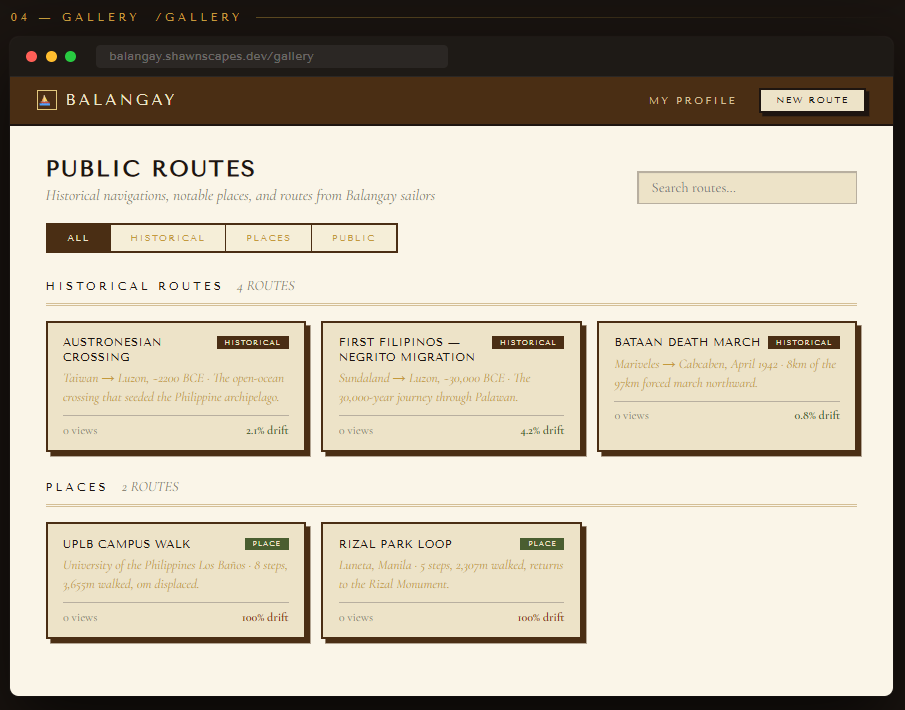
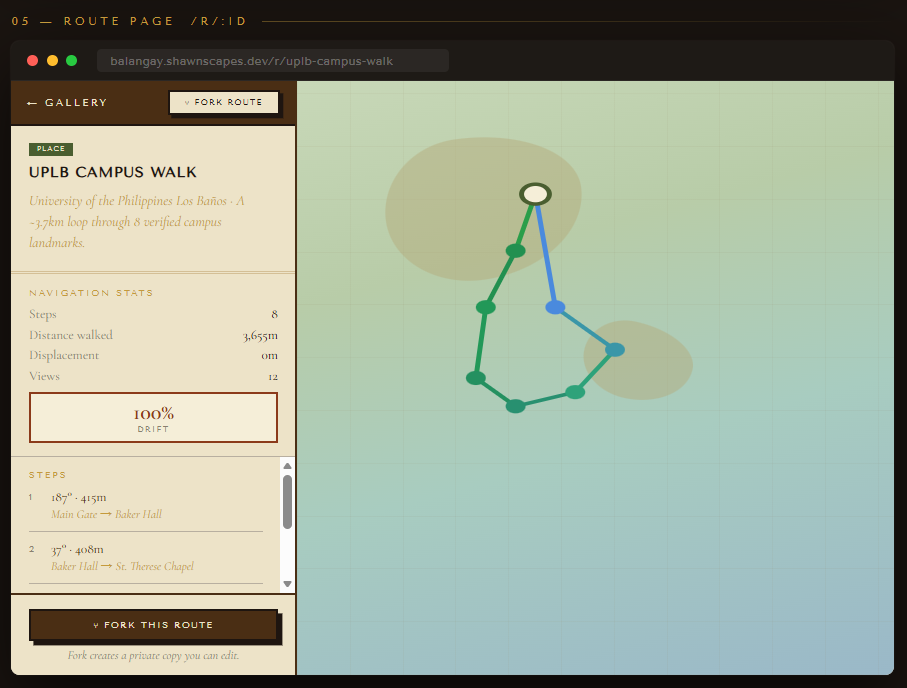

Once I had the features and pages mapped out, I spent time on mockups before touching any code. This step saved me a lot of back-and-forth later — especially for the map editor, which has several interacting panels that need to coexist without feeling cramped.
The Visual Direction
The concept drove the aesthetic. This app is about historical navigation — about old charts, ancient vessels, and the kind of knowledge that used to live in a navigator's hands rather than a device. I wanted that feeling to come through visually, so I leaned into a parchment and nautical chart direction: warm cream and brown backgrounds, aged ink colors, serif typography that evokes old maps, and square-corner buttons with hard drop shadows that physically press down on click.
This is the color palette I landed on:
For typography, I chose Cinzel (a Roman-influenced all-caps serif, used for headings and short labels) and EB Garamond (for body text, descriptions, and anything you actually read at length). Together they give the app the feel of an old logbook without being unreadable.
The Map Editor Layout
The map editor is the most complex screen. In my mockup I worked through three questions: where does the sidebar live, what goes in the floating panels on the map, and how does the sidebar change as you move through the workflow?
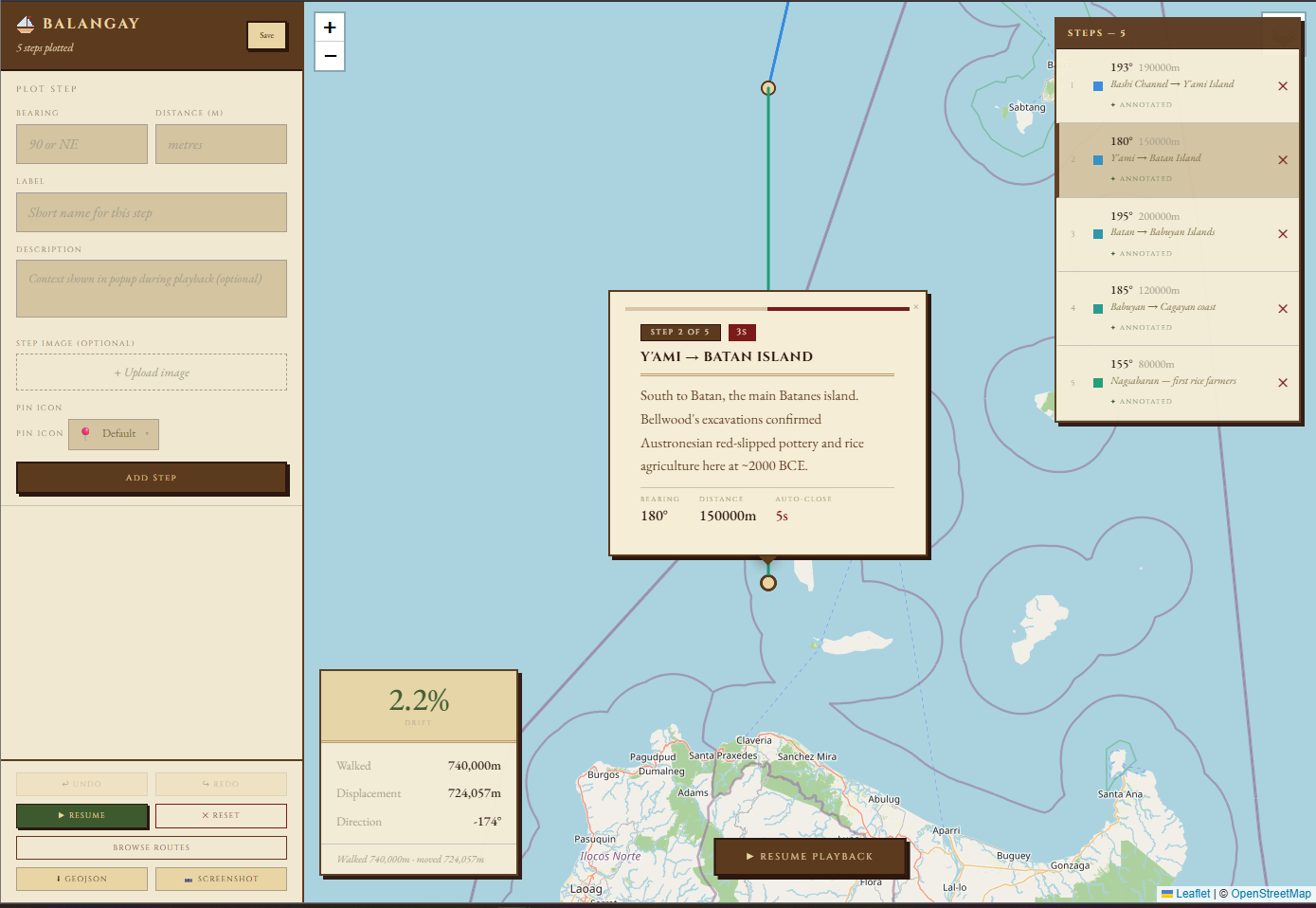
I landed on a left sidebar for the editing controls — the step form, origin form, and playback buttons — and floating panels on the map itself for the stats and step list. The stats panel anchors to the bottom left (out of the way of the map content), and the step list floats on the right. Both are semi-transparent with the same parchment aesthetic as the rest of the app so they feel like overlays on the chart rather than separate UI chrome.
The sidebar I decided should have three mutually exclusive states that replace each other rather than stacking:
- No origin placed — a centered placeholder telling you to click the map, plus a "Browse Routes" button
- Origin placed, not confirmed — a form for naming and describing your starting point
- Confirmed — the step form and playback controls
This prevents the disorienting experience of landing on a screen full of empty form fields before you've even started. Each state has exactly one job.
The Popup Design
For step descriptions, I initially mocked up a centered modal overlay. But that felt wrong — it blocked the map entirely and disconnected the description from its physical location. The better solution was popups anchored to each pin — speech bubbles that grow out of the step markers themselves, following the map as you pan. It makes annotated steps feel like marginalia on a real chart.
Database and Auth: Supabase Setup
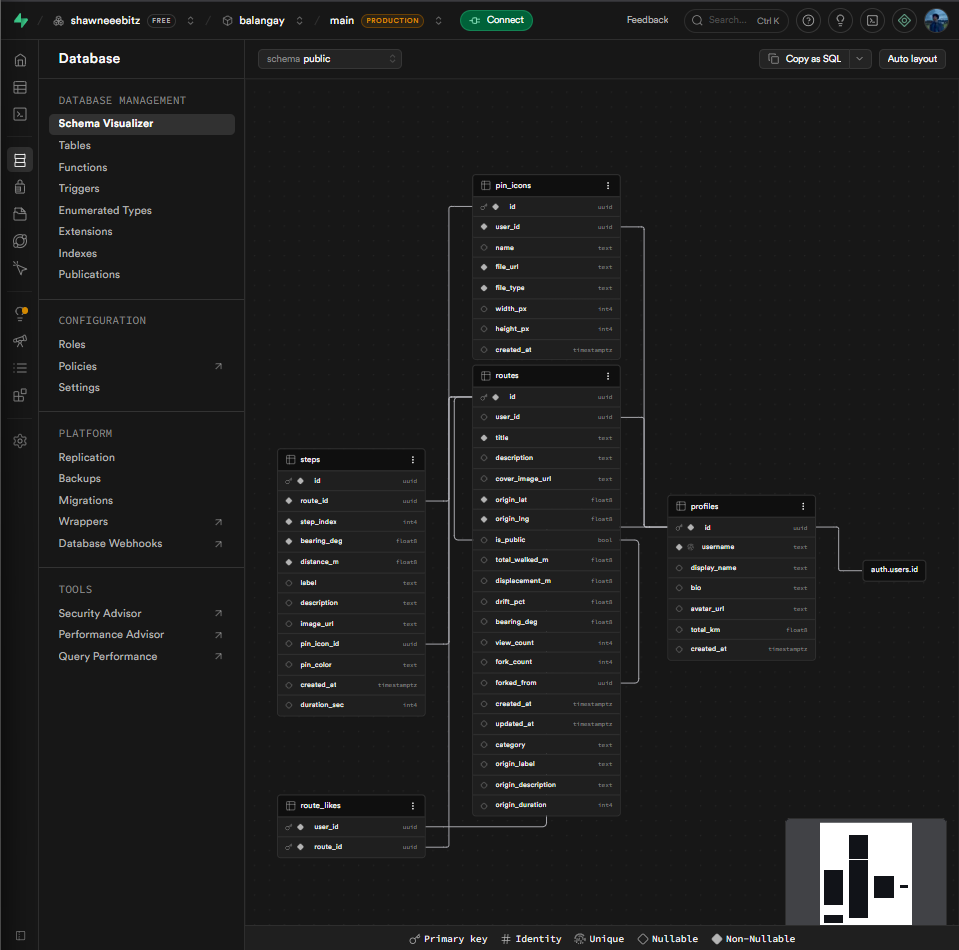
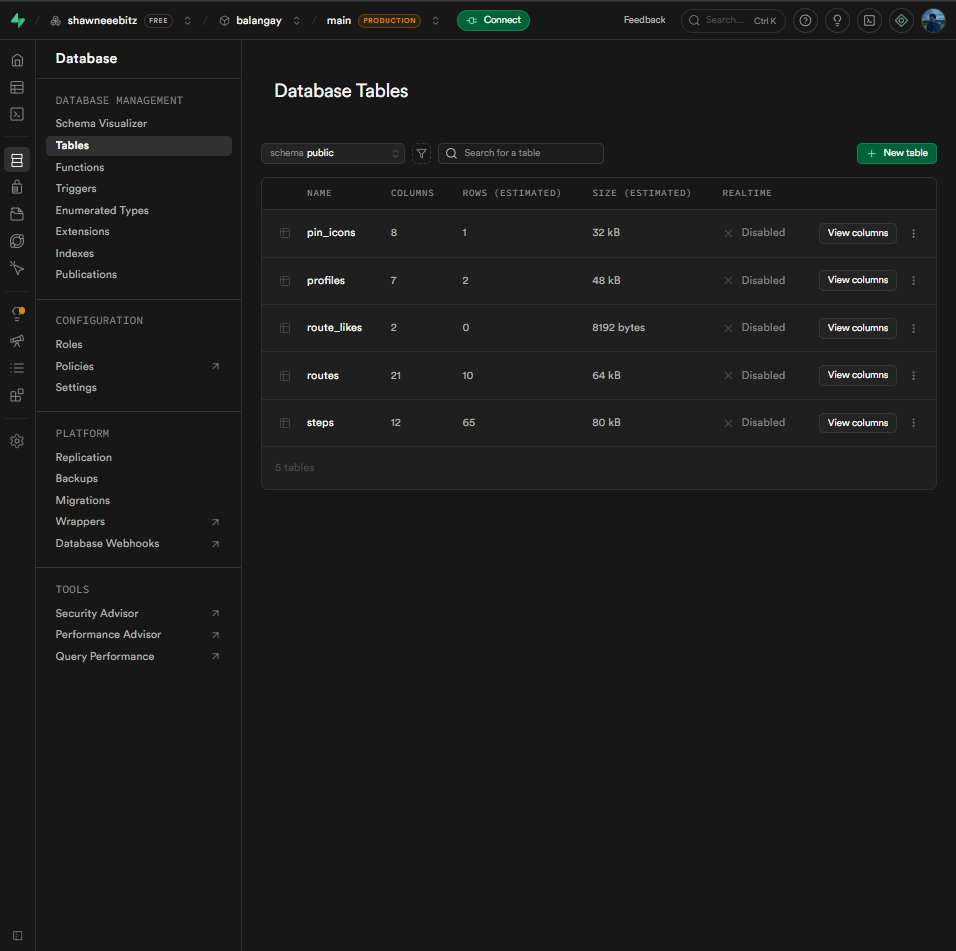
With the design decided, the first real build task was the database. Supabase gave me PostgreSQL, auth, and file storage all in one place, which meant I didn't have to stitch together three separate services.
The schema centers on three main tables — routes, steps, and pin_icons — with a profiles table that mirrors every Supabase auth user. I needed profiles as a separate table because I wanted to store display names, avatars, and bios that don't live in Supabase's auth schema by default.
Here's the core schema I ran in the SQL editor:
sql
The origin_label, origin_description, and origin_duration columns on routes store metadata about the starting point — the same data that individual steps carry — so the origin pin can show an annotated popup during playback exactly like any other step can. The duration_sec column on steps controls how long a step's popup stays open before playback auto-resumes.
The pin_icons table stores custom SVG and PNG icons that users upload for their pins. Each row belongs to a user and carries the storage URL, file type, and normalized dimensions (always 64×64px after server-side processing).
I also enabled Row Level Security on every table. Public routes are readable by anyone; private routes are visible only to their owner; pin icons are owner-only for all operations; steps inherit their parent route's visibility. Here's the full RLS setup:
sql
The trigger that auto-creates a profile on sign-up stays exactly the same as before. After the schema, I created two public storage buckets — route-images for step and cover images, and pin-icons for custom pin uploads.
For Google OAuth, the one thing that tripped me up: Google needs Supabase's callback URL in its allowed redirect URIs, not your frontend URL. Your frontend URL only goes in the Supabase dashboard under Authentication → URL Configuration. Google talks to Supabase; Supabase redirects to your app.
Backend: FastAPI, Endpoints, and a JWT GotchaFoundation
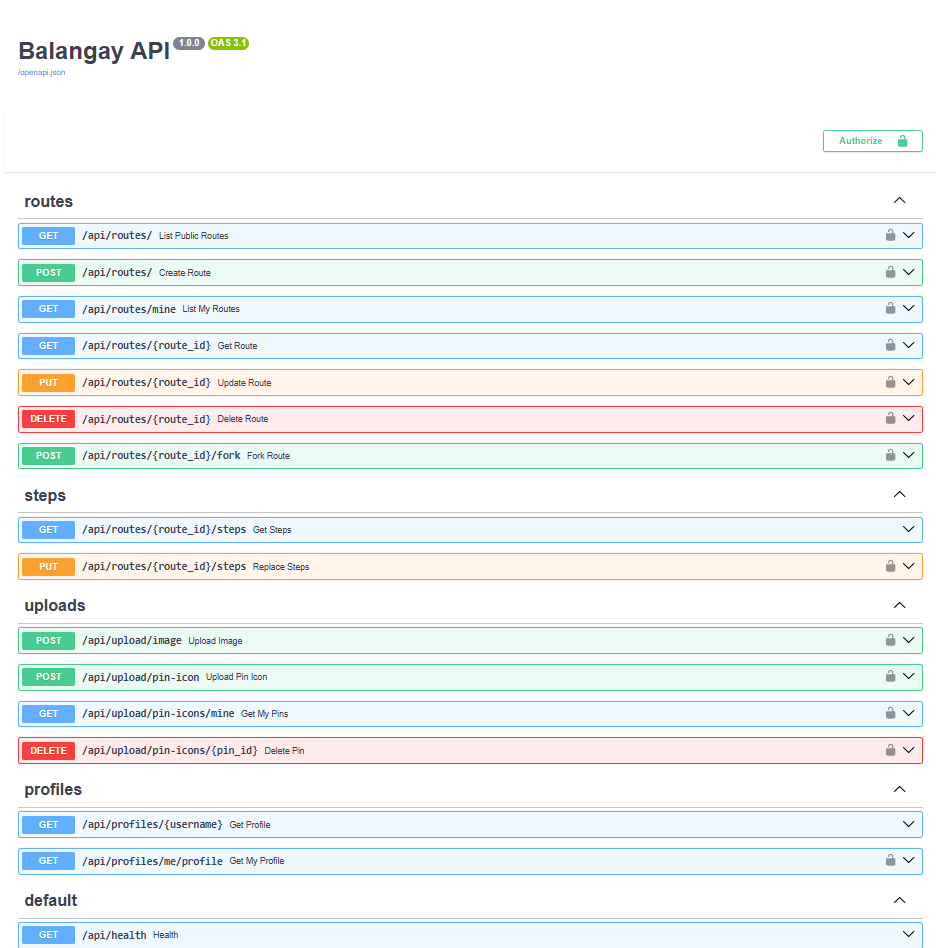
With the database set up, I built a thin FastAPI backend to sit between the frontend and Supabase. The folder structure ended up looking like this:
The endpoints I needed covered the full lifecycle of a route, plus profile lookups and asset uploads:
The Image Service
The upload endpoints do more than just pass files through to storage. compress_image() opens any JPEG, PNG, or WebP with Pillow, thumbnails it down to a 1200×1200 maximum while preserving aspect ratio, and re-encodes at quality 82. sanitize_svg() parses the SVG with Python's stdlib xml.etree.ElementTree, strips every tag not on an explicit allowlist, removes all on* event handler attributes, and rejects any href containing a javascript: URI. It then runs the cleaned SVG through scour for further optimization. For PNG pin icons, Pillow resizes them to exactly 64×64 with LANCZOS resampling. This happens server-side so no matter what the user uploads, what ends up in storage is predictable in size, type, and safety.
The JWT Algorithm Problem
This one cost me a few hours. I initially used python-jose to verify Supabase JWTs using the HS256 shared secret — which is how every tutorial I found described it. Every token came back invalid. It turned out that Supabase projects created after May 2025 sign JWTs using ES256 (asymmetric keys) instead of HS256, so the old shared secret was completely useless against them.
The fix was switching to PyJWT and fetching Supabase's public keys from their JWKS endpoint. Since I wanted the code to handle both old and new projects, I wrote a function that checks the algorithm in the token header and routes accordingly:
python
The Pydantic Response Validation Trap
Another subtle problem: if you use FastAPI's response_model parameter on endpoints that return Supabase data, Pydantic validates the response after the route handler finishes — which means after the CORS middleware has already run. If Pydantic throws a validation error, the 500 response goes out without any CORS headers, and the browser reports it as a CORS error rather than the actual backend crash.
The fix is to drop response_model from these endpoints and serialize manually using json.dumps(..., default=str), which safely handles UUIDs, datetimes, and anything else that isn't natively JSON-serializable. Slightly more verbose, but errors surface as real errors rather than phantom CORS blocks.
Frontend Foundation: Theme, Auth, and Routing

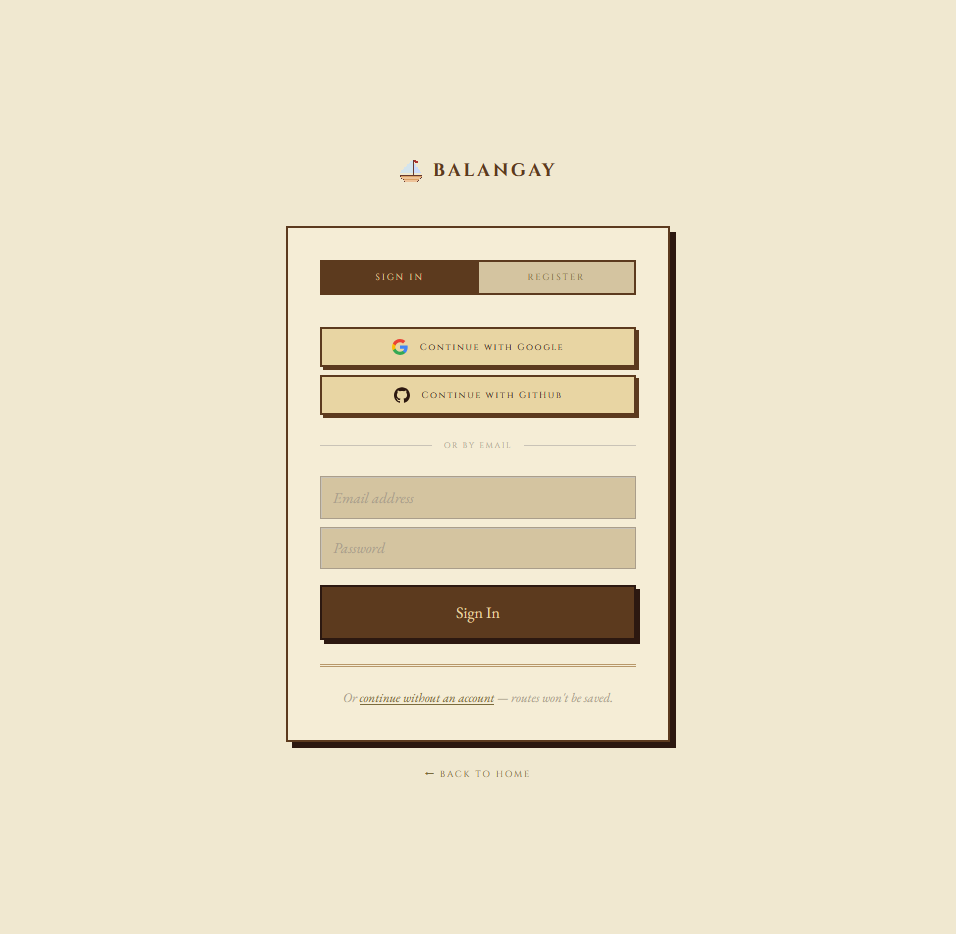
With the backend running, I turned to the frontend. Before any map or math code, I set up the visual theme and routing structure — everything else builds on top of these.
The color system from the mockup became CSS custom properties that every component draws from, which meant I could apply the whole palette in one place and never hardcode a color elsewhere. For the buttons, the stamp press effect I mocked up became a two-line CSS rule — the element shifts down-right by 4px on :active and drops its shadow, making every click feel physical:
Routing was straightforward with React Router. The one page that needed special attention was the auth callback. When Supabase redirects back from Google OAuth, it puts the session tokens in the URL hash. getSession() fires before Supabase has processed that hash, so it returns null and the page redirects back to /auth as if login failed. The fix is to use onAuthStateChange instead, which only fires after the session is fully established:
jsx
The Dead Reckoning Engine
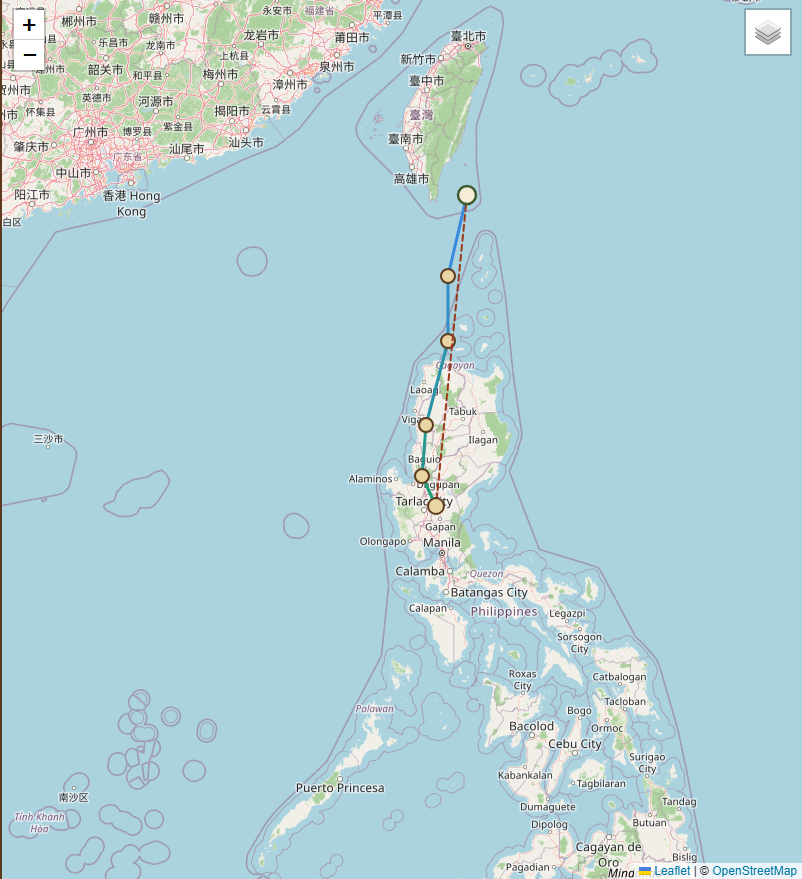
This is the part of the project I was most excited to build. All the geospatial math lives in a single utility file, src/utils/deadReckoning.js, and it really does come down to just a few core functions.
The Coordinate Order Problem
Before writing anything, there's one thing you have to know going in: Turf.js uses GeoJSON coordinate order [longitude, latitude], but Leaflet uses [latitude, longitude]. They're swapped. If you pass coordinates from one library to the other without accounting for this, your markers silently end up somewhere in the ocean. Every function that crosses between the two libraries swaps the order going in and swaps it back coming out.
parseBearing()
Before computing anything, bearings need to be normalized. The app accepts both numeric degrees (0–360) and cardinal directions. parseBearing() handles the conversion so the step form can accept "NE" and the rest of the engine always sees 45:
js
bearingToLatLng()
This function answers the core question of dead reckoning: if I start here, go this direction, and travel this far — where do I end up? Turf's destination() handles the spherical geometry, so the answer is accurate at any latitude, not just near the equator.
js
calcStats() — The Drift Percentage
This is the number the whole app is built around. It connects all the steps together, computes the straight-line distance from start to finish, and compares that to the total distance walked.
js
The formula is simple:
Walk a perfect straight line and you get 0%. Walk a closed square back to your start and you get 100%. Walk the UPLB campus loop — a route that starts and ends at the same gate — and you get 100% drift after 3,655 meters. You physically walked the length of 36 football fields and moved zero meters from where you started. That number is what Austronesian navigators were fighting against on every voyage.
The Map: Leaflet, Anchored Popups, and PlaybackSaving, the Route Browser, and the Gallery
Architecture
MapView.jsx is a pure rendering component. It receives everything as props — steps, origin, playback index, active popup index, timer state — and draws what it's told. No state lives inside it. This separation meant I could work on playback logic, popup state, and step editing all independently without them tangling together.
Custom Pin Icons
Each step (and the origin pin) can carry a pinIcon object specifying either a built-in emoji or a user-uploaded SVG/PNG URL. A makeDivIcon() helper converts either into a Leaflet divIcon — an emoji wrapped in a <div> with a drop shadow, or an <img> tag pointing at the upload URL. Steps without a custom pin fall back to a CircleMarker colored by position in the route. The origin pin follows the same logic, so it can also carry a custom icon.
js
Anchored Popups with Live Timers
Early in development I had a centered modal overlay for step descriptions, which felt disconnected from the map. Switching to Leaflet's native Popup components — anchored directly to each pin — was the right call. Descriptions appear as speech bubbles growing out of the step markers themselves, following the map as you pan and zoom.
The popup content is HTML generated by a popupHTML() function that includes a progress bar, a countdown badge, and a stats row. Rather than re-rendering the whole popup when the timer ticks (which would close and reopen it), the timer updates are applied by directly mutating the already-open popup's DOM — finding the .leaflet-popup-content element and replacing its innerHTML in a useEffect that watches timerRemaining:
js
Opening and closing popups programmatically is handled the same way as before — useEffect watching the active index, with a 60ms delay to let React finish rendering before Leaflet tries to open the popup.
Playback
Playback is a setInterval that increments playIndex every 600ms. MapView slices the coordinate array to allCoords.slice(0, playIndex + 1), revealing one step at a time and panning the map to each new point. When the origin has a description, playback opens the origin popup first and waits. When the interval lands on a step with a description or image, it clears itself and opens that step's popup. If the step has a duration set, a separate countdown timer runs and auto-resumes when it reaches zero. Pausing mid-timer is supported — the remaining time is snapshotted and restored when playback resumes.
Custom Popup Styling
Leaflet's default popup has rounded corners and a white background. Overriding it to match the parchment theme is a few lines in index.css:
css
Route Saving, the Route Browser, and the Gallery

Saving a Route
All persistence logic lives in a custom hook called useRouteSync. The main job it handles is the shape mismatch between how the frontend stores steps ({ bearing, distance, label, duration, pinIcon }) and how the API expects them ({ bearing_deg, distance_m, label, duration_sec }). The hook maps between these on save and load, tracks whether a route has already been saved so subsequent saves become updates rather than new creates, exposes togglePublic for flipping a route between private and public without opening a modal, and enforces a per-user route cap (10 routes) by fetching the count on sign-in.
The save payload also includes the origin metadata: origin_label, origin_description, and origin_duration, so the starting pin's annotation survives the round trip to the database and back.
The Three-State Sidebar
One design decision I'm proud of is the sidebar having three completely distinct states that replace each other rather than overlap. The first, no origin placed, shows just a placeholder and a "Browse Routes" button. The second, origin placed but not yet confirmed, shows the OriginForm where you name your start point, write a description with an auto-close duration, and pick a pin icon. The third, confirmed, hides the origin form entirely and shows the step form and controls. Each state has exactly one job, and you can't accidentally access the wrong one.
Historical Routes as First-Class Content
Rather than building a preset dropdown, I wanted the historical routes to feel like real content — the same kind of object as any user-created route, just pre-loaded. They live in routes.js with full step descriptions, historical citations, per-step auto-close durations, and originMeta objects (label, description, duration) built in. The Route Browser modal has three tabs — Historical, Places, and Public Routes — and seeded routes load instantly without an API call, while user-created public routes fetch their steps on demand when selected.
Each seeded route is fully annotated: the Austronesian Crossing has five steps with multi-sentence archaeological descriptions and 5-second auto-close timers; the UPLB Campus Walk has eight steps with landmark histories; the Bataan Death March has per-kilometer context notes. Loading any of them and pressing Play runs the full annotated playback experience.
Custom Pin Icons in the Browser
The PinPicker component, used in both OriginForm and StepForm, lets users choose from built-in emoji pins or upload their own SVG/PNG. Uploads go to the /api/upload/pin-icon endpoint, which sanitizes SVGs server-side and normalizes all images to 64×64px before storing them. Previously uploaded icons are fetched from /api/upload/pin-icons/mine when the picker opens, and the selection is stored as a pinIcon object on each step. This object round-trips through the save/load cycle so custom icons persist across sessions.
The Gallery
The Gallery at /gallery displays all public routes in a tabbed grid with four tabs: All, Historical, Places, and Public. Each card shows the title, description excerpt, a drift badge color-coded green (under 10%), amber (10–40%), or red (over 40%), view count, and fork count. The same parchment aesthetic carries through so the gallery feels like a continuous part of the same app rather than a different product.
Creating the Logo


Pixel Art on Aseprite
Before deployment, I wanted the app to have an icon that actually meant something rather than a placeholder favicon. The app is named after the balangay — the outrigger sailing vessel — so the logo should be one.
I'd never used Aseprite before. I picked it up about a week before this step specifically because I wanted to try pixel art. The actual balangay turned out to be too complicated to pull off at small sizes — lots of rigging detail that just collapses into noise at 32×32 — so I simplified it down to a sailboat with a red flag on top. Artistically, that was a deliberate call. The silhouette reads instantly, which matters more than historical accuracy when you're working with 1024 pixels total.
The export from Aseprite comes out as an SVG made of individual 1×1 <rect> elements with shape-rendering="crispEdges". Verbose, but it renders identically everywhere and stays sharp at any size since it's still vector under the hood.
Once it was done, I dropped it into the navbar, the auth page header, the browser tab favicon, and the landing page hero — replacing the ⚓ emoji placeholder that had been sitting there since I started turning the design into code.
Deployment: Railway (Backend) + Vercel (Frontend)


Backend to Railway
Railway is the smoothest backend deployment experience I've used. I connected my GitHub repo, pointed it at the backend/ folder, set the environment variables in the Railway dashboard, and it picked up the Python project automatically.
The environment variables the backend needs:
The start command is:
Railway injects $PORT automatically.
One thing to watch is that ALLOWED_ORIGINS must be your exact production frontend URL. When a 500 error happens on the backend, FastAPI's internal error handler fires before the CORS middleware gets a chance to add its headers — so the 500 response reaches the browser without an Access-Control-Allow-Origin header. The browser then reports a CORS error even though the real problem is a Python crash. If you ever see a CORS error in production that doesn't appear locally, check the Railway logs first. It's almost always a backend exception in disguise.
Frontend to Vercel
Vercel auto-detects Vite and needs no configuration changes to the build settings. The three environment variables it needs:
Every push to main deploys automatically. The whole process from git push to live URL is about 45 seconds.
After deployment, the last configuration step is updating Supabase's Authentication → URL Configuration — the Site URL to the Vercel domain, and adding the /auth/callback path to Redirect URLs. Without this, Google OAuth signs you in and then has nowhere to send you.
How to Use Balangay
Plotting Your Own Route
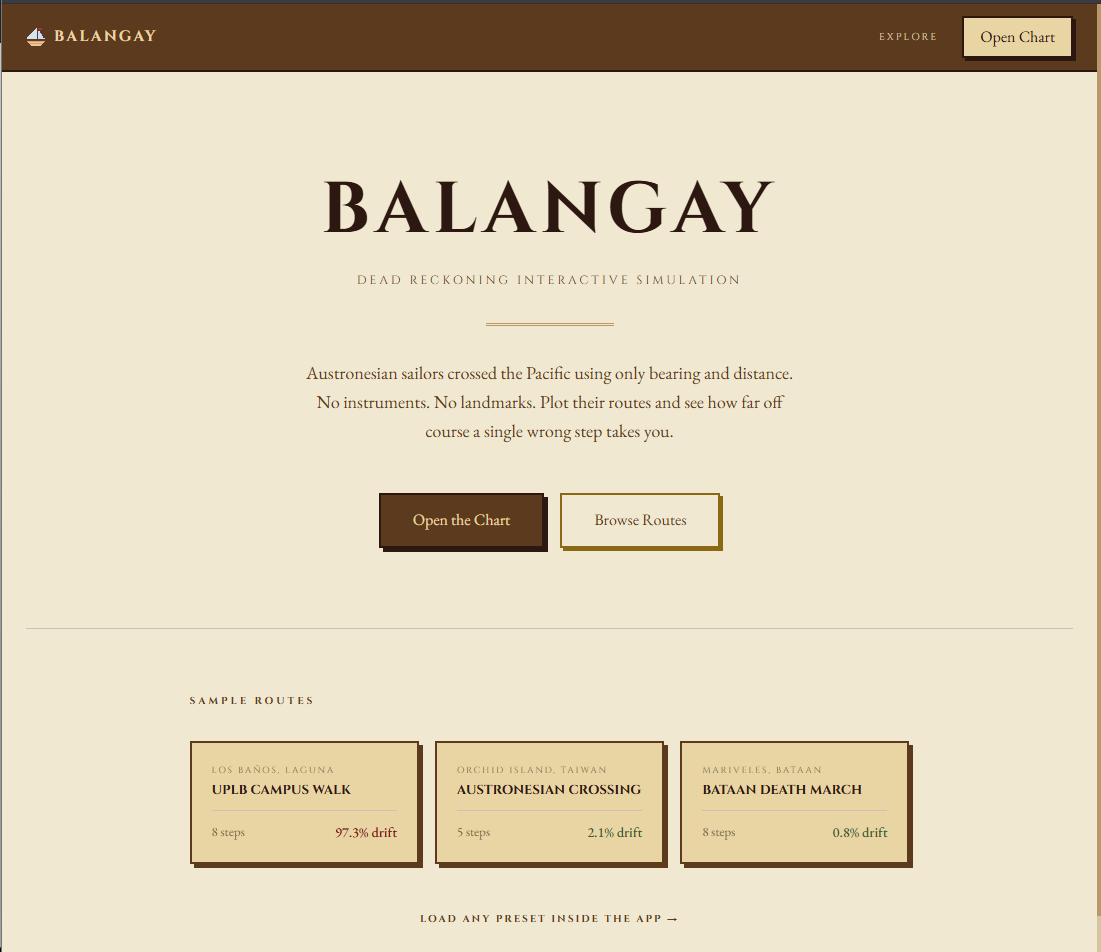
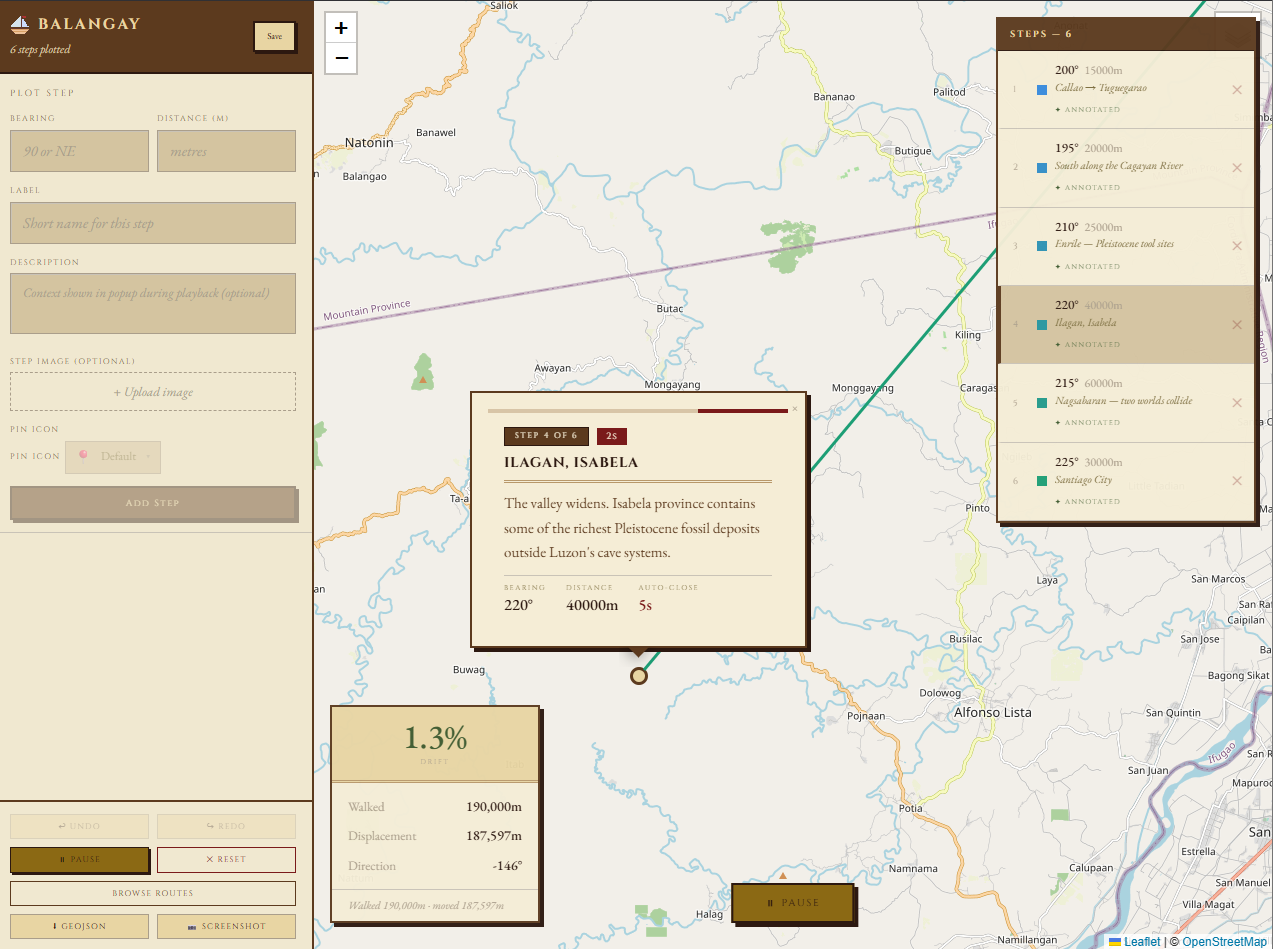
When you open the app at balangay.shawnscapes.dev and click "Open the Chart," the first thing you'll see is a map centered on the Philippines with an empty sidebar asking you to set a start pin.
Click anywhere on the map. The sidebar immediately switches to the Start Pin form. You can name your starting point, write a description that'll appear as a popup when playback begins, and choose a pin icon. Click "Set Start Pin" to confirm it, and the step form appears.
Each step takes a bearing (0–360°, or a cardinal like N, NE, E — the app converts them), a distance in meters, and an optional label. If you add a description to a step, that description will appear as a popup anchored to that pin's location during playback. You can set how long the popup stays open before playback auto-resumes, and upload an image to go alongside the description. Steps with descriptions are marked with a small "✦ annotated" badge in the step list.
The drift panel in the bottom left updates in real time as you add steps. The large percentage is your drift. The dashed red line on the map is your straight-line displacement. The colored segments are your actual path. The bigger the gap between them, the higher your drift.
Press Play and the map animates the route step by step, panning to each new position. When it hits an annotated step, playback pauses and the popup opens. Close it manually or let the timer run out, and playback continues from where it left off.
Loading a Historical Route
Before you set a start pin, the sidebar shows a "Browse Routes" button. Click it to open the Route Browser.
The Historical tab has four routes built in, each with step-by-step descriptions and historical context. The Austronesian Crossing starts at Orchid Island, Taiwan and traces the 740km open-ocean crossing that founded the Philippine archipelago around 2200 BCE. First Filipinos — Negrito Migration starts at Northern Borneo and follows the 30,000-year journey through Palawan that brought the first humans to Luzon. The Cagayan Valley route starts at Callao Cave, Peñablanca and covers the prehistoric corridor from Homo luzonensis (67,000 BP) down to the first rice farmers. The Bataan Death March traces 8km of the 1942 forced march north from Mariveles — it has near-zero drift because the route was precise and intentional.
The Places tab has two verified walking loops. The UPLB Campus Walk is 8 steps through 3,655m of campus landmarks and drifts nearly 100% — it's a closed loop that returns almost exactly to where it started. The Rizal Park Loop does the same in 5 steps across 2,307m, returning to the Rizal Monument.
Load the Austronesian Crossing, press Play, and read through the popups. Each step explains what was happening at that point in the crossing — the archaeology behind the Bashi Channel landfall, what the Bellwood Out-of-Taiwan model says, what was found at Nagsabaran. It's designed as an interactive lesson, not just a line on a map.
Saving and Sharing
Sign in with Google or GitHub and a Save button appears in the sidebar header after you've added at least one step. Routes are private by default — toggle them Public in the save modal to have them appear in the Gallery.
Any public route can be forked — the "⑂ Fork this Route" button on any route page creates a private copy in your account for you to edit and build on.