Blender & Fusion 360: Easy Bouncing Ball Animation Tutorial!
by The_Hacker1210 in Design > 3D Design
65 Views, 2 Favorites, 0 Comments
Blender & Fusion 360: Easy Bouncing Ball Animation Tutorial!
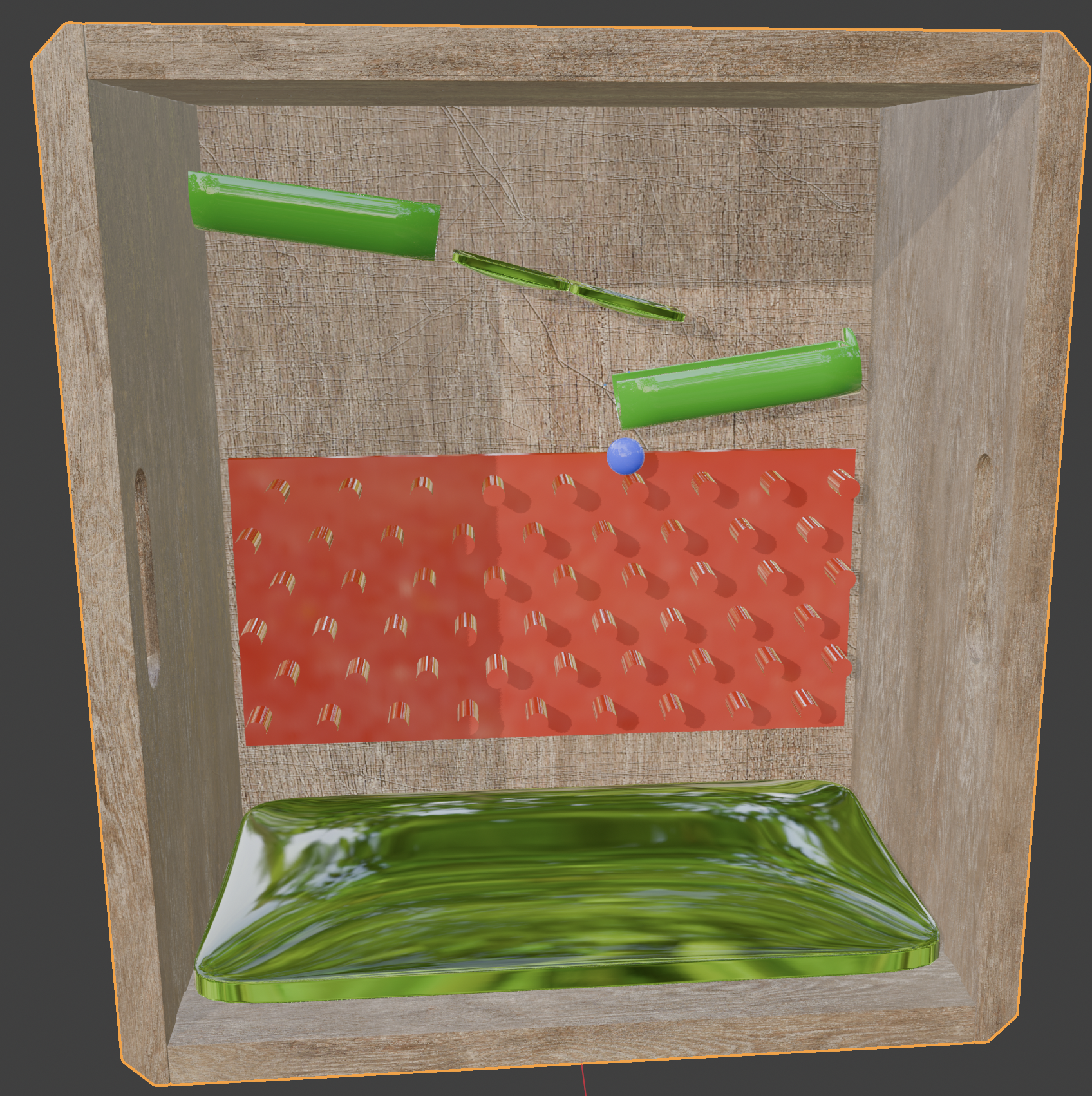
This animation was my introduction to Blender and a great learning experience, as I learned the basics of modeling, animation, lighting, and rendering while creating a realistic bouncing ball animation.
Whether you're new to Blender or just looking for a fun project, I hope you enjoy building this project as much as I did! If you are stuck I will include all project files in their proprietary formats. The files are named: Plinko.f3d, Finished animation.blend, and finally ramps.f3d. Important note, Due to the file important requirements of Instructables (.blend files not supported) the final complete project is included to download in a Canva document here: Finished Animation download.
Downloads
Supplies


This project relies on Fusion 360 and Blender for design and modeling. Both software packages are free to use, making the total software cost $0.
Get the Software!
Blender is a free download, and you don’t need an account to get it. You can download it directly from the official Blender website here. Once it’s installed, you’re ready to start creating right away.
Fusion 360 is also free for personal use, but it does require you to sign in with an Autodesk account. You can download it from the Autodesk website using a personal email address.
Once you have Blender installed, you’re all set to begin. For Fusion 360, just make sure you’re signed in, and then you can start designing your models.
Learn the Basics of Blender

Blender may seem overwhelming at first but it is actually quite simple! There are some basic commands,(for a more complete list see the attached file!) here they are: In Blender, these are the main basic and object controls:
G = Move/grab an object
R = Rotate an object
S = Scale an object
X, Y, or Z after moving/rotating/scaling = lock to that axis
Example: G then Z moves only up/down
Shift + A = Add a new object
X or Delete = Delete selected object
Shift + D = Duplicate object
Alt + D = Linked duplicate
Tab = Switch between Object Mode and Edit Mode
Ctrl + A = Apply transforms (important for physics)
Selection:
Left click = Select object
A = Select all
Alt + A = Deselect all
B = Box select
View controls:
Middle mouse drag = Rotate camera view
Shift + middle mouse = Pan
Scroll wheel = Zoom
Numpad 1 = Front view
Numpad 3 = Side view
Numpad 7 = Top view
Numpad 0 = Camera view
Useful extras:
F3 = Search for any command
Spacebar = Play animation
. (period key) = Focus selected object
Z = Shading/view modes menu
Fusion Basics

Fusion may also seem overwhelming at first but it is actually pretty simple!
View Controls
Middle mouse drag = Orbit view
Shift + middle mouse = Pan
Scroll wheel = Zoom
F6 = Fit view
Home = Fit all (sometimes)
Selection / Object Controls
Click = Select
Drag box = Box select
Shift + click = Add to selection
Ctrl + click = Remove from selection
Delete = Delete
Ctrl + C = Copy
Ctrl + V = Paste
Ctrl + D = Duplicate (copy)
Move / Transform
M = Move / Copy tool
Drag arrows = Move in axis direction
Rotate handle = Rotate
Scale handle = Scale (rarely used in CAD)
Sketch Controls
L = Line
R = Rectangle
C = Circle
A = Arc
D = Dimension
T = Trim
O = Offset
X = Construction toggle
3D / Modify Tools
E = Extrude
F = Fillet
Q = Press Pull
H = Hole
S = Shortcut search (very important)
P = Project geometry
CAD Plinko


There are two parts that need to be modeled for this project, and both can be created easily in Fusion 360. Start by creating a new design and naming it Plinko.
Before you begin modeling, you need to change Fusion 360's default units to meters because Blender uses meters by default. To do this, go to Home, click your profile icon in the top-right corner, and select Preferences. In the Preferences menu, navigate to Default Units and open the drop-down menu. Set the default units for new designs and length to meters, then click Apply followed by OK.
Now reopen the Plinko design and create a new sketch. Since the model is quite large, zoom out significantly before you start drawing. Create a Center Rectangle and set its dimensions to 67 m long by 32 m wide. Finish the sketch and create a new one.
Draw a circle with a diameter of 2.3 m. Duplicate the circle until you have a total of 10 circles in the row, spacing each one 5.20 m apart from the next.
Select all 10 circles and extrude them 5 m. Then duplicate the entire row six times. Offset every other row so that each circle is centered between the two circles above it, creating the classic Plinko pattern.
Once all the pegs are in place, extrude the base by 1 m using the Join operation. When the model is complete, export it as an STL file and import it into Blender! After import into blender import it into a new file and move it out of the way then name the file "Final."
Downloads
Make the Ball
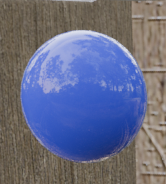
Create the ball by adding a UV Sphere in Blender and scaling it to the size you want for your scene. Once it’s placed, switch it to a Soft Body object in the Physics settings.
Turn on Soft Body physics and enable Edges so the sphere can deform properly when it hits other objects. Increase the stiffness so it mostly keeps its round shape, but still has enough flexibility to squash and bounce. Turn on Self Collision so it doesn’t collapse into itself during movement, and adjust damping slightly so the motion settles more naturally instead of bouncing forever.
Next, make sure the ball is part of the same collision setup as everything else in the scene, including the bounce pads and base, so it reacts properly when it hits them.
When everything is set, place the ball above the setup and it’s ready to run the simulation.
Make a Blender Jello Simulation

Open your Blender project: "file" and add a cube if you do not already have one. With the cube selected, add a Subdivision Surface modifier to give it enough geometry to deform smoothly during the simulation.
Next, go to the Physics Properties tab and add a Soft Body simulation. In the Cache section, set the Simulation Start to 1, End to 2000, and Cache Step to 1. Leave Goal turned off, but set the Goal values to Stiffness 0.500, Damping 0.000, Default 0.700, Min 0.000, and Max 1.000.
Scroll down to the Edges section and enable it. Set Pull to 0.500, Push to 0.500, Damp to 0.500, Plasticity to 0, Bending to 0.300, and Length to 0. After that, enable Stiffness and change Shear to 0.200. Turn on Self Collision, then set Step Size Min to 10 and Step Size Max to 300.
Now add a plane underneath the cube. Scale it up so the cube has plenty of room to land. With the plane selected, add Collision physics. In the Softbody & Cloth settings, set Damping to 0.100, Thickness Outer to 0.020, Thickness Inner to 0.200, and Friction to 5.000.
To make the object look like jelly, select the cube and create a new material. Using the Principled BSDF shader, set the Base Color to a bright green. Change Metallic to 0.000, Roughness to 0.000, IOR to 1.333, and Alpha to 1.000. Increase the Transmission value until the material becomes transparent and resembles gelatin.
Once everything is set up, move the cube above the plane and press play. As the animation runs, the cube will fall, squash when it hits the ground, and wobble just like a piece of jelly before slowly settling down.
Cad the Ramps


First, open Fusion 360 and create a new design called Ramp. Create a sketch and draw a circle with a diameter of 5.745 m. Finish the sketch and extrude the circle 24 m.
Create another sketch and draw a second circle with a diameter of 4.583 m. Align the centers of the two circles, then move the smaller circle 1.50 m along the X-axis. Use the Cut operation to remove the smaller circle from the larger one.
Next, create a new sketch and draw a rectangle that is 24.50 m long and 1.50 m tall. Position the rectangle near the top of the circular shape so there is a 0.5 m gap between the top of the circle and the top of the rectangle. Make sure the bottom of the rectangle sits exactly 1.50 m below the top of the circular shape.
Use the Cut operation again to subtract the rectangle from the circular shape. This will create the final ramp profile.
Once the ramp is finished, click File and select 3D Print. Choose the ramp body and export it as an STL file.
Open Blender, then go to File then to Import next to STL. Find the STL file you just exported, select it, and click Import STL. Your ramp should now appear in the scene (scene being your final file) and be ready to use. (after import duplicate it.)
Downloads
Modify the Jello to Make Jello Bounce Pads

Create a new vertex group (green triangle with vertices) name it whatever you want, (I did bounci) then shift click both of the jello bounce pads press tab to switch to edit mode and select all of the edges on the outer sides using the edge loop (shift+option) then click on assign in the vertex group control and click deselect. Then press tab to switch back to object mode. Shift click both of the bounce pads and modify physics to turn on fixed rigid body constraint and then enabled. Next turn on goal set vertex group to bounci (or whatever your group is named) set stiffness to .4 damping to 0 strengths default to 0.7 min to 0 max to 1 turn on stiffness setting surge to 0.690 self collision on and edges on. Then leave them both were they are to be positioned.
Import the Box/base

Because the pattern and overall 3D setup are fairly complex, it’s easier and more reliable to use a pre-made model instead of building it from scratch. For this project, I used a fruit crate model from Blender Swap, since it already has the right shape and structure and saves a lot of time during setup.
You can also choose a similar model from other 3D model websites if you want something slightly different, but it’s important to pick one that is close in size and detail so everything works correctly later in the project. I’ve also included a direct link to the same model in the Canva design mentioned earlier so you can easily access it.
Using a ready-made model like this helps keep everything consistent and makes it much easier to focus on the actual setup instead of spending time modeling the crate yourself.
Assemble All of the Parts
Set your jello landing pad to the coordinates: X (-33.657), Y (0.096459), Z (5.3754), rotation: X (0), Y (0.09122), Z (0.12229) Scale: X (1), Y (1), Z(1) Dimensions: X(40), Y(68), Z(2) Next take your first jello bounce pad, and set it to location: X (-48.648), Y (-3.8638), Z (64.343) rotation: X (-15), Y (0), Z (0) scale: X (0.176), Y (0.176), Z (0.440) dimensions: X (7.03), Y (11.9), Z (0.879). Then take the next jello bounce pad and set it to location X (-48.648), Y (7.7143), Z (61.213) rotation: X (-15), Y (0), Z (0) scale: X (0.176), Y (0.176), Z (0.440) dimensions: X (7.03), Y (11.9), Z (0.879). Next, select your ramp then select your first long ramp and set its properties to Location: X (-48.648), Y (-32.281), Z (77.129) rotation: X (-90), Y (-98), Z (-90) scale: X (1), Y (1), Z (1) dimensions: X (7), Y (25), Z (7) next select then other long ramp and set location: X (-49.19), Y (19.938), Z (52.441) rotation: X (90), Y (-81.999), Z (-90) scale: X (1), Y (1), Z (1) dimensions: X (7), Y (25), Z (7). Then take the plinko board select it and set its position to Location: X (-49.479), Y (-0.13108), Z (28.945) rotation: X (0), Y (0), Z (-90) scale: X (0.000994), Y (0.000994), Z (0.000994) dimensions: X (66.6), Y (5.96), Z (31.8) Then set the positions of the box to Location: X (-55.625), Y (0), Z (41.941) rotation: X (0), Y (90), Z (0) scale: X (188.491), Y (188.491), Z (188.491) dimensions: X (83.9), Y (76.3), Z (47.1).
Finished

Congratulations, you’re finished! You made it through the whole project from start to finish. Take a moment to appreciate what you’ve built and how everything came together. I hope you’re happy with the final result, and feel free to experiment and make it your own from here.