Build a $5 USB Data Decoy Drive That Looks Empty But Stores Hidden Backups
by nickrogers26 in Circuits > USB
1750 Views, 24 Favorites, 0 Comments
Build a $5 USB Data Decoy Drive That Looks Empty But Stores Hidden Backups
Most people lose data because their backup lives on the same laptop that gets stolen, dropped, or wiped. A tiny USB stick tucked in a drawer can save you, but if it is labeled "Backup 2026" in big letters, it is the first thing a thief grabs. The fix is a USB drive that looks completely blank when plugged in, yet quietly holds an encrypted backup partition only you can mount.
In this Instructable, I will walk you through building exactly that with a $5 USB stick plus a free open-source tool called VeraCrypt. By the end you will have a tiny, ordinary-looking drive with two layers: a decoy surface that holds harmless throwaway files for plausible cover, plus a hidden encrypted volume holding your real backup of documents, photos, or whatever matters most.
This project is meant for personal data resilience. It is not a tool for hiding anything from people who have a right to see it. I am a forensics person by trade, so I want to be clear about that up front.
Who this is for: anyone who has ever felt that sinking feeling when a hard drive dies, a phone gets stolen, or a ransomware popup appears. If that is you, let us build a quiet little life raft for your files.
Supplies
Here is everything you need. Total cost is around five dollars if you do not already own a USB drive.
- One USB flash drive, 8 GB or larger. Brand-name drives like SanDisk, Kingston, or Samsung are worth the extra dollar over no-name sticks because cheap controllers fail quietly.
- A computer running Windows, macOS, or Linux. Any reasonably modern machine works.
- VeraCrypt, the free open-source encryption tool. Download it from the official VeraCrypt website only. Never grab encryption software from random mirrors.
- A short USB extension cable. Optional, but it saves wear on your laptop port.
- A small paper notebook plus a pen for your passphrase. Yes, paper. We will talk about why in the final step.
- Around 30 minutes of uninterrupted time.
Skill level: beginner-friendly. You do not need command line experience. If you can install an app plus follow a wizard, you can build this.
Choose the Right USB Drive
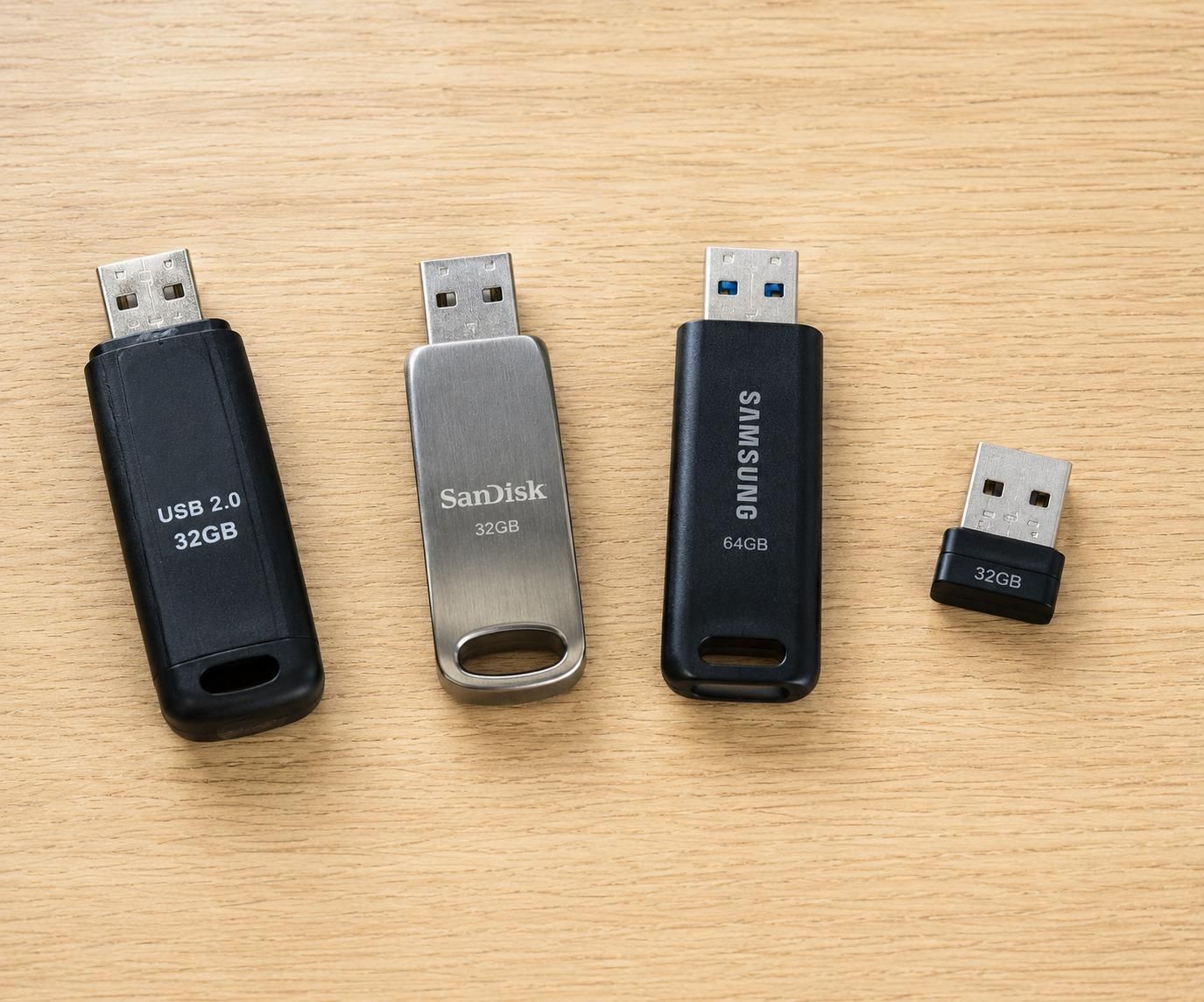
The drive itself is your foundation, so do not skimp here. The cheap USB stick from a gas station rack is tempting, but bargain drives often use slow or fake controllers that fail after a few months of writes. That is the last thing you want for a backup.
What to look for:
- Capacity: 8 GB is the practical minimum. 32 GB or 64 GB gives you breathing room for photos. Going larger than 128 GB is overkill for this project plus it raises rebuild times.
- Brand: SanDisk, Kingston, Samsung, PNY, or Lexar. Skip anything you have never heard of, especially on overseas marketplaces where fake-capacity drives are common.
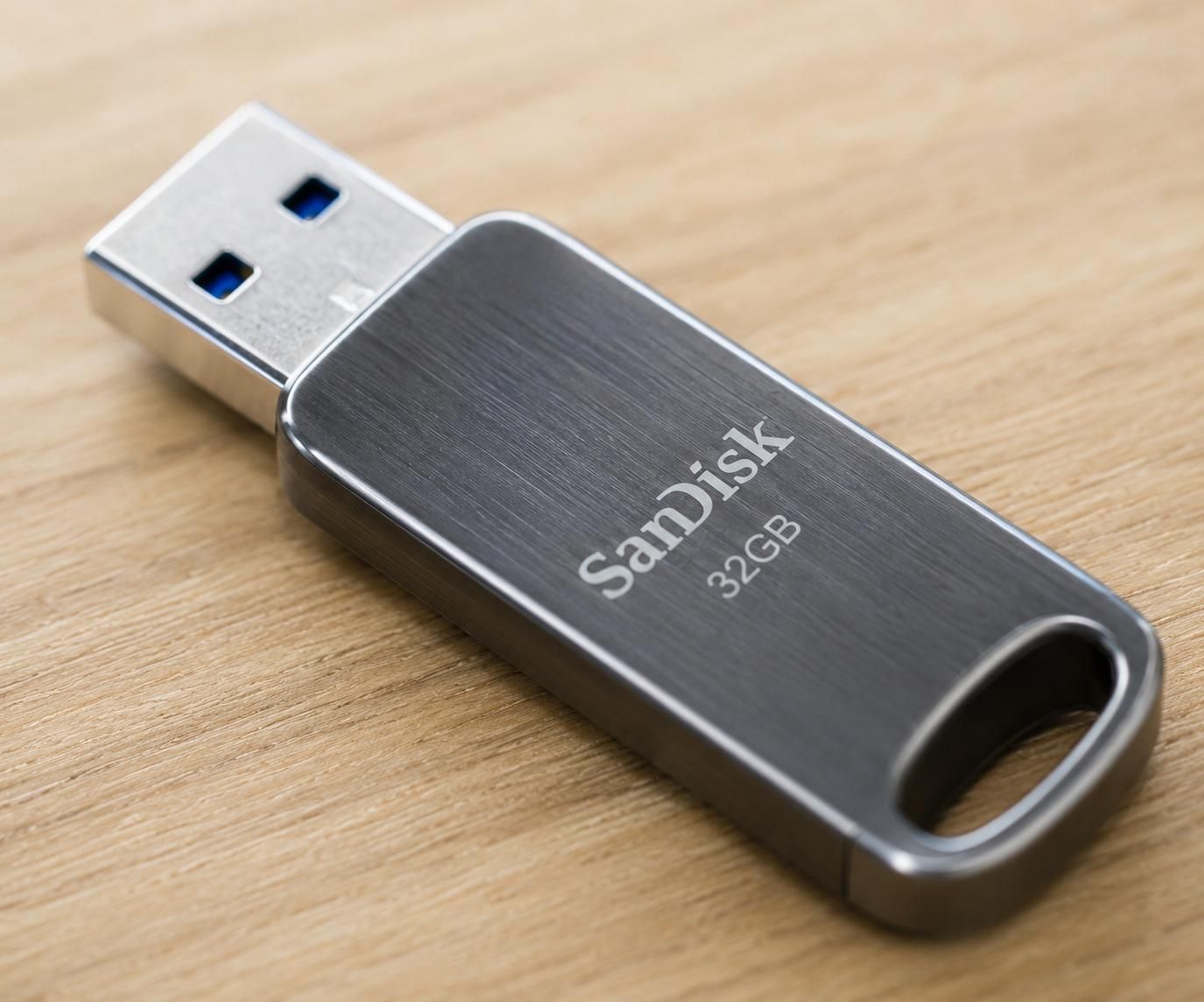
- Form factor: a low-profile metal stick is ideal. It survives being knocked around in a drawer or backpack pocket.
- USB version: USB 3.0 or higher makes backups noticeably faster, but USB 2.0 still works fine for this project.
Quick sanity check: when the drive arrives, plug it in, then verify the reported capacity matches the label. If a 32 GB drive shows 30 GB usable, that is normal. If it shows 4 GB, send it back. Counterfeit-capacity drives are a known scam, so do not skip this test.
Wipe and Format the Drive Cleanly


Before VeraCrypt touches the drive, you want it wiped to a clean, predictable state. A fresh format clears old partitions, leftover encryption headers, and any junk that could confuse the wizard later.
Plug the USB drive into your computer. On Windows, open File Explorer, right-click the drive, then pick Format. Choose exFAT for the file system, give it a generic label like USB or DATA, then leave Quick Format checked for a first pass. On macOS, use Disk Utility plus Erase, then pick ExFAT. On Linux, GNOME Disks or KDE Partition Manager will do the same job.
If the drive has ever held sensitive data, run one full non-quick format as well. It takes longer but overwrites the old sectors so nothing leaks through later.
When the format finishes, eject the drive then plug it back in. You should see a single empty volume with the full reported capacity. That is your blank canvas. Do not copy any files to it yet, since VeraCrypt is going to overwrite everything in the next steps.
Install VeraCrypt and Understand Hidden Volumes
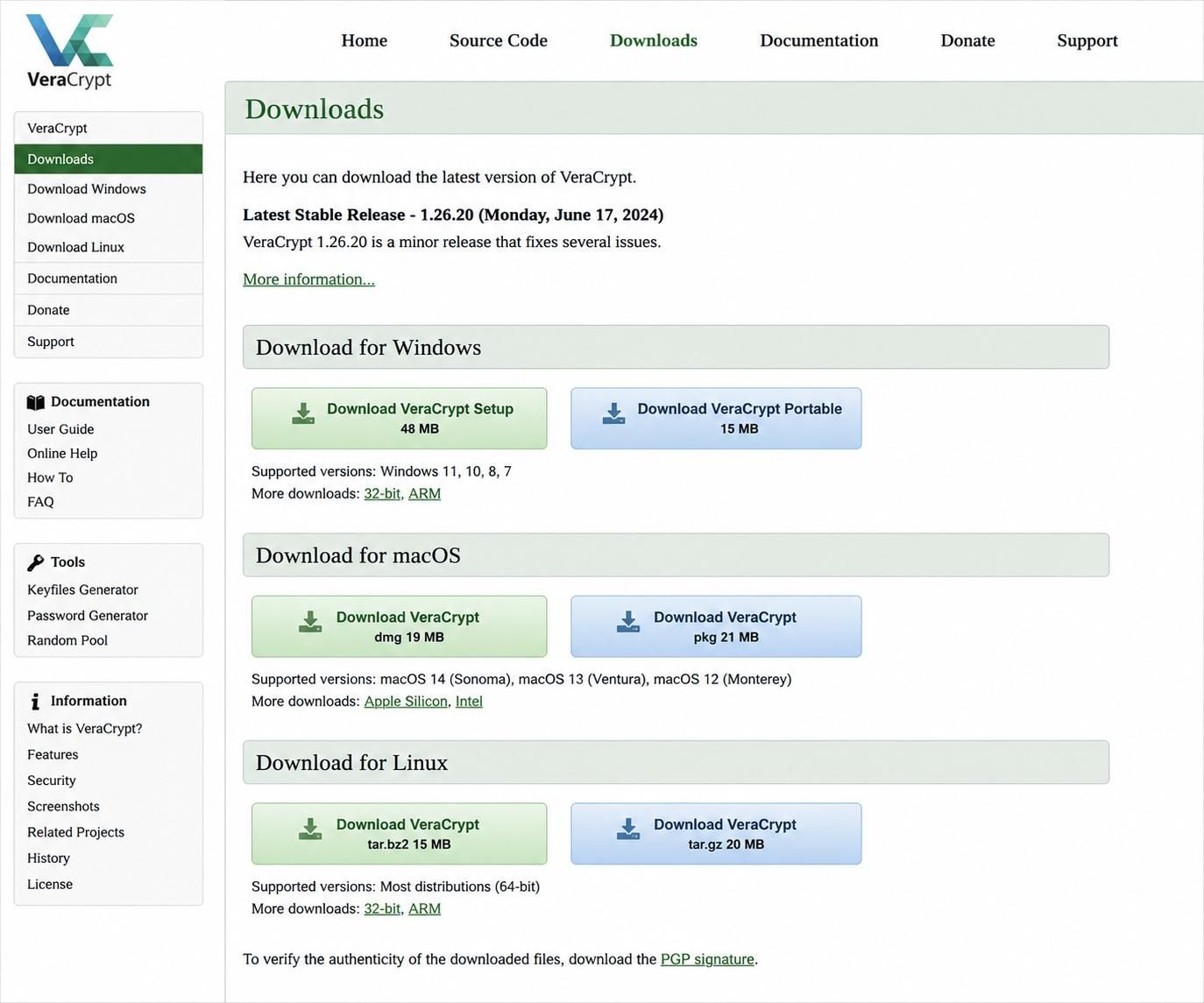
Head to the official VeraCrypt website then download the installer for your operating system. Do not grab it from a software aggregator or a random mirror. Encryption tools are a prime target for trojanized copies, so the source matters more than convenience.
On Windows, run the installer plus accept the defaults. On macOS, you will also need to install MacFUSE first, since VeraCrypt depends on it. On Linux, your distro likely has a package, but the official .deb or .rpm from the project is the safer bet.
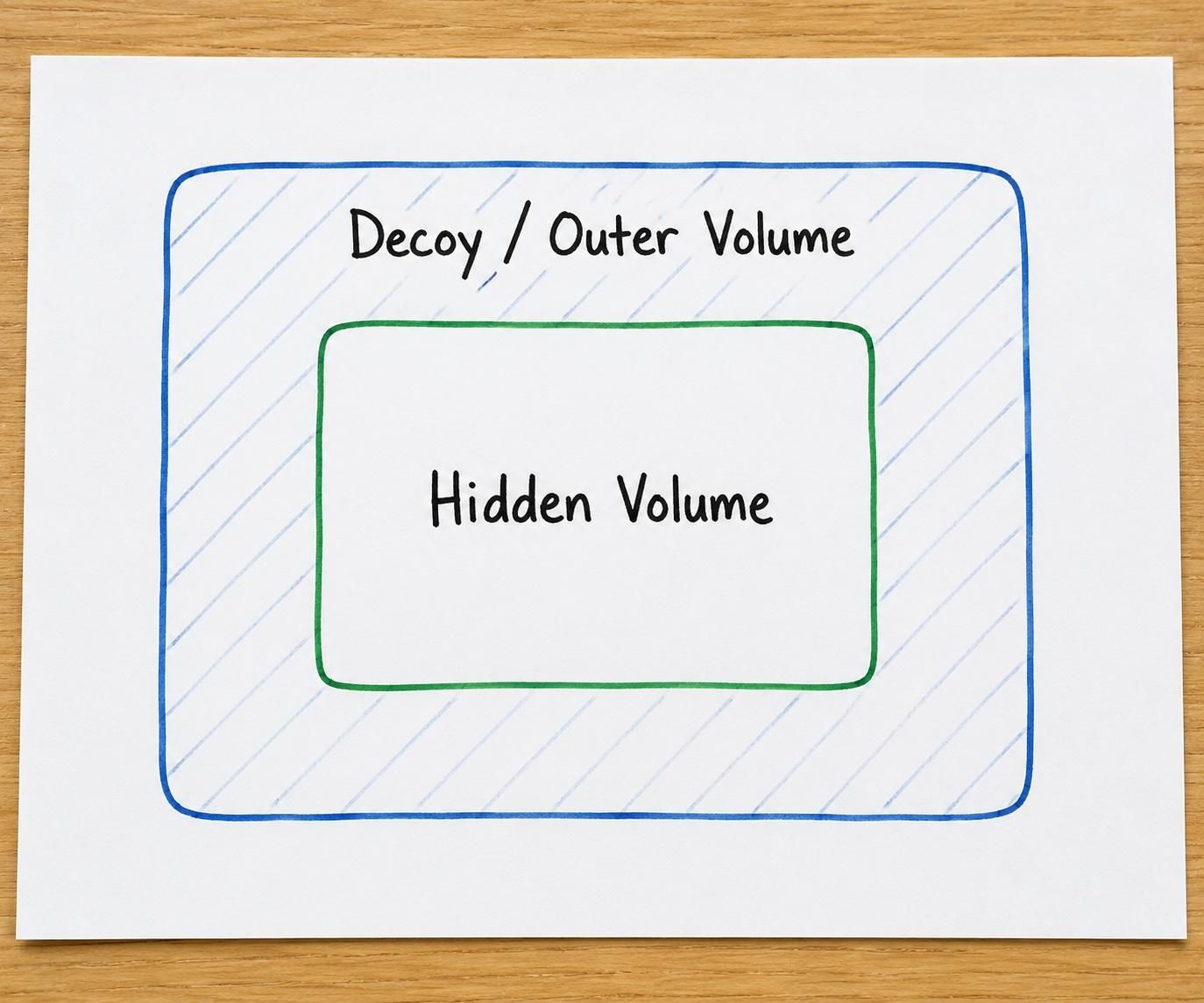
Before you launch VeraCrypt, it helps to understand what a hidden volume actually is. A standard encrypted volume looks like a block of random data on the drive. A hidden volume is a second encrypted region tucked inside that random data, using a different password. Without the hidden password, there is no way to tell the hidden volume exists, because empty space in an encrypted volume already looks like random bytes.
That is the whole trick. The decoy outer volume gives you something plausible to reveal if pressured. The hidden volume stays invisible unless you choose to mount it. Keep that two-layer model in your head, because the next few steps make a lot more sense once it clicks.
Create the Decoy Volume
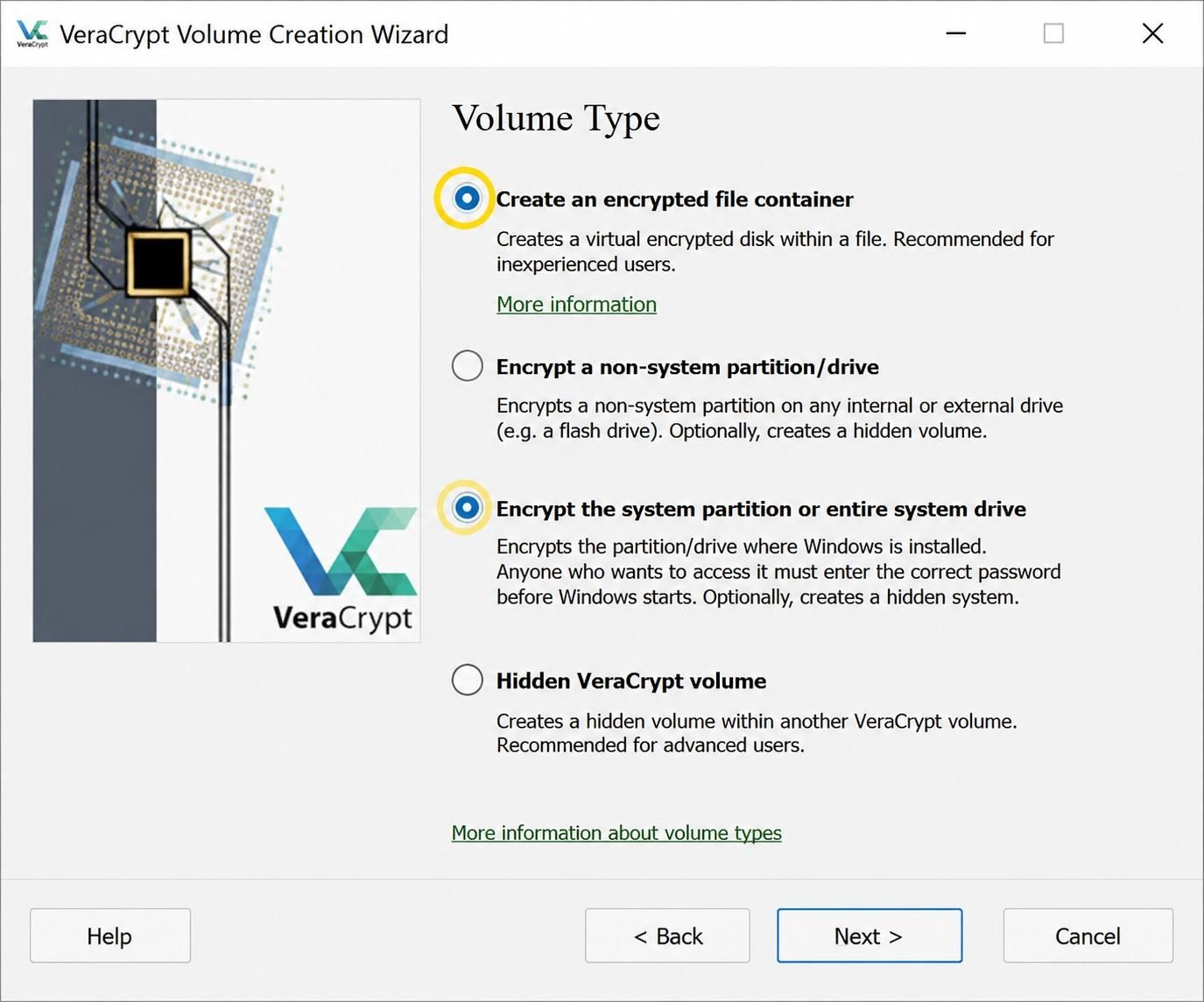

Open VeraCrypt. Click Create Volume to launch the wizard. Choose Encrypt a non-system partition or drive, then click Next.
For type, pick Hidden VeraCrypt volume. This is the option that creates both layers in one go. Choose Normal mode on the next screen.
Select Device, then pick your USB drive carefully. Triple-check the device path. If you select your internal disk by mistake you can erase your computer. Click Yes to confirm formatting when prompted.
Now we are configuring the outer decoy. Pick the encryption algorithm. AES is the safe default. The hash can stay at SHA-512. Click Next.
Outer volume size: this is the size visible from the outside. For a 32 GB stick I usually let it use the full drive minus a small buffer, since the hidden volume lives inside it.
Outer volume password: pick a memorable but distinct password. Something like a long phrase from a movie line works. This is the password you might reveal under pressure, so it should be plausible-looking, not your real one.
Format with FAT or exFAT, then click Format. VeraCrypt will write random data across the whole drive. This takes a while on USB, anywhere from 10 minutes to over an hour depending on speed plus size. Let it run.
Create the Hidden Volume Inside the Decoy
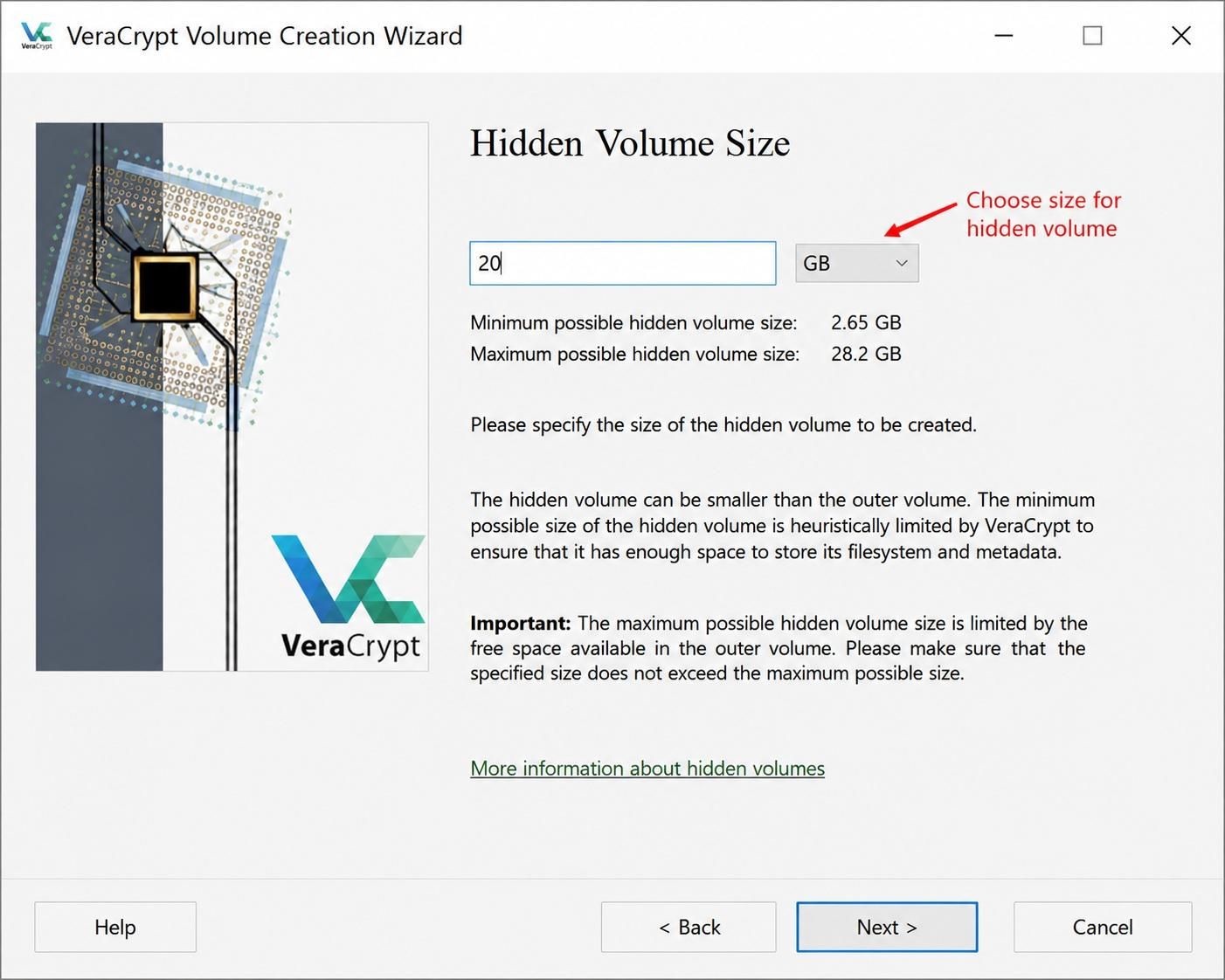

With the outer volume formatted, the wizard now asks about the hidden volume. This is the inner layer that holds your real backup.
Pick the encryption algorithm again. Match what you chose for the outer volume so the two layers behave the same way. SHA-512 for the hash is fine.
Hidden volume size: leave room. If the outer volume is 30 GB, a 10 to 15 GB hidden volume is a sensible target. The reason is that any file you ever write to the decoy can silently overwrite hidden data unless you mount the outer volume with hidden-volume protection enabled. Smaller hidden volume plus a not-too-full decoy keeps that risk low.
Hidden volume password: this is the real password, the one you never share, never type into a phone, never store in a password manager that someone else can compel access to. Make it long. A six-word passphrase from a dice list is far stronger than any clever-looking 10-character string.
File system: FAT works for hidden volumes under about 4 GB per file, exFAT for larger. Click Format. VeraCrypt finalizes the hidden region. When it finishes, you have a single physical USB drive with two encrypted layers stacked inside it.
Stock the Decoy With Plausible Cover Files

Now we make the decoy look lived-in. Mount only the outer volume using its decoy password, then copy in a small set of plausible but unimportant files. The goal is for someone who unlocks the outer layer to find something believable plus stop digging.
Good cover files share three traits. They are personal-looking, so a folder of generic stock photos is a giveaway. They are dated across several months or years, since a drive full of files all modified yesterday looks staged. They are boring, since the more interesting they look, the more someone will keep poking.
Examples that work well: old vacation photos you do not mind sharing, a few resumes or cover letters from past jobs, scanned receipts, a draft of a novel you never finished, music you legally own, tax returns from many years ago. Anything that explains why the drive exists without being valuable.
Fill the decoy to somewhere between 20 and 60 percent of its capacity. Empty drives look suspicious. Full drives raise the risk of overwriting the hidden volume. Once the files are copied, dismount the outer volume in VeraCrypt. The drive should now look completely ordinary in File Explorer, just a USB stick with some old personal files on it.
Load Your Real Backup Into the Hidden Volume

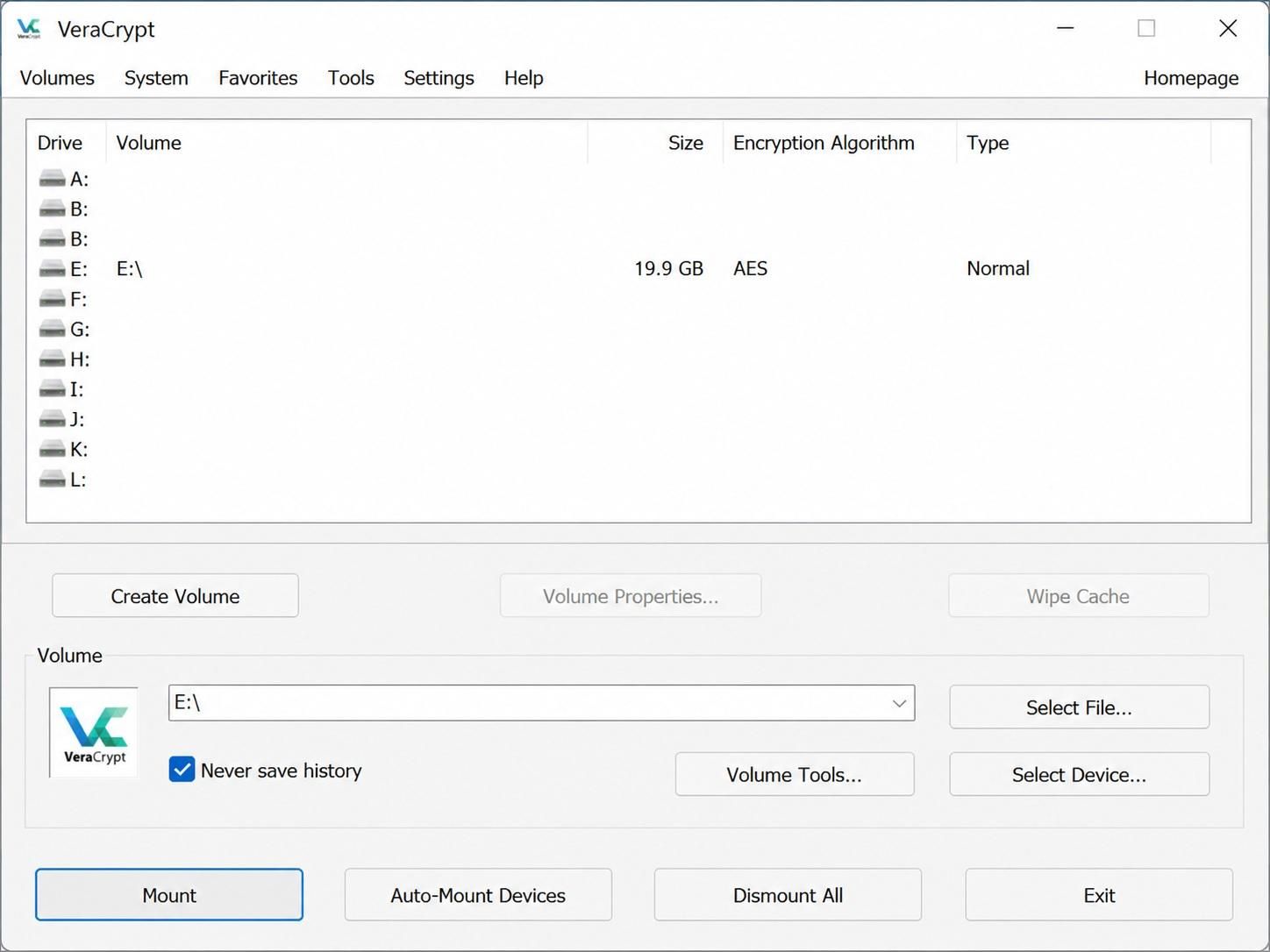
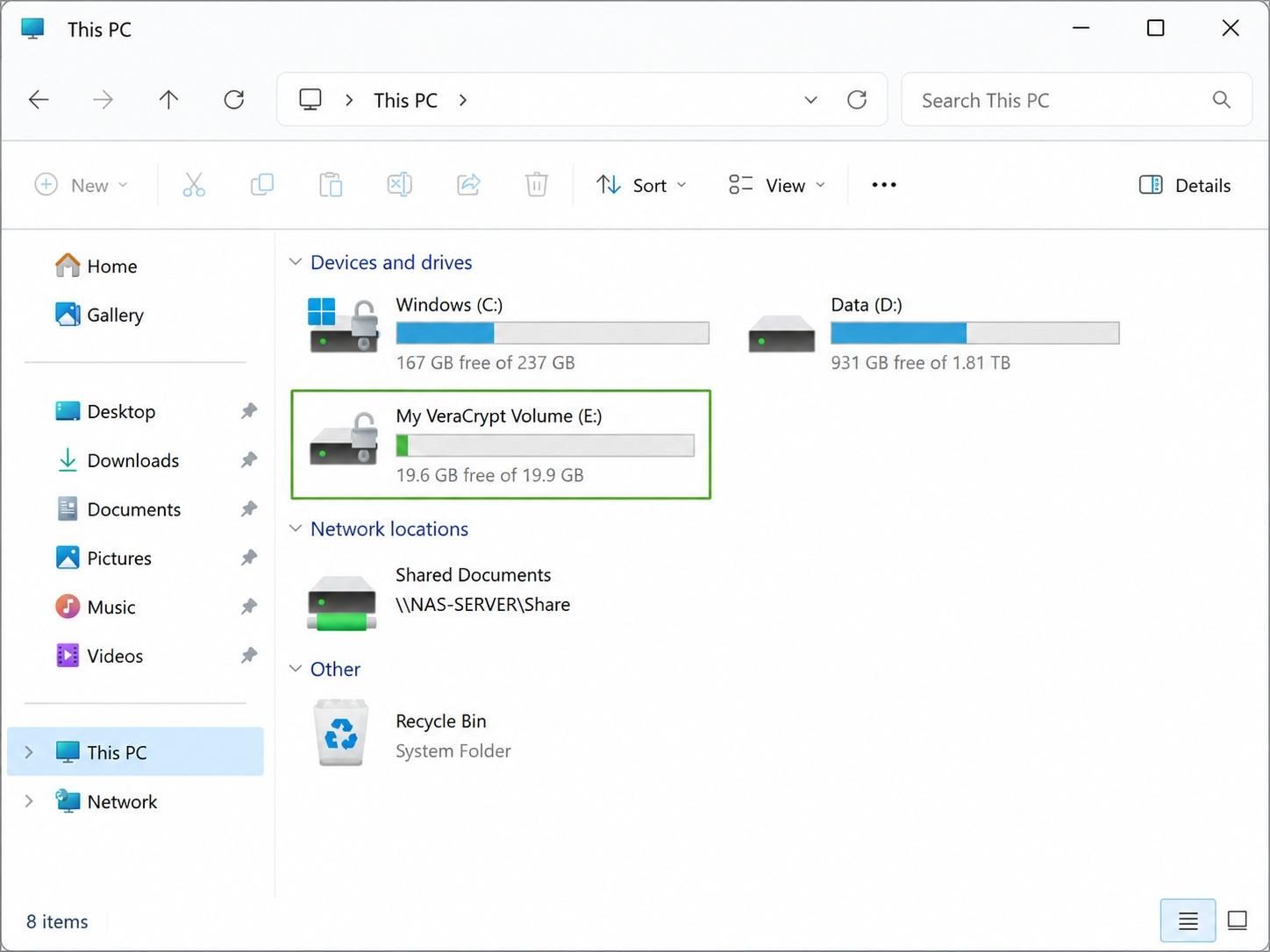
Now the real backup. Open VeraCrypt, click Select Device, then pick your USB drive. Click Mount. In the password prompt, type your hidden volume password, not the decoy one. VeraCrypt figures out which layer the password belongs to and mounts the matching volume.
The drive will appear under a new letter, for example E:. File Explorer will show it as empty. That is correct, since this is a fresh hidden volume.
Copy your real backup into the hidden volume. Good candidates: a copy of your photos folder, important tax documents, password manager export, recovery codes for two-factor accounts, scans of passports plus IDs, a wallet seed phrase backup, and any project files you cannot afford to lose. Keep the structure tidy with named folders, since you will be glad later when you are restoring under stress.
Do not fill the hidden volume to the brim. Leave at least 10 percent headroom. Encrypted file systems handle near-full conditions poorly, plus you may want to add files in the future.
When the copy finishes, dismount the volume in VeraCrypt. The drive vanishes from the file system. From the outside, nothing has changed since Step 6.
Test, Verify, and Build Your Recovery Plan


A backup you have never tested is a wish, not a backup. Walk through the full unlock plus restore once now, while everything is fresh in your head.
Dismount the drive in VeraCrypt then unplug it. Wait a minute. Plug it back in. Open VeraCrypt, select the device, then mount with the decoy password. Confirm the decoy files are intact and the drive looks ordinary. Dismount.
Now mount again with the hidden volume password. Confirm your real files open correctly. Try opening a photo, a document, plus a text file to make sure nothing is corrupted. Dismount.
Write both passwords down on paper. Yes, paper. A paper card stored somewhere physical, like a safe or with a trusted family member, survives a wiped laptop, a dead phone, or a forgotten password manager. Label the card so you remember which password is which only to you. Something like Color Blue for the decoy, Color Red for the hidden, makes sense to you but not to a stranger.
Finally, build a recovery plan in one short note. Where the drive lives, where the passwords live, plus what to do if either is lost. Future you will be grateful. That is the whole project. A five dollar drive, a free tool, plus thirty minutes of careful setup gives you a quiet little life raft for the files that matter most.