Build a High Precision Silicon Wafer Scriber Under 100 USD
by Remi_Rafael in Workshop > Science
310 Views, 1 Favorites, 0 Comments
Build a High Precision Silicon Wafer Scriber Under 100 USD
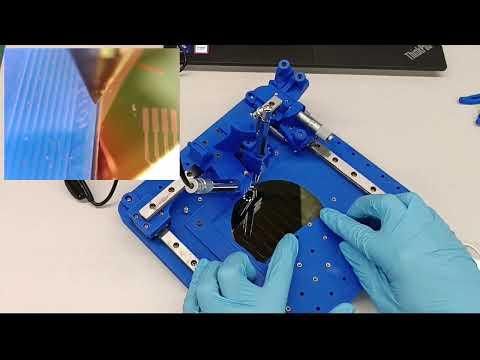
In microelectronics, multiple devices are typically manufactured together on silicon wafers before the wafers are diced to separate individual components. Dicing is usually performed using diamond saw blades. However, it is also possible to take advantage of silicon’s crystalline structure: by marking the wafer along its cleaving directions, it can be broken cleanly with minimal effort.
This technique is commonly used in research settings, where speed and flexibility are important, or when working with water-sensitive samples.
While diamond scribers are inexpensive consumables and researchers routinely cleave wafers by hand, machines designed to assist with alignment and improve scribing precision are relatively rare and often cost upwards of $10,000 USD (search for “cleaving tools” or “manual scribers” online).
Faced with this constatation, I decided to design a low-cost, high-precision, open-source alternative. My design relies primarily on 3D-printed parts combined with easily sourced mechanical components. All files are freely available online (links below), and this Instructable will guide you step by step through building your own device.
Supplies
This project relies heavily on 3D printed parts. All the STL files for impression are available on any of the following websites: Makerworld, Printable and Thingiverse.
Besides the printed parts, here is a list of the hardware required to build my scriber. The links are not an incitation to buy from those sites but provided as examples to guide you in your choices. I sourced my own components from Taobao as it is the most practical given my current location but it can be challenging for non Chinese speakers.
- Small digital pen microscope (AliExpress, Amazon, Taobao)
- Linear rail: 3x 20cm long MGN12 rails with 3x MGN12C (short) blocks and 1x MGN12H (long) block (AliExpress, Amazon, Taobao)
- Linear rail: 1x 7.5cm MGN7 rail with 1x MGN7H (long) block (AliExpress, Amazon, Taobao)
- Micrometer head 1x 0-13mm and 1x 0-6.5mm (AliExpress, Amazon(13) Amazon(6.5), Taobao)
- M3 melt insert 4.2 mm Outer diameter, 4 or 5 mm long (Aliexpress, Amazon, Taobao)
- Small ball bearings 5mm OD, 2mm ID, 2.5mm thick (AliExpress, Amazon, Taobao)
- Tension springs (3x 30mm unloaded, approximately 150-250 N/m)
- 12mm round magnets (2-3 mm thick)
- Various M3 screws and nuts 5 to 20mm (approximately 10x 5mm, 25x 12mm, 3x 14mm, 2x 15mm, 2x 20mm, 1x 25 to 30mm)
- Various M2 screws and nuts 10 to 20mm (approximately 2x 20mm, 7x 10mm)
If you find this project useful and end up building it for yourself, an easy thing you can do to help the community is to post in comment your bill of materials with the links to your own sources, and comments if you met any specific issues. I purchased everything on Taobao but it is not universally accessible and i have no direct experience with the other links i provided.
Prepare the Base
.jpeg)

To start the build of your wafer scriber, print the "base plate" element. The baseplate is basically a 23.5 cm square and requires an adequately large printer. Due to the absence of any complex geometry, it can be printed with relatively thick layers (0.25 mm or so). For good stability, relatively dense print profiles (4-5 walls, 25-35% infill) are preferable. Any warping of this part will be a major issue down the line and should be prevented. The smoothness of the top layer is very important, so ironing the top layer is recommended.
Once printed, you can start by adding the melt inserts. The part is designed for M3 4mm long insert with 4.2mm outer diameter. The baseplate has more fixation holes than strictly necessary to accommodate any future accessories that I or other open source designers may develop. Generally speaking, the right and left central arrays are used to maintain the wafer in position with printed clamps during scribing. The topmost line is for add-on tools and doesn't need to be filled at this stage. Finally, the last two rows of holes are for fixing two MGN12 rails.
Each hole is designed to accommodate a melt insert on the first 5 mm, and continues with a reduced diameter. This means that long M3 screws (20mm) can cut their own threads on the depth of the hole and assure a good fixation even without melt insert, as long as you don't need to remove them often. For this reason I do not place melt insert in every slot under the rails and just add long screws after all the alignments are done.
Once your inserts are installed, you can use sandpaper to make sure the baseplate surface is totally smooth. If you decide to do so, I recommend fixing a large sheet of medium-grit sandpaper flat on a table with some water and grinding the whole baseplate upside down on the surface with moderate pressure. This helps remove any ripples formed during insert installation and ensures that your wafer has a perfectly flat surface to lie on during scribing.
Fix the First Two Rails


Once the baseplate is ready, you may start to add the MGN12 rails. First, add the top rail and use a square to make sure it is orthogonal to the baseplate edge. Once it is aligned, you can place screws in every slot and fasten it completely. This rail will serve as a reference for all the other axes.
Use your square again for the second rail and place a screw at each extremity, but do not fix it permanently for now.
You can then place two MGN12C carriages on the top rail and one on the bottom, then install four "Rail stops" at the ends of each rail to ensure they do not come off unexpectedly.
Install the X Axis I

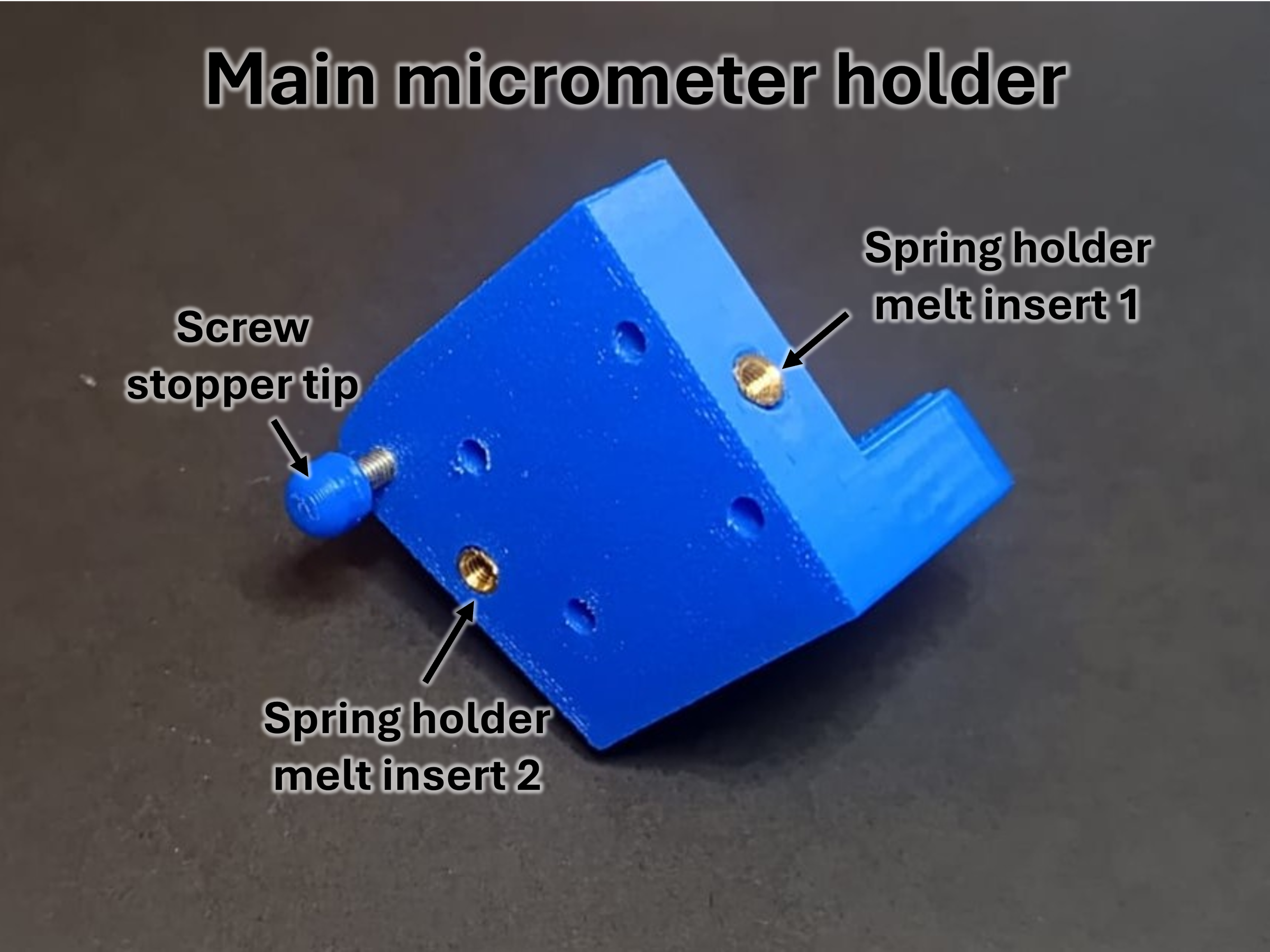


Next, you will need the parts "Main micrometer holder", "Rail support top", "Rail support bottom", "Screw stopper tip", and "Knob (1)" (one of each).
First, add three melt inserts to the "Main micrometer holder" and three to the "Rail support top". Then place a 25 to 30 mm M3 screw into the knob (you can use a drop of super glue), place it into the appropriate hole, and add the "Screw stopper tip" at the extremity. This screw will be used to lock the X axis in position by friction against the baseplate.
Add the nut of the 13 mm micrometer into the "Main micrometer holder" using a vice or pliers to force it into the cavity, and add six M3 nuts into the rail support parts. Push the nuts all the way inside the cavities to ensure the screws will catch the threads.
Install the X Axis II


At this stage you can fix the "Main micrometer holder", "Rail support top" and "Rail support bottom" onto the MGN12C carriages.
First, use flat-head screws to hold the first spring. The spring should be a tension spring with a rest length of about 30 mm. A spring tension of 200 to 500 g per spring would be appropriate. Then use eight small (8 to 10 mm) M3 screws to fix the "Rail support top" and "Main micrometer holder" to the two carriages on the top rail and screw the 13 mm micrometer into the "Main micrometer holder".
Finally, fix the "Rail support bottom" on the carriage of the second rail with four additional M3 screws.
Install the Y Axis


At this stage you can install the Y rail with 12 mm M3 screws. First fix the carriage in position with the locking knob and place the topmost and the third screw into the "Rail support top". Use a square and a block to position the Y rail perpendicular to the top X rail and lock the screws in position.
Then place the lowermost screw to fix the Y rail on the "Rail support bottom", unscrew the locking knob and move the carriage left and right. If the assembly causes friction and cannot move freely along the whole axis, slightly loosen the bottom rail fixation screws and reposition the rail. Continue until the movement is smooth. When that's the case, add all the remaining fixation screws to the bottom X rail and to the Y rail. Every time you tighten a new screw, move the assembly to check that there is no friction.
Assemble the Z Axis I


For this step, you will need the parts "Z corner holder" and "Magnet break". First, insert five M2 nuts and three (optionally four) melt inserts into the "Z corner holder". Then insert and glue two 12 mm diameter magnets into the "Z corner holder" and "Magnet break" parts. Finally, assemble those two parts together with a 20 mm M3 screw. The magnetic break is used to generate friction against the Y rail and stabilize the stylus during alignment.
Assemble the Z Axis II

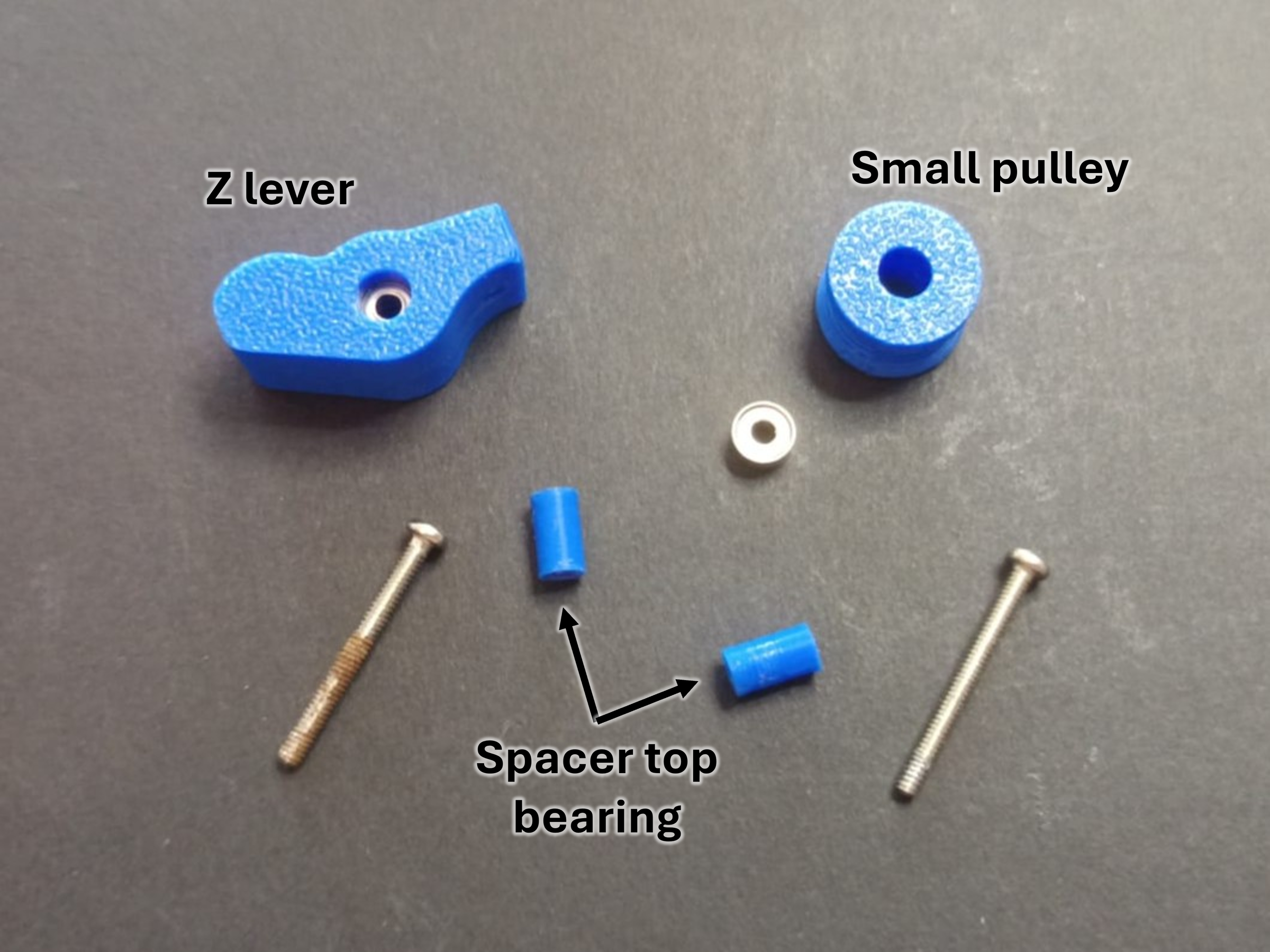
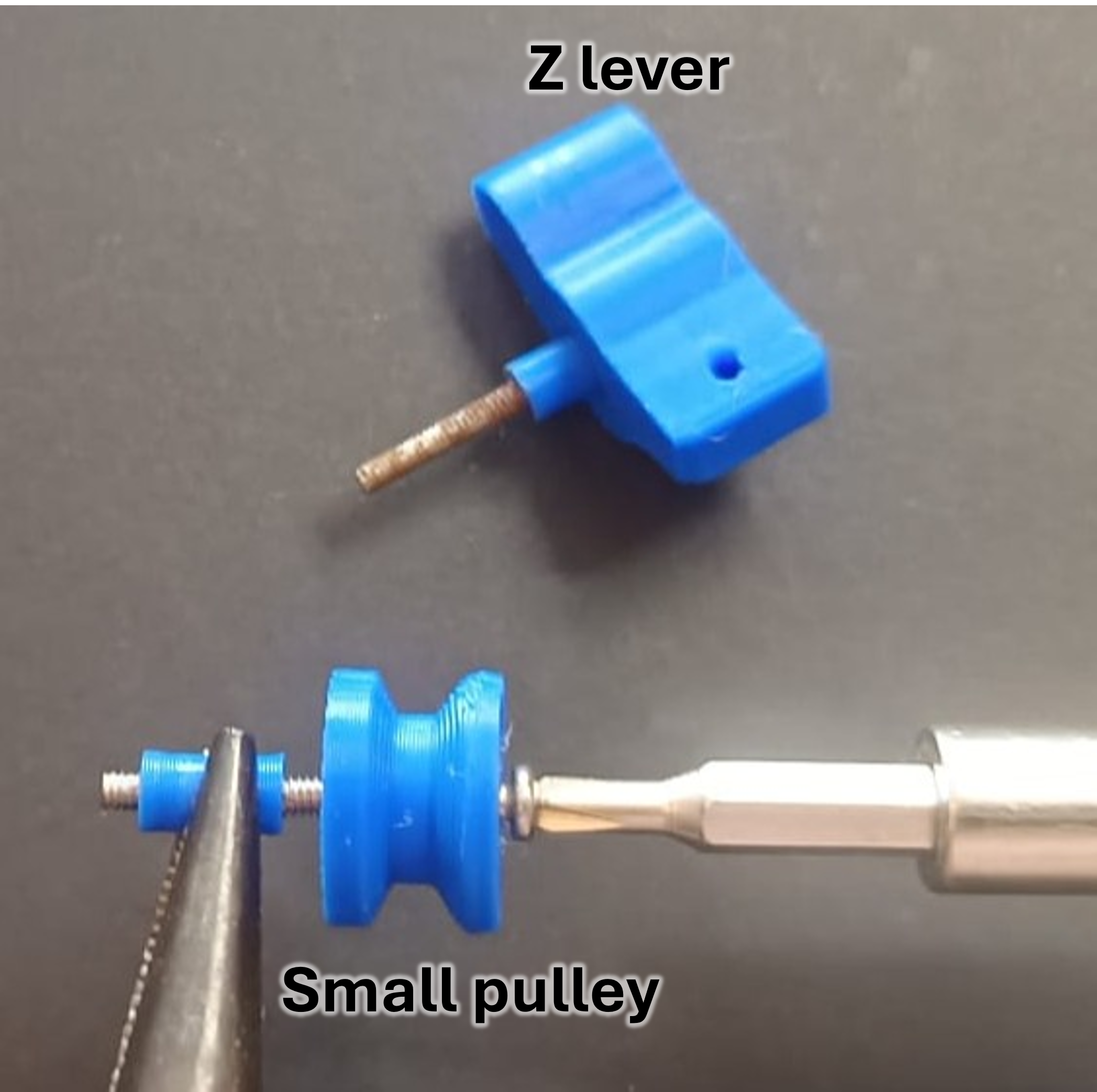


For this step, you will need the parts "Z lever", "small pulley" and two "Spacer top bearing".
First, use three 10 mm M2 screws to fix the MGN7 rail using the three center holes. Then insert the small bearings (5 mm OD, 2 mm ID, 2.5 mm thick) into the "Z lever" and "small pulley" center holes. Use two 20 mm M2 screws and two "Spacer top bearing" to screw the "Z lever" and the "small pulley" respectively into the topmost and lowermost slots of the Z rail.
Finally, add the 6.5 mm micrometer to the dedicated hole on the "Z corner holder".
Assemble the Z Axis III

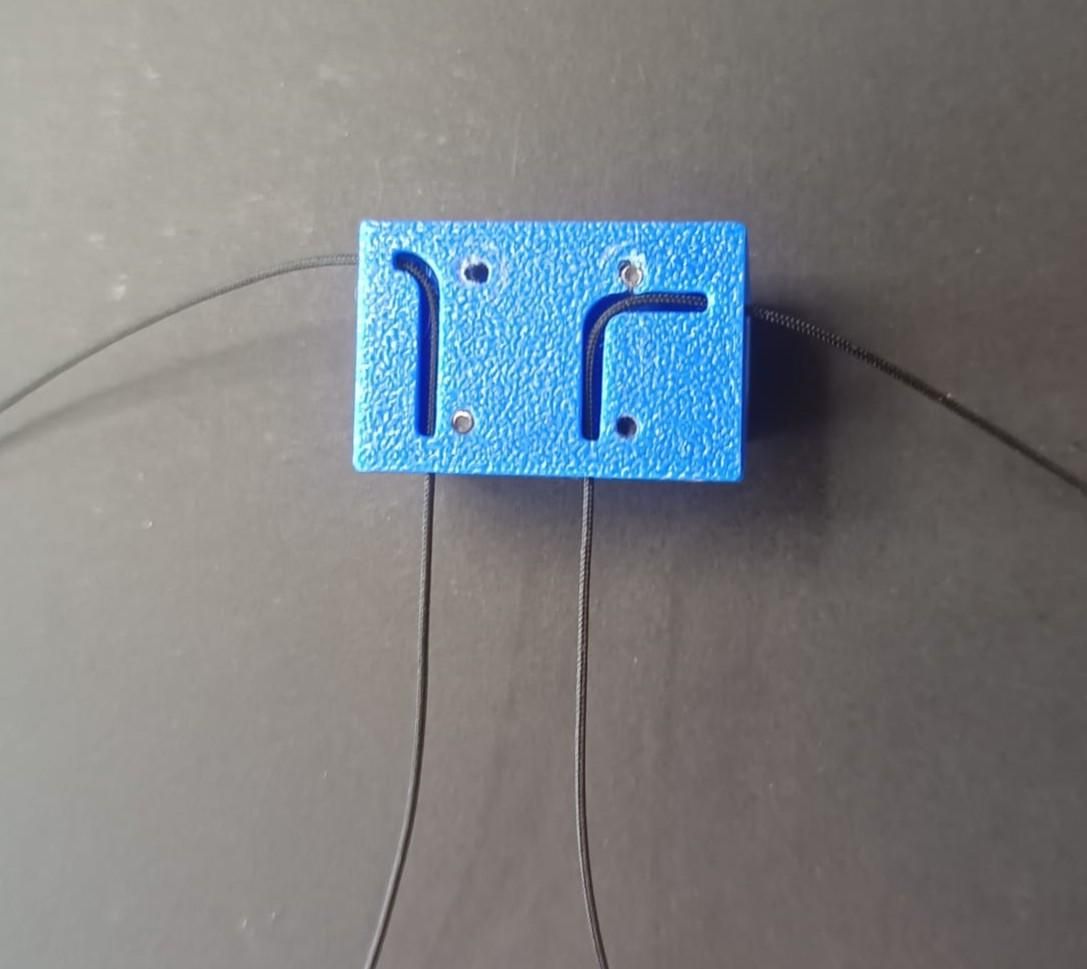

For this step, you will need the "Tip holder" part.
Firs, add four M3 melt inserts to the side of the "Tip holder". Then place a thin, strong cable into the slots on the back of the "Tip holder". Make sure you have sufficiently long strands (±10 cm) on each extremity and use four 10 mm M2 screws to fix the part to the Z carriage.
Assemble the Z Axis IV
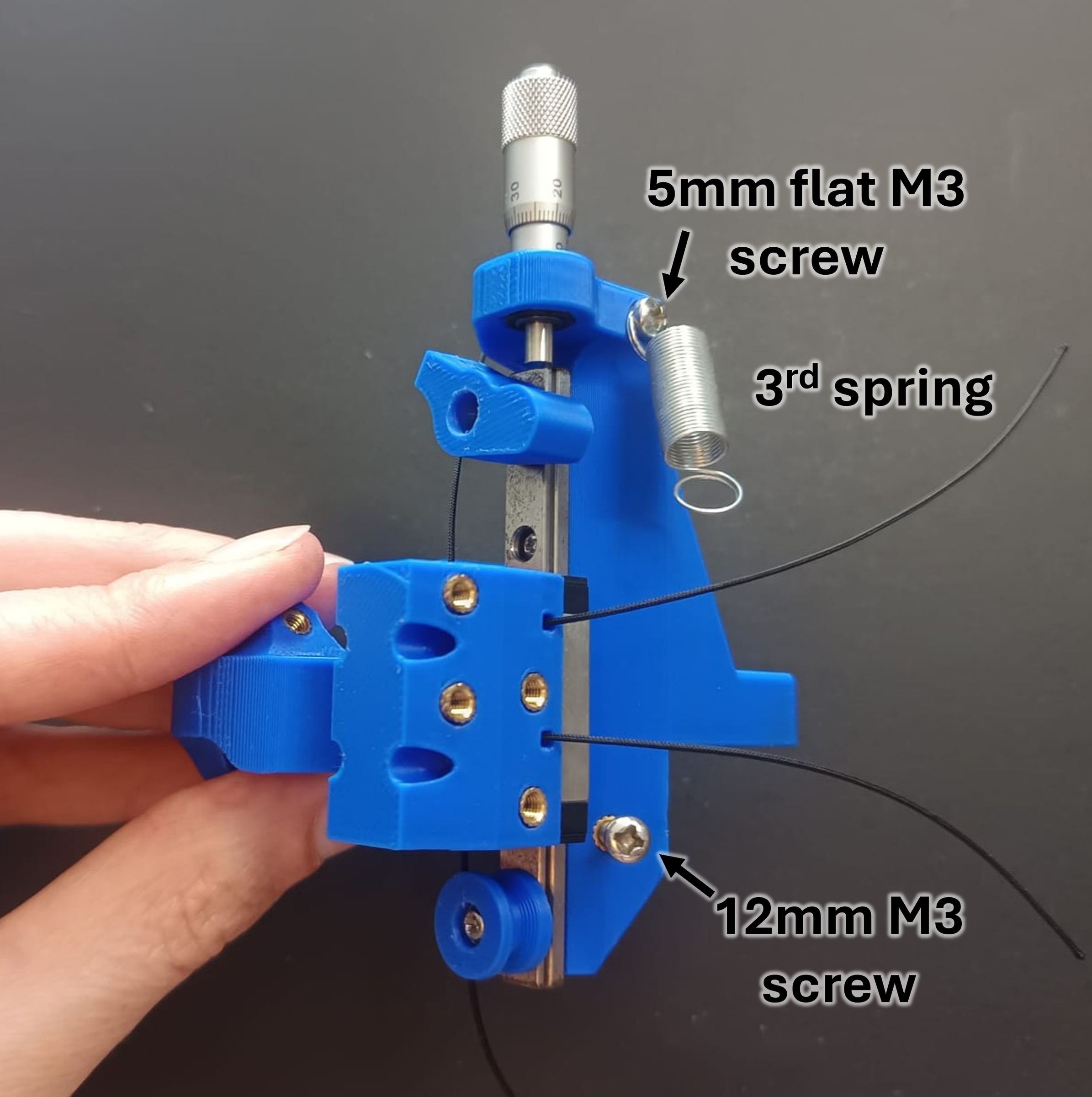


For this step, first use a short flat-head screw to fix the third tension spring to the "Tip holder" part. This spring will determine the tension of the diamond tip on the wafer. You may want to experiment with various spring constants. In my case, I used the same springs for all axes and measured them to be 168 N/m. Add a 12 mm screw to the lower insert.
Then attach the lowermost strand to the spring, pass the topmost strand through the hole in the "Z lever" and make a double knot to stop it. Finally, turn the micrometer all the way down and use two flat-head short M3 screws to fix the other side of the strands in position. Adjust it so that the carriage is just touching the Z lever and the spring is under tension. Do not cut the strands too short at this stage as you may want to adjust the spring tension later.
Assemble the Z Axis V


Add three 12 mm M3 screws to two "knob M3 thin" and one "knob M3 XL" and add them to the scriber holder and the camera holder slots respectively. Then you can use four 12 mm M3 screws to fix the whole Z axis assembly onto the Y axis carriage.
At that point, the bulk of the build is finished, and it is time for fine adjustments.
(optional) Add the Caliper Holder

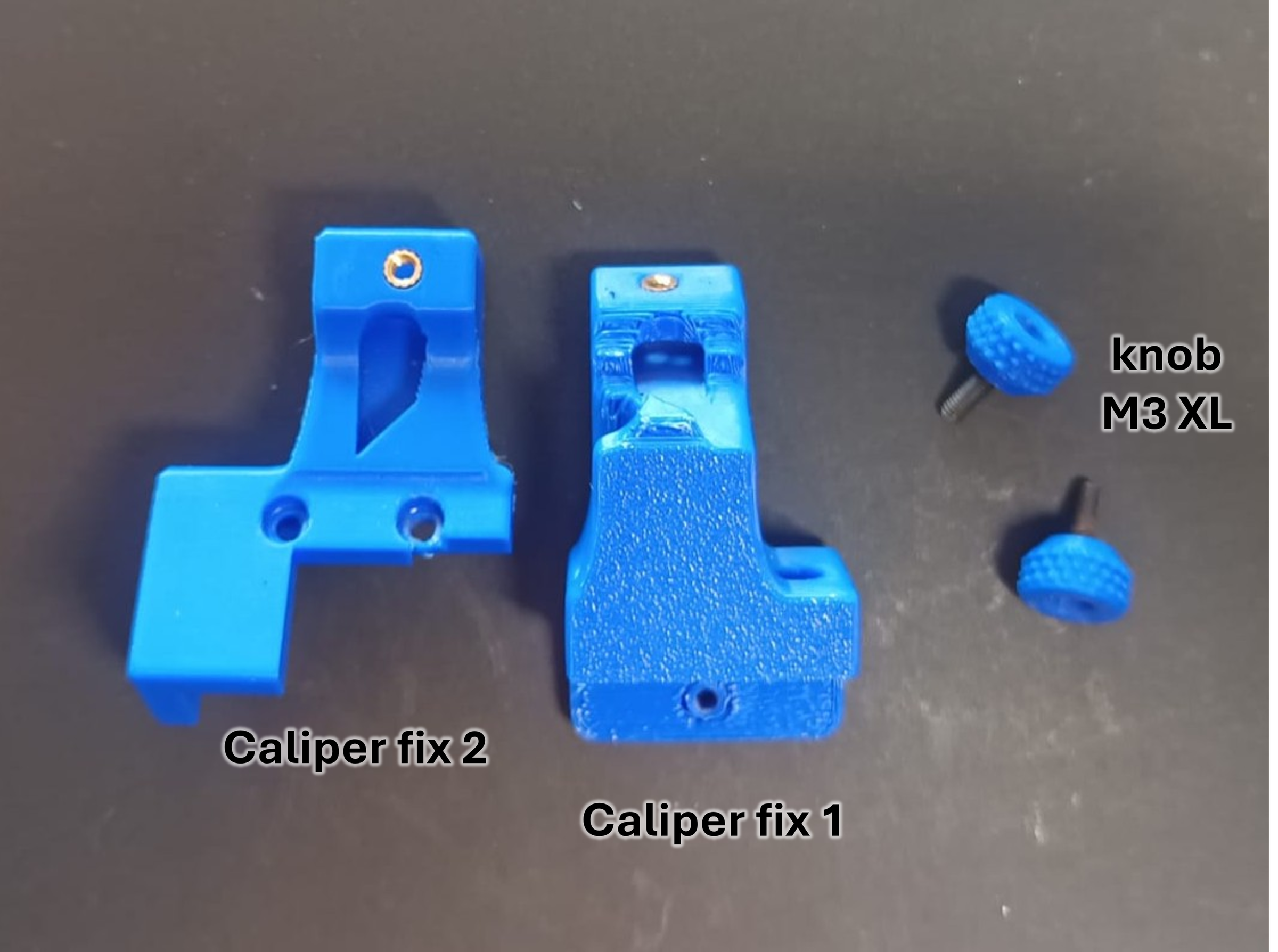
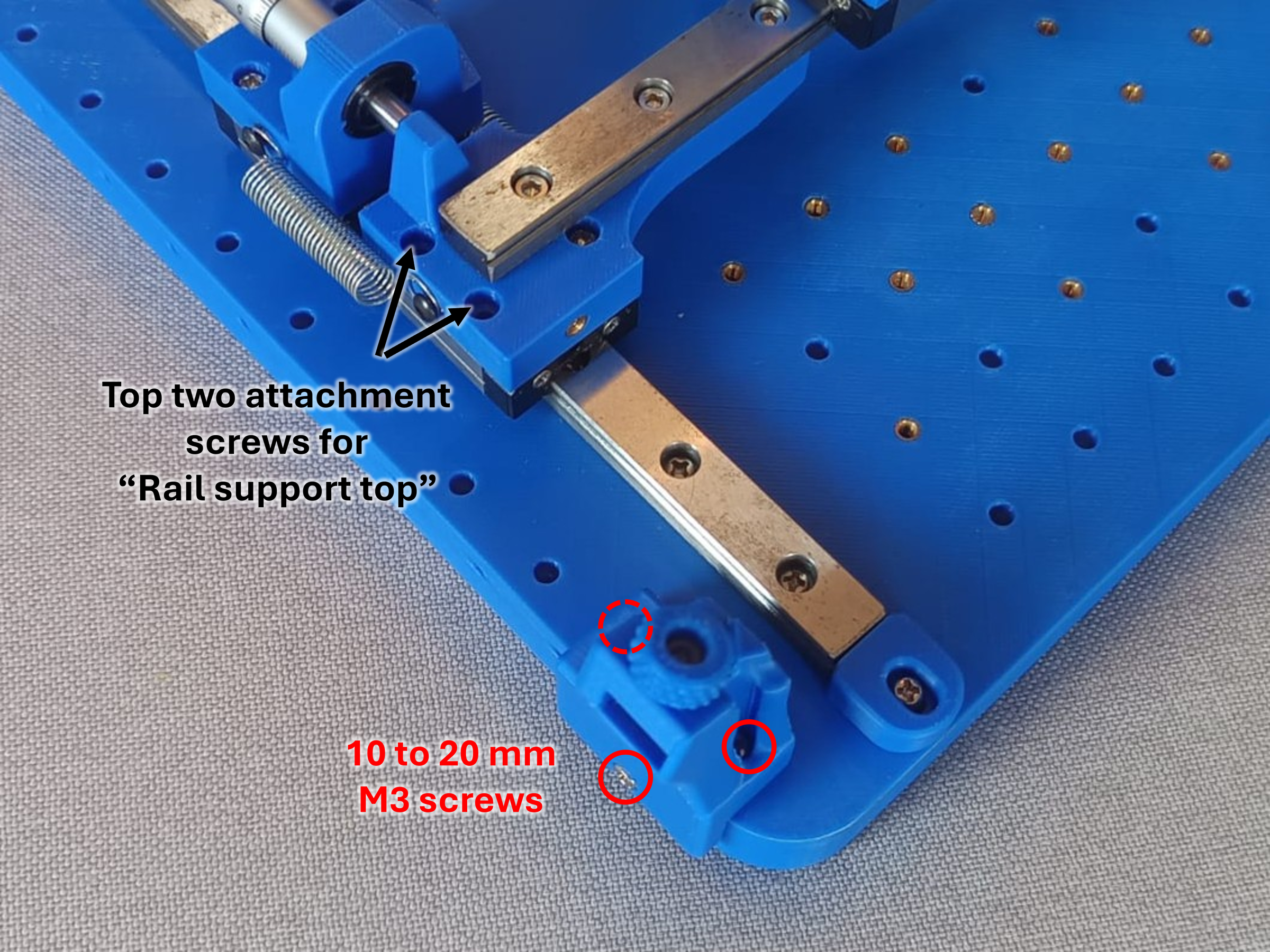

The possibility to fix a caliper to the scriber is particularly useful if you want to prepare wafer fragments with controlled dimensions without cutting marks.
To use it, you will need "Caliper fix 1", "Caliper fix 2" and two "knob M3 XL". First, add two heat-set inserts on the two leftmost top holes, one on the baseplate and on the leftmost hole on the "Rail support top" (if not already added), and one on each "caliper fix" part. Add 12 mm M3 screws to the two "knob M3 XL" and place them in the dedicated holes.
Fix the "Caliper fix 1" part with three 10–20 mm long M3 screws and remove the top two attachment screws of the "Rail support top". Then use two 15 mm screws to attach the "Caliper fix 2" to the top left Z carriage and add one more M3 screw to the heat-set insert in the "Rail support top".
This system should be compatible with most common caliper types.
Add the Alignment Square


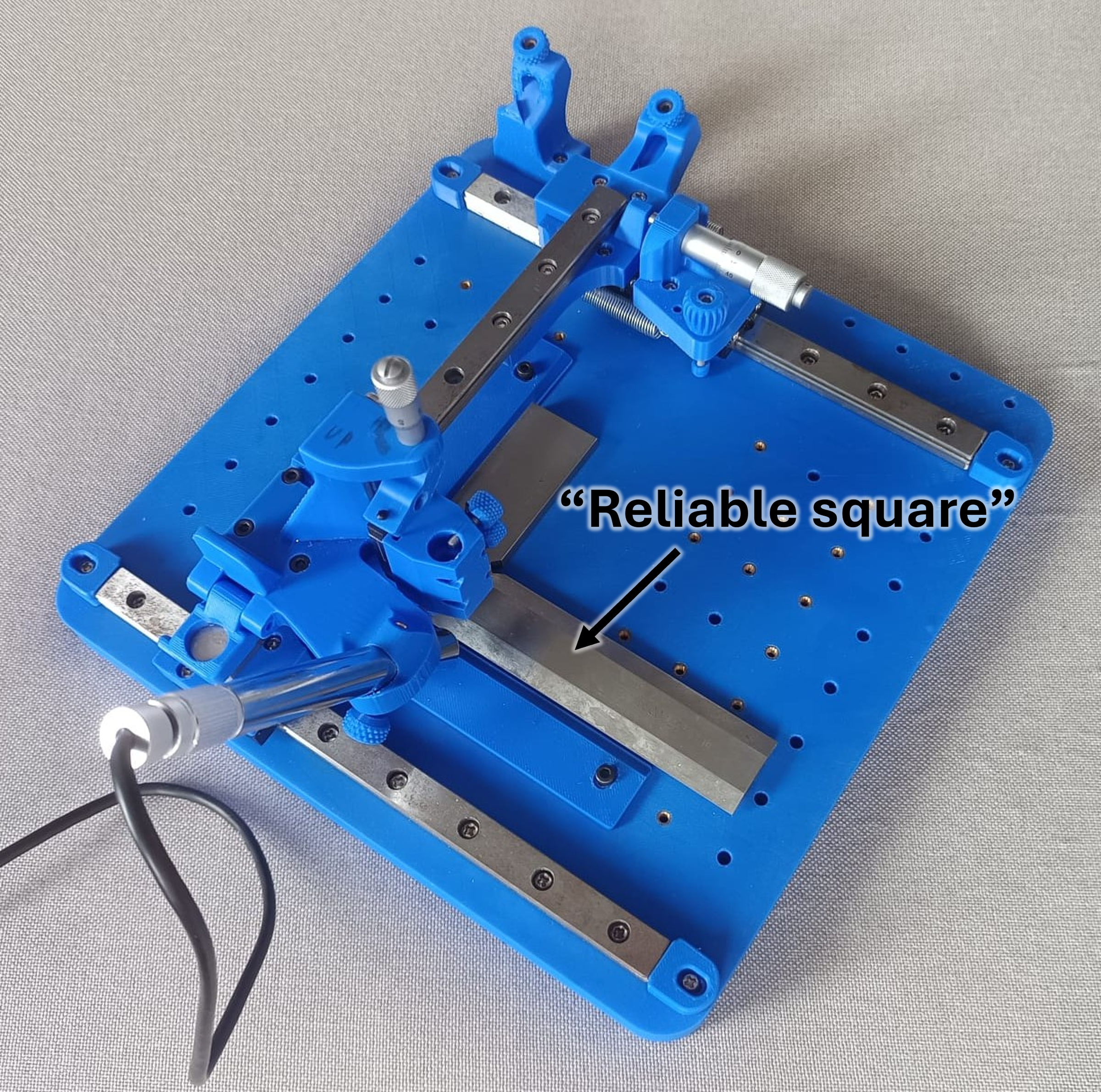
The most delicate step in scribing crystalline silicon is alignment with the crystalline axes. With only a few degrees of misalignment, the break may be guided by deep grooves, but past that point the silicon will break in unpredictable ways. To ensure clean cleaving, physical references are necessary. In this setup, the main reference is the "Square" part fixed on the baseplate.
That part simply attaches to the baseplate with three screws but you should carefully align it. First, add the three screws but leave them loose enough that you can pivot it around the central axis.
Then place a scriber tip and the observation microscope into the setup. Fix the X axis in position with the dedicated knob and use the positioning micrometer to place the tip of the stylus precisely at the border between the square and the baseplate, as seen through the microscope. Move the stylus up and down along the Y axis and adjust the square until it is perfectly aligned with the stylus tip along the whole length. At that point you can tighten the central and the top screw.
Because of the flexibility of printed plastic and the limited accuracy of 3D printing, you should use a reliable square to position the second branch of the square part. Place it inside the square, flush against the vertical side, and use the microscope to check the alignment with the horizontal side. Use that to tighten the rightmost screw and fix the square in the correct orientation. You can then use this reference to position your wafers.
Fasten Your Wafer With Printed Clamps
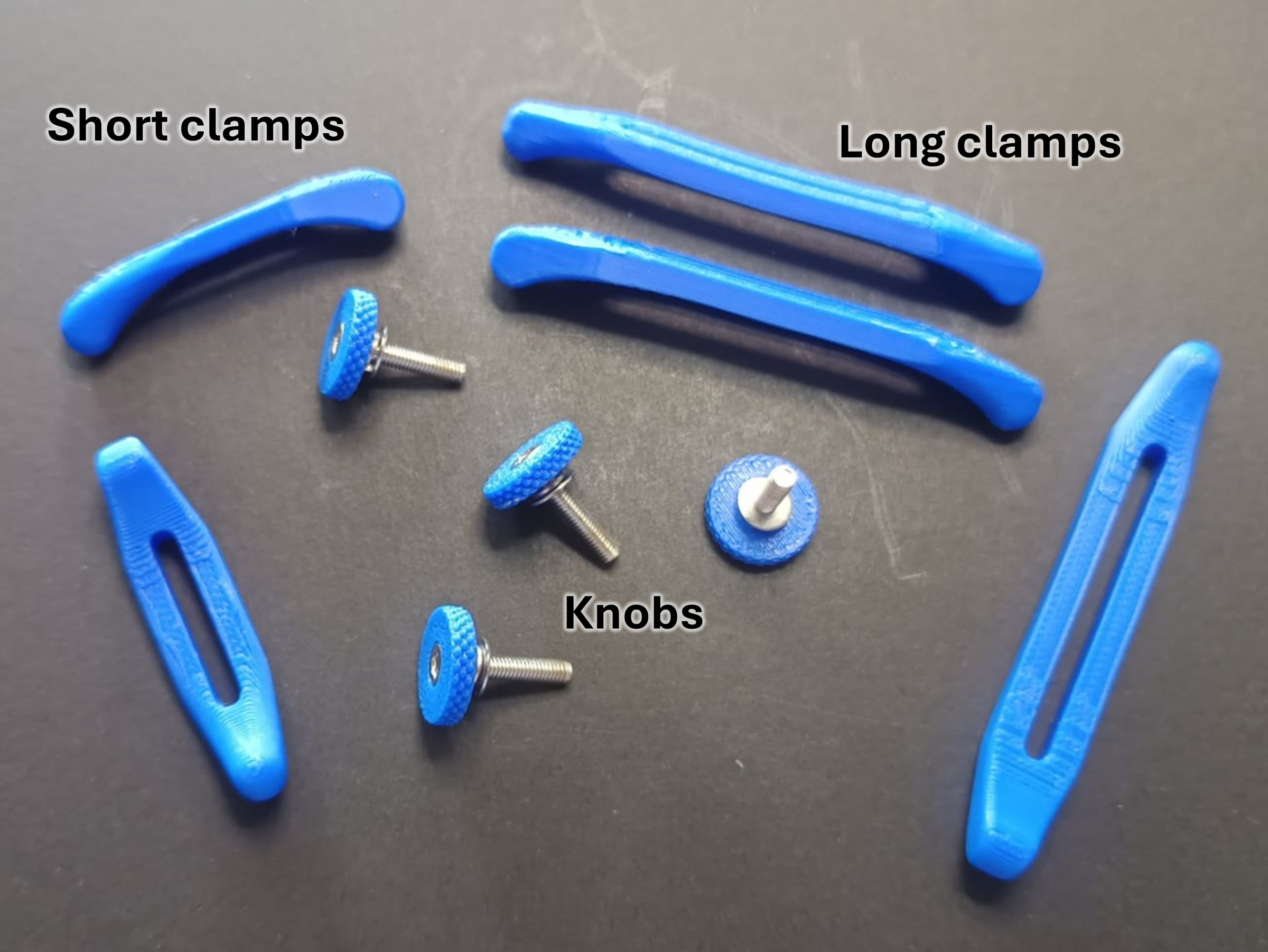

During scribing, the wafer must be well maintained. This design uses two types of clamps ("Clamp long" and "Clamp short") to hold it in position. The clamps are tightened with M3 screws, threaded into the baseplate. Always use at least three attachment points to make sure your wafer is well maintained.
I recommend using 14 mm screws with captive washers. To handle the clamps without the need for a screwdriver, you can use "Clamp knob". Those knobs adapt to the heads of standard internal hex M3 screws and are small enough to pass under the Y rail.
For other types of compatible clamps, you may also check here.
(Optional) Using a Cleaving Plier
 Using a cleaving plier 1.png)
 Using a cleaving plier 2.png)
Even with perfect scribing, breaking a wafer cleanly requires imposing a bending strain along the right axis and using the minimum force necessary. While not extraordinarily difficult, this step still requires some know-how, but tools exist to facilitate the process. Those tools, usually referred to as cleaving pliers, are designed to grab the silicon piece with special toothed jaws and bend it. The direction of the bend is along the axis of the plier, and the handles make it easy to apply enough pressure without over-straining the sample.
If you want to try it, I designed 3D-printable pliers with various sizes adapted for all samples from 5-inch wafers to small fragments. The STL files are available on Markerworld, Printable and Thingiverse