I Built a Portable Raspberry Pi Computer That Can Do Almost Everything
by Pro Maker_101 in Circuits > Raspberry Pi
2336 Views, 23 Favorites, 0 Comments
I Built a Portable Raspberry Pi Computer That Can Do Almost Everything

In this project, I built a portable Raspberry Pi mini computer using Raspberry Pi 4 Model B with a 7-inch HDMI touch display, built-in audio, and a rechargeable battery power system. The main goal was to create a compact, all-in-one device that can be used anywhere without needing a constant power supply.
The system is powered by a LiFePO4 battery pack with a stable 5V regulation circuit, ensuring reliable performance for the Raspberry Pi and display. It also includes a voltmeter for monitoring battery status, a cooling fan for heat management, and a custom-designed PCB for clean and organized connections.
This portable setup works just like a normal computer—you can browse the internet, watch YouTube, use ChatGPT, run programs through the terminal, and even connect sensors or external modules for development and learning purposes.
Overall, this project is useful for makers, students, and anyone interested in building a portable computing system with Raspberry Pi.
Supplies
- Raspberry Pi 4 Model B
- 7-inch HDMI capacitive touch display
- HDMI cable
- USB cable for touch interface
- 2 × 3.2V IFR32700 / LiFePO4 batteries (2S configuration)
- 2S LiFePO4 BMS protection board
- 5V DC-DC buck converter (5A–8A)
- 0.28-inch digital voltmeter module
- 470µF / 35V electrolytic capacitor
- IN5822 Schottky diode
- Charging socket (DC jack)
- Micro USB to USB cable (charging input option)
- Slide switch / key-type ON-OFF switch
- 1kΩ resistor
- LED indicator
- 3W speaker
- Audio amplifier module (PAM8403 )
- Acrylic sheet or wood sheet (for enclosure)
- Screws, nuts, spacers (mounting hardware)
- Jumper wires
- Heat sinks for Raspberry Pi
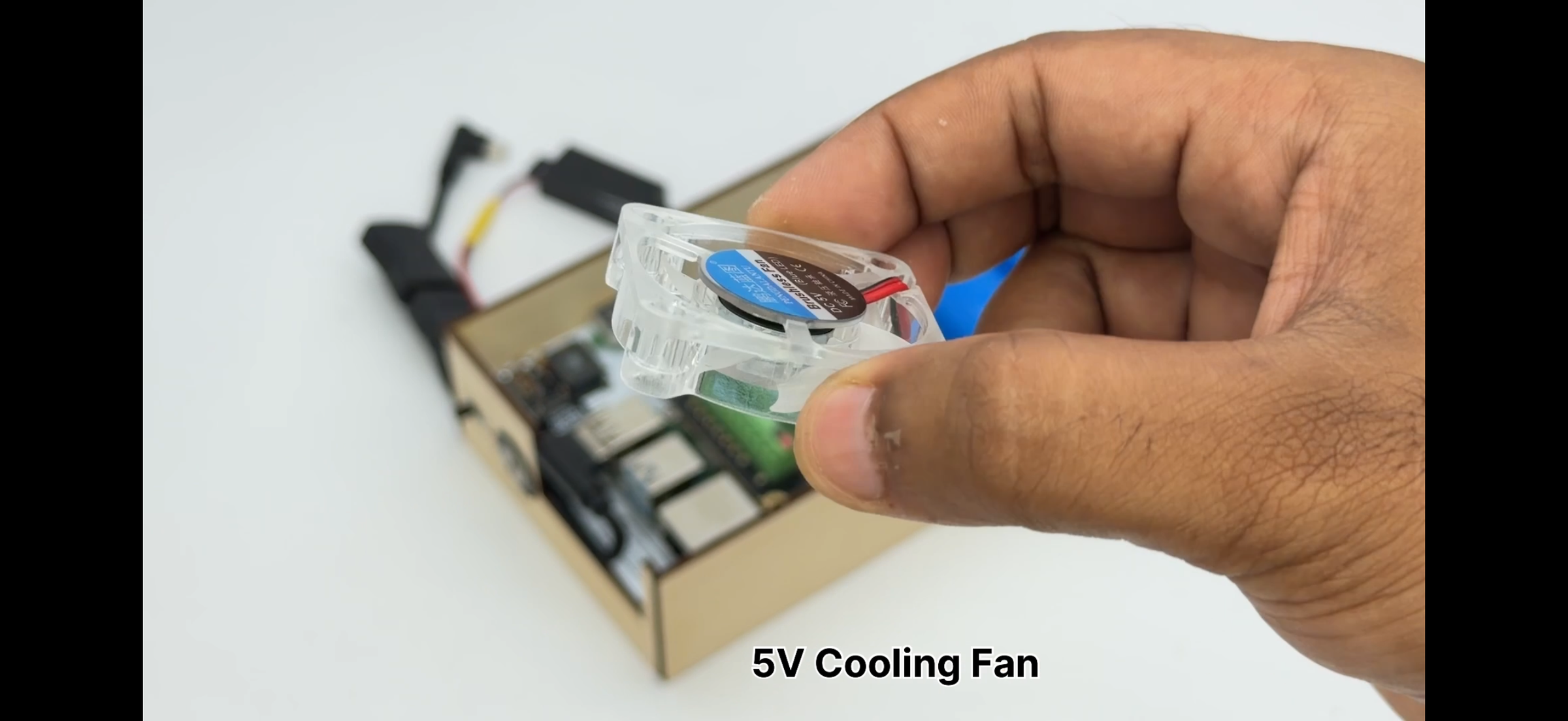
- 5V cooling fan
PCB Design & Ordering From JLCPCB


First, I designed the PCB using EasyEDA software. I created the schematic and completed the PCB layout carefully, especially for power lines and proper component placement.
After finishing the design, I generated the Gerber files, which are required for PCB manufacturing.
Then I uploaded the Gerber files to JLCPCB and selected the required specifications such as PCB thickness, color, and quantity before placing the order.
One of the best things about JLCPCB is that they provide a complete one-stop solution. Along with PCB manufacturing, they also offer SMT assembly (PCBA service), where they can assemble components directly on the PCB. This includes component sourcing, soldering, and full board assembly, which is very useful for prototypes and small-scale production.
👉 You can check their service here:
https://jlcpcb.com/pcb-assembly?from=GJYSD
They offer fast turnaround time, high-quality PCB fabrication, SMT assembly service, component sourcing, and affordable pricing.
- After placing the order, I waited for delivery.
Component Placement & Soldering


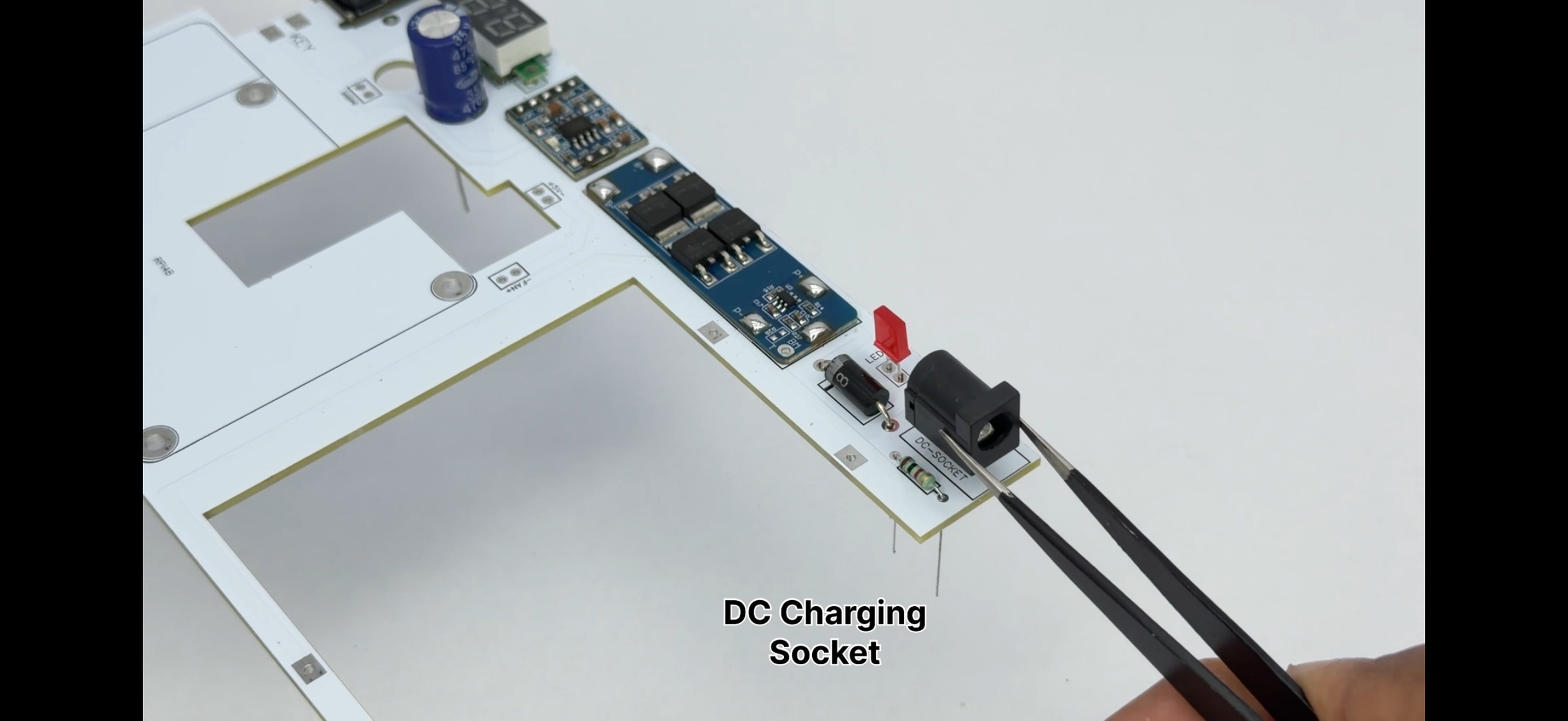


- Placed all components in their correct PCB positions
- Verified component orientation and polarity carefully
- Fixed all components on PCB before soldering
- Soldered each component one by one properly
- Checked all solder joints for strength and cleanliness
- Cut extra component leads after soldering
- Cleaned PCB using IPA (Isopropyl Alcohol) to remove flux
Battery Pack Assembly


- Used 2 × IFR32700 3.2V LiFePO4 batteries
- Spot welded both batteries in series connection (2S pack)
- Formed a 6.4V nominal battery pack
- Fixed the battery pack securely inside the enclosure space
- Connected battery terminals to PCB battery input section
- Soldered B+ and B- points carefully on PCB
- Connected B1 (middle point) for 2S BMS balancing line
- Checked all connections for correct polarity and tight joints
Raspberry Pi & Connector Integration

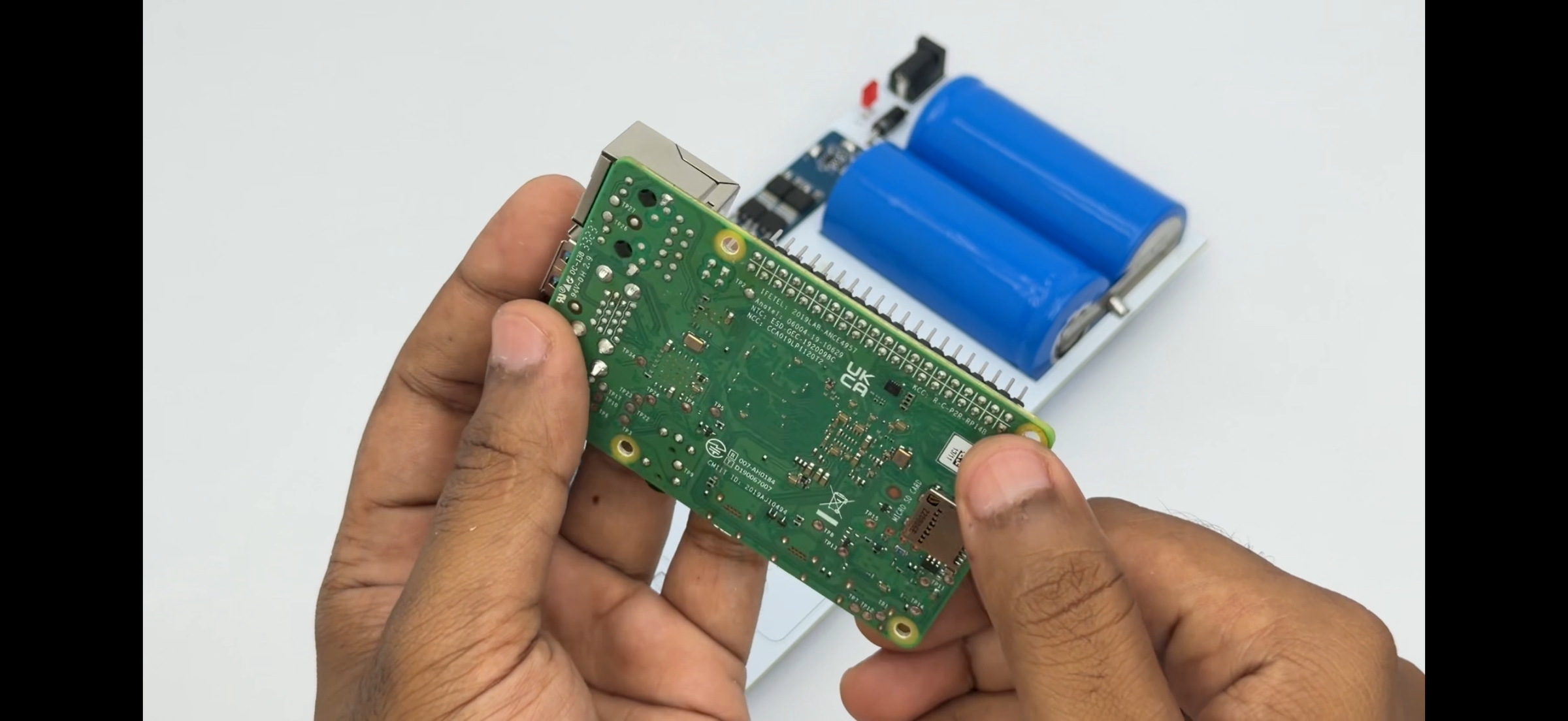


- Took Raspberry Pi 4 Model B and prepared it for integration
- Used cut Type-C cable for Pi 5V power input
- Used male-to-male U connector (micro HDMI- HDMI) for secure wiring connections
- Prepared cut 3.5mm audio jack for audio output
- Soldered 3.5mm audio wires on bottom side of PCB audio pads
- Soldered Type-C power wires to PCB power section
- Fixed all connectors properly before mounting PCB
- Added small plastic spacers under PCB for proper clearance
- Mounted PCB and tightened screws for stable installation
- Checked all wiring connections before final assembly
Case Design & Assembly
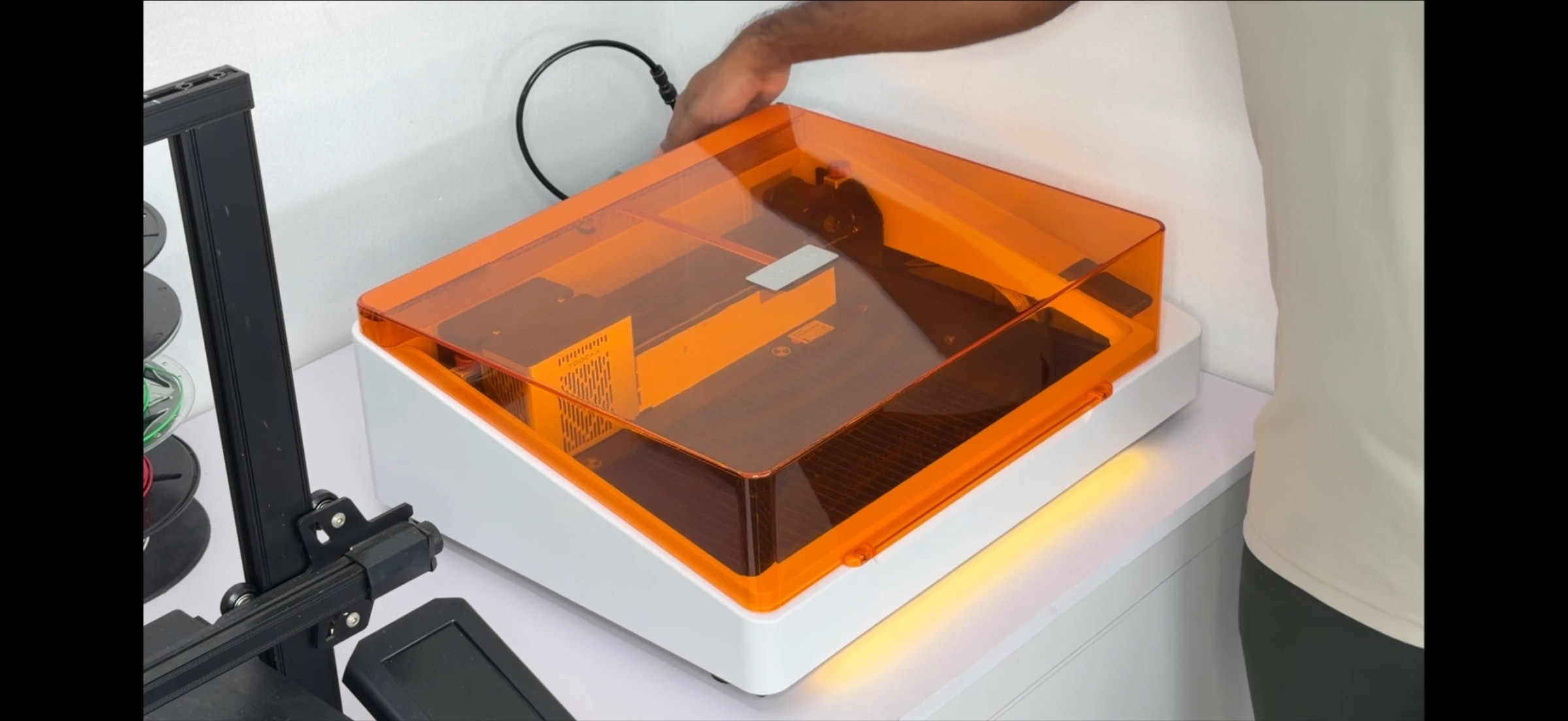
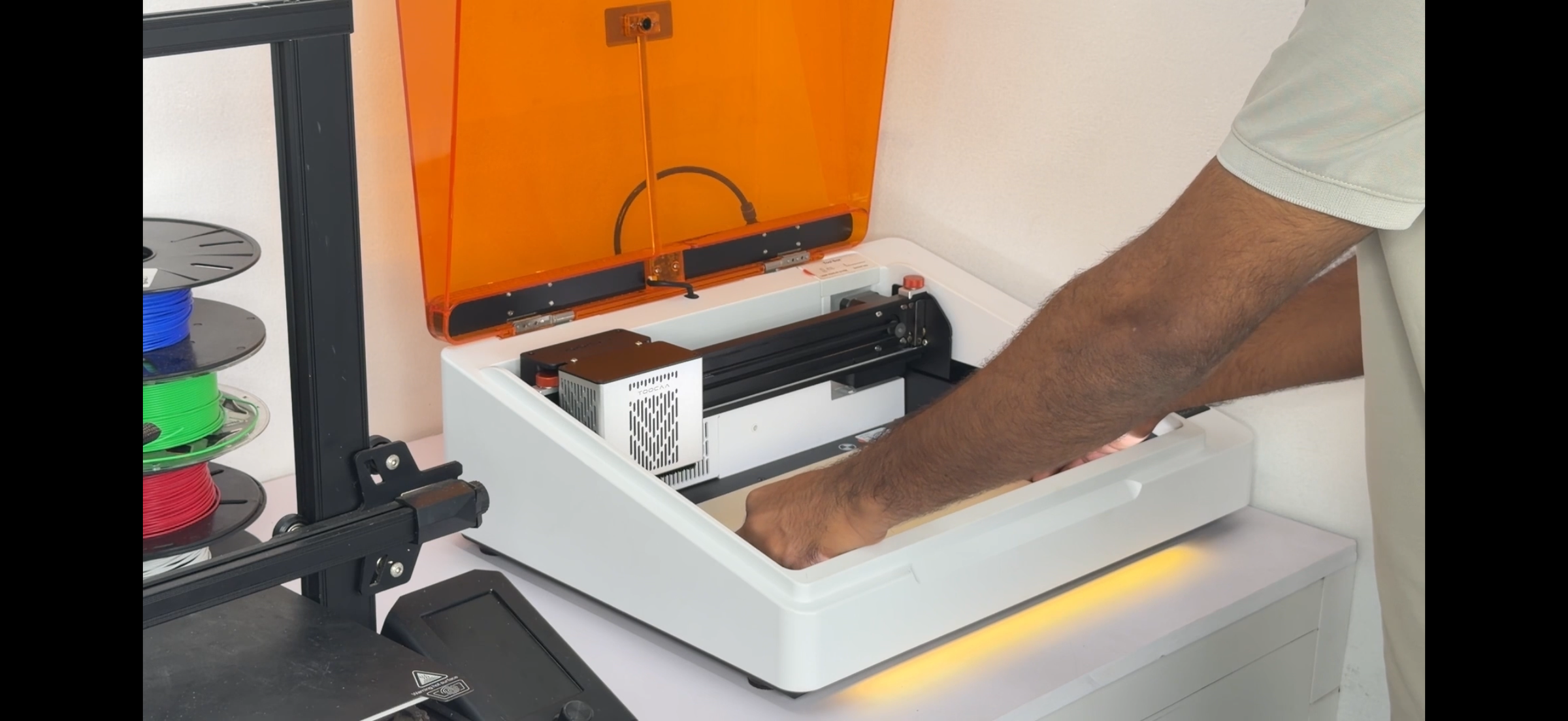

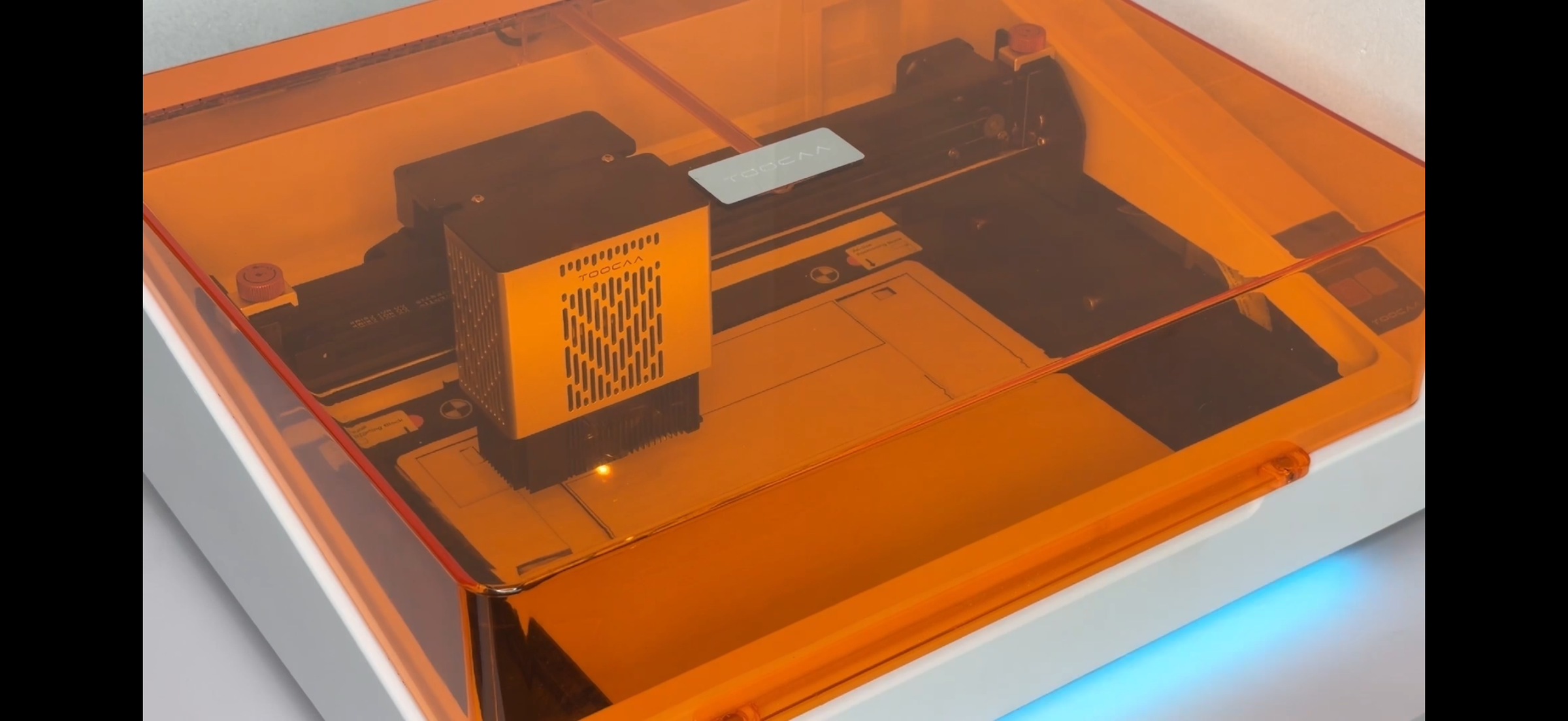
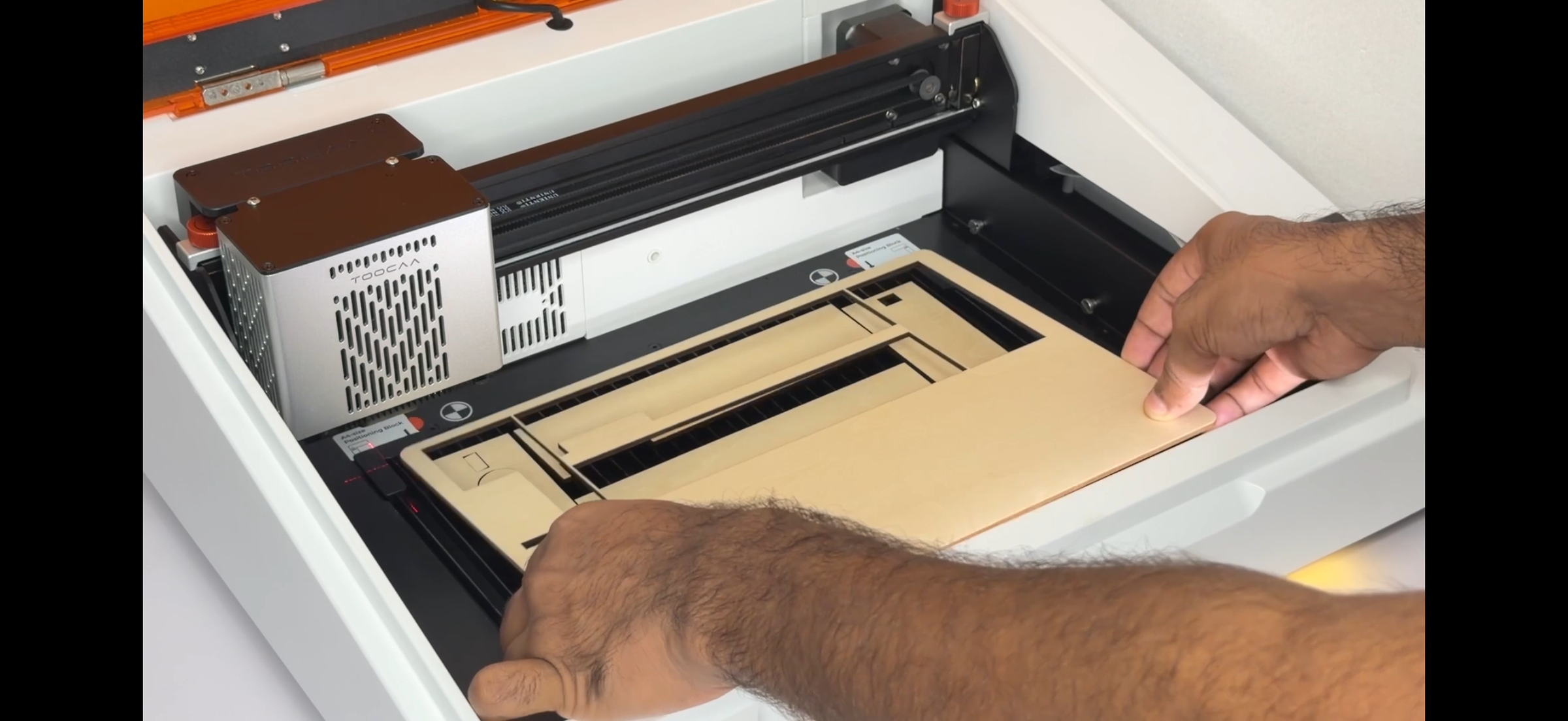

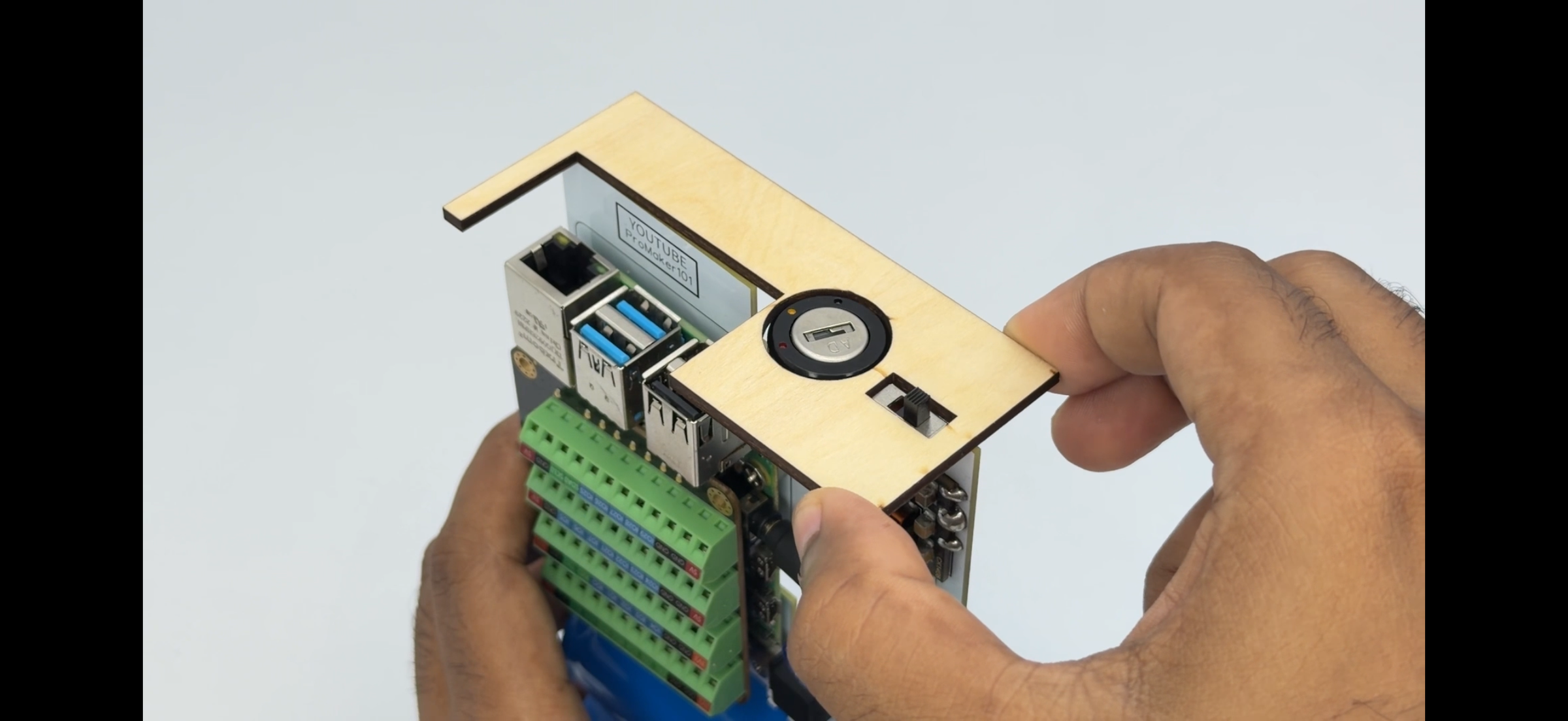
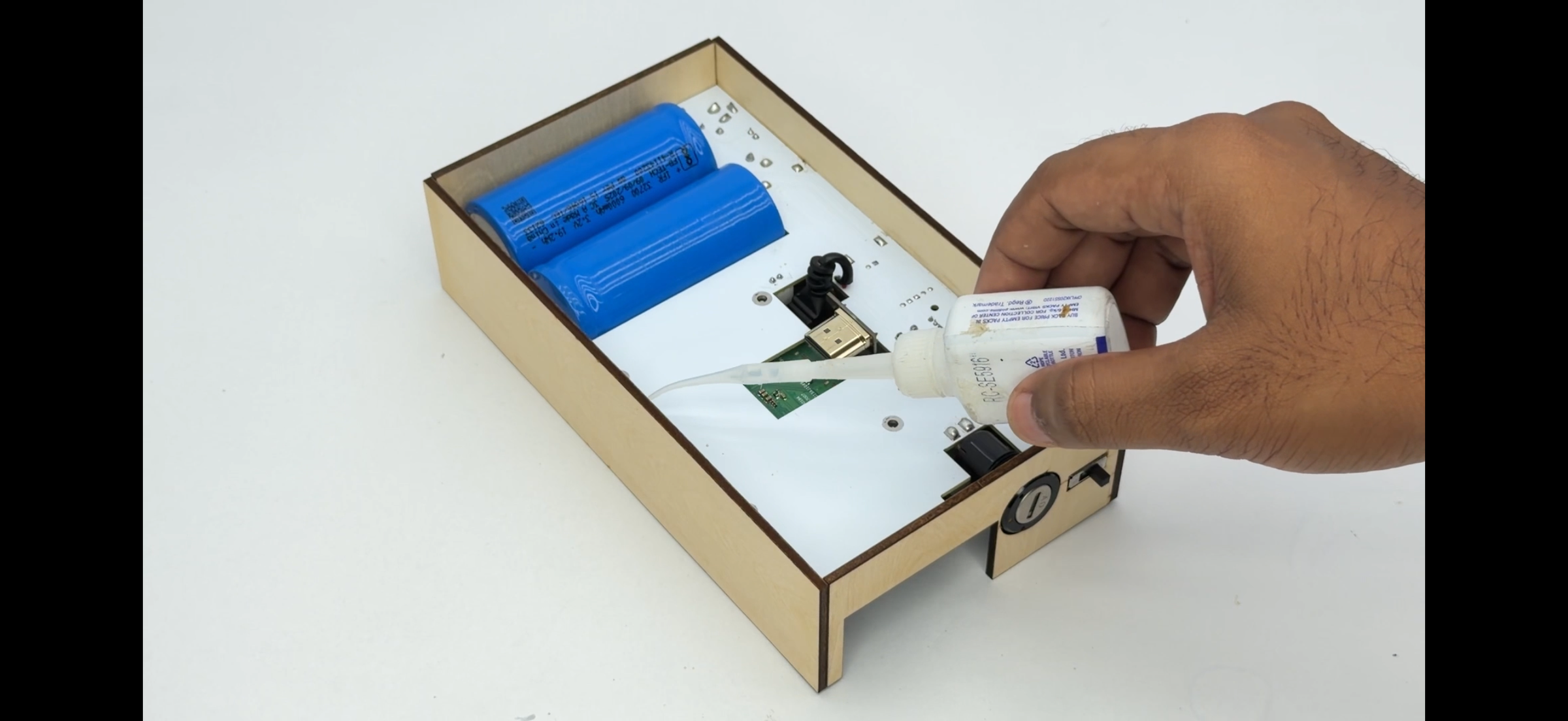

- Designed the enclosure panels for the project
- Used TooCaa Nova Desktop Laser Engraver to cut wooden pieces accurately
- Cut all required parts for the case
- Cleaned and checked all cut pieces
- Glued the pieces together to form the box structure
- Allowed sufficient time for the glue to dry properly
- Inserted the assembled PCB into the wooden enclosure
- Ensured proper fitting and alignment
👉 Buy link: https://www.toocaa.com/collections/toocaa-nova
Final Assembly & Connections


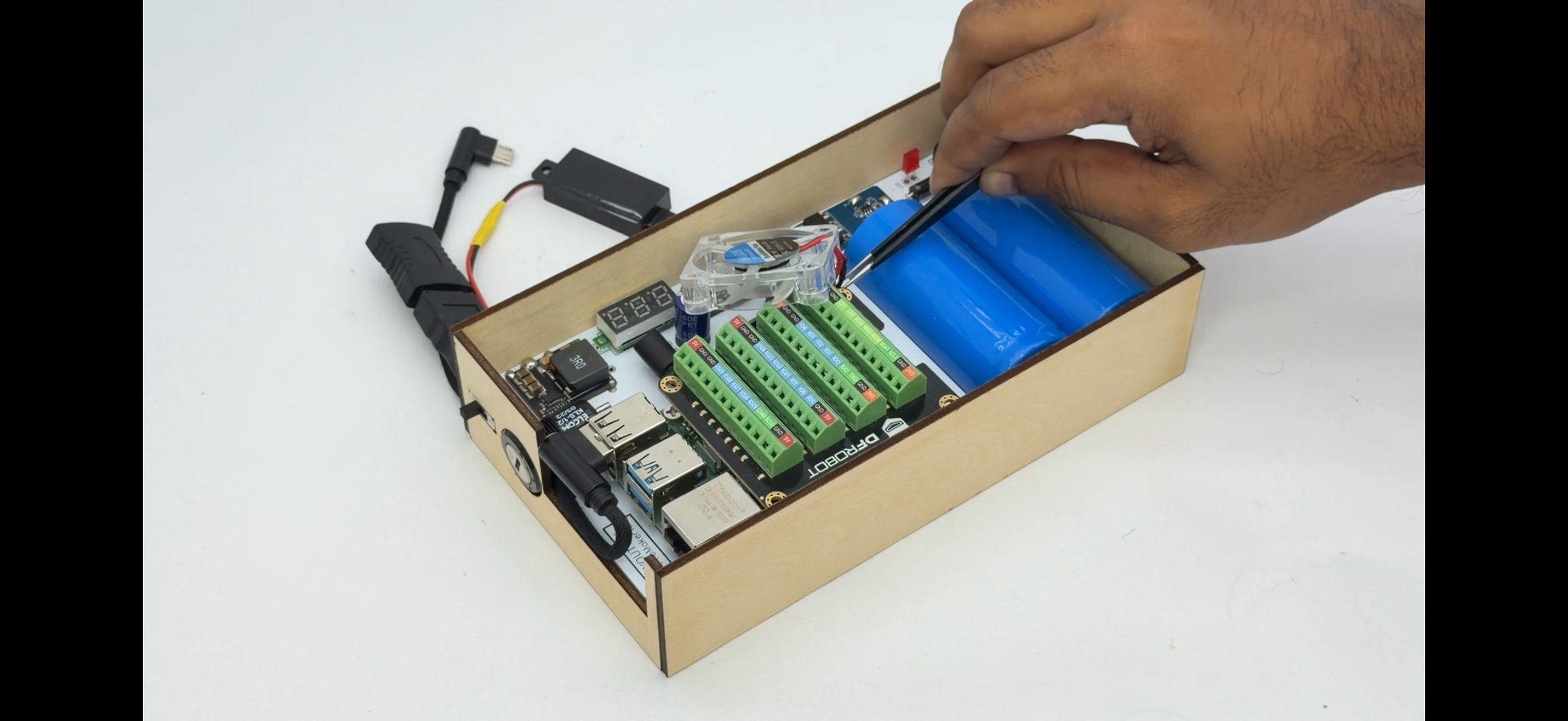
- Soldered 3W speaker wires to PAM amplifier module output on backside of PCB
- Fixed speaker properly inside the enclosure
- Connected HDMI connector using U-shape male-to-male adapter
- Connected USB cable from display to Raspberry Pi USB port
- Verified all connections are secure and correct
- Closed backside using acrylic sheet
- Finally, connected 5V cooling fan to 5V line on top of PCB (BMS side)
Display & Final Assembly


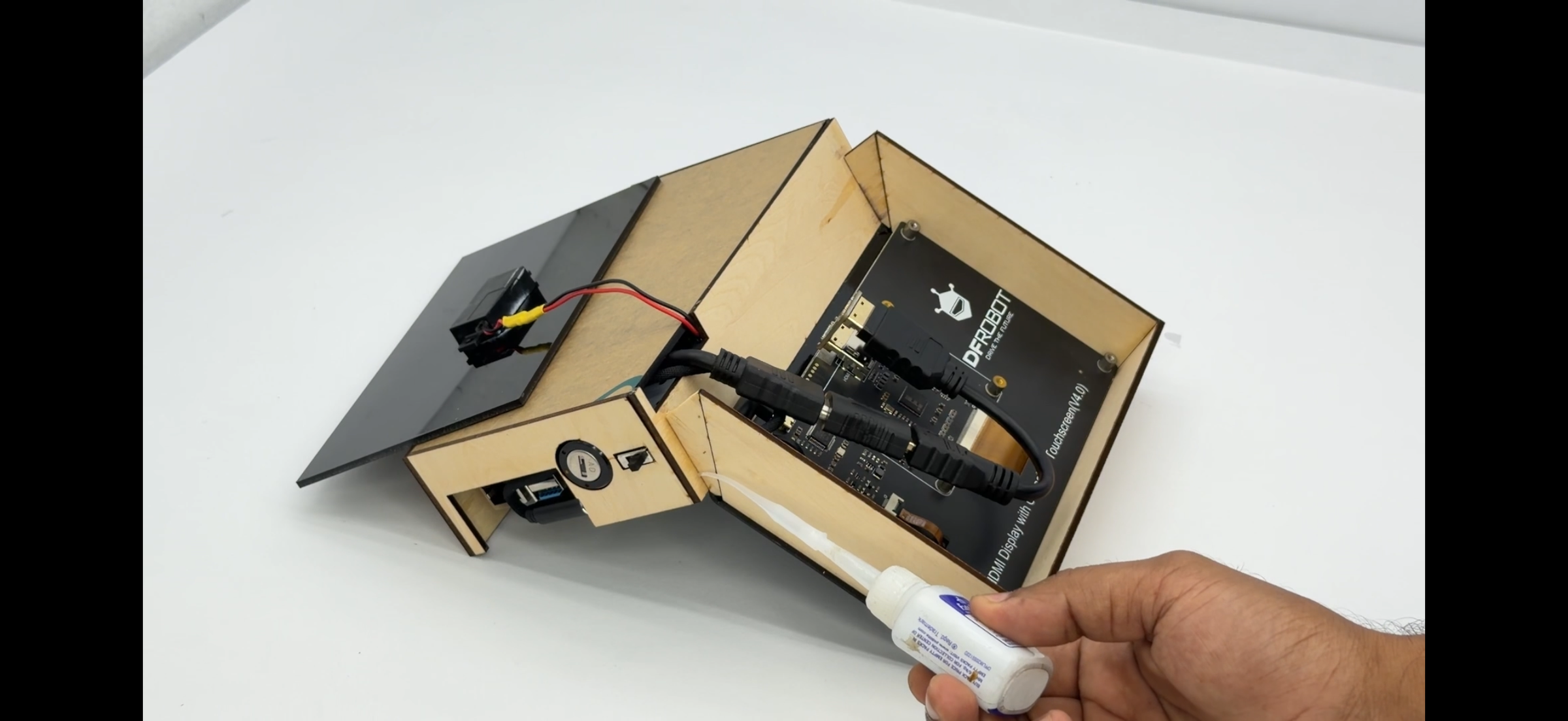
- Took the 7-inch HDMI display and fixed it onto a front panel sheet
- Used glue to secure the display and form the front box section
- Connected HDMI cable from display to Raspberry Pi 4 Model B
- Connected micro USB cable to power the display
- Ensured all cables are properly routed and not loose
- Fixed the display unit onto the wooden enclosure using strong glue
- Glued the 3W speaker onto the backside of the display acrylic panel
- Checked alignment and ensured everything is firmly attached
OS Setup & Final Boot


- Took a high-speed microSD card
- Installed Raspberry Pi Imager on computer
- Selected OS and storage device in the software
- Flashed the OS to the microSD card
- Waited until the process completed successfully
- Inserted the microSD card into Raspberry Pi 4 Model B
- Ensured all hardware connections are ready
Working & Usage
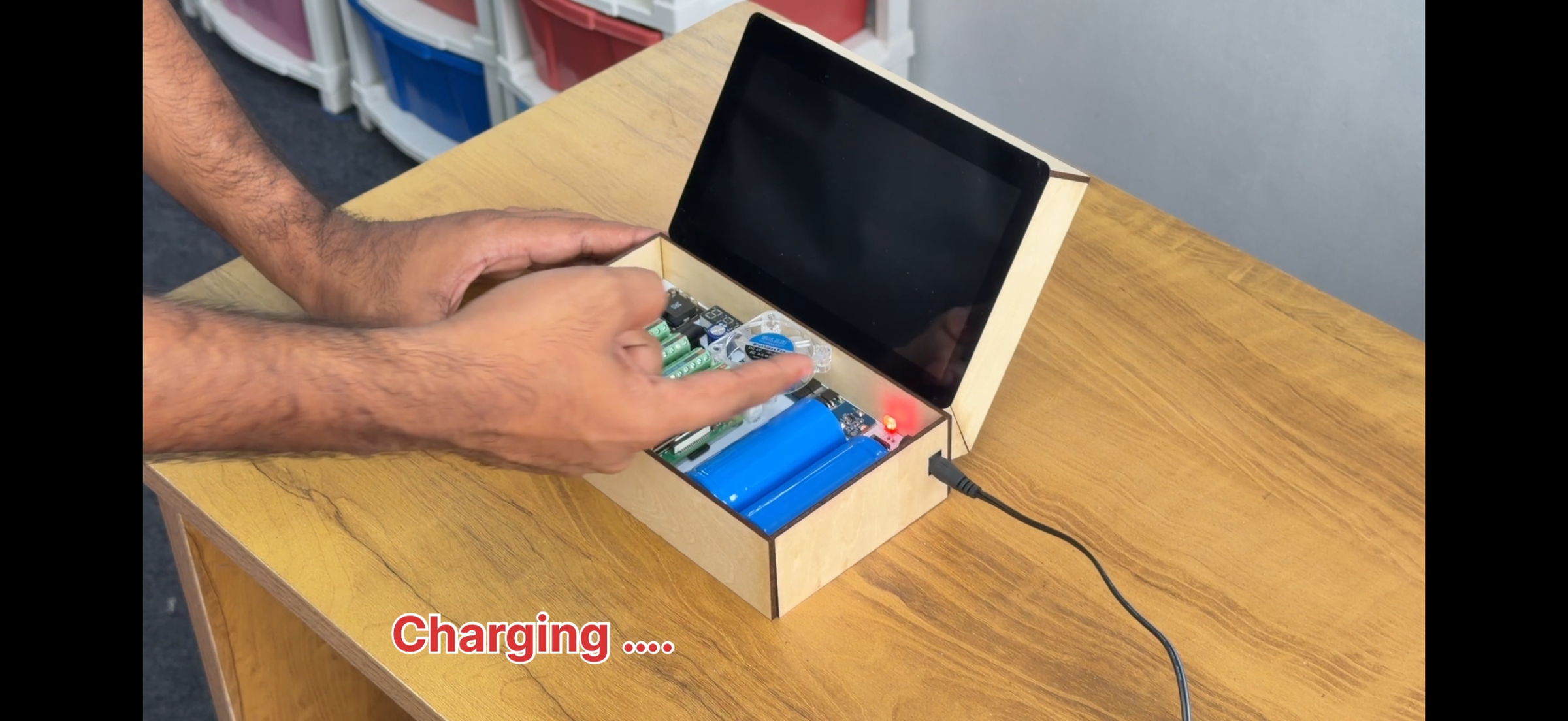


Connect the charger to the device and you can monitor the battery voltage in real time using the voltmeter module. Once the battery is fully charged, the system is ready for portable use. Turn on the device using the key-type power switch, which supplies power to the Raspberry Pi 4 Model B and other modules. The Raspberry Pi will boot into its operating system just like a normal computer. After booting, you can use it for multiple purposes such as browsing the internet, watching YouTube, using ChatGPT, running programs through the terminal, and interfacing with sensors or other connected hardware. This makes the device a complete portable mini computer suitable for learning, development, and everyday tasks.
Watch Full Making Video
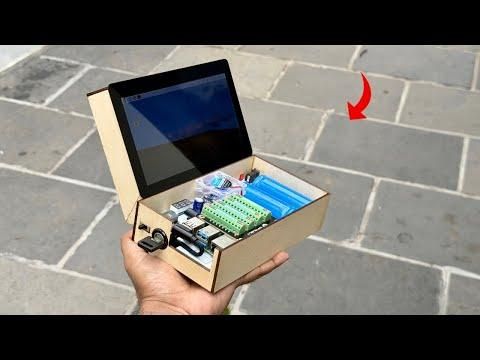
You can watch the complete making process of this project in the full video. The video covers PCB design, assembly, wiring, enclosure making, and final testing step by step, making it easier to understand the entire build clearly.
Make sure to check the video for a detailed visual guide and better understanding of each step involved in building this portable cyberdeck.
Thanks....