CYD Retro Mini TV - Play Videos and Retro Games!
by DynaMight in Circuits > Gadgets
11867 Views, 59 Favorites, 0 Comments
CYD Retro Mini TV - Play Videos and Retro Games!
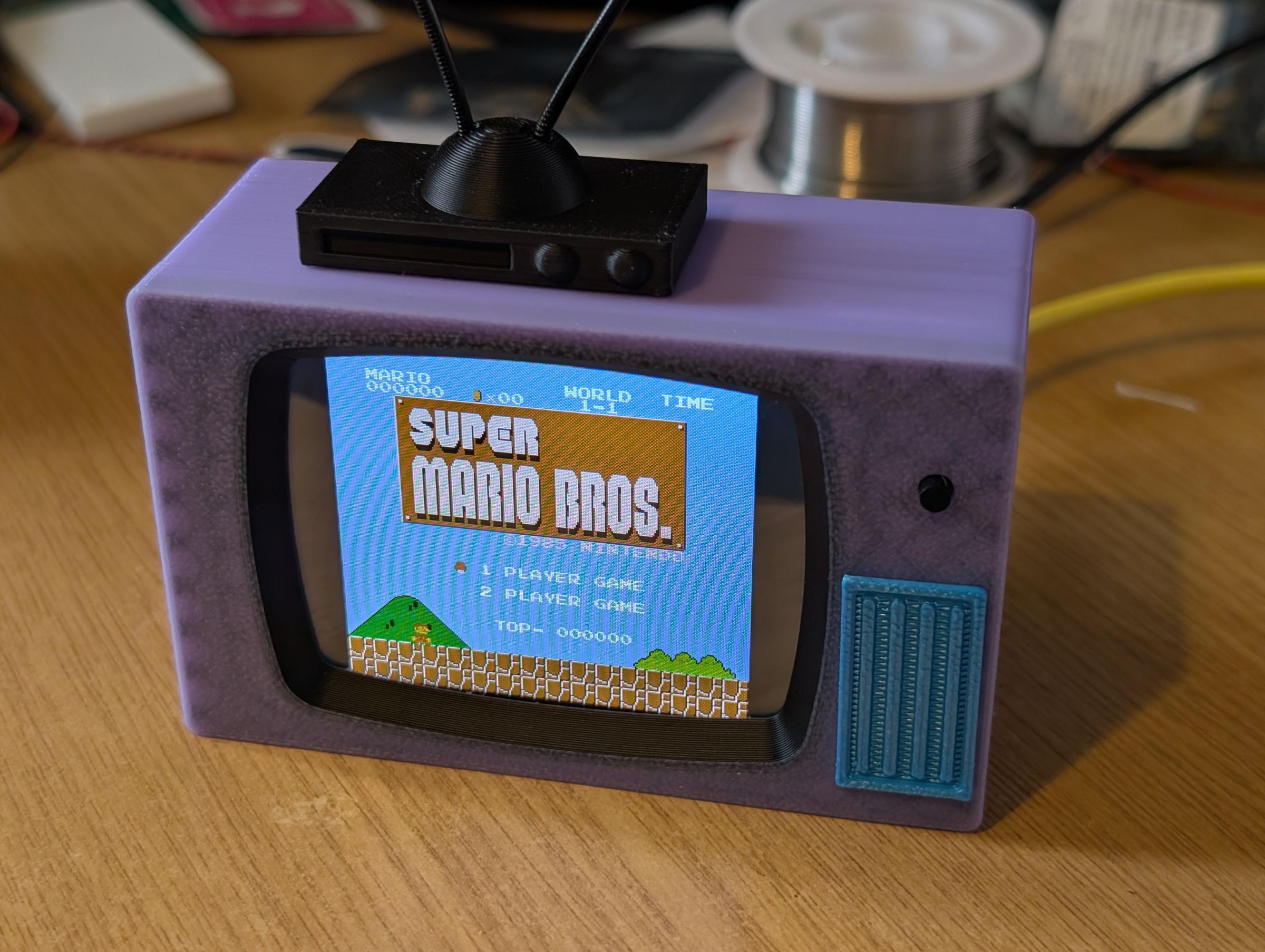
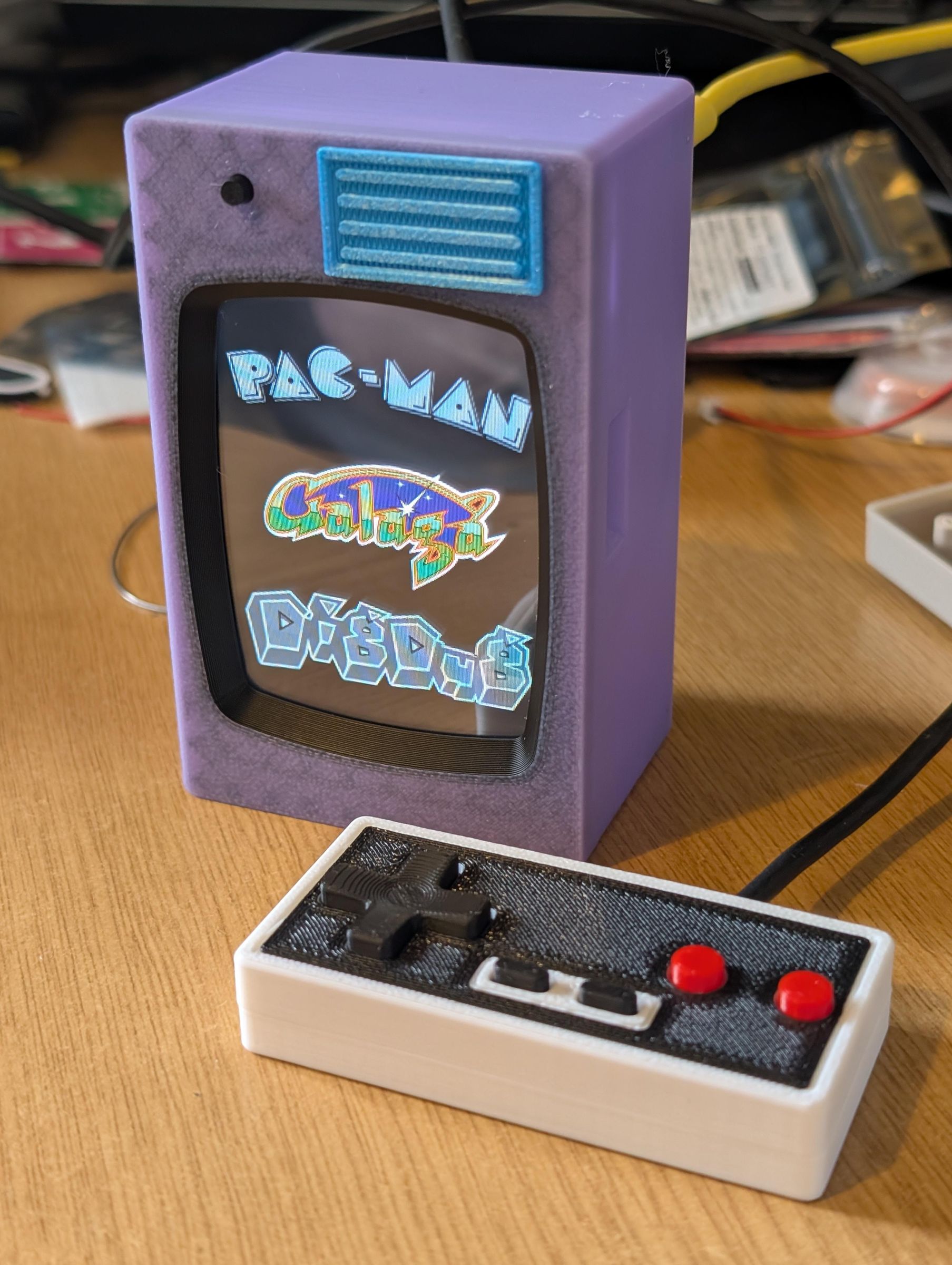
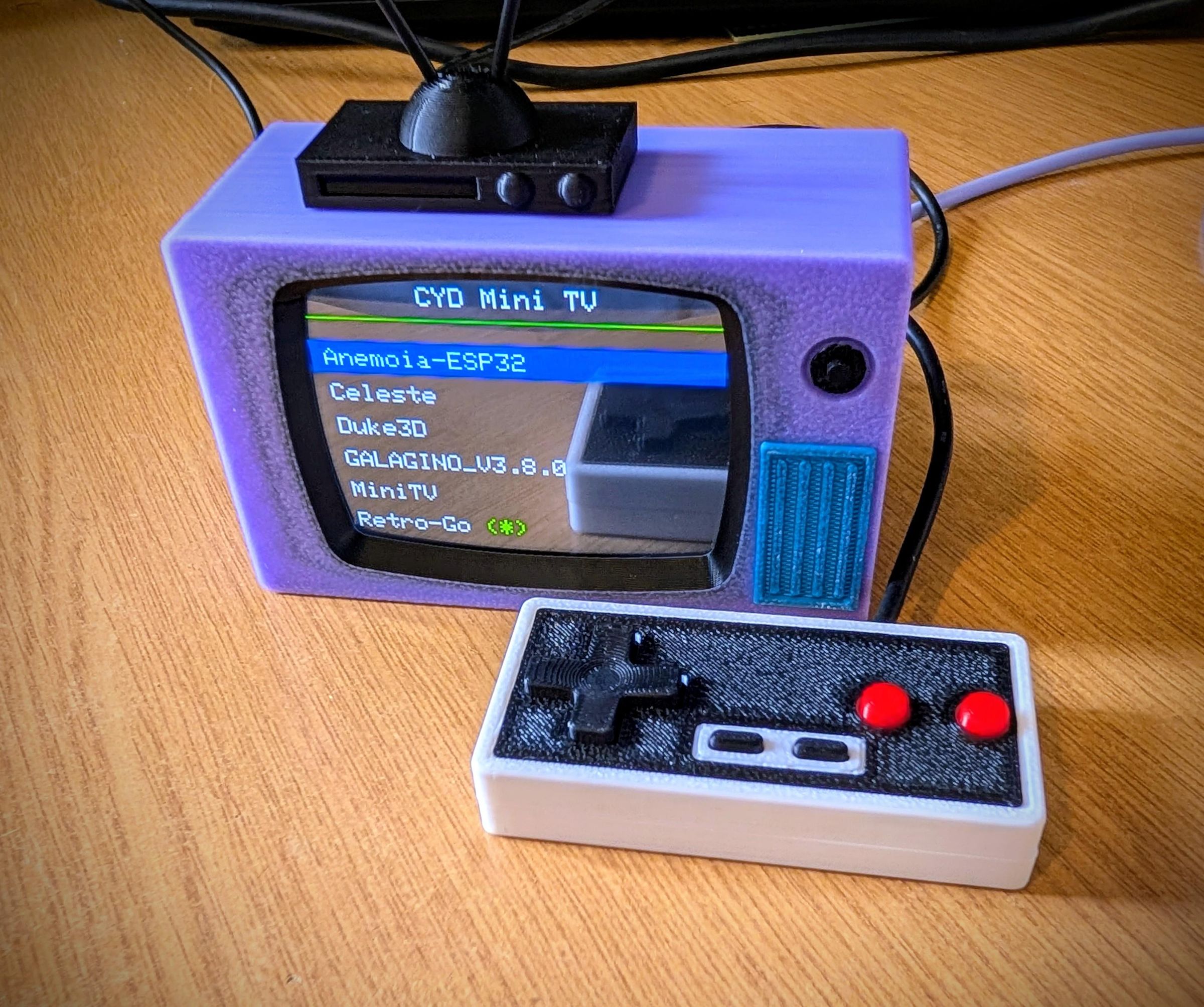

This project uses the popular Cheap Yellow Display (CYD) as its base, this handles a lot of the heavy lifting. When I was originally dreaming up this project on an afternoon walk, it was initially just going to be a simple case for the CYD, that looked like a Retro TV, so I could use a Mini TV player to play back some video clips, movies or TV shows etc, however I ended up going down multiple rabbit holes that only seemingly lead to more rabbit holes!
Its kept the original idea of a Retro TV shell that has the Mini TV software but also gained a NES emulator, which meant I needed to also design a mini controller, but since I wanted MiniTV and NES software, it also meant I needed a way to boot both without having to reflash each time, so a launcher was needed. It has since gained Retro-Go, which supports multiple emulators and some classic 90's PC games such as Doom, Duke Nukem 3D and Wolfenstein 3D.
Software wise, it uses a custom launcher that AI helped design, the backend was heavily based on the great work by bmorcelli it essentially allows you to flash any .bin file rather than needing a full reflash each time. It means you can choose between the MiniTV player or NES or anything else thats CYD compatible.
The MiniTV player was a project I had AI help me adjust for my purpose. It was based on MiniLegoTV but with some QOL features, single button input as well as CYD support. My project is HERE, its actually a pretty solid video player, I have played entire 90+ minute movies on it without issues. I have tended to use it to for classic 90's cartoons. You can also download and convert YouTube videos, I have an app HERE.
NES standalone emulator is from an amazing project by Shim06 called Anemoia-ESP32 which allows the CYD to play NES games, this works on a stock CYD. I had to make some changes to allow my custom controller to work, heres my fork with the required controller changes.
Theres also a further option for those that want to open it up a little more, you can fit some PSRAM to the CYD which allows more advanced emulators to run via Retro-Go. I have compiled a special version which works with the launcher and allows emulators such as Gameboy, Gameboy Colour, NES, Game Gear, Master System, PC Engine and Lynx, plus some ports such as Doom 1&2, Wolfenstein 3D, Celeste and Duke Nukem 3D! This does require some additional soldering skills but the additional systems it opens up makes up for it.
So, if you choose to follow the below guide, you will have a Retro/Simpsons style TV that can either playback videos or play retro games (plus some other stuff!)
However if you wanted a bare basic version, which involves no soldering, just ordering a few parts which only plays back videos, check out Step 8
Supplies
Firstly, the main part is the CYD! AliExpress is probably your best bet, but you can also get these from Amazon/eBay. Just note theres a few variations and also screen sizes. This project is based around the 2.8" version, its technically called the ESP32-2432S028. Mines the 2USB version, which most are these days. Note that the CYD has poor sound, but can be resolved by changing some resistors. More on that in a step below.
Heres a link to the one I bought for this project: https://www.aliexpress.com/item/1005006470918908.html
Resistors needed to correct CYD sound issues, you will need 22k, 47k and 100k, order all three here: https://www.aliexpress.com/item/1005008850857910.html
Optional PSRAM for Retro-Go: https://www.aliexpress.com/item/1005009178803030.html
Mini TV:
4 pin JST 1.25mm Male & Female connectors: https://www.aliexpress.com/item/1005008624362200.html
24*15mm Speaker: https://www.aliexpress.com/item/1005006357626732.html
6x6x9mm Tach Switch: https://www.aliexpress.com/item/1005002550688671.html
USBC Connector: https://www.aliexpress.com/item/1005006297697300.html
M3x6mm Buttonhead Bolts: https://www.aliexpress.com/item/1005002357962115.html
M2x6mm Countersunk Bolts: https://www.aliexpress.com/item/4000239264456.html
Controller:
MCP23017 IO Expander: https://www.aliexpress.com/item/1005009890283132.html
5.2x5.2x2.0MM SMD Tach Switch: https://www.aliexpress.com/item/1005001739975290.html (Note that I actually used these, as they are quieter: https://www.lcsc.com/product-detail/C5340185.html 160gf vs 260gf from AliExpress)
M2x10mm self-tapping screws: https://www.aliexpress.com/item/1005002417296996.html
Some kind of cable with 4 wires, I used a fairly thin USB cable for this.
Also for the controller you will need to order the PCB, download the gerber HERE and order via your chosen supplier. I used JLCPCB for this project, but PCBWay are also commonly used. Stock 1.6mm PCB thickness is fine.
Print the Retro TV Shell
Lets start off by printing the shell. Print everything in the orientation provided, no supports needed.
You can also grab these from MakerWorld where I've included the print profiles for the different colours: https://makerworld.com/en/models/2777502-cyd-retro-minitv
I used a Bambu MMS to get the black bezel however in past projects, I found using a permanent marker just as effective!
The Grill is just superglued in place, it has a little wiggle room so make sure its lined up before the glue sets! Same for the VCR, theres some placement nugs, just superglue it in place. If it doesnt fit flat, it may need a little trimming around the placement nugs due to overhangs.
Oh and as for the antennas, they are literally just lengths of 1.75mm 3D printer filament cut into short lengths and pushed in. I didnt glue them as they are easily replaced if one happens to snap.
Fix the CYD Audio and Flash the Firmware
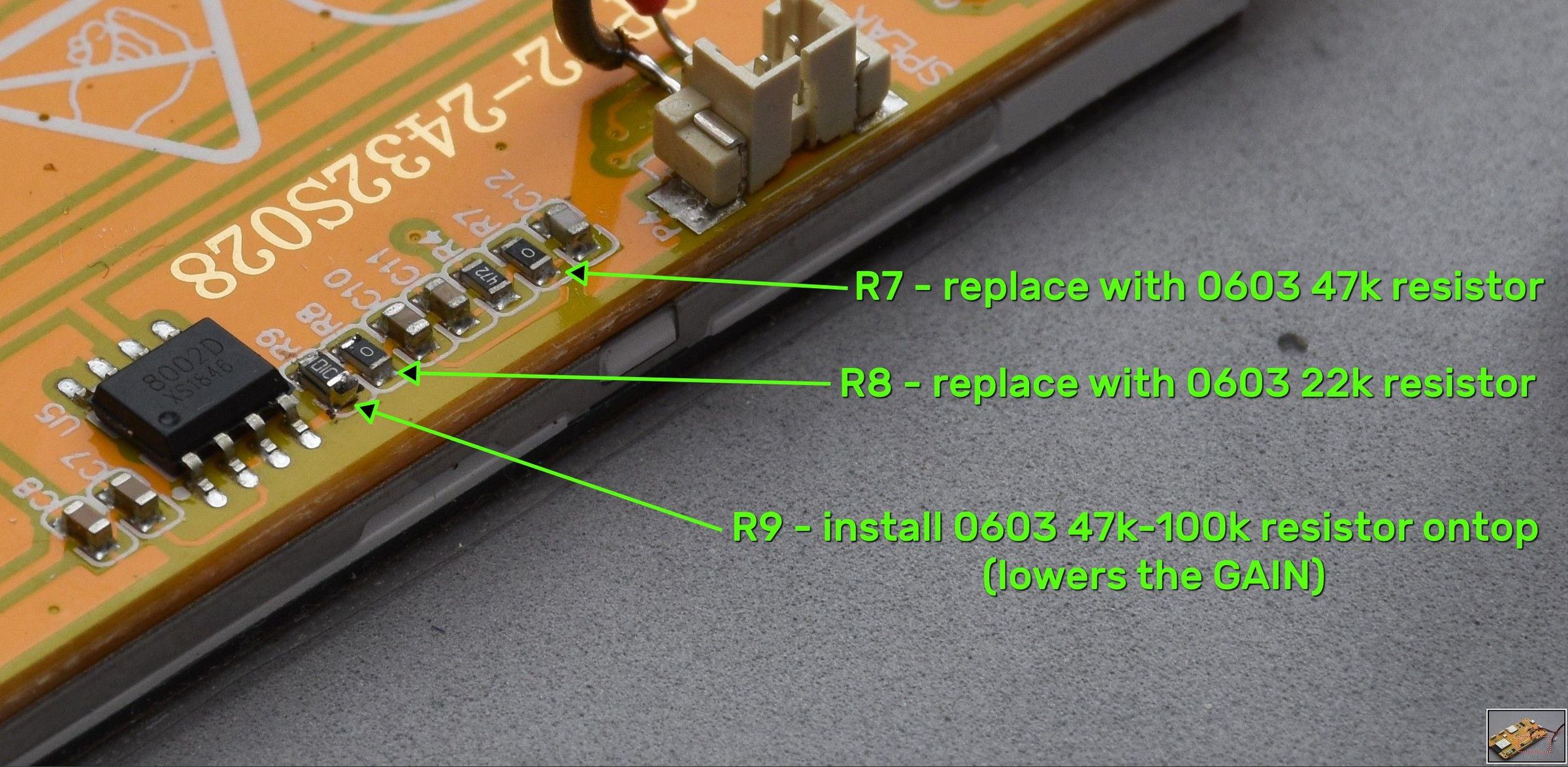
This step is fairly important in my opinion as it helps take the sound from a garbled mess to something thats passable, not perfect but lots better. You will need a 22k, some 47k and a maybe a 100k 0603 resistor.
Follow this guide: https://github.com/hexeguitar/ESP32_TFT_PIO?tab=readme-ov-file#audio-amp-gain-mod I went for a 47k on top, I tried 47k and 100k and found the 47k was louder.
It's not the easiest of soldering jobs as the resistors are quite small so be careful not to accidentally knock off any of the other resistors! I find the easiest way to remove a resistor is to add new solder to both sides/pads and then run the iron up and down the resistor over both, it will easily come away. As for adding a new resistor, its easiest to wick away both pads so they are clean, add fresh solder to one pad and add the resistor so its flat then solder the other side. Adding the 100k resistor on top can also be tricky, I found it best to add additional solder to just one side, place the 100k on top as level as you can then tack in the side you added the solder, once its held, add solder to the other side. You need to be fairly quick as if you hold the iron too long, you may end up removing both resistors so if you struggle, stop, wait for it to cool down and try again.
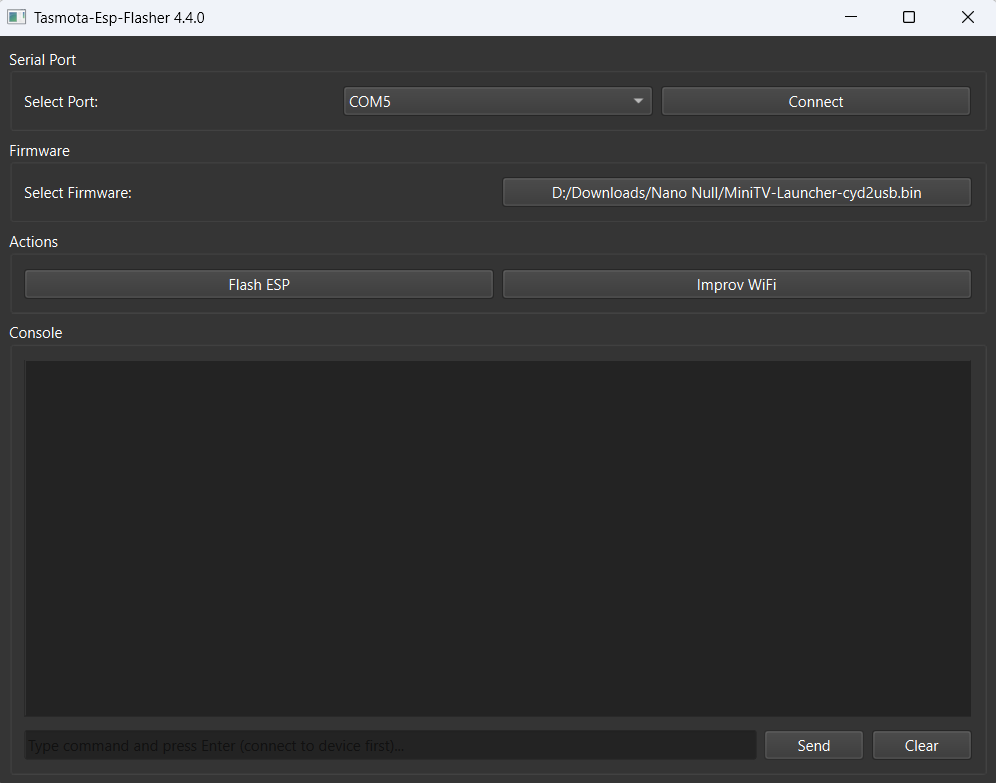
Now its time to flash the CYD firmware, the link to the launcher is HERE (MiniTV-Launcher-cyd2usb.bin). I would suggest flashing this, however you prefer you can just flash a single image, MiniTV for example, all of them will work on their own.
Also if you dont want to use the MiniTV Launcher and prefer to boot straight into RetroGo, I have a customised RetroGo image that also has an 'apps' section so you can still run the MiniTV player etc. You can grab the image HERE (note that RetroGo requires PSRAM so dont flash if you dont intend on fitting PSRAM)
If you're unsure, I would recommend setting up the SD in Step 7 and try both MiniTV Launcher or RetroGo and see which you prefer before closing up the shell.
I recommend using ESP-Flasher to flash. There will be more information below on how to setup the SD card below.
Optional PSRAM
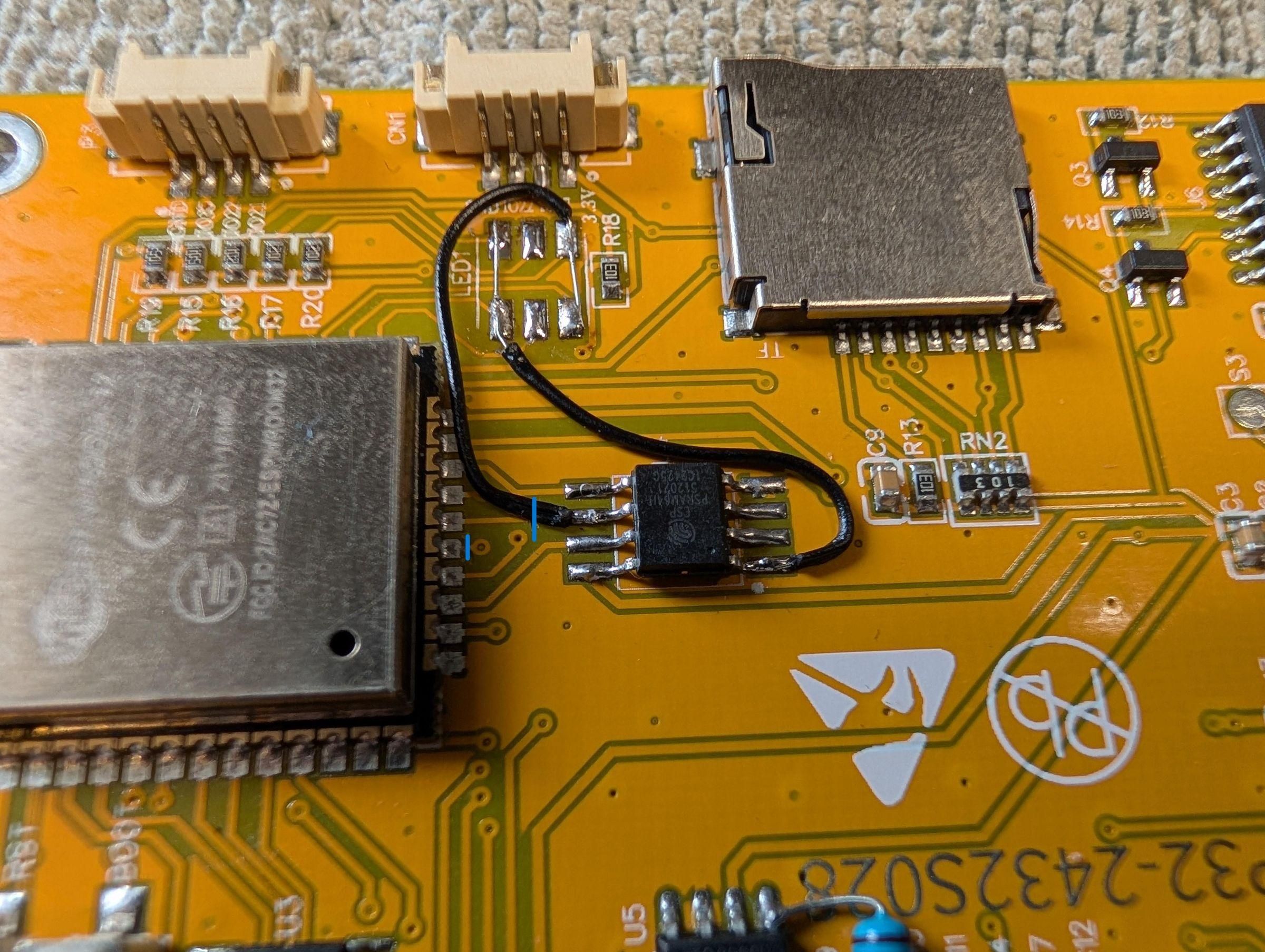
If you want to run Retro-Go, this is now the time to install PSRAM, I have previously covered this in detail on my Retro-Go CYD handheld, so probably easiest to direct you to Step 2 of this guide: https://www.instructables.com/Retro-Handheld-Based-on-the-ESP32-CYD-and-RetroGo/
Note: PSRAM is only required for Retro-Go (and its related .bin ports like Doom, Duke3D etc) MiniTV player, NES emulator, launcher etc do not require PSRAM to run.
Mini TV

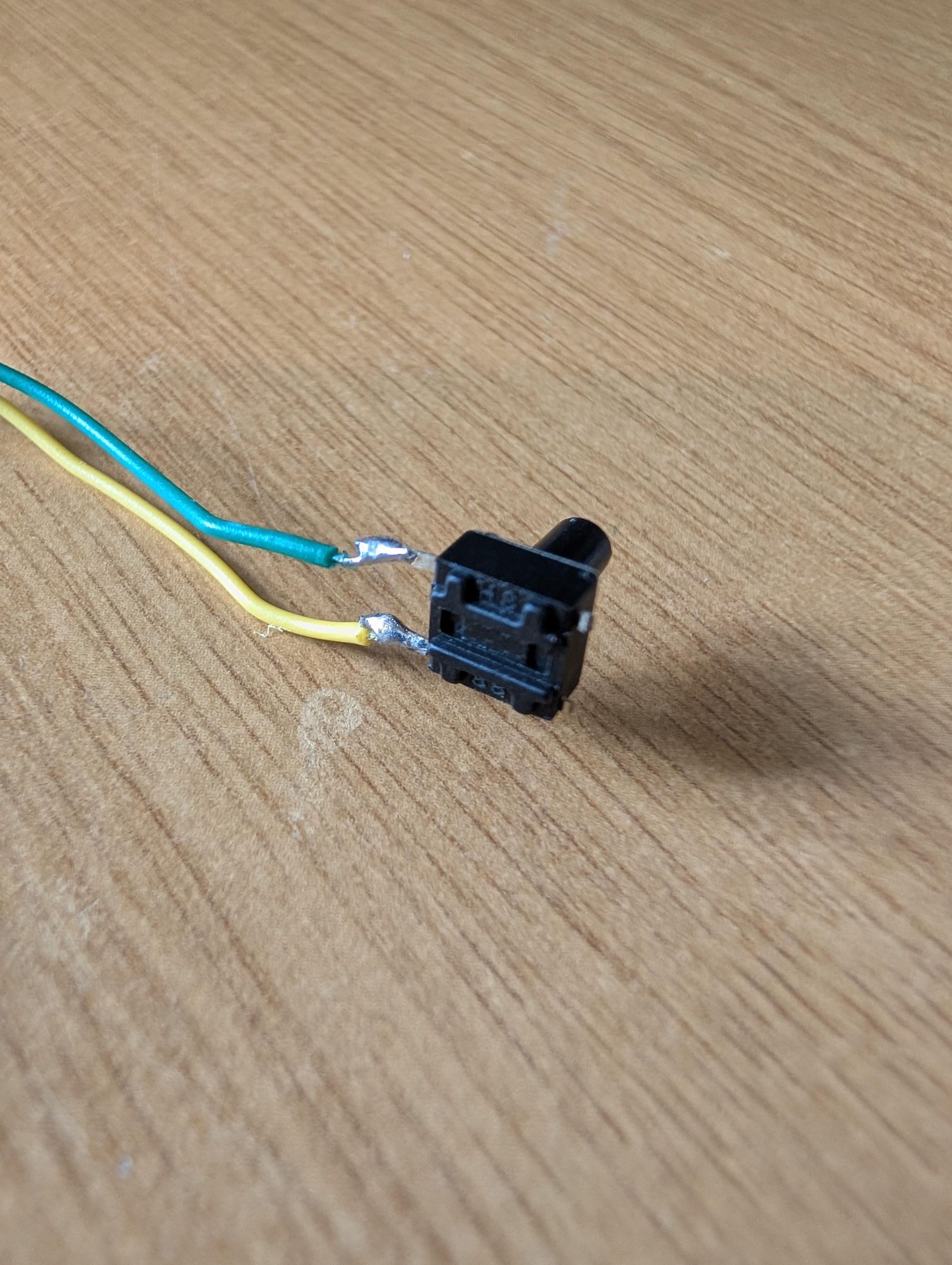
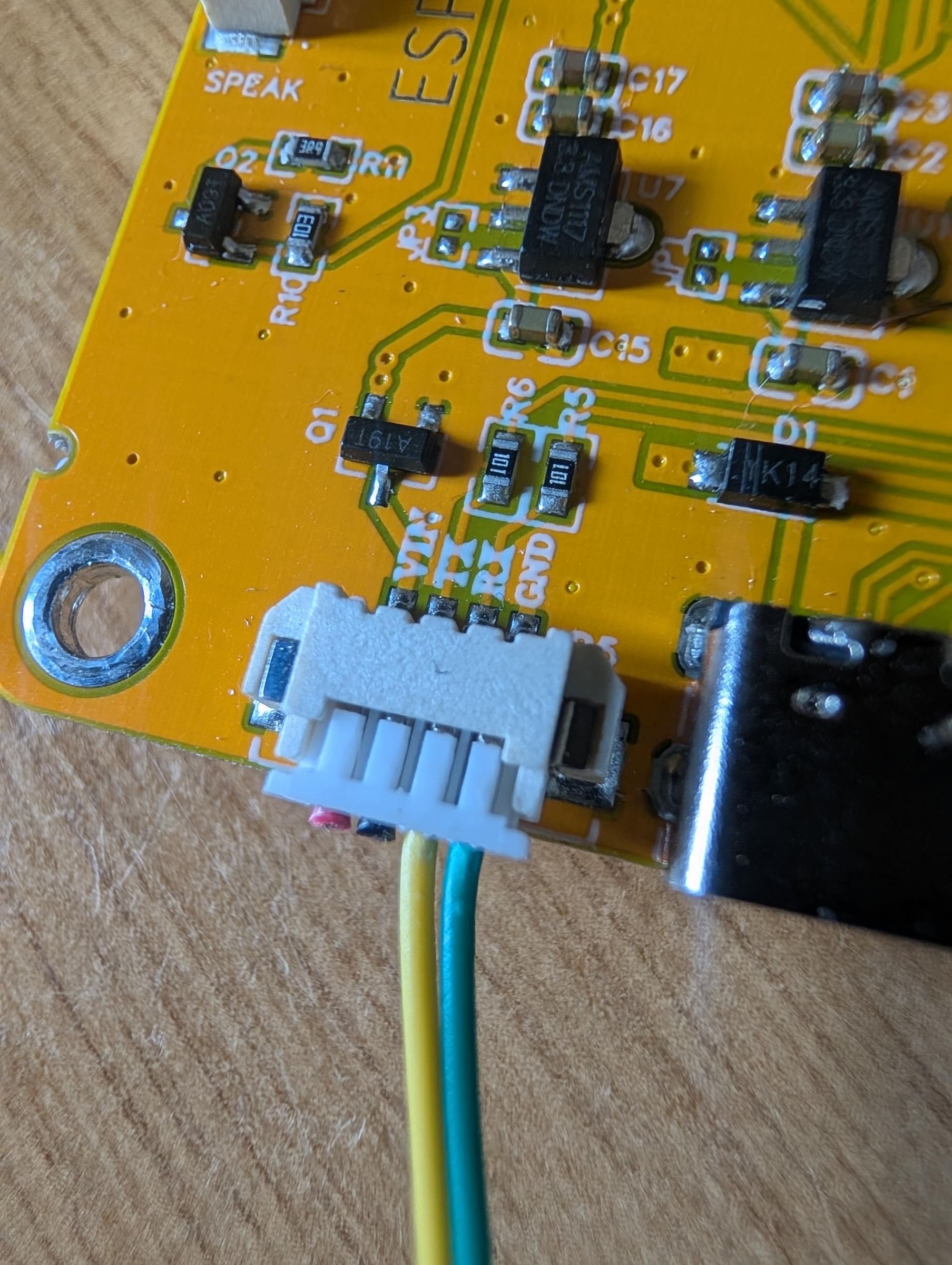
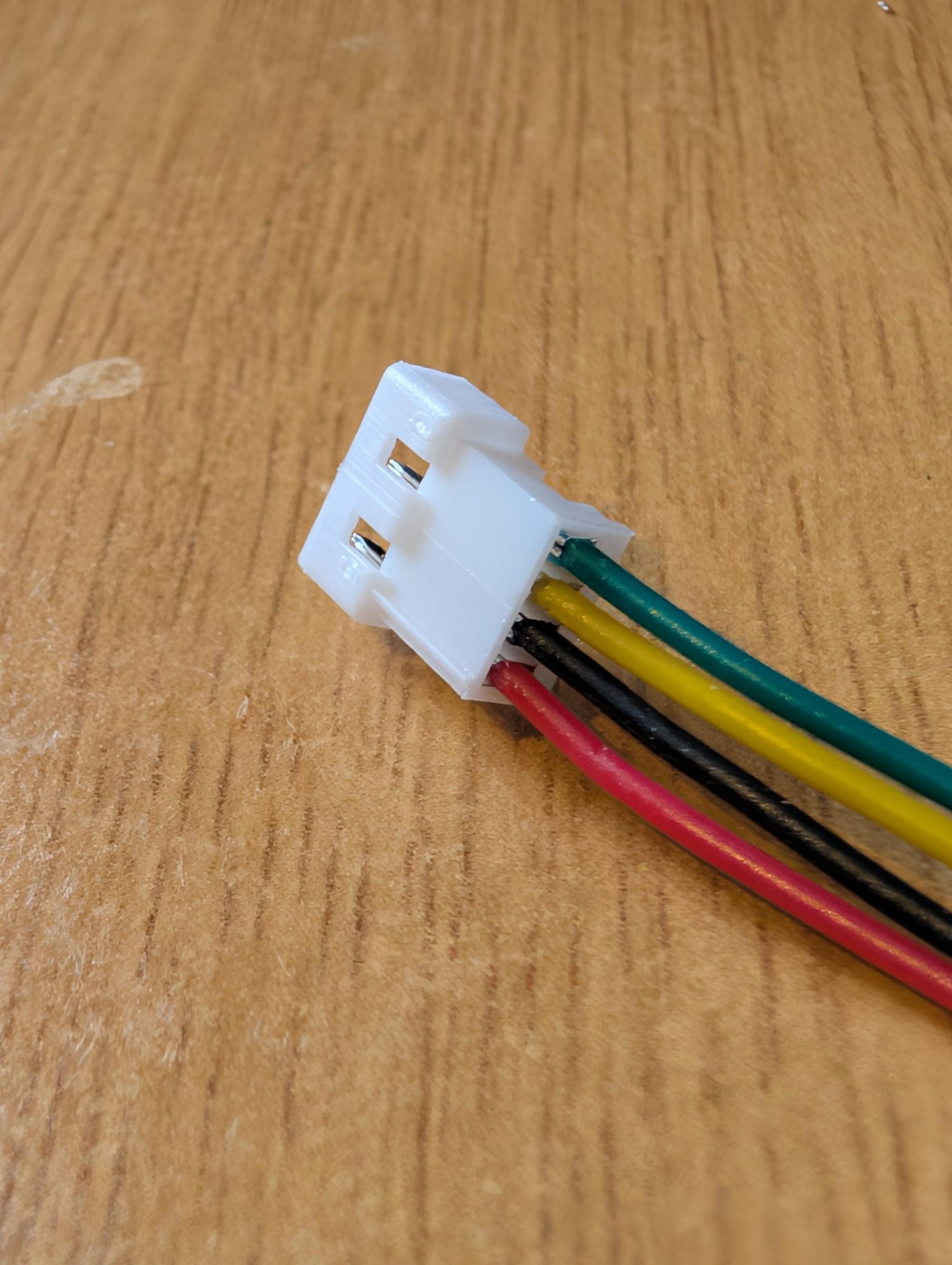
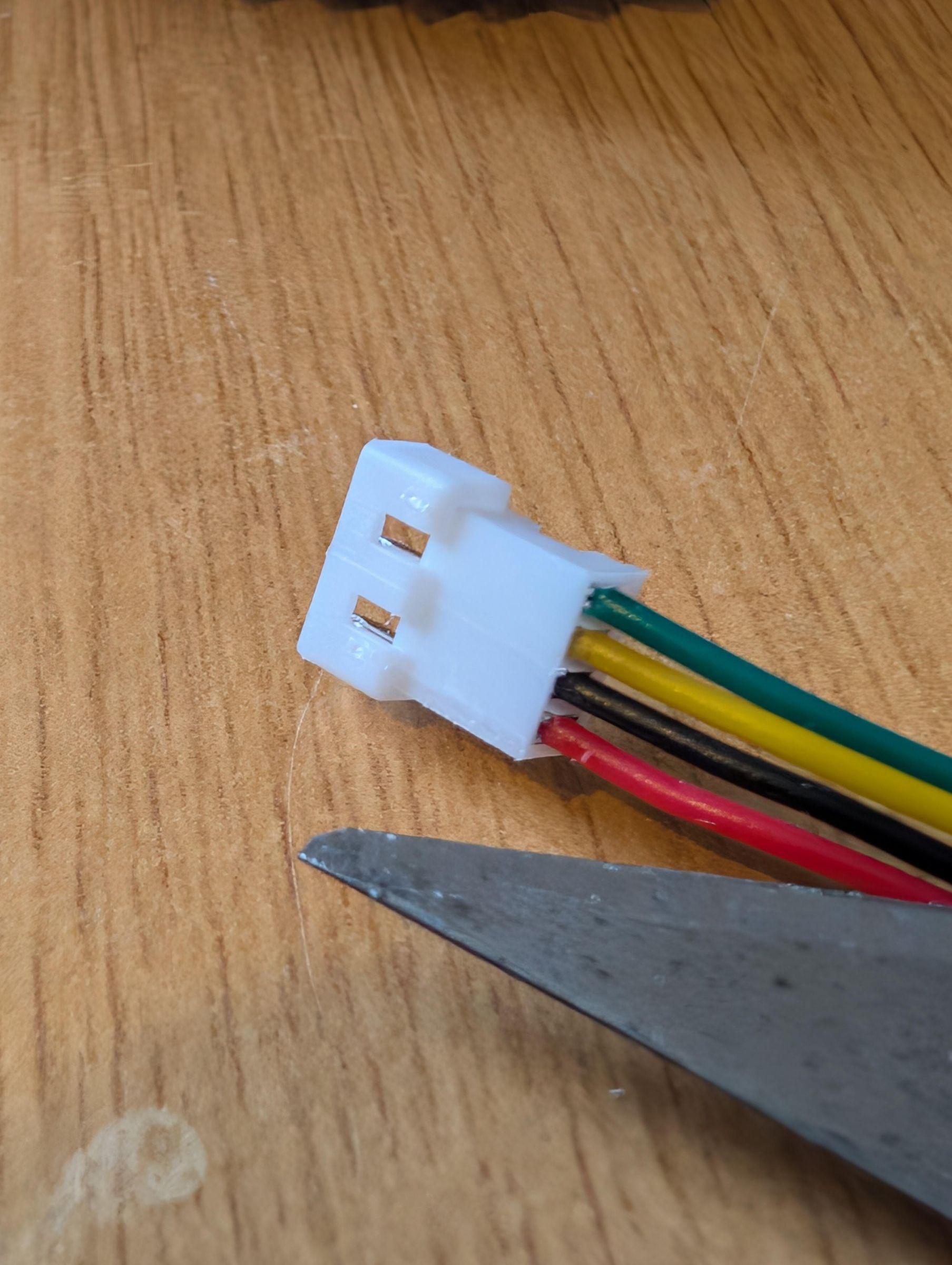
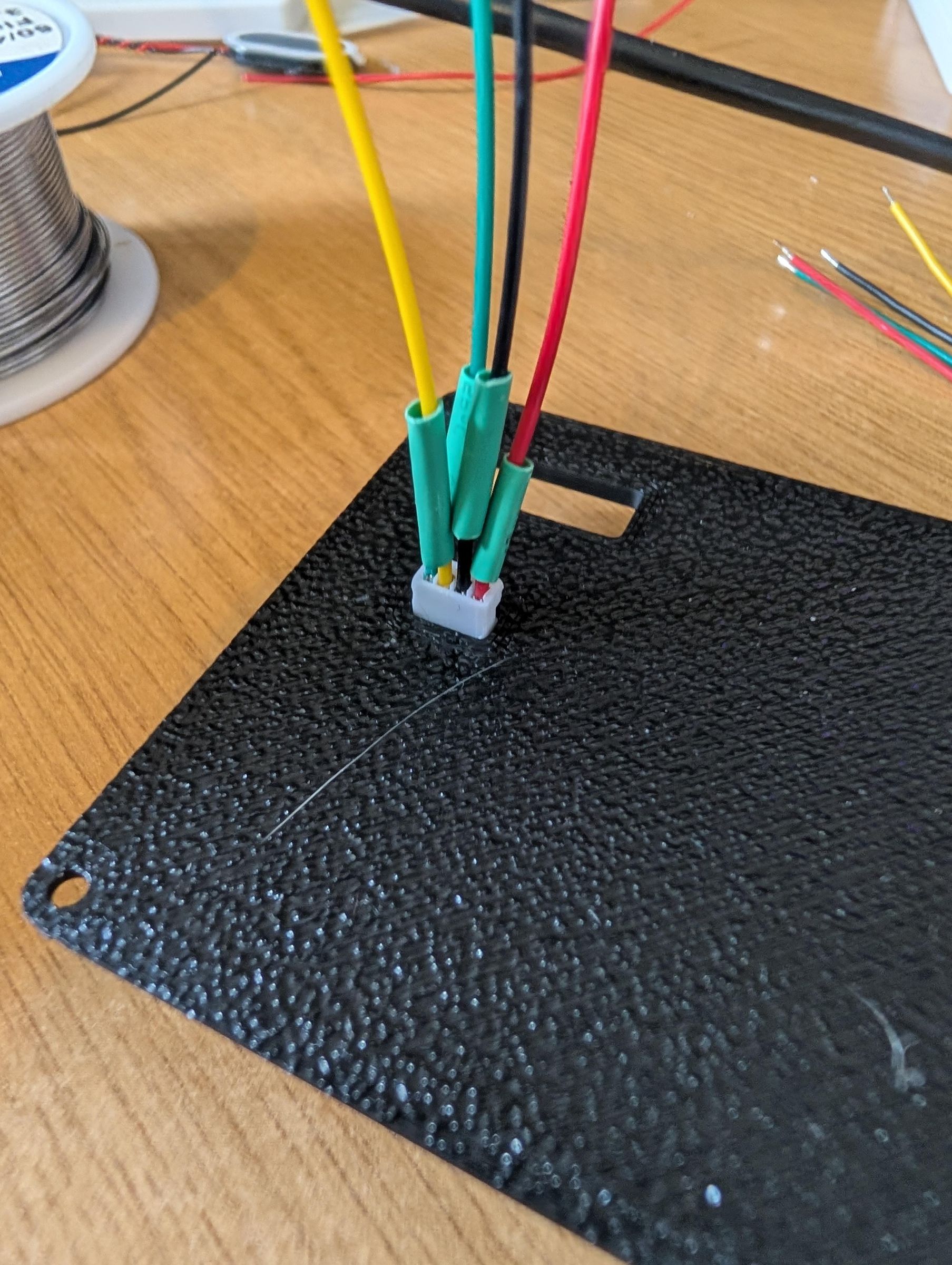
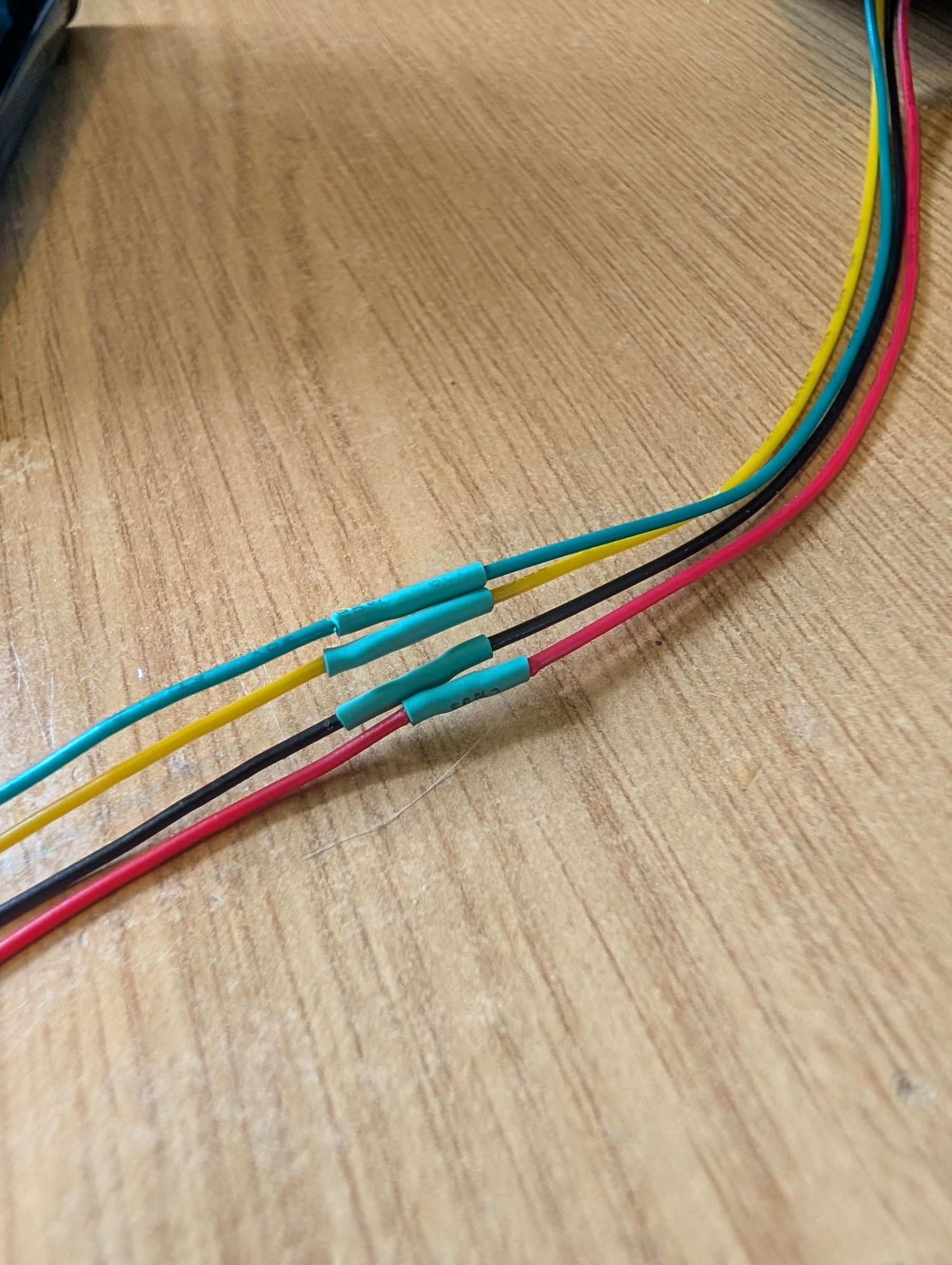

Now that everything is printed and the CYD is prepped, we can start to put together the Mini TV, its probably best to prep the 6x6x9mm tach switch first. Cut off two of the 4 pins, but note you need to cut the correct ones else it wont work, see the attached pictures or use a multimeter to ensure it beeps when pressed, now use one of the JST connectors, not every cable has the same wiring colour, so check the pictures to ensure you are using the correct two wires, it doesnt matter which end goes to the tach switch but we need to ensure we are connecting to GND and RX on the CYD (Which is GPIO3 on the ESP32). Once its soldered, push it into the shell, it should be a snug fit, but if it isnt, use some superglue (not too much as you dont want to glue the actual button! ask me how I know :) )
Next up I would recommend doing the back panel as getting the CYD into the case is a little tight, so you need to connect both JST connectors to the CYD before screwing it into the shell. Thats where the male and female JST come in, essentially we are just gonna solder both a male and female together, but before you do this, you will need to slot the female end through the back cover. My JST connectors had a little tiny rib, which I trimmed using a hobby knife, see the pictures above. Once its trimmed you can push it through the back panel (May need some super glue to secure it properly) and solder both ends together, which will then allow you to connect it to the CYD.
Once both JST connections for the button and controller extension are connected to the CYD, you can go about getting it into the shell, its a little tight but will go in without much force, then use the M3 bolts to secure the CYD to the shell. After that theres 2 more things, connect and secure the speaker and lastly the power, push the USBC power connect through the back panel and then solder to S1 (Ground/Black) and S3 (5v/Red), this supplies power to the board.
Last job is to secure the back panel via the 4x M2 bolts.
Print the Controller
Here are the STL's for the controller, all can be printed without supports.
I used Bambu Studio's paint feature to change the middle part black to give it more of NES look. You can grab those print profiles: https://makerworld.com/en/models/2777502-cyd-retro-minitv
The Controller
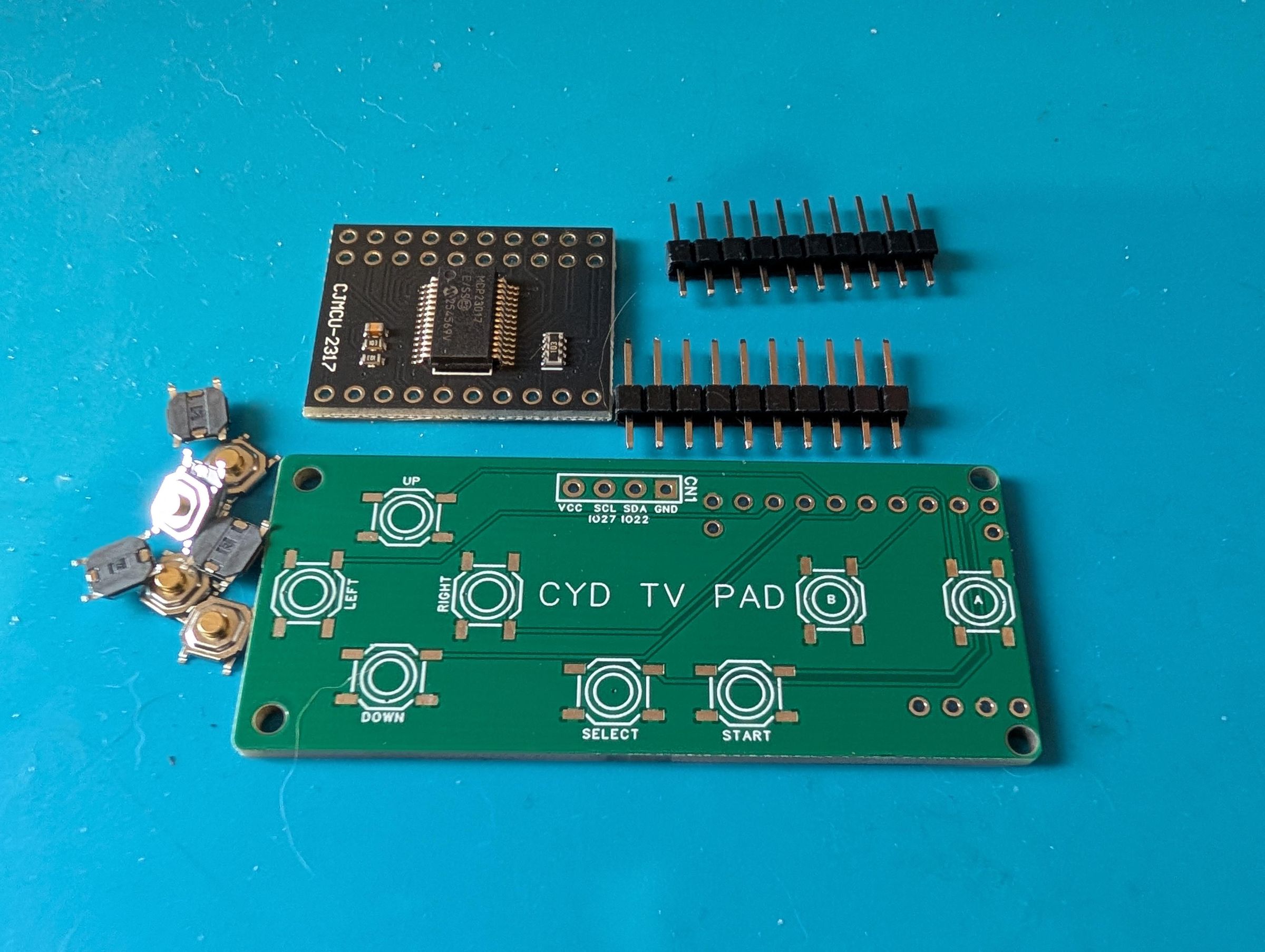
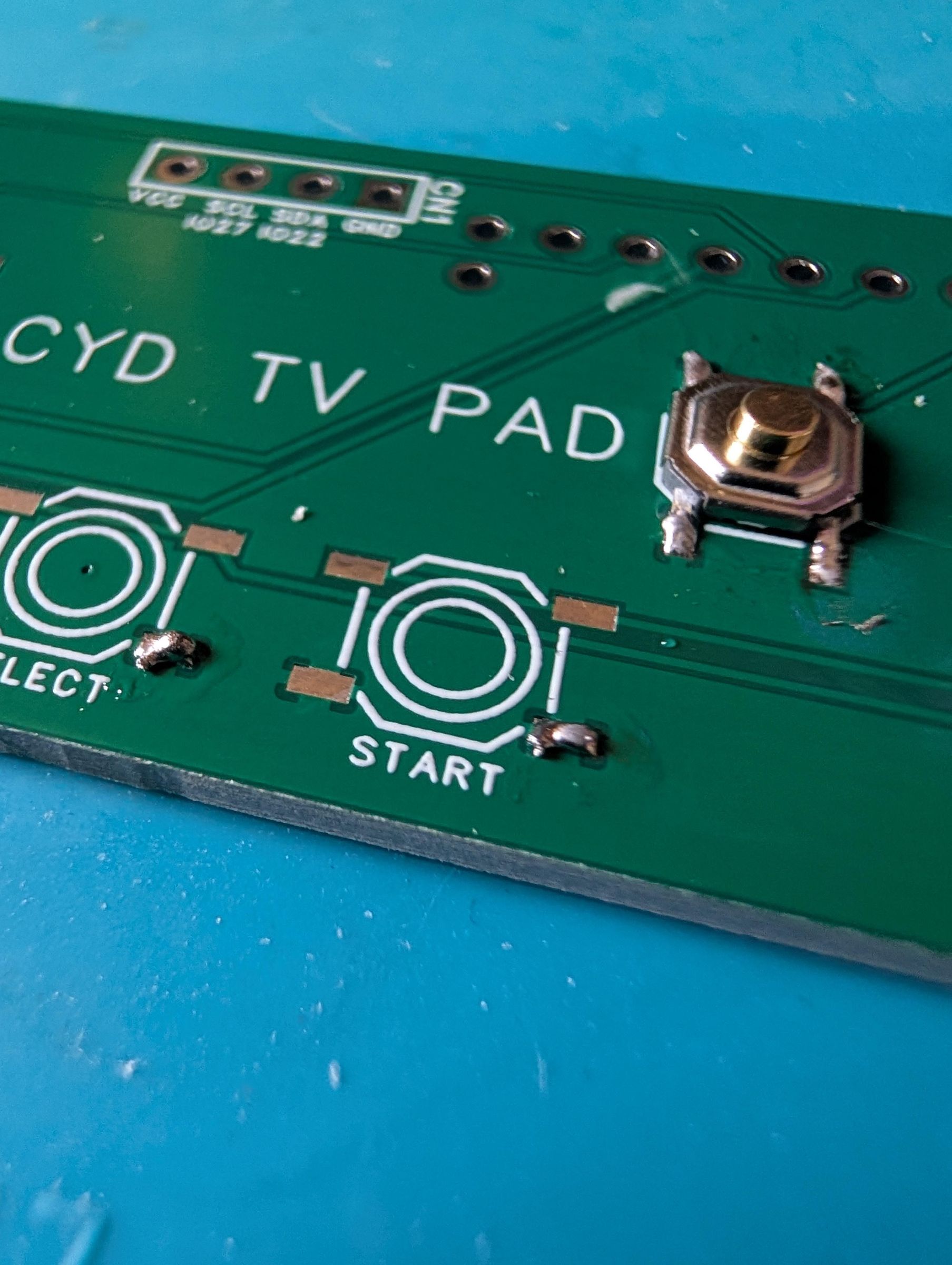
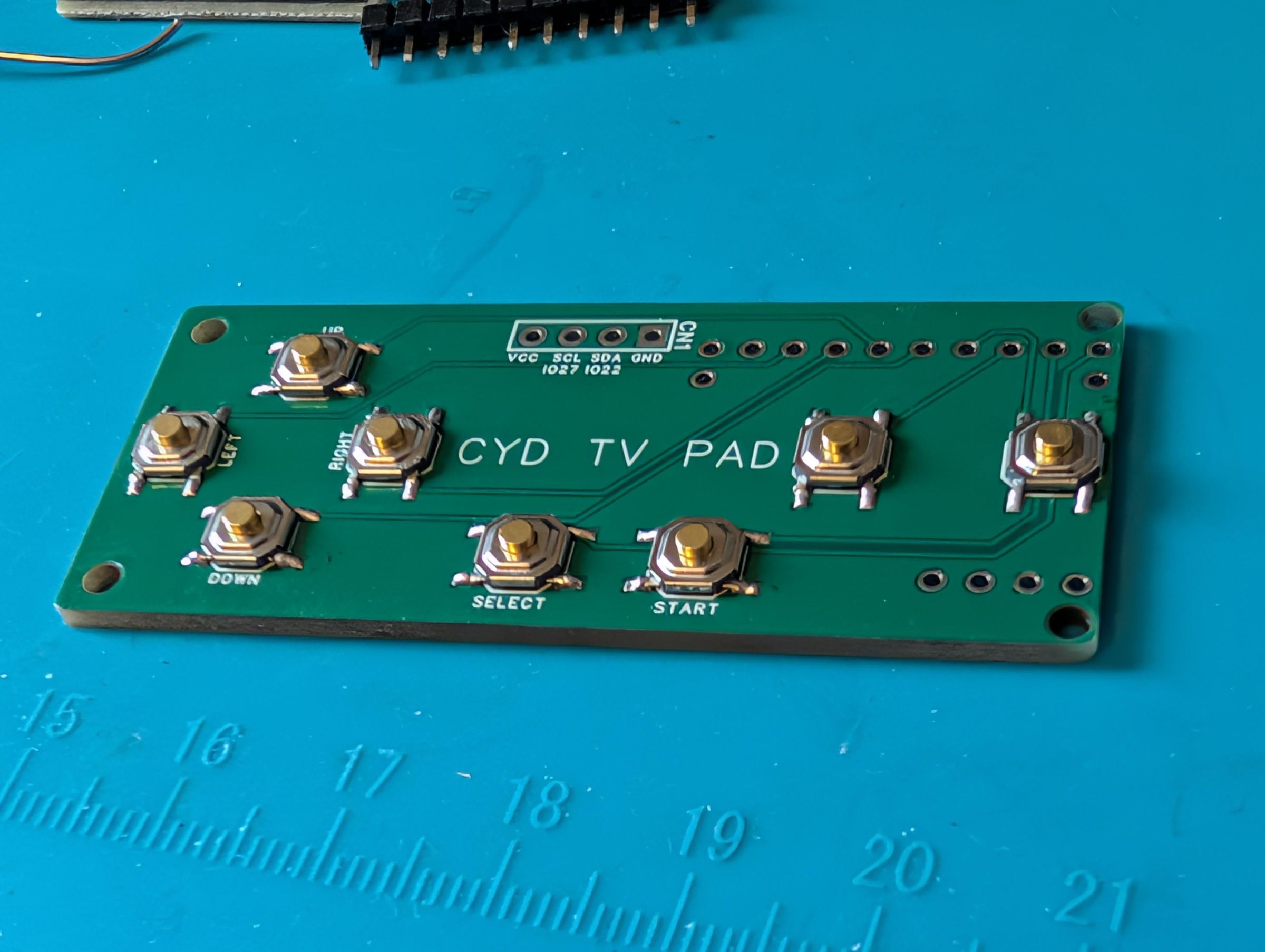


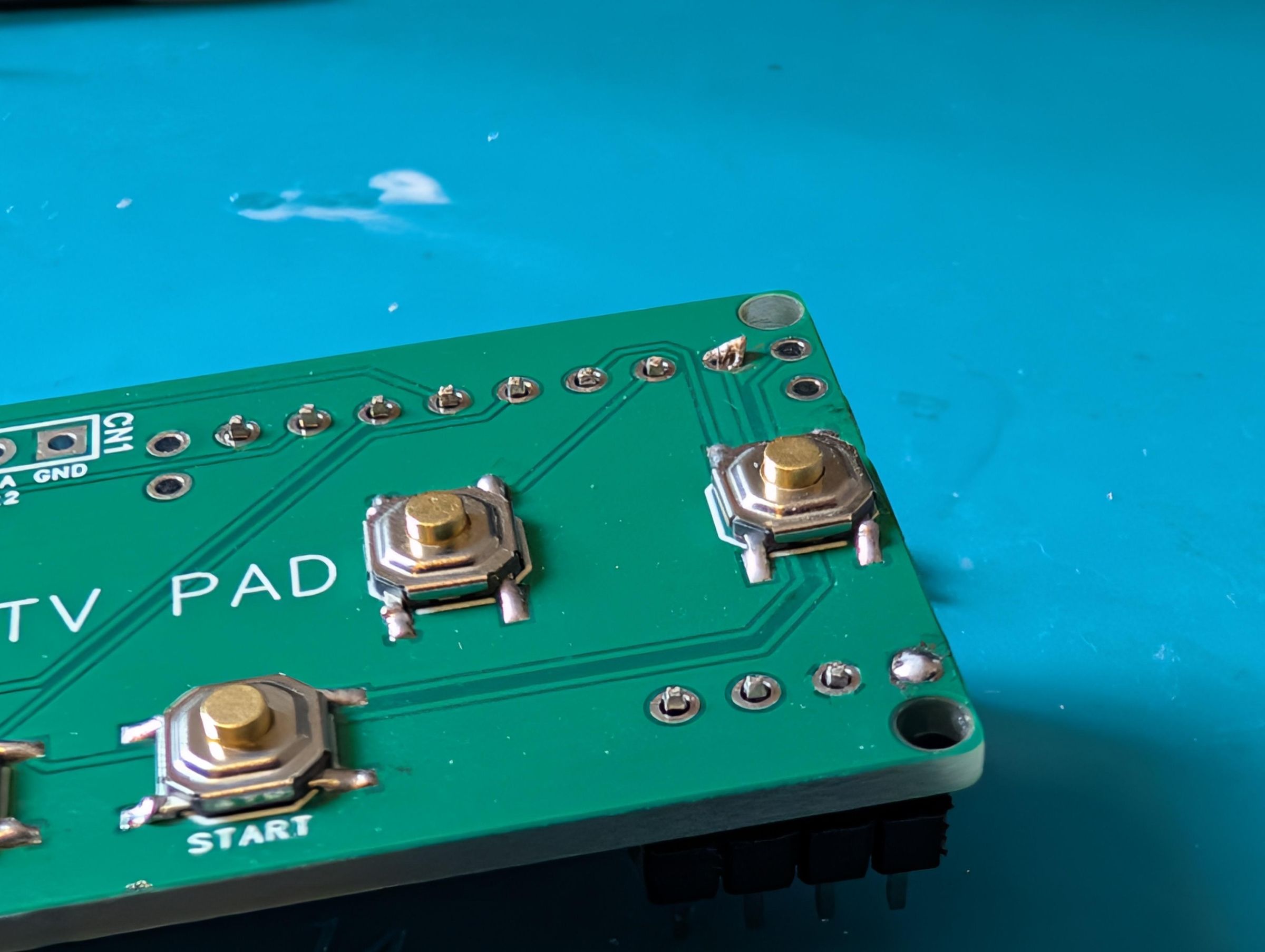
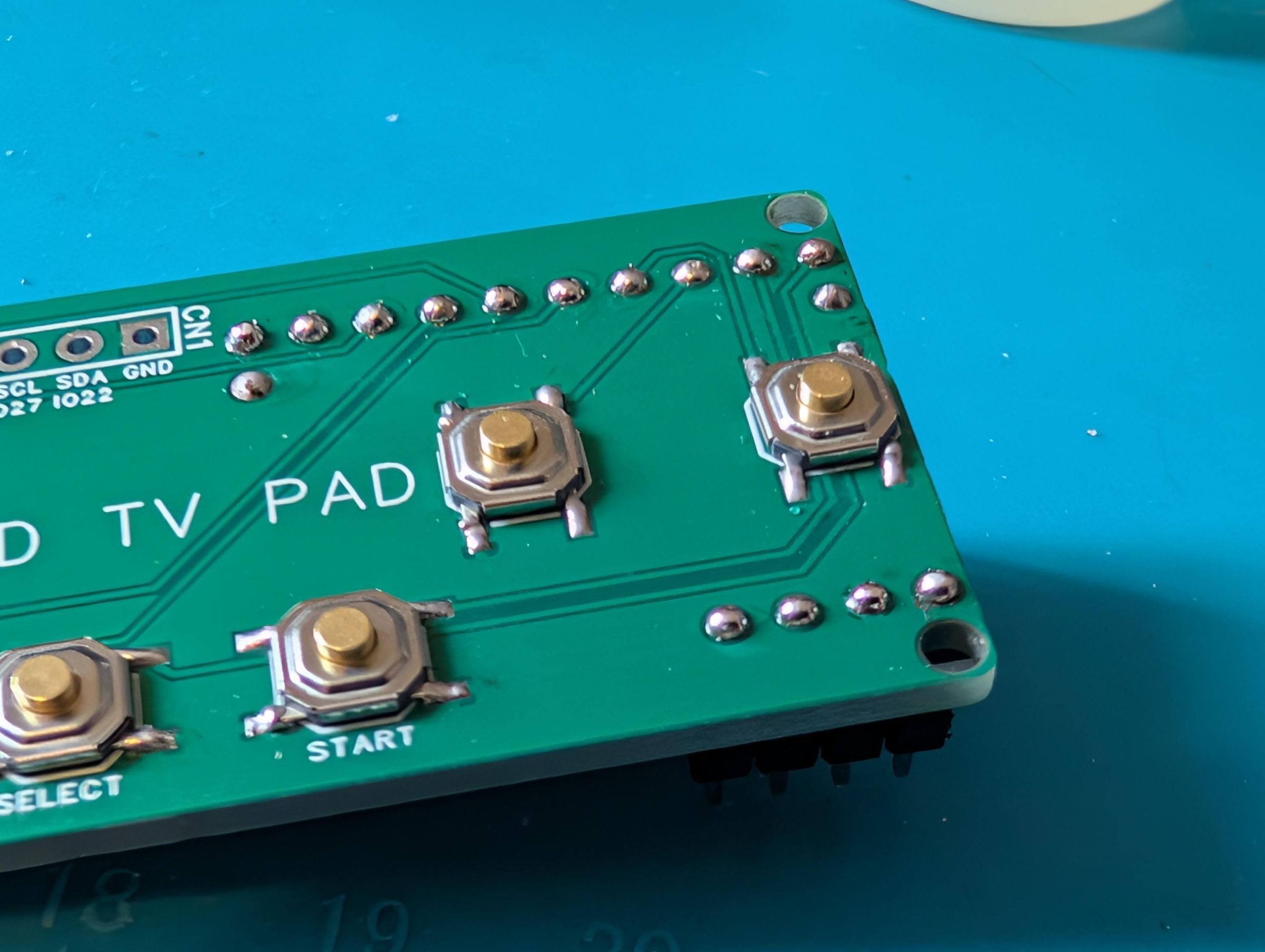


The next part is the controller PCB, this requires a little more soldering. I usually start by soldering the buttons as its easier to work with a flat surface, the two most important parts is that they are flat to the board and they are fairly well aligned, I normally start by adding some solder to one pad, then it allows me to align the button (and ensure its flat) once its good, you can solder the other 3 pads. Work your way to completing all 8.
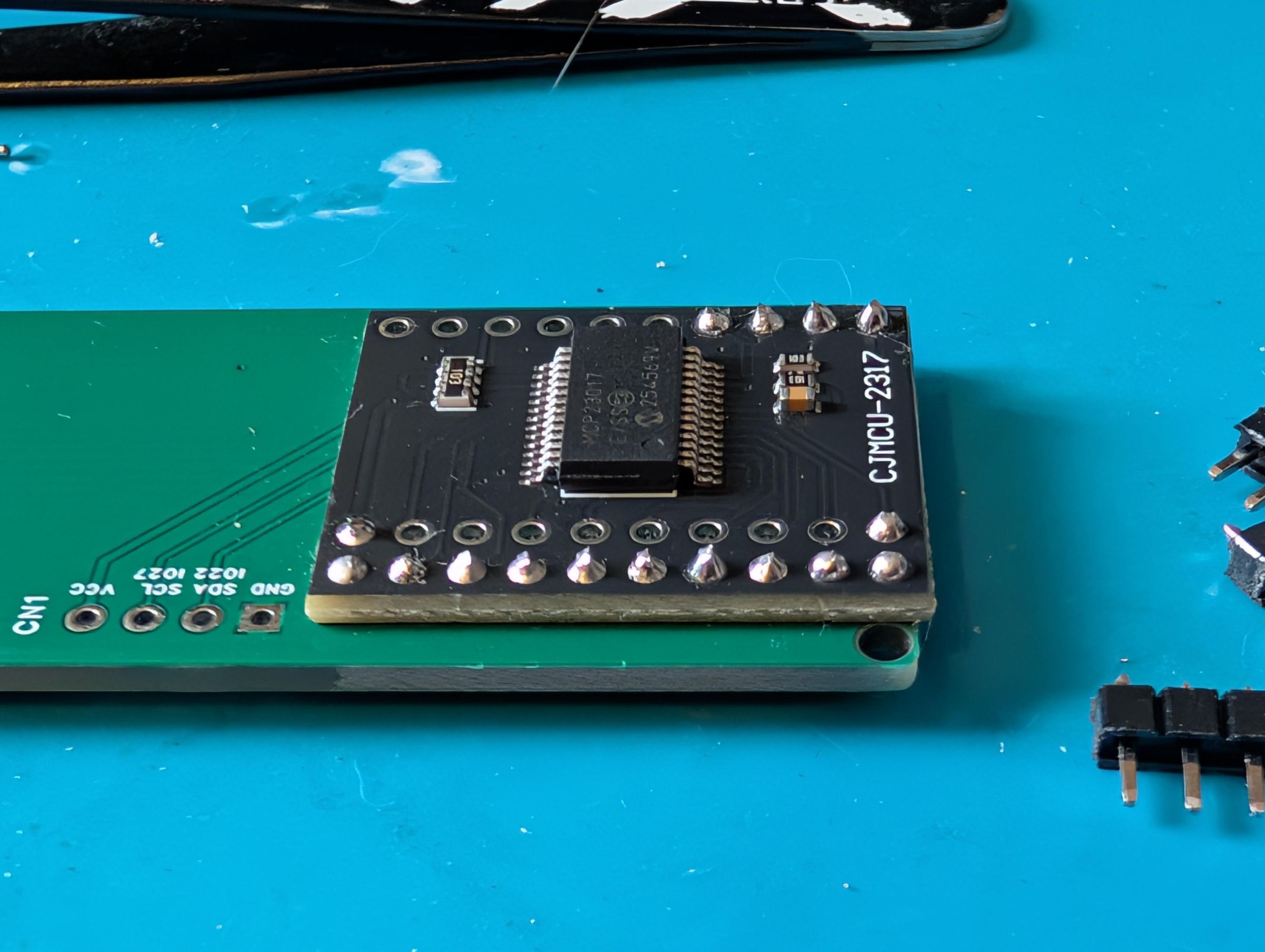
Next up is the MCP23017 board, my current way of doing these is to use pin headers to connect them between the two boards, I place the longer end of the pin header through the two boards and loosely tack in one pin so its about 0.5 to 1mm through the board, then once its lined up I will solder each connection on one side. After that I use some side cutters to snip the other side and (ensuring the board is flat to the PCB) solder the remaining side. You can always just flood solder and not worry about using pin headers, whatever works for you.
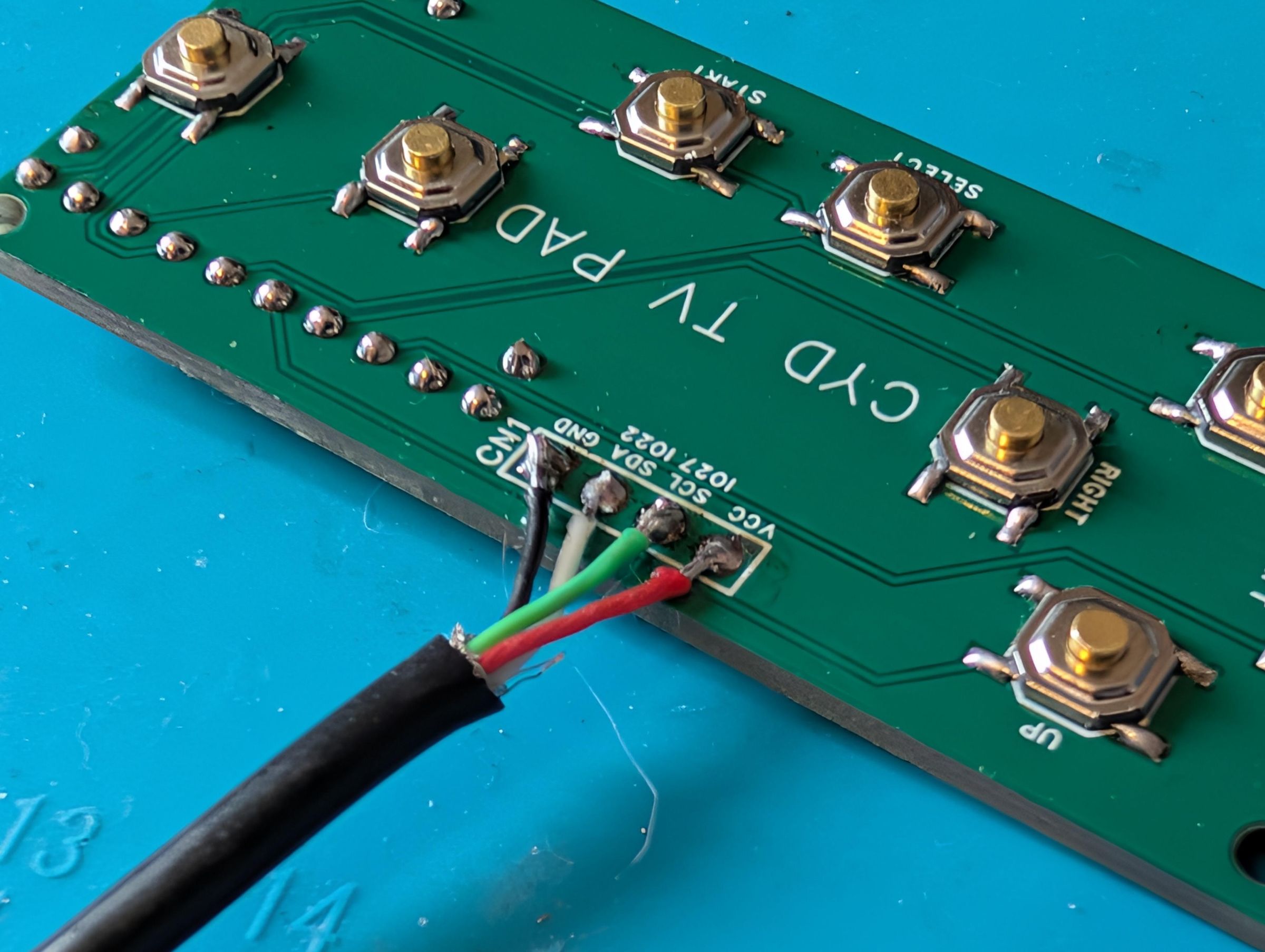
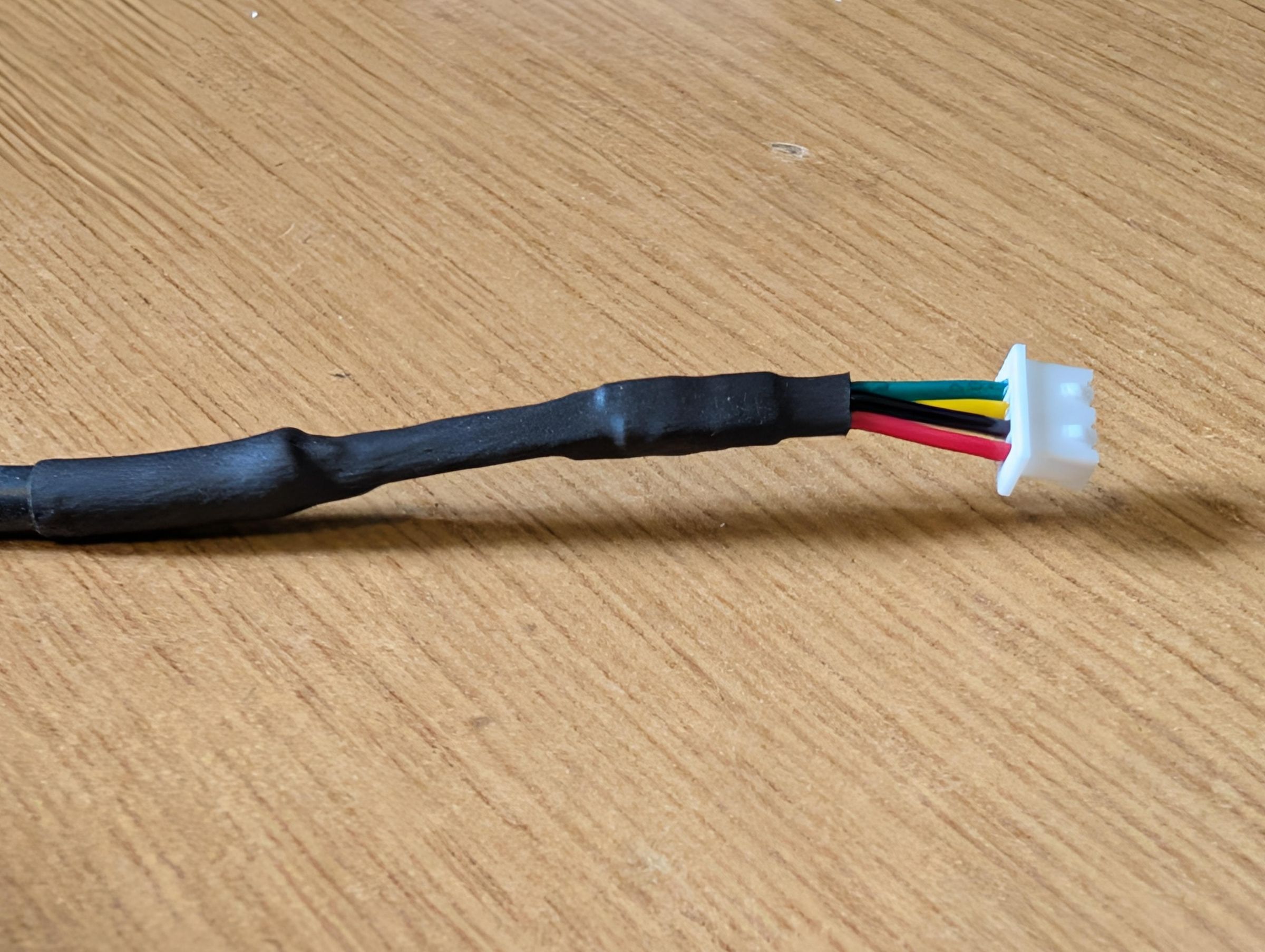
Next part is the CN1 connections, I used an old USB cable since they (usually) have 4 cables and but you will want to make sure its not a charge only cable (which only have 2!) you can be lazy like me and cut up a cable to realise its a charge only cable or be smart (unlike me) and plug in something to the PC, if you hear a noise to show its recognised it, then its probably got 4 wires! I would also try not use a super thick (high quality) cable as it may not fit properly, I used some thinner cables since they matched better with the size of the controller and were easier to wrap up etc. It doesnt have to be an old USB cable, you can use any 4 cables you want, anyway connect these to the 4 pads VCC, SCL, SDA and GND.
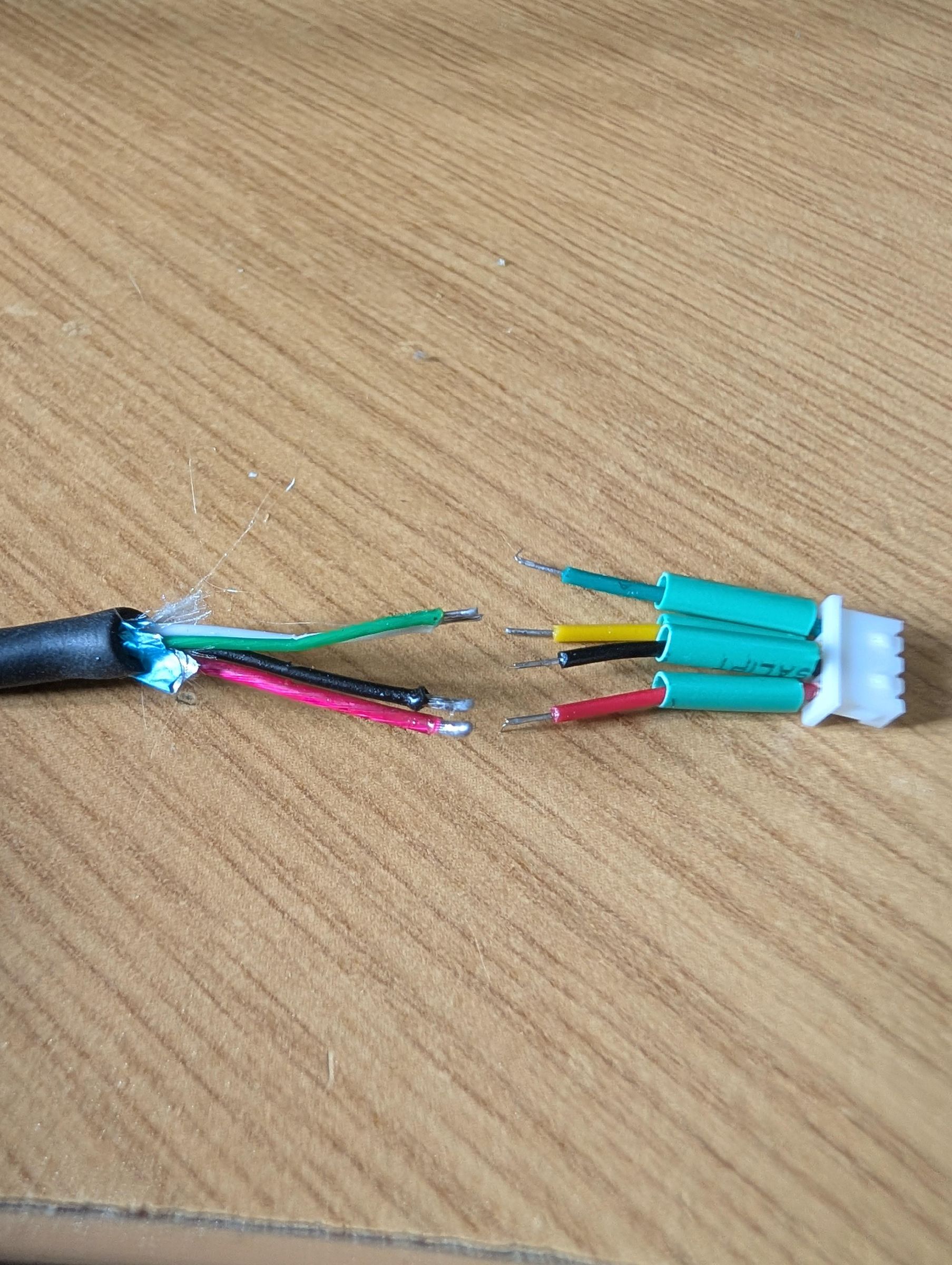
At the other end of the cable, you will need to connect this to a male JST connector. The colours may not match so make sure you get this correct. At the controller end, I choose red for power and black for ground then one of the other two for SDA and then SCL but at the plug end, the JST connectors dont match (except for red!) I guess what I'm saying is, just be careful :)
Also ensure you have some heat shrink ready and already on the cables before soldering, I'd guess I'm not the first person to ever do some lovely soldering to realise theres no heat shrink and have to start again!
Setting Up the SD
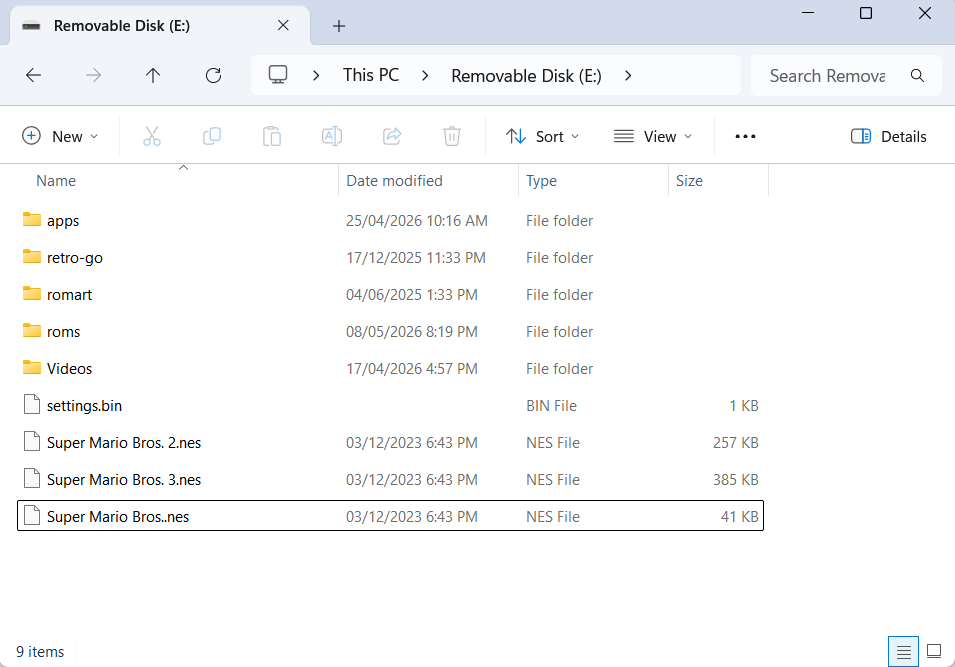
Heres some information about how to setup the SD card. I will briefly cover these, but plenty more information can be found in the readmes on their Github pages.
You will need a FAT32 SD Card, size is up to you. The Launcher files are small, about 1-3MB per file, NES is quite small depending on the amount of games, but they are only about 100-250kb each, likewise for Retro-Go (and they can be zipped up too) however the Mini TV Player files can be quite large depending on the amount you have, so I would suggest maybe a 32GB card.
Download the folder structure HERE and extract to a freshly FAT32 formatted SD. Note: this does not include any commercial files or roms but does have shareware for Doom & Duke3D (which you can replace with your retail files)
I have included the majority of .bin files in the above download but you can check the below links to see if theres been any updates.
Launcher (MiniTV-Launcher-cyd2usb.bin): https://github.com/DynaMight1124/CYD-MiniTV-Launcher/releases/tag/release
MiniTV Player (CYD-RetroTV.bin): https://github.com/DynaMight1124/ESP32-MiniTV-Player/releases
Retro-Go (Multiple bin files & img): https://github.com/DynaMight1124/CYD-MiniTV-Launcher/releases/tag/retrogo
Anemoia-ESP32 (Anemoia-ESP32.bin): https://github.com/DynaMight1124/Anemoia-ESP32/releases
The Launcher, all the .bin files go into a folder called 'apps' you can rename them if you wish.
The MiniTV Player takes a little bit of setup, you cant just copy your 4k videos onto it so it requires a little bit of folder structure and also some conversion into the correct format. Theres detailed info in the README but essentially everything player wise goes into a folder called 'Videos' and inside that directory is where you have a random folder for lots of separate videos. You can also setup 'channels' so channel 1, 2, 3, for that just create a folder called 1 and another called 2. You should just copy one video/sound file into each of the channels. I did convert a bunch of classic 90's (mostly UK based) adverts, which go into the 'random' folder. You can download them HERE
I have also created an app, so you can convert your own videos files, as well as convert YouTube videos. You can grab that HERE (Choose 320x240 display, at 24fps, other options dont matter as much)
For Retro-Go, copy your games (either zipped or unzipped) e.g. NES games go into roms/nes. Similar for the ports, copy your retail data into the correct directories e.g. for Doom, copy Doom.wad and Doom2.wad to /roms/doom. The official Github page is HERE Note: as theres only 4 buttons on the controller, you need to press Start and Select together to bring up the menu (either in launcher or in game) which will allow you to exit back to the menu etc.
So now lastly on Anemoia-ESP32, theres information on the original developers Github but essentially copy your unzipped NES rom files (.nes format) to the root of the SD card and it will see them.
The Non-Solder Basic Version
So heres the 3D files for the most basic version. Rather than a USBC port on the back with the controller connectors etc, it just has a hole on the side so you can plug a USBC cable directly into the CYD. In this version you dont even need to fit a button.
You still need some hardware from above such as the M3 and M2 bolts to hold down the CYD and then the back cover but thats it.
You will lose some functionality of the Mini TV Player, but essentially if you add all your video clips to the random folder, it will automatically cycle through all the files in that folder. You wont be able to skip or mute.
You will also likely have pretty poor sound too (you could always sound mod it in Step 2), you could always not even bother with a speaker.
Drawbacks
It's not perfect, theres certainly some things I would had done better or differently. I'm not super creative so the case isnt as nice as I'd had hoped!
The original project was just as MiniTV player but since I added more and more features, I realised that a reset or on/off switch would had been handy as the only way to get back to the menu is to unplug it completely. Oh well.
I had contemplated a battery and probably should had added one. Its not actually super hard to add one yourself and hotglue into the back the case with a basic TP4056 charge board.
Theres problem some more little bits I wish I had improved but overall happy on how it came out.