Classroom Noise Monitor Using Intellio and PictoBlox - This Will Help in Monitoring Classroom and Mantain Discipline.
by karishmathakur in Circuits > Microcontrollers
39 Views, 0 Favorites, 0 Comments
Classroom Noise Monitor Using Intellio and PictoBlox - This Will Help in Monitoring Classroom and Mantain Discipline.
Introduction
Maintaining a quiet and focused classroom environment is essential for effective learning. Excessive noise can distract students and affect classroom discipline. To address this challenge, I developed a Classroom Noise Monitor using Intellio and PictoBlox.
The system continuously monitors classroom noise levels using the built-in microphone sensor. Whenever the noise exceeds a predefined threshold, the system automatically announces a warning message and activates the camera for supervision. This helps teachers encourage a quieter and more productive learning environment.
Features
✅ Real-time noise monitoring
✅ Automatic voice warning
✅ Camera activation during excessive noise
✅ Simple block-based programming
✅ Suitable for smart classroom applications
Supplies
Understanding the Project
The system continuously reads sound levels from the microphone sensor connected to Intellio.
Working Logic
- The device starts monitoring classroom noise.
- If the sound level remains below the threshold value (500), no action is taken.
- If the sound level exceeds 500:
- A warning message is spoken.
- The camera turns ON for monitoring.
- After 10 seconds, the camera turns OFF automatically.
Build the Program
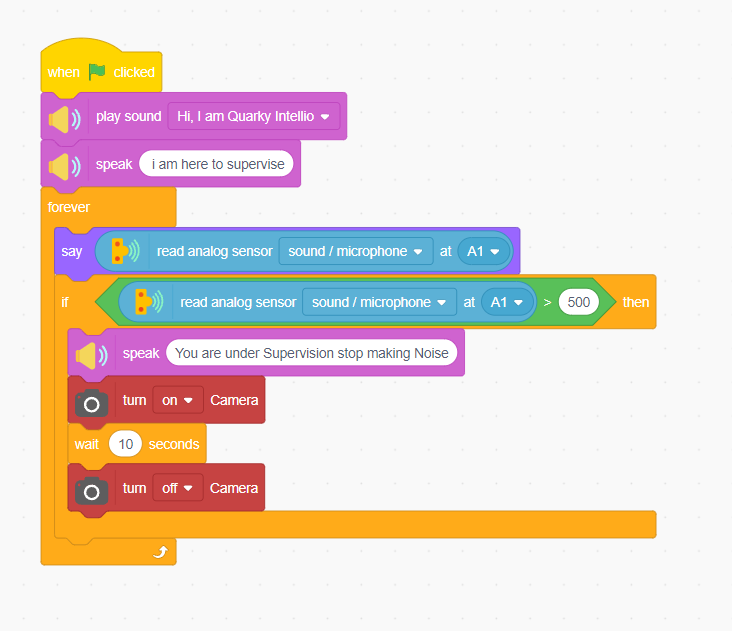
When the Green Flag is clicked:
- Play the welcome audio:
"Hi, I am Quarky Intellio"
- Speak:
"I am here to supervise"
- Continuously monitor microphone sound levels.
- Check if the sound value is greater than 500.
- If true:
- Speak:
"You are under supervision, stop making noise."
- Turn ON the camera.
- Wait for 10 seconds.
- Turn OFF the camera.
Upload and Run
Connect Intellio to PictoBlox.
Upload or run the program in Live Mode.
Click the Green Flag.
Make noise near the microphone.
Observe the warning message and camera activation.
How It Works
Normal Classroom
- Sound level below 500
- No warning generated
- Camera remains OFF
Noisy Classroom
- Sound level above 500
- Voice warning is announced
- Camera turns ON for 10 seconds
- Camera automatically turns OFF afterward