Control Your JMRI Railroad by Chatting With Claude
by mr_j in Circuits > Assistive Tech
80 Views, 1 Favorites, 0 Comments
Control Your JMRI Railroad by Chatting With Claude
Introduction
MrJ JMRI AI Assistant is a complete MCP server that exposes your JMRI layout to Claude Desktop, Claude Code, and other MCP-compatible AI assistants. Control locomotives, signals, turnouts, blocks, and lighting via natural language commands.
📍 Example:
"Start the Autorail at 50% toward the turntable" → Claude calls the appropriate JMRI tools and reports the result in real-time.
How it works:
Claude Desktop (macOS/Windows)
↓
MCP stdio server
↓
JMRI Web Server (JSON API)
↓
50+ MCP Tools (locos, signals, turnouts, blocks, power...)
Requirements
ComponentVersion/Details
JMRI
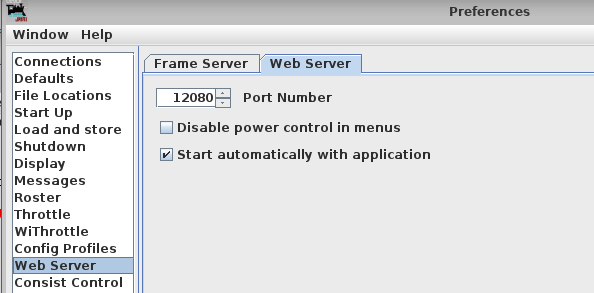
5.4+ with Web Server enabled (default port 12080), reachable from your machine
Claude Desktop
Download — manages its own Python, zero external dependencies
.mcpb bundle from MrJ
Download from GitHub Releases
macOS/Windows
Claude Desktop supports macOS 11+ and Windows 10+
Network
Your machine must be able to reach JMRI over HTTP (no special VPN/NAT needed)
Download the .mcpb Bundle
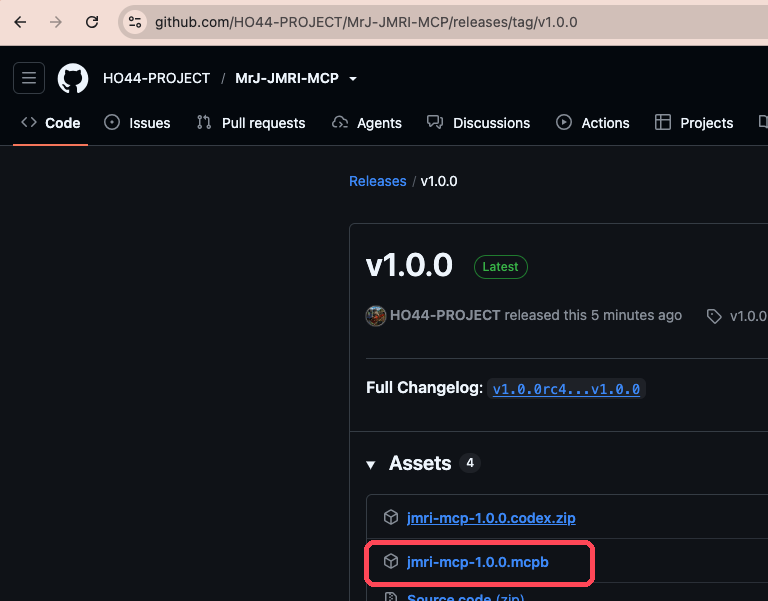
Visit the GitHub Releases page of the MrJ JMRI MCP project and download the latest jmri-mcp-*.mcpb file.
The .mcpb file is a Claude Desktop extension bundle — it's a signed archive containing the pre-compiled MCP server with all Python dependencies included.
✓ File Downloaded?
You should have a file like jmri-mcp-1.0.0.mcpb in your downloads.
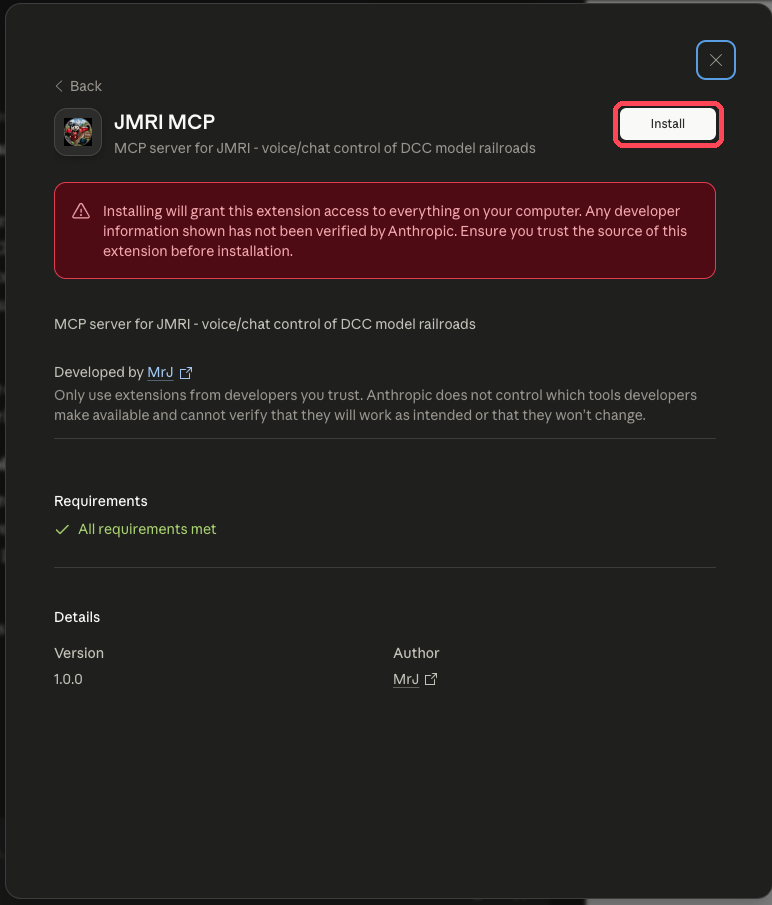
Double-Click to Install
Configure Your JMRI URL
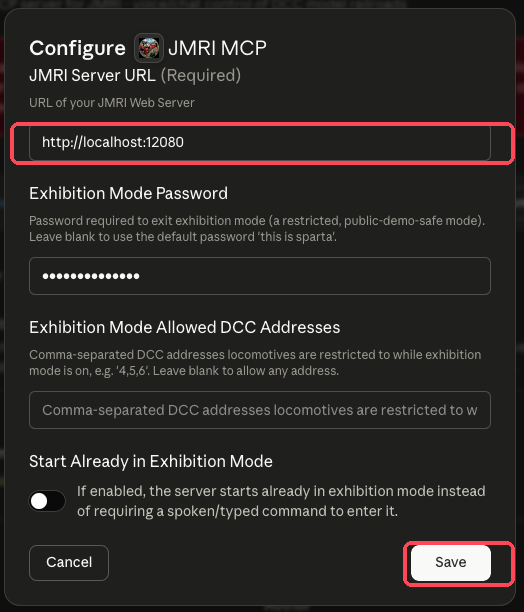
Installation complete, Claude Desktop shows Settings → Extensions. Look for JMRI MCP in the list.
Click Configure to open settings.
Fill in the JMRI Server URL field with your JMRI server address. Examples:
- http://localhost:12080 (JMRI on your local machine)
- http://192.168.1.100:12080 (JMRI on another machine)
- http://jmri.local:12080 (if using mDNS/Bonjour)
The Exhibition mode fields are optional (see Exhibition mode docs).
Click Save.
Enable the Extension
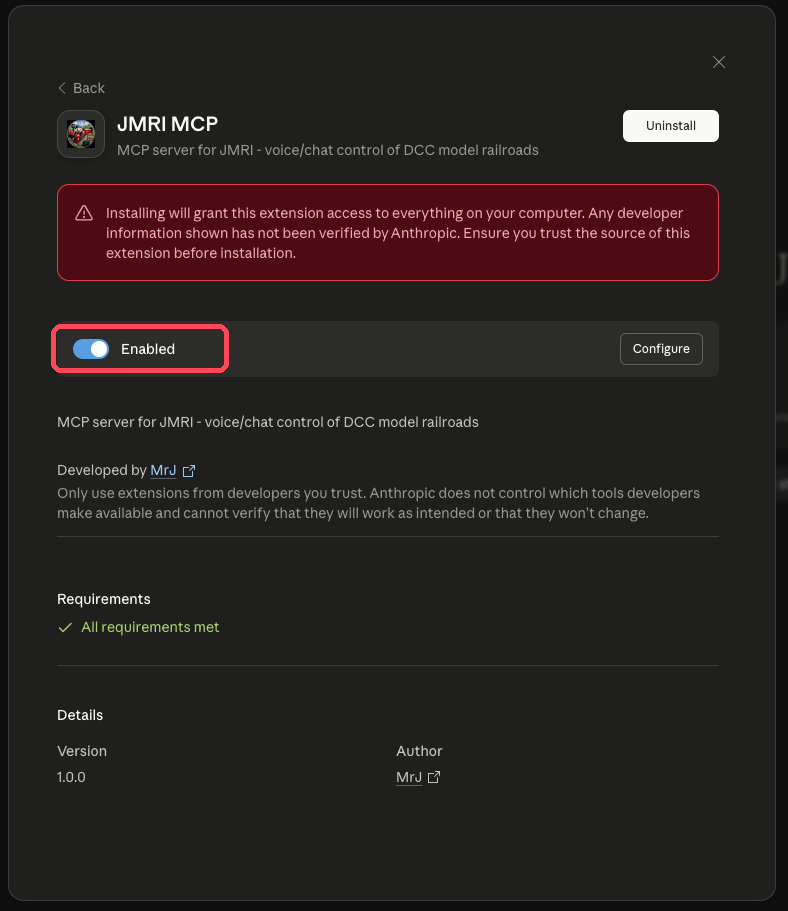
Click the toggle to enable the extension.
Test in Claude Desktop
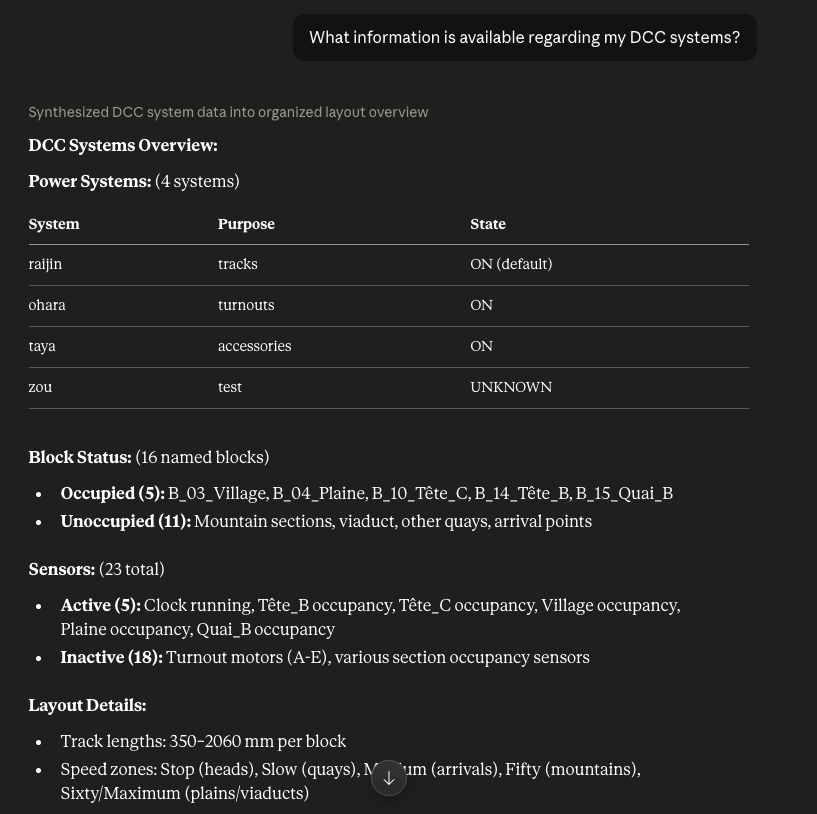
Open a new conversation in Claude Desktop and ask a question requiring JMRI tools:
- "What's the status of the DCC power systems?"
- "List the locomotives in my roster controlled by DCC system tracks and accessories"
- "Power on the DCC systems"
- "Prepare the Autorail"
- "Accelerate the Autorail to 40%, ramping over 5 seconds, hold on for 10 seconds then slow down"
- "Power on the platform lights"
- "Are the plaform blocks occupied considering platform head?"
Claude will call JMRI tools and respond with real data from your layout. You'll see an "MCP" badge next to the message showing which tools were used.
✓ Test Successful If:
- Claude calls JMRI tools (you see the "MCP" badge)
- Returned data matches your actual layout
- Locomotives accelerate/decelerate and signals change aspect in real-time
- No "tool not found" or "connection refused" errors
🎬 Real-World Use Cases: the 32 Demo Phrases
🔌 System Status
Query JMRI on overall layout state:
"What's the status of the layout?"
"Is the JMRI service responding well?"
"List the DCC systems."
"Turn on all DCC systems except the test one."
🚂 Locomotives
Control locos in natural language:
"Which locomotives are in the tracks group?"
"Give me the address and specs of the Autorail."
"Prepare the Autorail."
"Accelerate the Autorail to 40%, ramping over 5 seconds."
"Turn it around, the Autorail heads back in reverse."
"Stop the Autorail smoothly."
"Turn off its lights and put it back to rest."
🚦 Blocks & Lighting
Detect trains and manage ambiance:
"Which platforms are occupied?"
"Switch the layout to night mode."
"List the scenery lights."
"Turn off the central platform light."
"Switch back to day mode."
🔄 Turnouts
Route trains on different tracks:
"Show me all the turnouts."
"Which way is turnout OT27 pointing?"
"Close turnout OT27."
"Throw turnout OT23."
🟢 Signals
Change signal aspects:
"What's the aspect of signal bloc31?"
"What's the DCC address of signal sortie de village?"
"Set signal bloc31 to green."
🛡️ Safety & End
Activate safety modes and shut down properly:
"Turn on exhibition mode."
"Turn off exhibition mode, the password is this is sparta."
"Secure the layout."
"End the session."