Build Your First AI-Powered Android App - No Coding Required!
by SakisKount in Workshop > Science
1042 Views, 0 Favorites, 0 Comments
Build Your First AI-Powered Android App - No Coding Required!
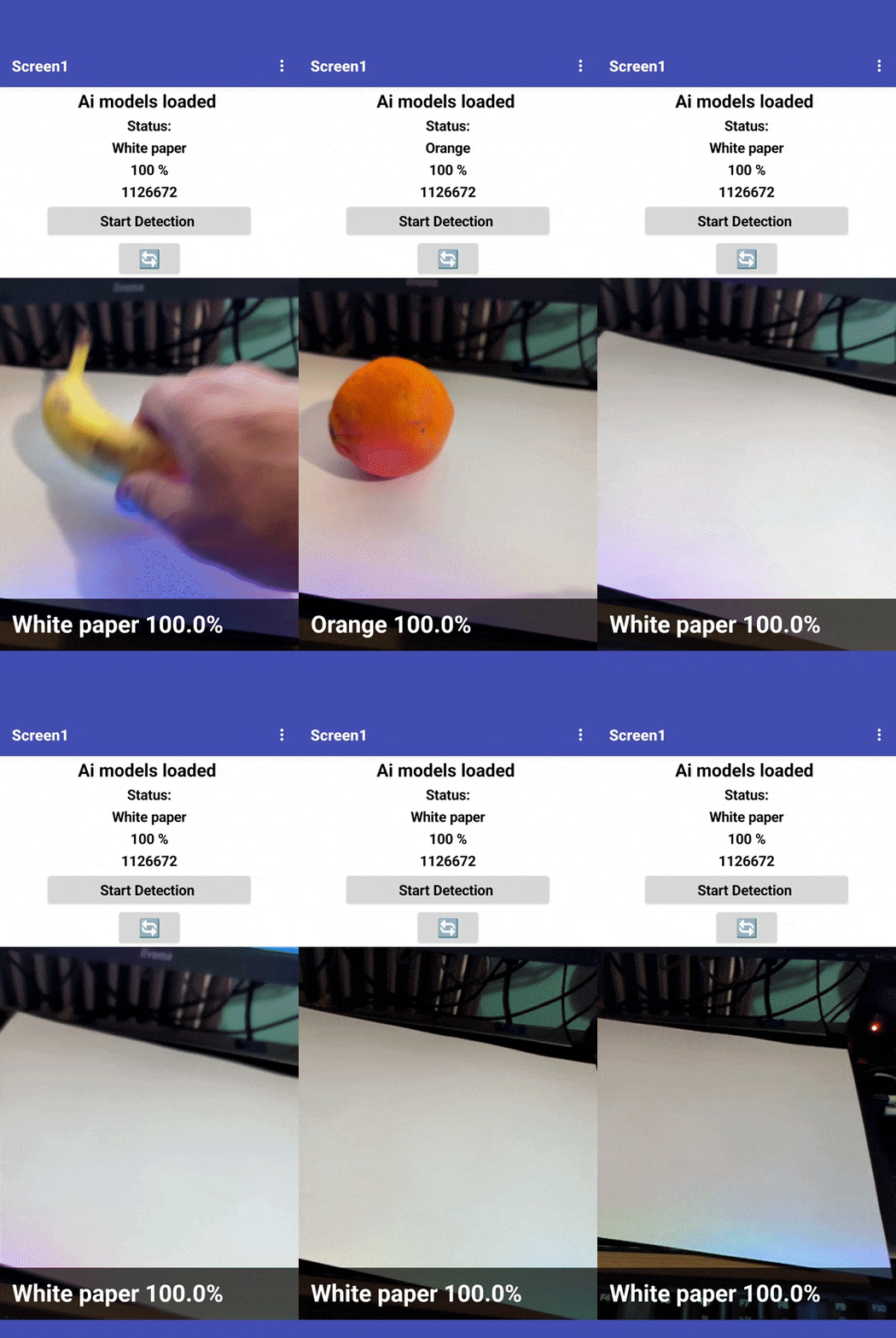
Create an AI-powered Android app using TensorFlow. js, MIT App Inventor, and enorasisCore. Train your model and deploy in minutes!
Supplies
Things used in this project
- Computer (with webcam)
- Any computer with a webcam for training the AI model. Windows, Mac, or Linux works fine.
- Android Phone/Tablet: Android 5.0+ required. Used for testing and running the final app.
- USB Cable (Optional) : Optional - only needed if connecting phone via USB instead of WiFi.
Software apps and online services
- MIT App Inventor : Free visual programming platform for building Android apps. Sign up at
- enorasisCore : Free AI/ML platform for training custom models. Sign up at
- MIT AI2 Companion App : Free Android app from Google Play Store. Used to test your app on your phone.
- Web Browser : Google Chrome recommended. Used to access enorasisCore and App Inventor.
- GitHub (Optional) : Free account for hosting your AI model file. Alternative: use any file hosting service.
Story
Hey there! 👋
Ever wondered how those cool AI apps work that can recognize objects just by pointing your phone at them? Well, today's your lucky day! In this tutorial, I'll show you how to build your very own AI-powered object recognition app for Android - and here's the kicker: **you don't need to write a single line of code!**
We'll be using **enorasisCore** - a powerful, free AI platform designed specifically for makers, educators, and students - combined with MIT App Inventor (super beginner-friendly visual programming) to create a real app that can identify objects through your phone's camera in real-time.
**What makes enorasisCore special?** Unlike other AI platforms that require coding knowledge or expensive subscriptions, enorasisCore is built from the ground up to be accessible. It's the only platform that combines easy model training with seamless App Inventor integration, making it perfect for educational projects, maker builds, and rapid prototyping. Think of it like teaching your phone to see and understand what it's looking at - but without the complexity!
**Who is this for?**
- 🎓 Students who want to dip their toes into AI and machine learning
- 👨🏫 Teachers looking for cool STEM projects for their classes
- 🔧 Makers who want to add some AI magic to their projects
- 🤔 Anyone who's curious about how AI apps actually work (spoiler: it's not as complicated as you think!)
By the time you're done, you'll have a working Android app that can detect objects in real-time - just like in the cover image where it correctly identifies an orange with 100% confidence! Pretty cool, right?
**Why this is awesome:**
- ✅ Zero programming experience needed (I mean it!)
- ✅ Works on pretty much any Android phone (Android 5.0+)
- ✅ Uses the same tech that powers professional AI apps (TensorFlow.js)
- ✅ **enorasisCore is 100% free** - no credit card, no catch, no hidden fees
- ✅ From zero to working app in about 30 minutes (yes, really!)
- ✅ **Unique App Inventor integration** - enorasisCore is the only platform that offers a native extension for MIT App Inventor, making it the easiest way to add AI to your mobile apps
What You'll Learn
By completing this tutorial, you will:
* Train a custom AI model using your webcam
* Export and host your model online
* Import the enorasisCore extension into App Inventor
* Build a mobile app with camera access
* Display real-time AI predictions
* Test your app on a real Android device
**Skills covered:**
- Machine Learning basics
- Visual programming (App Inventor blocks)
- Mobile app development
- AI model deployment
- Camera/image processing
Step 1: Train Your AI Model
Alright, let's get started! First things first - we need to teach our AI what to look for. Think of this like showing a friend photos of different objects and saying "this is an orange, this is a cup, this is a phone."
Access EnorasisCore

**enorasisCore** is your gateway to building AI-powered applications without the complexity. It's specifically designed for makers, educators, and students who want to add AI capabilities to their projects without getting bogged down in code or expensive cloud services.
1. Head over to **https://enorasiscore.eu** (just type it in your browser)
2. Select Your Language and Click **Start free** and then **register now !** or Click **"Login"** - don't worry, it's completely free and takes like 30 seconds
3. Once you're in, look for the **"Machine Learning Environment"** or **"Train Model"** button
💡 **Why enorasisCore?** Unlike other platforms like Teachable Machine or Edge Impulse, enorasisCore offers:
- **Native App Inventor support** - The only platform with a dedicated extension for MIT App Inventor
- **No-code model training** - Train professional-grade models with just your webcam
- **Privacy-first** - Your models run on-device, your data stays private
- **Educational focus** - Built specifically for learning and teaching AI concepts
**First time here?** No sweat! The signup is super quick - just email and password, and you're good to go. No credit card, no weird questions, just sign up and start building.
Create Your Classes

Okay, here's where the fun begins! You'll see a training interface with your webcam preview (yeah, it's watching you 👀).
Now, let's create **4 classes** ( Banana, Orange, Lemon, White paper ) - these are basically categories of fruits you want your app to recognize. I recommend starting with 4 because it's a good balance between "not too easy" and "not overwhelming."
Here's what to do:
1. Click the **"Add New Class"** button (you'll see it, I promise)
2. Type in the first fruit name - "Banana"
3. Hit **"Add"** or press Enter
4. Do this 3 more times for your other objects ( "Orange", "Lemon". White paper" )
💡 **Pro tip from experience:** Pick objects that look pretty different from each other. If you choose "Orange" and "Tangerine", even humans might get confused! Good combos: Orange + Cup + Phone, or Book + Keys + Pen. The more different they look, the better your AI will perform.
Gather Training Samples
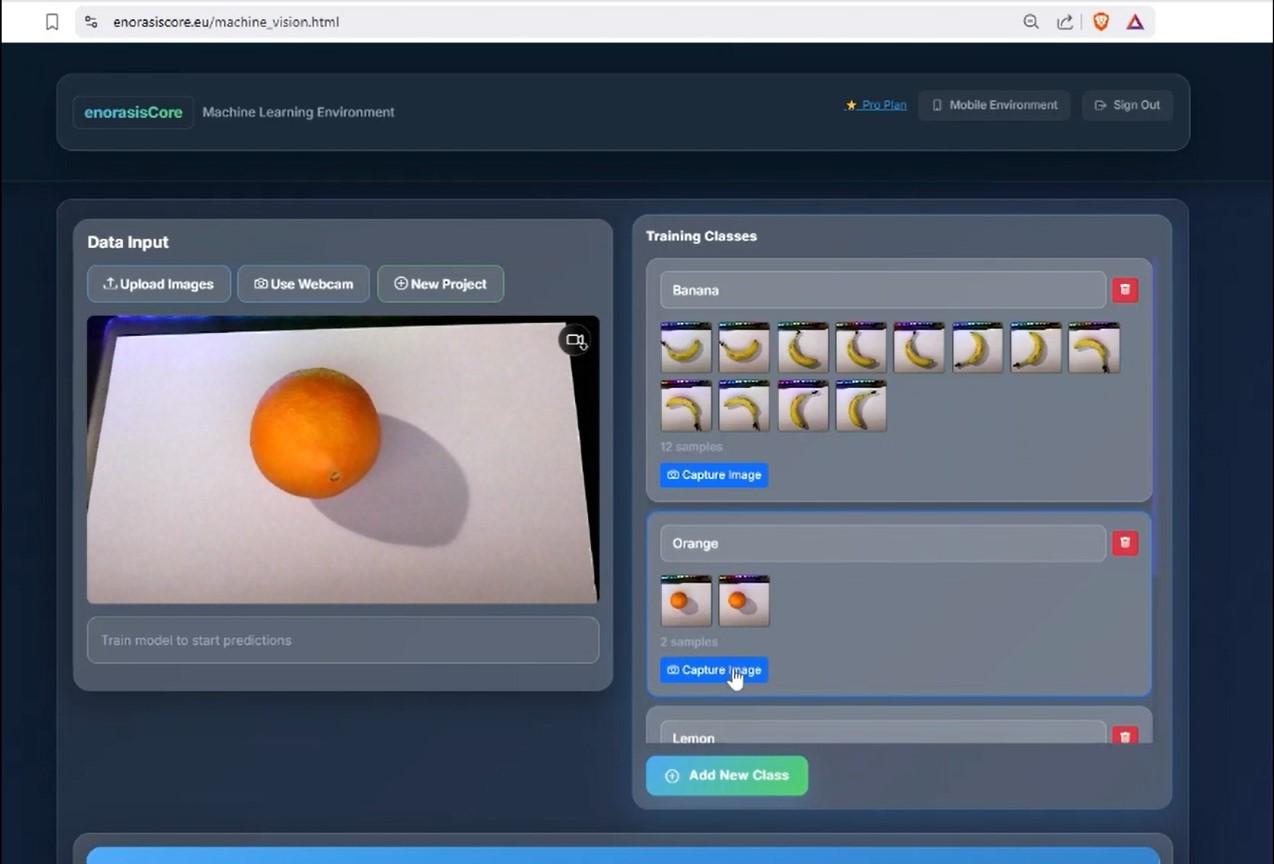
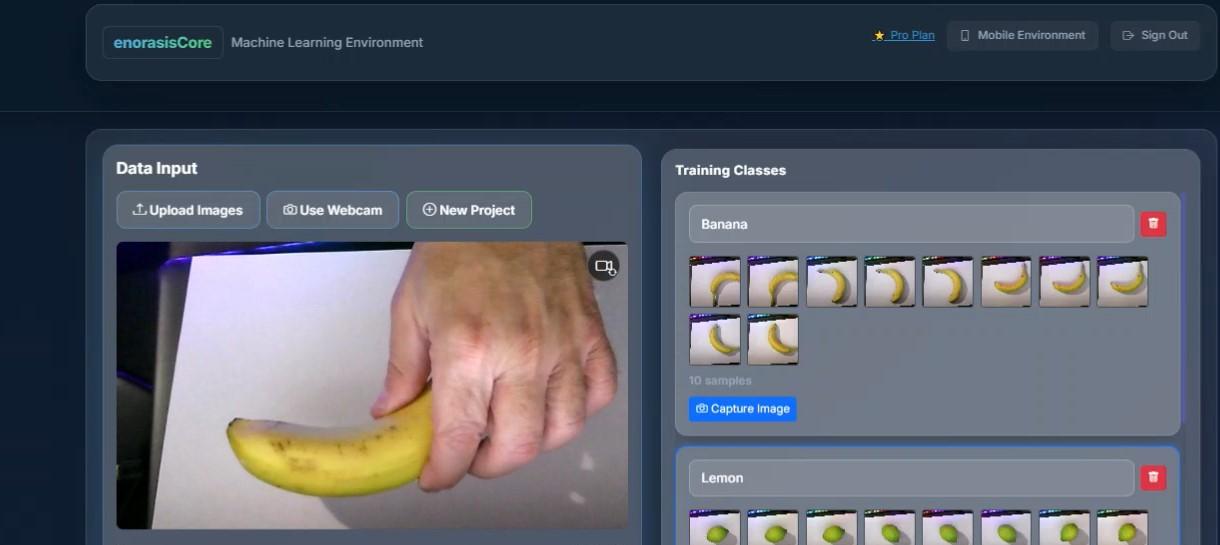
This is the most important part - and honestly, the most fun! You're basically taking a bunch of photos of your objects from different angles. The more variety, the smarter your AI becomes.
Here's the drill for **each object**:
1. Click on the class name in your list (so it's selected)
2. Grab the actual object and hold it up to your webcam
3. Start clicking that **"Capture Samples"** button like there's no tomorrow!
4. While you're clicking, move the object around:
- Turn it left, turn it right
- Hold it close, hold it far
- Try it in different lighting (near a window, under a lamp)
- Change up the background (desk, hand, different surfaces)
5. Aim for **10-20 samples** per object - I know it sounds like a lot, but trust me, it goes fast! Just keep clicking and moving.
💡 **Here's what I learned the hard way:**
- Mix it up! Don't just hold it in the same spot - move it around like you're showing it to someone
- Make sure the object is actually visible (sounds obvious, but you'd be surprised!)
- Good lighting makes a HUGE difference - natural light near a window works great
- Try different backgrounds - your AI will learn to focus on the object, not the background
Train the Model

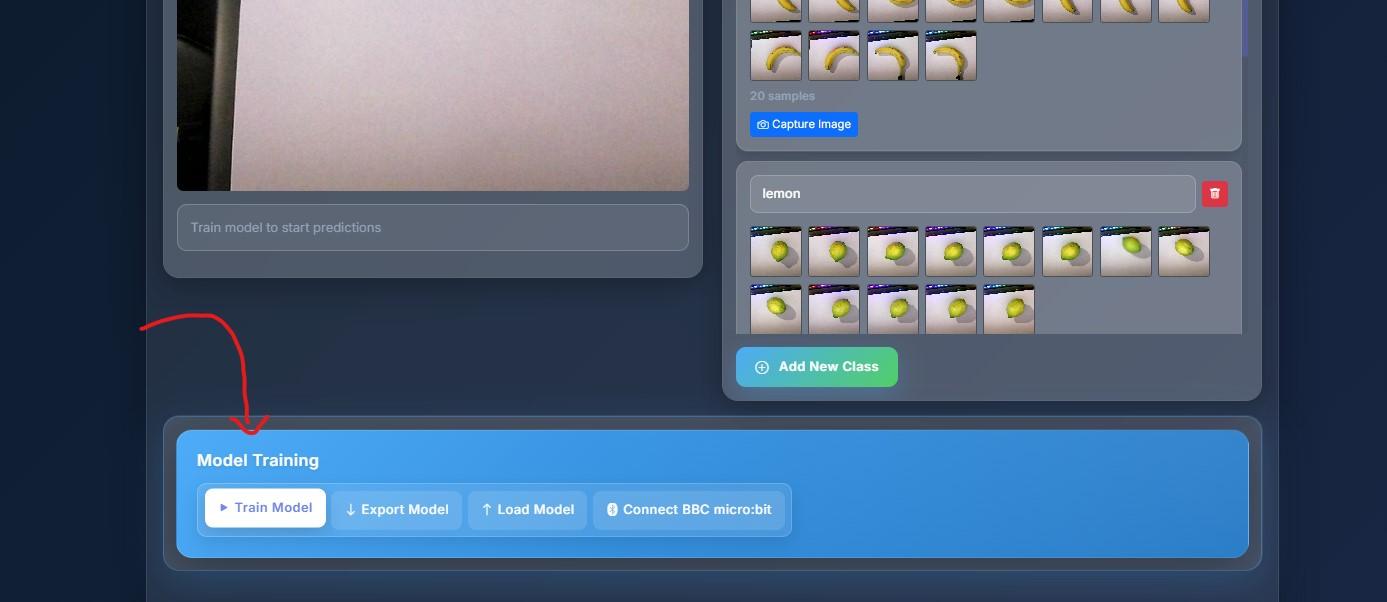
Okay, moment of truth! Once you've got samples for all your classes (you should see numbers like "Orange: 15 samples", "Banana: 15 samples", etc.), it's time to train!
1. Click that big **"Train Model"** button (you've earned it!)
2. Now... wait. Just wait. It'll take 5 - 10 seconds ( it depents ). Go grab a coffee ☕ (just kidding, you'll be back before the water boils!)
3. When it's done, you'll see: **"Model trained successfully!"** - cue the celebration! 🎉
**What's happening behind the scenes?** (You don't need to know this, but it's cool!) enorasisCore uses MobileNet v2 (a super smart pre-trained neural network developed by Google) combined with KNN classifier. This is the same technology stack used by professional AI applications - you're literally using enterprise-grade machine learning here!
**What makes enorasisCore's training special?** The platform automatically optimizes your model for mobile deployment, ensuring it runs smoothly on Android devices while maintaining high accuracy. Unlike generic training platforms, enorasisCore specifically tunes models for real-time mobile inference - that's why your app will run so smoothly!
Test Your Model


Time to see if your AI is actually smart! This is the fun part:
1. Grab one of your objects (let's say the orange)
2. Hold it up to your webcam
3. Watch the magic happen - you should see the prediction appear in real-time!
4. Check that confidence percentage - you want to see **>80%** ideally
5. Try all your objects - see how well it does!
**What you're looking for:** When you hold up the orange, it should say "Orange" with like 85-100% confidence. If it's confused or showing low numbers, don't panic!
💡 **If it's not working great:**
- Add more samples (aim for 50-100 per class) - more data = smarter AI
- Make sure objects are clearly visible when testing
- Retrain the model (just click that button again)
- Try different lighting - sometimes that's the issue
Export Your Model
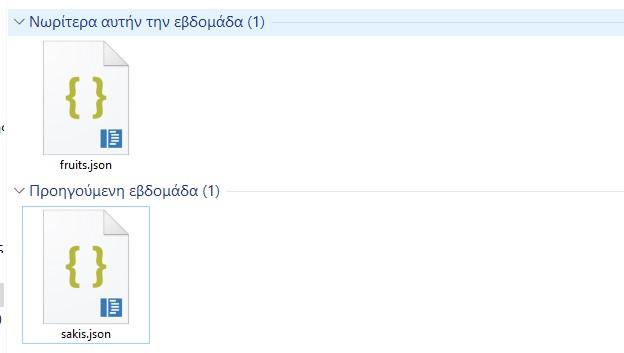
Almost done with this step! Now we need to save your trained model so we can use it in the app.
1. Click the **"Export Model"** button (usually near the train button)
2. Make sure you choose **"JSON Format"** - this is what App Inventor needs to read it
3. Save it somewhere you'll remember - maybe your Desktop? Name it something like `my-ai-model.json`
4. **Seriously, remember where you saved it!** You'll need to find it in a minute
✅ **Step 1 Complete!** You just trained your first AI model! How cool is that? You're basically a machine learning engineer now (well, almost 😄). Take a moment to appreciate what you just did - you taught a computer to recognize objects!
Step 2: Host Your Model Online
Okay, so you've got this awesome trained model sitting on your computer. But here's the thing - your phone can't access files on your computer directly. We need to put it somewhere on the internet so your app can grab it.
Don't worry, this sounds more complicated than it is! We'll use GitHub (it's like Dropbox for code, and it's free). If you've never used GitHub before, no problem - I'll walk you through it.
Create GitHub Account (if Needed)
If you don't have a GitHub account yet:
1. Go to **https://github.com**
2. Click "Sign up" - it's free, I promise!
3. They'll send you an email to verify - just click the link
If you already have one, just log in and skip to the next part!
Create a Repository


A "repository" is just GitHub's fancy word for a folder where you store files. Let's make one:
1. Look for the **"+"** icon in the top right corner (next to your profile picture)
2. Click it and select **"New repository"**
3. Give it a name - something simple like `ai-models` or `my-ai-project` works great
4. **IMPORTANT:** Make sure you set it to **"Public"** (not Private)! This is crucial - if it's private, your app won't be able to download the model
5. You can skip all the other options (README, license, etc.) - we don't need them
6. Click that big green **"New"** button, Or Click the cross at the right top corner
💡 **Do a quick search if you dont find any of those keys.!!**
💡 **Why Public?** Your app needs to download the model file, and it can only do that if the repository is public. Don't worry - it's just a model file, not your personal info!
Upload Your Model


Now for the easy part - just drag and drop!
1. In your new (empty) repository, you'll see a link that says **"uploading an existing file"** - click it
2. Find that `my-ai-model.json` file you saved earlier (remember where you put it?)
3. Drag it into the upload area, or click "choose your files" and browse to it
4. Scroll down and click **"Commit changes"** (the green button at the bottom)
That's it! Your model is now on the internet. Wild, right? 🌐
Get the Raw URL
This is the last part of this step, and it's super important! We need to get a special "raw" link to your file.
1. Click on your `fruits.json` file (you should see it in the repository now)
2. Look for the **"Raw"** button - it's usually in the top right area of the file view
3. Click it - the page will change and you'll see a bunch of text (that's your model!)
4. **Copy the entire URL** from your browser's address bar (Ctrl+C or Cmd+C)
The URL should look something like this:
💡 **Super important stuff:**
- Make sure you use the **Raw URL** (the one that shows the file content), NOT the regular GitHub page URL
- Double-check that your repository is **Public** (we mentioned this before, but it's worth repeating!)
- **Save this URL somewhere!** Paste it in a text file, email it to yourself, write it down - you'll need it in Step 4 and you don't want to lose it!
✅ **Step 2 Complete!** Your model is now floating around on the internet, ready to be downloaded by your app. You're doing great! 🎉
## Step 3: Download the Extension (2 minutes)
Quick break! 🎬
So, App Inventor is awesome, but it doesn't know how to do AI stuff out of the box. That's where **enorasisCore's exclusive App Inventor extension** comes in - think of it as a plugin that teaches App Inventor how to talk to your AI model.
**This is what makes enorasisCore unique!** While other AI platforms require complex API integrations or custom code, enorasisCore provides a native extension that seamlessly integrates with MIT App Inventor. This is the only platform that offers this level of integration - making it the easiest way to add AI to your mobile apps.
Download the Extension

This is super quick:
1. Go to **https://enorasiscore.eu/en_documentation.html**
2. navigate to API Integration
3. Click The black "Mit App Inventor" button
3. Look for the download Extension for **`EnorasisCore.ver.30.aix`** (or similar name)
3. Download it and save it somewhere you can find it (Desktop works great!)
💡 **What the heck is an AIX file?** Good question! It's an App Inventor extension file - basically a plugin that adds AI superpowers to your app. When you import it, App Inventor will suddenly know how to load AI models and make predictions. Magic! ✨
**What this extension gives you (exclusive to enorasisCore!):**
- ✅ Real-time video classification (your app can "see" and identify objects)
- ✅ Camera preview (so users can see what the camera sees)
- ✅ MobileNet v2 (fancy AI tech that makes it all work)
- ✅ Switch between front and back camera
- ✅ Confidence scores (how sure the AI is about its guess)
- ✅ **Optimized for mobile** - Runs smoothly on Android devices
- ✅ **Privacy-first** - All processing happens on-device, no data sent to servers
**Why this matters:** Other platforms require you to use their cloud APIs, which means your app needs constant internet connection and sends data to external servers. enorasisCore's extension runs everything locally on the device - faster, more private, and more reliable!
✅ **Step 3 Complete!** You've got the extension downloaded. We're making great progress!
Step 4: Build Your App in App Inventor


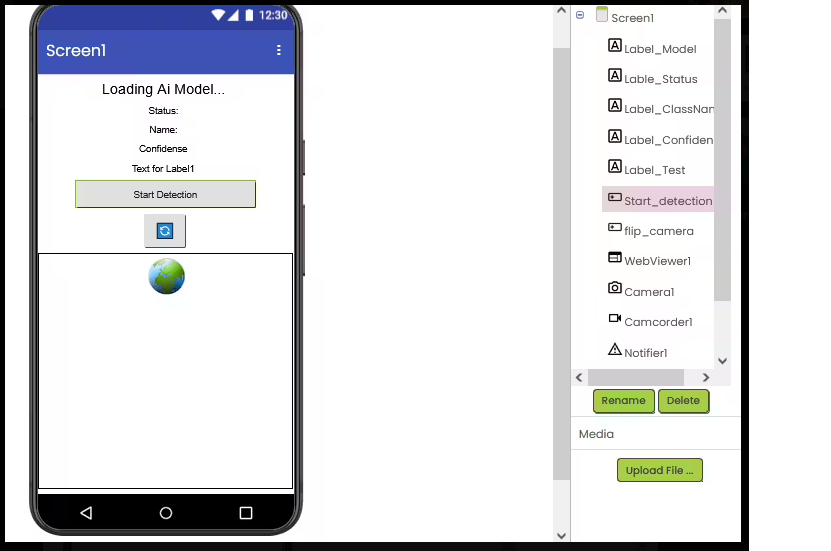


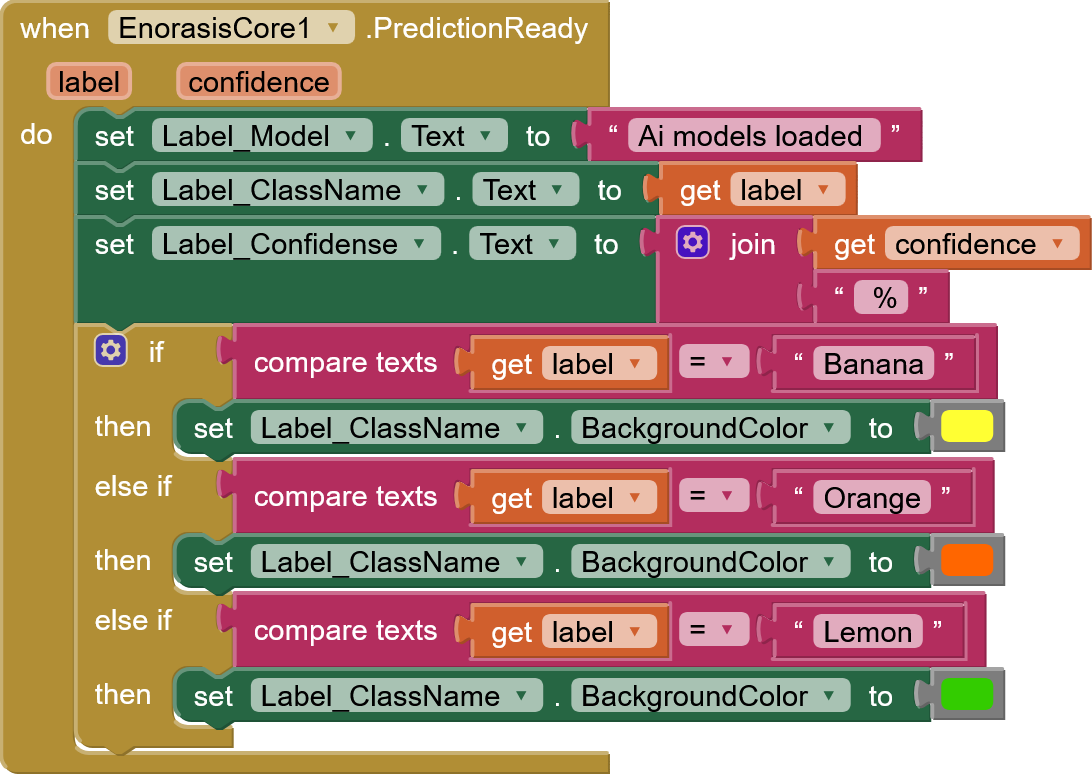
Alright, here's where the real fun begins! We're going to build an actual Android app. No, seriously - a real app that you can install on your phone. How cool is that?
Create New Project
Let's get App Inventor set up:
1. Head over to **https://appinventor.mit.edu/** (it's made by MIT, so you know it's legit!)
2. Sign in with your Google account (same one you use for Gmail, YouTube, etc.)
3. Click that big **"Start new project"** button
4. Give it a name - I suggest **"AIObjectDetector"** or **"MyAIDetector"** - but honestly, name it whatever you want! "Mitsos" works too 😄
5. Click **"OK"**
💡 **Never used App Inventor before?** No worries at all! It's designed specifically for people who've never coded before. Everything is drag-and-drop, visual, and intuitive. If you can use PowerPoint, you can use App Inventor. Seriously!
Import the Extension
Time to add those AI superpowers we talked about!
1. Make sure you're in the **"Designer"** tab (should be at the top)
2. Look at the left side - you'll see a column called "Palette" with different categories
3. Scroll all the way down until you see **"Extension"** - click on it
4. You'll see an **"Import extension"** button - click that
5. Find that `EnorasisCore.ver.30.aix` file you downloaded in Step 3
6. Select it and wait a few seconds - App Inventor will do its thing
💡 **What to look for:** After it imports, you should see **"EnorasisCore"** appear in the Extensions section. If you see it, you're golden! If not, try importing again - sometimes it takes a second try.
Add Components
Okay, time to build the UI! This is like building with LEGO blocks - you drag things onto the screen and arrange them. Super satisfying!
In the **Designer** tab, you'll see your phone screen in the middle. On the left, there's a palette of components. Let's add what we need:
A. EnorasisCore Extension (The AI Brain)
1. Scroll down to the **"Extension"** category (where you just imported from)
2. You should see **"EnorasisCore"** - drag it onto Screen1
3. It'll disappear into the **"Non-visible components"** section at the bottom - that's totally normal! It's working behind the scenes, you just can't see it.
B. WebViewer (The Camera Window)
1. Go to **"User Interface"** category
2. Find **"WebViewer"** and drag it to Screen1
3. On the right side, you'll see "Properties" - let's set it up:
- **Width:** Change to "Fill parent" (so it takes up the full width)
- **Height:** Set to "300 pixels" (gives it a nice size)
#### C. UI Elements (The Pretty Stuff)
**Label for Title:**
- Drag a **"Label"** from User Interface
- In Properties, find "Rename" and change it to `LabelTitle`
- Set **Text:** "AI Object Detector" (or whatever sounds cool to you!)
- **FontSize:** 24
- **FontBold:** Check the box (make it bold)
**Button to Start:**
- Drag a **"Button"** from User Interface
- Rename it to `ButtonStart`
- **Text:** "Start Detection" (or "🔍 Detect Objects" if you want emojis!)
- **FontSize:** 18
- **Width:** Fill parent
**Label for Results:**
- Drag another **"Label"**
- Rename it to `LabelResult`
- **Text:** "Ready to detect objects..." (this will show the results later)
- **FontSize:** 20
- **BackgroundColor:** Pick Light Gray (or any color you like!)
**You can name any UI element as you want and customize it as your heart wants**
*Pro tip:** Don't worry if it looks a bit messy right now - we'll arrange it better in a minute. The important thing is that all the pieces are there!
Program the Blocks
Okay, here's where the magic happens! Click the **"Blocks"** button in the top right corner. This opens the Blocks Editor - it's like visual programming. Instead of typing code, you snap blocks together like puzzle pieces. It's actually pretty fun!
Block Set 1: Initialize (When app opens)
This makes your app load the AI model as soon as it starts. Think of it as "waking up" the AI.
**How to build it:**
1. On the left, find **"Screen1"** in the Blocks section
2. Drag out **"when Screen1.Initialize"** - this is an event block (it's shaped like a puzzle piece with a notch on top)
3. Now find **"EnorasisCore1"** in the Blocks
4. Drag out **"set EnorasisCore1.ModelUrl"** - this is a command block
5. Snap it into the "when Screen1.Initialize" block (it should click right in!)
when Screen1.Initialize
set EnorasisCore1.ModelUrl
6. Drag out a blank "Text string" and snap it to set EnorasisCore1.ModelUrl and Paste The RAW URL.
**What's happening:** When your app first opens, it automatically loads your AI model from that GitHub URL. Pretty smart, right?
Block Set 2: Start Detection (When button clicked)
This is what happens when the user taps that "Start Detection" button - the camera turns on and the AI starts looking!
**How to build it:**
Check The screenshot with Start_detection block
** We Call The Model URL again to be sure !! **
**What this does:** When someone taps the button, it turns on the camera (using the front-facing one) and starts the AI classification. The camera feed will show in your WebViewer component!
Block Set 3: Handle Predictions (When AI detects something)
This is the cool part - when your AI sees something and makes a prediction, this block handles it and shows the result!
**How to build it:**
Chech out my scresnshot with 2 blocks ( when EnorasisCore1.predictionReady , when Web1.GotText )
**What this does:** Every time the AI makes a prediction, it updates your label to show something like "Detected: Orange (95%)". Pretty neat!
Switch Between Cameras

Its better to use your phones back Camera for this App.!!
Check out my screenshot !!! Use the same block of code !!
***Yes we load the model again** To be sure !! in case the preview fails 😁
Complete Blocks Overview

When you're done, you should have 5 separate block groups. They don't need to be connected to each other - each one is independent. Your workspace should look something like this:
Check for the full code blocks Screenshot!!!
**Quick check:**
- ✅ Initialize block (loads model on startup)
- ✅ Button click block (starts detection)
- ✅ Prediction block (shows results)
- ✅ Camera Switch
If you have all five, you're golden! 🎉
✅ **Step 4 Complete!** You just built an Android app! Seriously, take a moment - you're a mobile app developer now! Your app is ready to test on a real phone. How exciting is that?
Step 5: Test Your App


Install MIT AI2 Companion
First, we need to get the companion app on your phone. This app lets you test your App Inventor projects without having to build an APK first.
1. Grab your Android phone and open the **Google Play Store**
2. Search for **"MIT AI2 Companion"** (it's made by MIT, so it's the official one)
https://play.google.com/store/apps/details?id=edu.mit.appinventor.aicompanion3&pli=1
3. Install it - it's completely free, no ads, no nonsense
💡 **Don't have an Android phone?** You can use an Android emulator on your computer, but testing on a real device is way more fun and gives you the real experience! You can use an Iphone also !!!
Connect Your Phone
You've got two options here - WiFi is easier, but USB works great too!
**Option A: WiFi Connection (Recommended - It's Easier!)**
1. Make sure your phone and computer are on the **same WiFi network** (super important!)
2. Open the **MIT AI2 Companion** app you just installed
3. Back on your computer in App Inventor, look for the **"Connect"** menu at the top
4. Click **"Connect"** → **"AI Companion"**
5. A QR code will pop up on your screen
6. In the AI2 Companion app on your phone, tap "Scan QR code" and point it at your computer screen
7. Wait 10-20 seconds - you'll see your app loading on your phone! It's like magic! ✨
**Option B: USB Connection (If WiFi Doesn't Work)**
Sometimes WiFi can be finicky. USB is more reliable:
1. Plug your phone into your computer with a USB cable
2. On your phone, go to **Settings** → **About Phone** → tap "Build Number" 7 times (this unlocks Developer Options - yes, really!)
3. Go back to Settings → **Developer Options** → enable **"USB Debugging"**
4. In App Inventor, click **"Connect"** → **"USB"**
5. Your phone should appear in the list - click it!
💡 **Pro tip:** WiFi is usually easier, but USB is more stable. Try WiFi first, and if it doesn't work, go with USB!
Test the App!
Okay, this is it! The moment you've been waiting for!
1. Once your app loads on your phone (you'll see your UI with the button and labels), take a deep breath
2. Tap that **"Start Detection"** button
3. Your camera should turn on - you'll see the preview in the WebViewer area
4. Point the camera at one of your trained objects (grab that orange!)
5. Wait 1-2 seconds... and BOOM! 🎉
You should see something amazing appear:
- **"Detected: Orange (100%)"** or whatever object you're pointing at!
**How cool is that?!** You just built an app that uses AI to recognize objects. In real-time. On your phone. This is legitimately impressive technology, and you just made it work!
💡 **If something's not working:**
- "Error: Model not found" → Double-check that ModelUrl in Step 4 (make sure it's the Raw URL!)
- Camera not turning on → Go to phone Settings → Apps → AI2 Companion → Permissions → enable Camera
- Low accuracy or wrong predictions → The model might need more training. Go back to Step 1 and add more samples!
✅ **Step 5 Complete!** Your app is actually working! I hope you're feeling proud right now, because you should be! 🎊
Step 6: Build and Install (Optional)
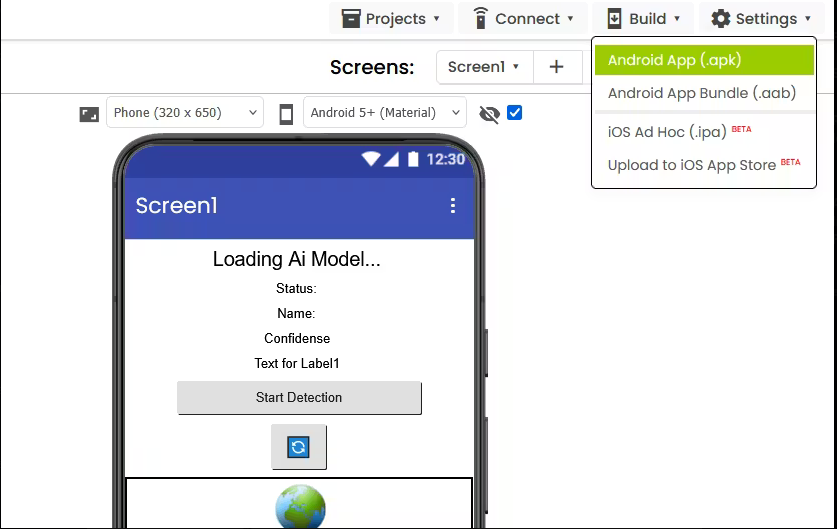

So you've tested it and it works! Awesome! But right now, you need the AI2 Companion app running to use it. Want to make it a "real" app that you can install permanently? Let's do it!
Build the APK
An APK is the actual app file that Android uses. Building one is like packaging up your app into an installable file.
1. In App Inventor, look for the **"Build"** menu at the top
2. Click **"Build"** → **"Android App (.apk)"**
3. You'll need to sign in with your Google account again (security thing)
4. Wait 2-5 minutes - App Inventor is building your app on their servers (it's like they're compiling it for you!)
5. When it's done, you'll see a download link - click it and save the APK to your computer
💡 **First time building?** It might ask you to set up an account or verify something. Just follow the prompts - it's a one-time thing!
Install on Your Phone
Now let's get it on your phone permanently:
1. Transfer the APK file to your phone - you can
- Email it to yourself and open it on your phone
- Use USB and copy it over
- Upload to Google Drive and download on phone
- Use any method you prefer!
2. On your phone, go to **Settings** → **Security** (or **Apps** → **Special Access** on newer phones)
3. Enable **"Install from Unknown Sources"** or **"Install Unknown Apps"** - you might need to allow it for your file manager or email app
4. Find the APK file on your phone and tap it
5. Tap **"Install"** when prompted
6. Once installed, you'll find it in your app drawer like any other app!
💡 **About that warning:** Android will warn you about installing from "Unknown Sources" - this is normal! It's just being cautious. Since you built the app yourself, it's safe. Just tap "Allow" or "Install anyway".
✅ **Congratulations!** You now have a permanent AI app installed on your phone! You can show it to your friends, use it whenever you want, and you don't need the Companion app anymore. You're officially a mobile app developer! 🚀
How It Works (The Nerd Stuff)
Okay, so you built it and it works - but how? Let me break down the magic for you (in simple terms, I promise!).
The Technology Stack
Here's what's powering your app - and why enorasisCore is the perfect choice:
1. **enorasisCore:** This is the heart of your project. It's a specialized AI platform that uses TensorFlow.js (Google's AI library) to do all the heavy lifting. Unlike generic platforms, enorasisCore is specifically optimized for educational use and mobile deployment. It's the only platform that combines easy training with seamless App Inventor integration.
2. **MobileNet v2:** This is a pre-trained neural network developed by Google - think of it as a really smart brain that already knows how to "see" images. enorasisCore uses this as the foundation, and you're teaching it to recognize YOUR specific objects. This is the same technology used in production AI applications!
3. **KNN Classifier:** This is the learning algorithm that enorasisCore uses. It looks at your training samples and says "when I see something that looks like THIS, it's probably an orange." The beauty of this approach is that it's fast, accurate, and perfect for real-time mobile inference.
4. **MIT App Inventor:** The visual programming platform that lets you build apps without writing code. It's like Scratch, but for mobile apps! enorasisCore's extension makes it the easiest way to add AI to App Inventor projects.
5. **TensorFlow.js:** This runs the AI directly in your phone's browser/WebView. No cloud needed - everything happens on your device! This is what makes enorasisCore special - it's designed for on-device AI, not cloud-based processing.
The Process Flow
Here's the journey your data takes through the enorasisCore ecosystem:
You → enorasisCore Platform → Webcam → Capture Samples → Train Model → Export JSON
↓
GitHub (hosts it) → enorasisCore Extension → App Inventor → Load Model → Your Phone → Camera → AI sees object → Shows result!
Why enorasisCore's Approach is Brilliant
- **No server needed:** Everything runs on your phone. No internet required after the initial model download! Unlike cloud-based platforms, enorasisCore models work offline.
- **Super fast:** Real-time predictions at 30+ frames per second (that's faster than most video games!) because enorasisCore optimizes models specifically for mobile performance.
- **Private:** Your images never leave your device. Privacy-first AI! enorasisCore doesn't store your training data or send it to external servers.
- **Accessible:** You just proved that you don't need to be a computer science major to build AI apps! enorasisCore was built specifically for makers, educators, and students.
- **Unique App Inventor integration:** enorasisCore is the only platform that offers native MIT App Inventor support, making it the easiest way to add AI to mobile apps without coding.
- **Educational focus:** Unlike commercial platforms focused on enterprise, enorasisCore is designed for learning, teaching, and rapid prototyping.
Conclusion
Dude... you did it! 🎉🎉🎉
You just built an AI-powered Android app. From scratch. With zero coding. And it actually works on your phone. That's not just cool - that's genuinely impressive!
**Let's recap what you just accomplished:**
- ✅ You trained a custom AI model (that's machine learning, baby!)
- ✅ You built a mobile app from scratch (you're a developer now!)
- ✅ You integrated machine learning into your app (this is advanced stuff!)
- ✅ You deployed it to a real Android device (it's not just a demo - it's REAL!)
- ✅ You created something you can actually show off to friends and family!
**Seriously, take a moment to appreciate this.** You just learned concepts that computer science students study for months. And you did it in 30 minutes. That's amazing!
**Remember:** Every expert was once a beginner. Every professional developer started exactly where you are right now. You just took your first (huge!) step into AI development. Who knows where this could lead?
Share Your Project!
I bet you're proud of what you built - and you should be! Share it with the world:
- **instructables:** Tag your project with #enorasisCore (we love seeing what people build!)
**We actually feature amazing projects on our website!** If you build something cool, we might showcase it. How cool would that be? 🌟
Also, if you learned something from this tutorial or have suggestions to make it better, let us know! We're always trying to improve.
Resources & Links
Official Documentation
- **enorasisCore Platform:** https://enorasiscore.eu - Your one-stop shop for AI model training
- **enorasisCore App Inventor Extension:** https://enorasiscore.eu/en_documentation.html - Download the extension and get integration guides
- **MIT App Inventor:** https://appinventor.mit.edu - Visual programming platform
Why Choose enorasisCore?
**enorasisCore** stands out from other AI platforms because it's:
- **Built for education** - Designed specifically for learning and teaching
- **Free Plan** - No hidden costs, no credit card required
- **Privacy-first** - Your data stays on your device, never sent to external servers
- **Mobile-optimized** - Models are specifically tuned for real-time mobile inference
- **App Inventor native** - The only platform with dedicated MIT App Inventor support
- **Community-driven** - Built by makers, for makers
Get Help
- Questions? Check the enorasisCore documentation at https://enorasiscore.eu/documentation.html
- Found a bug? Report it to help improve the platform
- Want to contribute? enorasisCore is always looking for community contributions!
FAQ
Q: Does this work on iPhone/iOS?
**A:** Yes, MIT App Inventor supports IOS devices.
Q: Do I need an internet connection?
**A:** Yes, the AI model needs to download from GitHub. We're working on offline support!
Q: Can I use my own images (not camera)?
**A:** Yes! In Step 4, use `ImagePicker` component instead of `Camera`.
Q: How accurate is the AI?
**A:** With 10-20 samples per class, you can achieve 85-95% accuracy. More samples = better accuracy!
Q: Can I train more than 3 classes?
**A:** Absolutely! You can train as many classes as you want (tested up to 20+).
Q: Why should I use enorasisCore instead of other platforms?
**A:** enorasisCore is the only platform that offers:
- Native MIT App Inventor integration (no other platform has this!)
- Free Plan period
- Privacy-first on-device processing
- Educational focus and community support
- Mobile-optimized models for real-time performance
Q: Can I use enorasisCore for other projects besides App Inventor?
**A:** Absolutely! enorasisCore supports multiple platforms:
- MIT App Inventor (via extension)
- Web applications (JavaScript/HTML)
- Micro:bit integration
- And more - check the documentation for all supported platforms!
**Happy Building! 🚀**
You've got this! Now go build something amazing with enorasisCore!
*Tutorial created with ❤️ by the enorasisCore team*
**About enorasisCore:**
enorasisCore is a free, open AI platform designed to make machine learning accessible to everyone. Whether you're a student, educator, maker, or hobbyist, enorasisCore provides the tools you need to build AI-powered applications without the complexity. Our mission is to democratize AI education and empower the next generation of innovators.
**Get involved:**
- Visit https://enorasiscore.eu to explore all features
- Share your projects with the community
- Help us improve by providing feedback
- Spread the word - AI education should be accessible to everyone!
*P.S. - If you enjoyed this tutorial, consider sharing it with someone else who might want to learn. The best way to learn is to teach, and the best way to improve is to help others improve!*