Creating a (Mothers' Day) Card Using Adobe Illustrator
by InkandStardust in Design > Digital Graphics
23 Views, 0 Favorites, 0 Comments
Creating a (Mothers' Day) Card Using Adobe Illustrator

This is a useful project for people who are learning to use Illustrator and want to practice playing with text and the shape builder tool. It's also a way to make a nice card if you don't have access to many materials!
Supplies
-Adobe Illustrator or similar software, on a device that can access a printer
-Printer and paper to print on
-Cardstock to give structure to the card
-Glue (I like to use a glue stick, but any not-overly-wet adhesive for paper will do. Liquid glue can cause warping.)
-Scissors, knife, or other paper cutting tool.
Create Your File
Choose a file that will be the right size for your card. Mine is 5x7". Format for print (CMYK, 300dpi) unless you are sending a digital card or have different print settings.
Create a Layout


I like to turn on the grid for this step (view>view grid+snap to grid)
Use the rectangle tool to play around with shapes for your text to fill. You can change these later, but blocking things out can help to envision what the overall layout will look like once complete.
Add Your Text
Using the area type tool, draw a big rectangle that covers the area in which you want your text to appear. Write the words that you want to have on the front of the card, choose a font size that's nice and big so you can see subtle changes in the type, and choose a font that's fairly close to what you're going for, style-wise.
I started with Temeraire in 72pt.
Resize/rearrange


Separate the lines of text (Ctrl+c, ctrl+v) and convert to point text. Resize the text so that it fills the areas you want it to.
Recreate the Wheel (ahem... Your Font)


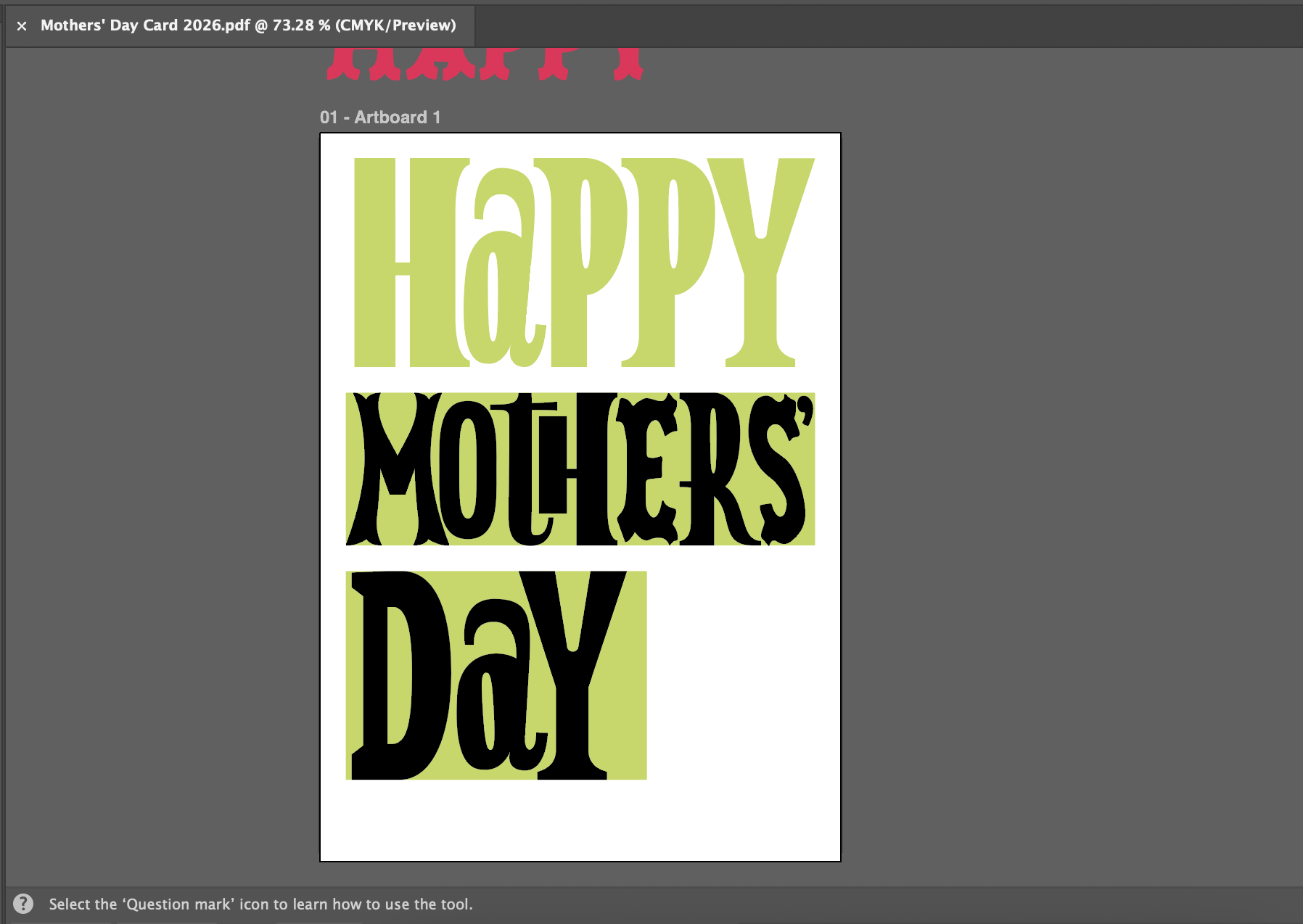
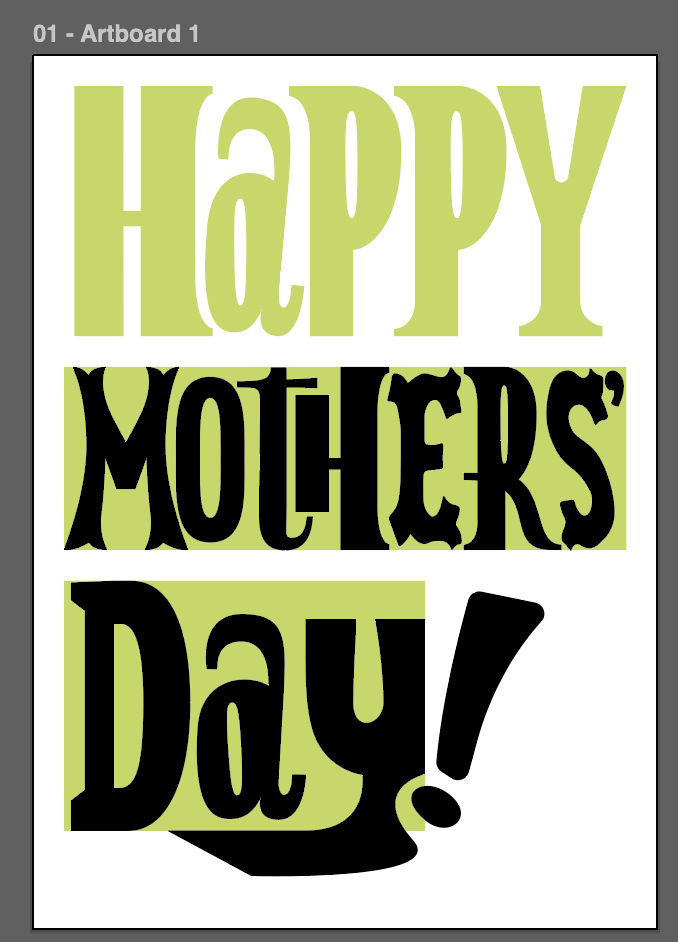
Here's where I like to use the pen tool to recreate the font so that it fills the space. If you want to stay very true to the font you've chosen but make some tweaks, you can use the "make outline" tool to change the text to shapes. For both ways, after creating the letter shapes, the direct selection tool will allow you to alter specific points and lines within each shape.
Final Adjustments (Colour and Texture)


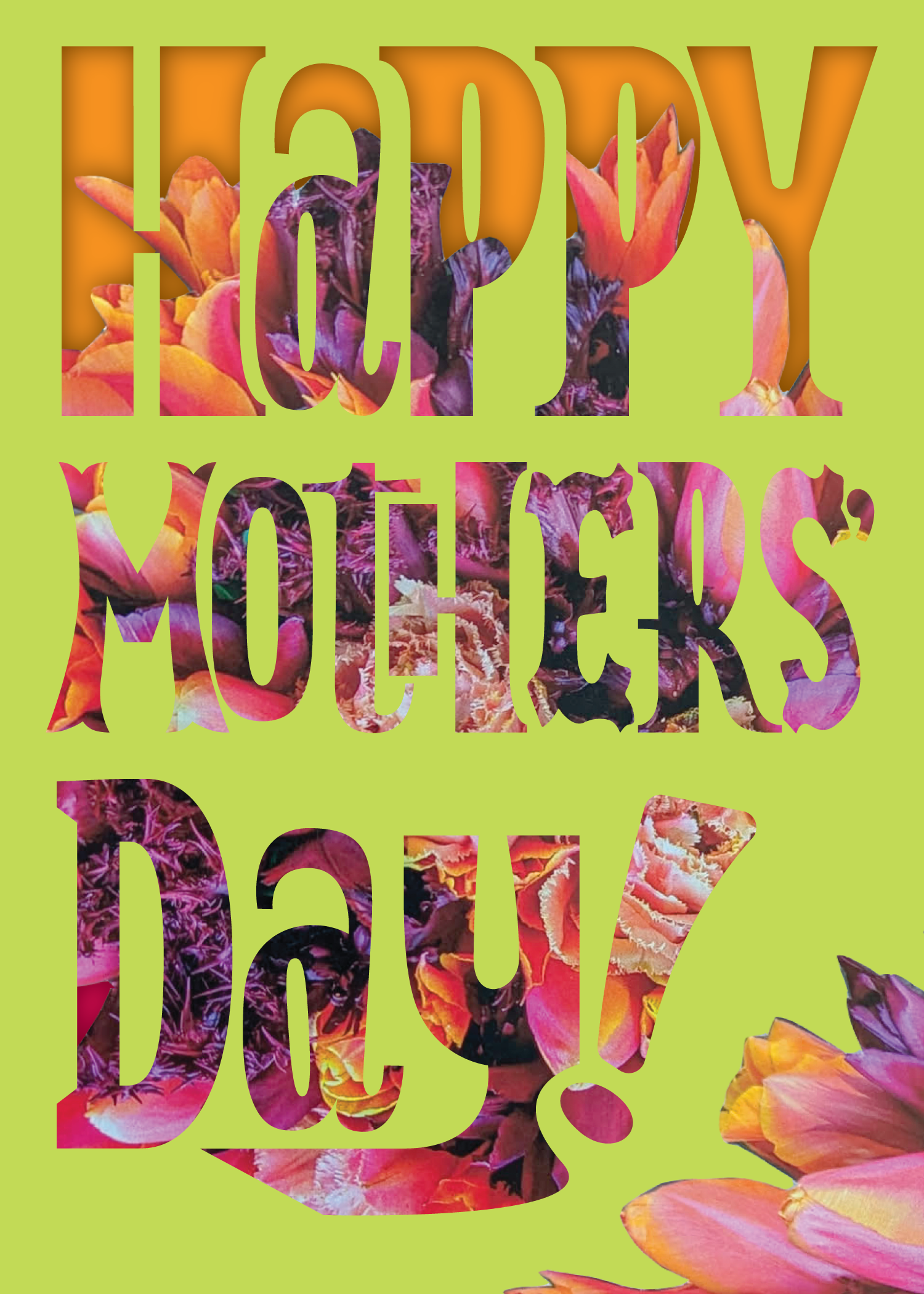
Use the selection tool to select your words, and group them together (Ctrl+g). by double-clicking with the black arrow (NOT the direct selection tool) you can isolate the groups to mess with individual letters. The shape builder can turn a letter made from multiple, overlapping pieces, once selected, into just one shape, that of the letter itself.
Exit isolation and select all your words, grouping them. Now that all of your letters are shapes (For example, don't forget to delete any residual 'holes' in letters that are not meant to be a shape themselves) you can recolour as you like.
I wanted a paper overlay effect because I wanted to put some collage-style elements into the card. To accomplish this, I made a rectangle that would represent the background of the card, and then used the shape builder tool to create a shape that was only the visible parts of that background (having selected for shape building both the text group and the backdrop rectangle). I then applied a drop shadow as a special effect to this cut-out backdrop (make sure you have grouped in the letter holes as well, or they won't cast a shadow!), and moved its layer in front of the text. you can see that it makes a shadow in the image above.
Printing
You can print directly from Illustrator, or export as a .png, .pdf, or other printable file format. This is where having chosen your dimensions when making the file can become useful, since no resizing is necessary! I printed mine on 8.5x11" (US Letter) paper, and then cut it out and glued it onto some iridescent cardstock.
I used the part of the printing page that was left blank to line the inside of the card so I would have a good surface to write on.