DIY Book Digitization System: Camera Rig + OCR App to Capture and Review
by spacecharly in Workshop > Organizing
80 Views, 2 Favorites, 0 Comments
DIY Book Digitization System: Camera Rig + OCR App to Capture and Review
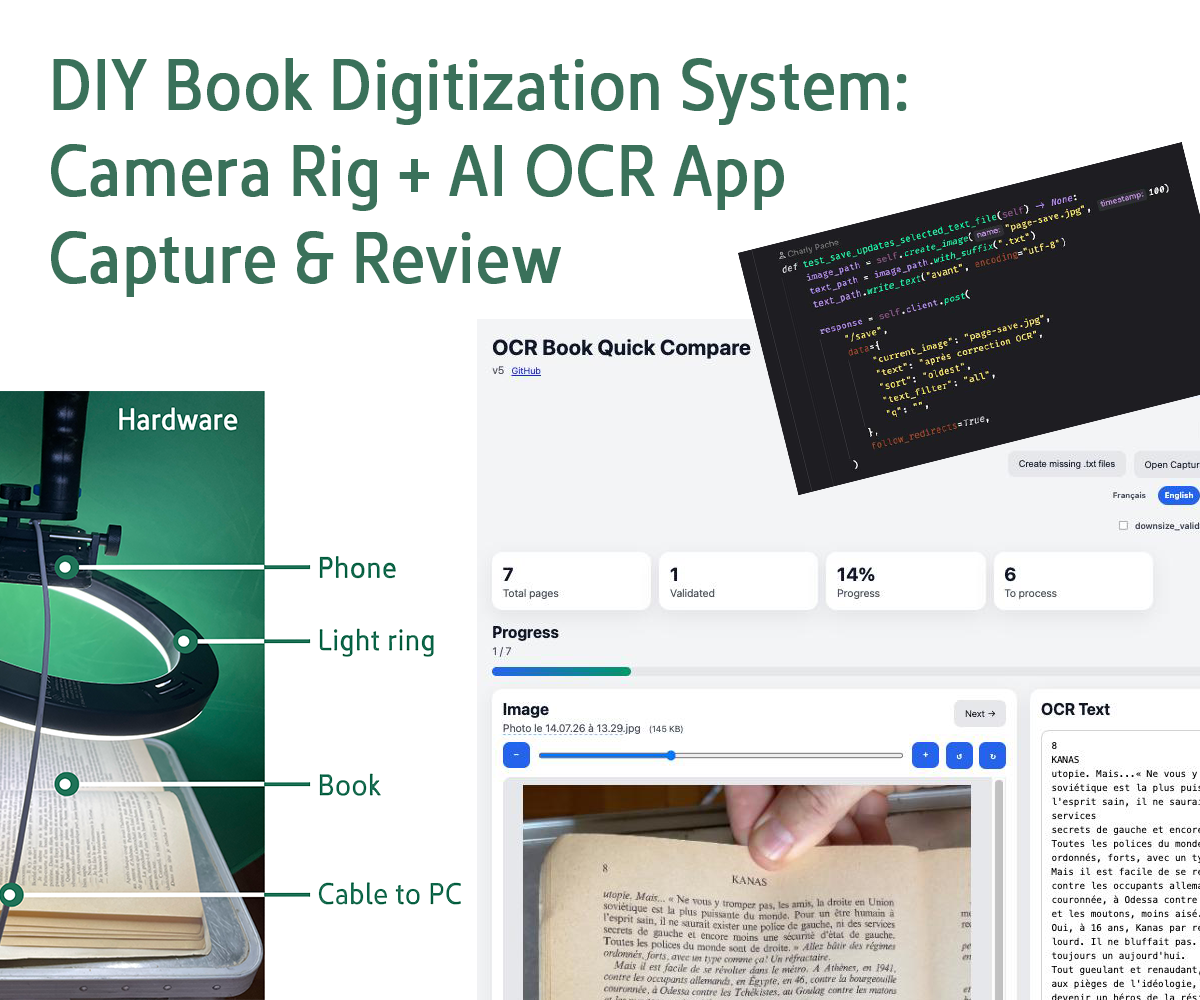
Tired of manually retyping book content or dealing with bulky scanners?
This project shows you how to build a DIY camera rig combined with Book Digitizer Suite—a free, open-source app and all-in-one local solution for book digitization: scan/capture pages, OCR extraction, human validation, and export-ready cleaned texts.
Perfect for:
- Digitizing personal libraries
- Extracting text from documents
- Creating searchable archives
- Offline processing (no cloud needed)
Combine a simple camera rig with AI-powered OCR to scan and extract
text from books in minutes—not hours.
Supplies
Supplies (Hardware)
- iPhone (any recent model, Android should work but didn't tested)
- Camera tripod (≈$30-50)
- USB powered LED ring light (≈$10-30)
- USB-C cable (to connect iPhone to Mac)
- MacBook Pro or any Mac/Linux computer
- Books to digitize!
Supplies (Software)
- Book Digitizer Suite (free, GitHub: github.com/spacecharly/bookdigitizer-suite)
- Runs on macOS, Linux, or Docker
- Includes:
- Capture Companion app (browser-based camera) to scan the pages
- Voice-triggered photo capture
- AI-powered OCR (PaddleOCR, locally)
- Built-in spell checker support (LanguageTool, Chrome extension)
- Real-time text editing & corrections
Build Your Camera Rig
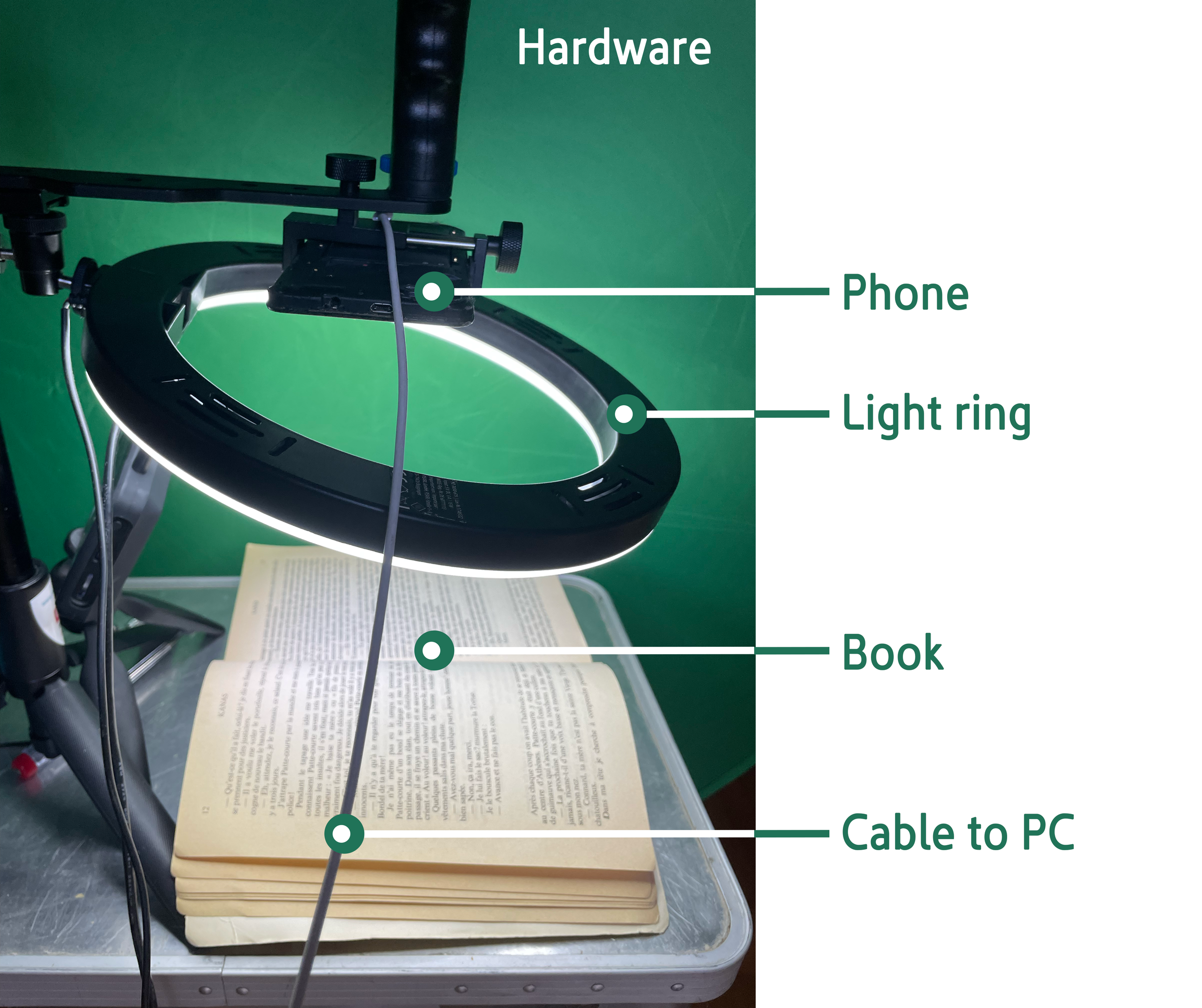
1. Mount iPhone on tripod (use phone holder)
2. Position LED ring light above/around iPhone
3. Adjust angle to minimize glare on book
4. Connect iPhone to Mac via USB-C cable
Set Up Book Digitizer Suite App
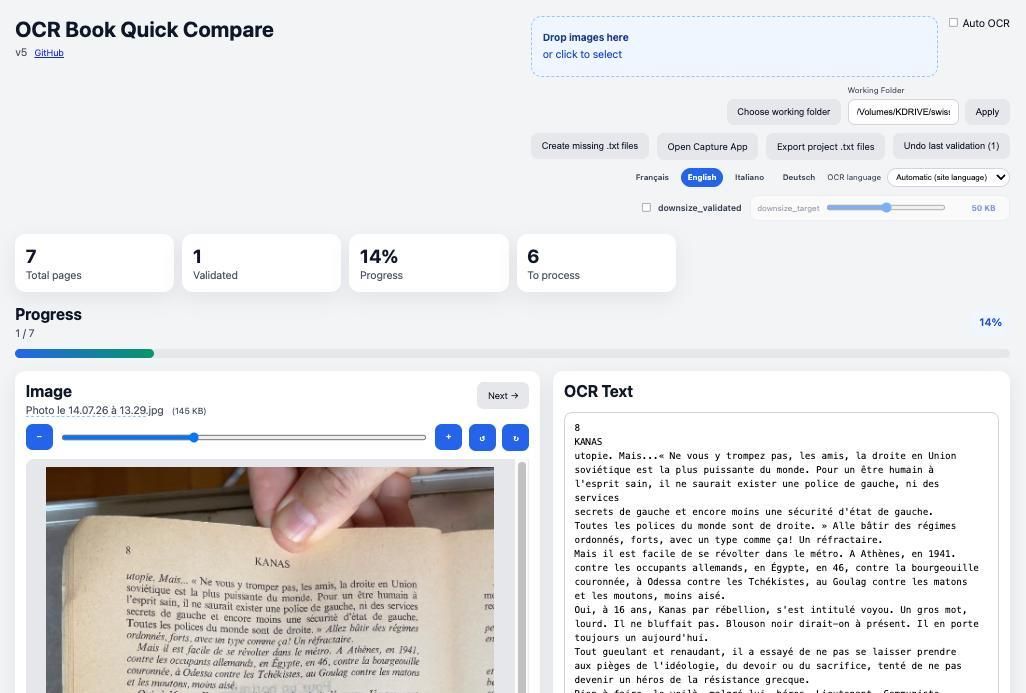
Download the latest release on: github.com/spacecharly/bookdigitizer-suite
Detailed and easy to follow instructions are given in the README.md file.
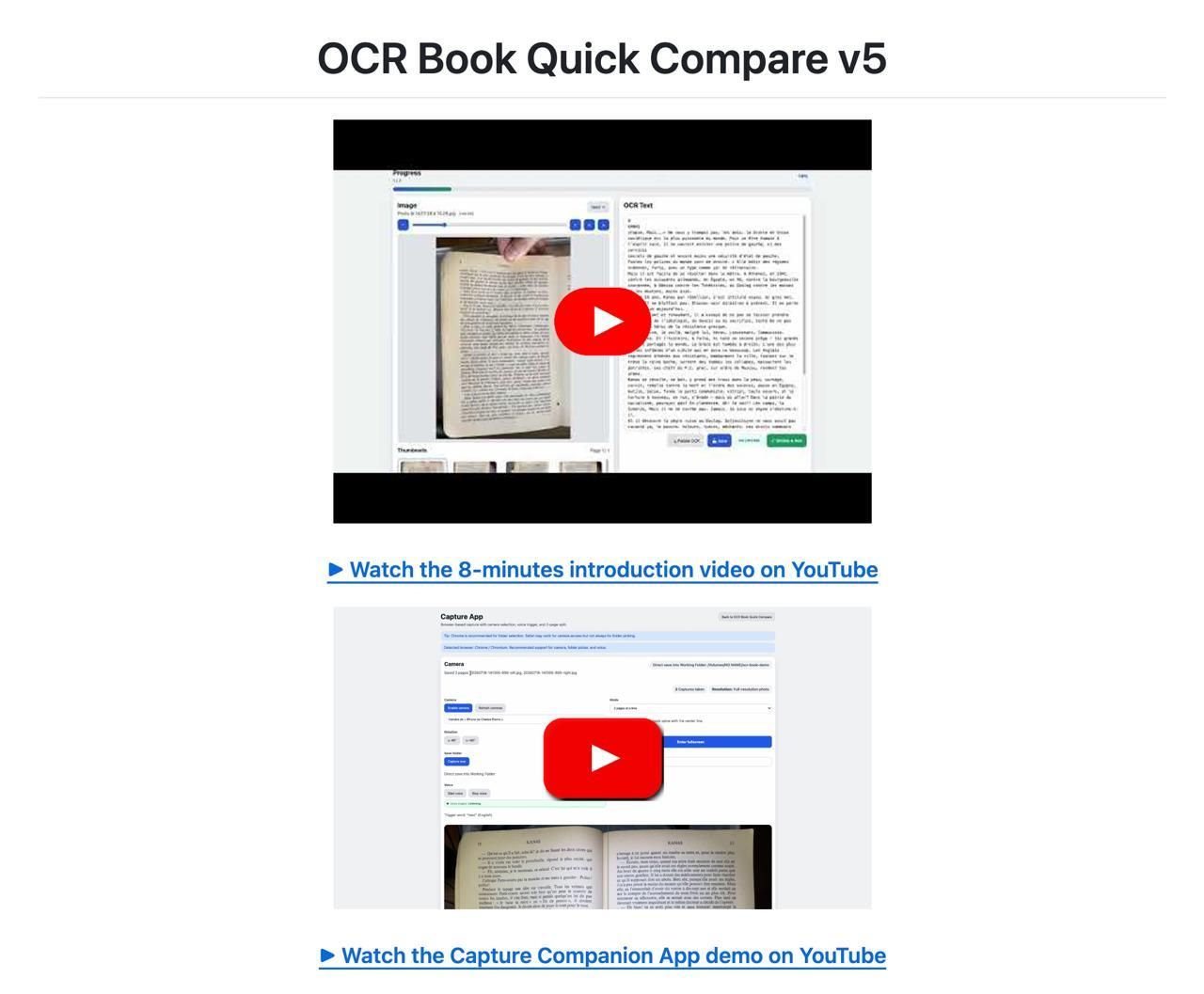
You may watch the introduction videos do get familiar with the app setup and options.
Option A (Easy): Use Docker
$ docker-compose up
Option B (Manual): Install Python + dependencies
App will open at http://localhost:5001
Optional but recommended:
- Install LanguageTool as a Chrome extension (free) for spelling corrections after OCR.
- The app works best on Chrome Browser, it's highly recommended to install and use it for this project.
Open Capture App
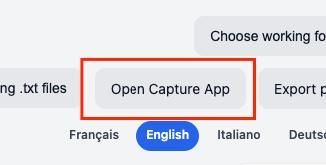
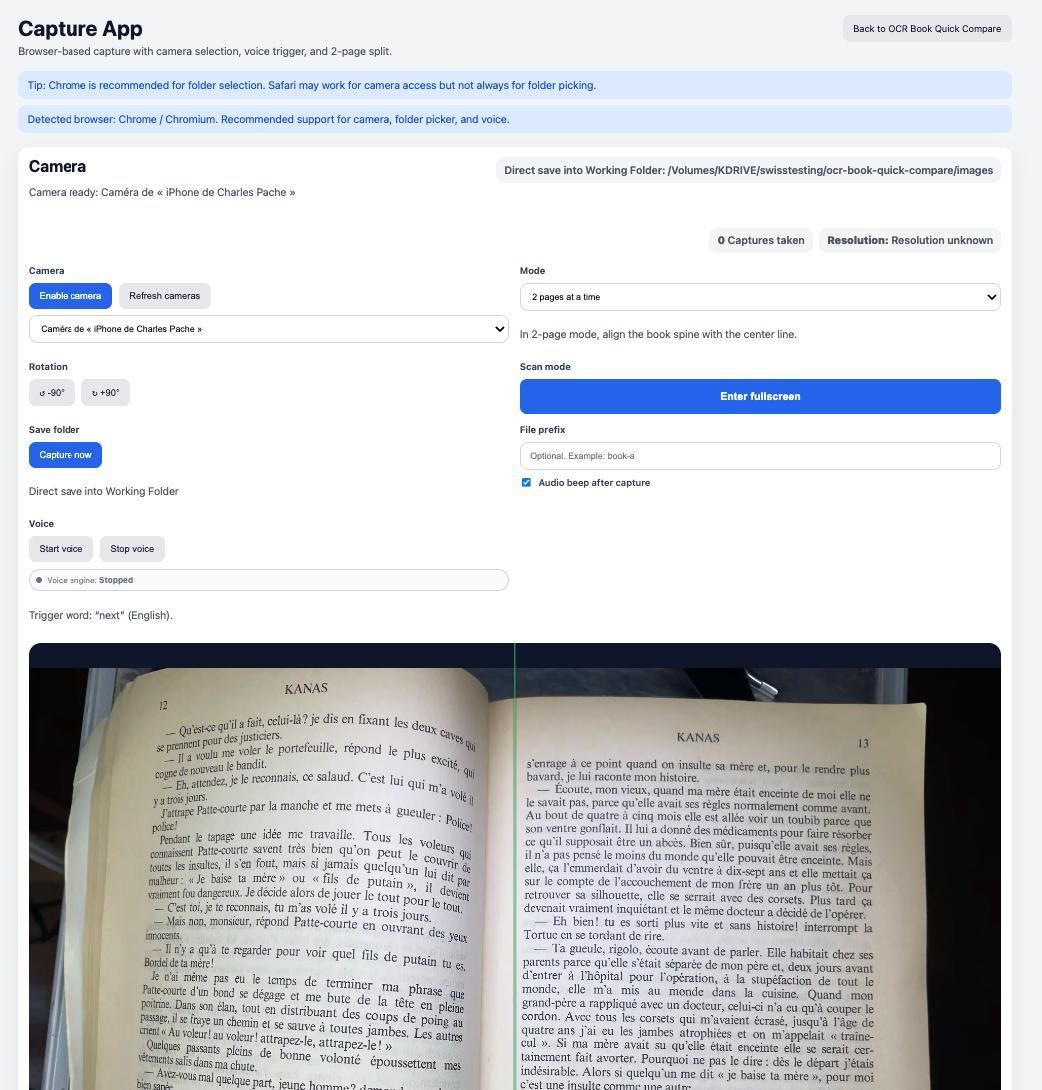
- From the main app, click on: "Open Capture App"
- Companion opens in a new tab in browser (choose iPhone camera via USB or any listed and connected to your computer camera)
- Chose either One- or Two-page mode capture (Two-page mode output two distinct images left + right separately)
- Position book under camera
- Use rotation buttons if needed
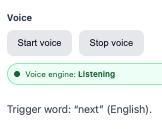
- Enable voice trigger (optional, say "next" to capture, with audio and visual feedback)
- Frame book pages in the preview
- Say "next"
- Photos save automatically to working folder
Correct and Export

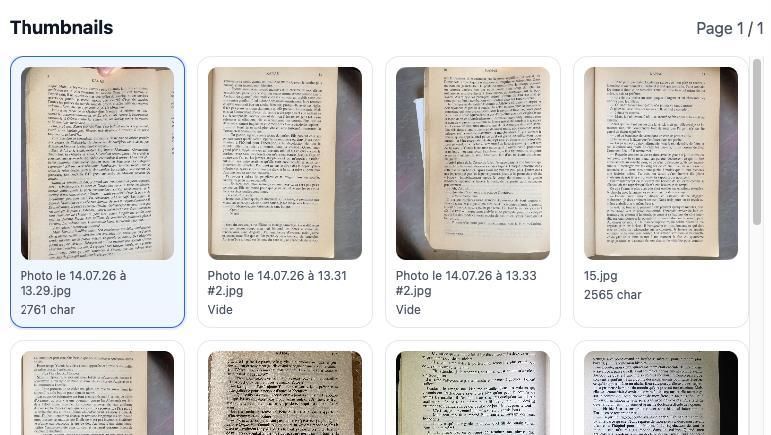
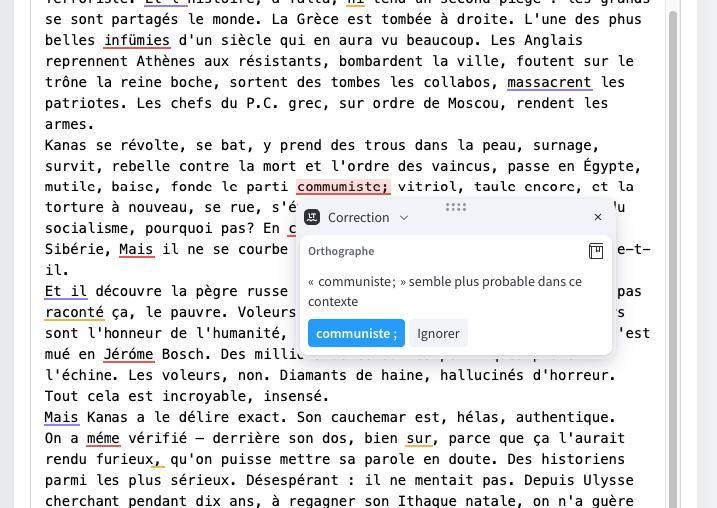
- Go back to the main OCR Quick Compare App
- Choose the image you want to work on
- Select the right OCR language for your book
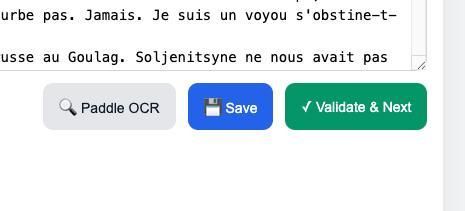
- Generate OCR by clicking on the "Paddle OCR" button
- Wait for the text to be produced
- Fix OCR errors directly in text editor (typos, accents, etc.), optionnaly with the LanguageTool free Chrome extension if activated
- Spell checker helps (LanguageTool integration)
- Export as CSV, JSON, or individual text files
- Ready for further processing or e-books
- Once you are happy with the text, you can click on the button "Validate & Next"
Enjoy!