DIY Cloud Lamp With Sound & IR Remote
by hyunjinkim1112 in Circuits > Raspberry Pi
1114 Views, 14 Favorites, 0 Comments
DIY Cloud Lamp With Sound & IR Remote


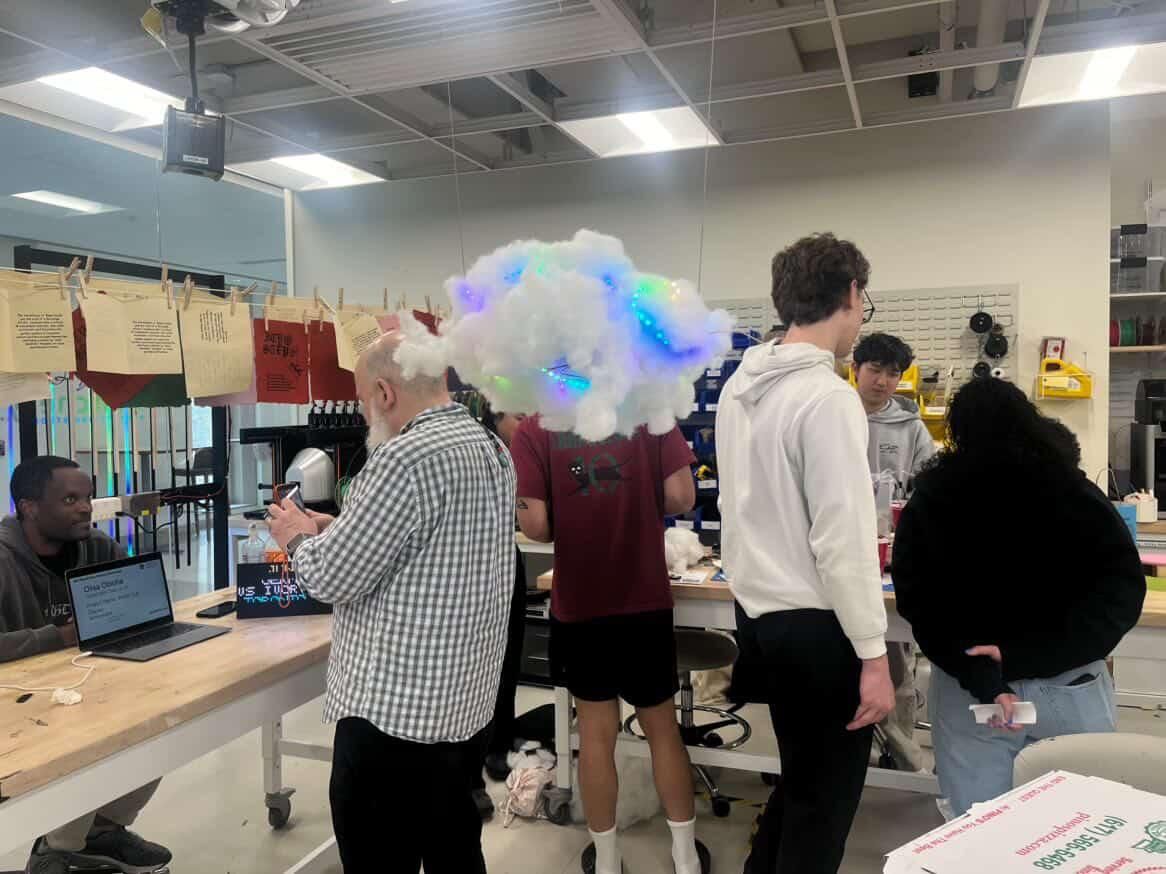

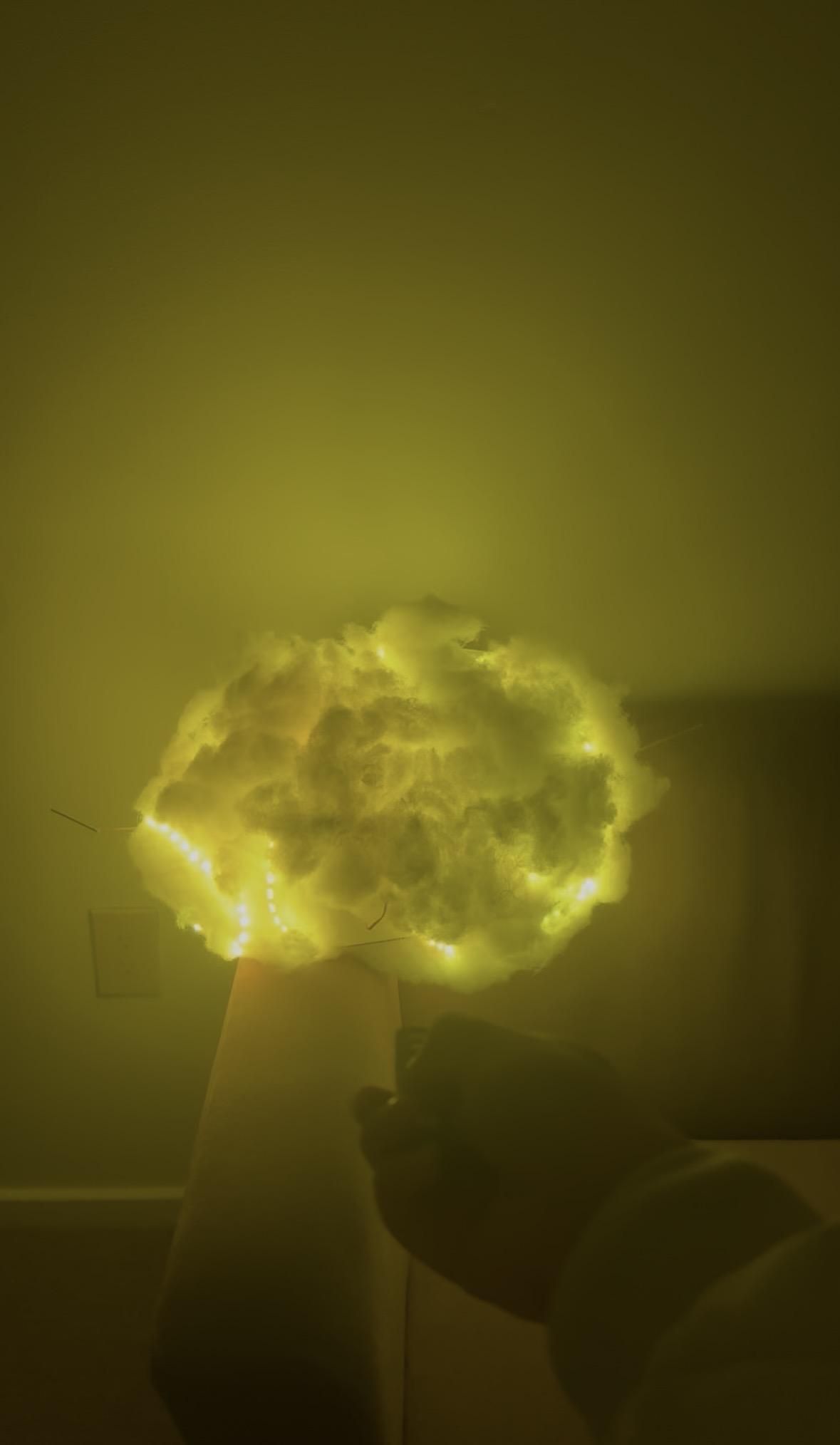

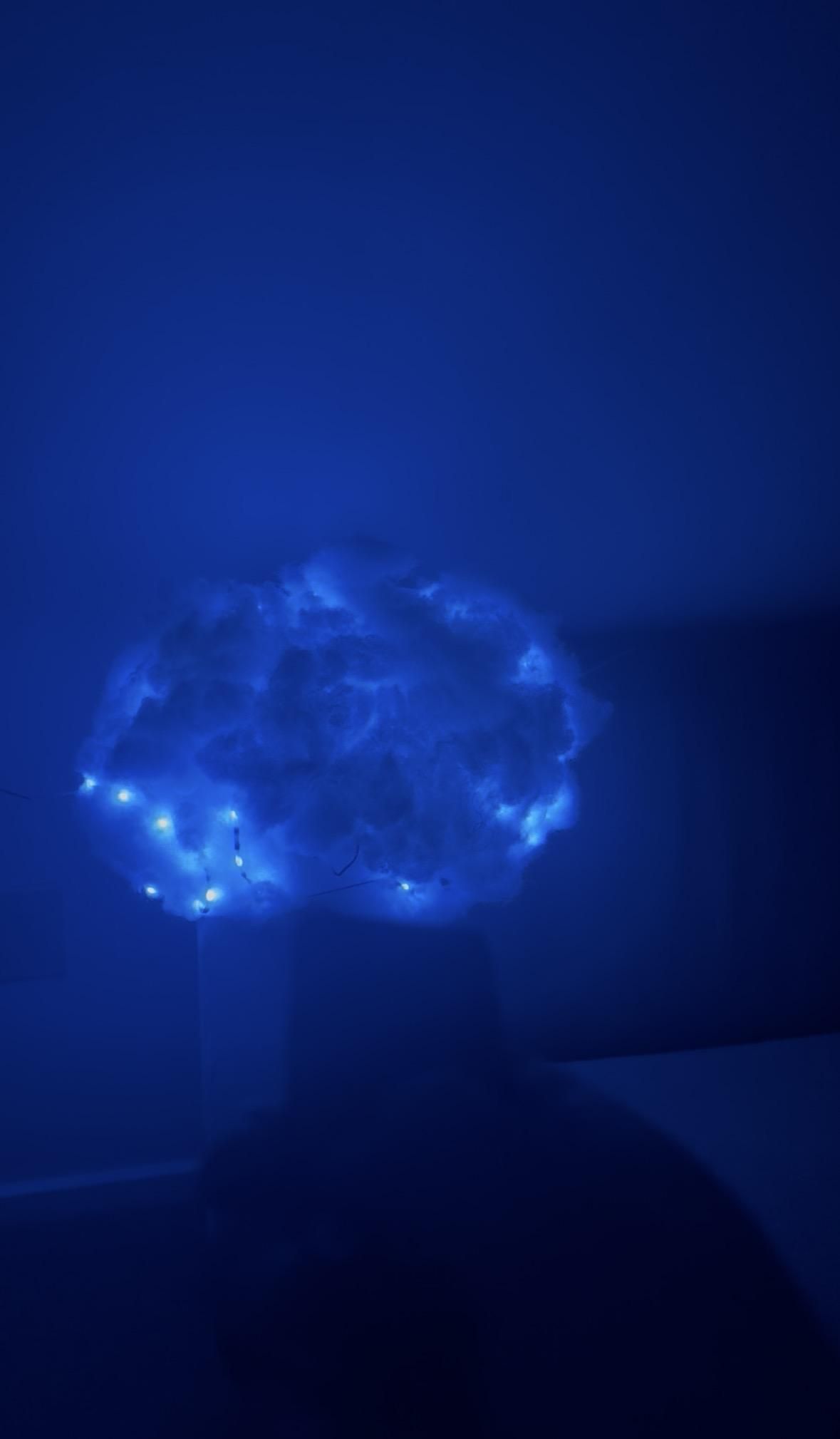

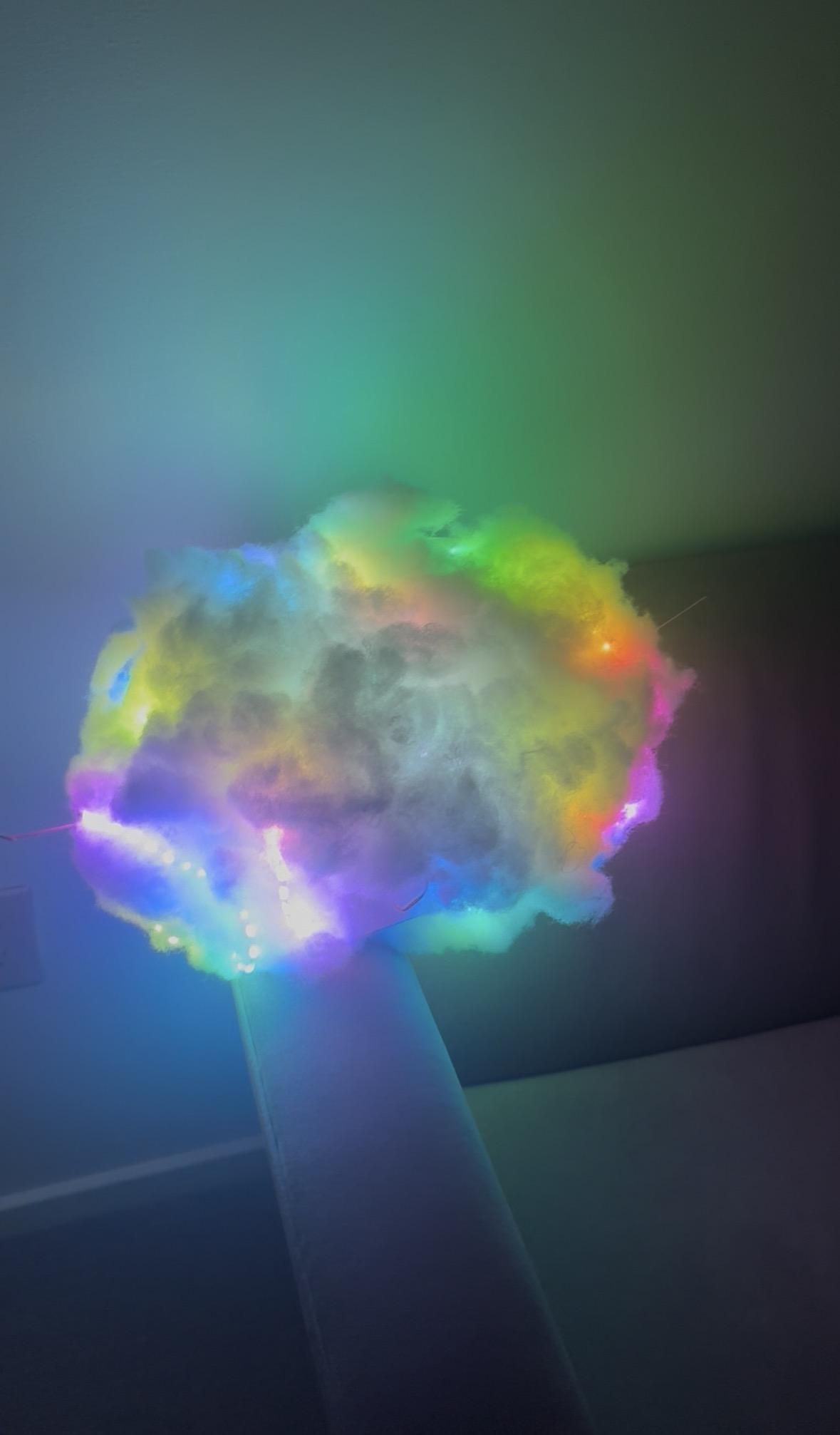
A glowing cloud that responds to your remote — pick from rainbow, sunny, cloudy, rainy, or thunderstorm moods, each with its own sound and lighting effect. Powered by a Raspberry Pi Pico 2W.
Supplies

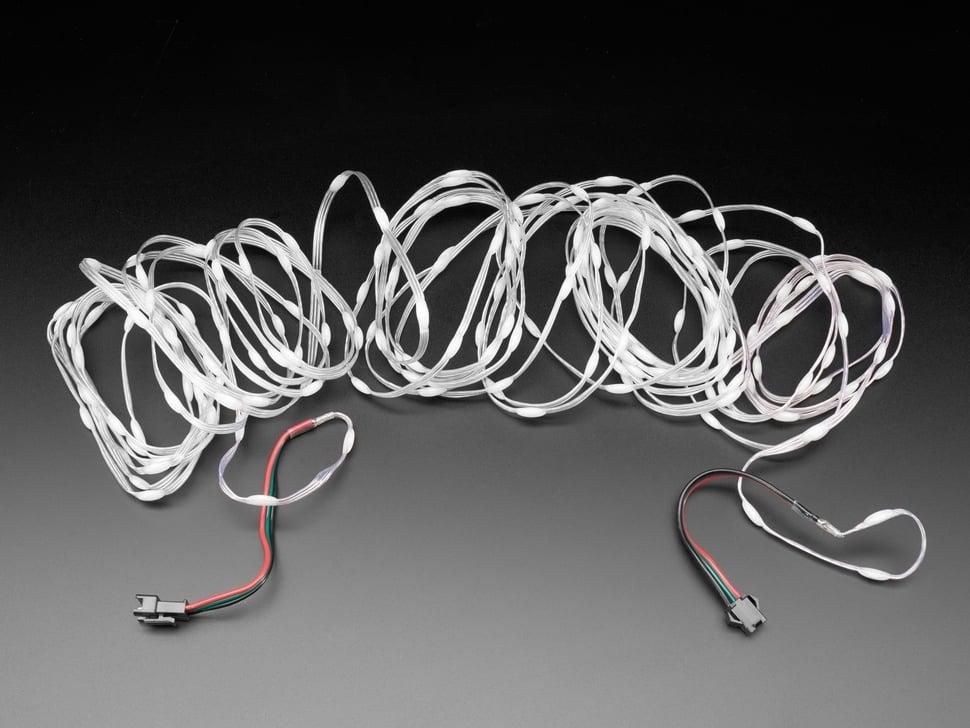


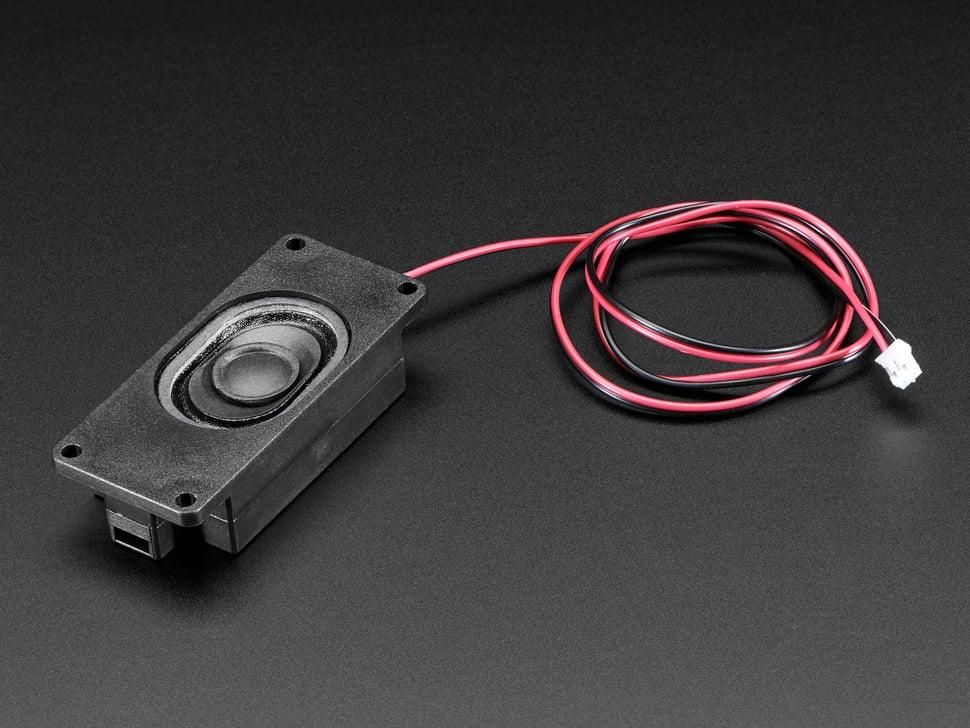


- Raspberry Pi Pico 2 W
- raspberrypi.com/products/raspberry-pi-pico-2/
- Poly-Fil (Fairfield, 32 oz)
- amazon.com/dp/B004ALQ0M2
- Mono Enclosed Speaker — 3W 4Ω
- adafruit.com/product/3351
- PAM8302 Mono 2.5W Class D Audio Amplifier
- adafruit.com/product/2130
- NeoPixel Pebble LED Strand — 300 LEDs, 2″ pitch, 15 m
- adafruit.com/product/6023
- Mini Remote Control (21-button, NEC)
- adafruit.com/product/389
- IR Receiver Sensor (TSOP38238)
- adafruit.com/product/157
- Half-size breadboard
- adafruit.com/product/64
- Jumper wire bundle (M-M / M-F / F-F)
- amazon.com/dp/B01EV70C78
- Foam board
- amazon.com/dp/B07GTMVG8B
- ELEGOO IR Remote Controller + Receiver Module
- https://www.amazon.com/DWEII-Infrared-Wireless-Control-Raspberry/dp/B09ZTZQFP7/ref=sr_1_2?dib=eyJ2IjoiMSJ9.0kgolsEh7DaeYquGFTAptO3woSup6KjRKMjjpHlqA1I5N76gnZkPmrggwvB_aqTNEB5l9DKu86DdfO24qzMl1B6xEYUS5xvwiknVSOatCinXxwuZRc3eD5HT66tX1hD7GJQoF2bb0pqjH9ZbzMBIez1tT9K57ItjpscpoXlxszGgdDL5JcMfiuDIemtRVZXryzn_-zNyYLGE5U3e2j7SY_CFu49Ffq1cCChZ9luGGuU.F8DO60Be_tfav97mYTwse0rVtn3ep6pE6-tk8tmXi_Y&dib_tag=se&keywords=elegoo+ir+remote+controller&qid=1777501984&sbo=RZvfv%2F%2FHxDF%2BO5021pAnSA%3D%3D&sr=8-2
Miscellaneous
- Hot glue gun
- pen knife (to cut foam board)
- rubber band (to fix the poly-fil)
🔌 Wire It Up
Component - Pico Pin
NeoPixel data - GP9
Audio (to amp A+) - GP14
IR receiver signal - GP16
NeoPixel strand (3 wires):
- Red wire → 5V external supply (+)
- White/middle wire → Pico GP9
- Black/green wire → Pico GND and external supply (−)
PAM8302 Amplifier:
- Vin → 5V (Pico VBUS or external 5V)
- GND → Pico GND
- A+ → Pico GP14
- A− → Pico GND
- Speaker + and − → speaker terminals
ELEGOO IR Receiver (3 pins):
- VCC → Pico 3.3V
- GND → Pico GND
- OUT (signal) → Pico GP16
⚠️ Important: all grounds must connect together — Pico GND, amplifier GND, NeoPixel GND, and external power supply (−) all share one common ground. The lights will flicker or the Pico will brown out otherwise.
⚡ Power It Properly
Do not power the NeoPixels from the Pico's USB port.
- 300 NeoPixels can pull several amps. Your laptop's USB port can't deliver that.
- Use an external 5V power supply (4A minimum) wired directly to the NeoPixel strand's red and black wires. (Suggested: INIU 10,000 mAh Power Bank + USB-A to Bare Wire Cable (20 AWG, 5V 5A))
- Power the Pico over USB (for programming/serial output) or from the same 5V supply through its VSYS pin.
- Keep pixels.brightness at 0.25 or lower in the code unless you have a beefier supply — full brightness on all 300 LEDs is ~18 A.
💻 Software Setup
- Install CircuitPython on the Pico 2 W:
- Hold the BOOTSEL button while plugging the Pico into your computer
- Drag the latest CircuitPython UF2 file (download here) onto the RPI-RP2 drive
- The Pico will reboot and appear as a CIRCUITPY drive
- Install required libraries — copy these from the CircuitPython Library Bundle into the lib/ folder on CIRCUITPY:
- neopixel.mpy
- adafruit_irremote.mpy
- Add your sound files — create a folder called sounds/ on CIRCUITPY and add five WAV files (not MP3 — this code uses audiocore.WaveFile):
- For the audio files except "Rainbow.wav", I used the sound files from this adafruit's tutorial.
- Rainbow.wav
- Clear.wav
- Clouds.wav
- Rain.wav
- Thunderstorm.wav
- 🎵 WAV format tip: 16-bit PCM, 22 kHz mono works well. Use a free converter like Audacity to convert MP3s.
- Upload the code (refer to "diy_cloud_lamp.py" attached here) as code.py on the CIRCUITPY drive. It runs automatically.
- I referred to the code from here.
☁️ Build the Cloud


1. Foam board frame: Cut foam board into the internal skeleton of your cloud. I cut it into the shape of rounded rectangle.
2. Mount the electronics inside:
- Stick the breadboard with the Pico to the inside of one foam panel using double-sided tape.
- Mount the speaker with hot glue.
- Attach the portable battery using Velcro tape.
3. Weave in the NeoPixels: The pebble strand's plated wires hold their shape, so you can weave them back and forth across the interior cavity, distributing the LEDs evenly. Don't bunch them — spread them out so the cloud glows uniformly. I used rubber bands to make them stick to the cloud stably.
4. Stuff it with poly-fill: Use rubber bands to stuff the cloud with poly-fill all around the foam frame to build up the cloud's puffy outer shape.
👍 Test & Enjoy

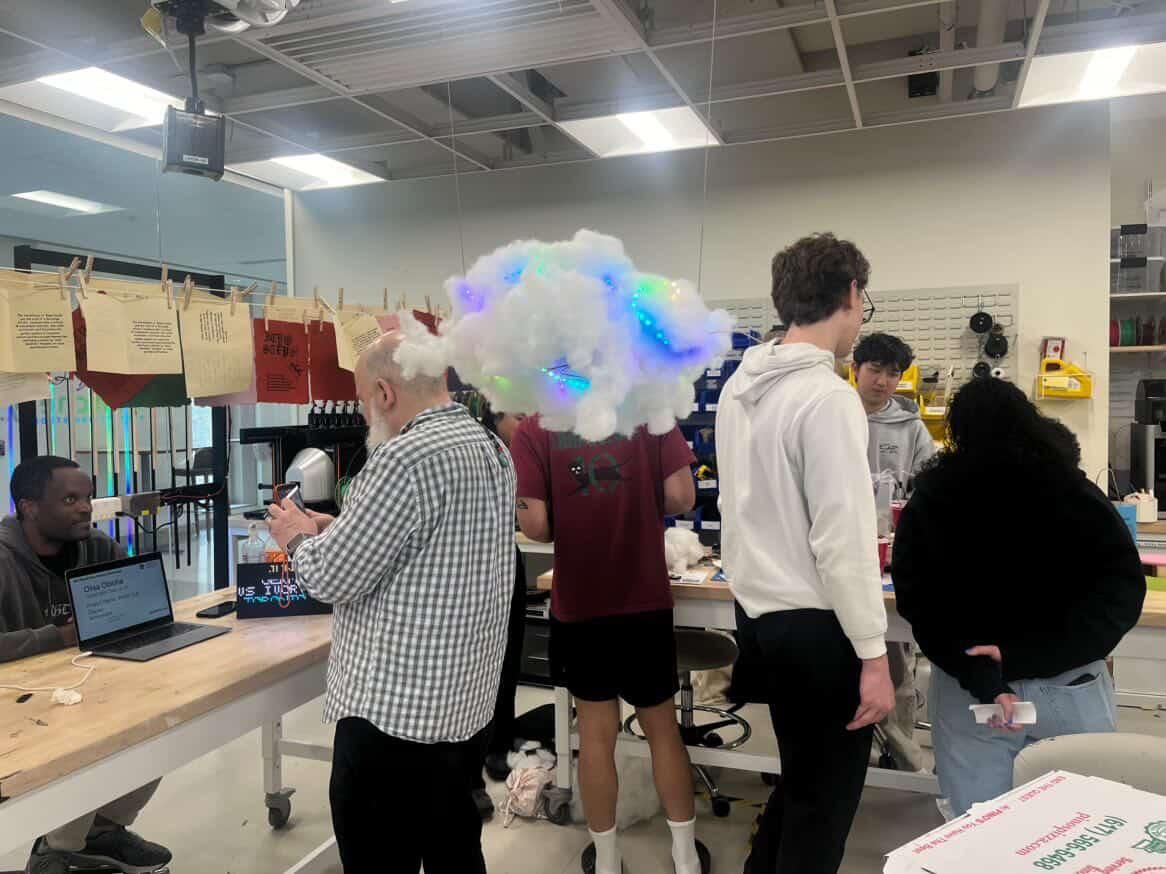

- Plug in the 5V power supply.
- Plug in the Pico's USB.
- Point the remote at the cloud and press buttons 0–4.
Additionally, if you want it to be more cloud-like, hang your cloud lamp to the ceiling just like I did!