DIY Experimental Control Unit for 3x Fingerprint Sensors (Fixed & Modular) - a Versatile Tool to Study These Sensors While Having Fun
by FilippoS3 in Circuits > Arduino
195 Views, 0 Favorites, 0 Comments
DIY Experimental Control Unit for 3x Fingerprint Sensors (Fixed & Modular) - a Versatile Tool to Study These Sensors While Having Fun

Photo caption (from left to right): Carmelo Maimone (Lido Manager), Antonella Natala De Caro, Giuseppe Carmeci, and Filippo Scaglione (Author).
---------------------------------------------------------------------------------------
This control unit was designed to study and experiment with biometric fingerprint sensors. While makers usually focus on a single sensor wired to a microcontroller on a messy workbench, this project solves the tangle of wires by housing everything into a neat, professional plastic enclosure, creating a streamlined development workstation.
The Backstory & The GDPR Plot Twist
The idea stems from a real-world need: managing vehicle access at a beach resort car park (Lido Internazionale di Catania - Playa) managed by my friend Carmelo. He ruled out RFID tokens because users lose them. A fingerprint system seemed perfect.
I built a fully functional prototype with over 30 advanced features. However, right before installation, we hit a massive roadblock: GDPR and biometric data regulations. Complying with public business privacy laws required expensive certifications, making it cheaper to hire a gatekeeper for the summer!
Instead of wasting my hard work, I pivoted. I redesigned the prototype into this highly sophisticated, three-sensor development workstation. It serves as an educational platform for fellow makers to study biometric interfaces safely.
What I Will Build in This Guide
In this specific guide I will focus entirely on the complete hardware assembly of this three-sensor workstation (featuring two fixed sensors and one modular sensor via a DIN panel jack).
While this article covers the physical workstation, future updates will share the advanced software stack, data transmission for motorized barriers, and database management.
Supplies
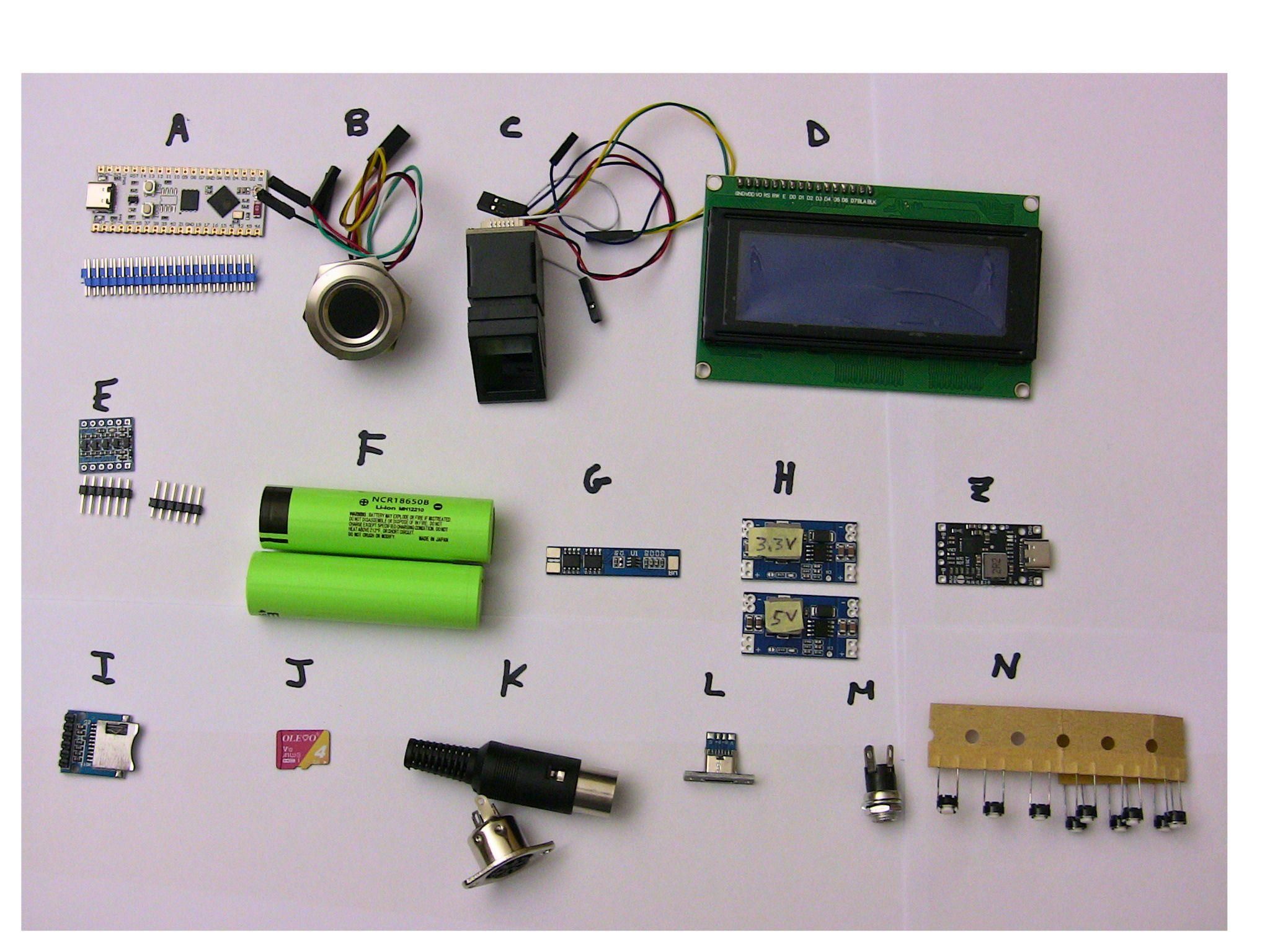
Here is the complete list of components and tools required to build this experimental biometric workstation.
Core Electronics
- 1x ESP32-S3 NANO Wi-Fi Board - The main microcontroller. (A)
- 1x R503Pro Capacitive Fingerprint Sensor (UART) - High-security capacitive sensor. (B)
- 1x R307S Optical Fingerprint Sensor (UART) - Classic optical sensor for testing variations. (C)
- 1x 20x4 I2C LCD Display - 20 columns, 4 rows - Screen for advanced system menus. (D)
- 1x 4-Channel Logic Level Converter - Essential for safely shifting 3.3V and 5V logic signals. (E)
Power Supply & Management
- 2x 18650 Lithium-ion Batteries - Portable power source. (F)
- 1x 2S BMS (Battery Management System) Board - To safely charge and balance the 18650 cells. (G)
- 1x Set 5V and 3.3V Step-Down Voltage Regulators - To provide stable power rails. (H)
Storage & Interfaces
- 1x MicroSD Card Reader/Writer Module (I)
- 1x 4GB MicroSD Memory Card - For logging biometric system data locally. (J)
Enclosure, Connectors & Hardware
- 1x Plastic Enclosure / Project Box - Choose a size that fits all components comfortably.
- 1x 6-Pin DIN Panel Socket + Matching Plug - For the hot-pluggable third modular sensor. (K)
- 1x 4-Pin USB-C Panel Mount Socket - For easy external programming/power. (L)
- 1x DC Power Jack Socket - Choose your preferred barrel jack size. (M)
- 9x Mini 2-Pin Push Buttons - For user menu navigation. (N)
- 1x Set Colored electrical wires, solder, and basic hand tools.
Note: Toggle switches, LEDs, and standard resistors (1KΩ, 4.7KΩ, 8.2KΩ,) , etc. are also needed—you probably already have these in your spare parts drawer!
Assembling the Components Into the Container




I chose to equip this control unit with two fixed sensors (one capacitive and one optical) and a third external, modular sensor connected via a panel-mount DIN plug. To achieve a clean look, all the components need to be carefully distributed across the plastic enclosure:
- Front Panel: LCD Display, USB-C programming port, main toggle switch, and power LED.
- Side Panel (Left or Right): DIN socket, DC barrel jack, MicroSD reader, and system reset button.
- Top Panel: R503Pro capacitive sensor, R307S optical sensor, and the 8 control buttons.
Tip: To make future modifications and component replacement easier, I used a 6mm thick plywood plate shaped to be screwed into the bottom of the case as an internal chassis.
Component Layout & Panel Preparation
The assembly is actually designed "upside down": the components are attached to the upper part of the case. When the container is closed, everything will be inverted.
Because space is tight, you must take precise measurements before cutting. It is much better to spend an extra half hour tracing pencil lines than realizing you have made an irreparable mistake on the plastic box. I won't provide exact cutting coordinates because you should be free to layout the components according to your aesthetic taste. If you have come this far, I am sure you are quite handy!
- Photo 1 shows the finished electronic system.
- Photo 2 shows the front panel.
- Photo 3 highlights the power LED (top right), which turns on when the system boots and tests the MicroSD card and the three sensors.
- Photo 4 shows the power switch and the USB-C port located right below the LED.
Managing Tight Spaces Inside
- Photo 5 offers an overall view of the internal layout with the display in the background.
Take a close look at Photo 6: you will notice that the small logic level converter module (connected to the display's I2C backpack) barely avoids hitting the enclosure's internal guide rail. To avoid this tight squeeze, I should have shifted the display slightly to the side or moved the buttons further back (Photos 7 and 8). I hope your prototype avoids this minor flaw!
Moving to the top panel (Photo 9), you can see the two fingerprint sensors placed on the left and right, with the row of eight buttons in between.
- Safety Tip: When installing the sensors, protect their surfaces with a piece of paper or masking tape to prevent accidental scratches while working on the case.
Side Interfaces & Internal Chassis
Looking at the side of the unit (Photo 10), we find the DIN socket for the external sensor, the DC jack to power the BMS, the MicroSD card module, and a dedicated reset button wired to the Nano's "RST" pin.
Instead of mounting everything directly to the plastic case, Photo 5 shows the 6mm plywood substrate I cut using a simple hacksaw. This serves as a solid base for the main electronics.
Wiring the USB-C Port & Testing Pins
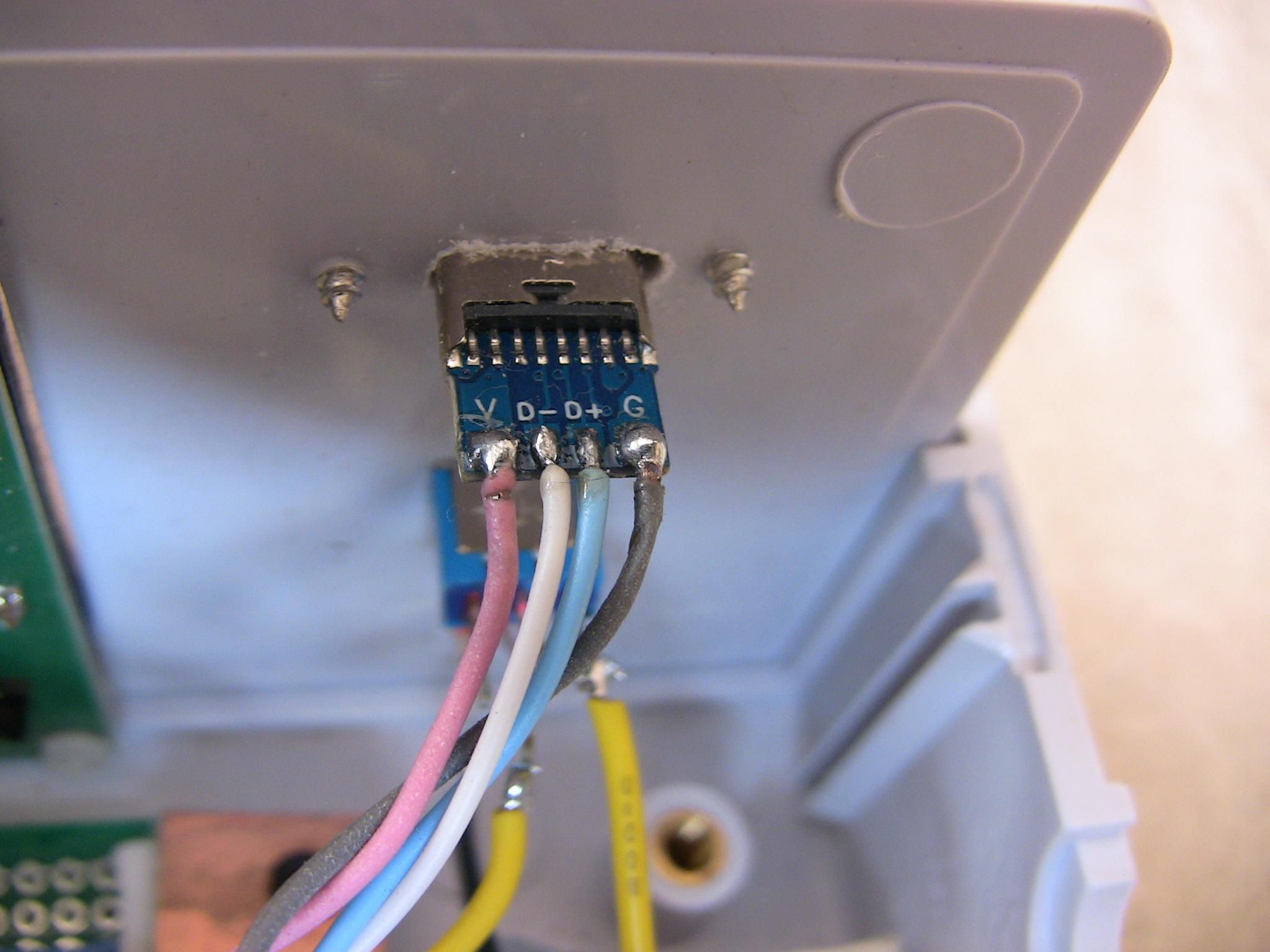
Next to the buttons, I mounted the ESP32 Nano WiFi board with its USB port facing the panel socket. I created the internal data connection by cutting a standard USB-C cable, stripping the sheath, and soldering the four internal wires to the panel mount socket pads.
Be careful here: not all USB cables follow standard wire coloring. Always use a multimeter to double-check:
- Identify 5V and GND first using the continuity setting.
- Plug the cable into your computer, and measure the voltage between the remaining data wires and GND.
- If you measure around 3V, that wire is D+. If the voltage is 0V, that wire is D-.
Power Delivery & Battery Soldering Trick
The system runs on two 18650 batteries in series (approx. 8.4V Max when fully charged), managed by a 2S BMS board wired to the external DC jack.
- The Battery Soldering Trick: Soldering directly to 18650 battery terminals can be notoriously difficult. To fix this, use a utility knife (cutter) to lightly scratch the surface where you want to solder. Apply a small amount of soldering paste to your solder wire, clean your iron tip thoroughly, and apply the solder to the scratched spot. Success is guaranteed!
Since 8.4V is too high for both the ESP32 Nano and the biometric sensors, I added two independent step-down regulators (one for 3.3V and one for 5V). I distributed these power rails using a custom-cut piece of copper-clad fiberglass board, processing it like a mini power-distribution PCB.
Hardware Architecture & Wiring Diagram

To make the wiring easy to understand, I created a detailed block diagram showing how all the peripherals connect to the ESP32-S3 Nano WiFi development board.
Power Supply & Management
- Battery Pack: The system is powered by two 18650 Lithium-ion batteries connected in series (2S configuration, approx. 8.4V Max).
- BMS & Charging: A 2S BMS board handles battery protection and safe charging via the external DC power socket.
- Voltage Regulation: Two independent step-down regulators convert the battery voltage into stable 5V and 3.3V power rails to feed the microcontroller and sensors.
Input & Output Peripherals
- Display: A 20x4 LCD with an I2C backpack handles the user interface. It connects to the hardware I2C pins: SDA to Pin 2 and SCL to Pin 3.
- Biometric Sensors: The system communicates with three separate fingerprint readers simultaneously using UART interfaces. The optical R307S connects to Pins 4/5, the capacitive R503Pro connects to Pins 47/48, and the external sensor port (EXT via the DIN socket) is available on Pins 17/16.
- Control Buttons: A matrix of 9 pushbuttons (UP, DOWN, MENU, ENTER, AUX1-4, RESET) allows menu navigation. They connect directly to dedicated GPIOs configured with internal resistors.
- Storage & Feedback: A MicroSD card module handles data logging via the SPI bus (Pins 10 to 13), while a buzzer on Pin 46 provides audible feedback.
Conclusions

Photo caption: The author in his workshop, finalyzing the workstation alongside his chief quality control inspector (the cat!).
Download the Source Code
After months of intense study and development, I successfully wrote a fully functional sketch packed with over thirty advanced features, organized across ten organized code tabs.
To help you get started immediately, I have attached the complete ZIP file containing the entire firmware sketch right below. Feel free to download it, explore the structure, and test it on your own workstation!
While explaining all thirty functions in detail would require an immense amount of time right now, I promise to cover the entire software architecture, menu logic, and data transmission protocols in a dedicated follow-up article.
Final Thoughts & What's Next
This development workstation has been an incredible journey into the world of biometrics and modular hardware design. It solves the mess on the workbench and provides a solid, safe platform for experimenting with fingerprint data.
As for me, it's time to clean up the lab bench! Starting tomorrow, I am diving into a brand-new adventure: building a DIY drone based on the ultra-compact ESP32-S3 Zero.
Thank you for following along, and happy making!
⚠️ Crucial Compilation Notes (Read Before Uploading!)
Please note that this firmware is highly customized for advanced hardware. To compile the sketch successfully without errors, you must configure your Arduino IDE with the following parameters:
- IDE Version: Developed and tested on Arduino IDE 1.8.19.
- Board Settings: You must manually enable PSRAM (8MB) and select the correct Flash Size (16MB) in the Tools menu, according to your specific ESP32-S3 Nano board vendor guidelines.
- Partition Scheme: The flash partition map must be modified to allocate enough space for storing the names and data of up to 1,500 registered users.
- Vendor Instructions: Strictly follow the configuration documentation provided by your AliExpress seller for this specific development board, as standard ESP32-S3 profiles might lead to bootloops or memory allocation failures.
Given these advanced requirements, less experienced makers might face compilation issues. This is exactly why the upcoming second article will be entirely dedicated to a step-by-step software configuration guide.
Code Comments: Please note that all code comments within the 15 tabs are written in Italian. You can easily use Google Translate or an AI tool to translate them if you need to deep-dive into specific functions.
markdown#### **Download the Source Code**
After months of intense study and development, I successfully wrote a fully functional sketch packed with over thirty advanced features, organized across 15 organized code tabs.
To download the full firmware package, click the link below:
👉 **[Download the complete 15-tab source code from Google Drive]
Feel free to download it, explore the structure, and test it on your own workstation!