DIY Smart Braille Reader Using Arduino | Tech for Blind People
by ROBO HUB in Circuits > Arduino
4313 Views, 17 Favorites, 0 Comments
DIY Smart Braille Reader Using Arduino | Tech for Blind People

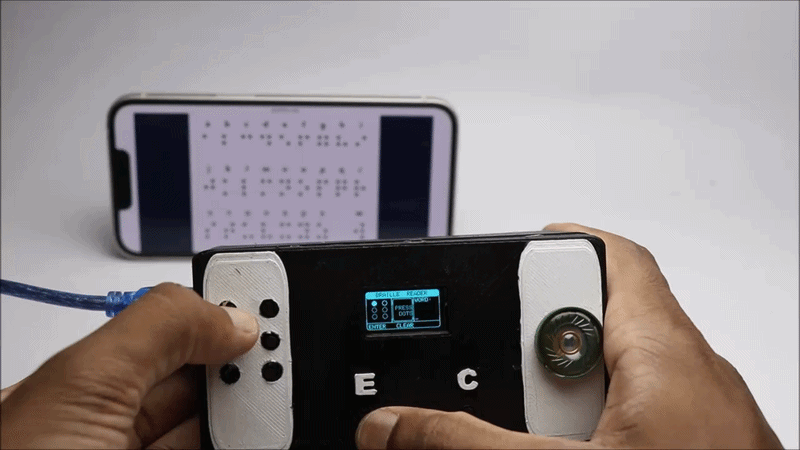


Hello readers in this instructables i will show you how i made this smart braille reader using Arduino that serves its best use with the blind people, I Would like to correct that word to visually impaired.
These are the people that have few struggles in day to day activities, Lets say they want to communicate with normal person who can talk, hear and listen but they miss the senses that help to communicate.
So to fill the gap or i would like to say "To bridge" these 2 i made this real time braille reader that can read the letters out loud and the word formation is seen on the screen in real time.
This helps the blind and the person who cant speak to be able to communicate with others, After a few research i came to know that the person who miss any sense organs have their sensory power redirected to some other.
I will explain this with an example and you can relate to whatever I'm saying, imagine a person who cant see but his skin can sense more than the normal person so they can touch the objects and perceive a lot of information.
The braille is also one among that special power i would say, braille font or the braille characters or sometimes called as braille cells is a writing system specifically designed for the blind.
There are patterns that are formed with the 3x2 matrix, or the 6 dots and each pattern signifies an alphabet.
Note: This icons on the OLED works in real time meaning when the physical button is pressed the dot on the oled shows active, this way you can see the live actions.
I have added audio to each pattern and when that specific pattern is pressed with the dots(buttons) it says out the letter.
To keep a track of the letters pressed there is a small window on the oled that will keep storing the letters to form words and when you are done with the first word you can press the clear button and proceed with the second word.
I took some time to learn the system but the person who is blind are more familiar with these patterns since most of the places have braille readings on them.
Lets say inside the lift braille readings are placed to help blind navigate, and the same in washrooms and other places.
So using this device which i made will be much more easier to them.
I made the device compact as much as possible so that this can be carried anywhere you go.
Buttons placed similar to the actual braille system, enter and clear buttons, and a speaker that speaks like the real human.
This was about this braille reader device that i built and now we will be heading to make the project, consider checking the video tutorial that i have given to check how this works.
Supplies

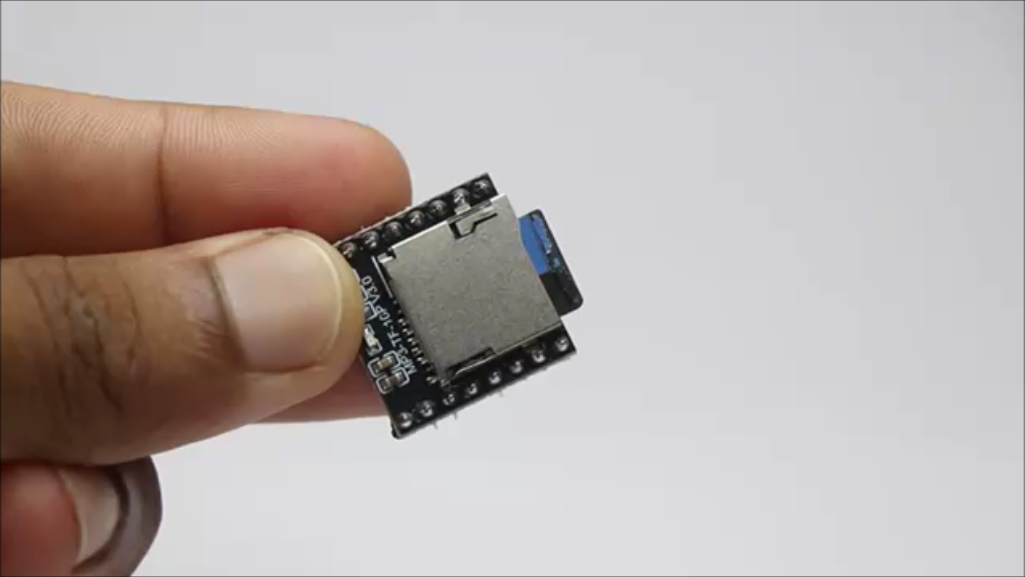


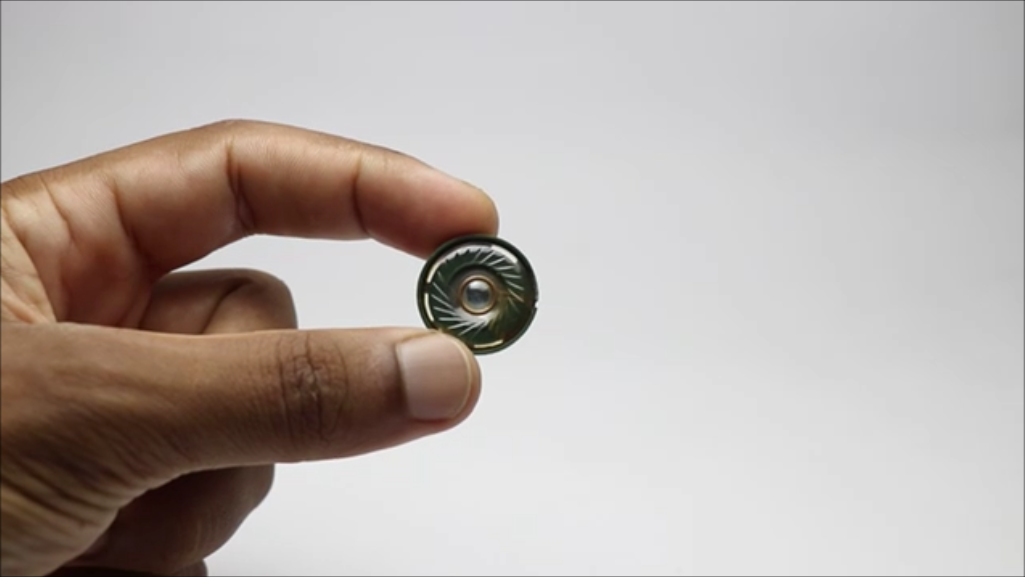

These are the materials that you will need to make this project, Keep it handy to save build time
Arduino Uno from amzon
SD Card
Tactile Switch x 8
Jumper Cables
Breadboard
Soldering Iron and Lead
3D Printer
Slicing Software
PLA Filament
Arduino IDE and Programming Cable
Double Sided Tape and Super Glue
These are affiliate links and upon qualifying sales i will receive a small percent of sales at no extra cost to you
Circuit and Program
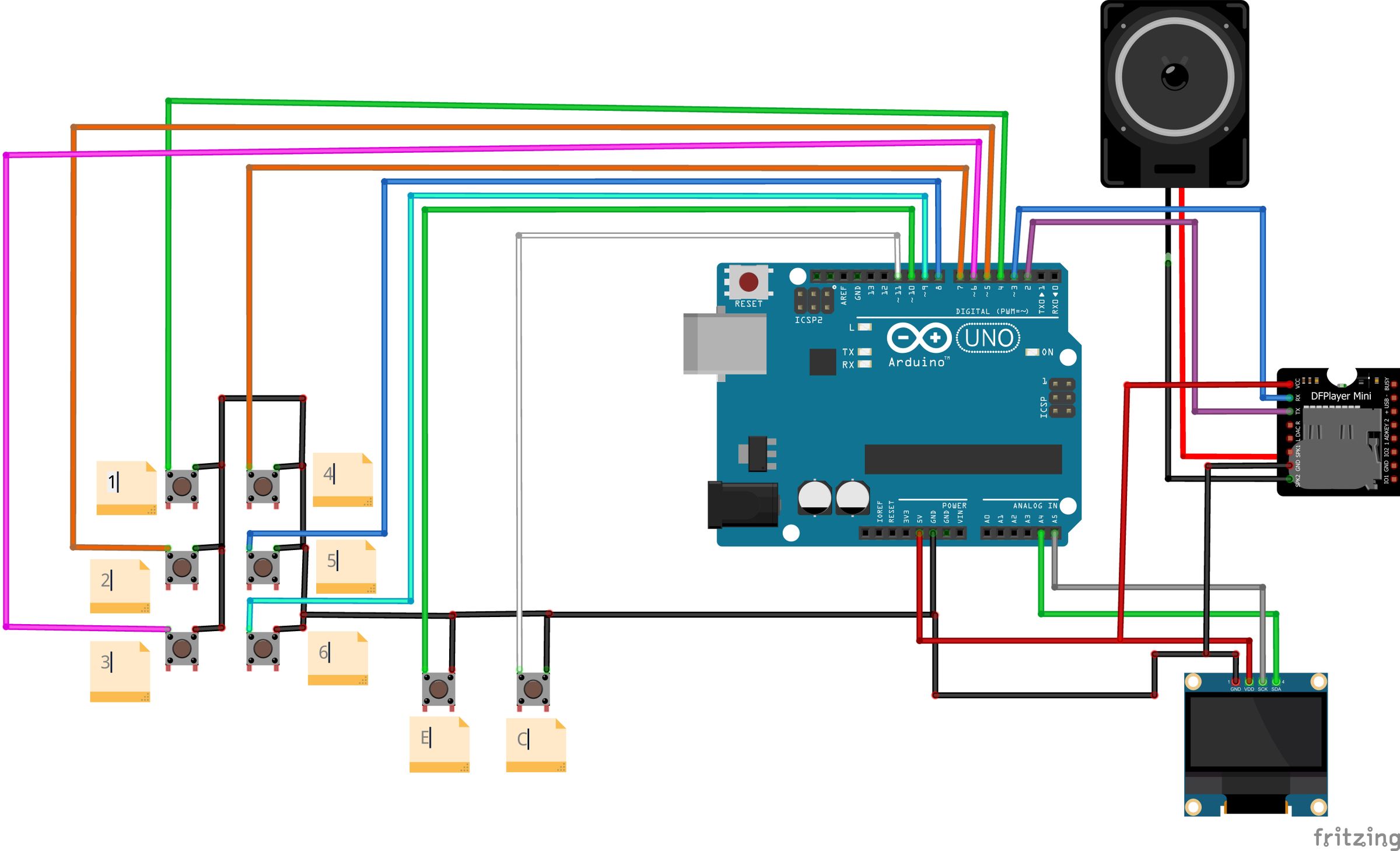


Circuit seems to be very complex for a beginner who is new to such projects and especially for such circuits, Believe me its not that complex as you are thinking.
I will simplify the circuit by explaining the circuit in detailed steps.
In the later step i will be shrinking the size of circuit and before that we will verify the circuit for its working by prototyping on a breadboard.
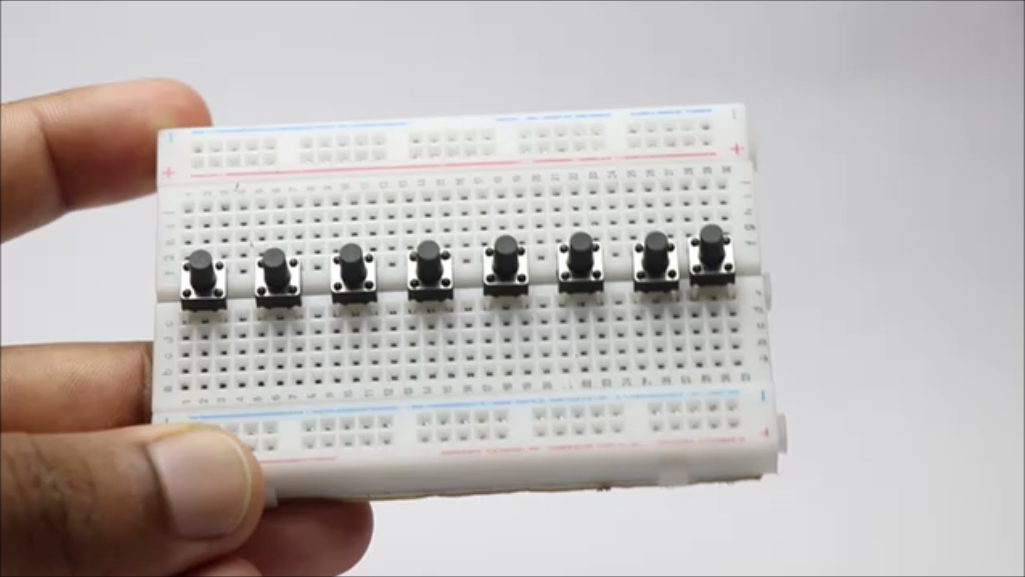
Start by laying out the buttons on the breadboard(center part) i will place 8 buttons in a row.
Last 2 buttons are enter and clear buttons, whereas the first 6 buttons are 1 to 3 and 4 to 6 as per the braille font.
From all these push buttons connect the gnd to ground power rails of the breadboard.
The other pin is connected as per below
Button 1 to D4 Button 4 to D7
Button 2 to D5 Button 5 to D8
Button 3 to D6 Button 6 to D9
Enter is connected to D10 and Clear button to D11
This will complete the wiring of buttons, Now the OLED and then the DF player
OLED has 4 pins, here the vcc and gnd are connected to 5v and ground pins of the Uno.
DF player speaker 1 and 2 is connected to speaker, Vcc and ground to 5v and ground on the Uno.
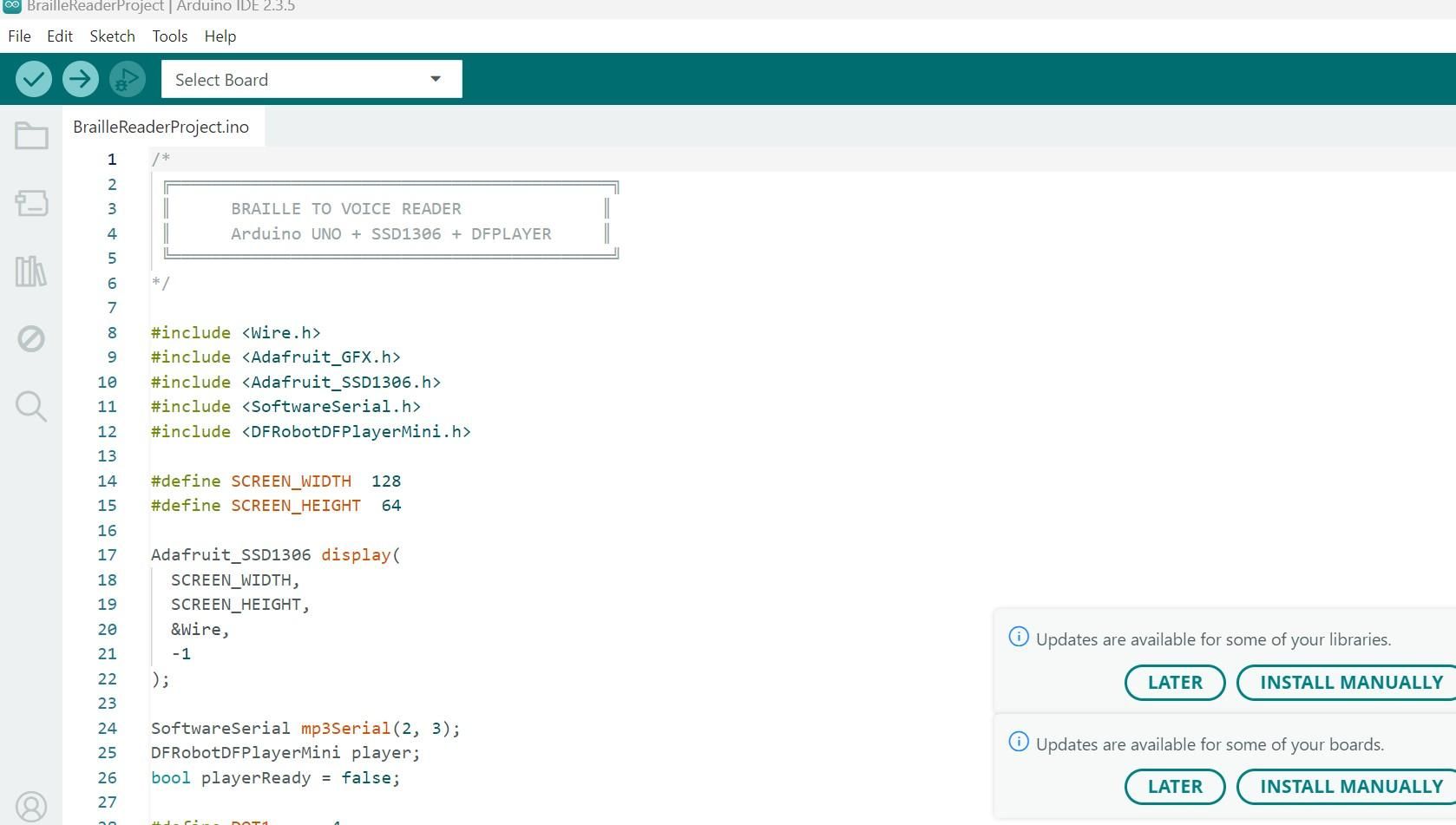
Rx and Tx is connect to the pins D3 and D2 on the Uno, Now here is a change that you need to check.
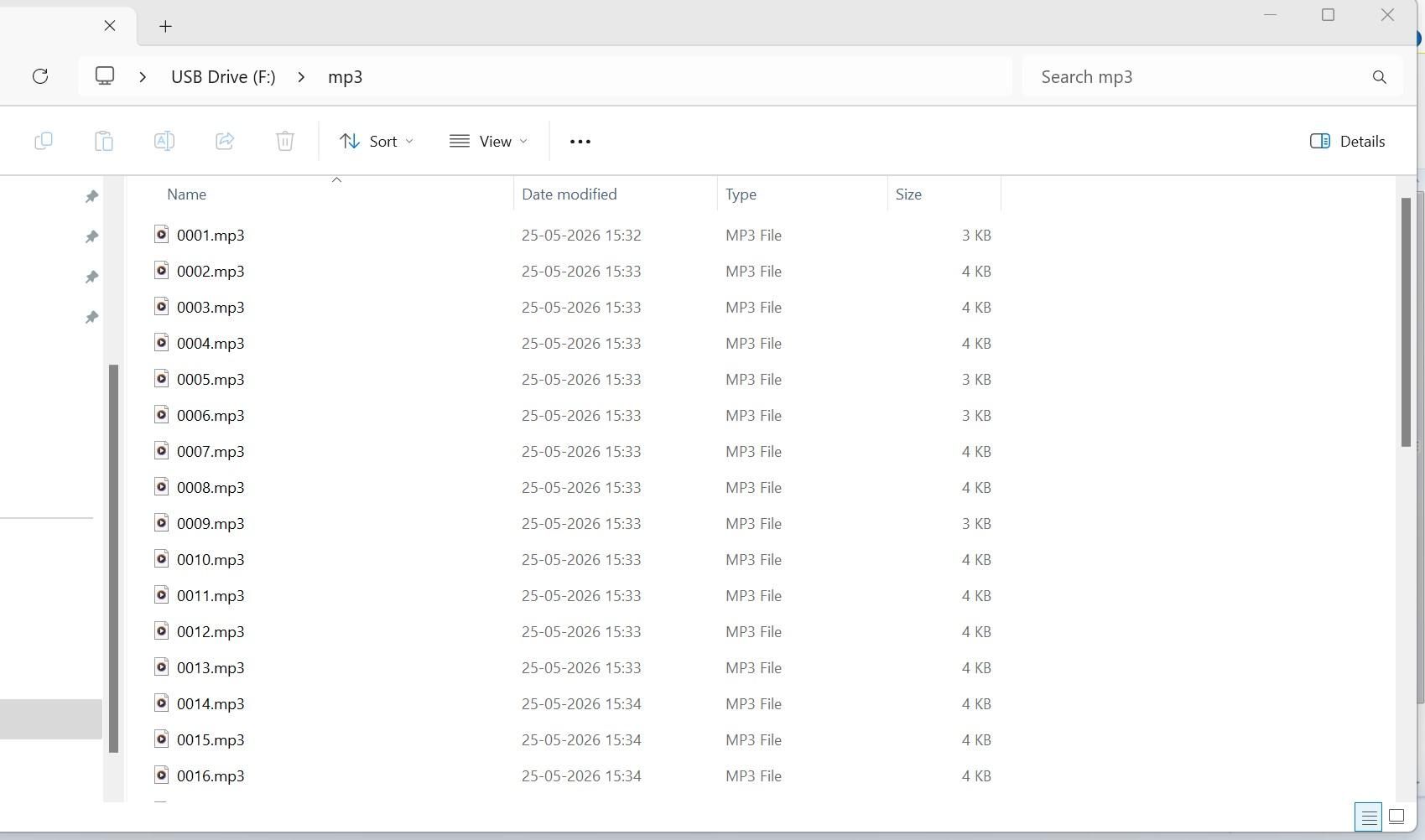
In your sd card, create a folder named mp3 and paste the recorded audio files, 26 letters of alphabet so 26 recordings as per program order.
Now this card should be inserted inside df player.
For the audio there are plenty of tools online that convert text to voice(mp3).
Now upload the program(in the program the file name should match with your recorded file name), select proper port and board type and upload the program.
You will see a message on the oled, press the dots from 1 to 8 and if everything works fine the circuit works fine and you are good to procced with further steps
Downloads
Tinkercad Frame Design
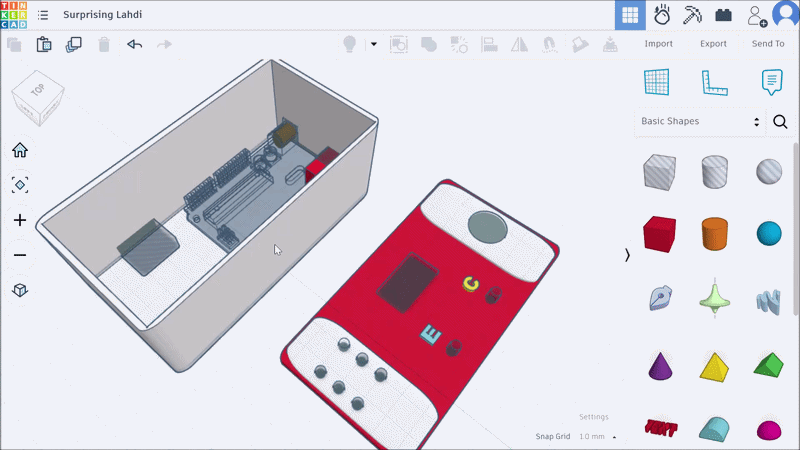

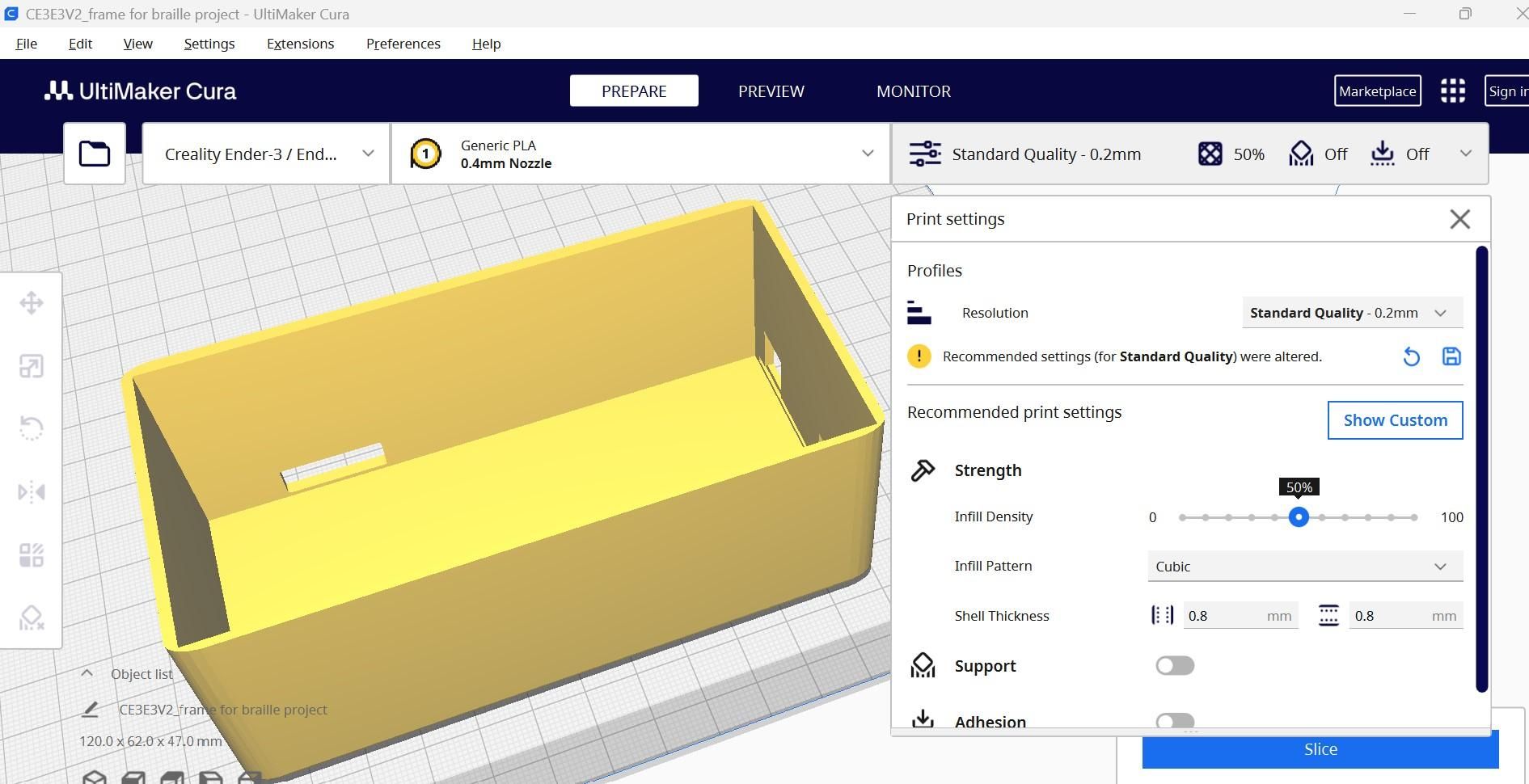


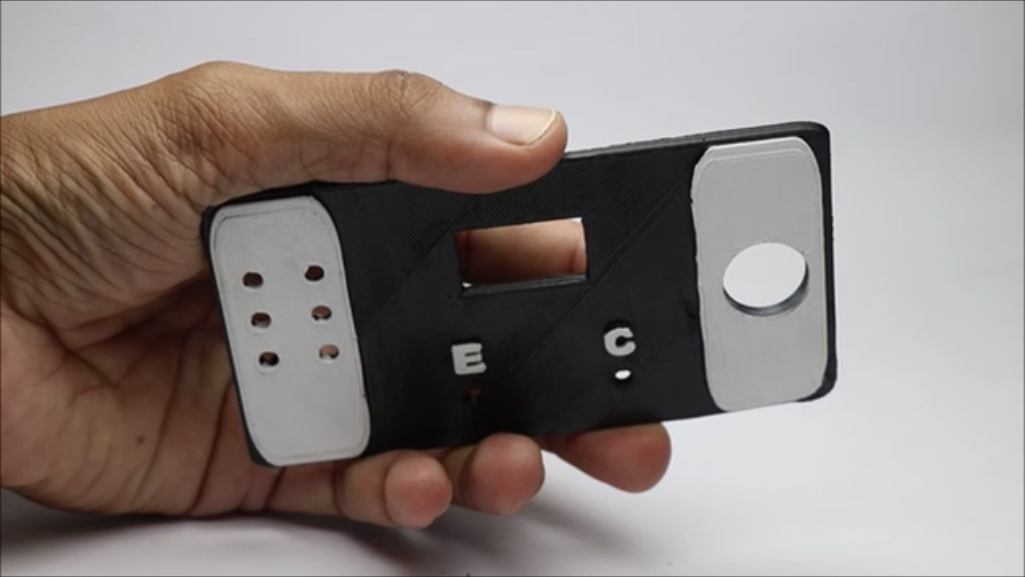
There are 2 parts for this project and both of them was designed with tinkercad, It took me quite a while to print and retest the design and come up with a final design and print.
As you can see the base part or the Uno holder has slots for the board and then for df player.
Top part holds most of the electronics and here great spacing needed to be made since placing the buttons too near will make using this project difficult and too far away will lead to waste of space thus increasing the size of this project.
So i created a balance between these, Note few may be thinking to induce pcb but let me tell you one thing i kept in mind "this device should be accessible to all" so with this i made this design.
You can use the files below, export to slicer and follow the settings.
Maintain 30 to 50% infill rate and there is no need of using any rafts or supports at the time of print if you are using the placement that im using.
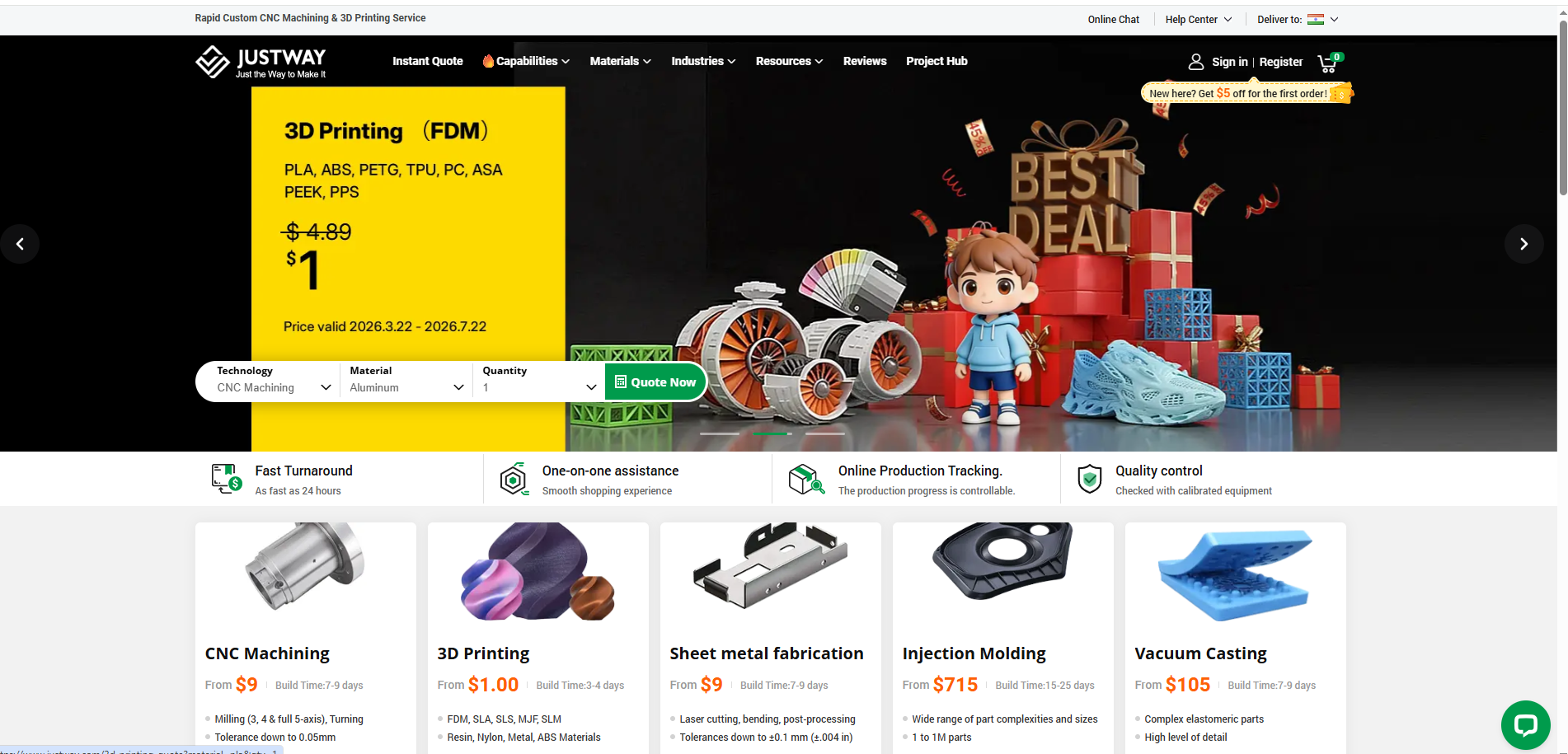
For the enclosure, You can decide to go with JUSTWAY3D Print service — and honestly, it will be one of the easier way to get enclosure for this project.
Getting a case to actually feel finished is harder than it sounds. If you want clean edges, the right material strength, so that your electronics sit exactly where they should.
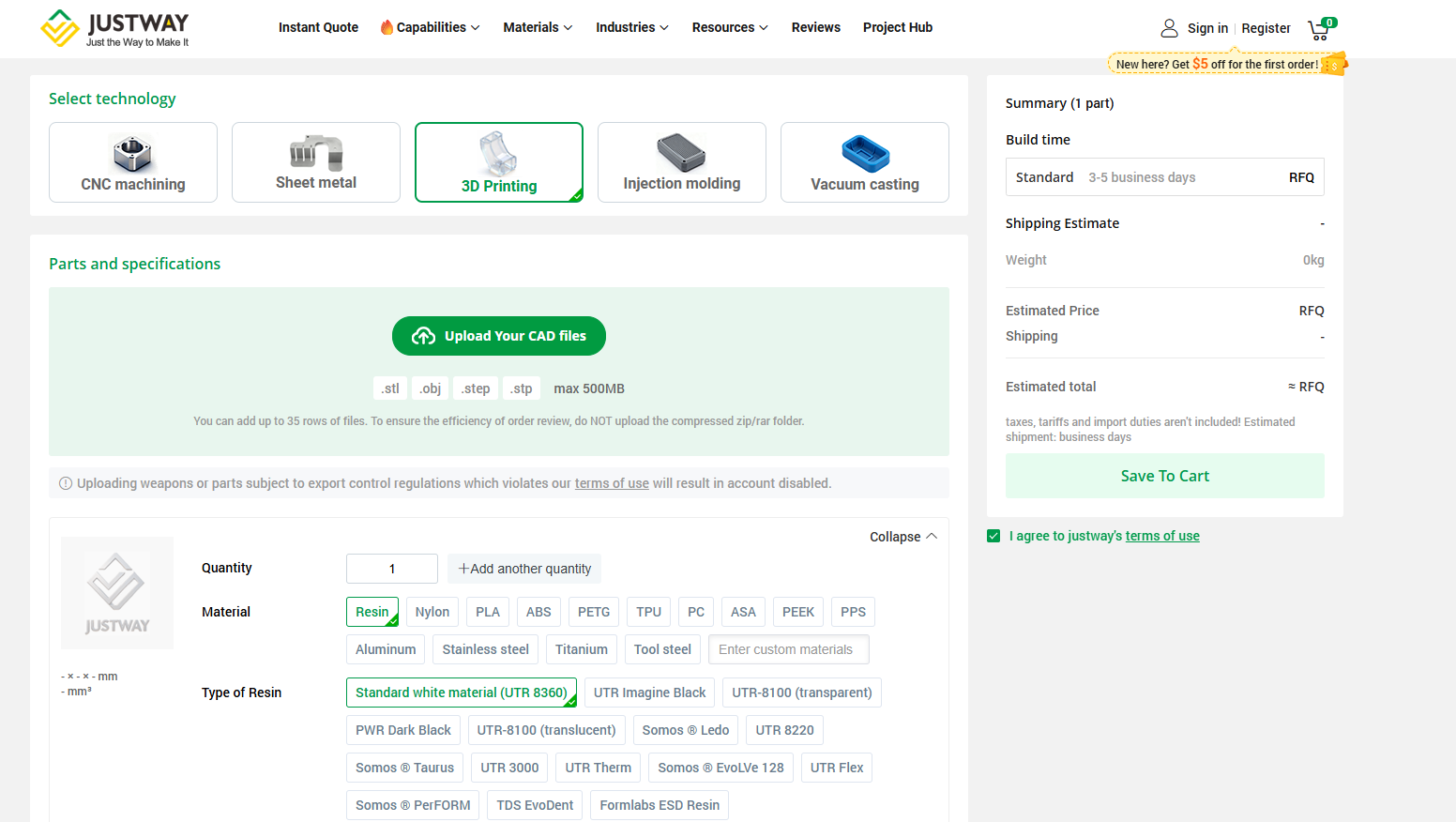
To Order your 3D printing project, visit JUSTWAY's website and click the “Quote Now” option.
Then Upload your file and select material + finish options, Pick layer resolution and infill rate, then can review the design and place order
Service Highlights
Accurate & Dependable Printing – Every print is produced with attention to detail, making it ideal for functional prototypes, electronics enclosures, and custom parts.
Wide Material Selection – Choose from PLA, ABS, PETG, TPU, and other specialty filaments to match your project's strength, flexibility, or visual requirements.
Simple & Transparent Process – Clear pricing, quick turnaround times, and regular updates ensure a smooth experience from start to finish.
Design Assistance – Need help preparing your model? it can suggest small design improvements to make your 3D prints stronger, cleaner, and easier to manufacture.
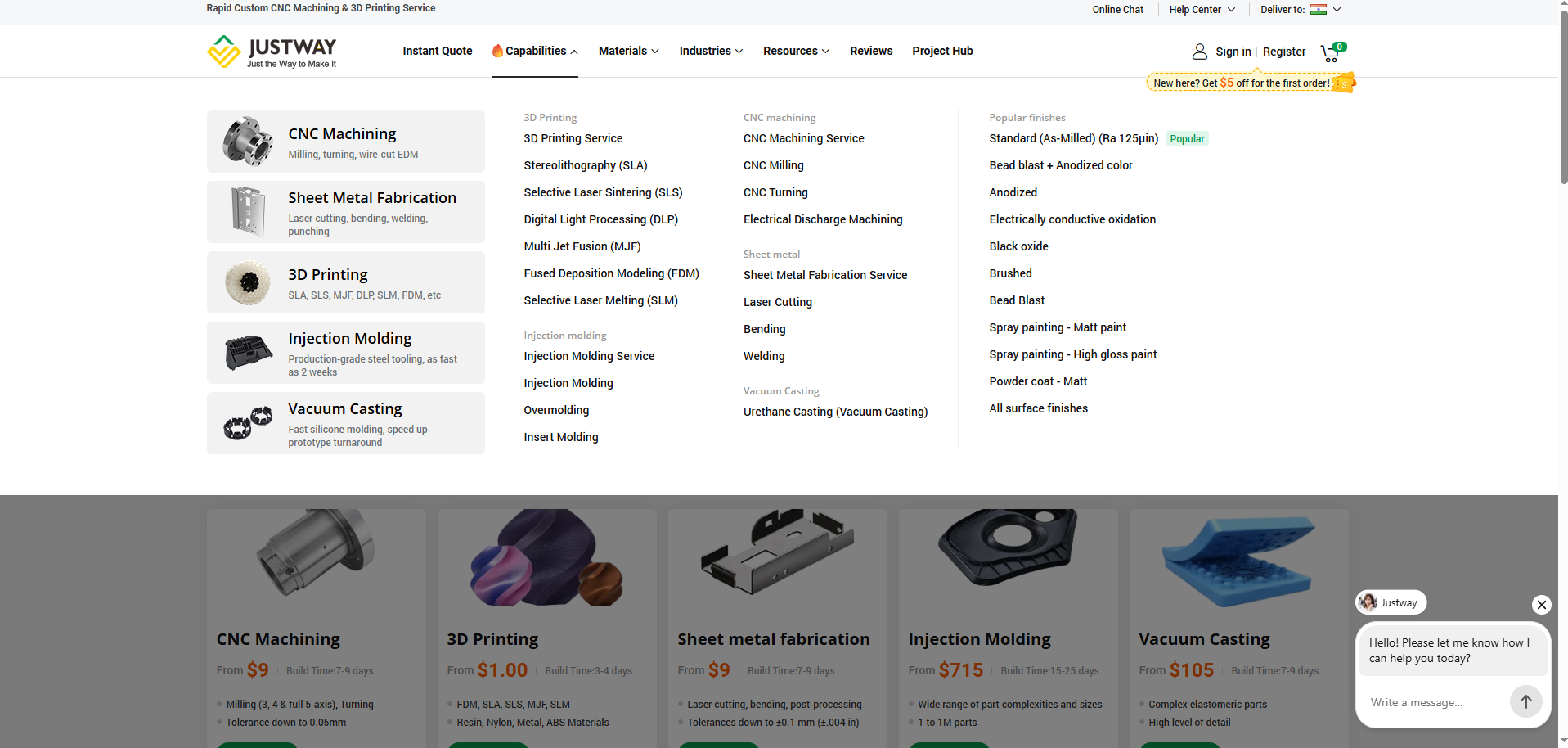
Check all their capabilities above and choose the service that you wish.
Base part needs some time for printing, again it depends on the printer speed.
Choice of color of pla filament is left to you, after the base is done print the top part or i would say it as the lid part also.
Here i printed the part till 86% with one color and then paused the printer and changed filament color and then resumed the print.
This will help in color difference that many find it useful.
After you have the printed parts we can work on assembling the electronics inside this and lets see next how this is done.
Simplifying the Circuit


After i checked the circuit for its working with breadboard circuit i will then use a zero pcb to shrink the size of circuit even further so that we have a compact project.
Main purpose of using this method is to reduce the weight and secondly the circuit misconnections that might happen if we use jumper cables.
Lots of cables and if you drop the device and by chance if any jumper cable comes off then some part of circuit wont work that will impact the overall working of the project.
I didn't want to have a chance for all of this inconveniences, So decided to use this method.
Soldering will provide good connection joins between the components and also since we are using 8 buttons one non working button will spoil whole circuit.
Here is a tip, Solder the negative pins first for all 8 buttons and connect that gnd to the uno board.
Now as per the circuit diagram solder the pins to respective dots and connect to the uno board.
OLED module uses jumper cables so there is no need of soldering here, and the speakers need to be soldered and the other ends are connected to DF player with jumper cables.
DF player is also connected with jumper cables and the gnd of all the electronics9buttons, oled) is connect to one common ground.
Assembling the Components


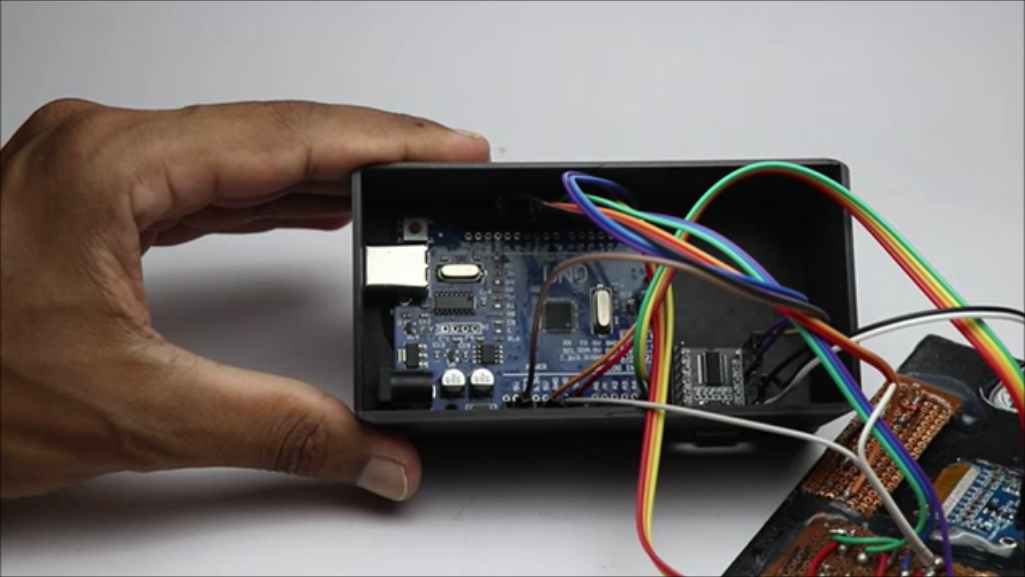
This i would like to call the fusion of hardware and the electronics, here the small electronics circuit that we were able to make from that large breadboard prototype will be cased inside 3d printed case.
I have given the designated places to keep the electronics components so that the space is well managed.
Start by placing the buttons panel on the 3d printed top plate that we just made from the zero PCB. Secure with hot glue on the sides.
Hot glue ensures that the shock that arises while buttons are being pressed will be absorbed which otherwise is not possible with double sided adhesive.
After the glue is dry, repeat the same step for enter and clear button panel. Press and hold the plate and part until glue is dry completely.
Place the OLED screen and here you can use band of double sided adhesive or hot glue.
Remove the speakers from the circuit and insert the cables through the slot and reconnect the jumpers, Use super glue to connect this part.
Working on the base part is simple, place the uno board first and then with the help of super glue df player is coupled with the base.
Make sure that the df player card slot is aligned with the 3d printed base slot so if any updated you can remove and insert the card.
How to Use
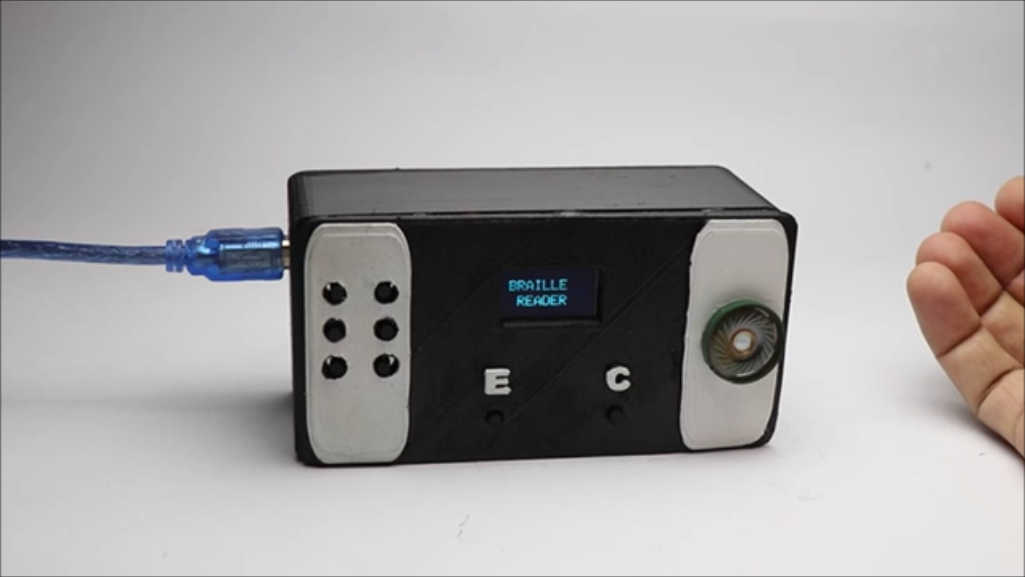

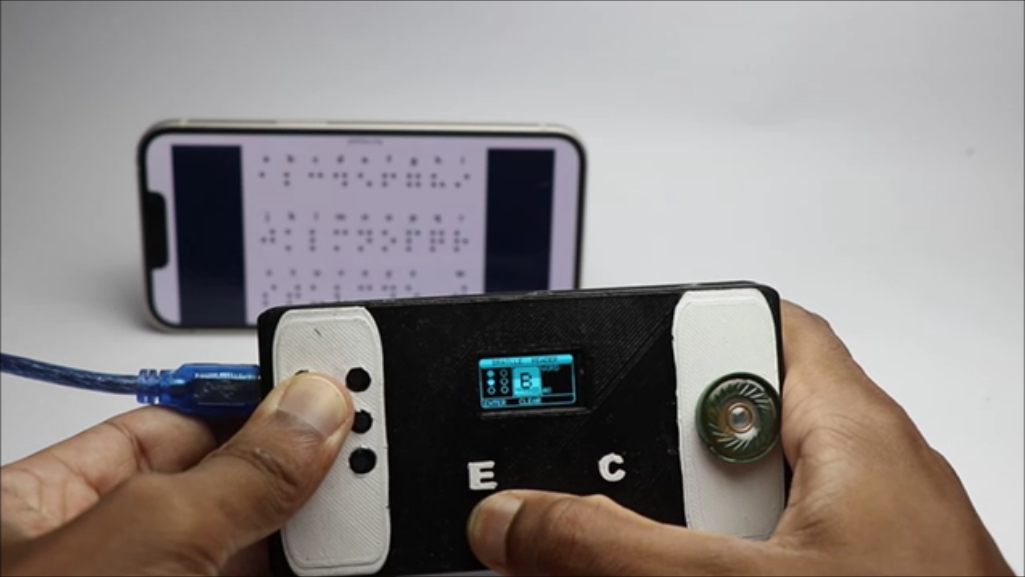
One of the best part here is using this and it is not just a mere device its an helpful gadget that will put smiles on the face of needy for sure.
To use this all you have to do is connect to usb power and you are good to go, Now talking in the perspective of a blind person the sound after you connect to power will help them understand that the device is on.
Now to recheck they can press the clear button upon pressing that they can hear a sound "clear" and now they can be double sure that the device is ready.
Press the dot( as per the braille readings) and press enter, Lets say if i press first dot and press enter it will show as A with sound of alphabet A.
Now next letter can be typed, and the previous word that is A is shown on the screen so that upon pressing the next letter it forms a word.
This will help other normal users what a blind person is trying to say.
If the visually impaired person wants to ask for something he/she/they will be carrying this device with them and as a medium of communication they can just type and allow other users to understand and fill the gap of communication.
This was all the effort that took me to build and execute this project, there are still room for improvements if you have any suggestion for more useful add ons for this project i would be happy to listen from you.
Working Video
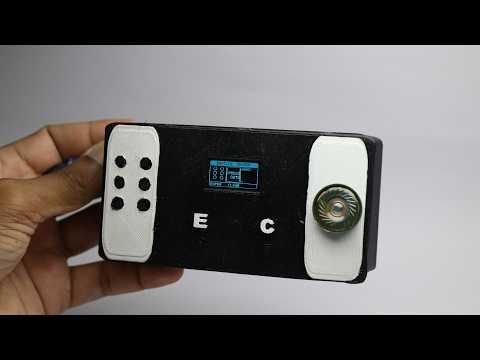
Here is the full build video for this project.
I have documented everything from the start till the end, If you want to see how the sound actually sounds consider watching this video it will surely amaze you.
This was all about this project, If you like the idea and think you could build post a make once you make it.
Thank you for reading it till here, have a great day.