Diy Flight Stick

For this project, I built a test joystick for the 60% scale Avro Arrow recreation being built at the Avro Arrow Museum. I wanted to make a working joystick that could be tested for the aircraft, while also making sure I could continue using the grip after testing was complete.
The joystick uses a 3D-printed grip and a modified version of the Gimbalotl gimbal, designed by another creator. I didn't design the original gimbal, but I created several new and modified parts to make it work with my setup. These included a connecting piece, a modified hat-switch cap to prevent it from hitting the collar, and custom Hall sensor holders to help protect the sensor wires from snapping.
The electronics use an Arduino Pro Micro and Hall-effect sensors to track the stick's movement, along with buttons and a five-way hat switch for controls.
The estimated cost of the electronics is around $50–$100 CAD, depending on component prices. This doesn't include filament or printing costs, and the parts should be available through electronics suppliers such as DigiKey.
Once all the parts have been printed and the components are ready, you should be able to assemble and finish the joystick in one or two days, depending on your experience with soldering and mechanical assembly.
This Instructable covers how I assembled the joystick, the modifications I made, how to wire the electronics, and how to get it working as a USB game controller.
Supplies
- 3d printer
- Arduino pro micro
- wires
- 3 red buttons
- big square button (for trigger)
- 5 way hat switch (could be replaced with another of the red buttons)
- 3mm x 6mm disk magnets (two for mine but original design needs 3)
- 12x 685 Bearings
- 6x 6702 Bearings
- 2x49e hall sensors
- tension springs
Print All of the Parts
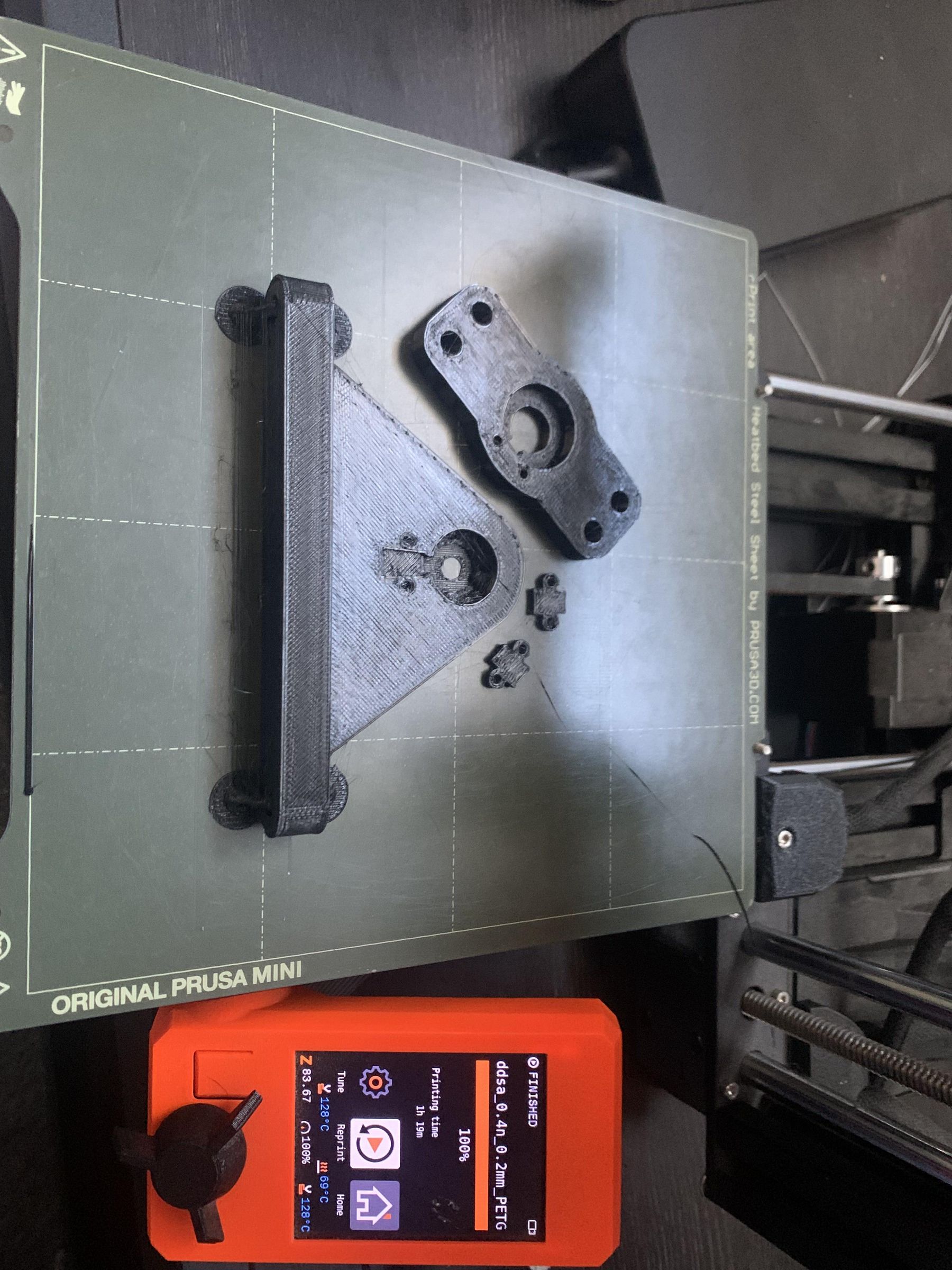
first you have to print all the parts for both the joystick and the gimble and the connecting piece witch i have linked to this step and is for the gimble without the yaw tensioner i have also added the hat switch end as i found the the one that comes with the stick hits the collar and i also made the sensor holders for the base because i found that if you had the e49 sensor wire out they were very prone to snaping.
Wire Up the Joy Stick

for wiring i found that the best way to connect the grounds in side of the grip was to get the wire and lead it from it respective button to the hat switch hole and solder all the grounds together and add a extra wire the runs down with the rest of the button wires. The 5 way hat switch is considered 5 buttons and will be refers to as buttons
Build the Base/gimble
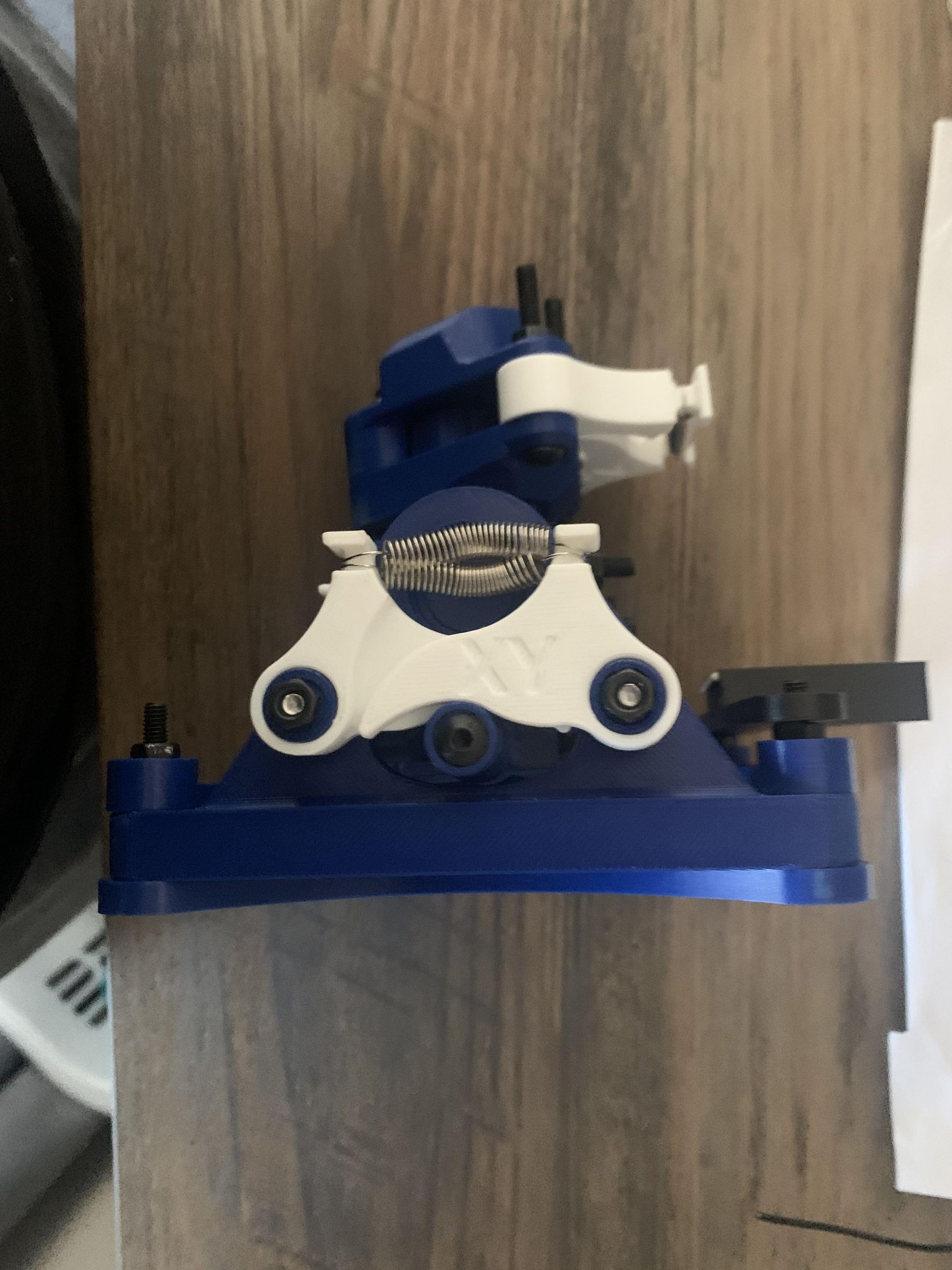
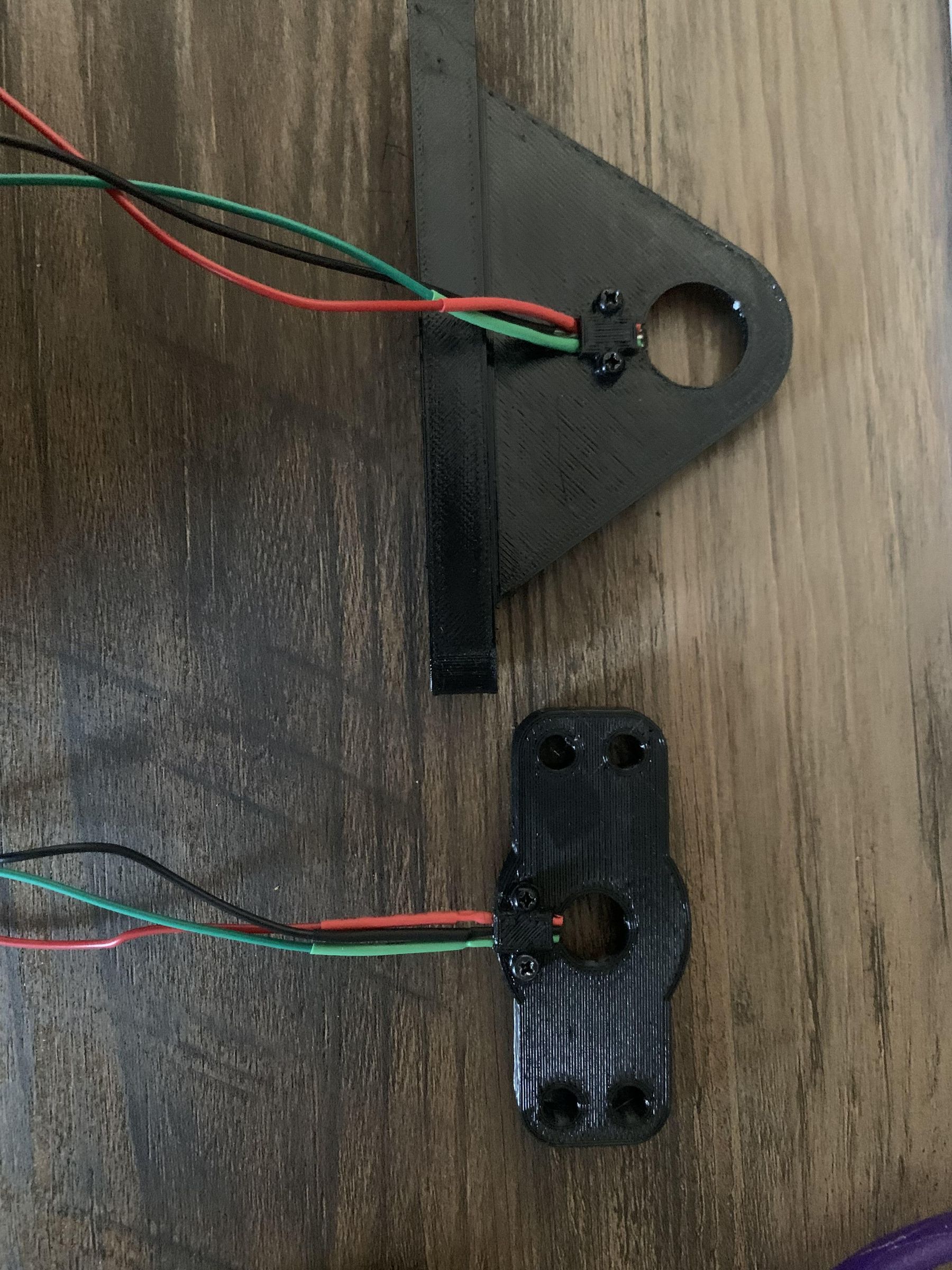
for building the base/gimble i would put the magnets in first before anything with a little bit of glue to hold them in and put the tensioners on last because they can make it very difficult to push the two sides together this step includes adding wires to the 49e hall sensors
Put the Grip and the Gimble Together

feed the wires trough the rod that connects to the grip before putting it in the gimble then feed the wires through the small hole at the bottom of the piece that the rod goes in before putting the rod in
Solder Wires to Arduino

on the Arduino pro micro there is three grounds so there will be one for each of the e49 hall sensors middle wire(you will have to combine one of the grounds if you add yaw)and the buttons. Solder the buttons on pins 2-10 and one of the e49 hall sensors to a0 and the other to a1(right most wire).for the e49 hall sensors on the left most wires you will have to combine the and solder them to vcc.
Coding

the code for the stick is below if you followed the wiring instructions and make yours without the yaw the code includes max and min for y and x axis
#include <Joystick.h>
// Hall sensor pins
const int X_AXIS_PIN = A0;
const int Y_AXIS_PIN = A1;
// Button pins
const int buttonPins[] = {2, 3, 4, 5, 6, 7, 8, 9, 10};
const int BUTTON_COUNT = 9;
// Measured physical limits
const int X_MIN = 428;
const int X_MAX = 598;
const int Y_MIN = 435;
const int Y_MAX = 566;
// Measured centers
const int X_CENTER = 514;
const int Y_CENTER = 490;
// Dead zone: 3% of travel on each side of centre
const float DEAD_ZONE = 0.03;
int scaleAxis(int reading, int minimum, int center, int maximum) {
reading = constrain(reading, minimum, maximum);
if (reading < center) {
int deadLimit = center - (center - minimum) * DEAD_ZONE;
if (reading >= deadLimit) {
return 512;
}
return map(reading, minimum, deadLimit, 0, 512);
} else {
int deadLimit = center + (maximum - center) * DEAD_ZONE;
if (reading <= deadLimit) {
return 512;
}
return map(reading, deadLimit, maximum, 512, 1023);
}
}
Joystick_ Joystick(
JOYSTICK_DEFAULT_REPORT_ID,
JOYSTICK_TYPE_JOYSTICK,
BUTTON_COUNT,
0,
true, true, false,
false, false, false,
false, false, false,
false, false
);
void setup() {
for (int i = 0; i < BUTTON_COUNT; i++) {
pinMode(buttonPins[i], INPUT_PULLUP);
}
Joystick.begin();
Joystick.setXAxisRange(0, 1023);
Joystick.setYAxisRange(0, 1023);
}
void loop() {
int xReading = analogRead(X_AXIS_PIN);
int yReading = analogRead(Y_AXIS_PIN);
Joystick.setXAxis(
scaleAxis(xReading, X_MIN, X_CENTER, X_MAX)
);
Joystick.setYAxis(
scaleAxis(yReading, Y_MIN, Y_CENTER, Y_MAX)
);
for (int i = 0; i < BUTTON_COUNT; i++) {
Joystick.setButton(i, digitalRead(buttonPins[i]) == LOW);
}
delay(5);
}
Calibrating Code
to calibrate the code to your stick upload this code and open the serial monitor in the tools tab at the top of your screen in Arduino ide set the values in measured limits to what you get when you push the stick fully forward ,fully back, fully left and fully right then get a reading of when it is in the center and put that in the measured centers that's right below measured limits
const int X_AXIS_PIN = A0;
const int Y_AXIS_PIN = A1;
void setup() {
Serial.begin(9600);
}
void loop() {
Serial.print("X: ");
Serial.print(analogRead(X_AXIS_PIN));
Serial.print(" Y: ");
Serial.println(analogRead(Y_AXIS_PIN));
delay(100);
}
Testing
to test if the stick works and to calibrate the stick press win +r and type in joy.cpl press ok then click Arduino micro properties
settings
calibrate