Dual CO₂ Air Quality Monitor and Algae Comparison
by Emilyyyyyy in Circuits > Sensors
701 Views, 2 Favorites, 0 Comments
Dual CO₂ Air Quality Monitor and Algae Comparison


Have you ever felt sleepy or unfocused in a classroom or while studying, even after a full night's rest? I noticed this happening to me and began to wonder if fatigue was the problem, but after some investigating, I found out the cause was actually the air itself. Research shows that CO₂ levels above 1000 ppm can reduce concentration and decision-making ability, yet we can't see these air quality changes happening around us.
To investigate this, I built a dual sensor monitoring system where one sensor is connected to a bottle containing algae and the other is exposed to the surrounding air. Using two CO₂ sensors and an OLED display, the system tracks air quality in real time, comparing the CO₂ levels in the room with the air influenced by the plants and then displaying it on the OLED display.
This project aims to combine environmental science with electronics to investigate a real-world problem in a measurable way. Using two CO₂ sensors simultaneously allows for direct comparison rather than assumptions. In addition, by combining biological filtration, a digital monitoring system, and a live web dashboard, it bridges the gap between natural solutions and modern technology. It can be used as a tool for understanding how natural systems impact air quality in everyday environments, helping to visualize how air quality changes and explores whether natural solutions make a difference in our daily lives.
Supplies


Below is the complete list of everything you will need. This list is split into four parts, algae materials, algae tools, system materials and system tools.
Materials Needed for Algae:
- Small bottle of algal spores (x1)
- 5 gallon plastic jug (x1)
- Water (enough to fill the jug)
- Silica gel packet (x1)
- Air pump + air stone set (x1)
- Tubing (sufficient length)
- Tape (sufficient)
- Light source (e.g. sunlight or LED)
Tools Needed for Algae:
- Weighing scale (x1)
- Plastic cup (x1)
- Drill with a 5mm drill bit (x1)
Materials Needed for the System:
- NodeMCU ESP8266 (x1)
- ENS160 Sensor (x2)
- SSD1306 OLED Display (x1)
- Perfboard (x1)
- Pin headers - 11 pin (x2), 5 pin (x2), 4 pin (x1)
- Hook-up wires (x14) [Optional: use 3 different colours and group them (5, 5, and 4 wires) to represent different parts of the circuit (IN Sensor, OUT Sensor, OLED Display). This helps keep wiring organised and easier to follow.]
- Solder (sufficient)
- Pop Tube fidget toy (x1, 1.5cm diameter)
- USB cable (x1)
- Jumper wires (x14, optional)
- Breadboard (x1, optional)
Tools Needed for the System:
- Soldering iron (x1)
- Wire cutter (x1)
- Wire stripper (x1)
- Desoldering pump (x1)
- Hot glue gun (x1)
- 3D Printer (x1)
- PLA Filament (Sufficient)
- Helping clamp (optional)
- Computer with Arduino IDE installed
Preparing the Algae CO₂ Filter


Before assembling the monitoring system, you will first need to create an algae-based CO₂ filter that will influence air quality. This will be used for comparison against the surrounding environment.
First you need to fill the container with water. Take the 5 gallon jug and fill it with tap water, leaving a small gap at the top. This is to prevent water overflow from the bubbling when you install the air pump.
Then you can move on to measure the algae:
- Place a plastic cup on a weighing scale and remember to tare it to zero to ensure that you are only measuring the weight of the powder.
- Measure the required amount of algal spores according to the provided instructions. For me, I needed to use 5 grams of powder per 100 litres of water.
- After you are done measuring, pour the measured algal spores into the jug and gently mix if needed. You want to make sure that there are no powder clumps and everything is thoroughly dissolved.
To prepare the air system:
- You need to use a drill with a 5mm drill bit to drill a hole in the cap of the jug.
- Cut a length of tubing long enough to reach the bottom of the jug and attach one end to the air pump and put the other end through the drilled hole before attaching it to the air stone.
- Place the air stone into the jug so it rests at the bottom.
By drilling the hole, you can now close the lid to make sure that when you attach the tube, air influenced by the algae is directed toward the sensor for more accurate measurements. Before connecting the air pump to a power source, make sure the air pump is placed above the water level to prevent water back-flow.
Now all you have to do is wait! Place the jug in an area with sufficient sunlight or under an LED light source, then wait for 2-3 weeks to allow the algae to grow before using it in your system. During this time, the water should gradually turn cloudier, which indicates algae growth.
Coding


While your algae is growing, you can start making the system first. Using this code, the ESP8266 will connect to Wi-Fi and host a web server that displays real-time CO₂ data. This allows information from the system to be monitored and accessible remotely from any browser.
Connect the ESP8266 to your computer with the USB cable and open the 'Arduino IDE' app. Install these libraries using the Arduino IDE Library Manager before uploading the code:
- Adafruit GFX
- Adafruit SSD1306
- SparkFun ENS160
- ESP8266WiFi
- ESP8266WebServer
After all the libraries are installed, download the code attached to this step and upload it into 'Arduino IDE'. Make sure to update your WiFi credentials for these two lines of code:
- const char* ssid = "_____";
- const char* password = "_____";
Make sure to select the correct board and port before clicking the 'Upload' button. After that, open the Serial Monitor and once connected, your device will display an IP address. Copy the IP address shown in the Serial Monitor and paste it into your browser. You will then be able to see a live dashboard that displays the CO₂ (ppm) and TVOC (ppb) for both sensors. This is a page that will refresh automatically every 5 seconds.
Downloads
Understanding the Code
Below, I have included the different parts of the code with an explanation for each so you can understand what each part does.
Libraries and Display Setup:
This section imports all required libraries for the project.
- The Adafruit libraries control the OLED display
- Wire.h enables I2C communication
- The ESP8266 libraries handle Wi-Fi and the web server
- The ENS160 library allows communication with the gas sensors
- The display is also initialized with its screen size and I2C connection
Wi-Fi and Web Server Setup:
This section stores the Wi-Fi credentials and creates a web server running on port 80. This server will later be used to display live air quality data in a browser.
Sensor Addresses and I²C Pins:
Each ENS160 sensor has a unique I²C address, allowing two sensors to be used simultaneously. The SDA and SCL pins define how the ESP8266 communicates with the sensors and display.
Sensor Objects and Data Storage:
Two sensor objects are created:
- One for measuring room air (IN)
- One for measuring air near the algae (OUT)
Variables are also created to store CO₂ and TVOC readings from each sensor.
Sensor Initialization Function:
This function initializes each sensor and checks if it is working correctly. If successful, the sensor is set to a standard operating mode to begin measurements.
Sensor Reading Function:
This function reads data from a sensor when new data is available.
It retrieves:
- CO₂ concentration (ppm)
- TVOC levels (ppb)
The results are printed to the Serial Monitor and stored for display.
Web Page Generation:
This function generates a simple HTML webpage displaying real-time sensor readings.
It shows:
- CO₂ and TVOC for both sensors
- A styled layout
- Automatic refresh every 5 seconds
This allows users to monitor air quality remotely from a browser.
Setup Function:
The setup function runs once when the device starts. It:
- Initializes serial communication
- Connects to Wi-Fi
- Starts the web server
- Initializes both sensors
- Sets up the OLED display
Preparing the system for operation.
Main Loop:
The loop runs continuously and controls the system’s operation:
- Reads both sensors
- Updates the web server
- Displays data on the OLED screen
This ensures real-time monitoring both locally and remotely.
Prototype Testing and Soldering


Before soldering, I would recommend to first assemble and test the circuit using a breadboard and jumper wires as I did for the prototype. Though this step is optional, it allows you to test that all components are working correctly and that your wiring is accurate before moving on to the next steps.
If you want to do so, you can use the circuit diagram and tables in Step 5 to see how the components are connected. Once everything is working correctly, you can then transfer these connections to the perfboard.
In the picture, I have labeled each row and column with numbers and letters respectively (please ignore the soldered wires, right now we are only focusing on the headers). Use this and the highlighted colours of each header to help you as you solder by following the instructions below:
5 pin header (RED):
- Solder the first 5 pin header starting from row 14 column G to row 18 column G
- Solder the second 5 pin header starting from row 14 column W to row 18 column W
4 pin header (YELLOW):
- Solder the 4 pin header starting from row 10 column Z to row 10 column C
11 pin header (BLUE):
- Solder the first 11 pin header starting from row 22 column W to row 22 column G
- Solder the second 11 pin header starting from row 33 column W to row 33 column G
Wiring

.png)
.png)

Now that you are done soldering the headers, you need to prepare the wires used to solder the components together.
- Cut the wires to desired length making sure that it is long enough to reach the two components meant to be connected together.
- Strip a small section of insulation from both ends using the wire stripper to expose the metal core.
To insert the wires into the perfboard:
- Place the wire through the hole in the perfboard that aligns in the same column or row as the pin it is supposed to be connected to.
- Solder the connections by heating each joint with a soldering iron and applying solder until it securely connects the wire to the component pins.
Use the circuit diagram and wiring table below to ensure each connection is correct before and after soldering.
3D Printing

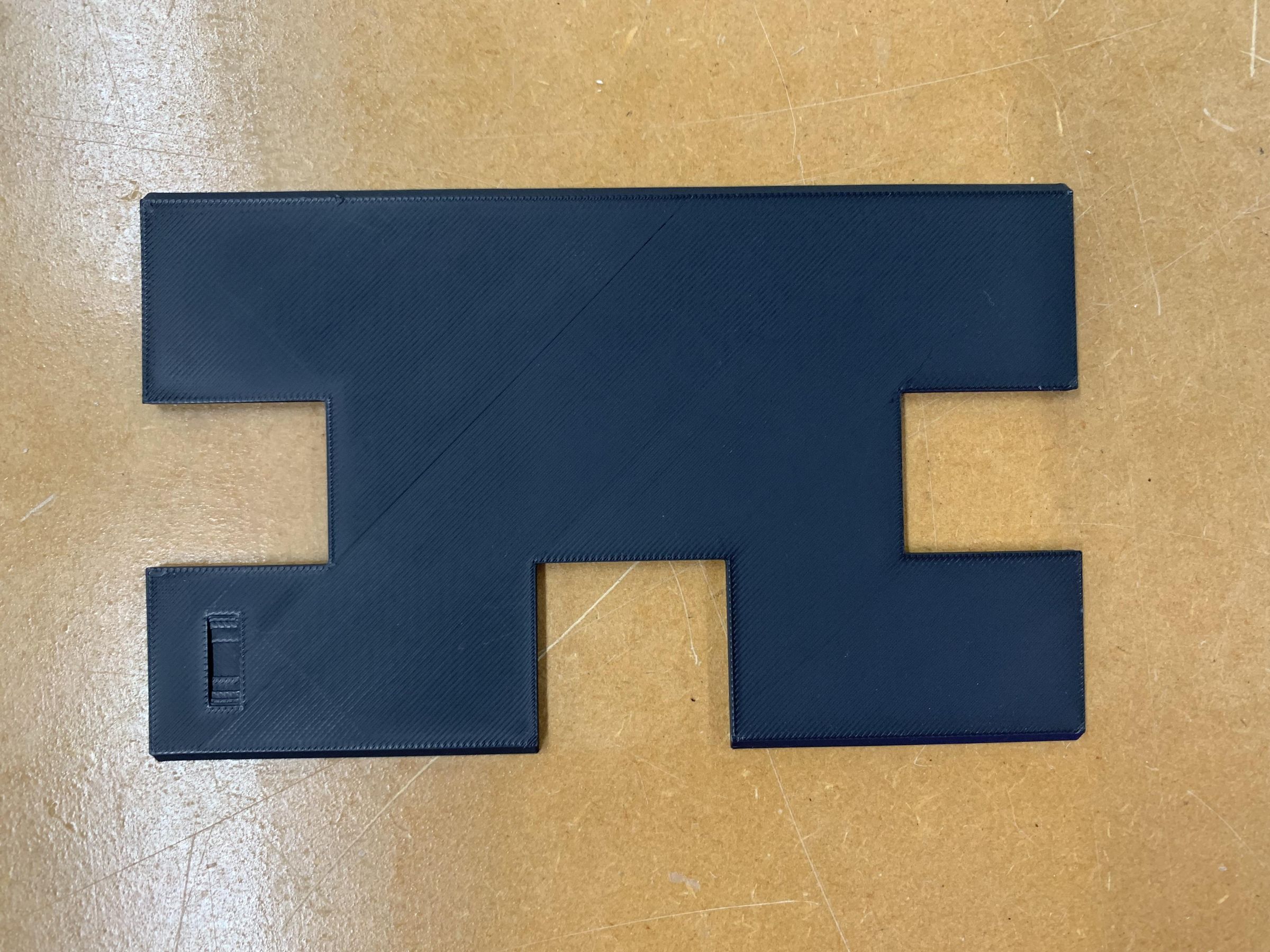

Now that you are done with the soldering, you can print the system enclosure for assembly:
- Download the two STL files attached to this step, one is for the enclosure box and one is for the lid.
- Open your slicer software and import one of the STL files.
- Adjust your print settings as needed, then slice the model and start the print.
- Once the first part is printed and complete, repeat the same process for the second STL file
Assembly



After you have successfully acquired all the parts needed for this system, the algae CO2 filter, the air quality measuring system, and the enclosure for it, it's time for the last part: assembly!
First we need to address a problem that happened when I initially put everything together. After leaving my system out for a while, I noticed water condensing inside the Pop Tube that led to the sensor. As air is pumped through the system, water vapour can travel up from the jug and into the Pop Tube. The high humidity in the tube will affect the sensor readings by making it appear lower than it should be. As CO2 dissolves in water, if moisture is not controlled, it may falsely suggest that the algae system is reducing CO₂ more than it actually is.
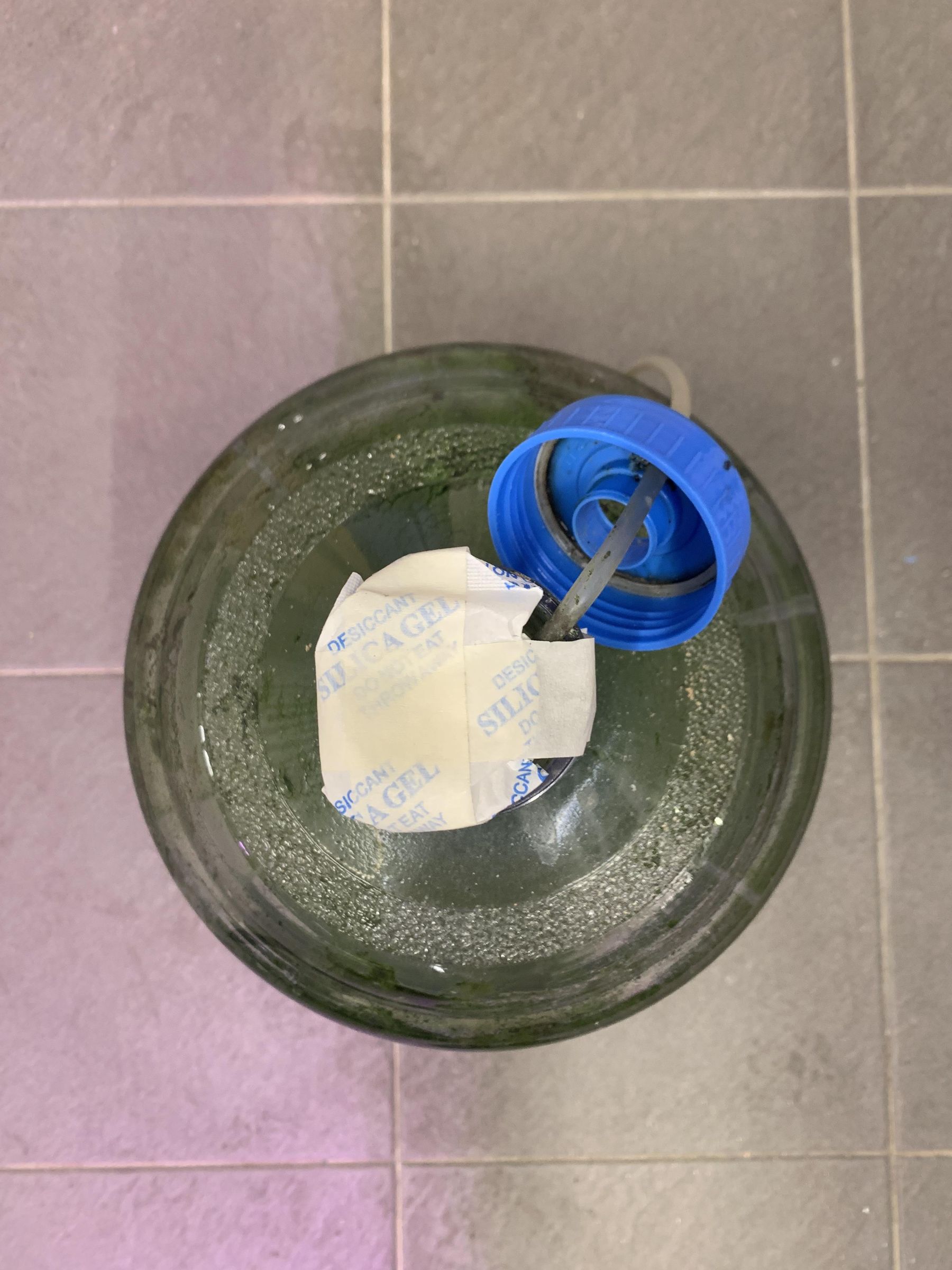
This is where the silica gel packet comes in. The silica gel packet acts as a moisture absorber. By placing the silica gel packet at the top, excess moisture is absorbed before it reaches the tubing, keeping the air pathway dry. To do so:
- You need to cut two pieces of tape and put it over the silica gel packet in a cross shape. This will secure the packet above the jug and make sure it doesn't fall in.
- Place the packet flat over the opening of the jug, ensuring there is a small opening on the side for the air tubing to pass through.
- Secure the packet with more tape if needed
- Remember to replace the silica gel packet if it becomes saturated over time.
As for the Pop Tube, use a hot glue gun to attach it to the ENS160 sensor on the right, which is the 'OUT Sensor'. Do this by placing the tube on the sensor and applying a layer of hot glue around the tube.
Now you can connect the system to a power source. When you are placing it into the enclosure, ensure that the hole on the side of the box is aligned with micro USB port on the ESP8266 so that you can plug it in even if you close the enclosure. Place the lid onto the enclosure by sliding it in from the side, then pull the Pop Tube to a desired length and place it into the hole in the cap of the bottle. Remember to leave your system out for a few hours for the sensors to calibrate.
Optionally, you can attach the enclosure to a wall or vertical surface using methods such as Velcro tape, magnets or other mounting solutions. This keeps the system stable, improves accessibility, and allows for easier viewing of the display.
Interpreting the Data

Now that you have successfully built a CO₂ filtration system, you should be able to see that the reading on the 'OUT Sensor' that is connected to the algae is lower than that on the 'IN Sensor' which is exposed to the surrounding air. Based on my data collected, the sensor connect to the algae setup consistently showed lower CO₂ readings compared to the other sensor. This indicates that the algae were actively absorbing carbon dioxide through photosynthesis and producing oxygen.
However, the results also showed that the effectiveness of the system depends on environmental conditions. Factors such as light availability, airflow, and humidity all influenced the readings. For example, condensation in the tubing initially caused artificially low readings, highlighting the importance of controlling moisture for accurate data collection.
Overall, this project demonstrates that while algae can contribute to reducing CO₂ levels, the impact in a small-scale setup is limited and not a replacement for proper ventilation. Nevertheless, it shows strong potential for natural, sustainable solutions when combined with system design. This investigation not only provided insight into air quality dynamics but also demonstrated how technology can be used to measure and better understand environmental changes in real time.