ESP32 Smart Robot Controlled Via Firebase and Mobile App
by ELAmraouihamza in Circuits > Robots
68 Views, 0 Favorites, 0 Comments
ESP32 Smart Robot Controlled Via Firebase and Mobile App

This project presents a smart mobile robot based on the ESP32 microcontroller. The robot can be controlled remotely through a mobile application connected to Firebase, allowing real-time communication between the robot and the user.
The system integrates several sensors, including a DHT11 sensor for measuring temperature and humidity, and an MQ5 gas sensor for detecting gas leakage in the environment.
Ultrasonic sensors are also used for obstacle detection, allowing the robot to move safely and avoid collisions while navigating.
In addition, the robot can operate in two different control modes: manual control and automatic control. In manual mode, the user can control the robot's movements directly from the Android mobile application. In automatic mode, the robot moves autonomously using its sensors to detect obstacles and navigate the environment.
The goal of this project is to demonstrate how IoT technologies can be used to control robotic systems and collect environmental data using a mobile interface. More details about the system and its operation can be seen in the video at the end of this project.
Supplies
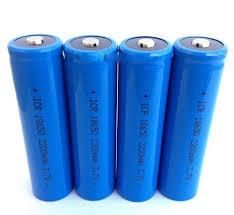


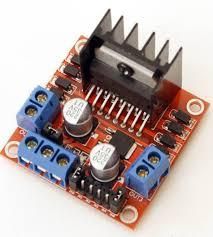


- ESP32 Development Board
- L298N Motor Driver
- Ultrasonic Sensor (HC-SR04)
- DHT11 Temperature and Humidity Sensor
- MQ5 Gas Sensor
- Servo Motor
- DC Motors
- Jumper Wires
- Battery / Power Supply
Electronic Circuit Design and Implementation
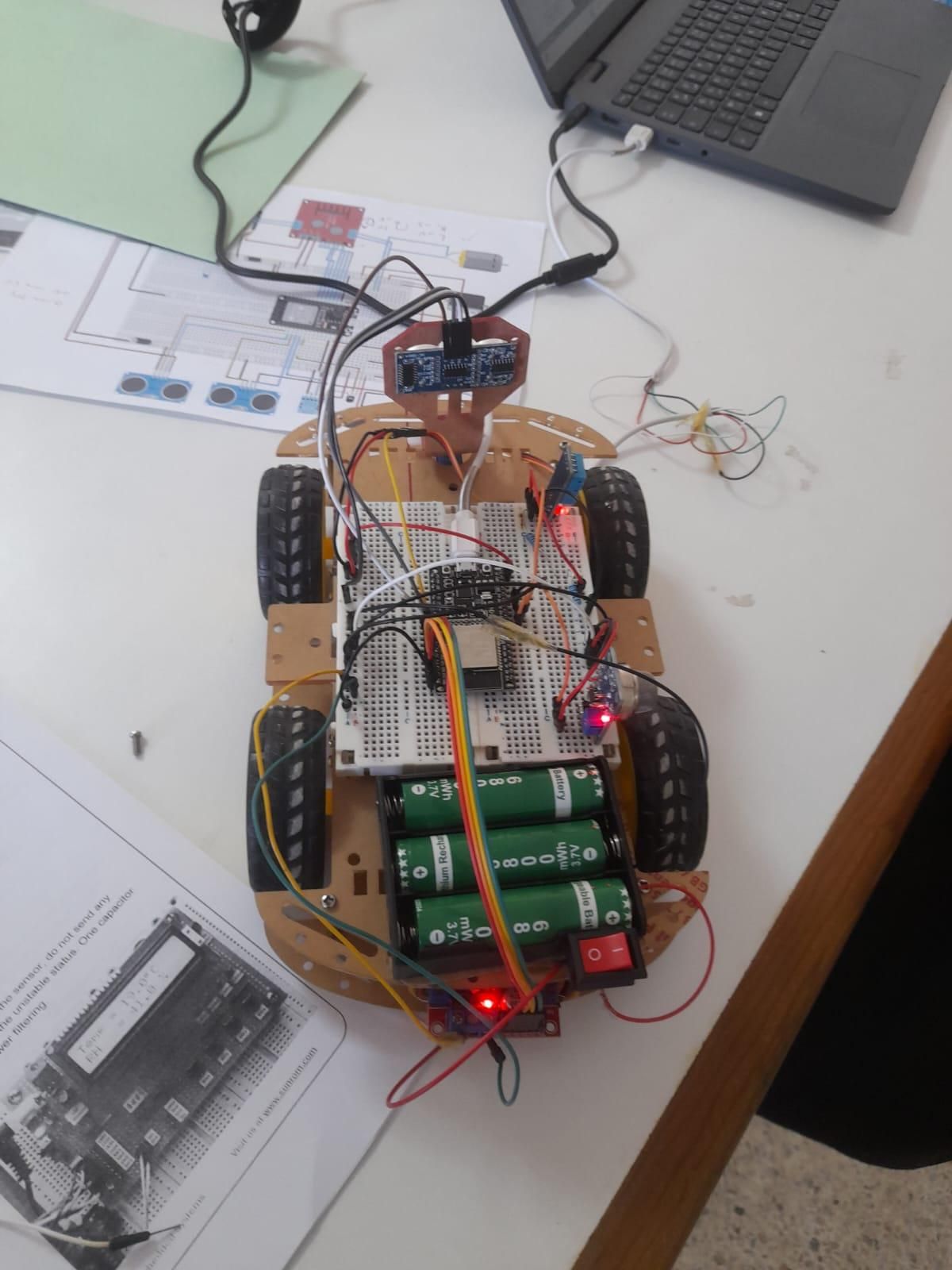
In this step, the electronic circuit of the project was designed using Fritzing. The schematic shows the main components of the system and how they are connected to the ESP32 microcontroller.
The project relies on several key components. The L298N motor driver is connected to the ESP32 to control the robot’s DC motors. An ultrasonic sensor is used for obstacle detection during the robot’s movement.
In addition, other sensors such as the DHT11 for temperature and humidity measurement and the MQ5 gas sensor for gas detection are included. The GPIO pins of the ESP32 can be selected according to the user’s needs to connect the different components, but the pin configuration must match the definitions used in the program code to ensure proper operation
Firebase Realtime Database

In this step, a Realtime Database was created using Firebase to enable real-time communication between the robot and the mobile application.
As shown in the image, the database contains several variables used to exchange data between the ESP32 and the application. Inside the DHT path, the sensor data is stored, including Temperature, Humidity, and the GAZ status used for gas detection.
Another variable called command is used to send control instructions from the mobile application to the robot. For example, the command stop can be used to stop the robot’s movement.
In this way, the database acts as a communication bridge, allowing sensor data to be sent to the application and control commands to be sent from the application to the robot.
Mobile Application (MIT App Inventor)


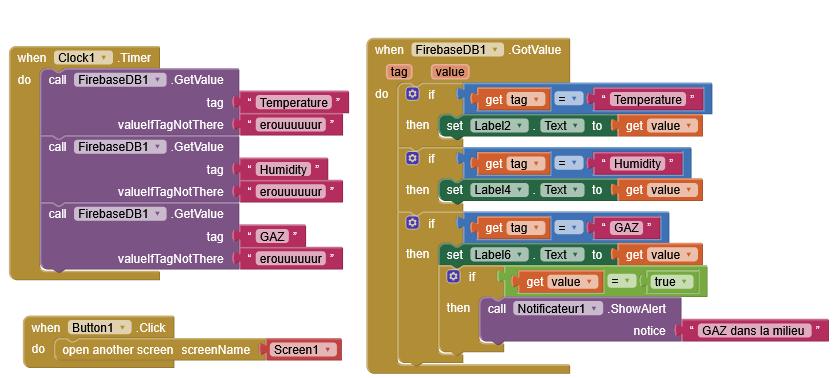


1) Introduction
MIT App Inventor is a visual programming platform that allows developers to create Android applications using drag-and-drop components and block programming.
In this project, it was used to design the mobile interface and communicate with the robot through the Firebase Realtime Database
2) Main Page
The first page represents the main interface of the application.
It contains three main buttons:
- MESURE
- MANUEL
- AUTO
These buttons allow the user to navigate to the corresponding pages of the application.
From the programming side, the navigation between pages is implemented using the block:
When Button.Click
This block allows opening another screen when the user presses a specific button
3) Mesure Page
The second page is dedicated to displaying environmental measurements collected by the robot sensors.
This page shows:
- Temperature
- Humidity
- Gas detection status
These values are retrieved from the Firebase Realtime Database and displayed in real time in the application.
From the programming side, blocks are used to read the stored data in Firebase and update the displayed values automatically
4) Manuel Control Page
The third page allows the user to control the robot manually.
This interface contains several control buttons such as:
- Forward
- Backward
- Left
- Right
- Stop
Each button sends a specific command to the database when pressed.
These commands are then read by the robot controller to execute the corresponding movement.
The control is implemented using When Button.Click blocks that send commands to Firebase
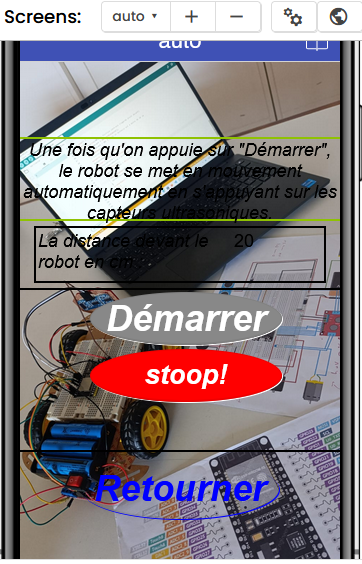
5) Automatic Mode Page
The last page corresponds to the automatic navigation mode.
This interface contains two main buttons:
- Start
- Stop
When the user presses Start, a command is sent to the database to activate the automatic mode of the robot.
Pressing Stop stops the automatic operation.
This communication is also implemented using When Button.Click blocks connected to Firebase
System Workflow
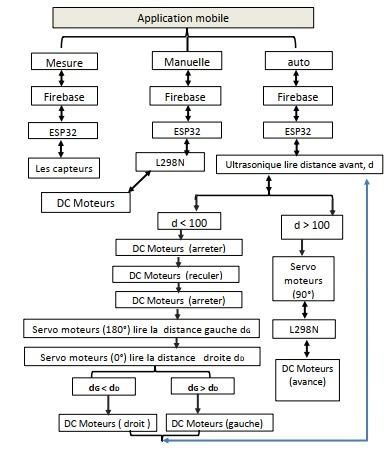
The following diagram shows the overall workflow of the system.
The mobile application sends commands to the robot through Firebase Realtime Database.
The ESP32 reads these commands and controls the motors accordingly.
Sensor data such as temperature, humidity, gas detection and distance are also sent back to the database and displayed in the mobile application created using MIT App Inventor.
Ploading the Code Using Arduino IDE
The code used to control the robot was written and uploaded to the ESP32 using Arduino IDE.
#include <Adafruit_Sensor.h>
#include <DHT.h>
#innclude <Firebase_ESP_Client.h>
#include <WiFi.h>
#include <ESP32Servo.h>
#include <NewPing.h>
// === Définition des constantes ===
#define TRIG 5
#define ECHO 18
#define DISTANCE_MAX 200 #define DHTPIN 14
#define DHTTYPE DHT11 #define WIFI_SSID "PFE"
#define WIFI_PASSWORD "pfe 2025"
#define API_KEY "AIzaSyBZ4NlNB20J50epZCwkqmo_SuifywXuY8U"
#define DATABASE_URL "https://dht11seneer-default-rtdb.firebaseio.com/"
#define USER_EMAIL "helamraoui89@gmail.com"
#define USER_PASSWORD "12345678"
// === Objets ===
DHT dht(DHTPIN, DHTTYPE);
NewPing sonar(TRIG, ECHO, DISTANCE_MAX);
Servo monServo;
FirebaseData fbdo;
FirebaseAuth auth;
FirebaseConfig config;
// === Variables globales ===
int distance;
int gazPin = 27;
const int servoPin = 17;
unsigned long sendDataPrevMillis = 0;
unsigned long prevMillis = 0;
// Moteur L298N
int IN1 = 23;
int IN2 = 22;
int IN3 = 21;
int IN4 = 19;
// === Fonctions de base ===
void avancer()
{
digitalWrite(IN1, HIGH);
digitalWrite(IN2, LOW);
digitalWrite(IN3, LOW);
digitalWrite(IN4, HIGH);
}
void reculer()
{
digitalWrite(IN1, LOW);
digitalWrite(IN2, HIGH);
digitalWrite(IN3, HIGH);
digitalWrite(IN4, LOW);
}
void arreterRobot() {
digitalWrite(IN1, LOW);
digitalWrite(IN2, LOW);
digitalWrite(IN3, LOW);
digitalWrite(IN4, LOW);
}
void tournerGauche()
{ digitalWrite(IN1, LOW);
digitalWrite(IN2, HIGH);
digitalWrite(IN3, LOW);
digitalWrite(IN4, HIGH);
delay(300);
arreterRobot();
}
void tournerDroite()
{
digitalWrite(IN1, HIGH);
digitalWrite(IN2, LOW);
digitalWrite(IN3, HIGH);
digitalWrite(IN4, LOW);
delay(300);
arreterRobot();
}
// === Fonctions capteurs ===
int lireDistance() {
delay(70);
int cm = sonar.ping_cm();
if (cm == 0) cm = 250; return cm;
}
int regarderDroite() {
monServo.write(0); delay(200);
int dist = lireDistance();
delay(100);
monServo.write(90);
return dist;
}
int regarderGauche()
{
monServo.write(180);
delay(200);
int dist = lireDistance();
delay(100);
monServo.write(90);
return dist;
}
// === Fonction d'autonomie ===
void aut()
{
int distanceDroite = 0;
int distanceGauche = 0;
delay(50);
distance = lireDistance();
Serial.print("Distance : ");
Serial.println(distance);
if (distance <= 100)
{
arreterRobot();
delay(100);
reculer();
delay(100);
arreterRobot();
delay(100);
distanceDroite = regarderDroite();
delay(300);
distanceGauche = regarderGauche();
delay(300);
if (distanceDroite >= distanceGauche) {
tournerDroite();
}
else {
tournerGauche();
}
delay(300);
arreterRobot();
}
else {
avancer();
}
}
// === Setup ===
void setup() { Serial.begin(115200);
pinMode(IN1, OUTPUT); pinMode(IN2, OUTPUT);
73
pinMode(IN3, OUTPUT);
pinMode(IN4, OUTPUT);
pinMode(TRIG, OUTPUT);
pinMode(ECHO, INPUT);
pinMode(gazPin, INPUT);
dht.begin();
monServo.setPeriodHertz(50);
monServo.attach(servoPin);
monServo.write(90);
distance = lireDistance();
delay(100);
WiFi.begin(WIFI_SSID, WIFI_PASSWORD);
Serial.print("Connecting to Wi-Fi");
while (WiFi.status() != WL_CONNECTED) {
Serial.print("."); delay(300);
}
Serial.println();
Serial.print("Connected with IP: ");
Serial.println(WiFi.localIP());
config.api_key = API_KEY;
auth.user.email = USER_EMAIL;
auth.user.password = USER_PASSWORD;
config.database_url = DATABASE_URL;
Firebase.reconnectNetwork(true);
fbdo.setBSSLBufferSize(4096, 1024);
fbdo.setResponseSize(2048);
Firebase.begin(&config, &auth);
Firebase.setDoubleDigits(5);
config.timeout.serverResponse = 10 * 1000;
}
// === Loop === void loop() {
// === Lecture de la commande ===
if (Firebase.ready() && (millis() - sendDataPrevMillis > 100 || sendDataPrevMillis == 0)) {
sendDataPrevMillis = millis(); String commande = "";
if (Firebase.RTDB.getString(&fbdo, "/command/command", &commande)) {
commande.replace("\"", "");
commande.replace("\\", "");
commande.trim();
Serial.println("Commande reçue : " + commande);
if (commande == "avance") { avancer();
} else if (commande == "Droit") { tournerDroite();
} else if (commande == "gauche") { tournerGauche();
} else if (commande == "arrier") { reculer();
} else if (commande == "stoop") { arreterRobot();
} else if (commande == "auto") { aut();
}
} }
// === Mise à jour Firebase avec capteurs === if (Firebase.ready() && millis() - prevMillis > 1000) {
prevMillis = millis();
int h = dht.readHumidity();
int t = dht.readTemperature();
bool gazDetecte = (digitalRead(gazPin) == 0);
bool success = Firebase.RTDB.setBool(&fbdo, "/DHT/GAZ", gazDetecte);
Serial.printf("GAZ: %s\n", success ? "ok" : fbdo.errorReason().c_str());
Serial.print("Température: "); Serial.print(t); Serial.println(" °C");
Serial.print("Humidité: "); Serial.print(h); Serial.println(" %");
if (!isnan(h) && !isnan(t)) {
Firebase.RTDB.setFloat(&fbdo, "/DHT/Temperature", t);
Firebase.RTDB.setFloat(&fbdo, "/DHT/Humidity", h);
}
}
}
Results
The following video shows the complete demonstration of the project.
When the application is opened, the main interface appears with three icons: Mesure, Manual, and Auto.
When the user selects Mesure, as shown at the beginning of the video, the application displays the environmental data such as temperature and humidity. In addition, the system can detect gas leakage and trigger an alarm if a dangerous level is detected.
By selecting Manual Mode, the user can control the robot directly from the application and move it in different directions (forward, backward, left, and right) according to the user's needs inside the environment.
Finally, when Auto Mode is activated, as shown at the end of the video, the robot operates automatically. It moves by itself and avoids obstacles using the sensors connected to the ESP32, while the data exchange with the mobile application is handled through Firebase Realtime Database and the application developed using MIT App Inventor