Easy, Light Sensor Art Box (featuring Chibitronics)
by Bling the Book in Circuits > Art
7039 Views, 22 Favorites, 0 Comments
Easy, Light Sensor Art Box (featuring Chibitronics)


In this Instructable, I'll show you an easy way to create a customizable Light Sensor Art Box that you can either power with two 3V batteries, or an alligator-clip compatible battery pack or USB adaptor.
Supplies


Electronic Supplies
- 1 x Light Sensor Sticker
- 3-6 LEDs with built-in resistors (ex. Launchpad LEDs or Circuit Sticker LEDs)
- Conductive Fabric Tape
- Two 3V batteries (I'm using Launchpad Batteries)
Optional (4.5V Battery Pack with alligator-clips or USB to alligator clip cable & adaptor)
Other Useful Tools
- Cricut Maker
- Printer
- PC with Adobe Acrobat (if printing the Box Template to scale)
- Printer paper
- 1 piece of 11" X 17" cardstock or a sturdy paper of your choice
- Pencil
- Scissors
- Double-sided tape
- Pen knife
- Hole-punch
- 1 recycled envelope (or two photo corners)
- Optional Chibi Stencils (if drawing the circuit by hand)
- Love to Code stencil for marking the Light Sensor
- Chibi Stencil for sketching LEDs, batteries, and circuit traces
- Art supplies of your choice (I'm using vellum, collage materials, stickers, glue, and paint)
View Video (Optional)

Please watch the video if you'd prefer to see a hands-on demonstration.
Choose Your Power Source


Before you start building your Light Sensor Art Box, decide whether you will be using coin cell batteries or alligator clips (via a USB cable or a 4.5V Battery Pack).
Advantages & Disadvantages of Coin Batteries
Using two Launchpad Batteries is a great option for a project that requires maximum portability, or a project that will be switched off when it is not being actively used. This option is also the safest option for children ages 8 and over to keep inside their bedrooms.
A disadvantage of using batteries is that they will need to be replaced.
Advantages & Disadvantages of Alligator Clips/ USB
A 4.5 V Battery Pack (with alligator clips soldered on) is a good, safe option that will likely last longer than coin cell batteries.
Using a USB power source is a great option for more experienced makers, or if you want your project to be turned on for longer stretches of time.
While a USB to alligator clip cable is generally safe, it's important that the metal clips don't touch one another and the circuit is free from shorts when it's connected to power. Otherwise, plugging the cable into a PC can damage it.
A disadvantage of using some USB compatible power packs, such as a phone charger, is that they contain rechargeable lithium batteries that can overheat in the event of a short circuit. These should not be used by children without adult supervision.
Print Circuit Diagram


The circuit diagrams and templates, available in two formats, may be used in one of four ways.
If Cutting the Box by Machine
Light Sensor Art Box Circuit Diagrams- (Choose Coin Battery or USB Power)
- You can print it (without the box pattern) and build your circuit directly on top of the template. If using this option, I suggest using double-sided tape to secure the trimmed template directly inside of your box.
- You can print it (without the box pattern) to use as a reference and then sketch your own circuit onto the box.
If Cutting the Box by Hand
Light Sensor Art Box Template- (Choose Circuit Diagram or NO Circuit Diagram)
Note: If printing the full box template, use the poster option in Adobe Acrobat. This will allow you to print it a scale.
- You can print it (with the full box pattern) onto four sheets of paper and use it as a reference.
- You can print it (with the full box pattern) to use as a pattern for manually cutting the box. If using this option, I suggest using double-sided tape to secure the template to a large piece of sturdy paper before cutting and scoring the pattern. This option would allow you to build your circuit directly on top of the Circuit Diagram.
Cut Out & Score the Box


If Cutting the Box by Machine
- Import the SVG into your cutting software, such as Cricut Design Space.
- Transform the dashed lines into score lines and attach all of the items on your canvas prior to cutting.
If Cutting the Box by Hand
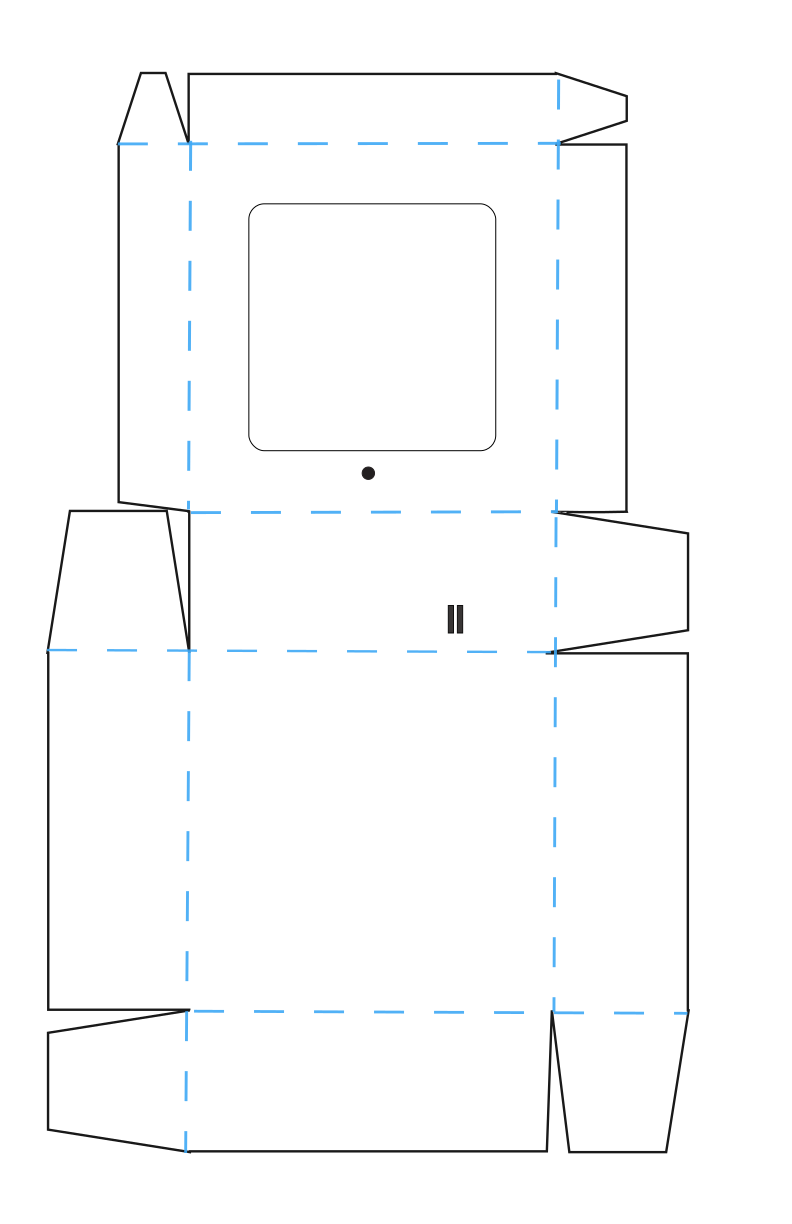
- Print one of the Light Sensor Art Box Templates from step one to scale. Tape the four pieces of paper together, and then cut it out with scissors. Tape it directly to a large piece of sturdy paper to use as a pattern.
- Manually score the pattern at the dashed lines.
- Use a pen-knife to remove the rounded square from the box lid and the two parallel slots depicted between the two battery footprints. Use a hole-punch to remove the circle on the box lid.
Downloads
Add Circuit Diagram to Box


You may either build your circuit directly on top of a circuit template, or you can sketch out your own.
If Using Circuit Diagram Provided
The easiest way to make this project is to build your circuit directly onto one of the printed templates and then tape it directly on top of the unfolded box.
- Use a hole-punch to remove the hole for the sensor and a pen knife to cut two parallel slots for the switch.
- Line up the hole and the slots in the printed Circuit Diagram with those in the box.
If Drawing Your Own Circuit
If you are planning to manually draw your own circuit, mark the locations for your LEDs with a pencil, using the Circuit Diagram as a guide.
- If using Launchpad LEDs, place them where desired and trace around them, including their polarity markings as a reference.
- If using Circuit Sticker LEDs, a Chibi Stencil (or a Love to Code Stencil) can help you sketch out their locations with precision.
If you prefer that the LEDs be arranged differently, you can move them around or change the number used.
Add Light Sensor Sticker


Once you've prepped your box, it's time to start building your circuit.
Using a Circuit Diagram as a guide, place the Light Sensor Sticker upside down so that the sun icon on the front of it is centered inside the hole in the box lid.
Use a bit of tape to secure the sticker in place before removing its protective backing.
Be sure that the pads of the sensor are oriented the same way that they are depicted on the Circuit Diagram.
Consider Your Artistic Intent

.gif)
Before building the circuit, consider your artistic intent.
There are two light conditions built into the Circuit Diagram I've shared.
- ON when DARK
- ON when LIGHT
If you would prefer to only have LEDs that respond to light under one of the two conditions rather than both, you can simply choose not to add LEDs for one of the conditions.
Start Adding Conductive Traces


Once you know where you want your LEDs, it's time to lay down the conductive traces.
Start by adhering a piece of Conductive Fabric Tape over the Signal pad on the Light Sensor.
Then, use the Circuit Diagram as a guide to create the Signal, Ground (-) , and Power (+) lines.
Each trace should be a continuous, uninterrupted line. If you run out of conductive tape, carefully overlap new pieces as you go to ensure robust physical and electrical connections.
Add LEDs

Using a Circuit Diagram (or your own sketch as a guide), adhere the LEDs to the conductive traces you've already laid down.
Circuit Sticker LEDs, which have their own adhesive, may be pressed down directly on top of the conductive tape lines. You can reinforce them with patches of Conductive Fabric Tape if necessary.
If you are using Launchpad LEDs, you'll also need to adhere them on top of those lines using pieces of Conductive Fabric Tape to hold them in place.
Note: Pay attention to the polarity of your LEDs and ensure that their metal pads are all physically touching the conductive traces. If necessary, you can add patches of Conductive Fabric Tape to reinforce any loose connections.
Connect Circuit to Power Source


If you are using two 3V batteries, do the following:
- Apply a piece of double-sided tape to the backs of two Launchpad Batteries and adhere them to both sides of the parallel cut-outs on the box.
- Connect the positive pad of the left battery with the positive trace using a fresh piece of conductive fabric tape.
- Connect the negative pad of the right battery with the negative trace using a fresh piece of conductive fabric tape.
- Ensure that the two batteries are not touching one another. By keeping them disconnected, you will be creating a switching mechanism that will allow you to preserve your power when your Light Sensor Art Box is not in use. [Creating the switch will be done in a later step.]
If you are using alligator clips or USB power, do the following:
- Instead of adhering coin cell batteries on both sides of the parallel cut-outs on the box, extend the positive line of conductive fabric tape (the one depicted as touching the positive pad of the battery) and thread it though the left slot.
- Repeat this for the negative line of conductive fabric tape (the one depicted as touching the negative pad of the battery) and thread it though the right slot.
- Ensure that the two pieces of conductive fabric tape are not touching one another. There should be a gap between the two pieces. [Creating the rest of the connection will be done in a later step.]
Create a Switch & Test Circuit


The last part of the circuit is creating the switches that connect it to power. This will allow you to ensure that everything is working properly.
If you are using two 3V batteries, do the following:
- To create the switch, apply a piece of Conductive Fabric Tape to the negative pad of the left battery.
- Thread the free end through the left slot in the box and trim it to about 1/2".
- Repeat this step for the right battery, by applying a piece of Conductive Fabric Tape to the positive pad of the right battery and threading the free end through the right slot in the box.
- There should be a small gap between the two 1/2" pieces of folded tape on the back side of the box. This is the switch gap.
- Test the circuit by placing a piece of Conductive Fabric Tape over that gap to bridge them together.
- If the circuit works as expected when testing different light conditions, you are ready to assemble to box and create your artwork.
- To turn off the circuit, remove the piece of conductive tape from the switch gap. To turn it back on, adhere a piece of conductive tape over the switch gap and leave it there as long as you want the circuit to be switched on.
If you are using USB power, do the following:
- On the back side of the box, extend the positive and negative traces so that they are parallel to one another. Stop before you get to the bottom crease.
- Fold the ends of the positive and negative traces into two separate tabs, ensuring that they are not touching one another.
- Reinforce the lines of conductive tape with clear tape just above the tabs, to help prevent the conductive tape from coming loose once the tabs are clipped to.
- Test the circuit by connecting the positive alligator clip to the positive tab and the negative alligator clip to the negative tab. Make sure that the clips are not touching one another.
- Plug the alligator clip adaptor into a USB adaptor, USB port, or USB compatible power hub.
- If the circuit works as expected when testing different light conditions, you are ready to assemble to box and create your artwork.
Tape the Box Together


Once you know that the circuit works, use double-sided tape to assemble the box, placing the tabs on the inside to allow the lid to open and close when lifted.
To make it easier to see where to add the double-sided tape, it's helpful to flip the box over and mark each tab with an "X".
Create and Insert Your Art


Lastly, use art supplies of your choice to create designs that can be placed in the opening of the lid. Consider using a combination of materials with different opacities, such as collage paper and translucent vellum. Ideally, artwork should be cut shy of a 5" X 5" square.
If you want to be able to easily switch it out, consider adding photo corners inside of the box lid. The easiest way to do this is by snipping the corners from a recycled envelope and using those to hold your artwork in place.
Note: The Steampunk Raven is a derivative of this work, shared under a CC BY NC International 4.0 license.
The butterfly, available from SVGRepo, is in the public domain.
Enjoy!


Enjoy your Light Sensor Art Box by switching out the artwork as desired.
When not in use, switch it off (or disconnect it from power).