Emergency Kiosk

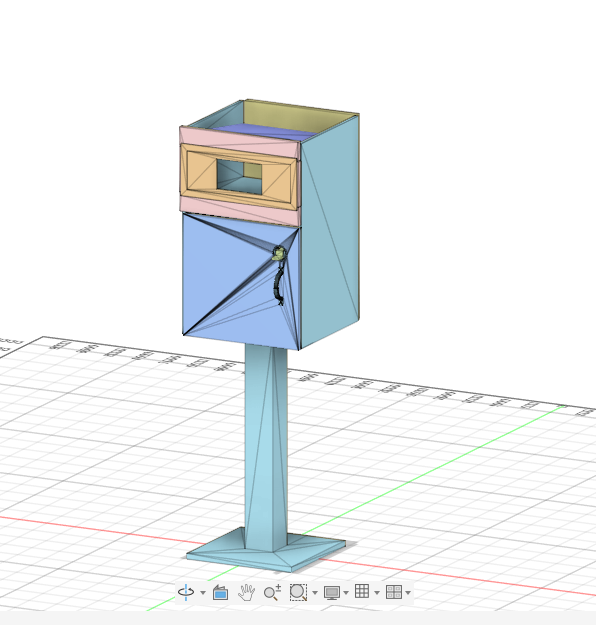


Hello, my name is Nate, and I love designing, programming, and building things. In this project, I designed an emergency community kiosk to help communities during and after floods, and other disasters. The kiosk is designed to provide important resources such as emergency information, device charging, first aid supplies, and emergency contacts.
One of the main features of the project is a Raspberry Pi 4B with a touchscreen display that shows weather forecasts, disaster information, and emergency alerts. An Arduino Uno R3 is used to control LEDs, a buzzer, and a power-detection system that determines whether outside power is available and sends the results to the Raspberry Pi.
When normal power is lost, the system automatically switches into emergency mode. The screen turns red, warning LEDs activate, and a buzzer sounds to alert people and help them locate the kiosk more easily during dangerous conditions or nighttime outages. The kiosk also includes a portable battery pack so the system can continue operating during power outages.
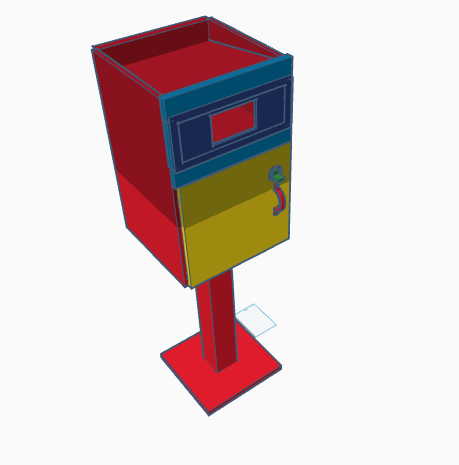
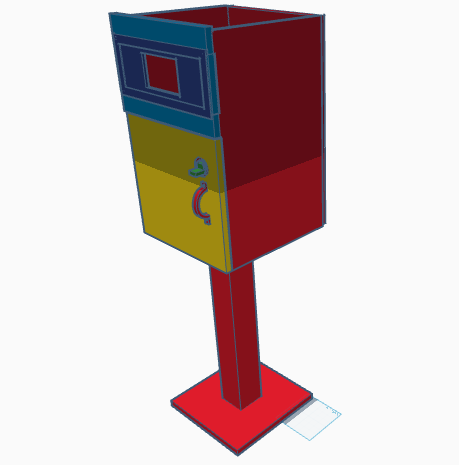
I wanted the structure to feel familiar and welcoming, so I based the design on a classic telephone booth combined with a small neighborhood food pantry. The screen mounts and other component holders were designed in Tinkercad so they could be easily 3D printed. I also have a full 3D design of the kiosk in Autodesk Fusion 360.
To make the kiosk feel more welcoming and human-centered, I added flowers to the design. These also help redirect rainwater away from the screen and prevent water from collecting on top of the structure. Also this project is very cheap. For me it was free(I have lots of wood and spare parts at home) but if you have basic tools and access to a 3d printer this project can easily be below $500(and will be unless you buy high end components). My overall goal was to create a realistic and affordable system that could help people access resources, information, and support during or after disasters.
Supplies
In this project you will need a variety of supplies including:
Frame:
- 3/4 in thick plywood
- 1/2 in thick plywood
- 4x4in piece of wood.
- 1 1/4 in self drilling wood screws
- 3/4 in self drilling wood screws
- Nuts and bolts (about 3-4 inches)
- Small hinges
- 3D printer and filament (I used an Elegoo Neptune 3 Pro with Elegoo PLA+)
- 2mm axle
- rubberband
Tools:
- Drill
- Saw
- 2in hole saw
- Tape measure
- 90 degree ruler
- Pencil
- Pliers
- Wood glue
Accessories:
- Flowers(I used fake ones because I will be storing this indoors)
- Spray paint(I used brown because its looks good in the neighborhood but whatever color you want the kiosk to be is fine.)
Electronics:
- Active buzzer
- LED's (I used blue because its a color of it says warning without screaming you)
- Elegoo Power MB V2
- Jumper board wires
- Breadboard
- Elegoo Uno R3
- Resisters
- Note: All the above electronics came from this kit.
- Raspberry pi 4B
- 7 inch touchscreen
- Portable charger (Make sure it supports in and out charging and it has enough power to supply all the electronics. Mine is 20000 mAh)
- Cords and wires
Wiring
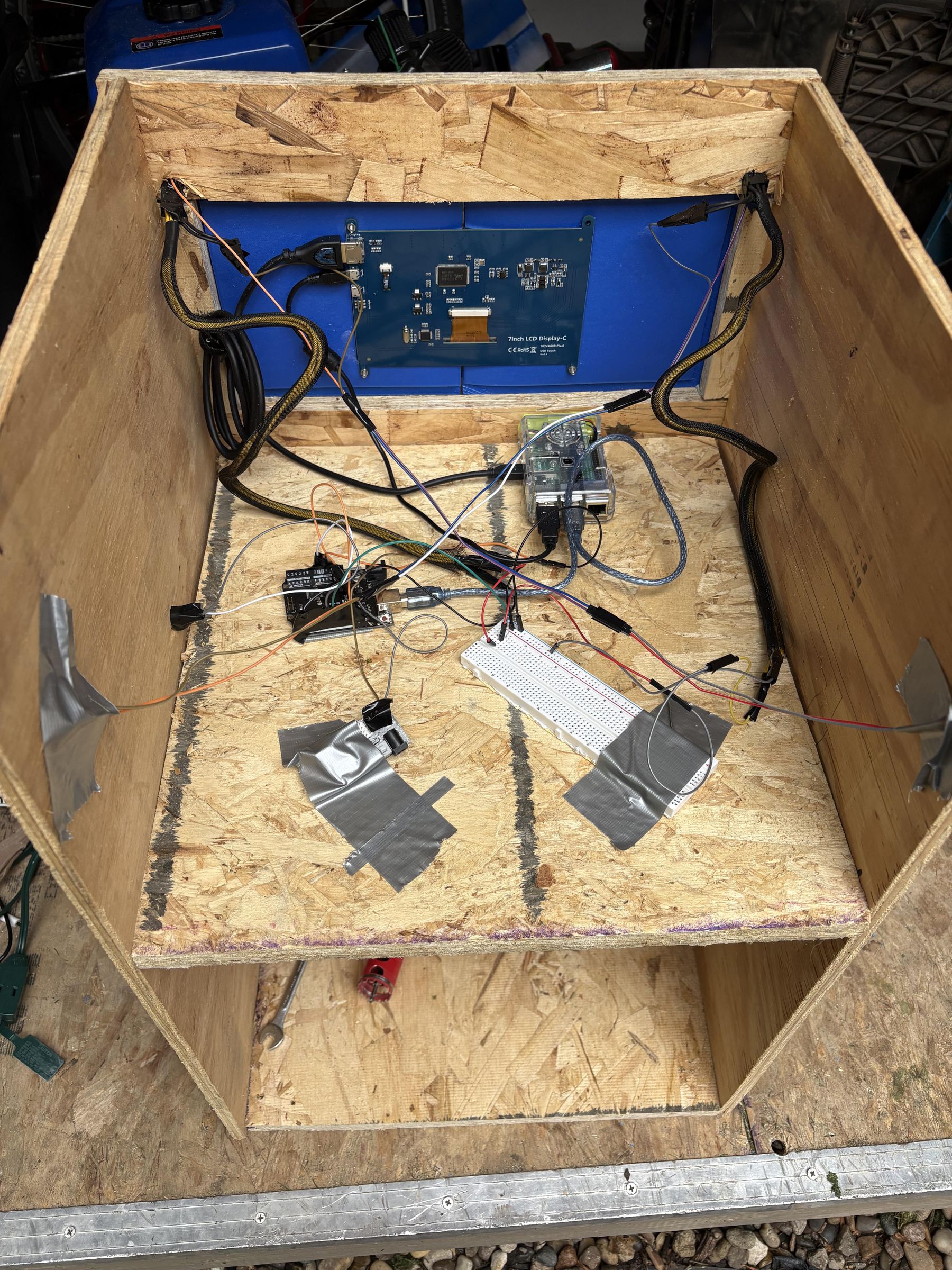
To power this everything runs on a portable charger that supports in and out charging. The portable charger is plugged in to outside power and the Raspberry pi is plugged into the portable charger. The Arduino Uno is plugged into the Pi's USB port along with the touchscreen. The touchscreen is also plugged in via HDMI. The power supply module is plugged into the outside power too. This way if outside power is lost the system can run on the portable charger and the power supply module can tell the arduino power is out.
Here is the complete wiring:
Outside power > Portable charger
Portable charger > Raspberry Pi 4b
Raspberry Pi > HDMI+ USB to touchscreen
Raspberry Pi > Arduino Uno
Arduino Uno >:
Pin 2 > 10k resistor > 5v pin on power supply module
Pin 8 > + terminal on the buzzer
Pin 9 > to breadboard
On that breadboard terminal > 220 ohm resister
220 ohm resistor > a different terminal on the breadboard
That terminal is what the + end of the LED's connects to
Negative end of LED's > Arduino GND
Negative end of buzzer > Arduino GND
Power supply module negative > Arduino GND
I recommend putting tape or glue over the jumper wire connections because they aren't very tight. Also I would wire the LEDs once you have the electronics on the kiosk. This way you know how long the wires have to be to reach where you want to put the LEDs.
Arduino Code
Upload this code to the Arduino Uno to control the buzzer, detect power, and to control the LED's.
This script monitors the power. By using debouncing, it makes sure it only goes for real power outages, not just random static. The Arduino remains responsive even while the alarm is on, allowing it to instantly detect the exact moment power is restored because it uses nonblocking timing.
Raspberry Pi Code
To get the code uploaded to the Pi I sshed from my Windows computer. Ssh lets you code and do things to your Pi over a wireless connection from your computer.
1.Set up your pi with the Raspberry Pi imager. I used 64 bit desktop. Make sure you enable ssh.
2.Open command prompt on your computer
On Windows press the windows key and r. Then type CMD and click enter.
3.Connect to your Pi.
To do this use the format "ssh username@Pi's_ip_address"
Ex: ssh JimsPi@192.168.1.10
To find your Pi's Ip look at your screen when it boots. At boot once it connects to the Wifi it shows a message on the desktop like: connected to WIFI, IP is ...
After you run the ssh command the computer will display a question like: permanently make Pi fingerprint?
Type yes and click enter. This is just saying allow the Pi and computer to talk and have the computer recognize the Pi.
4.Install the Dependencies:
Run: sudo apt update
Then: sudo apt install python3-requests python3-serial -y
5.Find which port you Arduino is on.:
Make sure your Arduino is plugged in.
Run: ls /dev/tty*
Then on the next command unplug the Arduino and run again: ls /dev/tty*
Look at the two outputs and find which one is missing. That one is Your Arduino. If it isn't /dev/ttyUSB0 you will need to change the code below. (8th line of code)
6.Create the script:
Nano kiosk.py
Paste This code inside the script:
Then: ctrl o, enter, ctrl x.
6.To start it manually for tests run: DISPLAY=:0 python3 /home/USERNAME/kiosk.py (replace USERNAME with your username)
To make it start on boot:
mkdir -p ~/.config/lxsession/LXDE-pi/
Then: nano ~/.config/lxsession/LXDE-pi/autostart
Add this line to the bottom of that file: @python3 /home/USERNAME/kiosk.py (replace USERNAME with your username)
ctrl o, enter to save then ctrl x to exit
The Website
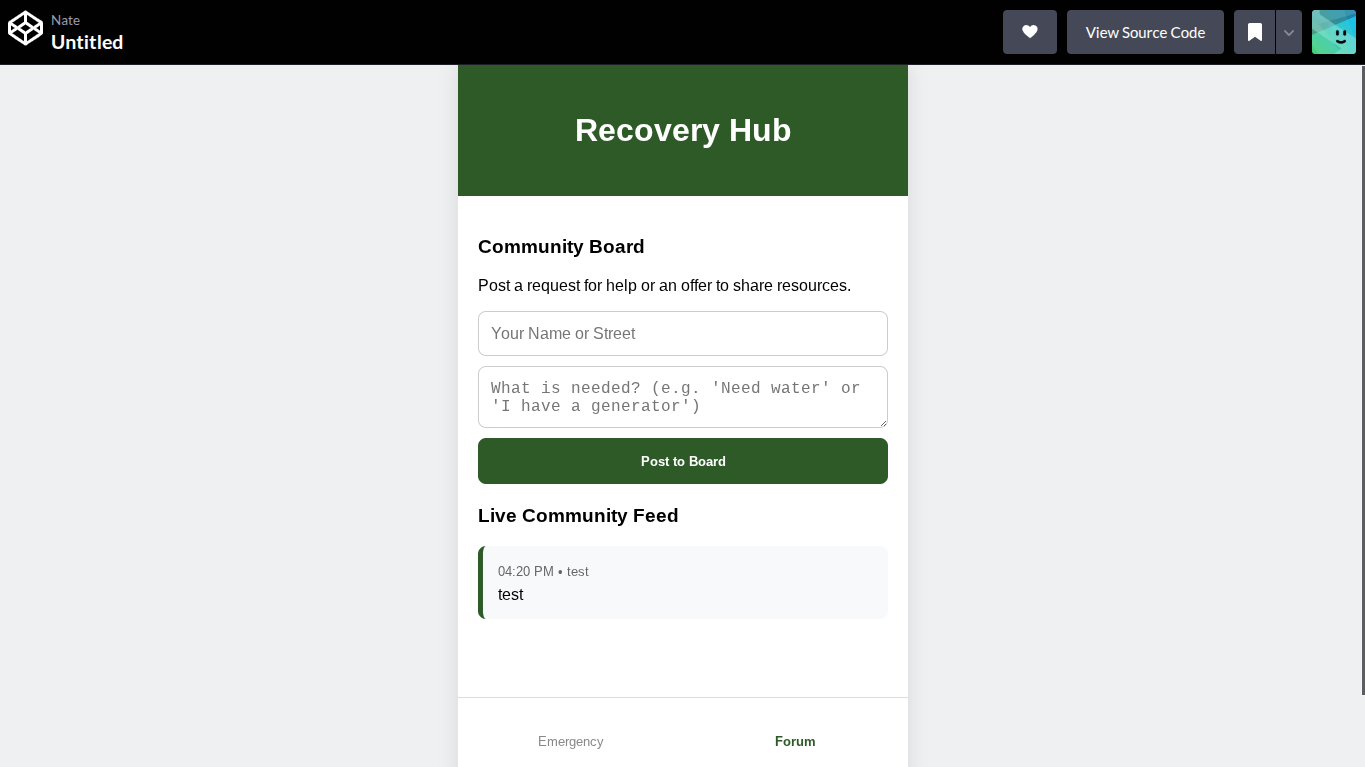
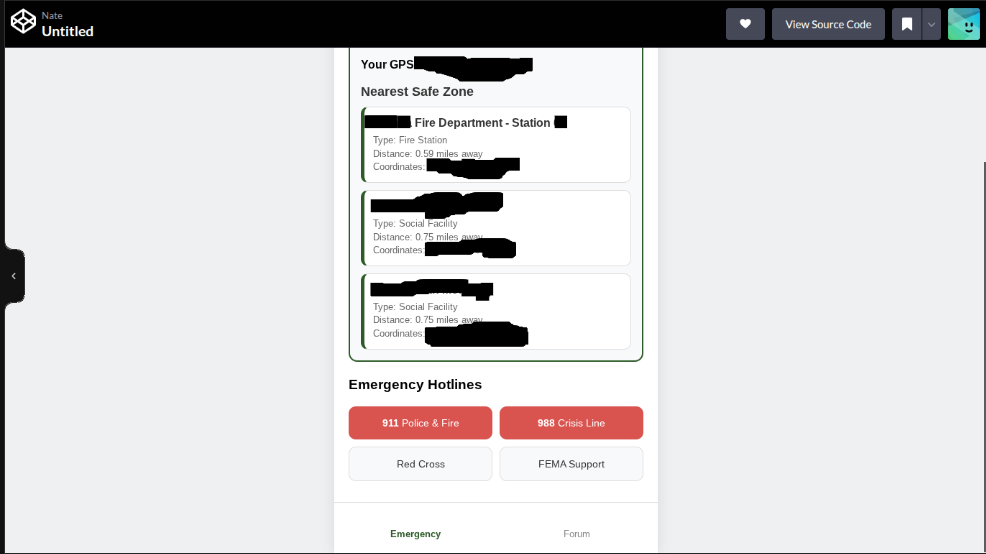

My website is accessible to everyone so you don't have to do this step if you don't want to but you do need to print the QR code.
My website is made in Codepen. Codepen is an easy place to build your website. All you have to do is sign in then click Pen 2.0 or classic pen. Then you put your html, css, and js scripts in the dedicated slots.
My current Website includes helpful places, safe zones, emergency contacts and a forum. The forum is just a prototype though because it costs money to have it be able to save and other people be able to see your request.
To print the QR code I used www.qrcode-monkey.com which is a free QR code generator. Paste the link of your/my website in select what color/style you want and then download it. You could also use my QR code download that I included in this step. This is the link to my website: https://codepen.io/nates123/full/EaNPoXV
Also you can just use the exact Google Doc I used here.
3D Prints
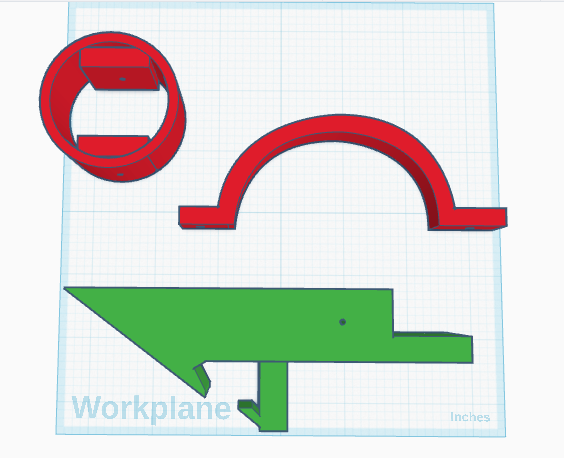
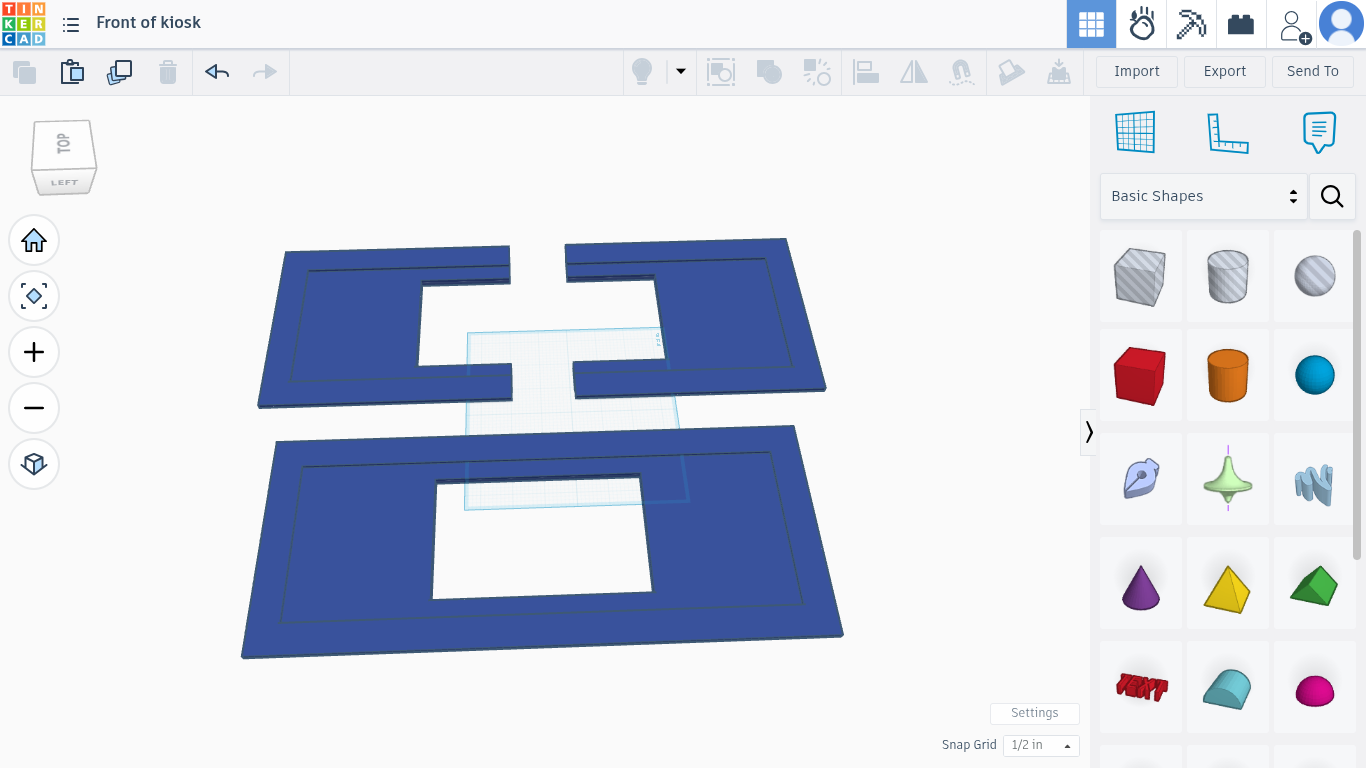
To design my prints, I used Autodesk Tinkercad. Later in this project you will also see that I have a full Autodesk Fusion 360 model of the kiosk, but I am more comfortable using Tinkercad for easy functional parts like these.
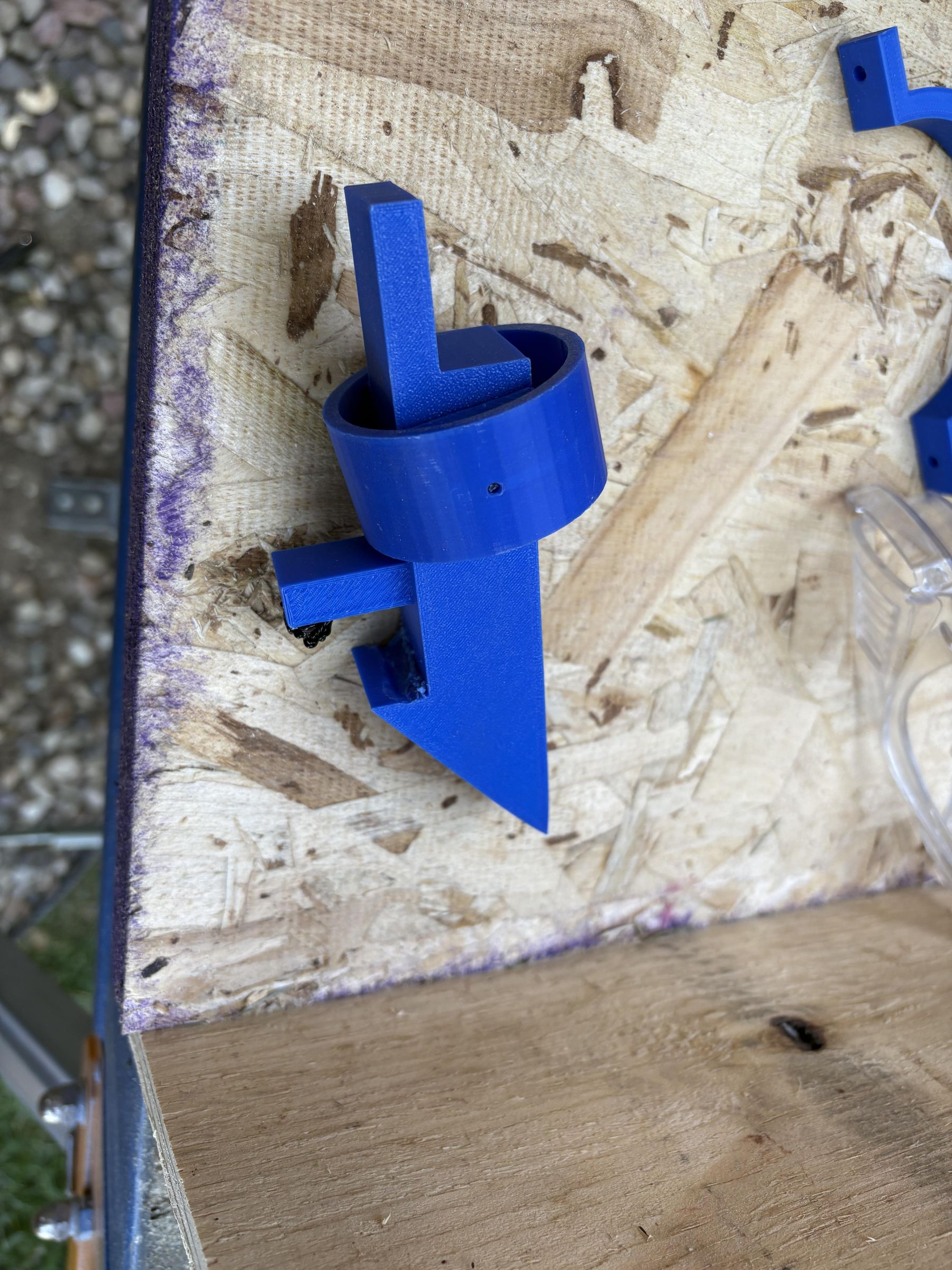
The first print I designed was a door latch system for the kiosk. This design includes a latch, latch holder, and handle. I wanted the latch to be simple, easy to print, and strong enough for repeated use.
My second design was a touchscreen mount for the Raspberry Pi screen. I designed this mount to securely hold the screen in place while also making it easy to remove for maintenance or upgrades. You will need to adjust the dimensions of it to fit your kiosk better because all our kiosks will almost certainly be a little different. You may need to print this after you build the kiosk.
Note: On the latch you will see in my pictures I have some 3d pen on mine. That is because there were some errors in the design but I fixed them so the current design is okay.
Print the latch, latch holder and the screen holder at 20% infill, but print the handle at 30% infill. Supports should be on for the latch, latch holder and the screen holder but set to touching buildplate only.
Building the Kiosk


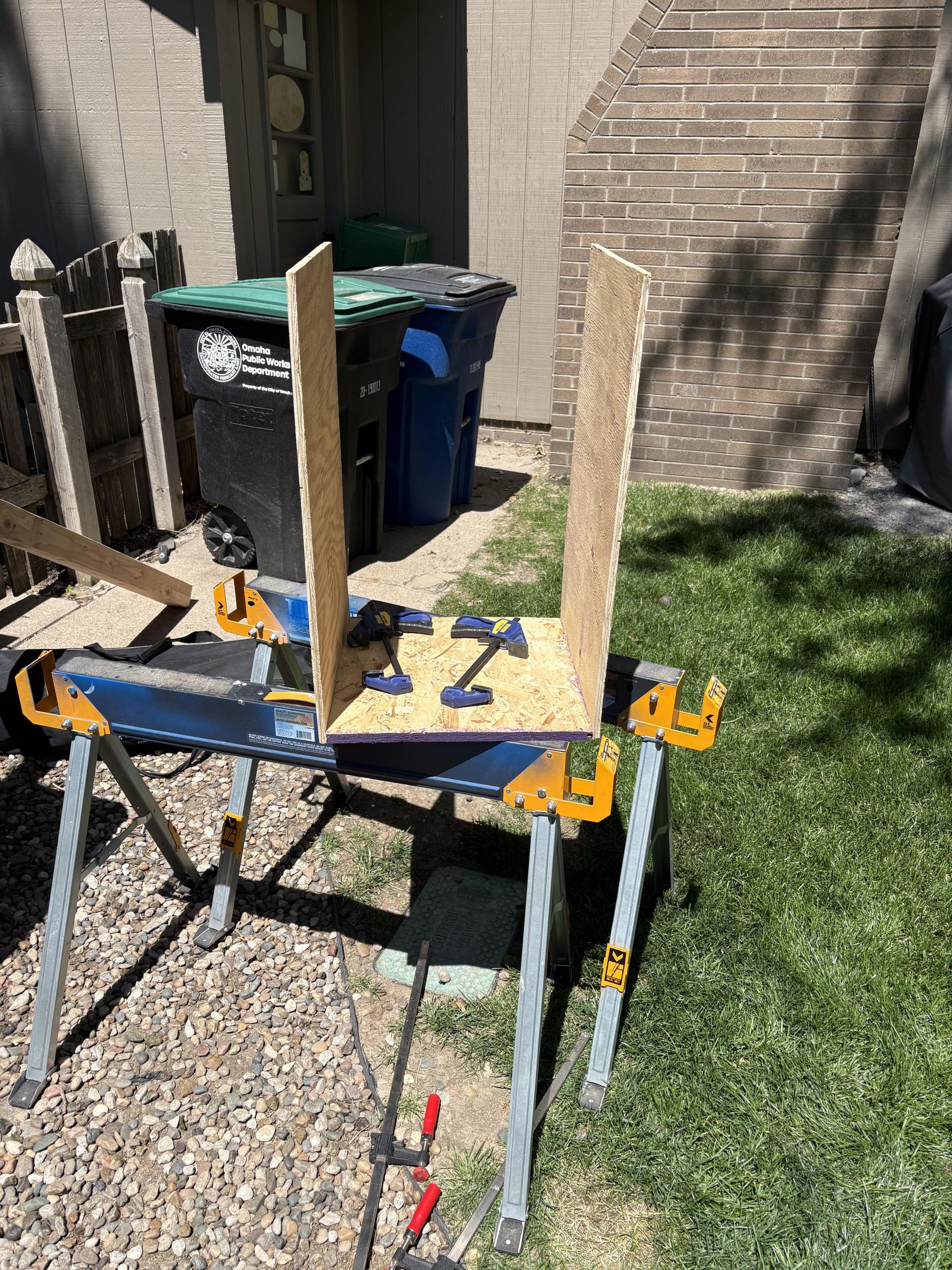


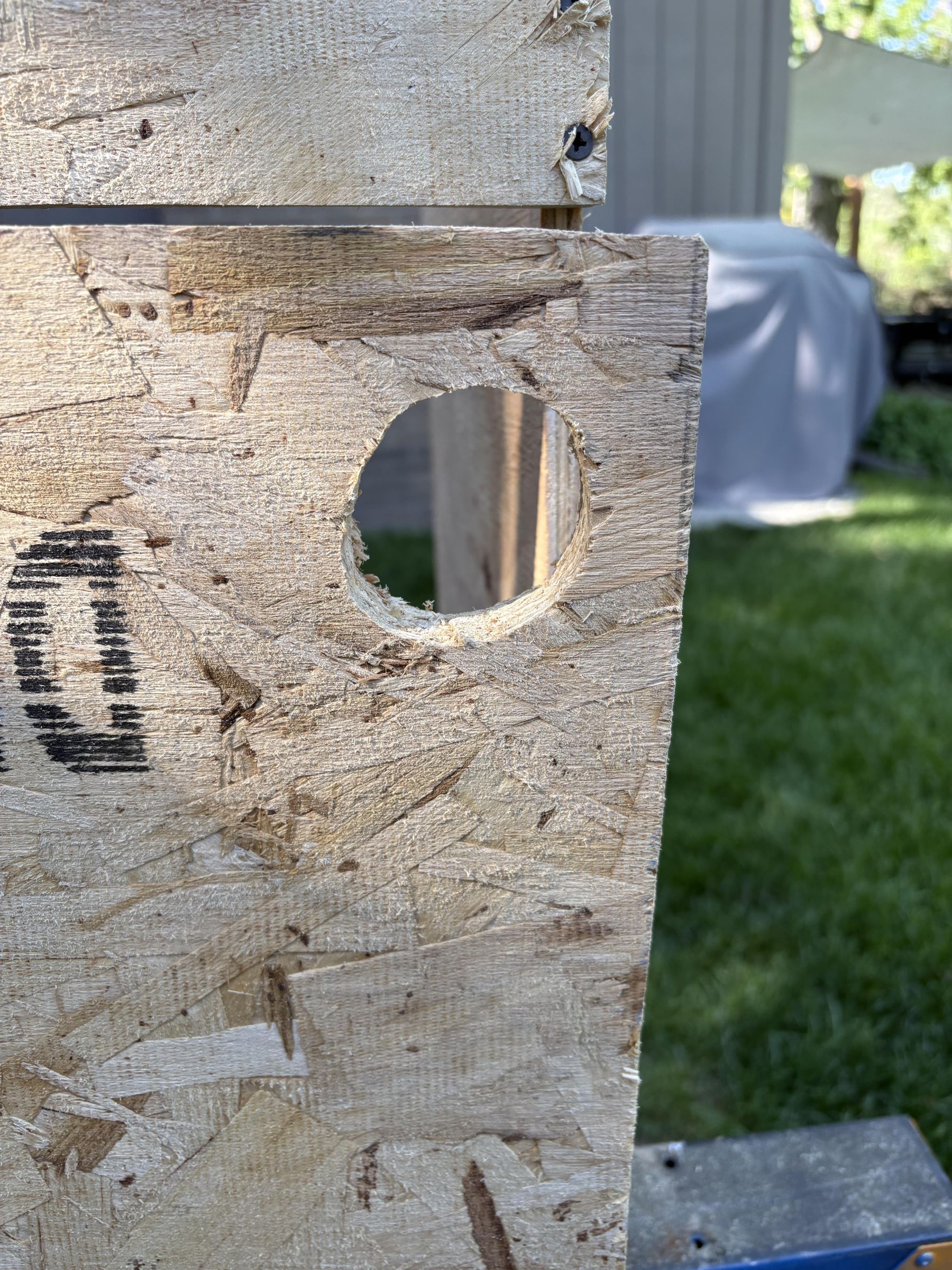
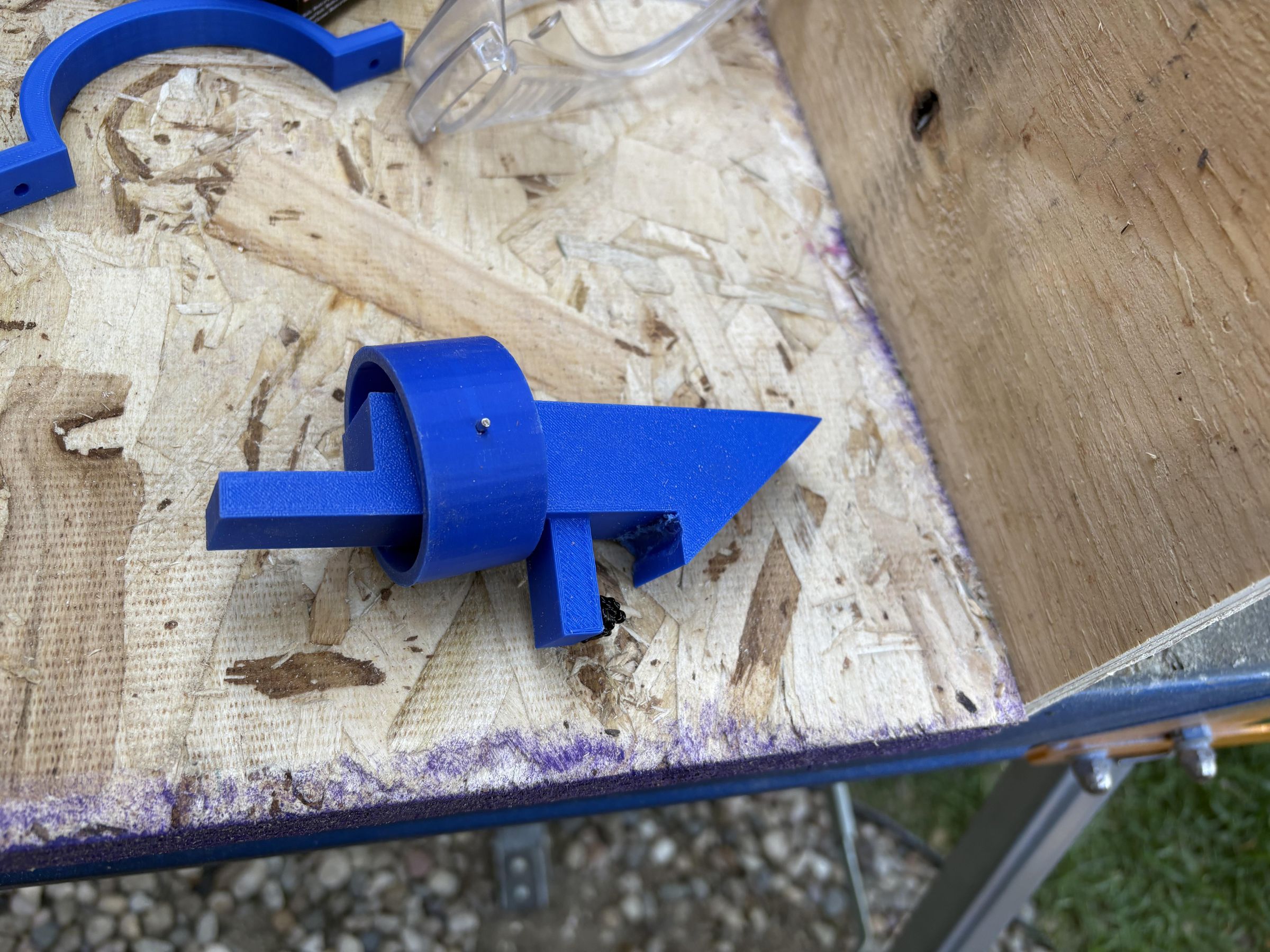

In this step you will need all these pieces. I would make all the cuts first, so putting them together is easy and quick:
Always use safety glasses when cutting. Use a pencil to mark you cuts so you aren't just guessing.(picture 1)
- 16x16 in 3/4in thick piece of plywood - bottom of kiosk
- 16x16.5 in 3/4in thick piece of plywood - door
- Two 17x2.5 in 3/4 in thick pieces of plywood - screen mount holders.
- 15.5x16 in 3/4in thick piece of plywood - holds the electronics
- 14.75x16 in 3/4 in thick piece of plywood - top
- 15x15 in 3/4 in thick piece of plywood - bottom support
- 16x4 in 3/4 in thick piece of plywood - shader
- 27x16 in 3/4 in thick piece of plywood - back
- Two 16x27 in 1/2 in thick pieces of plywood - sides
- 25-30 in long 4x4 post, depending on how tall you want it to be. - post to hold up the kiosk
- You will need to make two more cuts using 3/4 in plywood but the measurements depend on how accurate your cuts and mounts are. Mine were not what math predicts :(
How to construct:
- First take the 16x16in 3/4 in thick piece of plywood(this is the bottom) and one of the two 16x27 in 1/2 in thick pieces. line them up as shown in picture 2 and clamp them to this position so they stay up while you screw in the screws. Use the 90 degree ruler to make sure the angle is right before putting you screws in as also shown in picture 2. Then screw the two pieces together using the 1 1/4 in screws(I started by using the 3/4 in screws but they were too weak so I switched to the longer ones). Then repeat this on the other side as shown in picture 4.
- Next we will do the front door. First near the bottom line up the hinge and screw one screw into one of the holes lightly. Then use the 90 degree ruler to make the hinge perfectly straight as shown in picture 5. Then use your screw and the other screw and tighten both of them. Do the same for the top hinge but for the first screw instead of just guessing use a ruler and line it up with the bottom hinge. This way your door opens straight.(picture 6)
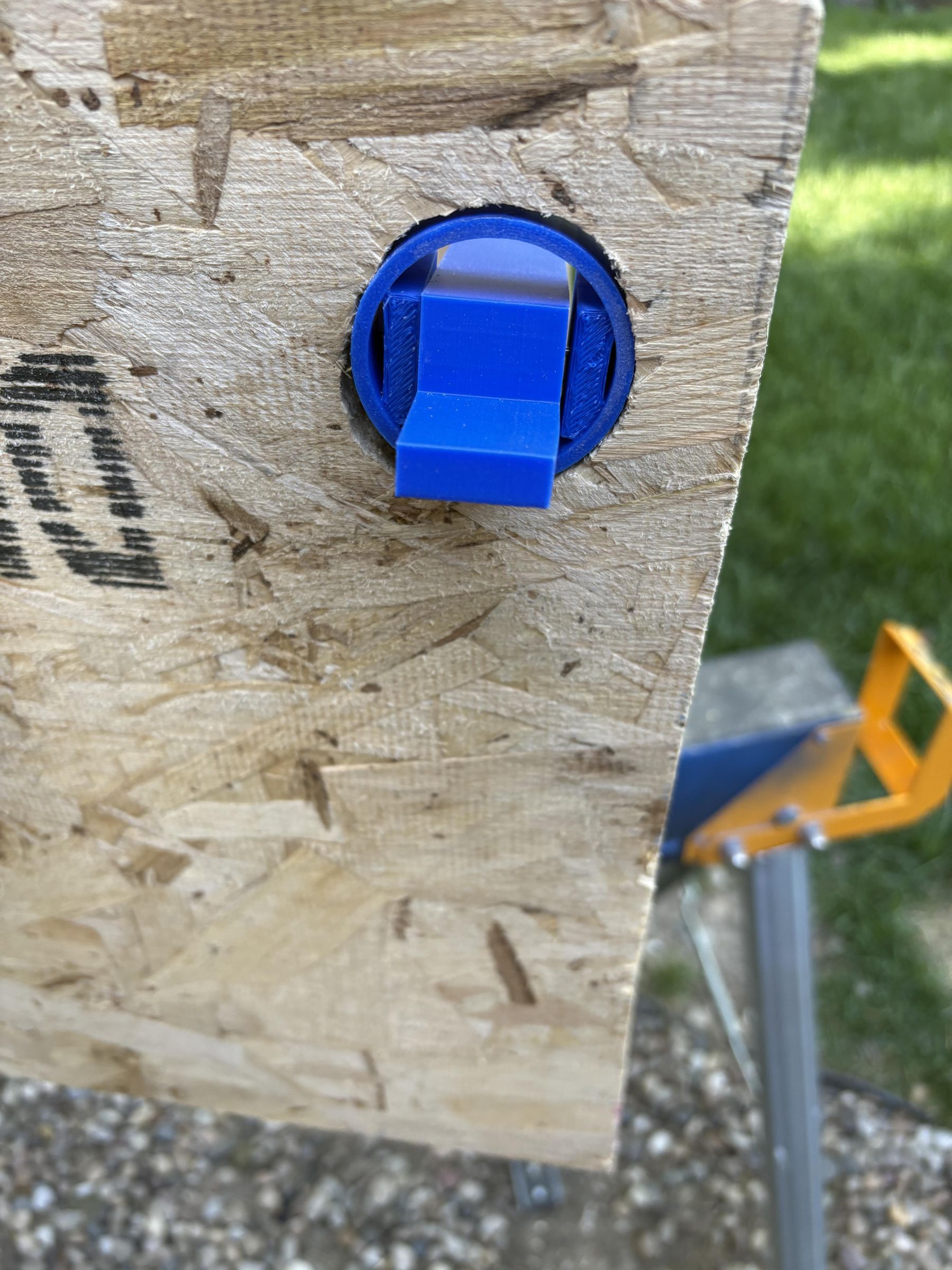
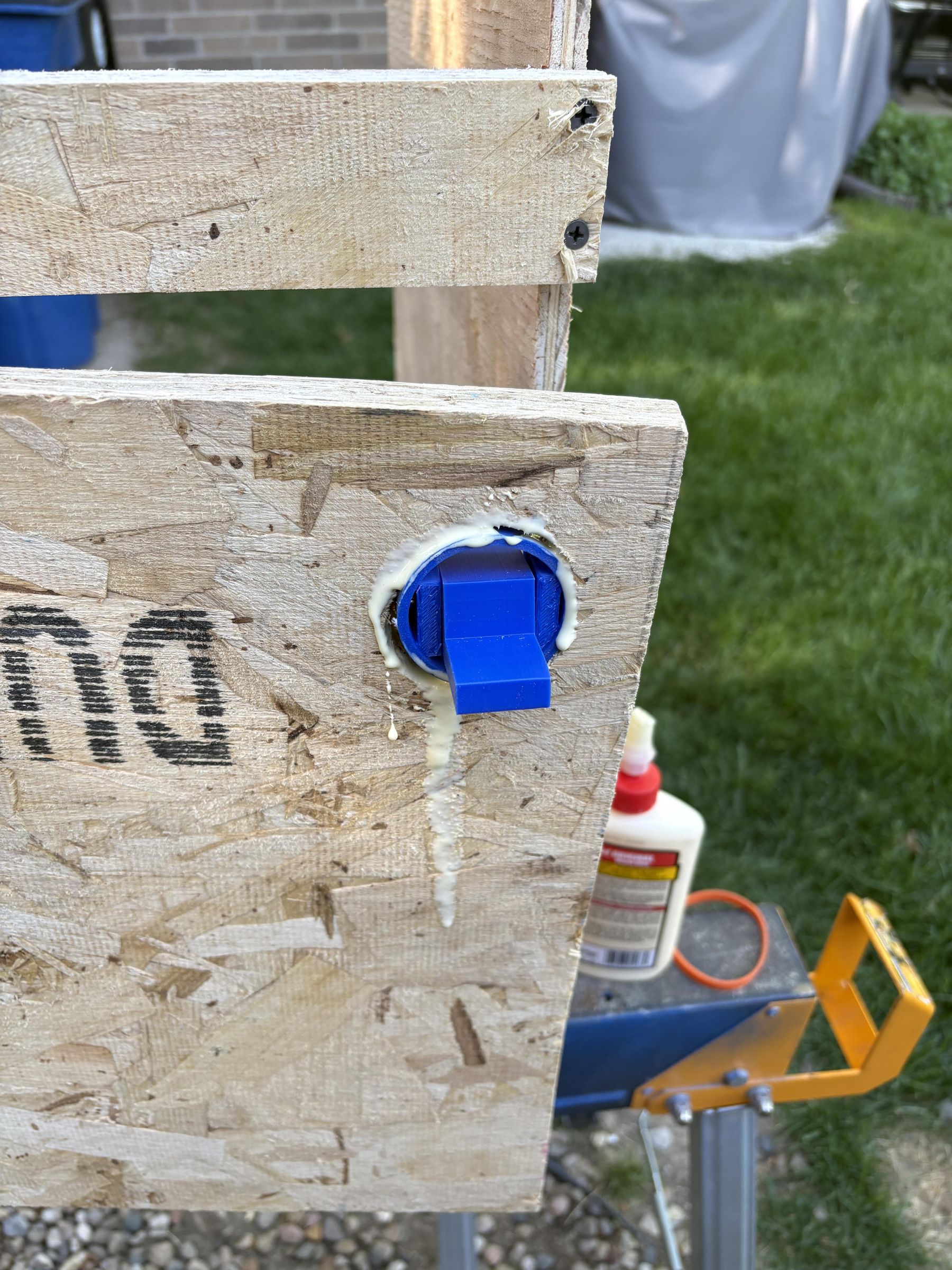
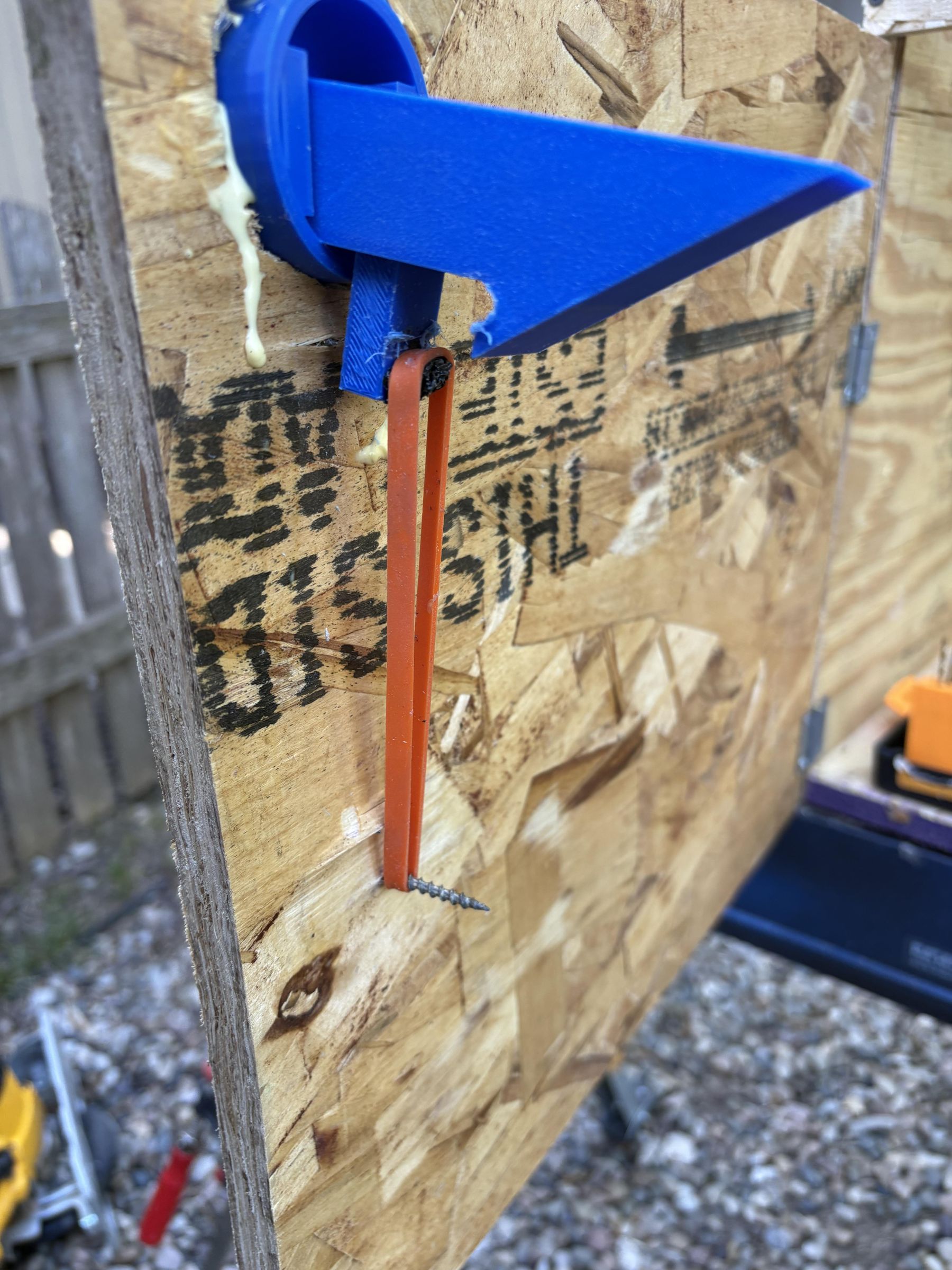
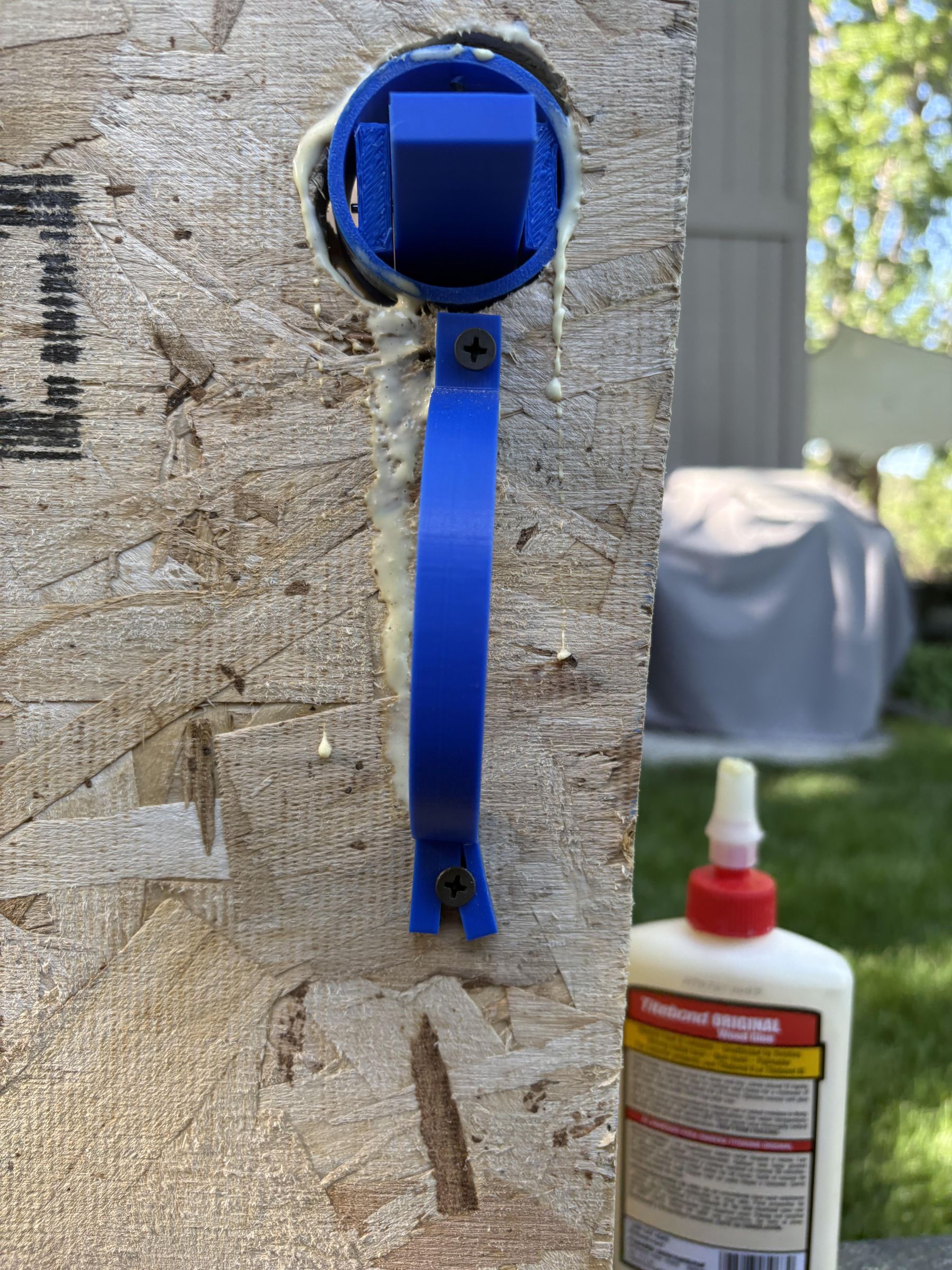
- After that you need to attach the door to the hinges. You will need a buddy for this part. Have someone hold the door(the 16x16.5 piece of plywood) in place while the other person screws in the hinges. Now your door is working but it doesn't latch. To fix this make a 2in hole about 1in from the side that doesn't have hinges about 1-2in from the top. Before drilling, line up the latch with the back of the door and try opening and closing it. If it barely rubs against the wall that is where you want your latch to be because the latch will be inside the door which will make it shorter. Therefore making it not rub. Using the 2mm axle, attach the latch and latch holder together(shown in picture 8) Cut off any excess axle with pliers (picture 10). Then slide the components into the 2in hole. and use some wood glue to hold it in place(shown in pictures 10 and 11)(I did use a screw to hold it in place for lack of time and patience). Then slide in the rubberband to the hook on the back side. Stretch the rubber band to your desired tightness. Then put a screw there to attach the other side of the rubber band to.(picture 12). This will make sure your door actually latches. I would put something over the screw or use a nut and bolt with a flat end to prevent people from getting cut. Then line up the bolt with the latch. While holding the bolt in place, close the door and see if it latches. If it does drill a hole in that spot and attach your nut and bolt. Then using the 3/4 inch screws attach the handle just below the latch holder on the outside(picture 13). Be careful not to split the 3d print like I did (whoops). Test to make sure it latches and unlatches.
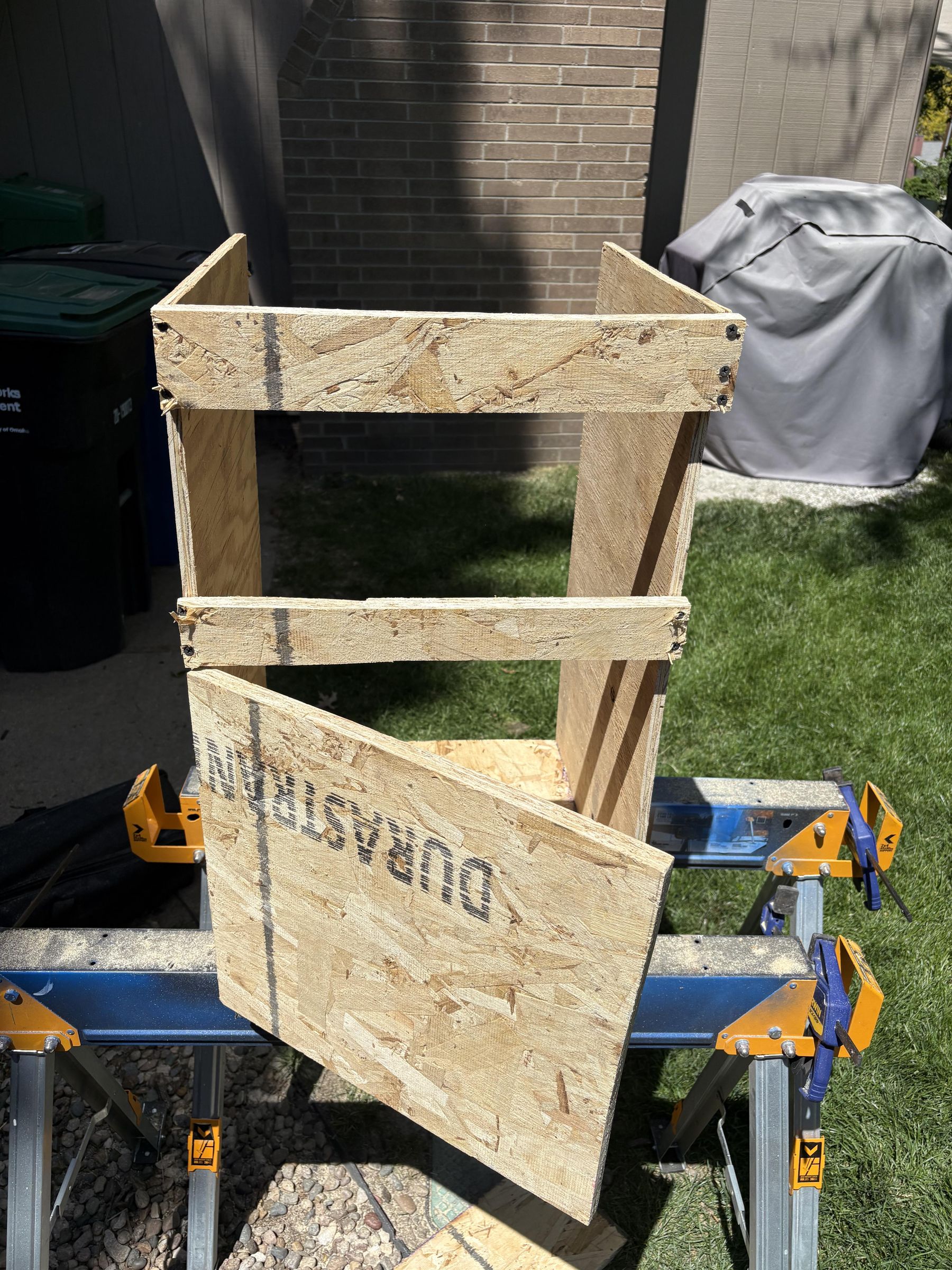
- Then with one of the two 17x2.5 in 1/2 in thick pieces of plywood make a cross bar on the top between the two walls. Then do it again but this time just right above the door(picture 14). You will need to use clamps again and use the 1 1/4 in screws. Be careful not to split the plywood. Then on the edges from cross bar to cross bar cut the 3/4 in plywood to fit in between the two cross bars and have it 1.5in wide (you may need to make it thinner if your have already printed you screen holder and it doesn't fit). width. Then mount them as shown in picture 15.
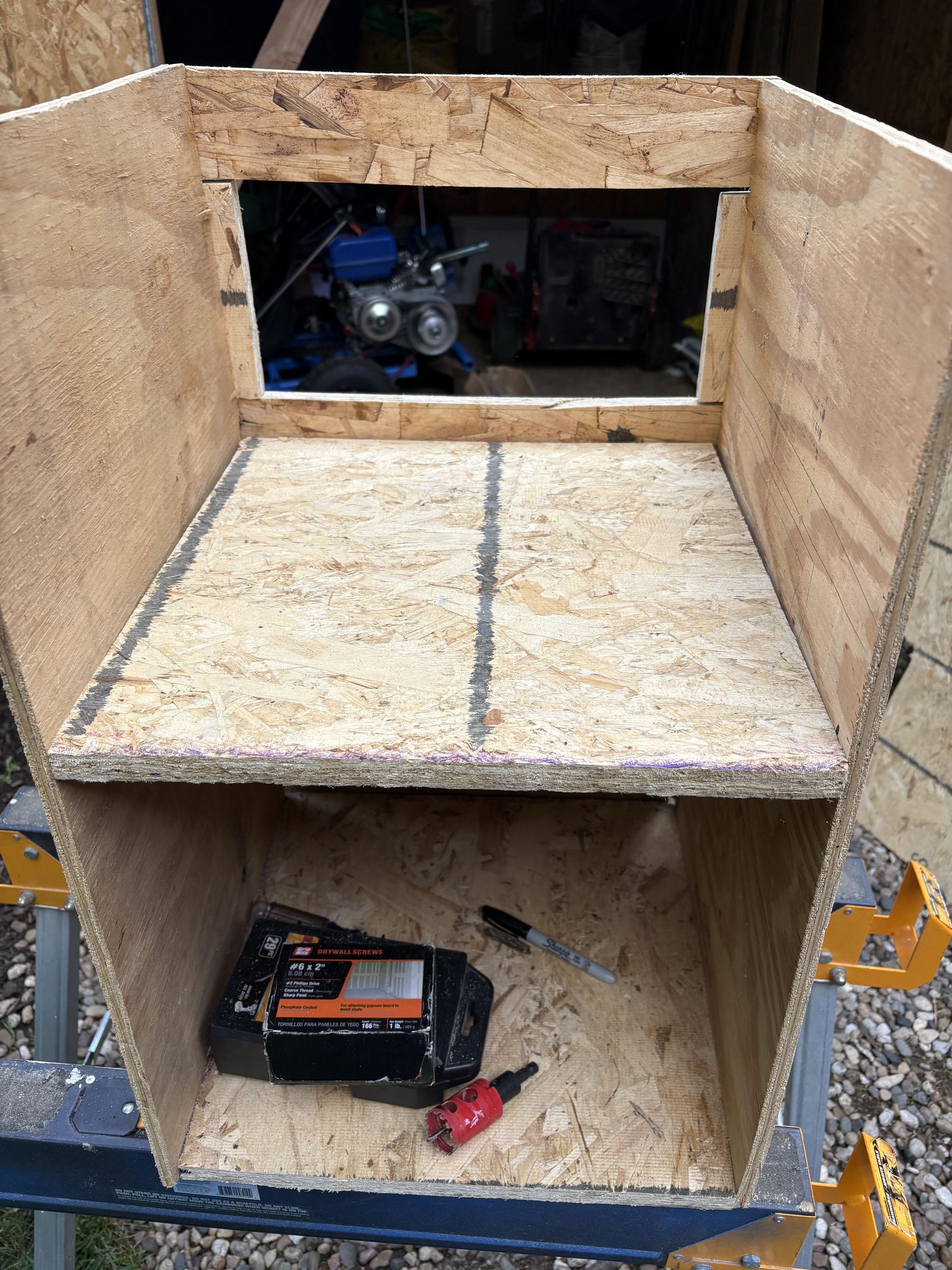
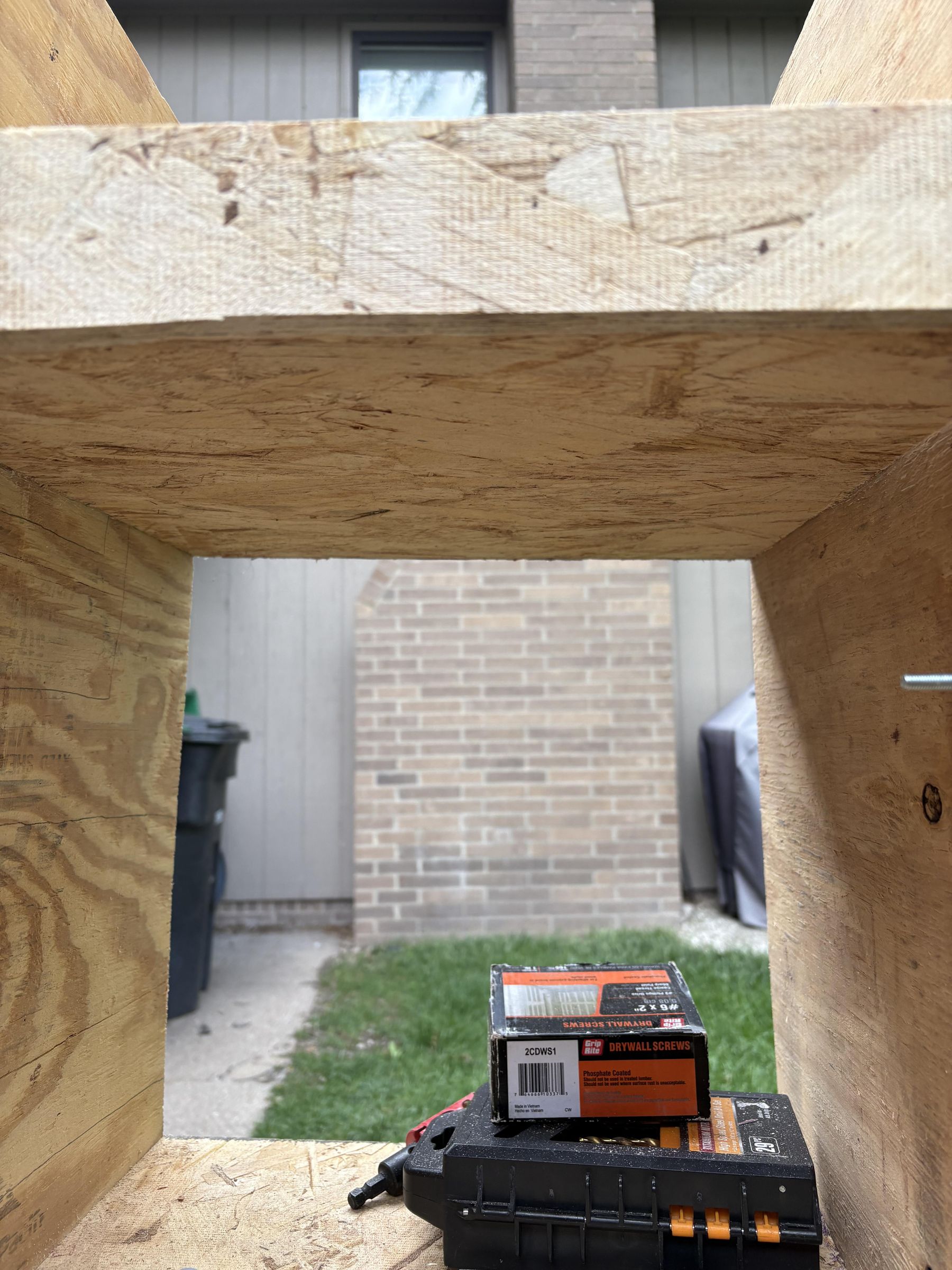
- Then take the 15.5x16 piece of plywood and mount it parallel to the floor aligned with the bottom of the lower 17/2.5 board(pictures 16 and 17). Use the 1 1/4 in screws to do so.(about 2 on each side).
Mounting Electronics


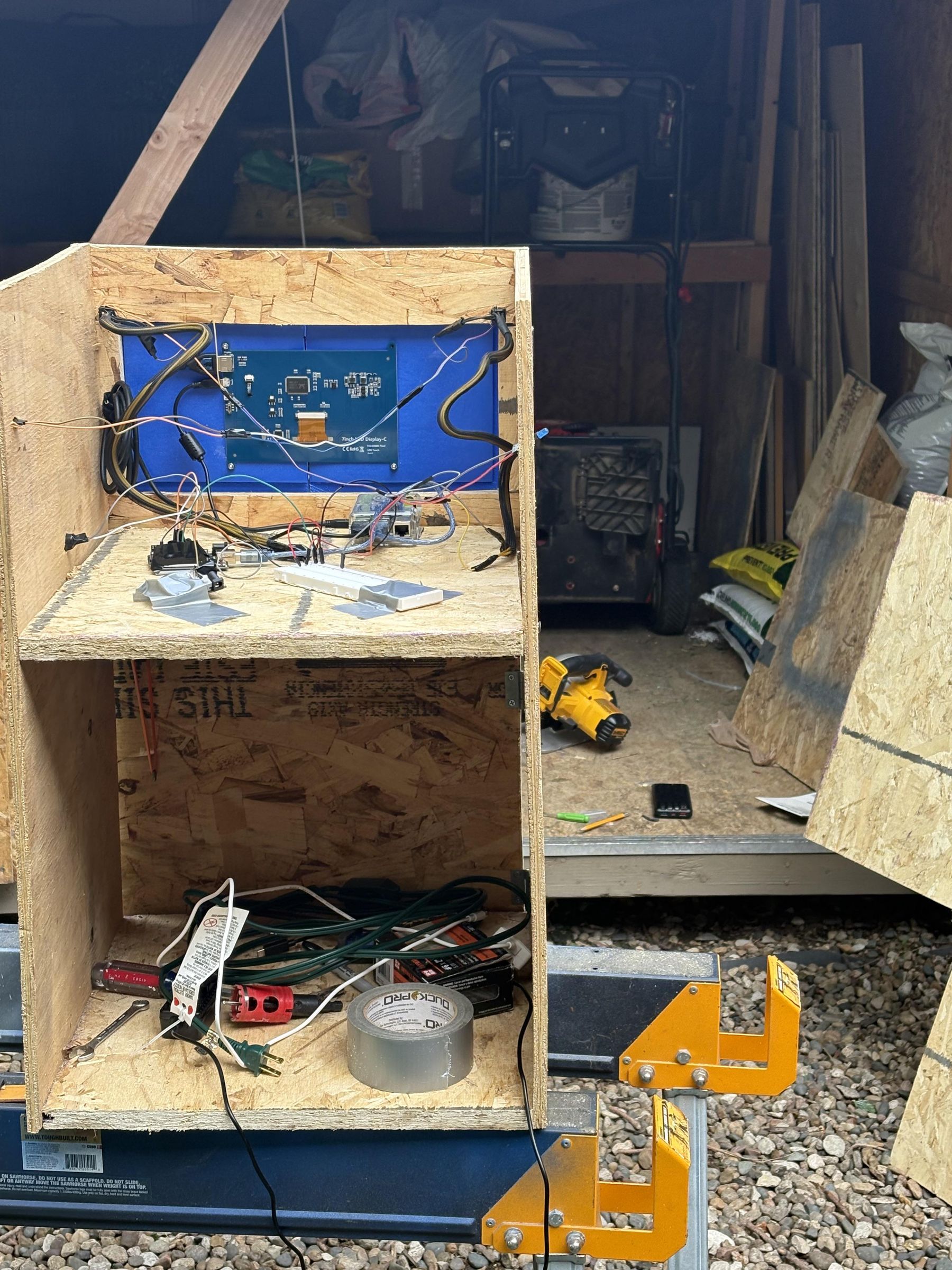

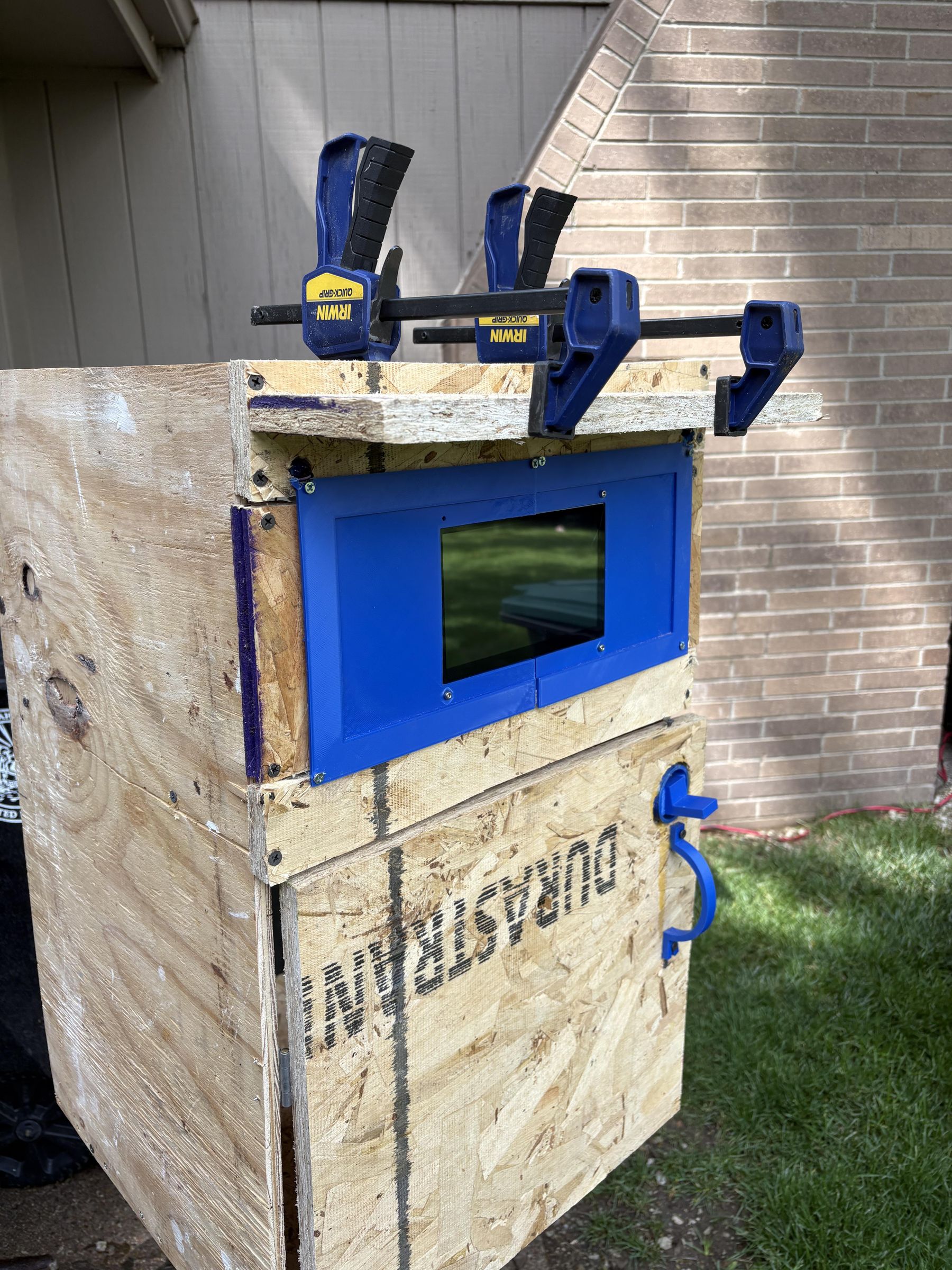
- Now we mount the electronics. First take your screen holder and put it together around the 7in touchscreen. Mark where each hole is on the 3d print(picture 1). Then drill a hole where you marked using the appropriate drill bit size. This way your screen will stay on. Then screw on your touchscreen (I used some small nuts and bolts that I had on a different project.)(also I could only find 3 at first. That's why the video/pictures show only 3 :<). Next attach the screen holder to its designated spot. Use 3/4 in screws to hole it on(picture 2).
- After that we will mount the LEDs. Drill holes the size of what you are using to mount them where you want them. I used some wires from an old PC that we took apart in school, but you can use any wires or just use jumper wires from Arduino. I mounted 4 LEDs on the front (2 groups of 2) and one on each side toward the back(pictures 2, 3 and 4). This way whatever angle you are looking from you can see at least one LED. Also drill a hole the size of your buzzer on one of the sides and mount your buzzer(pictures 5 and 6).
- On the inside I used some duct tape to hold everything down(picture 7). You can use glue or anything else to hold it down but I will probably be using these electronics for later projects so I want them to be easily removable.
- Test. Plug it all in and let it boot up. Unplug it and make sure all the LEDs flash and the buzzer sounds.
Finish Building
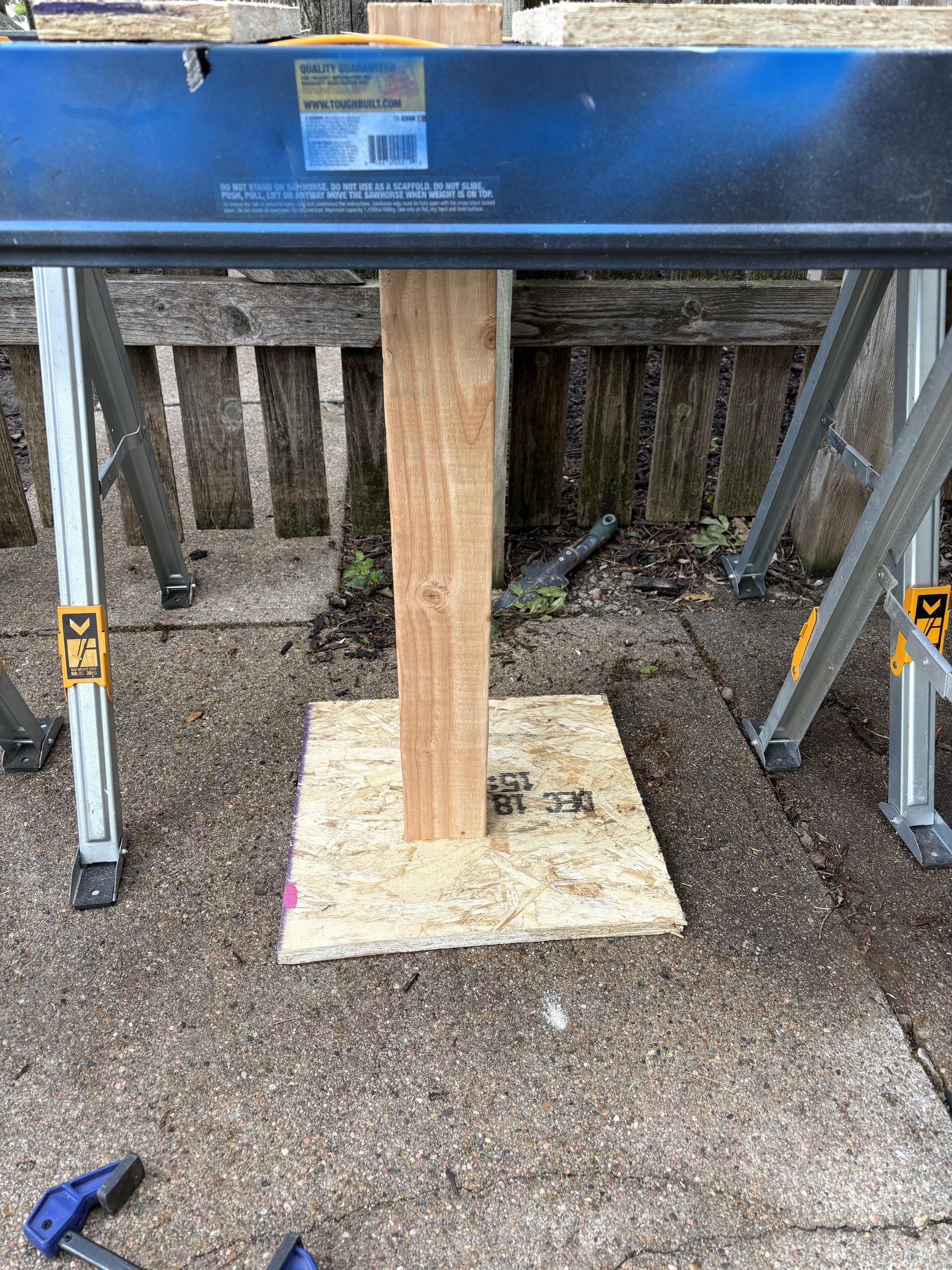





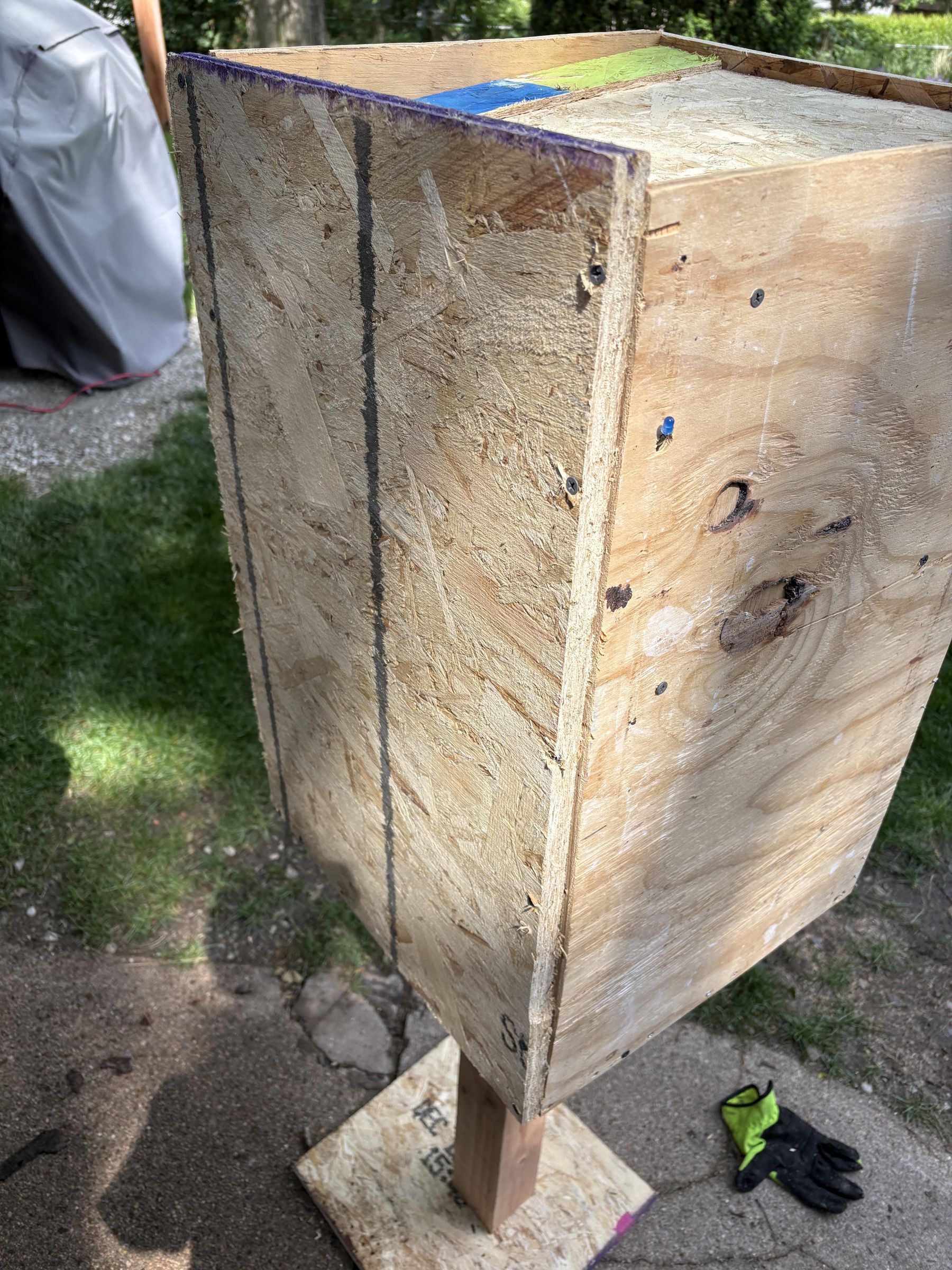


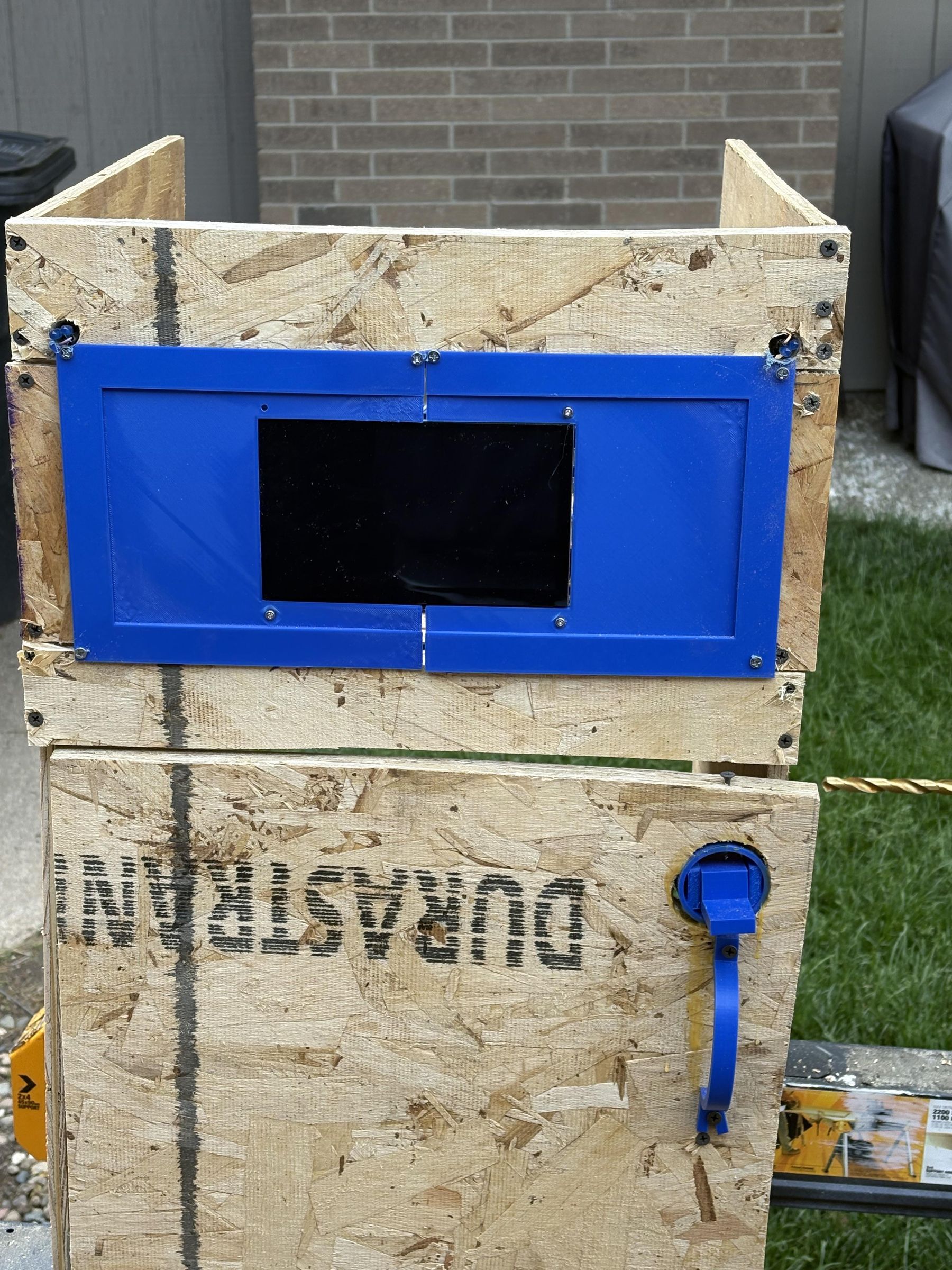
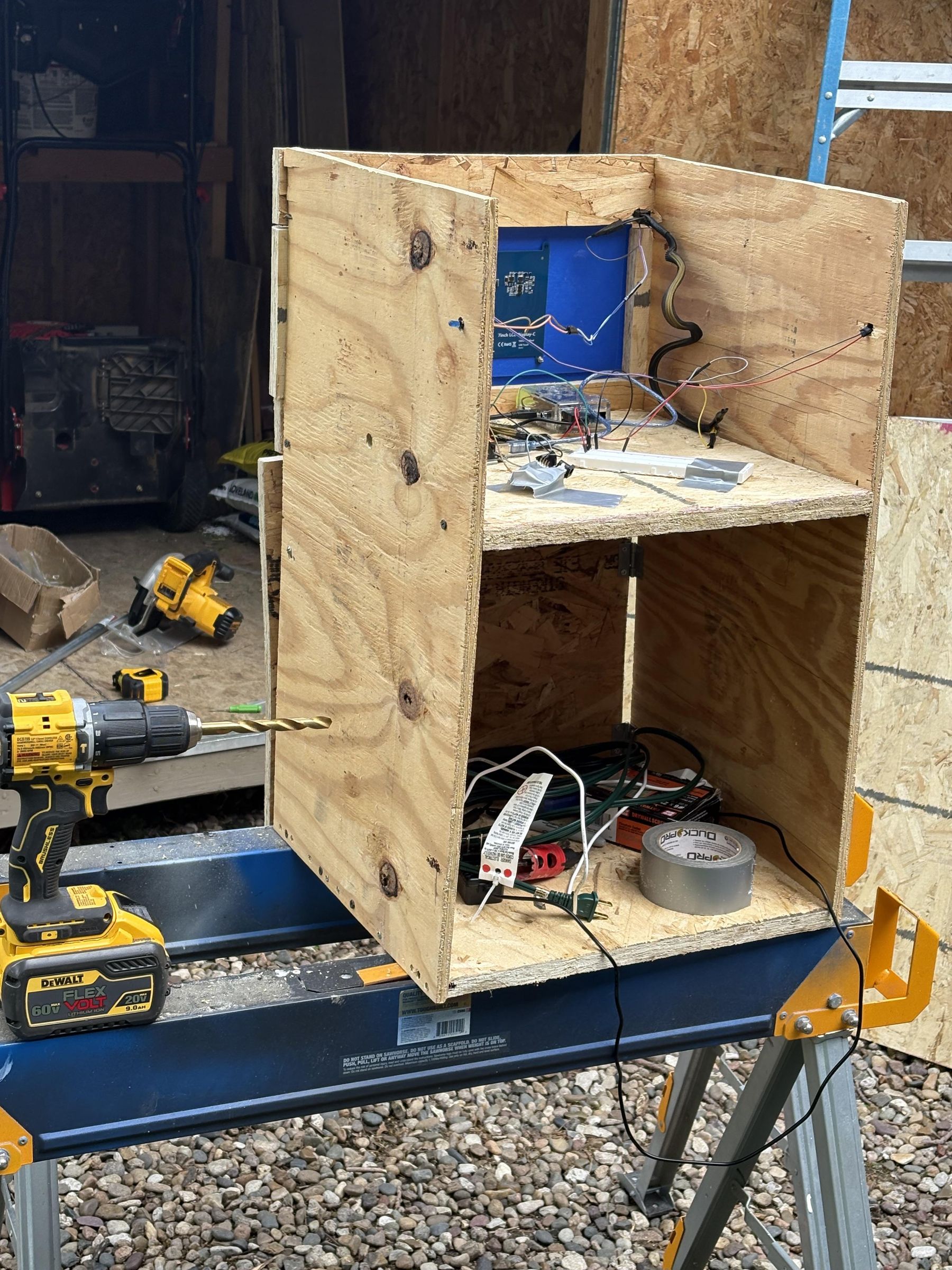
- Before we continue building the actual kiosk we will add the post. Take your 4x4 and on the bottom screw in your 15x15 piece of plywood(picture 1). This gives it support side to side so it doesn't tip over. If this was being used in a flood or in a permanent place you would want your post to be longer and to put it into the ground. Then mount the top of your post to the rest of the kiosk(picture 2). To do this I used saw-horses and some plywood to make the right height of the post then put the kiosk on top of it(you can see the setup on the top of picture 1). This way the saw-horses were supporting the kiosk but the post was also touching it so you could still screw it in. I used about 6 1 1/4 in screws(picture 3). Now the kiosk stands by itself(picture 4).
- Now we make the shade for the screen. Take the 16x4 piece of plywood and clamp it on right above the 3D printed screen mount(picture 5). Then screw it in from the back with the 1 1/4 in screws(picture 6).
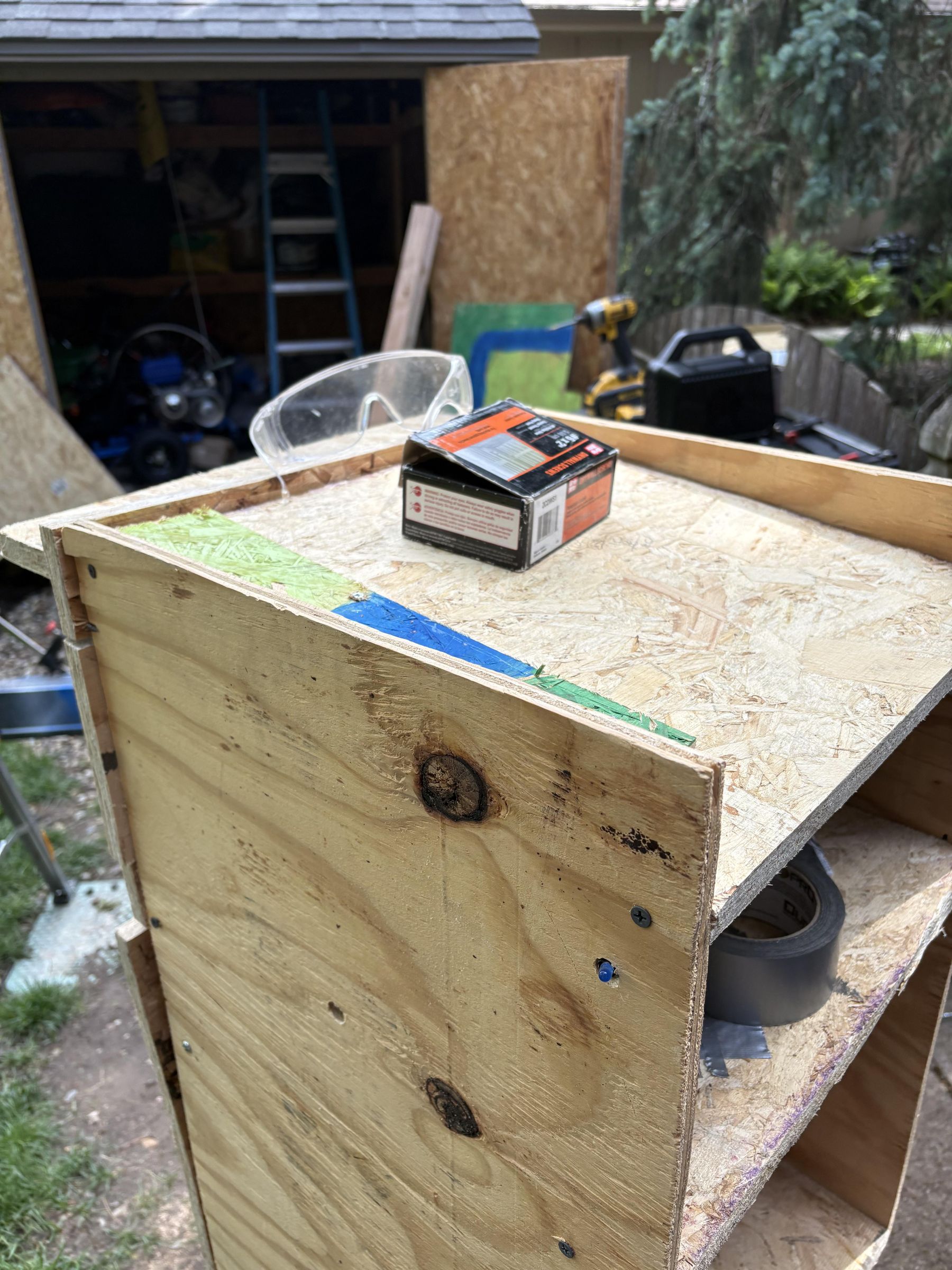
- Next we mount the roof. Take the 14.75x16 piece of plywood and clamp it on at angle. The lower part of it should be on the back side. Screw it on using the 1 1/4 in screws(picture 7). Then if it is uneven at all and there is a gap(mine had one) use a thin piece of plywood and mount it cleanly against the wall to cover the gap(picture 8).
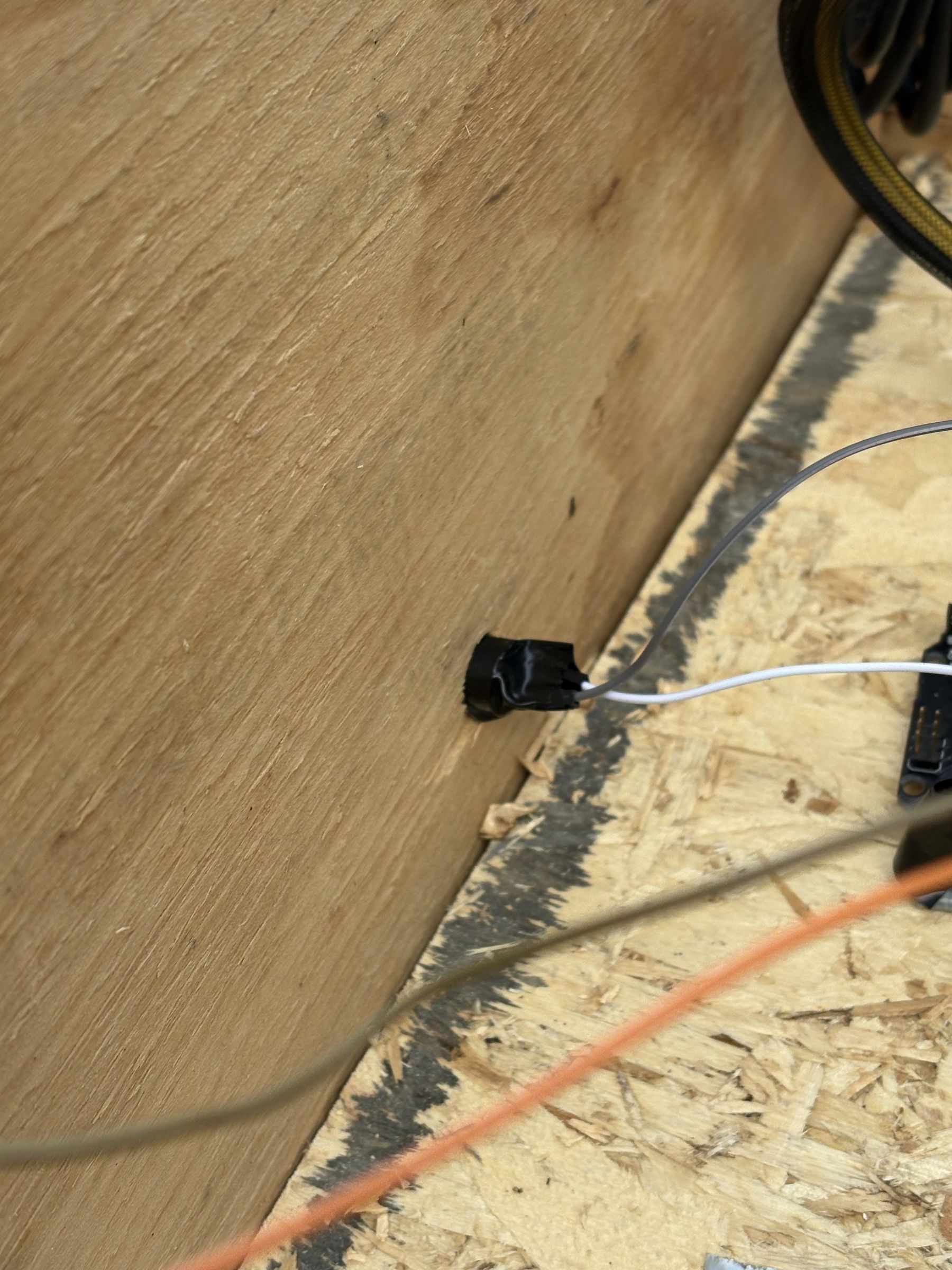
- Now we drill holes for the wires. Drill a hole just big enough for your Pi charger and the power supply module cords to fit through towards the back of the electronics platform(picture 9). Then drill another hole just big enough for your extension cord to fit through on either the side or the bottom(I did the side towards the back as shown in pictures 10). Run your cords through the holes. Test to make everything still works. I didn't test and later I had to take off the screen mount to access the electronics to fix it. :(
- After that we will attach the back. Take your 27x16in piece of plywood (should be the last one) and attach it to the back. Use the 1 1/4 in screws to do so(picture 11). Also we will drill holes in the wall to let water drain from the top. I drilled 3 holes(picture 12).
- Finally we will use some seal the tiny holes in the top to prevent water from coming through to the electronics. I used some hot glue for this. I put a layer all around the edges(pictures 13 and 14).
Paint, Plants, and Accessories

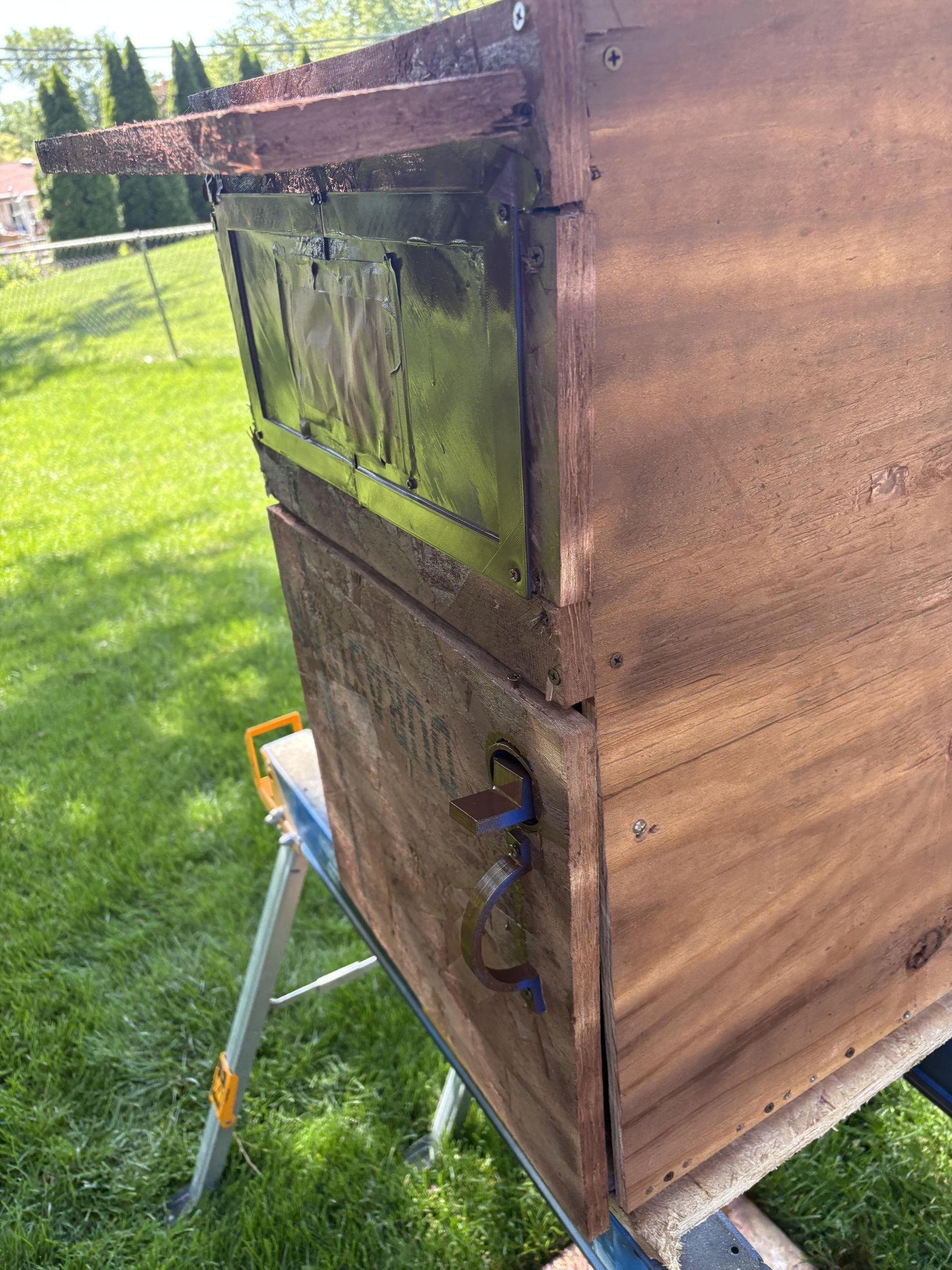

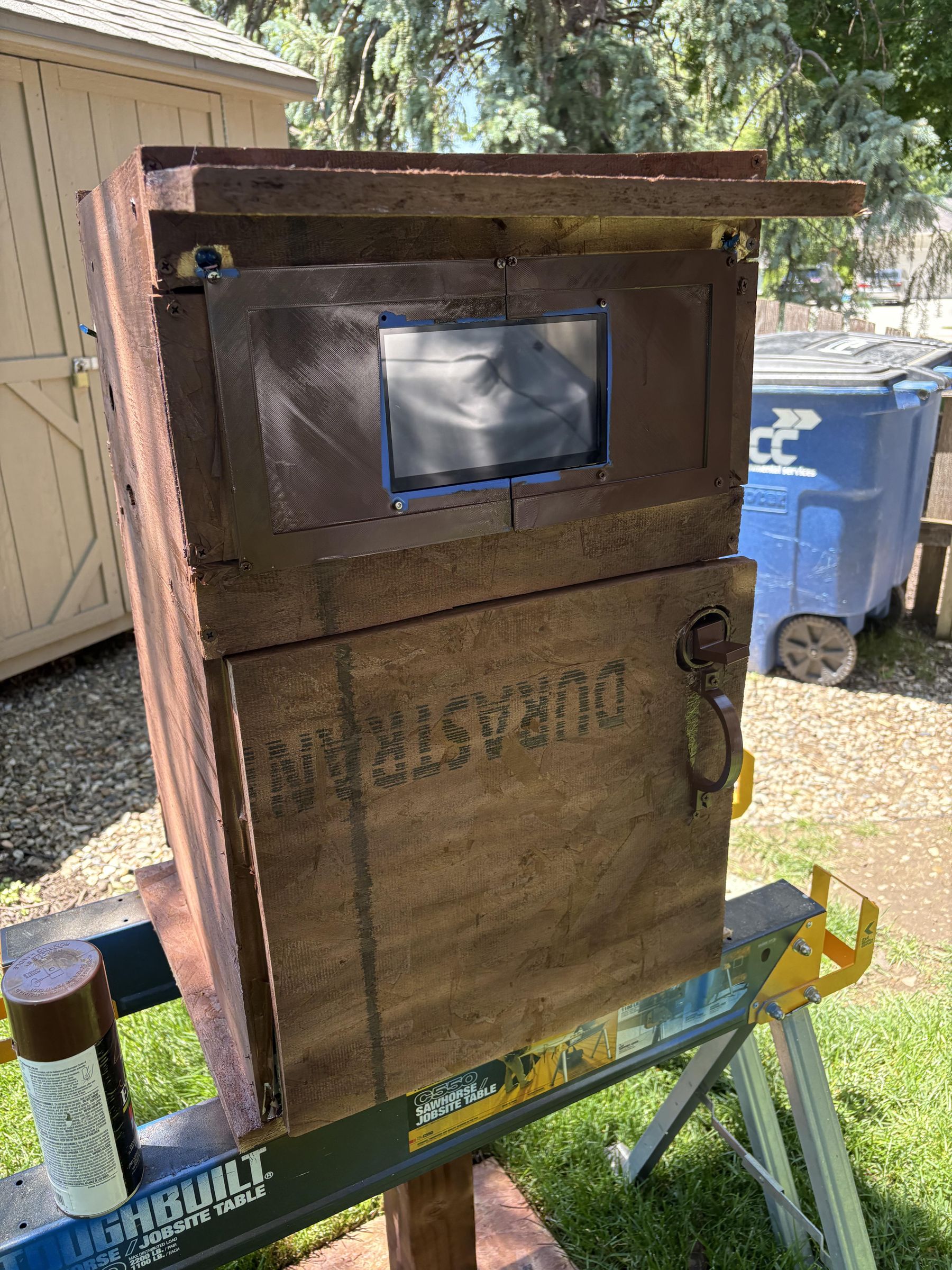


Before we paint we need to cover everything that we don't want paint on. To do this I used masking tape and some paper to cover the screen, and some more masking tape in gaps between boards. Also don't forget to tape over the LEDs and buzzer. Also tape over the hole where you drilled a hole for the cords so paint doesn't get on the inside. You can see the tape in picture 1.
To paint:
- Make sure the surface is clean. Make sure there is no saw dust or the paint will peel and wont stick.
- Shake up your paint.
- Spray about a foot away from what you're painting.
- If using a primer do that here( I didn't for lack of time and because my kiosk is going to be stored inside and won't need to be that tough.)
- Then use your main paint. Apply multiple thin coats.
- After it dries, take off the tape.
I didn't paint the top because it will be covered with dirt and I ran out of paint.
Next Print out the QR code and attach it to the kiosk(picture 5). I used some clear tape to do so. Test the QR code with your phone to make sure the cameras can interpret it.
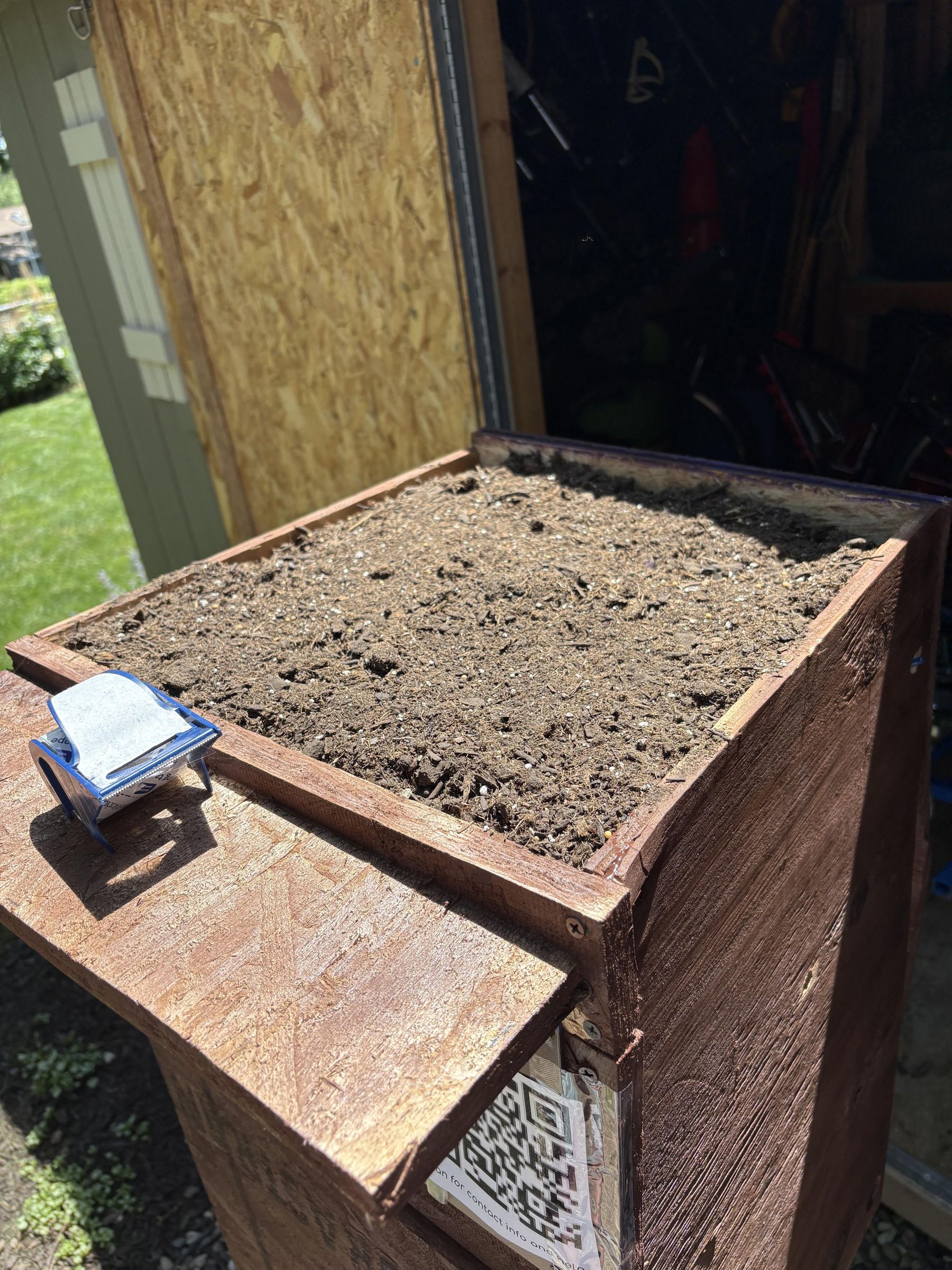
Finally we will add the plants. First pour some dirt into the top(picture 6). Then add your plants on top(picture 7).
3D Design of Kiosk.
.png)

To design the kiosk, I used a multi-software Autodesk pipeline. I started by engineering and mapping out the entire structure and 3D-printed components inside Tinkercad for quick prototyping. Once the layout was perfected, I exported the full model into Fusion 360 to review the complete, production-ready 3D assembly.
I used the exact 3D designs from my prints for the most accuracy. My design is fully to scale, so if you need to inspect a specific part of the kiosk, you can view the 3D model below. One of the reasons I moved the assembly over to Fusion 360 is because it handles larger, complex structural shapes much better.
Site Selection
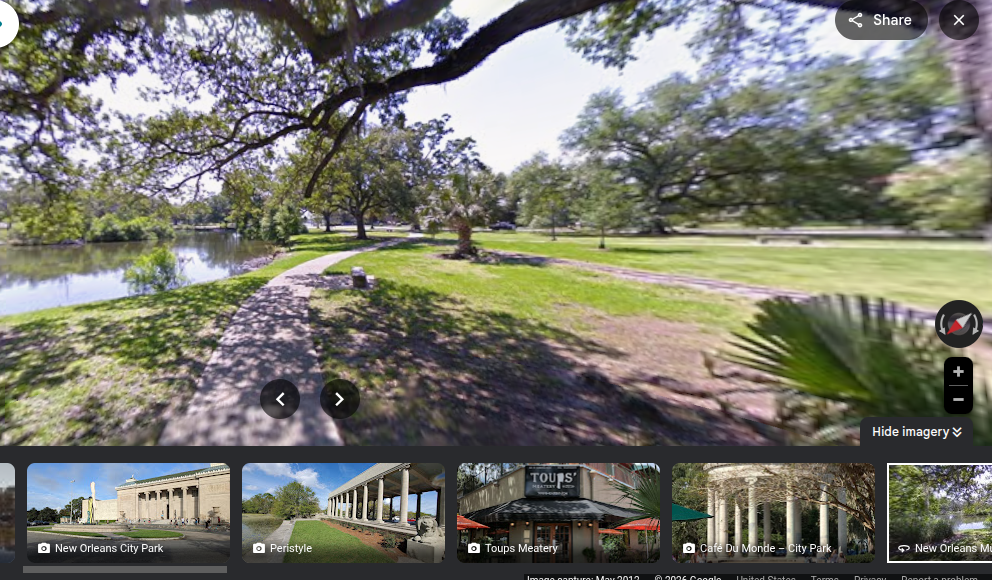
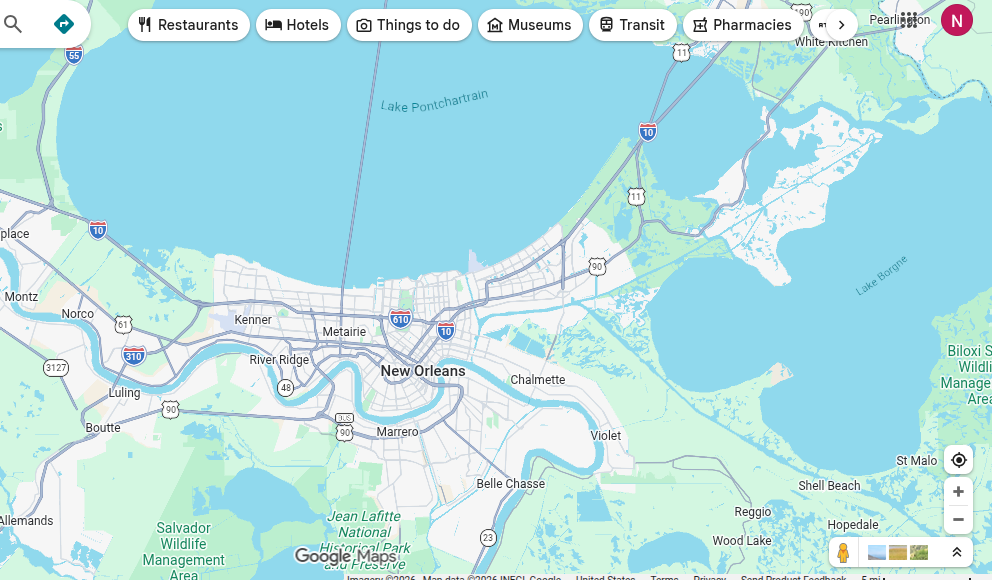
For a community kiosk to effectively aid in recovery, its placement must be highly strategic. I designed this kiosk to be deployed in places like New Orleans, Louisiana or Miami, Florida, areas that face recurring threats from severe flash flooding.
Within these communities, the kiosk is designed to be placed in a high-foot-traffic, central gathering zone, such as a local neighborhood park, a public square, or right outside a community center.
Why This Location Matters for Healing:
- Always Open & Accessible: People naturally head to familiar spots when things go wrong. Putting the kiosk in a well-known public area means everyone (even without phones) knows where to find help and information.
- Building Trust Daily: This is called the "Pantry Effect." By using the space as a shared neighborhood food and first-aid hub on normal days, we encourage everyday connection. That way, the community is already bonded and knows how to use the space before a disaster strikes.
Conclusion
This project demonstrates how thoughtful, accessible design can help a community heal and rebuild resilience after a devastating flood. By combining a Raspberry Pi, Arduino, 3D-printed components, and a physical wooden enclosure, I engineered a low-cost prototype that actively responds to grid failures to keep people safe.
My goal went beyond basic utility. I wanted to utilize trauma-informed and human-centered design. By combining a familiar neighborhood phonebooth and food pantry with biophilic elements like the integrated plants, the kiosk offers psychological comfort alongside physical aid. Even as a prototype, this project shows how technology and empathetic design can work hand in hand to grow a community's emotional, social, and physical recovery.
Future Improvements
If I had more time and resources, I would like to improve this project in several ways. First, I would make the kiosk more weatherproof so it could better handle rain and flooding conditions. Since the kiosk is meant for emergency use, durability and water resistance would be very important. I would also like to improve the power system by adding solar panels and making it work with cellular data instead of relying on nearby Wi-Fi, which would make it more useful during disasters when internet service may be unavailable.
Another improvement would be to create a fully working community forum so people could post and share emergency information in real time. I would also like to add a couple nearby water level sensors so the kiosk could detect flooding conditions and respond more intelligently. This project is currently a prototype, and while it already shows the main idea, there are still many improvements that would be needed before it could be used in a real flood or disaster response situation.