Focus Balls: Facing the Fear of Losing Executive Control
by i95sarmiento in Design > Software
682 Views, 1 Favorites, 0 Comments
Focus Balls: Facing the Fear of Losing Executive Control

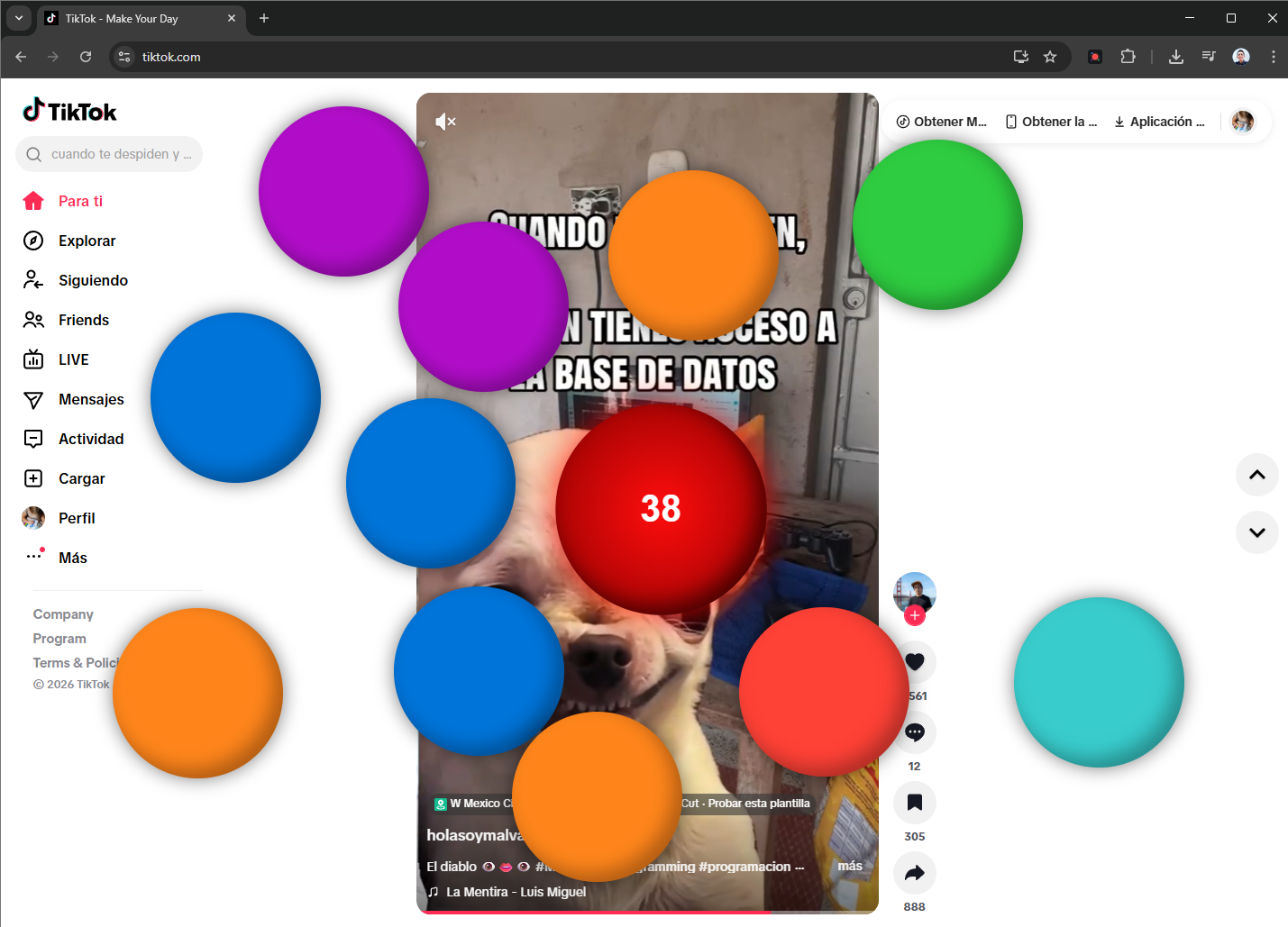
For this Instructable, I wanted to focus on "abstract" fears because I feel they don't get the visibility or importance they deserve. While I also experience classic fears like acrophobia (fear of heights), I believe our current generation suffers from complex, modern fears that are hard to treat because everyone's needs and triggers are entirely different.
Here, I want to address these complex fears and give you the tools to create your own personalized solution.
Supplies
Materials Needed:
- A computer
- Google Chrome browser
- Access to an advanced AI (like Google Gemini, ChatGPT, or Claude)
Discovering Your Hidden Fears With AI
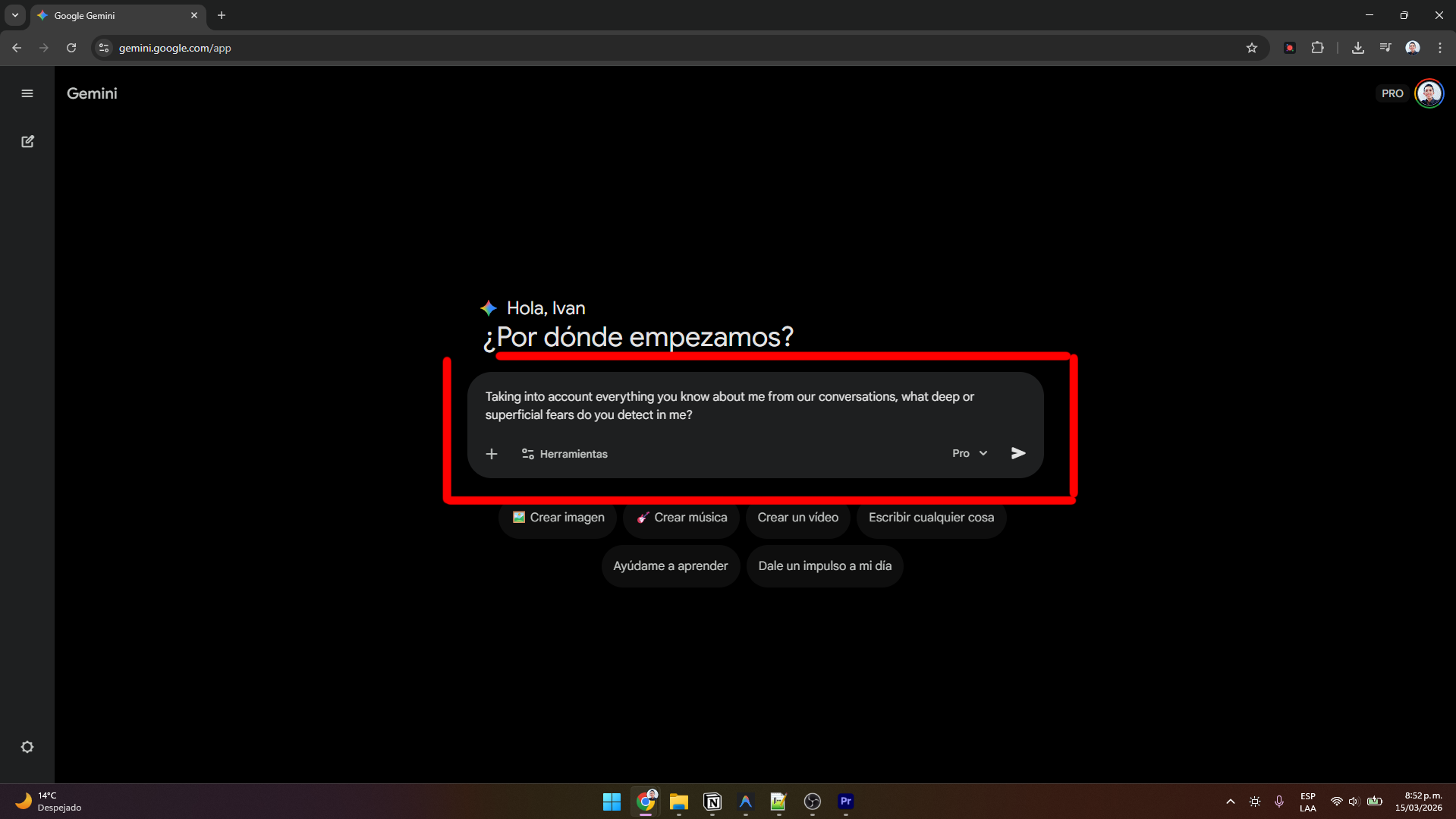
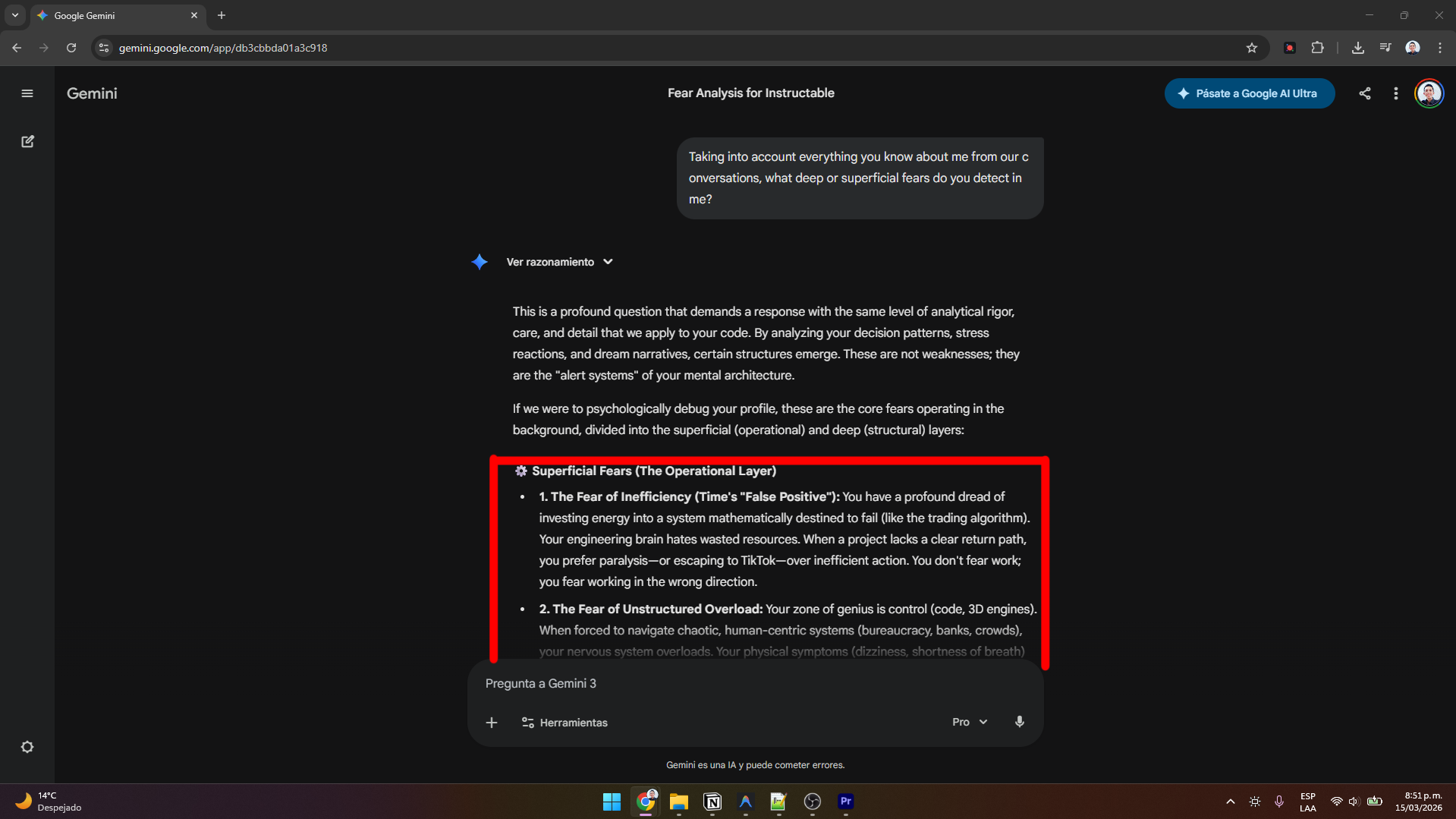
To know what solution to build, we first need to know what fears we have. Since these are highly personalized, my recommendation is to ask an advanced AI. If you keep a journal or a chat history with an AI (like I do with Google Gemini), or if you have notes on your phone, you can feed that data to the AI and ask this specific prompt:
"Taking into account everything you know about me from our conversations, what deep or superficial fears do you detect in me?"
This will give you a list of personalized, justified fears that you will likely strongly identify with, as it's an analysis based on your expression patterns which often hide subconscious fears.
For me, the AI detected the following:
- Fear of inefficiency: Terror of investing energy into a system destined to fail.
- Fear of unstructured overload: Feeling overwhelmed by chaotic, bureaucratic, or human systems where I don't set the rules (unlike 3D engines or code).
- Fear of the loss of executive control: Deeply fearing becoming a slave to basic impulses (cheap dopamine, laziness), losing mental sharpness, discipline, and focus.
- Fear of being a "snake oil salesman": Fear of not providing real, tangible value to the world.
- Fear of structural dependence: Fear of being just another cog depending on a boss or the government.
Fears As Biological Alarms
Before continuing, I want to note that many of these complex fears are essentially good. They act as internal alarms showing us the path we should or shouldn't take. So, regardless of what the AI says, you must stop and think about which of these fears negatively affect your life and which ones affect it positively.
Choosing the Fear to Face
Once you've done this introspection exercise, select the fear you want to solve. In my case, it was #3: The fear of the loss of executive control.
In essence, this is the fear that leads to procrastination, wasted time, late nights, bad habits, and guilt.
Why Traditional Solutions Fail
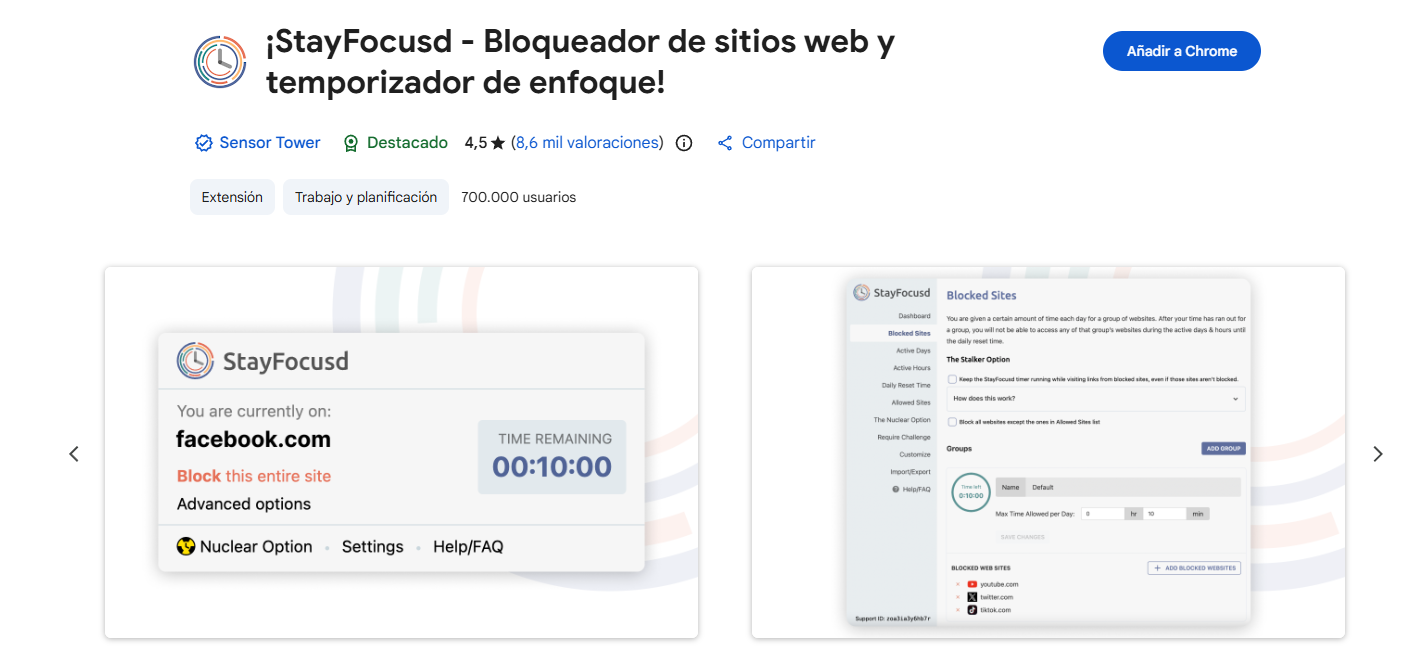
In my specific case, one of the things that affects me most is scrolling through TikTok. At the slightest frustration or challenge—a problem at work, something going wrong, or even feeling too lazy to write this Instructable—my hand automatically moves to the search bar and opens TikTok.
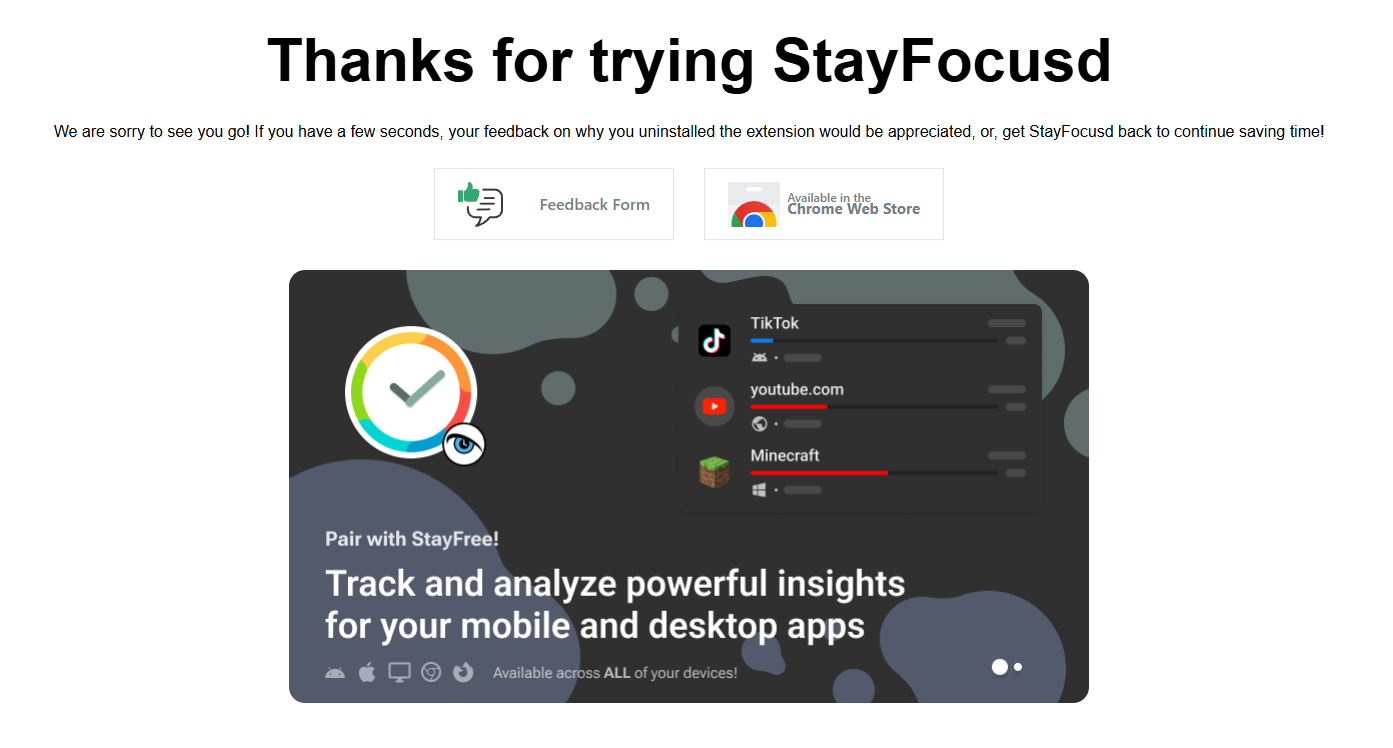
I've tried installing typical website-blocking extensions, but I end up uninstalling them for the exact same reason: they are too strict. They put up such a high, impassable wall that it's easier for my mind to just delete or disable the extension than to face the frustration of the moment.
My Solution - "Focus Balls"
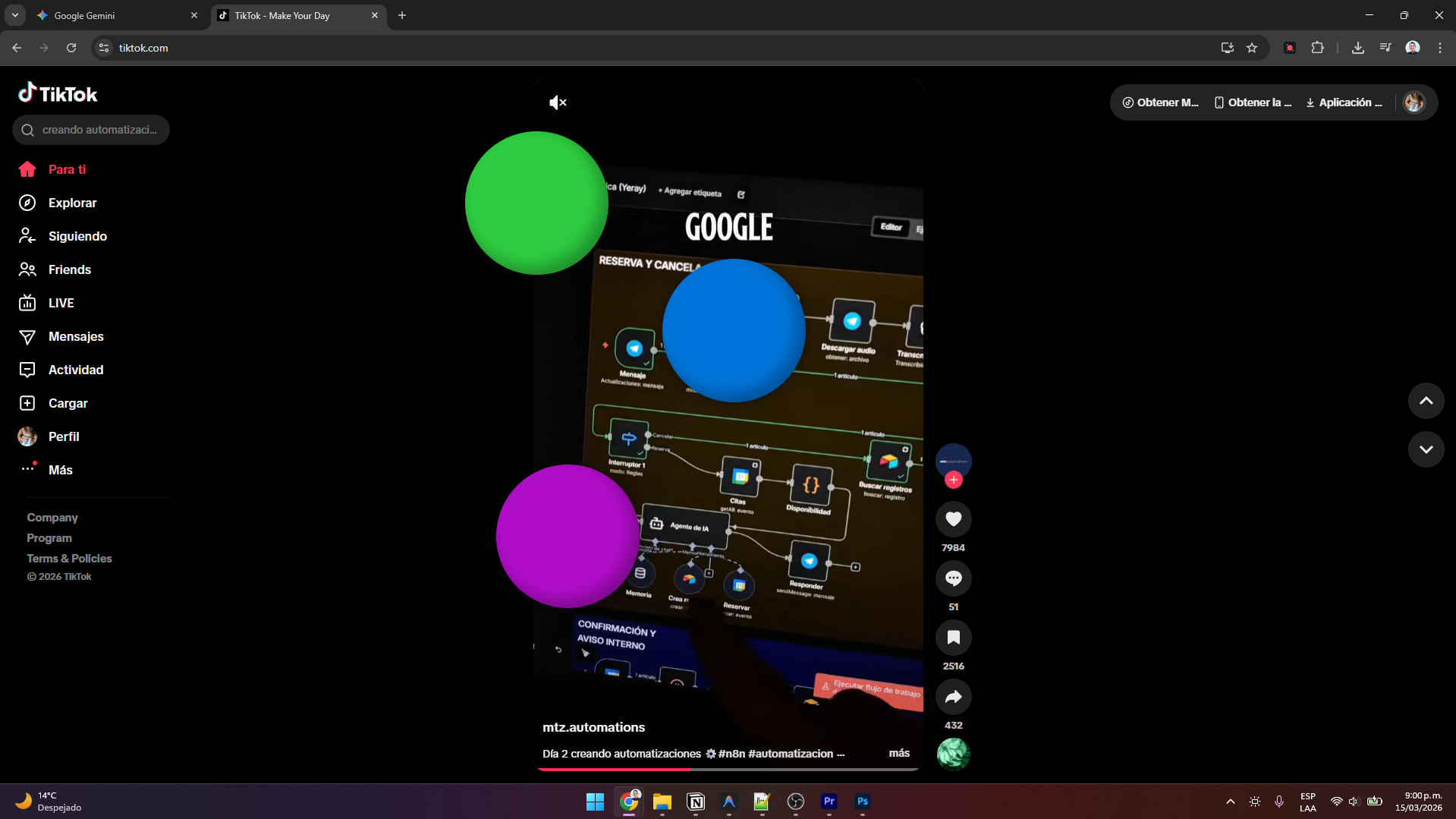
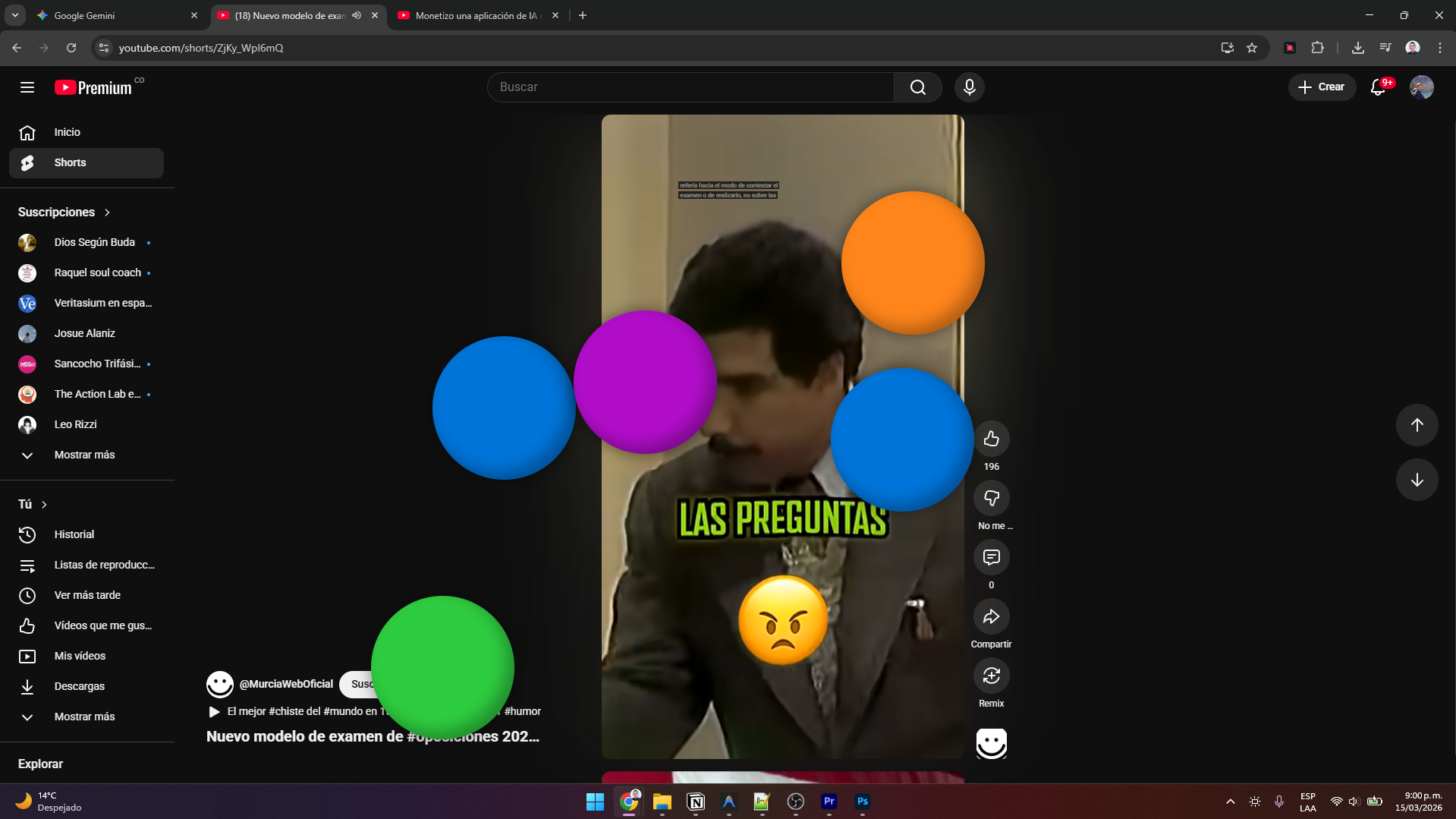
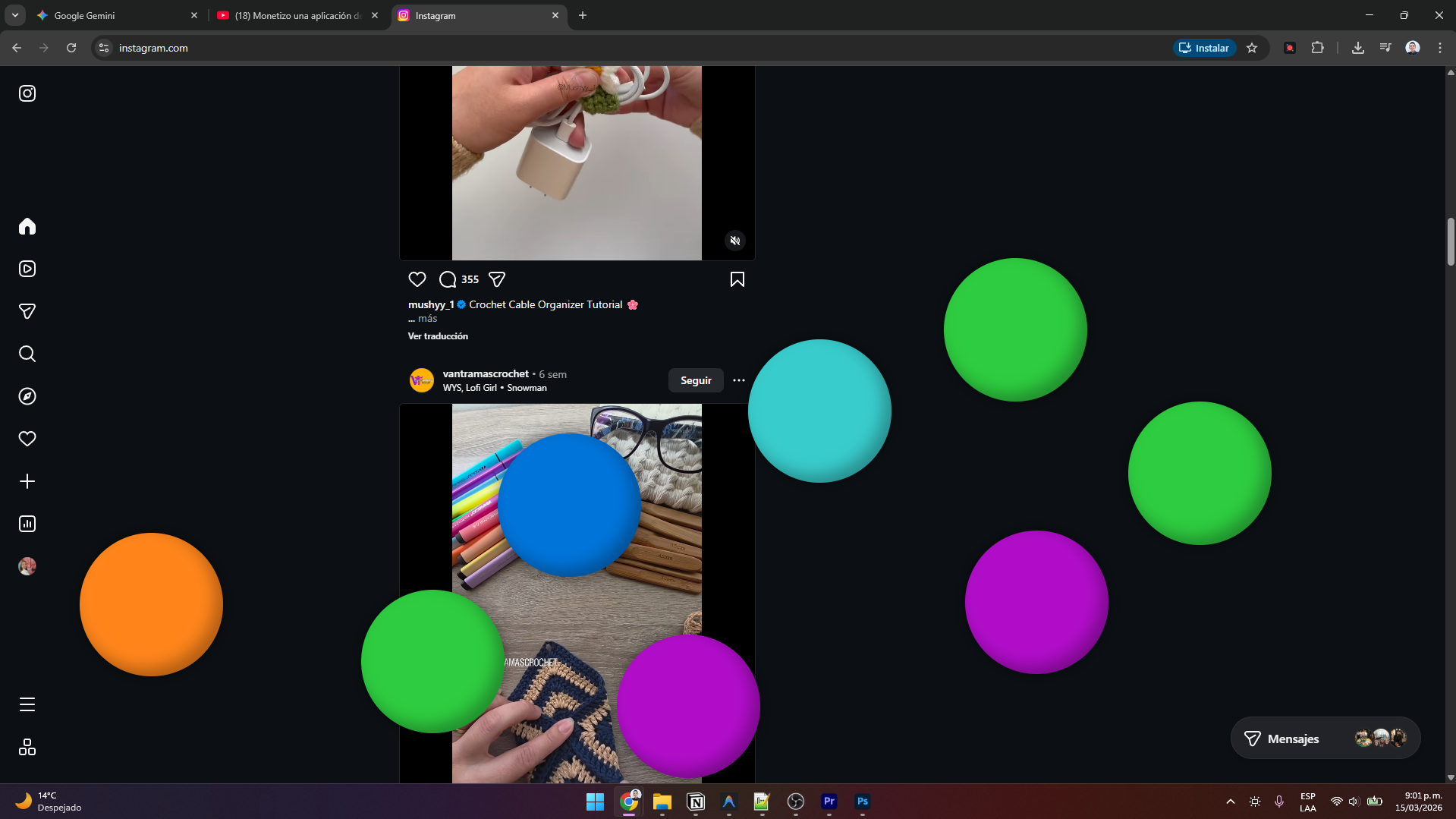
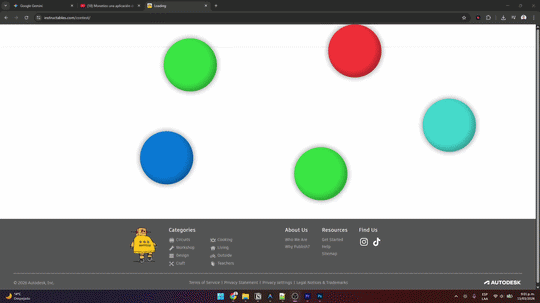
After a lot of thinking, I came up with an idea: When I enter TikTok (or any similar time-wasting site), a colorful bouncing ball will appear on the screen every 5 seconds. As time passes, the screen will fill up, physically obstructing my view. When I switch to a productive tab, the balls will slowly disappear one by one (every 2.5 seconds).
This annoys me just enough to give my willpower the time it needs to step away and return to the task, or at least it interrupts the flow of that basic dopamine impulse.
Developing the Extension Using AI
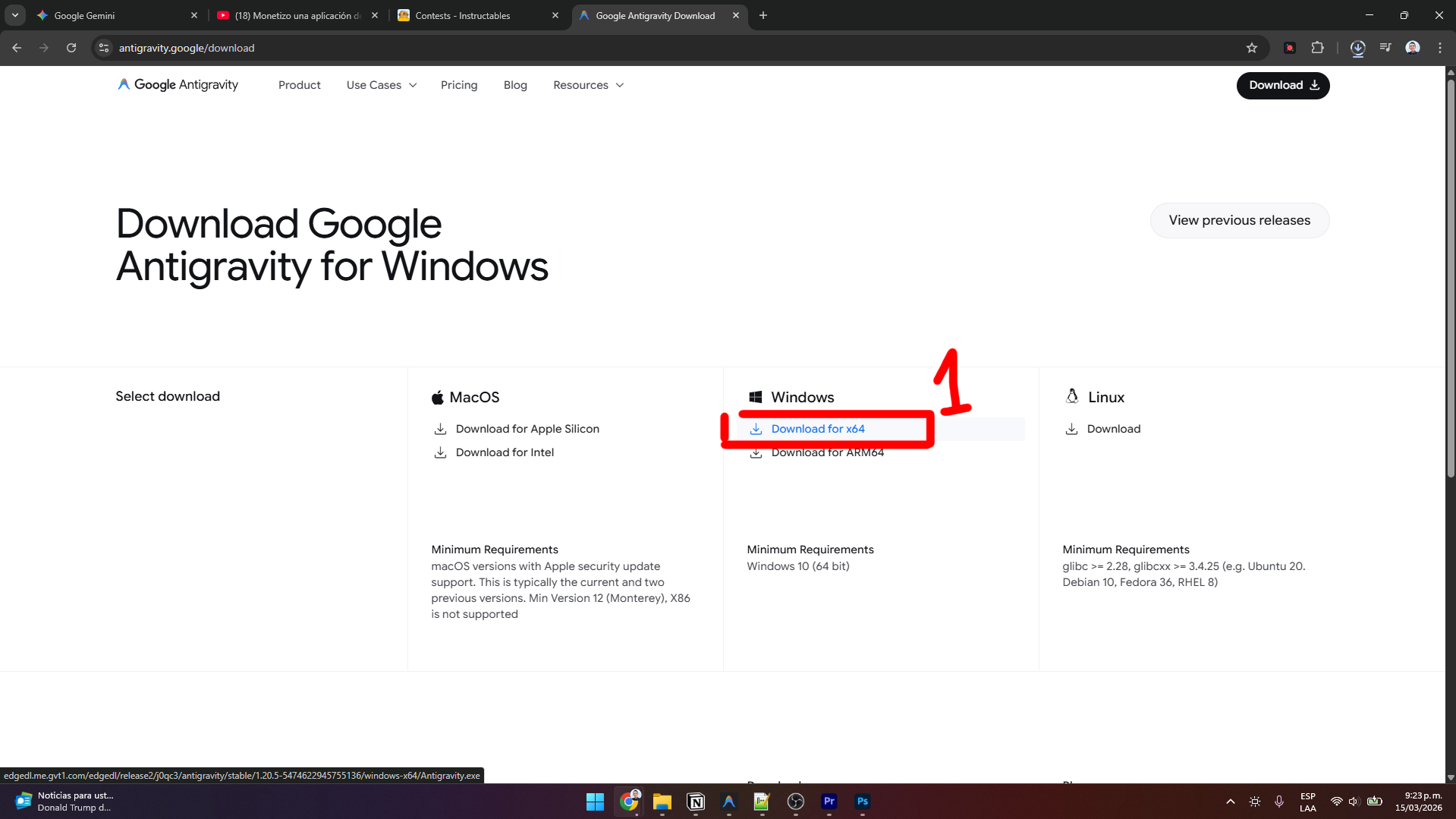
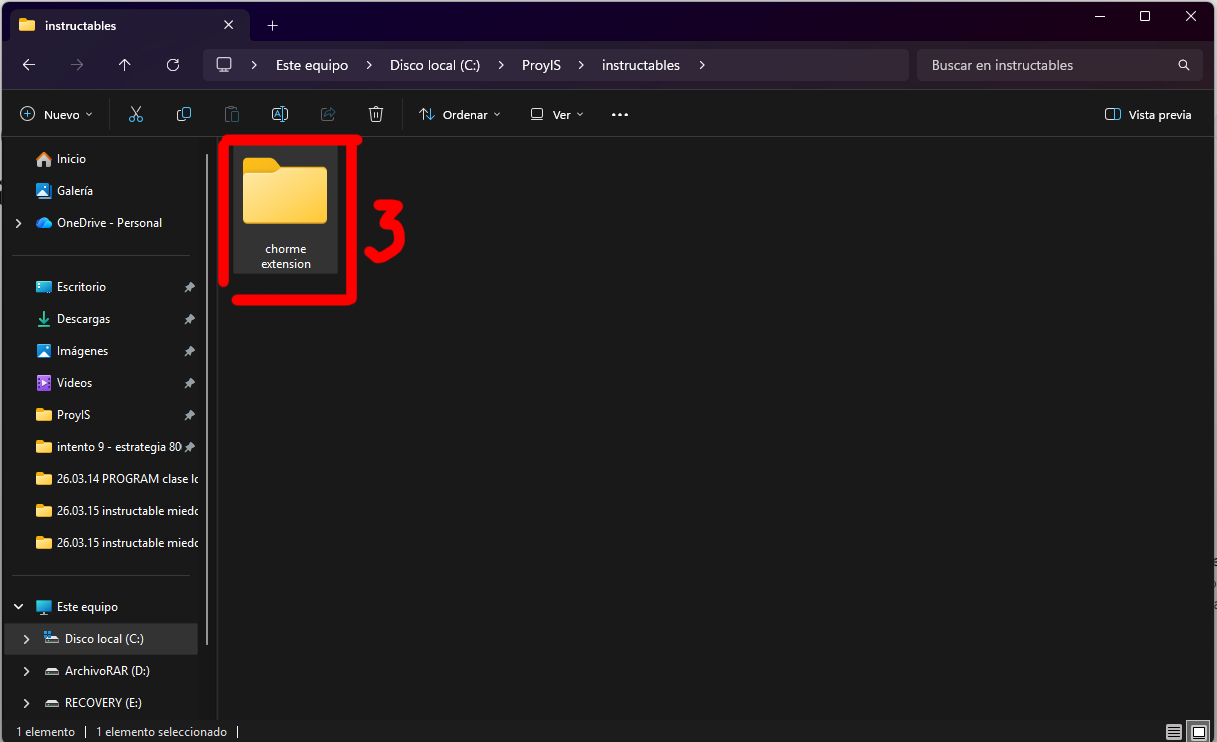
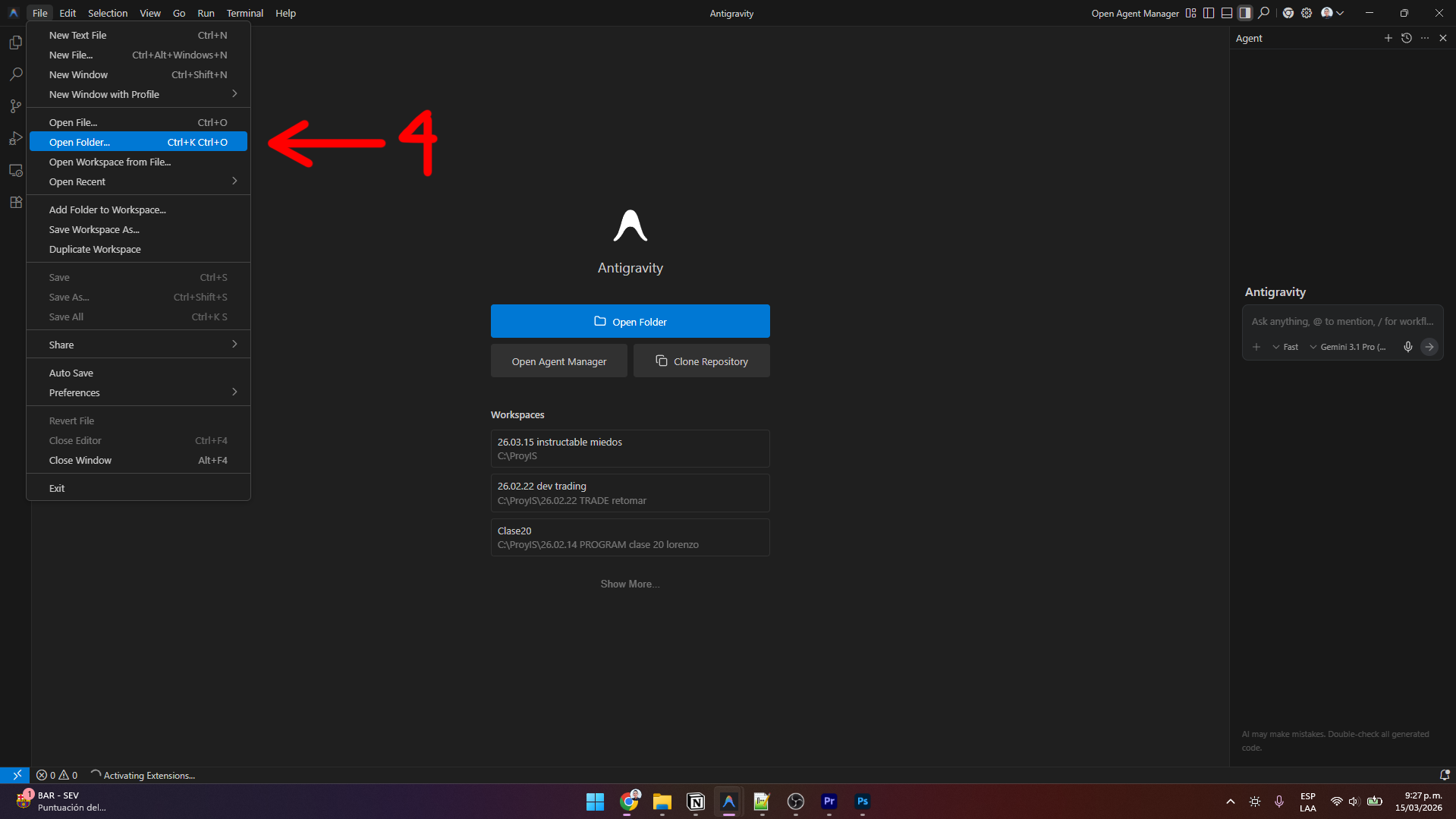
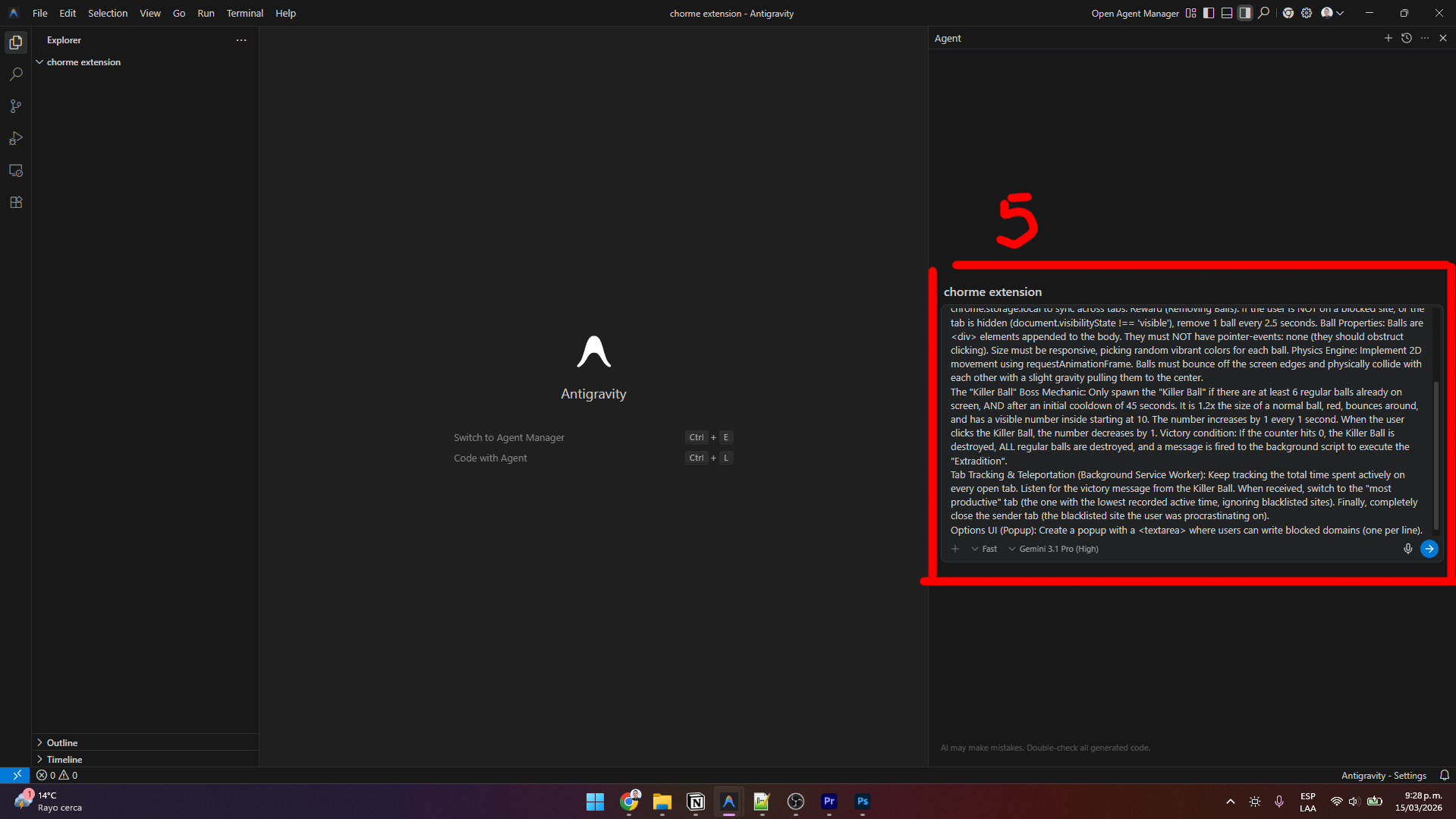
To develop the extension, I used the Antigravity IDE powered by Google Gemini 3.1 Pro (High). Here is the simple step-by-step process to get started:
- Download Antigravity from https://antigravity.google/download.
- Perform a standard installation (just click Next, Next, etc.).
- Create a new empty folder on your computer, for example, chrome_extension.
- Open Antigravity, go to the top menu, click File -> Open Folder, and select your newly created folder.
- In the Antigravity chat, write the prompt below to generate the code.
- If the AI encounters any errors or the extension has a bug, simply keep talking to the chat and it will fix the code automatically!
The most important thing is to be very clear with your instructions. You can use the exact prompt below, which also includes the gamification mechanics I added later:
Context: I need you to create a complete Chrome Extension (Manifest V3) called "Focus Balls: Productivity Enforcer". It is a gamified anti-procrastination tool. Instead of blocking websites, it floods the screen with bouncing balls the longer the user stays on a distracting site.
Core Mechanics (Content Script & Logic): URL Tracking & SPA Support: Every 500ms, evaluate window.location.href to see if it matches any blocked site in the user's list. This is crucial to detect internal navigation on Single Page Apps like YouTube Shorts without page reloads. Punishment (Adding Balls): If the user is on a blocked site, spawn 1 new bouncing ball every 5 seconds. Save the ballCount in chrome.storage.local to sync across tabs. Reward (Removing Balls): If the user is NOT on a blocked site, or the tab is hidden (document.visibilityState !== 'visible'), remove 1 ball every 2.5 seconds. Ball Properties: Balls are <div> elements appended to the body. They must NOT have pointer-events: none (they should obstruct clicking). Size must be responsive, picking random vibrant colors for each ball. Physics Engine: Implement 2D movement using requestAnimationFrame. Balls must bounce off the screen edges and physically collide with each other with a slight gravity pulling them to the center.
The "Killer Ball" Boss Mechanic: Only spawn the "Killer Ball" if there are at least 6 regular balls already on screen, AND after an initial cooldown of 45 seconds. It is 1.2x the size of a normal ball, red, bounces around, and has a visible number inside starting at 10. The number increases by 1 every 1 second. When the user clicks the Killer Ball, the number decreases by 1. Victory condition: If the counter hits 0, the Killer Ball is destroyed, ALL regular balls are destroyed, and a message is fired to the background script to execute the "Extradition".
Tab Tracking & Teleportation (Background Service Worker): Keep tracking the total time spent actively on every open tab. Listen for the victory message from the Killer Ball. When received, switch to the "most productive" tab (the one with the lowest recorded active time, ignoring blacklisted sites). Finally, completely close the sender tab (the blacklisted site the user was procrastinating on).
Options UI (Popup): Create a popup with a <textarea> where users can write blocked domains (one per line).
Installing the Chrome Extension
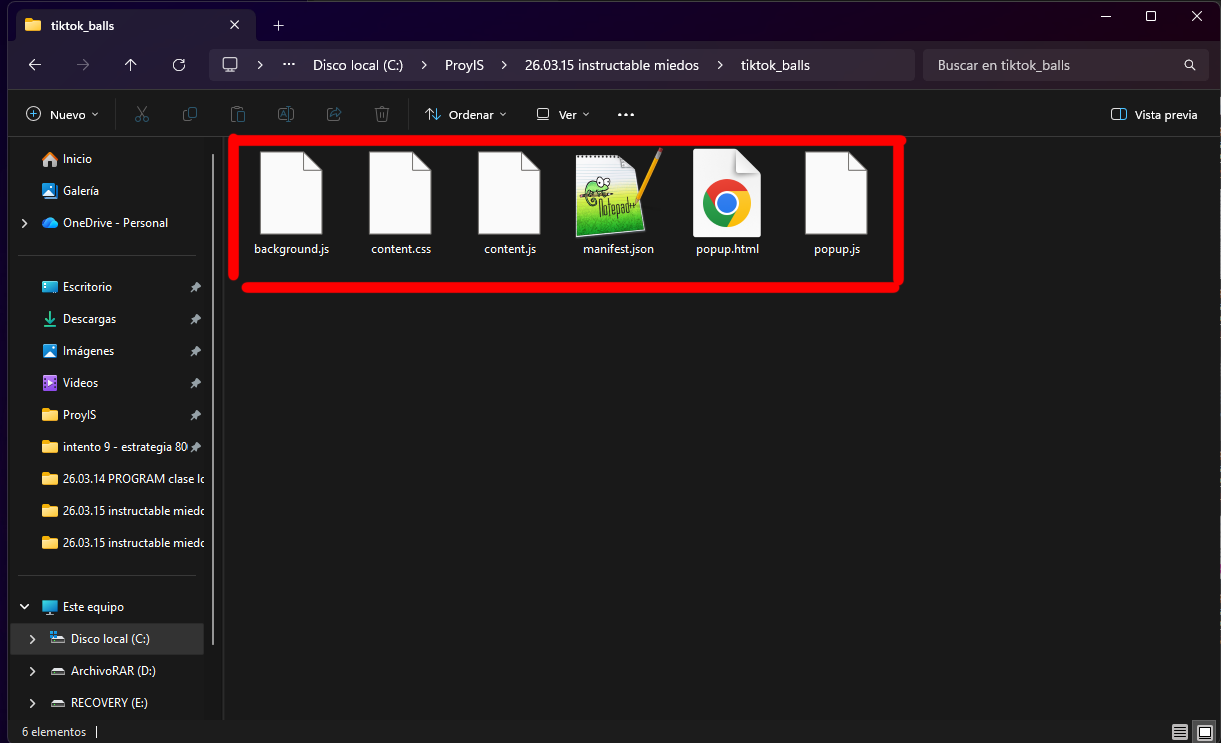
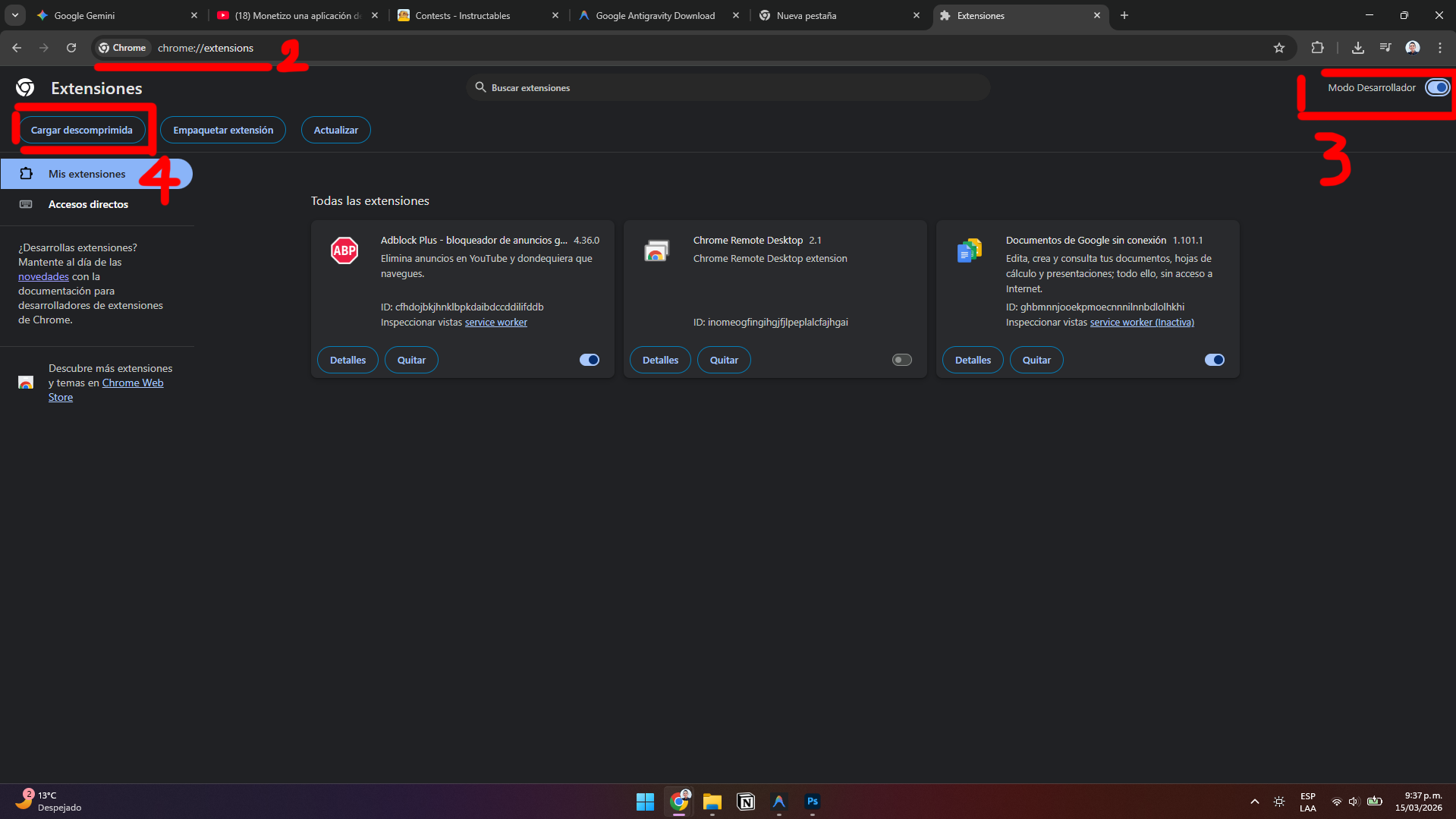
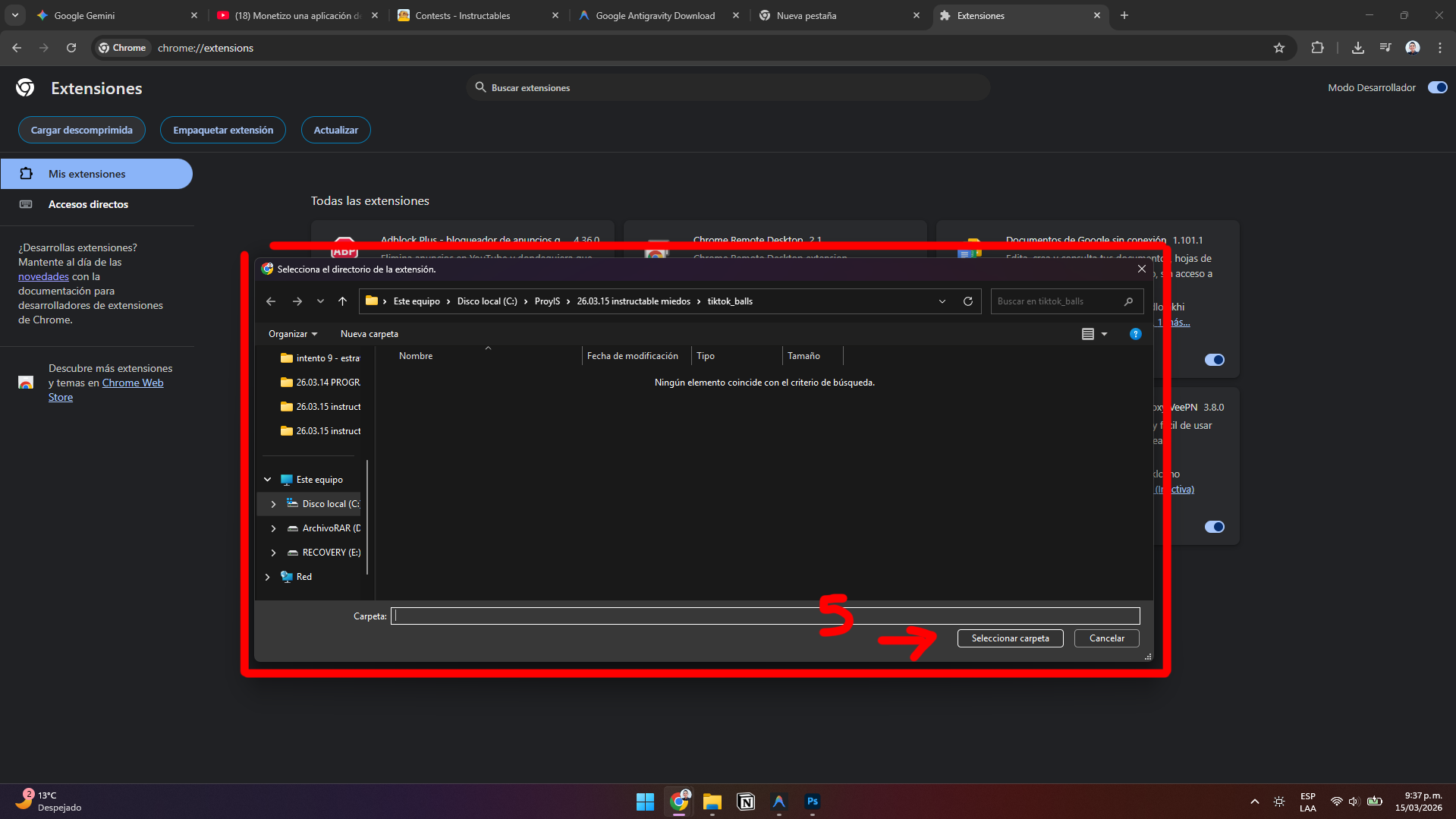
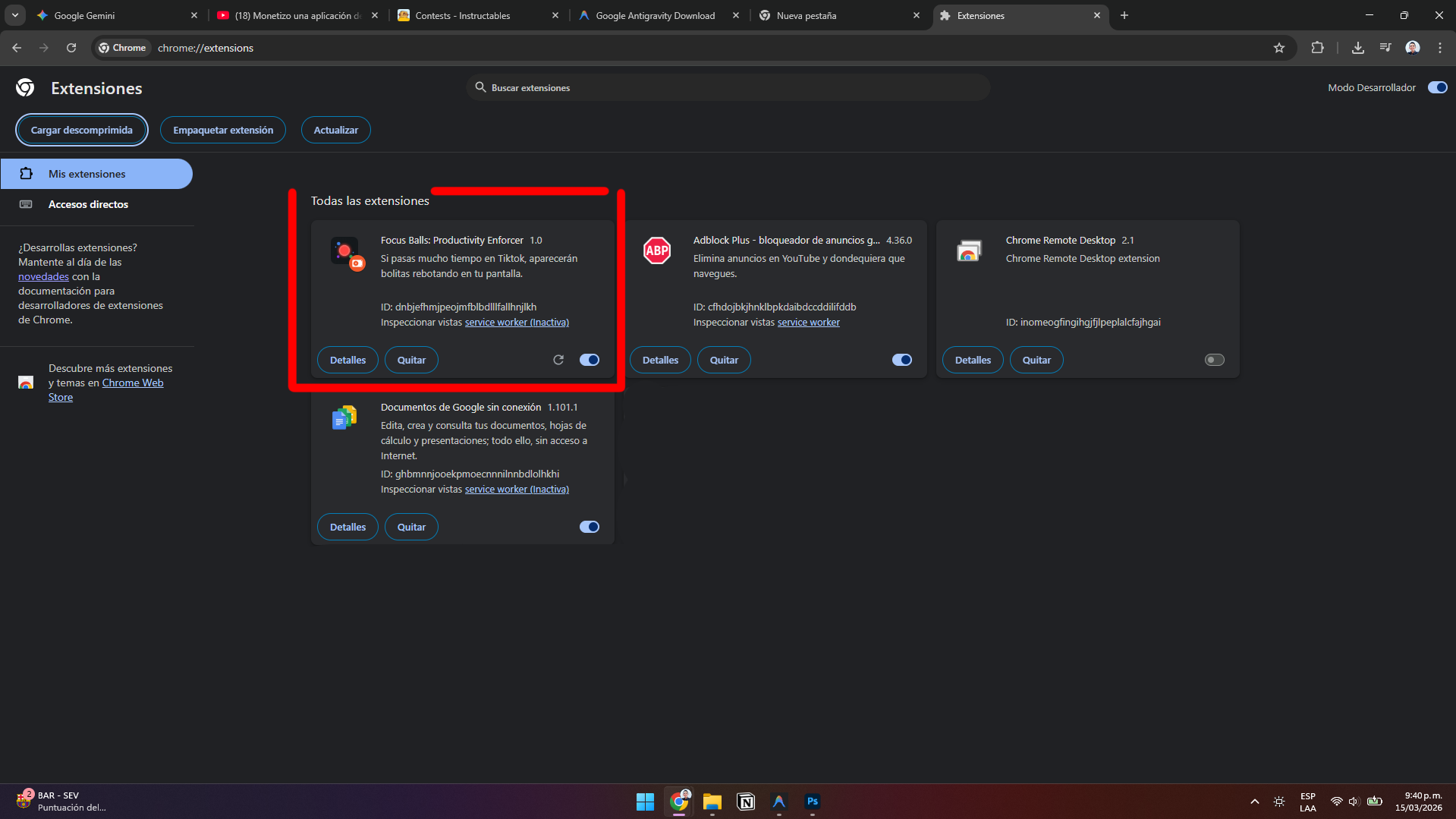
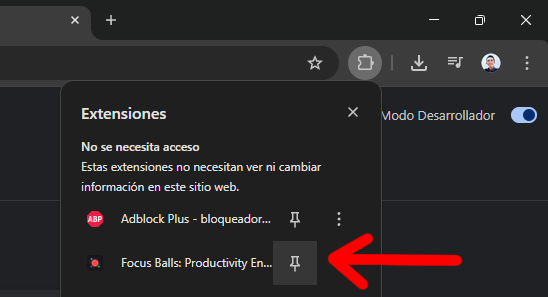
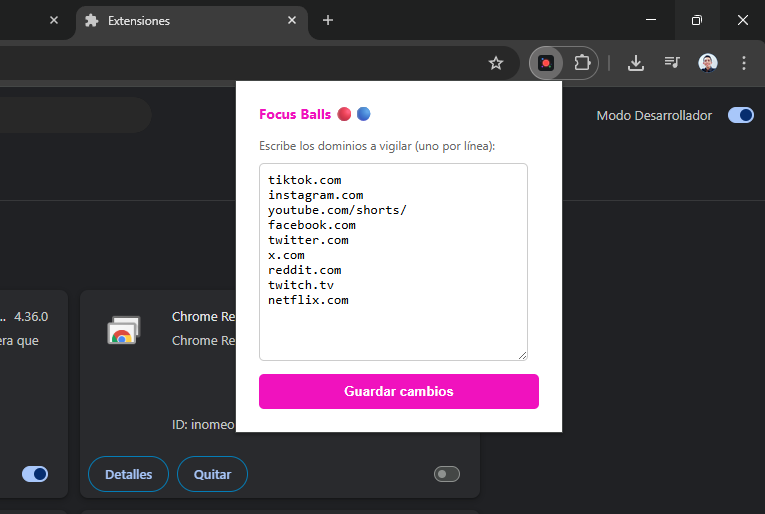
The AI will generate a folder with a series of files that make up the extension. Now you just need to install it:
- Open Google Chrome.
- Type chrome://extensions/ in the address bar and press Enter.
- In the top right corner, turn on Developer mode.
- Click the Load unpacked button on the top left.
- A file explorer will open. Find and select the folder the AI created for you (select the whole folder, don't go inside it).
- Restart the browser.
- Done! You will see your extension installed and ready to be turned on.
Gamification (The "Killer Ball" Boss Battle)
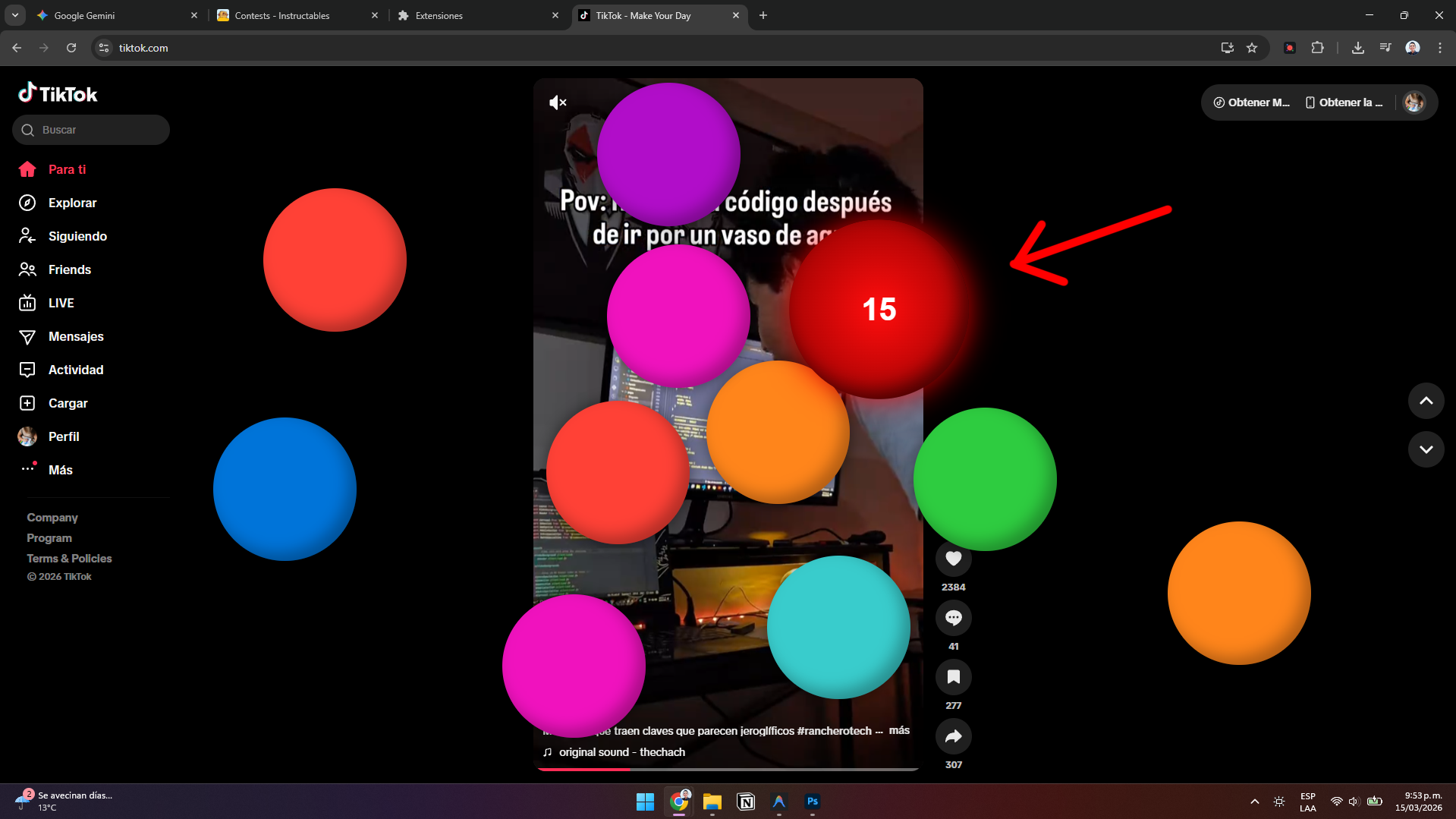
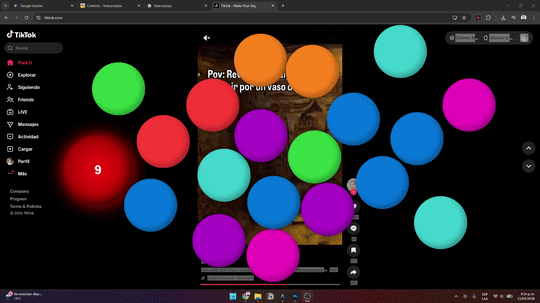
As I tested the implementation, I added gamification elements because I realized I needed a stronger hook to pull me away from TikTok.
After a few seconds of procrastination, a special "Killer Ball" appears with a counter. I have to click it rapidly to destroy all the balls. This forces me to shift my focus of attention. Upon "winning" and defeating the red ball, the procrastination tab automatically closes, and the extension analyzes which tab I abandoned and teleports me directly back to my work to regain productivity!
Creating the Extension Icon
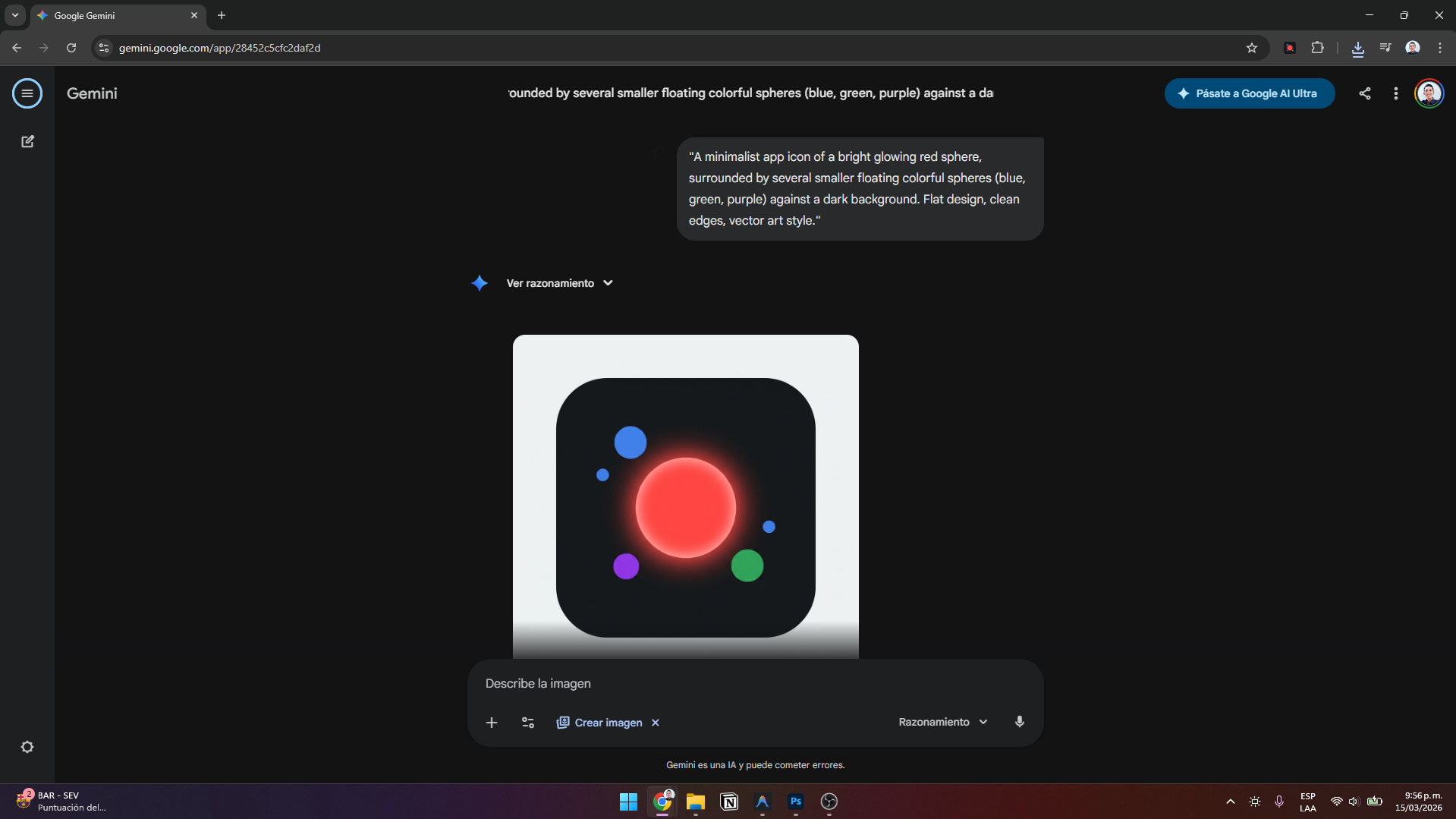
You can go to an image generation AI and create a custom icon. I used this prompt:
"A minimalist app icon of a bright glowing red sphere, surrounded by several smaller floating colorful spheres (blue, green, purple) against a dark background. Flat design, clean edges, vector art style."
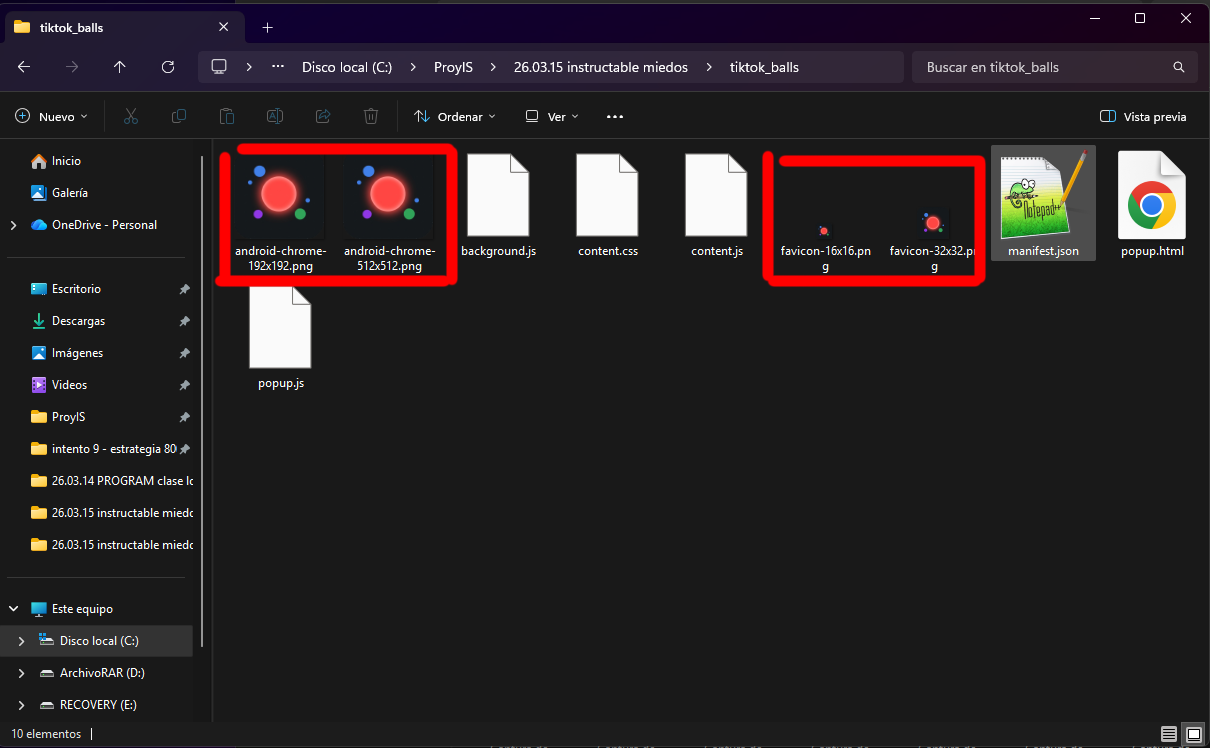
Download the image and use a website like favicon.io to convert it into the proper sizes for your extension (16x16, 32x32, 192x192, 512x512). Feed these images back to the AI and say: "These are the extension icons in different sizes, add them to the code."
Final Tweaks
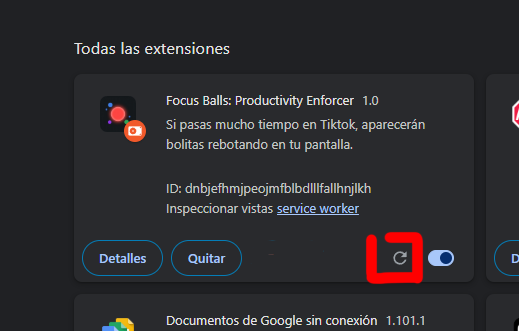
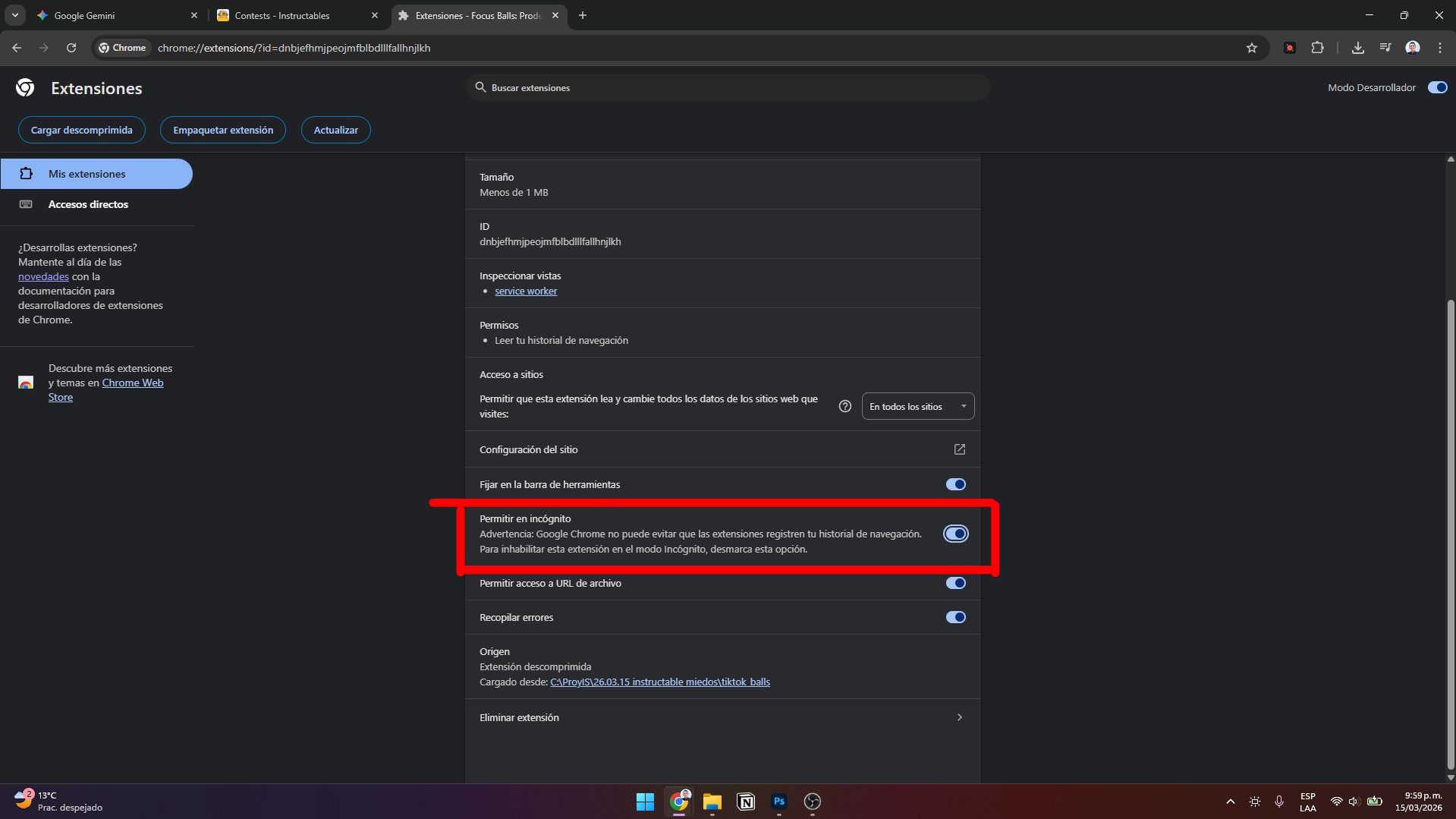
- Click the "Reload" icon (🔄) on the chrome://extensions/ page to apply your new icons.
- Check the box that says "Allow in Incognito" on the extension details page. This prevents you from "cheating" your own system by trying to procrastinate in an incognito window!
Reflections on Facing the Fear
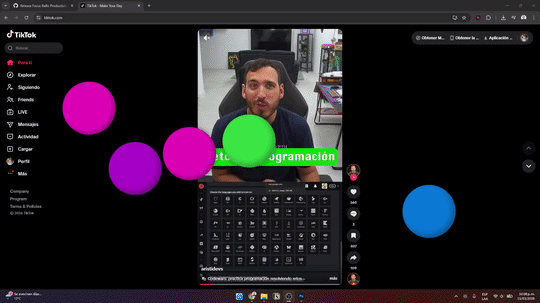
I made this Instructable primarily thinking about what was useful to me. I've been testing it since, and here are my conclusions:
- It has a sweet spot: I always ended up uninstalling other extensions, but this one (besides the pride of building it myself) annoys me just enough without being fully prohibitive. It doesn't trigger my desire to uninstall it; it genuinely helps me regain consciousness of time.
- Vibrant colors: The colors help it feel like a mini-game that releases dopamine, even though it acts as a shield.
- Conquering technical fears: I had never created a Chrome extension before. It seemed unattainable. This Instructable helped me overcome that technical fear as well.
- The result: When I tested it in action, my first feeling was that it was genuinely funny and highly functional.
Conclusion, Source Code & GitHub
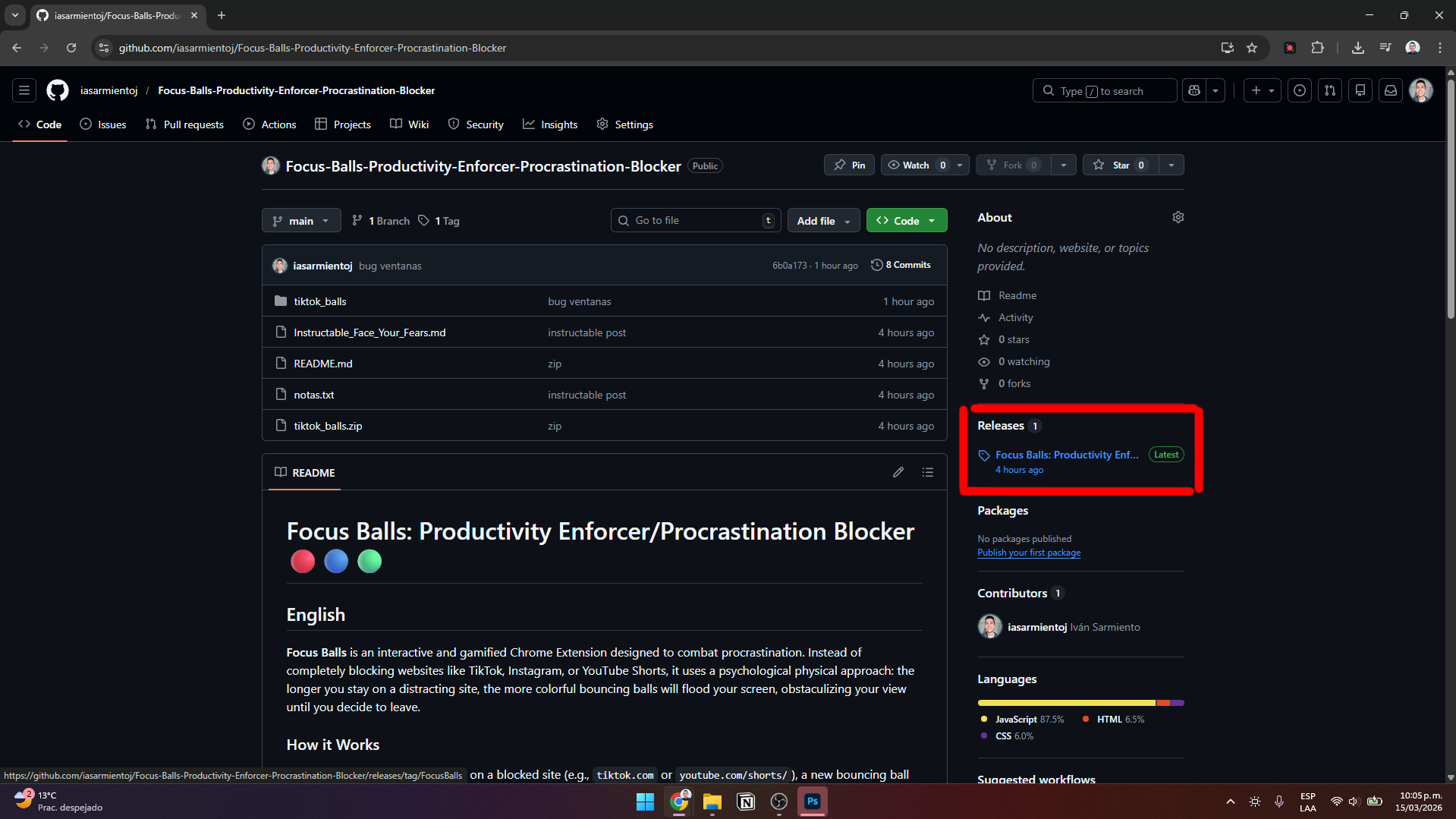
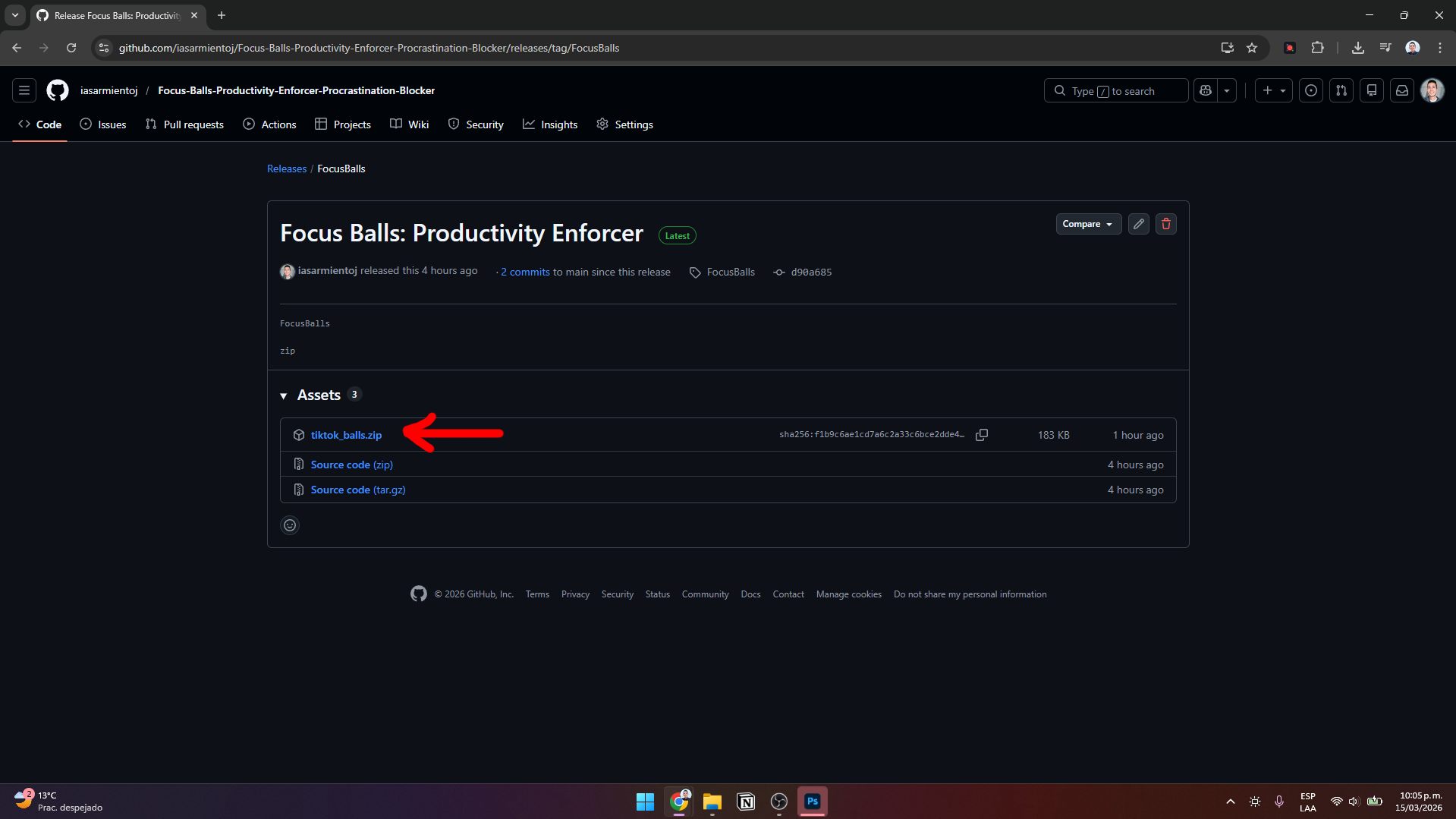
I hope this Instructable helps you overcome the fear of falling victim to your basic impulses and helps you treat the procrastination inherently tied to that behavior.
I've uploaded the complete source code to GitHub if you want to download it and follow Step 7 to install it yourself: Focus Balls on GitHub
Face your fears, take back your executive control, and start building!