GPU Power Cable to 12x SATA Power Cable Adapter Board
by CHWTT in Circuits > Computers
552 Views, 0 Favorites, 0 Comments
GPU Power Cable to 12x SATA Power Cable Adapter Board

Hello there and welcome to my Instructable. In this Instructable, I'll be showing you how to build a small PCB that allows you to take either a 6-pin or 8-pin PCIe power cable and convert it into 12 SATA power cables for powering a ton of hard drives!
This device was designed with custom NAS builds in mind, as I've found myself struggling to find PC power supplies that have enough SATA power available on them for NAS builds many times in the past. And while there are of course SATA power splitters, those open up a whole can of worms with ensuring that you're wiring them up properly to not pull too much power at any one point in the power distribution chain, and sometimes these cables are manufactured so cheaply anyway that they catch fire regardless of whether they were within spec or not. So, I figured I'd make a device that allows you to get a ton of SATA power out of a power supply that may not come with many SATA connectors, but that DOES come with at least one GPU/PCIe power connector! If this is interesting to you, follow along to see how to build one!
DISCLAIMER: While I've designed this device to be as safe and reliable as possible, it's important to understand that I'm not an officially trained/educated electrical engineer, and at the end of the day, this is a DIY electrical device. Therefore, if you choose to build one, you must accept the risks associated with a project like this, which include things like it failing and damaging your hardware, or possibly it overheating and starting a fire, which can damage your property and injure you. Additionally, for this project, I am not responsible for any data loss resulting from using this device. If you build this, you accept all liability related to the project. And with that, let's have some fun building it!
Supplies

Here's a list of all of the supplies you'll need to build this project! The main lists include all of the materials needed to build the PCB on its own, and there's a separate list at the bottom that includes the necessary parts if you want to build the mounting sled that allows this PCB to be easily mounted in a 3.5" bay with a cooling fan. Also, all links EXCEPT the PCBWay link for the custom PCB are non-affiliate links.0
Electronic Components:
Most of these components have Amazon links, however a few of them aren't available easily on Amazon. These parts don't have a link, but do have their part numbers provided so you can order them from your favorite electronics components retailer (I ordered my parts from Mouser.com)
1x Molex 45586-0005 PCIe Power Cable Connector
1x Mean Well RSDW60F-05 60W 5V DC-DC Converter
1x 47k Resistor
11x 1k Resistor
1x Yellow LED
1x Red LED
3x Green LED
1x Jumper (Optional - only needed if you want to bypass the staggering sequence)
3x SATA Power Distribution Cable
Custom PCB:
Here's a link to the custom PCB that I used in this project. This link goes to PCBWay, who is my YouTube sponsor and who provided the PCB for this project, and I strongly recommend them for PCB manufacturing. If you purchase your PCB through the button on this page, I will get a small kickback that helps to support my channel. Otherwise, you can download the Gerber files from this page as well.
Optional Parts For the 3.5" Mounting Caddy:
1x 50mm 5v Fan
1x 3D Printed Caddy Piece - STL File is provided on this step for you to download and 3D print. If you don't have a 3D printer but want this part, feel free to use a 3D printing service such as the one offered by my sponsor PCBWay to have this part 3D printed for you. Do note, this part NEEDS to be 3D printed in a more temperature resistant material, as the PCB on it gets warm enough to risk causing issues if you print this part in something like PLA. I printed mine in PETG, as that's I think the easiest filament to print that gets this job done, but something like ABS or Nylon will work, though they're overkill and harder to print.
Downloads
Watch the YouTube Video!!

As with all of my projects, I made a YouTube video on this one! If you're not coming here from the link on this video, please go over there and watch it before continuing! It gives a great overview of the project, what it does, and what building it will entail.
Assemble the PCB


This project is really quite simple and can basically be boiled down to "Solder component to PCB, be done" if you try hard enough. Of course, there are some more steps in regard to the SATA power cables and hooking those up, as well as assembling the mounting sled if you choose to mount this board in that way. Overall, though, the assembly of the PCB is quite easy, as nearly every single component's value is marked on the board, except the models for the MOSFETs, transistors, and the colors of the LEDs. So, here's a list to help you out!
IRF4905 - Q1, Q2, Q8, Q9, Q13, Q14
IRFZ44N - Q3, Q7, Q12
2N3904 - Q16, Q17
2N3906 - Q11
Green LED - D3, D4, D5
Yellow LED - D1
Red LED - D2
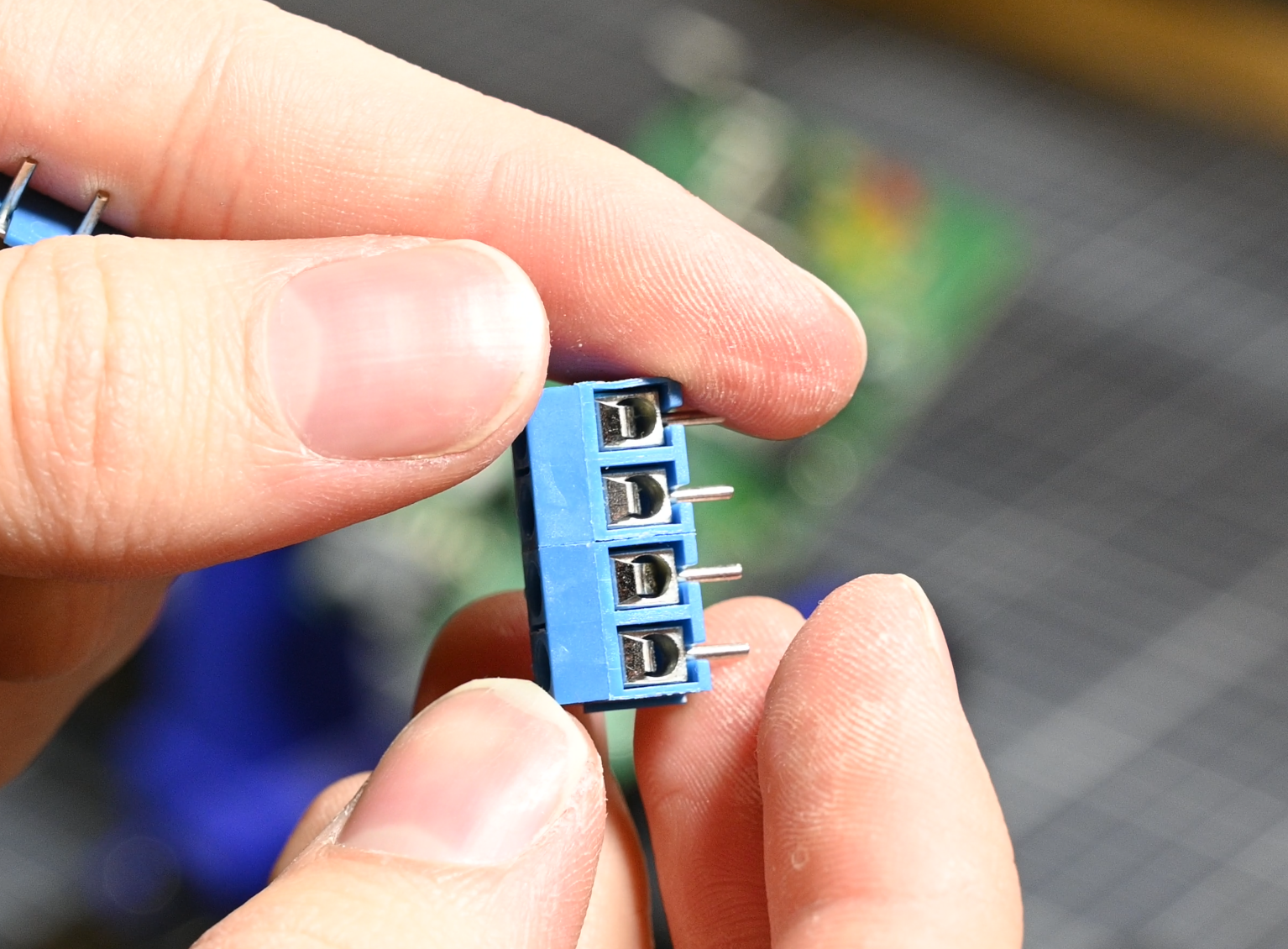
One final note for the assembly of the PCB: For the screw terminals, slide two of the 2-pin terminals specified together like pictured to create a 4-pin module to solder to the board. Schematic is also provided for reference in case it helps.
Downloads
Attach the SATA Power Distribution Cables

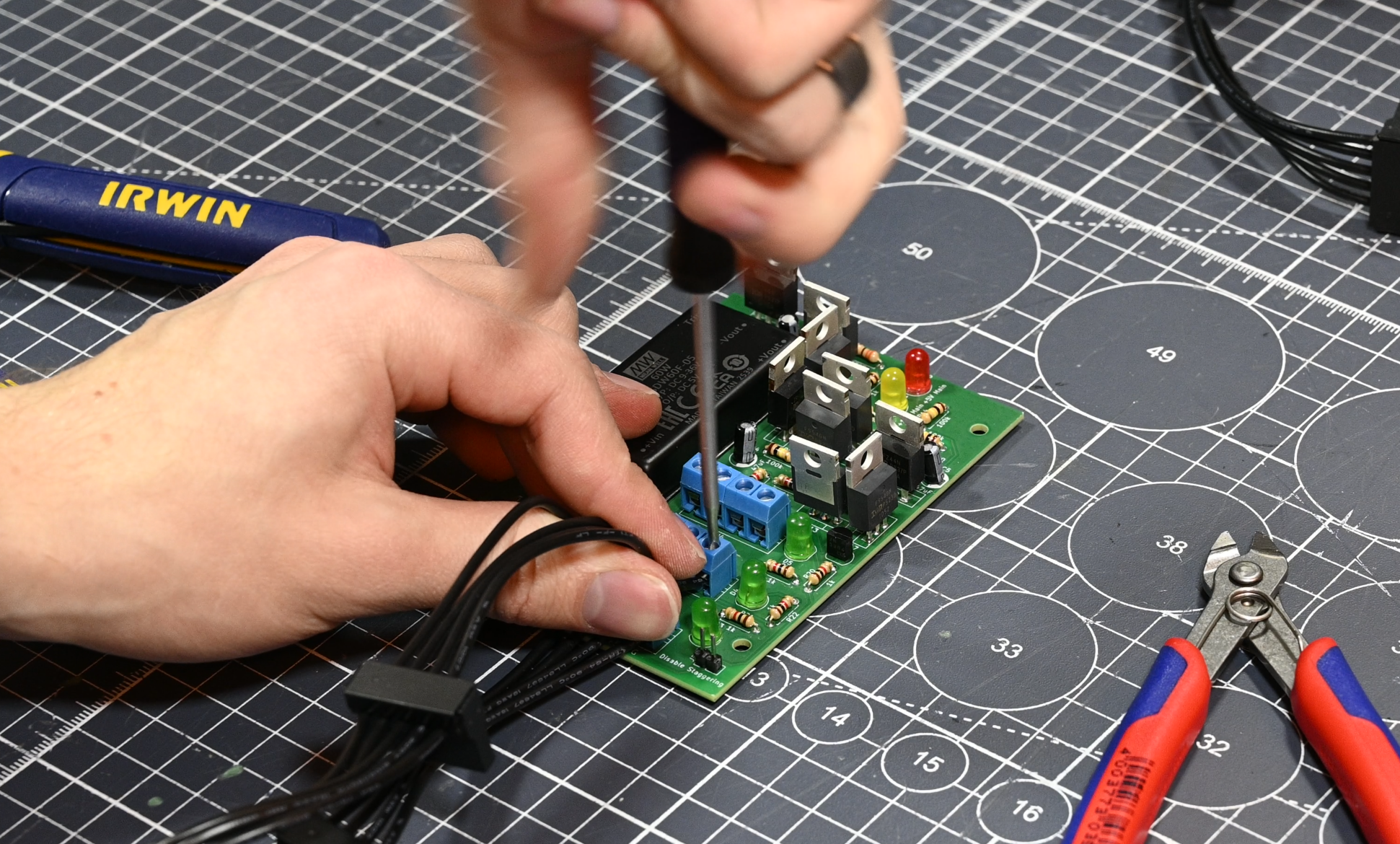
Now it's time to take the SATA power distribution cables and cut off the male SATA power end of them that allows them to plug into a power supply's SATA power connectors to expand them. However, before cutting this end off, I would recommend plugging the cable into the power supply and tracing which wire is 12V, 5V, and 3.3V. When plugged into a PSU's SATA power connector, the power wires should stay in line if you view the cable's connection from above. So, if the 12V wire is on the far left on the PSU's cable, it should also be far left on the SATA distribution cable. Quick tip: It's beneficial to use an old PSU with "Ketchup and Mustard" cables for this step, as it's easy to see which cable is which voltage (90% of the time 12V is Yellow, 5V is Red, 3.3V is Orange, and GND is Black).
To hopefully make this a little less convoluted, here's an example. Looking at the first photo on this step, going from left to right, the order of the voltage rails of the power wires on my cable should be 3.3v, GND, 5v, GND, 12v.
Once the cables are identified, cut off the male SATA end and the 3.3V wire from your distribution cable, as we will not be using it. 3.3V has been deprecated from the SATA power standard for a long time, and any hard drives that are new enough to still make sense to use in a NAS build should take no issue with 3.3V power not being present. So, all we will need to keep track of are the 5V, 12V, and two GND wires. These wires can then be connected to the screw terminals with their corresponding labels, which are marked on the first of the three screw terminal blocks. This exact same pinout is copied backwards to the other two, so for all three blocks order is +12V, the next is GND, next is +5V, and next is GND going from left to right if you're looking at the front of the terminal blocks.
Finally - and yes, I know this is a LONG step - when screwing the cables into the terminal blocks, use Ferrules if you can to ensure the best connection possible. If you don't have Ferrules, that's okay (I don't), and just screw the stranded wire into the terminal blocks tightly. The one thing you should NOT do is tin the wires! This is a great way to make sure that the connections will loosen over time and possibly become a fire hazard.
The Board Is Done!
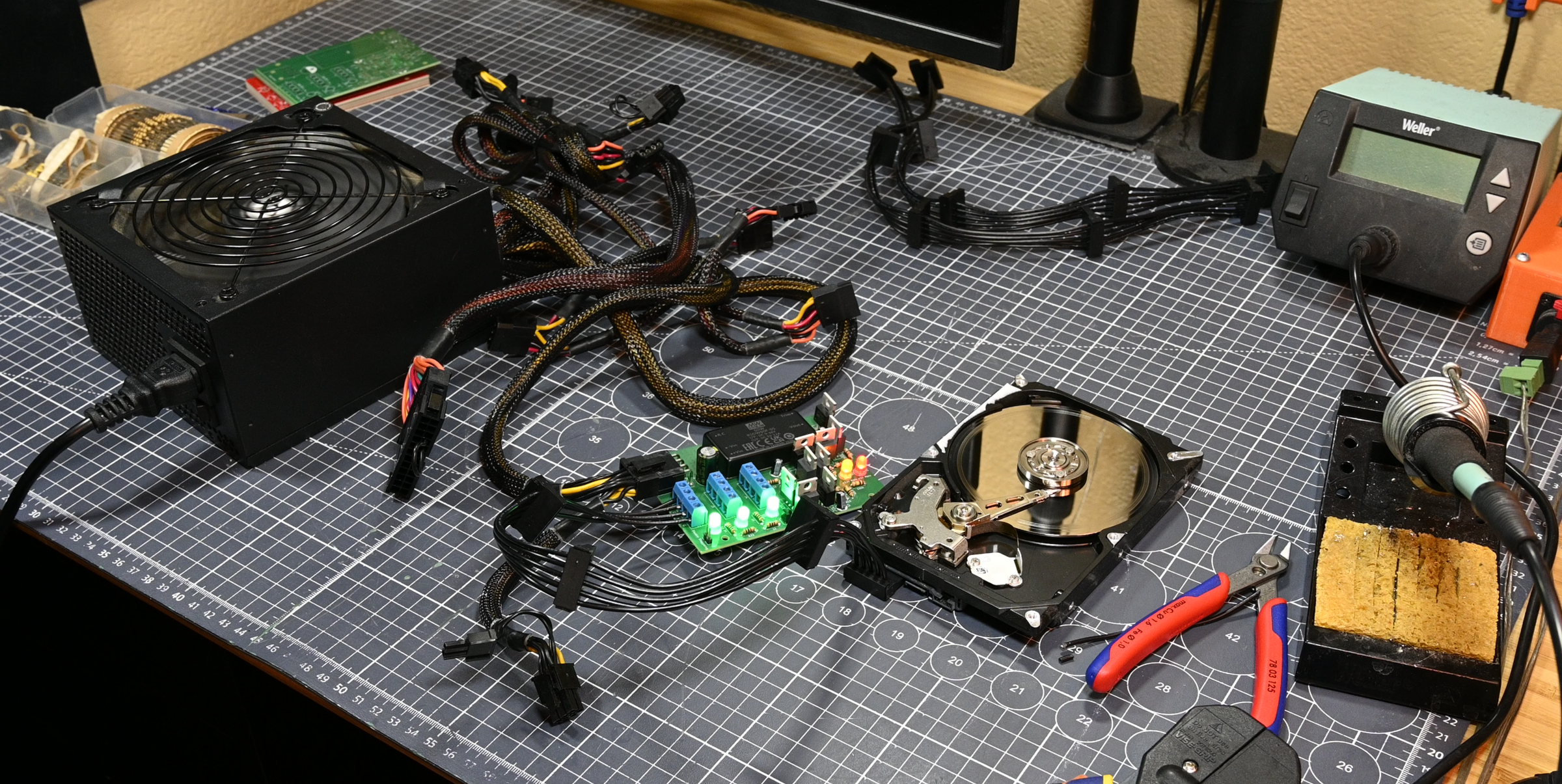
That's it! The board is done! Now, if you're planning to build the mounting sled I designed for use in a 3.5" bay, keep going to the next steps, but here's a bit of info about this board.
TESTING!!!: This board is a custom power supply piece, so make sure you test it in a way that means it won't destroy expensive or meaningful hardware if you did something wrong! I HIGHLY recommend testing this board with an old junk hard drive before plugging anything into it that's expensive or that has important data on it. Make sure to test at least one plug on each of the three SATA cables to ensure that nothing is hooked up wrong.
Mounting: This board is designed to share the exact same mounting hole dimensions as can be found on the bottom of a 2.5" SSD, for versatility in mounting options. So, the dimensions for the mounting holes are: 4 3.2mm diameter mounting holes in a rectangular pattern, with a distance of 61.7mm center to center in one direction, and 76.6mm center to center in the other. This board will benefit from being mounted in a place where there is some airflow. DO NOTE: When mounting this board, be SURE that there's proper isolation between whatever the board is mounted to and the solder joints on the back, otherwise you will cause some catastrophic short circuits.
Staggering System: This board defaults to a staggered spin-up of the hard drives connected to it, done in three 4-drive groups. To disable this, place a jumper across the 2-pin header labeled "Disable Staggering" on the PCB. If you find that you want to adjust the timing of this staggering, either increase or decrease the capacitance of C4 and C5. C4 adjusts the delay between the first and second zones (higher capacitance = longer delay), and C5 adjusts the delay between the second and third zones (higher capacitance = longer delay).
OPTIONAL - Assemble the 3.5" Mounting Sled

If you're interested in the 3.5" mounting sled that I designed and used in my video, here's how to do this! With the additional resources noted for this part of the project in the materials section of this Instructable, the first step is to mount the PCB to the sled using 4 M3x6 screws.
Mount and Wire the 50mm Fan


Use two standard PC fan screws driven up through the bottom of the sled to mount the 50mm fan to the assembly. Once the fan is mounted, wire it into any of the 5V rails available on any of the screw terminals for the SATA power distributers. The wires can just be inserted into the screw terminals alongside the wires for the SATA power cables to make these connections.
That's It! Now We're Truly Done
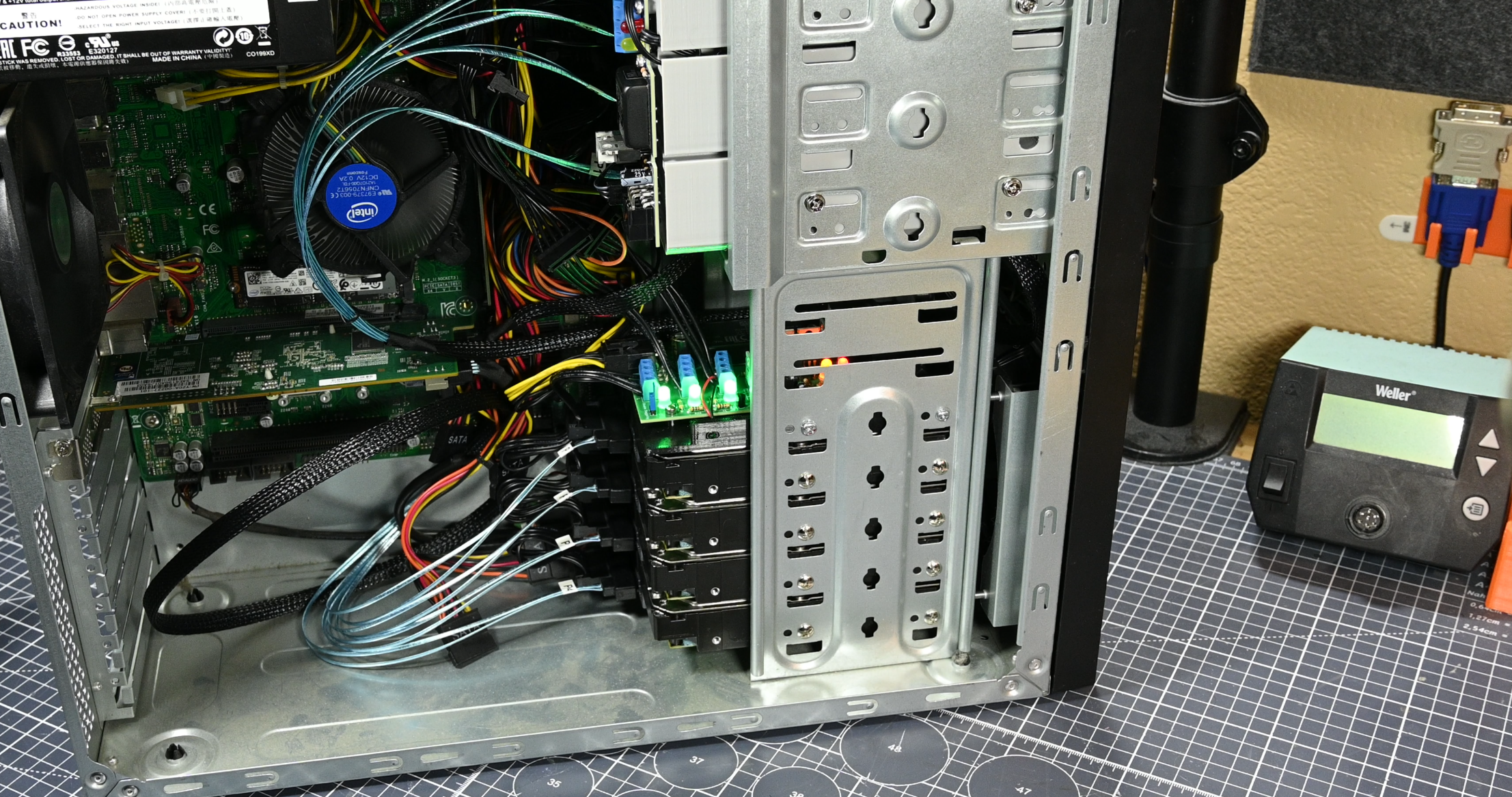
Alright, and with that, this project is complete! I hope that at least some of the people seeing this Instructable think that this project is cool/useful, and if anyone chooses to build this themselves, please share it in the "I Made It" section below, because I'd love to see it!