Graduation Cap Glow Up - How to Add LED Animations, Text, and Games to Your Grad Cap
by Facio Ergo Sum in Circuits > Microcontrollers
129 Views, 0 Favorites, 0 Comments
Graduation Cap Glow Up - How to Add LED Animations, Text, and Games to Your Grad Cap
.JPG)
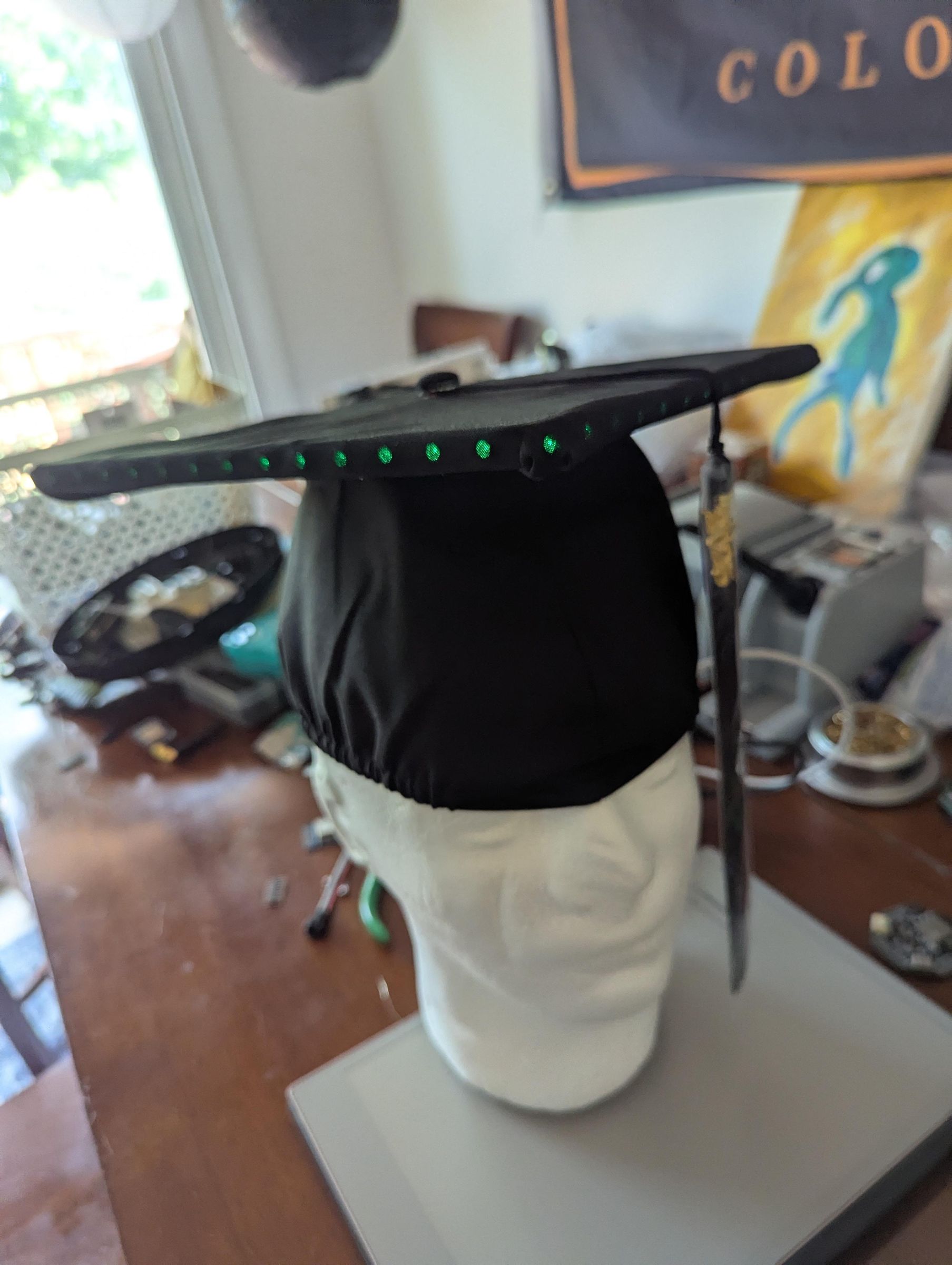
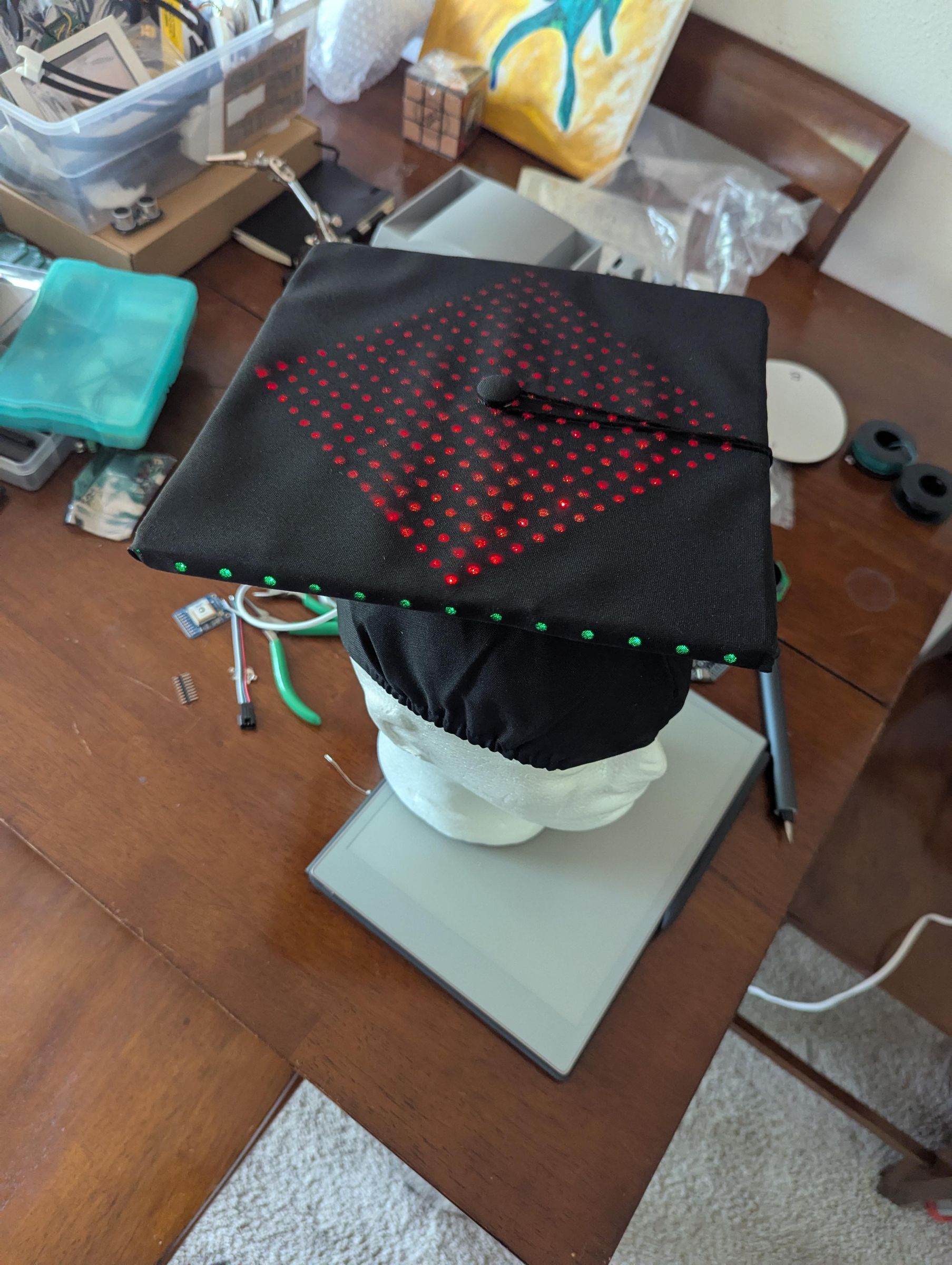
This project was inspired by the work of a CU Boulder CTD student project. Many thanks to Keaton for allowing me to adapt his idea into a full tutorial.
Graduation is right around the corner, and as classes are wrapping up, I realized: "Oh crap! I need to decorate my cap!" I wanted to do something fun and novel to show off my electrical engineering skills, and what better way to do that, than with LEDs!
And conveniently, it also gets to incorporate my senior design project under the hood, which was a custom ESP32 microcontroller called tinyCore.
I made this tutorial so hopefully others can replicate this project, and share their awesome custom animations, games, and style as they cross the stage. And for those of you who might be building this project right now, Congrats on Graduating!
You have a bright future ahead of you.
(pun intended)
Supplies

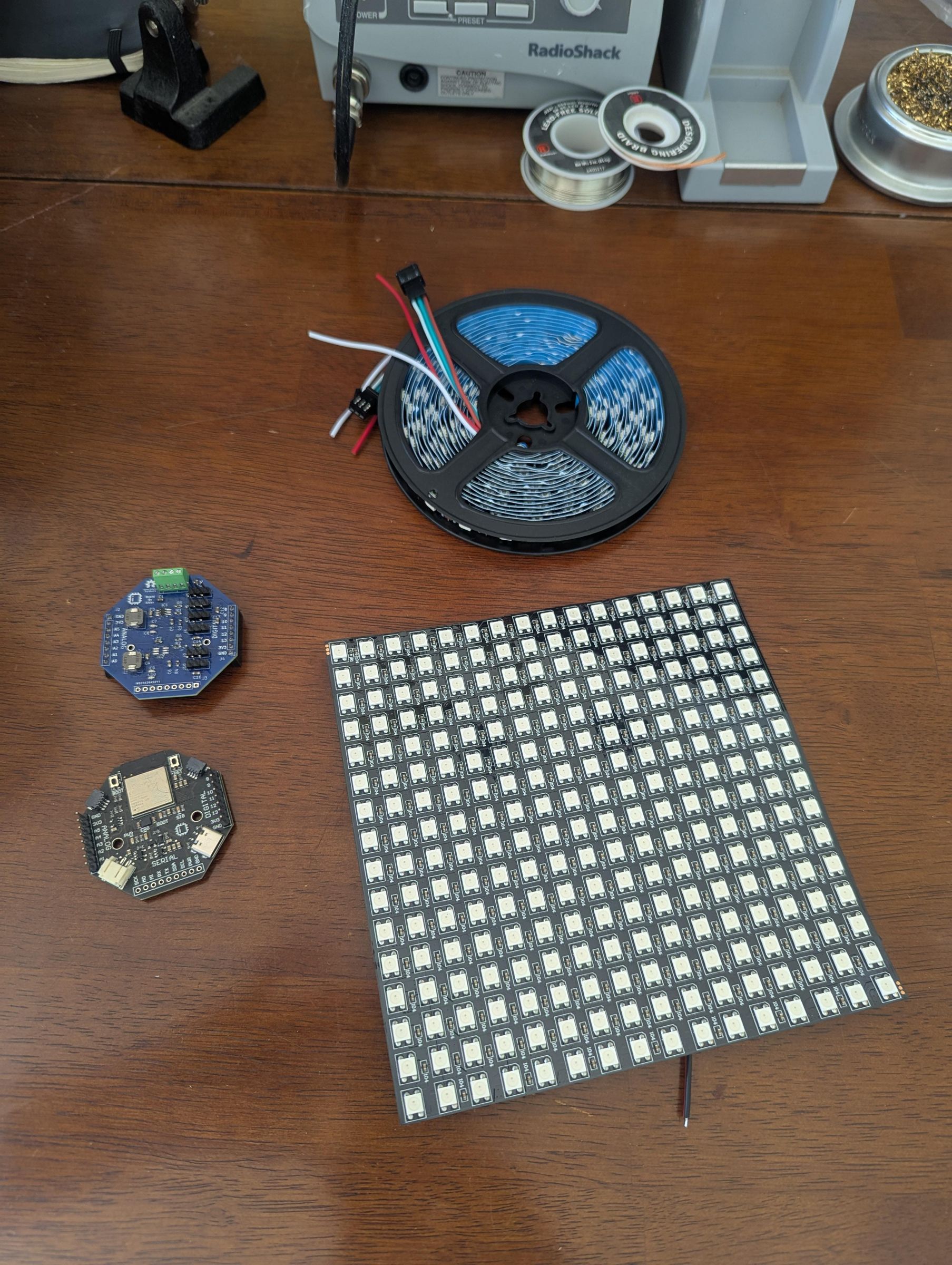
First, we're gonna need some materials. I tried to keep this short, but I'm including two lists to provide multiple microcontroller options. However, in the tutorial itself, I will only be providing instructions on how to build this project with tinyCore.
tinyCore Hardware (Recommended):
- tinyCore Development Kit
- tinyGlow Expansion HAT
- 16x16 LED Matrix
- Smart LED Strip (Optional for Edge Lighting)
- Portable USB Battery Bank (>5,000 mAh)
- Small Magnets (Optional)
Generic Alternative:
- ESP32 DEVKIT V1
- 16x16 LED Matrix
- Two Micro USB Cables
- Misc. Resistors (>220 Ohms)
- Wire
Please check out this tutorial for an example circuit using the standard ESP32 devkit.
You'll also need some basic electronics tools
Tools:
- Soldering Iron
- Scissors
- Wire Strippers
- Hot Glue Gun
Teardown the Cap
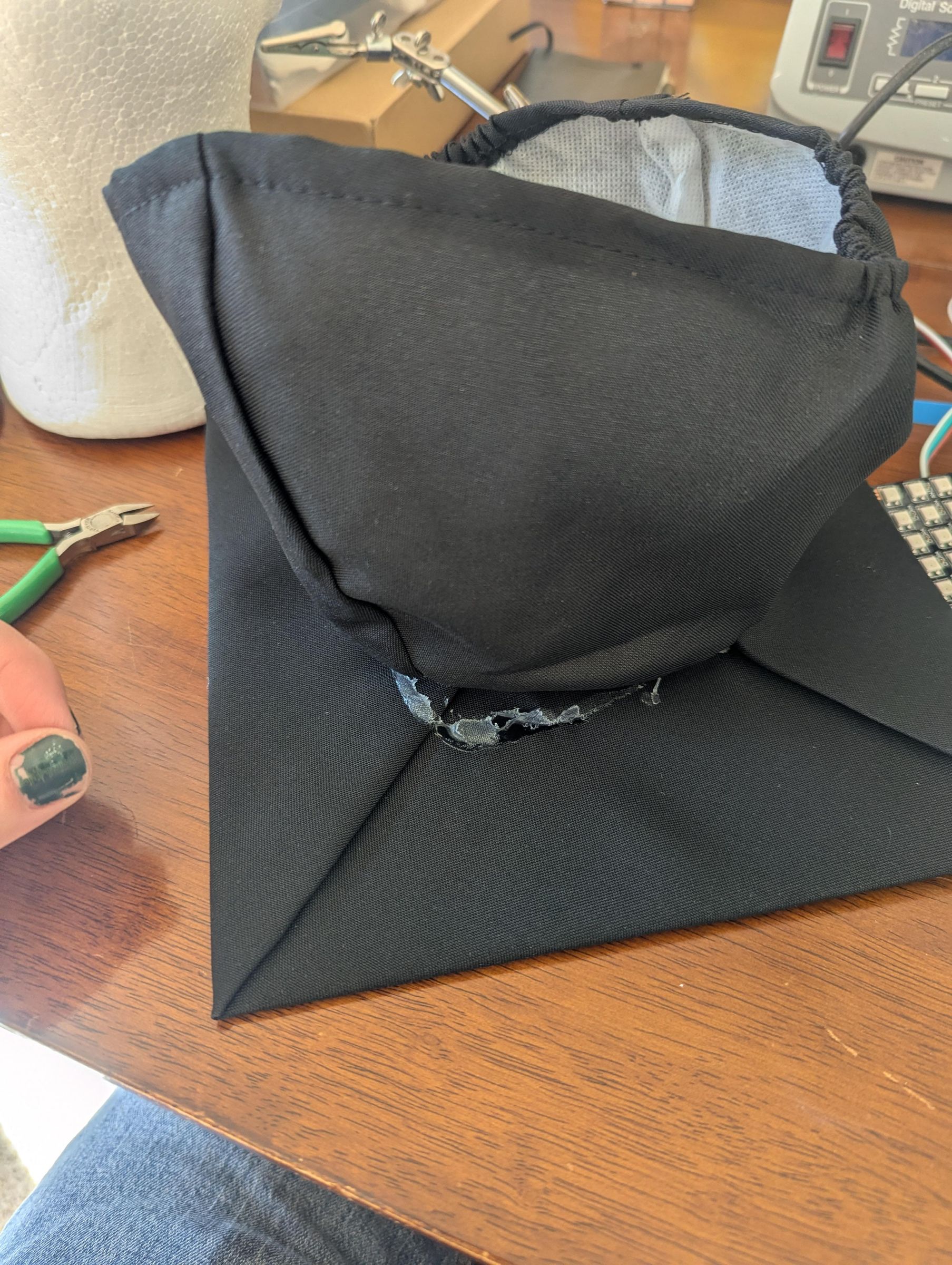

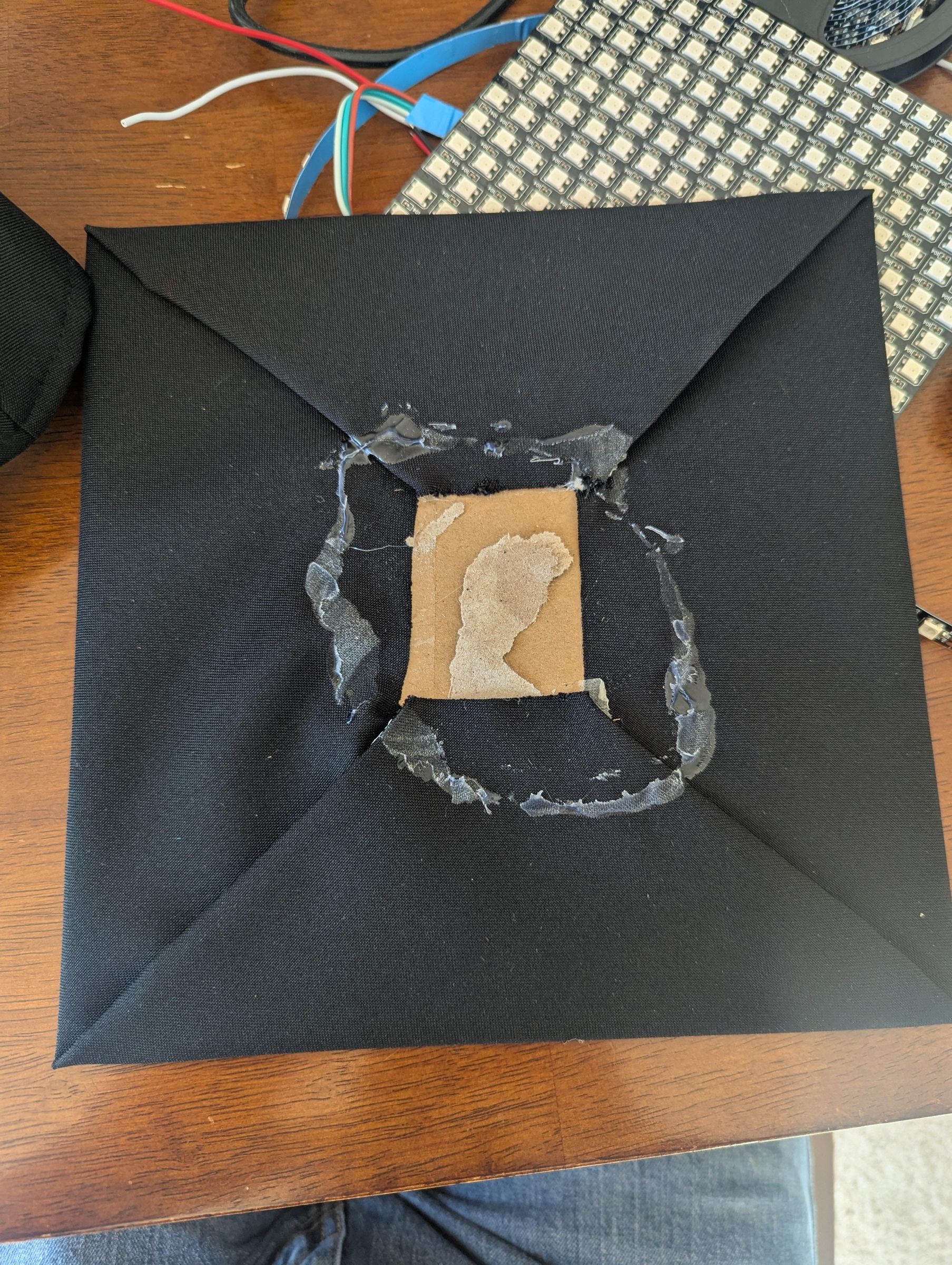
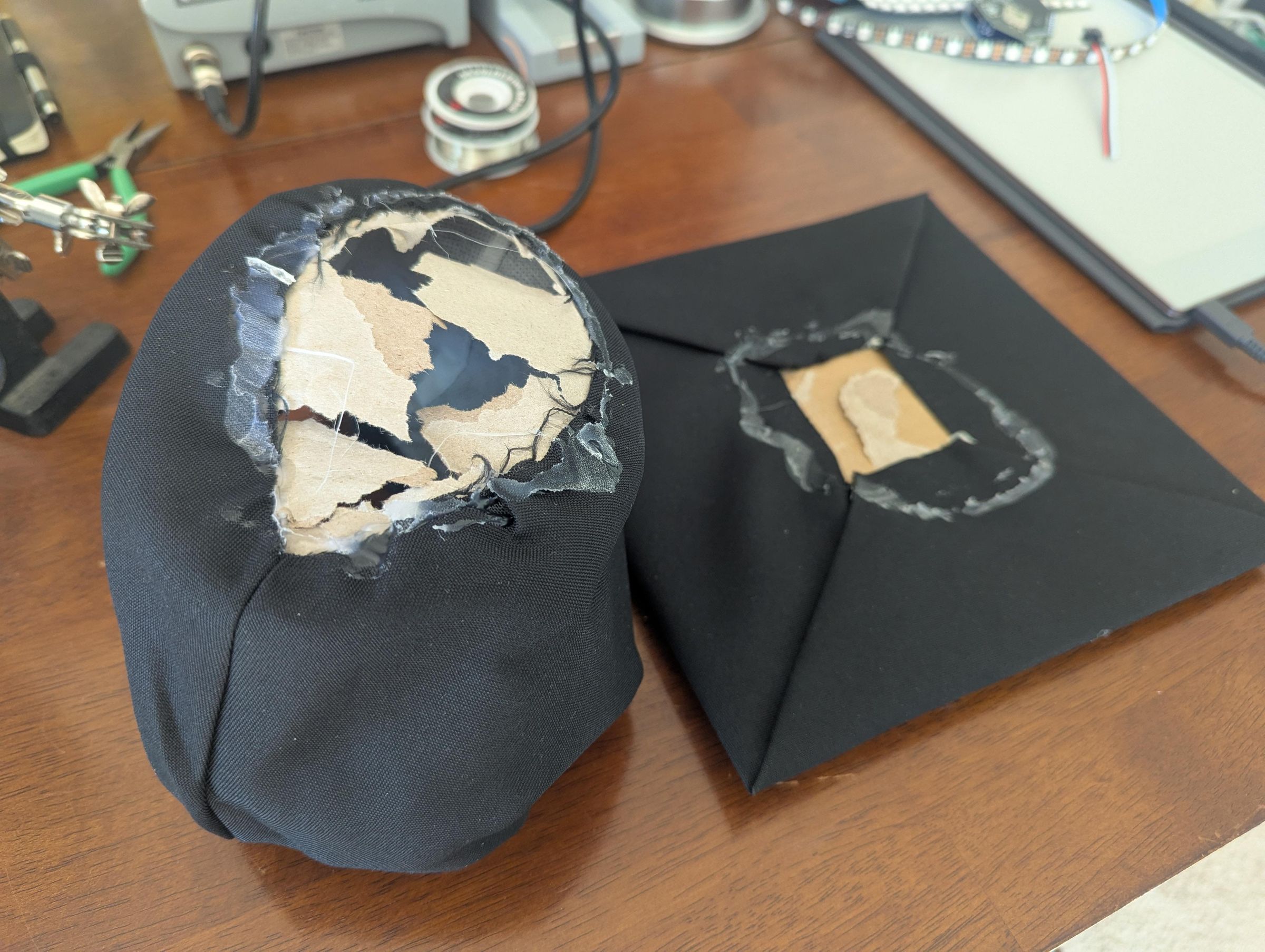
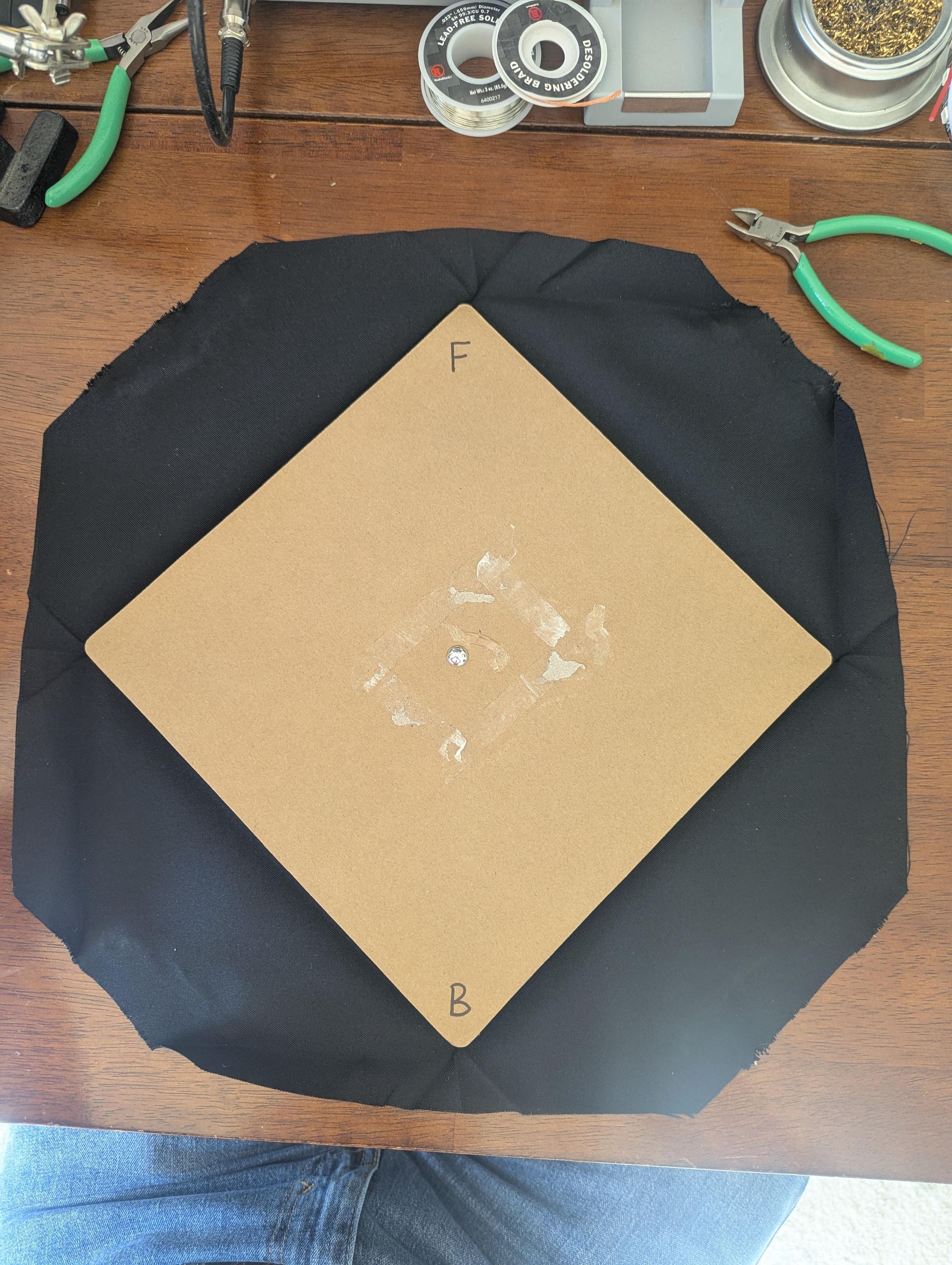
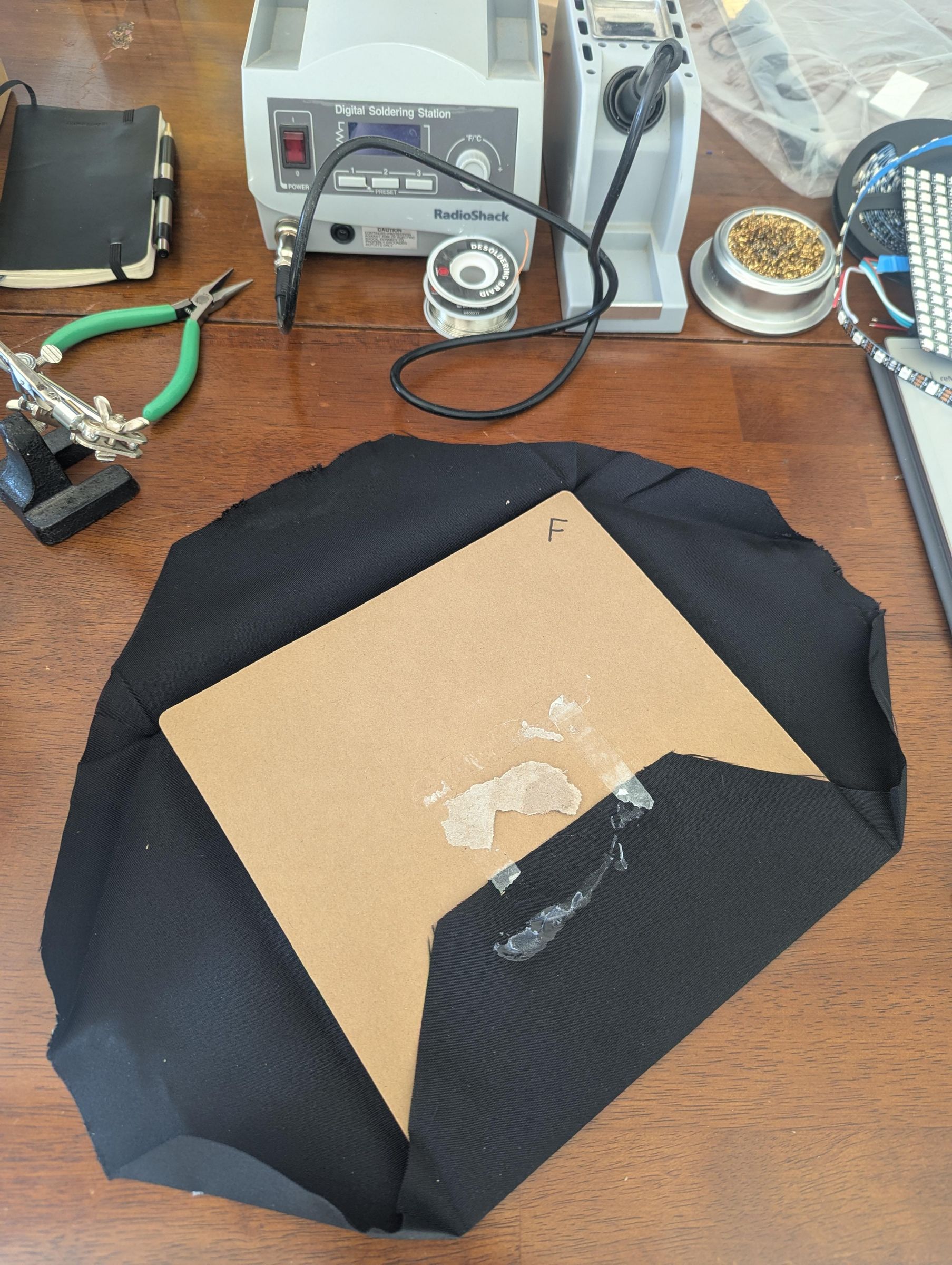
Our first step is taking apart our beautiful graduation cap that we just spent... 80 DOLLARS ON?!??
Be very careful, because the build quality of these caps does NOT match the price. Take your time and don't rip up the cap. Once these two pieces are separate, it's time to remove the fabric from the top of the cap.
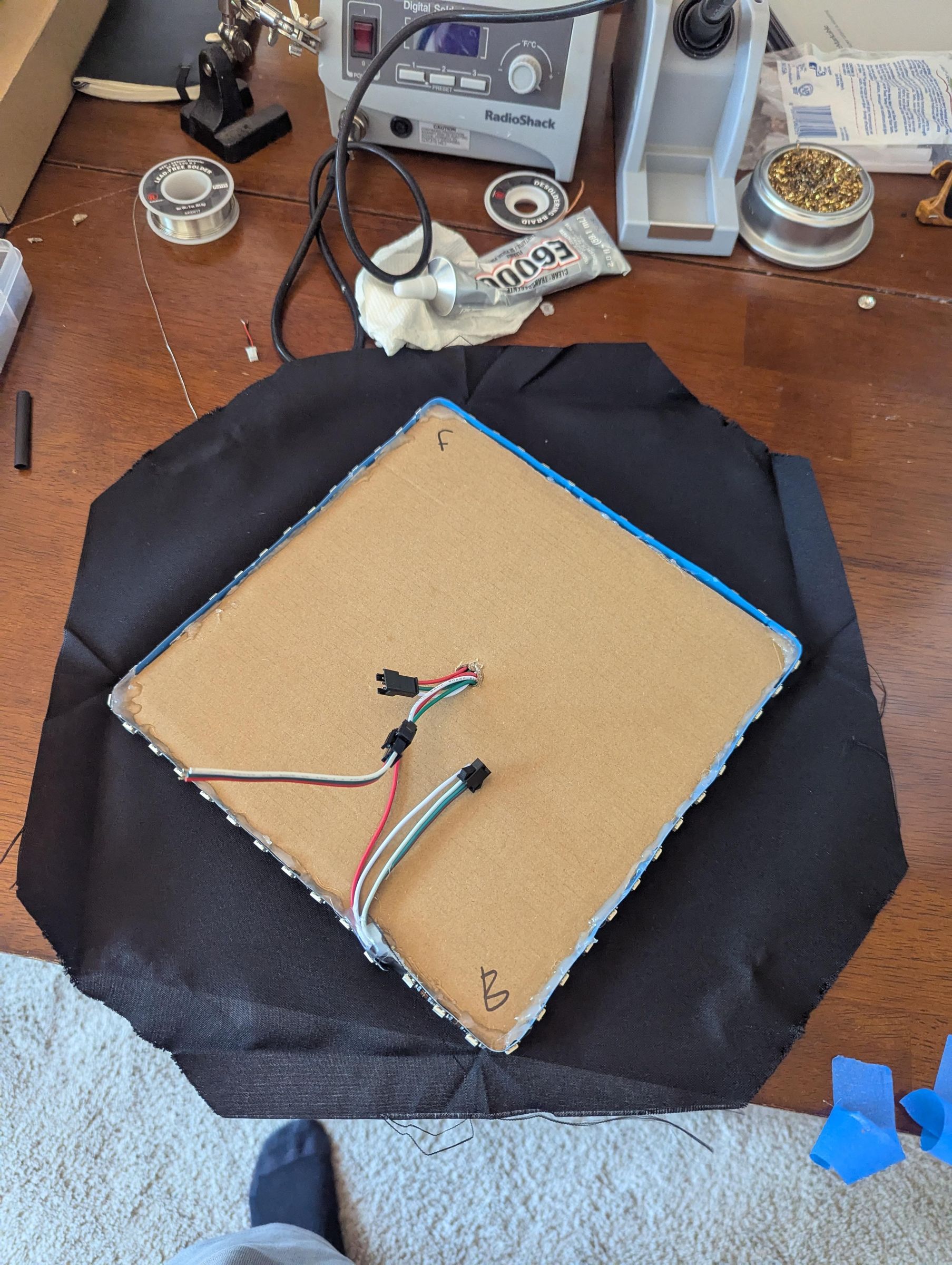
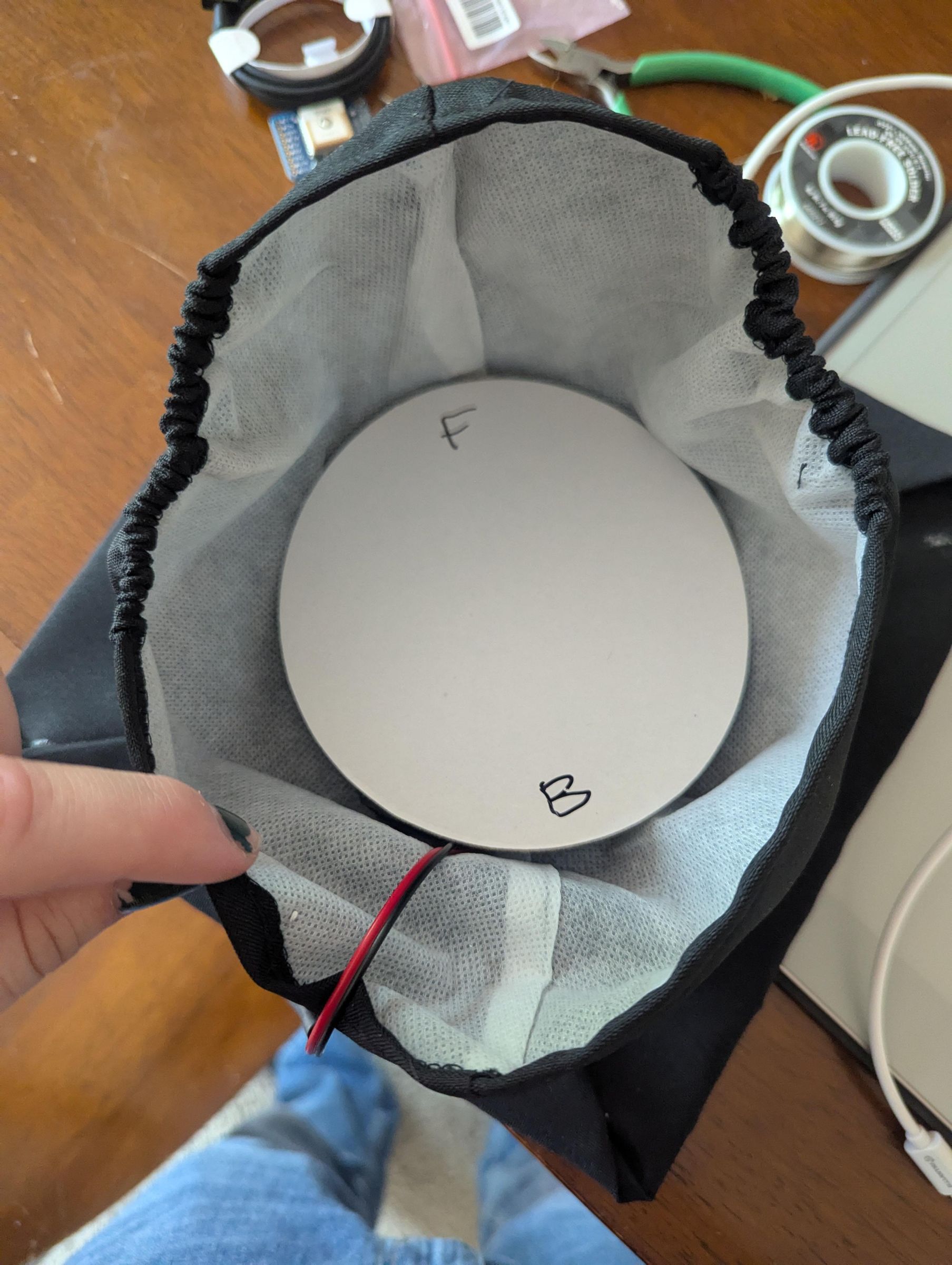
As you are unwrapping the cardboard use a pen or sharpie to note which side of the cardboard and fabric is the front (F) and back (B) of the cap. This will be very important later.
Add the LED Panel
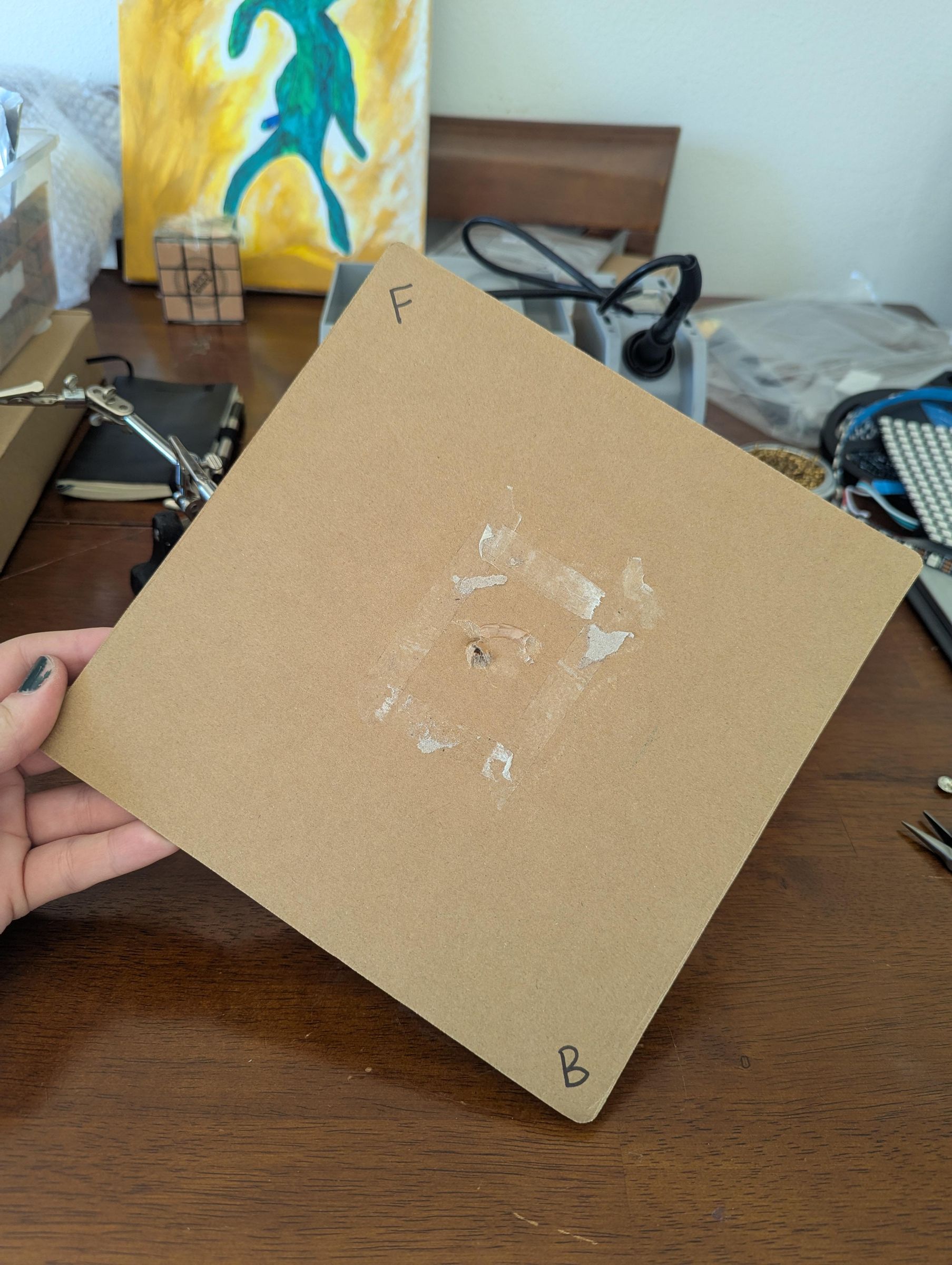
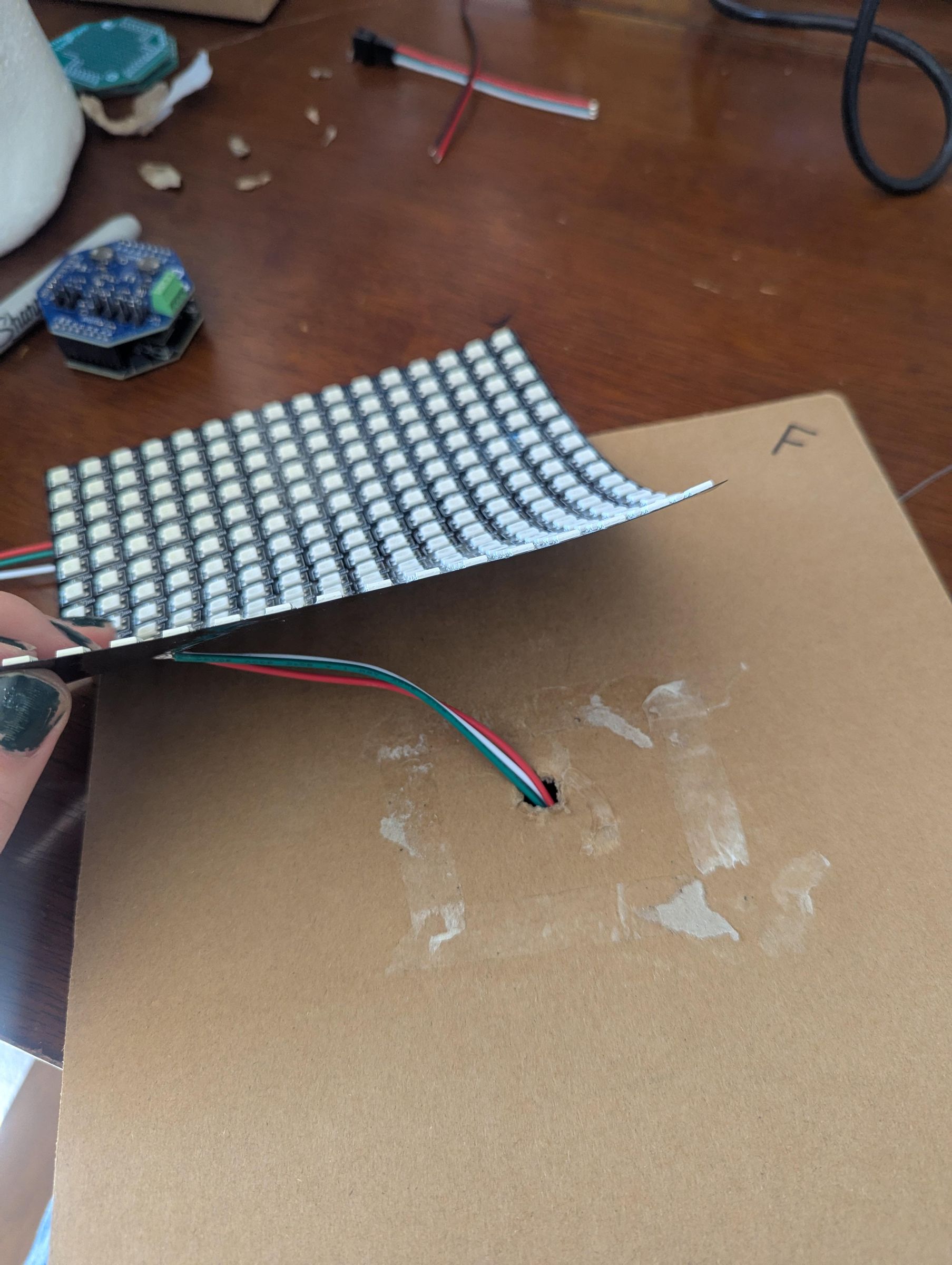
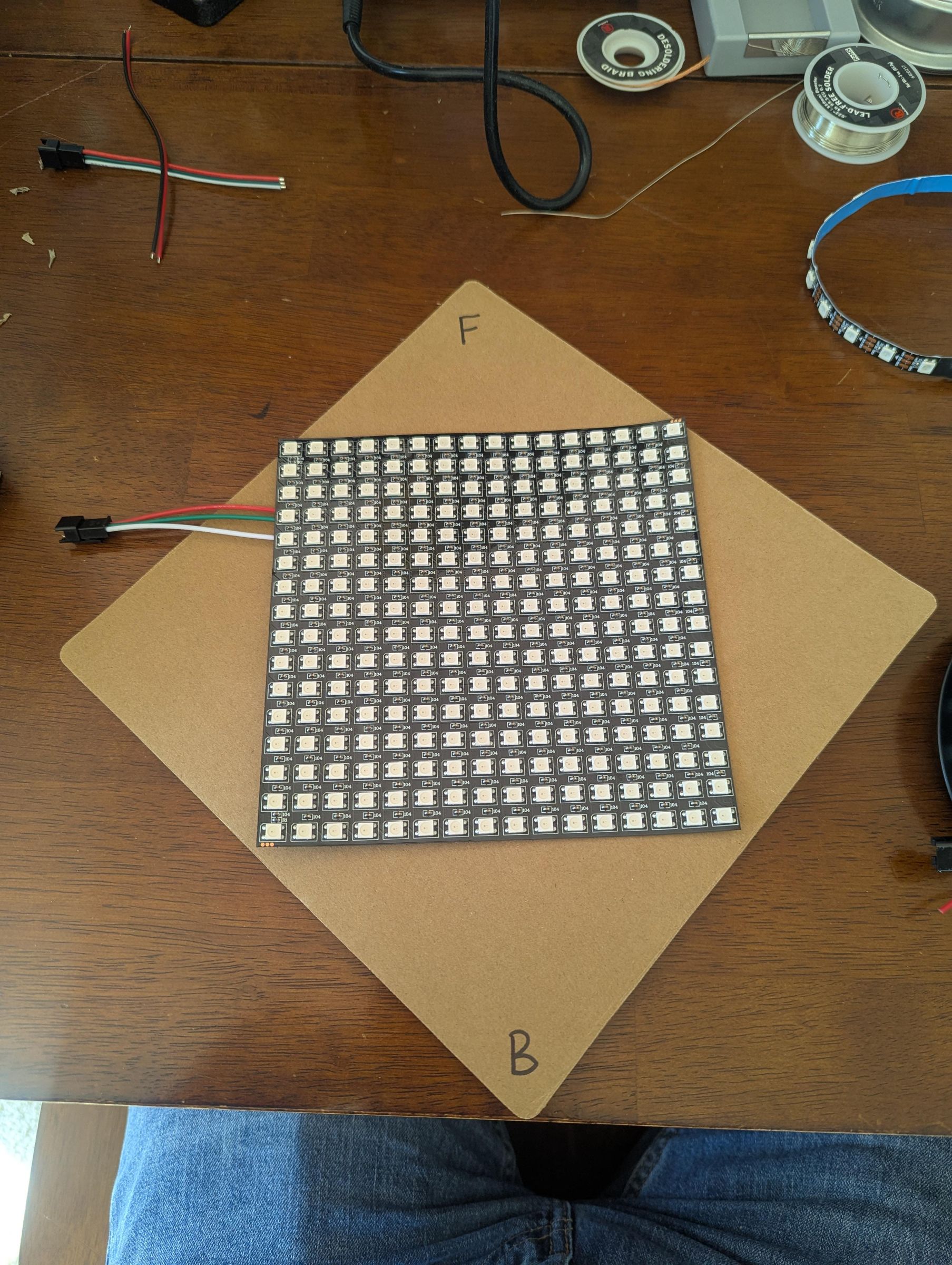
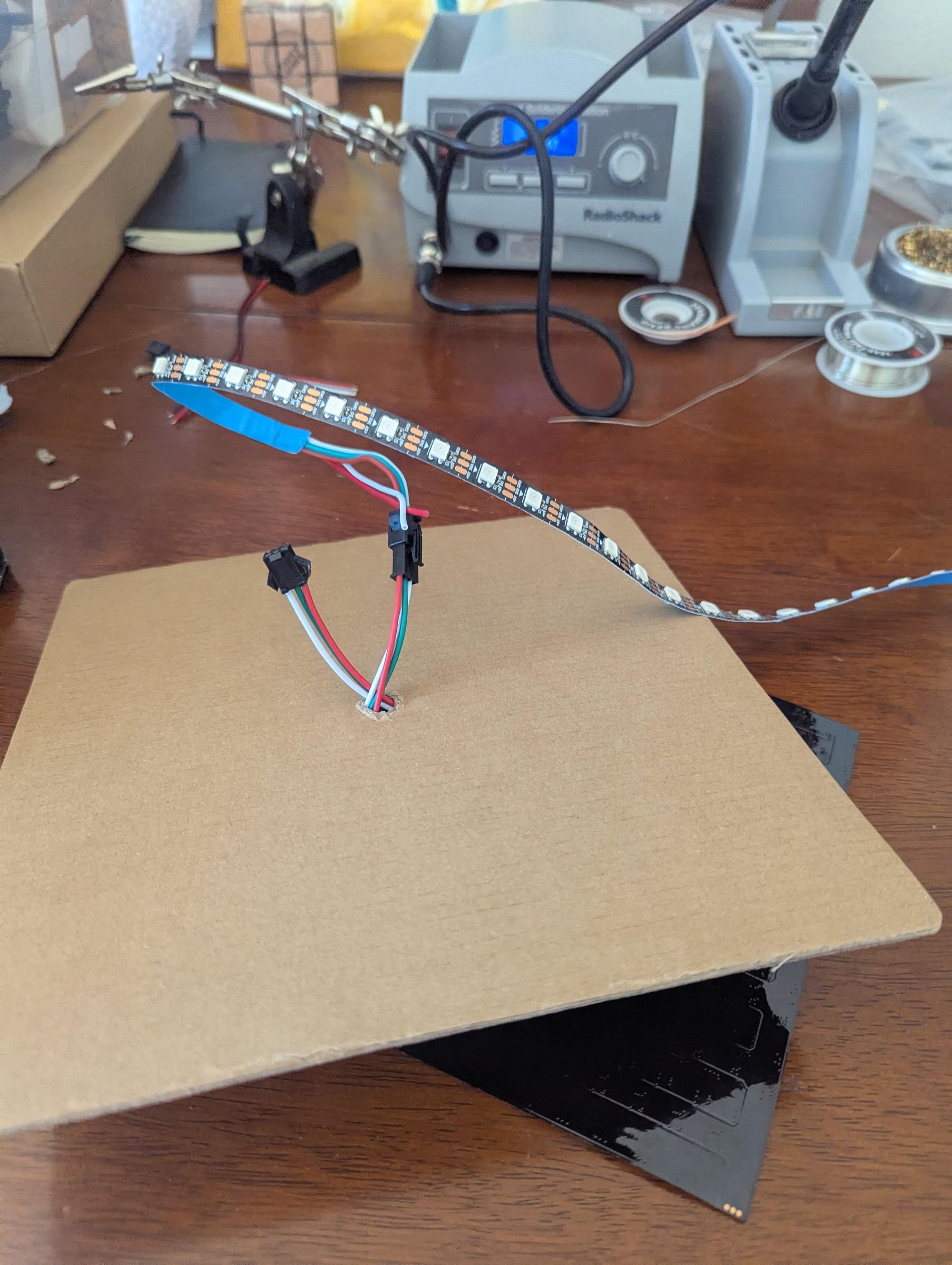
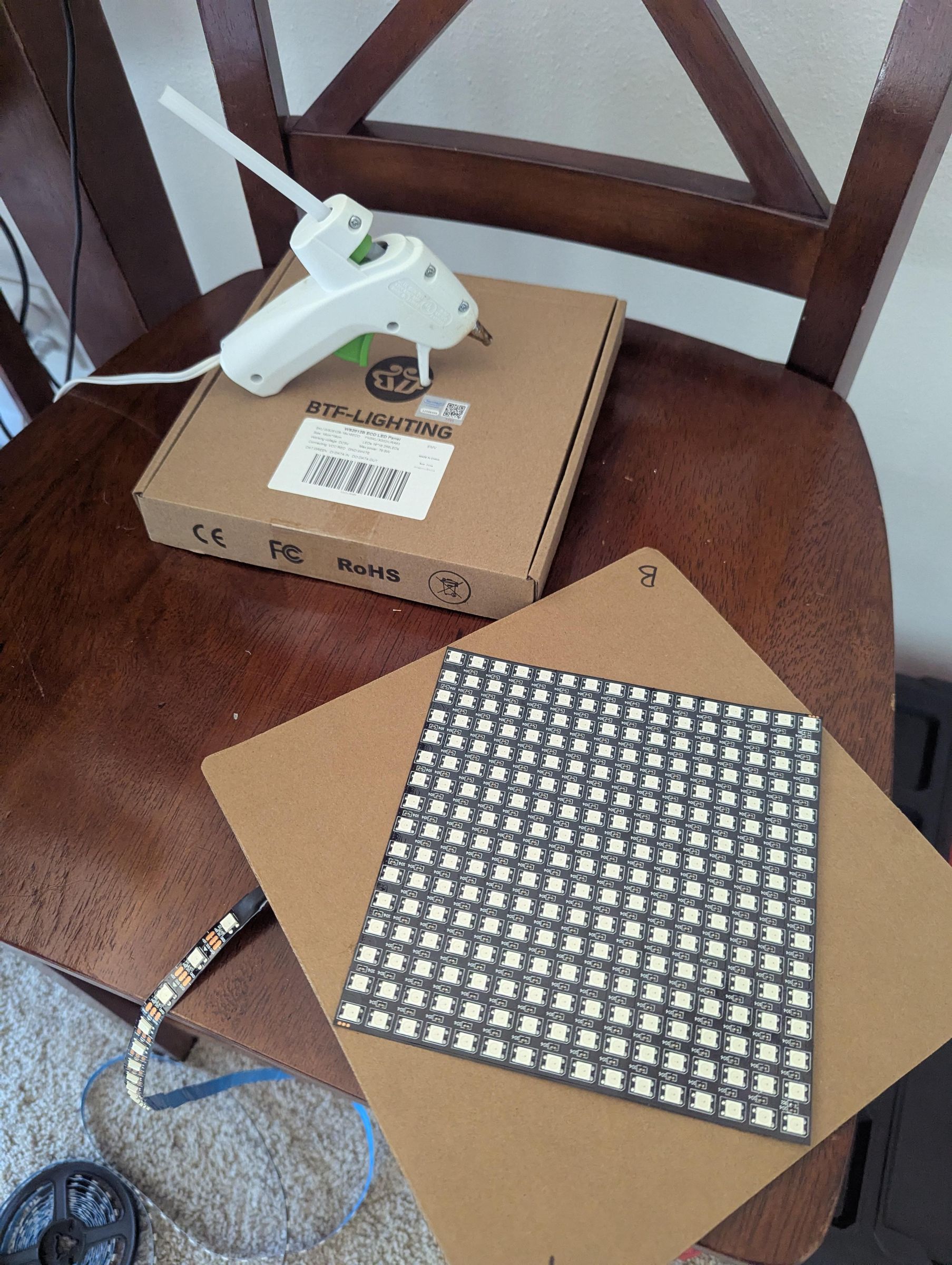
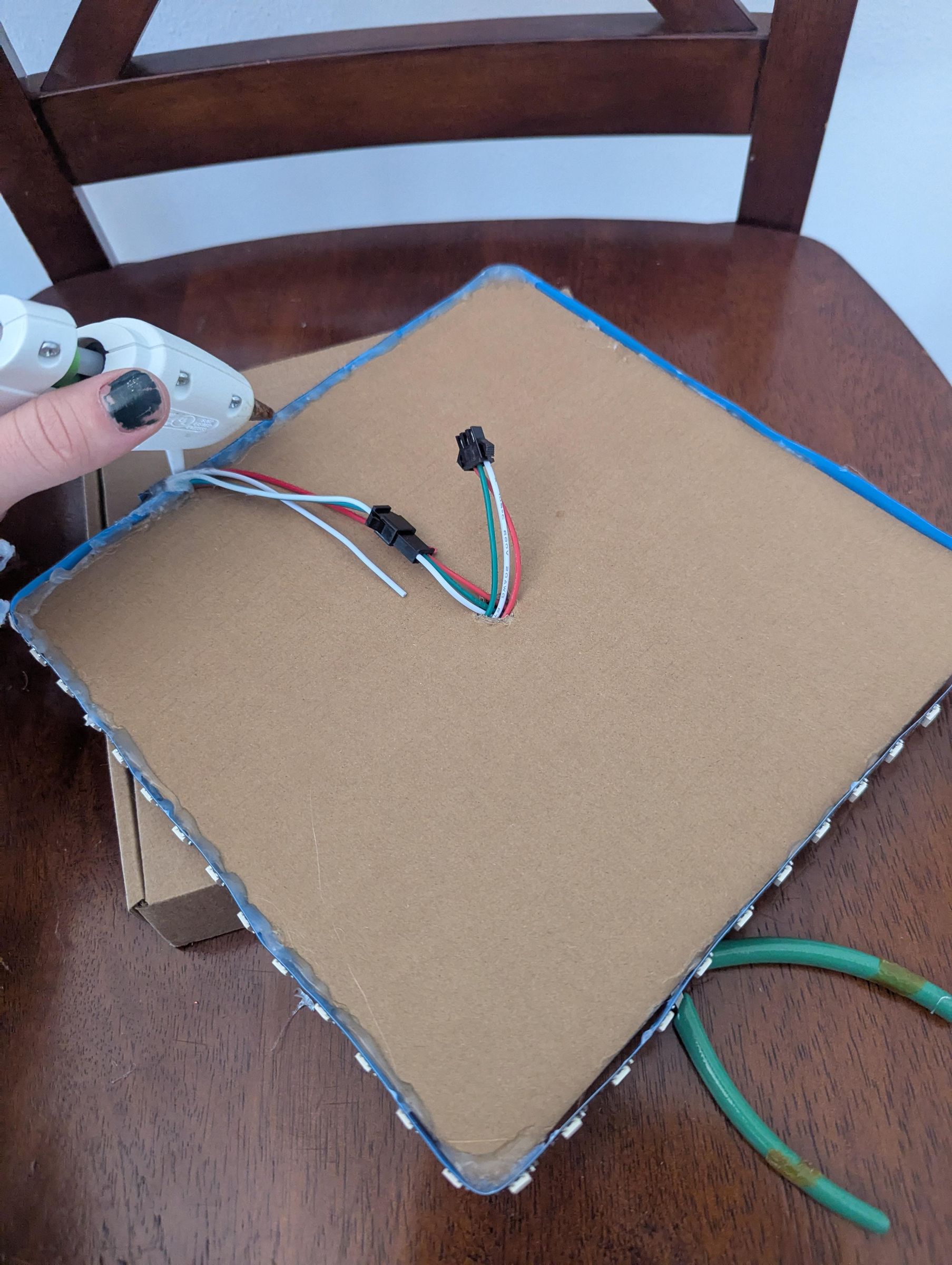
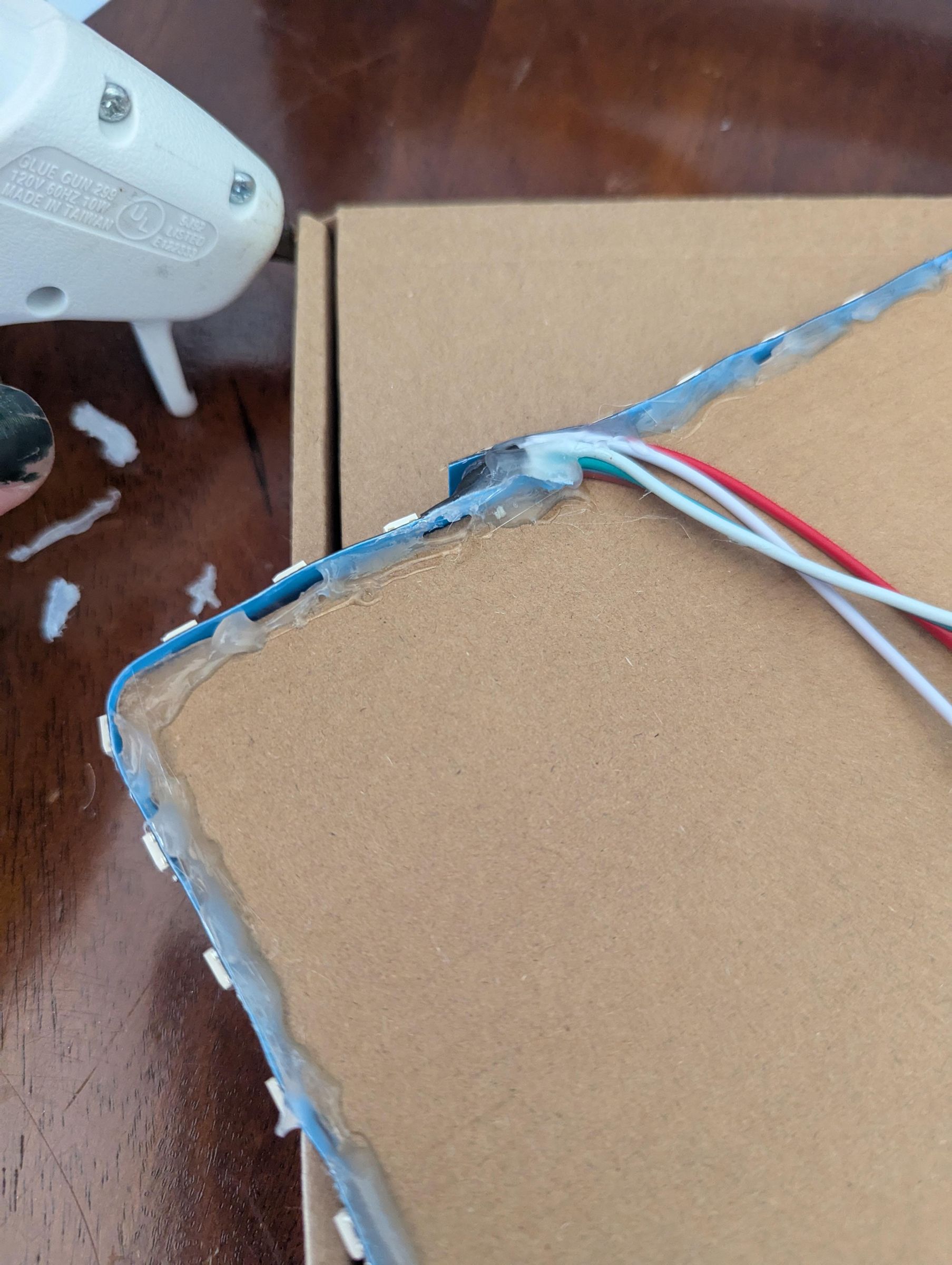

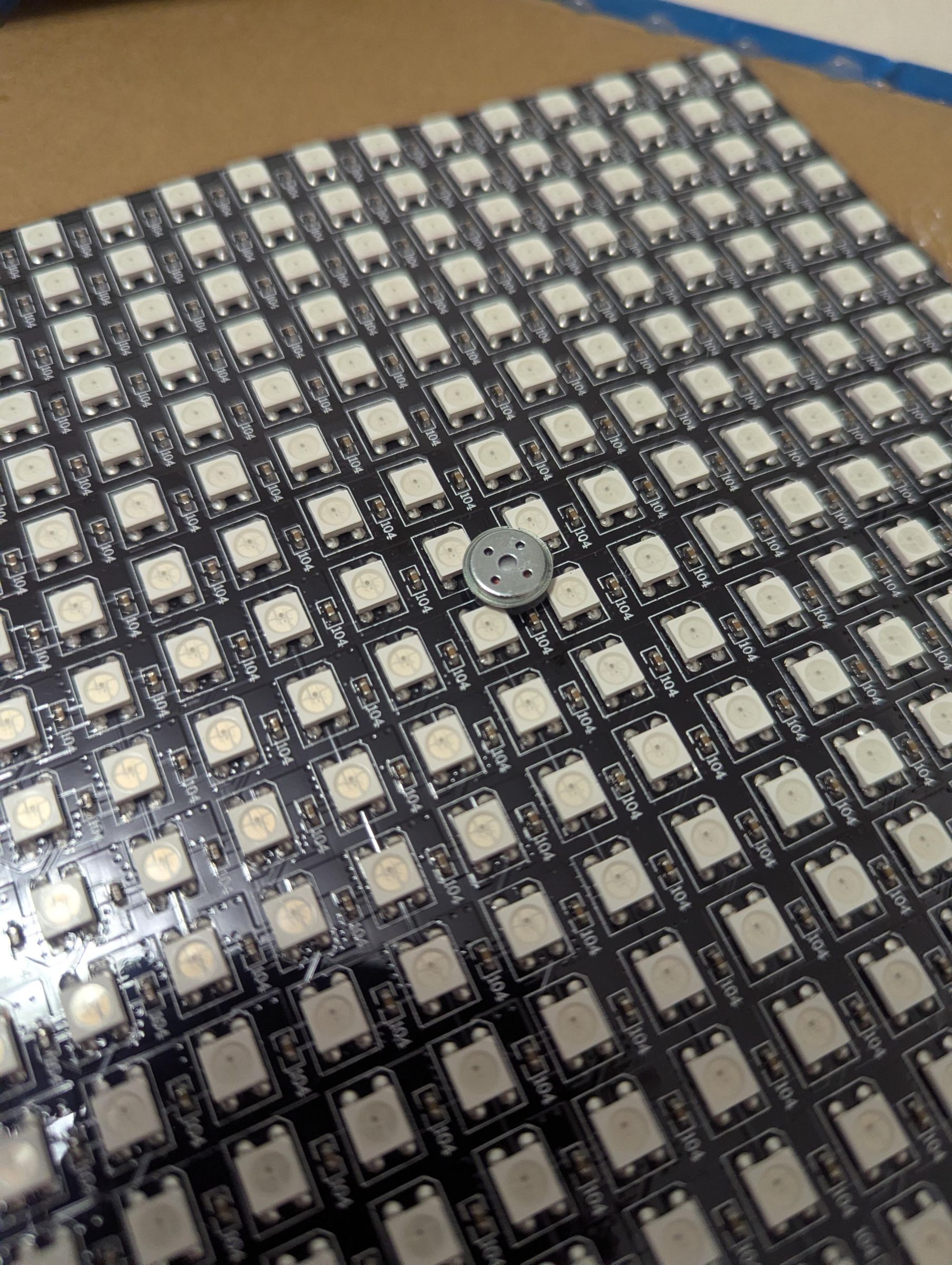
Once you have the cardboard by itself, use a pen or scissors to punch a hole directly in the center of the cardboard. Then we will feed the LED Matrix through the hole and hot glue it down.
On the reverse side, you'll want to connect the strand of LEDs in series with the display. We'll then run these LEDs around the perimeter of the Hat and glue them down as well.
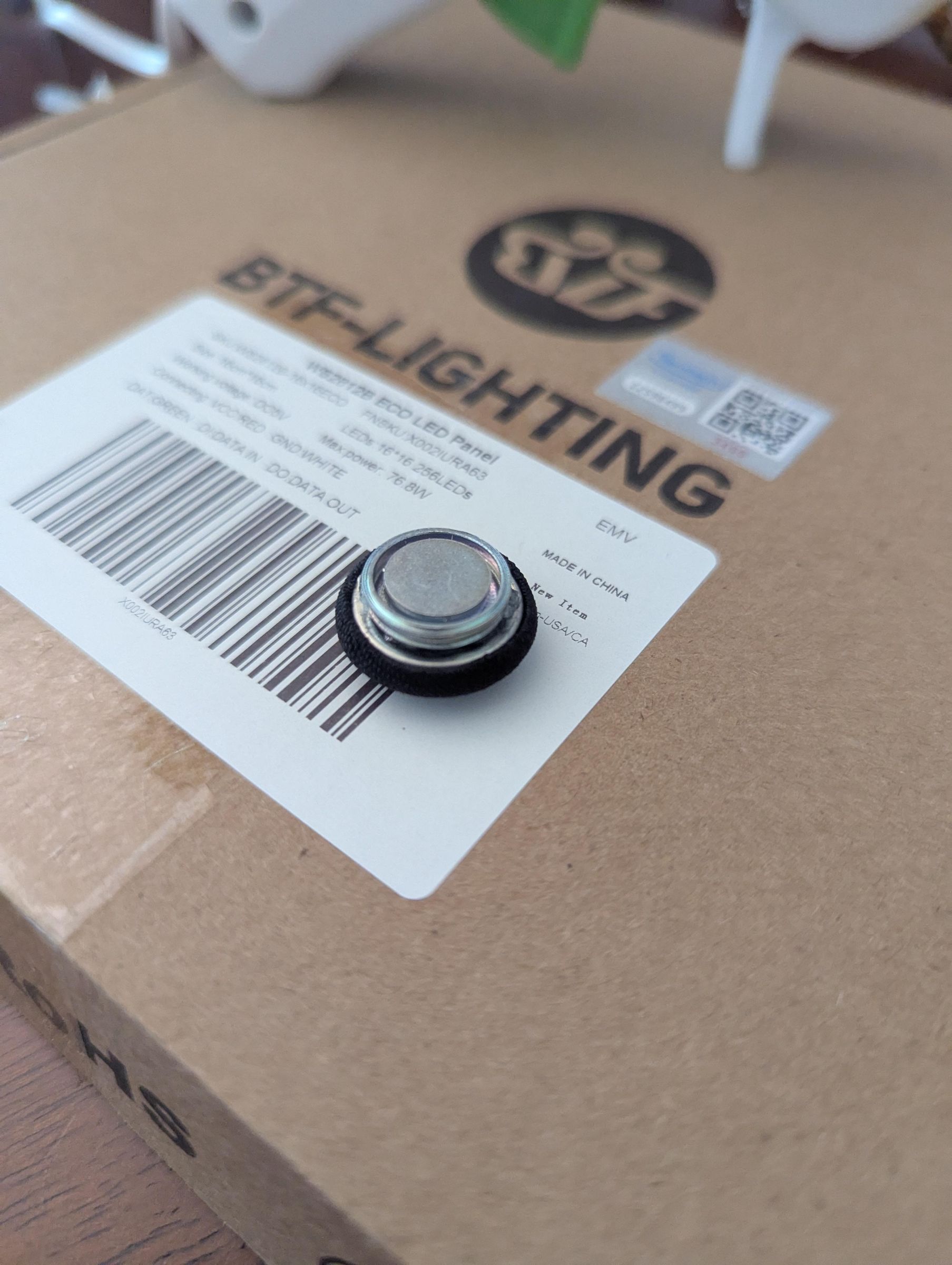
Optionally, you can hot glue a magnet into the center of the matrix, which will allow you to re-attach the tassel pin later. (I definitely recommend this!)
Re-attach the Fabric

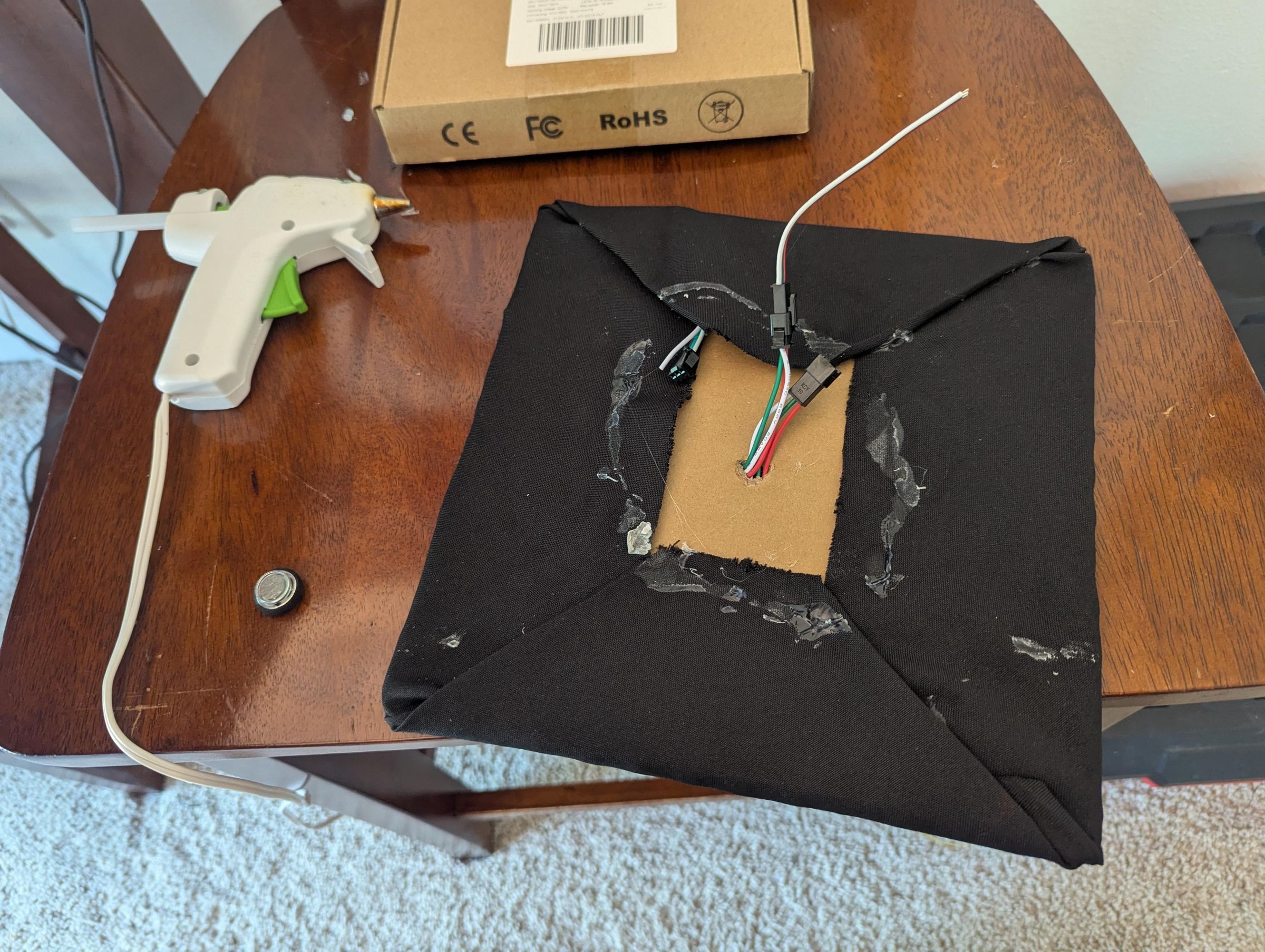
Do your best to align the cardboard with the fabric, and fold it back in the same way you removed it.
Use liberal amounts of hot glue to hold the fabric in place. (Don't worry, no one will see the bottom side.)
Re-attach the Cap
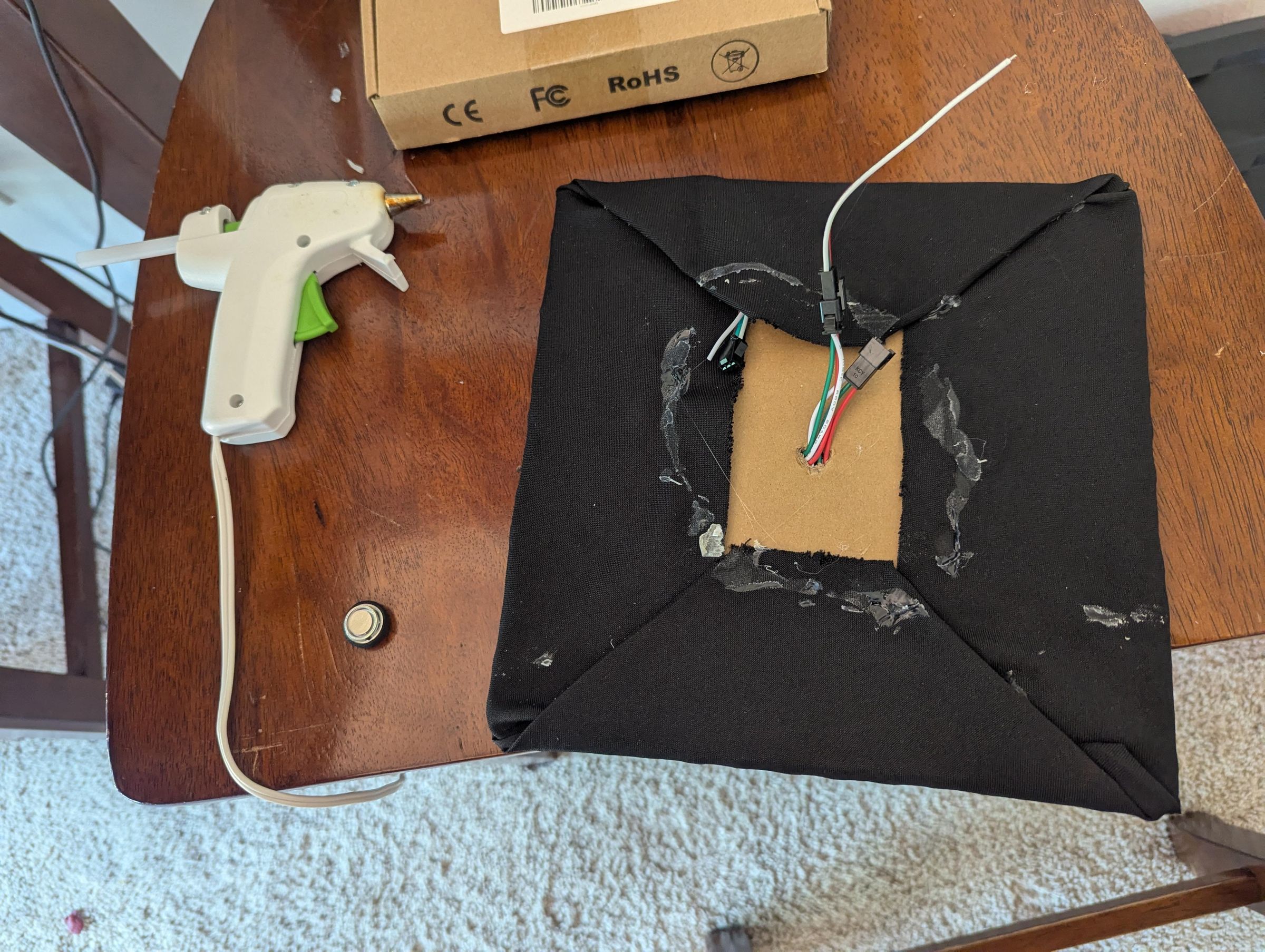

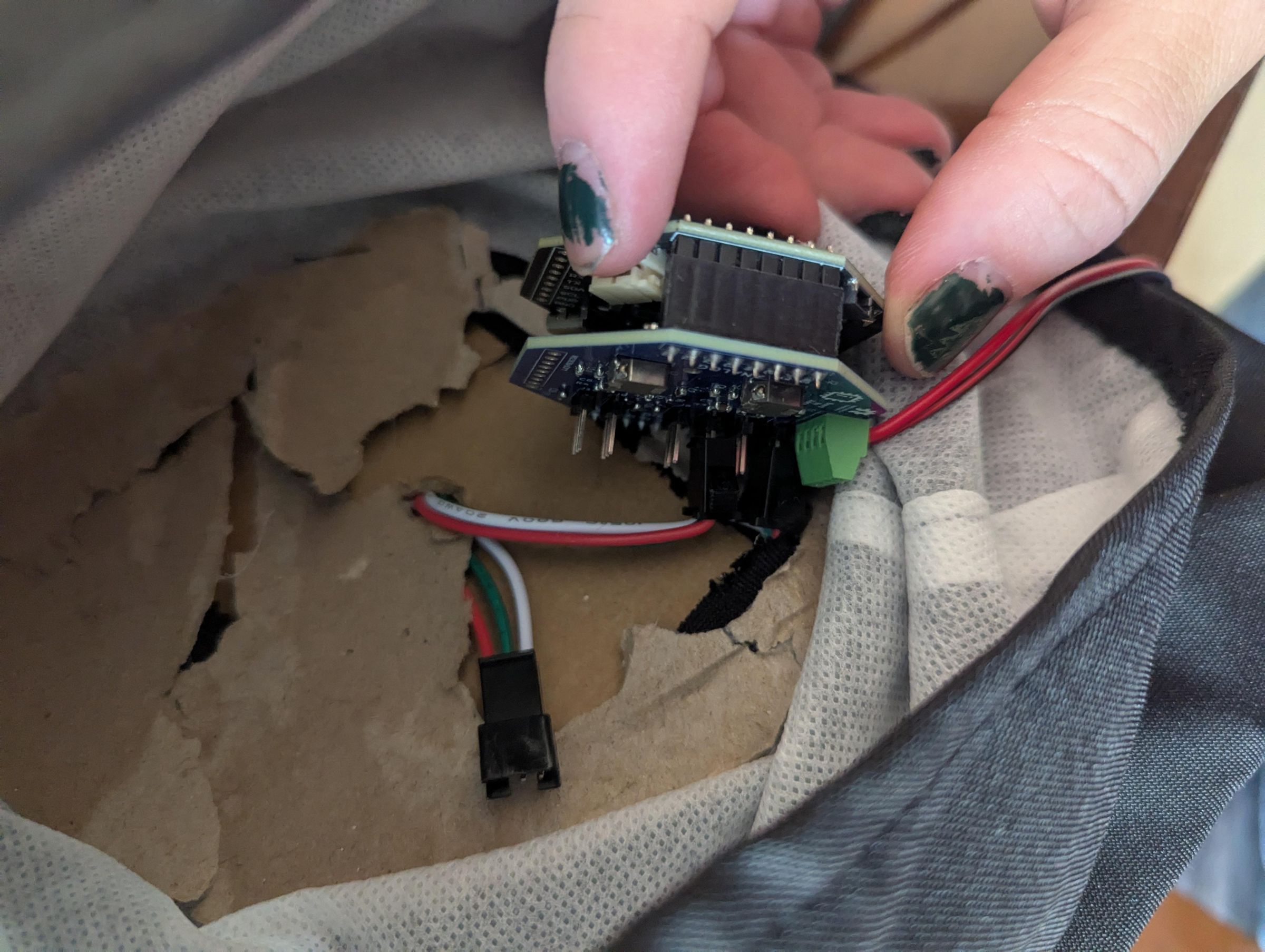
Now you can hot glue the cap back in place too, but not before you poke a hole in the cap and run the wires through! This is how we will connect the microcontroller.
Connecting the Microcontroller
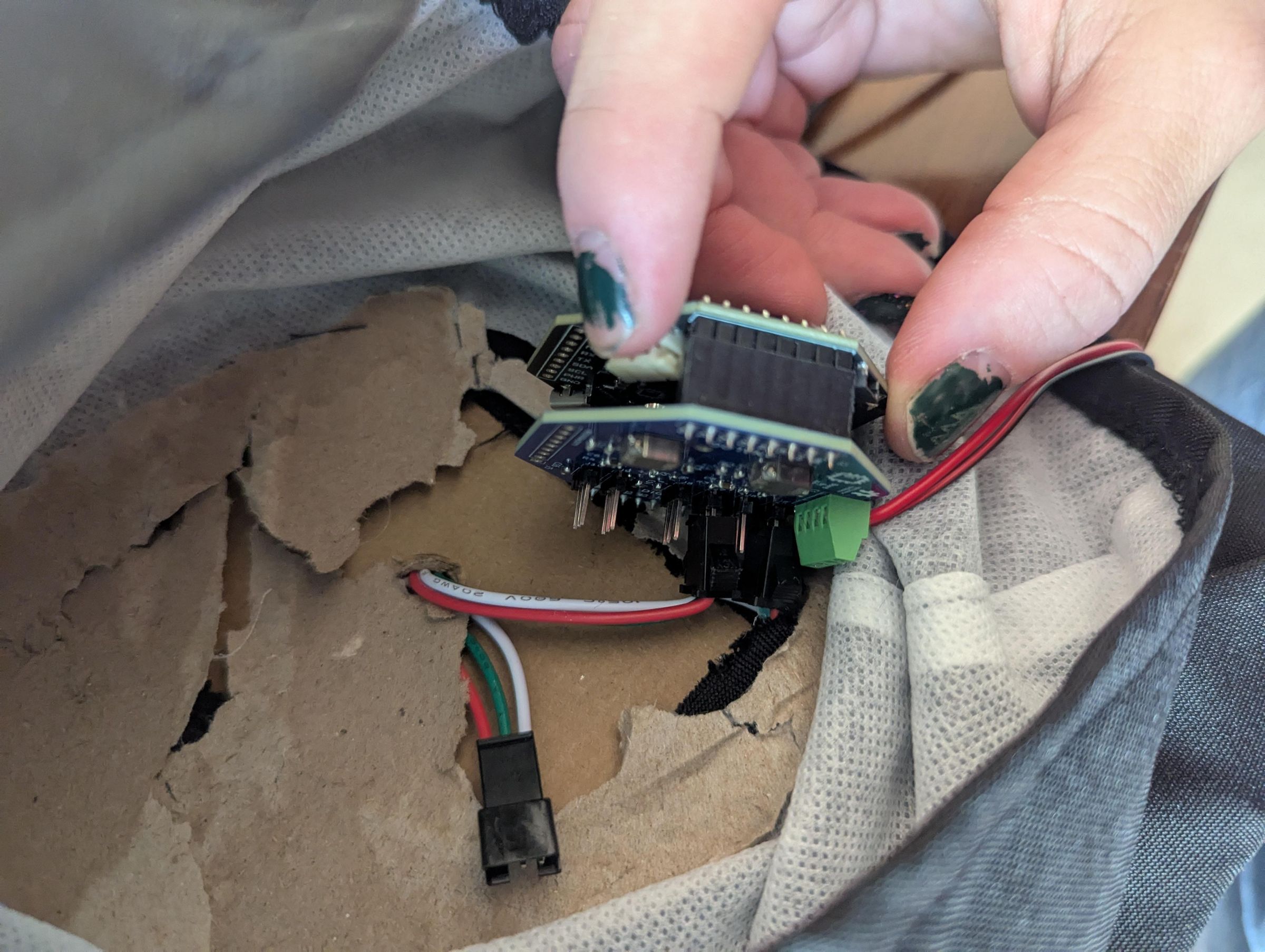
This is where we will add the brains. Connect your tinyGlow to the tinyCore microcontroller, they should stack together easily. Then, we will connect the three pins (power, ground, and data) to the first channel of the tinyGlow. These are the sets of 3 pins located at the top of the PCB.
You'll also want to solder a wire from the 5V pin on the tinyCore to the 5V Pin on the tinyGlow
Once this is attached, connect the USB-C Cable, and hot glue everything underneath of the cardboard insert of your hat. Now the electronics are done!
Flash the Code
.png)

[WIP Section]
I've written a quite complicated Arduino program that allows you to program the hat with custom animations, text, and even games! And the best part is it is all controlled by a Bluetooth app on your phone called Dabble. Dabble (unaffiliated) is available on both IOS and Android for free by STEMpedia.
You can clone the repo here:
https://github.com/FacioErgoSum/LED_GradCap
We'll flash the code using the Arduino IDE. Be sure to install the necessary libraries, and use our custom tinyDabble library for the example code to work.
https://github.com/FacioErgoSum/LED_GradCap/blob/main/tinyDabbleESP32.zip
Downloads
Add Animations
All animations are saved on the SD Card in the tinyCore. However, modifying these files is cumbersome, so I wrote my own web browser based animation suite, that allows you to download, upload, and edit custom animations on your cap. You can find that HTML file here, and feel free to use it! It only works in Chrome though, since it uses Web Serial for communications.
You can find the animation web app html file here:
https://github.com/FacioErgoSum/LED_GradCap/blob/main/tinyGlow_AnimationStudio.html