HackerBox 0127: Sea Five
by HackerBoxes in Circuits > Microcontrollers
3757 Views, 9 Favorites, 0 Comments
HackerBox 0127: Sea Five

Welcome to HackerBox 0127. Explore the new ESP32-C5 series of ultra-low-power SoCs featuring 32-bit RISC-V processors and a suite of powerful wireless peripherals including 2.4 GHz and 5 GHz (dual-band) Wi-Fi. Assemble the SEA FIVE custom hardware platform based on two ESP32-C5 modules, dual external antennas, an OLED display, GPS receiver, and MicroSD card slot. Integrate mobile power for the SEA FIVE platform with a twin-cell lithium battery shield. Implement a wardriving solution leveraging the various features of the SEA FIVE as a wireless signal collection platform. Explore the development role of GitHub to support version control, bug tracking, feature requests, integration, and project wikis.
There is a wealth of information for current and prospective members in the HackerBoxes FAQ. Almost all of the non-technical support emails that we receive are already answered there, so we'd really appreciate it if you can take a few minutes to read the FAQ.
Supplies
This Instructable contains information for getting started with HackerBox 0127. The full box contents are listed on the product page for HackerBox 0127 where the box is also available for purchase while supplies last. If you would like to automatically receive a HackerBox like this right in your mailbox each month, you can subscribe at HackerBoxes.com and join the party. Subscription members save at least $15 every month and automatically receive each new HackerBox shipped immediately off the production line.
A soldering iron, solder, and basic assembly tools are generally needed to work on the monthly HackerBox. A computer for running software tools is also required. Have a look at the HackerBox Workshops for tools and supplies along with a wide array of introductory activities and experiments.
The most import thing you will need is a sense of adventure, hacker spirit, patience, and curiosity. Building and experimenting with electronics, while very rewarding, can be tricky, challenging, and even frustrating at times. The goal is progress, not perfection. When you persist and enjoy the adventure, a great deal of satisfaction can be derived from this hobby. Take each step slowly, mind the details, and don't be afraid to ask for help.
WEAR SAFETY GLASSES WHEN SOLDERING, WHEN TRIMMING WIRE LEADS, OR WHEN CUTTING, DRILLING, ETC.
ESP32-C5

The ESP32-C5 Series ultra-low-power SoC (system on a chip) features a 32-bit RISC-V single-core microprocessor and a suite of powerful wireless peripherals including 2.4 GHz and 5 GHz (dual-band) Wi-Fi 6 (802.11ax), Bluetooth 5 (LE), Zigbee, and Thread (802.15.4).
We will be working with two ESPC5-12E-H4 castellated modules that each feature an ESP32-C5 SoC and an IPEX coaxial port for connecting an external antenna.
ESP32-C5 Hello World
We suggest bringing up each ESP32-C5 individually with its minimal required components.
Starting with MCU B (the C5 closest to the OLED landing pad), carefully position and solder the castellated module into place. BE VERY CAREFUL soldering the pad just next to the round IPEX RF socket. There is a tiny ground tail that sticks out of the IPEX socket above the neighboring castellated via. The tab does not touch the via, but if some solder gets up on top, it could short that little ground tab to the IO pin (castellated via) and short it to ground.
Solder the RST_B and BOOT_B micro SMD pushbutton switches into place.
Solder an SMD 10K resistor onto the PCB position marked R2.
The 10K resistor is labeled "1002".
The two pushbuttons and the resistor can all be mounted in any orientation.
Finally cut off a six-pin section of the Right Angle Male Header Pin Strip.
Position the six-pin header into the PROG position as shown, and solder it into place.
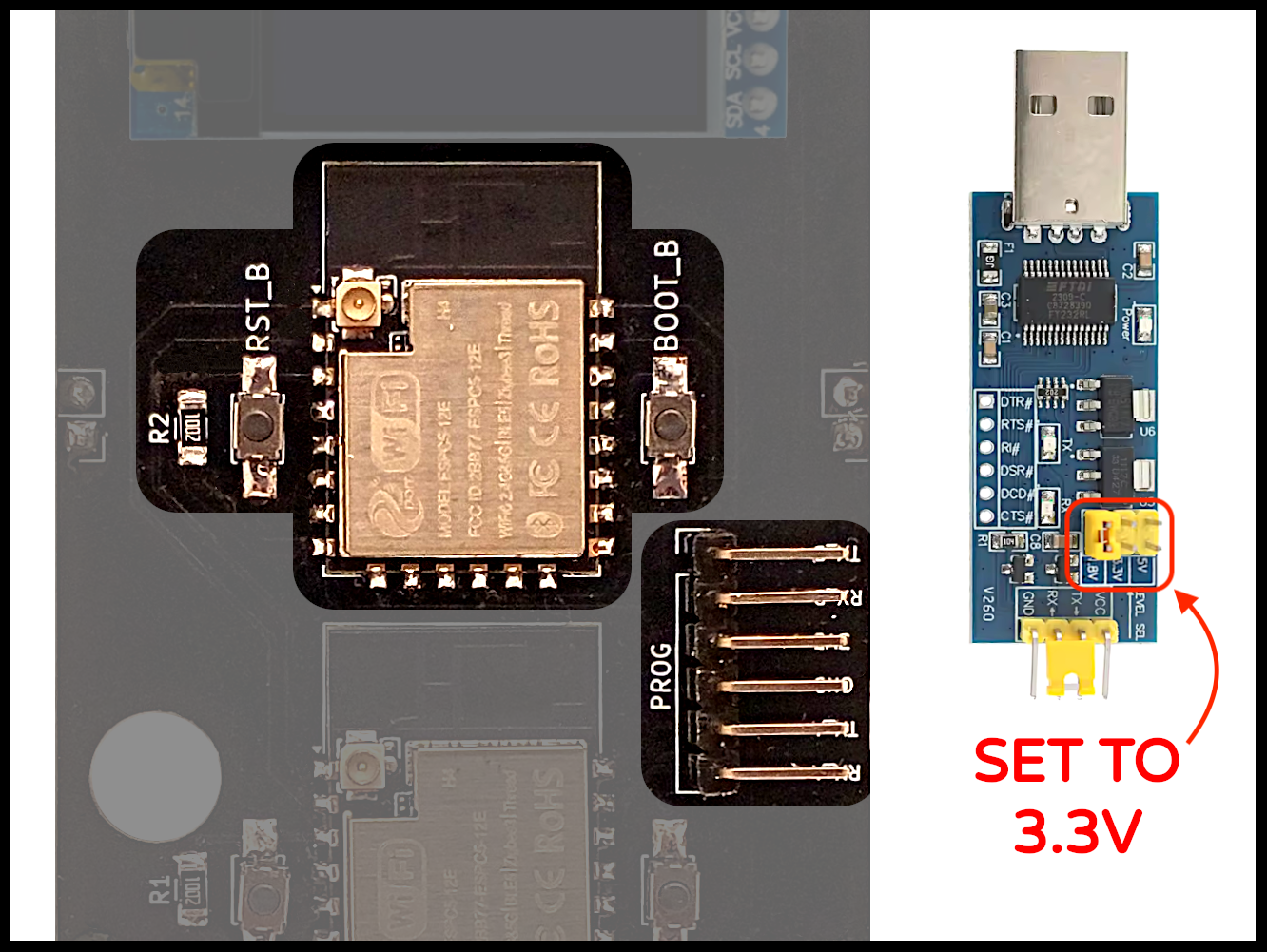
Connect a USB Interface Module
The FT232RL Serial USB Module with Triple Voltage Supply is really useful, not only because its operating voltage can be set to any of three different level, but because it has beefy regulators that can supply plenty of current. Often, serial USB modules have very limited 3.3V current supply.
Start by setting the FT232RL Serial USB Module to 3.3V, which is the center jumper position.
Connect the four jumper wires between the serial USB module and the PROG header like so:
GND-to-GND
VCC-to-3V3
TX-to-RX_B
RX-to-TX_B
Configure the Arduino IDE
If necessary, install the Arduino IDE.
In the Arduino IDE, use the Boards Manager to search for ESP32 (by Espressif Systems).
Select that board package and hit install.
Select Tools > Board > esp32 > ESP32C5 Dev Module
Select Tools > Port > (USB port for the FT232RL Module might say "usbserial-A5069RR4")
Open Tools > Serial Monitor and set the baud rate to 115200.
Upon power up (or after pressing RST_B), the ESP32-C5 will output status information to the monitor.
Program a First Example Sketch
Open the sketch: File > Examples > Basics > DigitalReadSerial
Scroll to Line 12: int pushButton = 2;
Change 2 to 28.
GPIO28 is wired to the BOOT_B button.
Scroll to Line 19: pinMode(pushButton, INPUT);
Change INPUT to INPUT_PULLUP.
Hit the right arrow for compile and upload.
While compiling, hold the BOOT_B button, press and release the RST_B button, and then release BOOT_B.
After programming, open Tools > Serial Monitor
Set baud rate to 9600.
Hit the RST_B button.
You should see a stream of 1s in the serial monitor.
These are ones (HIGH) because GPIO pin 28 was set to INPUT_PULLUP.
Pressing the BOOT_B button will short GPIO 28 to GND changing the 1s to 0s (LOW).
Congratulations. You have assembled the MCU B hardware and successfully programmed it.
Now, repeat the entire solder and program process for MCU A.
Just be sure to switch the FT232RL jumper wires over to the RX_A and TX_A pins on the PROG header and use the RST_A and BOOT_A buttons.
Sometimes code running on one MCU may interfere with programming the other MCU
Whenever the programming process begins, but fails part way through, try again (including redoing the rst/boot button steps for entering the bootloader) but then also hold the other MCU in reset for the entire time of the programming. This keeps one MCU quiet while the other is being programmed.
Complete SEA FIVE Board Assembly

In the image above, note the position and orientation for the three remaining modules (OLED, GPS, and SD Card).
Especially note that the SD Card slot faces in (text out) and the antenna port of the GPS module faces out.
Position each of these three modules accordingly and carefully solder them into place.
Next, mount the two IPEX to SMA coaxial pigtails (antenna cables) onto the back side of PCB with the threaded SMA ports facing out from the sides of the board. The "back side of the PCB" is the side with SEA FIVE printed on it, which puts the antenna mounts on the opposite side from the MCU modules.
After soldering the two antenna mounts into place, lace the IPEX ends of the pigtails through the large hole in the PCB and gently clip them onto the ESP32-C5 modules.
Temporarily affix the ceramic GPS antenna to the back of the PCB with piece of masking tape. The area behind the OLED is a great option since is likely to be at the top of the device once deployed. Feed the IPEX end of the GPS antenna coax through the large hole in the PCB and gently clip it only the GPS module. At a later time, the GPS antenna can be more permanently affixed or positioned within a wall of whatever enclosure might be selected.
Optional Test/Debug for the OLED Module
The image above illustrates which MCU IO pins connect to each module. For example, the OLED module, shows:
- SDA B10
- SCL B6
Which means the OLED is attached to MCU B at pins 10 and 6 (SDA, SCL respectively).
To run a test, make sure the FT232RL is connected to the MCU B pins.
Use the IDE Library Manager to search for, and install, the Adafruit SSD1306 Library.
Open: File > Examples > Adafruit SSD1306 > ssd1306_128x32_i2c.ino
Scroll down to the setup() function, and add this as the first line inside the function:
Wire.begin(10, 6); //SDA, SCK for SSD1306 OLED
Hit the arrow button to compile/upload and use the RST_B and BOOT_B buttons to enter bootload mode.
When programming completes, hit RST_B.
The OLED should display the Adafruit demo graphics.
Optional Test/Debug for the MicroSD Card Module
Again consulting the image, we can see that the SD Card module is connected to MCU A at GPIO pins 5, 8, 9, and 10 as shown.
To run a test, make sure the FT232RL is connected to the MCU A pins.
Also make sure a FAT32 formatted MicroSD card is fully inserted in the card slot. The USB-C MicroSD Card Reader can be used to plug the MicroSD card into a computer and format it.
Open: File > Examples > SD > SD_Test.ino
Uncomment the code block at Lines 46-52 and update the pin numbers like so:
Hit the arrow button to compile/upload and use the RST_A and BOOT_A buttons to enter bootload mode.
When programming completes, hit RST_A.
Optional Test/Debug for the ATGM336H GPS Module
Again consulting the image, we can see that the GPS module is connected to MCU B at GPIO pins 4 and 5 as shown. Here's a very simple test:
Open: File > Examples > Communication > SerialPassThrough.ino
Scroll down to Line 29: Serial1.begin(9600);
and update it like so:
Serial1.begin(9600, SERIAL_8N1, 5, 4);
Make sure the FT232RL is connected to the MCU B pins.
Compile and upload the code (using the two MCU B buttons as usual).
Open the Serial Monitor and set the board rate to 9600.
The data streaming out of the GPS module into Serial1 of the MCU should copy through Serial0 to the Serial Monitor.
Note that GPS originally powers up with the red LED glowing solid and then the LED will start to blink once it has satellite lock.
Wardriving

Wardriving is the act of searching for Wi-Fi wireless networks, usually from a moving vehicle, using a laptop or smartphone (or an SoC). The term Wardriving is derived from the original wardialing. Wardialing is a method popularized by the film WarGames and is, in fact, named after the film. Wardialing consists of dialing every phone number in a specific sequence in search of modems.
Wardrivers often use a Wi-Fi-equipped device together with a GPS device to record the location of wireless networks. The results can then be uploaded to websites like WiGLE, openBmap or Geomena where the data is processed to form maps of the network neighborhood. There are also clients available for smartphones running Android that can upload data directly. For better range and sensitivity, antennas are built or bought, and vary from omnidirectional to highly directional. (Wikipedia)
The SEA FIVE hardware platform is well suited to support wardriving. The two SoCs each support dual-band Wi-Fi. The GPS module obviously supports positioning and the SD Card interface allows for logging all identified networks.
The attached wardriving code is supplied as two separate Arduino sketches. One for each of the MCUs implementing the following features...
MCU B Scans the 5GHz Wi-Fi channels, collects GPS time/position data, and displays summary statistics on the OLED display.
MCU A Scans the 2.4GHz Wi-Fi channels, receives information for logging from MCU B, and then logs both its findings and the information from MCU B onto the SD card.
The two MCUs communicate with one another using the Intercom serial bus.
Download, compile, and program the two attached sketches. Sketch SeaFive_Wardrive_B.ino runs on MCU B and the sketch SeaFive_Wardrive_A.ino runs on MCU A.
For logging, format the MicroSD card as a FAT32 volume. Any other 4-16GB MicroSD card should work as well, as long as it is FAT32 formatted. However, larger capacity cards are not recommended and may be unsupported. The MCU A sketch will create a file on the SD card called SeaFive.txt for logging identified networks along with GPS time and location data.
The wardriver implemented by these sketches is pretty basic and ready for some DIY fun! Some features to experiment with might include...
- Bluetooth scanning support
- Combine time and location tags into each network record
- Store log records in WiGLE CSV Format
- Optimize channel scanning dwell times
Definitely try out WiGLE Edition SeaFive Wardriver Firmware from Jamie (of Jamie's Hack Shack fame) which implements some of these suggested improvements and more!
For additional inspiration, have a look at the Wardriver.uk project or the ESP32 Wardriver Pro project.
Two Cell 18650 Battery Shield

The SEA FIVE can mount onto a Two Cell 18650 Battery Shield. This provides a slimmer form factor than our Wispier platform, which mounted onto a Four Cell 18650 Battery Shield.
CAREFULLY NOTE the red plus and minus battery polarity markings in the image.
Things to know about the included Two Cell 18650 Lithium Battery Power Shield:
- Operates with one or two 18650 cells.
- Press the white button once to turn ON
- Hold down the white button to turn OFF
- Slide switch "Normal" allows auto-OFF when enough current is not drawn
- Slide switch "Hold" prevents auto-OFF in low current conditions
- The USB-C and MicroUSB ports charge the battery cells
- Charge level indicator LEDs blink while charging
- Output power can be ON while charging
- Female USB-A is an output to power other devices (e.g. your phone)
ASSEMBLY
Prior to soldering, test the shield by inserting at least one 18650 cell.
Again, note the red plus and minus battery polarity markings.
Remove the battery cells.
Cut four 2-pin sections of male header pins from the longer male header (straight, not right angle).
Position these 2-pin headers into the back side of the SEA FIVE PCB at the four ports labeled 3V and 5V.
Make sure the eight header pins are sticking out from the back of the PCB (the side printed with "SEA FIVE" ).
Solder the four 2-pin headers into place keeping them perpendicular to the PCB.
Position the four female 2-Pin header sockets onto the battery shield with the sockets extending from the side of PCB with the USB-C connector (not on the side with the USB-A connector and battery holders). This positioning is illustrated by the small blue ovals in the image above.
Note that the four female 2-Pin header sockets go into the outer most pairs on each edge of the PCB which leaves three pairs in the middle of each edge empty. These are the only pins that properly mate with the male headers on the SEA FIVE board, so double check this placement prior to soldering.
Solder the four female 2-Pin header sockets into place keeping them perpendicular to the PCB.
Stack the SEA FIVE PCB and the Shield back-to-back pressing the four sets of female sockets onto the four sets of male header pins.
Insert at least one 18650 cell.
Press the white button to turn on the power!
Charge the cells as needed using the USB-C or MicroUSB ports on the battery shield.
Using GitHub

GitHub is an online platform that allows developers to create, store, manage, and share their code. It uses Git to provide distributed version control and GitHub itself provides access control, bug tracking, software feature requests, task management, continuous integration, and wikis for every project. It is commonly used to host open source software development projects. As of January 2023, GitHub reported having over 100 million developers and more than 420 million repositories, including at least 28 million public repositories. GitHub is the world's largest source code host as of June 2023. Over five billion developer contributions were made to more than 500 million open source projects in 2024. (Wikipedia)
Security at Sea Group Cruise

Come set sail with us from Tampa, Florida to Cozumel, Mexico!
In keeping with this guide's SEA theme, HackerBoxes is super pumped to be the organizing sponsor for the inaugural Security At Sea Group Cruise.
Booking is OPEN NOW with sailing scheduled for February 2027 aboard the Royal Caribbean Jewel of the Seas.
Find updated information here for booking a cabin, sponsorship, and developing CFP details.
Something Incredible

"Somewhere, something incredible is waiting to be known." ― Carl Sagan
We hope you are enjoying this month's HackerBox adventures into electronics, computer technology, and hacker culture. We aim to curate a challenging and rewarding experience of learning through experimentation and exploration. Thank you for joining us on this journey.
Reach out and share your success in the comments below. Email support@hackerboxes.com anytime with questions or whenever you need some help.
Hungry for more? Surf over to HackerBoxes.com and join us as a monthly HackerBox subscription member. You'll get a cool box of hackable gear delivered right to your mailbox every month and you'll enjoy a generous member discount.
Please consider sharing this free Instructable with others who may be interested in learning about these subjects. Word of mouth advertising is the greatest compliment that we can receive. We sincerely appreciate your support.