HaloPi: a Raspberry Pi Halometer for Measuring Red Blood Cells
by DaniloR29 in Teachers > University+
2758 Views, 25 Favorites, 0 Comments
HaloPi: a Raspberry Pi Halometer for Measuring Red Blood Cells

Measuring Red Blood Cells by Diffraction
Diffraction-based methods provide a simple and effective way to estimate the average diameter of red blood cells (RBCs) by analyzing the light patterns they produce when illuminated by a coherent source.
When a laser beam (typically in the red or green range, e.g., 532–650 nm) passes through a thin blood smear on a microscope slide, each red blood cell acts as a microscopic diffracting object. Instead of forming a simple shadow, the transmitted light produces a pattern of concentric bright and dark rings on a distant screen. These rings—often called diffraction halos—contain quantitative information about the size of the cells.
The key idea is straightforward: larger cells create smaller diffraction rings while smaller cells produce larger ones. By measuring the radius of the first diffraction ring on the screen, you can estimate the average cell diameter. The relationship can be written as:
d = (n × λ × L) / r
where:
- (d) is the average red blood cell diameter
- (λ) is the wavelength of the laser light
- (L) is the distance between the sample and the screen
- (r) is the radius of the measured diffraction ring
- (n) is a numerical factor that depends on which ring is measured and on the optical model
In many practical cases, using the first minimum of an Airy-like pattern (n ~ 1.22).
This approach is closely related to the method proposed by Adianus Pijper in 1929, which used diffraction spectra to estimate erythrocyte size. It offered a quick alternative to direct microscopic measurements and was particularly helpful for spotting abnormalities in red blood cell size distributions.
Diffraction methods have several advantages: they’re fast and relatively simple, require low-cost instrumentation, and there’s a direct link between the optical pattern and cell size. However, they have limitations as they provide an average size rather than individual cell measurements. This means results depend on sample preparation and alignment, and red blood cells aren’t perfectly circular apertures, introducing approximations.
Despite these limitations, this method remains a beautiful example of applying physical optics to biological measurement. Modern tools allow for a fully automated revisit. In this project, I present HaloPi, a contemporary reinterpretation of the historical halometer. It combines laser diffraction 3D printing and Raspberry Pi image analysis.
Supplies
The basic setup consists of:
- A low-power laser source (a green or red laser pointer) with a 3D printed support
- A prepared and diluted blood smear on a glass slide
- A 3D printed slide support that allows X-Y translations
- A screen placed at a known distance (L)
- a beam stopper
- A camera (in this project, a Raspberry Pi camera) to record the pattern
- Fixing M4 and M2 screw
- Two perforated steel plates to support the equipment.
You need a 3D printer; we have used a Creality Ender 5 Pro with PLA 1.4 mm filament.
Build the Microscope Slides Support
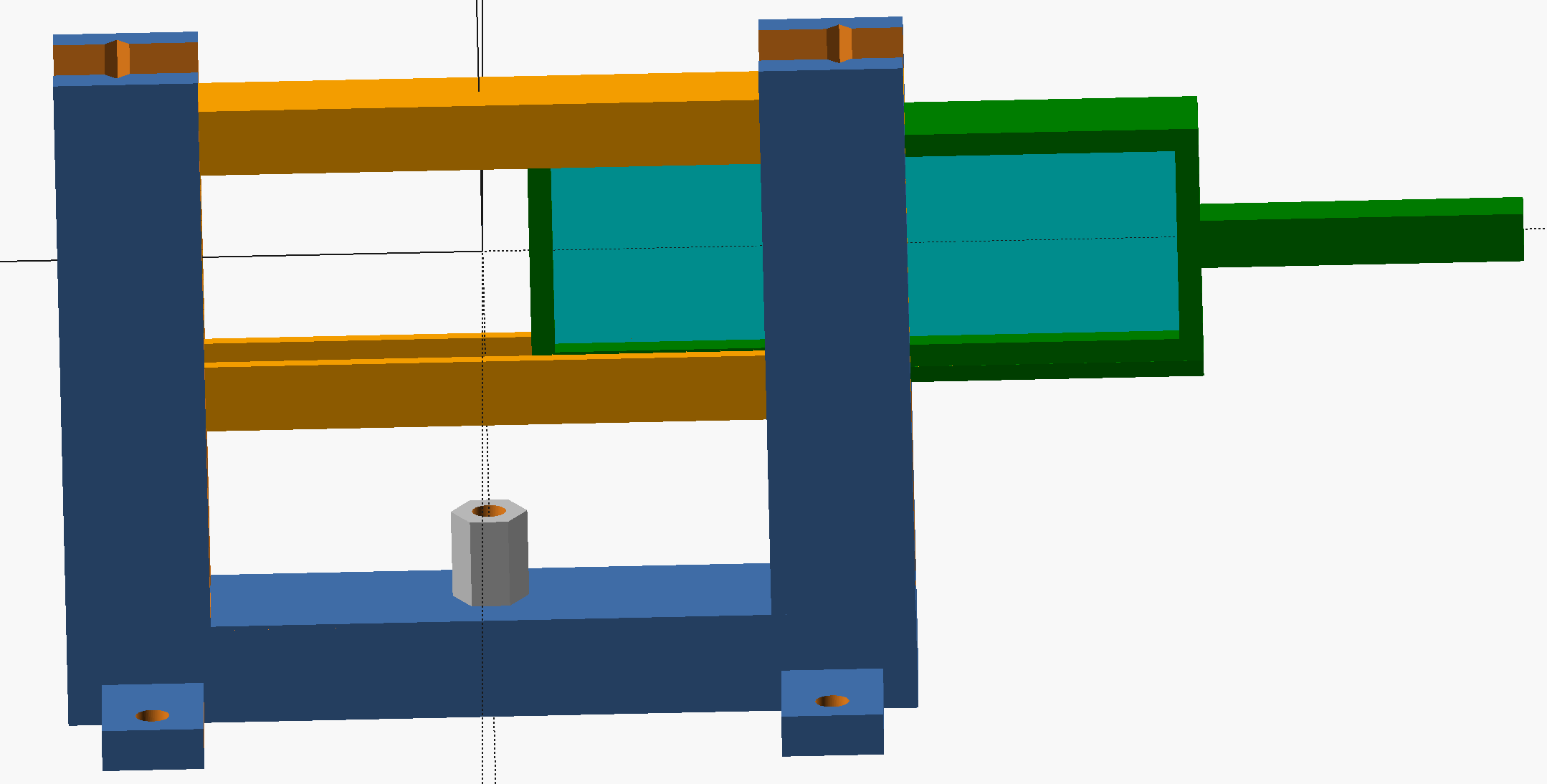
- To create two platforms for holding the slide support and laser, use two perforated plates. Refer to my project “The Magic-Sand Slicer” for instructions on setting up the platforms.
- First, print the STL files MSS_Base, MSS_HorSlider and MSS_slideHolder. Attach the MSS_Base to the perforated steel plate. Then add the hexagonal connection screw (the silver bolt in the figure) and a 2-3cm long M4 screw to regulate the vertical position of the slide.
- Next, print the MSS_slideHolder. I’ve used 75x25mm slides but if you have a different size you can modify the slide holder using the OpenScad file below to suit your slide dimensions.
- Finally, print the MSS_HorSlider. Test the MSS_slideHolder sliding smoothly into the MSS_HorSlider slot. If it doesn’t slide smoothly, use a file and sandpaper to help with insertion and sliding.
- Prepare a blood smear on a microscope slide. Begin by taking a drop of blood and disinfecting your finger with a suitable antiseptic. Then prick your finger with a sterile needle and add the blood drop to the slide. Spread it across the surface using a cover slip. Allow it to dry and insert the slide into the MSS_slideHolder.
Laser Support

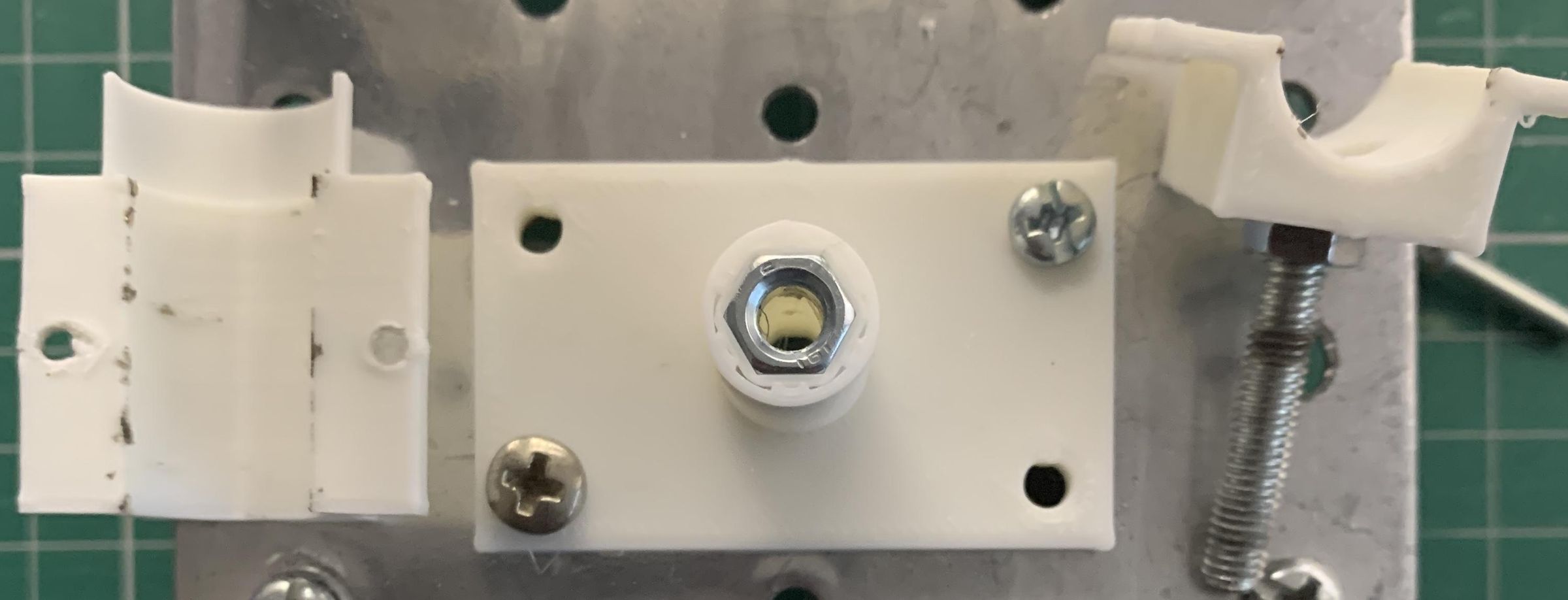
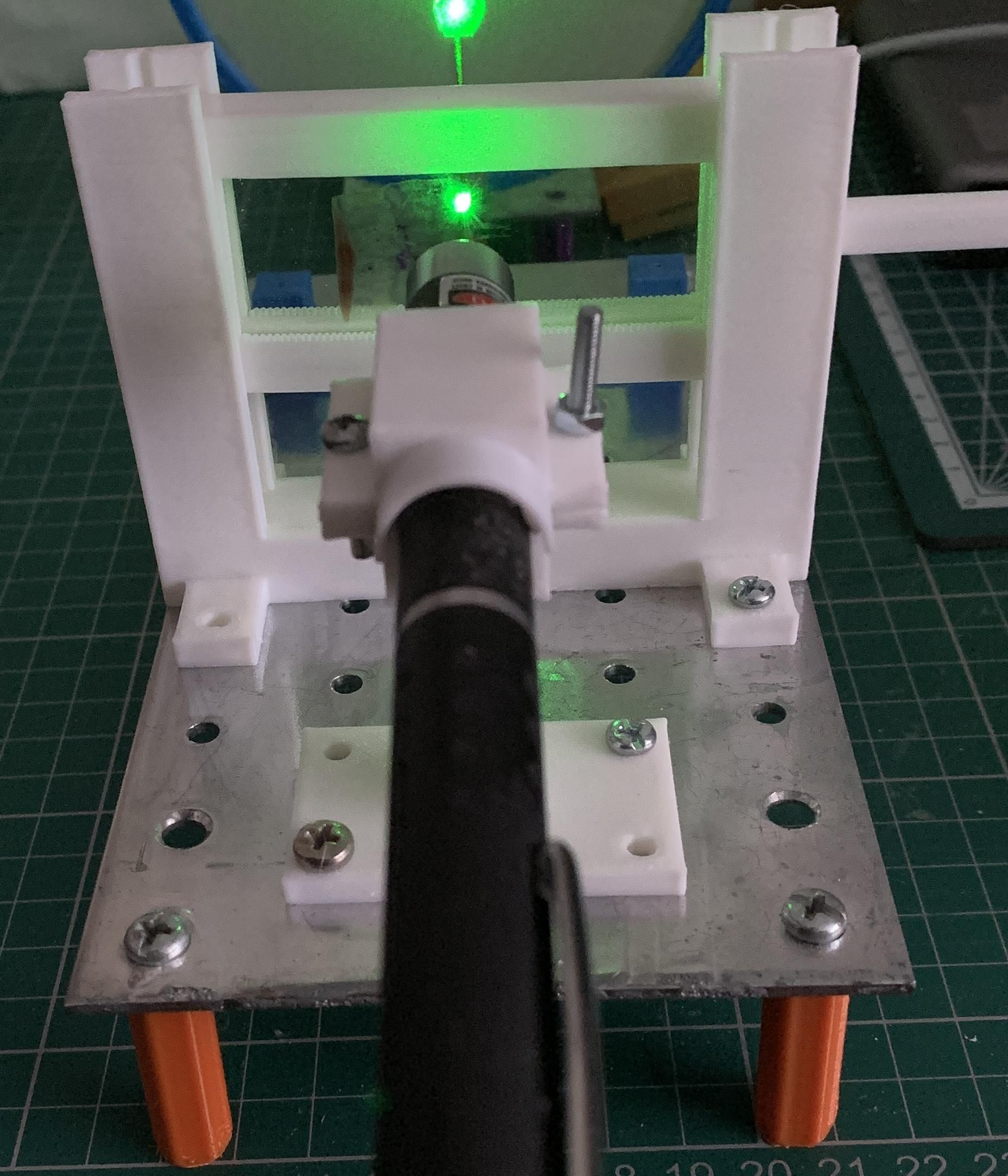
- Print the three STL files. Then add the M4 nut to the LaserBase.stl file. Use a vice to force the bolt into the hexagonal cavity.
- Next, add a 5-6 cm long M4 screw to the bottom of the laser holder (LaserBottom.stl file) and secure it with a screw.
- Insert the laser into the cylindrical cavity. We used a common stylus-type laser pointer with a diameter of about 14 mm and secured it with two M2 screws. Rotating the laser cylinder should allow you to turn it on and off.
- Finally, mount the laser on the platform in front of the microscope slide holder using two M2 screws and nuts as shown in the last figure.
Projection Screen and Raspberry Pi Camera
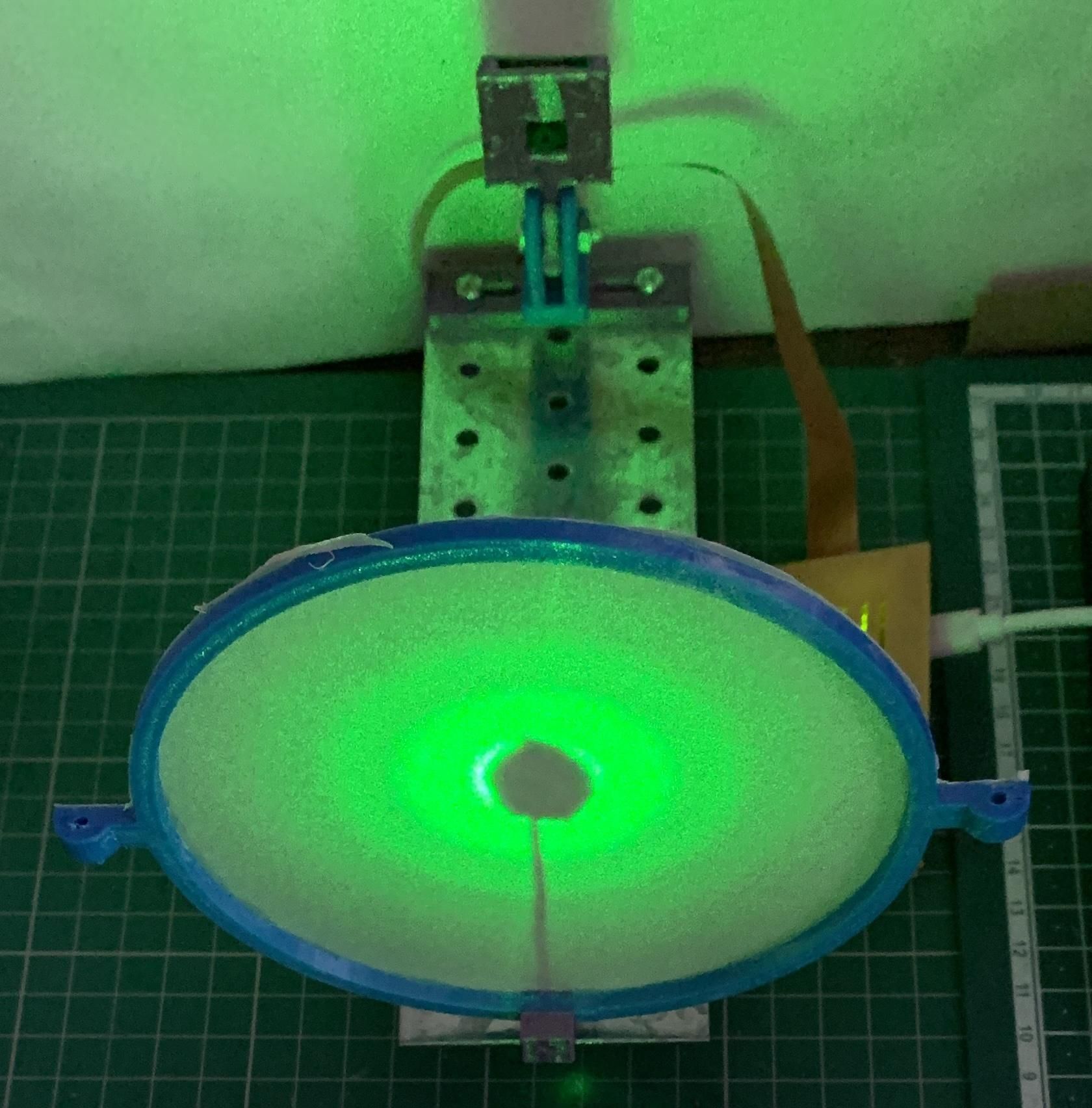
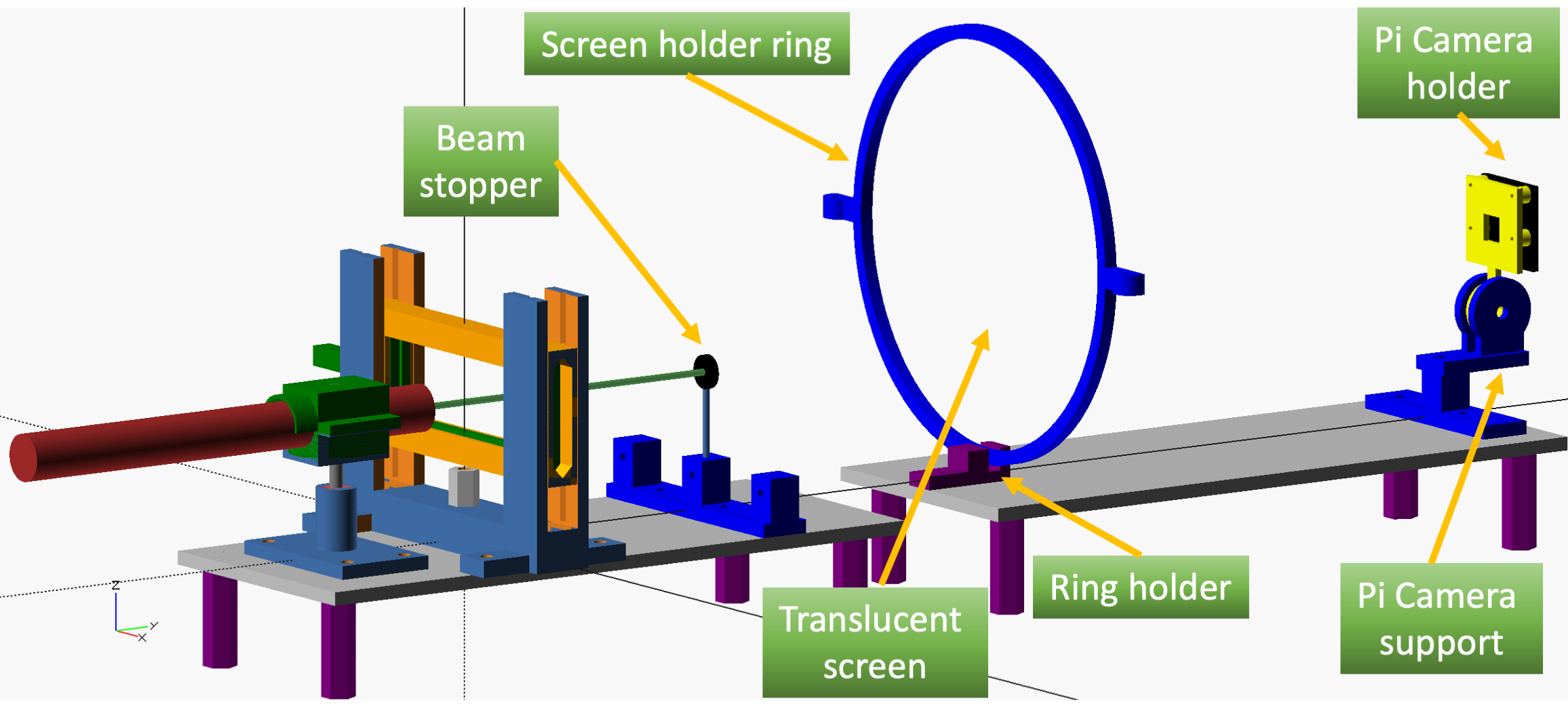
The laser diffraction projection was projected onto the round screen using the KaleidoPhoneScope project. This project also includes the files for the Pi camera holder.
For the Raspberry Pi, we have used the very cheap 1.3 model, and the support is designed for this model. If you do not have a Raspberry Pi, you can still use a smarthphone that provide a better quel
Finally, add a beamer stop. You can build one by gluing a small circular piece of black cardboard to the top using a suitable length of wire and supporting it with the 3D-printed wire holder from the Kaleidoscope project.
The final schematic image shows the different components that can be used to identify the part from the previous project.
Visualization Program for Raspberry Pi
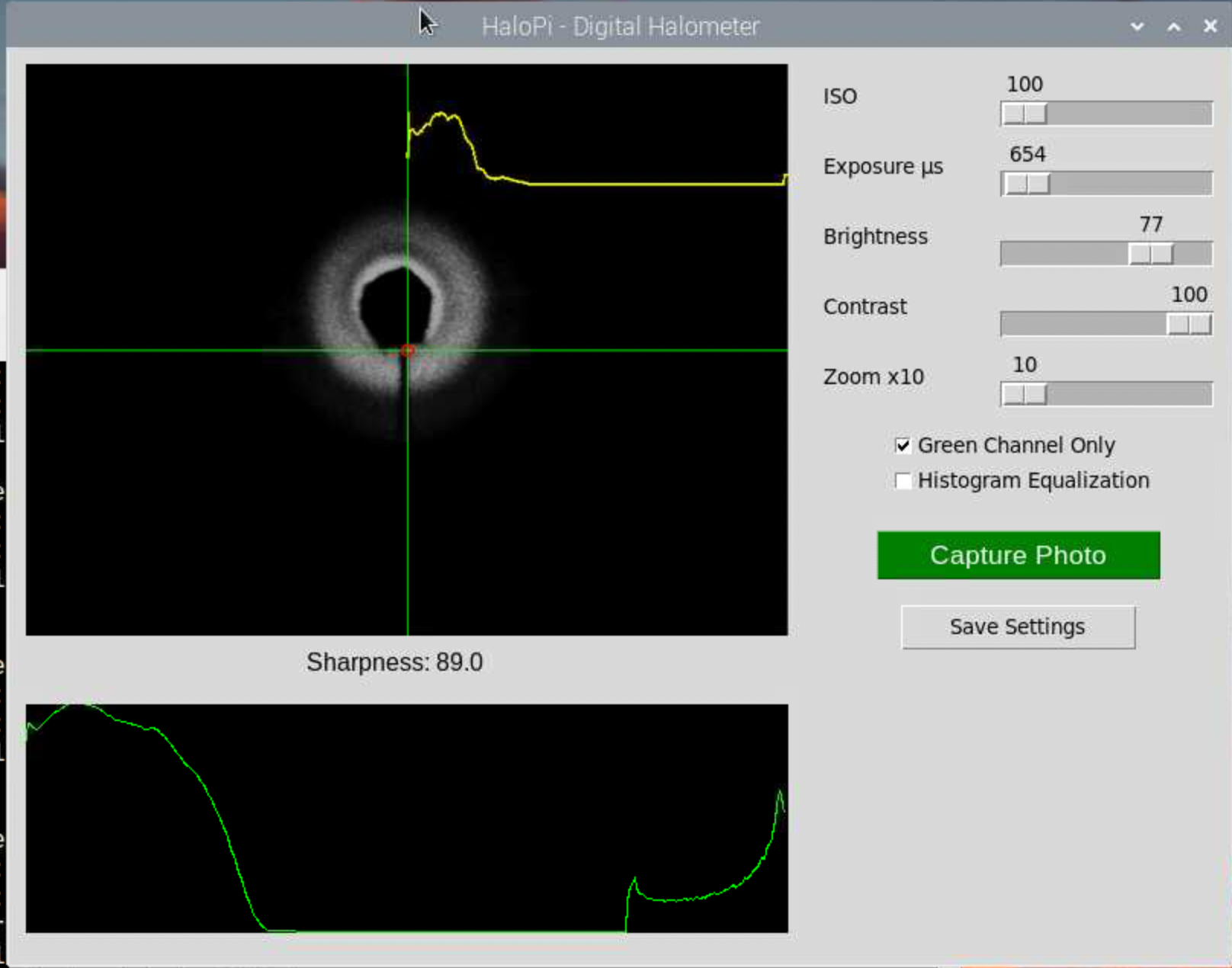
The HaloPi software is a preliminary experimental version developed to visualize and analyze diffraction halos produced by blood smears illuminated with a laser. The program provides live camera acquisition, interactive alignment, radial diffraction profile (RDF) analysis, image enhancement, and photo capture capabilities using a Raspberry Pi and Pi Camera. The figure shows the interface of the program, with the image filtered to display only the green channel.
The software was designed as a modern digital reinterpretation of historical halometry techniques and is intended primarily for educational, experimental, and demonstrative purposes. Future versions may include automatic ring detection, quantitative red blood cell diameter estimation, and advanced diffraction analysis tools.
For simplicity, the version of the software provided with this Instructable is a streamlined experimental release focused on the essential functions needed to visualize and record diffraction halos. More advanced versions currently under development include additional image-processing tools, automated diffraction analysis, and quantitative estimation of red blood cell diameters.
The attached Python program is provided in the accompanying TXT file so that readers can easily inspect, modify, and adapt the code for their own experimental setups.
Diffraction Experiment


WARNING: Inexpensive laser pointers, especially higher-power models, can cause serious eye damage if viewed directly or even through accidental reflections. Always use caution when performing these experiments and avoid exposing the eyes to the laser beam or specular reflections.
The apparatus should be assembled as shown in Figure 1, aligning the laser pointer, beam stop screen, and camera. Carefully measure the distance L (second figure) as it’s used in the formula provided in the introduction for calculating the red cell diameter.
Then start the Raspberry Pi and run the provided programme from the command line. Move the microscope slide horizontally and vertically using the adjustment screws to locate a region of the blood smear that produces a clean and approximately circular diffraction pattern on the screen.
Adjust the camera parameters to obtain the best contrast and visibility of the diffraction rings. The RDF (Radial Diffraction Function) plot can help identify the alternating bright and dark diffraction regions corresponding to the halo structure.
Preliminary Results


The first figure shows a snapshot of the diffraction pattern produced by the blood smear. The second image shows an example of a photograph saved by the program. The RDF (Radial Diffraction Function) is displayed at the bottom using a logarithmic scale, while the yellow curve overlaid on the image represents the same intensity profile to provide a more intuitive visualization of the diffraction structure.
The sharpness and clarity of the diffraction rings can be affected by several experimental factors, including the quality of the blood smear, the alignment of the optical components, the beam stop geometry, the projection distance, and the characteristics of the laser source itself.
In this preliminary version of the experiment, a low-cost green laser pointer was used because of its availability and brightness. However, inexpensive green lasers often produce noticeable speckle patterns, internal reflections, and beam irregularities that can reduce the sharpness and symmetry of the diffraction halos. In some cases, these effects may generate grainy structures or asymmetrical intensity distributions in the observed rings. Different light sources can also be explored. Red diode lasers often produce smoother and more stable diffraction patterns with reduced speckle noise.
Also, the blood smear thickness plays an important role. Very thick smears tend to produce diffuse scattering rather than clean diffraction patterns, whereas thinner, more homogeneous smears generally provide sharper, more regular halos. Dust particles, imperfections on the microscope slide, and vibrations of the optical setup may further degrade the image quality.
Despite these limitations, the experiment demonstrates that historical halometry techniques can still be reproduced using inexpensive modern components, digital imaging, and simple computational analysis.
I hope you enjoyed this project and feel inspired to reproduce it, improve it, and explore the fascinating principles of diffraction, optics, and historical scientific instrumentation through your own experiments.