Handmouse: a MediaPipe Powered Hand-Tracking Mouse
by ItsNotRocketScience in Circuits > Raspberry Pi
593 Views, 2 Favorites, 0 Comments
Handmouse: a MediaPipe Powered Hand-Tracking Mouse

When I got the Raspberry Pi 5 AI HAT+, my WiFi didn't work due to PCIe interference. To combat this, i had to move it to the only place in my room with ethernet: my desk. This introduced a new problem, however: I had no space for a mouse. So, instead of going the normal route of finding space for one, I decided to spend a month making an AI powered Handmouse like any normal, rational person would do. The Handmouse is perfect for scenarios where someone doesn't have space for a mouse, or wants to control his or her Pi from across the room. It uses Google's MediaPipe software to track your hand, and, if you want to click, all you have to do is pinch your pointer finger and thumb together.
Supplies
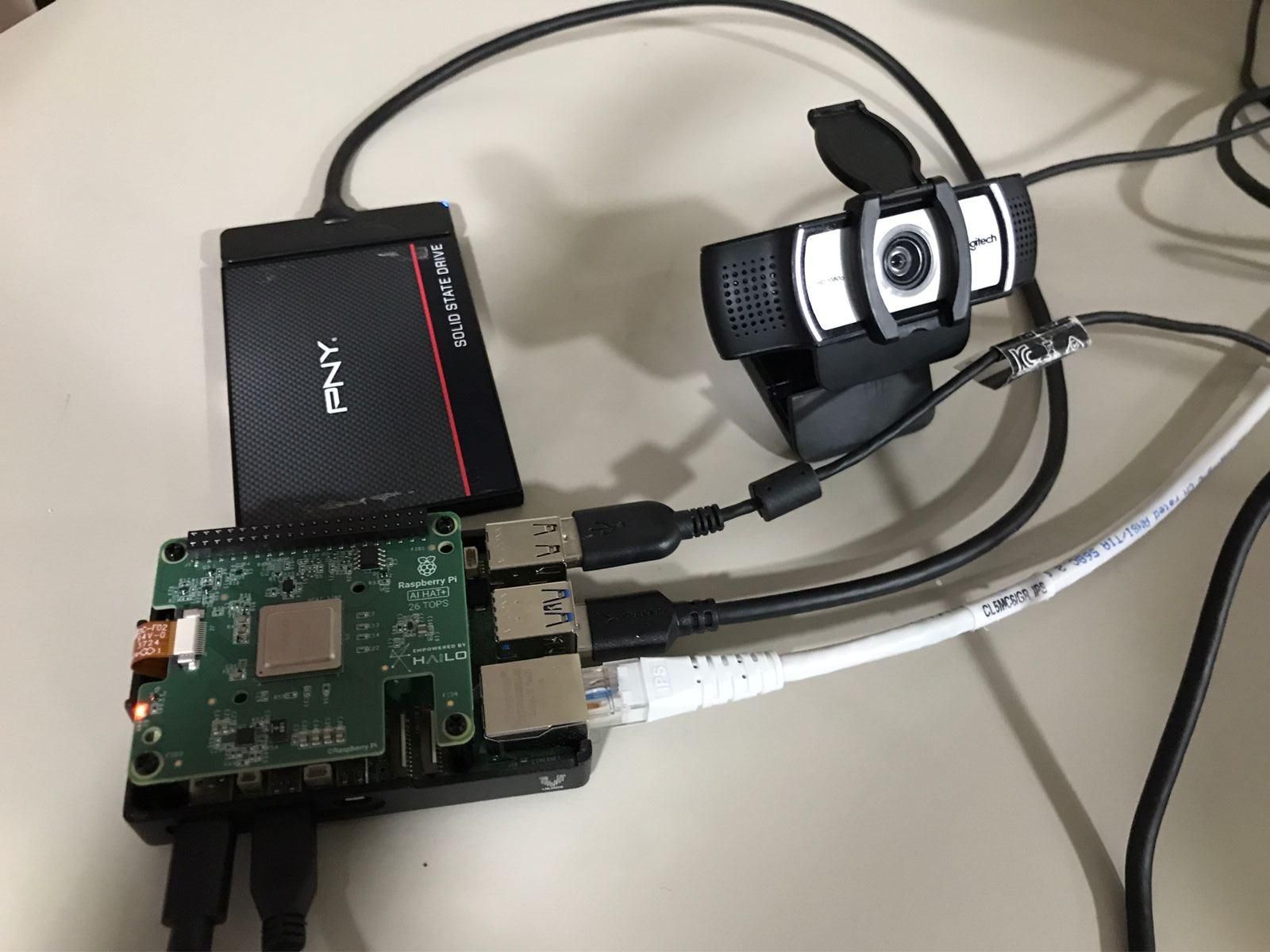
The supplies needed are as follows:
- Raspberry Pi 5 running Raspberry Pi OS Trixie (8gb or 16gb will work best)
- (Optional) Raspberry Pi 5 AI HAT+ 26 TOPS
- USB webcam, 720p 30hz or better
- Any storage above 32gb, prefereably an external SSD for speed
- Official Raspberry Pi 27W 5A power supply
The AI HAT+ is not required for the code to run, but for some reason it doesn't work properly without it.
Setup Your Pi
Before writing any code, you need to install everything required.
You will need admin privileges.
1. Update your system
Open a terminal and run:
sudo apt update
sudo apt upgrade -y
2. Install basic tools
sudo apt install -y curl git v4l-utils
3. Install micromamba
Run:
"${SHELL}" <(curl -L micro.mamba.pm/install.sh)
Then reload your terminal:
source ~/.bashrc
4. Create a Python 3.11 environment
micromamba create -n handmouse python=3.11 -y
micromamba activate handmouse
If it worked, you should see (handmouse) yourName@yourPiName in the terminal.
5. Install Python packages inside your virtual environment
python -m pip install mediapipe opencv-python numpy evdev
6. Enable virtual mouse support
sudo modprobe uinput
for redundancy, also run this command:
sudo chmod 666 /dev/uinput
Test Your Setup
Before running the code, make sure everything works okay.
1. Test imports
In Thonny, open a new file and paste the following code:
import cv2
import mediapipe
import numpy
import evdev
print("All imports work")
Save it as handmouseTest.py
Run python3 handmouseTest.py in the micromamba virtual environment.
2. Check the camera
In Thonny, make a new file named cameraCheck.py and past in this code:
import cv2
cap = cv2.VideoCapture(0)
while True:
ret, frame = cap.read()
if not ret:
break
cv2.imshow("Camera Test", frame)
if cv2.waitKey(1) == 27:
break
cap.release()
cv2.destroyAllWindows()
Run it with python3 cameraCheck.py in your handmouse venv.
3. Check mouse control
Make a file named mouseClickTest.py with the following code:
from evdev import UInput, ecodes as e
import time
ui = UInput({e.EV_KEY:[e.BTN_LEFT]})
time.sleep(1)
ui.write(e.EV_KEY, e.BTN_LEFT, 1)
ui.syn()
time.sleep(0.05)
ui.write(e.EV_KEY, e.BTN_LEFT, 0)
ui.syn()
print("Click sent")
Move your cursor over something clickable before running it.
Run it with python3 mouseClickTest.py
If all these tests pass, setup your camera, and run the code.
Running the Code
1. Download the file
Download handmouseFINAL.py from the end of this step.
2. Open Thonny
Paste in the code from handmouseFINAL.py, and save it as handmouse.py
3. Run the program
Run this command in the terminal while in your micromamba virtual environment:
python3 handmouse.py
4. Use the hand mouse
Move your hand to move the cursor.
Touch your thumb and index finger to click, hold them together to drag.
Press q to stop.
Congratulations! You just finished building the Handmouse.
Downloads
Debugging
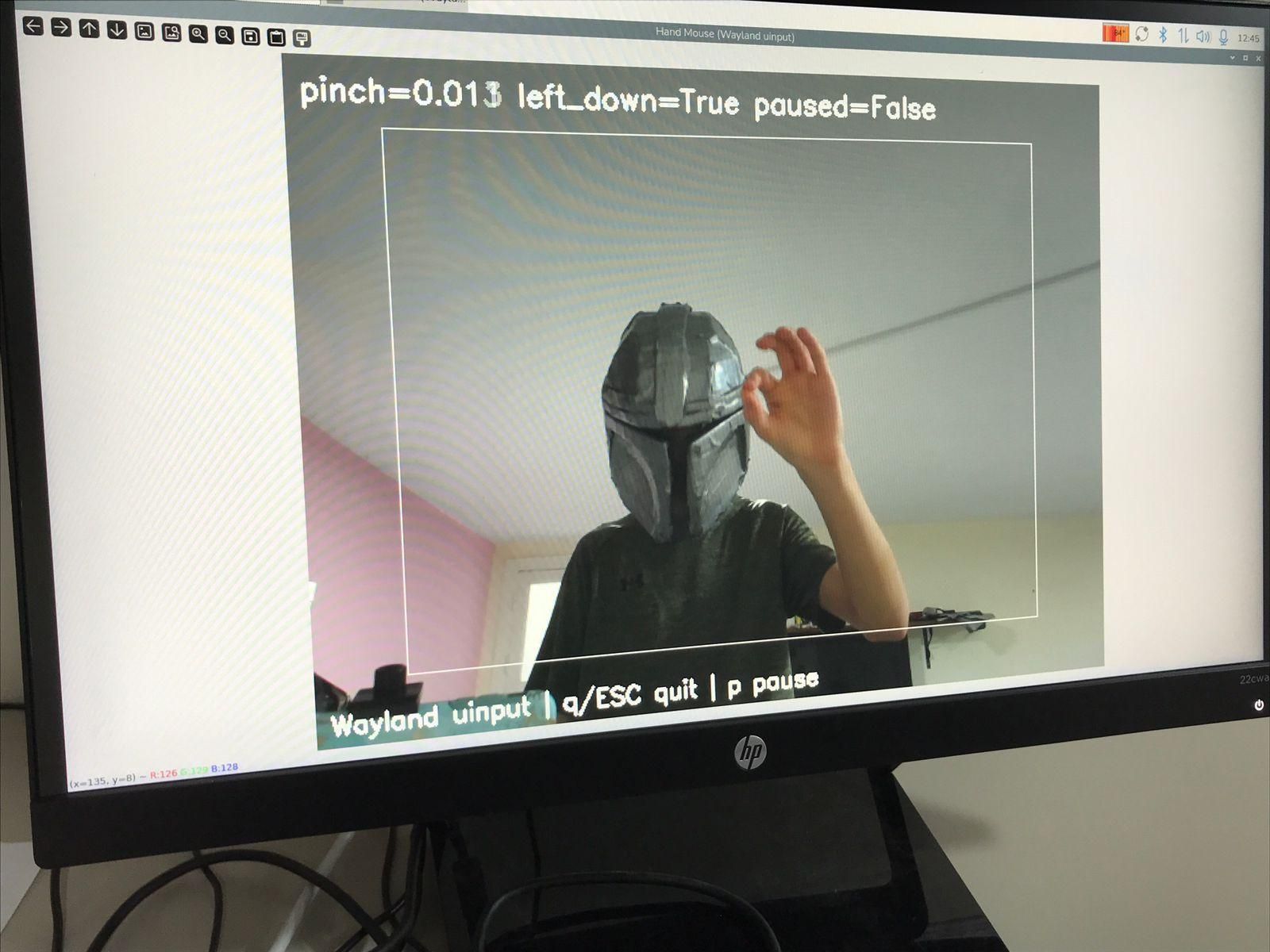
If something doesn't work normally, I found that AI works well for debugging.
Here are some common problems I ran into:
If you are having trouble getting it to recognize your hand or click, hold your hand as shown in the image above.
/dev/uinput cannot be opened for writing can be fixed by running sudo modprobe uinput and
sudo chmod 666 /dev/uinput
If it says module mediapipe has no attribute solutions, make sure you are running it in your virtual environment.
If your camera doesn't open, run ls /dev/video* and replace /dev/video0 in the code with whatever your camera is.
If clicking doesn't work or is finicky, adjust the PINCH_DOWN and PINCH_UP variables in the tunables section. If it still doesn't work, hold your hand with your palm at an approximate 45 degree angle to the camera, as shown in the video.
If the cursor is jittery or jumps around, increase the SMOOTHING variable in the tunables section.
If the cursor moves too fast or too slowly, adjust the REL_SPEED and MAX_STEP variables.