“Hey Siri, Turn on the Fan.” What If Your DIY Project Could Listen?
by Smarthon_Limited in Circuits > Electronics
110 Views, 0 Favorites, 0 Comments
“Hey Siri, Turn on the Fan.” What If Your DIY Project Could Listen?
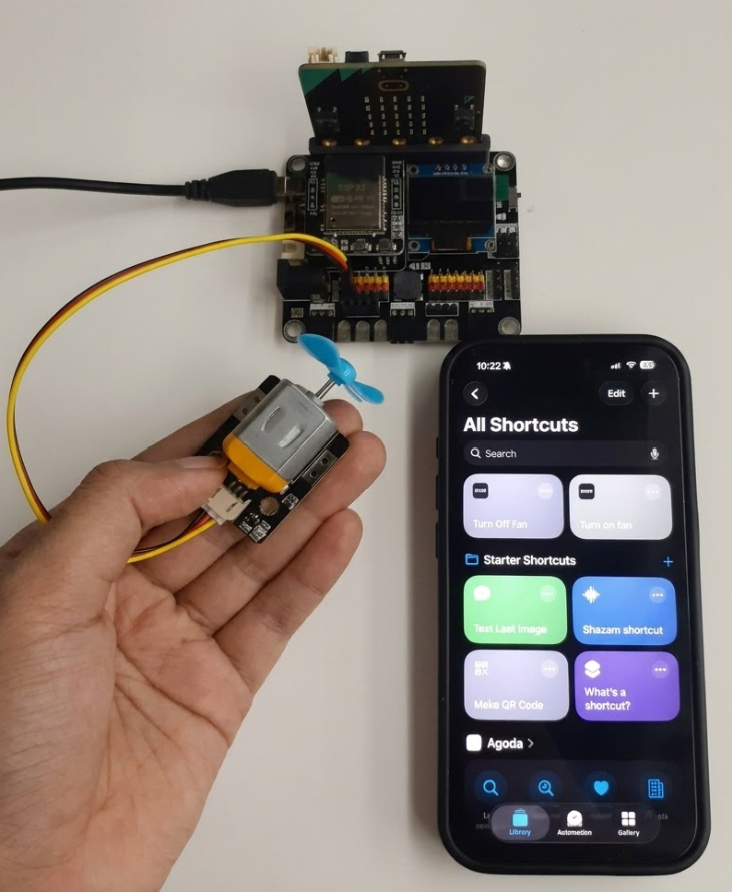
We talk to our devices every day.
“Hey Siri, call Mom.”
“Hey Siri, set a timer for 10 minutes.”
Voice assistants help us complete small tasks without touching a screen.
Now imagine saying:
“Turn on the fan.”
And a fan that you built yourself starts spinning.
Not a commercial smart appliance.
Not a ready made kit.
A device that you wired, programmed, and connected to the cloud.
This project shows how to control a motor fan using Apple Siri, micro:bit, and cloud communication.
How the System Works
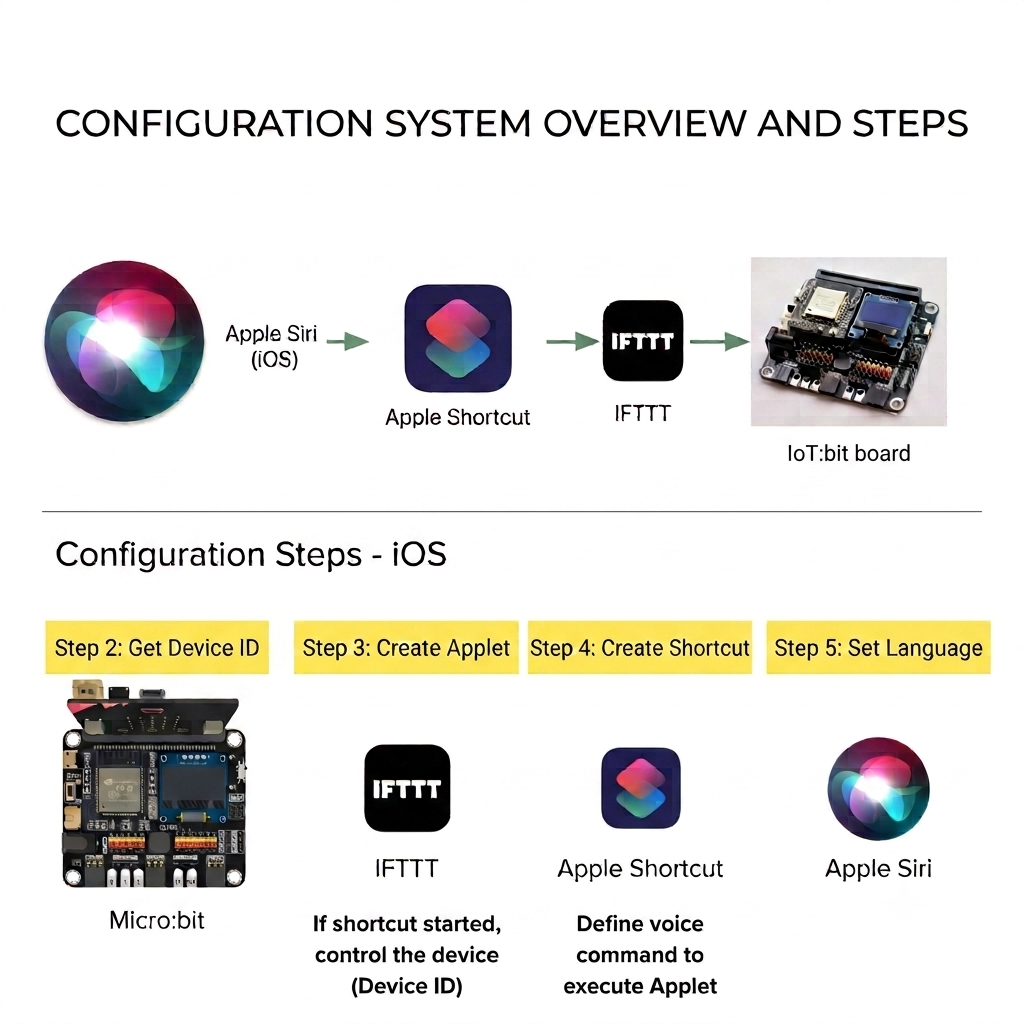
When you say “Turn on the fan,” the command does not go directly to the micro:bit.
The command does not go directly to the micro:bit.
The flow works like this:
Siri → iOS Shortcut → IFTTT → Smarthon Cloud → IoT:bit (WiFi) → Motor turns on
Each part passes the command to the next until the motor responds.
Hardware Connection & Programming
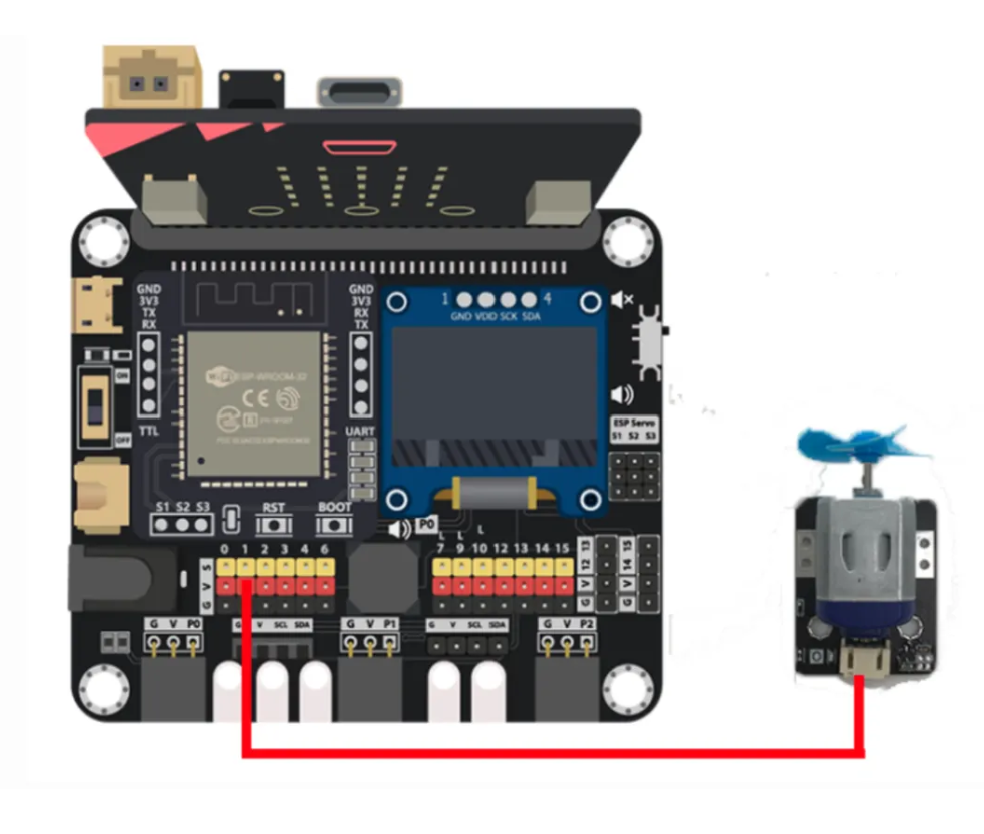
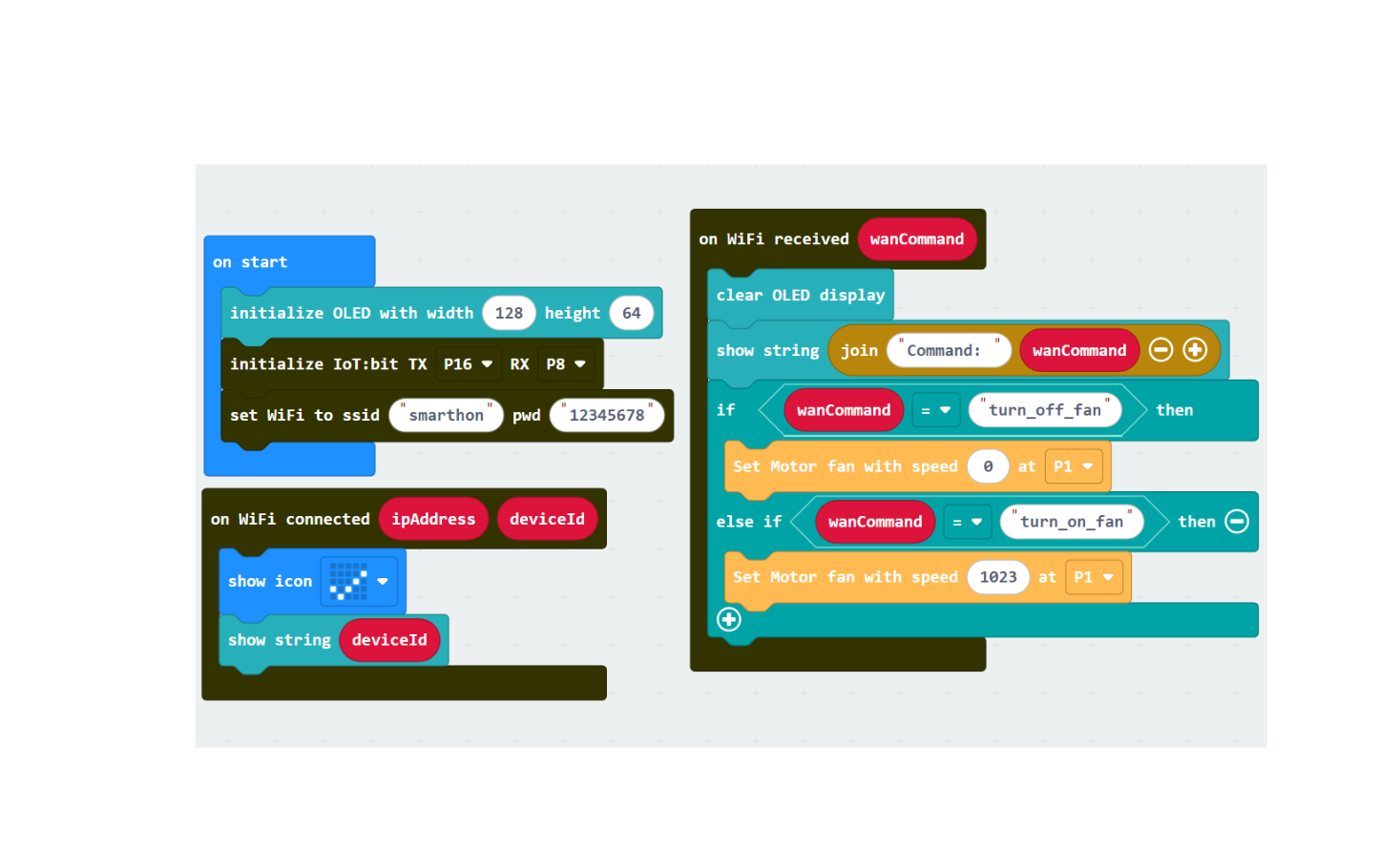
For the hardware setup, connect the motor module to P1 of the IoT:bit board. Once you're done with the setup you can open the link, click Edit Code, and modify it based on your own WiFi settings or hardware configuration here:
https://makecode.microbit.org/S40911-39605-55147-37667
The program:
- Initializes the OLED display and IoT:bit module
- Connects to WiFi
- Displays the Device ID after connection
- Listens for cloud commands
- Turns the fan on when the command is turn_on_fan
- Turns the fan off when the command is turn_off_fan
Setting Up IFTTT (iOS)
.png)
IFTTT connects your voice assistant to the Smarthon IoT cloud. Without this step, the voice command will not reach your micro:bit.
Download the IFTTT app from the App Store and log in.
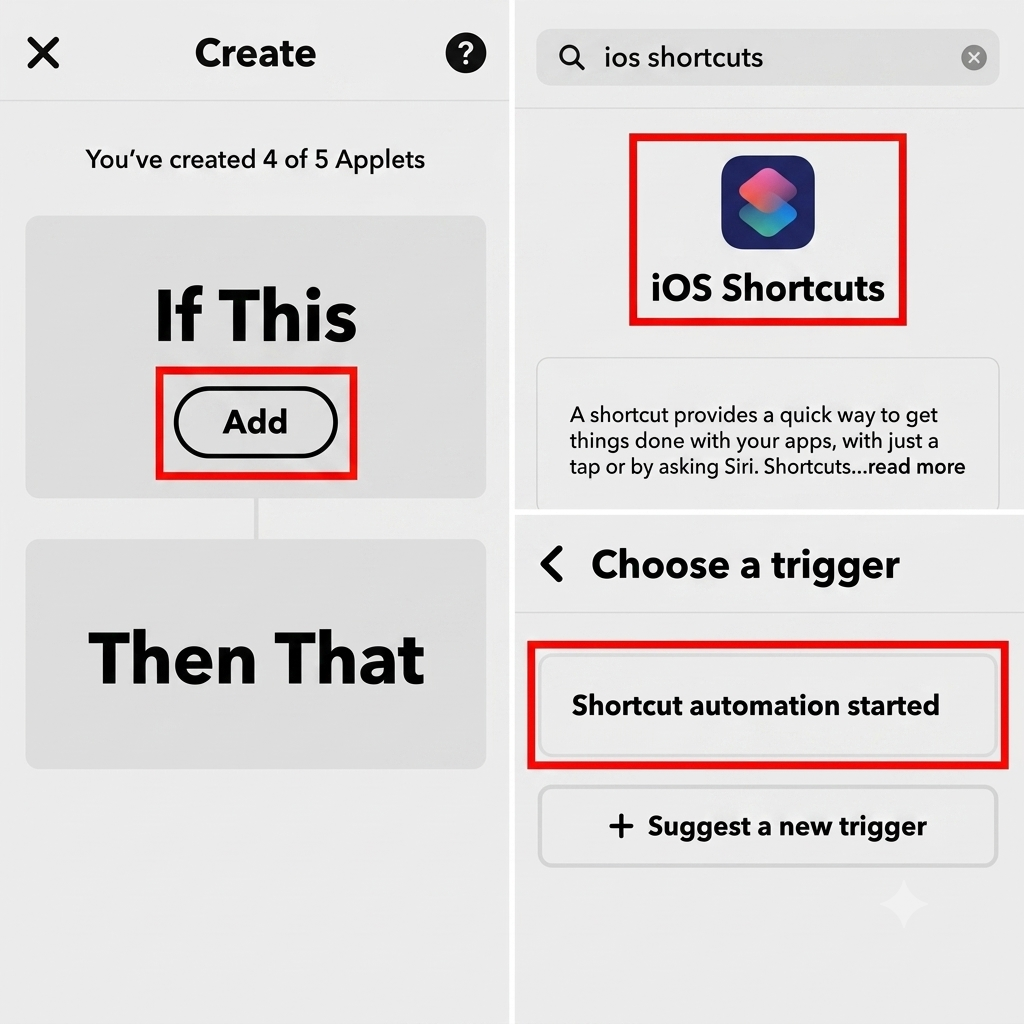
- Tap Create to make a new applet.
- Tap If This “Add” → select iOS Shortcuts → choose Shortcut automation started.
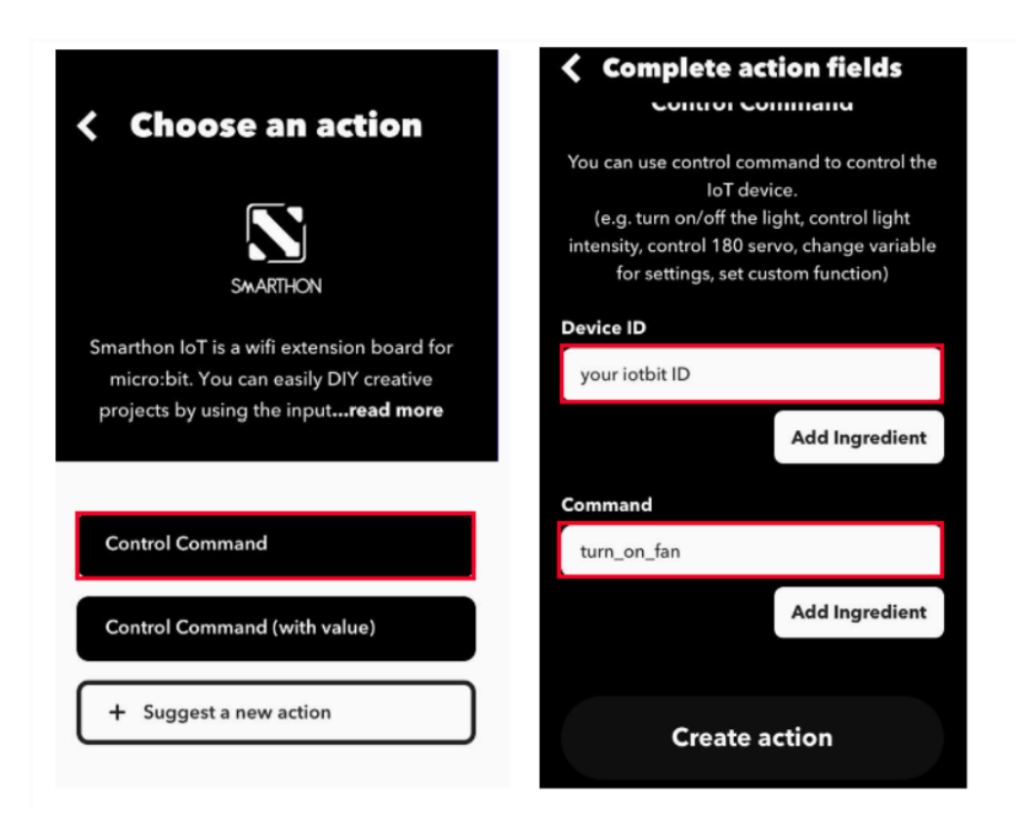
- Tap Then That “Add” → search and select Smarthon IoT (micro:bit).
- Choose Control Command.Enter your Device ID and the command name shown in MakeCode.
- Tap “Create Action”.
IOS Shortcut Setup
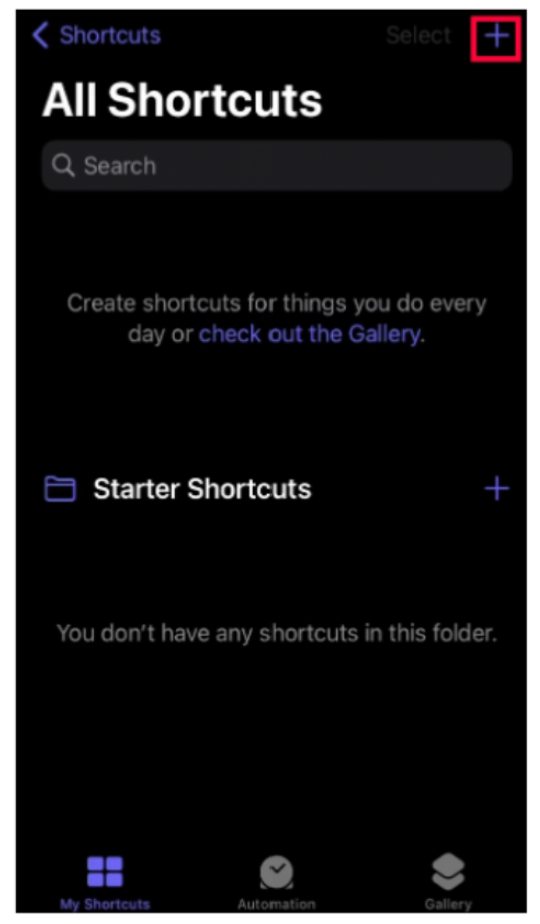
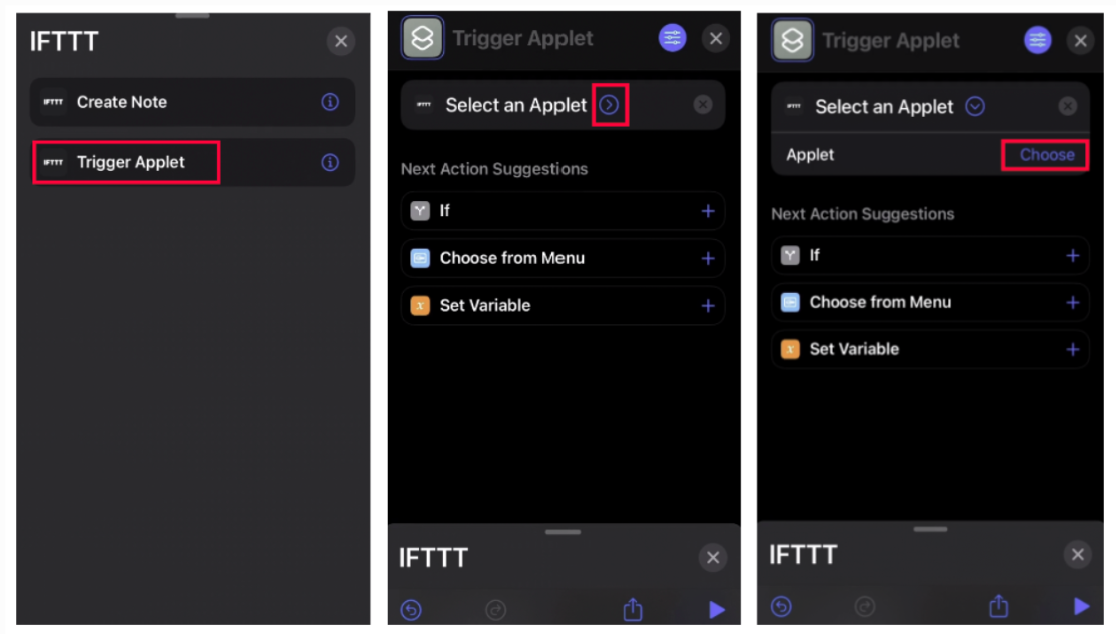
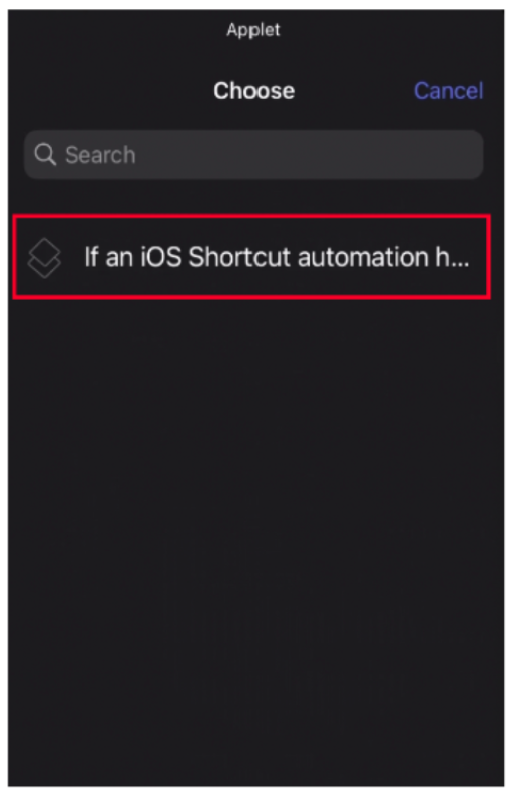
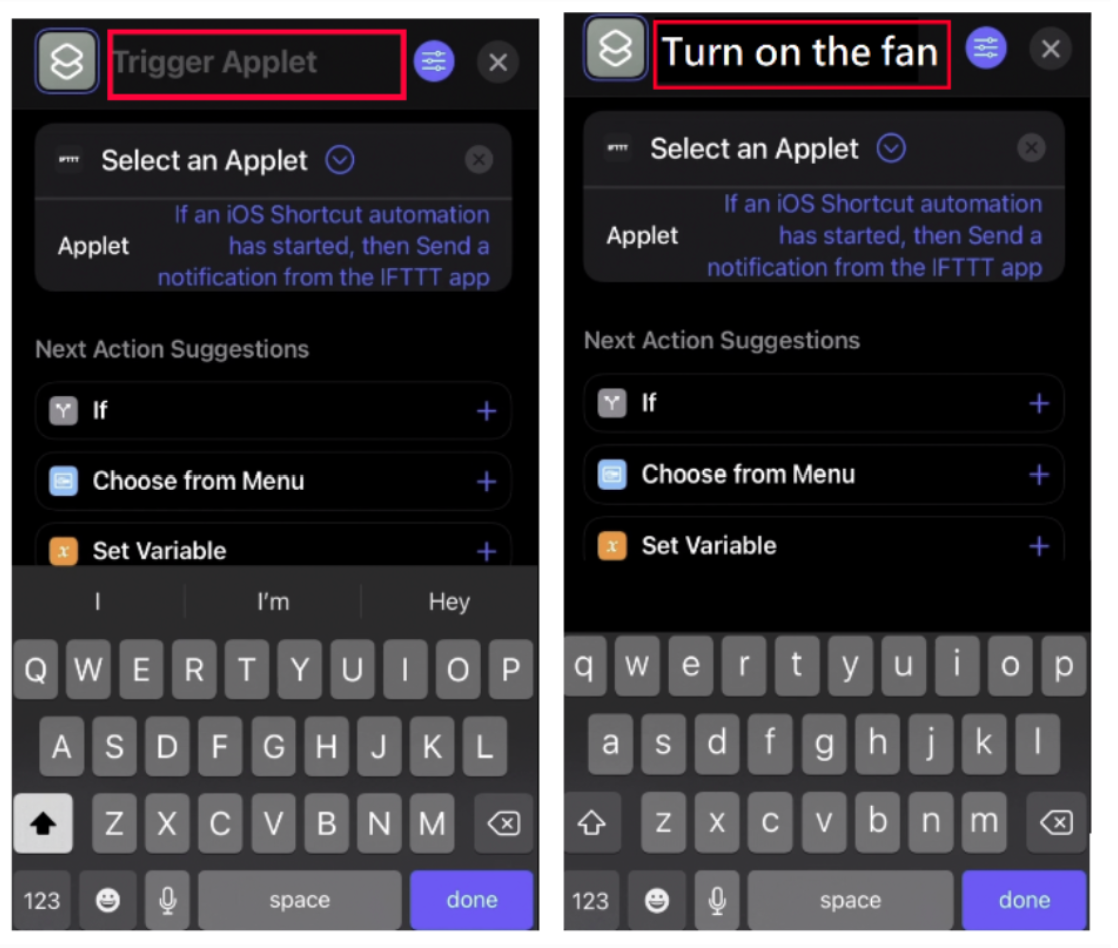
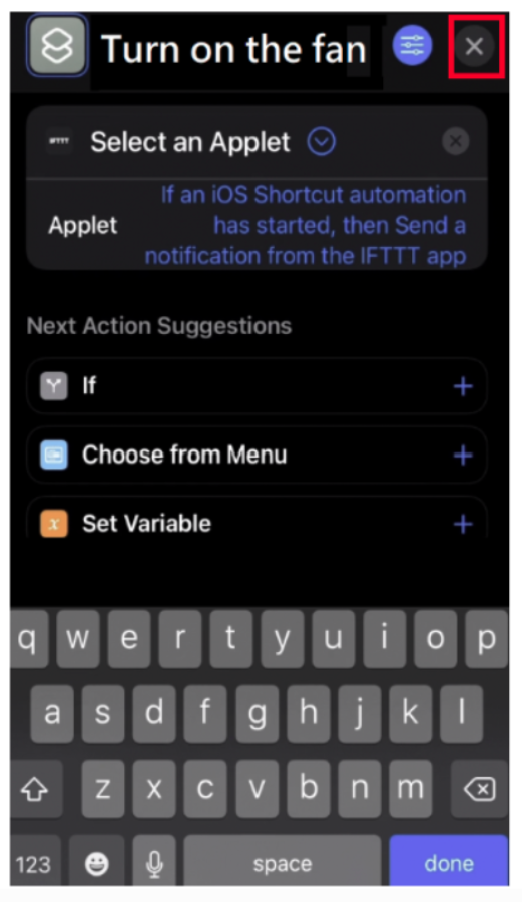
- Open the Shortcuts app and Tap + to create a new shortcut.
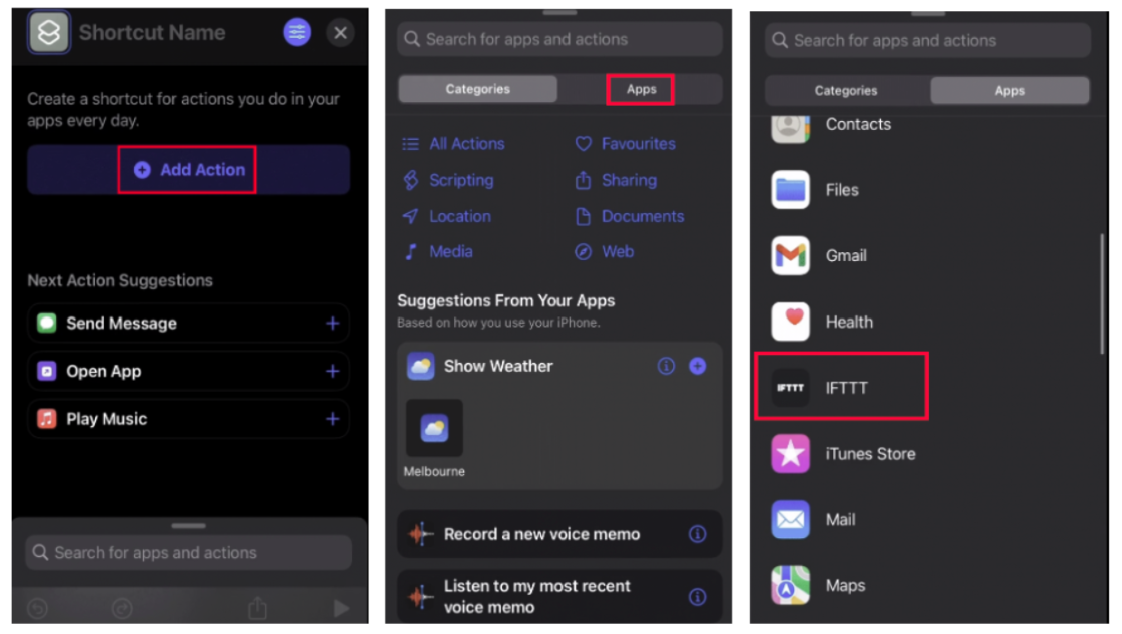
- Add a new action and choose IFTTT from the app list.
- Then select the Trigger Applet. Choose the applet you set up earlier in IFTTT.
- Rename the shortcut at the top of the screen. This name is the command you will say to Siri.
- Save the shortcut.
- Repeat the same steps for turning the fan off.
Activating Apple Siri
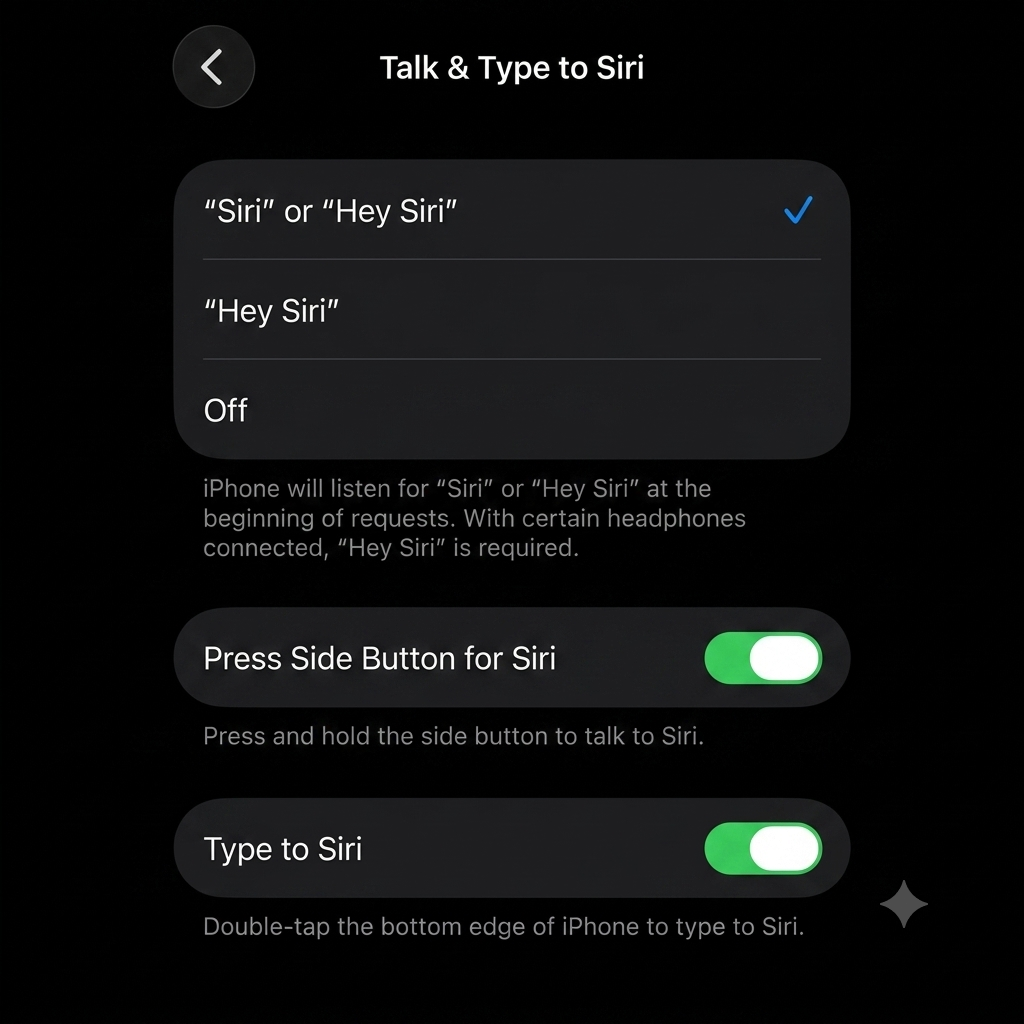
- Go to Settings → Siri → Talk & Type to Siri.
- Turn on:
- Listen for “Siri” or “Hey Siri”
- Press Side Button for Siri
Both options should be enabled.
Testing the System
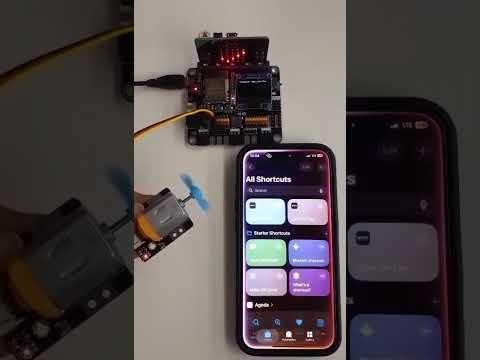
Now it’s time to test the complete setup.
Activate Siri by saying:
“Hey Siri, turn on the fan”
or
Press and hold the Side/Home button, then say:
“Turn on the fan”
If everything is configured correctly, the fan should start within a few seconds.
Next, say:
“Turn off the fan”
The motor should stop immediately.