How to Make Your Windows Computer Run Faster
by TreeGuy1234 in Circuits > Computers
467 Views, 1 Favorites, 0 Comments
How to Make Your Windows Computer Run Faster
.png)
You have probably encountered an old, slow computer. Did you know there is most likely a way to fix it, and it is easy to execute? If you follow the steps below, your computer (or your friend's computer) will be running at full speed in no time.
Table of Contents
- Clearing Unnecessary Background Processes (Steps 1 - 2)
- Removing Temporary Files (Step 3)
- Removing Old/Unused Apps (Step 4)
Important Note:
This Instructable is focused on Windows computers. If you're a Mac user, you may find the steps unclear.
Clearing Unnecessary Background Processes - Part One
Most of the time, a few background apps are using all of your computer's resources. To close all the hungry programs, open Task Manager. To open Task Manager, press Ctrl+Shift+Esc, or press the Windows Key, type 'Task Manager', and press Enter.
Once the task manager is open, right-click the bar that has the total usage percentages. Make sure the options Status, Process name, CPU, Memory, Disk, Network, GPU, and Power usage are selected, as shown in the image below.
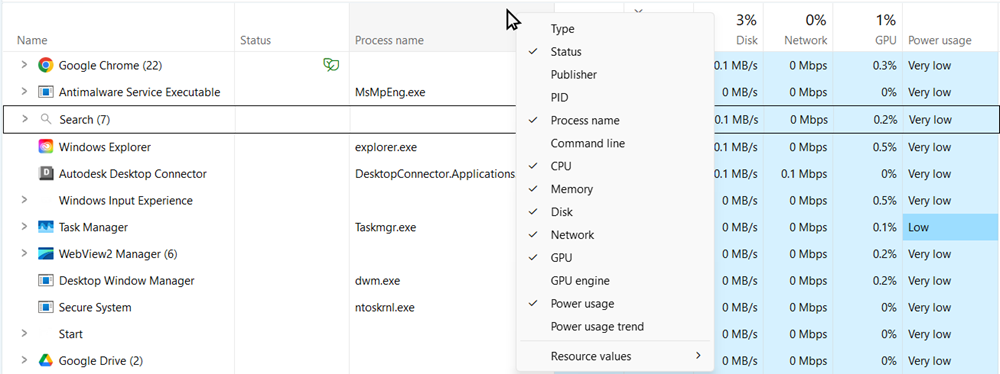
Once complete, sort all tasks in descending order by RAM/Memory usage by clicking the top box that says Memory. There should be a small arrow pointing down that appears at the top.

Now that the tasks are sorted, you can see the programs that are using the most RAM. The RAM usage gives us a good estimate of the program's size. Chances are, when the program is using a lot of RAM, it is also using other resources.
What is RAM?
RAM, which stands for Random Access Memory, is also called memory. This is where computers cache files that are likely to be used again. Think of it as a short-term memory. When the computer restarts or gets powered off, the RAM clears. For example, apps cache files in the RAM so they can access them faster than if they were stored on the disk. This increases app speed drastically. After a while, many programs store their files in the RAM, and it starts to fill up. Then other programs can't store or access their files quickly. This makes the programs and the computer run slowly.
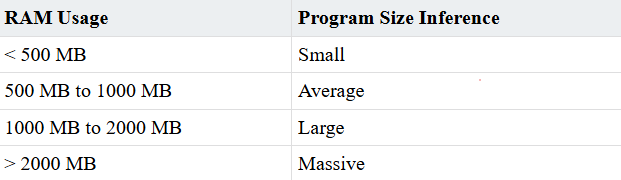
To start cleaning up your computer, look at the sorted list of apps. Read the program name and decide whether to close it. Do not close Windows Services unless you know exactly what the service is and that your computer won't crash without it. Windows Services are denoted with this icon:  .
.
In addition to sorting processes by RAM usage, they can also be organised by status, process name, CPU usage, disk usage, network usage, GPU usage, and power consumption. These are all helpful tools for finding and removing large, unnecessary programs. I like to sort tasks by name, so Windows categorizes them into three main sections: Apps, Background Processes, and Windows Processes. It is also a good practice to monitor all running processes to identify and eliminate malicious programs, such as viruses and malware.
Clearing Unnecessary Background Processes - Part Two
For those who want this task-cleaning process to be more automated, a script can be written. Yes, the internet has plenty of these apps, but they cost money, don't work well, and are mostly a scam. For this instructable, we will be writing a Windows batch file. A Windows batch file (*.bat) is a plain-text file containing a series of commands that are followed in the order they appear. All of the commands are Windows Terminal commands.
To start, make a folder where two files can be stored. One file will be a .csv file of the task names. The other file will be the .bat script. To edit and create both files, I used the built-in Notepad app.
Creating tasks.csv
To set up this file, create a list of all the tasks you want closed in this format:
To find a process's program name, look in the Process Name column in the Task Manager. If the name isn't showing, click the arrow next to the process icon.
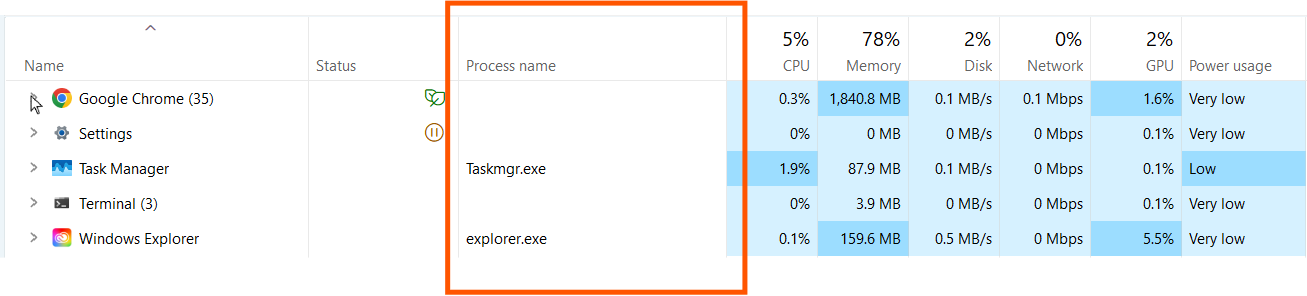
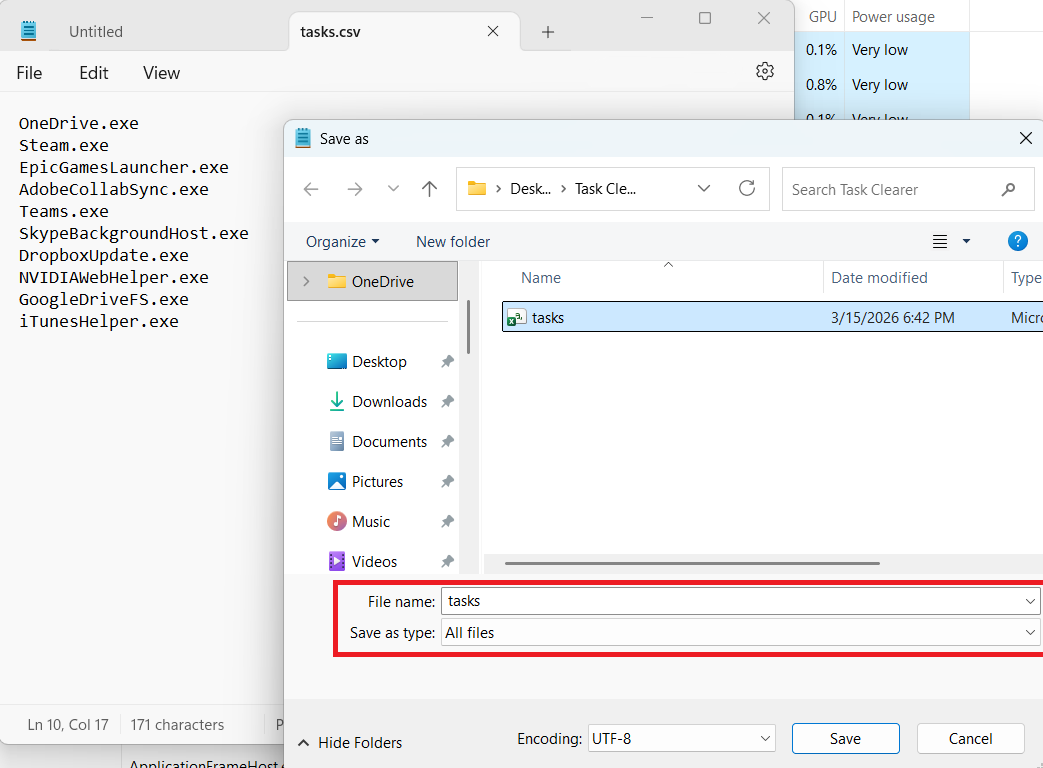
After gathering and creating a .csv file with the desired task names, save it to the folder that will house your .bat file. You will not need to edit this again unless you are editing the task list.
Creating StopTasks.bat
I like to think of a .bat file as a to-do list. As the OS reads the file, it executes the written commands in order. Paste these lines into your file.
First, the file creates a variable called CSV_FILE. Its value is your tasks.csv path. It then checks if the file actually exists. If it does not, the program stops. Finally, the program reads each task on each line and tries to terminate it. It then notifies you about the results. Ensure the program is saved in the same folder as tasks.csv, or it will fail.
Important:
If your files are not running, make sure that when saving them, you changed the Save as type dropdown from Text Documents (*.txt) to All files.

To schedule this program to run at a set increment of time, open up Task Scheduler. To do this, click the Windows Key, then start typing the words 'Task Scheduler'. Click on the option that has a clock icon.
If the video is blurry, watch it on YouTube or set the quality to 1080p
After this, your program should be good to go! If you want to run it manually, just double-click on the .bat file.
Removing Temporary Files
All computers cache their temporary files in a far-fetched spot in the file system. These files could include logs, update information, cached files, or just old files. Most of the time, computers don't delete the files. They leave them until they build up so much that the computer crashes.
To do a full disk clean-up, click the Windows Key, then type 'Disk Cleanup'. Click on the first option. Once open, select your desired disk and continue. After it's done searching for files, click the Cleanup System Files button, select the same disk you selected before, and continue. Select all the options, then click Okay. By doing this, you can reclaim gigabytes of space. I would recommend a full disk clean every 6 months. Every month, you should clear your computer's recycling bin to eliminate pile-ups.
Removing Old/Unused Apps
Old/unused apps sit on your computer and take up space. By deleting these programs, you can create space for newer, more assistive programs.
First, open up the Windows settings app (Click the Windows Key, then type 'Settings'. Select the first option). Then, click the System option in the left menu. After that, select Storage in the main menu in the center of your screen. Windows will then prompt you to allow administrator access privileges to settings so it can read all your files. From there, you can view how much space each type of file takes up. Scroll down to the Storage Management section and select Cleanup recommendations. Settings will then recommend files to delete.
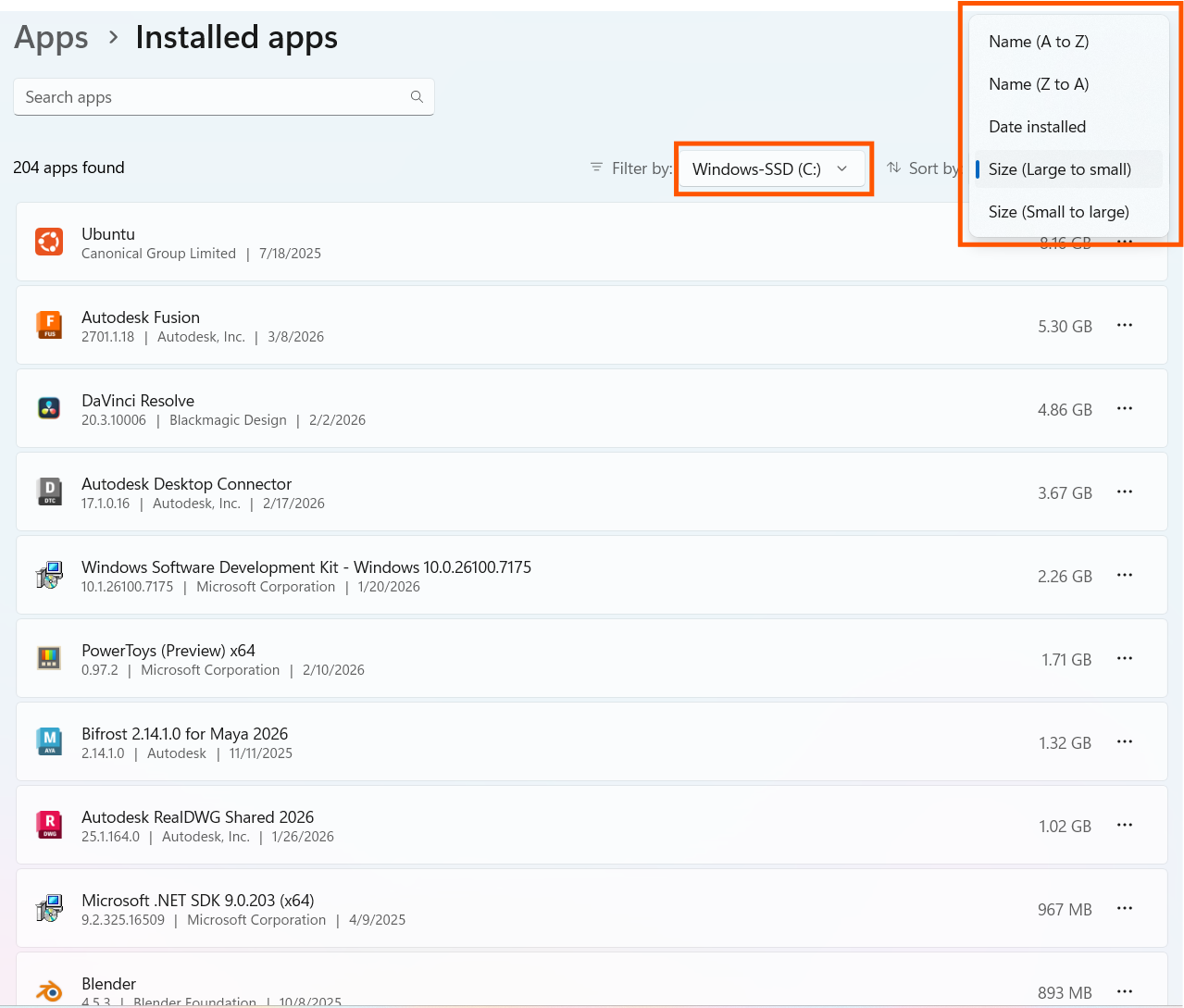
To find a list of apps, also open up the settings app. Navigate to Apps on the left menu, then Installed Apps on the center menu. From there, you can sort your apps by size, name, and installation date. Using this method, I cleared 20+ GB of old apps.
Conclusion
In conclusion, everyone likes to see this in their file explorer: 
There are many ways you can achieve this feat. From freeing up RAM to cleaning temporary files to removing old apps, it helps to make your computer more efficient.