How to Make a Trampoline Animation in Blender
by ChatJPT in Design > Animation
61 Views, 3 Favorites, 0 Comments
How to Make a Trampoline Animation in Blender

Bouncing is one of those things that's simple in real life but surprisingly tricky to get right in a 3D animation. Too stiff and it looks fake. Too soft and it looks like jello.
That's the challenge I set for myself with this project: simulate a ball bouncing across a course of five trampolines in Blender 5.1, using soft body physics, not hand-animated keyframes, and not cheated workarounds. The bounce in this animation is calculated by Blender's physics engine on every single frame making the animation much faster to make.
Now, let's get creating.
Supplies
Since this Instructable is computer based, you will need nothing but a computer with Blender 5.1 installed. It is optional but I will also edit the video. For that, I am using Davinci Resolve though anything works. I would recommend a computer with good graphics processing but I made this project with a 2020 M1 Macbook Air.
Getting Started
 (1).png)
.png)
Default Layout Items
At first, blender may look a little overwhelming but you don't have to learn every single button to get designing.
- The top bar that says layout, sculpting, and others are layout presets. Switch between them to see what they do. Those tabs just change your screen for what is suited for the task such as sculpting or scripting
- In the default tab called layout, the bottom bar with bar with different kinds of play buttons is the timeline where you can create animations and view keyframes. The start and end values are for frames.
- In the top right where you see cube, camera, and light, there is the outliner. You can see every object in the scene, its visibility(viewport or camera) and organize them into collections. You can select objects through the outliner and perform operations on them.
- Below that is the properties manager. It is where you can change scene, rendering, and object properties. Click through its tabs and see what's there.
In this tutorial, only the default layout preset and the video editing preset will be necessary. If you are wondering what a button does, hover over it and it will give its name and description. Also, your animation will not look exactly like mine so don't waste your time trying to make it so.
Hotkeys and Controls
If you are new, you may not know how to use blender yet. Here are the main controls that you will need for this tutorial. Mess around with the left, right, middle mouse buttons, and scroll wheel and see what they do. If a hotkey below is capitalized, then hold shift before clicking the letter on your keyboard. There is a file for the full Blender 5.1 hotkey list from CG Boost.
Here are all of the hotkeys that will be used in this tutorial:
- g - grab (followed by: x, y, or z for only that axis; X, Y, or Z to exclude the selected axis; type in a number for the amount)
- s - scale (followed by: x, y, or z for only that axis; X, Y, or Z to exclude the selected axis; type in a number for the amount)
- r - rotate (followed by: x, y, or z for only that axis; X, Y, or Z to exclude the selected axis; type in a number for the amount)
- e - (followed by: x, y, or z for only that axis; X, Y, or Z to exclude the selected axis; type in a number for the amount)
- A - add an object
- control/command z - Undo
- control/command Z - Redo
- a - select all
- control/command s - Save
- x - delete
- tab - Toggle between current mode and Edit Mode
- shift - hold to select multiple objects in a line in the outliner
- control/command - hold to select multiple objects individually
- control/command b - bevel
- n - open and close the panel
- Control/Command A - apply
- / - Isolate
For any operations such as scaling, I will put in something that looks like this: (s, x, 5). This is to indicate what to type in to do the operation. The s creates a scale, the x selects which axis, and the 5 is by how much. Click to finish the operation. If it looks like this: (s, 5) it means there is no single axis and the operation should be done on all axes.
Necessary Addons
If you know Blender well already, you may know that you don't need an addon such as Blenderkit or Poliigon to add textures but only so you don't have to do everything by hand. In this tutorial Blenderkit will be used.
To install Blenderkit:
- Open the link.
- Click the big blue/purple download buttons on the official site.
- Download the addon. Do not uncompress the .zip file.
- Open the settings menu by going to edit, then preferences.
- Go to addons.
- Select the dropdown arrow in the upper right and click install from disk.
- Find the .zip file and open it.
- If the addon doesn't have a checkmark next to it when is installed, click where it should be to enable the addon.
Downloads
Making the Environment

There isn't much to the environment. All there will be is a large plane with the "void" not being visible through the camera that will be added later.
- Delete(x) everything in the scene.
- Add(A) a plane.
- Scale(s) it up by 2. (s, 3)
- Apply(control/command a) all transformations.
- In the physics tab in the properties manager, enable collision physics.
Getting and Modifying the Trampoline


Instead of designing everything by hand, I chose to modify a premade trampoline to suit our needs. The trampoline that I used was made by 1-3d.com. It can be found here.
Be sure when moving the whole trampoline to select the empty in the outliner, not the individual meshes.
- Once you import it, scale(s) the trampoline down by .005. (s, .005)
- Grab(g) the trampoline .25 meters along the z-axis so it lays on the plane's surface. (g, z, .25)
- In the outliner, select "Object_2" which should be the mat of the trampoline and delete(x) it.
- Add(A) a circle.
- Scale(s) it down by .75. (s, .75)
- Isolate(/) it and enter edit mode(tab).
- Select all(a) and fill(f).
- Select all(a) edges of the mat and inset(i) them by .25 meters. Repeat this 2 more times so you have a total of 4 rings on the mat.
- Select all(a) and right click. Then click subdivide.
- Enter object mode(tab) and grab(g) the mat and move it .26 meters along the z-axis. (g, z, .26)
- Grab(g) the mat and move it along the z-axis 0.26 meters. (g, z, .26)
- With the mat selected, got to the physics tab and enable collision physics.
Organizing Multiple Trampolines

Setting Up the Trampoline To Be Duplicated
We need to parent the separate circle with the trampoline so we can move it easily.
- Select the circle then hold control/command and select the EMPTY in the outliner or the Y shaped thing.
- Parent(control/command p) the two figures and be sure to select object when you do.
- Name the empty "Trampoline". Whenever you want to move or duplicate the trampoline, select the empty before you do it, not the individual parts.
Duplicating and Positioning the Trampolines
Now that the whole trampoline is easier to move around, we will duplicate it multiple times and organize it into a course that a ball will bounce in.
- Right click and "select the hierarchy" for the trampoline through the empty in the outliner and duplicate(D) it.
- Grab(g) the new trampoline by the empty and move it to a position to where it would be realistic for a ball to bounce from one to the next.
- Rotate(r) the new trampoline by the empty and move it to a position to where it would be realistic for a ball to bounce from one to the next.
- Repeat the previous 3 steps until you have a total of 5 trampolines
In the picture, ignore the colored plane. I added the color for a step ahead before I took these screenshots.
Making the Ball

The ball will be very simple. It is just a UV sphere.
- Add(a) a UV Sphere.
- Scale(s) it by 0.25. (s, .25)
- Right click it and shade it smooth.
- Grab(g) it and move it up a necessary amount along the z-axis. Your trampolines may be positioned differently from mine so do what suits your project. (g, z)
- If you need to shift the ball over so it would hit the trampoline well, you could do so.
Adding Colors and Textures

Part 1: Ground material
I think a painted concrete material would be nice.
- Look at the Blenderkit "module" at the top of the viewport. It should be a hexagon with a gradient color either with a dropdown or a search bar.
- Be sure you can see the search bar by opening the drop down.
- Click on the 2 tone circle to filter for materials only.
- Search for "painted concrete"
- Select the one that you like
- Drop the texture on the environment.
- If it doesn't look good, try another one.
If it doesn't change the color/texture:
- Ensure you're in material preview or rendered mode.
- Go to the materials tab in the property manager.
- Click on the 2 tone circle dropdown and select the material you wanted to add.
Part 2: Ball Material
Since this ball is supposed to be a bouncy ball, I chose a vibrant color. This could include red, yellow, or cyan. There are two methods to adding color.
Method 1: Blenderkit Material
- Be sure you can see the search bar by opening the drop down.
- Ensure the the 2 tone circle is highlighted to filter for materials only.
- Search for "(adjective) ball" or "(type) ball". For the type it can be beachball or basketball.
- Select the one that you like
- Drop the texture on the ball.
If the color/texture doesn't change:
- Ensure you're in material preview or rendered mode.
- Go to the materials tab in the property manager.
- Click on the 2 tone circle dropdown and select the material you wanted to add.
Method 2: Regular Color
- In the properties manager, click the materials tab.
- Click the plus and select new.
- By base color, change the color to what you want.
- Change the metallicness and roughness to what you think is fine.
Ball Softbody Settings

Since the mats of the trampolines have collision physics properties, the ball must have soft body physics properties for things to work.
- Under the physics tab in the properties manager, enable soft body physics.
- Uncheck Goal
- Under Edges, change the pull and push to .75
- Change the Bending to 5
- Under object, change the ball mass to 0.5kg.
Test the bounce by hitting play on the timeline. It shouldn't be glitchy but it may slow down your computer a little bit.
Aligning Trampolines
You may need to align your trampolines so the ball bounces on them properly. To do so, you can:
- Grab(g) the trampoline on a specified or excluded axes
- Rotate(r) the trampolines on a specific axis to control where it bounces
Changing How the Ball Bounces
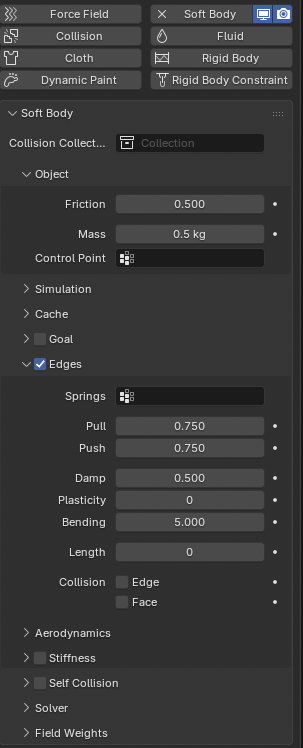
This step is to perfect the ball's bounce to how you like. It is optional as the ball already bounces fine but is necessary if you want something different.
Pull
The stiffness of the edge springs when stretching outward. Increase this value to make the ball stretch out less when compressed. Decrease it to do the opposite.
Push
The stiffness of the edge springs when stretching inward. Increase this value to make the ball deform inwards less when compressed. Decrease it to do the opposite.
Damp
Edge spring friction. I usually don't worry about this value.
Plasticity
How permanent the deformations are. Increase this value to increase the permanency of deformations.
Bending
Bending stiffness. Increase the value to make it stiffer when bending. The increased stiffness makes any deformations fix faster.
Shear Stiffness
How resistant the ball is to sideways forces. An exam
Adding Lighting

Changing EEVEE Settings
- Go to the render tab in the properties manager
- Find and enable raytracing.
Lighting
Since this is more of an outside environment, sun lighting will be used.
- Add(A) sun lighting.
- Grab(g) it so it is a good distance above the "ground".
- Adjust the brightness to about 5 where the colors are still vibrant but at the same time illuminated well.
- Change the angle to 90.
- To check the lighting, ensure you are in render preview mode at the top right.
Adding the Camera

In this tutorial/article, only a follow camera will be made for the ball.
Positioning
- Add(A) a camera.
- Grab(g) it along specified or excluded axes.
- Rotate(r) the camera a little bit so it is pointing downwards at the ball.
- Click the camera button next to the camera to ensure that it centered. Take note that you can still move the camera while looking through it.
Animating
- Add(a) a camera.
- In the timeline, turn on auto-keying which is the circle to the left of the timeline controls.
- Select the ball.
- In the physics tab in the properties manager, open the cache dropdown.
- Click bake and wait for it to finish.
- Play the timeline until the ball bounces on the first/next object. Since the animation is baked to keyframes, you can wind forward and backward.
- Grab(g) the camera and move it until it is focused on the ball again.
- Repeat numbers 6 and 7 for the rest of the trampolines until the camera is focused on the last trampoline and the ball falls out of the frame.
Rendering
Part 1: Test Animation Render(Bake)
- Select the ball
- In the properties manager, go in the physics tab and open the cache dropdown.
- Change the end to how many frames you prefer. I recommend setting the end to when the ball stops moving around or is out of the frame.
- Select bake. Once it is done, view the animation. Also check how it looks through the camera you are using. Since it is baked, you can rewind and see how the ball interacts with objects.
- Once you are satisfied with the result, select delete bake.
Part 2: Limiting Blender's Processing Power Usage(Cycles Render Engine)
This is optional but it is what I will do as I don't have a very strong computer. Doing so allows you to be able to use your cpu/gpu for other tasks instead of Blender using everything.
- In the properties manager, go to the render tab.
- Ensure the render engine is Cycles.
- Scroll down and open performance.
- Open the threads dropdown.
- Change the threads mode to fixed.
- Change the threads to how many cores you want being used.
Part 3: Rendering
- Make sure you change the camera you want to use to the active camera. You can do so by clicking the camera icon next to the camera you want in the outliner or by right-clicking on that camera and selecting set active camera.
- Under the render tab in the properties manager, go to the render dropdown.
- Change the max samples to what you prefer. For my computer, the default is too high making the render take too look. I found 20 samples was good enough.
- In the output tab, go to the output dropdown.
- Click the folder icon and give where you want the frames to save. I put mine in a folder named frames in my dedicated project folder.
- Open render at the top and select render animation.
- Wait for the animation to finish rendering. While it does it, at the top, you should see stats such as the current number of samples. Every frame gets the number of max samples you selected. You will also see the time and approximate remaining time.
Converting the Individual Frames

Turning the Frames into an MP4
When you rendered the animation, it put individual frames in the folder you selected. These frames need to be put together into a video file.
- Near the middle click the + for a new layout preset, go to the video editing dropdown, and select video editing.
- Click the dropdown next to new in the middle of the screen.
- Select scene and name it Trampoline Animation.
- Add(A) an image sequence.
- Find where you saved the animation frames. Select the first one, hold shift, then click on the last one. Then add it.
- Place the image sequence in the first channel all the way at the start.
- View the animation. Make sure it's good.
- In the output tab in the properties manager, make sure the resolution fits around the render. You must not see any checkerboard pattern.
- In the output dropdown in the output tab, click the folder icon under output and give where you want the mp4 file to go.
- In that same dropdown, change the media type to video.
- Go to the encoding dropdown and change the container to MPEG-4.
- In the frame range dropdown, change the end to how many frames you made your render.
- In the render tab, change the render engine to what you prefer. I chose Cycles because it is better than EEVEE. EEVEE is just faster.
- Repeat what you did in Step 12 to limit blender's processing power usage when using Cycles render engine if you are choosing to do so.
- In the render tab, under the sampling dropdown, set the samples to what you think is good. I reduced mine to 128 since my computer isn't that strong.
- At the top go to render, then animation.
- The finished animation should pop up in the folder you specified.
If at any point, it appears to be that all your work dissapeared while converting the frames, be sure to check in the top right that the scene is set to "scene". Click the dropdown to select any others.
My Final Results
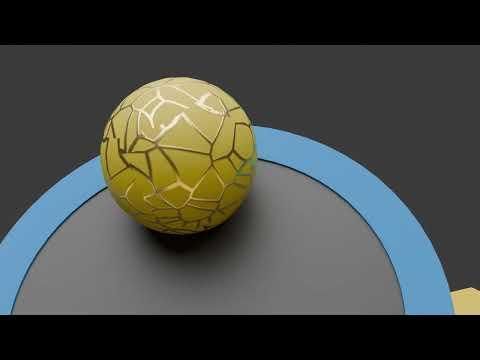
The youtube video is the edited final while the file is the raw one. Make sure the information at the top and bottom are hidden so the lighting and colors appear correctly.