How to Make the Word "Bounce" Bounce in Spline
by 31smiller in Design > Animation
44 Views, 2 Favorites, 0 Comments
How to Make the Word "Bounce" Bounce in Spline
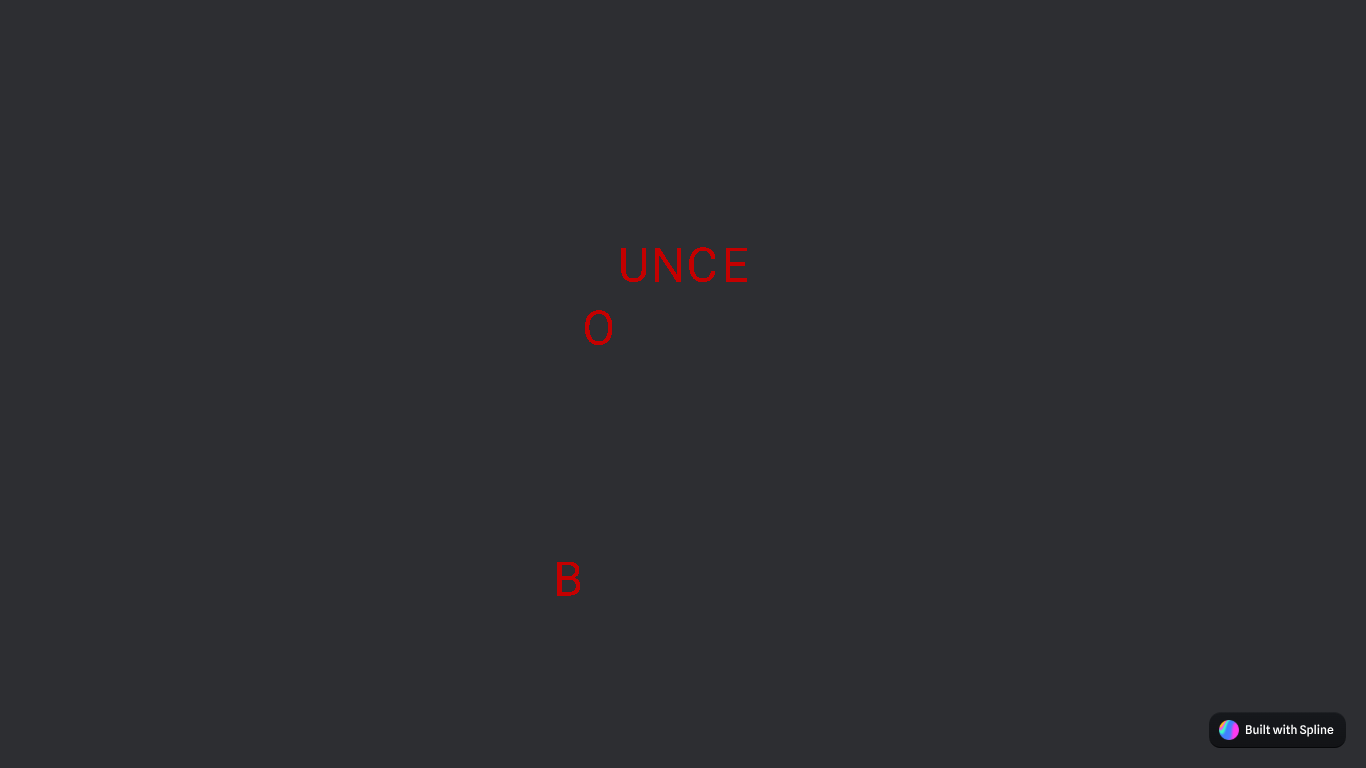
In this project, you will be making the word "Bounce" start bouncing in an app called Spline. You can see the finished project here. I made this project to introduce myself to Spline, and then decided to share it with other people. This project will likely take a max of 30 minutes.
Supplies

For this project you need a computer (Windows, Mac, or Chromebook) with the following:
- A Web Browser (Chrome, Edge, or Safari)
- A free Spline Account
- An internet connection
Making Your Account
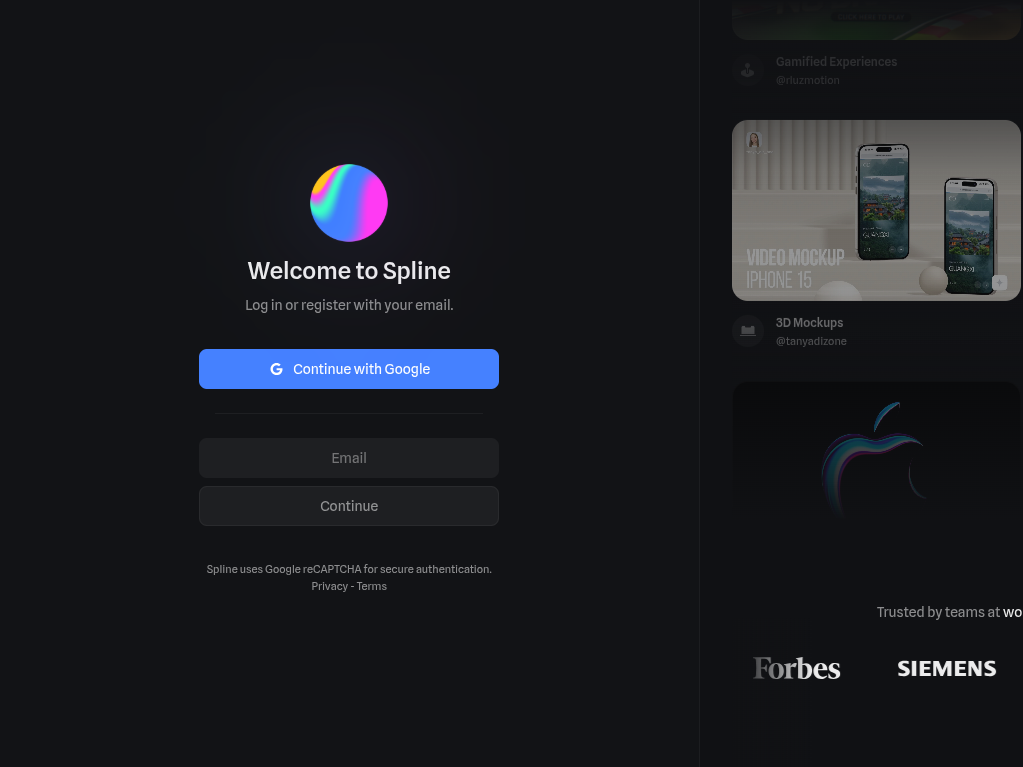
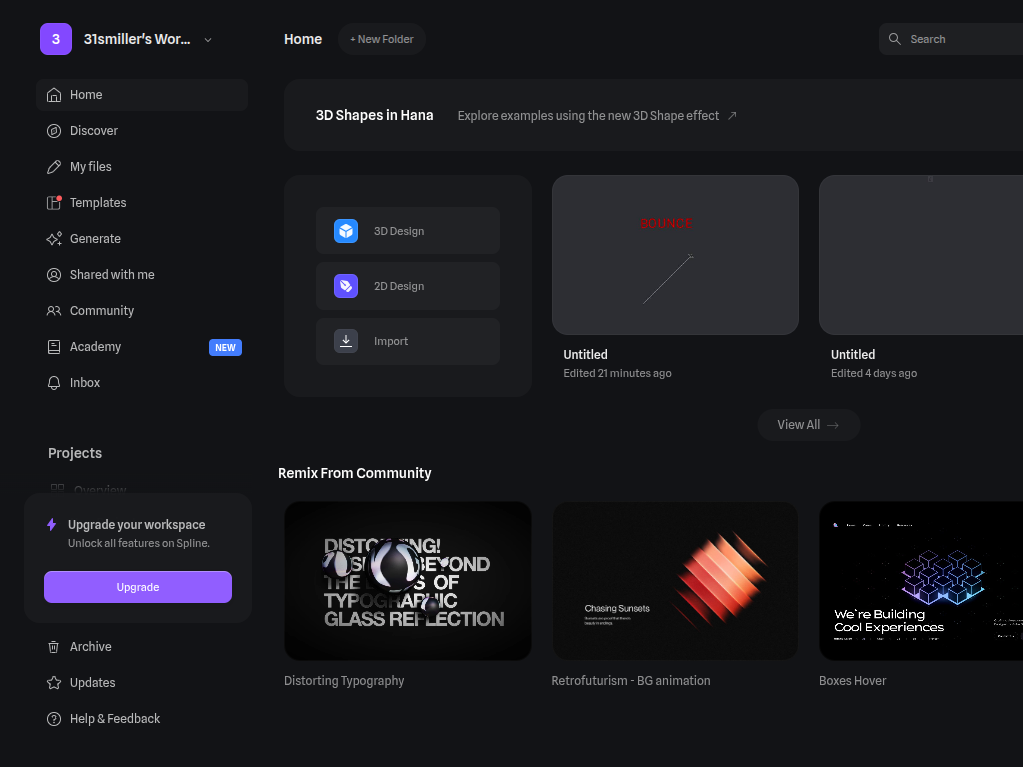
Go to https://app.spline.design/signin. Log in/ Sign up with Google or your email. It will open you up to the homescreen.
Creating Your Project
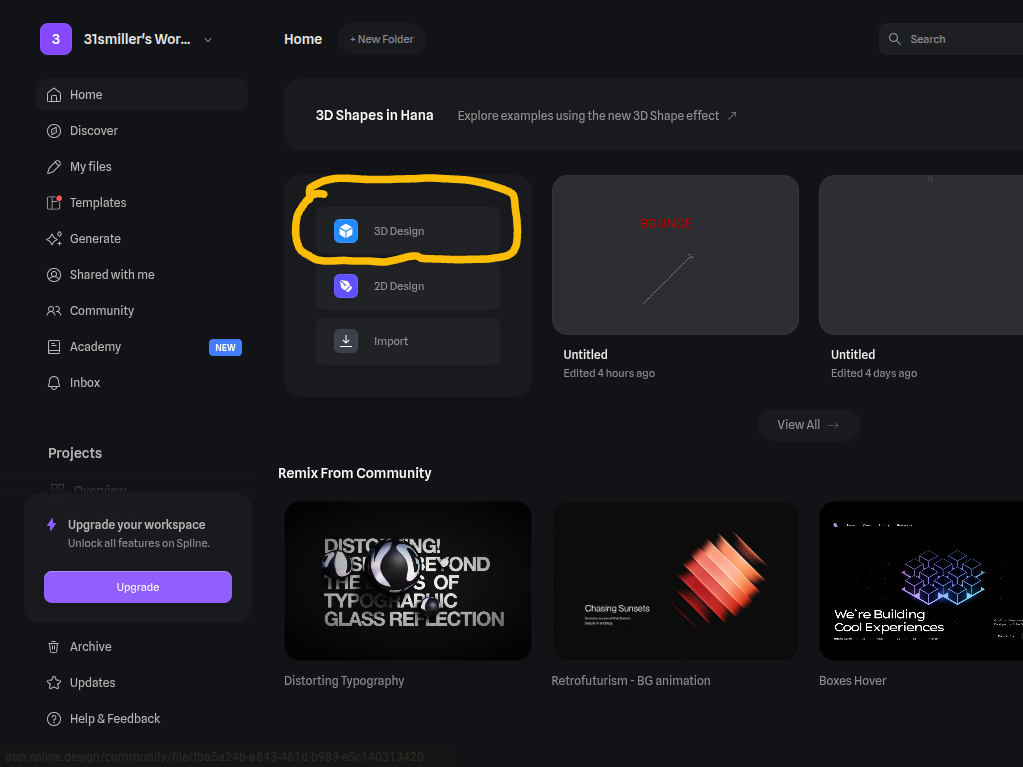
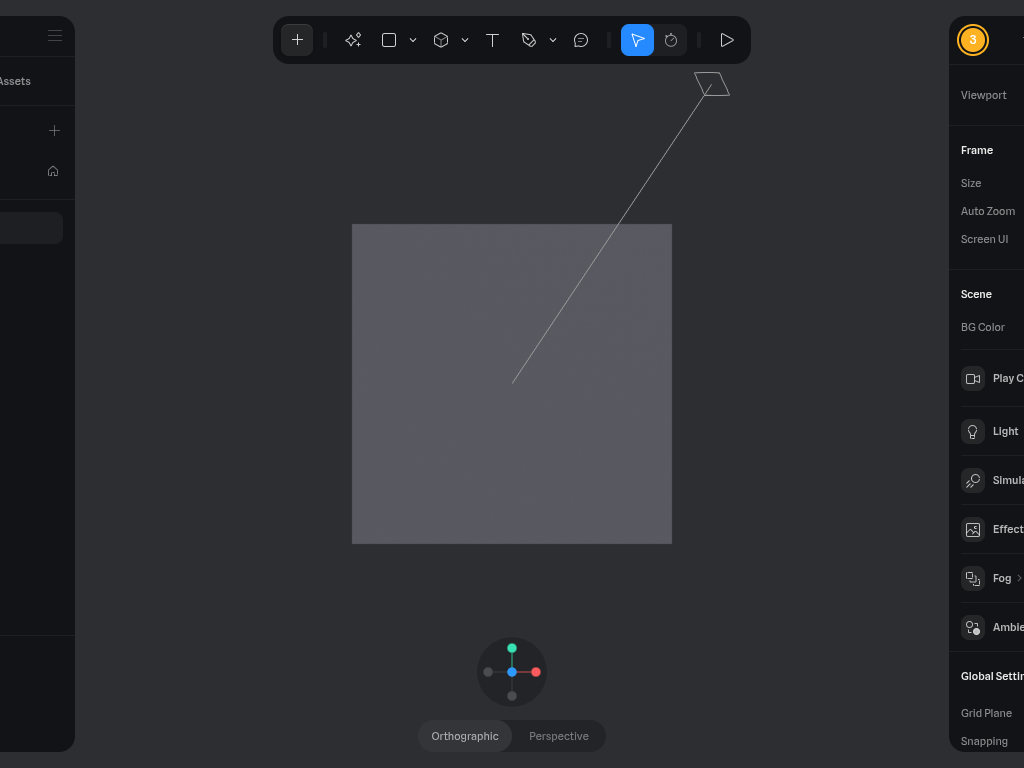
Select the 3D Design button. It should come up with a screen that looks like this (see pic. 2).
Getting Into the Proper View
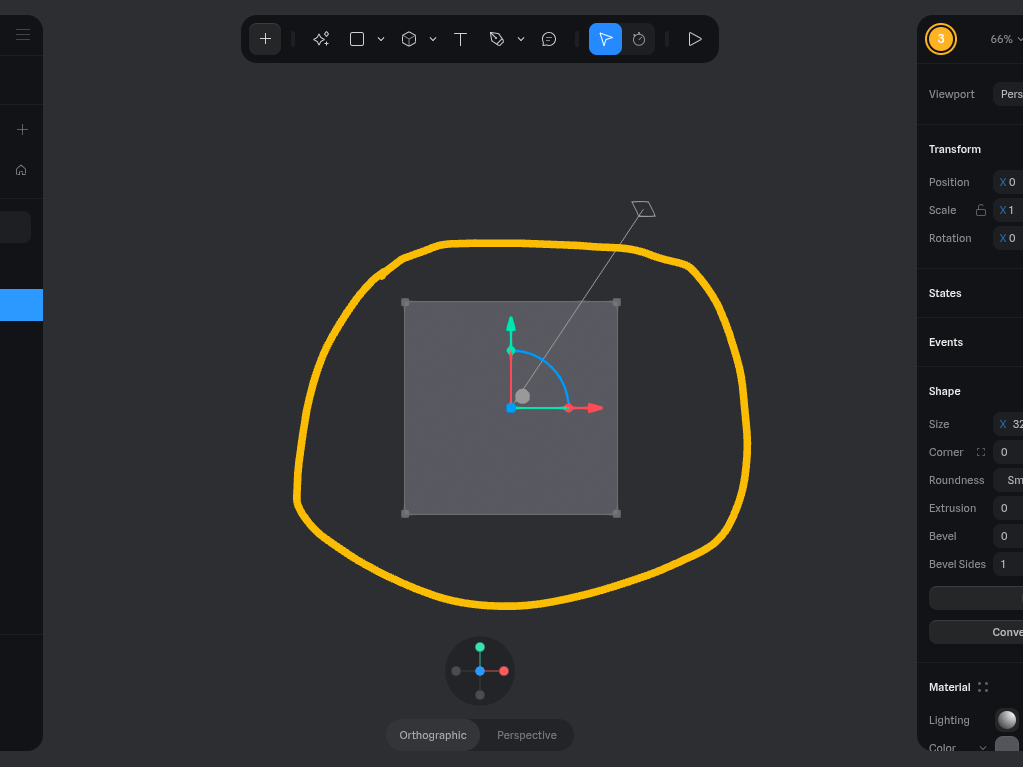
.png)
.png)
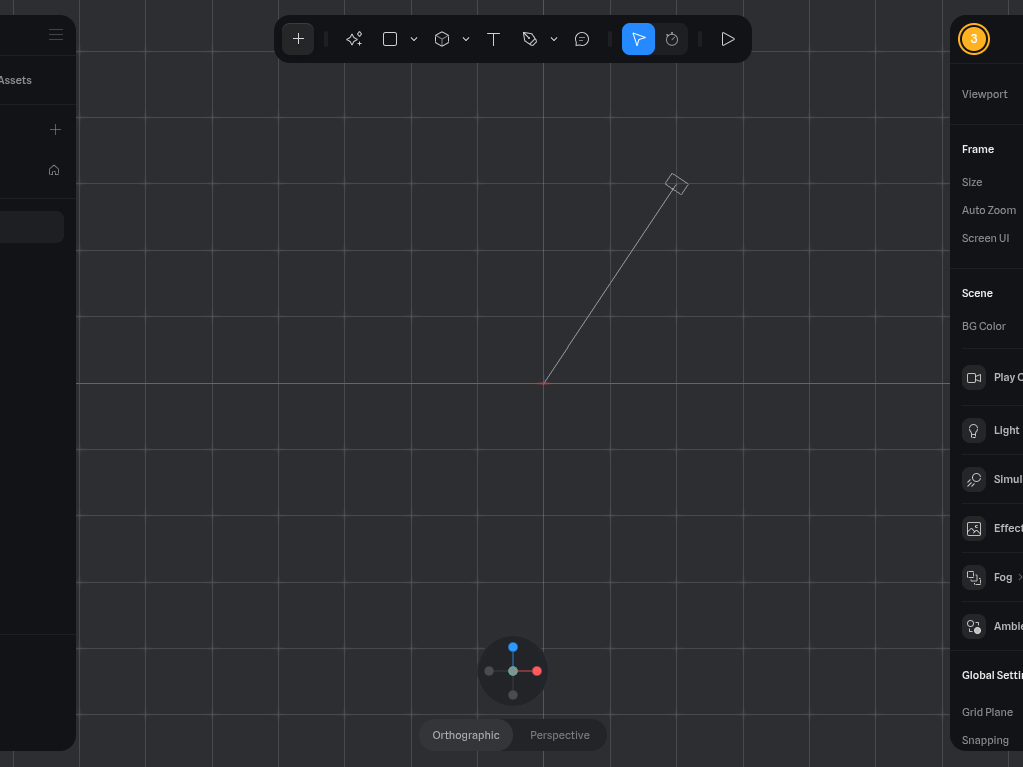
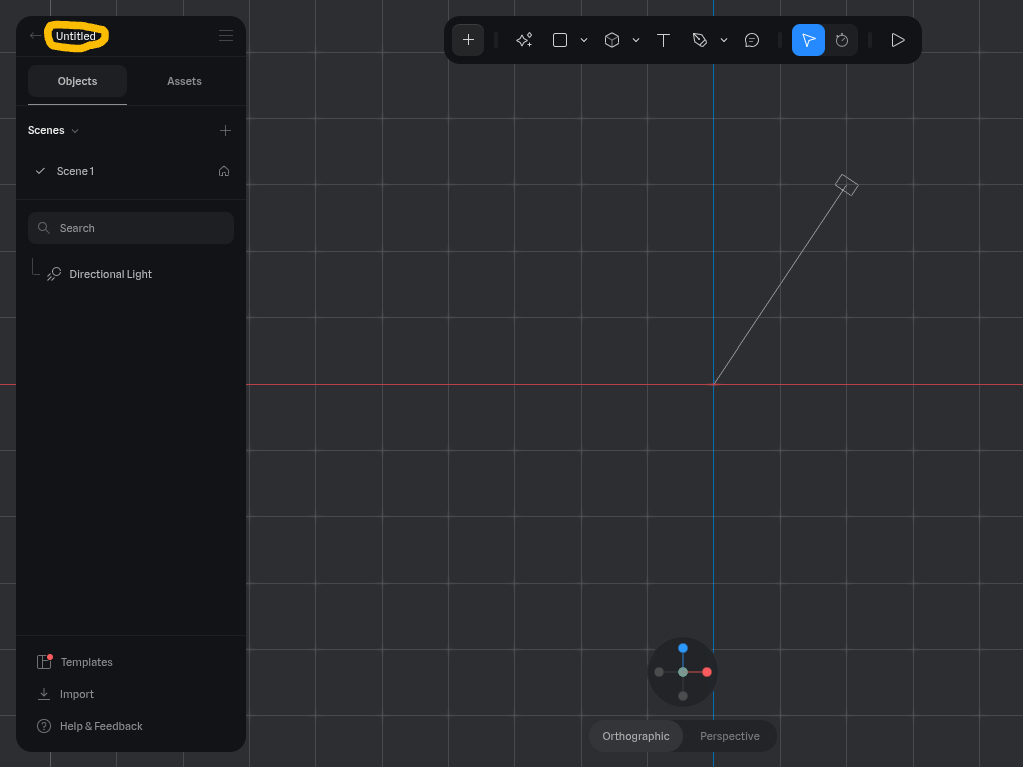
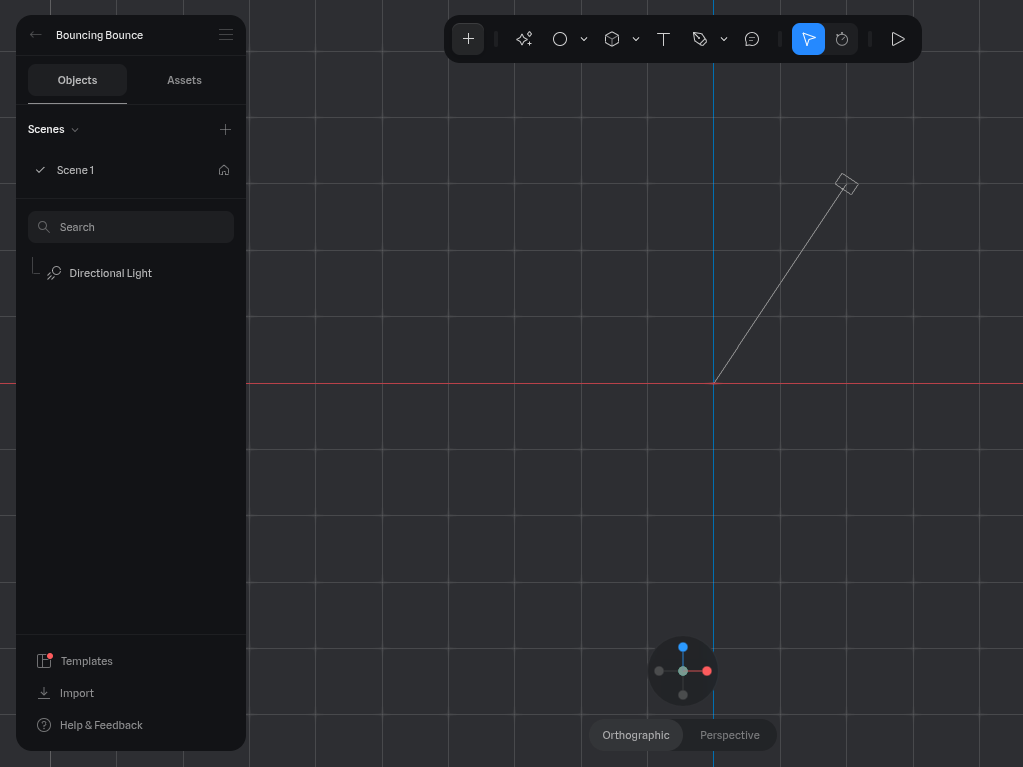
- Click on the square.
- Press the "backspace" key on your keyboard. The square should disappear.
- Click on the grey circle at the bottom.
- Next, double-click on the word "Untitled".
- Change it to something like "Bouncing Bounce".
- Note: In order to zoom in and out, hover over the Workspace and scroll.
Adding the Text
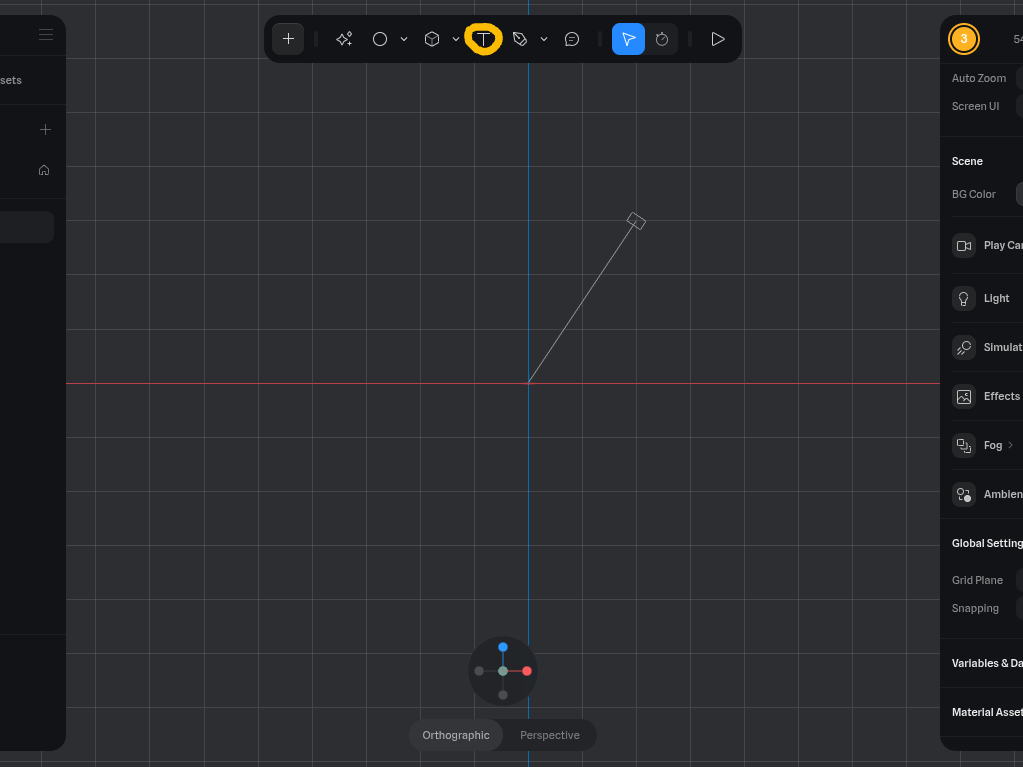
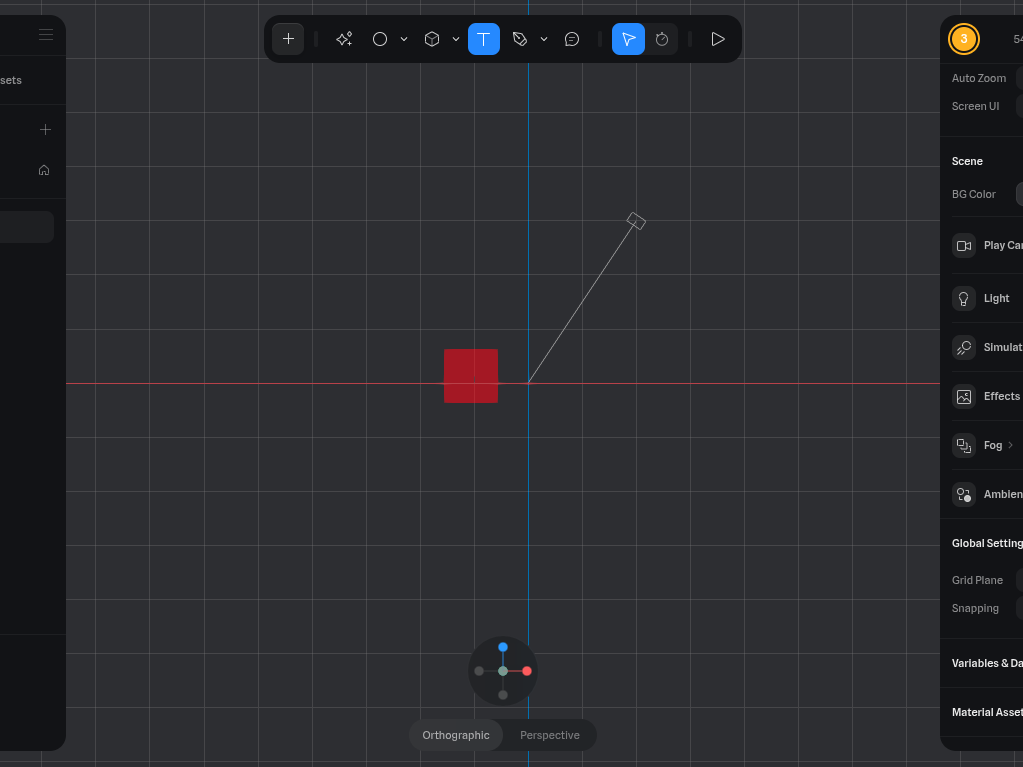
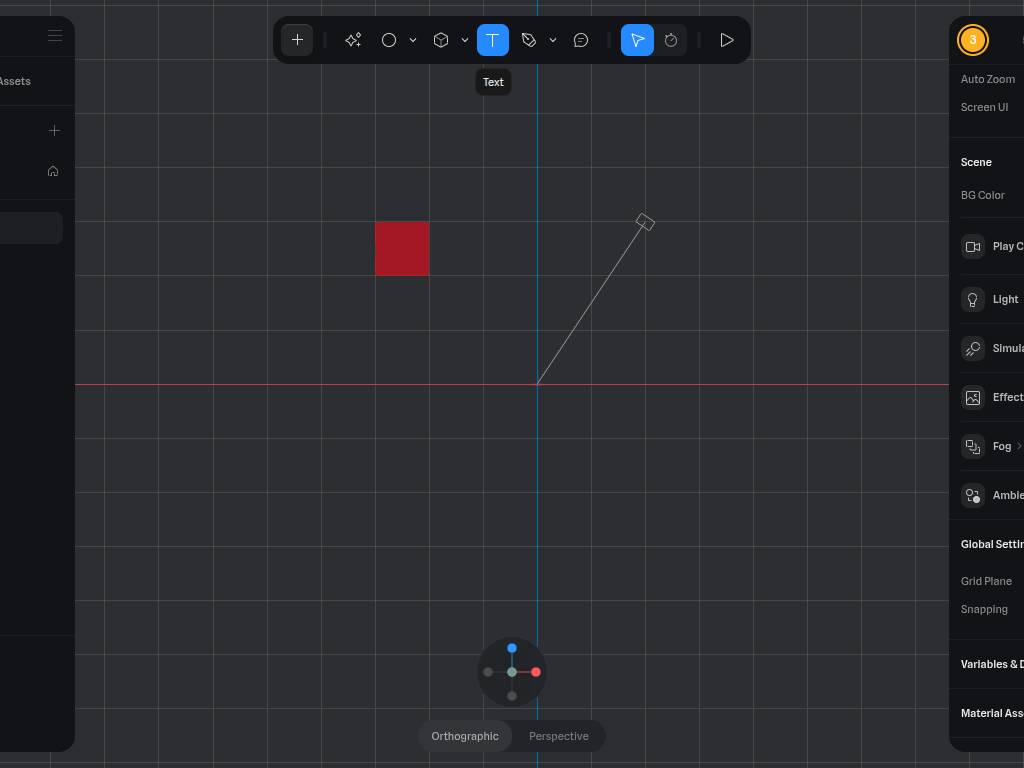
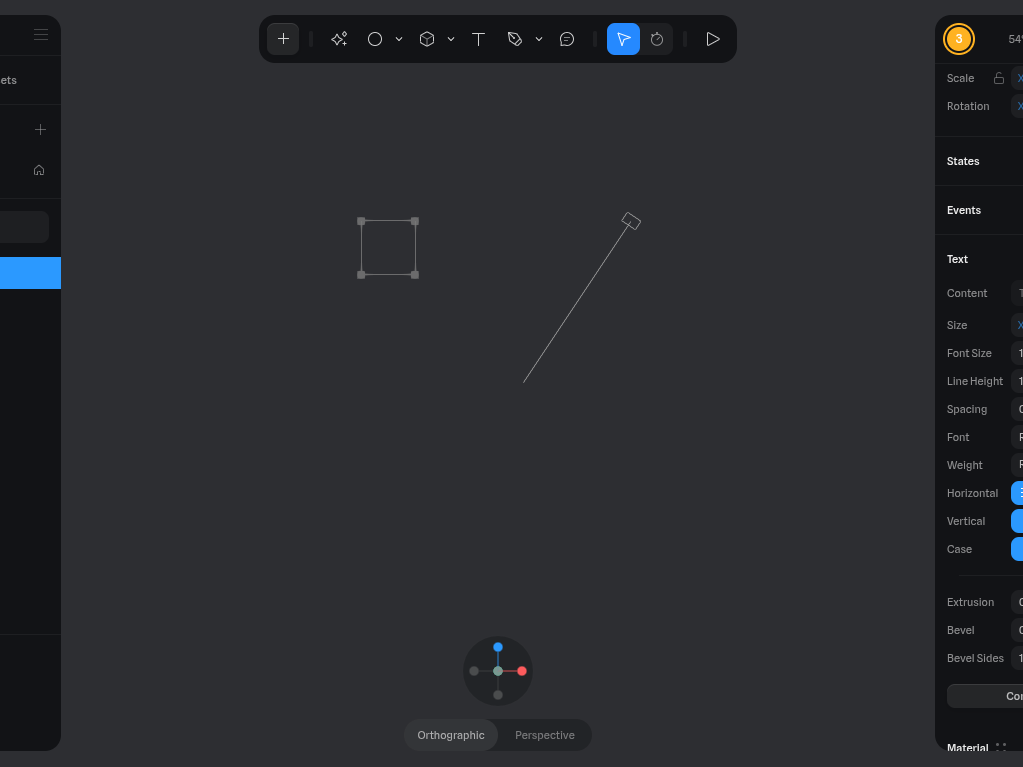
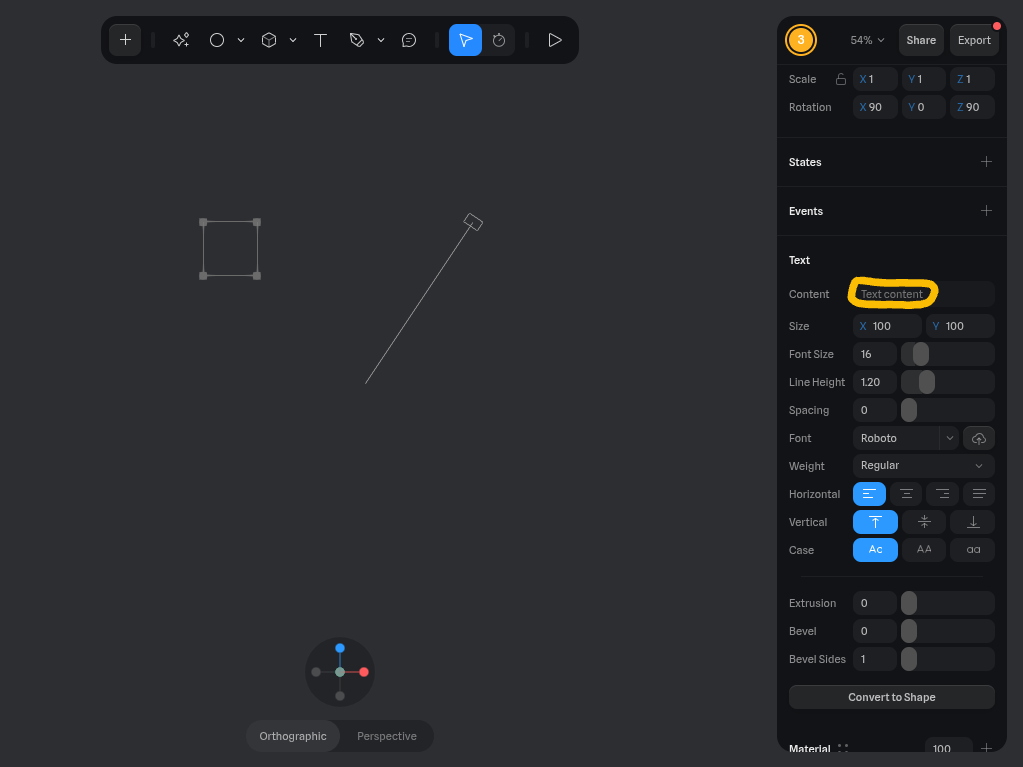
- Select the letter T and the top of the page.
- Click here (see pic. 3). A text box will appear.
- Select the Text Content textbox.
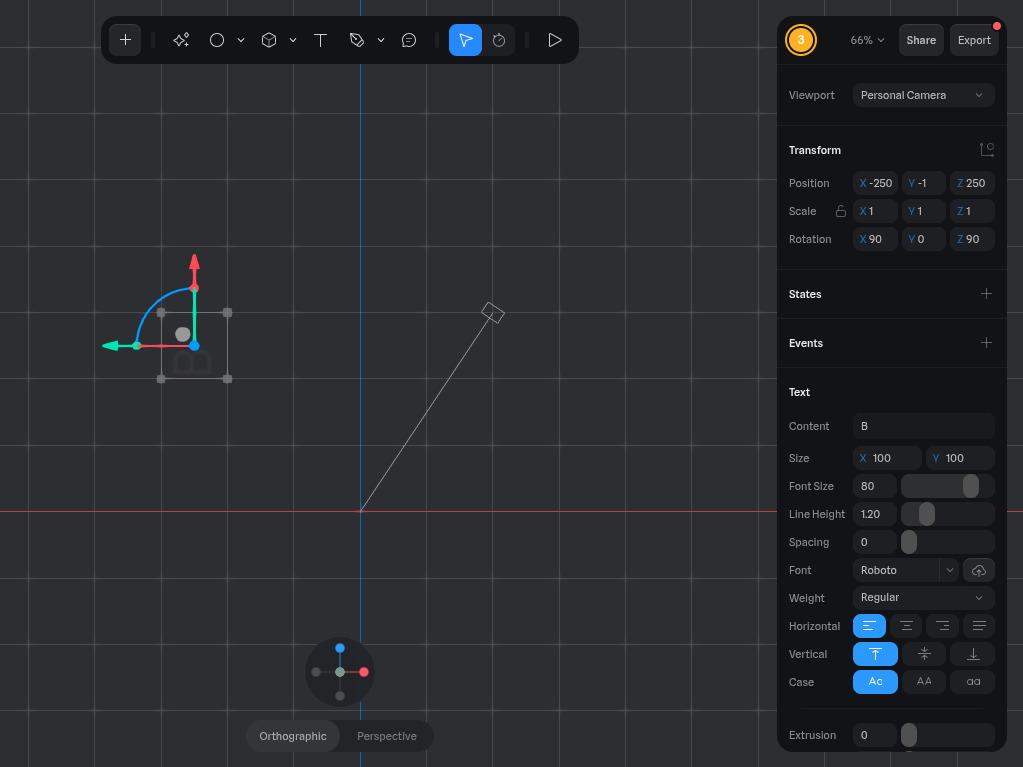
- Type in the letter B.
- Next, click on the font size.
- Change it to 80.
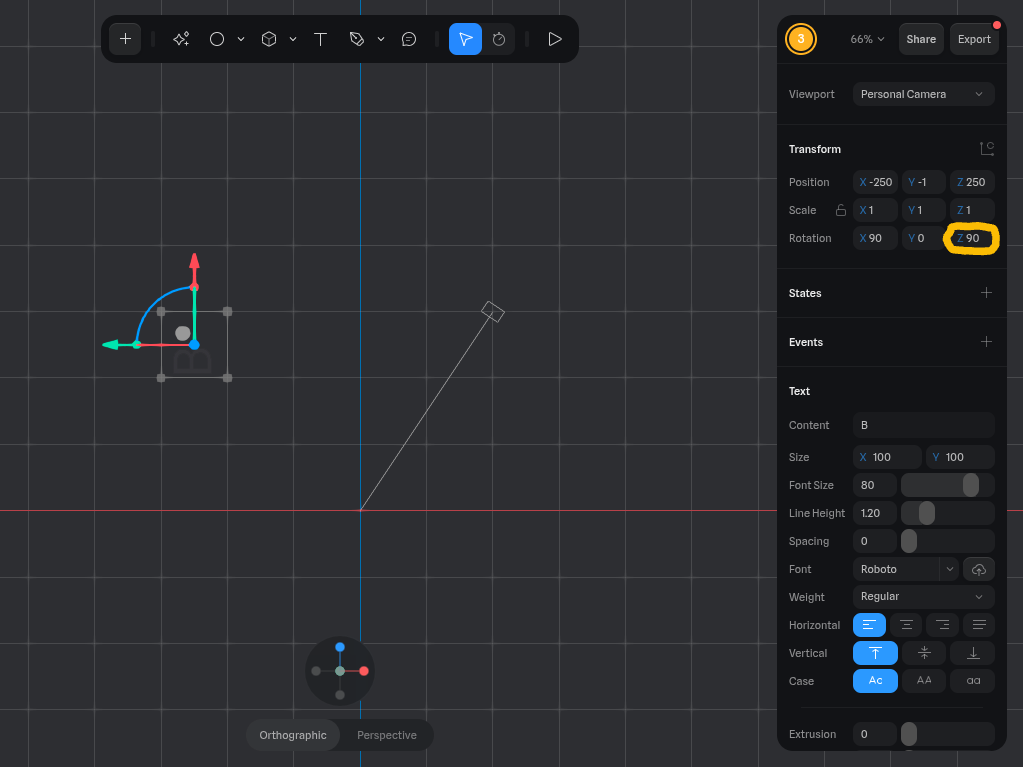
- Select the Z Rotation.
- Change it to 0.
- Scroll down on the panel on the right.
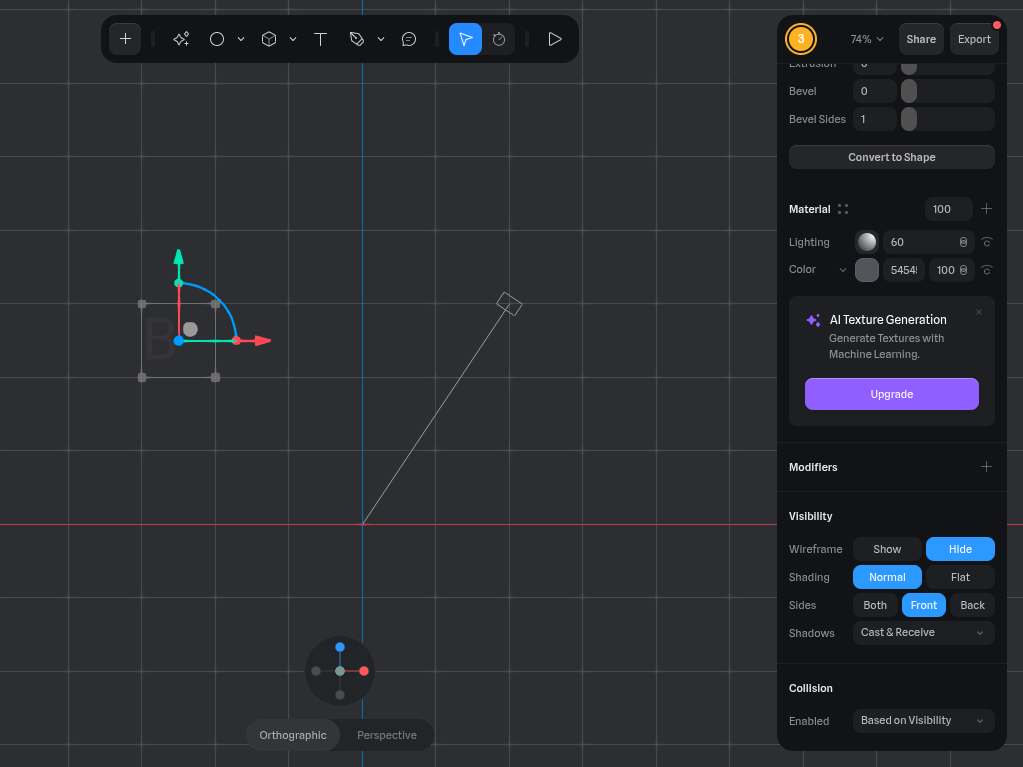
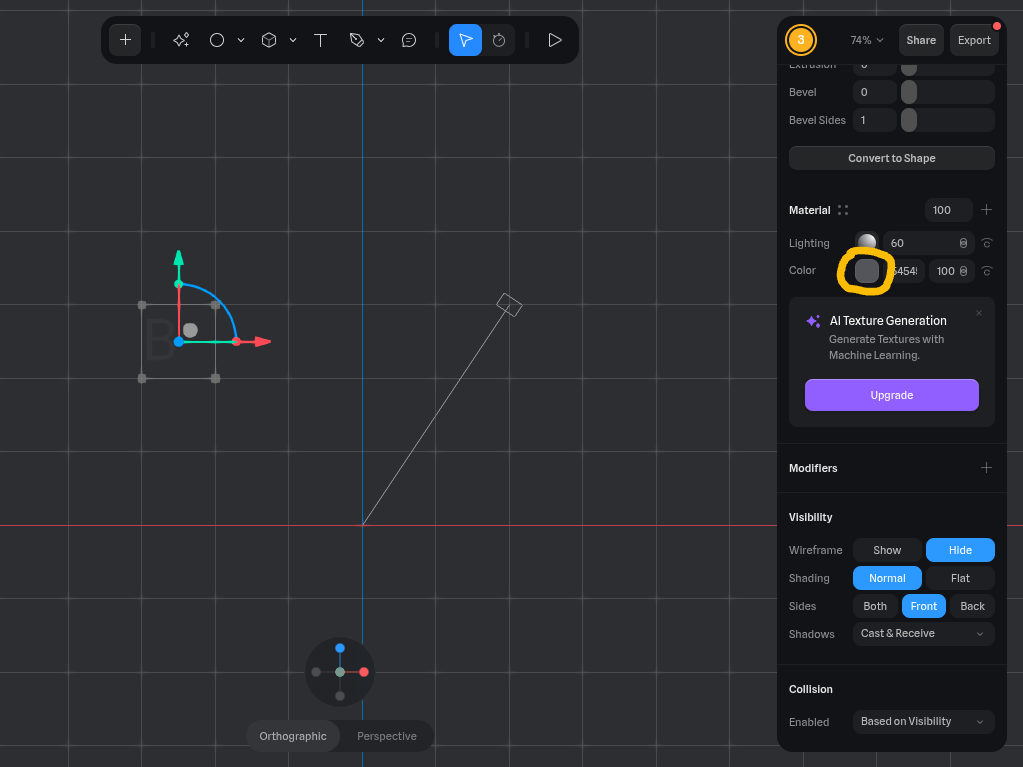
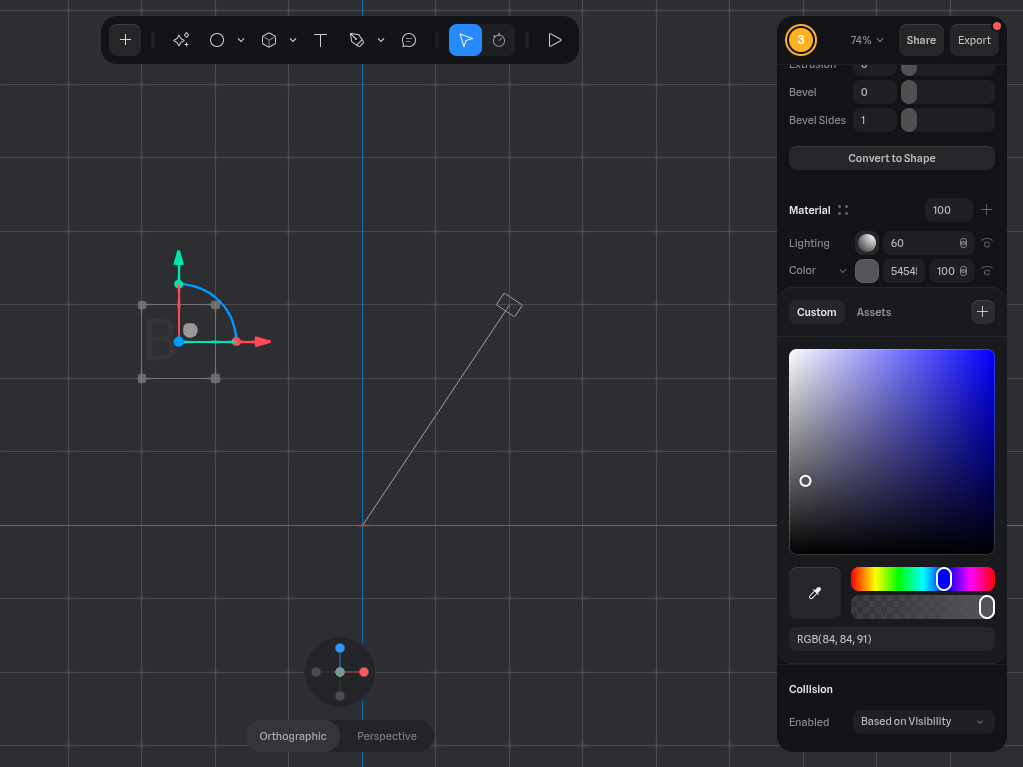
- Select the Color button.
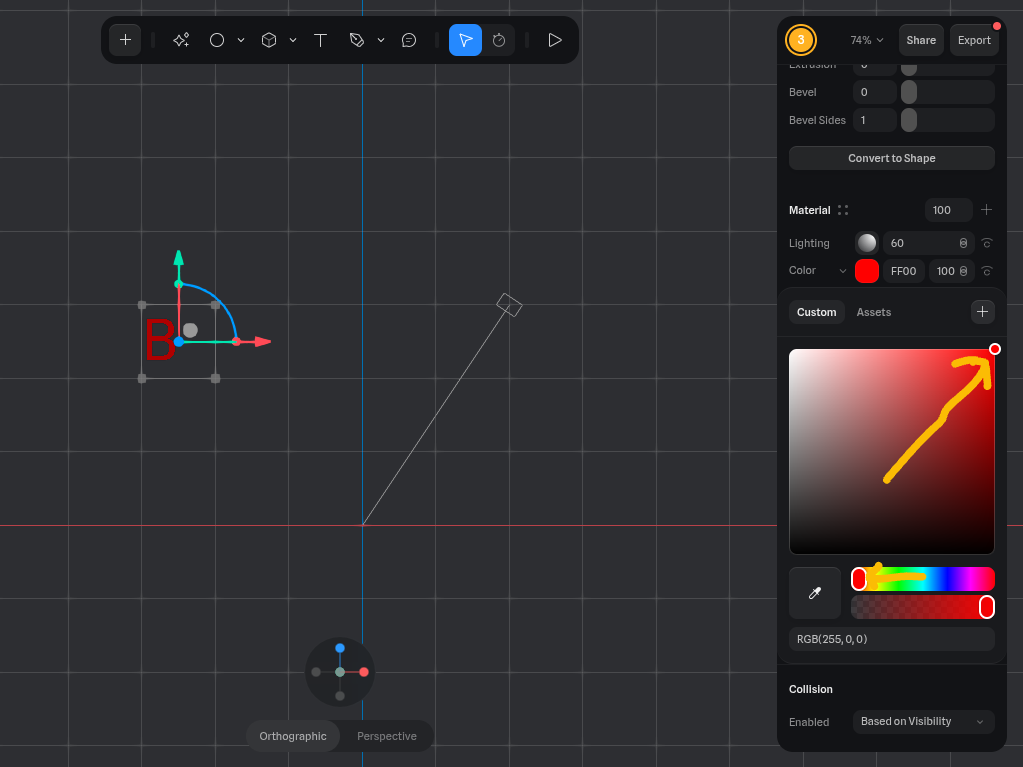
- Move the upper slider to the left and move the dot to the top right corner.
Adding the Positions
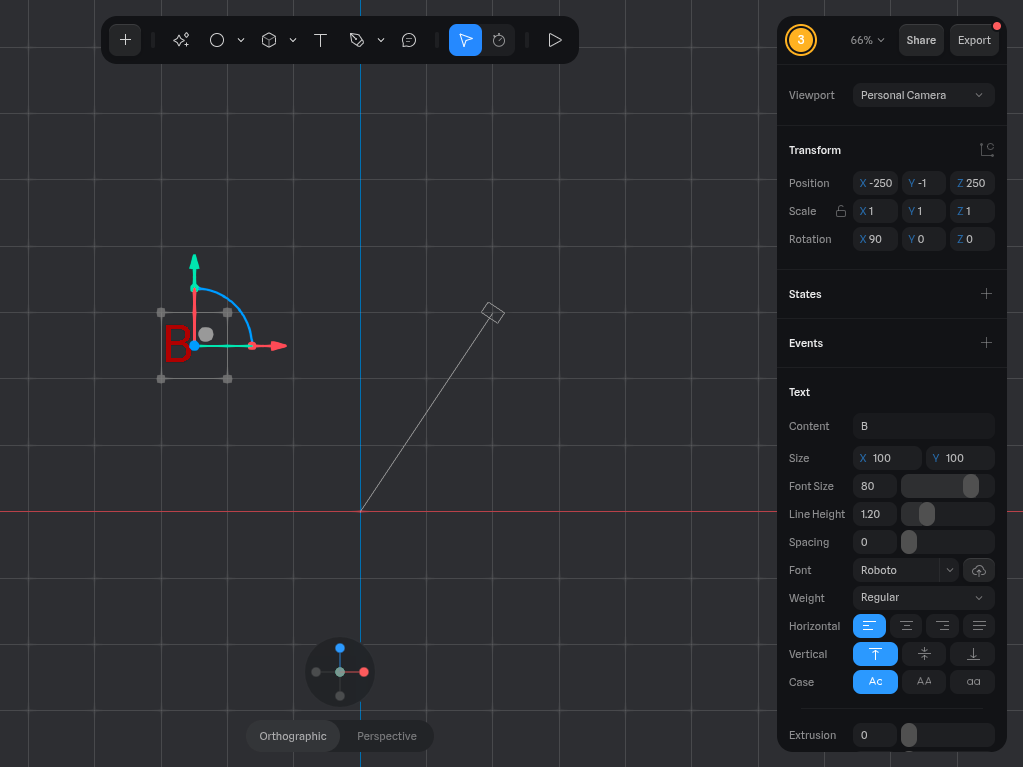
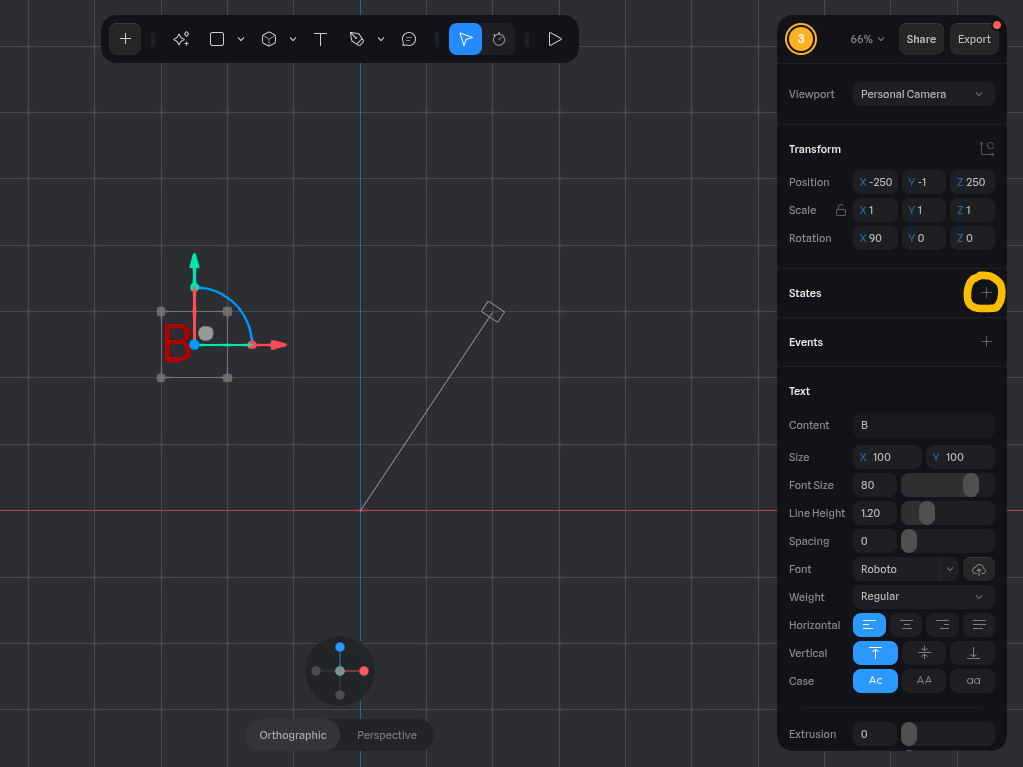
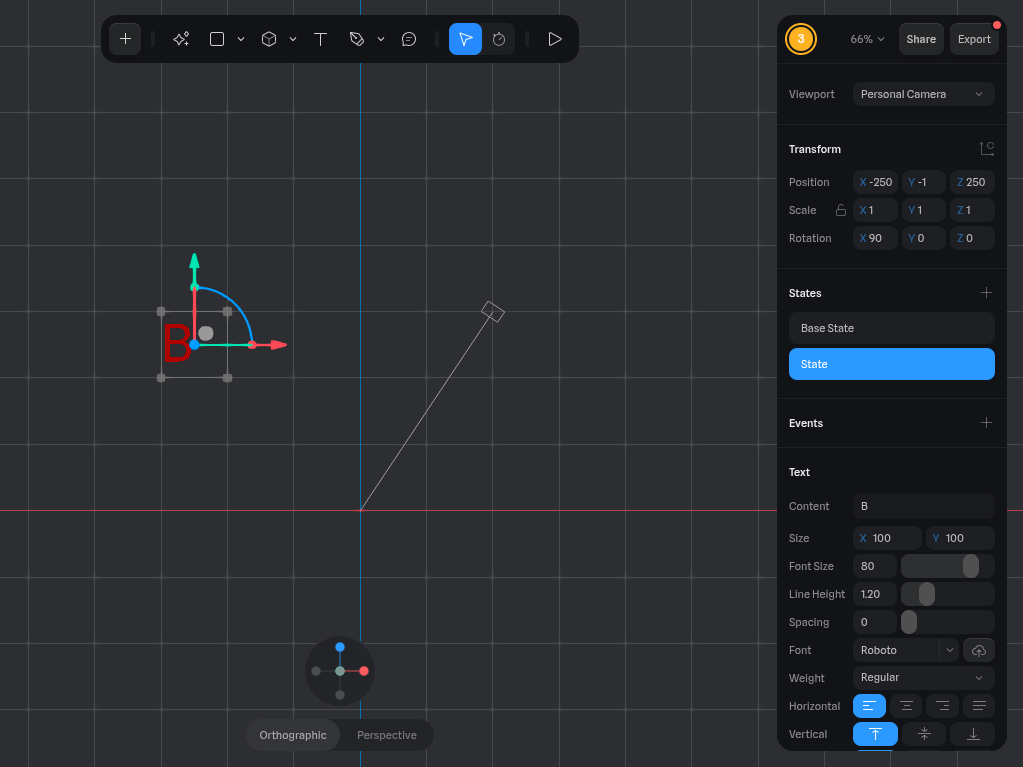
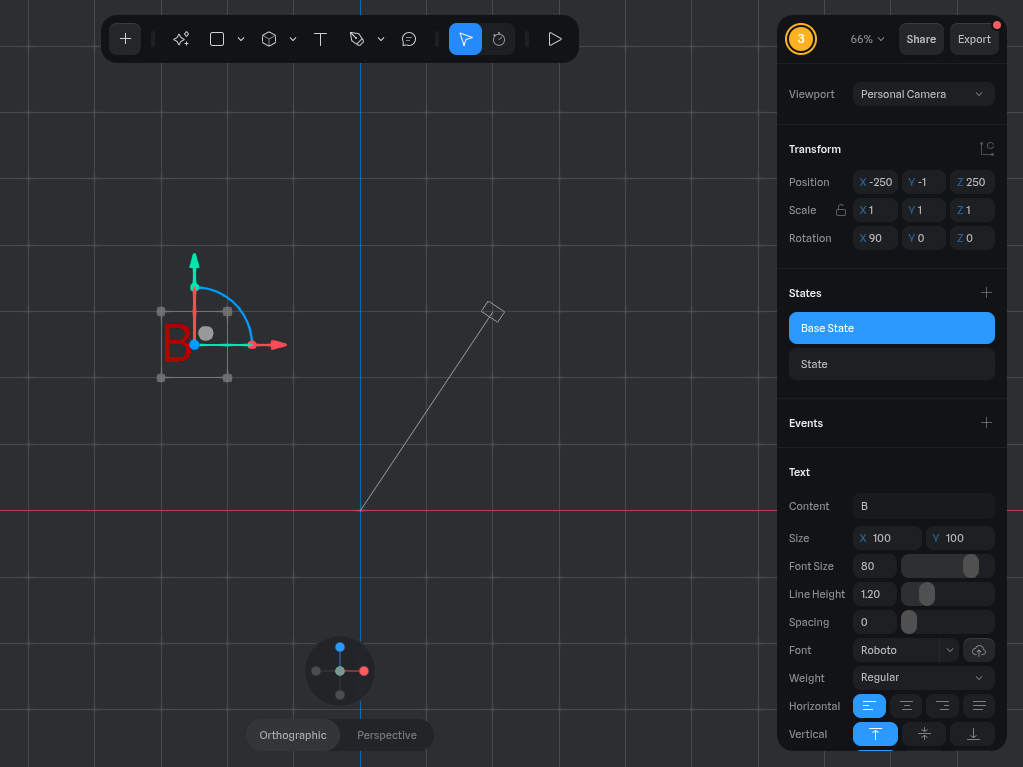
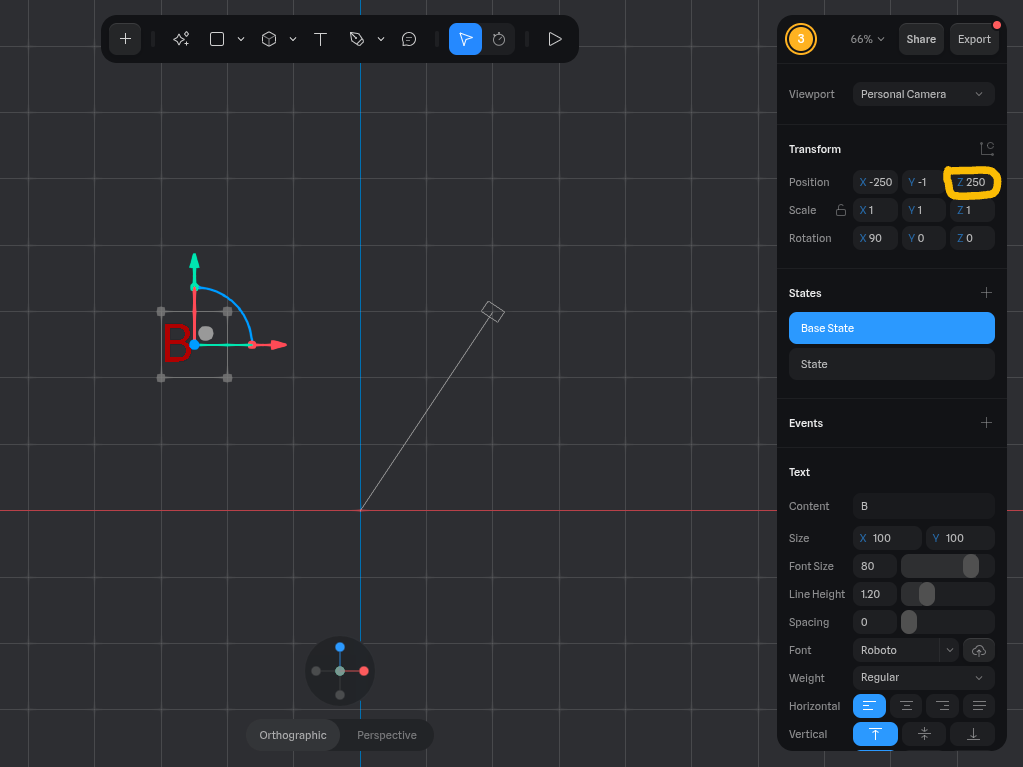
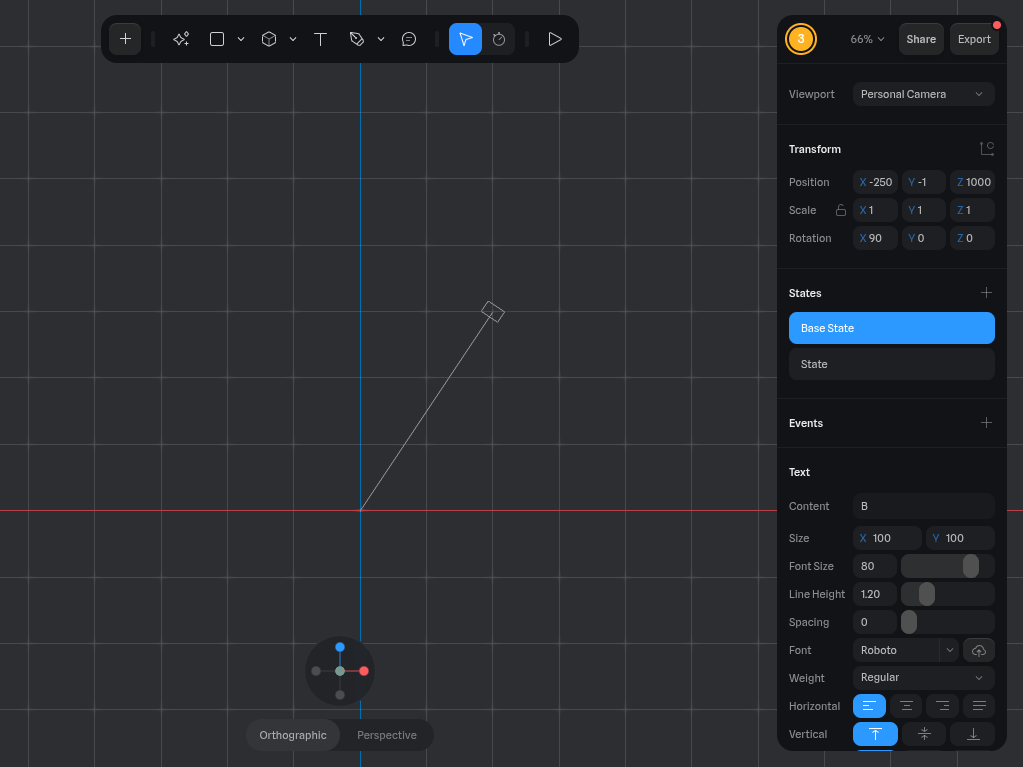
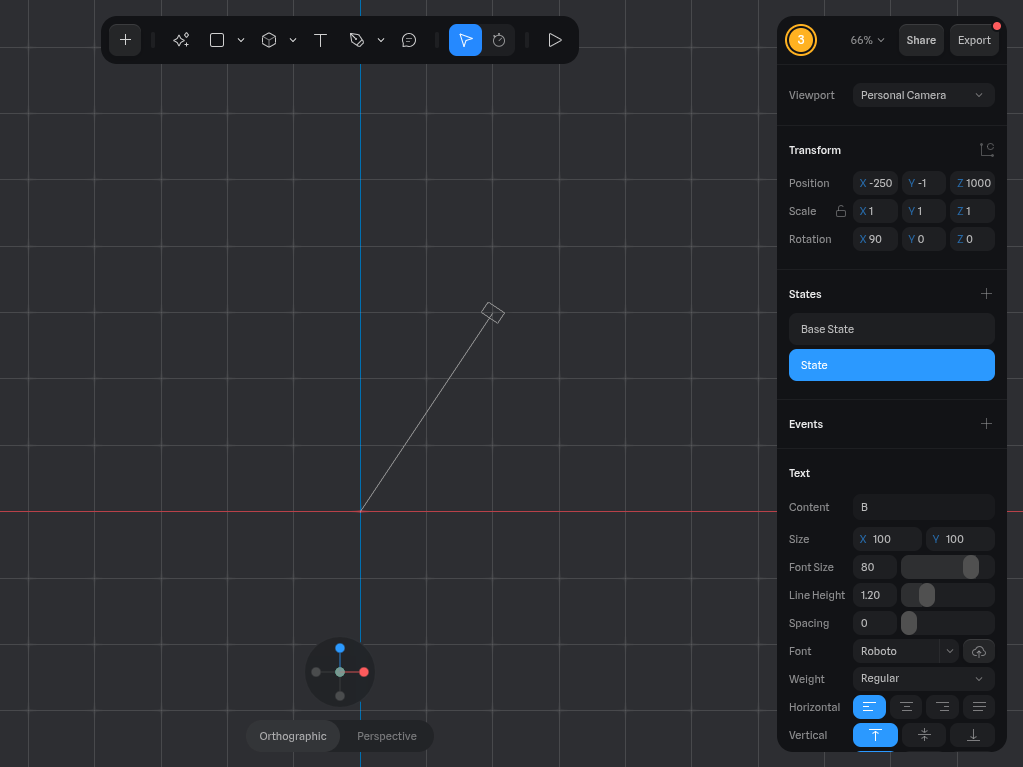
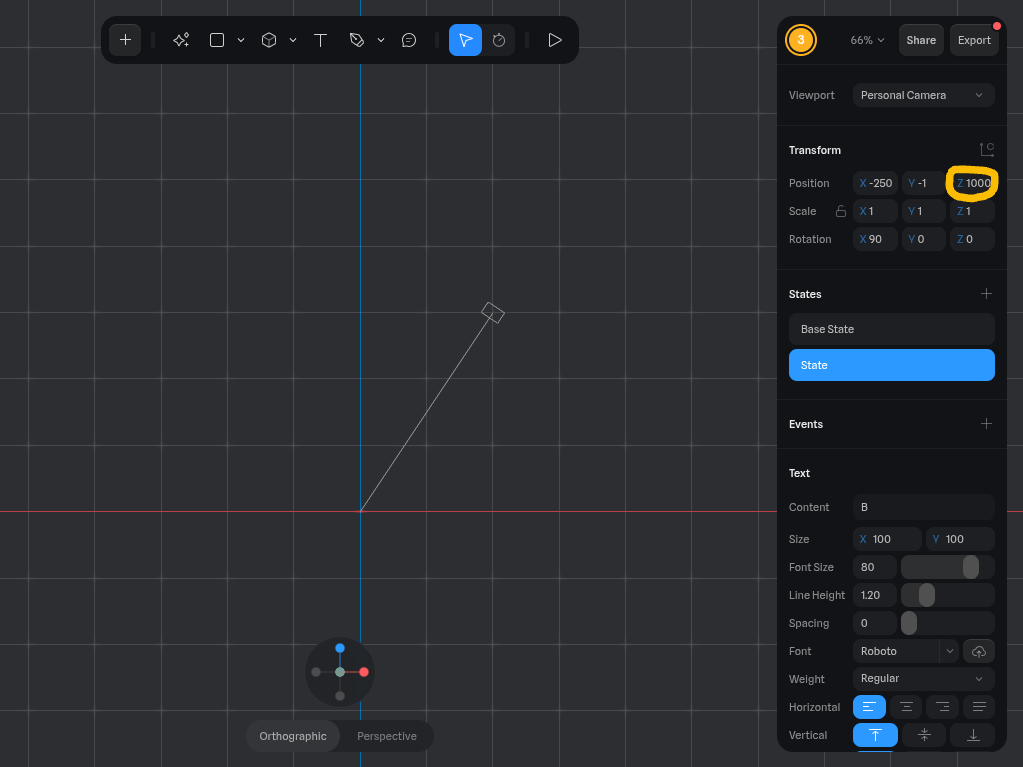
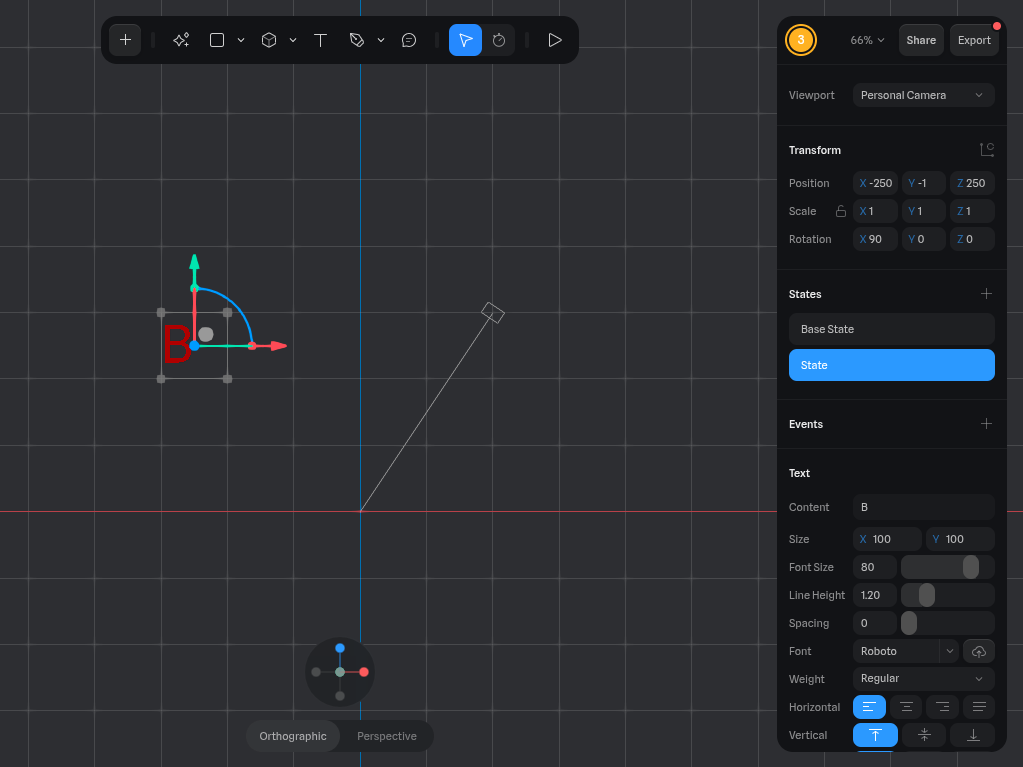
- Scroll back up on the panel on the right side.
- Select the "+" next to the word States (ensure you are still selected on the text box).
- Select the Base State button.
- Change the Y-position to 1000 (see pic. 5).
- Select the State button.
- Change the Y-position to 250 (see pic. 8).
- You can now see that when you press the Base State button, the text disappears out of view and when you press the State button, the text reappears.
Adding the Animation
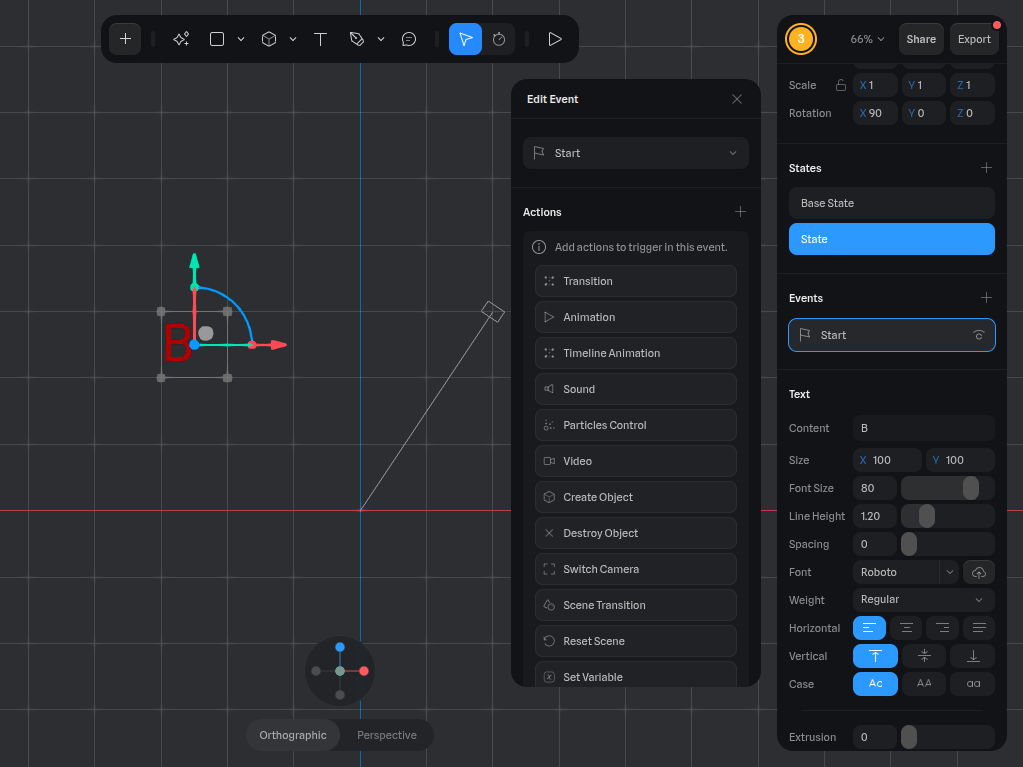
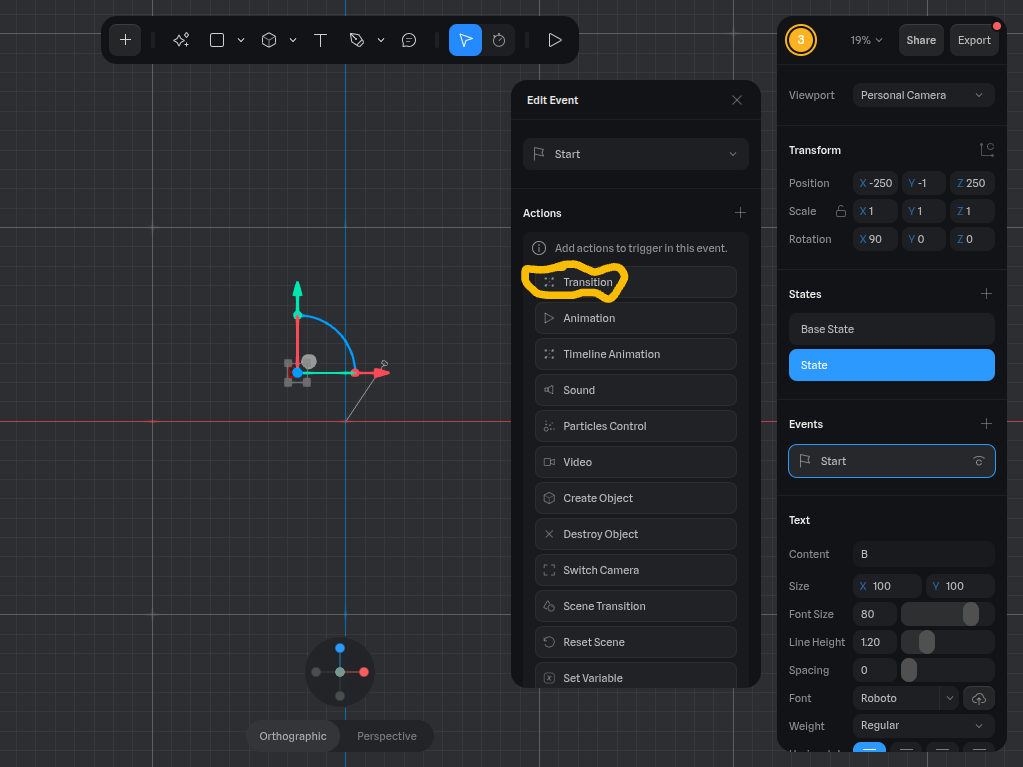
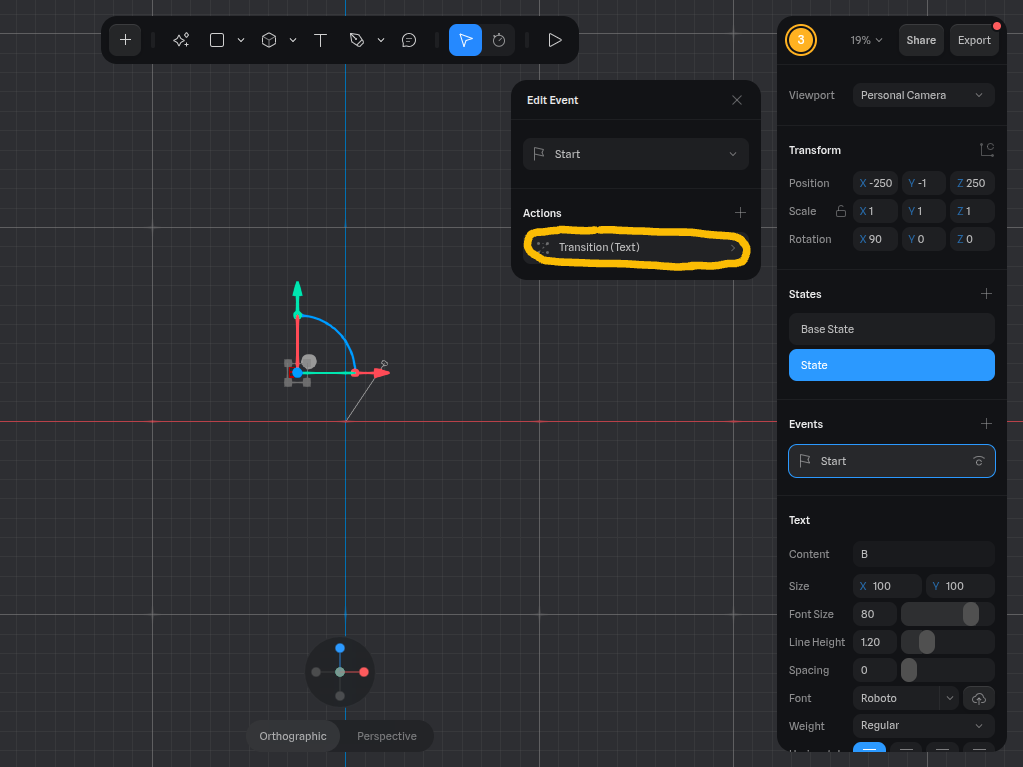
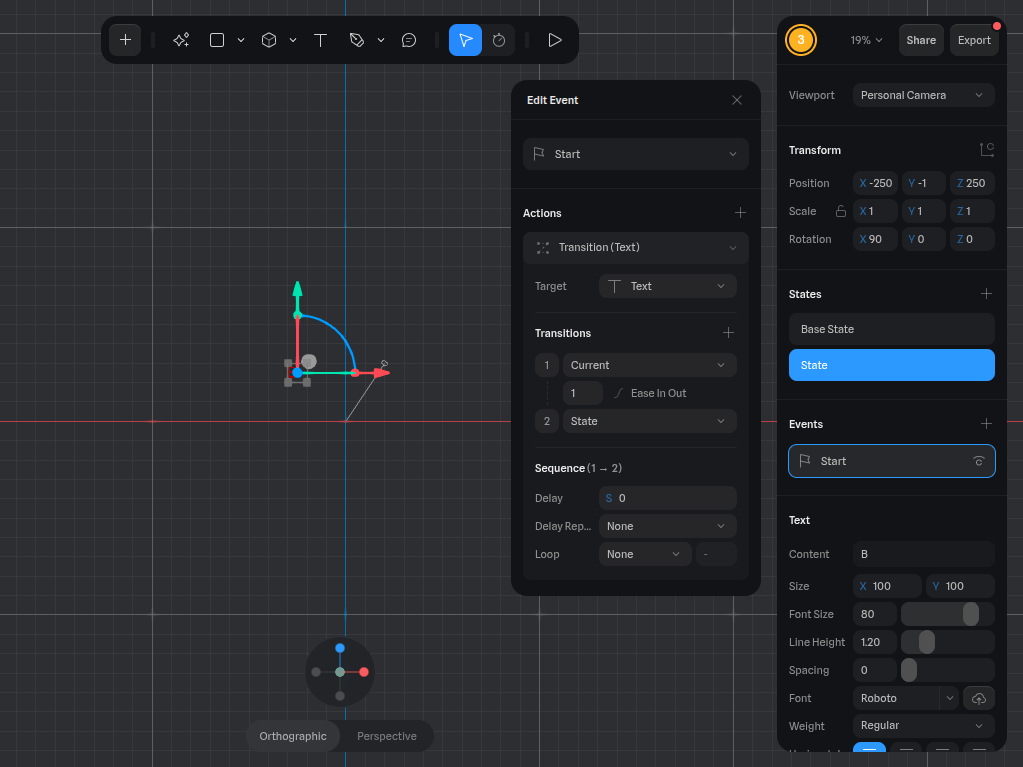
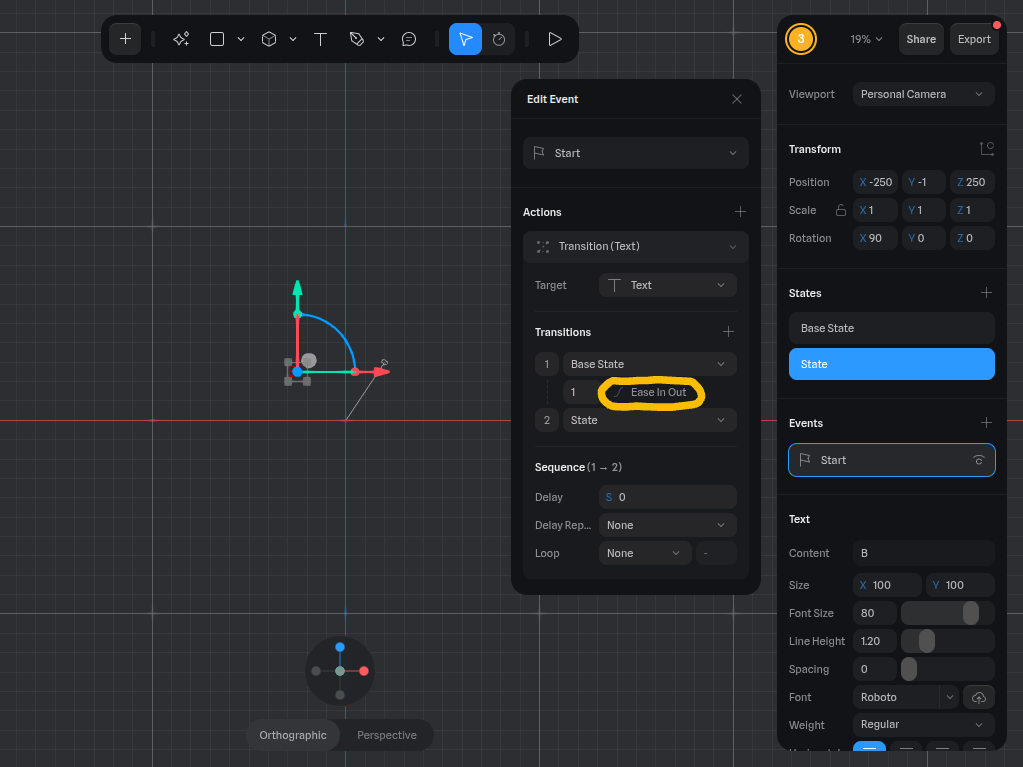
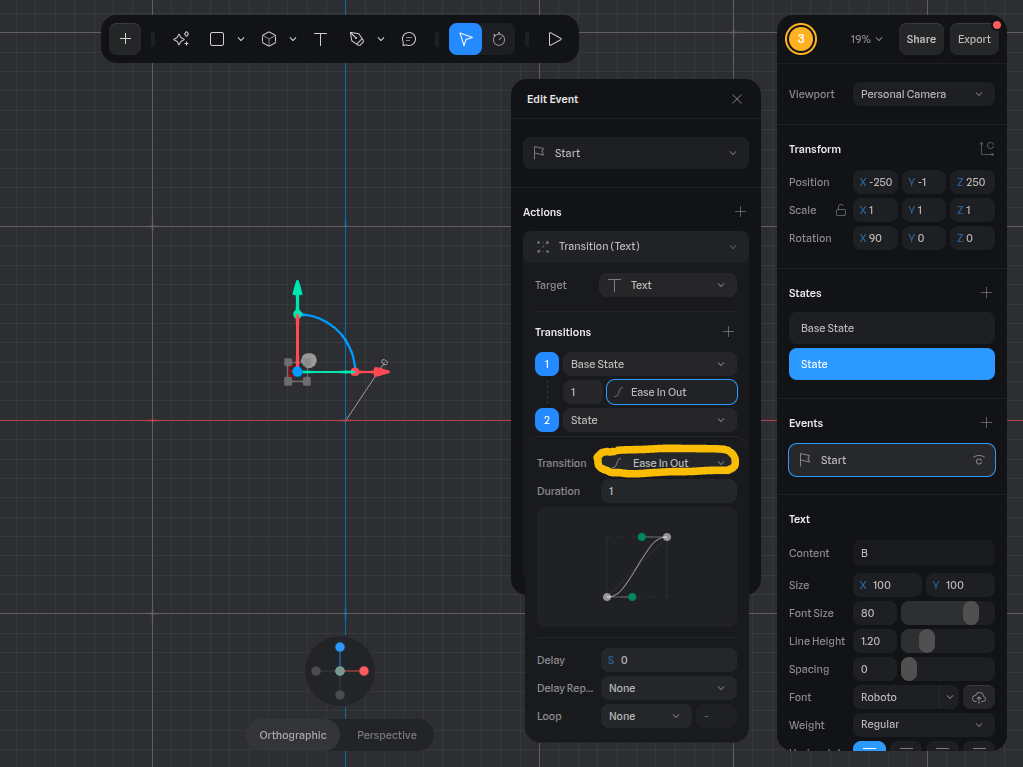
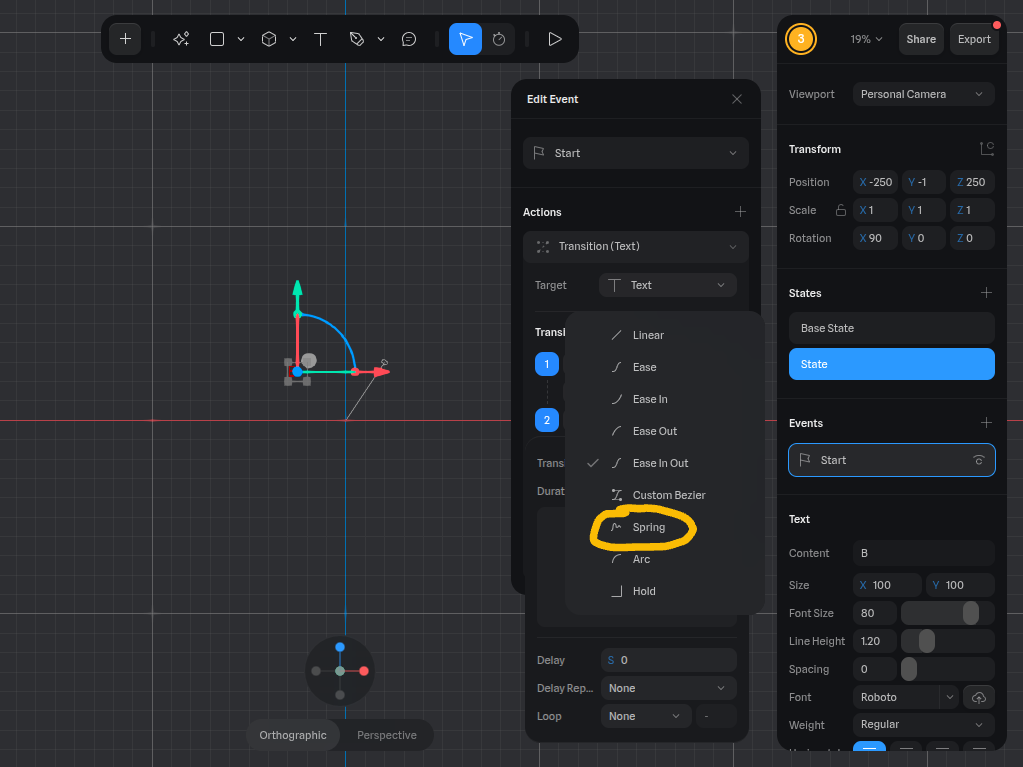
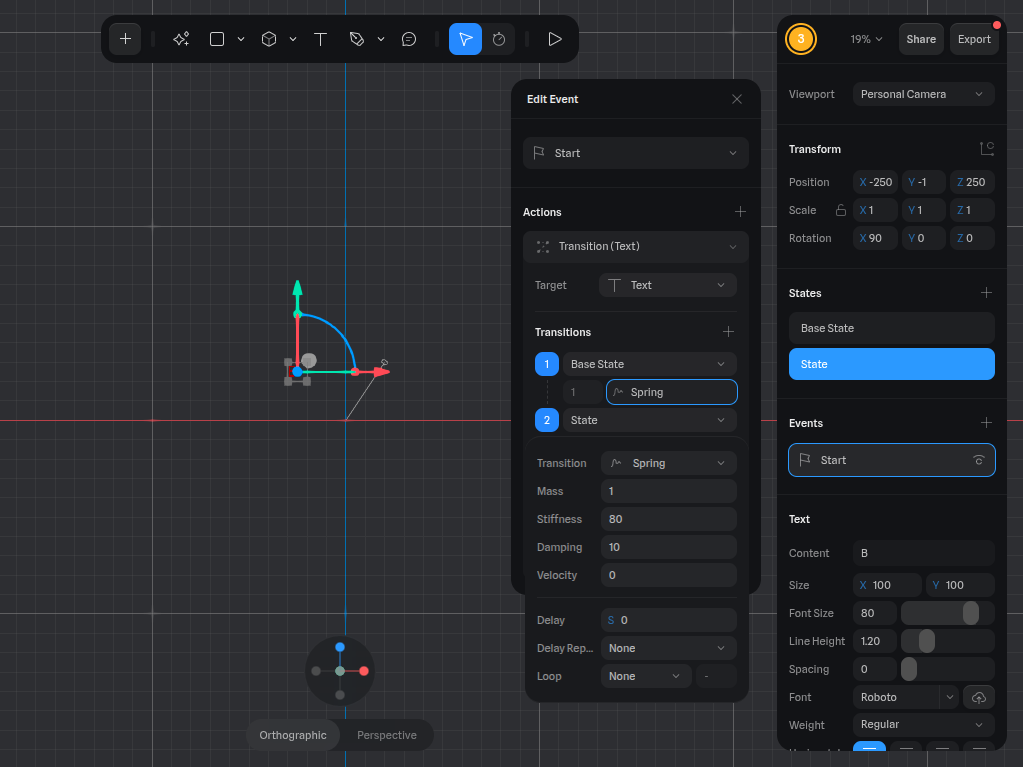
- Make sure you are on State.
- Press the "+" next to the Events button.
- Select the tab Transition.
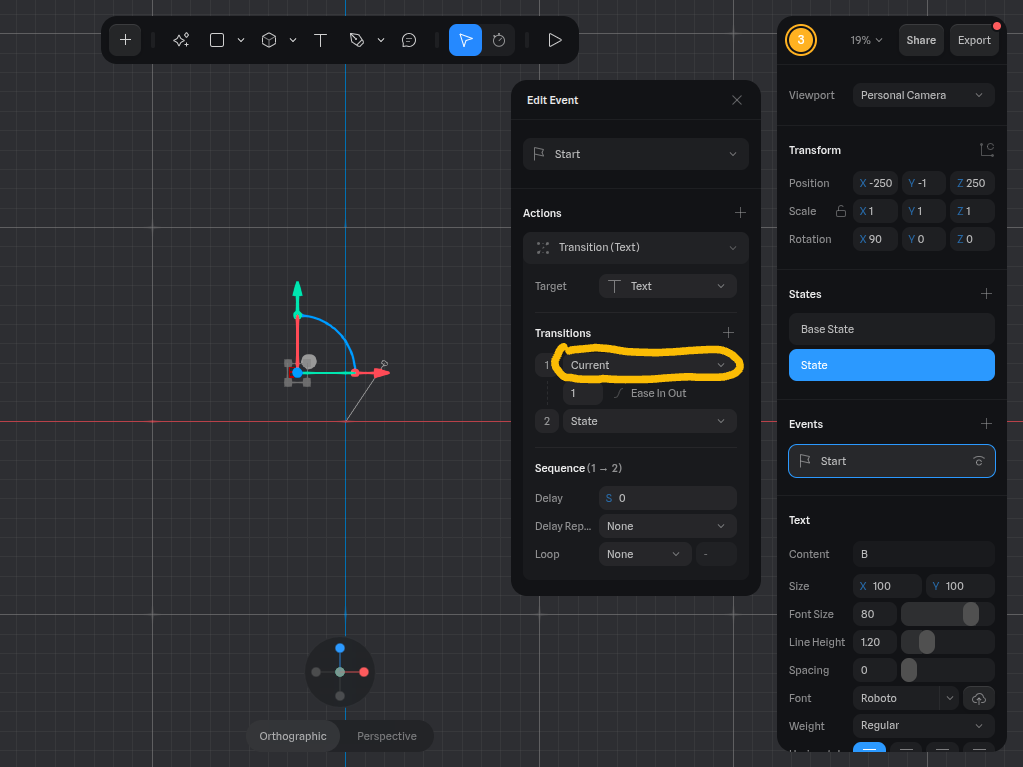
- Click on it again. A dropdown should appear.
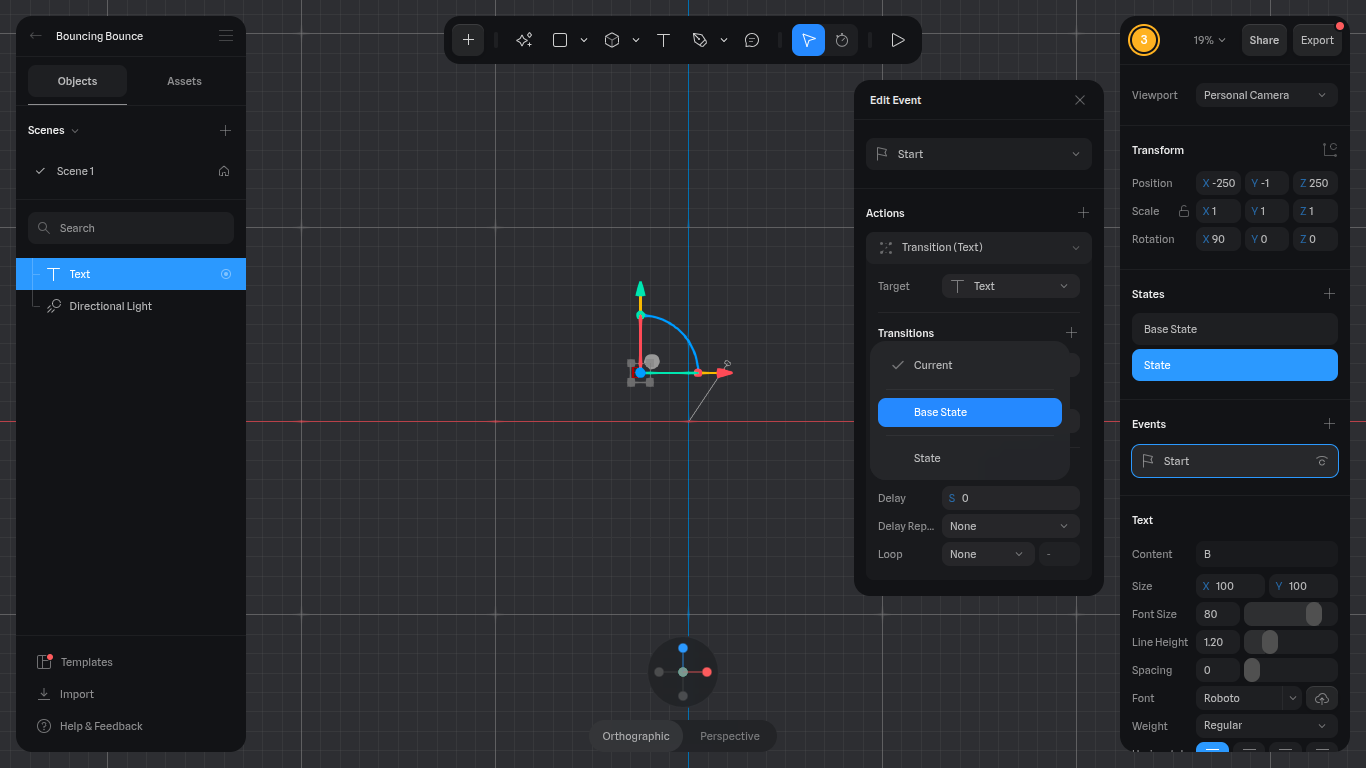
- Select the dropdown that says "Current".
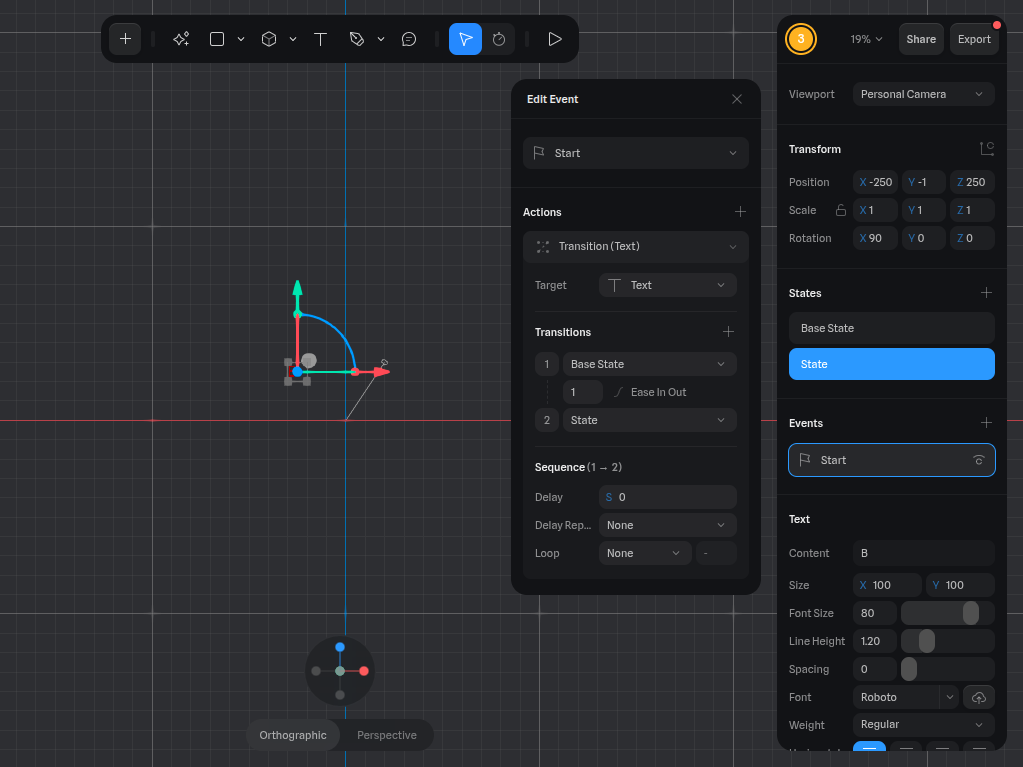
- Click on the button that says "Base State".
- Next, click the button that says "Ease In Out".
- Select the other "Ease In Out" (see pic. 9).
- Next, select Spring. The letter B is now able to bounce.
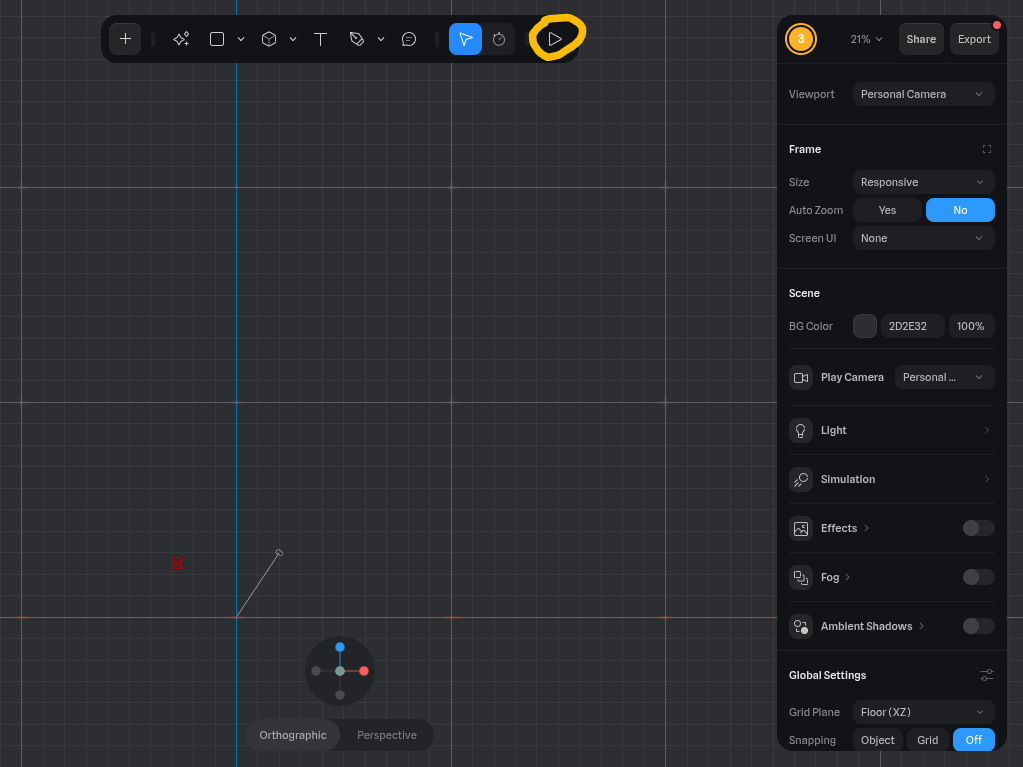
- When you select the Play button at the top bar, it will make the B fall and bounce off of the bottom point (Y250). The letters will go past Y250 to imitate the spring, where they get shorter as they are compressed.
Adding the Second Letter

- Make sure you are selected on the B.
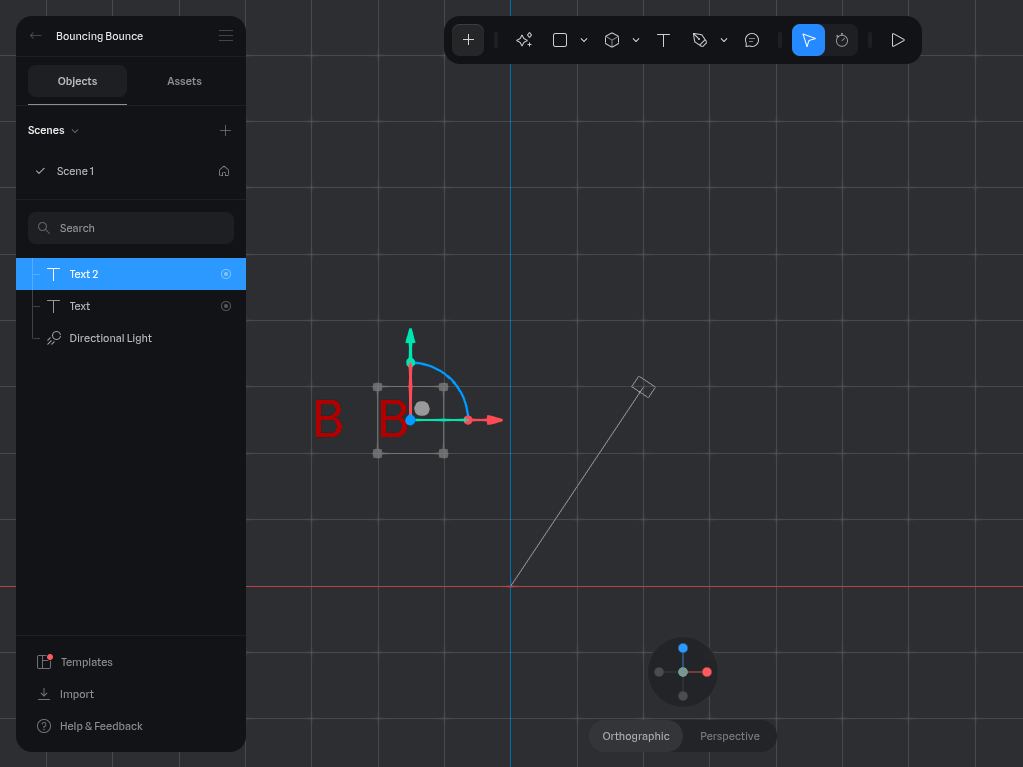
- On your keyboard, press ctrl+d. It will duplicate the B.
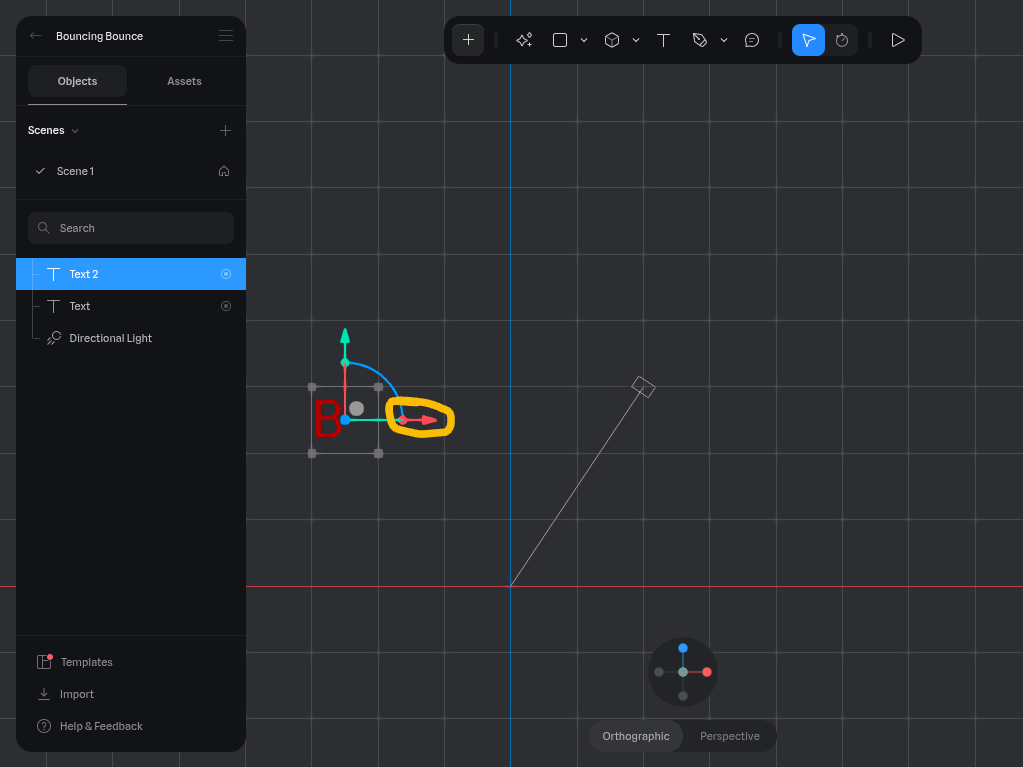
- Using the arrow pointing right, drag it one block right.
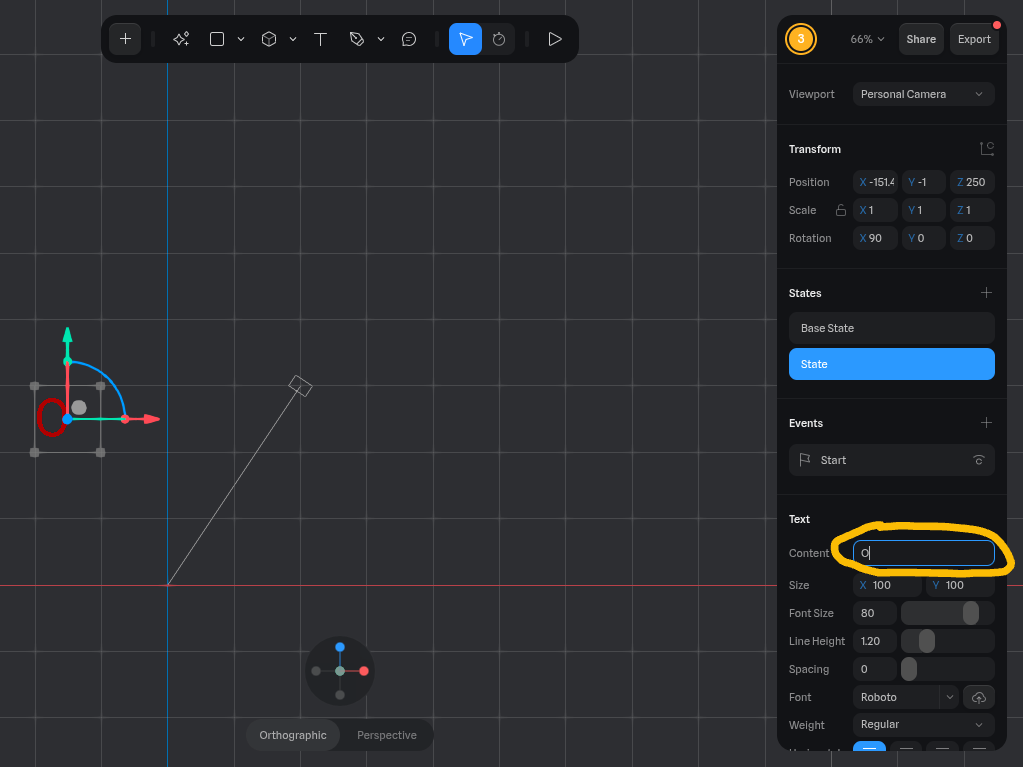
- Change the text to O. Click on Base State.
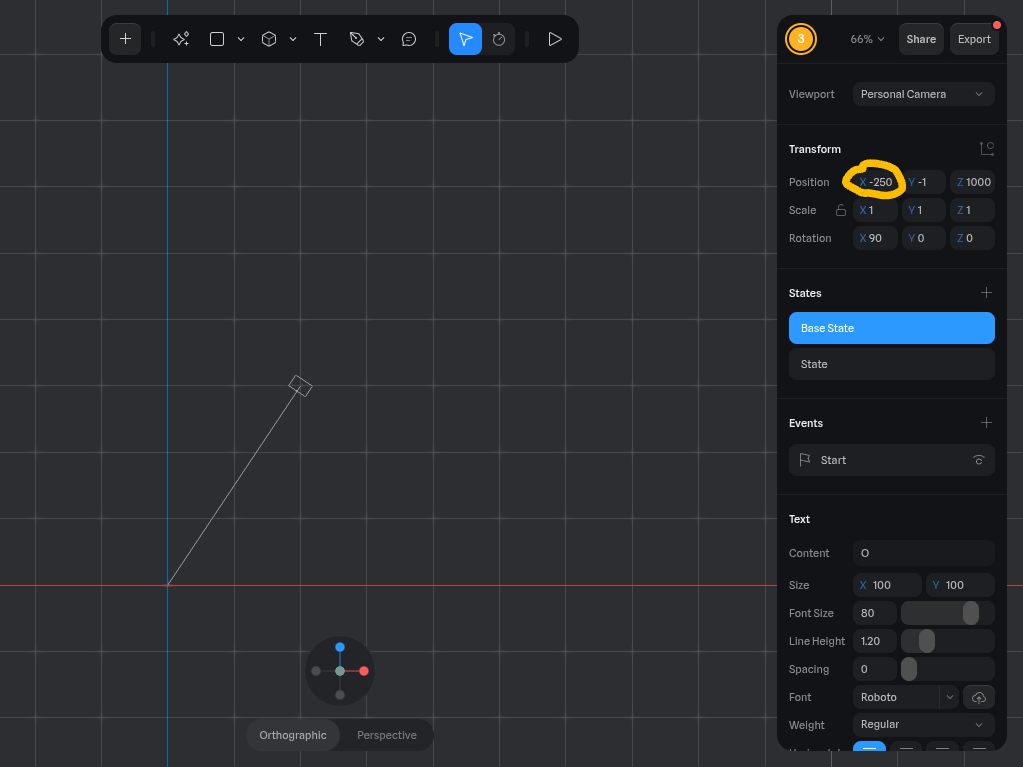
- Change the X position to -150.
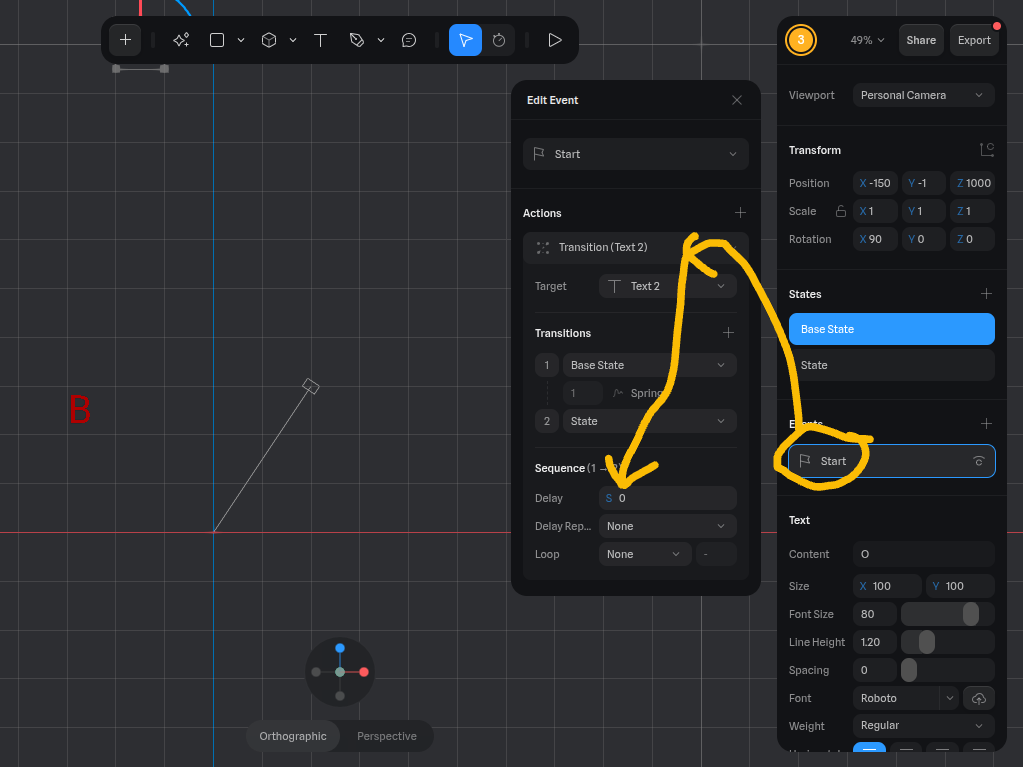
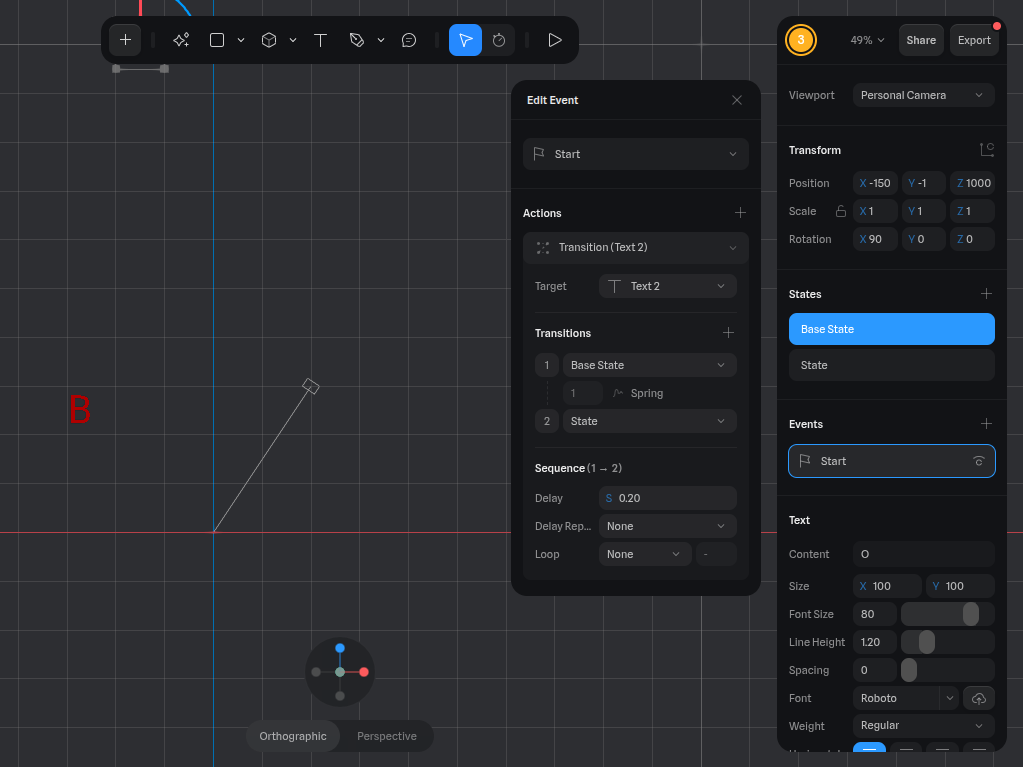
- Click on Start, then Transition, then Delay.
- Change it to 0.2.
- Try starting the Simulation. The first letter should drop, then the second.
Adding the Rest of the Letters
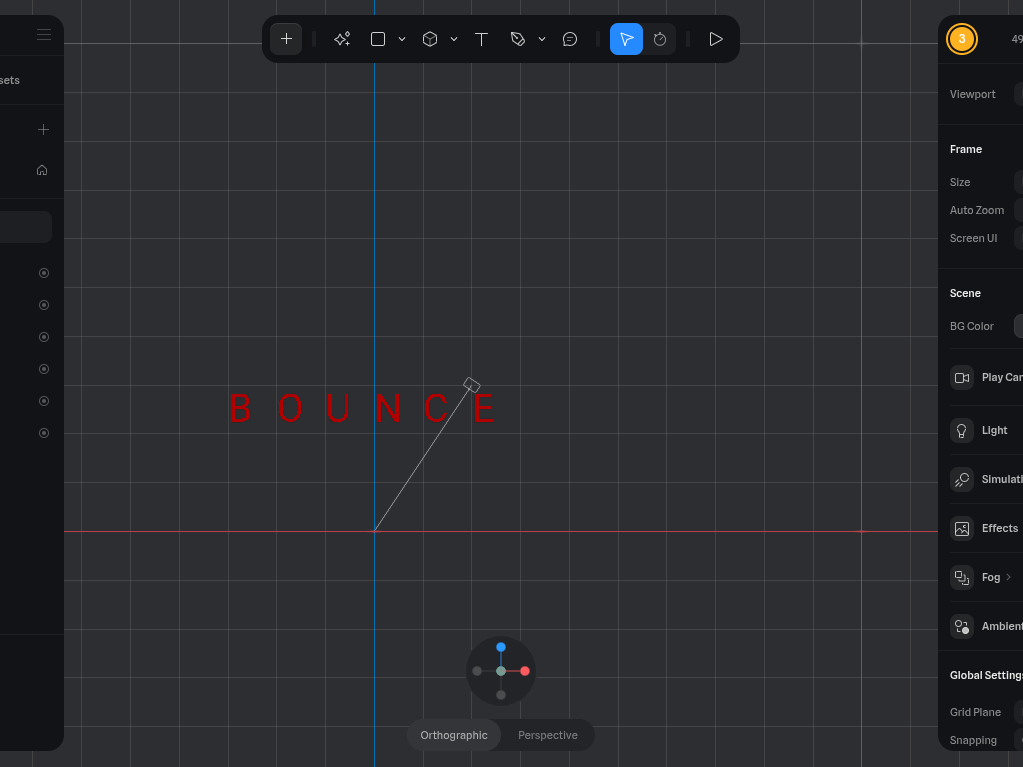

- In order to add the rest of the letters, you must repeat Step 7.
- The difference is, you keep adding to the numbers.
- For example, the X coordinate of the B was -250. The O was moved to -150. That is adding 100.
- That would mean, the U is -50, the N is 50, and so on and so forth.
- The same concept applies to the delay.
Understanding the Physics
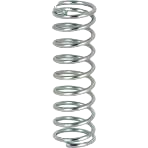


The reason this works is partially physics and partially unreality. The realistic part is the letters bouncing. The unrealistic parts are the letters' delay, the fact that they go down farther than the end point, and how exaggerated the bouncing is. Instructables like this are much more realistic because they have a definite bottom point. However, springs, like the bouncing uses, are a different story. They will squash down and then spring back up into the original position, allowing the letters to go as low as they do.
Other Things to Try
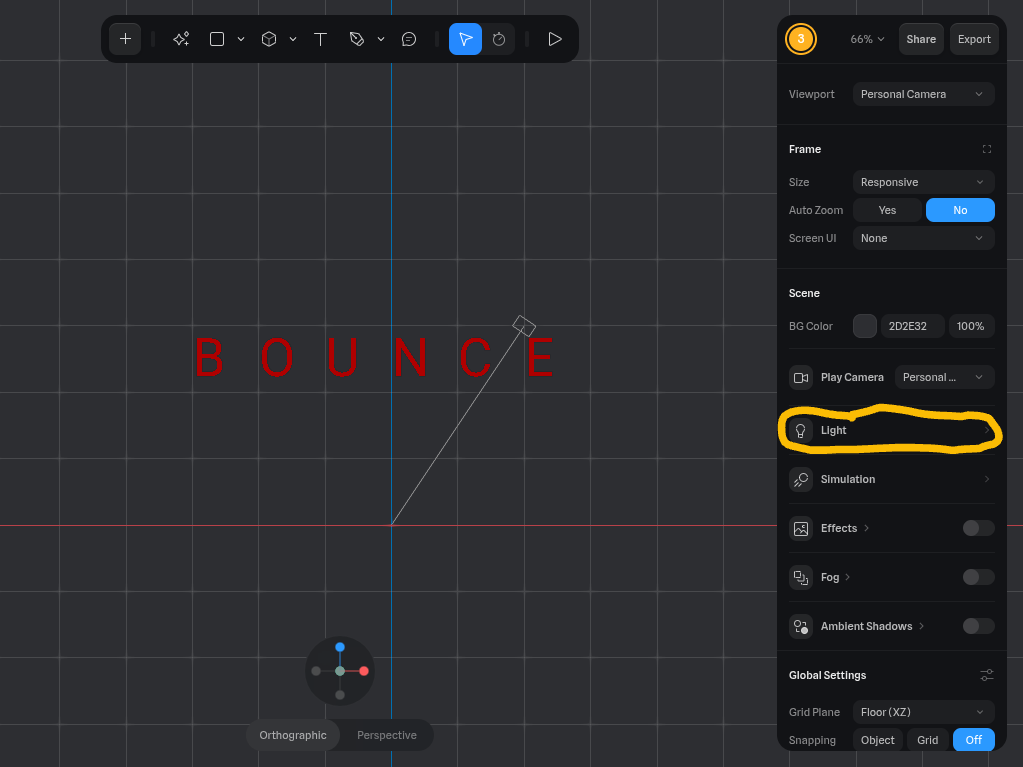
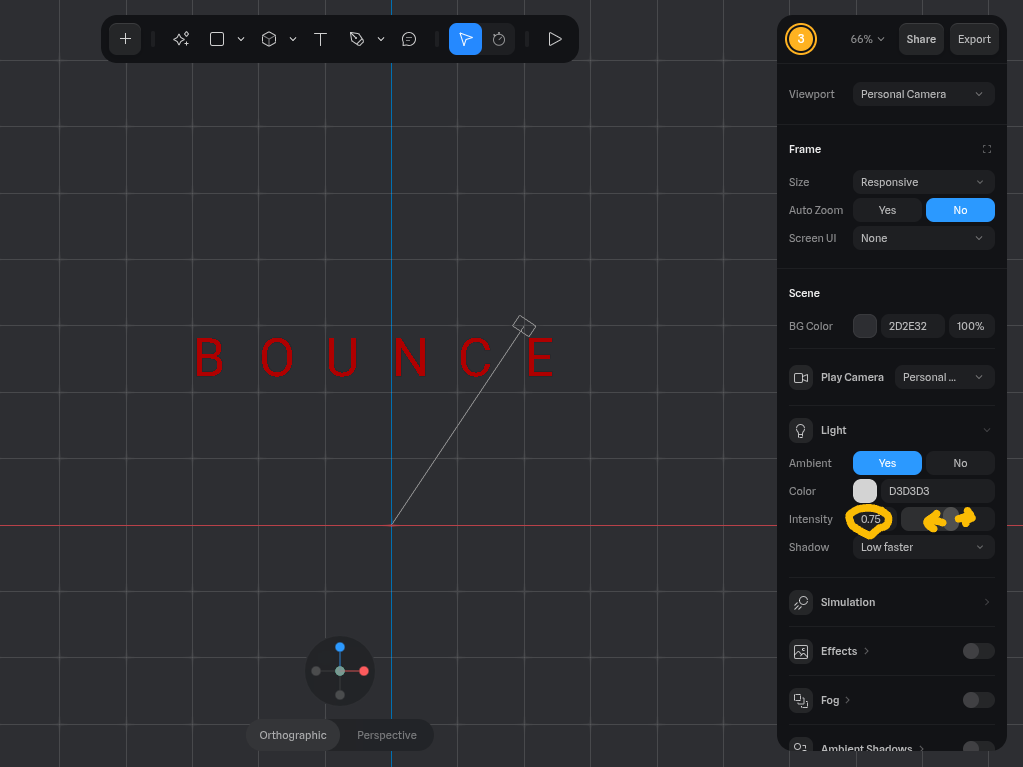

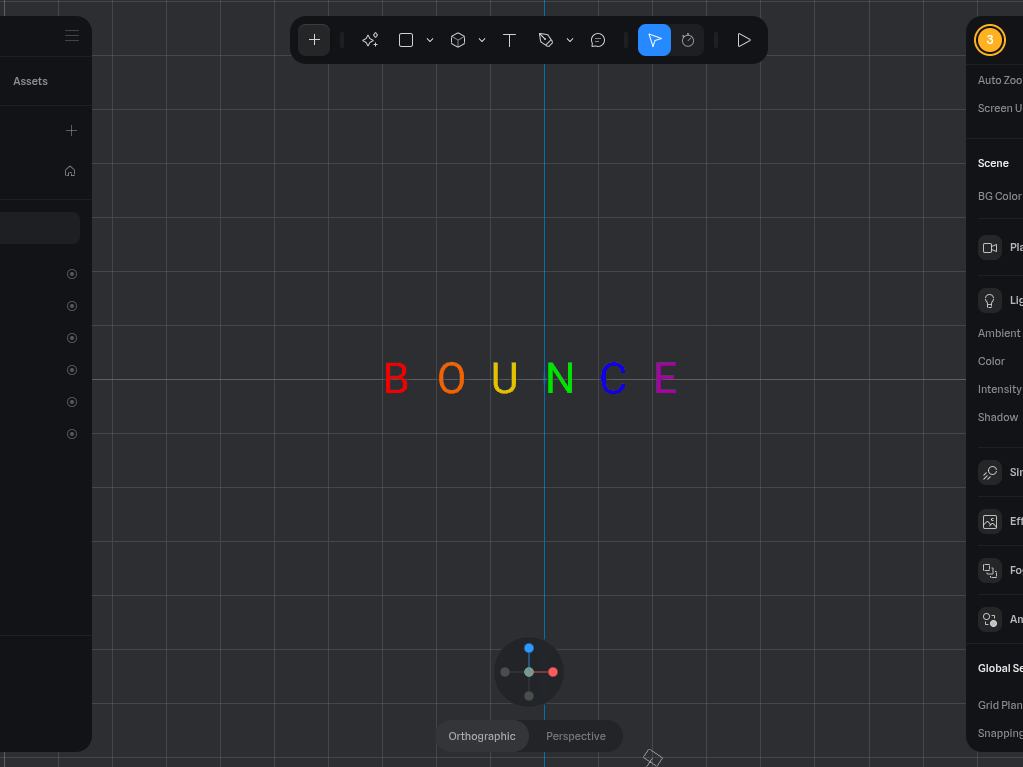
There are a few other things to try in Spline to enhance the look of this animation.
- You can change the lighting.
- Ensure you are not selected on any of the letters
- Select the Light option on the right sidebar
- You can change the intensity of the color
- You can also try changing the Base position.
- Go on an individual letter
- Click on Base State
- Using the arrows around the letter, change the position of the letter
- Now, in the simulation, the letter will come from a different spot
- You can also try this with State
- You can also change the color of the letters
- Click on the individual letters
- Change the color the same way you changed it in Step 4.
- You can also change the text.
- Follow Step 4 to create the text box, then apply the spacing logic from Step 8. You can count a space between words as a 0.2-second delay if you want
Conclusion
Overall, this project is a good intro to transitions in Spline. Check out my other "Bouncing" projects, Tinkercad Bouncing Ball Simulation, and Tinkercad Bouncing Ball Simulation w/ Track. I encourage you to make this project yourself. Thank you for reading.