How to Set Slack for Android So That You Never Miss Any Notifications!
by HowTo101 in Circuits > Electronics
12 Views, 0 Favorites, 0 Comments
How to Set Slack for Android So That You Never Miss Any Notifications!

This Instructable will show you how to set Slack for Android so that you never miss any notifications
Open Slack
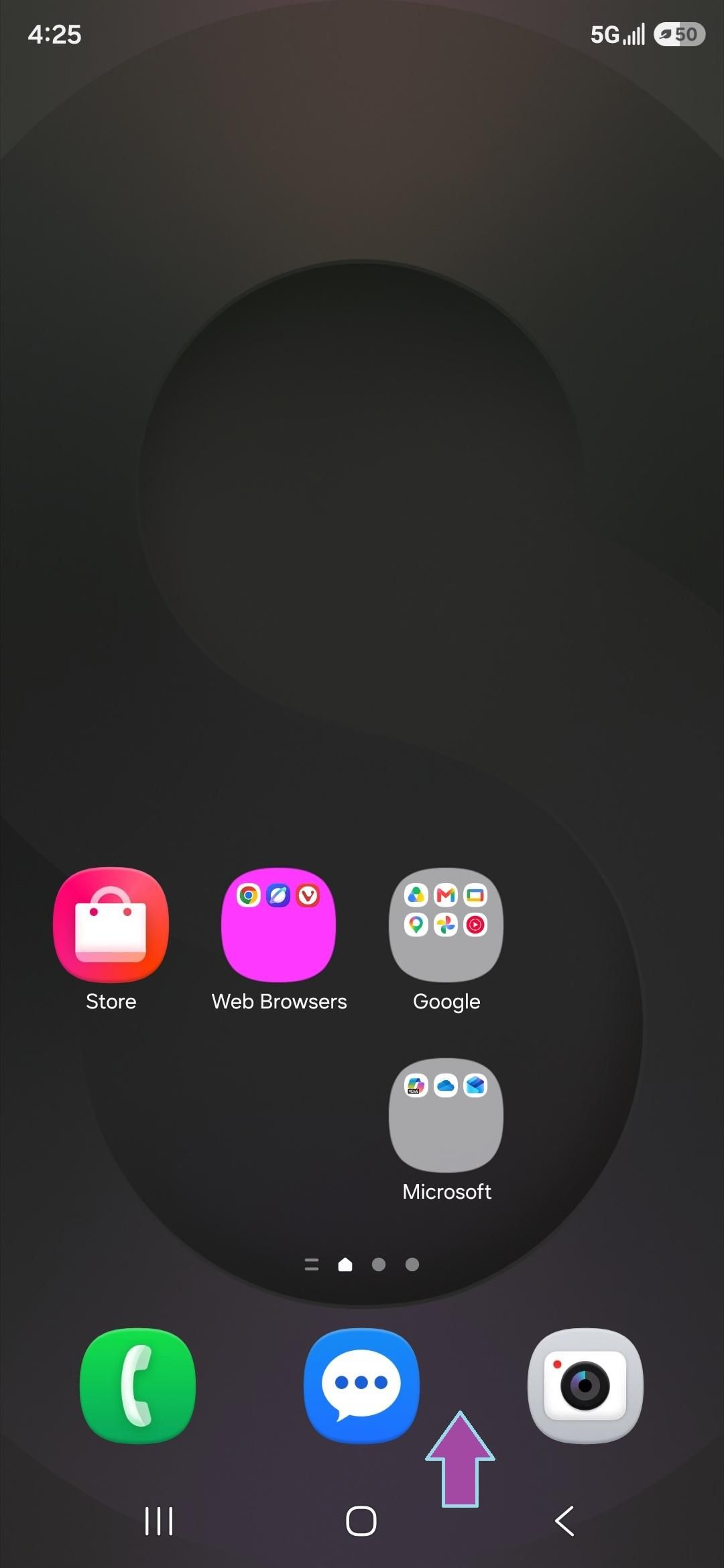
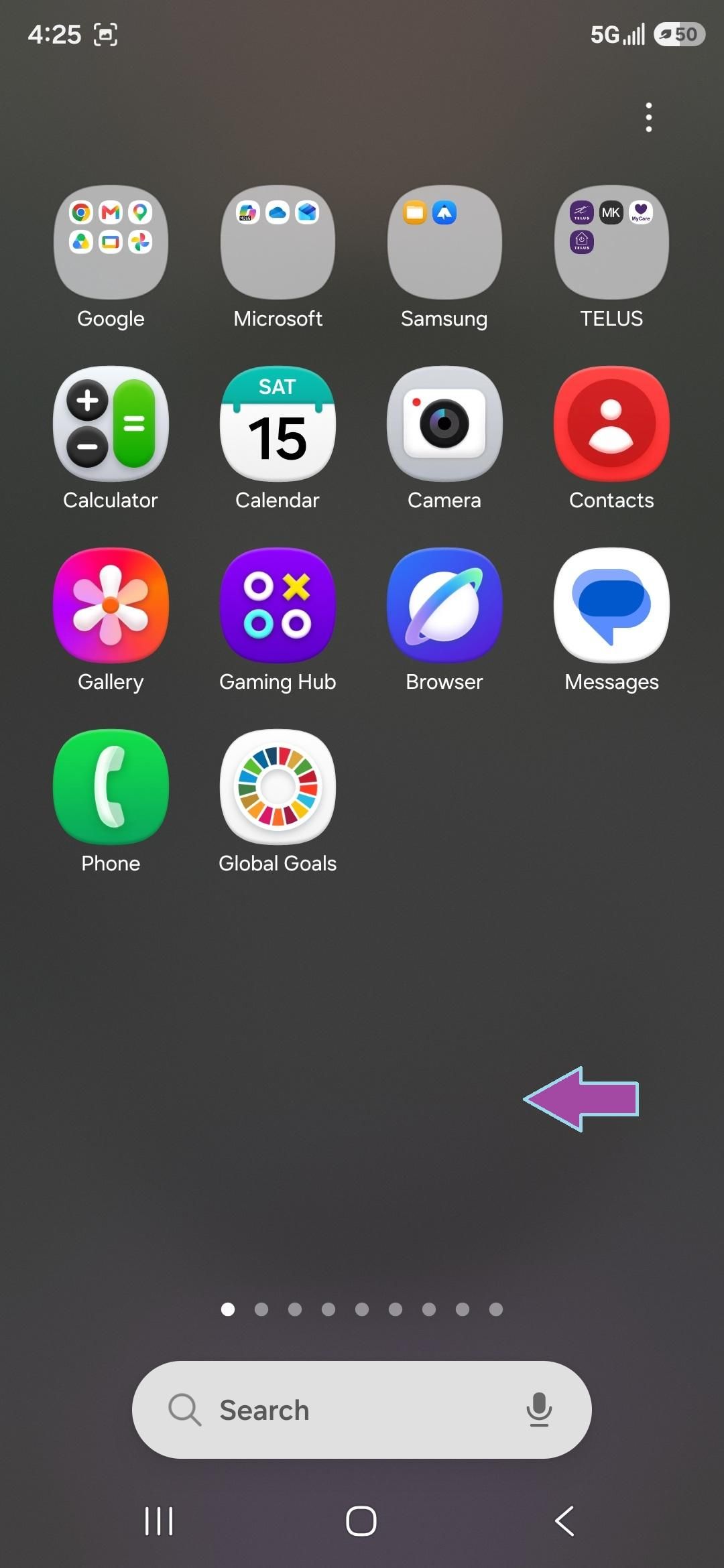
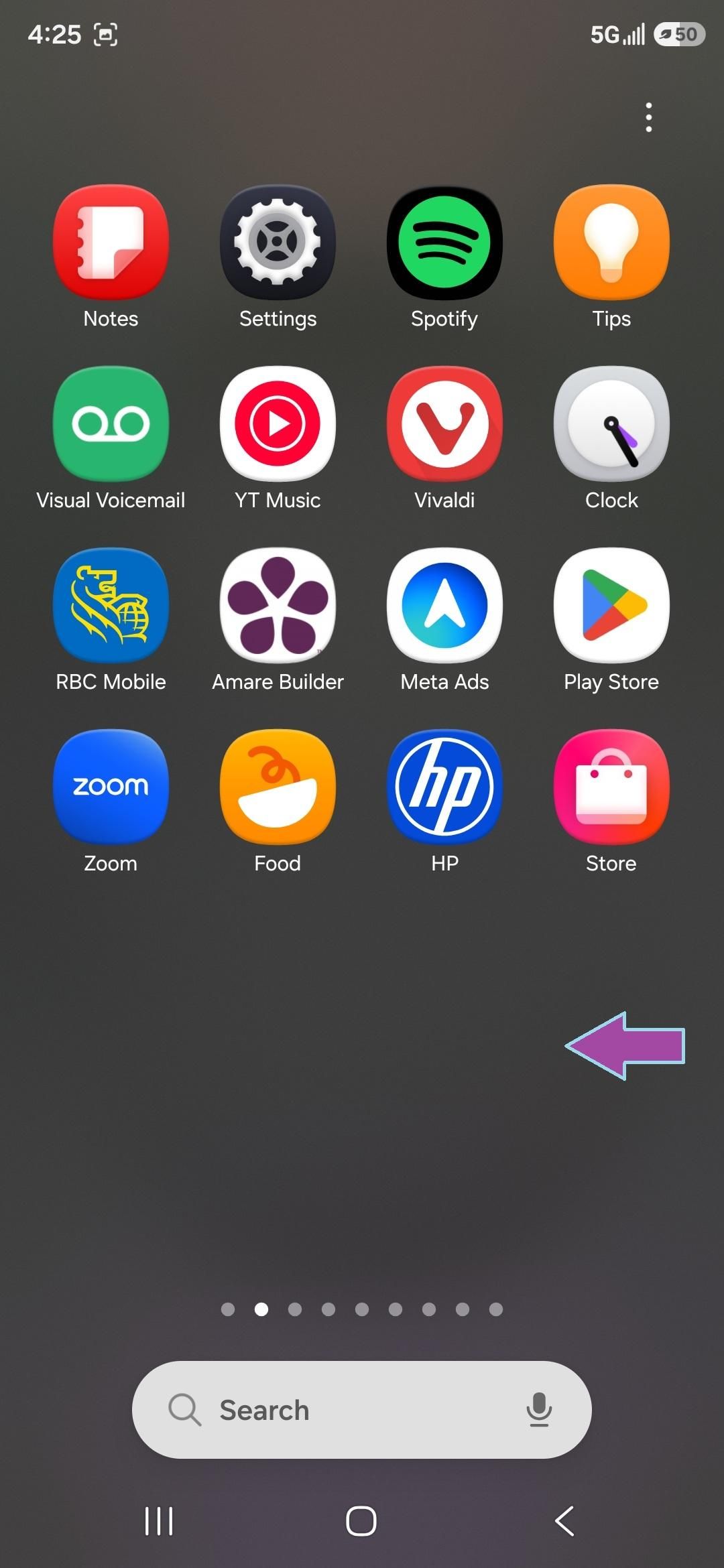
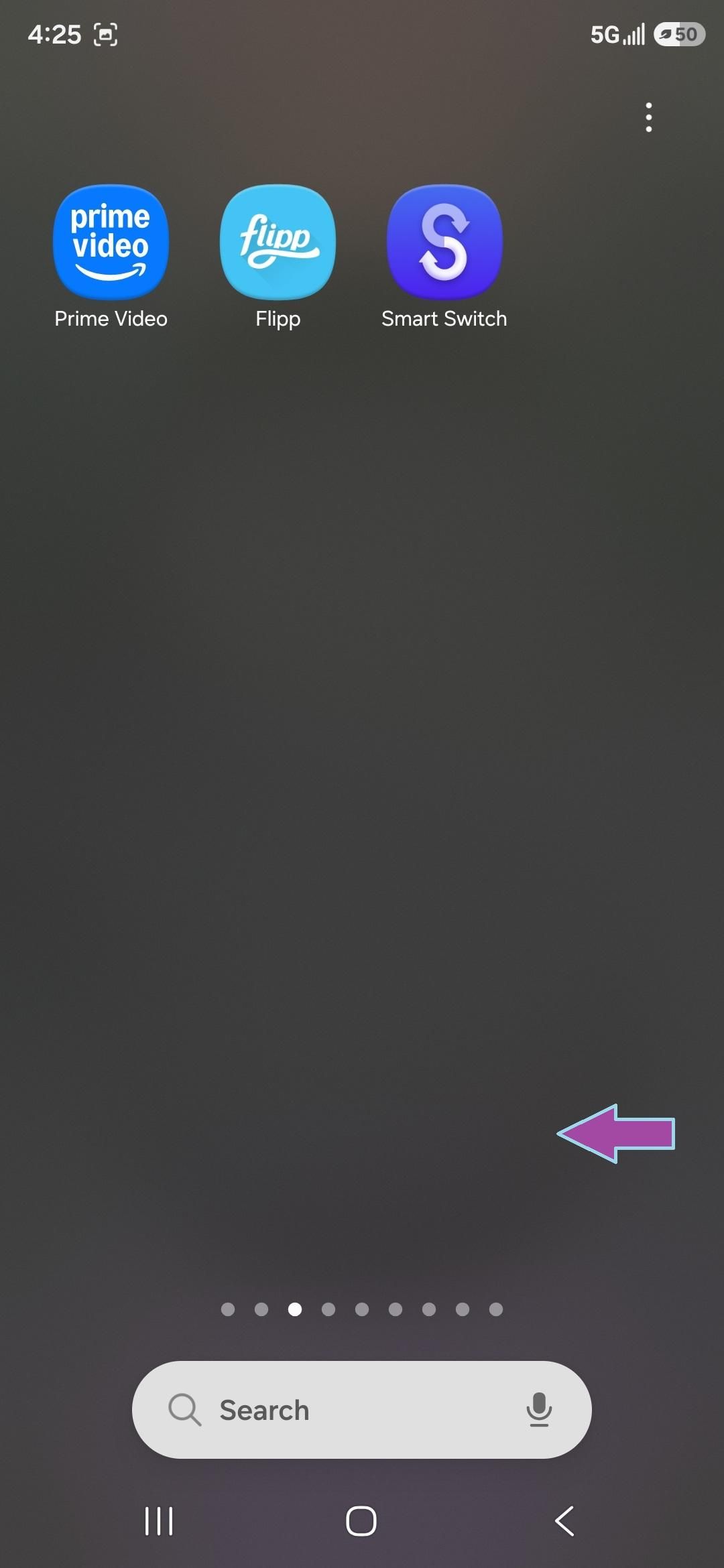
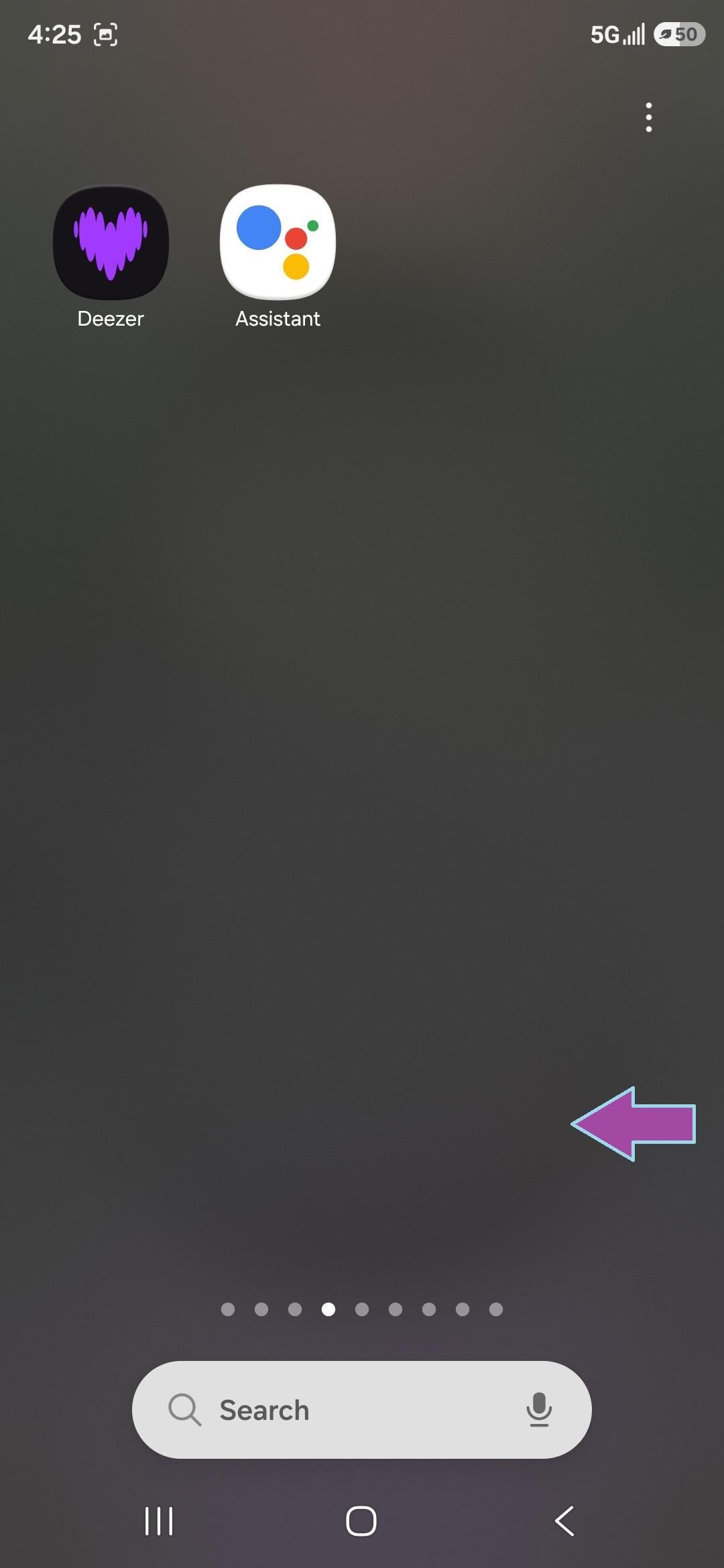
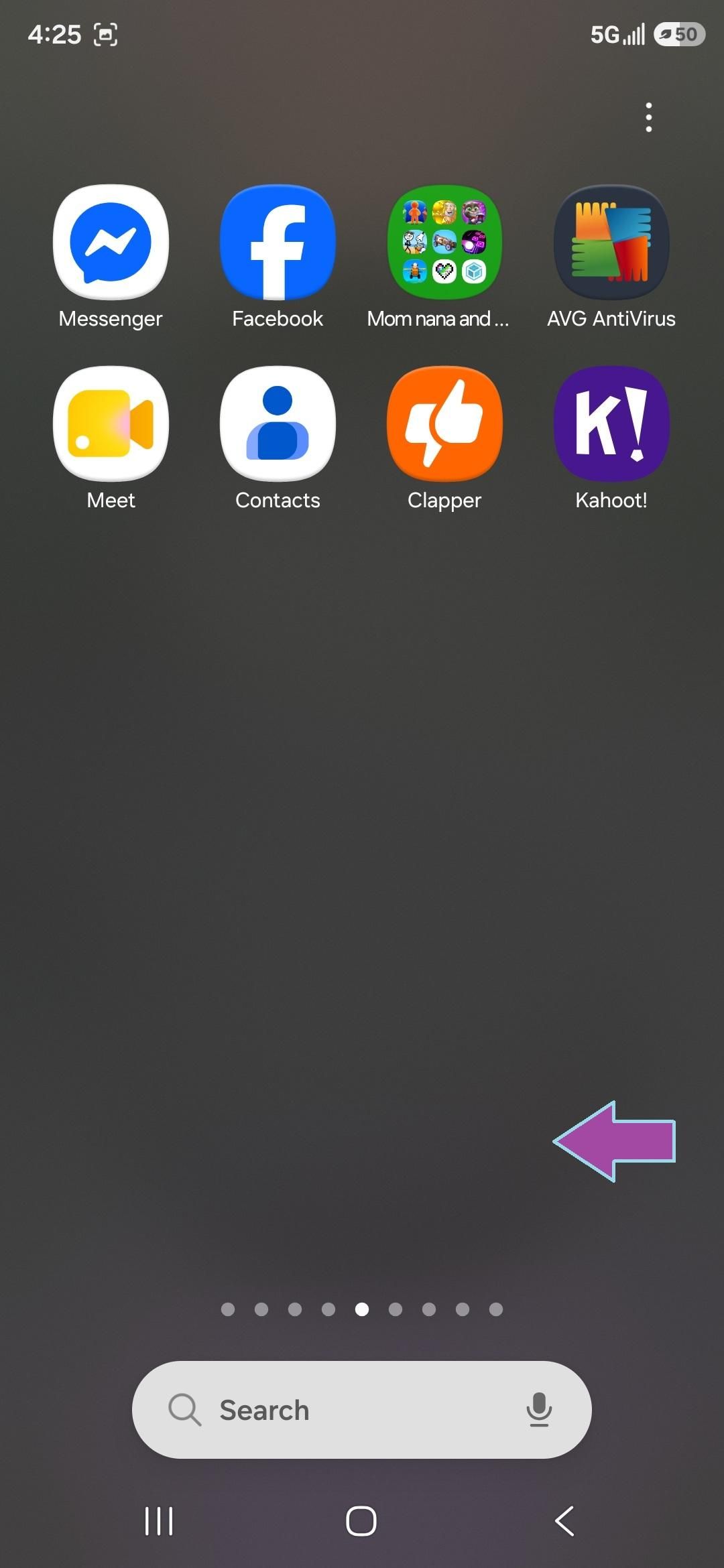
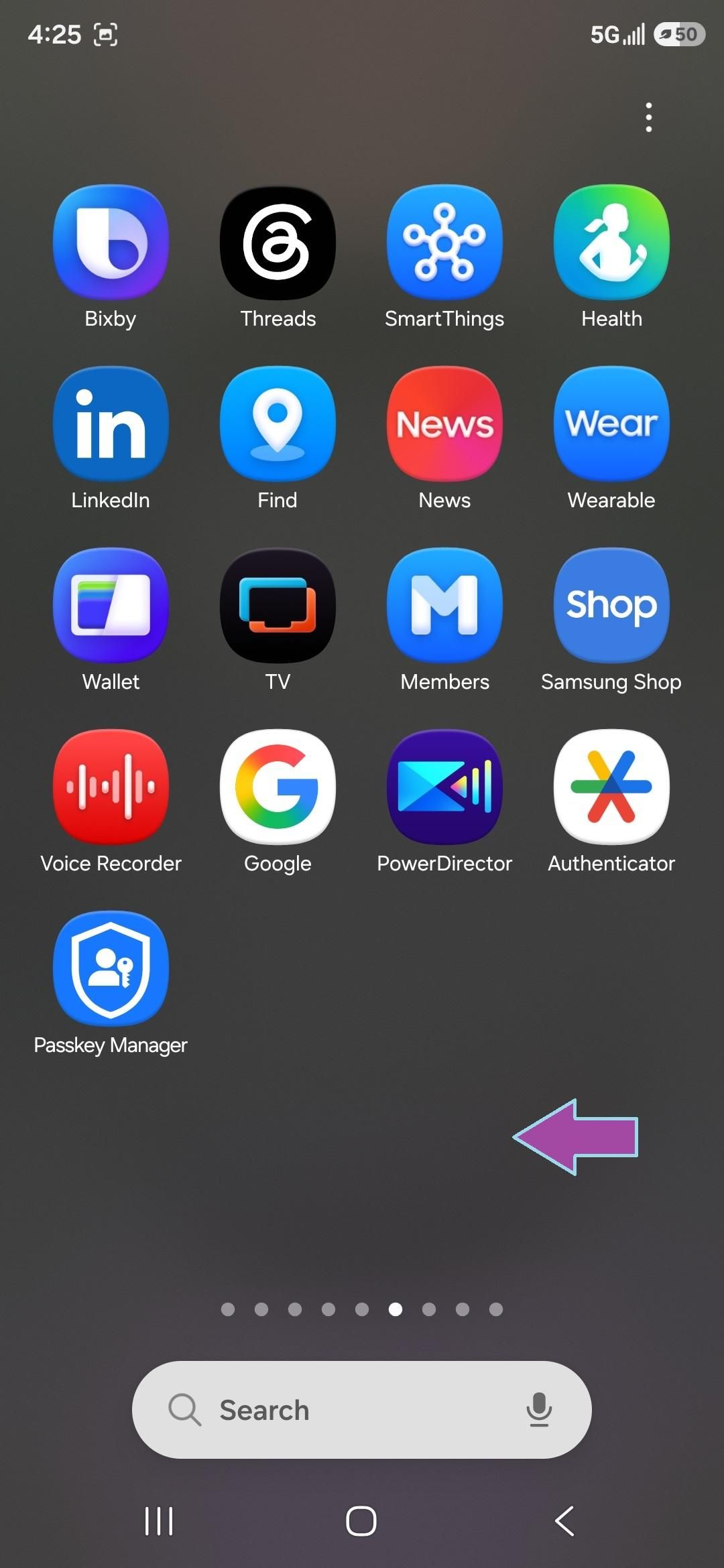
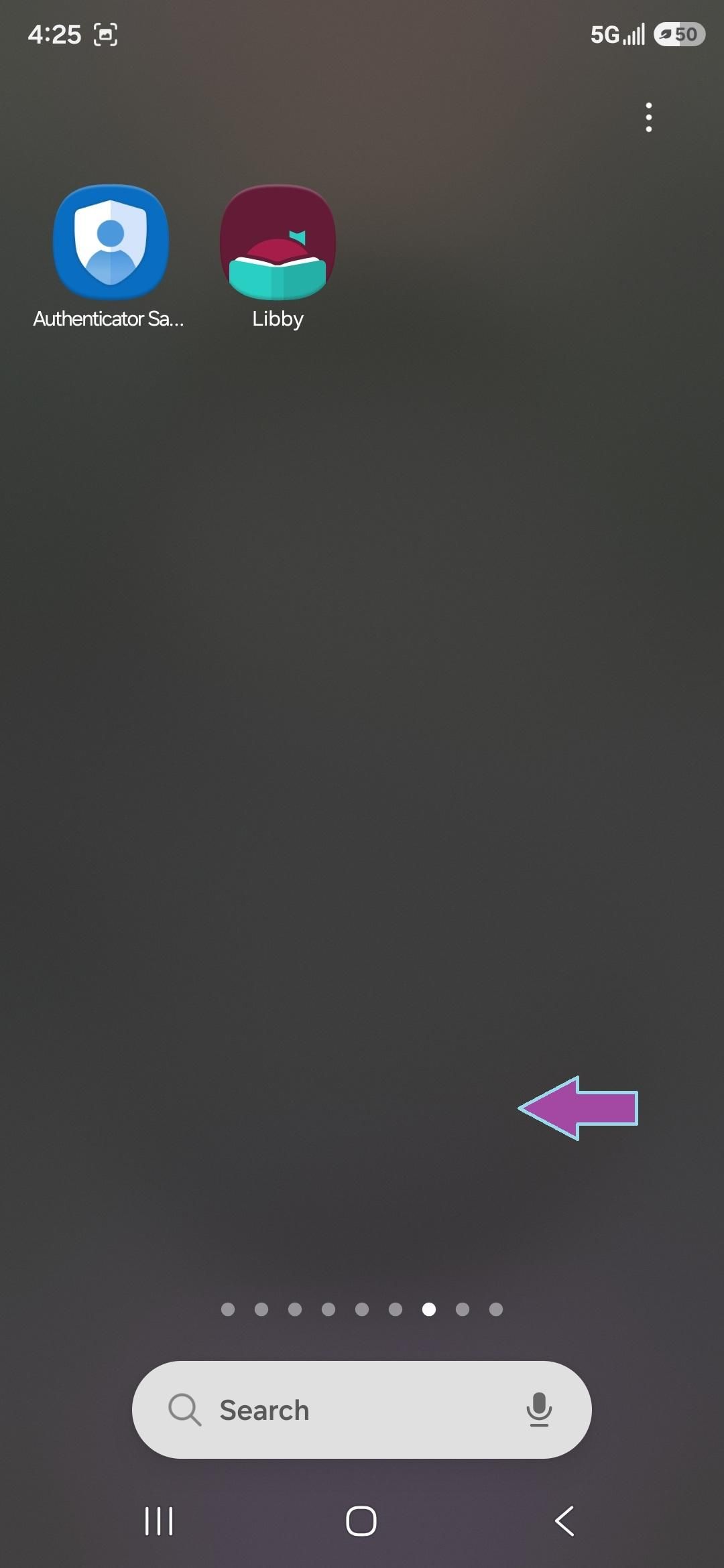
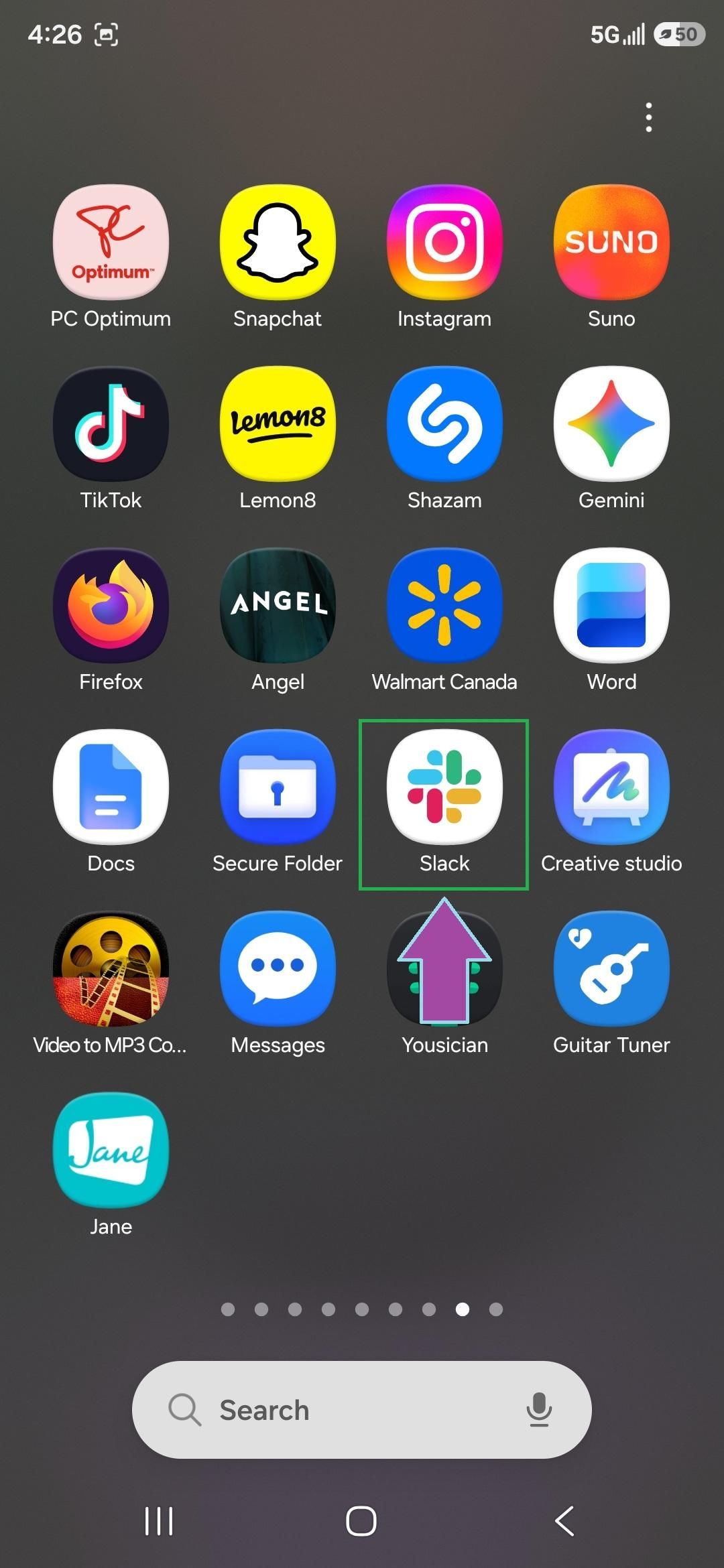
- Scroll up to go to your apps
- Scroll over
- Go to Slack
Turn on Mobile Notifications
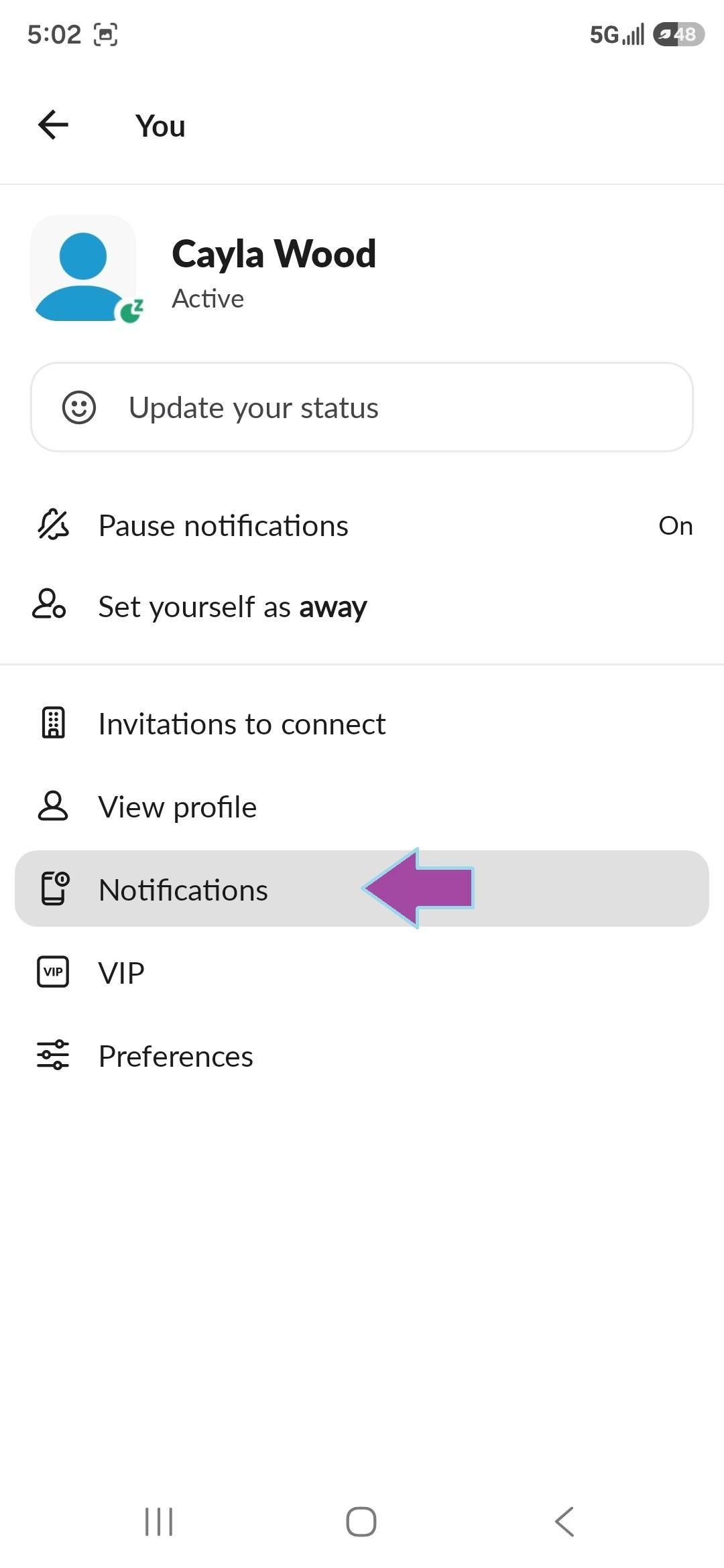
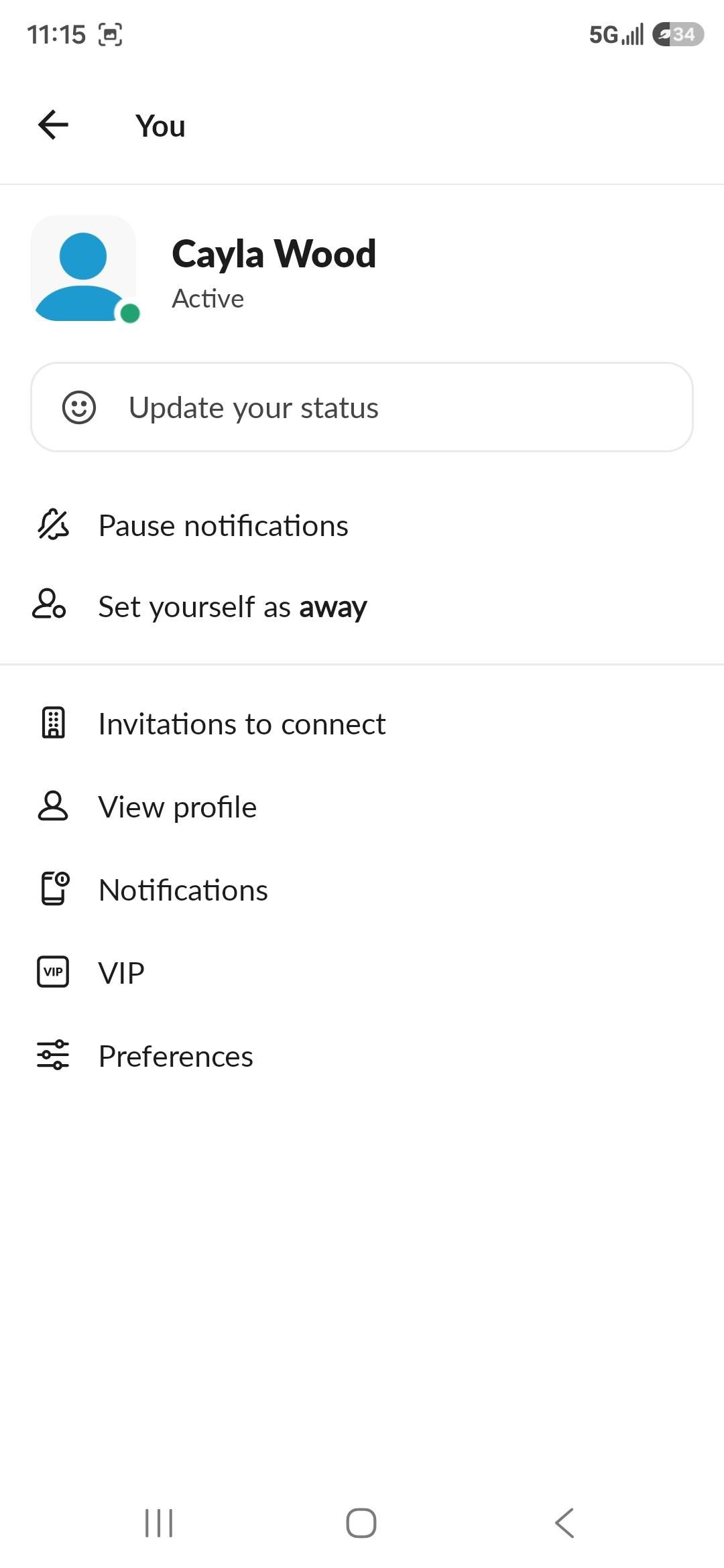
- Click on your picture in the top right hand corner
- Go to notifications
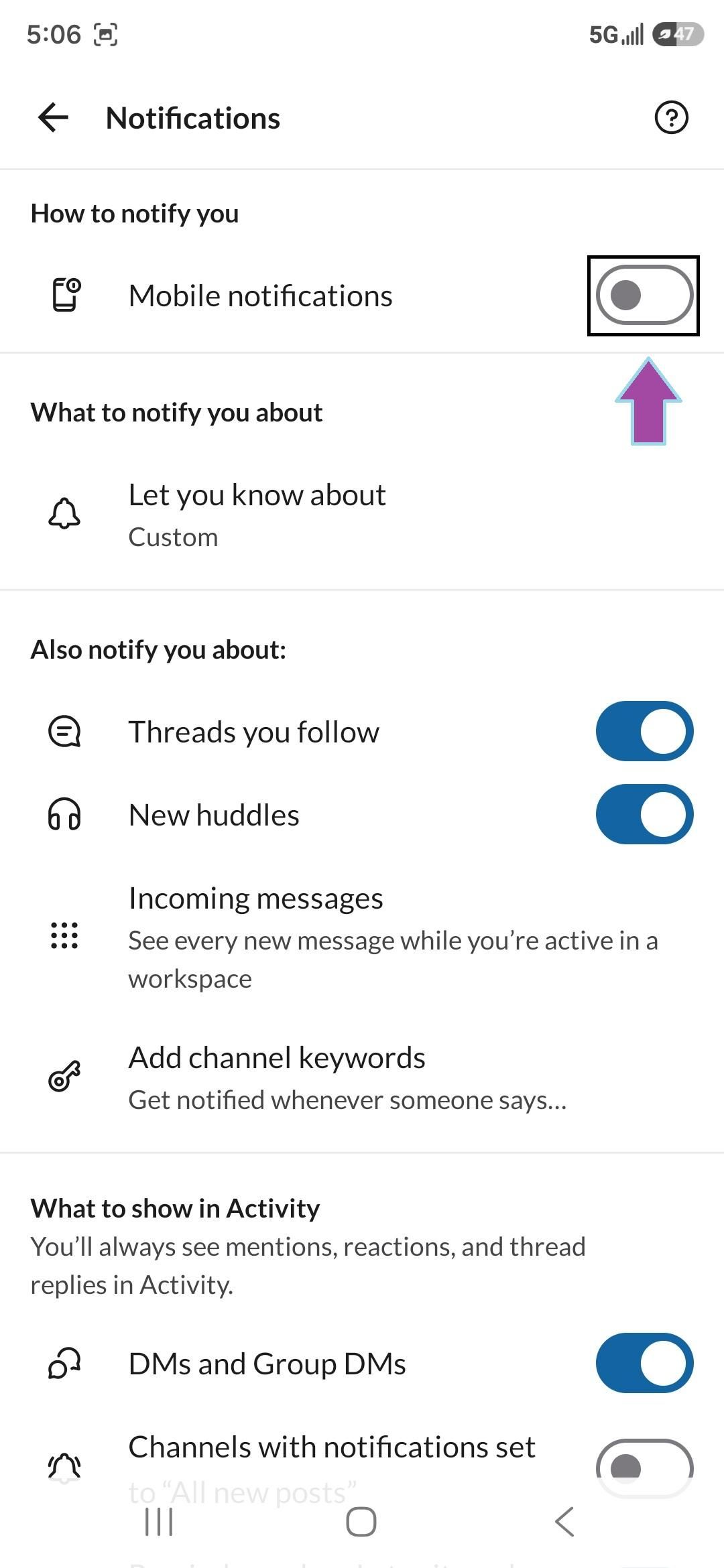
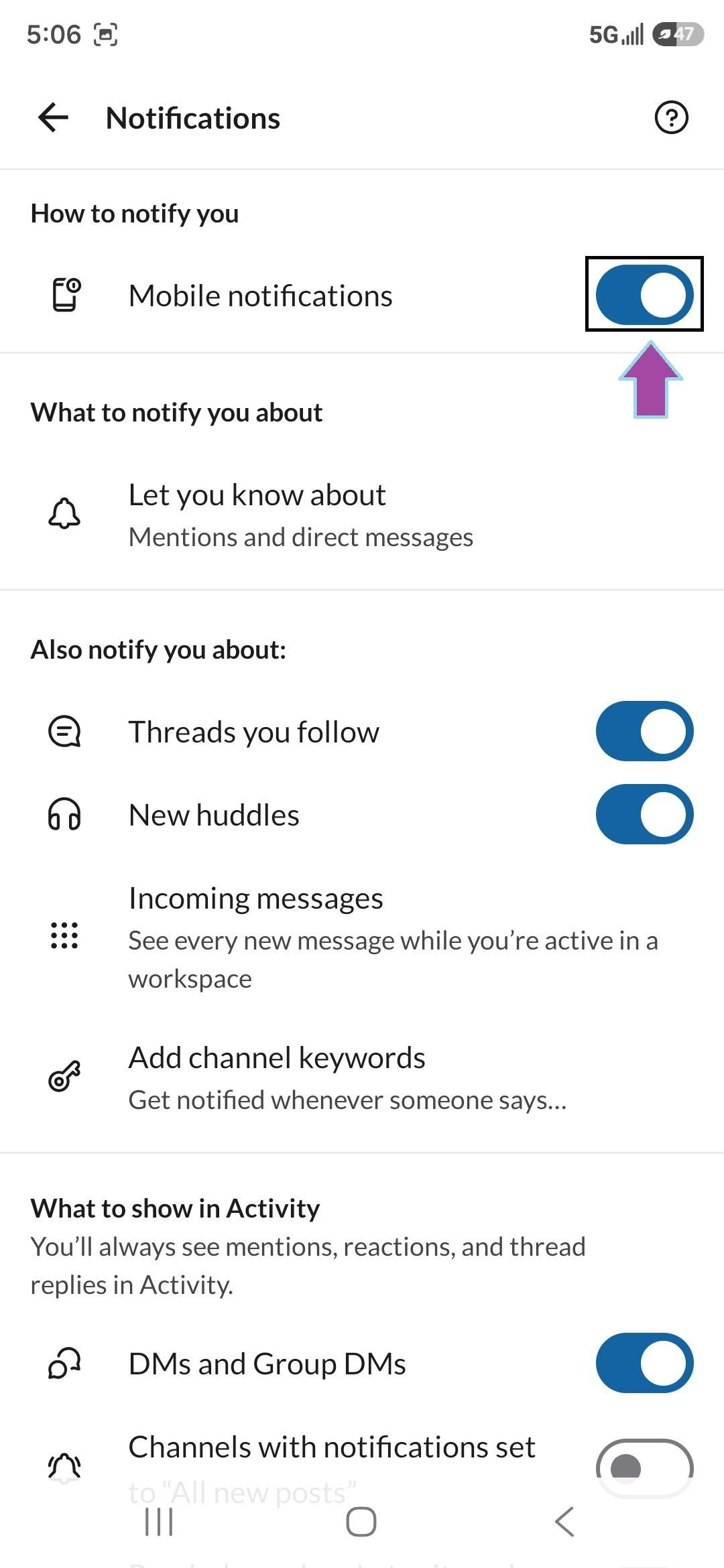
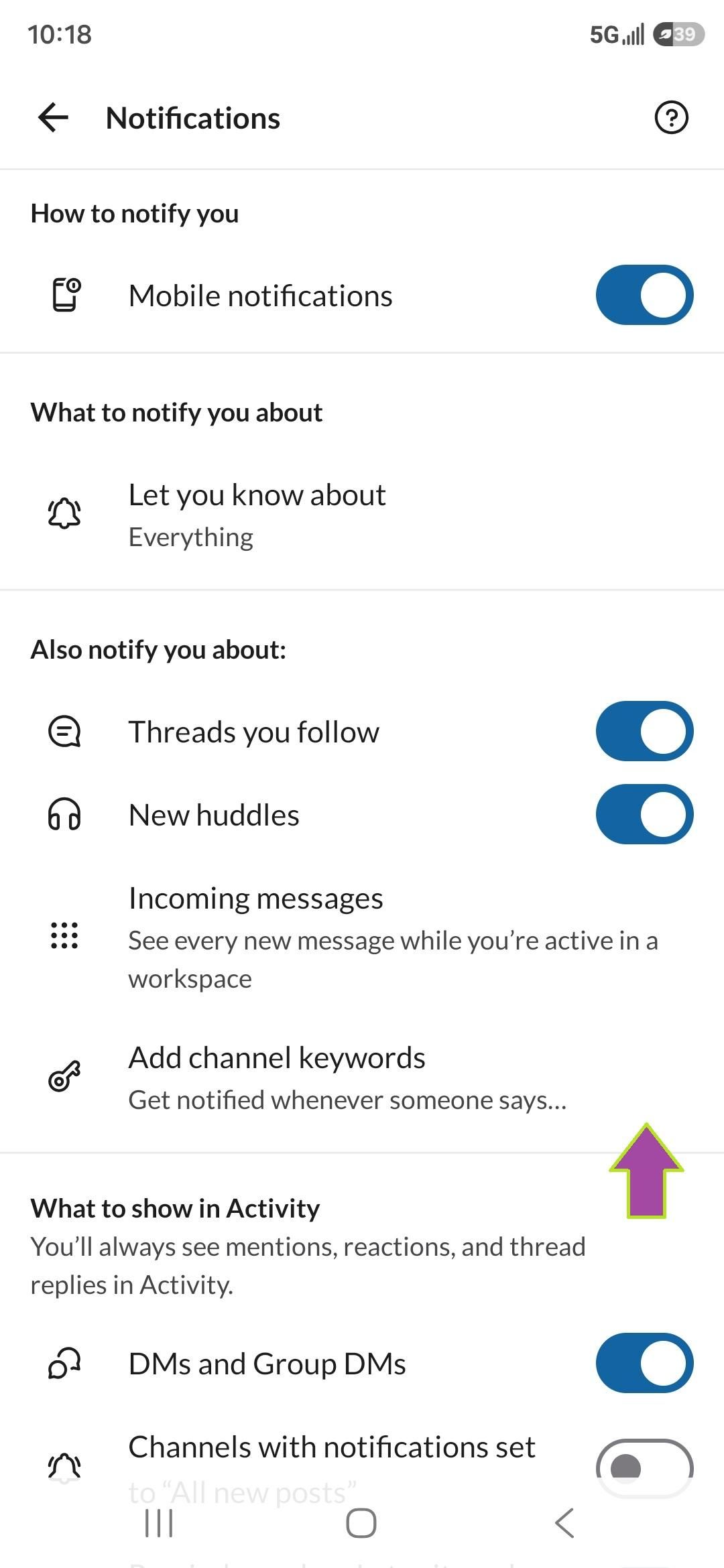
- Under how to notify you, turn on Mobile notifications
- To turn it on, flip the switch to the right
Change the Let You Know About Setting
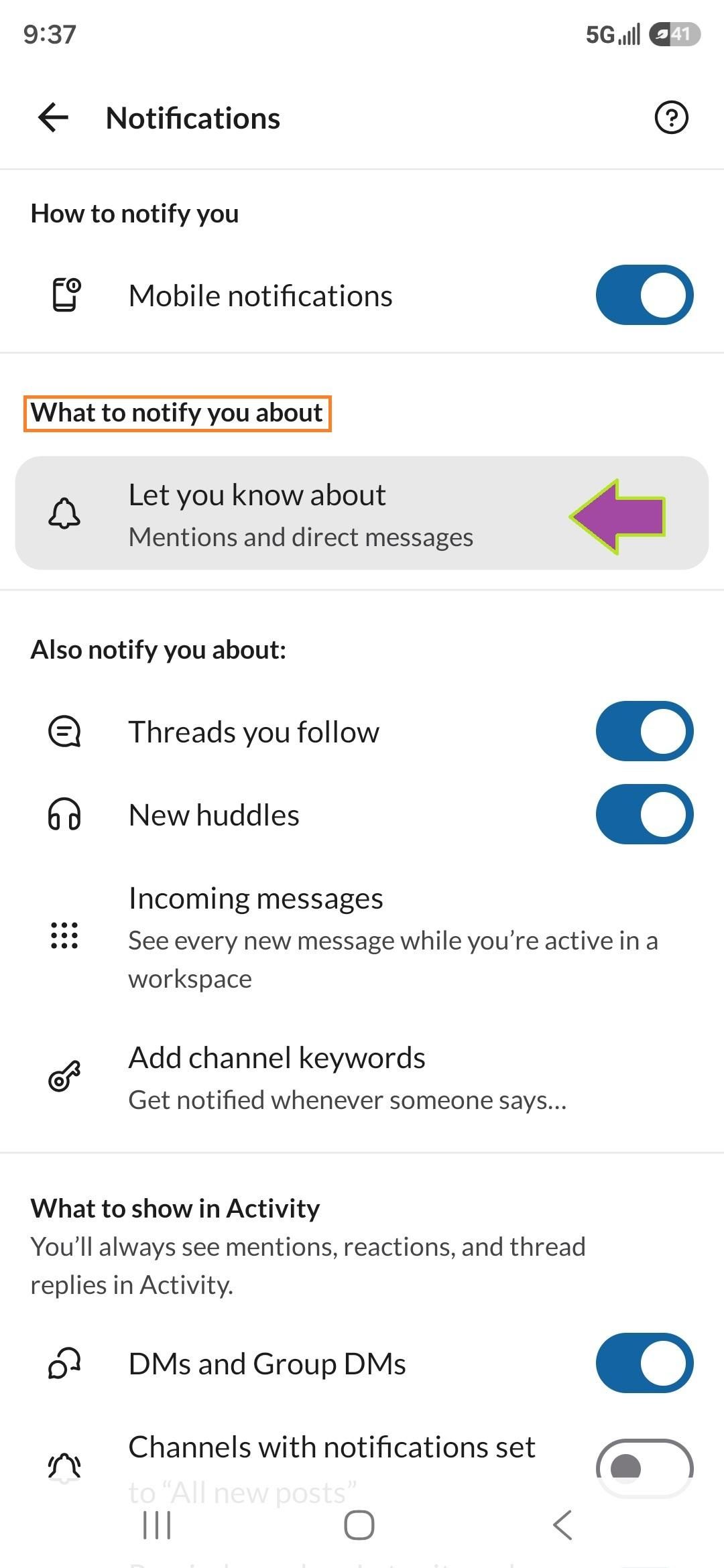
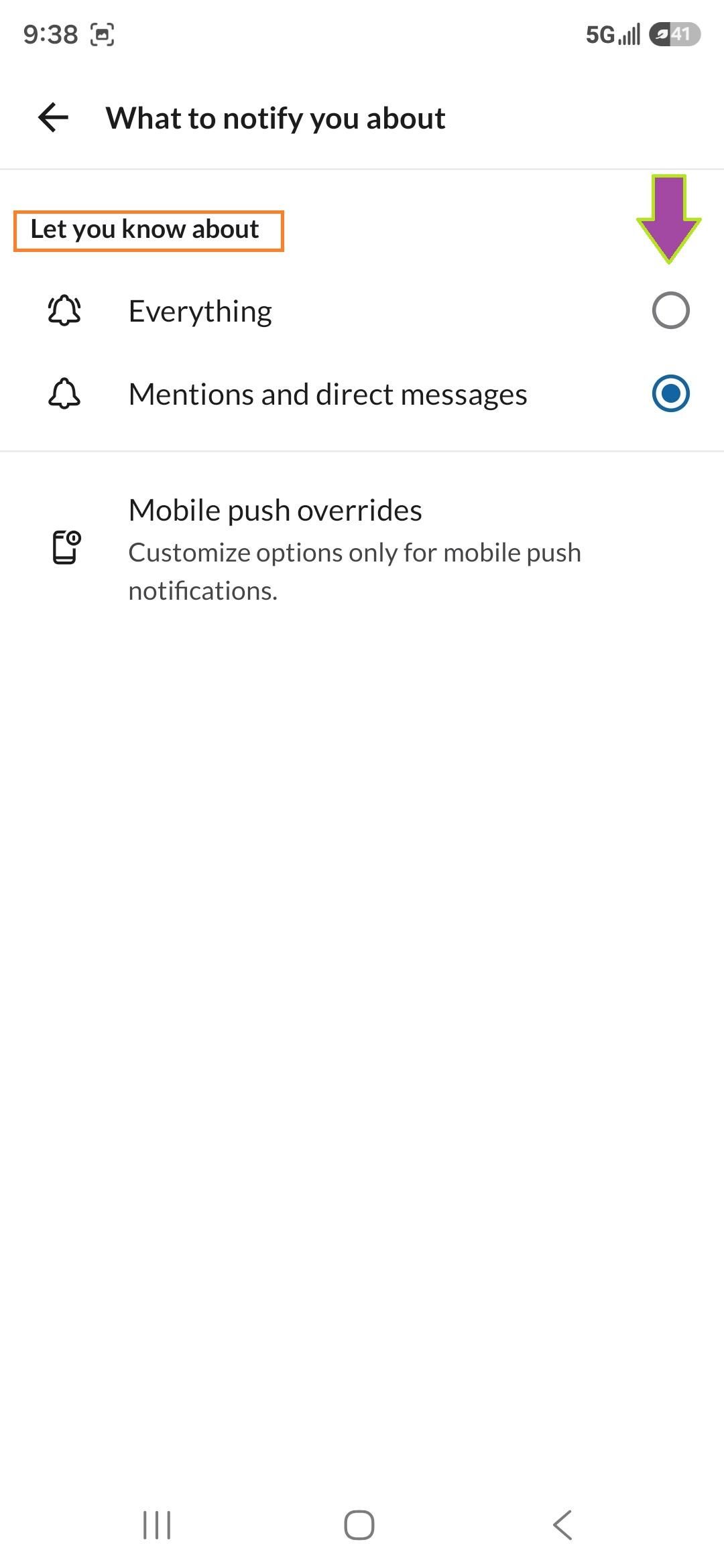
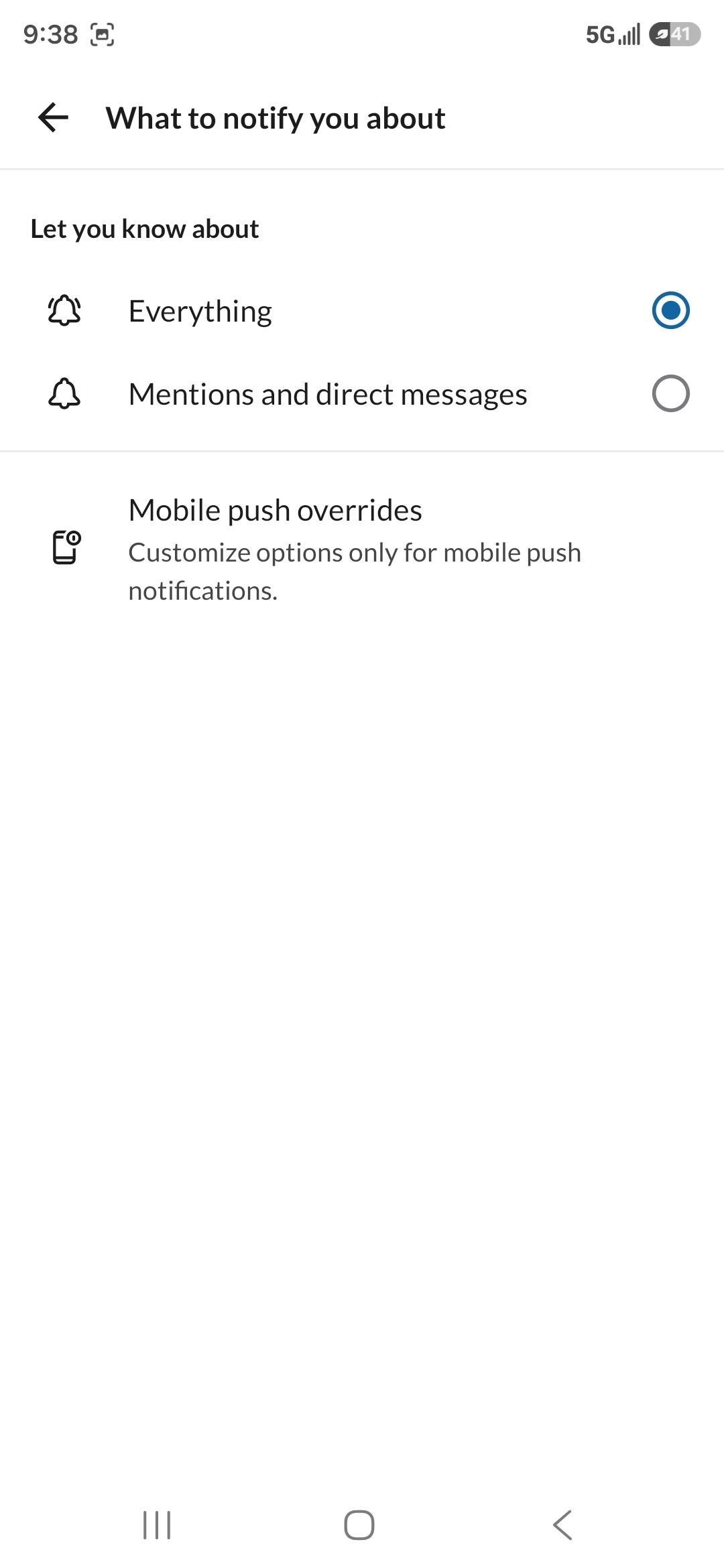
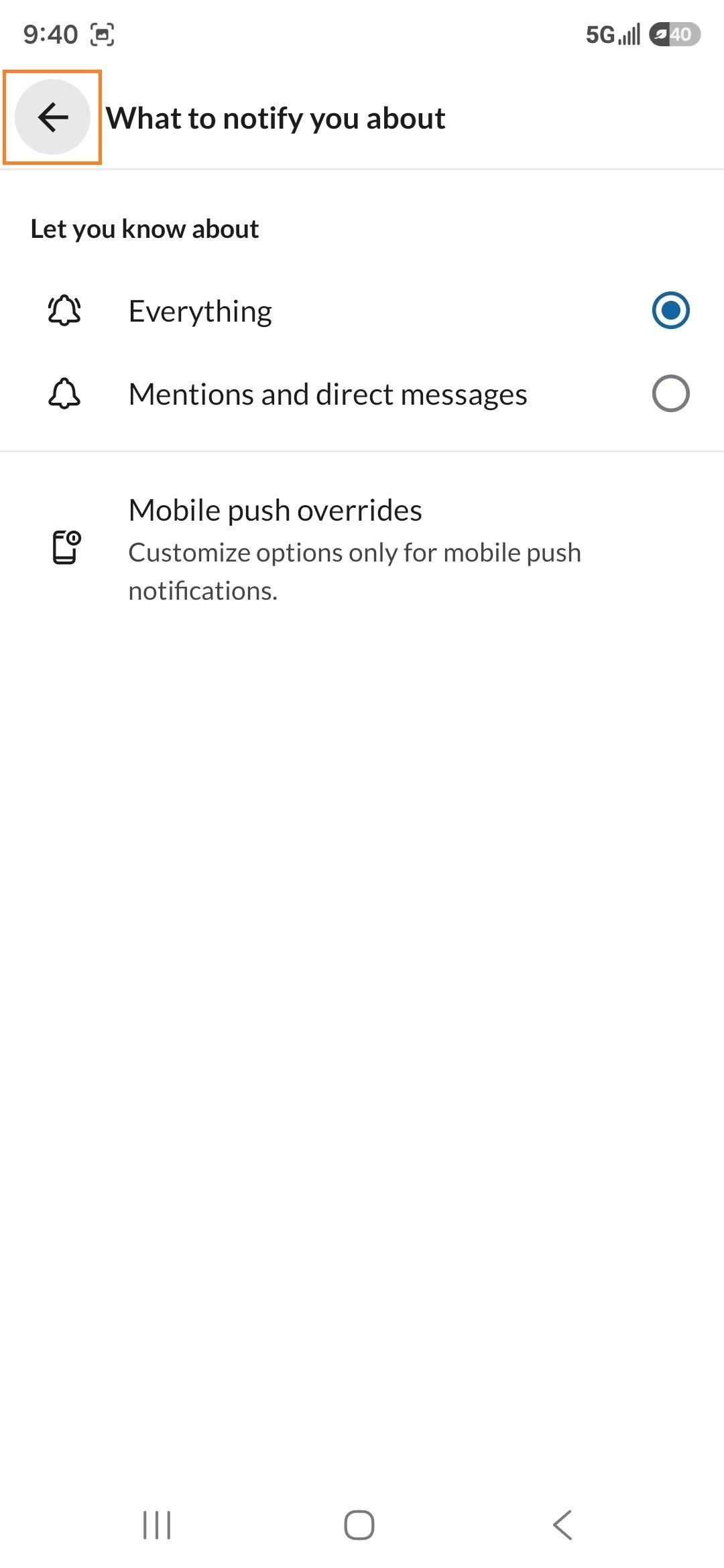
- Under what to notify you about, change let you know about from Mentions and direct messages to Everything.
- To change it, click on Let you know about and then click on the circle to the right of Everything to select it.
- Click the back arrow
Change the Notification Schedule From Weekdays to Everyday
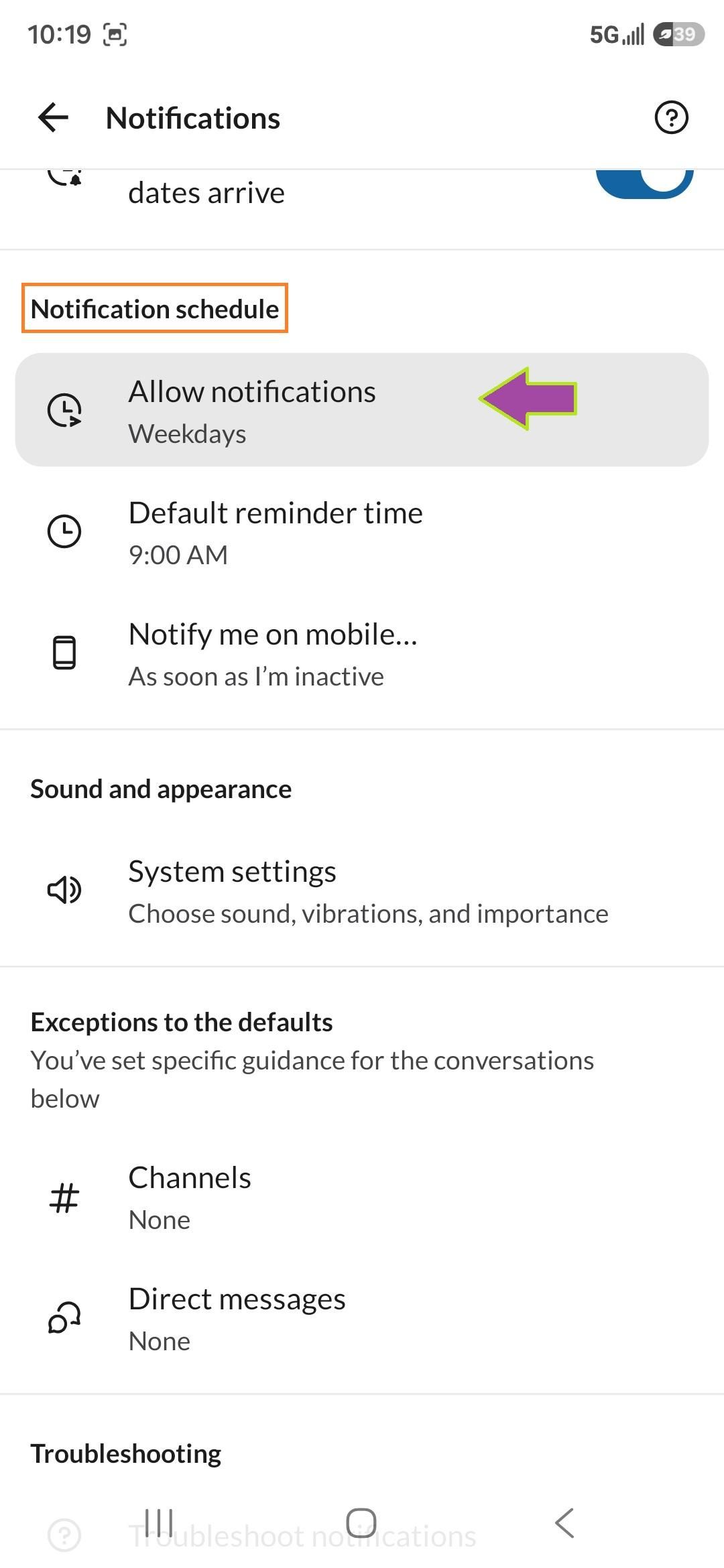
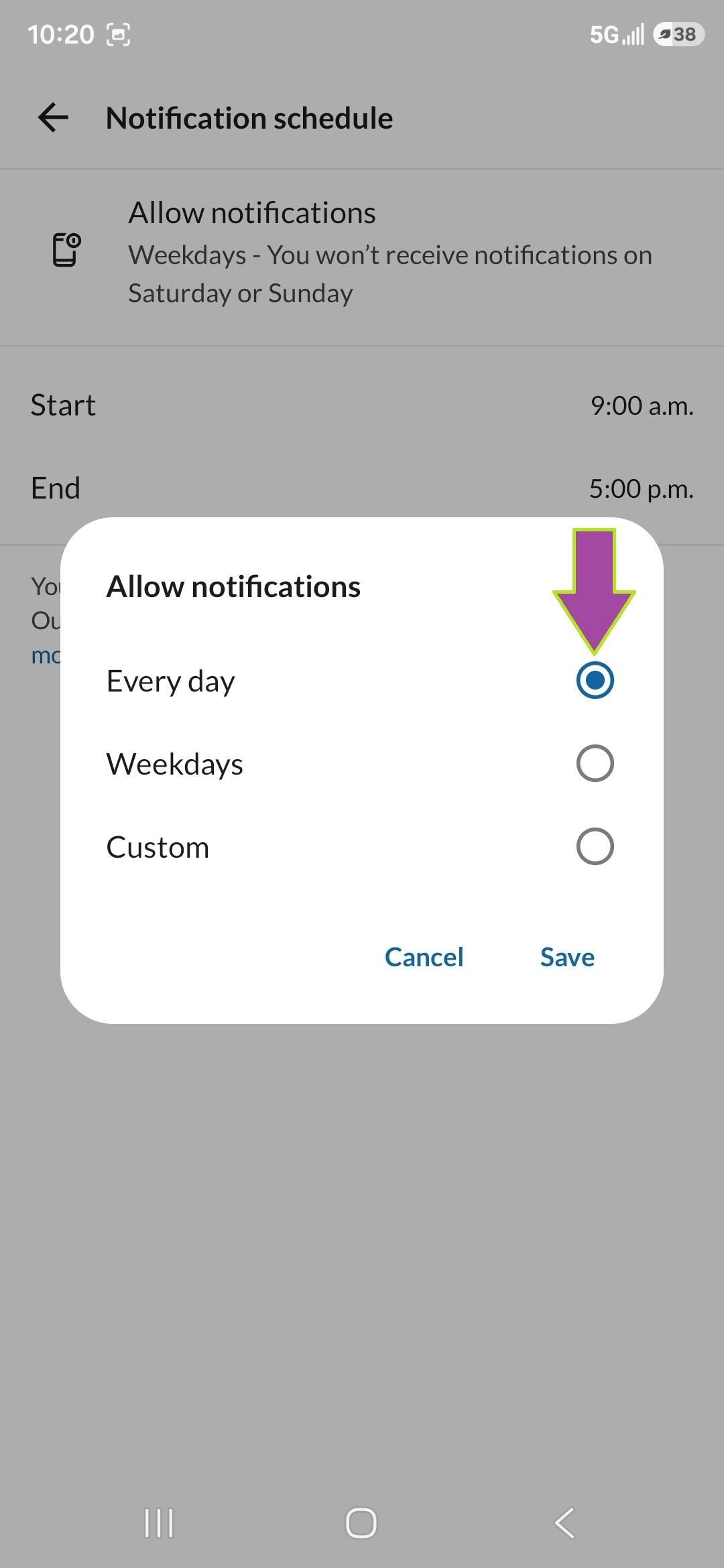
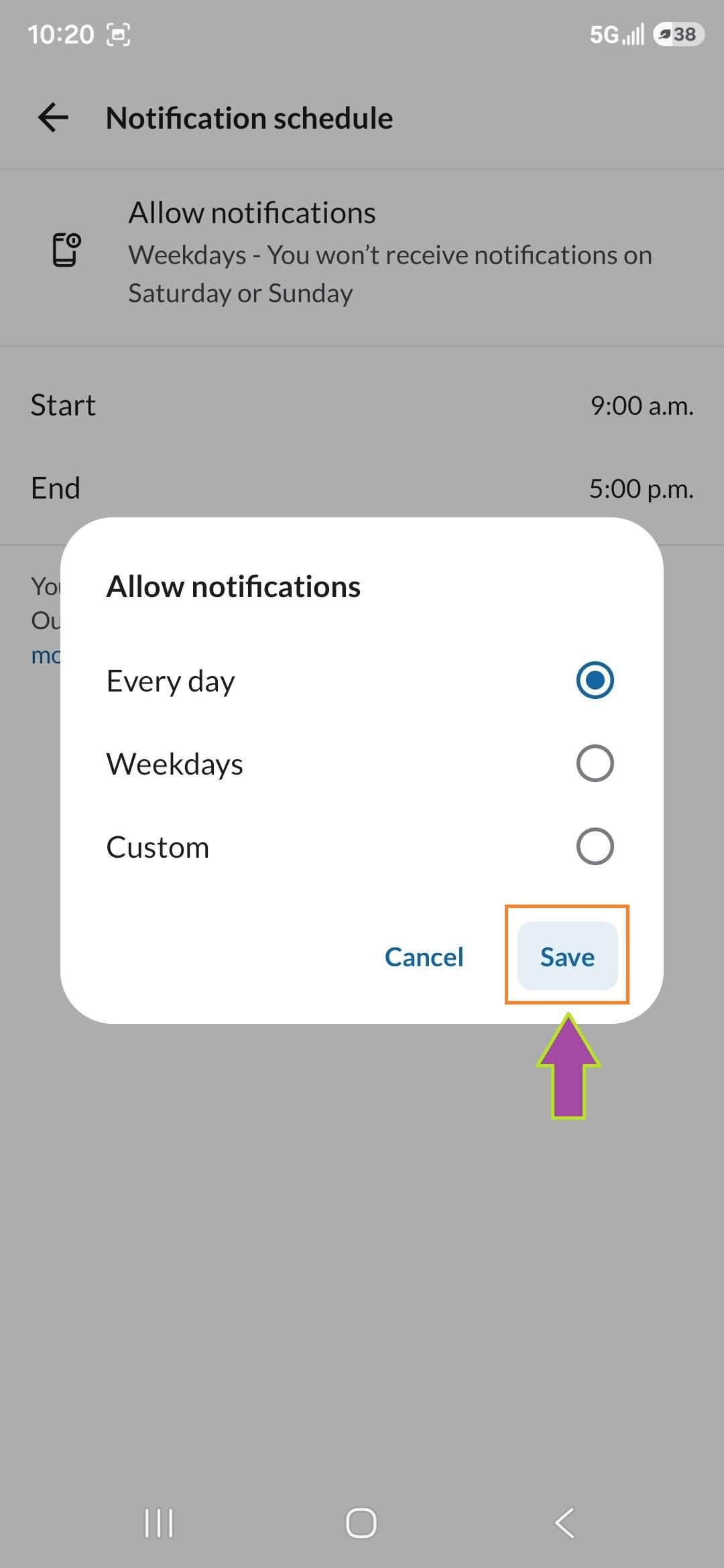
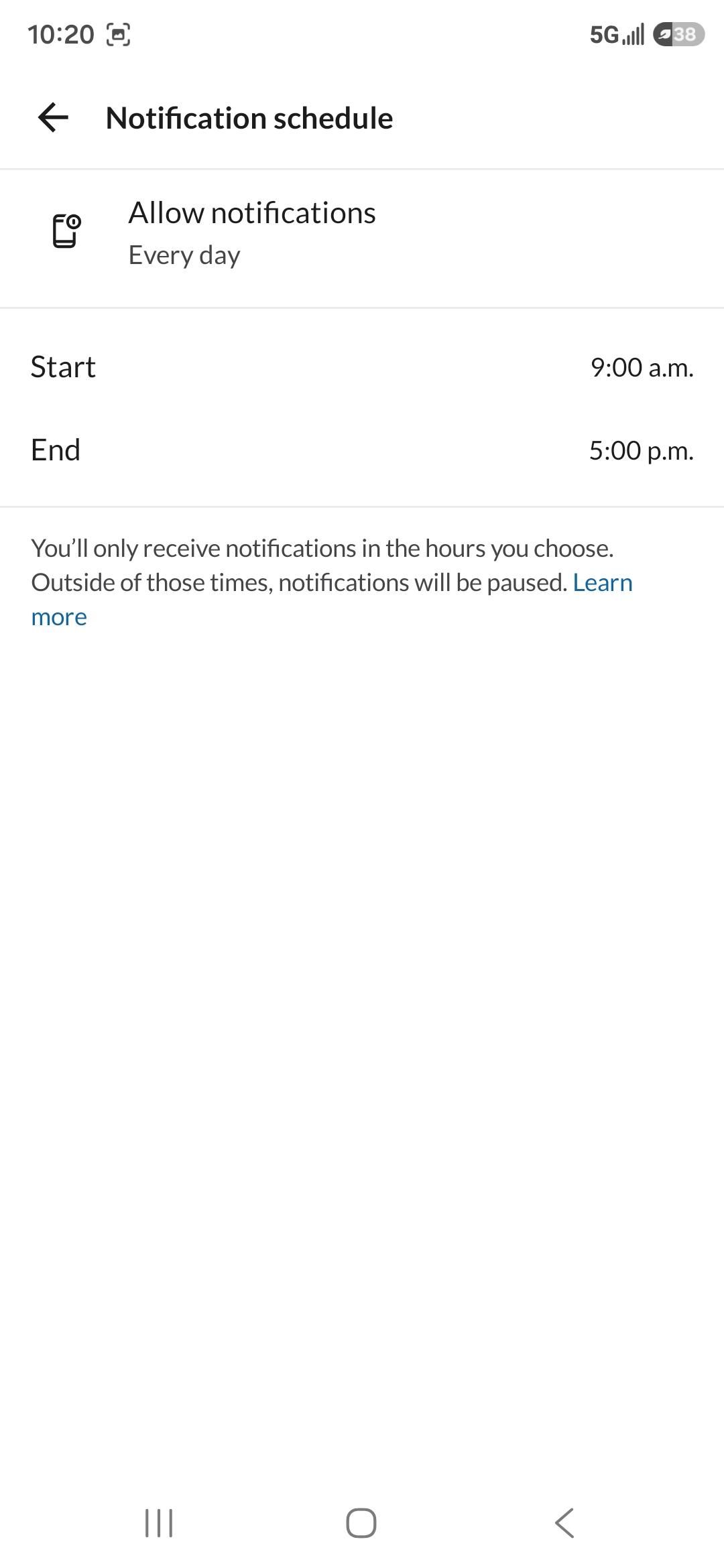
- If you would like you can change the notification schedule from Weekdays (9am-5pm) to Everyday (12am-11:59pm)
- Scroll down
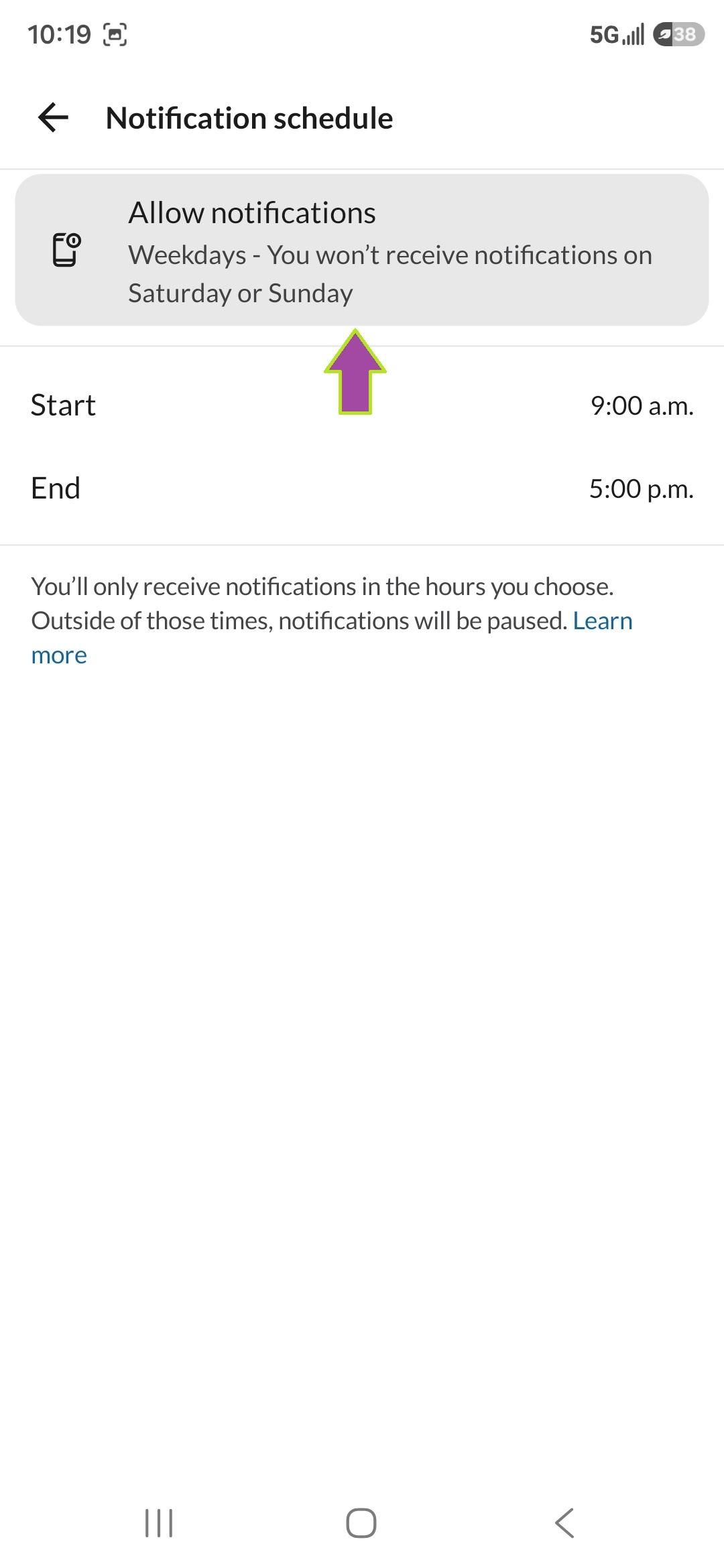
- Under Notification schedule click allow notifications
- It says Allow notifications, Weekdays - You won't receive notifications on Saturday or Sunday
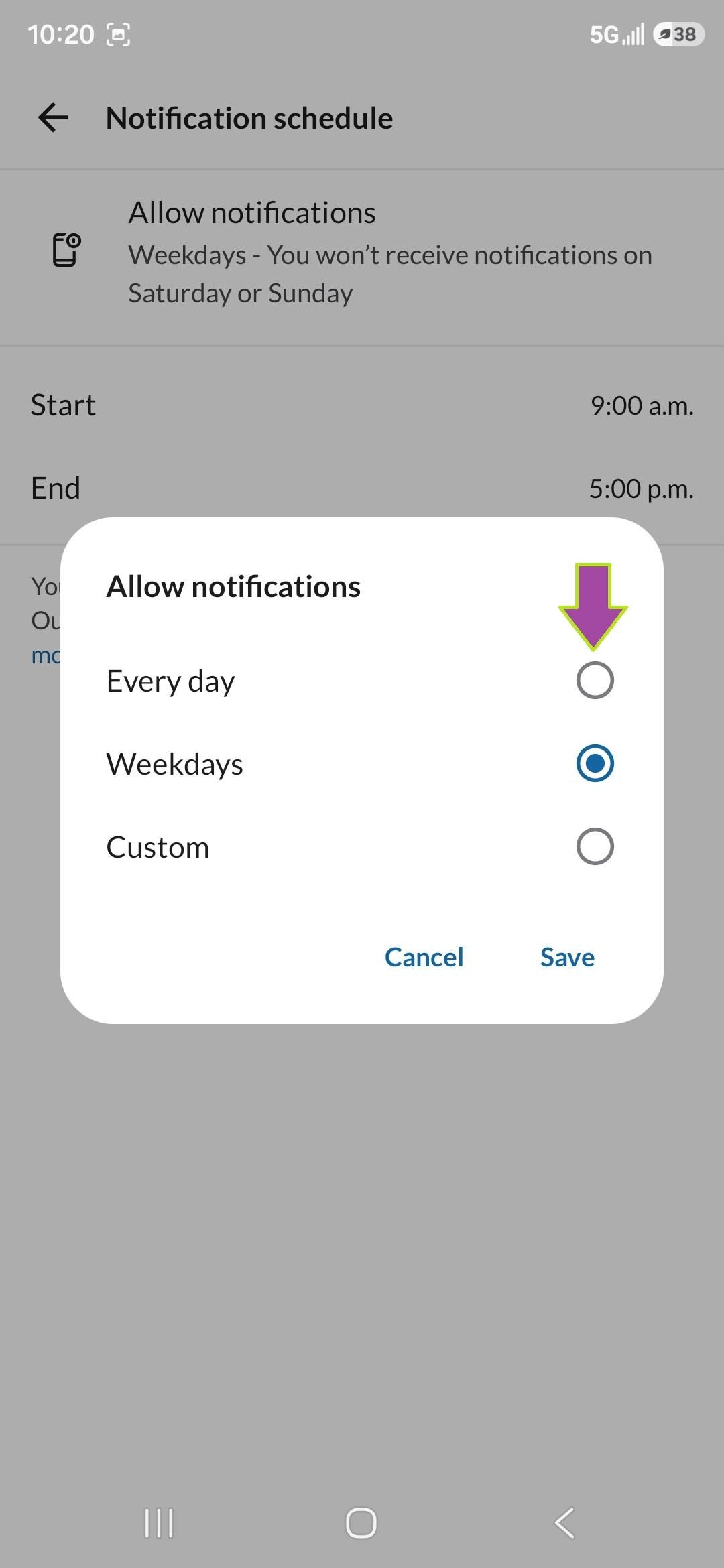
- Click Allow notifications
- Select Everyday
- To do this simply click in the circle to the right of Everyday
- Click Save
Change the Start Time
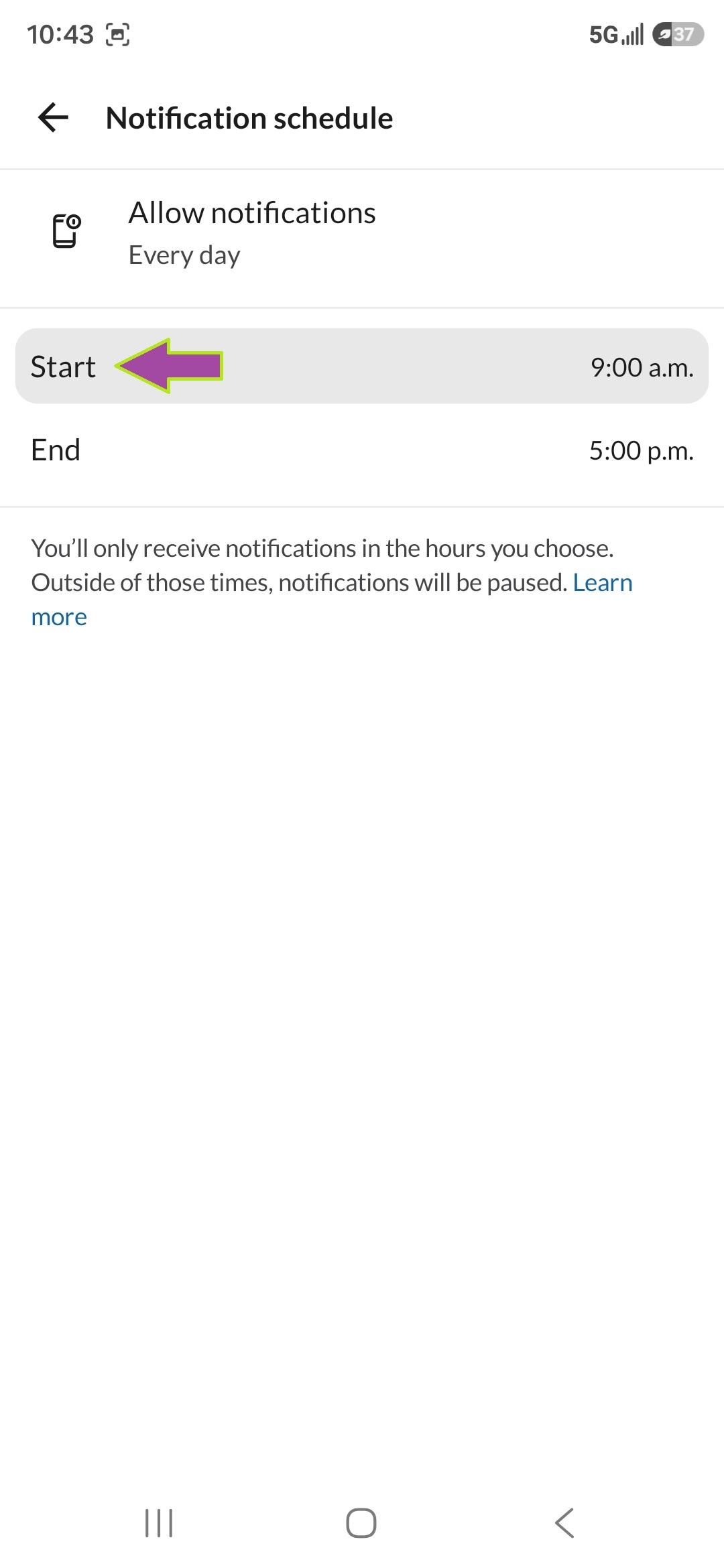
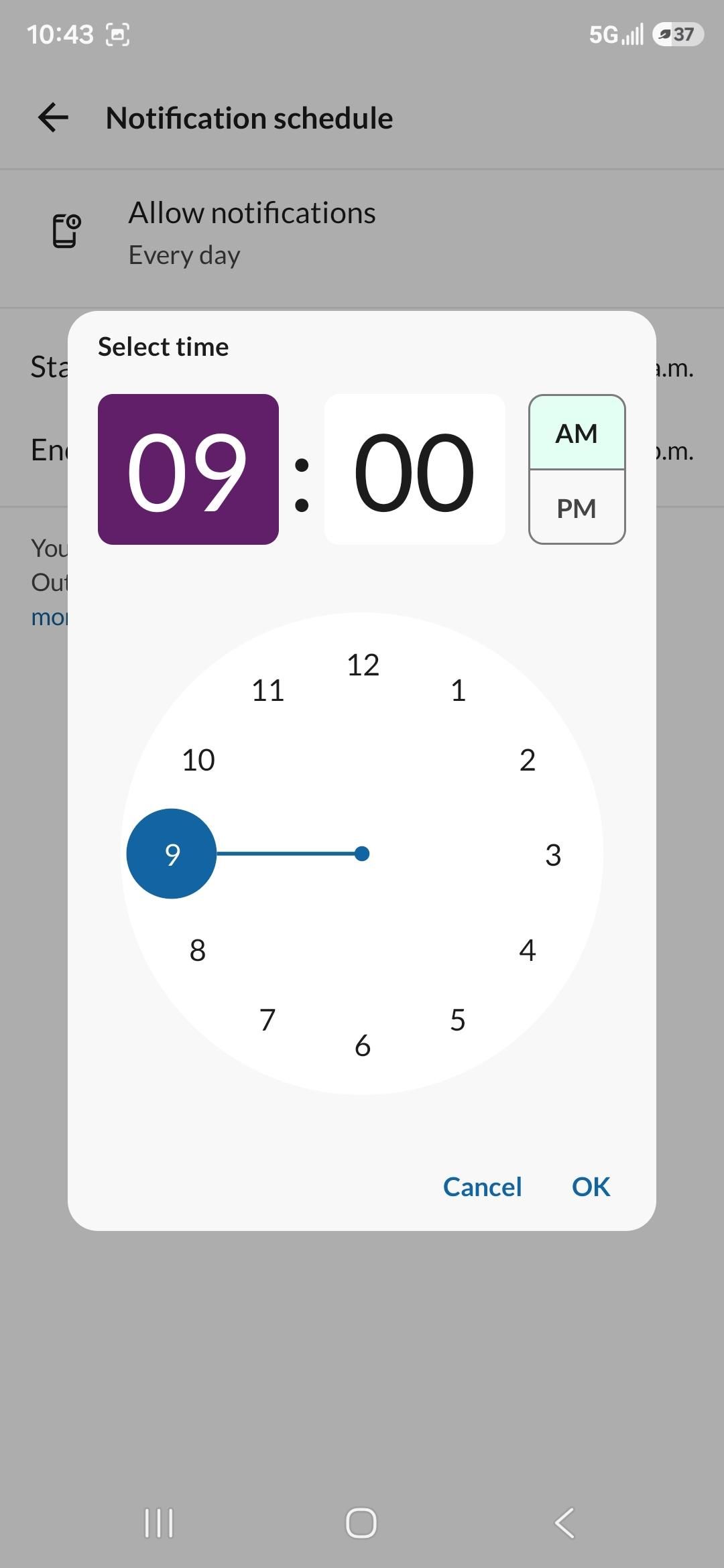
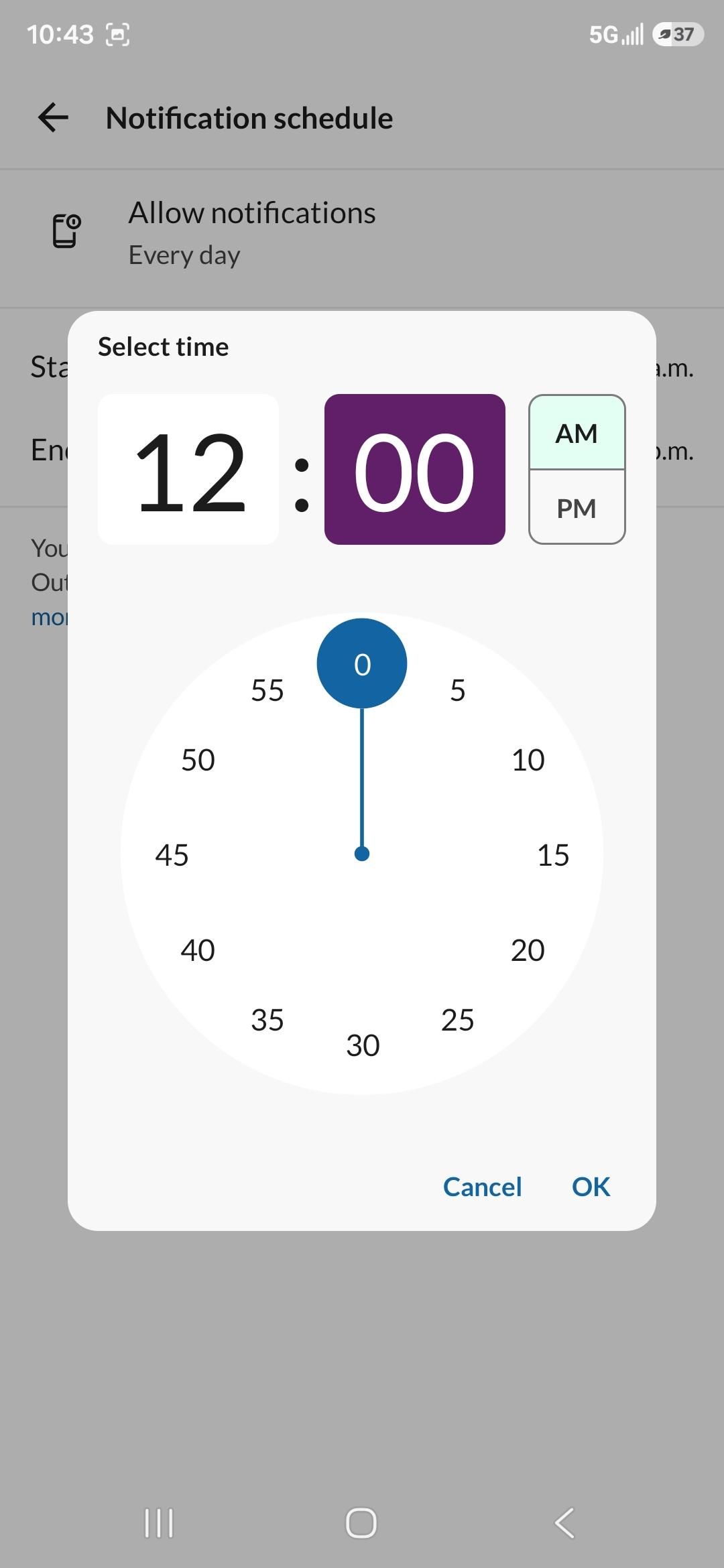
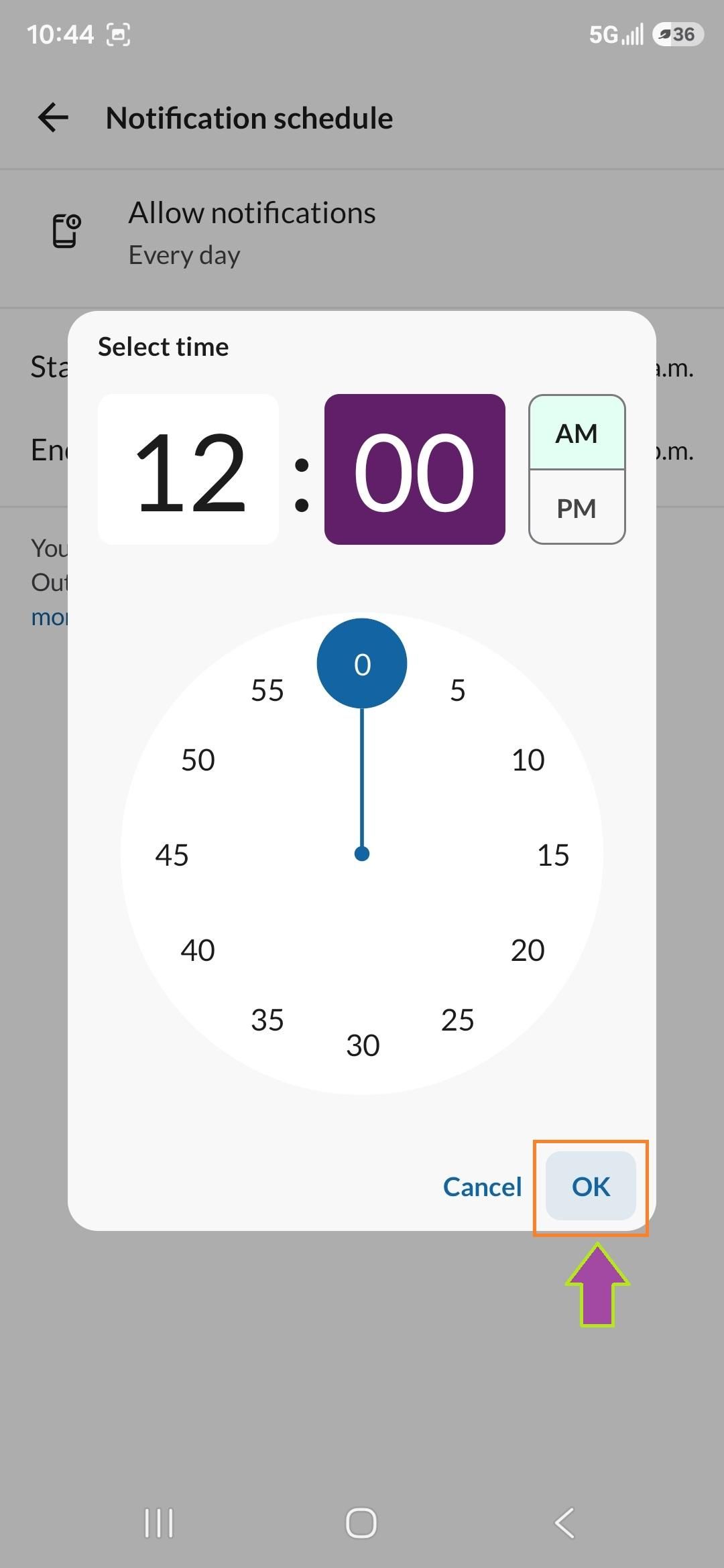
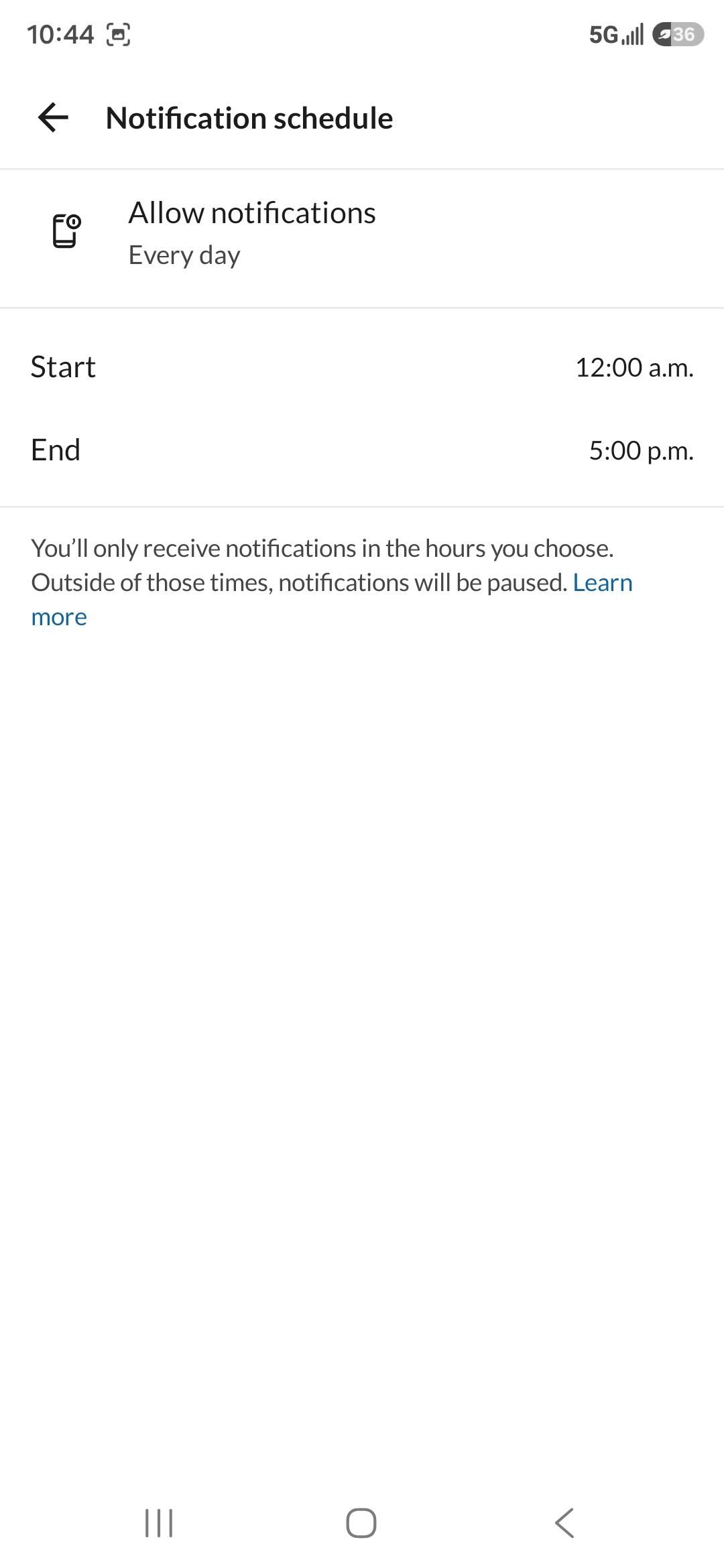
- Click on Start
- Change the time from 9am to 12am
- Click OK
Change the End Time
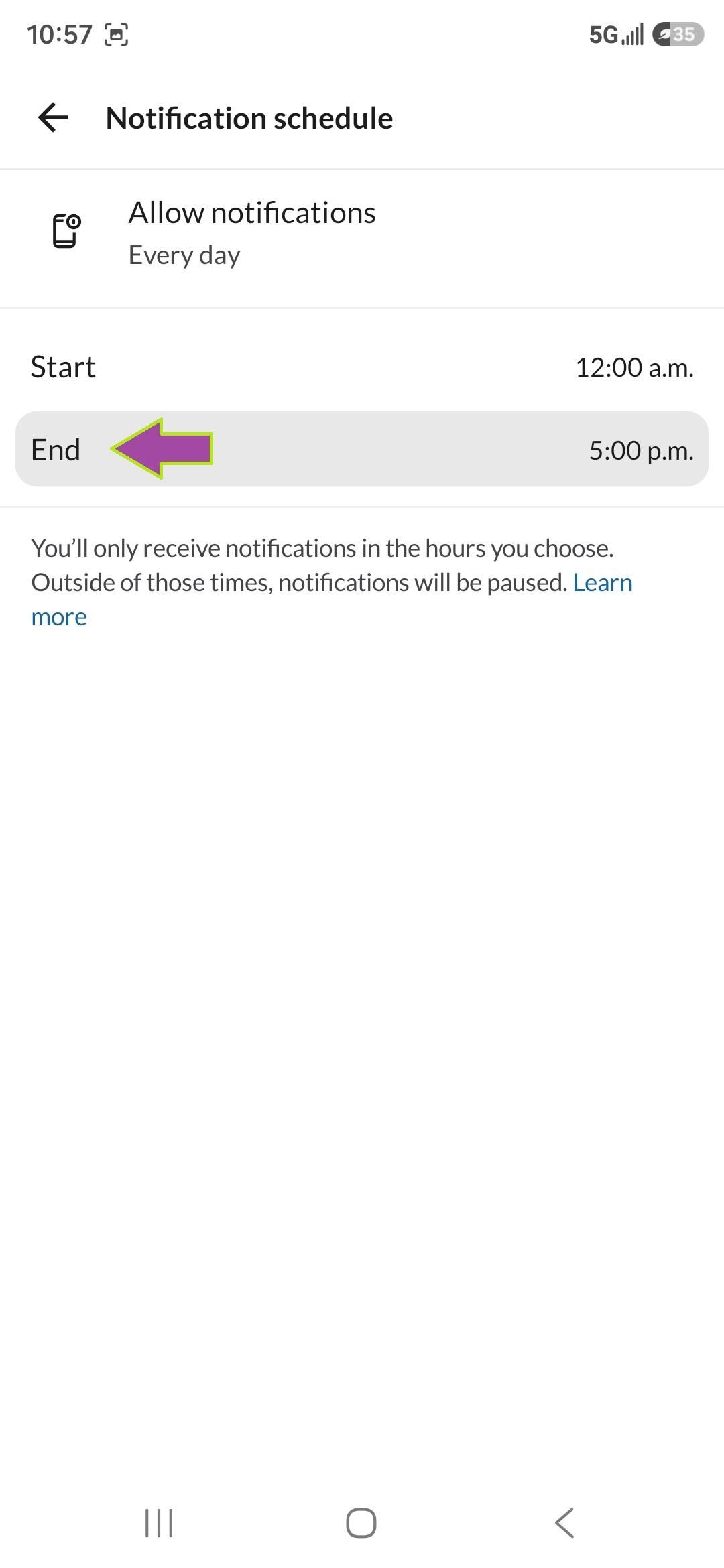
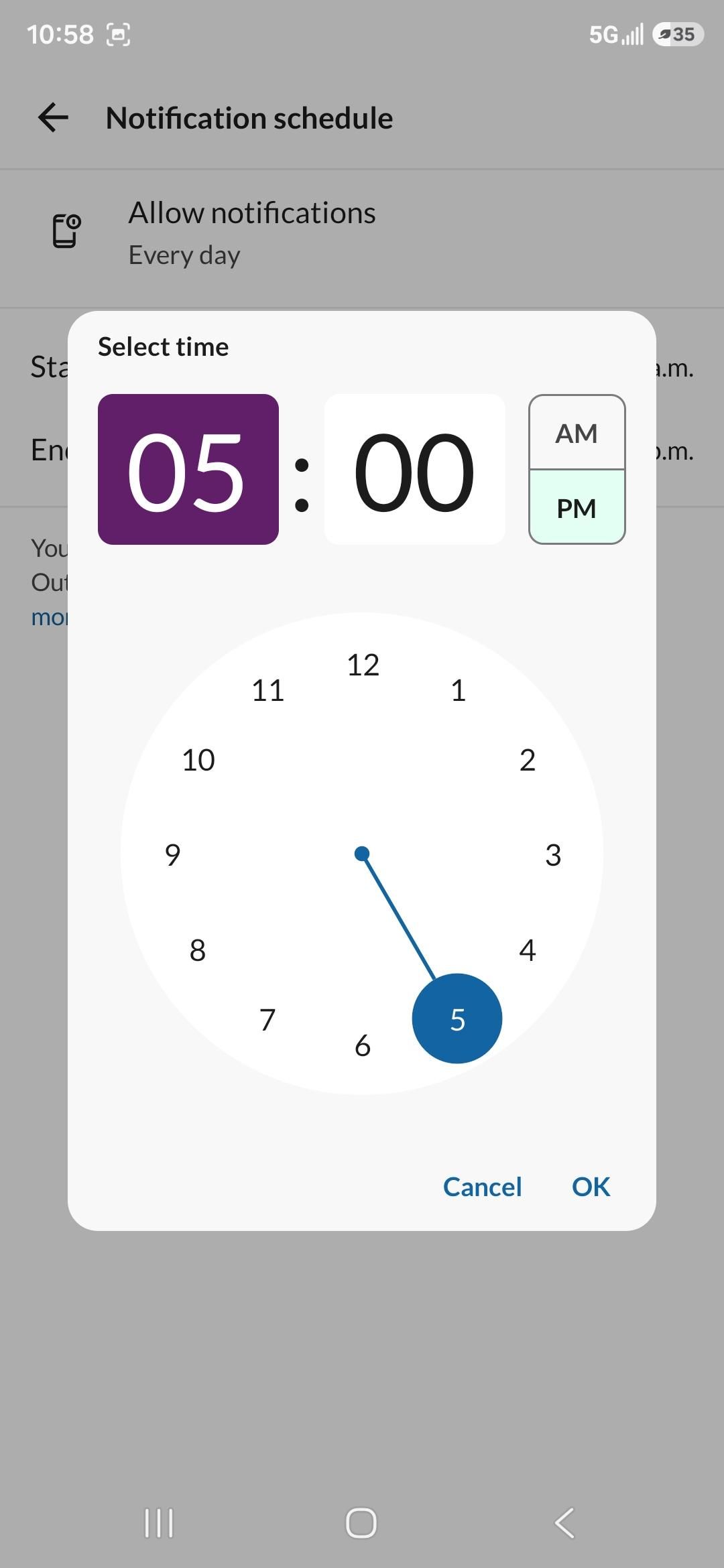
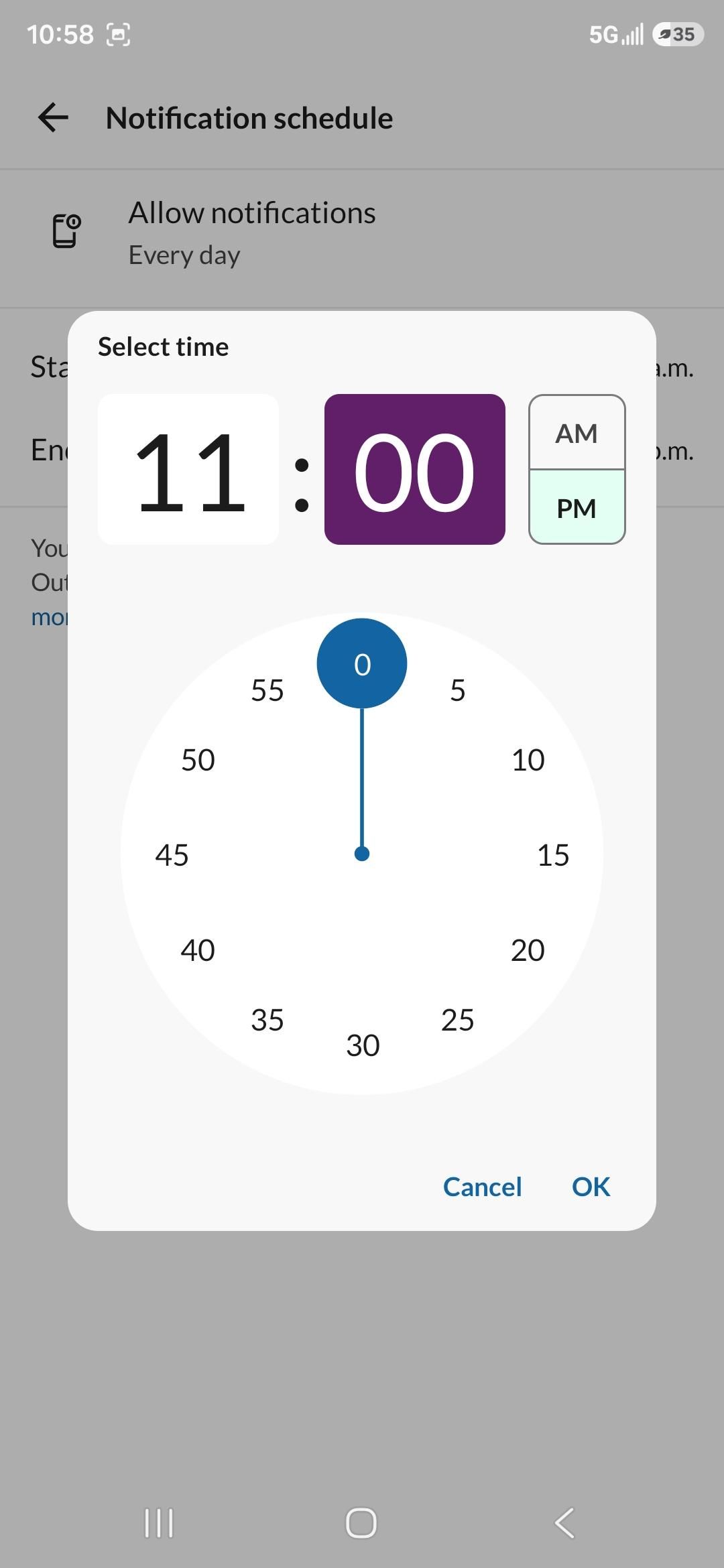
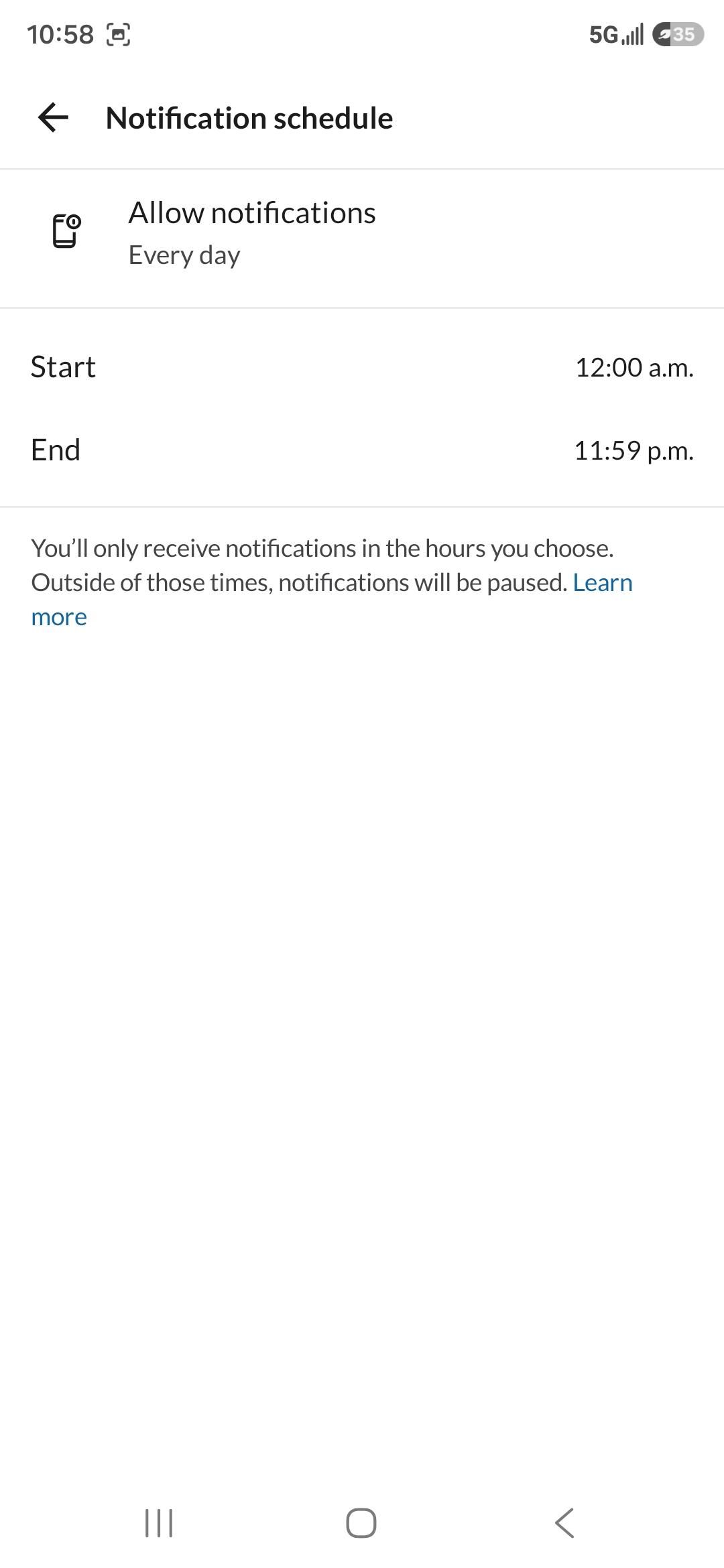
- Click on End
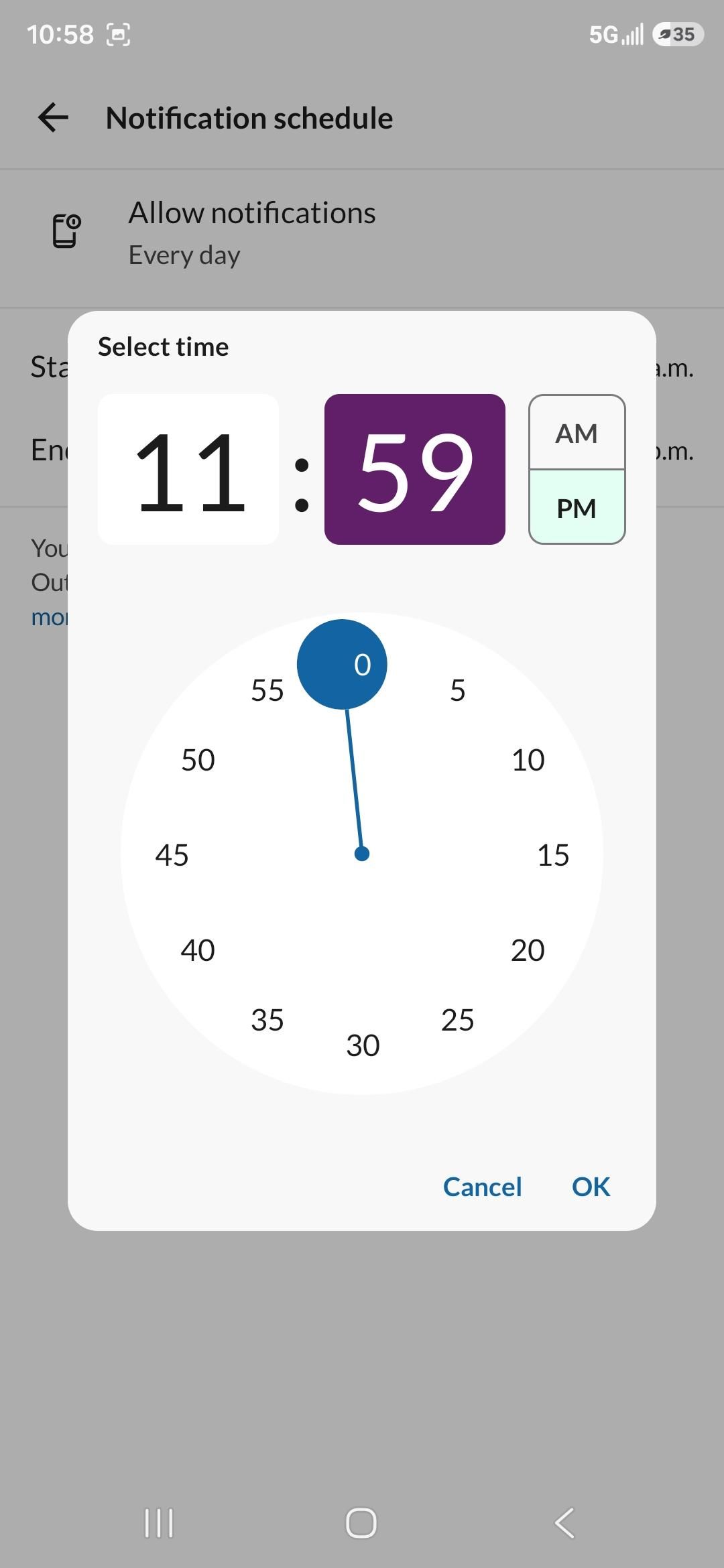
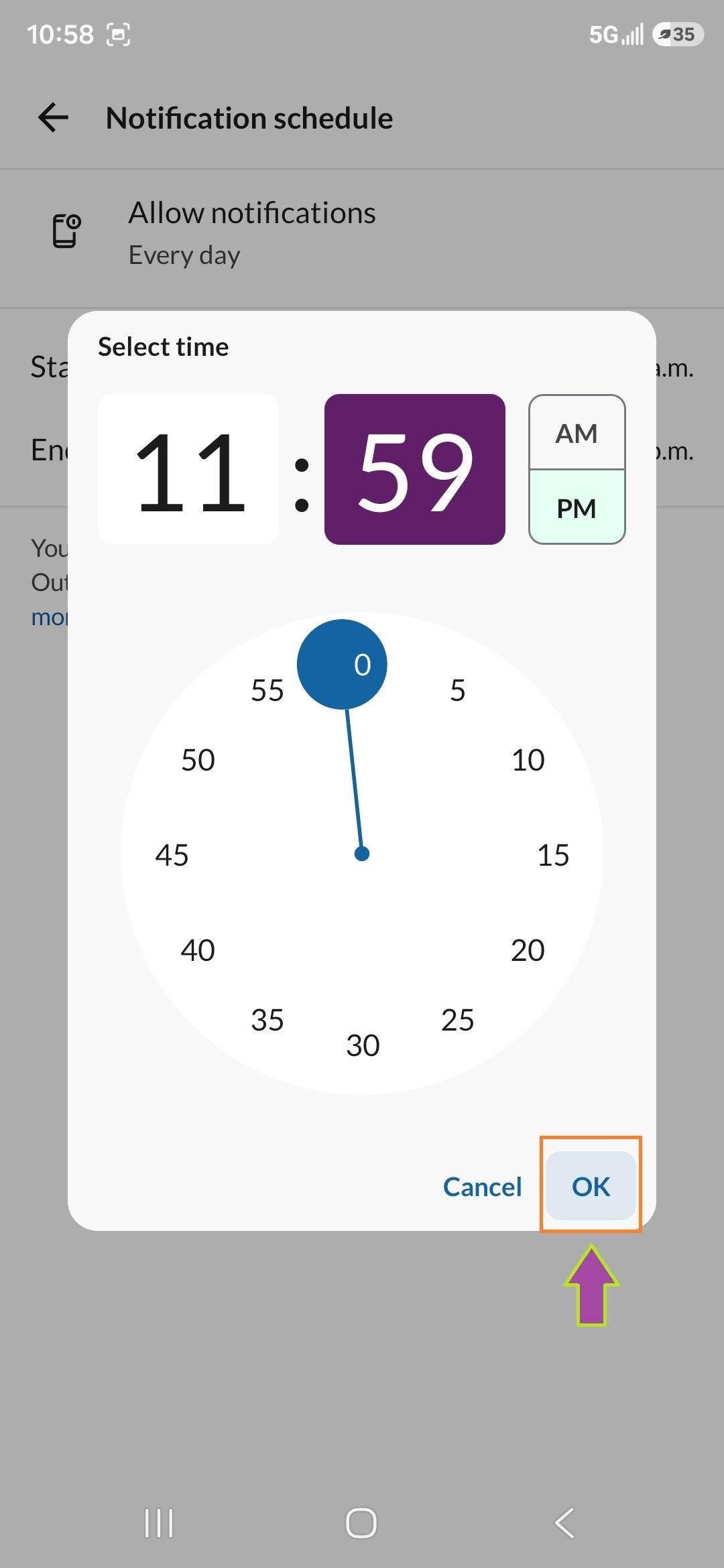
- Change the time from 5pm to 11:59pm
- Click OK
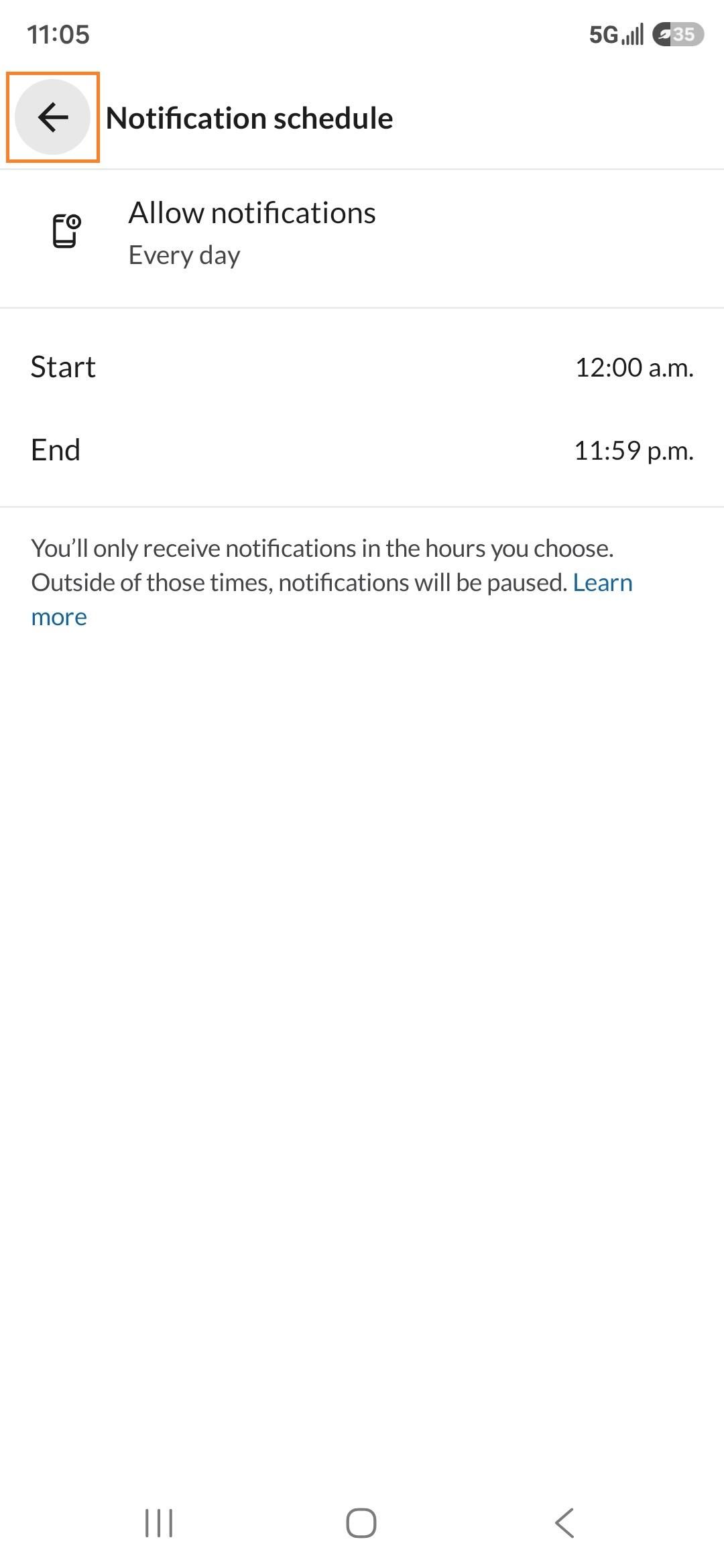
- Click the back arrow
Check System Settings
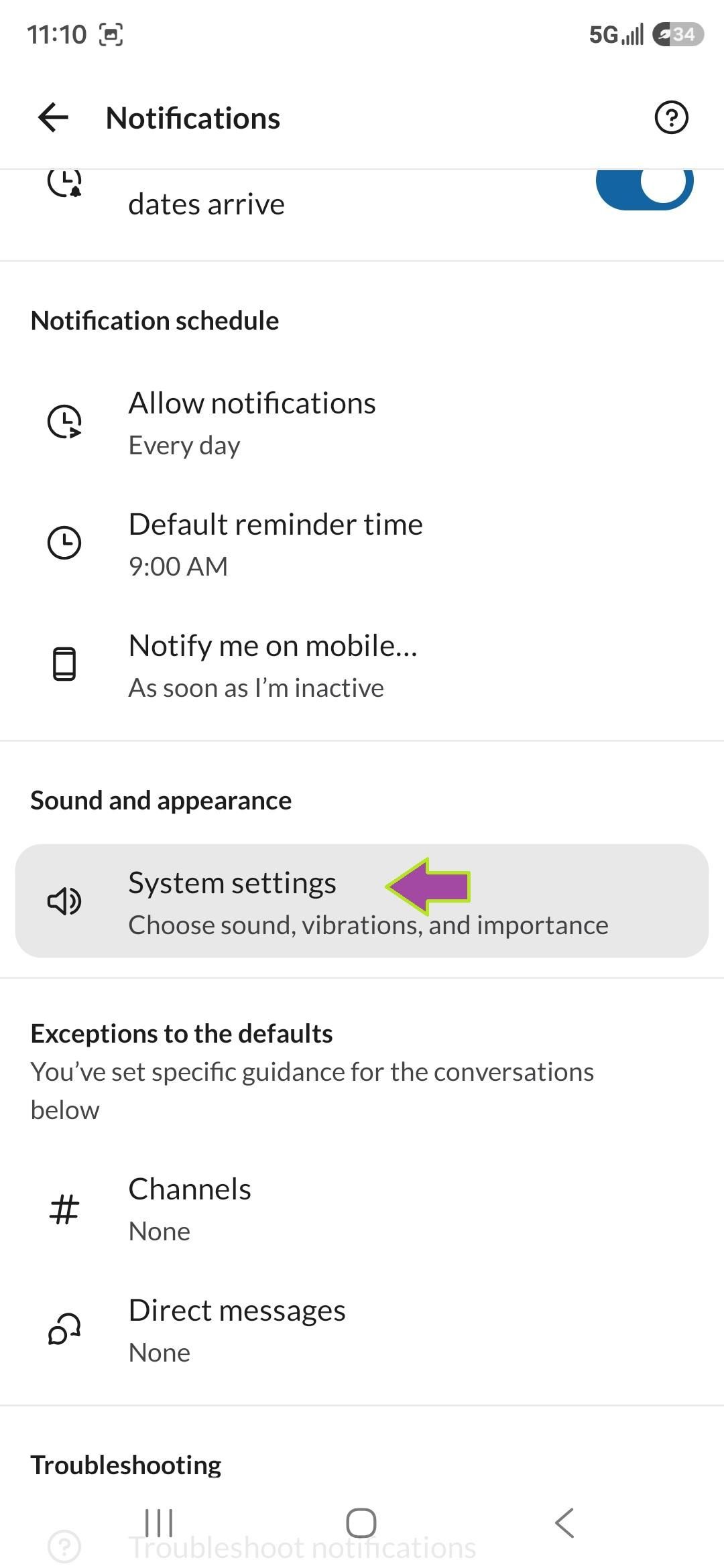
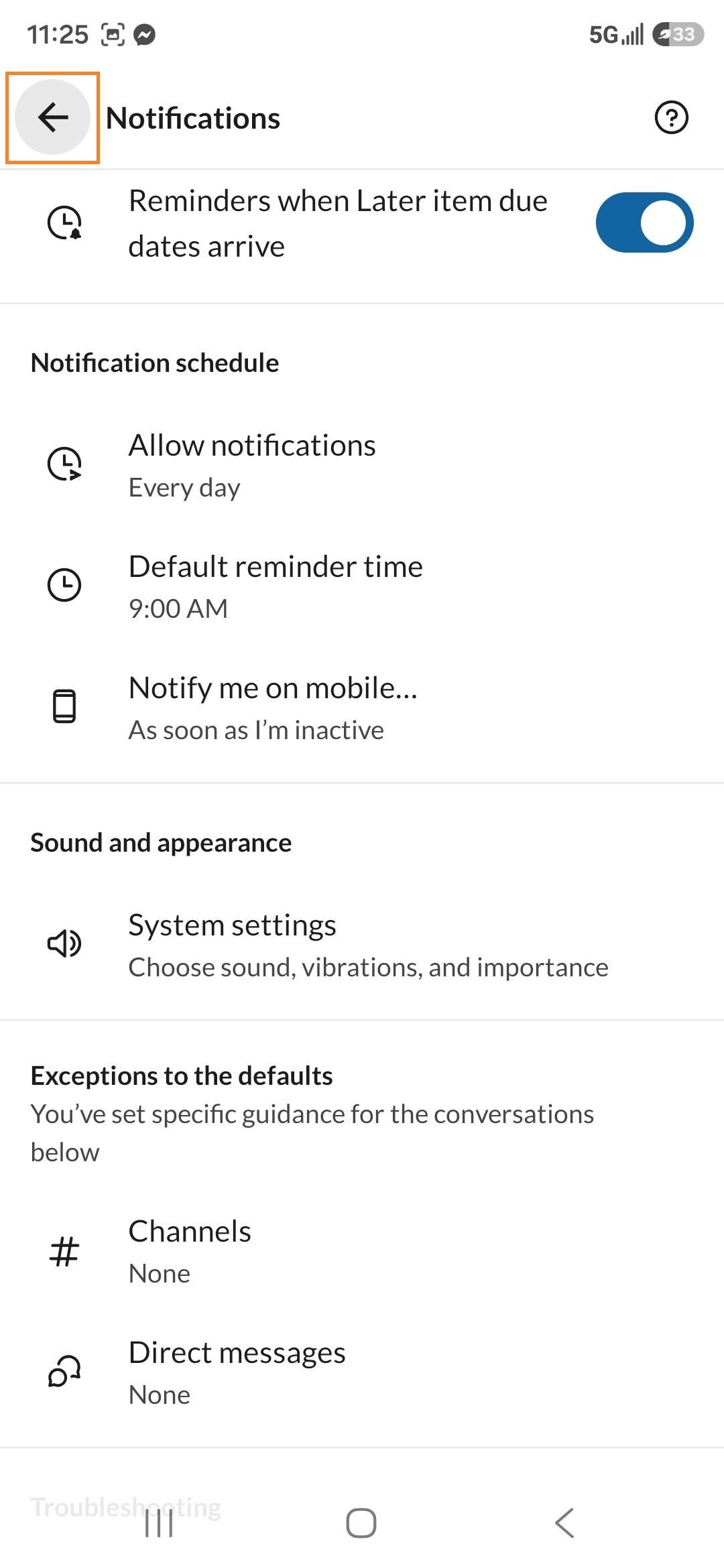
- Under Sound and appearance click System settings
- It says choose sound, vibrations, and importance
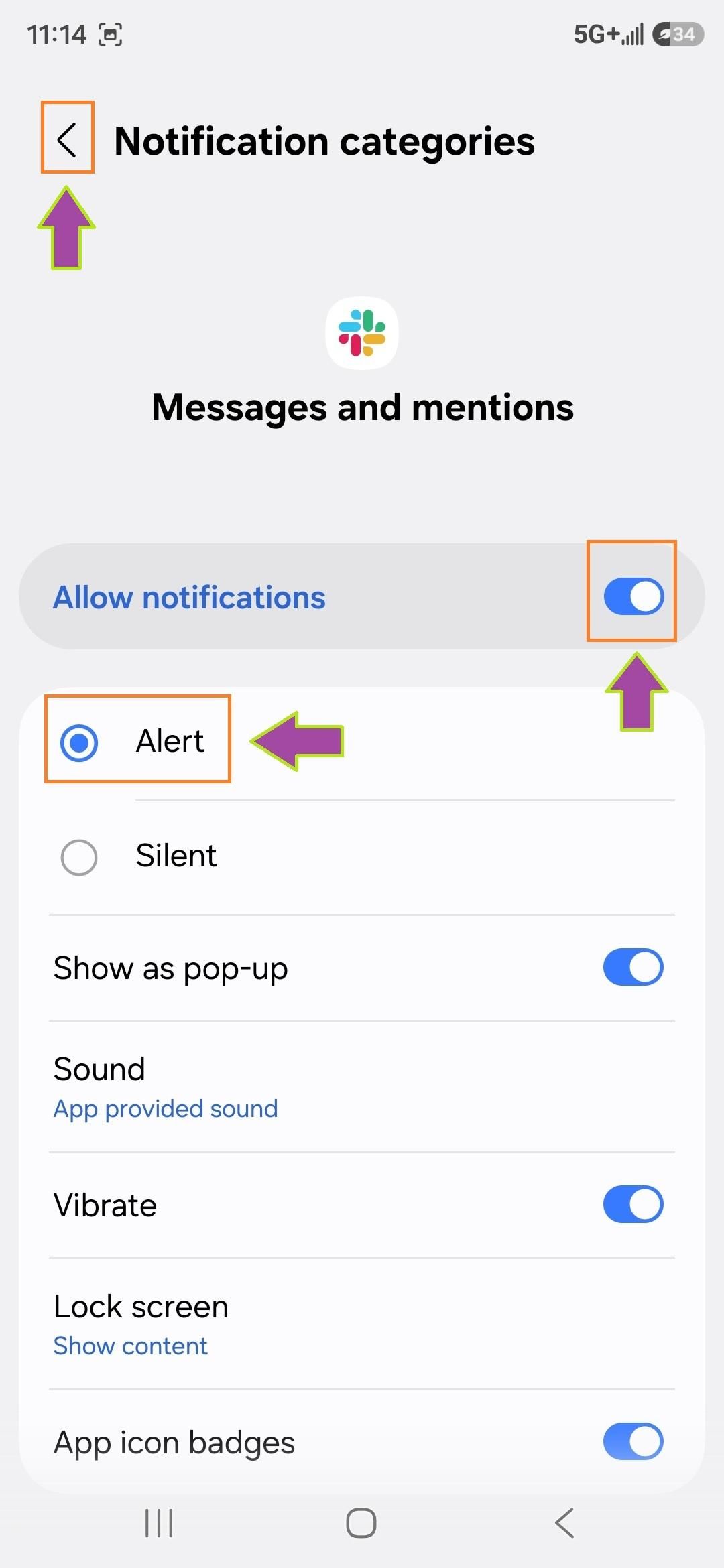
- Make sure Allow notifications is turned on
- If it's turned off, flip the switch to the right
- Make sure Alert is turned on and not silent
- Press the back arrow
- Press the back arrow again
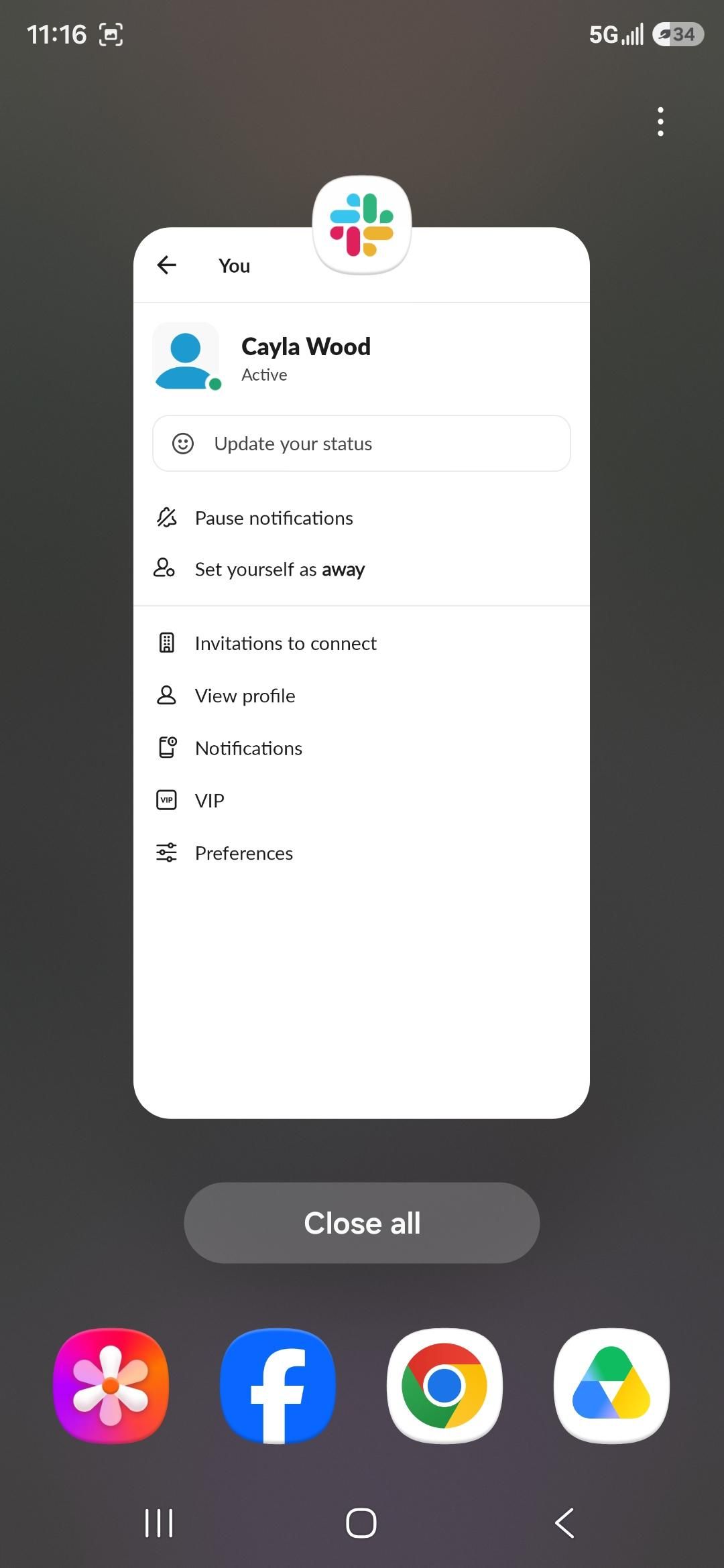
- Close Slack