How to Set Up Automated Uptime Alerts Via Webhooks for Website Monitoring
by waleedalikhan835 in Circuits > Assistive Tech
23 Views, 0 Favorites, 0 Comments
How to Set Up Automated Uptime Alerts Via Webhooks for Website Monitoring
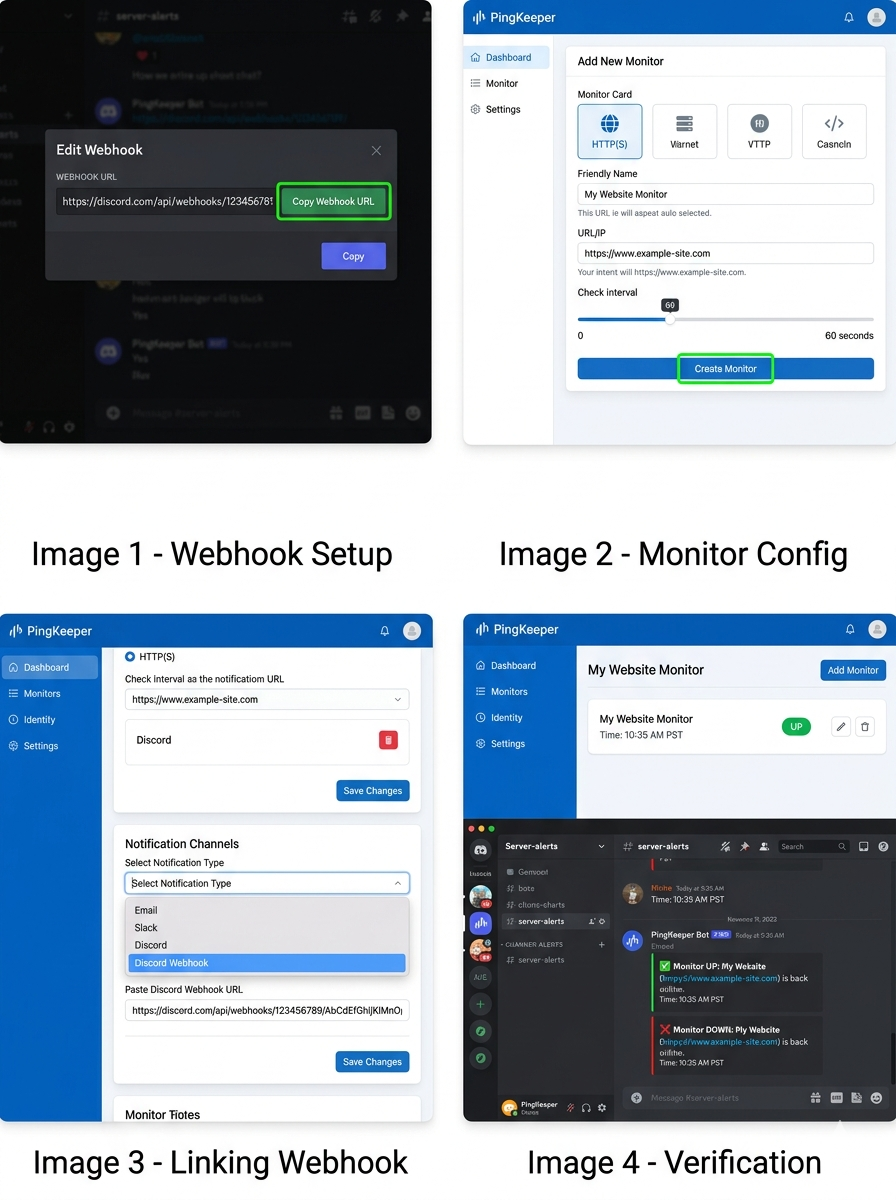
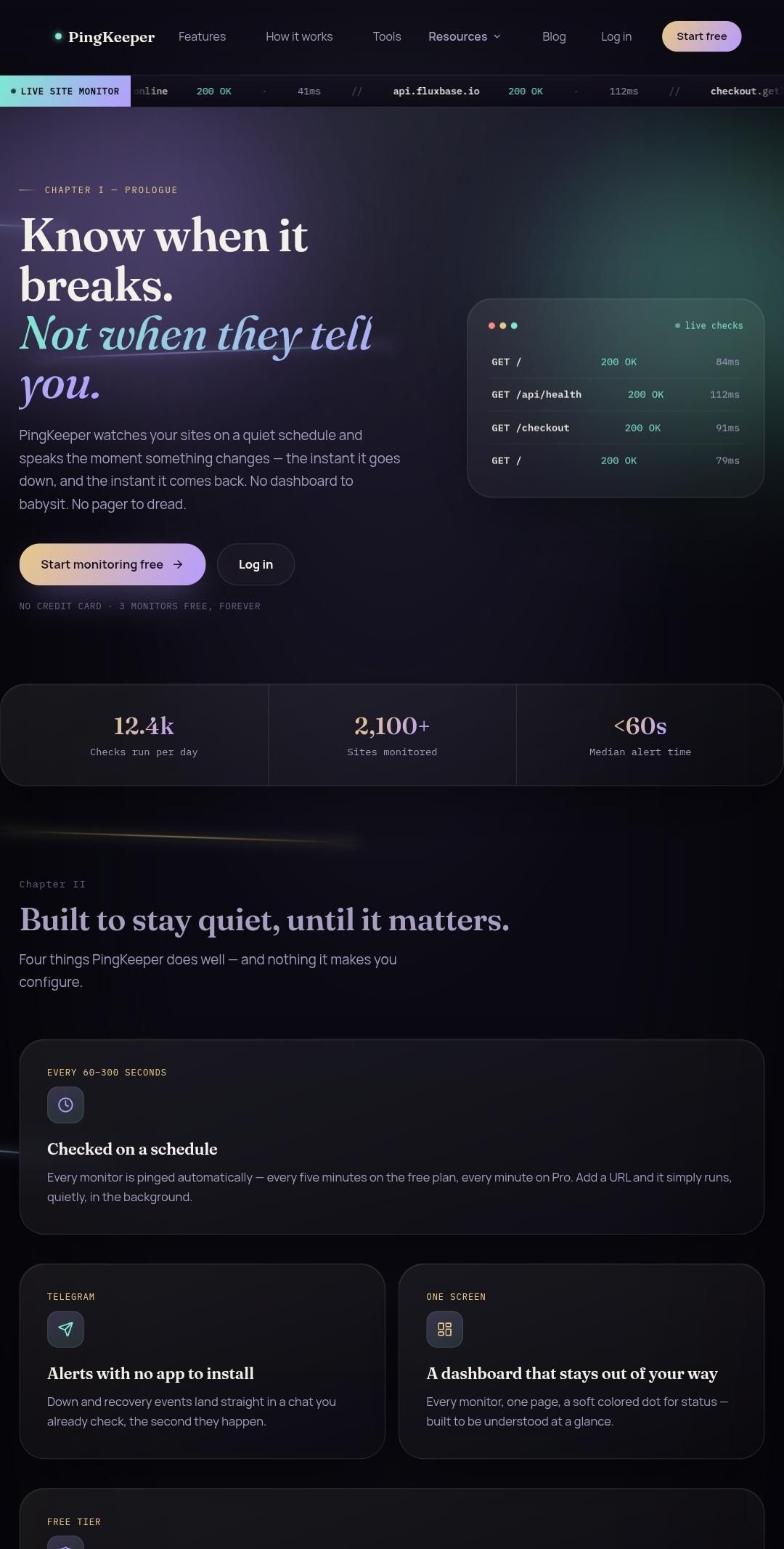
Monitor your website constantly without manual checking. This guide shows you how to connect an uptime monitor to your server and receive instant alerts via Discord or Slack webhooks when downtime occurs.
Create Your Webhook URL
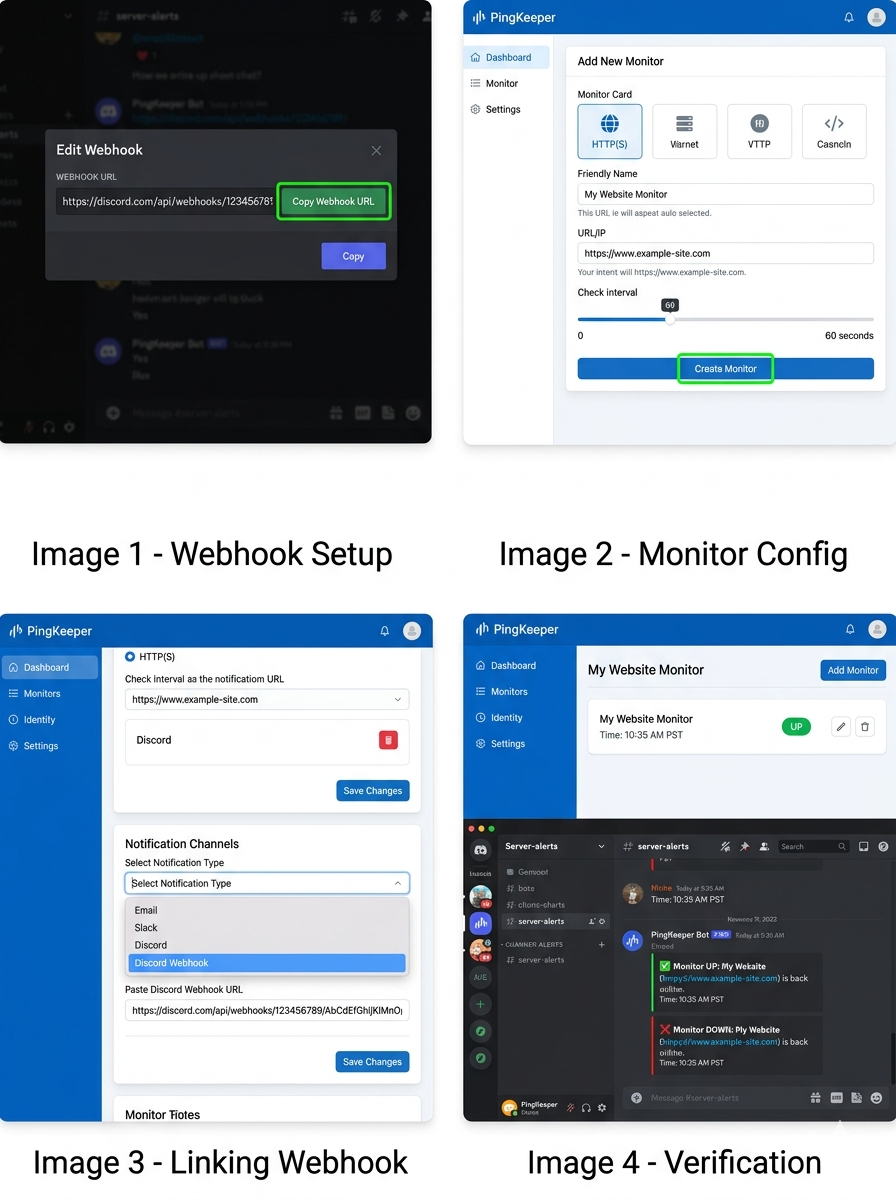
Webhooks send real-time data from one app to another. We need a destination URL to receive the alert.
For Discord:
- Open your server settings and click Integrations.
- Select Webhooks and click New Webhook.
- Name your bot (e.g., "PingKeeper Bot") and choose an alert channel.
- Click Copy Webhook URL.
For Slack:
- Go to the Slack App Directory and search for Incoming Webhooks.
- Click Add to Slack and choose your target channel.
- Click Add Incoming Webhooks Integration.
- Copy the generated Webhook URL
Configure the Monitor in PingKeeper
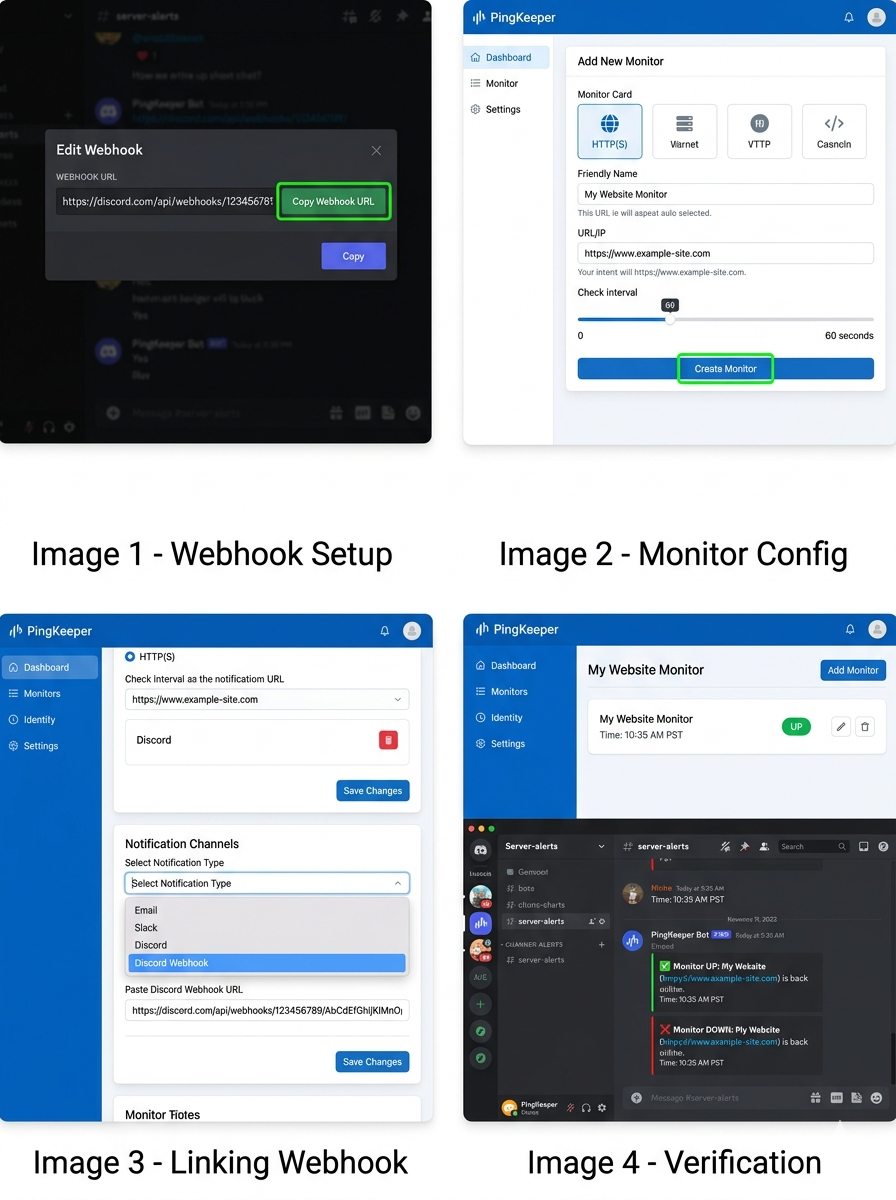
Now connect your webhook destination to the monitoring service.
- Log into your dashboard at PingKeeper (https://pingkeeper.online).
- Navigate to the Monitors tab and click Add New Monitor.
- Select HTTP(S) as your monitor type.
- Paste your target website URL into the URL/IP field.
- Set the check interval frequency (e.g., every 60 seconds).
Link the Webhook Alert
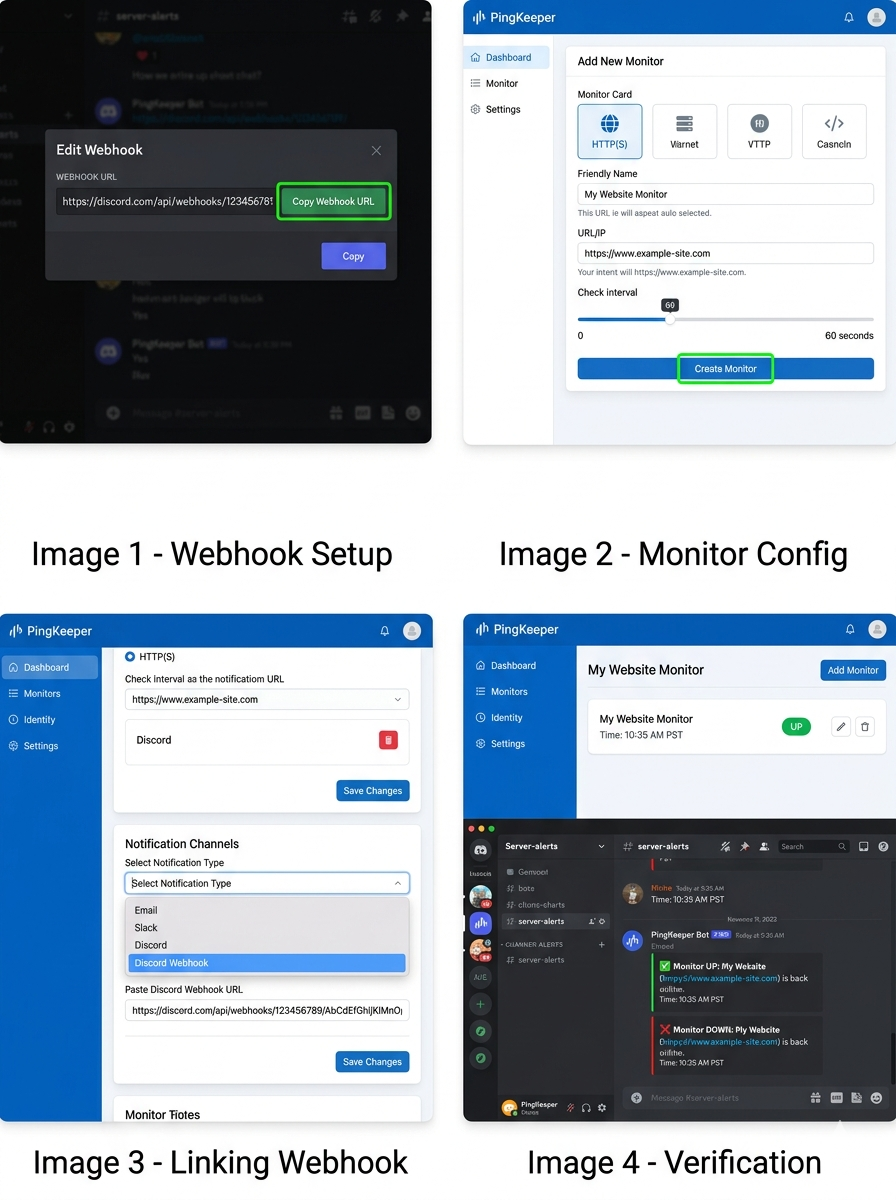
Tell the monitor where to send the data when a crash happens.
- Scroll down to the Notification Channels section inside your monitor settings.
- Select Webhook from the available dropdown options.
- Paste the Discord or Slack URL you copied during Step 1.
- Toggle the alerts for Component Down and Component Restored to "Active".
- Click Save Monitor.
Test the Automation
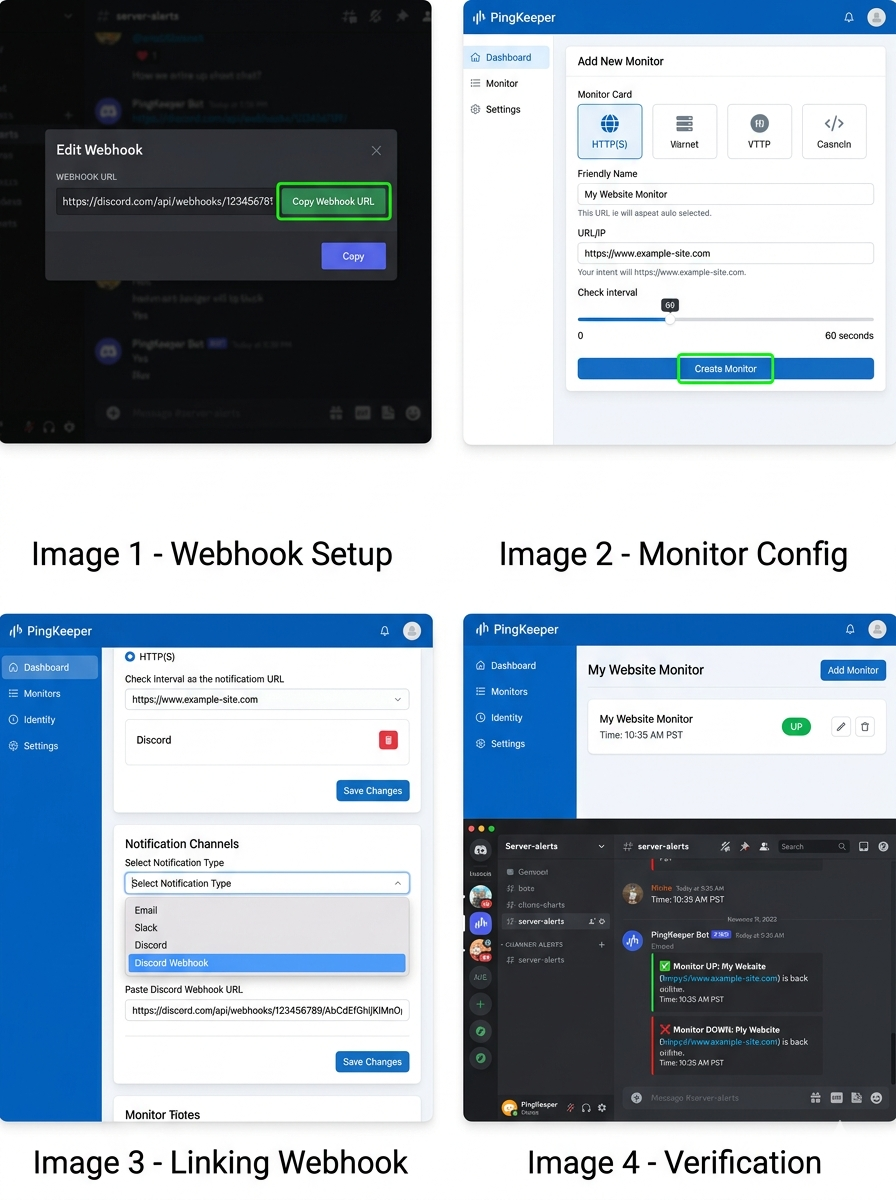
Verify your system works before an actual emergency happens.
- Intentionally pause your test server or use a dummy URL that returns a 404/500 error.
- Wait for the duration of your check interval.
- Check your Discord or Slack channel.
- You will see an instant bot notification containing the downtime timestamp and error code.
To get started with 3 free automated monitors and advanced webhook integrations, create your account on PingKeeper (https://pingkeeper.online).