I Controlled Chrome Dino With Rock-Paper-Scissors
by Shahbaz Hashmi Ansari in Circuits > Cameras
70 Views, 0 Favorites, 0 Comments
I Controlled Chrome Dino With Rock-Paper-Scissors

Can I beat Chrome Dino using nothing but rock, paper, and scissors?
That was the idea behind this project.
I wanted to make a simple game controller where I could play Chrome Dino without touching the keyboard. Instead of pressing keys, I decided to use three hand gestures: Rock, Paper and Scissors. Each gesture would act as a different command for the game.
The basic idea is pretty simple. A camera looks at my hand, the AI recognizes the gesture, and then the controller sends the corresponding keyboard command to the laptop. For the vision part, I used the existing Rock Paper Scissors gesture model supported by the Grove Vision AI V2, so there was no need to train a model from scratch.
The Grove Vision AI V2 takes care of the vision processing, while the OV5647 camera captures the hand gestures. I used the Seeed Studio XIAO ESP32S3 for the control logic and USB HID communication with the laptop.
The final controls are:
- Rock = Jump
- Paper = Duck
- Scissors = Restart
The interesting part was getting the system to work reliably during an actual game. At one point, holding the same gesture was causing the same command to trigger again and again, so I had to add some logic to control how often a gesture could generate an action.
In this Instructables guide, I will go through the complete setup, from connecting the hardware and configuring the gesture model to programming the XIAO ESP32S3 and finally using it to play Chrome Dino.
Supplies
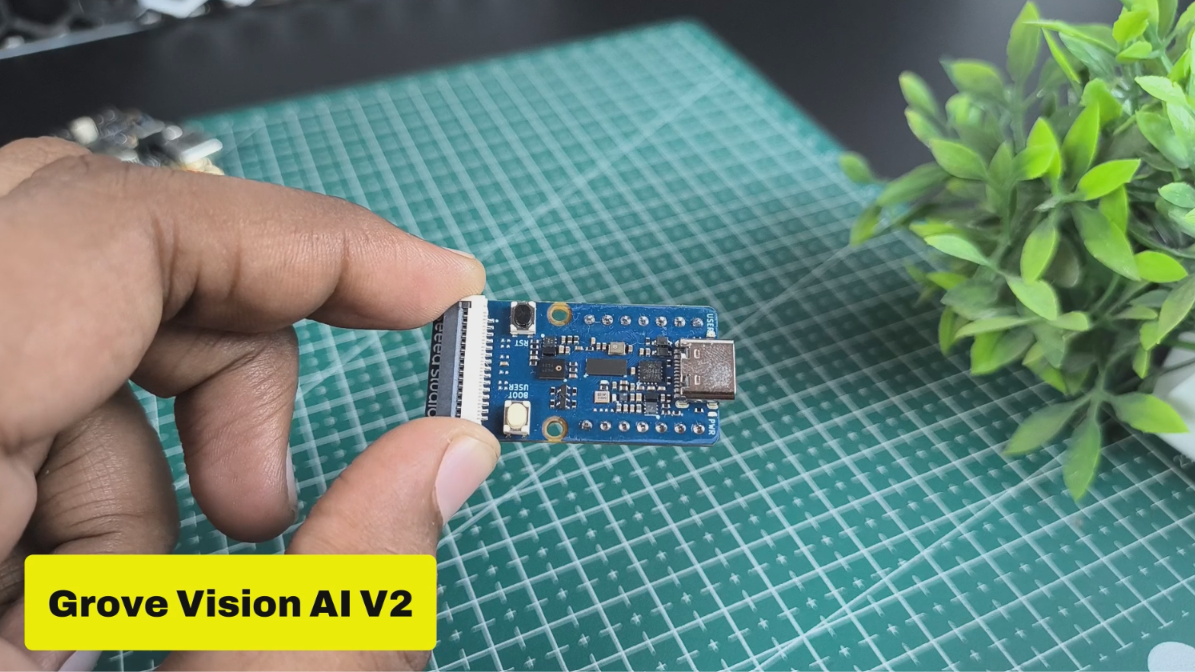
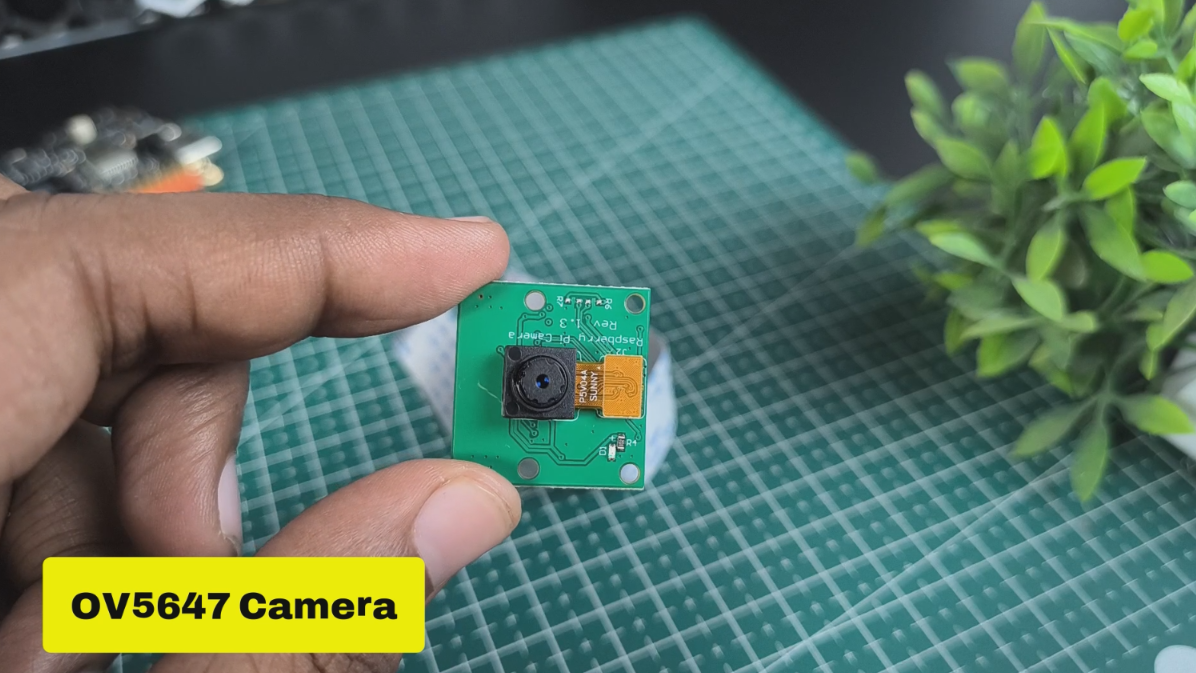
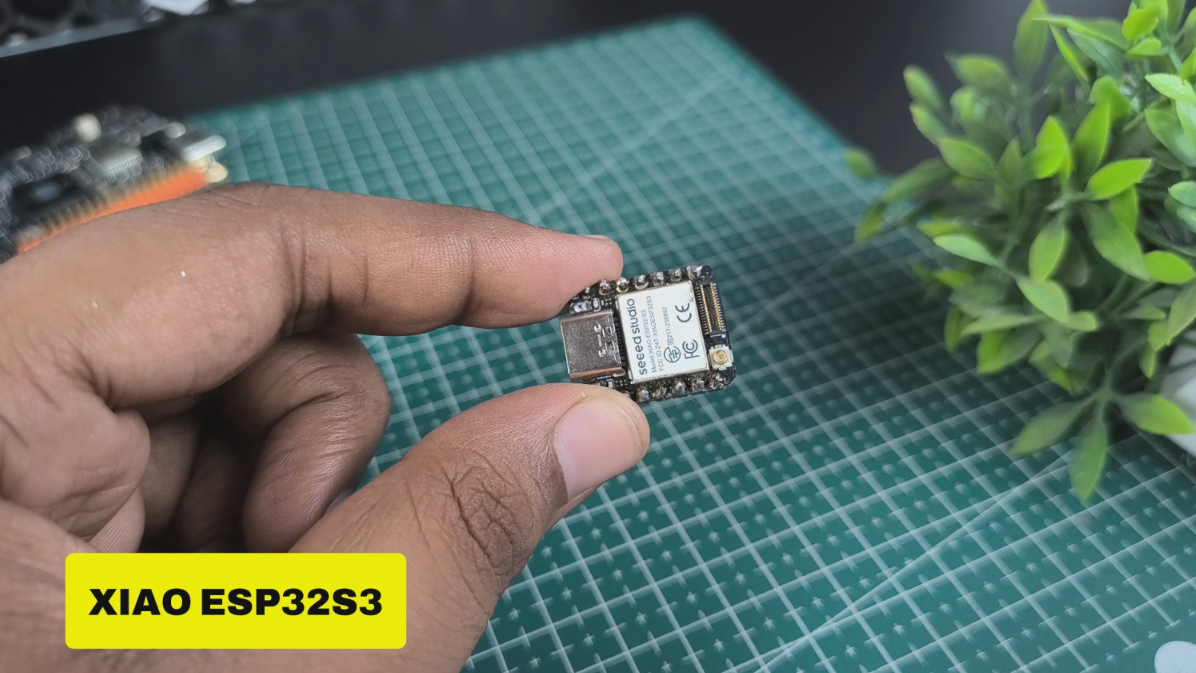
For this project, you don't need too many components. The setup is mainly built around the Grove Vision AI V2 and the XIAO ESP32S3.
Hardware
- Seeed Studio Grove Vision AI V2: https://www.seeedstudio.com/Grove-Vision-AI-Module-V2-p-5851.html
- OV5647 Camera Module
- Seeed Studio XIAO ESP32S3
- USB Cable
- Laptop with Google Chrome
AI Model
- SenseCraft AI: https://sensecraft.seeed.cc/en
Software
- Arduino IDE
Understanding the Logic / Architecture

Before connecting everything, let's understand how the whole system is going to work.
The idea is to divide the project into two main parts. The first part is responsible for seeing and recognizing my hand gesture, and the second part is responsible for converting that gesture into a keyboard command for Chrome Dino.
The complete flow is:
Hand Gesture → Camera → Grove Vision AI V2 → XIAO ESP32S3 → USB HID → Chrome Dino
The OV5647 camera captures the hand gesture and sends the camera data to the Grove Vision AI V2. The Vision AI V2 then runs the Rock Paper Scissors gesture model and identifies whether the gesture is Rock, Paper or Scissors.
Once the gesture is detected, the XIAO ESP32S3 handles the control logic. It receives the detected gesture and decides which keyboard action should be sent to the laptop.
For this project, I mapped the gestures like this:
Rock ---> Jump
Paper ---> Duck
Scissors ---> Restart
The XIAO ESP32S3 uses USB HID to communicate with the laptop. This means the laptop sees the XIAO as a keyboard, so the controller can send the required key commands directly through USB. The same USB cable also provides power to the XIAO.
There was one more small problem that I had to handle. If I kept my hand in the same position, the same gesture could be detected continuously and trigger the same command multiple times. To avoid this, I added logic to control how frequently a gesture could generate an action.
So, in simple terms, the Vision AI handles "What gesture am I showing?", while the XIAO handles "What should the computer do because of that gesture?"
Setting Up the Grove Vision AI V2
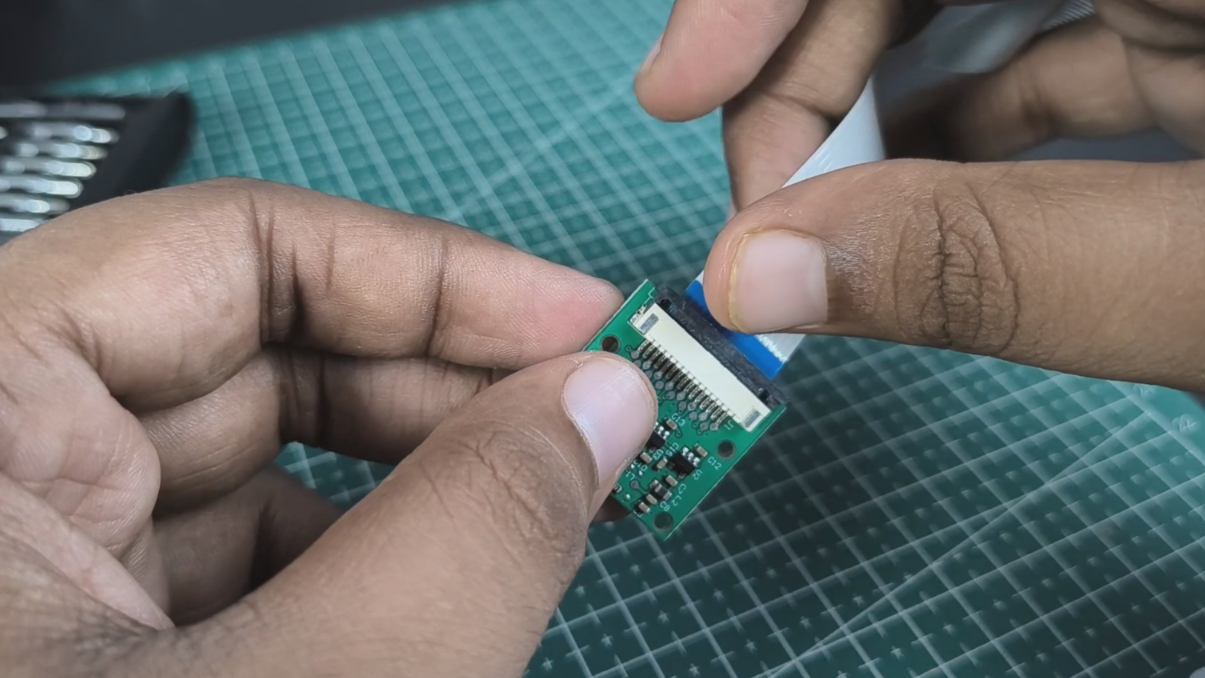
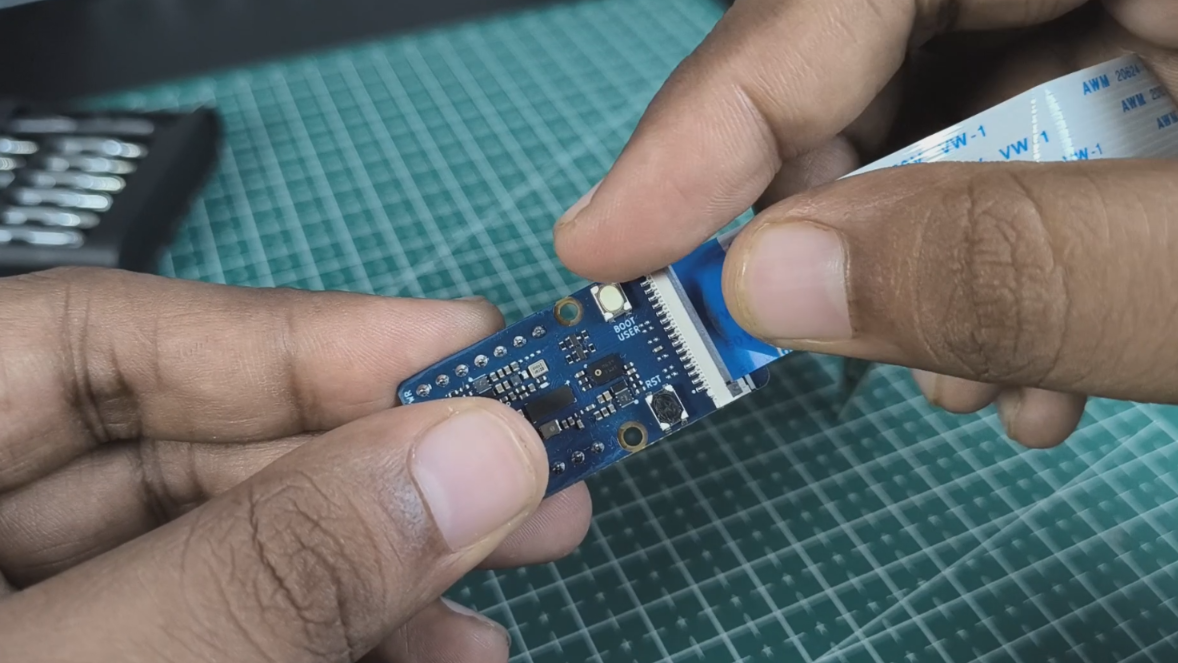
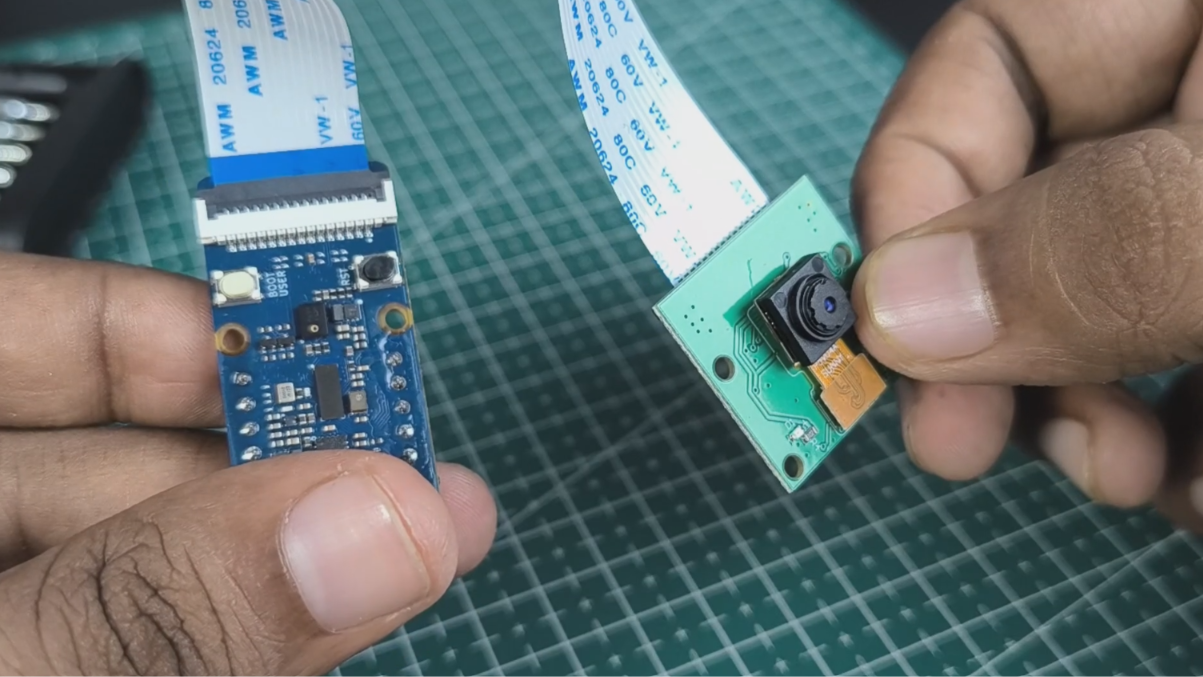
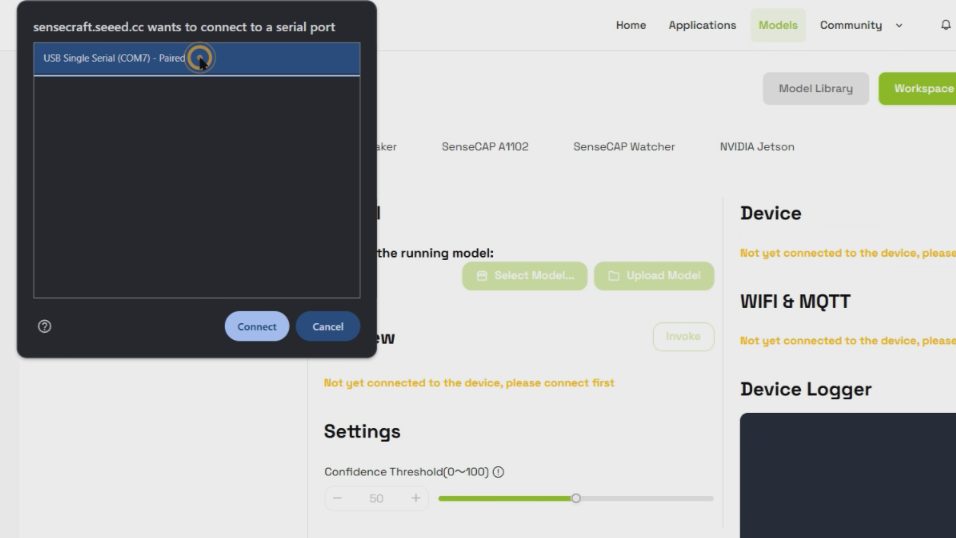
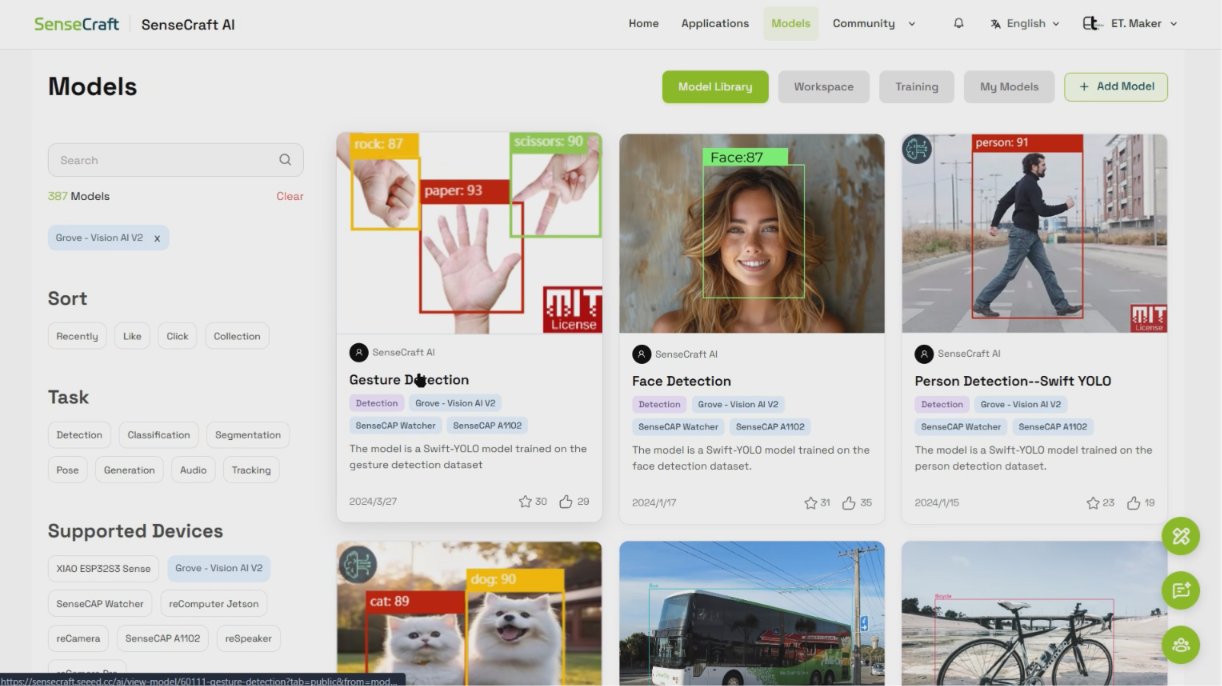
Now that we understand the basic architecture, let's set up the vision part of the project. The Grove Vision AI V2 will be responsible for looking at the camera feed and recognizing the Rock, Paper and Scissors gestures.
1. Connect the Camera
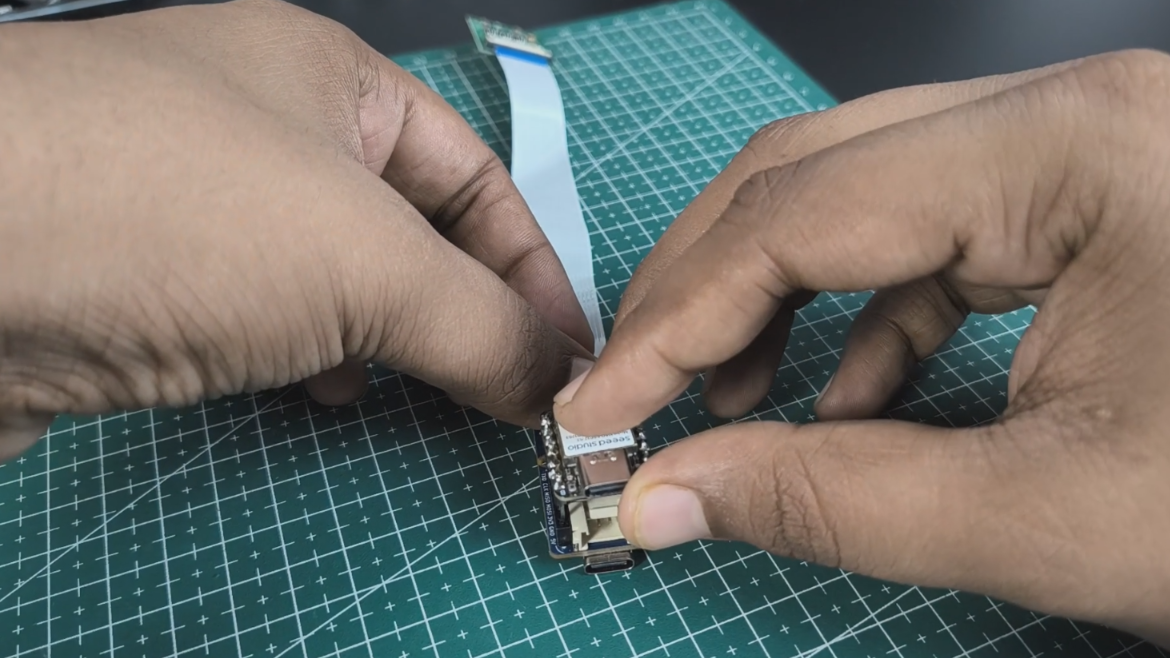
First, connect the OV5647 camera to the Grove Vision AI V2 using the CSI connection cable.
Be careful about the direction of the cable when connecting it. The connector should be inserted in the correct orientation and should not be forced in the wrong direction. Seeed also recommends the OV5647-62 FOV Camera Module for use with the Grove Vision AI V2.
2. Connect the Vision AI V2 to the Computer
Next, connect the Grove Vision AI V2 to your computer using a USB Type-C data cable.
For this part, connect the USB cable directly to the Grove Vision AI V2, not the XIAO ESP32S3. The computer needs to communicate with the Vision AI V2 so that we can configure it and deploy the AI model.
For the browser, I recommend using Chrome, Edge or another Chromium based browser, as these are the browsers recommended by Seeed for deploying models through SenseCraft AI.
3. Open SenseCraft AI
Open the SenseCraft AI platform:
https://sensecraft.seeed.cc/en
Go to the Grove Vision AI V2 workspace and connect the device. SenseCraft should detect the board and show the available device and model information.
If the board is not detected, check that you are using a proper USB data cable and that the correct USB/serial device is selected. On Windows, if the device is not recognized, Seeed mentions that the CH343 driver may be required.
4. Connect the Device in SenseCraft
Once the Grove Vision AI V2 is connected, select the appropriate device and click Connect.
SenseCraft will read the device information and the currently loaded model. After the connection is established, we can deploy a model and check its output directly from the browser.
At this point, the basic hardware setup should look something like this:
We are not connecting the XIAO ESP32S3 yet. That will come later when we build the controller part of the project.
Once the Vision AI V2 is connected successfully, the next step is to load the Rock Paper Scissors gesture model and make sure the camera can actually recognize all three gestures before moving on to the controller.
Selecting the Rock-Paper-Scissors Model
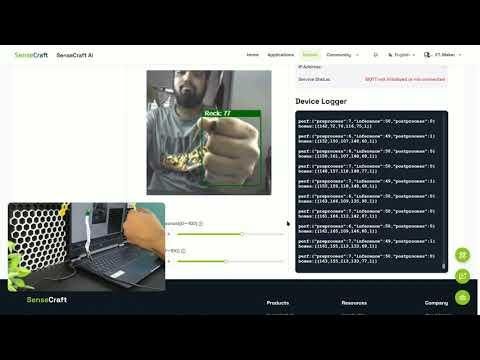
For this project, we do not need to train a gesture recognition model from scratch. The Grove Vision AI V2 already supports gesture detection models that can be deployed through SenseCraft AI. Seeed's documentation also provides a Rock Paper Scissors example for the Grove Vision AI V2.
Open SenseCraft AI and go to the model section. From there, look for a suitable Rock Paper Scissors or Gesture Detection model. Before deploying it, check the model information to make sure it is compatible with the Grove Vision AI V2. SenseCraft allows supported models to be selected and deployed directly to the device.
Deploy the Model
Once you have selected the model, connect the Grove Vision AI V2 to your computer using the USB Type C cable.
In the SenseCraft AI workspace:
- Connect the Grove Vision AI V2 to the computer.
- Open the Grove Vision AI V2 workspace.
- Click Connect and select the correct USB/serial port.
- Select the Rock Paper Scissors gesture model.
- Start the model deployment.
- Wait for the model to finish uploading to the board.
- Once the upload is complete, open the live preview.
SenseCraft will then show the camera feed along with the model's detection results. The Grove Vision AI V2 documentation notes that the model upload can take around 1 to 2 minutes.
Test the Three Gestures
Now comes an important part. Before connecting the XIAO ESP32S3, test whether the Vision AI V2 can correctly recognize all three gestures.
Show the following gestures in front of the camera:
- Rock
- Paper
- Scissors
Try changing your hand position slightly and test under the same lighting and camera position that you plan to use during the game.
The goal here is not just to see a detection once. We want the model to recognize the three gestures consistently enough for the controller to use them as commands.
If the model is not accurate enough, SenseCraft provides model training options, including classification and object detection workflows, and custom models can also be trained and deployed to the Grove Vision AI V2.
For this project, however, I used the existing Rock Paper Scissors gesture model, which saved me from having to create and train a new dataset.
Once all three gestures are being detected properly, the vision part of the project is ready. We can now move on to connecting the XIAO ESP32S3, which will turn these detections into actual keyboard commands for Chrome Dino.
Connecting the XIAO ESP32S3
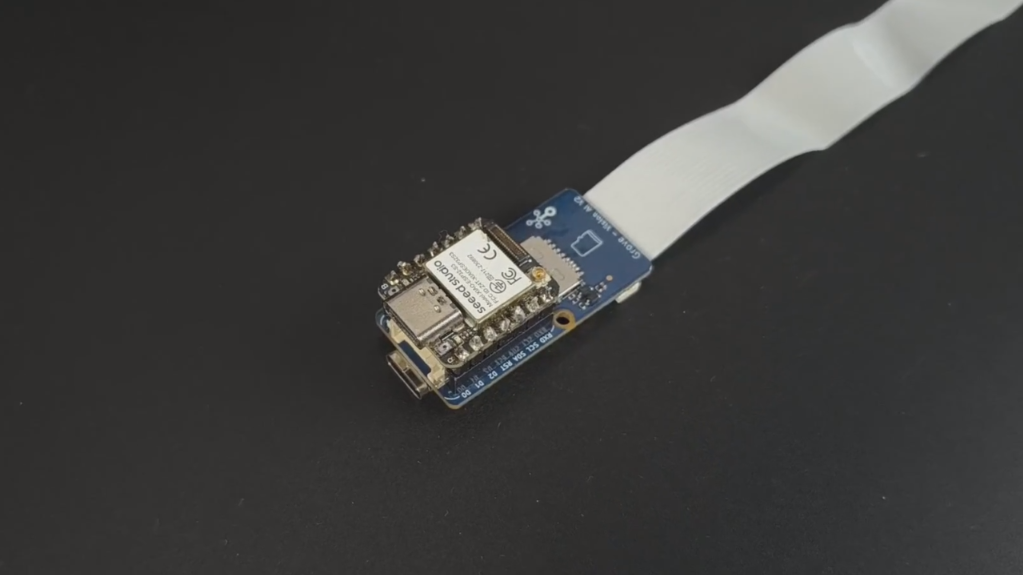
Now that the Grove Vision AI V2 is detecting the Rock, Paper and Scissors gestures, it is time to add the controller that will turn those detections into actual game commands.
For this project, I am using the Seeed Studio XIAO ESP32S3. It handles the control logic and communicates with the laptop as a USB device. The XIAO ESP32S3 supports USB communication through its USB interface, which makes it suitable for this project.
1. Connect the XIAO ESP32S3 to the Laptop
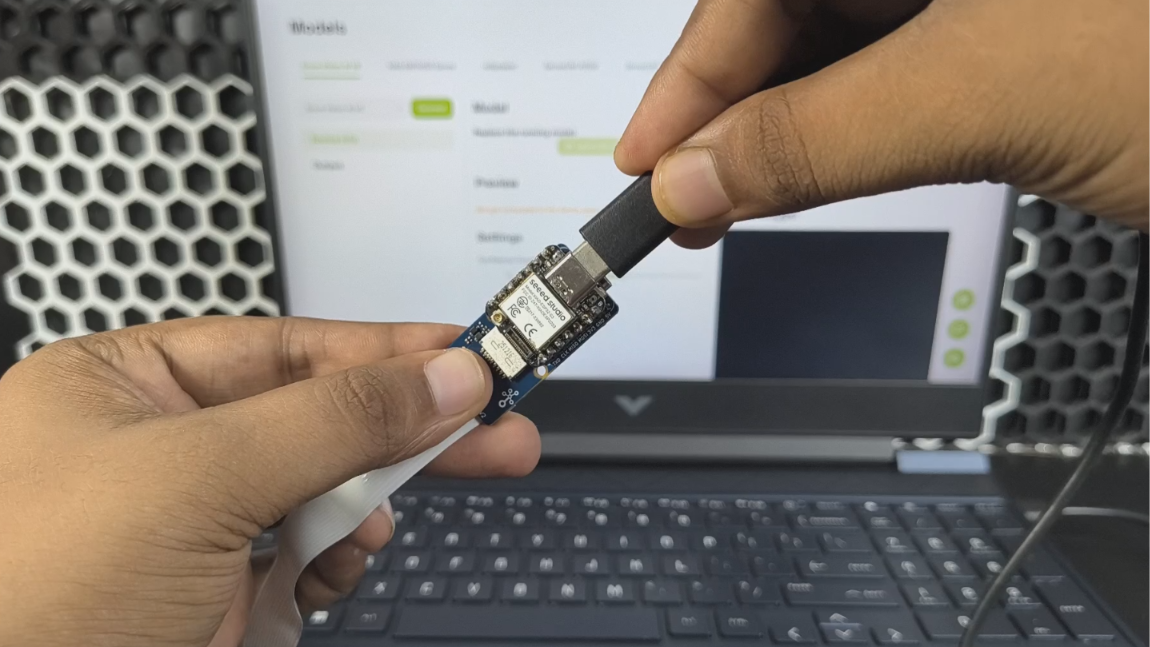
Connect the XIAO ESP32S3 directly to the laptop using a USB Type-C data cable.
I am using a wired USB connection instead of Bluetooth HID for this project. This gives me two benefits. The same cable supplies power to the XIAO and also provides the USB communication with the laptop.
The basic setup at this stage looks like this:
There is no physical connection between the Grove Vision AI V2 and the XIAO required for the basic setup described here. The Vision AI V2 handles the vision side, while the XIAO is used for the controller side.
2. Prepare the XIAO ESP32S3
We will program the XIAO using the Arduino IDE. Seeed recommends Arduino IDE for programming the XIAO ESP32S3. You also need to install the ESP32 board package and select the XIAO ESP32S3 as the board in the Arduino IDE.
After connecting the board:
- Open Arduino IDE.
- Install the ESP32 board package if you have not already done so.
- Select XIAO ESP32S3 as the board.
- Select the COM port belonging to the XIAO.
- Make sure the board can be detected before uploading the final program.
If the XIAO does not appear as a usable port or an upload fails, it can be placed into BootLoader mode by holding the BOOT button while connecting it to the computer. Seeed provides this as one of the standard recovery methods for the XIAO ESP32S3.
3. Why USB HID?
The important part of this setup is that the XIAO does not need to control Chrome directly.
Instead, it behaves like a keyboard connected to the laptop. When the XIAO receives a gesture command, it sends the corresponding keyboard input over USB.
For example:
The same idea is used for the other gestures:
This is what makes the project interesting. The laptop does not need to know that the input came from an AI vision model. From the computer's point of view, it is simply receiving keyboard input from the XIAO.
With the XIAO connected and recognized by the computer, the next step is to program it with the logic that maps each detected gesture to the required keyboard action.
Programming the XIAO ESP32S3
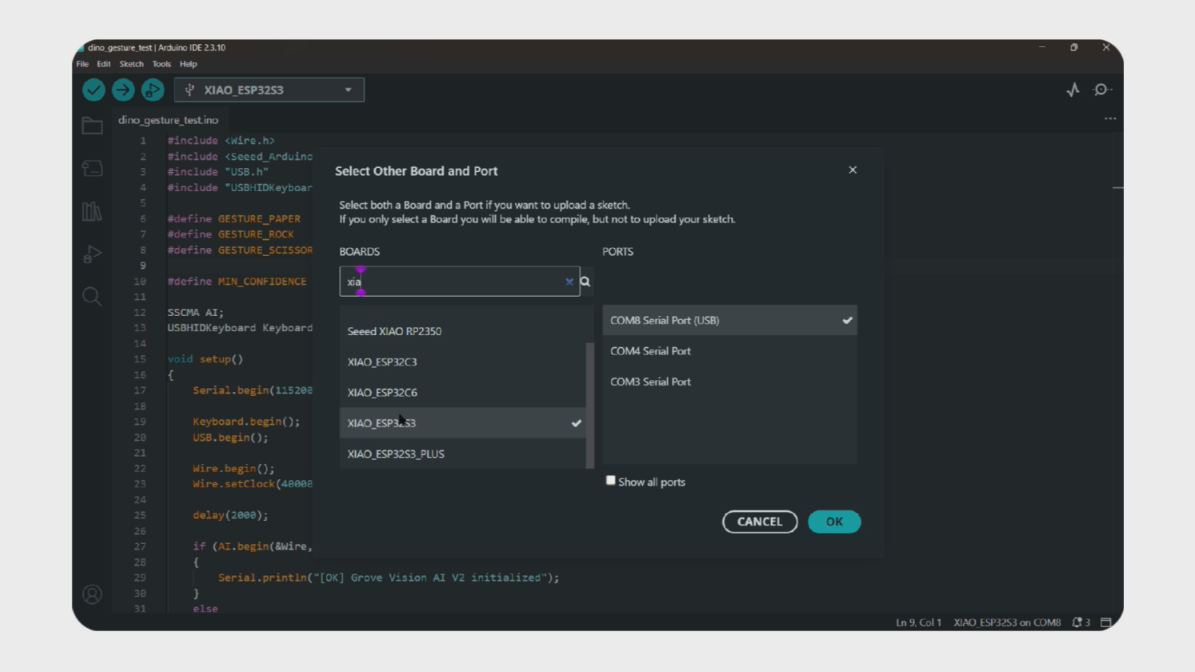
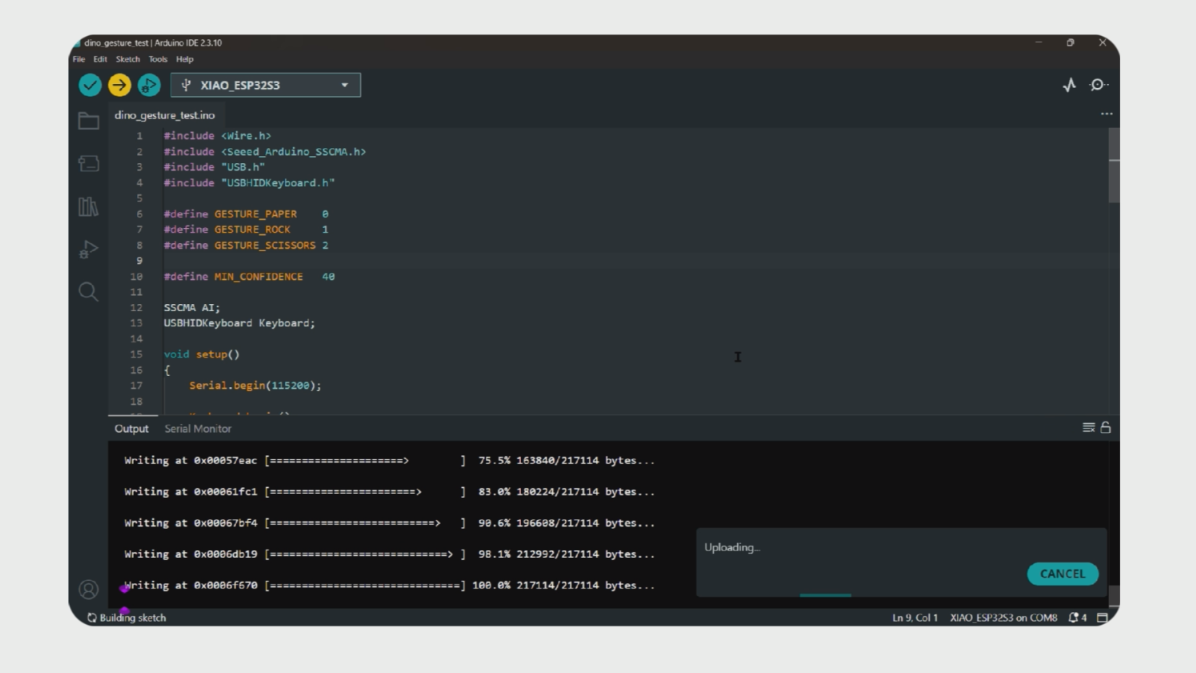
Now we need to program the XIAO ESP32S3 so that it can act as the controller for Chrome Dino.
The XIAO will receive the detected gesture information and map each gesture to a keyboard action. Since we are using USB HID, the laptop will recognize the XIAO as a USB input device and the commands can be sent directly to Chrome Dino.
For programming, I used the Arduino IDE. Make sure the ESP32 board package is installed and that XIAO_ESP32S3 is selected as the board. Seeed's documentation also recommends Arduino IDE for programming the XIAO ESP32S3.
Uploading the Code
Open Arduino IDE and select:
Tools → Board → XIAO_ESP32S3
Then select the COM port belonging to your XIAO ESP32S3.
The code below contains the controller logic for the project. It handles the gesture commands and sends the corresponding USB HID keyboard input to the laptop.
Paste the following code into Arduino IDE:
How the Code Works
The main idea behind the code is the gesture-to-command mapping:
The program also needs to make sure that one gesture does not continuously trigger the same keyboard command. For example, if I hold the Rock gesture in front of the camera for a few seconds, I don't want the XIAO to repeatedly press the jump key every time the model produces another Rock detection.
This is why the code includes a small amount of control logic for handling repeated detections. This became important during testing because holding a gesture could otherwise trigger the same command multiple times.
After pasting the code, compile it first. If there are no errors, upload it to the XIAO ESP32S3.
Once the upload is complete, the XIAO is ready to work as the USB controller.
Important: Keep the XIAO connected to the laptop through the USB cable when testing the project. This connection provides both power and the USB communication used for the HID commands.
If the upload fails or the XIAO does not appear as a port, you can put the board into BootLoader mode and try the upload again. Seeed recommends holding the BOOT button while connecting the board to the computer for this situation.
Once the code is uploaded successfully, we can move on to the next step and test each gesture with Chrome Dino.
Testing the Project
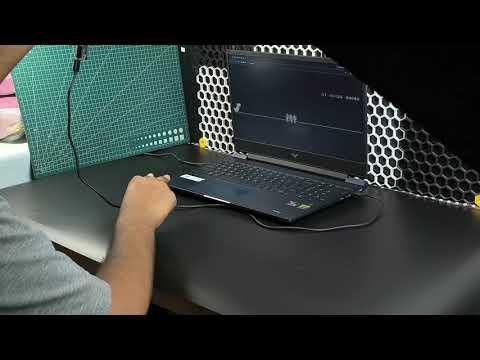
Now everything is ready to test.
In the video, I show the complete setup and test the Rock, Paper and Scissors gestures with Chrome Dino. The video demonstrates how the gestures are detected and how the corresponding actions are sent to the game through the XIAO ESP32S3.
The final setup allows me to control Chrome Dino using only my hand gestures, without directly using the laptop keyboard.
Conclusion

And that's it. We have built a simple gesture based controller for Chrome Dino using the Grove Vision AI V2 and XIAO ESP32S3.
The Grove Vision AI V2 handles the hand gesture recognition, while the XIAO ESP32S3 takes care of the control logic and sends the commands to the laptop using USB HID.
The project was a fun way to combine computer vision, AI and embedded hardware into something that can actually be used to play a game. It also shows how an existing AI model can be connected with a microcontroller to create a completely different type of user interface.
There are many other things that could be built using the same basic idea, so this project could definitely be taken further with more gestures and different applications.