Installing Microsoft Office on a Laptop
by jeremyleki43 in Outside > Backyard
36 Views, 0 Favorites, 0 Comments
Installing Microsoft Office on a Laptop

Microsoft office is group of productivity software, including word, excel and power point that assists users in creating content in the form of documents, spread sheets and presentations. These steps will take a novice through the procedure of installing and downloading Microsoft office on a Windows computer using an official Microsoft account
Supplies
Materials Needed
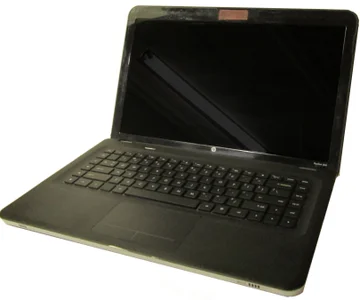
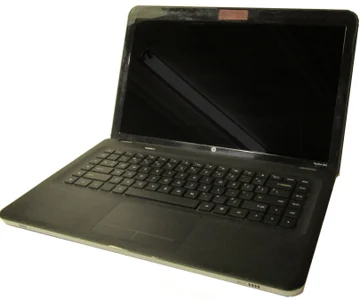
A laptop that is connected to the internet
A valid Microsoft account
Active Microsoft office subscription
Downloads

Launch Your Web Browser.
Step-by-Step Instructions
Step 1: Launch your web browser.
Select any browser like chrome or edge and go to the official Microsoft office site.
Downloads
Log-in to Your Microsoft Account.

Step 2: Log-in to your Microsoft account.
Click Sign In and follow the steps of filling in your email and password under your Microsoft subscription.
Log in to the Office Dashboard.

Step 3: Log in to the Office dashboard.
Once you are signed in, find the Install Office button in the home page or the account page.
Choose the Option of Installation.

Step 4: Choose the option of installation.
Click Install office and select Office apps to start downloading installation file to your laptop.
Downloads
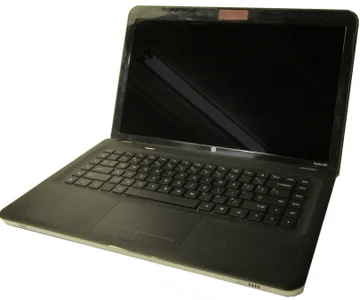
Extraction of the Downloaded Installer.

Step 5: Extraction of the downloaded installer.
Go to the Downloads folder and scroll and double-click the office setup file. This will initiate the process of installation.
Downloads
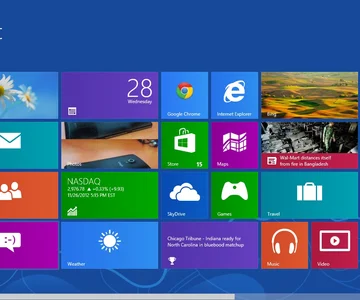
Click the Display Instructions.

Step 6: Click the display instructions.
Use the installer to install the software until it is installed. This can be done within a few minutes based on the speed of the internet.
Downloads
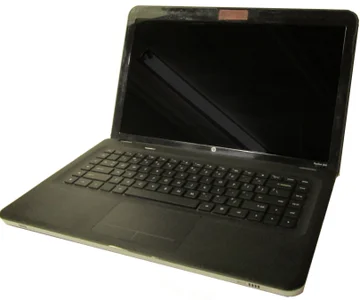
Open an Office Application.

Step 7: Open an office application.
Launch Open Word, Excel or power point via your Start Menu. Click in case of any prompt to use your subscription.