Interactive Bouncing Ball Installation
by rewchao in Design > Software
79 Views, 5 Favorites, 0 Comments
Interactive Bouncing Ball Installation

⚠️AI was NOT used to generate the code for this project, while I have nothing against the use of AI, since this is for a contest, I feel its necessary to mention this. Happy reading :)⚠️
For the theme of the Make It Bounce contest I wanted to create an interactive physics based ball bouncing installation. This project aimed to allow people to dynamically create obstacles by placing and removing masking tape. The obstacles would act as surfaces where randomly generated balls could fall and bounce off their surfaces, allowing for the creation of an infinite number of unique setups.
Supplies
Materials
- Colored Masking Tape
Electronics:
- Laptop with Python installed
- Projector
- External Webcam or Cellphone Camera
Project Overview
While primary principal of the project is quite simple, it touches into multiple fields, from programming and linear algebra, to art and music theory. The multidisciplinary aspect of this project is personally the reason I enjoyed working on this project so much.
Physical Setup
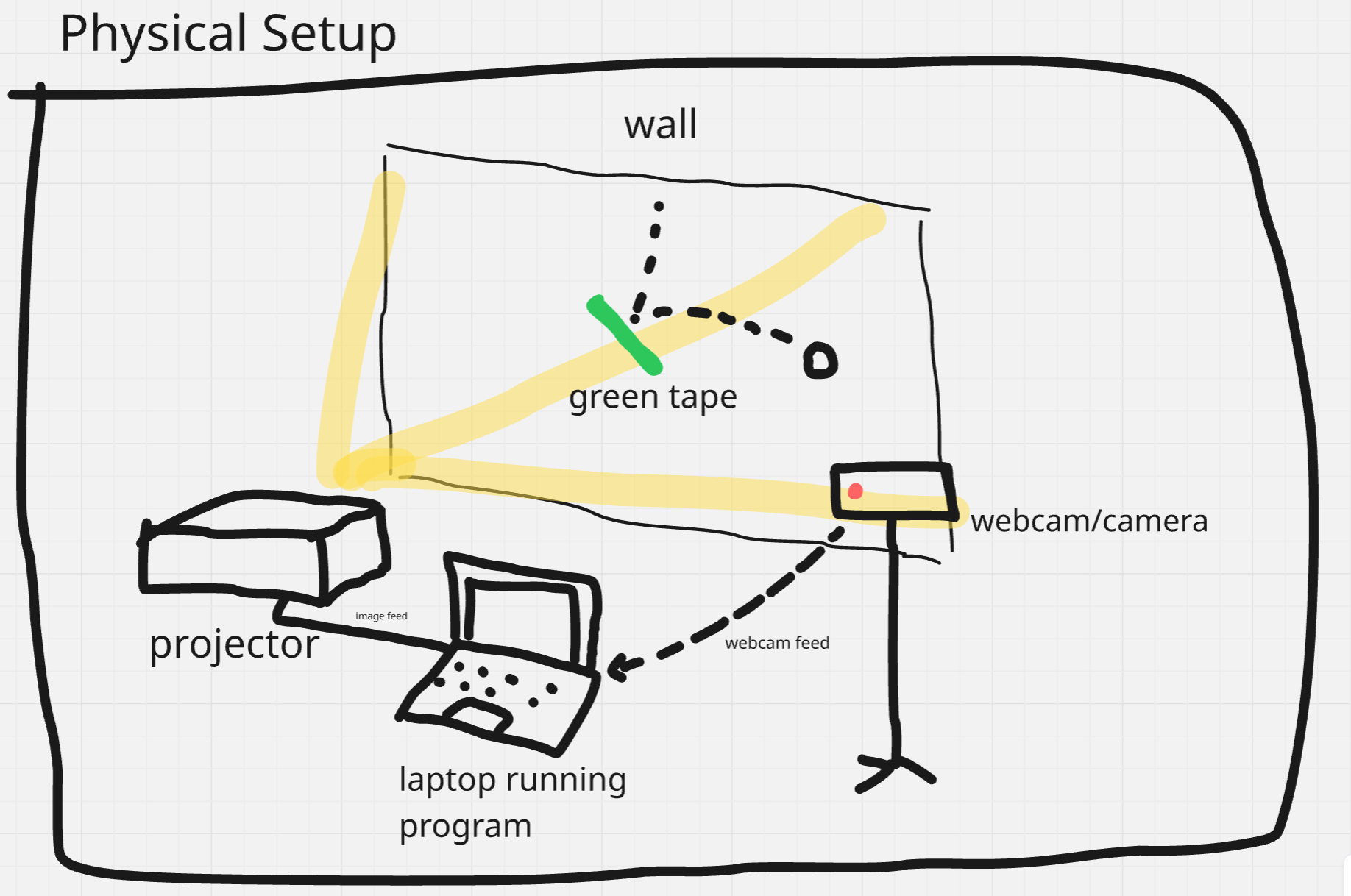
The physical setup is quite simple. For the webcam I opted to use my cell phone instead of a webcam. The quality of the webcam is quite paramount for this project as compromised quality in low light settings like this will reduce the accuracy and precision for the detection of the masking tape.
Libraries
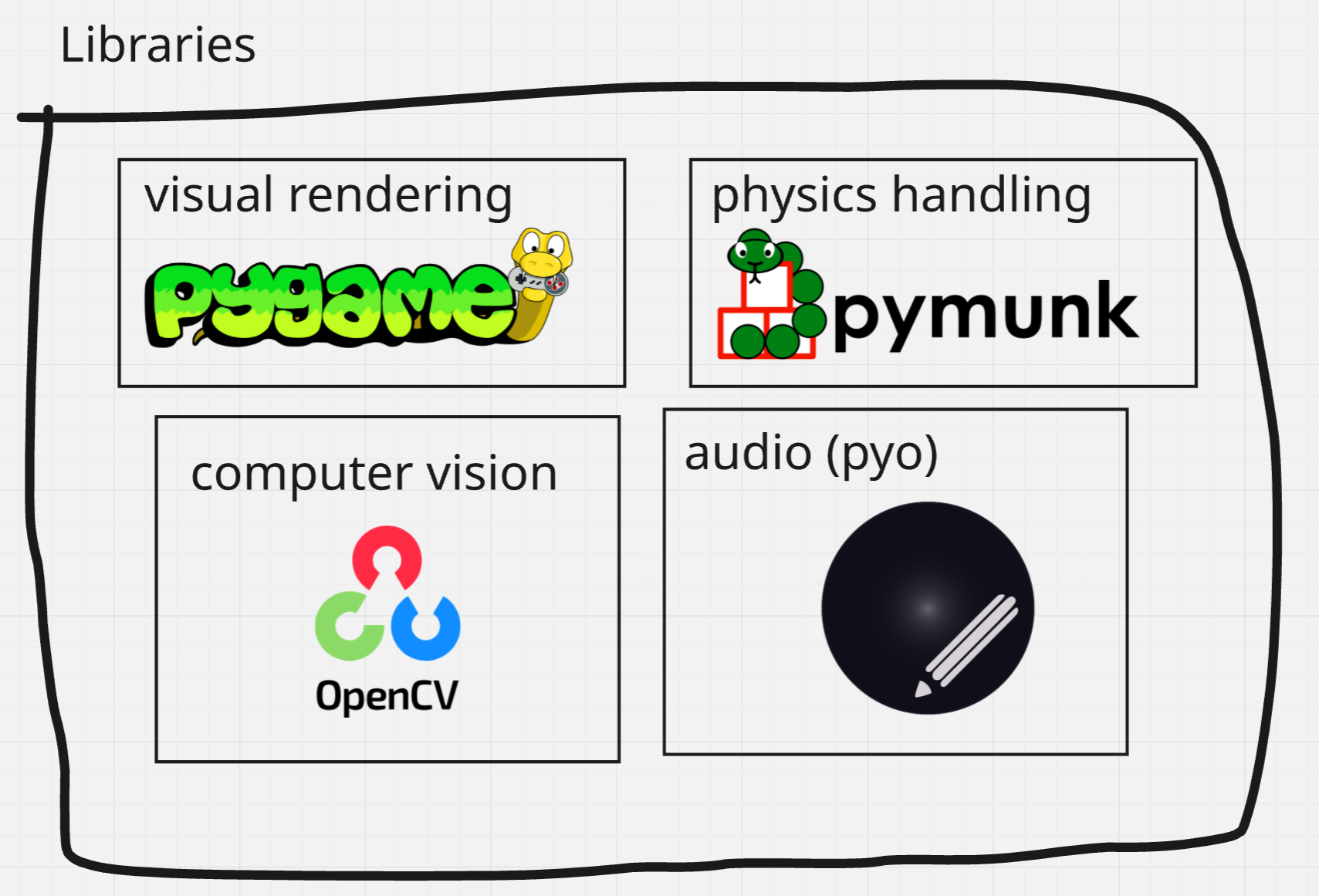
Everything in this project is done in python. Mainly for simplicity since this project doesn't need great optimization.
- Pygame was used to create the final 'game' window to render the balls.
- Pymunk was used to simulate physics on our ball objects, pymunk and pygame combo is quite common and there is a lot of documentation on how to use them together.
- OpenCV-python (CV2) was used for the majority of computing, it was used to grab frames from the webcam, straighten and map the frame (explained later in step 5), and get the final polygon points of the tape
- Pyo by Olivier Bélanger was used to generate the ambient background noise as well as the ball bouncing audio
Logic Flow Outline
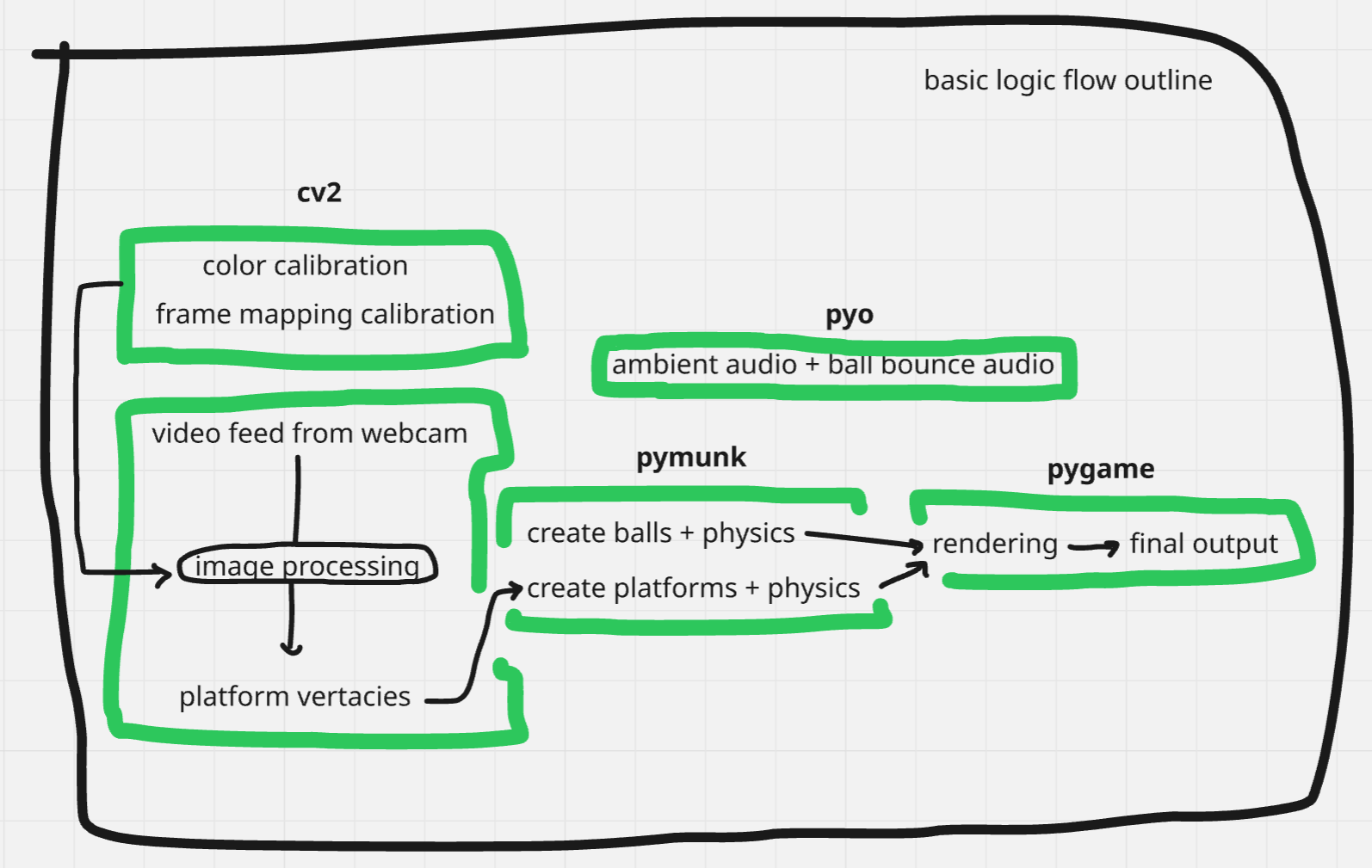
The logic flow above shows the function of each of our libraries in the entire project. In the next steps we will look more in detail how we handle each component of the logic in the order below:
- cv2 (Computer Vision Processing)
- pymunk (physics) + pygame (rendering)
- pyo (audio)
CV2 Preface: Homography Matrices
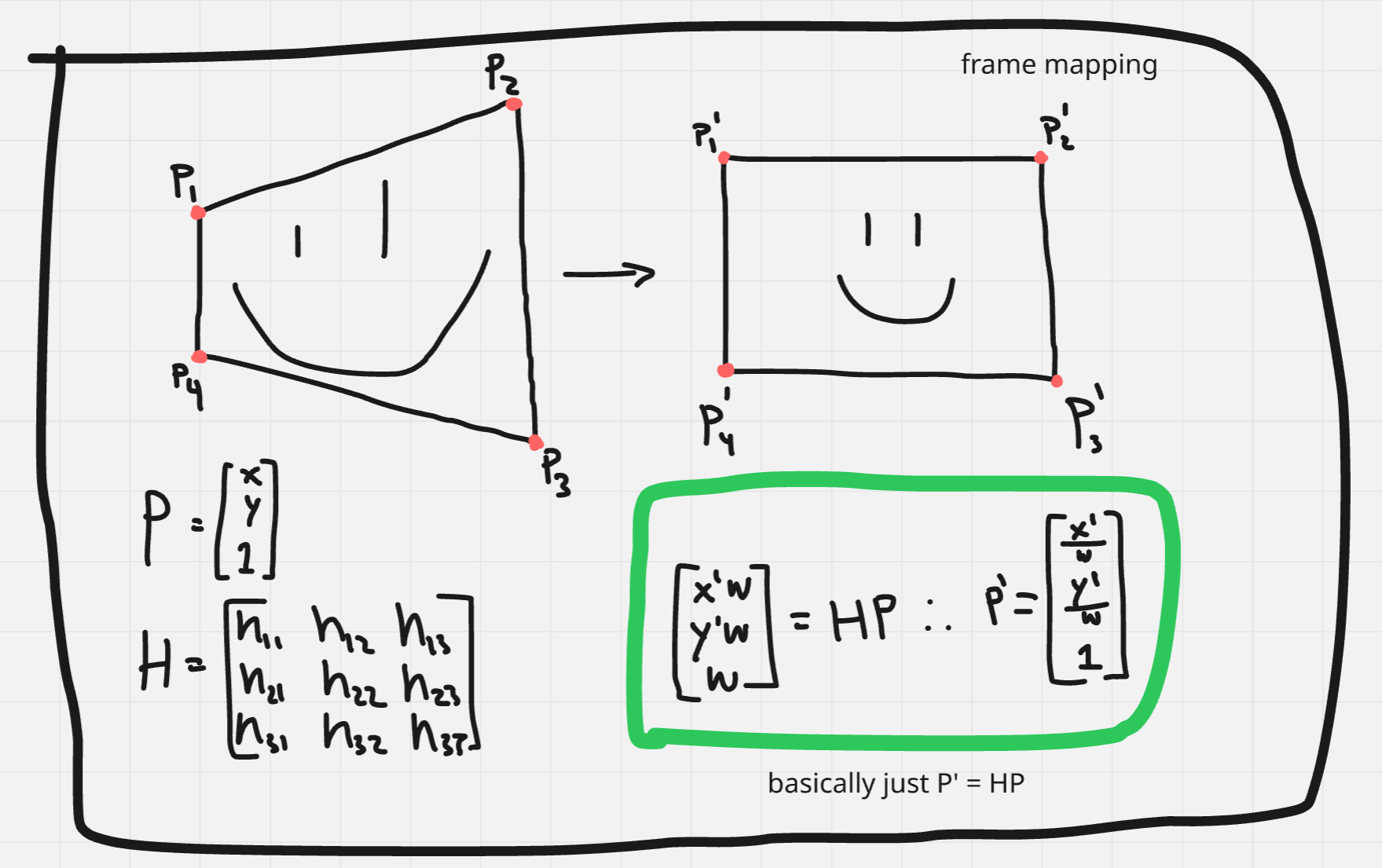
Since our camera frame isn't perfectly aligned with the projectors frame (that would be impossible to do!) we need to be able to warp our cameras frame back into the projectors frame.
Technically you don't need any linear algebra knowledge for this step but I think the theory behind it is super cool!
Fundamentally our camera frame is just a bunch of pixels with coordinates [x;y] to get it back into our projectors frame we want to transform all the coordinates to new coordinates in a very specific way. To do this we will use something called a homography matrix. A homography matrix is simply a 3x3 transform used to plot the points from one planar surface to another planar surface.
Homography = [h11 h12 h13; h21 h22 h23; h31 h32 h33]
P = [x;y;1]
We can find:
P' = Homography P
Notice how the 1 becomes w? We need to bring the point back onto the same plane as the original point which means we need to scale y'/w and x'/w to get [x';y';1]
If you want to learn more about how these transforms work more intuitively. I would check out affine transformations. Affine transformations are similar to Homography transformations but slightly more simple as they conserve parallelism. You can quite intuitively see the different transforms like: shear, x, y, x scale, y scale.
Affine Transformation Wiki: https://en.wikipedia.org/wiki/Affine_transformation
Homography Wiki: https://en.wikipedia.org/wiki/Homography_(computer_vision)
CV2 Color Calibration
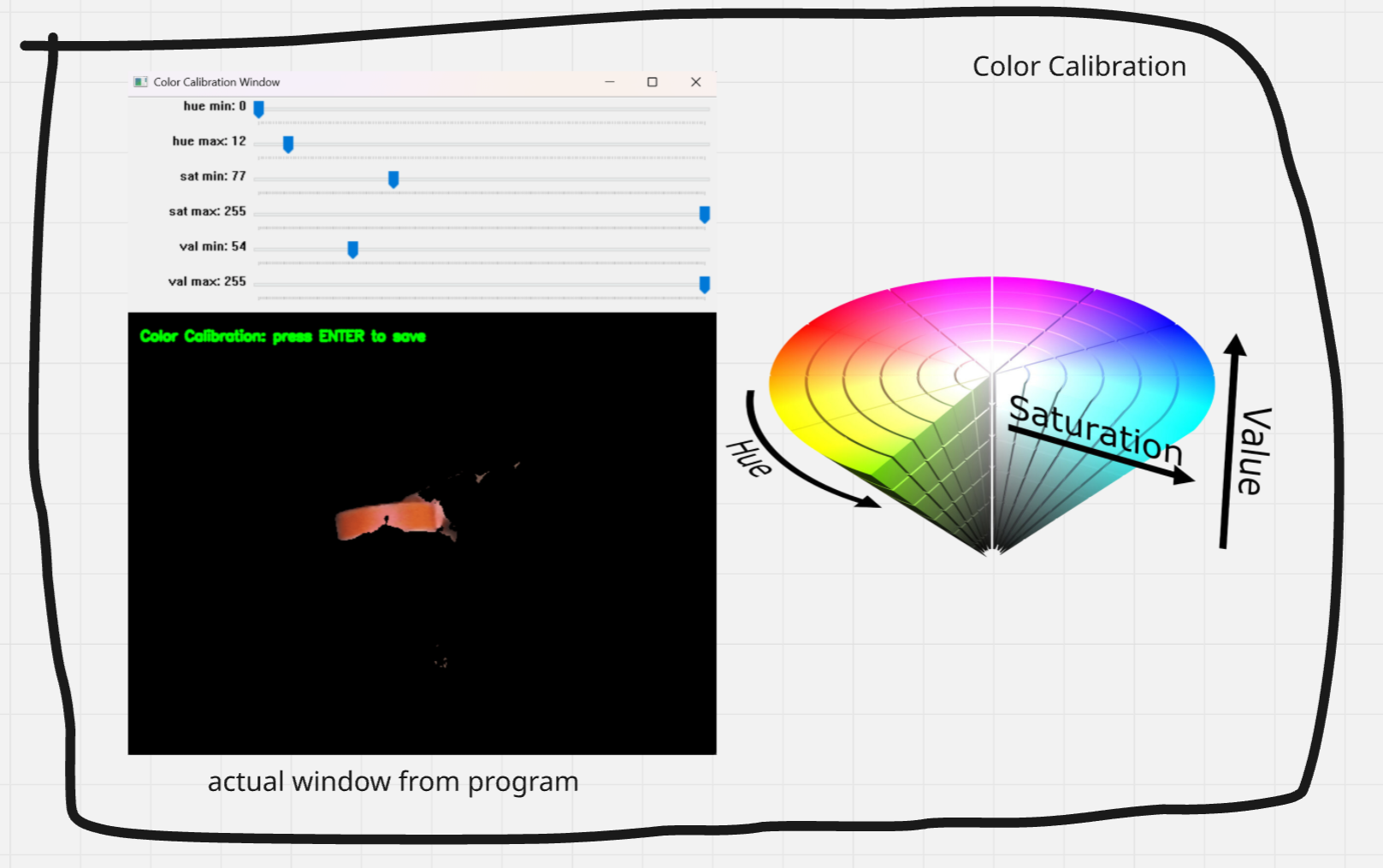
The first step in the program is to find the correct color range of the tape.
Since we are filtering color we will be using HSV (Hue, Saturation, Value) to filter out our color. We use HSV since colors are neatly divided by the angle. Typically this is visualized as a cylinder but the HSV graphic above is a inverted cone, but alas they are similar.
In CV2 we create a new window with 6 sliders - each controlling a lower and upper bound for H, S, and V.
CV2 is a bit weird where Hue goes from 0-179 instead of 0-360 as you would expect. Both Saturation and Value are from 0-255.
In the lower window we provide a live camera feed + the mask so the user is able to easily calibrate the colors. In the end we are left with a Lower and Upper bound for HSV which we will use later to mask out the platforms.
Note since we are using only a min and max for Hue - it will be difficult to mask out Red as red lies in between around 179 and 0 - meaning if we wanted to mask red, we would need two ranges for hue.
CV2 Frame Mapping
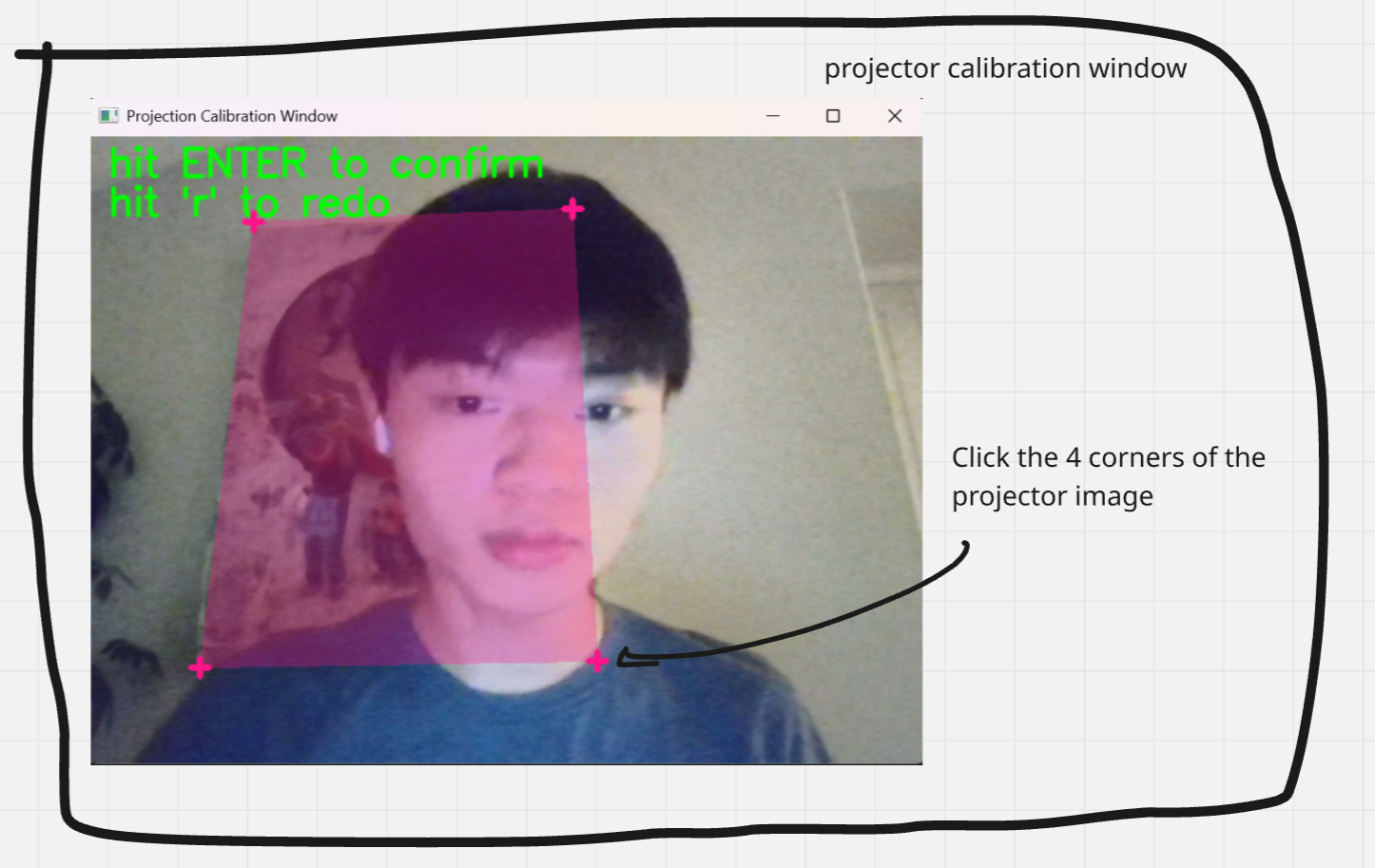
While the frame mapping is the most logically complex part of this project. CV2 handles all the grunt work and provides us with a ton of very easy to use functions! (no matrix math needed ha!)
Find Calibration Points
First we need to find the calibration points, to find the calibration points we bring up a window using CV2, then allow the user to click the four corners of the projectors projection. We save these points into a array. These become our source points
Calculate Homography Matrix
Now we have our source points we calculate our destination points which is just the coordinates for the corners of the pygame window. We can use cv2.getPerspectiveTransform(source_points, destination_points) to calculate the 3x3 homography matrix.
Map frame
Now we have our homography matrix we need to map our original webcam frame to our new mapped frame. CV2 makes this very easy we can use the cv2.warpPerspective function to do this. This returns our new warped (mapped) frame
CV2 Masking + Grabbing Polygons
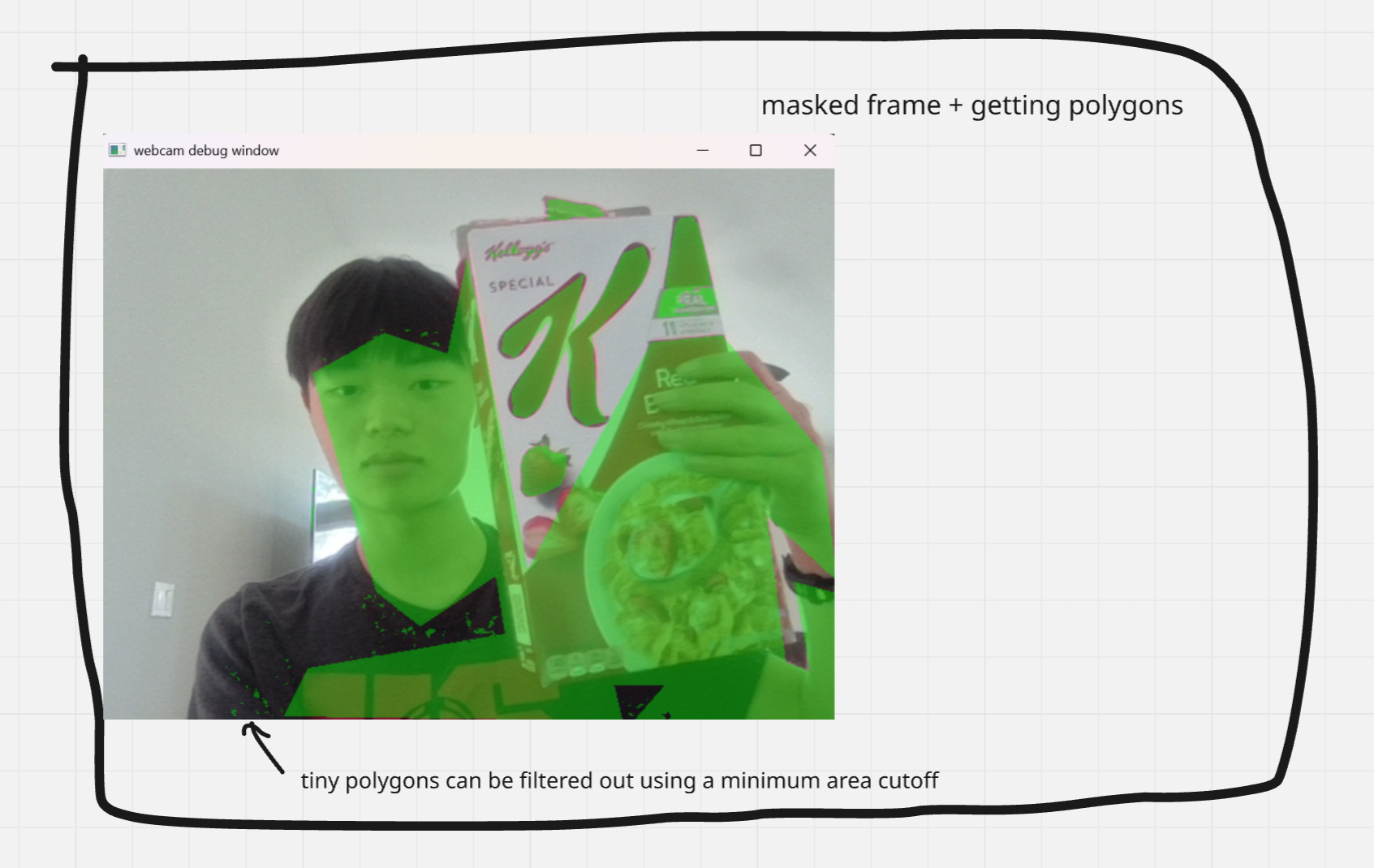
Color Masked Frame
Now we have our mapped frame - we need to create polygons around objects in our color range.
To filter out the color range we can use the cv2.inRange function which takes in our HSV frame and the lower and upper bounds we found previously in the color calibration section.
Don't forget to convert from RGB to HSV!
Get Platform Polygons
Now we have our color masked frame we can use cv2.findContours to get the contours of our masked areas. Notice in the image above how the color detection is quite noisy? To get rid of those tiny dots we can add an area filter so color detection shapes need to have an area > minimum to be added as a polygon. This greatly improves the results when creating platforms. You might need to play around with the area cutoff to get the best results
We save the polygons in our platform_polygons list to return
Pymunk + Pygame
Congrats! We've gotten over most of the hard stuff.
Pygame and Pymunk makes it very easy to setup a physics environment and render. Before setting up the environment I created two classes to represent the Ball and Platform class. For each I created a draw function to draw them into the pygame window.
The Pygame and Pymunk game loop is very standard, there are a ton of examples online on how to setup the loop but heres a quick rundown:)
We have a primary loop with exit condition checks:
Every frame we clear the frame by filling the screen white in pygame. Then we take a physics step in pymunk using space.step(time)
I stored all the balls and platforms into a separate list so I could loop through and draw each of them indivually. I also created a kill list for the balls - when balls reached a certain distance offscreen I added them to the kill list to be removed and deleted properly from the list.
Another tip I found for better performance and results was to NOT update the platforms every frame. Instead I updated platforms every 5 frames. This improves the visual aspect of balls bouncing as before platforms would jitter ever so slightly each frame, causing issues where balls could clip into the platforms causing unexpected outcomes. Another benefit updating platforms every 5 frames is that you don't need to update the list every frame which can slightly improve performance.
One key note is that while you might cap you're framerate using pygame, the true framerate cap might be determined by your webcam as the program needs to grab a frame before continuing. Because of this when skipping updating platforms, I did not skip grabbing the frames and calculating new platforms to avoid issues where the framerate would flucutate from the webcams framecap and the pygames desired framecap. I am sure there is a better solution to this but I did not implement this as the current scope of this project doesn't focus too much on making things "efficient".
Pyo (Ambience + Ball Bouncing Noise)
I used Pyo developed by Olivier Bélanger to generate the Ambient background noise and Ball Bouncing Noise.
Ambience
The Ambience was quite straight forward, I played around with brown noise mixers online until I found a combination of frequencies that I liked. I ended up going for 3 different frequencies of brown noise: (60Hz, 170Hz and 310Hz). Originally I tested it on some old speaker which preformed quite poorly, so I recommend switching to some nicer speakers for this (preferably one with a subwoofer). Our home audio setup for our tv did just fine with the lower frequencies.
In Pyo is very easy to create brown noise, I just used the built in function, then pitched it to my 3 different frequencies. Adjust the multiplier to find your desired mix of frequencies.
Ball Bounce Noise + Some quick music theory :)
For this project I didn't want to hard code in a wav file and have that play for the ball bounce, I thought that would be kind of dull. I ended up going with random notes from the C Major Pentatonic scale.
Since I wanted these to play in random order I needed a set of notes that would sound good, no matter what order they were played in. Fundamentally a pentatonic scale with just five notes per octave. Pentatonic scales apparently are quite forgiving, meaning they sound pretty decent even when you play them in random succession.
In Pyo I just defined 3 octaves of pentatonic scales. Everything is done in Midi notes which range from 0-127 then later converted to its frequency equivalent in [Hz].
For Midi every octave is base 12 so Middle C (C4)= 60, then one octave above middle C (C5) = 72.
Since C Major Pentatonic scale = [0,2,4,7,9] - notice how every octave is just a multiple of 12 on the original C Major Pentatonic scale.
For collisions, in Pymunk whenever a collision between a ball and platform or ball and ball happened, I simply played a random note from the notes defined above.
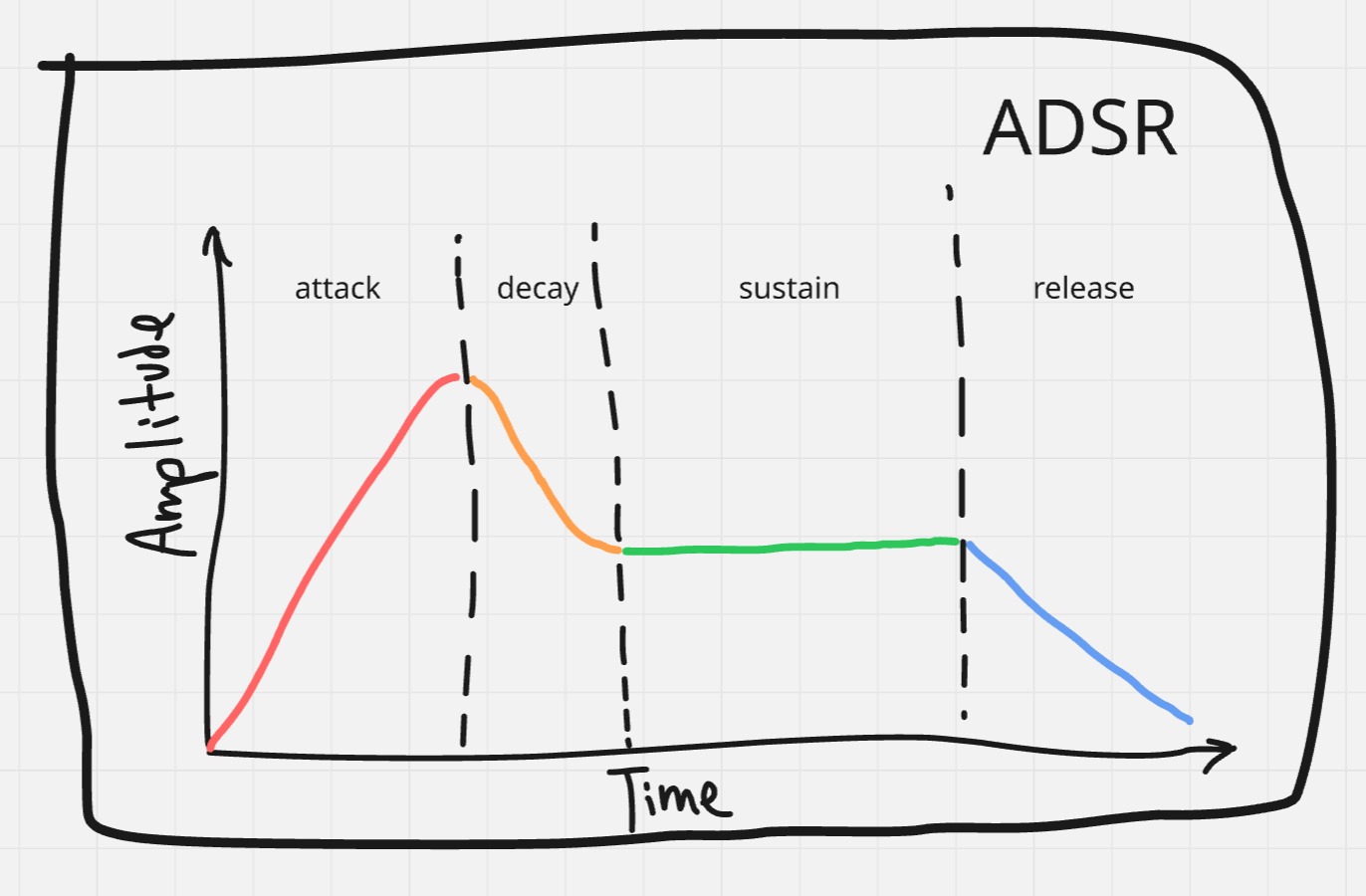
Another thing to note is the ADSR which was something very new to me. It defines the Attack, Decay, Sustain, Release, and Duration of the note played. I included a graph that shows how the note is played above. I made sure to make the note 'reverby' to give the notes a more 'hypnotizing' feel if you kind of get what I mean.
Honestly I just played around with the ADSR until I got something I liked lol
Pretty Rendering: Colors and Visual Effects
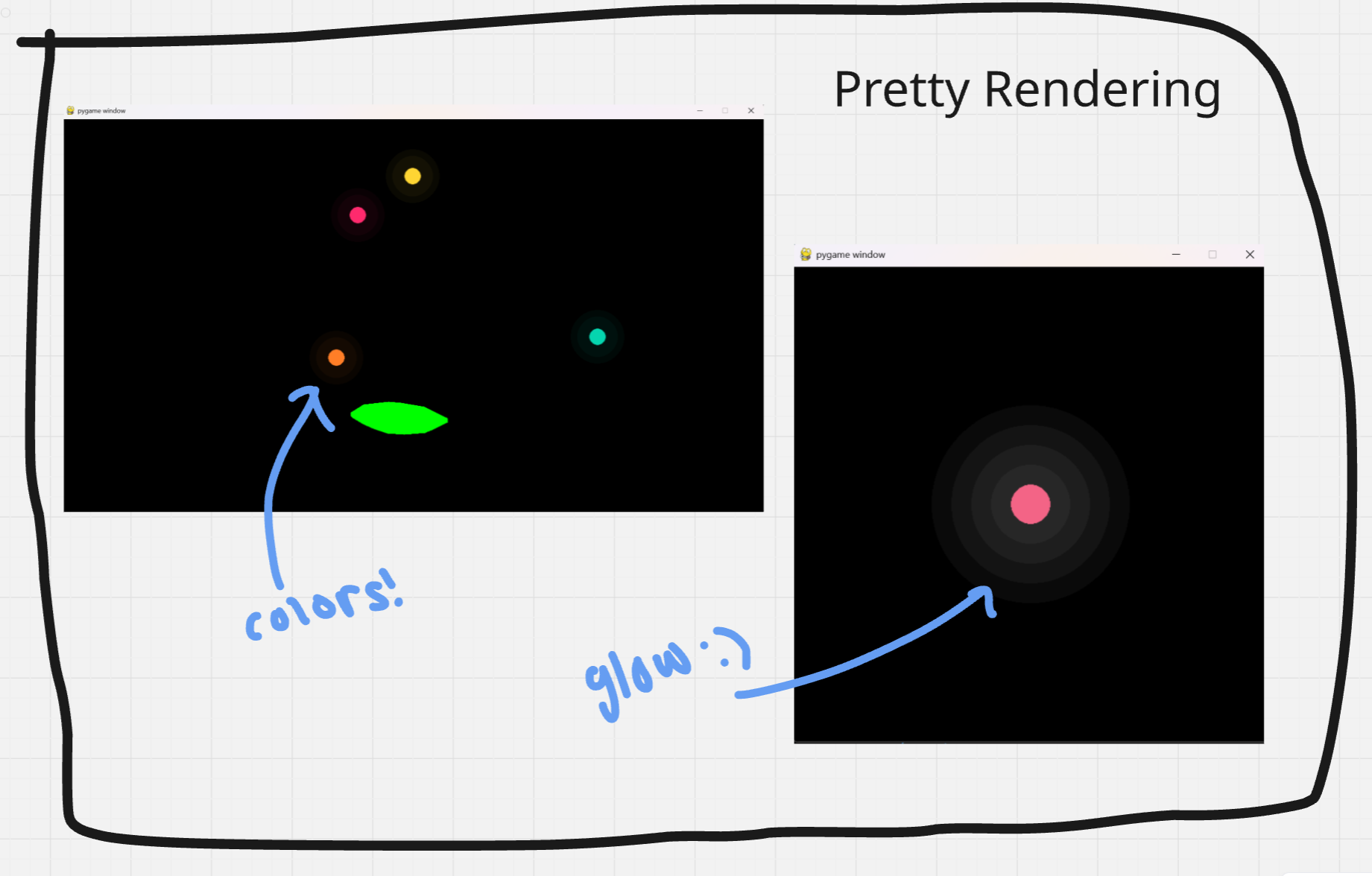
The final step that ties everything together is making the render actually look decent. You would think Pygame, being a engine to create games would make it easier to make things look good, but for me apparently not. I wanted to keep things simple as this was my first time using Pygame and add two things: A nice color palette and glow
Color palette
The color palette is quite simple to make in python. I simply defined a list of tuples which acted as the RGB values.
Then whenever a ball was created - it simply picks a random color from the defined list above.
Glow
This was the weird part. Originally my plan was just to draw multiple circles with slightly larger radiuses and low opacity around the ball to simulate a glowing effect. While this was the method I used in the end, apparently Pygame doesn't support drawing circles with modified alpha values - meaning I needed to create a helper function to do this for me.
Once I created this function we can use it in the draw glow function
The size just defines the difference in radius for each glow circle and the intensity just defines how many layers of glow is drawn over the ball.
Thanks for Reading!
Well that's about it for the project - I had a blast making this, I learned a ton of stuff along the way and I hope you enjoyed reading this :)
if you want to access my python files - I've attached them below. Run main.py to test it out for yourself (there are a few parameters you might need to change like screen size)
It should work - though some features may crash unexpectantly lol. Didn't have time to go back and implement fixes but feel free to modify and add stuff of your own! Also apologies for any bad programming practice and any random unused functions lol - I am not a CS major just trying my best ha
In the future I was thinking there are a ton of cool stuff you could do with this like:
- Different color tape doing different things?
- Things other than balls? What about water that would be pretty neat
Also special thanks to my sister emily for helping record the demo video, she helped me out a ton!
Anyways thanks for reading!
Andrew 2026