Karma - a Short Film


When immersed in a video game and waiting in a loading screen, I often found myself pretending I didn't care about the loading, almost as if showing impatience would make the game take longer. But why did I think this? It's not like the game has feelings or a mind. This led me to realize that people often anthropomorphize technology, meaning they treat a non-living thing like it has human feelings, intentions, or personality. People naturally search for cause and effect in the simplest things, such as a loading screen. But what if the game did have feelings? What if the way you treated the game actually affected the outcome? This idea inspired my animation, Karma.
I wanted to visualize this phenomenon, where a game responds to the way it was treated. In the animation, a man is playing Pac-Man and eats the ghosts, but after losing the game, he throws his controller at the screen in anger. However, the controller bounces back and knocks him unconscious. This bounce is both literal and symbolic as his anger directed at the game is reciprocated. The man then wakes up inside the game, but in place of one of the ghosts. The man is chased down and eaten by Pac-Man. This ending emphasizes the theme of karma by showing the man experience the consequences of his own actions.
Through this animation, I aimed to visualize a psychological human habit. It displays how anger with a game becomes a story about consequences and treating technology as though it were alive. By connecting the physical bounce of the controller off the TV with the emotional bounce-back of the man’s anger, the animation uses the theme “Make It Bounce” as both an action and an idea.
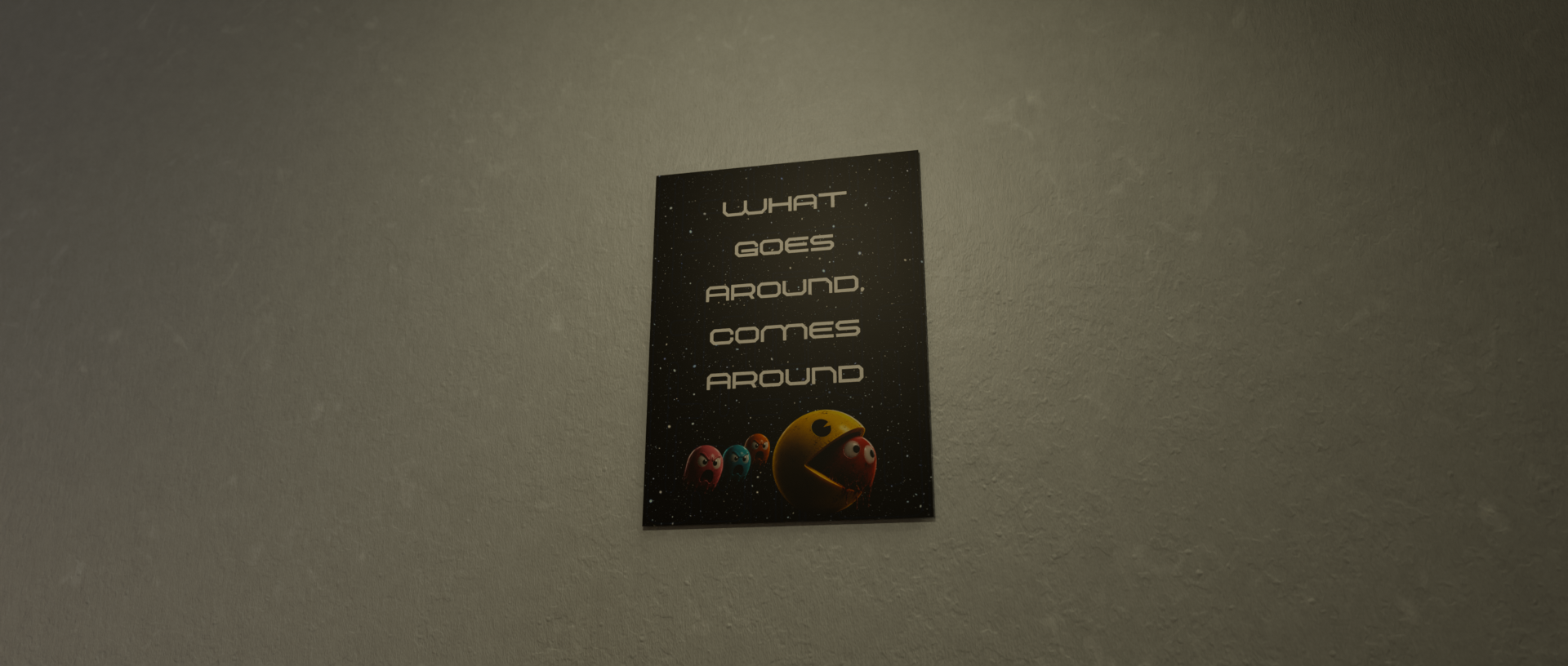
The scene of the briefcase rocking back and forth foreshadows the bounce off the TV by introducing the idea of bouncing. The poster on the wall (made with Canva) introduces the concept of karma in the animation, so the viewer understands the rest of the animation.
Supplies
Tools:
Computer - Capable of running the software listed below
Software:
Blender 3D (v4.4.3) - Modeling/rigging, animating, compositor
Davinci Resolve 18 - Combine clips, add text, add effects
OBS Studio - Document the process, record audio/video
Websites:
Sketchfab - Free models
Pixabay - Free sound effects
Canva - Design posters
Mixamo - Free walking animations
Blender Addons:
Rigify - Quick IK(inverse kinematics) character rigging
Node Wrangler - Faster node workflow in the shader editor
Sketchfab - Easy model imports
Blenderkit - Free asset library (materials, HDRs, etc...)
Shakify - Quick camera shaking
Drop It - Quickly place models on the nearest surface below
Sketchfab Models:
Other:
Planning


Before beginning a multi-scene animation, you should have a plan. I plan by writing every scene and what I plan to animate in each of those scenes, basically making a storyboard. I include details such as camera angle, focus, what's happening, actions, lighting, and other details. This will keep you on track, organized, and speed up the process during the next steps.
Note: This plan is essentially a rough draft. When animating, ideas change often, and you may choose a different approach to a scene. That is perfectly fine, and usually a good thing, because sometimes our imagination does not translate well to an animation. I recommend going back to your document and adjusting the plan/storyboard with your changes.
For this short film, I made a list in a document to plan out a storyboard (see images above)
Brief Animation Walkthrough

In this video, I provide a fast-paced, in-depth walkthrough of how I made the KARMA short film. This video will be referenced throughout the following steps. Due to the complexity of the animation, not every minor detail is displayed in this video. If you have any specific questions that are not addressed in the video or following steps, feel free to message me on Instructables or on Discord @anthonysabina15
Important keyboard shortcuts:
- In edit mode, press 'L' to select linked geometry. This speeds up selecting parts of the mesh.
- If you are unhappy with a pose, in pose mode, you can select multiple bones at once or individual bones on a rig and click 'alt+R' to reset the rotation of the selected bone(s). You can also click 'alt+G' to reset the position of the selected bone(s).
- When in the shader editor, if you want to adjust the rotation of an image texture or HDR, without using the UV editor, you can press 'ctrl+T' to automatically add the mapping and texture coordinate nodes (only works with the node wrangler addon enabled).
- Hold the 'grave accent button(`) and release it while hovering your mouse over *view selected* to recenter your view on the selected object. You may also use this button to access other views if you do not have a number pad on your keyboard.
- In edit mode, if you have a mesh selected, you can press 'P' to open the separate tools.
- When positioning or rotating an object after pressing 'G' or 'R', you likely know that you can lock it to an axis by clicking either 'X'/'Y'/ or 'Z'. But if you hold 'shift' while selecting one of those axes, you will lock the positioning or rotation to all axes but the selected one.
- Instead of using the hand icon to move around your scene, hold 'shift' + 'scroll wheel' to pan.
Master File
The first step when creating a complex animation is to create a master Blender file containing all of your models that can be used across all your animation files. This ensures all models are consistent in size, shape, and have the same materials in each project file. I used the Sketchfab addon to quickly import the models, and I adjusted them to my preferences.
Choosing Models: When choosing models, there are many factors you should consider, including:
- Vertices - The more there are, the more computing power needed, and the model is more complex, which may mean it is harder to work with.
- Rigging - If the model isn't a human, a custom rig is required and may take time to create, especially if you're IK rigging.
- Materials - Many models don't have good materials, so be cautious because you may need to retexture or merge textures to keep the same appearance but have more detail.
Use the Sketchfab model or manually import your models. Set up all the models, including the textures, so they are ready to be put in your scenes. After importing each model, join the parts that are meant to be together (Ctrl + J). Then, in edit mode, press 'M'→By Distance. This merges duplicated vertices to avoid wasting computing power and rigging problems.
After importing all of these models into your master file, you can access them in your other Blender files by going: file→append→*select the master file*→*select the corresponding collection*
Lighting


Lighting is essential to make the focus point in a scene stand out and not overwhelm the viewer. Lighting can also be used to help hide things from the viewer. In the film, I used lighting to make the background insignificant. There weren't many details in the background, but that is not noticeable to the viewer when it is dark and out of the center of the frame. This can be seen in the scene behind the couch with the man watching the screen. The man is centered, there is contrast between him and the screen in front, the sides are dark, and an area-light by the screen makes a glow effect around the man. This all controls what the viewer looks at and makes them focus on the man. Another way to highlight the point of interest in a scene is to set a focal point in the camera settings. For example, in the scene where the man threw the controller, I had the controller set as the focal point to blur everything else.
A large part of animation is illusion. The viewer does not know what is off camera or behind the scenes, so use that to your advantage. Overall, in animation, illusion is used to hide the truth behind the scenes. As the animator, you are in control. You decide what the viewer sees, feels, and believes. Managing illusions is a key concept to understand to improve your animation skills.
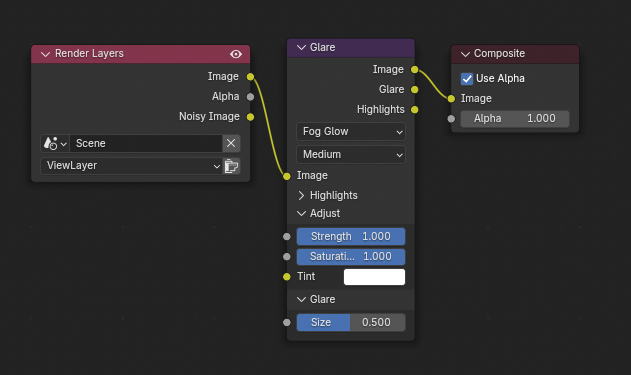
I used the compositor in the final scene to add a bloom (glow) effect to the walls. If you didn't know, the EEVEE render engine has an option for bloom while the Cycles engine does not. I used this compositor setup (image above) to create the bloom effect.
Rendering
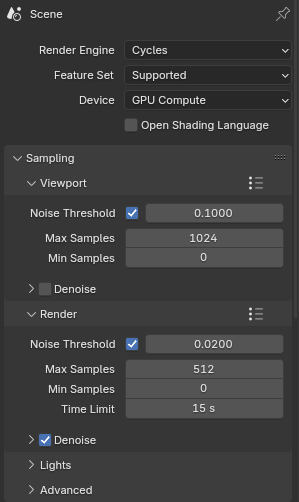


(4 images attached above)
Render Engine: Cycles - More realistic results. If you are trying to achieve realism, Cycles is a must.
Device: GPU Compute - Much faster renders (only if you have a graphics card)
Render Noise Threshold: 0.02 - A higher value yields faster renders but lower quality (quality at 0.02 is negligible).
Light Paths Max Bounces - Balanced to speed up the render process without reducing quality (values depend on scene lighting and materials).
Motion Blur Shutter: 0.3 to 0.5 - 0.3 is good for noticeable blur in fast scenes or minimal blur in slow scenes, such as the scene of the man sitting on the couch. 0.3 works well for most scenes because it's small but noticeable. 0.5 is better for scenes where you really want to emphasize speed or have a cool effect, such as the Pac-Man chase scene. 0.5 was also used for the controller throwing scene to emphasize the small movements. It's primarily based on preference. I recommend choosing a random frame in your animation and just rendering it as an image to see what the motion blur will look like.
Resolution: 1920x816 - High quality, wide, and cinematic.
Frame Rate: 24 fps - Faster render, high quality for this animation. If your scene has fast-moving objects, you may want to consider a higher frame rate, such as 30 fps.
Output File Format: PNG - Renders each frame as an image, which makes it good in case you have to pause a render or edit specific frames. Also, if you want to edit frames but don't want to render each frame again, you can delete the frames you dont want from the selected folder and disable overwrite in the output settings, then click 'render animation'. To turn these images into a video, you can use the video editing tab in Blender, add an image sequence on the timeline, select all images, set the scene resolution/fps, and render. You may also use my procedural noise setup below.
Procedural Noise in the Compositor

Do you ever feel like your animation looks more realistic in the render viewport with Cycles? The reason for this is likely because of the grain. When you render, it denoises and removes that grain that can add more realism. You might be thinking, "Just turn denoising off." NO!!! By turning denoising off, the noise will be different every frame and will look very flickery. Instead, use this procedural noise node tree I created using the compositor. To use it, create a separate .blend file, copy these nodes (or download the file below), and import the images from your render. To preview how the noise will look if adjusting the settings, plug the mix node into the Viewer node (make sure to put it back to the composite node when rendering). Also, ensure you change the render settings to match your resolution/frame rate. Output it as a video format (FFmpeg) and click "Render Animation". You now have a more realistic animation!
Download the file here:
Editing
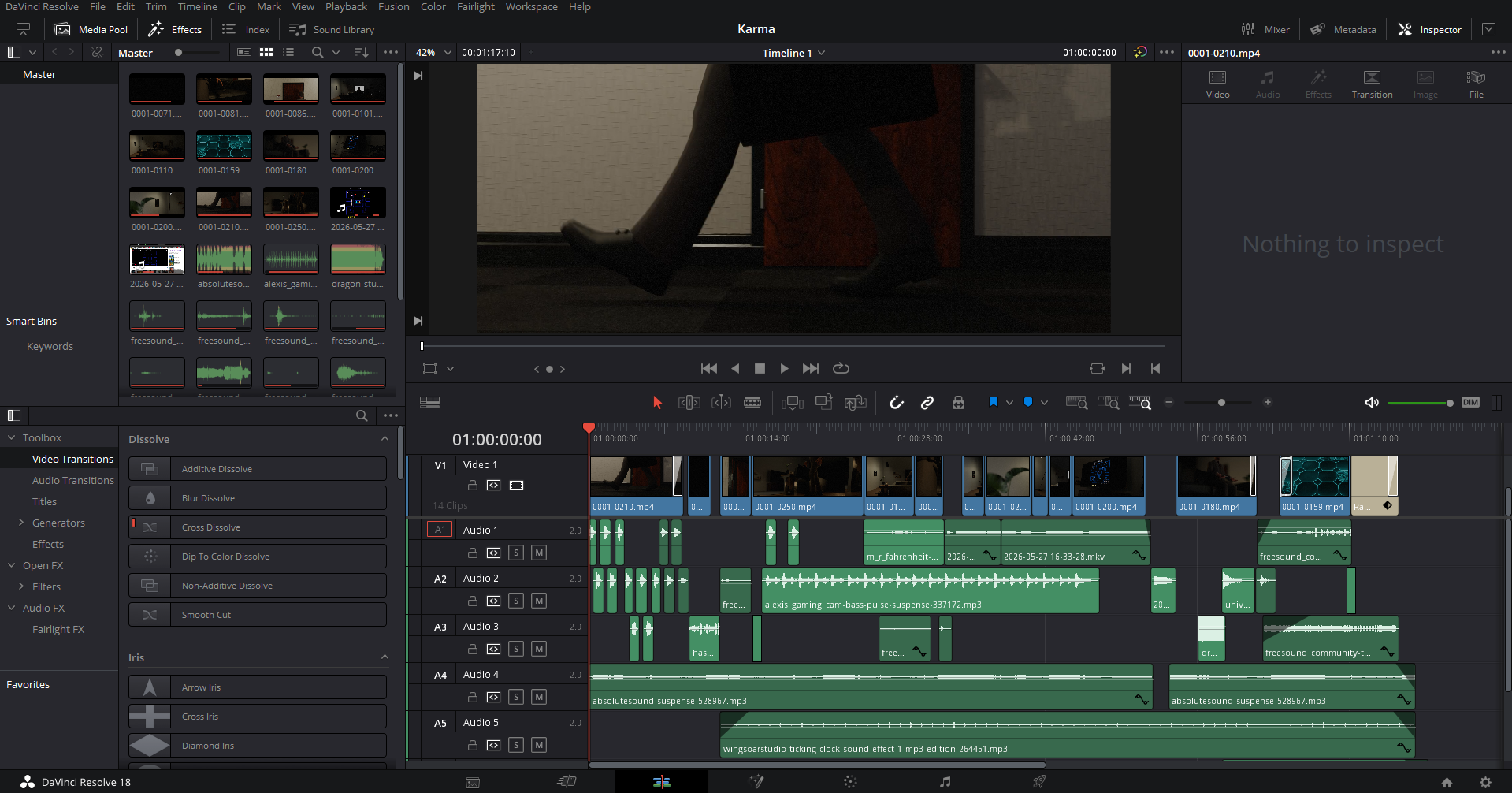
I used Davinci Resolve to edit the film. I imported the videos one at a time after rendering. I trimmed the videos and spaced them out to my liking. I wanted to keep the animation slow and understandable for the viewer. I used Pixabay for free sound effects to help bring the animation to life.
Make sure your Davinci Resolve project resolution matches your Blender render resolution: file→ project settings→ master settings→ *select or type your resolution*