Long Island Sea Level Rise — 3D Printed Topographic Map
by jnell61072 in Design > 3D Design
62 Views, 0 Favorites, 0 Comments
Long Island Sea Level Rise — 3D Printed Topographic Map

Long Island is extremely flat. So flat, in fact, that a 10 foot rise in sea level (This is expected between 2100 and 2150) would swallow large land areas. I wanted to make that visible. Not as a chart, not as a map on a screen, but as something you could hold in your hands and immediately understand.
The result is a large format, dual color 3D printed topographical model of Long Island, split across two full print beds, with a companion piece that shows exactly what the island looks like after a 10 foot sea level rise. When the pieces are side-by-side the difference is impossible to ignore.
This project taught me more about 3D printing, slicing software, and problem solving under pressure than almost anything I've built before. I ran into warping issues, geometry problems, color change logistics, and the particular challenge of turning a non rectangular island into a clean 3D model. None of it stopped me though, and I'll walk you through every fix so it doesn't stop you either.
Whether you want to build this exact model or apply the same process to your own region, this guide covers every step from generating the topography to assembling the final pieces with a soldering iron.
Let's get into it.
Supplies

Software (all free):
- Topographical map generator (I used terrain2STL or a similar web-based heightmap tool)
- PrusaSlicer (free download from prusa3d.com)
Materials:
- PLA filament — white, for the land surface
- PLA filament — blue, for the water base
- PLA Gloop adhesive (or equivalent PLA compatible plastic adhesive)
- Clamps (at least 4, any size)
Tools:
- FDM 3D printer (I used a Prusa MK4S with the mmu3 attachment; any large format printer works)
- Soldering iron (for plastic welding on the back side of the model)
- Computer capable of running PrusaSlicer without excessive lag
Skill Level: Intermediate (familiarity with 3D printing and basic slicer software helpful, but I'll explain every setting)
Time Required: Approximately 30 hours of printing time spread across several days, plus 3–4 hours of active work in software and assembly
RESEARCH THE BEST TOPOGRAPHICAL GENERATOR

Before touching any software, I spent time researching which topographical map generators were best suited for this kind of project. There are several options out there, and they vary a lot in terms of ease of use, export quality, and how much control you have over the output.
My criteria was simple: it needed to export directly to STL, it needed to let me define a specific geographic area, and it needed to allow vertical exaggeration so the terrain wasn't completely flat.
After testing a few options, I settled on one that had a simple box selection tool and a clean STL export. The generator I recommend is terrain2STL (terrain2stl.com), though similar tools exist if you search "topographic map to STL generator."
PS. Read a few reviews or forum posts about whichever generator you choose before committing. Some tools produce meshes with errors that are difficult to fix in a slicer, which costs you a lot of time downstream.
Once you've identified your tool, create an account if required and familiarize yourself with the interface before moving on.
SELECT YOUR GEOGRAPHIC AREA

With the generator open, navigate to Long Island, New York and use the box selection tool to define the area you want to convert into a topographical model. This tool draws a rectangle over the map and turns everything within it into 3D terrain.
Here is the first important challenge: Long Island is not a rectangle. It's a long, narrow, slightly diagonal landmass. This means that when you draw a box around it, you will inevitably capture portions of New York City, Connecticut coastline, and other areas you don't want on your model.
Don't let this stop you. Draw the tightest box you can around Long Island, accepting that some unwanted geography will come along for the ride. You'll remove it in PrusaSlicer in the next phase.
PS. It is better to include a little extra rather than cutting the island off at the edges. It is much easier to remove material in the slicer than to go back and regenerate with a slightly different selection.
Before exporting, find the vertical scale or Z exaggeration setting in the generator. This is one of the most important adjustments you'll make.
Long Island's highest point is only about 400 feet above sea level, and most of the island sits well below 100 feet. If you export the terrain at true scale, the model will be nearly flat: basically a pancake with a very faint texture. That's not useful as a display piece, and it makes it nearly impossible to visualize what a sea level rise would look like.
I increased the vertical scaling. I recommend experimenting with a multiplier between 2x and 4x depending on how you want the terrain to appear. The goal is a model where the elevation changes are clearly visible and noticeable at a glance.
Note: The same vertical exaggeration factor you apply here will need to be accounted for when calculating the 10 foot sea level rise cut depth later. Write down whatever multiplier you choose.
Once you're satisfied with the selection and the vertical scale, export the model as an STL file. Most generators have an "Export STL" or "Download" button.
Save the file somewhere you can find it easily: you're about to spend a lot of time with it in PrusaSlicer.
PS. If the generator gives you a resolution or detail setting, start with a medium resolution for your first test. High resolution files can be very slow to work with on average computers. You'll increase the detail later before final slicing.
IMPORT INTO PRUSASLICER AND REDUCE TRIANGLE COUNT

Open PrusaSlicer and import your STL file. The first thing you'll notice is that your computer might slow down significantly; this is due to high resolution terrain meshes which have hundreds of thousands of triangles, and PrusaSlicer has to render all of them in real time.
Before doing anything else, reduce the triangle count using the mesh simplification feature. In PrusaSlicer, right click the model, find the mesh settings, and reduce the triangle count to something your computer can handle smoothly.
This is a temporary reduction just for working purposes. You will restore the full triangle count before your final export and slice.
PS. A good sign that your triangle count is at a workable level is that rotating and zooming the model feels responsive with no more than a half second of lag. If it's still choppy, reduce further.
Remove Base

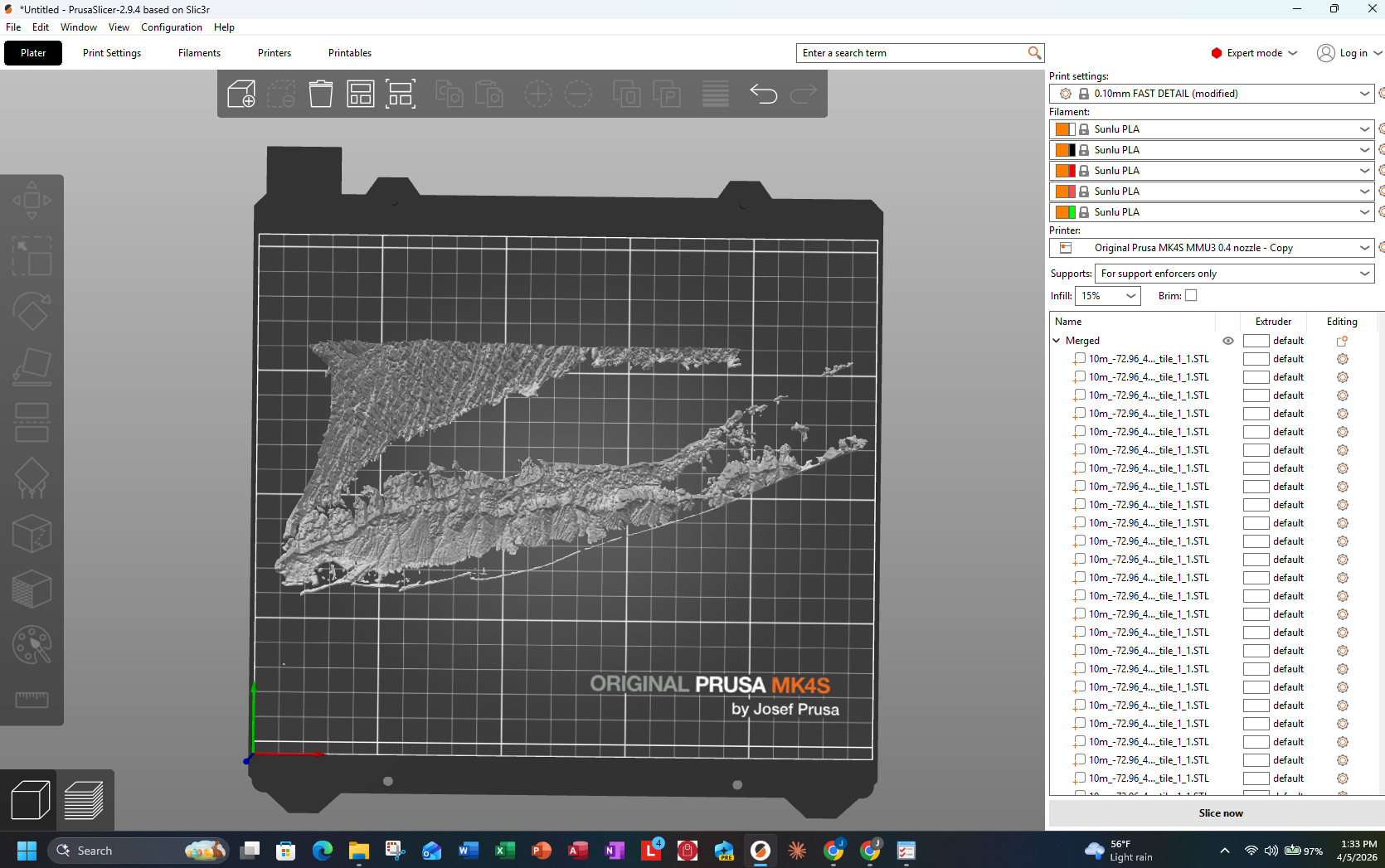
This website creates the STL file with a base already included, but for this project we want to make our own base. This makes it easier to remove the unwanted land masses that are a part of New York. To do this, I first scaled the part vertically in order to make the cut more precise and accurate. Then I used the cut tool and removed the bottom layers. After that, I reset the vertical scale so it was back to the correct height.
REMOVE UNWANTED GEOGRAPHY USING NEGATIVE SPACE BLOCKS

Now it's time to clean up the model. Remember those parts of New York City and Connecticut that got captured in your selection box? They need to go.
PrusaSlicer allows you to import simple geometric shapes and use them as "negative space" objects: essentially virtual erasers that subtract volume from your model. Import a rectangular box and position it over the parts of New York that you don't want. Repeat this process for each region you want to remove.
I used multiple boxes: one to cover the western edge near New York City, and additional shapes to clean up the northern shoreline near Connecticut. Take your time here. Zoom in closely and check from multiple angles to make sure you're only removing what you intend to.
PS. Use the cut tool in PrusaSlicer for areas where a box shape isn't precise enough. The cut feature lets you slice the model along a flat plane, which is useful for cleaning up curved shoreline areas.
Note: Repeat this process multiple times with fine adjustments until you're satisfied. Rushing this step leads to a finished model with ugly geometry at the edges.
CREATE AND POSITION THE WATER BASE


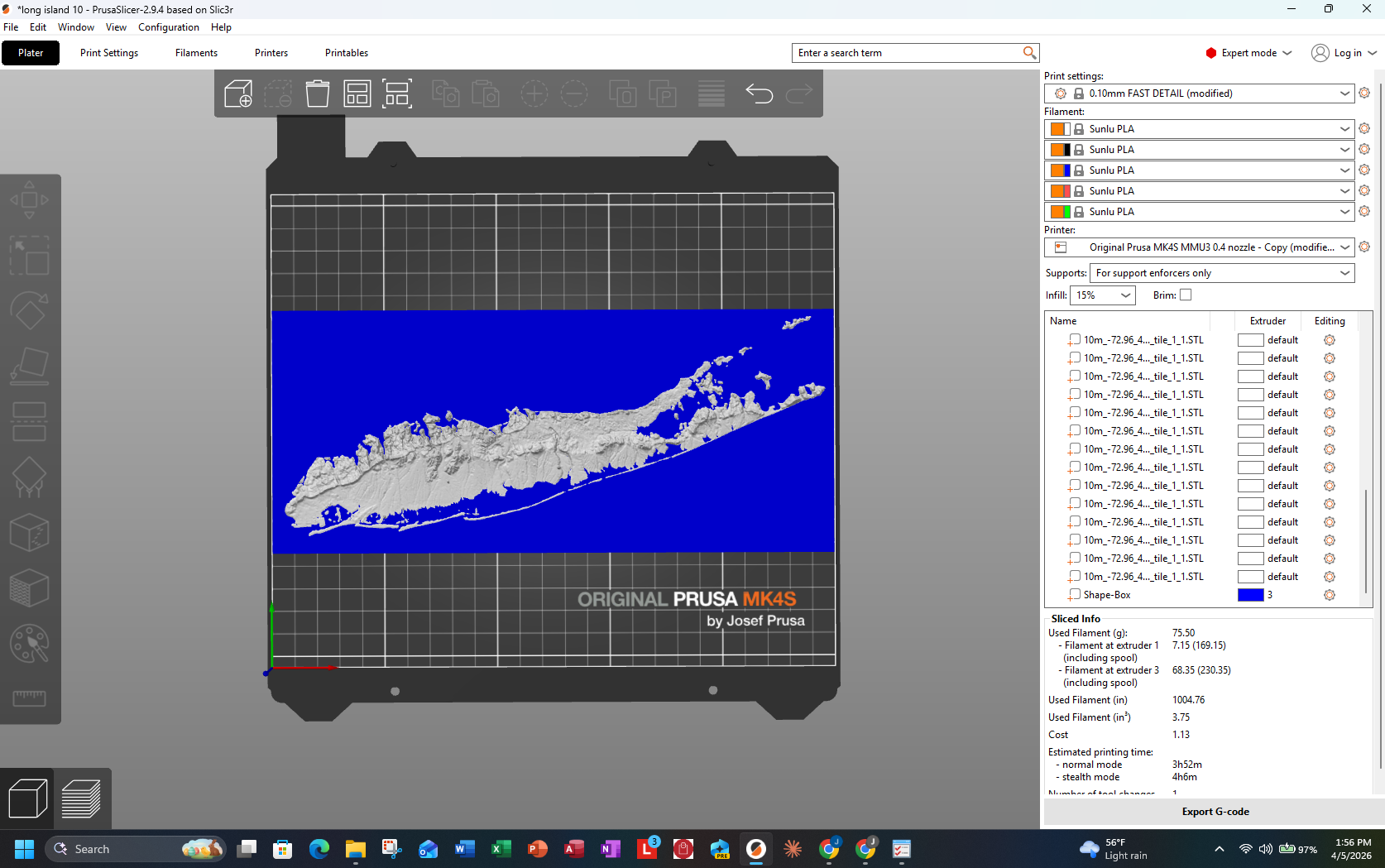
The island needs a base (a flat blue layer representing the surrounding water). To create this, I imported a simple rectangular box primitive into PrusaSlicer and scaled it to match the footprint of the island portion I was working on.
Here's the tricky part: the water base needs to sit just below the bottom of the island model, so that the two pieces merge seamlessly. PrusaSlicer limits how precisely you can position objects in Z, which made this step frustrating.
My solution was to merge the island and the water base into a single object using the merge function. Once merged, I could adjust the combined height as a single unit. This eliminated any gap between the island bottom and the water base top.
Note: After merging, verify from every angle that there is no visible gap or overlap between the island bottom and the base top. A gap will print as a seam; an overlap will cause the slicer to generate confusing internal geometry.
SPLIT THE MODEL AND USE THE CUT TOOL

With the desired scale set, use PrusaSlicer's cut tool to slice the island in half along a clean vertical plane. Position the cut somewhere across the middle of the island: I chose a point that divided the land mass roughly evenly between east and west halves.
PS. Choose your cut line carefully. Try to run it through an area with relatively simple terrain rather than through a high detail region. A cut through a flat central area creates cleaner mating surfaces that fit together more easily during assembly.
SCALE THE MODEL TO YOUR DESIRED PRINT SIZE

With the geography cleaned up, it's time to decide how large you want this model to be. My goal was to make it as large as possible because a bigger model means better detail, cleaner terrain features, and a more impressive final display.
The limiting factor is your print bed. I have a Prusa MK4S with a 250mm × 210mm print bed. Long Island is roughly 118 miles long and 23 miles wide at its widest point, giving it an aspect ratio of about 5:1. To fill my print bed in the long dimension, I needed to split the island in half.
I decided to cut the island into two halves, east and west, each fitting on one print bed. This also allowed me to scale up significantly, making the total model span across two full print beds when assembled.
Use the scale tool in PrusaSlicer to resize the model. You can also use the "Scale to print volume" feature to automatically scale the print up.
PS. Before committing to a size, check that the thinnest parts of the island (the South Fork and North Fork tips) will be at least 2–3mm wide at your chosen scale. Too thin and they'll be fragile or fail to print.
RESTORE TRIANGLE COUNT AND SET LAYER HEIGHT

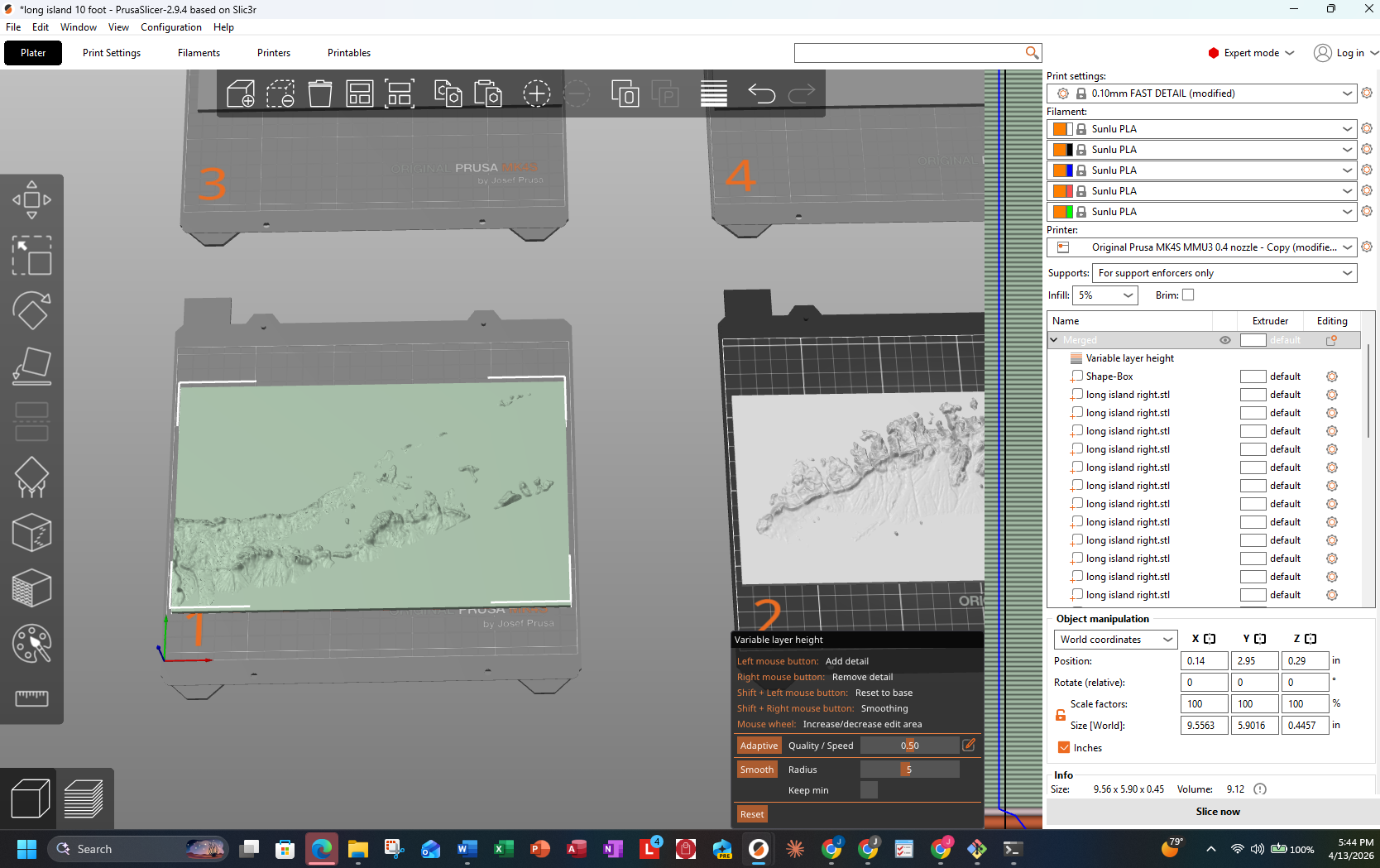
Before slicing for the actual print, there are two critical settings to restore and configure.
First, restore the triangle count back to maximum (or as high as your computer can reasonably handle for slicing). This ensures the final print captures all the fine terrain detail from the original heightmap. Right click the model in PrusaSlicer and restore the mesh detail to its original or highest available setting.
Second, enable Variable Layer Height. For this project I wanted to make the layer height consisitent throughout the whole piece. I used PrusaSlicer's Variable Layer Height feature, to set the minimum layer height possible to create the highest quality print.
SET UP THE COLOR CHANGE PAUSE


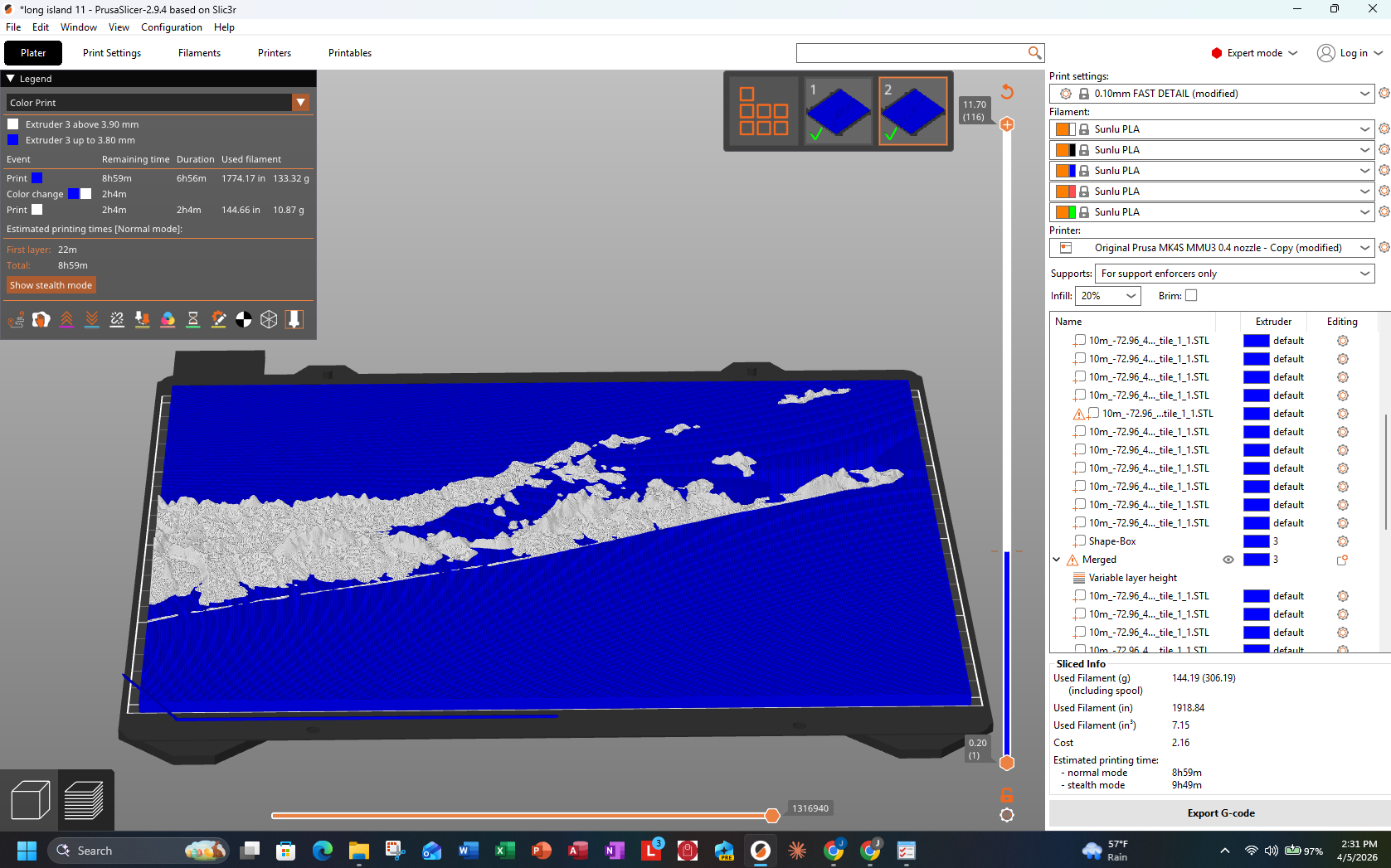
I have a multi color printer, but I chose not to use the multi material upgrade for this print. The purge tower that multi color printing requires was too large: it would have taken up valuable bed space I didn't have.
Instead, I used PrusaSlicer's color change pause feature. This inserts a command at a specific layer height that pauses the print, lets you swap filament manually, and then resumes. The result is the same two tone appearance: blue water base at the bottom, white land on top.
To set this up, go to the layer view after slicing, identify the exact layer where the island terrain begins to appear above the water base, and insert a color change at that layer. In PrusaSlicer, this is done through the "Color Change" option in the layer view panel.
When the print pauses, you'll manually remove the blue filament, load white filament, and purge any remaining blue out of the nozzle before resuming. I purged directly onto a spare section of the bed or into a small cup held next to the nozzle.
PS. When the printer pauses for the color change, purge more filament than you think you need. Even a faint blue tint in the white terrain sections is visible and looks unfinished. I purged roughly 40–50mm of filament before resuming.
SLICE AND SEND TO PRINTER
With all settings finalized, slice the model. Review the preview carefully before sending it to the printer: check layer count, estimated time, filament usage, and make sure the color change pause appears at the correct layer.
Export the G-code file and transfer it to your printer via SD card, USB, or network connection depending on your setup.
Note: Double check the color change layer one more time in the preview. It's much easier to fix this now than to pause a print and discover the pause is at the wrong height.
THE PRINT FAILS — DEALING WITH WARPING


I'll be honest: the first print didn't go well. With a model this large, warping became a serious problem. The corners of the print started to lift off the bed mid print, and by the time I caught it, the damage was done.
I tried two fixes before landing on the right solution:
- I increased the heated bed temperature (I pushed it to 65°C for PLA)
- I increased the ambient room temperature by closing vents and using a space heater nearby
Neither of these fully solved the problem. The print was simply too large and the surface area was creating too much thermal stress as it cooled.
I decided to cut the map into smaller pieces. Specifically, I cut the sections that only consisted of blue water from the land mass. This ensured the actual topography was not disturbed, while also decreasing the surface area of the print.
Printing smaller footprint pieces eliminated the warping completely.
PS. If you're dealing with warping on large flat prints, the solution is almost always to reduce the surface area rather than fight it with temperature alone. Splitting a flat piece into two or three smaller sections usually solves it entirely.
PRINT ALL PIECES SUCCESSFULLY
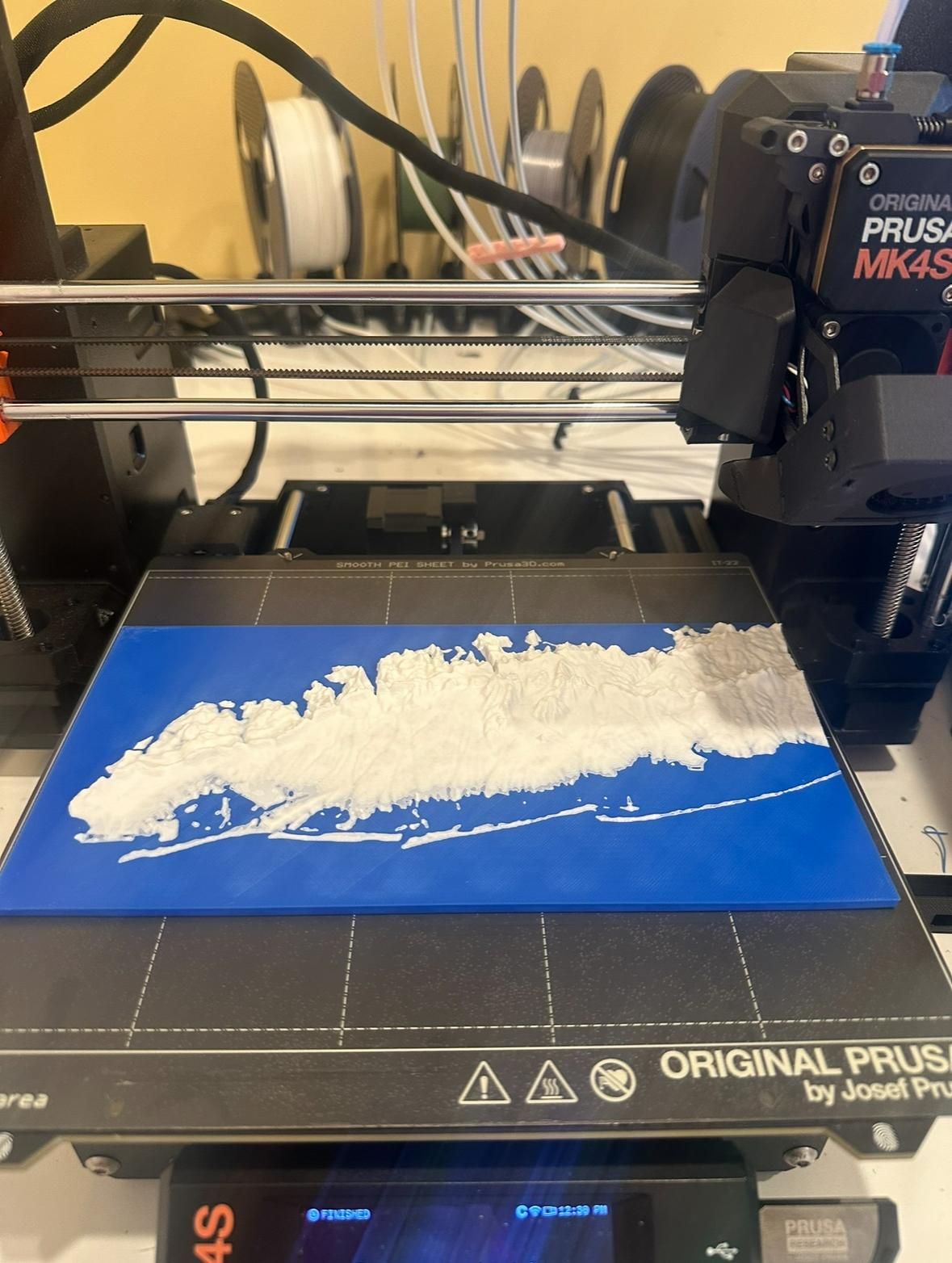


With the model divided, two island halves and separate water base sections, all pieces printed successfully without warping.
Print order:
- West half of Long Island (with color change pause at the water/land boundary)
- East half of Long Island (with color change pause at the water/land boundary)
- Water base pieces (solid blue, no color change needed)
Allow each piece to cool completely on the bed before removing it. For large flat pieces, give them at least 10–15 minutes after the bed cools to room temperature. Rushing removal can introduce stress cracks.
PS. Print the island halves first. If any setting needs adjustment after seeing the first print, you can tweak before printing the remaining pieces.
ASSEMBLE THE MODEL WITH a SOLDERING IRON


Now it's time to assemble all the pieces into one complete model. I used a soldering iron as a plastic welder: this is significantly stronger than glue alone for PLA.
The technique: press the soldering iron tip gently along the seam between two pieces on the back side of the model. The heat melts a small amount of plastic from both pieces simultaneously, fusing them together. Move slowly and steadily along the joint. You're not trying to carve: you're just melting the plastic together enough that it flows into a single continuous mass.
Important: do all soldering iron work on the back surface of the model. The front surface (the terrain) needs to look clean and presentable. Any imperfections from welding should be hidden on the back.
Steps:
- Lay both island halves face down on a flat, heat resistant surface
- Align them carefully and check that the seam is tight along its entire length
- Run the soldering iron slowly along the seam from one end to the other
- Hold or clamp the joint while it cools (about 60 seconds)
- Repeat for the water base sections, attaching them to the back edge of the island pieces
Safety note: Work in a well ventilated area when welding PLA. The fumes are not toxic in small amounts but are unpleasant and shouldn't be inhaled repeatedly. A window or a fan pointing away from you is sufficient.
REINFORCE WITH PLA GLOOP AND CLAMP FOR 24 HOURS

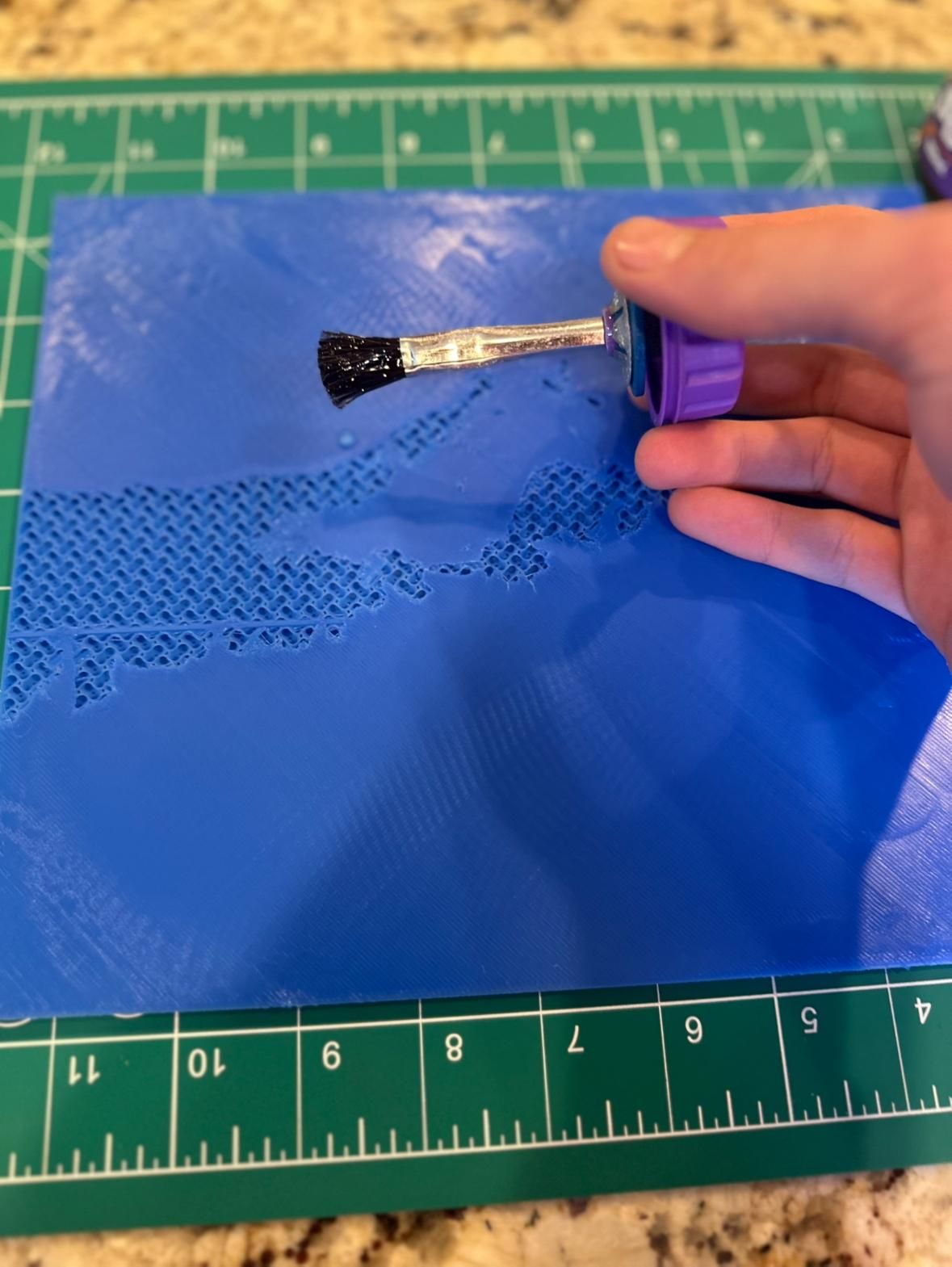


Soldering iron welding alone is strong, but for a model that will be handled and displayed frequently, I wanted additional reinforcement. This is also where that failed warped print from Step 13 became useful.
I applied PLA Gloop adhesive along all the back seams and used the warped failed print as a backing piece: essentially a structural reinforcement plate bonded to the back of the completed model. PLA Gloop is a solvent based adhesive specifically designed for PLA; it partially dissolves the surface of both pieces and fuses them chemically as it cures.
Apply the Gloop, press the pieces together, and clamp everything firmly. Use at least 4 clamps distributed evenly across the bond.
Let the assembly sit clamped for a full 24 hours. Don't rush this. PLA Gloop needs time to fully cure, and any movement during curing will weaken the bond.
PS. Wipe away any excess Gloop that squeezes out of the seam immediately with a damp cloth. Once it cures, it's much harder to clean up.
CALCULATE THE 10 FOOT SEA LEVEL RISE CUT DEPTH
This is where the project becomes more than just a display piece and becomes an educational tool.
To visualize 10 feet of sea level rise, you need to remove a precise amount of material from the bottom of the model. Here's the math:
- Measure the total height of your printed model (the Z dimension) in millimeters
- Research the actual highest point on Long Island: it's Jayne's Hill at approximately 400 feet above sea level
- Calculate the scale ratio: Scale Height (mm) ÷ Actual Height (400 ft) = Scale Cut Depth ÷ 10 ft
- Solve for Scale Cut Depth
Example: If your model is 8mm tall at its highest point: 8mm ÷ 400ft = X ÷ 10ft → X = 0.2mm
In my case, this came out to just a few printer layers: a very small but precisely meaningful amount. That's the point: at true scale, 10 feet of sea level rise removes only a few layers from the bottom of the model, but it floods an enormous percentage of Long Island's low lying areas.
APPLY THE CUT IN PRUSASLICER FOR THE SEA LEVEL RISE VERSION


Go back to PrusaSlicer with the original island STL. Use the cut tool to remove the calculated depth from the bottom of the model: the small number you calculated in Step 17.
This cut represents the sea level rising by 10 feet. Everything below that cut line would be underwater.
After cutting, you now have a modified version of the island that is very slightly shorter. Repeat Steps 9 through 16 with this modified model: the same water base, the same color change, the same assembly process: to produce your second model: Long Island after 10 feet of sea level rise.
When you display both models side by side, the difference in what's underwater is immediately visible even though the height difference is tiny. The low lying south shore, the bays, and much of the barrier islands appear submerged in the sea level rise version.
PRINT AND ASSEMBLE THE SEA LEVEL RISE VERSION


Print the sea level rise model using the same settings and color change configuration as the original. The process is identical to Steps 12–16.
For this version, I also printed a separate blue backing piece rather than using a failed print for reinforcement, since I didn't have another failed print available at this point. I modeled a simple flat rectangle in PrusaSlicer, printed it in blue, and bonded it to the back of the sea level rise model using the same soldering iron and PLA Gloop method.
Assemble, clamp, and allow 24 hours to cure.
THINGS I'D DO DIFFERENTLY
1. Plan the water base cuts earlier. I didn't realize I'd need to split the water base into smaller pieces until warping forced me to. If I'd designed those cuts intentionally from the start, I could have made them along cleaner lines and reduced the assembly complexity.
2. Use a larger box for the negative space removal in PrusaSlicer. I spent more time than necessary carefully positioning small boxes to remove the unwanted New York geography. One or two large boxes would have accomplished the same thing faster.
3. Test the color change purge amount before committing. My first color change left a faint blue tint in the first few white layers of the terrain. I had to reprint that section. A dedicated purge test on a small model would have told me exactly how much filament to purge before printing the real thing.
4. Account for vertical exaggeration from the start. I calculated the sea level rise cut depth correctly, but I had to go back and double check my exaggeration factor twice because I hadn't written it down clearly when I set it. Keep notes throughout this project: there are several numbers you'll need to reference later.
CONCLUSION


What started as an attempt to make climate data tangible turned into one of the most technically involved 3D printing projects I've taken on. Warping, geometry cleanup, precise color changes, calculated cuts: every step had a problem to solve, and solving each one made the final result more meaningful.
The two finished models are striking in a way that a chart or a map simply isn't. People look at the sea level rise version and immediately understand what it means for real places they know. That's the whole point.
There are plenty of ways to take this further. You could apply the same process to any coastline in the world. You could model multiple sea level rise scenarios — 5 feet, 10 feet, 20 feet — and display all three together. You could add LED lighting under the water base to make the blue glow. You could even laser engrave town names onto the terrain surface.
Happy printing.